E-Learning Technologies for Rural Development: Trends and Future Possibilities September 5-9, 2011 NIRD, Hyderabad Dr. Indira Koneru Online Course Facilitator Integrating Technology Website:  http://wikieducator.org/User:Indkon E-mail:  [email_address] Open Source LMS
M odular  O bject- O riented  D ynamic  L earning  E nvironment
What is Moodle?   Moodle is an Open Source Learning Management System (LMS)  Popular among educators around the world as a tool for creating online dynamic course sites
Moodle Statistics Source: http://moodle.org/stats/
Martin Dougiamas (educator and computer scientist) conceived Moodle with “Social Constructionism” philosophy Social Constructionism asserts that learning is particularly effective when “constructing something for others to experience” Built-in networking (synchronous or asynchronous) and collaborating tools (wikis, glossary)  promote constructive learning   Philosophy
Moodle: LMS Interfaces Course administrator interface Instructor interface Learner interface Inbuilt mechanisms learning administration structuring learning content, making it accessible and usable instructional facilitation with learning activities Interactions  Learner-2-Instructor Learner-2-Learner Learner-2-Content
Moodle Explained
Moodle Jargon Category  - a group of courses Course  – a basic unit of Moodle Section  – an area that covers weeks and topics within a course; holds activities and resources   Resource –  part of a section –  documents, media, labels, web pages, link files and web pages Activities  – part of a section – to create assignments, forums, quiz, database, glossary, choice, survey Blocks  - help users get to useful and commonly used items and information quickly
Course Site
Log In Screen
New Account Form
Moodle Roles
Add & Assign New Role Site Administration Course Administration
Add New Category/Course
Categories & Courses
Add New Course/Edit Course Settings
Add New Course/Edit Course  Settings  (contd.)
Edit Course Settings  (contd.)   Assign Roles in New Course
Blank Course Page – Weekly Format
Blank Course Page – Topic Format – Turn Editing On
Blank Course Page – Topic Format – Turn Editing Off
Blank Course Page – Social Format
Course Page – Student View
Course Page – Teacher View
Edit Profile
Edit Profile
Moodle Course Layout
Navigation Ways to move around a course Breadcrumbs -  breadcrumb navigation shows the student’s current location within the site  Links  – will take learner to the resources /activities linked  Blocks  – provide students with links to navigate to specific features within a course Online Learning  – homepage Moodle Features  – course page Resources  – lists the resources in the course How to navigate around a Moodle site  - last breadcrumb in the trail and indicates the resource or activity you are currently viewing
Most Common Blocks
Course Format Course administration> Settings  choose from among different ways to structure course page: Weekly Format : course is organized week by week, with a clear start date and a finish date. Topic Format : organized into topic sections; with resources and activities   Social Format:  format is oriented around one main forum, the social forum (in the format of a discussion board) LAMS  – Learning Activity Management System, an open source LMS which allows teachers to use a flash based authoring environment SCORM  - The Sharable Content Reference Model (SCORM) is a content packaging standard (interoperability)
5 Basic Steps of Moodle Course Building Step 1.  Turn editing on - to add, edit, change, delete course content Step 2.  Decide on course format Step 3.  Write an Introduction to your course in the top unnumbered section (course goal & audience) Step 4.  Add content  Learning Resources (Webpage/text page, PPT, PDF, link to files/ Web resources etc.) Learning Activities (Forums, wikis, quizzes, glossary, assignments etc.) Step 5.  Add Course blocks  Course/site description, people, calendar, online users, HTML block etc.
Editing Icons for Course Content We can use the following icons when editing resources and activities:
Editing Sections We can use the following icons when editing sections:
Editing Blocks We can use the following icons when editing blocks:
  Resources & Activities What resources do I need to make the lesson work?  What is it I want my students to actually do in order to be successful?
Resources Resources are content  the teacher wants to bring into the course Insert a label  – to add text, images, audio, video and organize content Compose a text page  – a simple page written using plain text  Compose a web page  - easy to develop a complete single web page using Moodle  HTML editor Link to a file or web site  – link a web page or other file or an uploaded  file Display a directory  – to  display a whole directory (and its subdirectories) from course files area
Resources – Flash Tutorials Embedded
Resources – Video Embedded
Moodle Activities Assignments  – learning tasks for students - prepare and upload essays, PPT, project reports  Chat  - real-time synchronous discussion  Choice  – a quick poll  Database  – build, display and search a bank of record entries about any topic Forum  – discussion, debate, questioning  Glossary  – create and maintain a list of definitions, like a dictionary Quiz  –multiple choice, true-false, and short answer questions Wiki  – collaborate work on adding, expanding and changing content
Types of Assignment Advanced Uploading of files  – two  way file exchange process Online Text  – student types or pastes their submission directly on Moodle Upload a single file  – allows a student to upload a simple file Offline Activity  - assignment is completed outside Moodle
Assignment Flow Chart Source: http://moodle.org
Chat  Chat  module - allows participants to have a real-time synchronous discussion via the web Repeating chat  - set to occur at same time every day/week; everyone can view past chat sessions from the last 30 days Open chat  – with no fixed times; nobody (apart from teachers) can view past chat sessions
Choice
Database Database module  allows teachers and/or students to build, display and search a bank of record entries Format and structure  of entries is unlimited, including images, files, URLs, numbers and text Required entries  – number of entries a participant is required to submit Comments -  allow users to make comments on each entry Require approval  – Should entries be approved by a teacher before they are viewable to students?
Forum Types A single simple discussion  – single topic discussions;  just one thread Each person posts one discussion  – each person can post exactly one new discussion topic & everyone can reply Q & A forum  – students need to post their perspectives before viewing other students’ postings A standard forum for general use  – an open forum in which anyone can start a new topic at any time
Glossary allows participants to create and maintain a list of definitions entries can be searched or browsed in many different formats allows teachers to export entries from one glossary to another possible to automatically create links to these entries from throughout the course
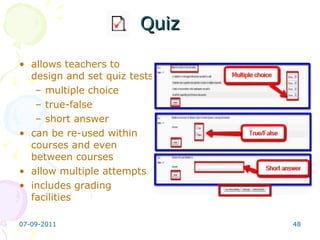
Quiz allows teachers to design and set quiz tests multiple choice true-false short answer  can be re-used within courses and even between courses allow multiple attempts includes grading facilities
Wiki Wiki enables documents to be authored collectively and collaboratively Wiki module enables participants to work together on web pages to add, expand and change the content Three wiki types:  Teacher  – only teacher can edit; students can view the contents Groups  – teacher and all students can view and edit this wiki Student  – every student has their own wiki; only they and their teacher can view and edit
HTML Toolbar Components of HTML Toolbar: Font & background colors Insert smilies Insert links Insert images Enlarge editor – to get a larger work area
Course Enrolment Assign roles  link, in course administration block, allows teachers to manually enrol and/or unenrol students
Course Design Process What do I want my students to learn? –  Learning Objectives   What resources do I need to make the lesson work? – (Collect and organize relevant)  Learning resources What techniques do I try “to engage learners” –  Instructional Strategies What is it I want my students to actually do in order to be successful? –  Learning Activities How do I evaluate my student’s performance? – Evaluation Criteria
Moodle Installation Download Moodle 2.X  http://download.moodle.org/ Install on a small server or standalone computer System requirements 256 MB RAM (minimum), 512 MB RAM (recommended) 160 MB free Fixed Disk (more space will be needed depending on user uploads) Moodle works best in Firefox, Chrome and later versions of Internet Explorer
Running Moodle
Moodle Resources Video (screencasts)  (popular video tutorial sites)  http://moodle.org   Moodle Tutorials  (most bookmarked)  MoodleTuts  - 5 Minute Moodle Tutorials  Teacher Training Videos   Moodle for Learners   2 Minute  Moodles   Moodle Resources   moodle -tutorials   Social bookmarking sites Del.icio.us  (most extensive on the topic) Diigo   Digg Manuals and documents Moodle Manuals  (Moodle Docs - huge list, multilanguage)  Using Moodle  (free ebook, recommended)  Isuu  - 'Moodle' publications   Scribd  - Moodle  pubications  (multilanguage search)  Moodle for teachers - an illustrated guide Moodle Demo Site http:// demo.moodle.net /   Moodle Hosting   Ballistic Learning OSS Labs Integrating Technology

Moodle: Open Source LMS

  • 1.
    E-Learning Technologies forRural Development: Trends and Future Possibilities September 5-9, 2011 NIRD, Hyderabad Dr. Indira Koneru Online Course Facilitator Integrating Technology Website: http://wikieducator.org/User:Indkon E-mail: [email_address] Open Source LMS
  • 2.
    M odular O bject- O riented D ynamic L earning E nvironment
  • 3.
    What is Moodle? Moodle is an Open Source Learning Management System (LMS) Popular among educators around the world as a tool for creating online dynamic course sites
  • 4.
    Moodle Statistics Source:http://moodle.org/stats/
  • 5.
    Martin Dougiamas (educatorand computer scientist) conceived Moodle with “Social Constructionism” philosophy Social Constructionism asserts that learning is particularly effective when “constructing something for others to experience” Built-in networking (synchronous or asynchronous) and collaborating tools (wikis, glossary) promote constructive learning Philosophy
  • 6.
    Moodle: LMS InterfacesCourse administrator interface Instructor interface Learner interface Inbuilt mechanisms learning administration structuring learning content, making it accessible and usable instructional facilitation with learning activities Interactions Learner-2-Instructor Learner-2-Learner Learner-2-Content
  • 7.
  • 8.
    Moodle Jargon Category - a group of courses Course – a basic unit of Moodle Section – an area that covers weeks and topics within a course; holds activities and resources Resource – part of a section – documents, media, labels, web pages, link files and web pages Activities – part of a section – to create assignments, forums, quiz, database, glossary, choice, survey Blocks - help users get to useful and commonly used items and information quickly
  • 9.
  • 10.
  • 11.
  • 12.
  • 13.
    Add & AssignNew Role Site Administration Course Administration
  • 14.
  • 15.
  • 16.
    Add New Course/EditCourse Settings
  • 17.
    Add New Course/EditCourse Settings (contd.)
  • 18.
    Edit Course Settings (contd.) Assign Roles in New Course
  • 19.
    Edit Course Settings (contd.) Assign Roles in New Course
  • 20.
    Blank Course Page– Weekly Format
  • 21.
    Blank Course Page– Topic Format – Turn Editing On
  • 22.
    Blank Course Page– Topic Format – Turn Editing Off
  • 23.
    Blank Course Page– Social Format
  • 24.
    Course Page –Student View
  • 25.
    Course Page –Teacher View
  • 26.
  • 27.
  • 28.
  • 29.
    Navigation Ways tomove around a course Breadcrumbs - breadcrumb navigation shows the student’s current location within the site Links – will take learner to the resources /activities linked Blocks – provide students with links to navigate to specific features within a course Online Learning – homepage Moodle Features – course page Resources – lists the resources in the course How to navigate around a Moodle site - last breadcrumb in the trail and indicates the resource or activity you are currently viewing
  • 30.
  • 31.
    Course Format Courseadministration> Settings choose from among different ways to structure course page: Weekly Format : course is organized week by week, with a clear start date and a finish date. Topic Format : organized into topic sections; with resources and activities Social Format: format is oriented around one main forum, the social forum (in the format of a discussion board) LAMS – Learning Activity Management System, an open source LMS which allows teachers to use a flash based authoring environment SCORM - The Sharable Content Reference Model (SCORM) is a content packaging standard (interoperability)
  • 32.
    5 Basic Stepsof Moodle Course Building Step 1. Turn editing on - to add, edit, change, delete course content Step 2. Decide on course format Step 3. Write an Introduction to your course in the top unnumbered section (course goal & audience) Step 4. Add content Learning Resources (Webpage/text page, PPT, PDF, link to files/ Web resources etc.) Learning Activities (Forums, wikis, quizzes, glossary, assignments etc.) Step 5. Add Course blocks Course/site description, people, calendar, online users, HTML block etc.
  • 33.
    Editing Icons forCourse Content We can use the following icons when editing resources and activities:
  • 34.
    Editing Sections Wecan use the following icons when editing sections:
  • 35.
    Editing Blocks Wecan use the following icons when editing blocks:
  • 36.
    Resources& Activities What resources do I need to make the lesson work? What is it I want my students to actually do in order to be successful?
  • 37.
    Resources Resources arecontent the teacher wants to bring into the course Insert a label – to add text, images, audio, video and organize content Compose a text page – a simple page written using plain text Compose a web page - easy to develop a complete single web page using Moodle HTML editor Link to a file or web site – link a web page or other file or an uploaded file Display a directory – to display a whole directory (and its subdirectories) from course files area
  • 38.
    Resources – FlashTutorials Embedded
  • 39.
  • 40.
    Moodle Activities Assignments – learning tasks for students - prepare and upload essays, PPT, project reports Chat - real-time synchronous discussion Choice – a quick poll Database – build, display and search a bank of record entries about any topic Forum – discussion, debate, questioning Glossary – create and maintain a list of definitions, like a dictionary Quiz –multiple choice, true-false, and short answer questions Wiki – collaborate work on adding, expanding and changing content
  • 41.
    Types of AssignmentAdvanced Uploading of files – two way file exchange process Online Text – student types or pastes their submission directly on Moodle Upload a single file – allows a student to upload a simple file Offline Activity - assignment is completed outside Moodle
  • 42.
    Assignment Flow ChartSource: http://moodle.org
  • 43.
    Chat Chat module - allows participants to have a real-time synchronous discussion via the web Repeating chat - set to occur at same time every day/week; everyone can view past chat sessions from the last 30 days Open chat – with no fixed times; nobody (apart from teachers) can view past chat sessions
  • 44.
  • 45.
    Database Database module allows teachers and/or students to build, display and search a bank of record entries Format and structure of entries is unlimited, including images, files, URLs, numbers and text Required entries – number of entries a participant is required to submit Comments - allow users to make comments on each entry Require approval – Should entries be approved by a teacher before they are viewable to students?
  • 46.
    Forum Types Asingle simple discussion – single topic discussions; just one thread Each person posts one discussion – each person can post exactly one new discussion topic & everyone can reply Q & A forum – students need to post their perspectives before viewing other students’ postings A standard forum for general use – an open forum in which anyone can start a new topic at any time
  • 47.
    Glossary allows participantsto create and maintain a list of definitions entries can be searched or browsed in many different formats allows teachers to export entries from one glossary to another possible to automatically create links to these entries from throughout the course
  • 48.
    Quiz allows teachersto design and set quiz tests multiple choice true-false short answer can be re-used within courses and even between courses allow multiple attempts includes grading facilities
  • 49.
    Wiki Wiki enablesdocuments to be authored collectively and collaboratively Wiki module enables participants to work together on web pages to add, expand and change the content Three wiki types: Teacher – only teacher can edit; students can view the contents Groups – teacher and all students can view and edit this wiki Student – every student has their own wiki; only they and their teacher can view and edit
  • 50.
    HTML Toolbar Componentsof HTML Toolbar: Font & background colors Insert smilies Insert links Insert images Enlarge editor – to get a larger work area
  • 51.
    Course Enrolment Assignroles link, in course administration block, allows teachers to manually enrol and/or unenrol students
  • 52.
    Course Design ProcessWhat do I want my students to learn? – Learning Objectives What resources do I need to make the lesson work? – (Collect and organize relevant) Learning resources What techniques do I try “to engage learners” – Instructional Strategies What is it I want my students to actually do in order to be successful? – Learning Activities How do I evaluate my student’s performance? – Evaluation Criteria
  • 53.
    Moodle Installation DownloadMoodle 2.X http://download.moodle.org/ Install on a small server or standalone computer System requirements 256 MB RAM (minimum), 512 MB RAM (recommended) 160 MB free Fixed Disk (more space will be needed depending on user uploads) Moodle works best in Firefox, Chrome and later versions of Internet Explorer
  • 54.
  • 55.
    Moodle Resources Video(screencasts) (popular video tutorial sites) http://moodle.org Moodle Tutorials (most bookmarked) MoodleTuts - 5 Minute Moodle Tutorials Teacher Training Videos Moodle for Learners 2 Minute Moodles Moodle Resources moodle -tutorials Social bookmarking sites Del.icio.us (most extensive on the topic) Diigo Digg Manuals and documents Moodle Manuals (Moodle Docs - huge list, multilanguage) Using Moodle (free ebook, recommended) Isuu - 'Moodle' publications Scribd - Moodle pubications (multilanguage search) Moodle for teachers - an illustrated guide Moodle Demo Site http:// demo.moodle.net / Moodle Hosting Ballistic Learning OSS Labs Integrating Technology

Editor's Notes

  • #2 Blackboard is the leading proprietary LMS and the leading open-source systems are Moodle (Modular Object-oriented Dynamic Learning Environment) and Sakai. Moodle is preferred to other LMS: (i) free (ii) easy to use and customize (iii) since it’s been developed through global collaboration, promotes critical thinking skills, social constructivism and social constructionism. Description is based on Moodle 1.9.7 version. Moodle 2.1 is the current version. Moodle aims to release the new major version every six months. 2.2 Release date: 1st December 2011
  • #3 Moodle enables educators and learners create online dynamic learning environs. What are the various tools and modules that enable build dynamic learning environment.
  • #4 Moodle is copyrighted, but that you have additional freedoms. You are allowed to copy, use and modify Moodle provided that you agree to: provide the source to others; not modify or remove the original license and copyrights , and apply this same license to any derivative work .
  • #5 As of 1 st September, 2011: Registered sites : 56256 from 214 countries . Users: 4,51,18,611 Teachers: 11,04,594 India 475 sites total http://moodle.org/sites/index.php?country=IN
  • #6 Social Constructivism emphasizes constructing or widening knowledge based on understanding of culture and context of society. Social Constructionism asserts that learning is particularly effective when constructing something for others to experience. This can be anything from a spoken sentence or an internet posting or powerpoint to more complex artifacts like a painting, a house or a software package.
  • #7 Course content delivery; management of online class transactions; tracking and reporting of learner progress; assessment of learning outcomes; reporting of achievement and completion of learning tasks; and student records management are the general features of an LMS. LMS facilitates three types of interaction , viz., (i) Learner and Content, (ii) Learner and Instructor and (iii) Learner and Leaner(s); thereby promoting effective learning. Learner support tools enable “Formation of groups and portfolio, blogging and wikibased group work are all possible with Moodle.
  • #9 Course is an online space for community of people with different roles to create and combine learning activities and resources to suit their purpose. Resources are usually added by teachers or other members with greater capabilities to edit course. In activities, the course participants get to 'do' something (post or reply in a Forum, vote in Choice, answer in Quiz, add to Database
  • #13 Role in Moodle refers to capability of users to edit courses. Roles can be defined, renamed and changed at different levels, from the entire site to single activity.
  • #14 Moodle Administrator can add and define a role. Moodle comes with 6 pre-defined roles: Administrator, Course creator, Teacher, Non-editing teacher, Student, and Guest. Some university also add Teaching Assistant role to a Moodle course.
  • #15 Only Moodle site admin can create a category of courses. Ask your Moodle/site administrator to set up a new, blank course where you have teacher privileges.
  • #17 This screen enables edit new course settings – format, enrolments, enrolment key, course availability, role renaming etc.
  • #18 This screen enables edit new course settings – format, enrolments, enrolment key, course availability, role renaming etc.
  • #19 Assign roles to a user for granting them the permissions contained in that role.
  • #20 Assign a roles by clicking on the name and add button.
  • #23 Click Turn Editing On to get edit mode of the course.
  • #24 Click Turn Editing On to get edit mode of the course.
  • #27 Click Turn Editing On to get edit mode of the course.
  • #28 Click Turn Editing On to get edit mode of the course.
  • #29 When you log in to a Moodle course, you will normally see three columns. The centre column – course content. Left and right side columns , which contain blocks . Most Moodle course home pages are arranged in the default three-column format. The two outside columns are made up of small boxes Moodle calls blocks. Blocks contain supplementary information to what’s contained in the centre of the page (e.g. you might add contact details) and some blocks help your students to navigate the materials more easily. They display information such as navigation menus, calendar information, latest news, who else is online and so on. http://www.ucl.ac.uk/isd/staff/e-learning/tools/moodle/guide/blocks
  • #30 It is also possible to navigate between pages by using your web browser Back & Forward arrow buttons. But, y ou will obtain more consistent results by using the breadcrumbs and links within the course pages. Breadcrumb trail horizontally across the top of the page, just below the title bar or headers. The breadcrumb trail is a navigation aid. It helps you quickly to move to the previous pages of your course, you just navigated through. It allows you to keep track of where you are in the programme. The breadcrumbs give you a trail to follow back to the starting or entry point . I am sure you remember the little man finding his way back by making a pebble trail! Keep an eye on this as you navigate around the course, you will notice that it changes to reflect your current position . Links - Some links open inside the same window and some links will open a new window. We recommend if you are linking to a resource inside your Moodle course to select - same window. If you are linking to a resource outside your Moodle course then select - new window.
  • #31 Blocks are placed on the left and right side columns and their distribution may vary depending on the course. Course Summary Block : the block give you a summary of the course you are currently viewing. Activities Block: the block provides quick access to all the course activities and resources. This block will only show you the activities that are available to you. People block allows you to see a list of all the participants on the course. You can access a user’s profile by clicking on their name. You can edit your own profile by clicking on your name and choosing the Edit Profile option. Online users: This block lists the names of the course participants that are currently online. You could immediately talk to them in the chat room! This block indicates any updates or posts made to the News Forum. Click the word more ... in blue to read the entire post. Upcoming events. Here your facilitator will remind you of deadlines or other events coming up you should be aware of. There are other blocks that can be added by your facilitator depending on the nature of course and the needs of the learners.
  • #32 A course format refers to the layout of a course; can be changed by the course Course administration block under settings . LAMS only displaying the LAMS interface. SCORM – http://www.nottingham.ac.uk/xerte/ eXe (elearning XML editor) exelearning.org http://blog.enovation.ie/2011/03/creating-scorm-content-for-moodle/
  • #33 Turn editing on is a magic button. But you need to have the right privileges to have it! if you want to “section” your course by topic or by week. http://docs.moodle.org/20/en/Getting_started_for_teachers
  • #34 Turn editing on allows you (facilitator/teacher) to change the appearance and functionality of the course.
  • #35 Turn editing on allows you (facilitator/teacher) to change the appearance and functionality of the course.
  • #36 Turn editing on allows you (facilitator/teacher) to change the appearance and functionality of the course.
  • #37 Collect and organize relevant Learning resources – use the “ Add a Resource ” drop down menu . use the “ Add an Activity ” menu – forum, wiki, assignment, blog, survey, quiz, glossary, workshop activities
  • #38 Resources can be prepared files uploaded to the course server; pages edited directly in Moodle; or external web pages made to appear part of this course. Label : help in organizing course content. Banners or descriptions may be added to labels to distinguish between and highlight different areas. http://www.ucl.ac.uk/isd/staff/e-learning/tools/moodle/guide/add_a_resource
  • #39 Copy and paste the Embed video code in the HTML toolbar.
  • #40 Copy and paste the Embed video code in the HTML toolbar.
  • #41 Assignment module includes grading facility. Database The format and structure of these entries can be almost unlimited, including images, files, URLs, numbers and text amongst other things.  Forums - The postings can be viewed in a variety for formats, and can include attachments . By subscribing to a forum, participants will receive copies of each new posting in their email. The glossary also allows teachers to export entries from one glossary to another (the main one) within the same course.  One useful Glossary type is the FAQ (Frequently Asked Question) - instead of a word and a definition, you enter a question and answer. "Wiki wiki" means "super fast" in the Hawaiian language , and it is the speed of creating and updating pages that is one of the defining aspects of wiki technology.   Lesson, workshop, questionnaire, survey are other activities. SCORM – Sharable Content Object Reference Model - Xerte OPEN SOURCE SCORM Development Package http:// www.nottingham.ac.uk/xerte /
  • #42 In the topic where you want the assignment to appear, click on the Add an activity… drop down menu and under Assignments select Advanced uploading of files. Advanced uploading enables the usual two way file exchange process; students submit work and tutors can respond with another file. This feature allows a student to upload one or more files in any format . Teachers may also upload files, and students may add online notes . Online text feature allows students to add and edit text online for the teacher to grade and provide comments. In addition, the teacher may add comments inline and/or edit a student's submission. Offline activity feature assumes that the assessed activity happens offline. The teacher still grades it here so students can see their grade
  • #43 In the topic where you want the assignment to appear, click on the Add an activity… drop down menu and under Assignments select Advanced uploading of files. Advanced uploading enables the usual two way file exchange process; students submit work and tutors can respond with another file.
  • #44 A choice is like a poll. We can use this activity for quick poll. t can be useful as a quick poll to stimulate thinking about a topic; to allow the class to vote on a direction for the course; or to gather research consent.
  • #45 A choice is like a poll. We can use this activity for quick poll. t can be useful as a quick poll to stimulate thinking about a topic; to allow the class to vote on a direction for the course; or to gather research consent. Publish results options – (i) publish anonymous results, do not show students; (ii) publish full results, showing names & their choices
  • #46 Similar to Microsoft Access and other database building technologies. Required entries - Users will see a reminder message displayed while viewing if they have not submitted the required number of entries. Require approval - This is useful for moderating content that may be potentially offensive or inappropriate .
  • #47 Forums - This activity can be the most important - it is here that most discussion takes place. Forums can be structured in different ways, and can include peer rating of each posting. The postings can be viewed in a variety for formats, and can include attachments. By subscribing to a forum, participants will receive copies of each new posting in their email. A teacher can impose subscription on everyone if they want to. Single discussion forum useful for short, focussed discussions. is just a single topic, all on one page. Useful for short, focussed discussions. Q And A Forum - The Q & A forum requires students to post their perspectives before viewing other students' postings. After the initial posting, students can view and respond to others' postings. This feature allows equal initial posting opportunity among all students, thus encouraging original and independent thinking. Standard forum is the best general-purpose forum. Each person posts one discussion - This is useful when you want each student to start a discussion about, say, their reflections on the week's topic, and everyone else responds to these. News forum - only teachers can start discussions or reply to posts News forum – for general news and announcements; not meant for student’s participation
  • #48 allows participants to create and maintain a list of definitions, like a dictionary. Enabling automatic linking allow individual entries in this glossary to be automatically linked whenever the concept words and phrases appear throughout the rest of the same course . This includes forum postings, internal resources, week summaries and so on.
  • #49 Quiz module allows the teacher to design and set quiz tests, consisting of multiple choice, true-false, and short answer questions. These questions are kept in a categorised database, and can be re-used within courses and even between courses. Quizzes can allow multiple attempts . Each attempt is automatically marked, and the teacher can choose whether to give feedback or to show correct answers. This module includes grading facilities. When you create a quiz activity in Moodle, it is automatically placed in the grade book for you.
  • #50 "Wiki wiki" means "super fast" in the Hawaiian language, and it is the speed of creating and updating pages that is one of the defining aspects of wiki technology.
  • #51 To compose a webpage we need be familiarized with the components of HTML toolbar. Some are similar to Word document features of creating a page. Inserting links - What kind of window should be called up, (i) none, (ii) new window, (iii) same frame, (iv) same window -- typically, open a New window.
  • #52 http://docs.moodle.org/20/en/Students http://docs.moodle.org/20/en/Enrolment_plugins
  • #53 Source: http://docs.moodle.org/en/The_Good_Teacher
  • #54 Install on Windows or Mac Operating System. The complete install packages allow Moodle to be installed, along prerequisites includes: a web server, database and scripting language (Apache, MySQL and PHP in this case). Cost: Free to download. Web server, web hosting costs
  • #55 Language packs : http://download.moodle.org/lang16/ Hindi, Kannada, Malayalam, Marathi, Tamil, Urdu. All language packs, apart from English, are stored in  moodledata/lang  folder. 97 language packs Download the zip file from Moodle Downloads - Language Packs
  • #56 Moodle tutorials http://moodle.org/mod/page/view.php?id=7745 Moodle on Social Networking Sites: http://moodle.org/mod/page/view.php?id=7750