Alberto Minetti – University of Genoa ITALY
                Saturday, February 19, 2013
                            Savona GE, Italy
What is Moodle?
Moodle is an e-learning software.
 Modular
 Object
 Oriented
 Dynamic
 Learning
 Environment

   During this workshop, I will demonstrate
       various applications of Moodle
What is Moodle?
 Created by Martin Dougiamas
 Philosophy:
     Learners can contribute to the educational
     experience
 57,256 registered sites and more…
 Over 29 million users enrolled


   Useful for
     Traditional room class
     Full online courses
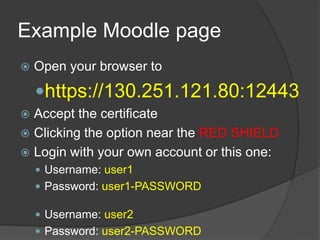
Example Moodle page
   Open your browser to

    https://130.251.121.80:12443
 Accept the certificate
 Clicking the option near the RED SHIELD
 Login with your own account or this one:
     Username: user1
     Password: user1-PASSWORD

     Username: user2
     Password: user2-PASSWORD
Features of Moodle
Easy creation of courses from existing
     resources
Course content which can be re-used
Learner involvement
Enrollment and learner authentication
Online learner and teacher management
Support community to help solve problems and
  generate new ideas
Affordability
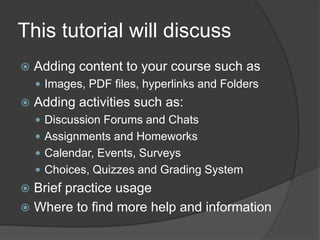
This tutorial will discuss
   Adding content to your course such as
     Images, PDF files, hyperlinks and Folders
   Adding activities such as:
     Discussion Forums and Chats
     Assignments and Homeworks
     Calendar, Events, Surveys
     Choices, Quizzes and Grading System
 Brief practice usage
 Where to find more help and information
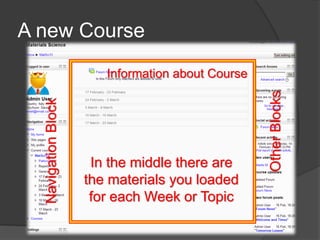
A new Course
                        Information about Course


                                                   Other Blocks
  Navigation Block


                      In the middle there are
                     the materials you loaded
                      for each Week or Topic
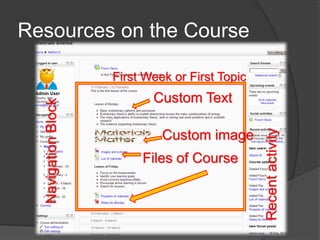
Resources on the Course

                     First Week or First Topic
                            Custom Text
  Navigation Block


                                                 Recent activity
                              Custom image
                          Files of Course
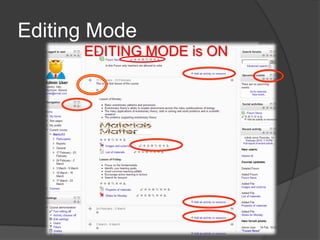
Editing Mode
      EDITING MODE is ON
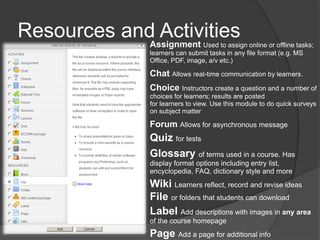
Resources and Activities
             Assignment        Used to assign online or offline tasks;
              learners can submit tasks in any file format (e.g. MS
              Office, PDF, image, a/v etc.)

              Chat Allows real-time communication by learners.
              Choice Instructors create a question and a number of
              choices for learners; results are posted
              for learners to view. Use this module to do quick surveys
              on subject matter

              Forum Allows for asynchronous message
              Quiz for tests
              Glossary of terms used in a course. Has
              display format options including entry list,
              encyclopedia, FAQ, dictionary style and more
              Wiki Learners reflect, record and revise ideas
              File or folders that students can download
              Label Add descriptions with images in any area
              of the course homepage
              Page Add a page for additional info
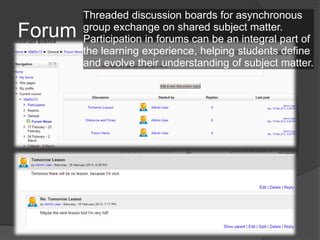
Threaded discussion boards for asynchronous
Forum   group exchange on shared subject matter.
        Participation in forums can be an integral part of
        the learning experience, helping students define
        and evolve their understanding of subject matter.
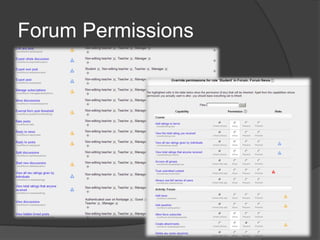
Forum Permissions
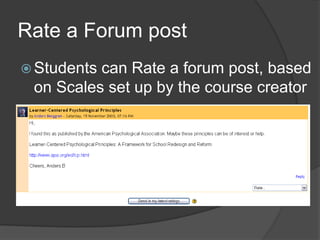
Rate a Forum post
 Studentscan Rate a forum post, based
 on Scales set up by the course creator
Quiz
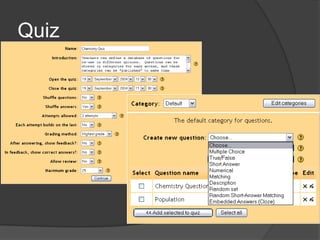
Create all the familiar forms of assessment
including true-false, multiple choice, short
answer, matching question, random
questions, numerical questions, embedded
answer questions with descriptive text and
graphics.
Quiz
Quiz
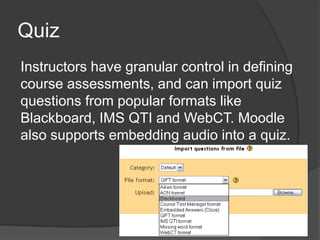
Instructors have granular control in defining
course assessments, and can import quiz
questions from popular formats like
Blackboard, IMS QTI and WebCT. Moodle
also supports embedding audio into a quiz.
Survey
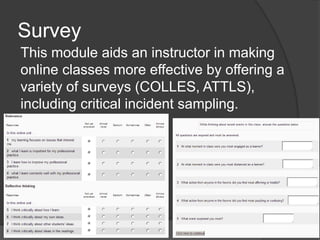
This module aids an instructor in making
online classes more effective by offering a
variety of surveys (COLLES, ATTLS),
including critical incident sampling.
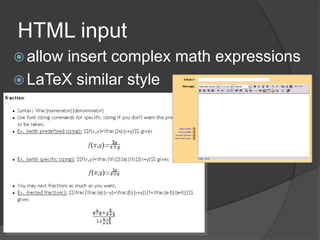
HTML input
 allowinsert complex math expressions
 LaTeX similar style
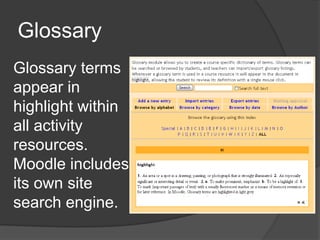
Glossary
Glossary terms
appear in
highlight within
all activity
resources.
Moodle includes
its own site
search engine.
Participants info
 Access   to information about learners in a
  course.
 Ability to segment participants into groups.
 Site, course and user calendar event
  scheduling.
 And so much more…e.g. applying scales to
  different learner activities, managing grades,
  tracking user access logs and uploading
  external files for use within the course etc.
Participants info
 One  click and you can view activity from all
  participants enrolled in the course

 Learners  create a personal profile that can
  include a picture,

 helping  connect students socially in the
  online learning community.
Participants info
 Assigning learners to a group is a common
 practice in education and business.

 Moodle allows the course instructor to easily
 create group categories, and determine how
 members will interact with each other and
 within various activities.
Calendar and Events
   Keeping a calendar of events is important to
    both the learner and course instructor.

   Global events that appear in all courses
    (admin)
   Course events set by an instructor
   Group events set by instructor relative only to
    a group
   User events set by learner (e.g. due dates,
    personal etc.).
Calendar and Events

   Upcoming Events appear on the course
    homepage, alerting the learner across all
    courses they are enrolled in of different
    category events.

   Alerts are color-coded by category.
Scales
   Default scale is [1..100]

   You can set your own scales:

   Pass, Not Pass
   Bad, Good, Superb
Grades
The Grades feature in Moodle provides a quick
view of all Forum, Assignment, Wiki and Quiz
grades.

The grading scale applied to a learner’s
submission is shown, along with a cumulative
total, on a single page.

Grades can be downloaded in Excel or plain text for
inclusion into an existing electronic gradebook
Grades
       Single page to grades and view all
        student enrolled

       Choose a Grade Category for:
        Assignments, Homeworks, Projects
        Rating in Forums

       Literally Grades
Logs and Reports
   Track all activity of each Student

   Check IP

   Check how many Student get a resource or
    an activity
Files and Navigation
   Private Files
   All Course Files

   Navigation Breadcrumb

   Login page and Accounting (that
    can be integrated with existent
    databases)
Enrollment keys and Locale
   Create a key/password for a course

   Set your own Language
   Set your own TimeZone

   Each student can select the
    language
E-mail Notifications
   When learners “subscribe” to
    forums they are notified by e-mail of
    new postings.

   Additionally, instructors can set e-
    mail notification for private
    Dialogues.
Part II
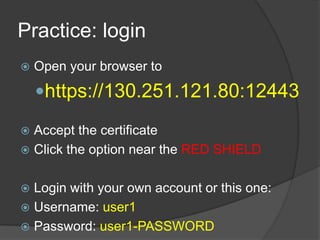
Practice: login
   Open your browser to

    https://130.251.121.80:12443

 Accept the certificate
 Click the option near the RED SHIELD


 Login with your own account or this one:
 Username: user1
 Password: user1-PASSWORD
Practice: create a new Course
   Students Enrollment
     Manual
     Automatic
   Teachers Enrollment
     Manual


   Password to join? Guest can join?

   Turn editing on
Practice: the User Profile
   Choose your own photo
     “Social”


   Send message to others

   Change settings
     Language, personal email, time zone, etc.
Practice: create a new Forum
   Default Forum: the News Forum
     Only Teachers can post
     Learners can view and they are auto-subscribed


   Add a new Forum: the Discussion Forum
     Everyone can post and view


   Other useful forum:
     The Teachers’ Forum: only for Teachers
Practice: add a simple Resource
   Adding content to your course such as
     Page
     Label


   Hide and Show each Resource or Activity

   Labels can be placed everywhere!
     And can have images inside


   HTML powerful content!
Practice: add a Resource file
   Adding content to your course such as
     Images
     PDF files
     Hyperlinks
     Folders


   Make your own private folder

   The Fastest way to add resource!
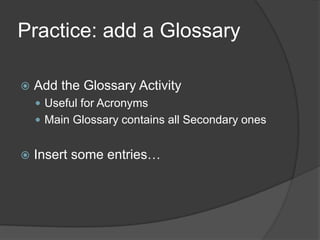
Practice: add a Glossary

   Add the Glossary Activity
     Useful for Acronyms
     Main Glossary contains all Secondary ones


   Insert some entries…
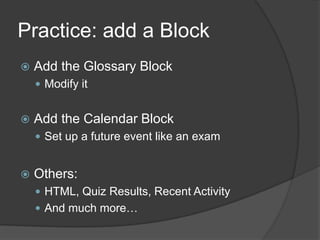
Practice: add a Block
   Add the Glossary Block
     Modify it


   Add the Calendar Block
     Set up a future event like an exam


   Others:
     HTML, Quiz Results, Recent Activity
     And much more…
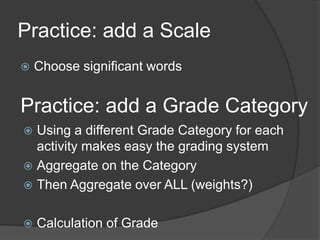
Practice: add a Scale
   Choose significant words


Practice: add a Grade Category
 Using a different Grade Category for each
  activity makes easy the grading system
 Aggregate on the Category
 Then Aggregate over ALL (weights?)


   Calculation of Grade
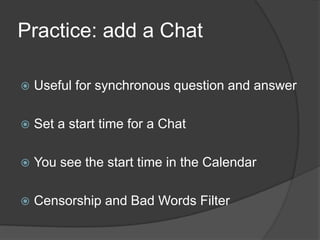
Practice: add a Chat

   Useful for synchronous question and answer

   Set a start time for a Chat

   You see the start time in the Calendar

   Censorship and Bad Words Filter
Practice: add a Choice
   Simple

   Multi-choice answer


Practice: send a Message
   Direct asynchronous message to anyone
Practice: add a Wiki

   Collaborative Wiki
     Using an appropriate index


   Individual Wiki

   Group Wiki
Practice: create a Group

   A Group can contains users

   Use different Groupings if you have different
    Activities that require different Groups
Practice: add an Assignment

   Use it for offline Homeworks

   Set the start and the end time
Practice: add a Survey
   Choose the type

 Check global results
 Check results of a single Student
Practice: add a Quiz
   Many Options, Useful Feedbacks, Attempts
    and Tries, Weighted Questions

   Several kind of questions
     Multiple choice, Text entry, T/F, Description
     Calculation (Automatically generation of numbers)
     And more…


   Then results are automatically calculated by
    the Grade calculator and shown to Students
Practice: view the Participants

   Access to the info about the Participants

   How many Learners is in this Course?

   Track their activity
     Detailed Logs and Reports
Useful Links
 http://moodle.org/
 http://www.moodletutorials.org/
 Using Moodle:
     http://moodle.org/course/category.php?id=1

   Teachers Playground Demo:
     http://moodle.org/course/category.php?id=2


   … and all the Web

   Bibliography: Bryan C. Williams & Moodle docs

Moodle for teachers

  • 1.
    Alberto Minetti –University of Genoa ITALY Saturday, February 19, 2013 Savona GE, Italy
  • 2.
    What is Moodle? Moodleis an e-learning software.  Modular  Object  Oriented  Dynamic  Learning  Environment During this workshop, I will demonstrate various applications of Moodle
  • 3.
    What is Moodle? Created by Martin Dougiamas  Philosophy:  Learners can contribute to the educational experience  57,256 registered sites and more…  Over 29 million users enrolled  Useful for  Traditional room class  Full online courses
  • 4.
    Example Moodle page  Open your browser to https://130.251.121.80:12443  Accept the certificate  Clicking the option near the RED SHIELD  Login with your own account or this one:  Username: user1  Password: user1-PASSWORD  Username: user2  Password: user2-PASSWORD
  • 5.
    Features of Moodle Easycreation of courses from existing resources Course content which can be re-used Learner involvement Enrollment and learner authentication Online learner and teacher management Support community to help solve problems and generate new ideas Affordability
  • 6.
    This tutorial willdiscuss  Adding content to your course such as  Images, PDF files, hyperlinks and Folders  Adding activities such as:  Discussion Forums and Chats  Assignments and Homeworks  Calendar, Events, Surveys  Choices, Quizzes and Grading System  Brief practice usage  Where to find more help and information
  • 7.
    A new Course Information about Course Other Blocks Navigation Block In the middle there are the materials you loaded for each Week or Topic
  • 8.
    Resources on theCourse First Week or First Topic Custom Text Navigation Block Recent activity Custom image Files of Course
  • 9.
    Editing Mode EDITING MODE is ON
  • 10.
    Resources and Activities Assignment Used to assign online or offline tasks; learners can submit tasks in any file format (e.g. MS Office, PDF, image, a/v etc.) Chat Allows real-time communication by learners. Choice Instructors create a question and a number of choices for learners; results are posted for learners to view. Use this module to do quick surveys on subject matter Forum Allows for asynchronous message Quiz for tests Glossary of terms used in a course. Has display format options including entry list, encyclopedia, FAQ, dictionary style and more Wiki Learners reflect, record and revise ideas File or folders that students can download Label Add descriptions with images in any area of the course homepage Page Add a page for additional info
  • 11.
    Threaded discussion boardsfor asynchronous Forum group exchange on shared subject matter. Participation in forums can be an integral part of the learning experience, helping students define and evolve their understanding of subject matter.
  • 12.
  • 13.
    Rate a Forumpost  Studentscan Rate a forum post, based on Scales set up by the course creator
  • 14.
    Quiz Create all thefamiliar forms of assessment including true-false, multiple choice, short answer, matching question, random questions, numerical questions, embedded answer questions with descriptive text and graphics.
  • 15.
  • 16.
    Quiz Instructors have granularcontrol in defining course assessments, and can import quiz questions from popular formats like Blackboard, IMS QTI and WebCT. Moodle also supports embedding audio into a quiz.
  • 17.
    Survey This module aidsan instructor in making online classes more effective by offering a variety of surveys (COLLES, ATTLS), including critical incident sampling.
  • 18.
    HTML input  allowinsertcomplex math expressions  LaTeX similar style
  • 19.
    Glossary Glossary terms appear in highlightwithin all activity resources. Moodle includes its own site search engine.
  • 20.
    Participants info  Access to information about learners in a course.  Ability to segment participants into groups.  Site, course and user calendar event scheduling.  And so much more…e.g. applying scales to different learner activities, managing grades, tracking user access logs and uploading external files for use within the course etc.
  • 21.
    Participants info  One click and you can view activity from all participants enrolled in the course  Learners create a personal profile that can include a picture,  helping connect students socially in the online learning community.
  • 22.
    Participants info  Assigninglearners to a group is a common practice in education and business.  Moodle allows the course instructor to easily create group categories, and determine how members will interact with each other and within various activities.
  • 23.
    Calendar and Events  Keeping a calendar of events is important to both the learner and course instructor.  Global events that appear in all courses (admin)  Course events set by an instructor  Group events set by instructor relative only to a group  User events set by learner (e.g. due dates, personal etc.).
  • 24.
    Calendar and Events  Upcoming Events appear on the course homepage, alerting the learner across all courses they are enrolled in of different category events.  Alerts are color-coded by category.
  • 25.
    Scales  Default scale is [1..100]  You can set your own scales:  Pass, Not Pass  Bad, Good, Superb
  • 26.
    Grades The Grades featurein Moodle provides a quick view of all Forum, Assignment, Wiki and Quiz grades. The grading scale applied to a learner’s submission is shown, along with a cumulative total, on a single page. Grades can be downloaded in Excel or plain text for inclusion into an existing electronic gradebook
  • 27.
    Grades  Single page to grades and view all student enrolled  Choose a Grade Category for:  Assignments, Homeworks, Projects  Rating in Forums  Literally Grades
  • 28.
    Logs and Reports  Track all activity of each Student  Check IP  Check how many Student get a resource or an activity
  • 29.
    Files and Navigation  Private Files  All Course Files  Navigation Breadcrumb  Login page and Accounting (that can be integrated with existent databases)
  • 30.
    Enrollment keys andLocale  Create a key/password for a course  Set your own Language  Set your own TimeZone  Each student can select the language
  • 31.
    E-mail Notifications  When learners “subscribe” to forums they are notified by e-mail of new postings.  Additionally, instructors can set e- mail notification for private Dialogues.
  • 32.
  • 33.
    Practice: login  Open your browser to https://130.251.121.80:12443  Accept the certificate  Click the option near the RED SHIELD  Login with your own account or this one:  Username: user1  Password: user1-PASSWORD
  • 34.
    Practice: create anew Course  Students Enrollment  Manual  Automatic  Teachers Enrollment  Manual  Password to join? Guest can join?  Turn editing on
  • 35.
    Practice: the UserProfile  Choose your own photo  “Social”  Send message to others  Change settings  Language, personal email, time zone, etc.
  • 36.
    Practice: create anew Forum  Default Forum: the News Forum  Only Teachers can post  Learners can view and they are auto-subscribed  Add a new Forum: the Discussion Forum  Everyone can post and view  Other useful forum:  The Teachers’ Forum: only for Teachers
  • 37.
    Practice: add asimple Resource  Adding content to your course such as  Page  Label  Hide and Show each Resource or Activity  Labels can be placed everywhere!  And can have images inside  HTML powerful content!
  • 38.
    Practice: add aResource file  Adding content to your course such as  Images  PDF files  Hyperlinks  Folders  Make your own private folder  The Fastest way to add resource!
  • 39.
    Practice: add aGlossary  Add the Glossary Activity  Useful for Acronyms  Main Glossary contains all Secondary ones  Insert some entries…
  • 40.
    Practice: add aBlock  Add the Glossary Block  Modify it  Add the Calendar Block  Set up a future event like an exam  Others:  HTML, Quiz Results, Recent Activity  And much more…
  • 41.
    Practice: add aScale  Choose significant words Practice: add a Grade Category  Using a different Grade Category for each activity makes easy the grading system  Aggregate on the Category  Then Aggregate over ALL (weights?)  Calculation of Grade
  • 42.
    Practice: add aChat  Useful for synchronous question and answer  Set a start time for a Chat  You see the start time in the Calendar  Censorship and Bad Words Filter
  • 43.
    Practice: add aChoice  Simple  Multi-choice answer Practice: send a Message  Direct asynchronous message to anyone
  • 44.
    Practice: add aWiki  Collaborative Wiki  Using an appropriate index  Individual Wiki  Group Wiki
  • 45.
    Practice: create aGroup  A Group can contains users  Use different Groupings if you have different Activities that require different Groups
  • 46.
    Practice: add anAssignment  Use it for offline Homeworks  Set the start and the end time
  • 47.
    Practice: add aSurvey  Choose the type  Check global results  Check results of a single Student
  • 48.
    Practice: add aQuiz  Many Options, Useful Feedbacks, Attempts and Tries, Weighted Questions  Several kind of questions  Multiple choice, Text entry, T/F, Description  Calculation (Automatically generation of numbers)  And more…  Then results are automatically calculated by the Grade calculator and shown to Students
  • 49.
    Practice: view theParticipants  Access to the info about the Participants  How many Learners is in this Course?  Track their activity  Detailed Logs and Reports
  • 50.
    Useful Links  http://moodle.org/ http://www.moodletutorials.org/  Using Moodle:  http://moodle.org/course/category.php?id=1  Teachers Playground Demo:  http://moodle.org/course/category.php?id=2  … and all the Web  Bibliography: Bryan C. Williams & Moodle docs