InDesign
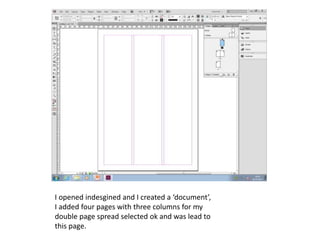
I opened indesgined and I created a ‘document’,
I added four pages with three columns for my
double page spread selected ok and was lead to
this page.
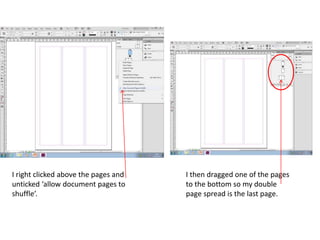
I right clicked above the pages and
unticked ‘allow document pages to
shuffle’.
I then dragged one of the pages
to the bottom so my double
page spread is the last page.
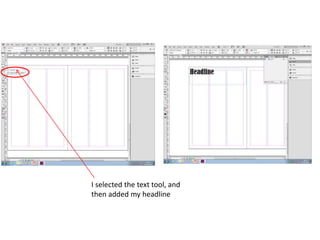
I selected the text tool, and
then added my headline
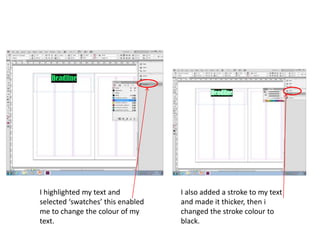
I highlighted my text and
selected ‘swatches’ this enabled
me to change the colour of my
text.
I also added a stroke to my text
and made it thicker, then i
changed the stroke colour to
black.
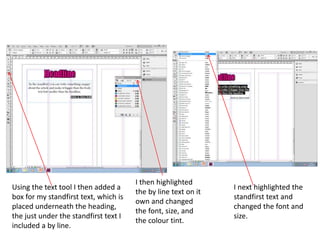
Using the text tool I then added a
box for my standfirst text, which is
placed underneath the heading,
the just under the standfirst text I
included a by line.
I then highlighted
the by line text on it
own and changed
the font, size, and
the colour tint.
I next highlighted the
standfirst text and
changed the font and
size.
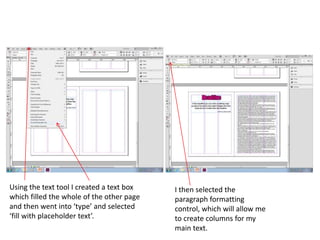
Using the text tool I created a text box
which filled the whole of the other page
and then went into ‘type’ and selected
‘fill with placeholder text’.
I then selected the
paragraph formatting
control, which will allow me
to create columns for my
main text.
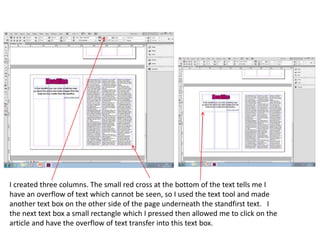
I created three columns. The small red cross at the bottom of the text tells me I
have an overflow of text which cannot be seen, so I used the text tool and made
another text box on the other side of the page underneath the standfirst text. I
the next text box a small rectangle which I pressed then allowed me to click on the
article and have the overflow of text transfer into this text box.
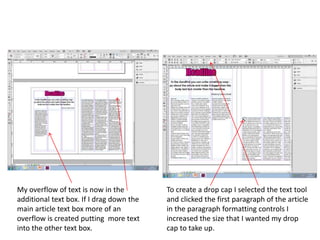
My overflow of text is now in the
additional text box. If I drag down the
main article text box more of an
overflow is created putting more text
into the other text box.
To create a drop cap I selected the text tool
and clicked the first paragraph of the article
in the paragraph formatting controls I
increased the size that I wanted my drop
cap to take up.
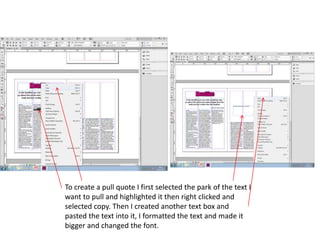
To create a pull quote I first selected the park of the text I
want to pull and highlighted it then right clicked and
selected copy. Then I created another text box and
pasted the text into it, I formatted the text and made it
bigger and changed the font.
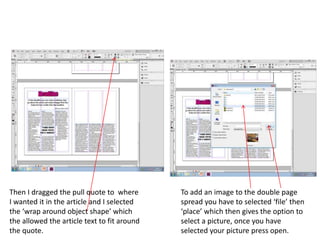
Then I dragged the pull quote to where
I wanted it in the article and I selected
the ‘wrap around object shape’ which
the allowed the article text to fit around
the quote.
To add an image to the double page
spread you have to selected ‘file’ then
‘place’ which then gives the option to
select a picture, once you have
selected your picture press open.
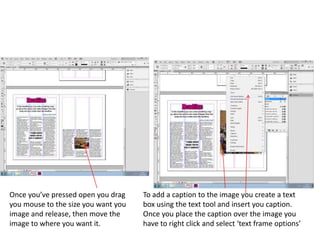
Once you’ve pressed open you drag
you mouse to the size you want you
image and release, then move the
image to where you want it.
To add a caption to the image you create a text
box using the text tool and insert you caption.
Once you place the caption over the image you
have to right click and select ‘text frame options’
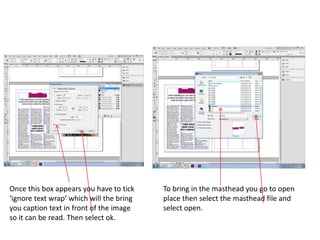
Once this box appears you have to tick
‘ignore text wrap’ which will the bring
you caption text in front of the image
so it can be read. Then select ok.
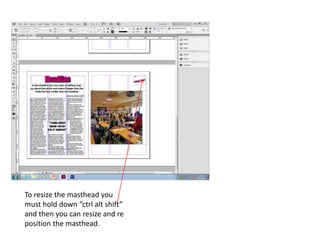
To bring in the masthead you go to open
place then select the masthead file and
select open.
To resize the masthead you
must hold down “ctrl alt shift”
and then you can resize and re
position the masthead.

Indesign

  • 1.
  • 2.
    I opened indesginedand I created a ‘document’, I added four pages with three columns for my double page spread selected ok and was lead to this page.
  • 3.
    I right clickedabove the pages and unticked ‘allow document pages to shuffle’. I then dragged one of the pages to the bottom so my double page spread is the last page.
  • 4.
    I selected thetext tool, and then added my headline
  • 5.
    I highlighted mytext and selected ‘swatches’ this enabled me to change the colour of my text. I also added a stroke to my text and made it thicker, then i changed the stroke colour to black.
  • 6.
    Using the texttool I then added a box for my standfirst text, which is placed underneath the heading, the just under the standfirst text I included a by line. I then highlighted the by line text on it own and changed the font, size, and the colour tint. I next highlighted the standfirst text and changed the font and size.
  • 7.
    Using the texttool I created a text box which filled the whole of the other page and then went into ‘type’ and selected ‘fill with placeholder text’. I then selected the paragraph formatting control, which will allow me to create columns for my main text.
  • 8.
    I created threecolumns. The small red cross at the bottom of the text tells me I have an overflow of text which cannot be seen, so I used the text tool and made another text box on the other side of the page underneath the standfirst text. I the next text box a small rectangle which I pressed then allowed me to click on the article and have the overflow of text transfer into this text box.
  • 9.
    My overflow oftext is now in the additional text box. If I drag down the main article text box more of an overflow is created putting more text into the other text box. To create a drop cap I selected the text tool and clicked the first paragraph of the article in the paragraph formatting controls I increased the size that I wanted my drop cap to take up.
  • 10.
    To create apull quote I first selected the park of the text I want to pull and highlighted it then right clicked and selected copy. Then I created another text box and pasted the text into it, I formatted the text and made it bigger and changed the font.
  • 11.
    Then I draggedthe pull quote to where I wanted it in the article and I selected the ‘wrap around object shape’ which the allowed the article text to fit around the quote. To add an image to the double page spread you have to selected ‘file’ then ‘place’ which then gives the option to select a picture, once you have selected your picture press open.
  • 12.
    Once you’ve pressedopen you drag you mouse to the size you want you image and release, then move the image to where you want it. To add a caption to the image you create a text box using the text tool and insert you caption. Once you place the caption over the image you have to right click and select ‘text frame options’
  • 13.
    Once this boxappears you have to tick ‘ignore text wrap’ which will the bring you caption text in front of the image so it can be read. Then select ok. To bring in the masthead you go to open place then select the masthead file and select open.
  • 14.
    To resize themasthead you must hold down “ctrl alt shift” and then you can resize and re position the masthead.