How to Use InDesign
New Document
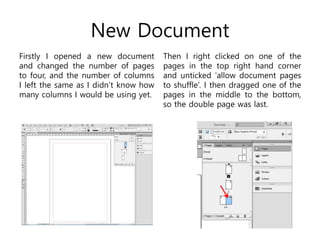
Firstly I opened a new document
and changed the number of pages
to four, and the number of columns
I left the same as I didn’t know how
many columns I would be using yet.
Then I right clicked on one of the
pages in the top right hand corner
and unticked ‘allow document pages
to shuffle’. I then dragged one of the
pages in the middle to the bottom,
so the double page was last.
Adding Text
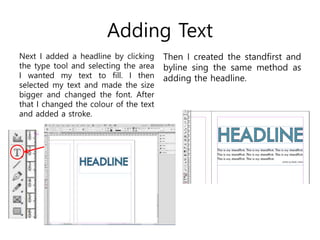
Next I added a headline by clicking
the type tool and selecting the area
I wanted my text to fill. I then
selected my text and made the size
bigger and changed the font. After
that I changed the colour of the text
and added a stroke.
Then I created the standfirst and
byline sing the same method as
adding the headline.
Columns in a Text Box
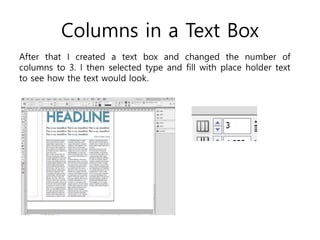
After that I created a text box and changed the number of
columns to 3. I then selected type and fill with place holder text
to see how the text would look.
Missing Text
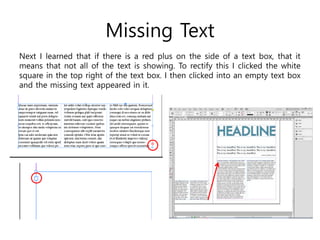
Next I learned that if there is a red plus on the side of a text box, that it
means that not all of the text is showing. To rectify this I clicked the white
square in the top right of the text box. I then clicked into an empty text box
and the missing text appeared in it.
Drop Cap
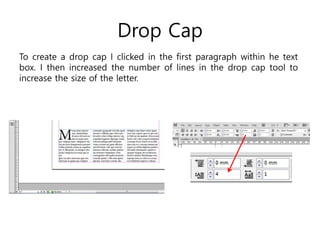
To create a drop cap I clicked in the first paragraph within he text
box. I then increased the number of lines in the drop cap tool to
increase the size of the letter.
Pull Quote
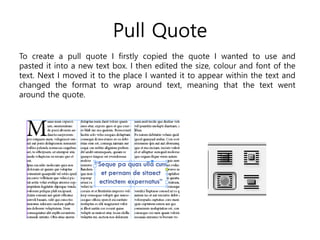
To create a pull quote I firstly copied the quote I wanted to use and
pasted it into a new text box. I then edited the size, colour and font of the
text. Next I moved it to the place I wanted it to appear within the text and
changed the format to wrap around text, meaning that the text went
around the quote.
Adding an Image
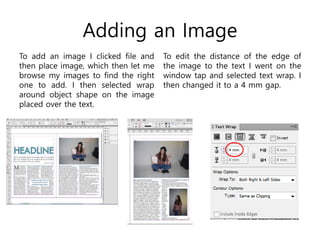
To add an image I clicked file and
then place image, which then let me
browse my images to find the right
one to add. I then selected wrap
around object shape on the image
placed over the text.
To edit the distance of the edge of
the image to the text I went on the
window tap and selected text wrap. I
then changed it to a 4 mm gap.
Image Caption
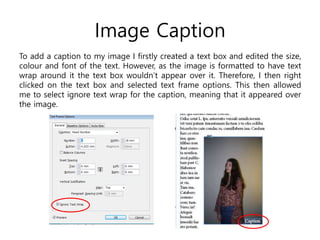
To add a caption to my image I firstly created a text box and edited the size,
colour and font of the text. However, as the image is formatted to have text
wrap around it the text box wouldn’t appear over it. Therefore, I then right
clicked on the text box and selected text frame options. This then allowed
me to select ignore text wrap for the caption, meaning that it appeared over
the image.
Adding Masthead from Photoshop
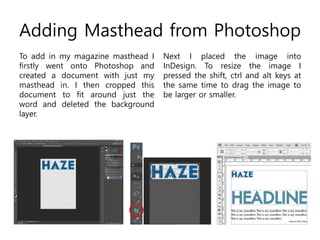
To add in my magazine masthead I
firstly went onto Photoshop and
created a document with just my
masthead in. I then cropped this
document to fit around just the
word and deleted the background
layer.
Next I placed the image into
InDesign. To resize the image I
pressed the shift, ctrl and alt keys at
the same time to drag the image to
be larger or smaller.

How to use InDesign - Emily Climer

  • 1.
    How to UseInDesign
  • 2.
    New Document Firstly Iopened a new document and changed the number of pages to four, and the number of columns I left the same as I didn’t know how many columns I would be using yet. Then I right clicked on one of the pages in the top right hand corner and unticked ‘allow document pages to shuffle’. I then dragged one of the pages in the middle to the bottom, so the double page was last.
  • 3.
    Adding Text Next Iadded a headline by clicking the type tool and selecting the area I wanted my text to fill. I then selected my text and made the size bigger and changed the font. After that I changed the colour of the text and added a stroke. Then I created the standfirst and byline sing the same method as adding the headline.
  • 4.
    Columns in aText Box After that I created a text box and changed the number of columns to 3. I then selected type and fill with place holder text to see how the text would look.
  • 5.
    Missing Text Next Ilearned that if there is a red plus on the side of a text box, that it means that not all of the text is showing. To rectify this I clicked the white square in the top right of the text box. I then clicked into an empty text box and the missing text appeared in it.
  • 6.
    Drop Cap To createa drop cap I clicked in the first paragraph within he text box. I then increased the number of lines in the drop cap tool to increase the size of the letter.
  • 7.
    Pull Quote To createa pull quote I firstly copied the quote I wanted to use and pasted it into a new text box. I then edited the size, colour and font of the text. Next I moved it to the place I wanted it to appear within the text and changed the format to wrap around text, meaning that the text went around the quote.
  • 8.
    Adding an Image Toadd an image I clicked file and then place image, which then let me browse my images to find the right one to add. I then selected wrap around object shape on the image placed over the text. To edit the distance of the edge of the image to the text I went on the window tap and selected text wrap. I then changed it to a 4 mm gap.
  • 9.
    Image Caption To adda caption to my image I firstly created a text box and edited the size, colour and font of the text. However, as the image is formatted to have text wrap around it the text box wouldn’t appear over it. Therefore, I then right clicked on the text box and selected text frame options. This then allowed me to select ignore text wrap for the caption, meaning that it appeared over the image.
  • 10.
    Adding Masthead fromPhotoshop To add in my magazine masthead I firstly went onto Photoshop and created a document with just my masthead in. I then cropped this document to fit around just the word and deleted the background layer. Next I placed the image into InDesign. To resize the image I pressed the shift, ctrl and alt keys at the same time to drag the image to be larger or smaller.