Institute of Management Studies
SUBBMITED BY :
UPENDRA KUSHWAH
GUIDED BY :-
Dr. DEEPAK SRIVASTAVA
4 5 6
1 2 3
What is Microsoft Office ?
• Suite of products developed by microsoft corporation that includes
1. MS Word
2. Excel
3. Access
4. Publishers
5. Powerpoint
6. Outlook
• Each program serves a different purpose and is compatible with the
programs included in the package.
• Introduced by microsoft in 1989.
Power Point
• Power Point is What’s called Presentation software .it could just as
easily called communication software and the goal of a presentation is
the effective communication of ideas.
• Power point presentation lets you present your ideas
• Picture
• Sound
• and even Videos
Use of Microsoft Power Point
• Make your own vision board
• Vector Graphic editor( compose and editing vector graphics images )
• Chart your Task
• Handle Text
• Outlining
• Drawing Tools
• Graphic Tools
• Insert Clip Arts
• Photos
• Videos
• And Audios
What You Can Make With It ?
• Presentation
• Slides (Photo Slide Show)
• Handouts
• Outline
• Graphics
• 3D animations
Professional PowerPoint Design for Medical Fields
• 1. They Break Down Important Information
• 2.Audio Visuals Explain Data Better
• 3. Templates Are Easily Available
• 4. In Conclusion
Power Point for Dentist
• Educating the parents and Patients
• The multimedia material for pediatric dentistry
• Effective communication to the public
• Pharmaceutical company
• Colorful new look includes professional PowerPoint animation and bold illustrations
• What’s Your Plan program
What can you do with PowerPoint?
• Communicate with confidence
• You have a story to tell, and PowerPoint is designed to help you tell it.
• When you project your presentation to a second screen, Presenter View
displays your current slide, speaker notes, and the next slides in your deck
so you can stay focused and connect with your audience. And with auto-
extend, your slides always appear on the correct screens.
• Whether you need a few slides to share with colleagues, classmates, or
friends or an award-winning presentation to persuade an auditorium full of
strangers, you need to maximize the impact of your message. Don't know
much about design? No problem! PowerPoint delivers the easy-to-use
features you need to create great-looking presentations and express
yourself with power—without having the skills of a professional designer.
Choosing a slide Layout
• Auto content Wizard
• Design Templete
• Blank Presentation
• The little of each AutoLayout also tell you exactly what it is
designed for e.g.
1. Title slide
2. Chart
3. Organization Chart etc.
Reorganizing an Outline
• Rearranging slides
• Rearranging Text
• Hiding subheads and text
Saving a Presentation
• Save
• Save As
• Save As Web Page
Entering and Formatting Text
• Entering and editing text
• Entering text in the outline pane
• Entering text in the slide view
• A) Using AutoLayout
• B) By Drawing a text box
Editing Text
• Insert New Text
• Delete one character at a time
• Delete several words at once
• Cut Text
• Copy Text to the Clip Board into a new location
• Replace existing Text
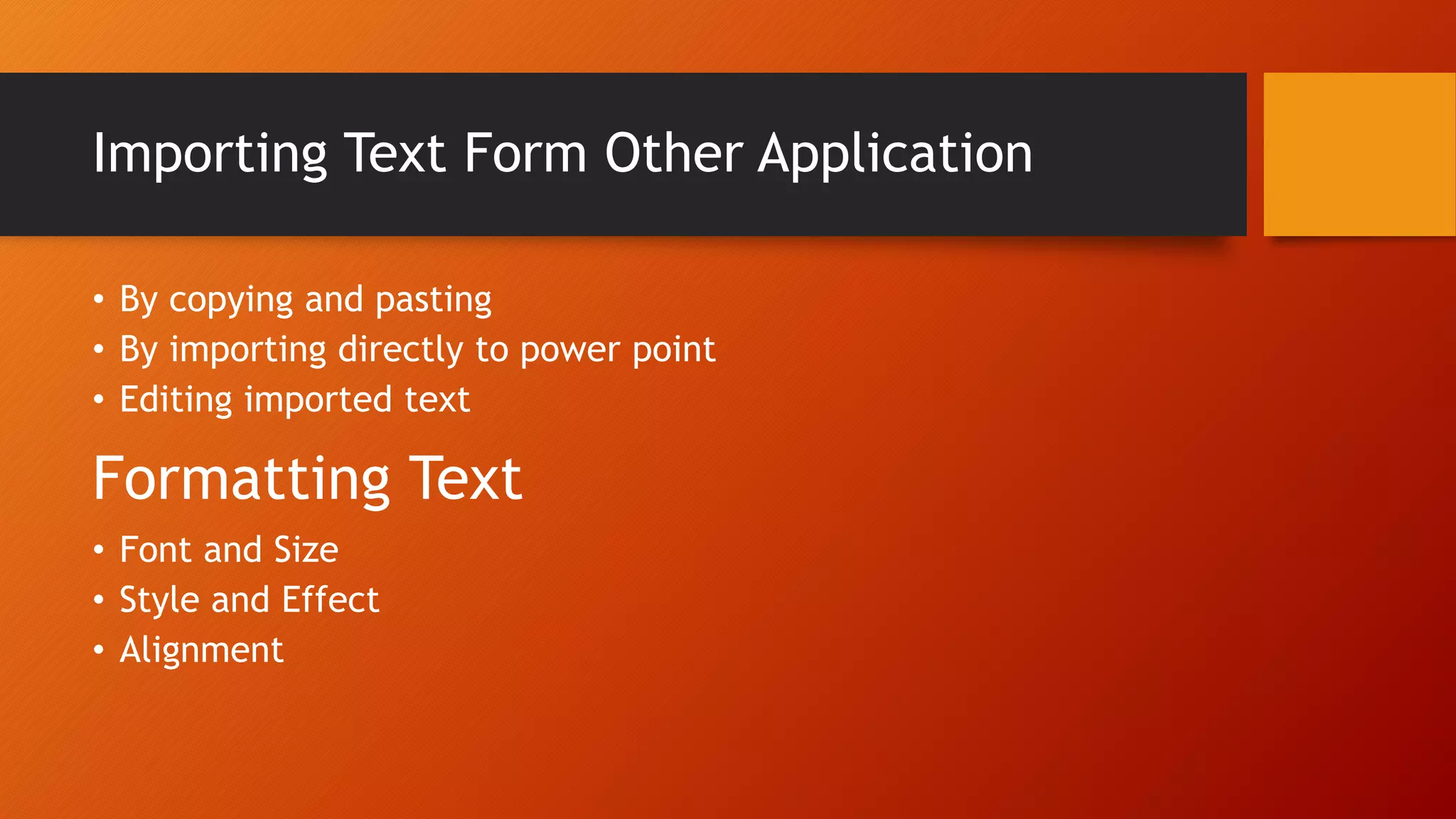
Importing Text Form Other Application
• By copying and pasting
• By importing directly to power point
• Editing imported text
• Font and Size
• Style and Effect
• Alignment
Formatting Text
Importing Text Form Other Application
• By copying and pasting
• By importing directly to power point
• Editing imported text
• Font and Size
• Style and Effect
• Alignment
FormattingText
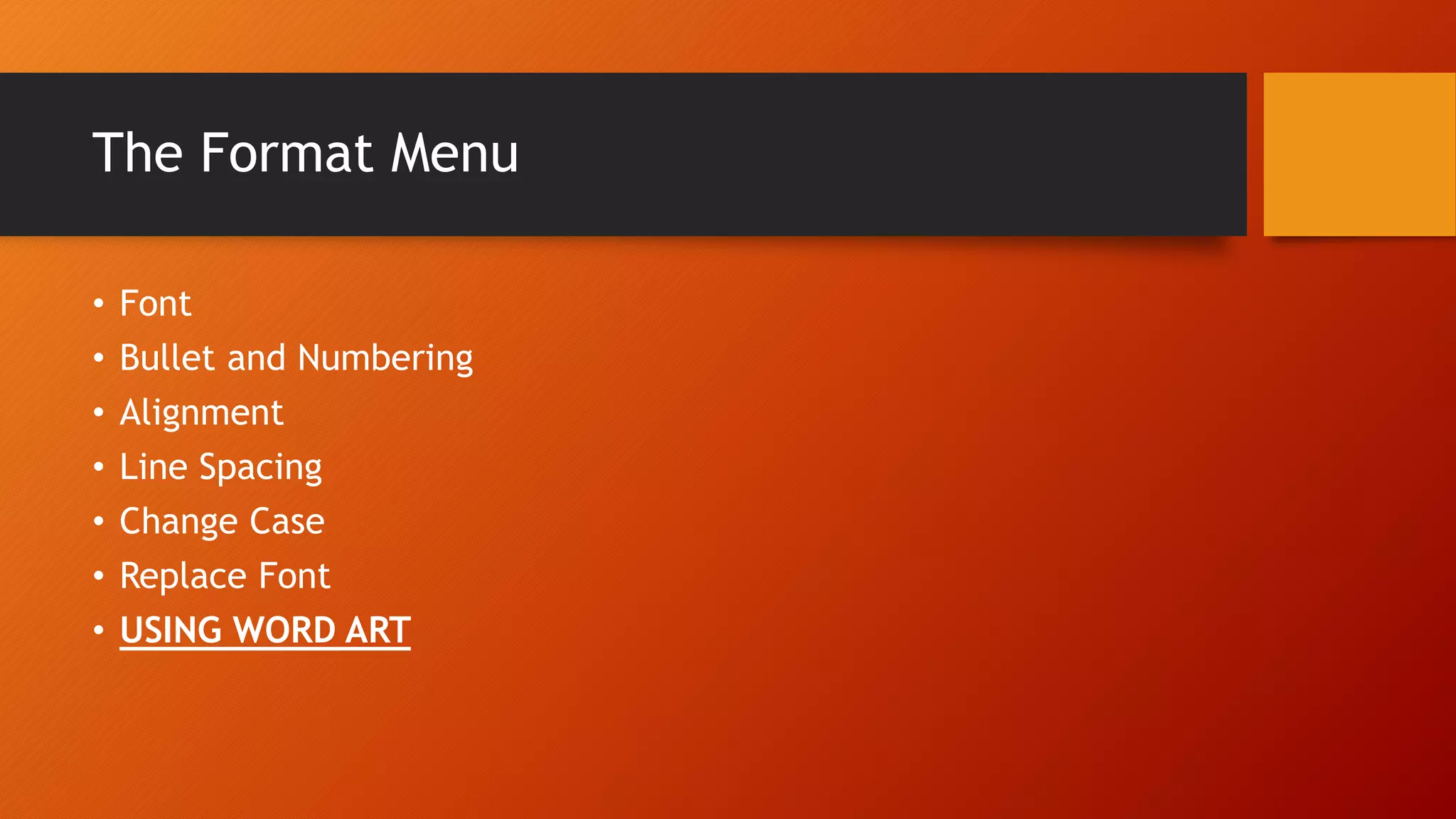
The Format Menu
• Font
• Bullet and Numbering
• Alignment
• Line Spacing
• Change Case
• Replace Font
• USING WORD ART
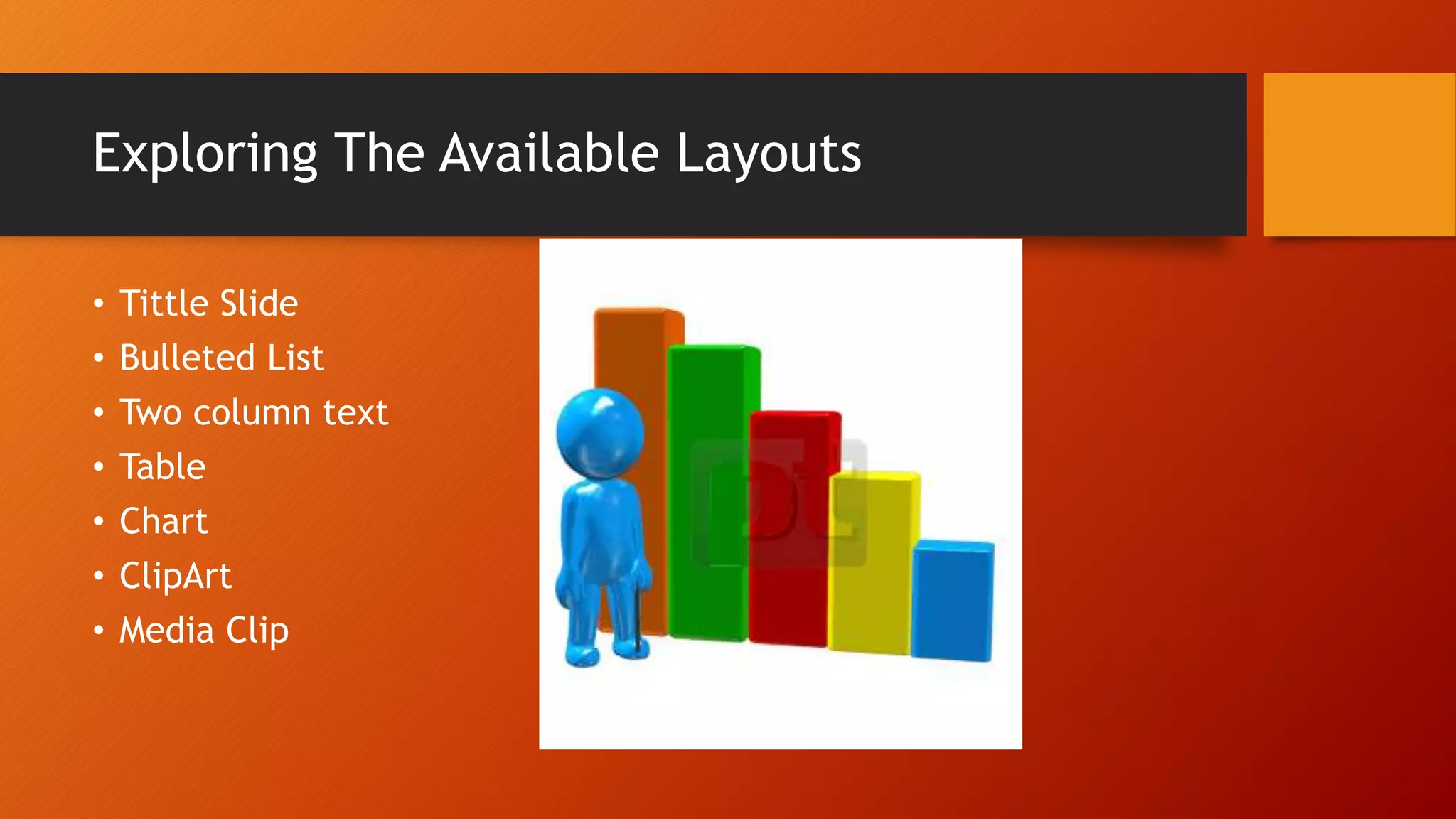
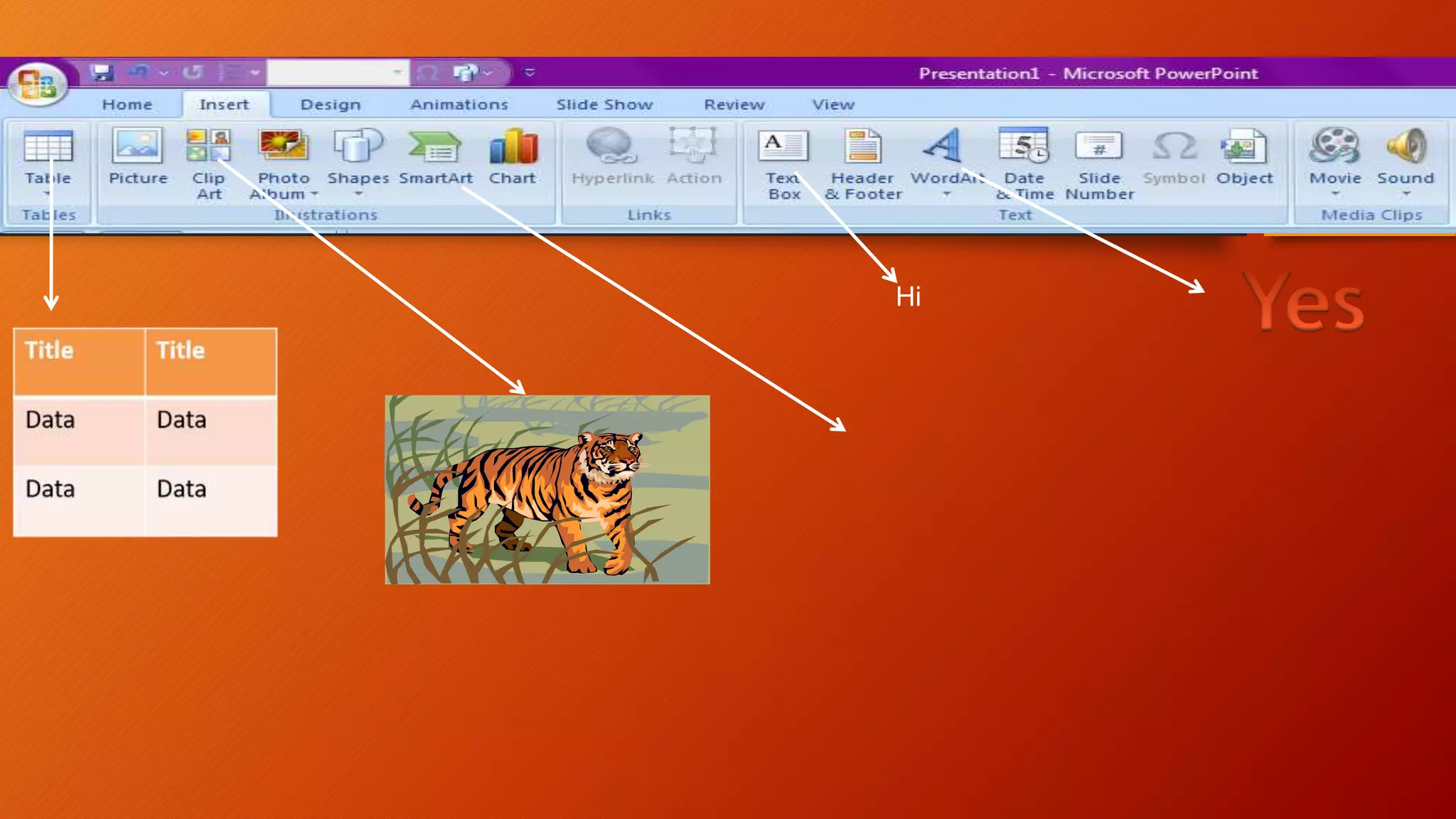
Exploring The Available Layouts
• Tittle Slide
• Bulleted List
• Two column text
• Table
• Chart
• ClipArt
• Media Clip
Hi
Changing Colour Schemes and Backgrounds
• 1). Master Layout
• 2). Colour Scheme
• 3). Background
• Changing Colour scheme
• Creating a custom colour scheme
• Changing the background
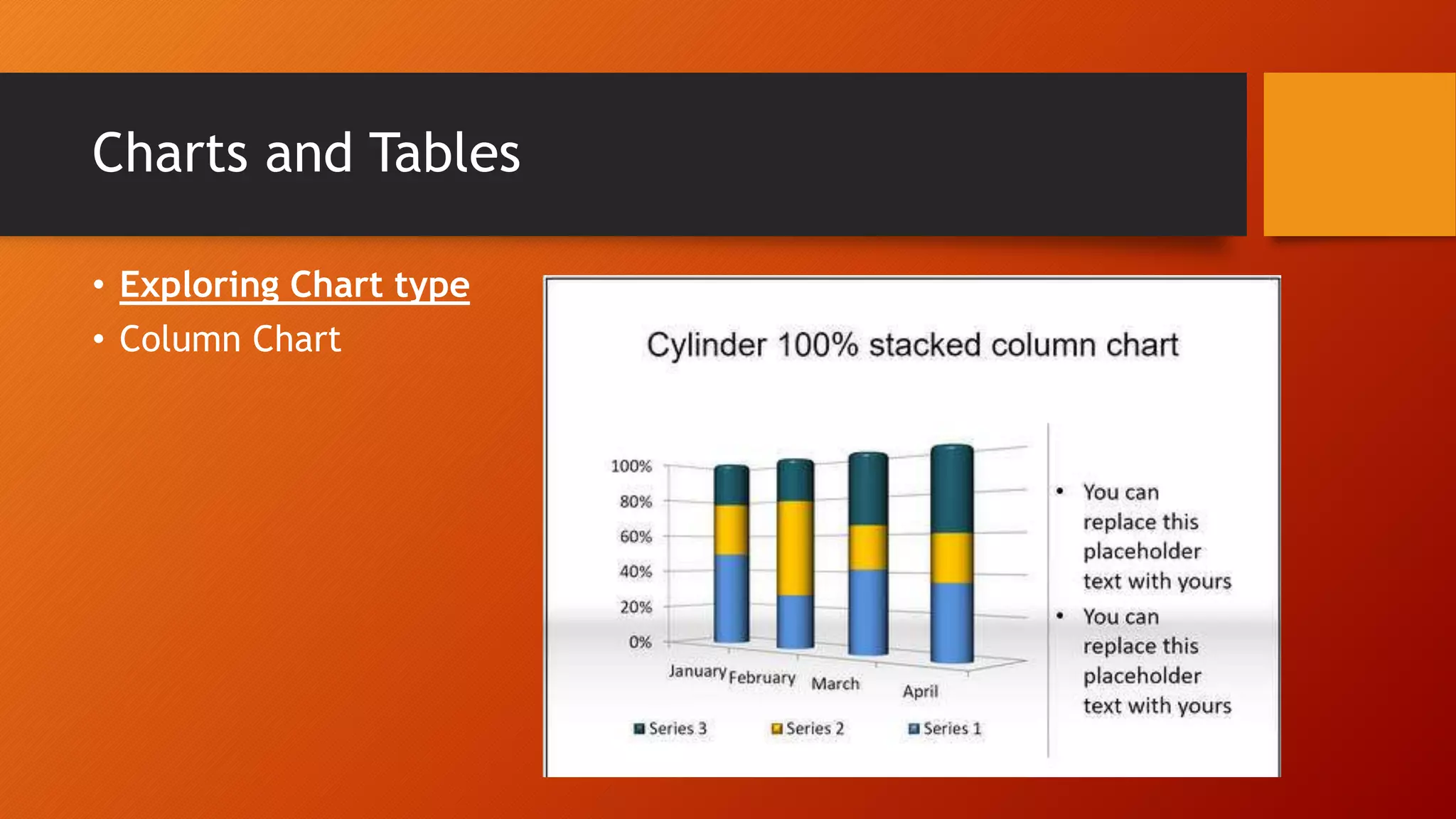
Charts and Tables
• Exploring Chart type
• Column Chart
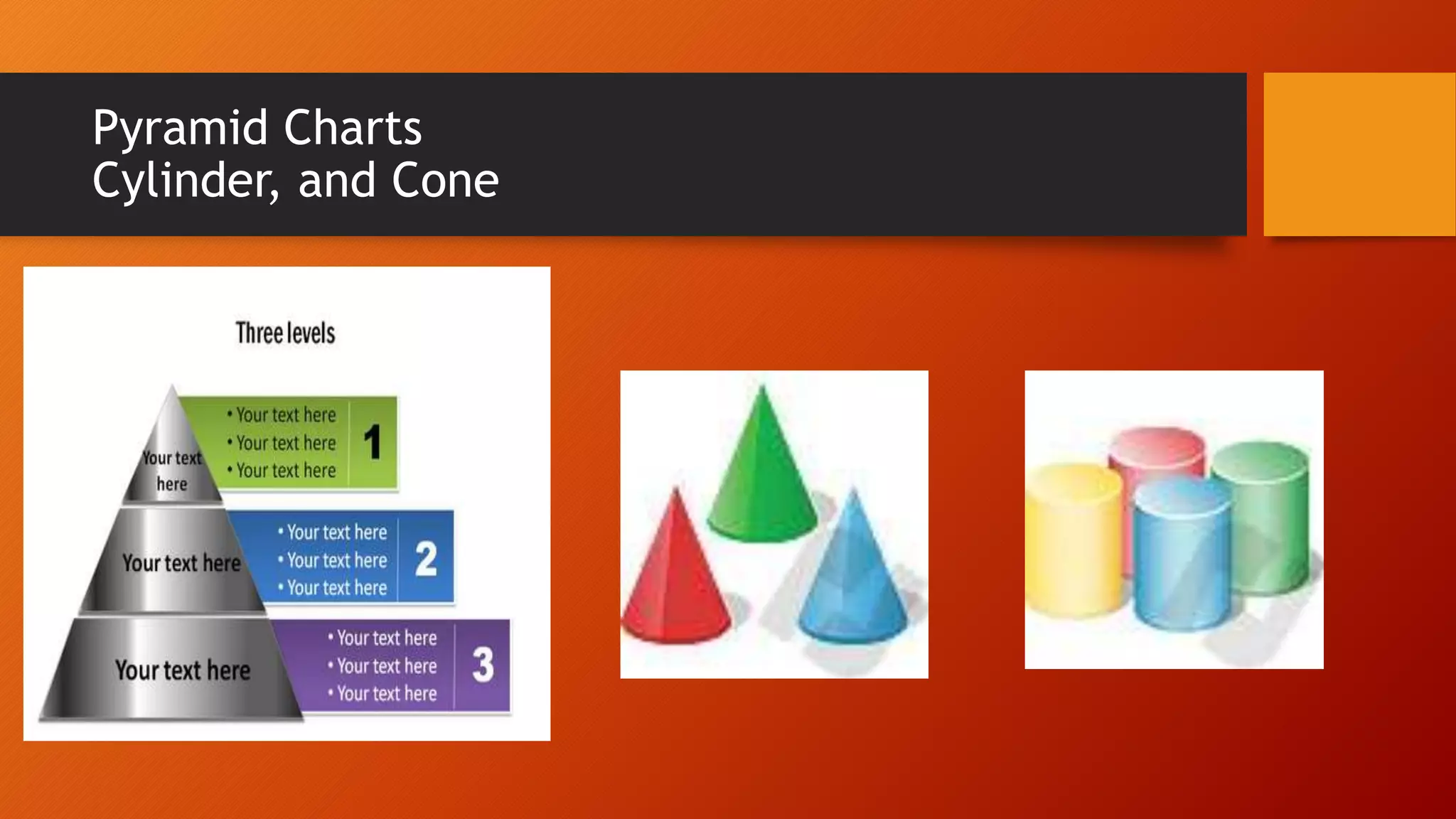
Pyramid Charts
Cylinder, and Cone
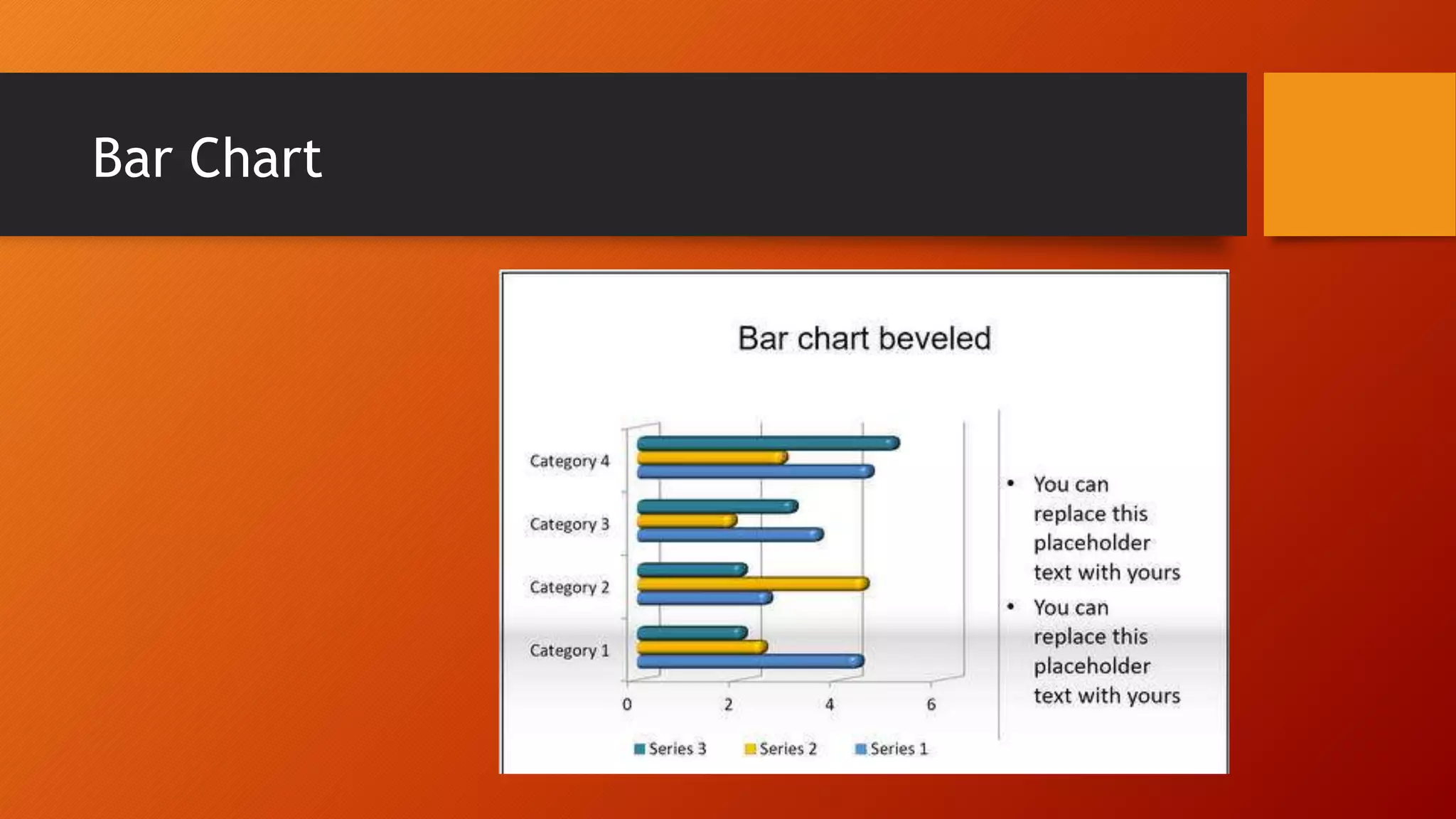
Bar Chart
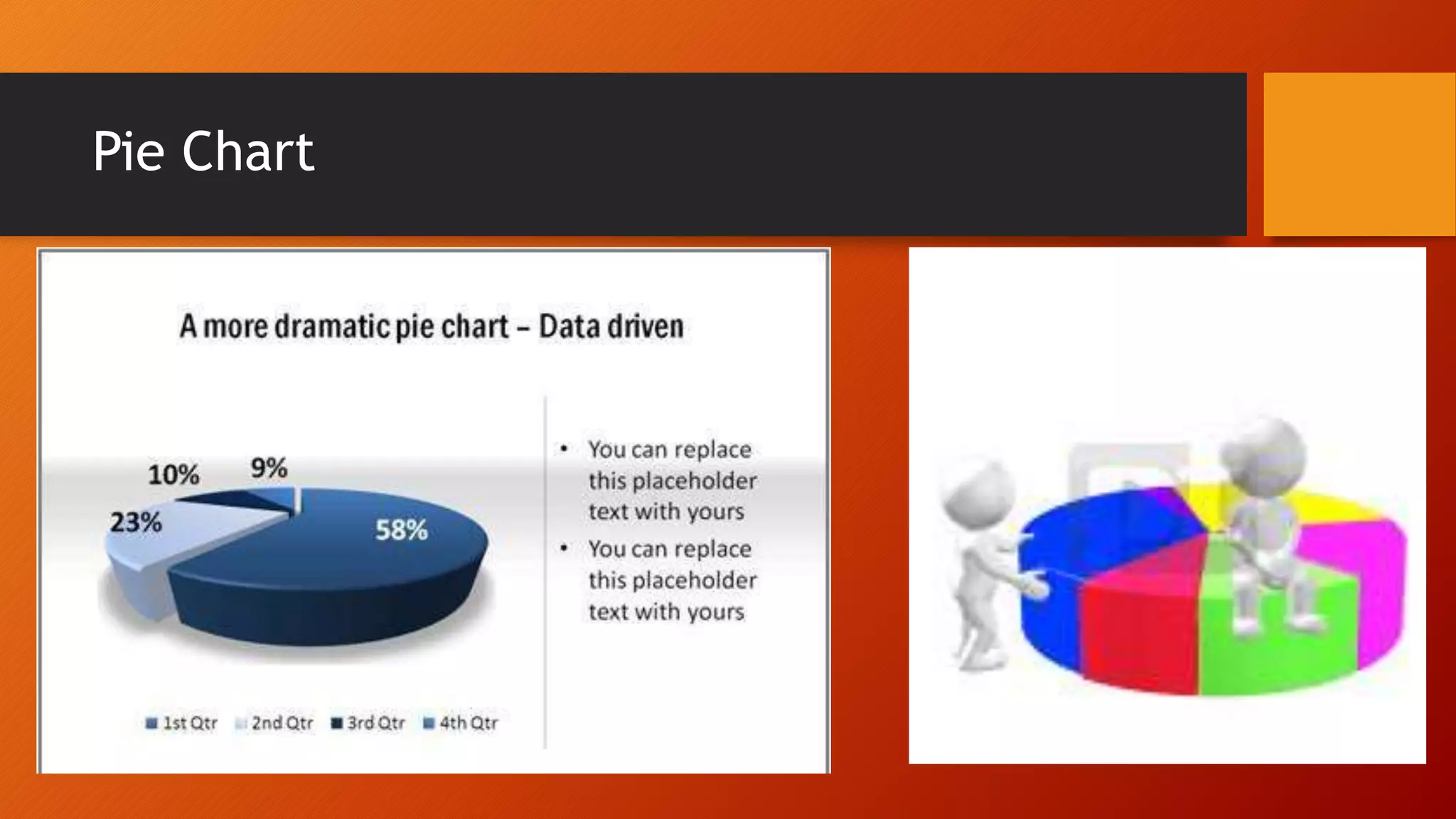
Pie Chart
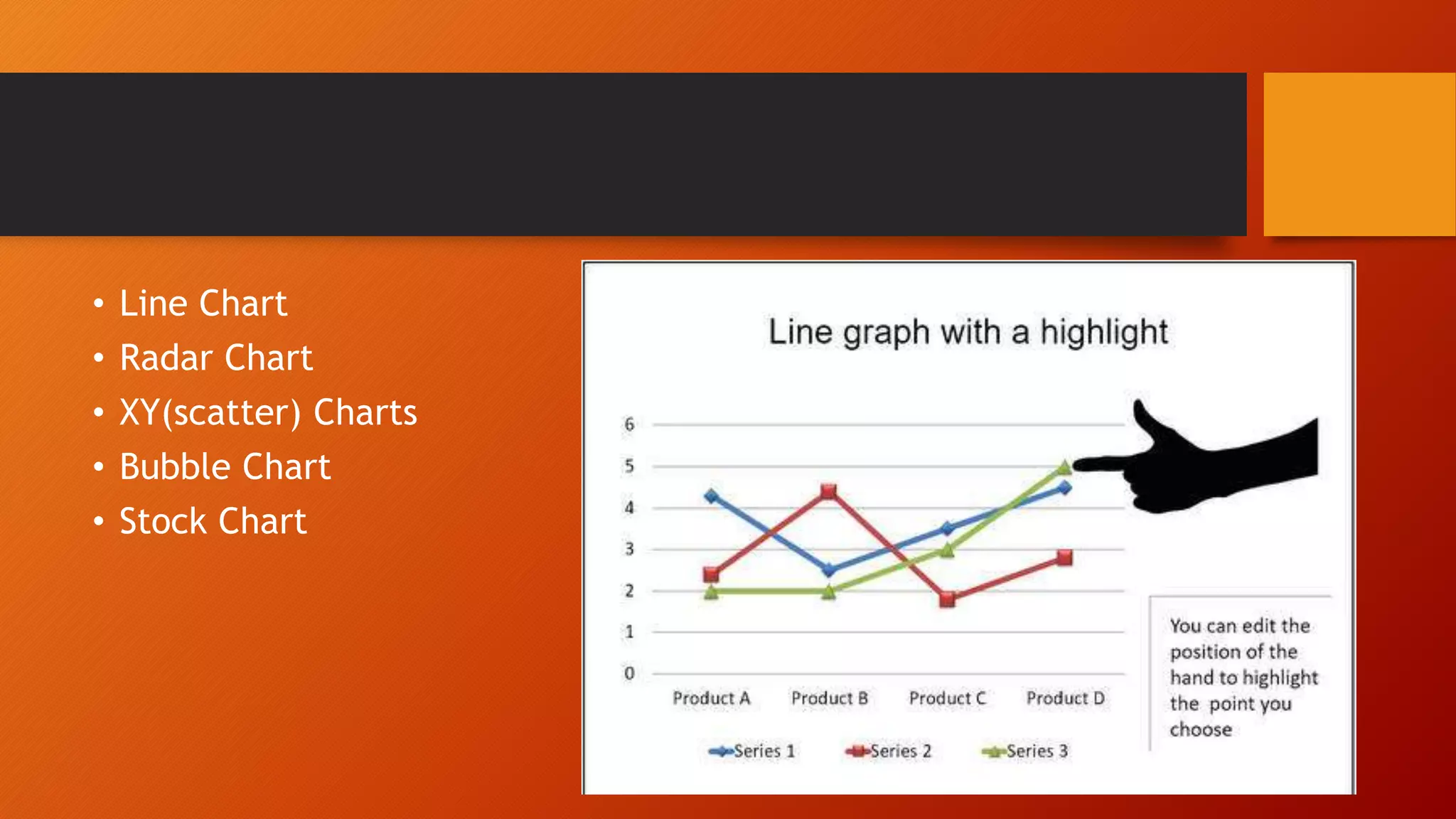
• Line Chart
• Radar Chart
• XY(scatter) Charts
• Bubble Chart
• Stock Chart
Creating and Editing Tables
• Creating a Table
• Editing a Table:-
• Inserting Rows/Columns
• Changing column widths and row heights
• Formatting
• Typing tabs
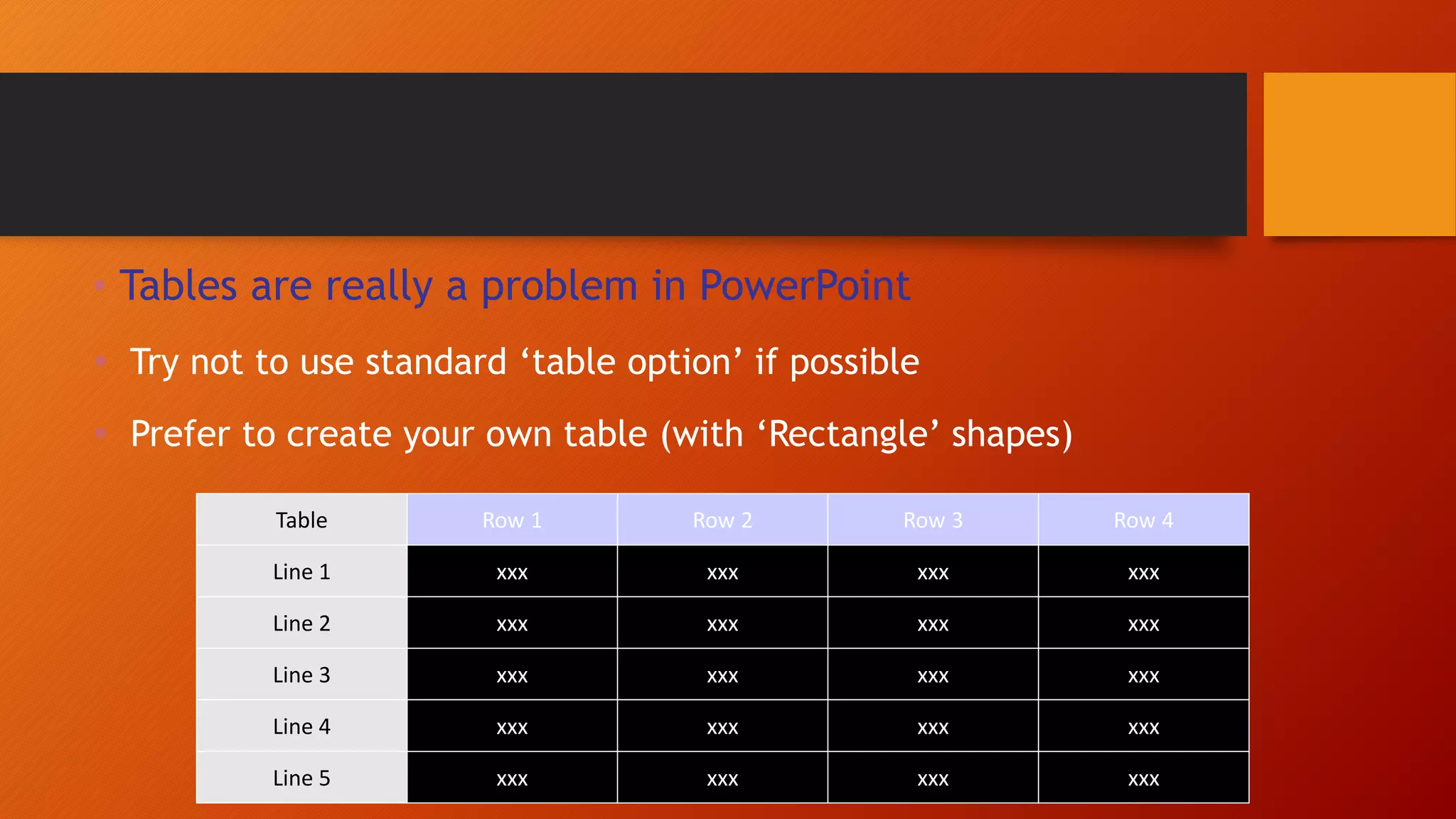
• Tables are really a problem in PowerPoint
 Try not to use standard ‘table option’ if possible
 Prefer to create your own table (with ‘Rectangle’ shapes)
Table Row 1 Row 2 Row 3 Row 4
Line 1 xxx xxx xxx xxx
Line 2 xxx xxx xxx xxx
Line 3 xxx xxx xxx xxx
Line 4 xxx xxx xxx xxx
Line 5 xxx xxx xxx xxx
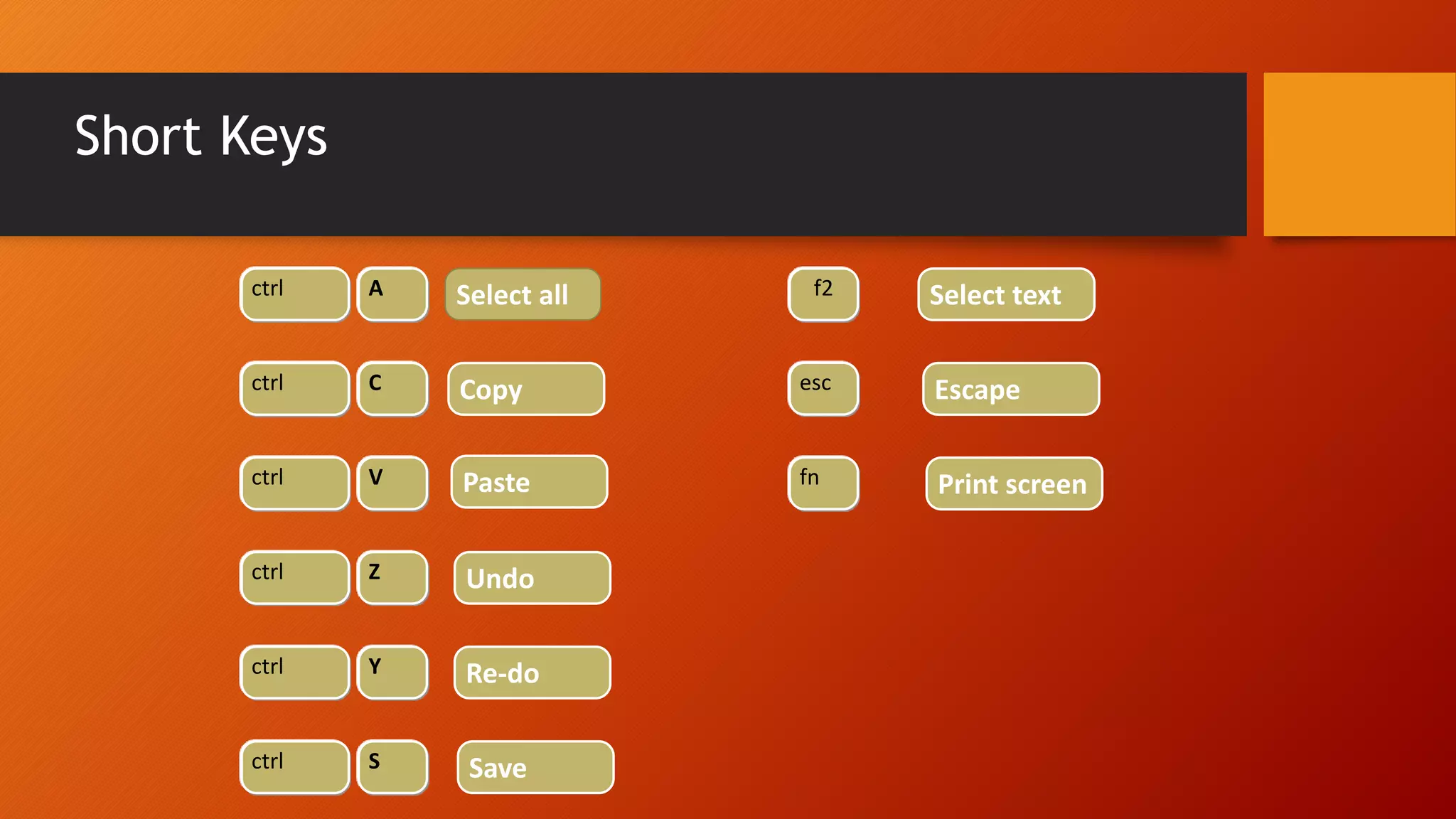
Short Keys
ctrl A
ctrl C
ctrl V
ctrl Z
ctrl Y
ctrl S
esc
fn
f2Select allctrl A
ctrl C
ctrl V
ctrl Z
ctrl Y
ctrl S
esc
fn
f2
Copy
Paste
Undo
Re-do
Save
Select text
Escape
Print screen
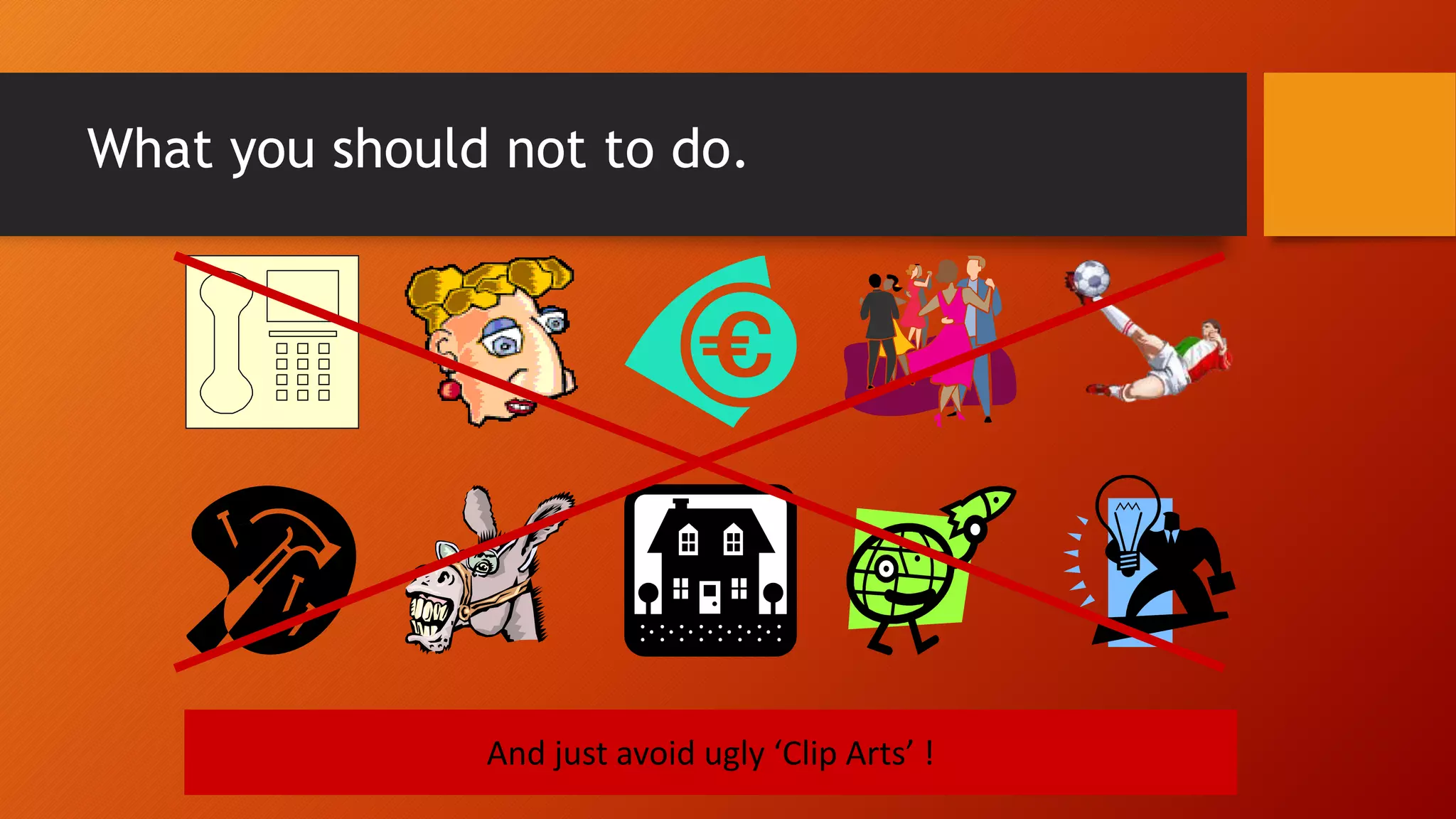
What you should not to do.
And just avoid ugly ‘Clip Arts’ !
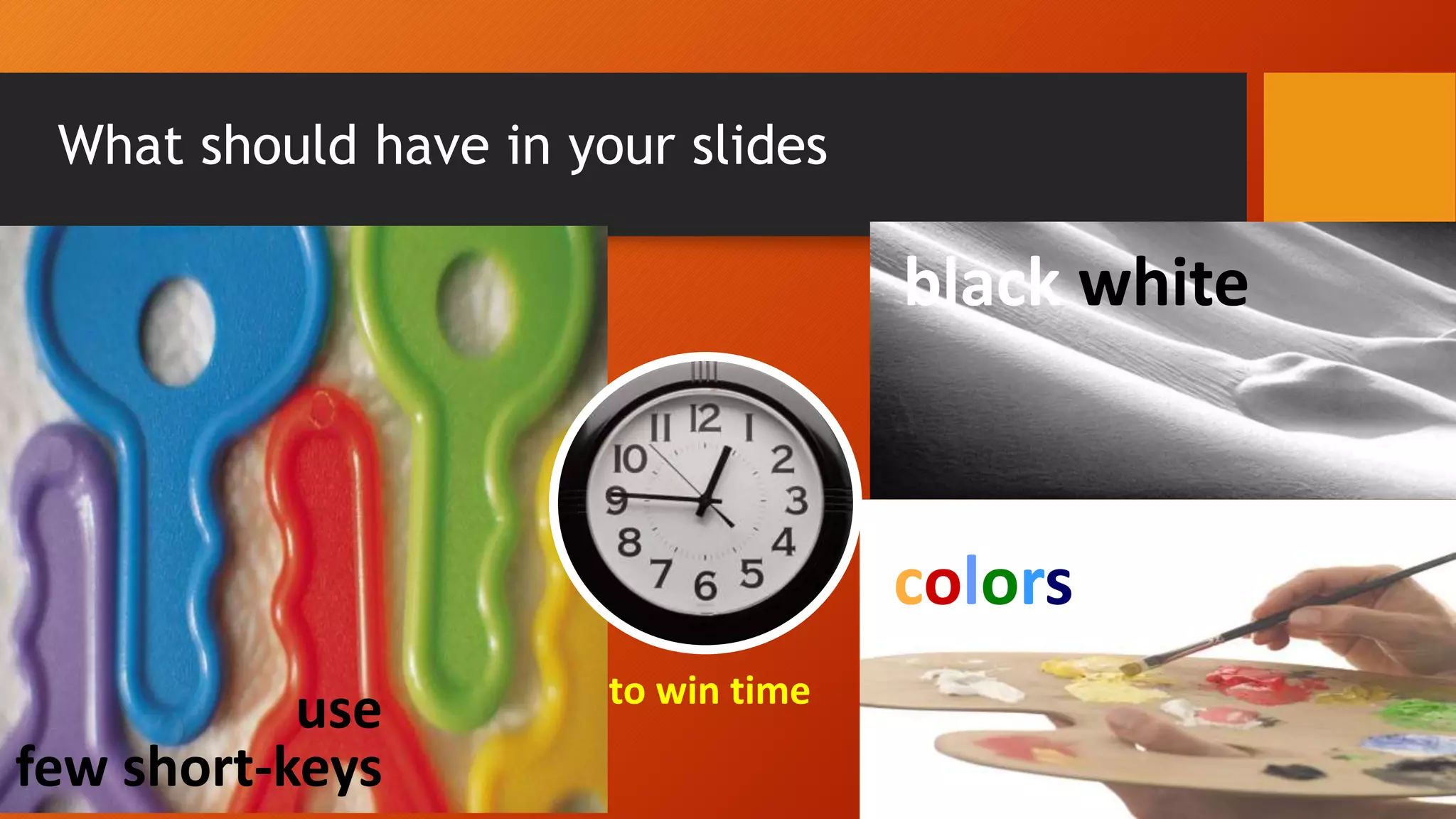
What should have in your slides
31
use
few short-keys
to win time
colors
black white
32
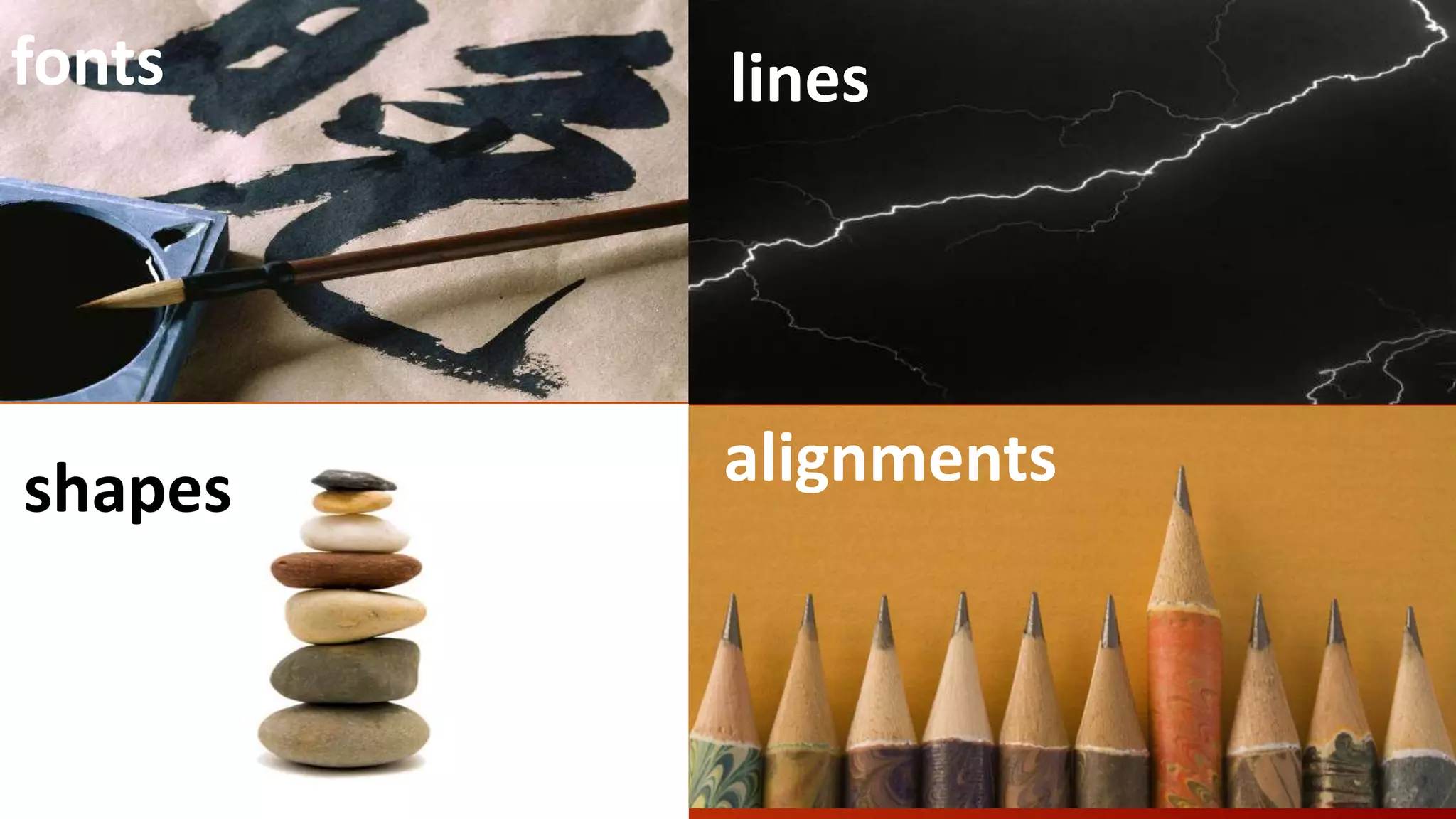
fonts lines
shapes alignments
33
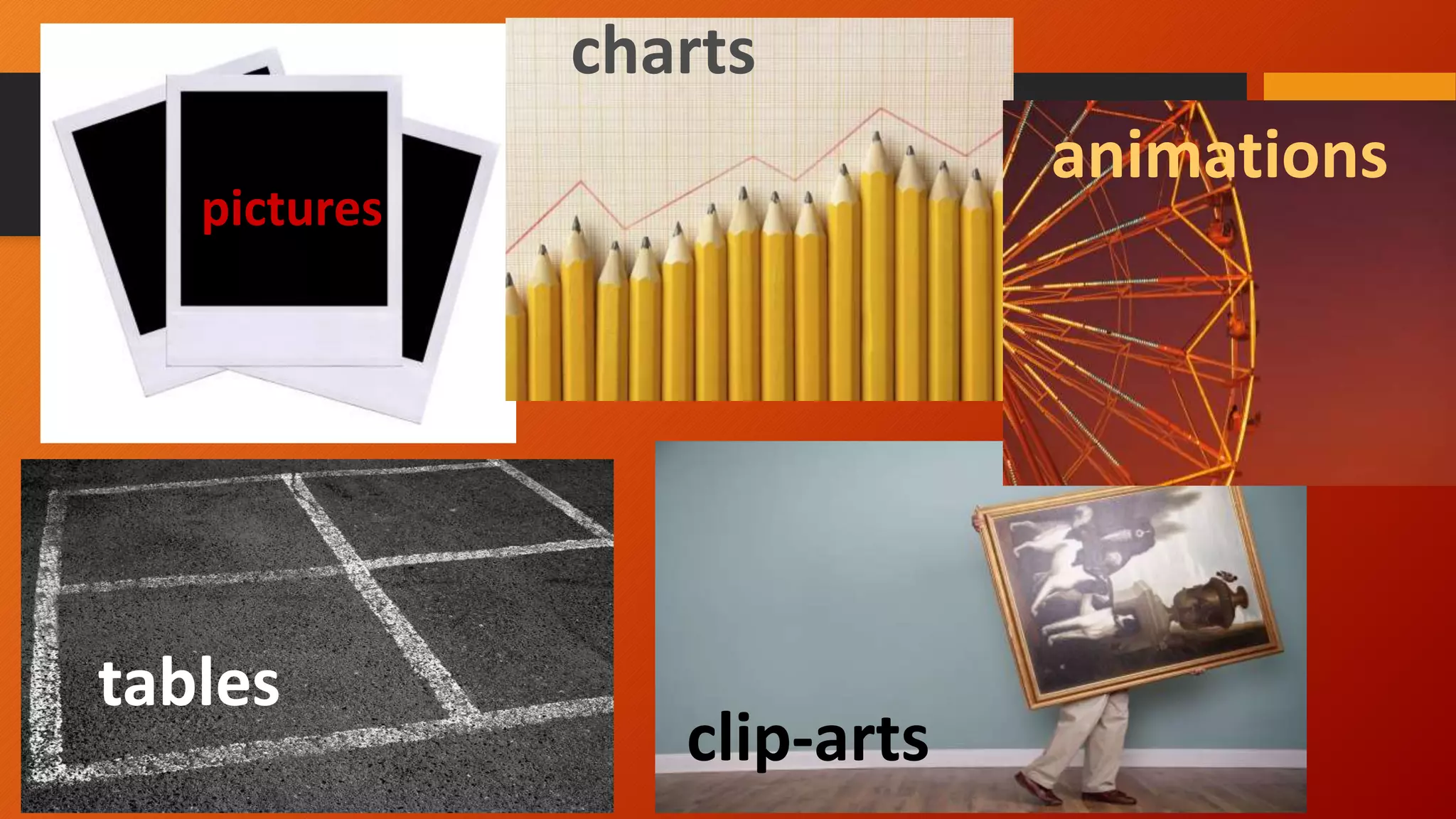
pictures
clip-arts
tables
charts
animations
34
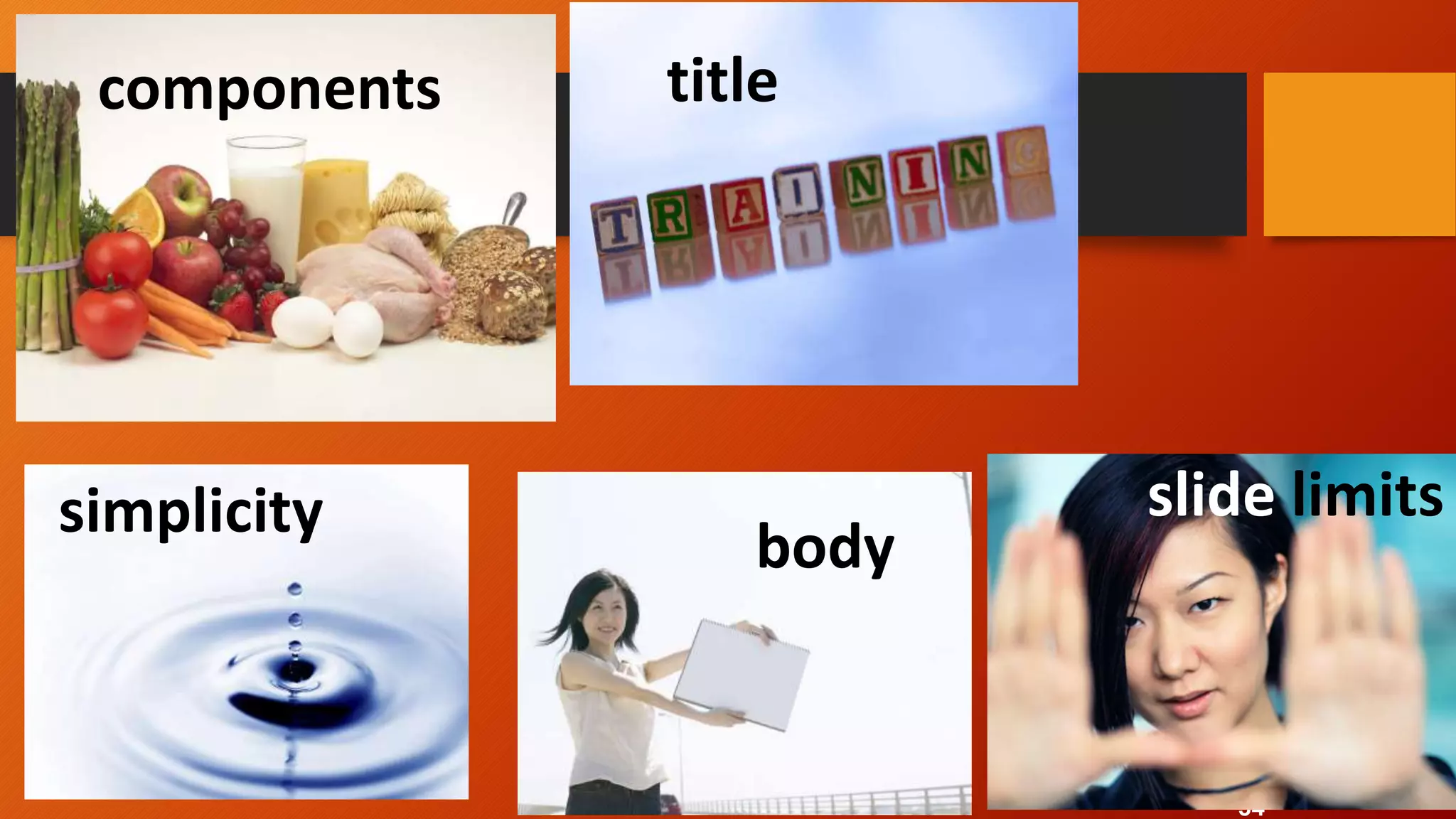
components title
body
slide limitssimplicity
35
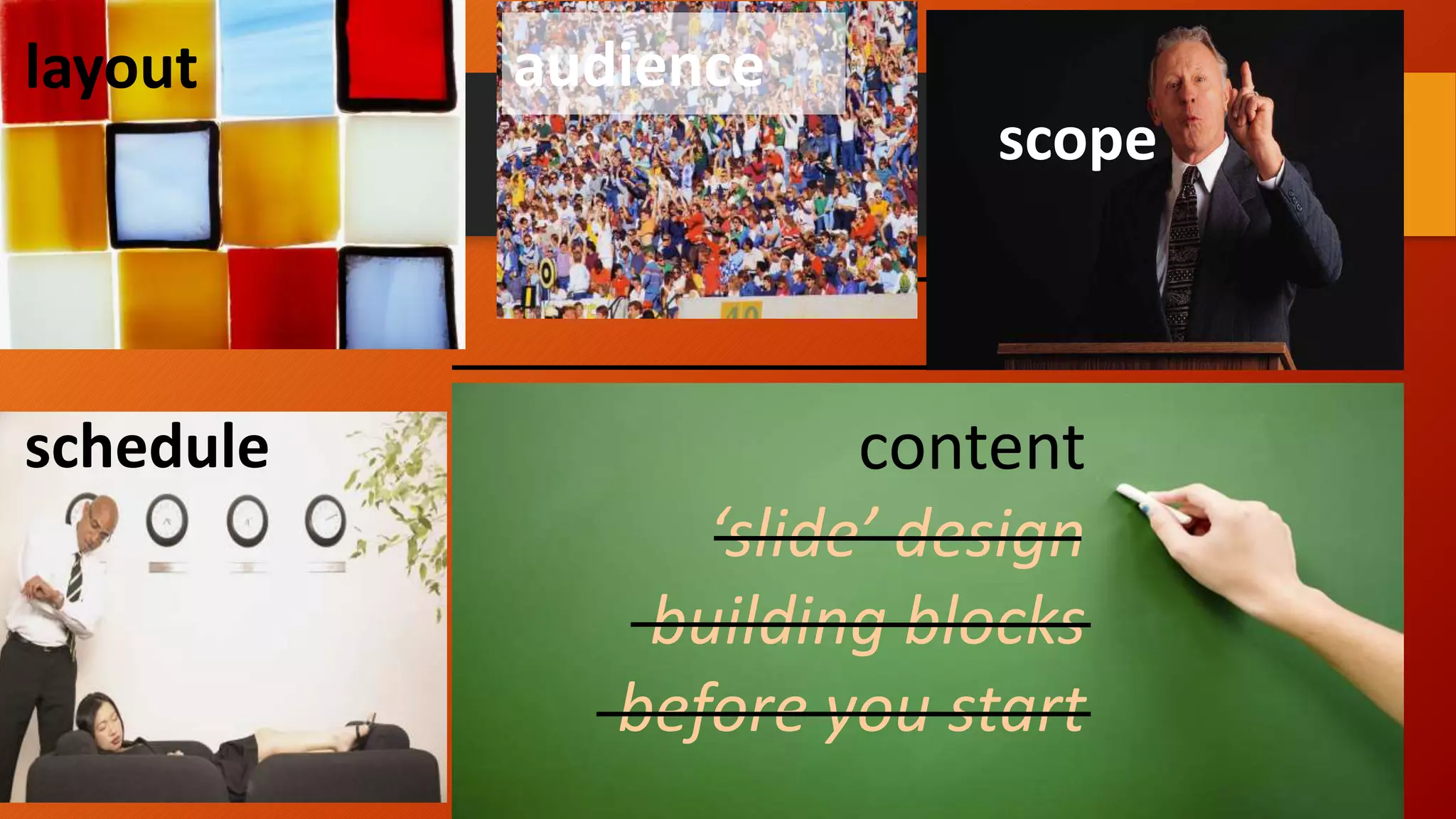
layout
content
‘slide’ design
building blocks
before you start
scope
audience
schedule
SUBBMITED BY :
UPENDRA KUSHWAH

What is power point

  • 1.
    Institute of ManagementStudies SUBBMITED BY : UPENDRA KUSHWAH GUIDED BY :- Dr. DEEPAK SRIVASTAVA
  • 2.
  • 3.
    What is MicrosoftOffice ? • Suite of products developed by microsoft corporation that includes 1. MS Word 2. Excel 3. Access 4. Publishers 5. Powerpoint 6. Outlook • Each program serves a different purpose and is compatible with the programs included in the package. • Introduced by microsoft in 1989.
  • 4.
    Power Point • PowerPoint is What’s called Presentation software .it could just as easily called communication software and the goal of a presentation is the effective communication of ideas. • Power point presentation lets you present your ideas • Picture • Sound • and even Videos
  • 5.
    Use of MicrosoftPower Point • Make your own vision board • Vector Graphic editor( compose and editing vector graphics images ) • Chart your Task • Handle Text • Outlining • Drawing Tools • Graphic Tools • Insert Clip Arts • Photos • Videos • And Audios
  • 6.
    What You CanMake With It ? • Presentation • Slides (Photo Slide Show) • Handouts • Outline • Graphics • 3D animations
  • 7.
    Professional PowerPoint Designfor Medical Fields • 1. They Break Down Important Information • 2.Audio Visuals Explain Data Better • 3. Templates Are Easily Available • 4. In Conclusion
  • 8.
    Power Point forDentist • Educating the parents and Patients • The multimedia material for pediatric dentistry • Effective communication to the public
  • 9.
    • Pharmaceutical company •Colorful new look includes professional PowerPoint animation and bold illustrations • What’s Your Plan program
  • 10.
    What can youdo with PowerPoint? • Communicate with confidence • You have a story to tell, and PowerPoint is designed to help you tell it. • When you project your presentation to a second screen, Presenter View displays your current slide, speaker notes, and the next slides in your deck so you can stay focused and connect with your audience. And with auto- extend, your slides always appear on the correct screens. • Whether you need a few slides to share with colleagues, classmates, or friends or an award-winning presentation to persuade an auditorium full of strangers, you need to maximize the impact of your message. Don't know much about design? No problem! PowerPoint delivers the easy-to-use features you need to create great-looking presentations and express yourself with power—without having the skills of a professional designer.
  • 12.
    Choosing a slideLayout • Auto content Wizard • Design Templete • Blank Presentation • The little of each AutoLayout also tell you exactly what it is designed for e.g. 1. Title slide 2. Chart 3. Organization Chart etc.
  • 13.
    Reorganizing an Outline •Rearranging slides • Rearranging Text • Hiding subheads and text Saving a Presentation • Save • Save As • Save As Web Page
  • 14.
    Entering and FormattingText • Entering and editing text • Entering text in the outline pane • Entering text in the slide view • A) Using AutoLayout • B) By Drawing a text box
  • 15.
    Editing Text • InsertNew Text • Delete one character at a time • Delete several words at once • Cut Text • Copy Text to the Clip Board into a new location • Replace existing Text
  • 16.
    Importing Text FormOther Application • By copying and pasting • By importing directly to power point • Editing imported text • Font and Size • Style and Effect • Alignment Formatting Text
  • 17.
    Importing Text FormOther Application • By copying and pasting • By importing directly to power point • Editing imported text • Font and Size • Style and Effect • Alignment FormattingText
  • 18.
    The Format Menu •Font • Bullet and Numbering • Alignment • Line Spacing • Change Case • Replace Font • USING WORD ART
  • 19.
    Exploring The AvailableLayouts • Tittle Slide • Bulleted List • Two column text • Table • Chart • ClipArt • Media Clip
  • 20.
  • 21.
    Changing Colour Schemesand Backgrounds • 1). Master Layout • 2). Colour Scheme • 3). Background • Changing Colour scheme • Creating a custom colour scheme • Changing the background
  • 22.
    Charts and Tables •Exploring Chart type • Column Chart
  • 23.
  • 24.
  • 25.
  • 26.
    • Line Chart •Radar Chart • XY(scatter) Charts • Bubble Chart • Stock Chart
  • 27.
    Creating and EditingTables • Creating a Table • Editing a Table:- • Inserting Rows/Columns • Changing column widths and row heights • Formatting • Typing tabs
  • 28.
    • Tables arereally a problem in PowerPoint  Try not to use standard ‘table option’ if possible  Prefer to create your own table (with ‘Rectangle’ shapes) Table Row 1 Row 2 Row 3 Row 4 Line 1 xxx xxx xxx xxx Line 2 xxx xxx xxx xxx Line 3 xxx xxx xxx xxx Line 4 xxx xxx xxx xxx Line 5 xxx xxx xxx xxx
  • 29.
    Short Keys ctrl A ctrlC ctrl V ctrl Z ctrl Y ctrl S esc fn f2Select allctrl A ctrl C ctrl V ctrl Z ctrl Y ctrl S esc fn f2 Copy Paste Undo Re-do Save Select text Escape Print screen
  • 30.
    What you shouldnot to do. And just avoid ugly ‘Clip Arts’ !
  • 31.
    What should havein your slides 31 use few short-keys to win time colors black white
  • 32.
  • 33.
  • 34.
  • 35.
  • 36.