Z
Week 8:
Images and Lists
in HTML
Subject Code: COMP121
By: Marlon Jamera
Email: mbjamera@ama.edu.ph
Z
Images and Lists
in HTML
Z
Review: How the Web
Works using HTML
• It contains text files of HTML that
provide information about the page
content structure.
a. Web Search
b. Web Page
c. Web Browser
d. Website Application
Z
Review: How the Web
Works using HTML
• This file must have a .htm or .html file
extension, it can be created with text
editors like notepad, notepad, etc.
a. Text File
b. HTML File
c. XHTML File
d. XML File
Z
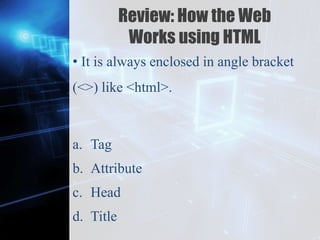
Review: How the Web
Works using HTML
• It is always enclosed in angle bracket
(<>) like <html>.
a. Tag
b. Attribute
c. Head
d. Title
Z
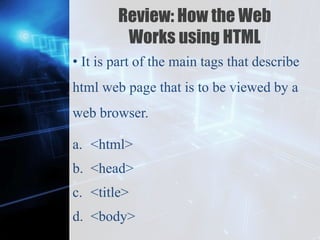
Review: How the Web
Works using HTML
• It is part of the main tags that describe
html web page that is to be viewed by a
web browser.
a. <html>
b. <head>
c. <title>
d. <body>
Z
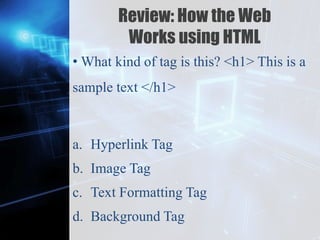
Review: How the Web
Works using HTML
• What kind of tag is this? <h1> This is a
sample text </h1>
a. Hyperlink Tag
b. Image Tag
c. Text Formatting Tag
d. Background Tag
Z
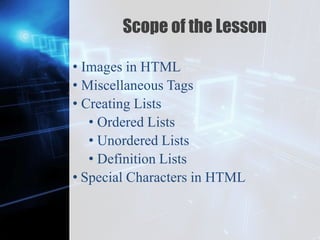
Scope of the Lesson
• Images in HTML
• Miscellaneous Tags
• Creating Lists
• Ordered Lists
• Unordered Lists
• Definition Lists
• Special Characters in HTML
Z
Learning Outcomes
By the end of the lesson, you will be
familiar and know how the website works
using HTML.
• Discuss the basic coding of images in
HTML.
• Understand the coding syntax of creating
lists in HTML.
• Explain thoroughly the coding styles and
special characters in HTML.
Z
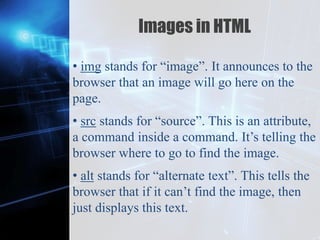
Images in HTML
• img stands for “image”. It announces to the
browser that an image will go here on the
page.
• src stands for “source”. This is an attribute,
a command inside a command. It’s telling the
browser where to go to find the image.
• alt stands for “alternate text”. This tells the
browser that if it can’t find the image, then
just displays this text.
Z
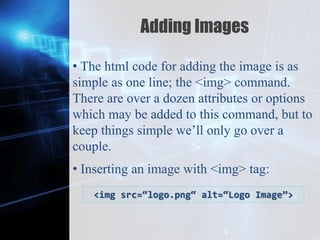
Adding Images
• The html code for adding the image is as
simple as one line; the <img> command.
There are over a dozen attributes or options
which may be added to this command, but to
keep things simple we’ll only go over a
couple.
• Inserting an image with <img> tag:
<img src=“logo.png“ alt=“Logo Image”>
Z
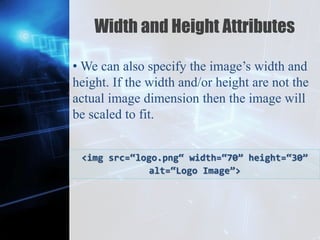
Width and Height Attributes
• We can also specify the image’s width and
height. If the width and/or height are not the
actual image dimension then the image will
be scaled to fit.
<img src=“logo.png“ width=“70” height=“30”
alt=“Logo Image”>
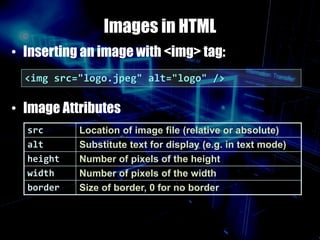
Images in HTML
• Inserting an image with <img> tag:
• Image Attributes
<img src="logo.jpeg" alt="logo" />
src Location of image file (relative or absolute)
alt Substitute text for display (e.g. in text mode)
height Number of pixels of the height
width Number of pixels of the width
border Size of border, 0 for no border
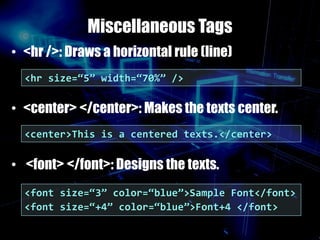
Miscellaneous Tags
• <hr />: Draws a horizontal rule (line)
• <center> </center>: Makes the texts center.
• <font> </font>: Designs the texts.
<hr size=“5” width=“70%” />
<center>This is a centered texts.</center>
<font size=“3” color=“blue”>Sample Font</font>
<font size=“+4” color=“blue”>Font+4 </font>
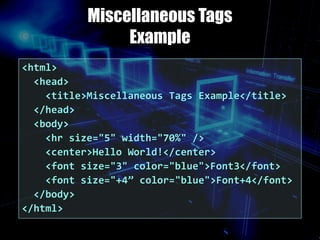
Miscellaneous Tags
Example
<html>
<head>
<title>Miscellaneous Tags Example</title>
</head>
<body>
<hr size="5" width="70%" />
<center>Hello World!</center>
<font size="3" color="blue">Font3</font>
<font size="+4” color="blue">Font+4</font>
</body>
</html>
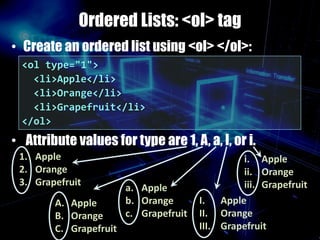
Ordered Lists: <ol> tag
• Create an ordered list using <ol> </ol>:
• Attribute values for type are 1, A, a, I, or i.
<ol type="1">
<li>Apple</li>
<li>Orange</li>
<li>Grapefruit</li>
</ol>
a. Apple
b. Orange
c. Grapefruit
1. Apple
2. Orange
3. Grapefruit
A. Apple
B. Orange
C. Grapefruit
I. Apple
II. Orange
III. Grapefruit
i. Apple
ii. Orange
iii. Grapefruit
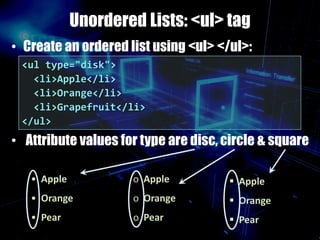
Unordered Lists: <ul> tag
• Create an ordered list using <ul> </ul>:
• Attribute values for type are disc, circle & square
<ul type="disk">
<li>Apple</li>
<li>Orange</li>
<li>Grapefruit</li>
</ul>
• Apple
• Orange
• Pear
o Apple
o Orange
o Pear
 Apple
 Orange
 Pear
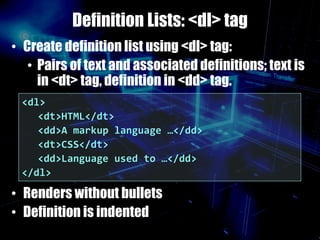
Definition Lists: <dl> tag
• Create definition list using <dl> tag:
• Pairs of text and associated definitions; text is
in <dt> tag, definition in <dd> tag.
• Renders without bullets
• Definition is indented
<dl>
<dt>HTML</dt>
<dd>A markup language …</dd>
<dt>CSS</dt>
<dd>Language used to …</dd>
</dl>
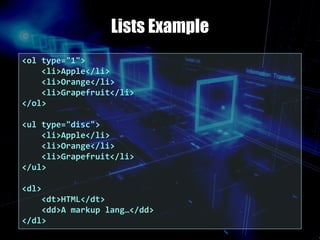
Lists Example
<ol type="1">
<li>Apple</li>
<li>Orange</li>
<li>Grapefruit</li>
</ol>
<ul type="disc">
<li>Apple</li>
<li>Orange</li>
<li>Grapefruit</li>
</ul>
<dl>
<dt>HTML</dt>
<dd>A markup lang…</dd>
</dl>
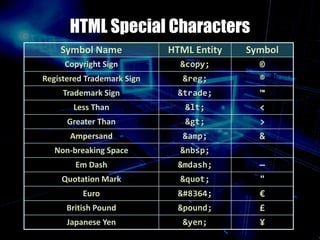
HTML Special Characters
£&pound;British Pound
€&#8364;Euro
"&quot;Quotation Mark
¥&yen;Japanese Yen
—&mdash;Em Dash
&nbsp;Non-breaking Space
&&amp;Ampersand
>&gt;Greater Than
<&lt;Less Than
™&trade;Trademark Sign
®&reg;Registered Trademark Sign
©&copy;Copyright Sign
SymbolHTML EntitySymbol Name
Special Characters Example
<p>[&gt;&gt;&nbsp;&nbsp;Welcome
&nbsp;&nbsp;&lt;&lt;]</p>
<p>&#9658;I have following cards:
A&#9827;, K&#9830; and 9&#9829;.</p>
<p>&#9658;I prefer hard rock &#9835;
music &#9835;</p>
<p>&copy; 2015 by Svetlin Nakov &amp; his team</p>
<p>AMA Computer College</p>
Z
Let’s call it a day,
Thank you!

Images and Lists in HTML

  • 1.
    Z Week 8: Images andLists in HTML Subject Code: COMP121 By: Marlon Jamera Email: mbjamera@ama.edu.ph
  • 2.
  • 3.
    Z Review: How theWeb Works using HTML • It contains text files of HTML that provide information about the page content structure. a. Web Search b. Web Page c. Web Browser d. Website Application
  • 4.
    Z Review: How theWeb Works using HTML • This file must have a .htm or .html file extension, it can be created with text editors like notepad, notepad, etc. a. Text File b. HTML File c. XHTML File d. XML File
  • 5.
    Z Review: How theWeb Works using HTML • It is always enclosed in angle bracket (<>) like <html>. a. Tag b. Attribute c. Head d. Title
  • 6.
    Z Review: How theWeb Works using HTML • It is part of the main tags that describe html web page that is to be viewed by a web browser. a. <html> b. <head> c. <title> d. <body>
  • 7.
    Z Review: How theWeb Works using HTML • What kind of tag is this? <h1> This is a sample text </h1> a. Hyperlink Tag b. Image Tag c. Text Formatting Tag d. Background Tag
  • 8.
    Z Scope of theLesson • Images in HTML • Miscellaneous Tags • Creating Lists • Ordered Lists • Unordered Lists • Definition Lists • Special Characters in HTML
  • 9.
    Z Learning Outcomes By theend of the lesson, you will be familiar and know how the website works using HTML. • Discuss the basic coding of images in HTML. • Understand the coding syntax of creating lists in HTML. • Explain thoroughly the coding styles and special characters in HTML.
  • 10.
    Z Images in HTML •img stands for “image”. It announces to the browser that an image will go here on the page. • src stands for “source”. This is an attribute, a command inside a command. It’s telling the browser where to go to find the image. • alt stands for “alternate text”. This tells the browser that if it can’t find the image, then just displays this text.
  • 11.
    Z Adding Images • Thehtml code for adding the image is as simple as one line; the <img> command. There are over a dozen attributes or options which may be added to this command, but to keep things simple we’ll only go over a couple. • Inserting an image with <img> tag: <img src=“logo.png“ alt=“Logo Image”>
  • 12.
    Z Width and HeightAttributes • We can also specify the image’s width and height. If the width and/or height are not the actual image dimension then the image will be scaled to fit. <img src=“logo.png“ width=“70” height=“30” alt=“Logo Image”>
  • 13.
    Images in HTML •Inserting an image with <img> tag: • Image Attributes <img src="logo.jpeg" alt="logo" /> src Location of image file (relative or absolute) alt Substitute text for display (e.g. in text mode) height Number of pixels of the height width Number of pixels of the width border Size of border, 0 for no border
  • 14.
    Miscellaneous Tags • <hr/>: Draws a horizontal rule (line) • <center> </center>: Makes the texts center. • <font> </font>: Designs the texts. <hr size=“5” width=“70%” /> <center>This is a centered texts.</center> <font size=“3” color=“blue”>Sample Font</font> <font size=“+4” color=“blue”>Font+4 </font>
  • 15.
    Miscellaneous Tags Example <html> <head> <title>Miscellaneous TagsExample</title> </head> <body> <hr size="5" width="70%" /> <center>Hello World!</center> <font size="3" color="blue">Font3</font> <font size="+4” color="blue">Font+4</font> </body> </html>
  • 16.
    Ordered Lists: <ol>tag • Create an ordered list using <ol> </ol>: • Attribute values for type are 1, A, a, I, or i. <ol type="1"> <li>Apple</li> <li>Orange</li> <li>Grapefruit</li> </ol> a. Apple b. Orange c. Grapefruit 1. Apple 2. Orange 3. Grapefruit A. Apple B. Orange C. Grapefruit I. Apple II. Orange III. Grapefruit i. Apple ii. Orange iii. Grapefruit
  • 17.
    Unordered Lists: <ul>tag • Create an ordered list using <ul> </ul>: • Attribute values for type are disc, circle & square <ul type="disk"> <li>Apple</li> <li>Orange</li> <li>Grapefruit</li> </ul> • Apple • Orange • Pear o Apple o Orange o Pear  Apple  Orange  Pear
  • 18.
    Definition Lists: <dl>tag • Create definition list using <dl> tag: • Pairs of text and associated definitions; text is in <dt> tag, definition in <dd> tag. • Renders without bullets • Definition is indented <dl> <dt>HTML</dt> <dd>A markup language …</dd> <dt>CSS</dt> <dd>Language used to …</dd> </dl>
  • 19.
    Lists Example <ol type="1"> <li>Apple</li> <li>Orange</li> <li>Grapefruit</li> </ol> <ultype="disc"> <li>Apple</li> <li>Orange</li> <li>Grapefruit</li> </ul> <dl> <dt>HTML</dt> <dd>A markup lang…</dd> </dl>
  • 20.
    HTML Special Characters £&pound;BritishPound €&#8364;Euro "&quot;Quotation Mark ¥&yen;Japanese Yen —&mdash;Em Dash &nbsp;Non-breaking Space &&amp;Ampersand >&gt;Greater Than <&lt;Less Than ™&trade;Trademark Sign ®&reg;Registered Trademark Sign ©&copy;Copyright Sign SymbolHTML EntitySymbol Name
  • 21.
    Special Characters Example <p>[&gt;&gt;&nbsp;&nbsp;Welcome &nbsp;&nbsp;&lt;&lt;]</p> <p>&#9658;Ihave following cards: A&#9827;, K&#9830; and 9&#9829;.</p> <p>&#9658;I prefer hard rock &#9835; music &#9835;</p> <p>&copy; 2015 by Svetlin Nakov &amp; his team</p> <p>AMA Computer College</p>
  • 22.
    Z Let’s call ita day, Thank you!

Editor's Notes