Subject Teacher: Nisa Soomro 
nisa1207@gmail.com 
https://sites.google.com/site/neisa1207/
 Lists 
 Ordered List 
 Un-Ordered List 
 Description List 
 Adding Links 
 Adding Images
Humans are natural list makers, and HTML provides elements for marking 
up three types of lists: 
 Unordered lists. Collections of items that appear in no particular order. 
 Ordered lists. Lists in which the sequence of the items is important. 
 Description lists. Lists that consist of name and value pairs, including but 
not limited to terms and definitions.
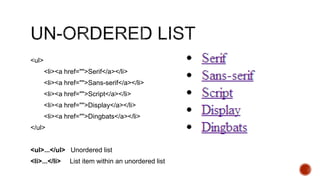
<ul> 
<li><a href="">Serif</a></li> 
<li><a href="">Sans-serif</a></li> 
<li><a href="">Script</a></li> 
<li><a href="">Display</a></li> 
<li><a href="">Dingbats</a></li> 
</ul> 
<ul>...</ul> Unordered list 
<li>...</li> List item within an unordered list
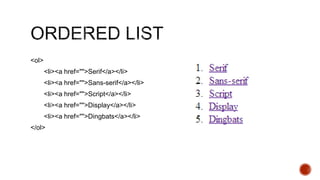
<ol> 
<li><a href="">Serif</a></li> 
<li><a href="">Sans-serif</a></li> 
<li><a href="">Script</a></li> 
<li><a href="">Display</a></li> 
<li><a href="">Dingbats</a></li> 
</ol>
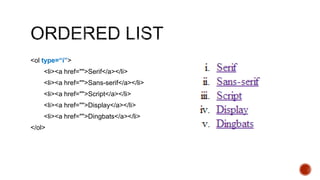
<ol type=“i”> 
<li><a href="">Serif</a></li> 
<li><a href="">Sans-serif</a></li> 
<li><a href="">Script</a></li> 
<li><a href="">Display</a></li> 
<li><a href="">Dingbats</a></li> 
</ol>
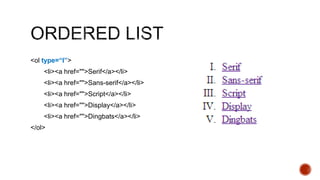
<ol type=“I”> 
<li><a href="">Serif</a></li> 
<li><a href="">Sans-serif</a></li> 
<li><a href="">Script</a></li> 
<li><a href="">Display</a></li> 
<li><a href="">Dingbats</a></li> 
</ol>
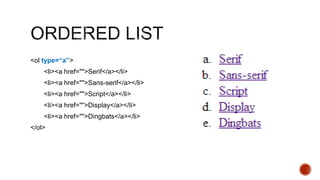
<ol type=“a”> 
<li><a href="">Serif</a></li> 
<li><a href="">Sans-serif</a></li> 
<li><a href="">Script</a></li> 
<li><a href="">Display</a></li> 
<li><a href="">Dingbats</a></li> 
</ol>
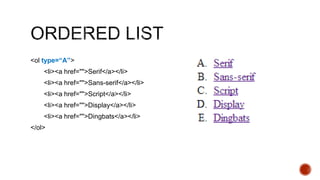
<ol type=“A”> 
<li><a href="">Serif</a></li> 
<li><a href="">Sans-serif</a></li> 
<li><a href="">Script</a></li> 
<li><a href="">Display</a></li> 
<li><a href="">Dingbats</a></li> 
</ol>
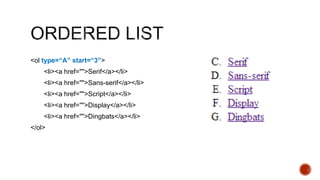
<ol type=“A” start=“3”> 
<li><a href="">Serif</a></li> 
<li><a href="">Sans-serif</a></li> 
<li><a href="">Script</a></li> 
<li><a href="">Display</a></li> 
<li><a href="">Dingbats</a></li> 
</ol>
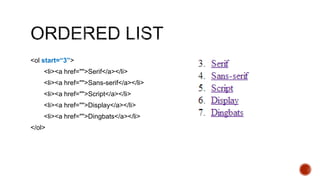
<ol start=“3”> 
<li><a href="">Serif</a></li> 
<li><a href="">Sans-serif</a></li> 
<li><a href="">Script</a></li> 
<li><a href="">Display</a></li> 
<li><a href="">Dingbats</a></li> 
</ol>
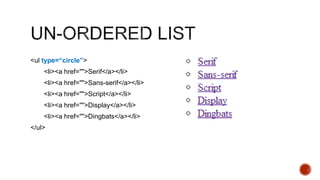
<ul type=“circle”> 
<li><a href="">Serif</a></li> 
<li><a href="">Sans-serif</a></li> 
<li><a href="">Script</a></li> 
<li><a href="">Display</a></li> 
<li><a href="">Dingbats</a></li> 
</ul>
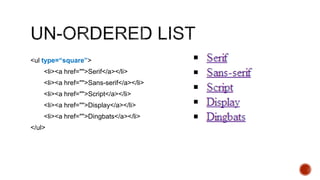
<ul type=“square”> 
<li><a href="">Serif</a></li> 
<li><a href="">Sans-serif</a></li> 
<li><a href="">Script</a></li> 
<li><a href="">Display</a></li> 
<li><a href="">Dingbats</a></li> 
</ul>
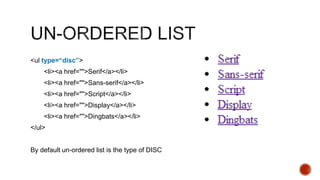
<ul type=“disc”> 
<li><a href="">Serif</a></li> 
<li><a href="">Sans-serif</a></li> 
<li><a href="">Script</a></li> 
<li><a href="">Display</a></li> 
<li><a href="">Dingbats</a></li> 
</ul> 
By default un-ordered list is the type of DISC
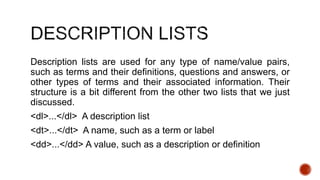
Description lists are used for any type of name/value pairs, 
such as terms and their definitions, questions and answers, or 
other types of terms and their associated information. Their 
structure is a bit different from the other two lists that we just 
discussed. 
<dl>...</dl> A description list 
<dt>...</dt> A name, such as a term or label 
<dd>...</dd> A value, such as a description or definition
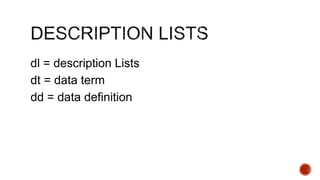
dl = description Lists 
dt = data term 
dd = data definition
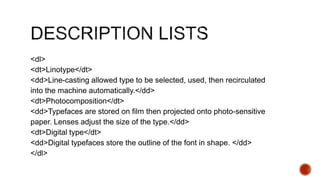
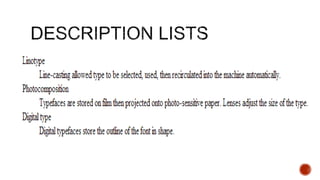
<dl> 
<dt>Linotype</dt> 
<dd>Line-casting allowed type to be selected, used, then recirculated 
into the machine automatically.</dd> 
<dt>Photocomposition</dt> 
<dd>Typefaces are stored on film then projected onto photo-sensitive 
paper. Lenses adjust the size of the type.</dd> 
<dt>Digital type</dt> 
<dd>Digital typefaces store the outline of the font in shape. </dd> 
</dl>
;
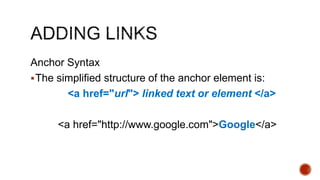
Anchor Syntax 
The simplified structure of the anchor element is: 
<a href="url"> linked text or element </a> 
<a href="http://www.google.com">Google</a>
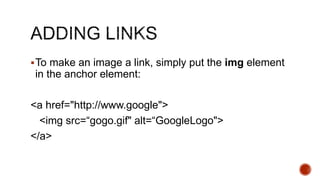
To make an image a link, simply put the img element 
in the anchor element: 
<a href="http://www.google"> 
<img src=“gogo.gif" alt=“GoogleLogo"> 
</a>
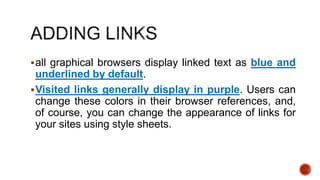
all graphical browsers display linked text as blue and 
underlined by default. 
Visited links generally display in purple. Users can 
change these colors in their browser references, and, 
of course, you can change the appearance of links for 
your sites using style sheets.
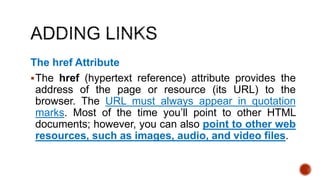
The href Attribute 
The href (hypertext reference) attribute provides the 
address of the page or resource (its URL) to the 
browser. The URL must always appear in quotation 
marks. Most of the time you’ll point to other HTML 
documents; however, you can also point to other web 
resources, such as images, audio, and video files.
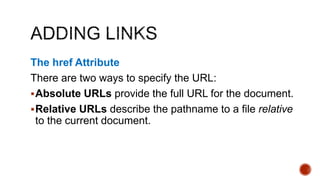
The href Attribute 
There are two ways to specify the URL: 
Absolute URLs provide the full URL for the document. 
Relative URLs describe the pathname to a file relative 
to the current document.
a link to a page that you’ve found on the Web. This is known as an 
“external” link because it is going to a page outside of your 
own server or site. To make an external link, you need to provide 
the absolute URL, beginning with http:// (the protocol). This 
tells the browser, “Go out on the Web and get the following 
document.” 
<a href="http://www.foodnetwork.com">The Food Network</a>
A large portion of the linking you’ll do will be between pages of 
your own site: from the home page to section pages, from 
section pages to content pages, and so on. In these cases, 
you can use a relative URL—one that calls for a page on your 
own server. Without “http://”, the browser looks on the current 
server for the linked document. A pathname, the notation used 
to point to a particular file or directory, tells the browser where 
to find the file. A relative pathname describes how to get to the 
linked document. starting from the location of the current 
document.
When you are writing relative pathnames, it is critical that you follow these 
rules to avoid common errors: 
 Don’t use backslashes (). Web URL pathnames use forward slashes (/) 
only. 
 Don’t start with the drive name (D:, C:, etc.). Although your pages will link to 
each other successfully while they are on your own computer, once they 
are uploaded to the web server, the drive name is irrelevant and will break 
your links. 
 Don’t start with file://. This also indicates that the file is local and causes the 
link to break when it is on the server.
The most straightforward relative URL points to 
another file within the same directory. When link to 
a file in the same directory, you only need to provide 
the name of the file (its filename). When the URL is a 
single filename, the server looks in the current 
directory (that is, the directory that contains the 
document with the link) for the file.
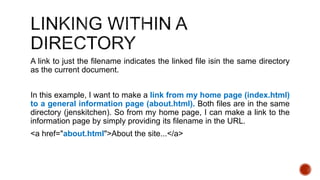
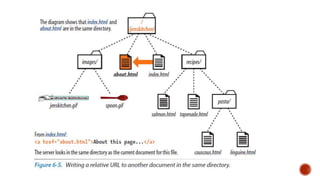
A link to just the filename indicates the linked file isin the same directory 
as the current document. 
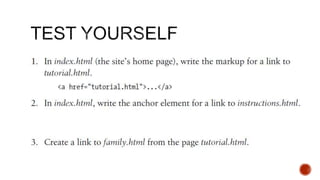
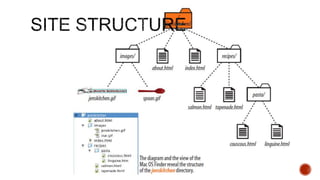
In this example, I want to make a link from my home page (index.html) 
to a general information page (about.html). Both files are in the same 
directory (jenskitchen). So from my home page, I can make a link to the 
information page by simply providing its filename in the URL. 
<a href="about.html">About the site...</a>
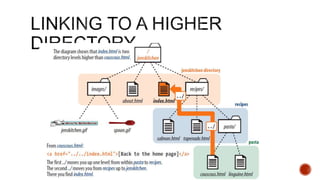
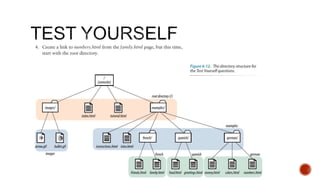
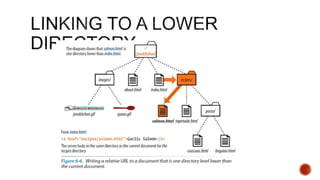
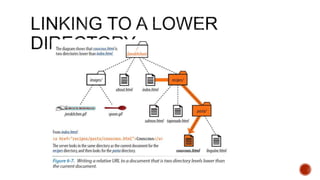
Getting back to our example, my recipe files are stored in a 
subdirectory called recipes. If you want to make a link from 
index.html to a file in the recipes directory called salmon.html. 
The pathname in the URL tells the browser to look in the 
current directory for a directory called recipes, and then look 
for the file salmon.html
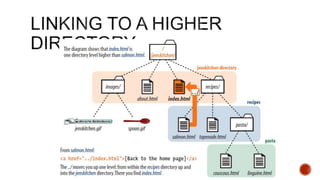
Let’s start by making a link from salmon.html back to the home 
page (index.html). Because salmon.html is in the recipes 
subdirectory, we need to back up a level to jenskitchen to find 
index.html. This pathname tells the browser to “go up one level,” 
then look in that directory for index.html 
<a href="../index.html">[Back to home page]</a> 
Note that we don’t need to write out the name of the higher 
directory (jenskitchen) in the pathname. The ../ stands in for it.
Can you guess how you’d back your way out of two directory levels? 
Simple: just use the dot-dot-slash twice 
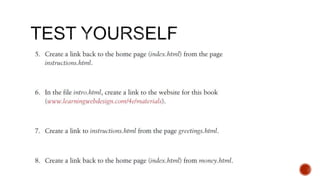
A link on the couscous.html page back to the home page (index.html) would look like this: 
<a href="../../index.html">[Back to home page]</a> 
The first ../ backs up to the recipes directory; 
the second ../ backs up to the top-level directory where index.html can be found. 
Again, there is no need to write out the directory names; the ../ does it all.
Can you guess how you’d back your way out of two directory levels? 
Simple: just use the dot-dot-slash twice 
A link on the couscous.html page back to the home page (index.html) would look like this: 
<a href="../../index.html">[Back to home page]</a> 
The first ../ backs up to the recipes directory; 
the second ../ backs up to the top-level directory where index.html can be found. 
Again, there is no need to write out the directory names; the ../ does it all.
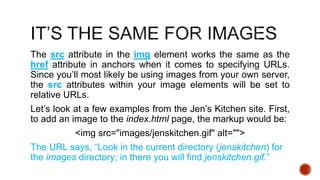
The src attribute in the img element works the same as the 
href attribute in anchors when it comes to specifying URLs. 
Since you’ll most likely be using images from your own server, 
the src attributes within your image elements will be set to 
relative URLs. 
Let’s look at a few examples from the Jen’s Kitchen site. First, 
to add an image to the index.html page, the markup would be: 
<img src="images/jenskitchen.gif" alt=""> 
The URL says, “Look in the current directory (jenskitchen) for 
the images directory; in there you will find jenskitchen.gif.”
This is useful for providing shortcuts to information at the 
bottom of a long, scrolling page or for getting back to the top 
of a page with just one click or tap. Linking to a specific point 
in the page is also referred to as linking to a document 
fragment.
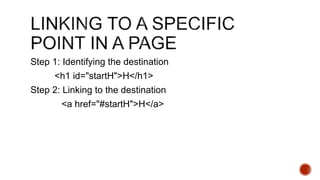
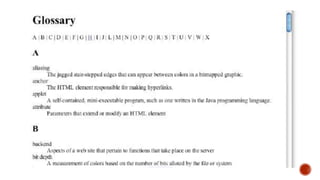
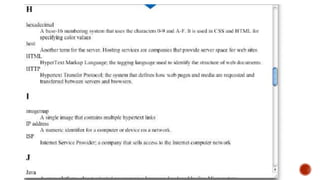
Step 1: Identifying the destination 
<h1 id="startH">H</h1> 
Step 2: Linking to the destination 
<a href="#startH">H</a>
Setting target="_blank" always causes the browser to 
open a fresh window. 
For example: 
<a href="http://www.oreilly.com" target="_blank">O'Reilly</a> 
If you target “_blank” for every link, every link will launch a 
new window, potentially leaving your user with a mess of 
open windows.
By using the mailto protocol in a link, you can link to an 
email address. When the user clicks on a mailto link, the 
browser opens a new mail message preaddressed to that 
address in a designated mail program. 
A sample mailto link is shown here: 
<a href="mailto:alklecker@example.com">Contact Al Klecker</a> 
As you can see, it’s a standard anchor element with the href 
attribute. But the value is set to mailto:name@address.com.
Keep in mind that the smartphones people are using to access 
your website can also be used to make phone calls! Why not 
save your visitors a step by letting them dial a phone number 
on your site simply by tapping on it on the page? The syntax 
uses the tel: scheme and is very simple. 
<a href="tel:+18005551212"> 
Call us free at (800) 555-1212 
</a>
HTML Lists & Llinks
HTML Lists & Llinks
HTML Lists & Llinks

HTML Lists & Llinks

  • 1.
    Subject Teacher: NisaSoomro nisa1207@gmail.com https://sites.google.com/site/neisa1207/
  • 2.
     Lists Ordered List  Un-Ordered List  Description List  Adding Links  Adding Images
  • 3.
    Humans are naturallist makers, and HTML provides elements for marking up three types of lists:  Unordered lists. Collections of items that appear in no particular order.  Ordered lists. Lists in which the sequence of the items is important.  Description lists. Lists that consist of name and value pairs, including but not limited to terms and definitions.
  • 4.
    <ul> <li><a href="">Serif</a></li> <li><a href="">Sans-serif</a></li> <li><a href="">Script</a></li> <li><a href="">Display</a></li> <li><a href="">Dingbats</a></li> </ul> <ul>...</ul> Unordered list <li>...</li> List item within an unordered list
  • 5.
    <ol> <li><a href="">Serif</a></li> <li><a href="">Sans-serif</a></li> <li><a href="">Script</a></li> <li><a href="">Display</a></li> <li><a href="">Dingbats</a></li> </ol>
  • 6.
    <ol type=“i”> <li><ahref="">Serif</a></li> <li><a href="">Sans-serif</a></li> <li><a href="">Script</a></li> <li><a href="">Display</a></li> <li><a href="">Dingbats</a></li> </ol>
  • 7.
    <ol type=“I”> <li><ahref="">Serif</a></li> <li><a href="">Sans-serif</a></li> <li><a href="">Script</a></li> <li><a href="">Display</a></li> <li><a href="">Dingbats</a></li> </ol>
  • 8.
    <ol type=“a”> <li><ahref="">Serif</a></li> <li><a href="">Sans-serif</a></li> <li><a href="">Script</a></li> <li><a href="">Display</a></li> <li><a href="">Dingbats</a></li> </ol>
  • 9.
    <ol type=“A”> <li><ahref="">Serif</a></li> <li><a href="">Sans-serif</a></li> <li><a href="">Script</a></li> <li><a href="">Display</a></li> <li><a href="">Dingbats</a></li> </ol>
  • 10.
    <ol type=“A” start=“3”> <li><a href="">Serif</a></li> <li><a href="">Sans-serif</a></li> <li><a href="">Script</a></li> <li><a href="">Display</a></li> <li><a href="">Dingbats</a></li> </ol>
  • 11.
    <ol start=“3”> <li><ahref="">Serif</a></li> <li><a href="">Sans-serif</a></li> <li><a href="">Script</a></li> <li><a href="">Display</a></li> <li><a href="">Dingbats</a></li> </ol>
  • 12.
    <ul type=“circle”> <li><ahref="">Serif</a></li> <li><a href="">Sans-serif</a></li> <li><a href="">Script</a></li> <li><a href="">Display</a></li> <li><a href="">Dingbats</a></li> </ul>
  • 13.
    <ul type=“square”> <li><ahref="">Serif</a></li> <li><a href="">Sans-serif</a></li> <li><a href="">Script</a></li> <li><a href="">Display</a></li> <li><a href="">Dingbats</a></li> </ul>
  • 14.
    <ul type=“disc”> <li><ahref="">Serif</a></li> <li><a href="">Sans-serif</a></li> <li><a href="">Script</a></li> <li><a href="">Display</a></li> <li><a href="">Dingbats</a></li> </ul> By default un-ordered list is the type of DISC
  • 15.
    Description lists areused for any type of name/value pairs, such as terms and their definitions, questions and answers, or other types of terms and their associated information. Their structure is a bit different from the other two lists that we just discussed. <dl>...</dl> A description list <dt>...</dt> A name, such as a term or label <dd>...</dd> A value, such as a description or definition
  • 16.
    dl = descriptionLists dt = data term dd = data definition
  • 17.
    <dl> <dt>Linotype</dt> <dd>Line-castingallowed type to be selected, used, then recirculated into the machine automatically.</dd> <dt>Photocomposition</dt> <dd>Typefaces are stored on film then projected onto photo-sensitive paper. Lenses adjust the size of the type.</dd> <dt>Digital type</dt> <dd>Digital typefaces store the outline of the font in shape. </dd> </dl>
  • 18.
  • 19.
    Anchor Syntax Thesimplified structure of the anchor element is: <a href="url"> linked text or element </a> <a href="http://www.google.com">Google</a>
  • 20.
    To make animage a link, simply put the img element in the anchor element: <a href="http://www.google"> <img src=“gogo.gif" alt=“GoogleLogo"> </a>
  • 21.
    all graphical browsersdisplay linked text as blue and underlined by default. Visited links generally display in purple. Users can change these colors in their browser references, and, of course, you can change the appearance of links for your sites using style sheets.
  • 22.
    The href Attribute The href (hypertext reference) attribute provides the address of the page or resource (its URL) to the browser. The URL must always appear in quotation marks. Most of the time you’ll point to other HTML documents; however, you can also point to other web resources, such as images, audio, and video files.
  • 23.
    The href Attribute There are two ways to specify the URL: Absolute URLs provide the full URL for the document. Relative URLs describe the pathname to a file relative to the current document.
  • 25.
    a link toa page that you’ve found on the Web. This is known as an “external” link because it is going to a page outside of your own server or site. To make an external link, you need to provide the absolute URL, beginning with http:// (the protocol). This tells the browser, “Go out on the Web and get the following document.” <a href="http://www.foodnetwork.com">The Food Network</a>
  • 26.
    A large portionof the linking you’ll do will be between pages of your own site: from the home page to section pages, from section pages to content pages, and so on. In these cases, you can use a relative URL—one that calls for a page on your own server. Without “http://”, the browser looks on the current server for the linked document. A pathname, the notation used to point to a particular file or directory, tells the browser where to find the file. A relative pathname describes how to get to the linked document. starting from the location of the current document.
  • 28.
    When you arewriting relative pathnames, it is critical that you follow these rules to avoid common errors:  Don’t use backslashes (). Web URL pathnames use forward slashes (/) only.  Don’t start with the drive name (D:, C:, etc.). Although your pages will link to each other successfully while they are on your own computer, once they are uploaded to the web server, the drive name is irrelevant and will break your links.  Don’t start with file://. This also indicates that the file is local and causes the link to break when it is on the server.
  • 29.
    The most straightforwardrelative URL points to another file within the same directory. When link to a file in the same directory, you only need to provide the name of the file (its filename). When the URL is a single filename, the server looks in the current directory (that is, the directory that contains the document with the link) for the file.
  • 30.
    A link tojust the filename indicates the linked file isin the same directory as the current document. In this example, I want to make a link from my home page (index.html) to a general information page (about.html). Both files are in the same directory (jenskitchen). So from my home page, I can make a link to the information page by simply providing its filename in the URL. <a href="about.html">About the site...</a>
  • 33.
    Getting back toour example, my recipe files are stored in a subdirectory called recipes. If you want to make a link from index.html to a file in the recipes directory called salmon.html. The pathname in the URL tells the browser to look in the current directory for a directory called recipes, and then look for the file salmon.html
  • 36.
    Let’s start bymaking a link from salmon.html back to the home page (index.html). Because salmon.html is in the recipes subdirectory, we need to back up a level to jenskitchen to find index.html. This pathname tells the browser to “go up one level,” then look in that directory for index.html <a href="../index.html">[Back to home page]</a> Note that we don’t need to write out the name of the higher directory (jenskitchen) in the pathname. The ../ stands in for it.
  • 38.
    Can you guesshow you’d back your way out of two directory levels? Simple: just use the dot-dot-slash twice A link on the couscous.html page back to the home page (index.html) would look like this: <a href="../../index.html">[Back to home page]</a> The first ../ backs up to the recipes directory; the second ../ backs up to the top-level directory where index.html can be found. Again, there is no need to write out the directory names; the ../ does it all.
  • 39.
    Can you guesshow you’d back your way out of two directory levels? Simple: just use the dot-dot-slash twice A link on the couscous.html page back to the home page (index.html) would look like this: <a href="../../index.html">[Back to home page]</a> The first ../ backs up to the recipes directory; the second ../ backs up to the top-level directory where index.html can be found. Again, there is no need to write out the directory names; the ../ does it all.
  • 40.
    The src attributein the img element works the same as the href attribute in anchors when it comes to specifying URLs. Since you’ll most likely be using images from your own server, the src attributes within your image elements will be set to relative URLs. Let’s look at a few examples from the Jen’s Kitchen site. First, to add an image to the index.html page, the markup would be: <img src="images/jenskitchen.gif" alt=""> The URL says, “Look in the current directory (jenskitchen) for the images directory; in there you will find jenskitchen.gif.”
  • 41.
    This is usefulfor providing shortcuts to information at the bottom of a long, scrolling page or for getting back to the top of a page with just one click or tap. Linking to a specific point in the page is also referred to as linking to a document fragment.
  • 42.
    Step 1: Identifyingthe destination <h1 id="startH">H</h1> Step 2: Linking to the destination <a href="#startH">H</a>
  • 45.
    Setting target="_blank" alwayscauses the browser to open a fresh window. For example: <a href="http://www.oreilly.com" target="_blank">O'Reilly</a> If you target “_blank” for every link, every link will launch a new window, potentially leaving your user with a mess of open windows.
  • 46.
    By using themailto protocol in a link, you can link to an email address. When the user clicks on a mailto link, the browser opens a new mail message preaddressed to that address in a designated mail program. A sample mailto link is shown here: <a href="mailto:alklecker@example.com">Contact Al Klecker</a> As you can see, it’s a standard anchor element with the href attribute. But the value is set to mailto:name@address.com.
  • 47.
    Keep in mindthat the smartphones people are using to access your website can also be used to make phone calls! Why not save your visitors a step by letting them dial a phone number on your site simply by tapping on it on the page? The syntax uses the tel: scheme and is very simple. <a href="tel:+18005551212"> Call us free at (800) 555-1212 </a>