Sign Up for Buffer
Sign up online on Bufferapp.com
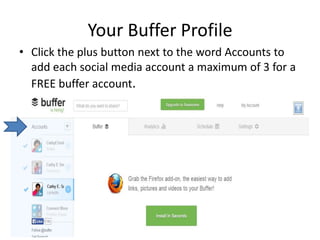
Your Buffer Profile
• Click the plus button next to the word Accounts to
add each social media account a maximum of 3 for a
FREE buffer account.
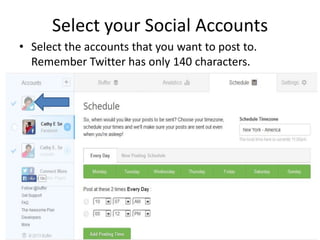
Select your Social Accounts
• Select the accounts that you want to post to.
Remember Twitter has only 140 characters.
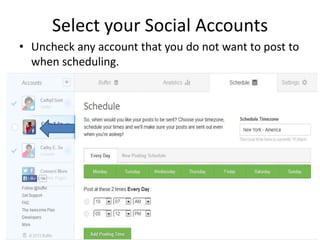
Select your Social Accounts
• Uncheck any account that you do not want to post to
when scheduling.
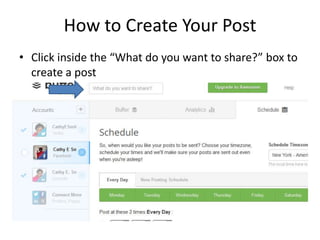
How to Create Your Post
• Click inside the “What do you want to share?” box to
create a post
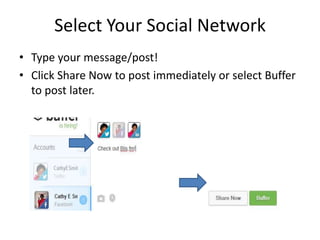
Select Your Social Network
• Type your message/post!
• Click Share Now to post immediately or select Buffer
to post later.
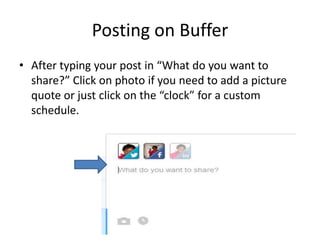
Posting on Buffer
• After typing your post in “What do you want to
share?” Click on photo if you need to add a picture
quote or just click on the “clock” for a custom
schedule.
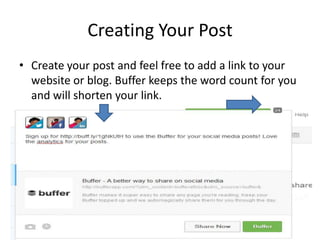
Creating Your Post
• Create your post and feel free to add a link to your
website or blog. Buffer keeps the word count for you
and will shorten your link.
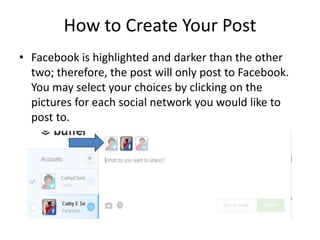
How to Create Your Post
• Facebook is highlighted and darker than the other
two; therefore, the post will only post to Facebook.
You may select your choices by clicking on the
pictures for each social network you would like to
post to.
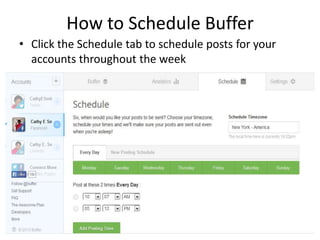
How to Schedule Buffer
• Click the Schedule tab to schedule posts for your
accounts throughout the week
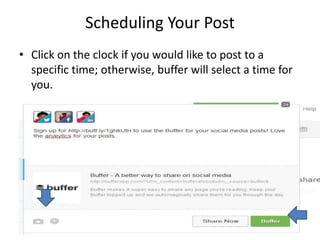
Scheduling Your Post
• Click on the clock if you would like to post to a
specific time; otherwise, buffer will select a time for
you.
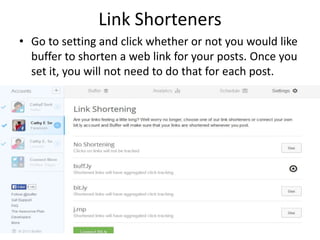
Link Shorteners
• Go to setting and click whether or not you would like
buffer to shorten a web link for your posts. Once you
set it, you will not need to do that for each post.
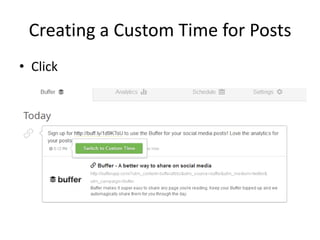
Creating a Custom Time for Posts
• Click
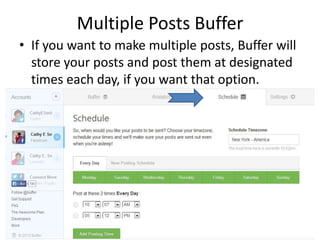
Multiple Posts Buffer
• If you want to make multiple posts, Buffer will
store your posts and post them at designated
times each day, if you want that option.
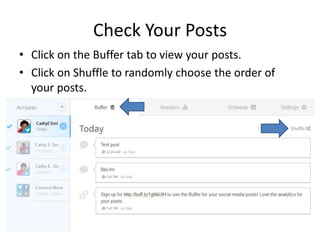
Check Your Posts
• Click on the Buffer tab to view your posts.
• Click on Shuffle to randomly choose the order of
your posts.
Questions
For more information or training on social media
tools or marketing.
Visit: www.CathyESmith.com
E-mail: Cathy@cathyesmith.com
Phone: 240-523-3707

How to use buffer app

  • 2.
    Sign Up forBuffer Sign up online on Bufferapp.com
  • 3.
    Your Buffer Profile •Click the plus button next to the word Accounts to add each social media account a maximum of 3 for a FREE buffer account.
  • 4.
    Select your SocialAccounts • Select the accounts that you want to post to. Remember Twitter has only 140 characters.
  • 5.
    Select your SocialAccounts • Uncheck any account that you do not want to post to when scheduling.
  • 6.
    How to CreateYour Post • Click inside the “What do you want to share?” box to create a post
  • 7.
    Select Your SocialNetwork • Type your message/post! • Click Share Now to post immediately or select Buffer to post later.
  • 8.
    Posting on Buffer •After typing your post in “What do you want to share?” Click on photo if you need to add a picture quote or just click on the “clock” for a custom schedule.
  • 9.
    Creating Your Post •Create your post and feel free to add a link to your website or blog. Buffer keeps the word count for you and will shorten your link.
  • 10.
    How to CreateYour Post • Facebook is highlighted and darker than the other two; therefore, the post will only post to Facebook. You may select your choices by clicking on the pictures for each social network you would like to post to.
  • 11.
    How to ScheduleBuffer • Click the Schedule tab to schedule posts for your accounts throughout the week
  • 12.
    Scheduling Your Post •Click on the clock if you would like to post to a specific time; otherwise, buffer will select a time for you.
  • 13.
    Link Shorteners • Goto setting and click whether or not you would like buffer to shorten a web link for your posts. Once you set it, you will not need to do that for each post.
  • 14.
    Creating a CustomTime for Posts • Click
  • 15.
    Multiple Posts Buffer •If you want to make multiple posts, Buffer will store your posts and post them at designated times each day, if you want that option.
  • 16.
    Check Your Posts •Click on the Buffer tab to view your posts. • Click on Shuffle to randomly choose the order of your posts.
  • 17.
    Questions For more informationor training on social media tools or marketing. Visit: www.CathyESmith.com E-mail: Cathy@cathyesmith.com Phone: 240-523-3707