How to use Buffer
to broadcast a
single message to
multiple networks
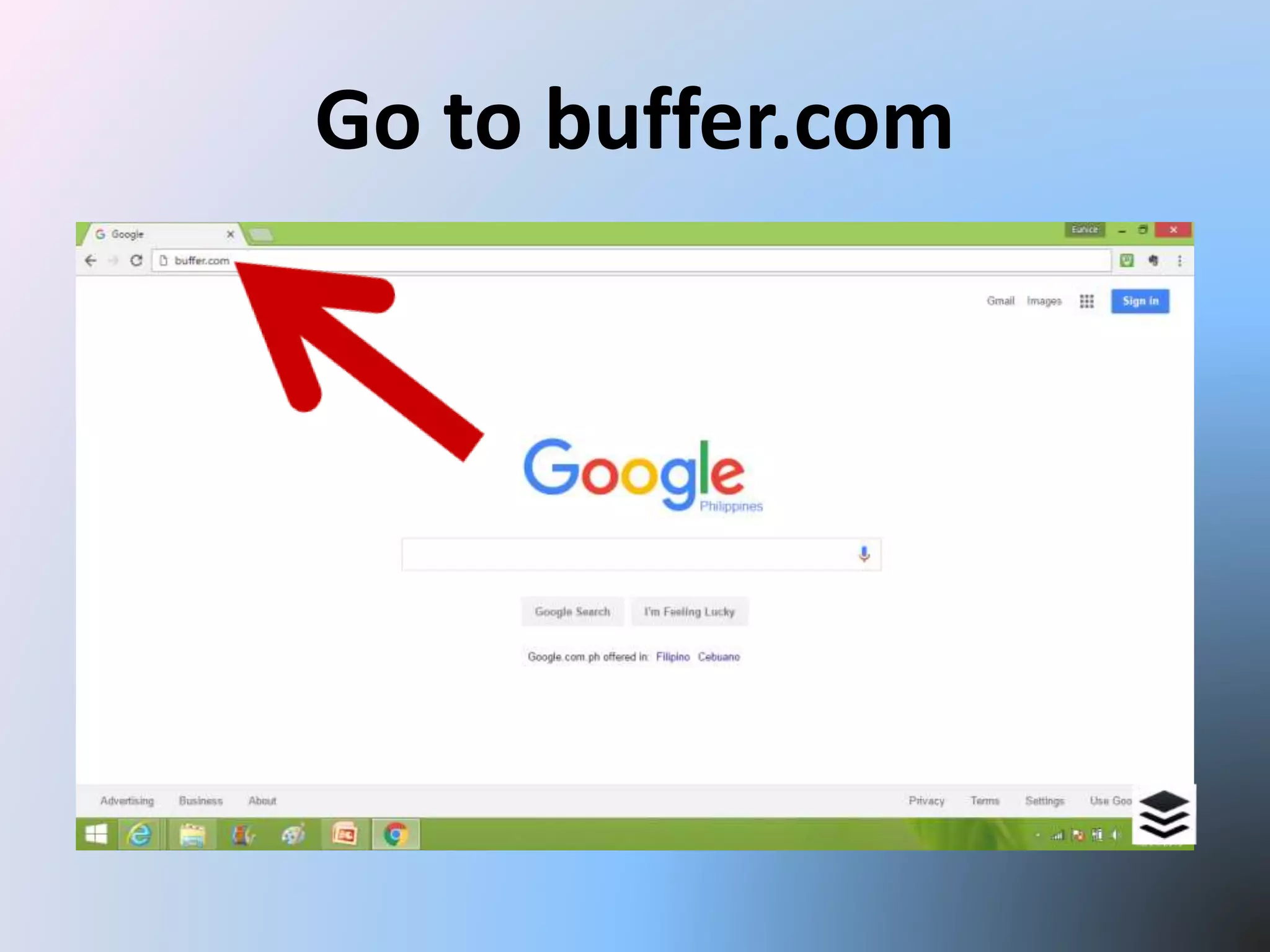
Go to buffer.com
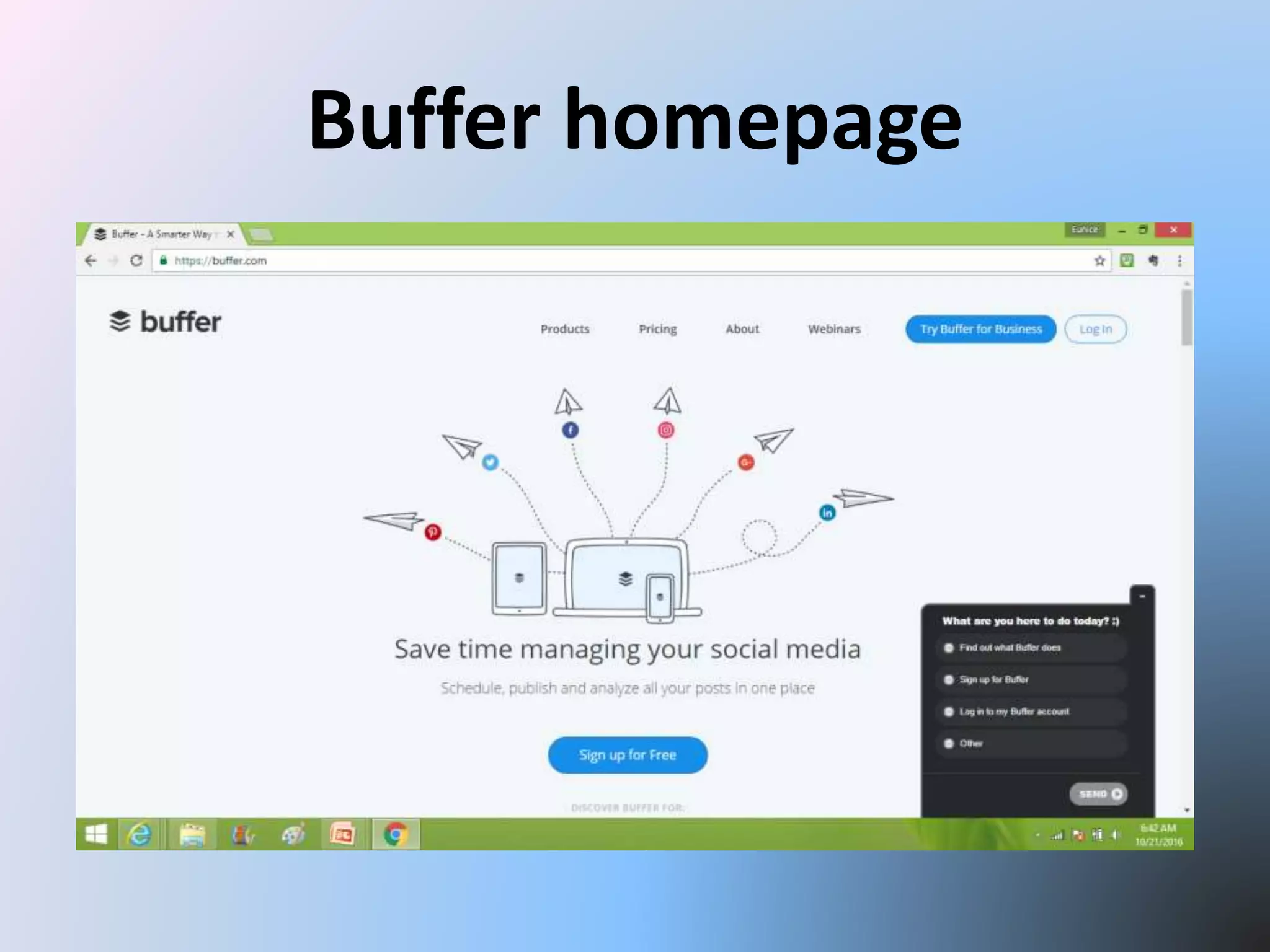
Buffer homepage
Let’s sign up!
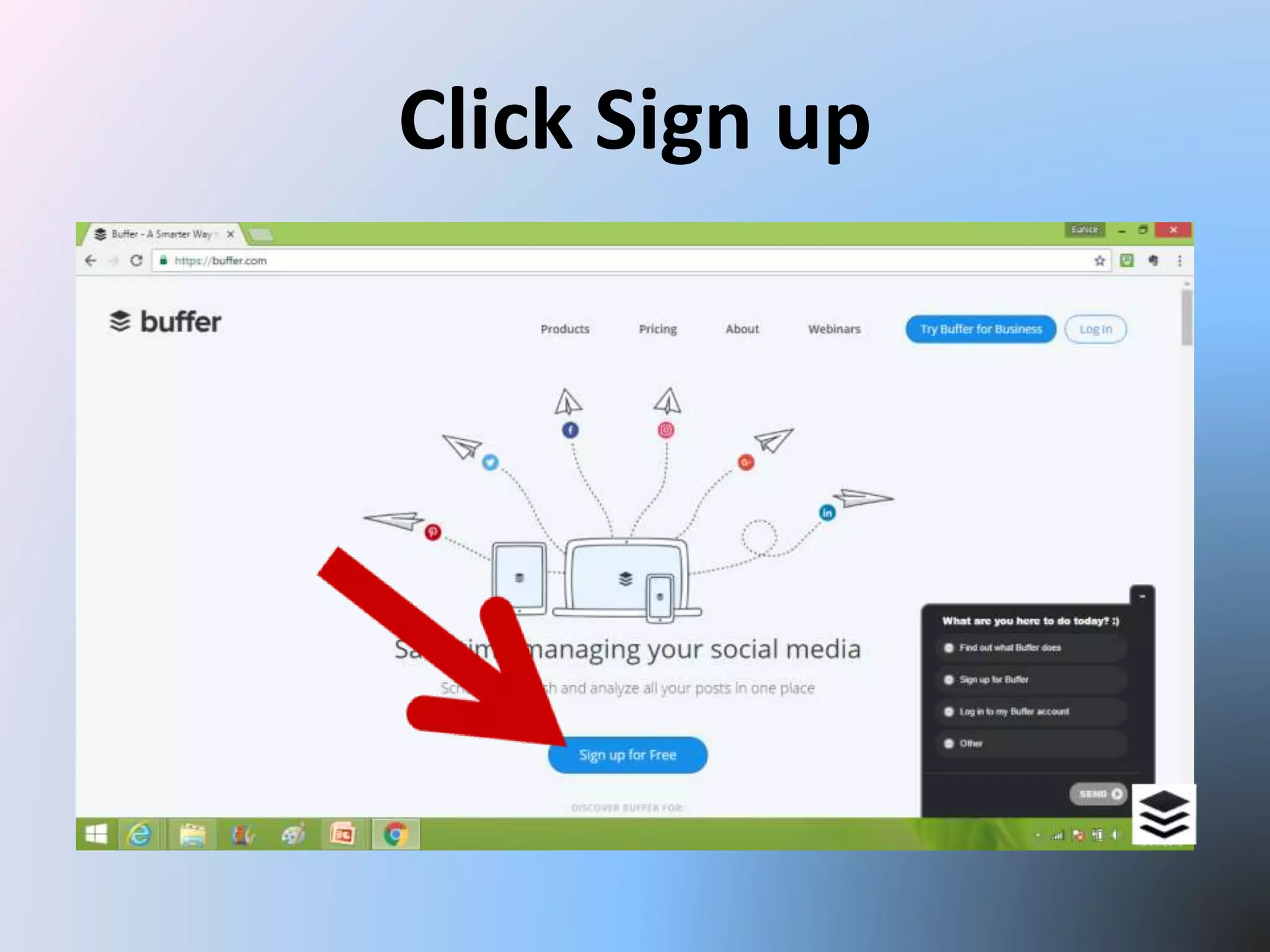
Click Sign up
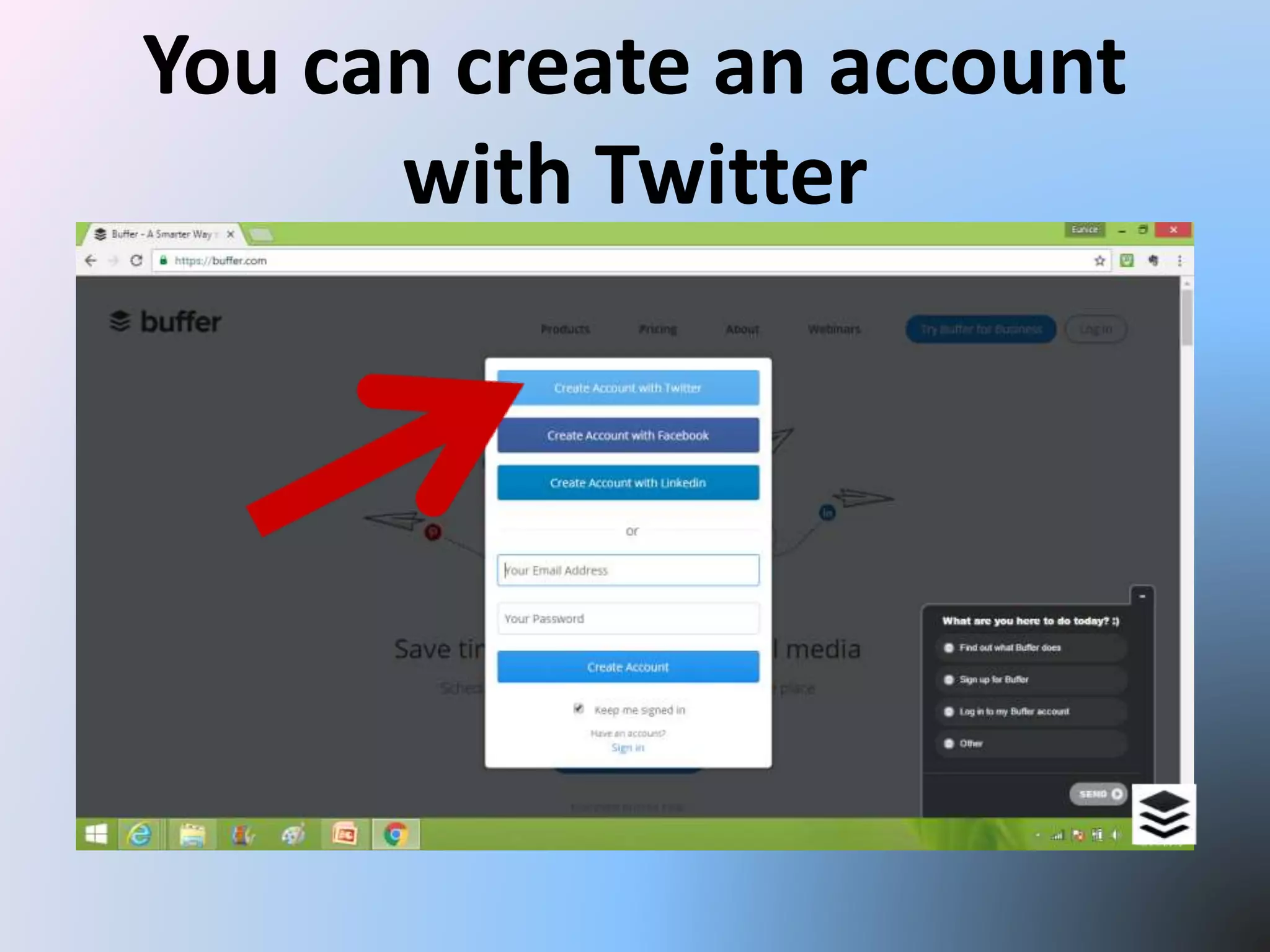
You can create an account
with Twitter
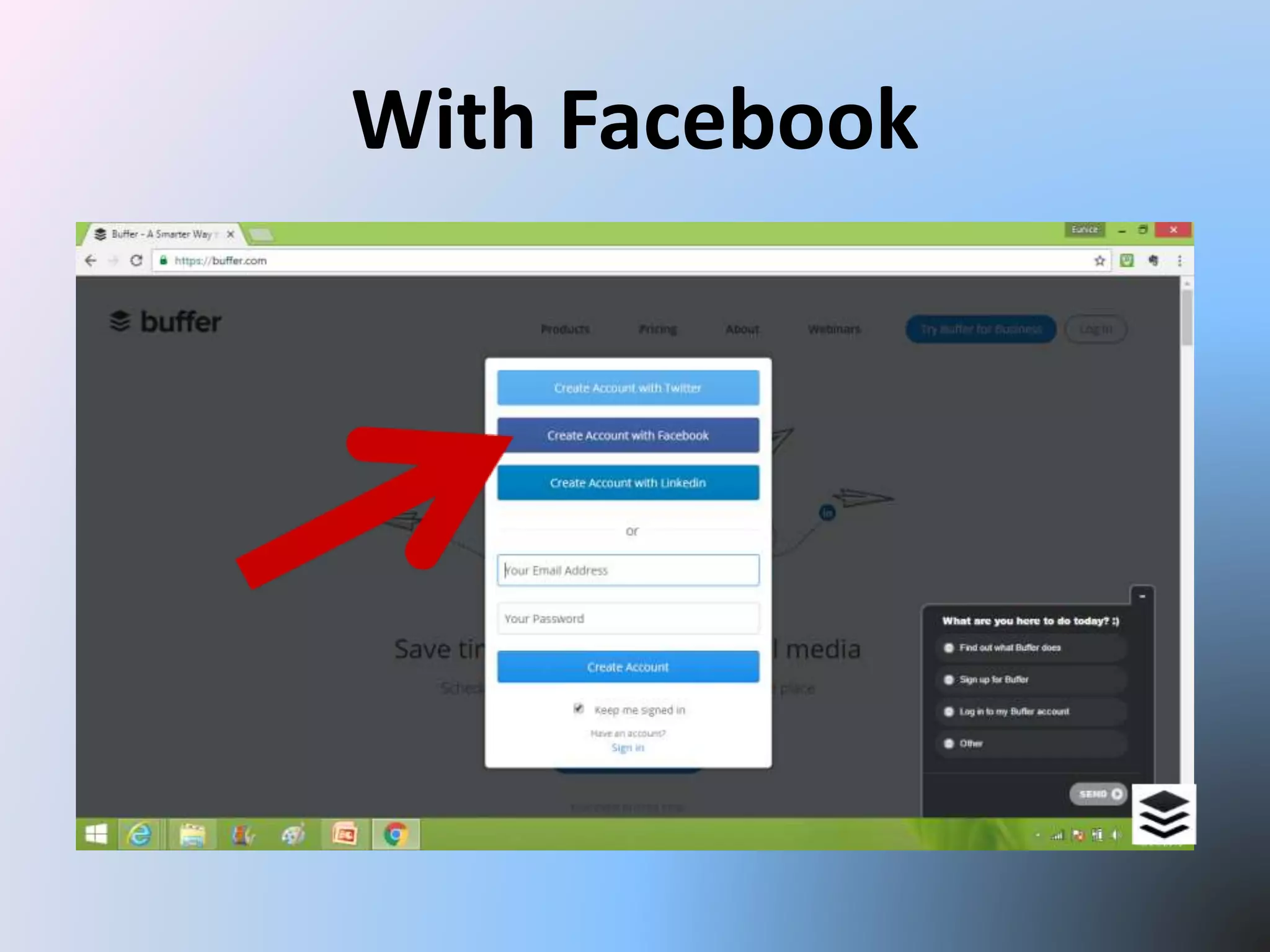
With Facebook
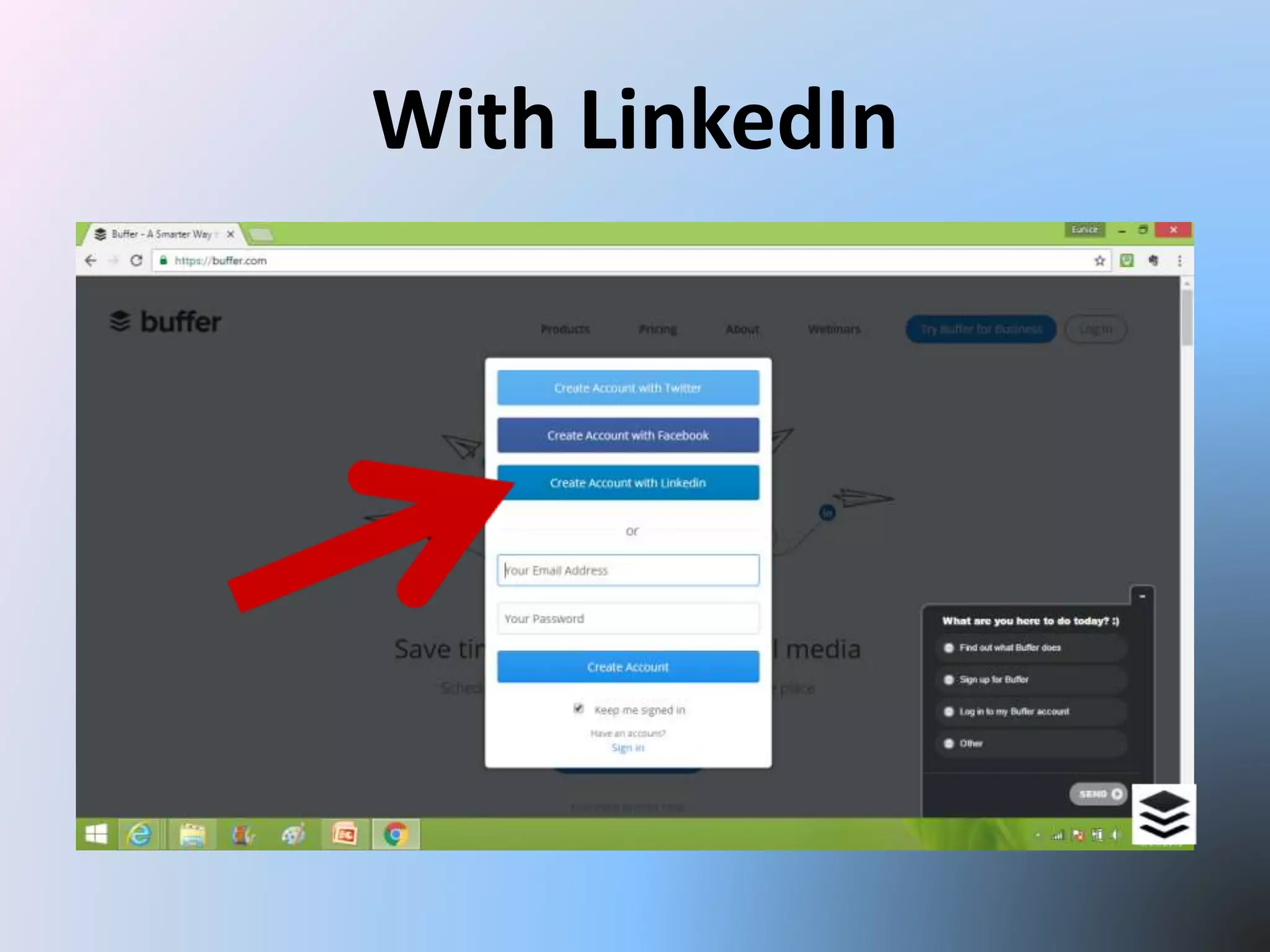
With LinkedIn
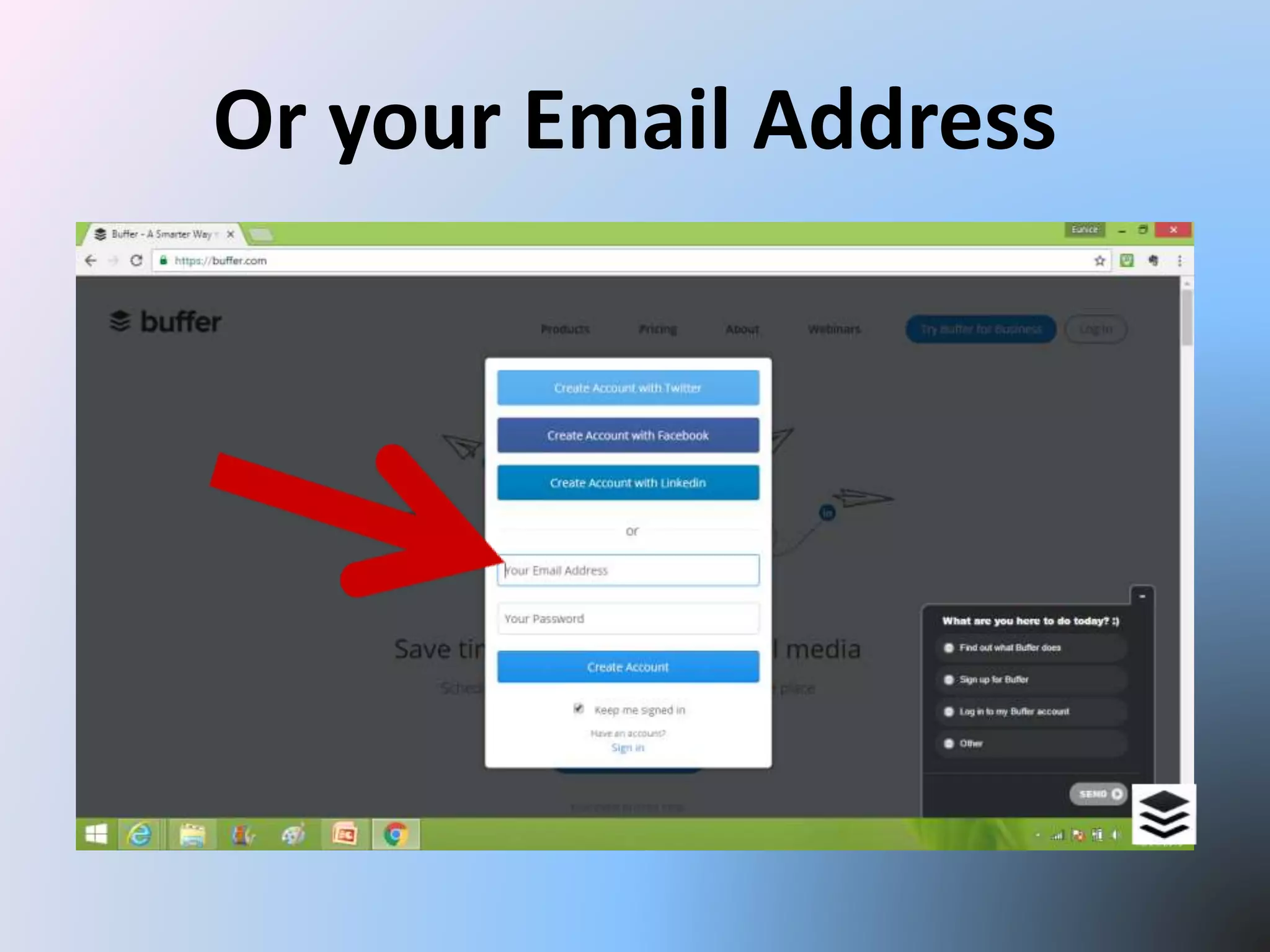
Or your Email Address
Let’s create an account
with your Email Address
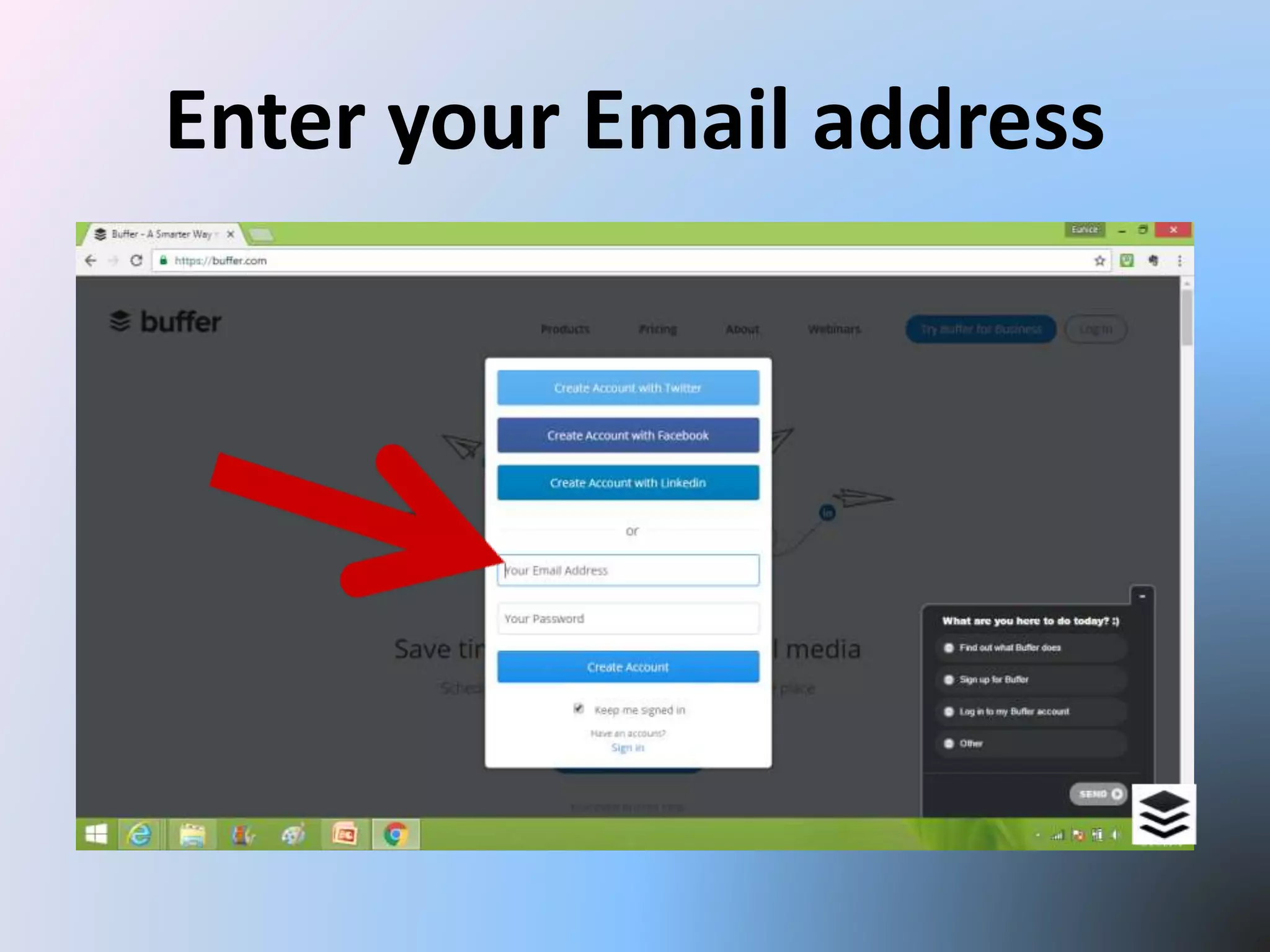
Enter your Email address
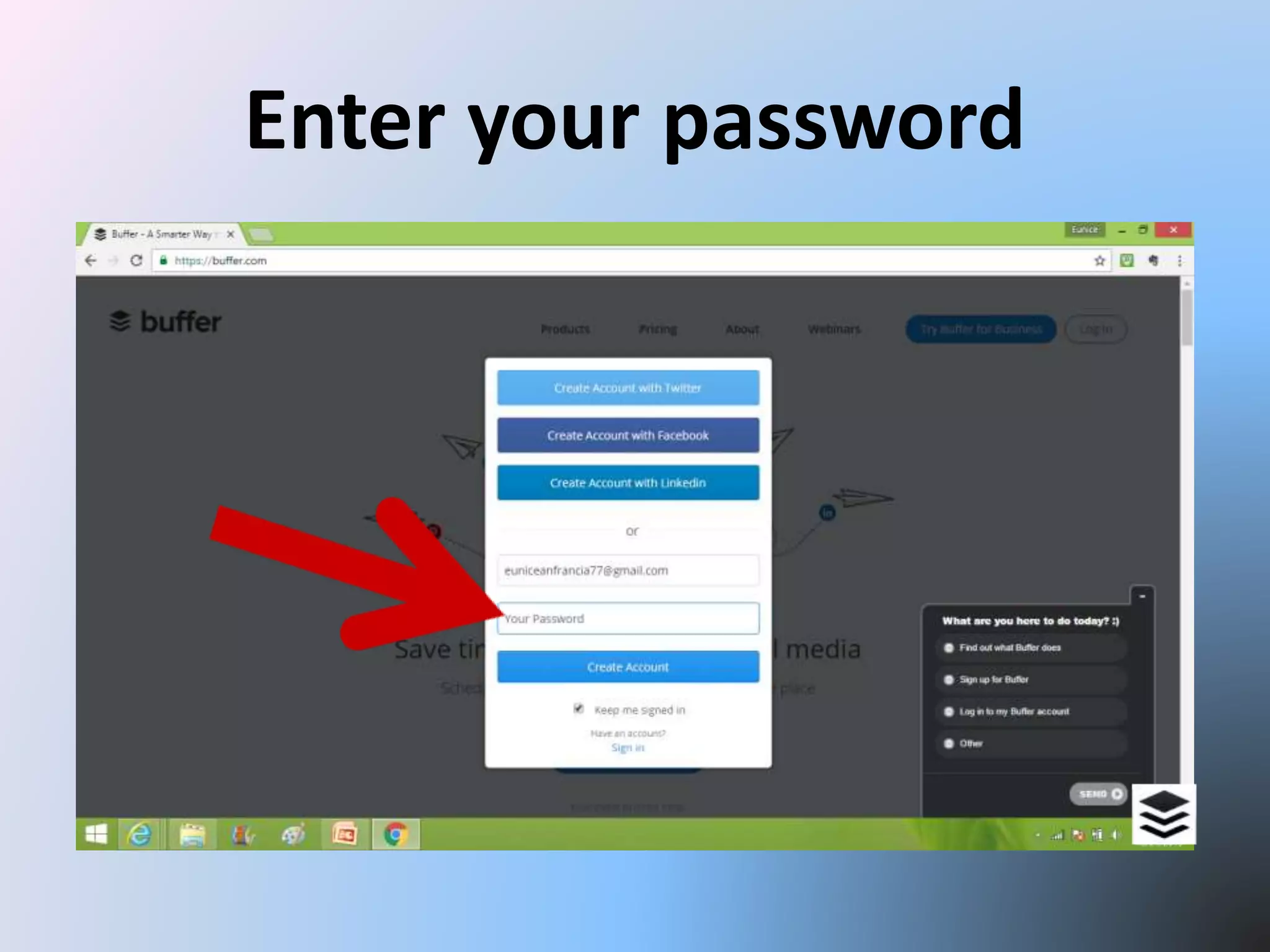
Enter your password
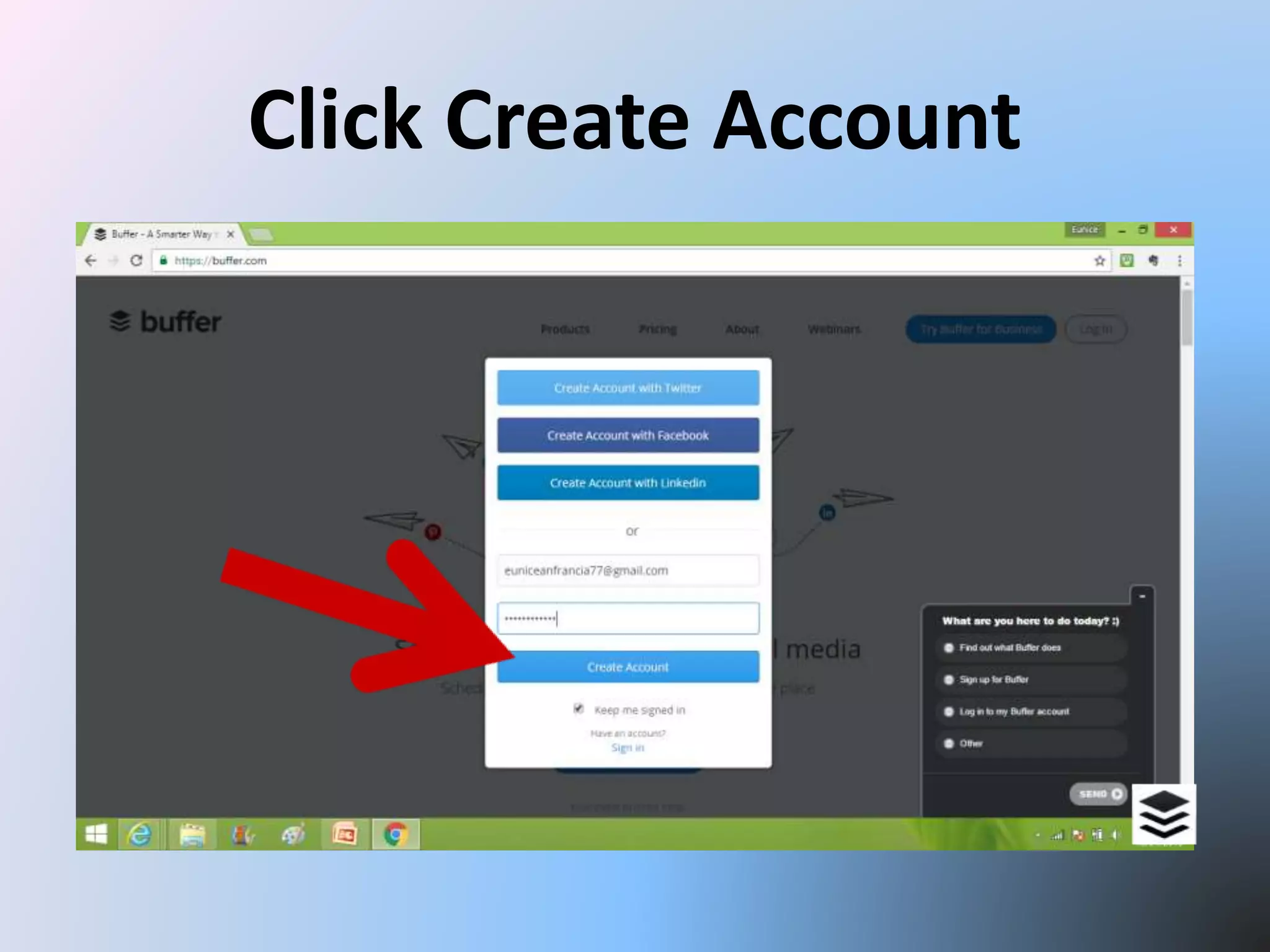
Click Create Account
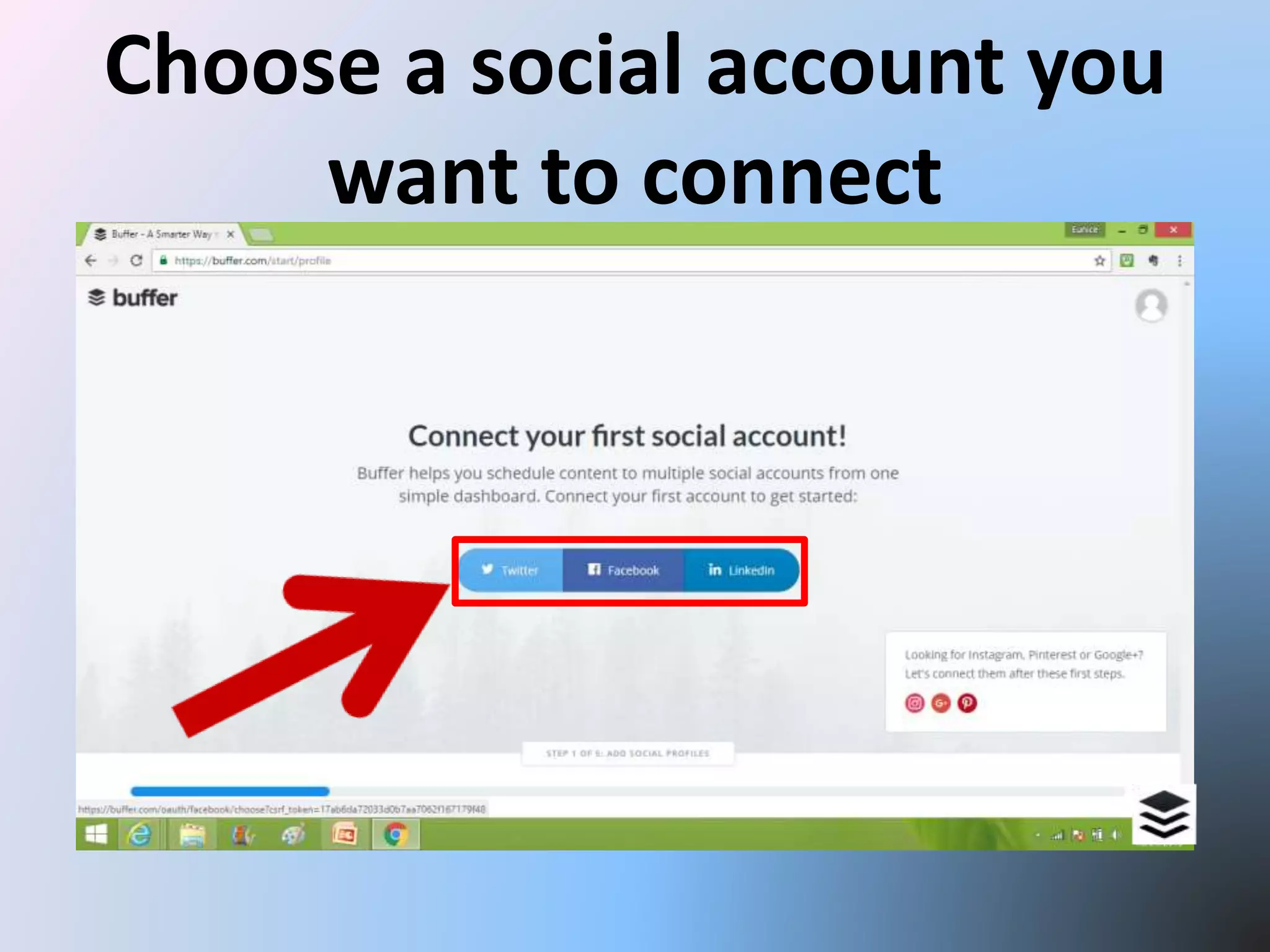
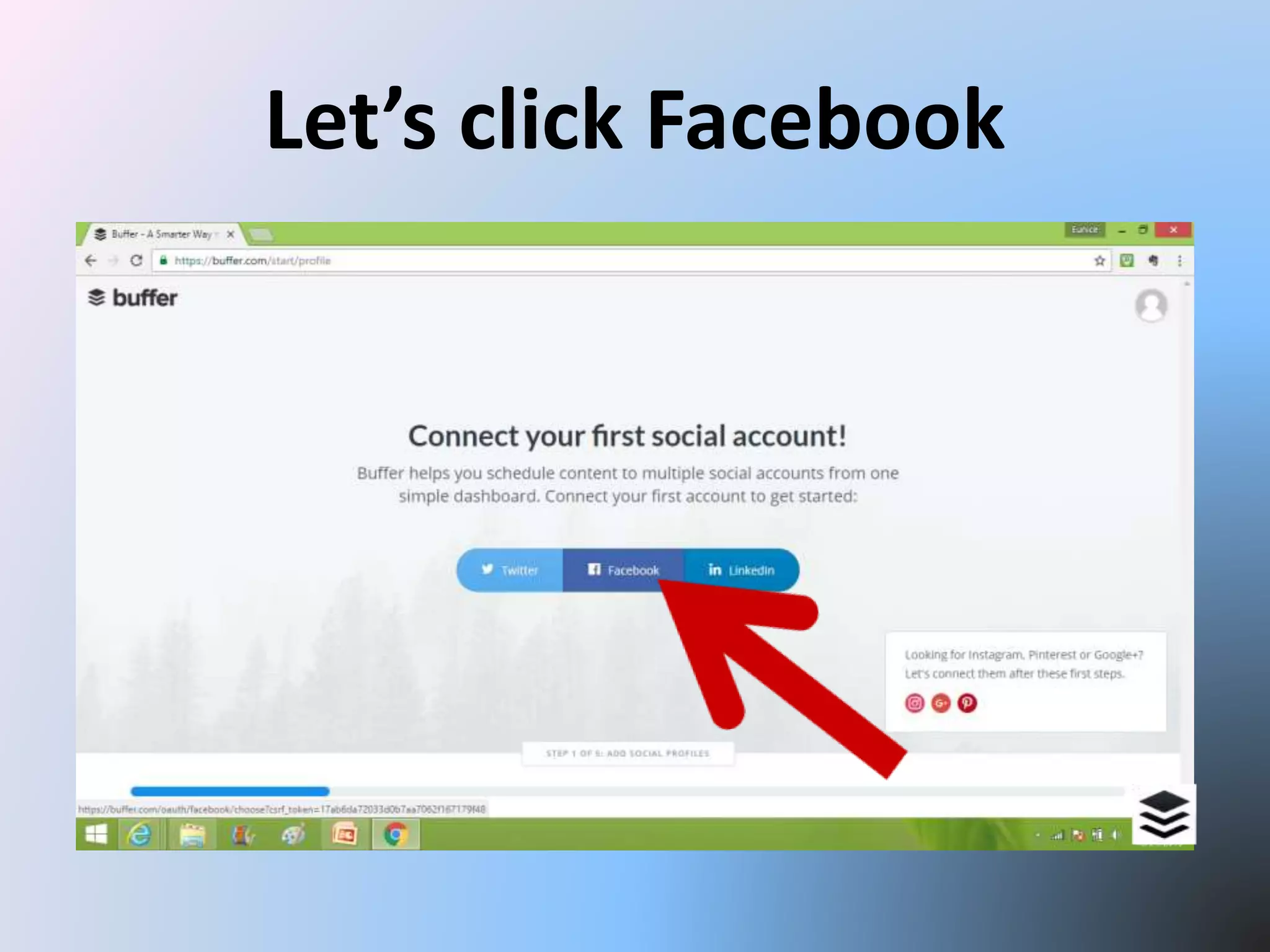
Choose a social account you
want to connect
Let’s click Facebook
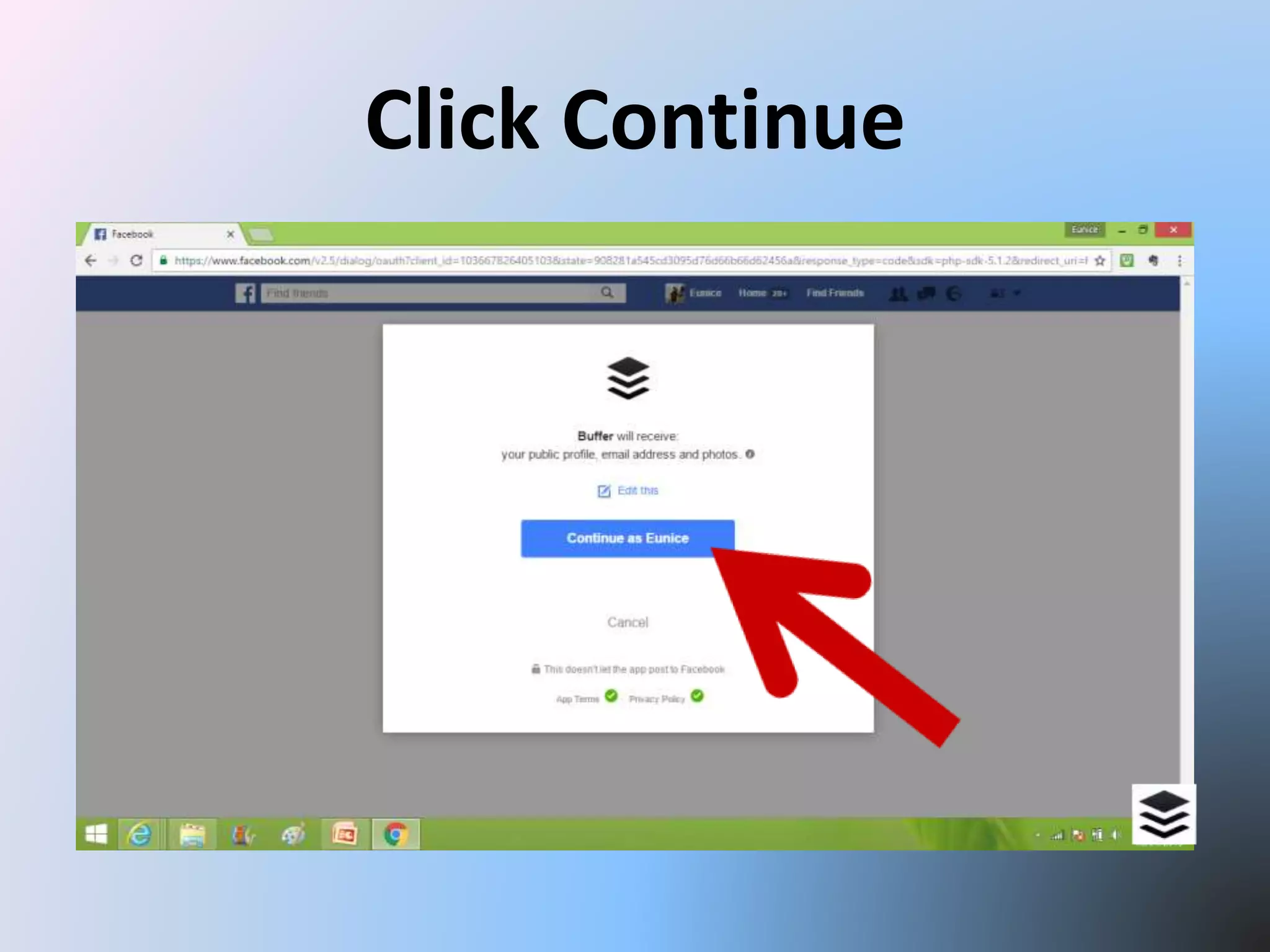
Click Continue
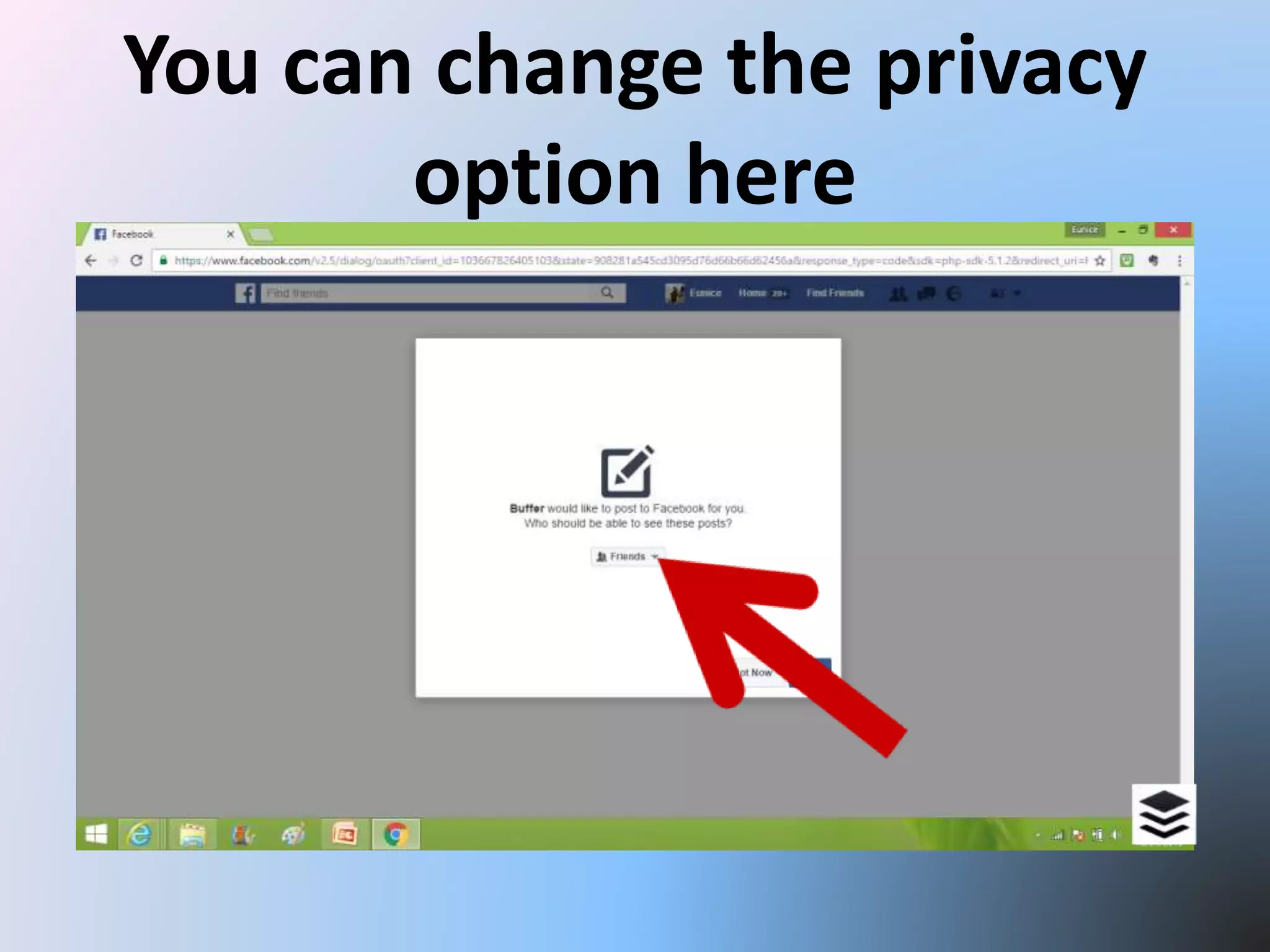
You can change the privacy
option here
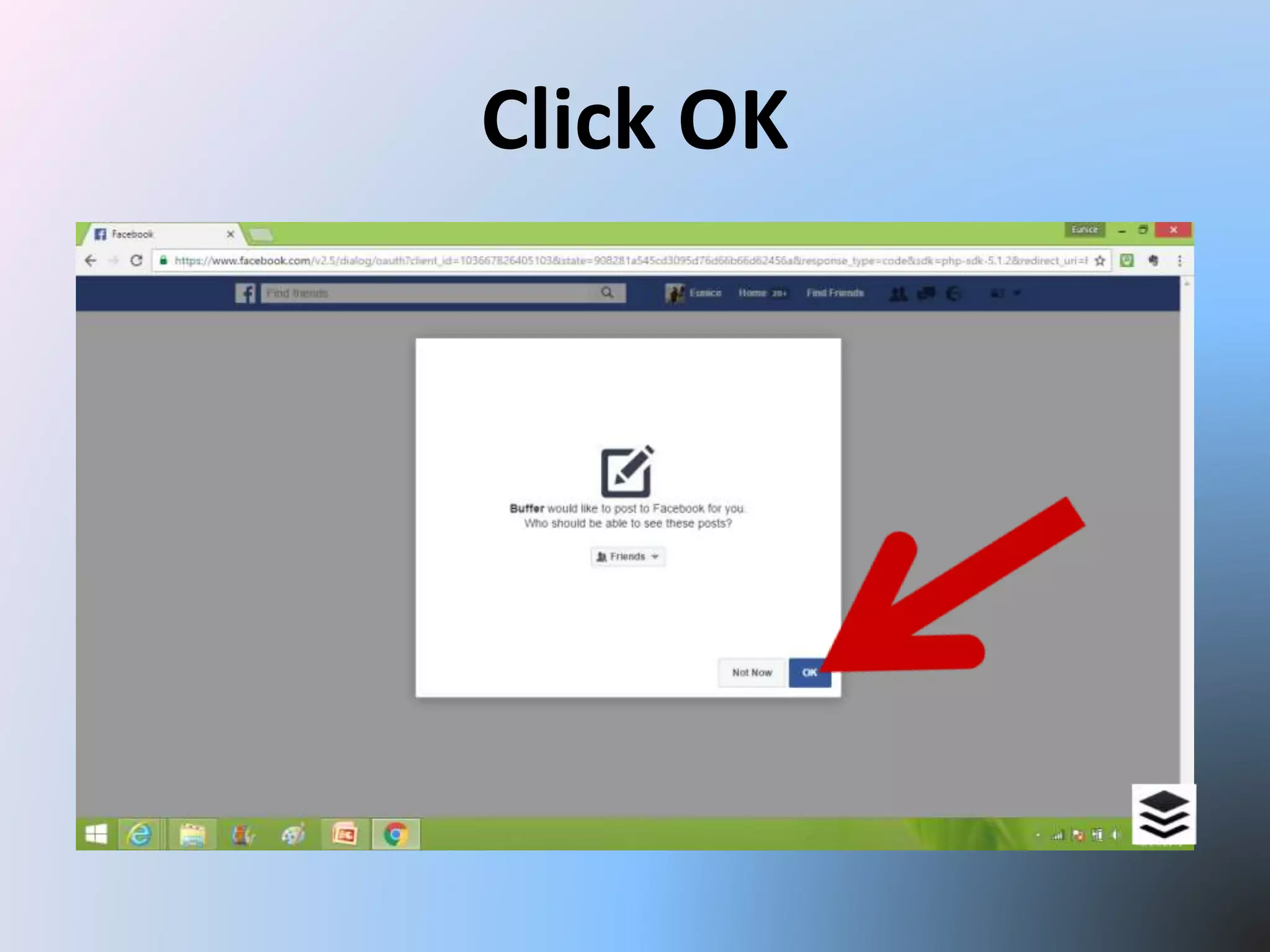
Click OK
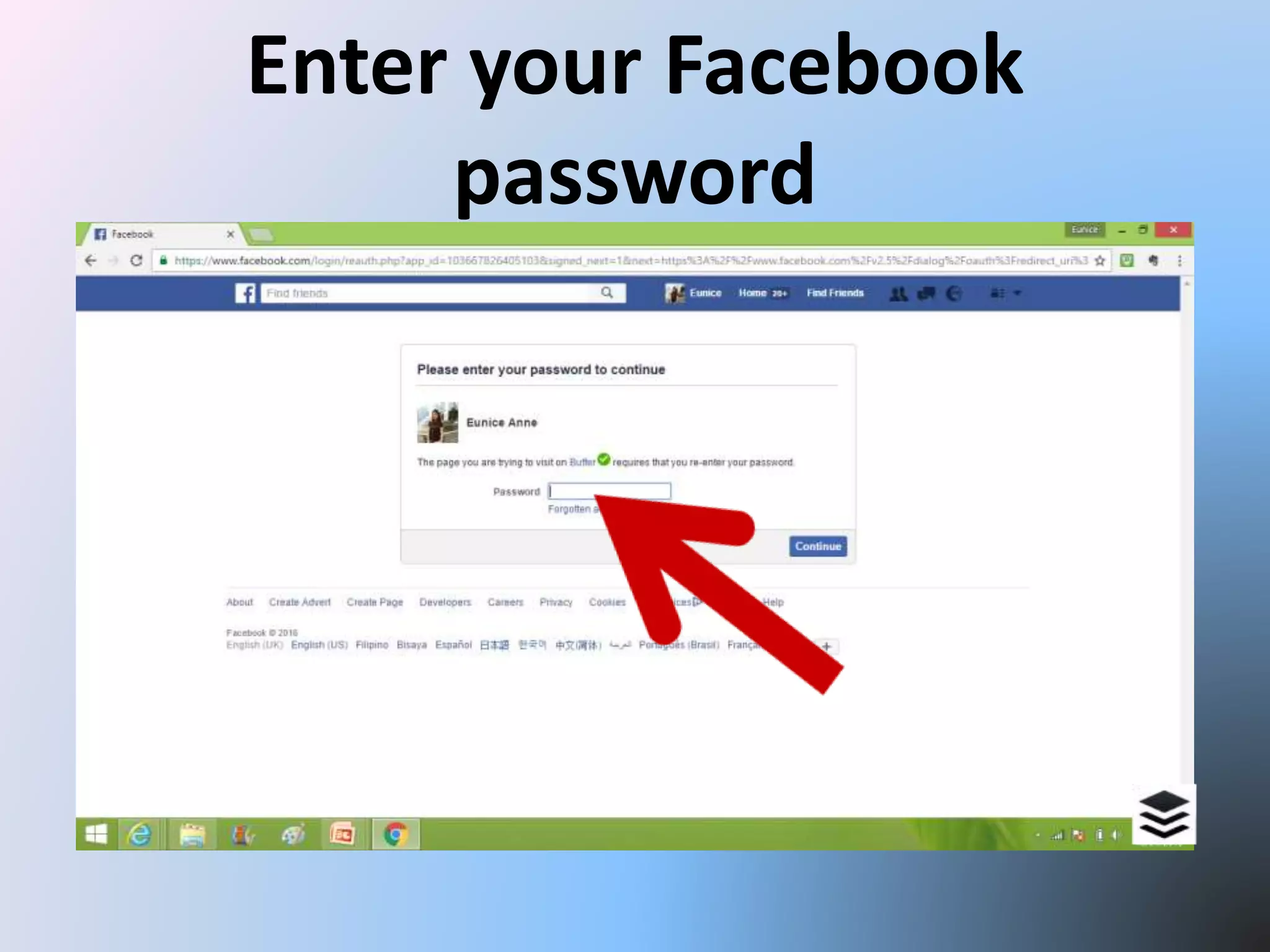
Enter your Facebook
password
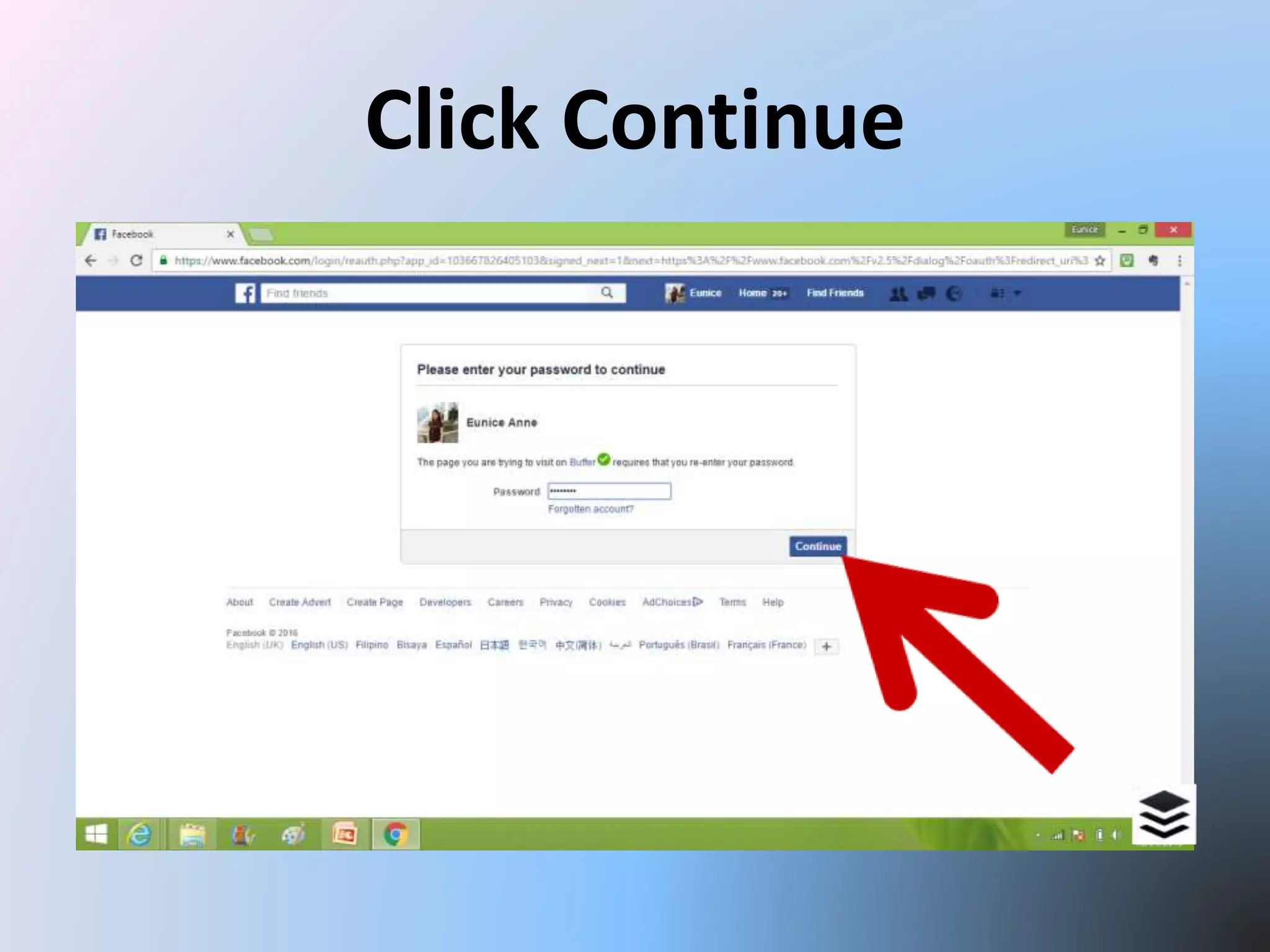
Click Continue
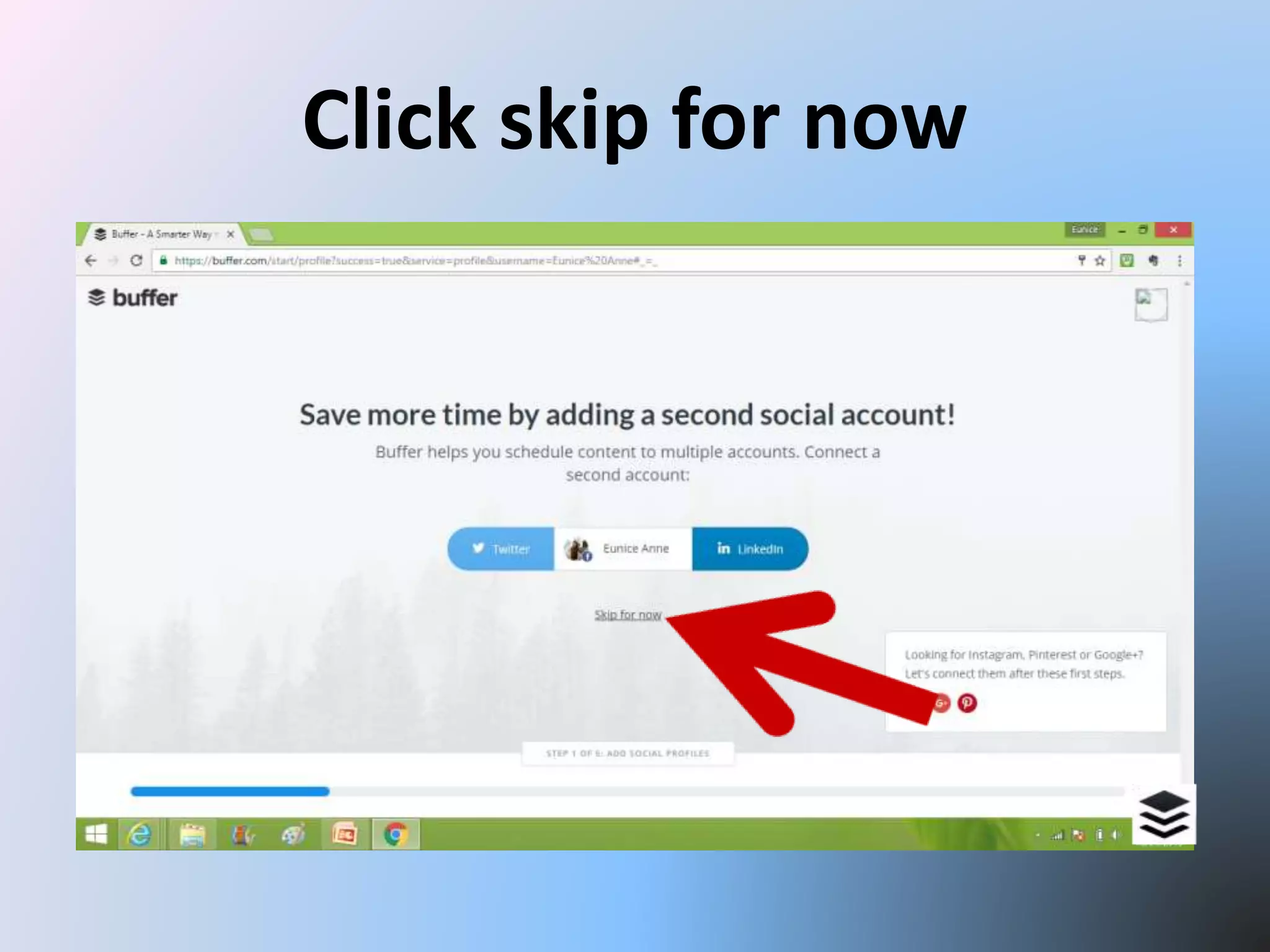
Click skip for now
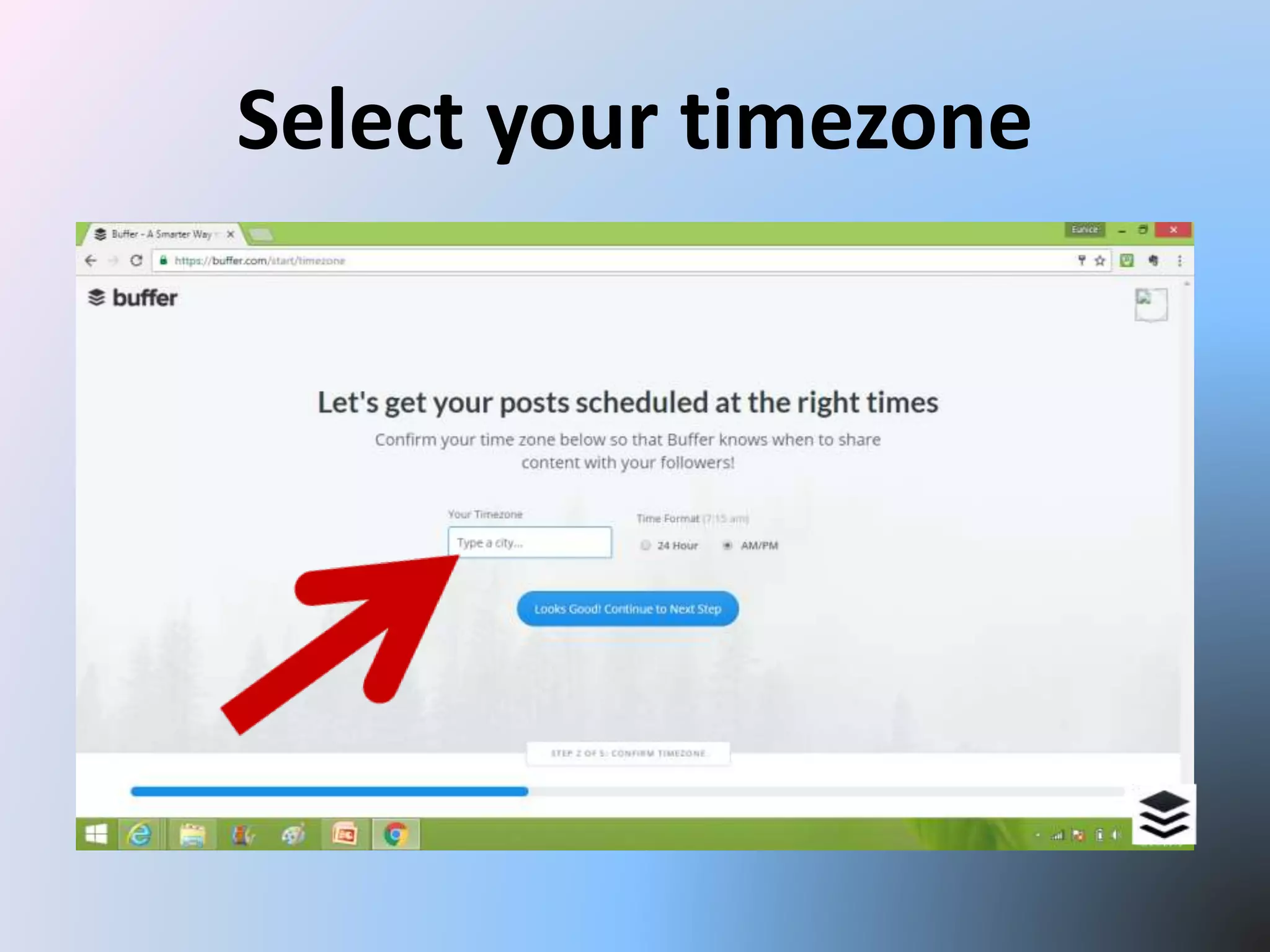
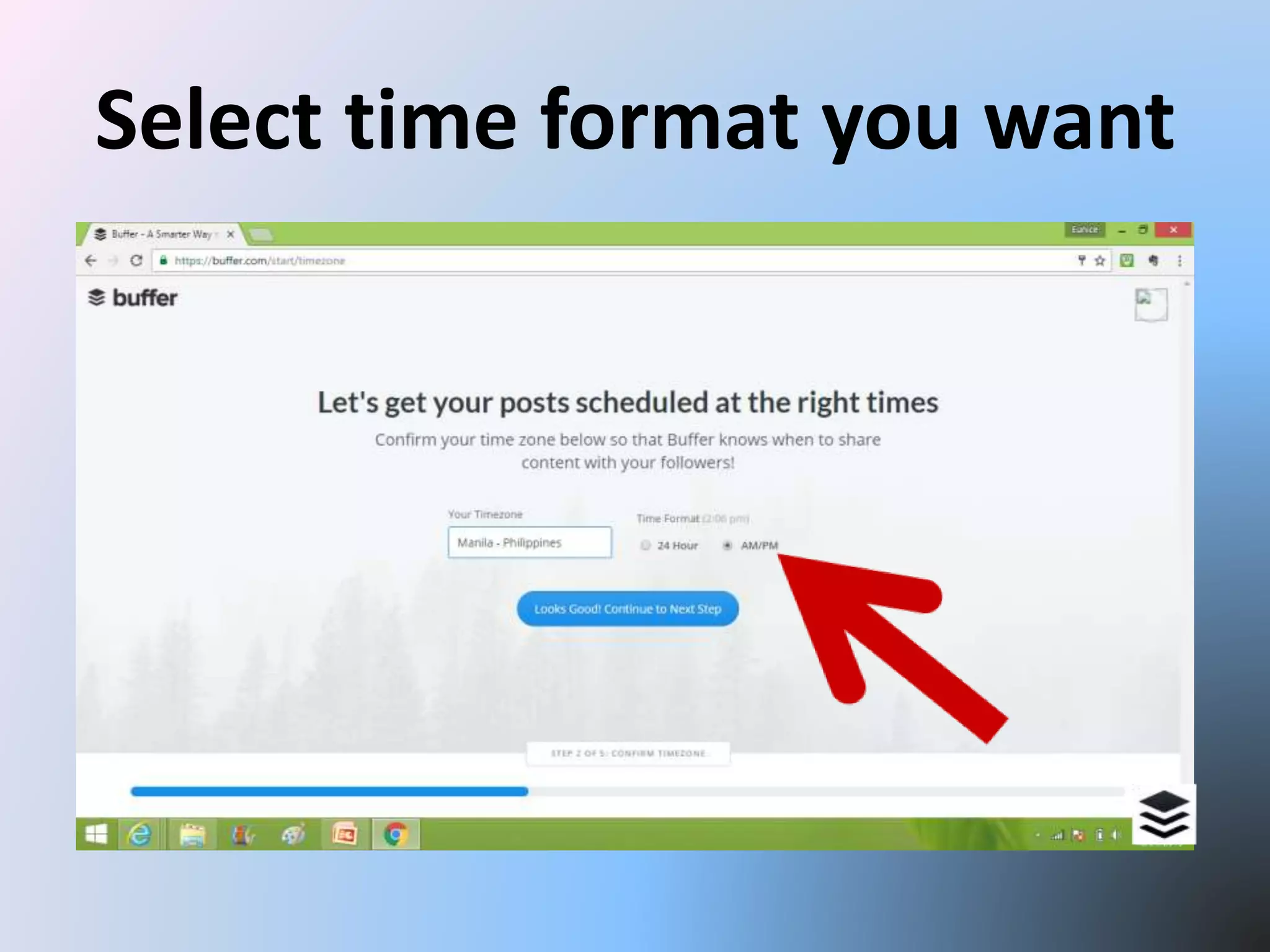
Select your timezone
Select time format you want
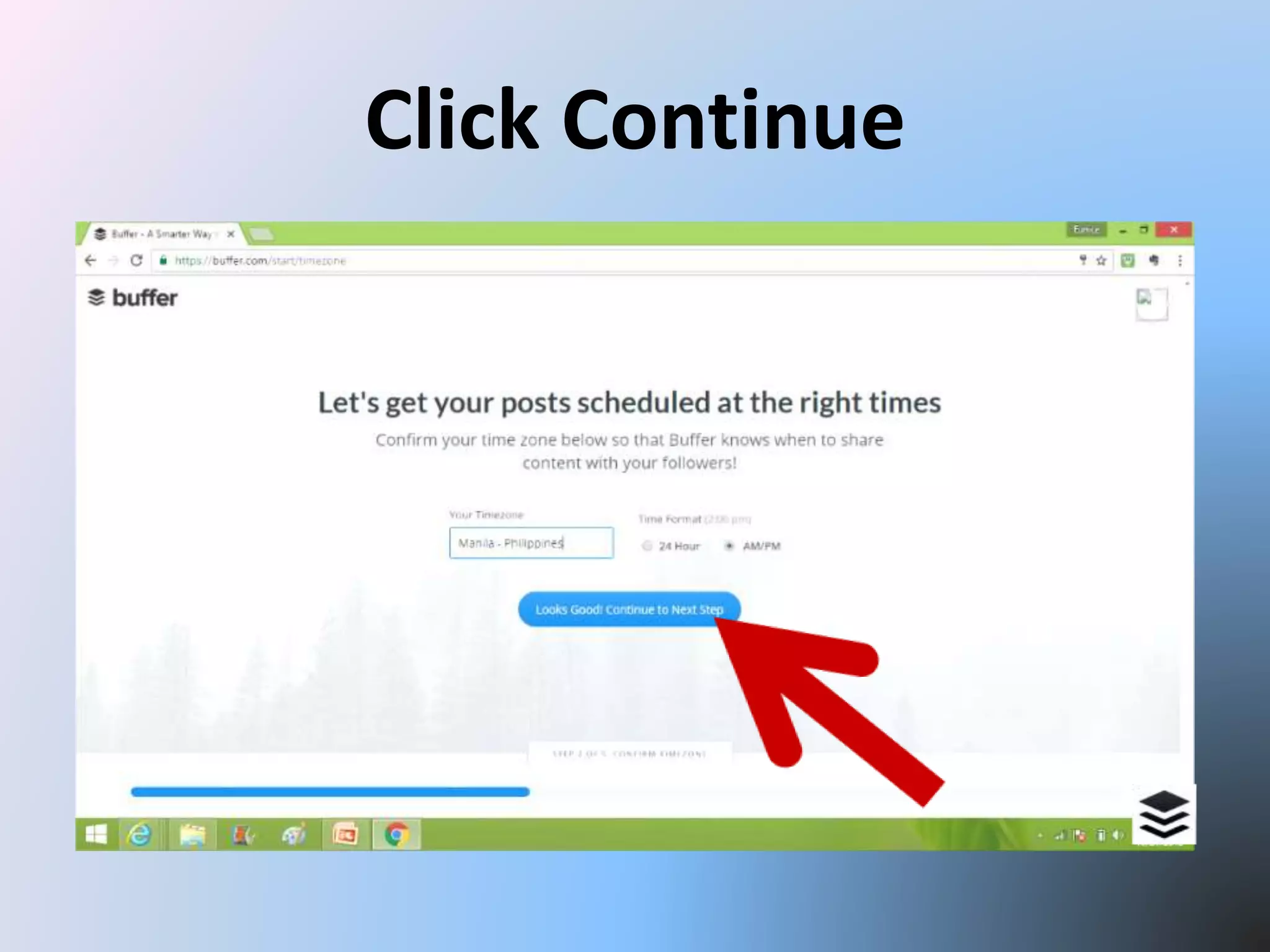
Click Continue
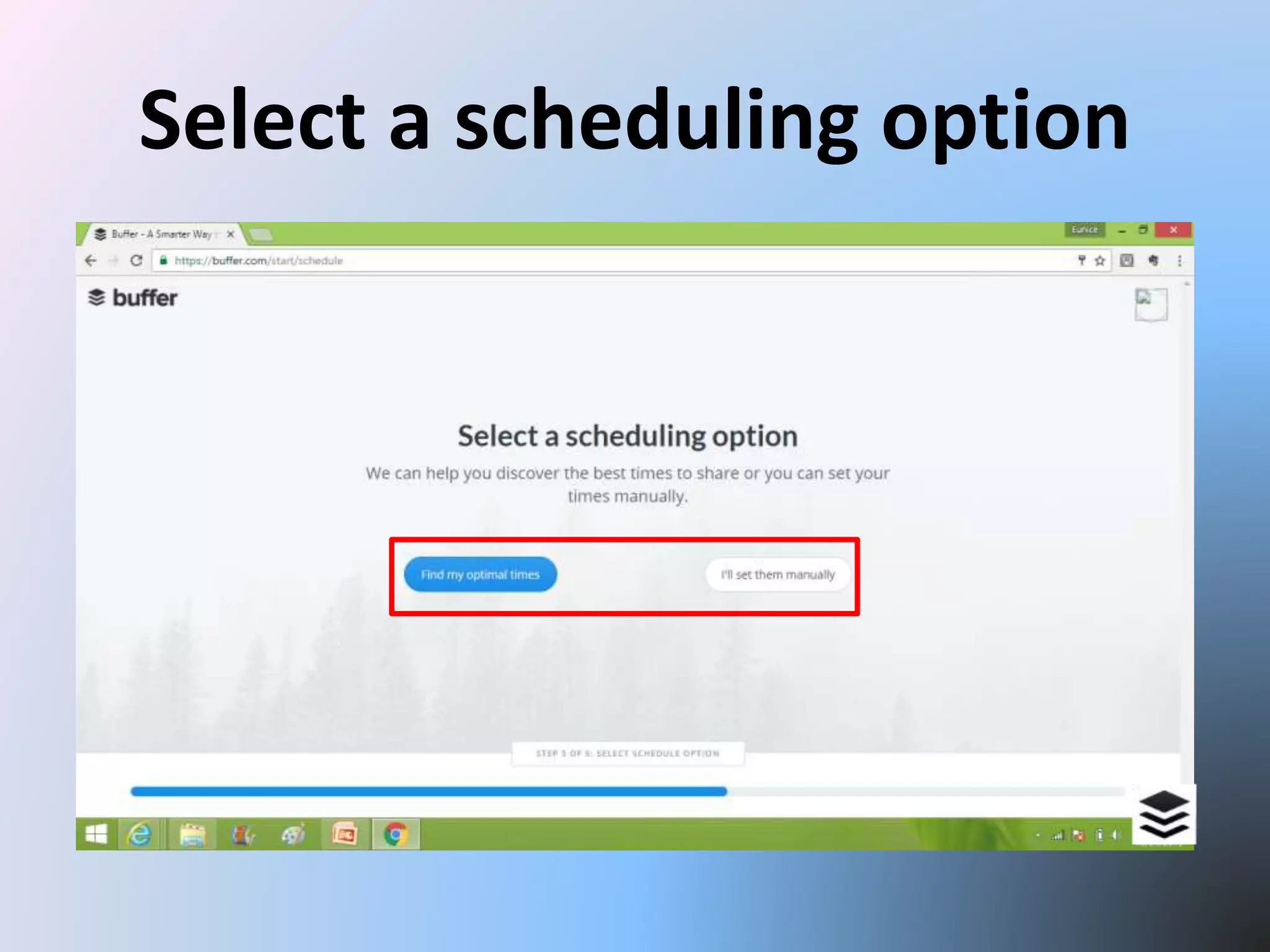
Select a scheduling option
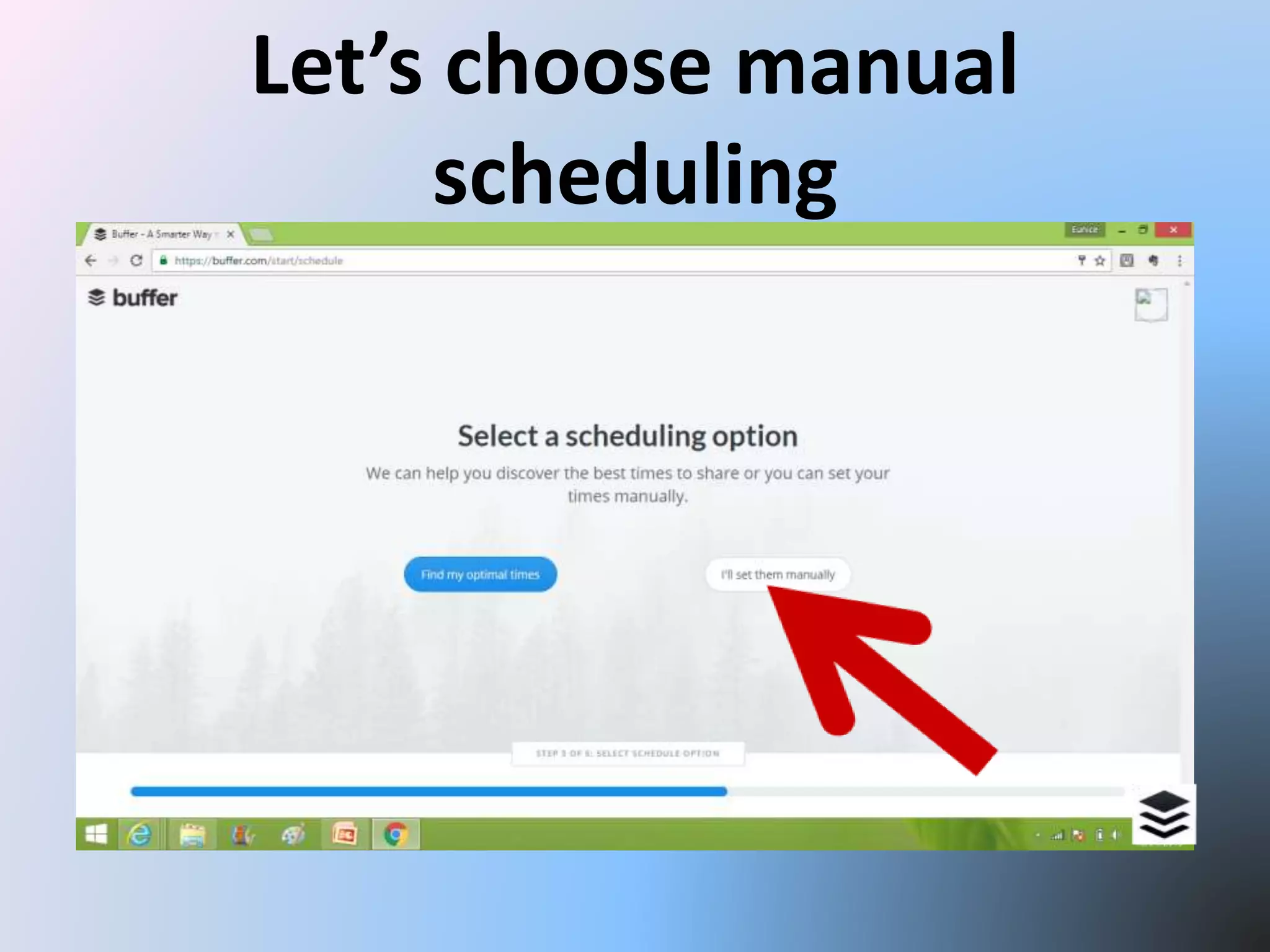
Let’s choose manual
scheduling
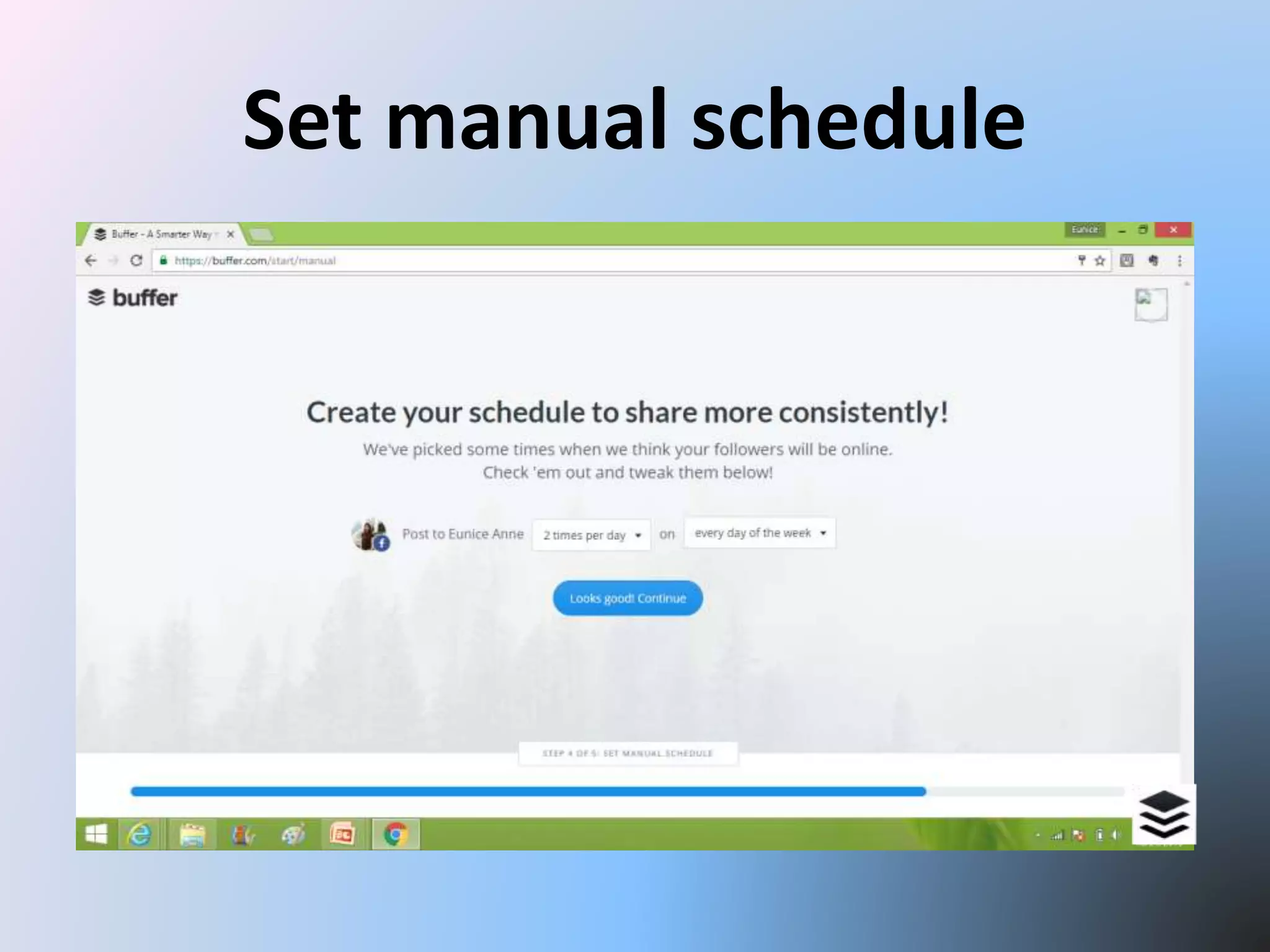
Set manual schedule
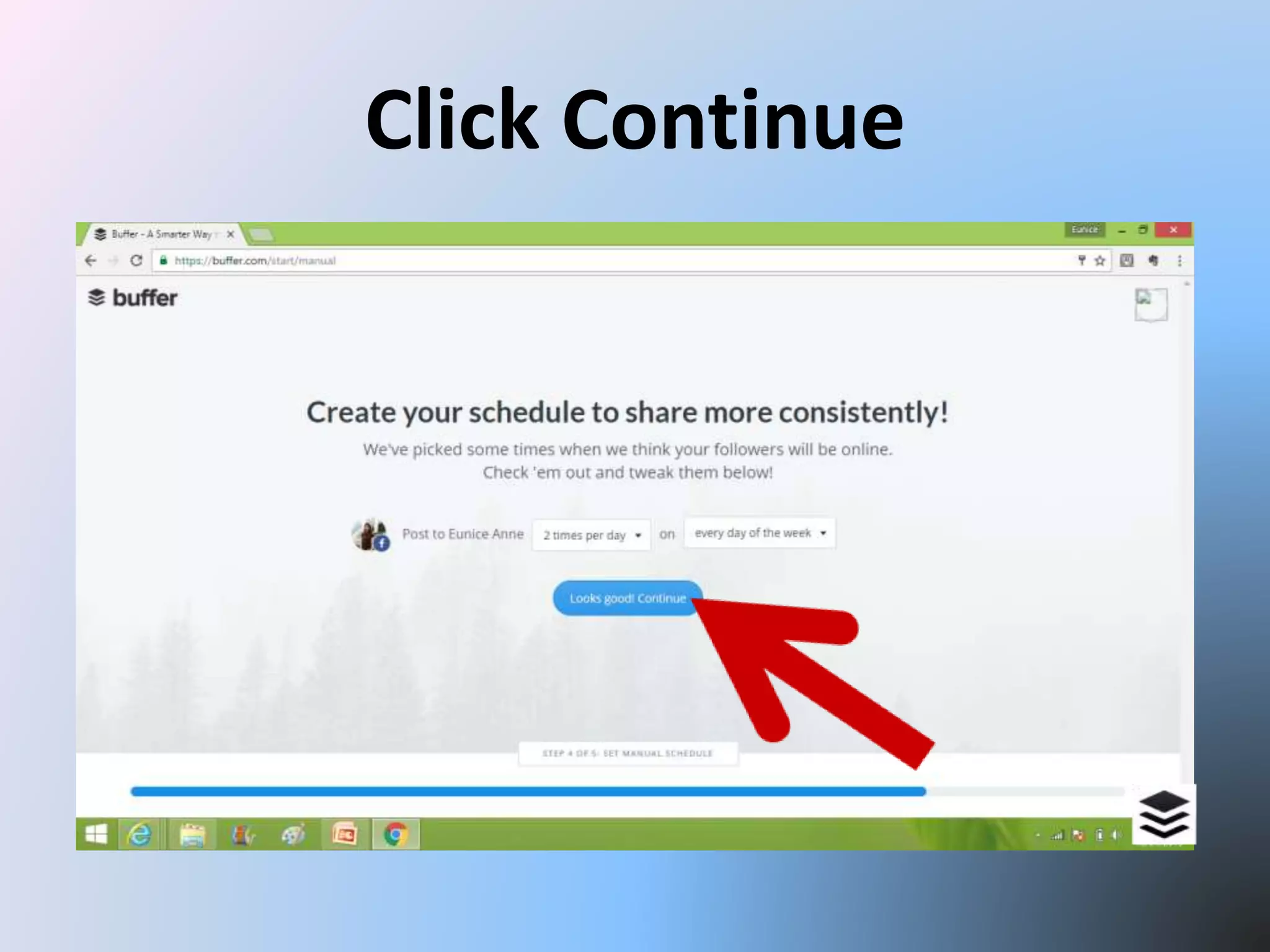
Click Continue
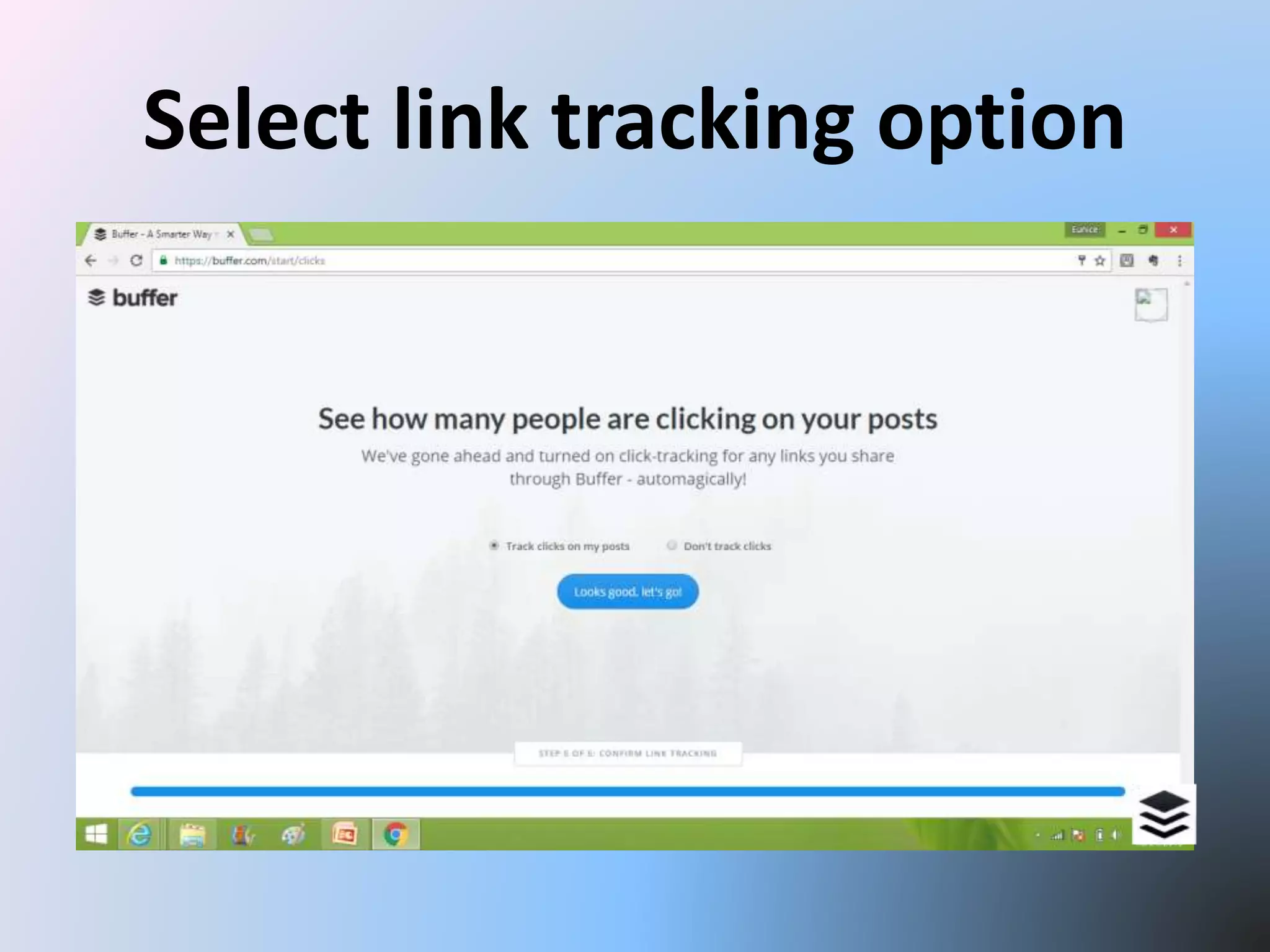
Select link tracking option
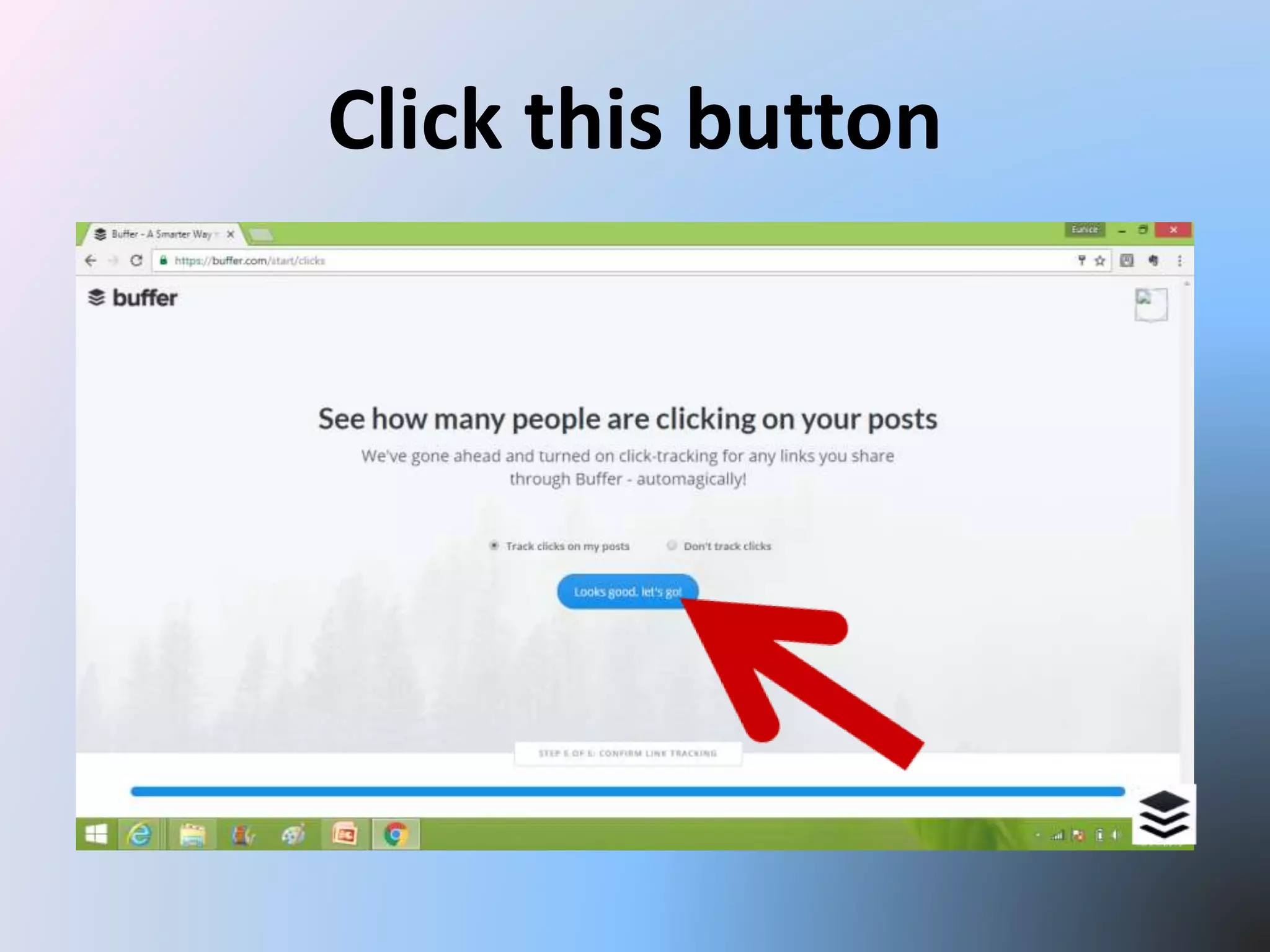
Click this button
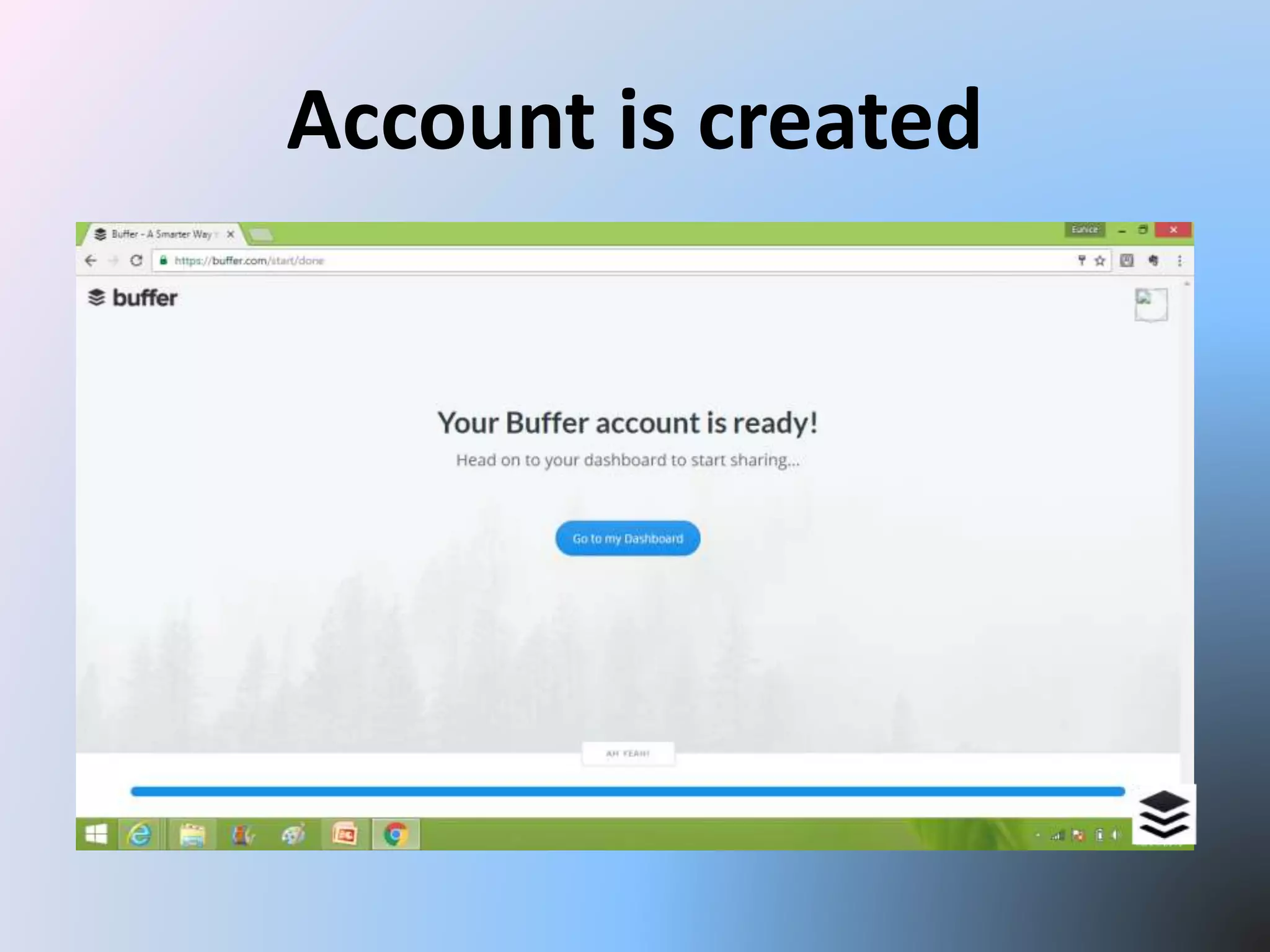
Account is created
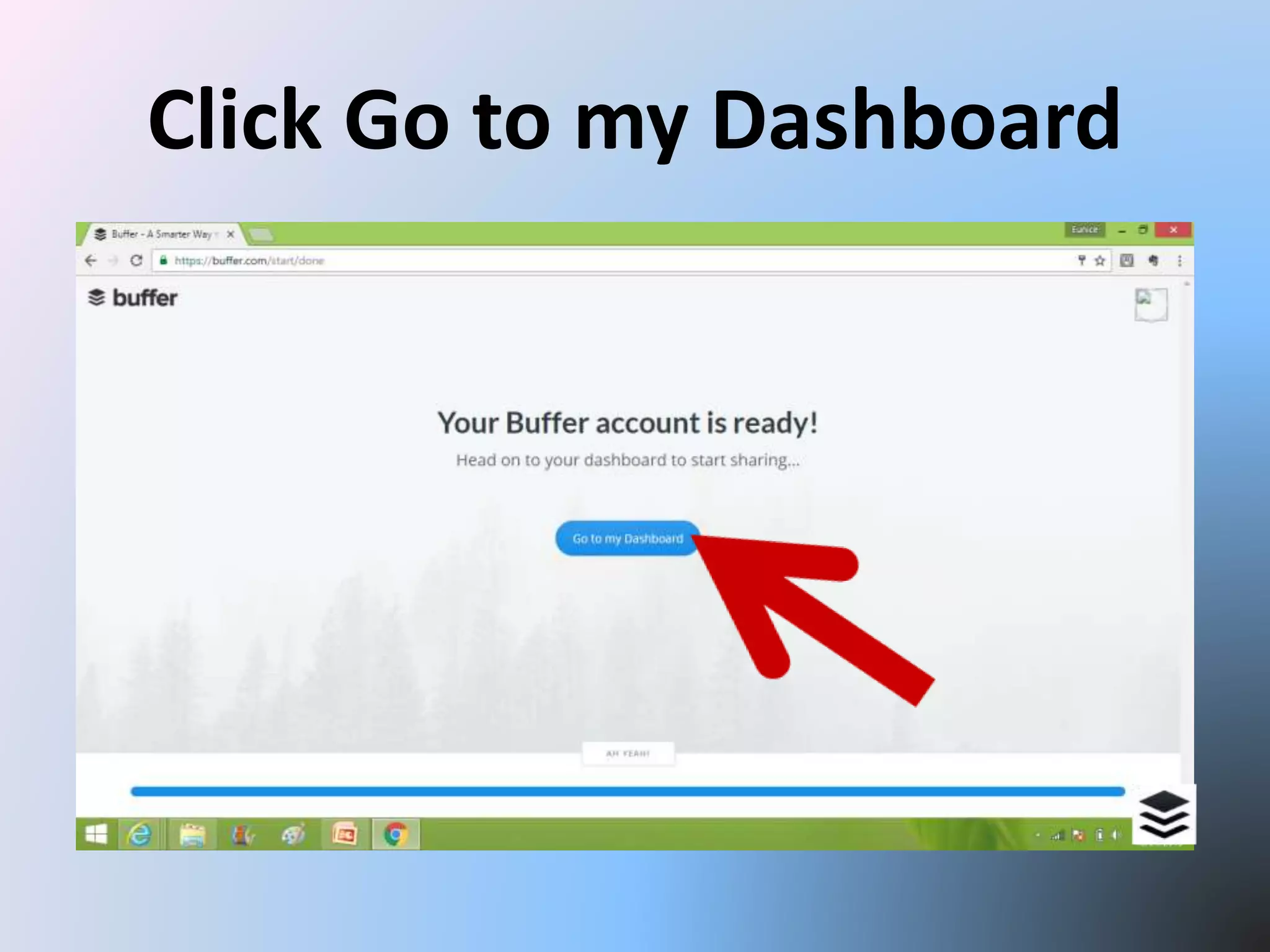
Click Go to my Dashboard
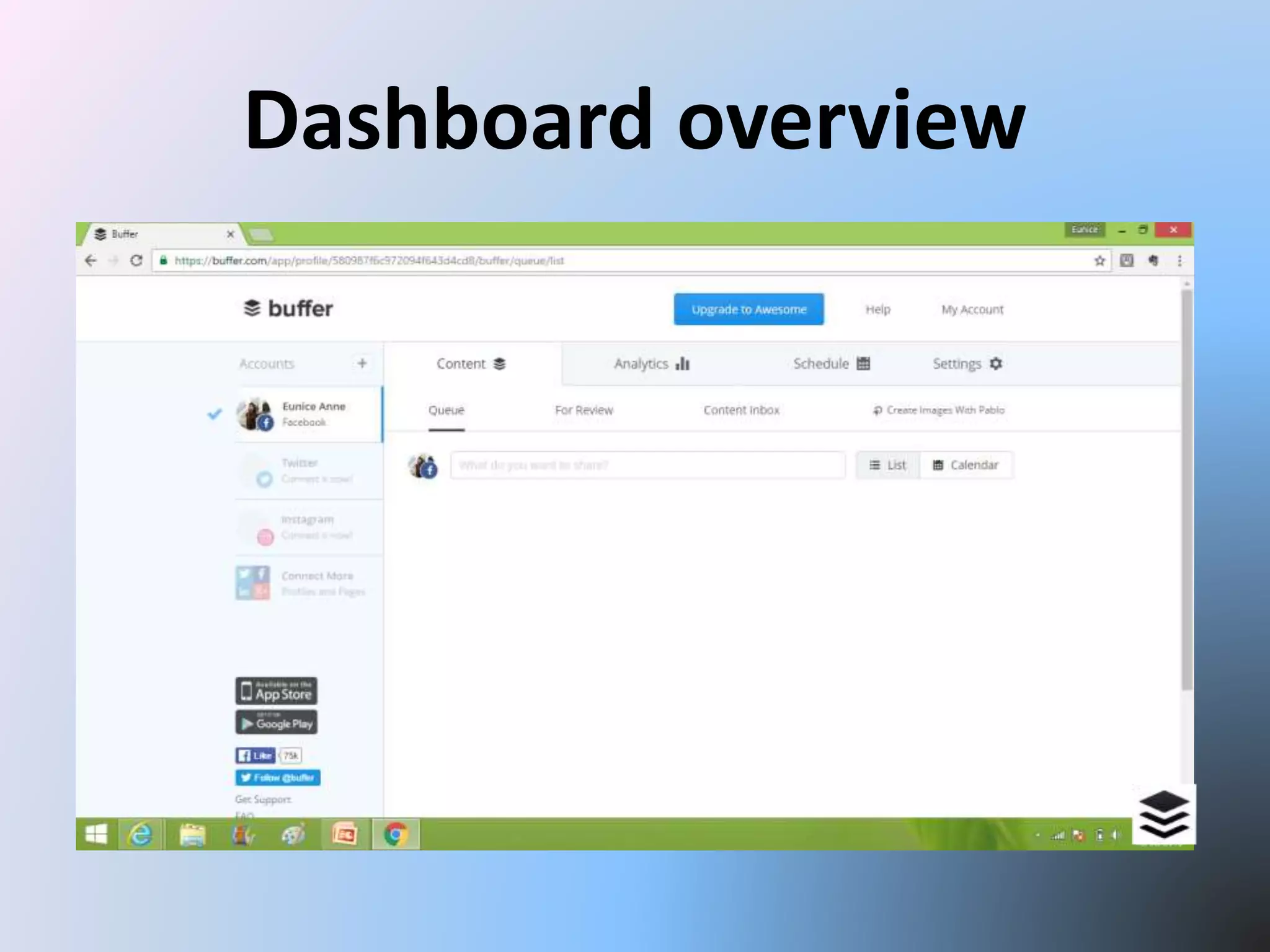
Dashboard overview
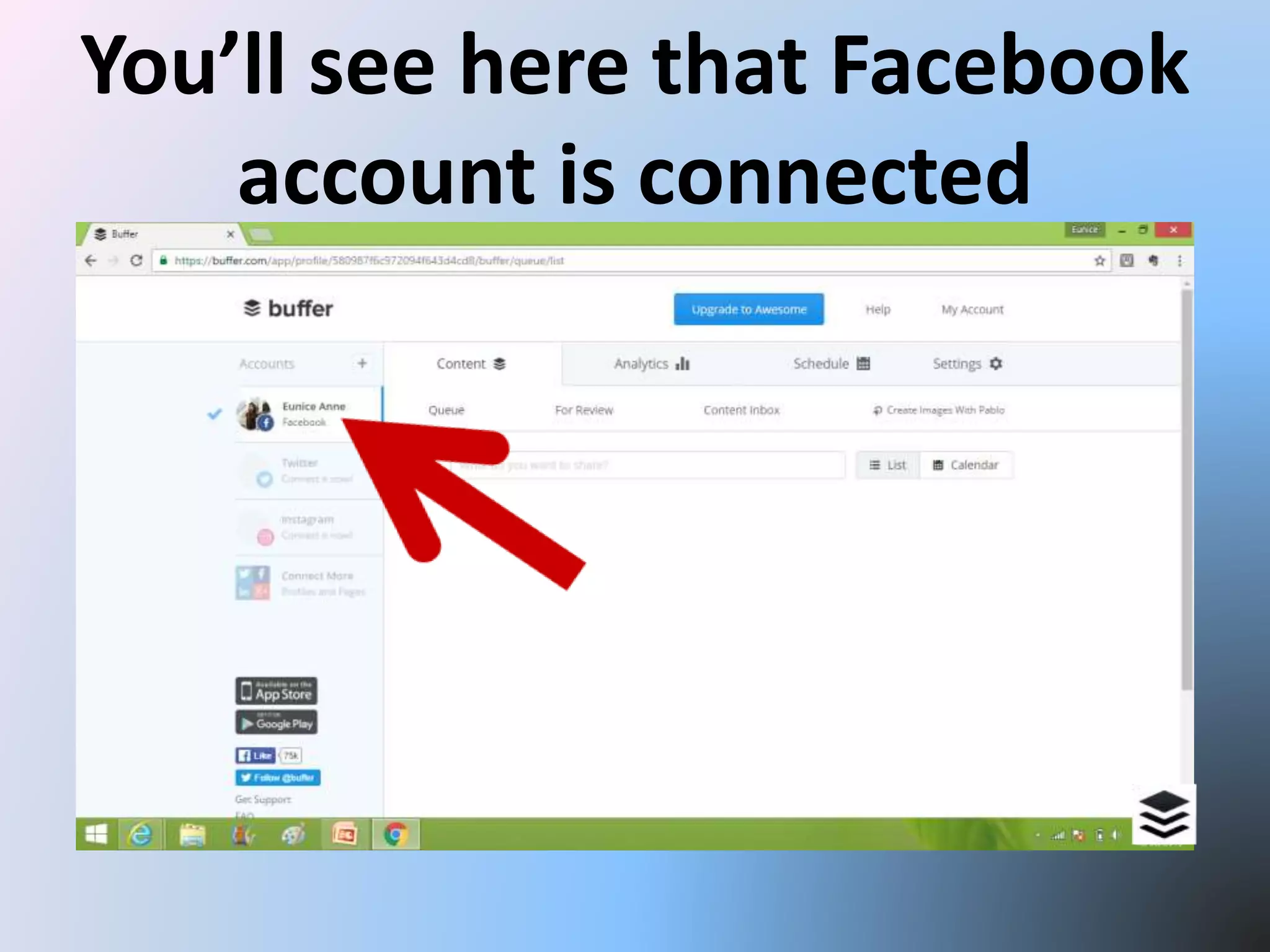
You’ll see here that Facebook
account is connected
To connect a social network
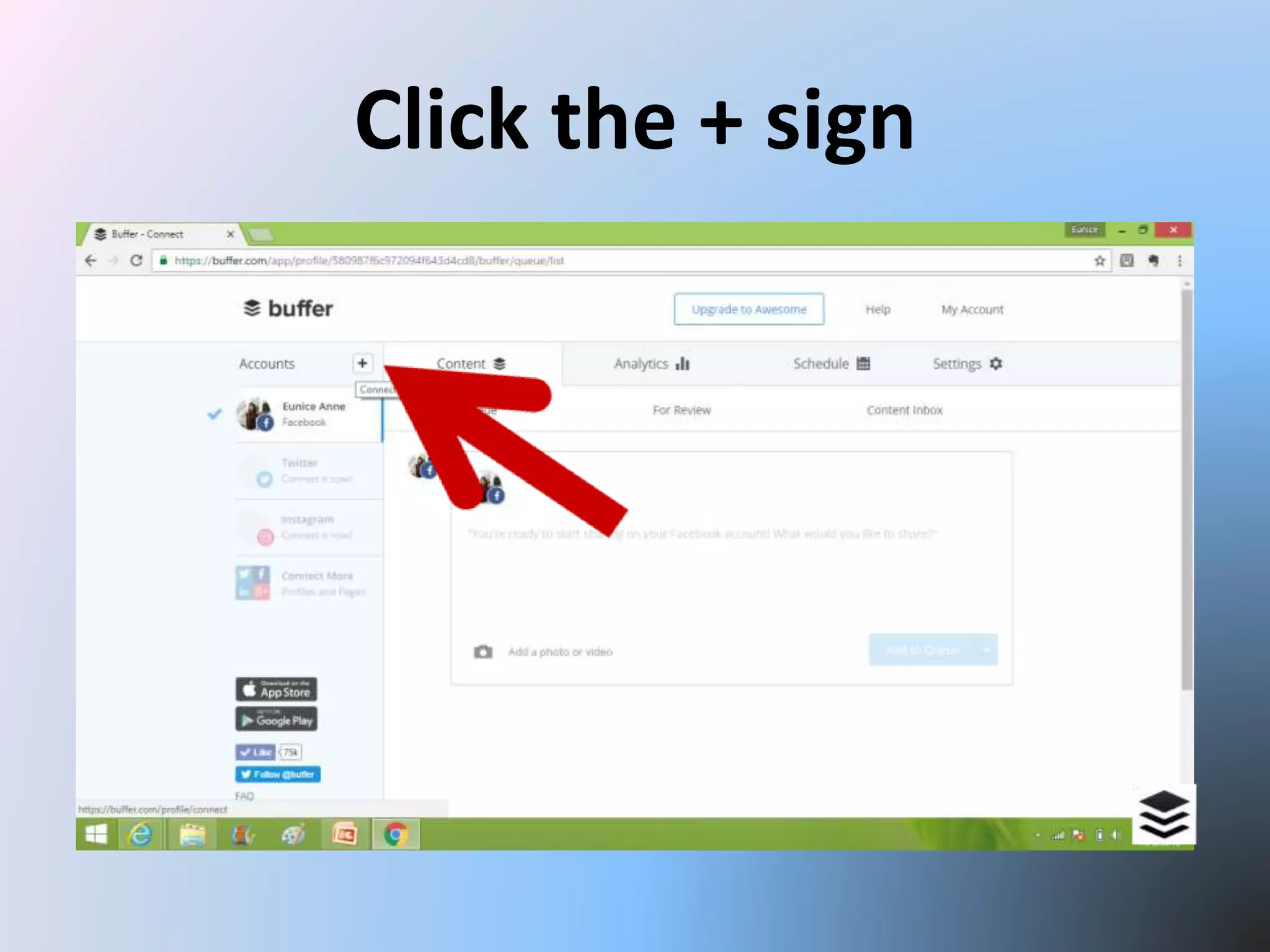
Click the + sign
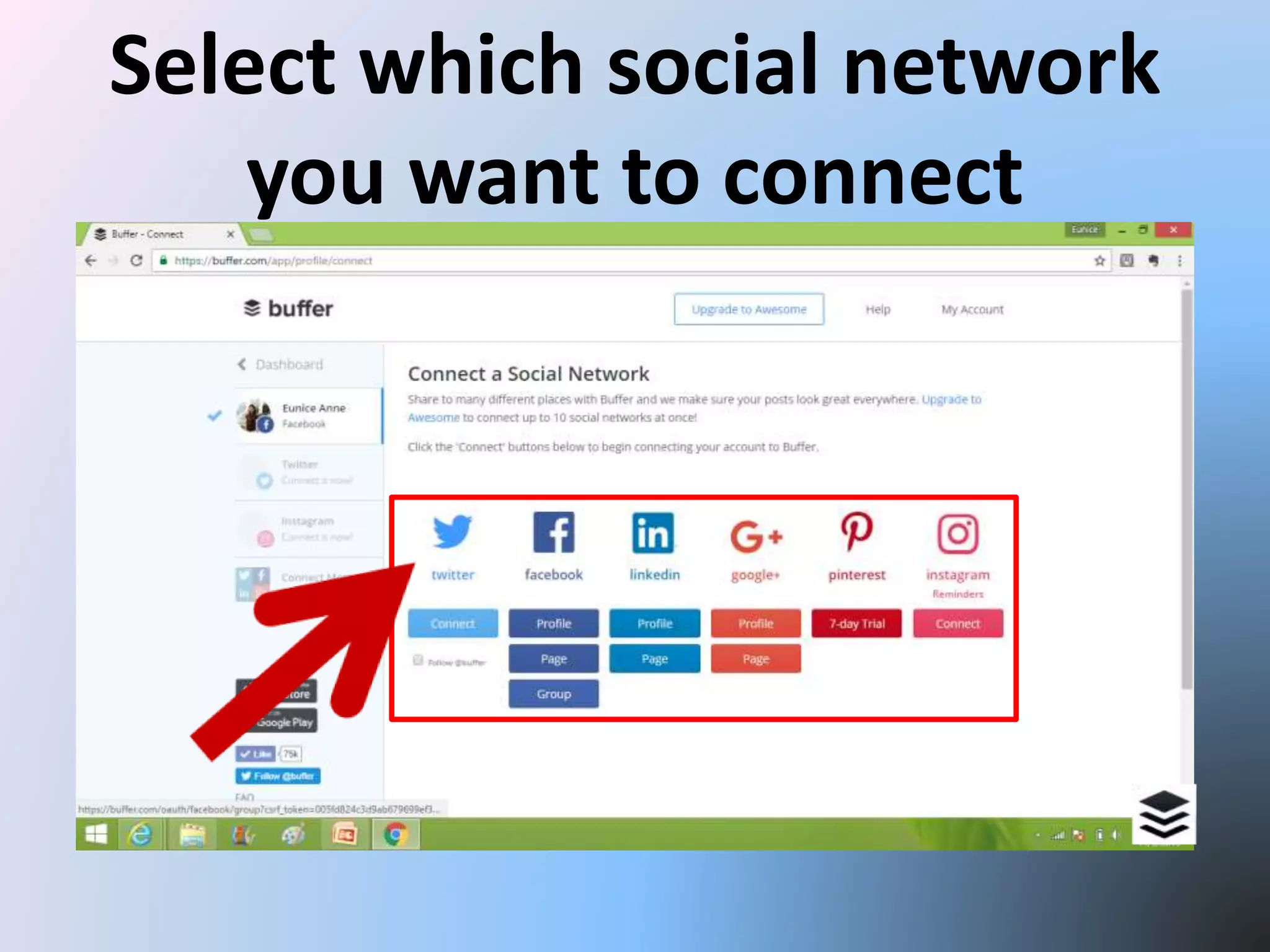
Select which social network
you want to connect
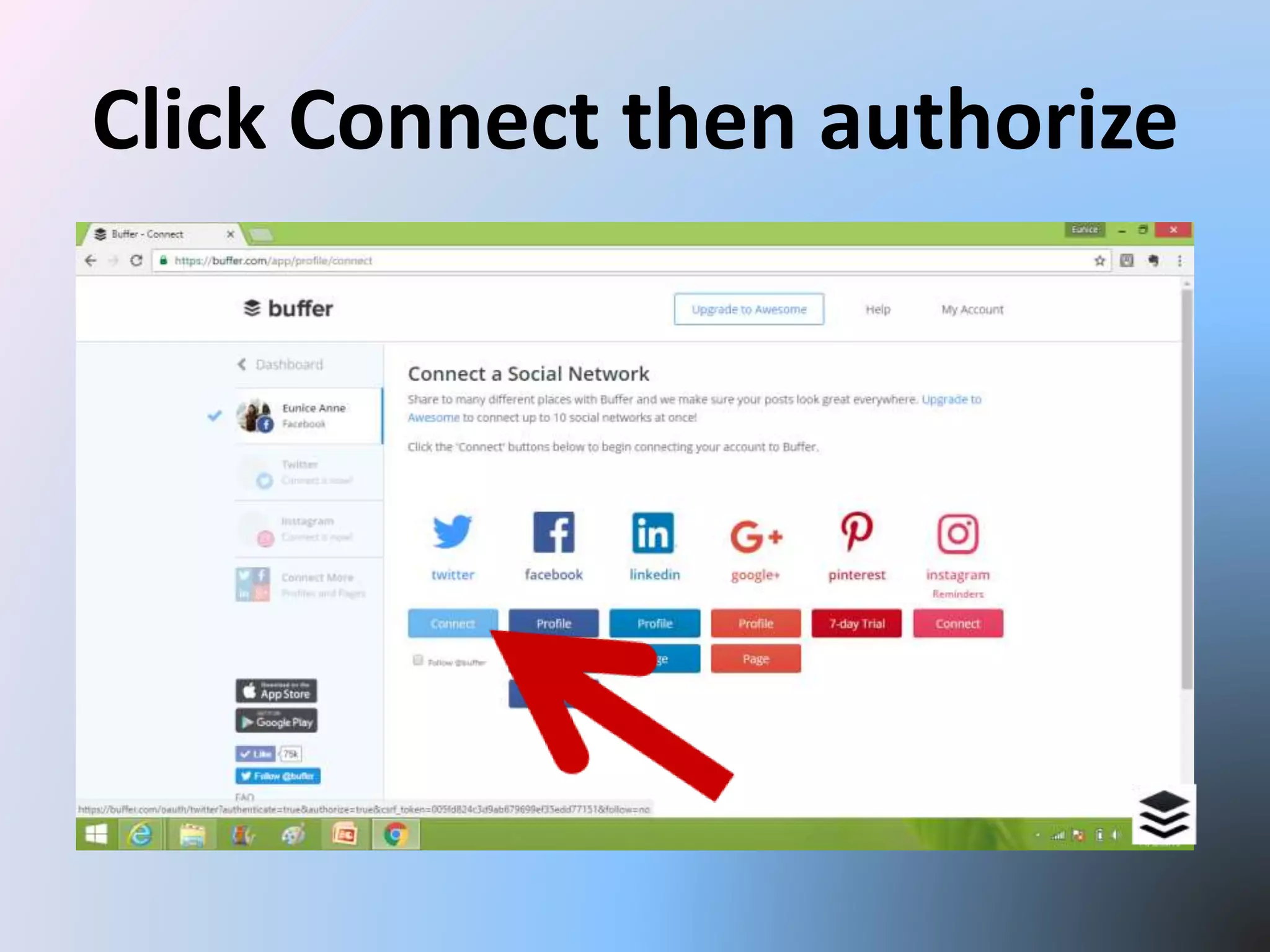
Click Connect then authorize
To share a content
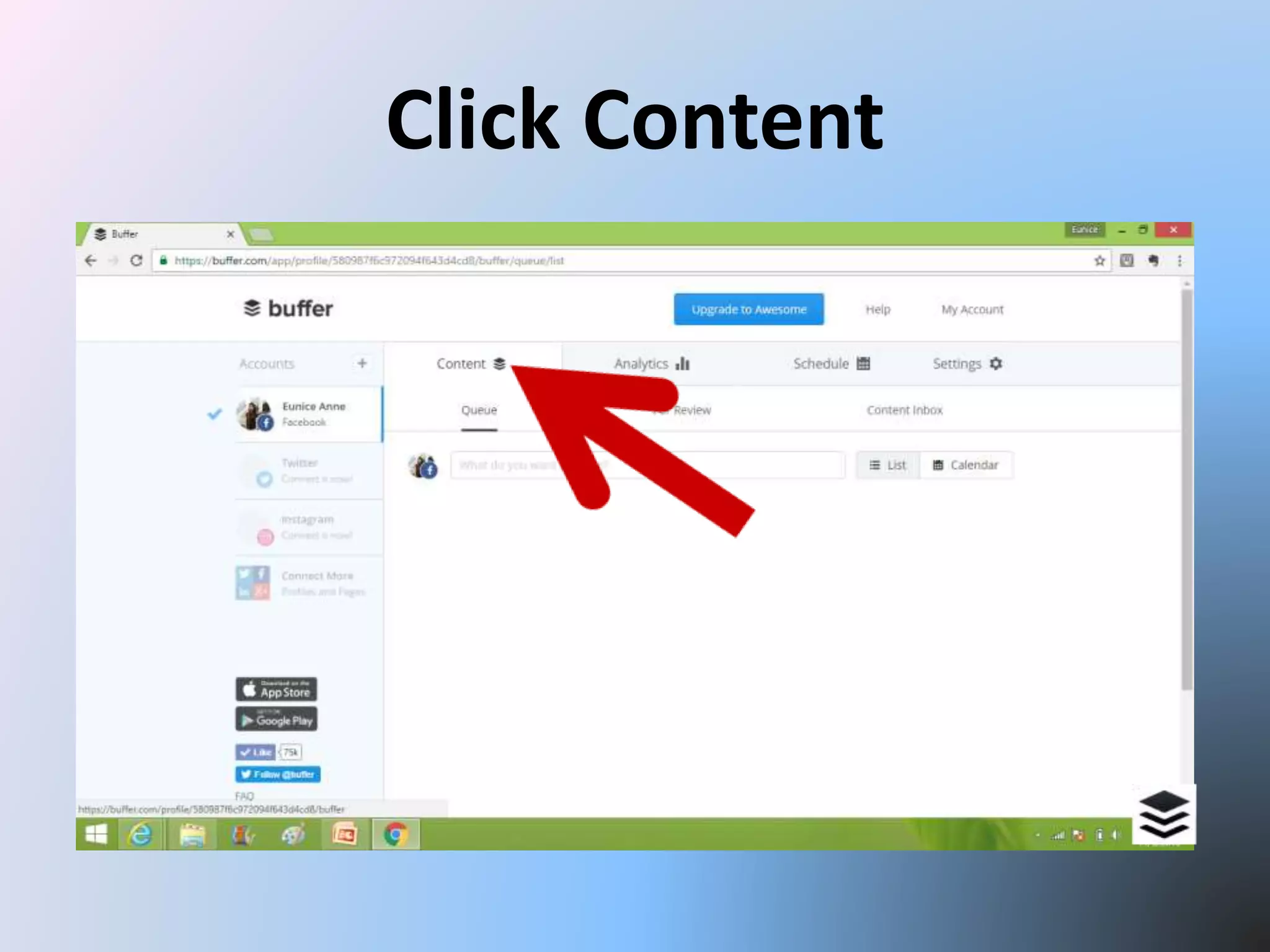
Click Content
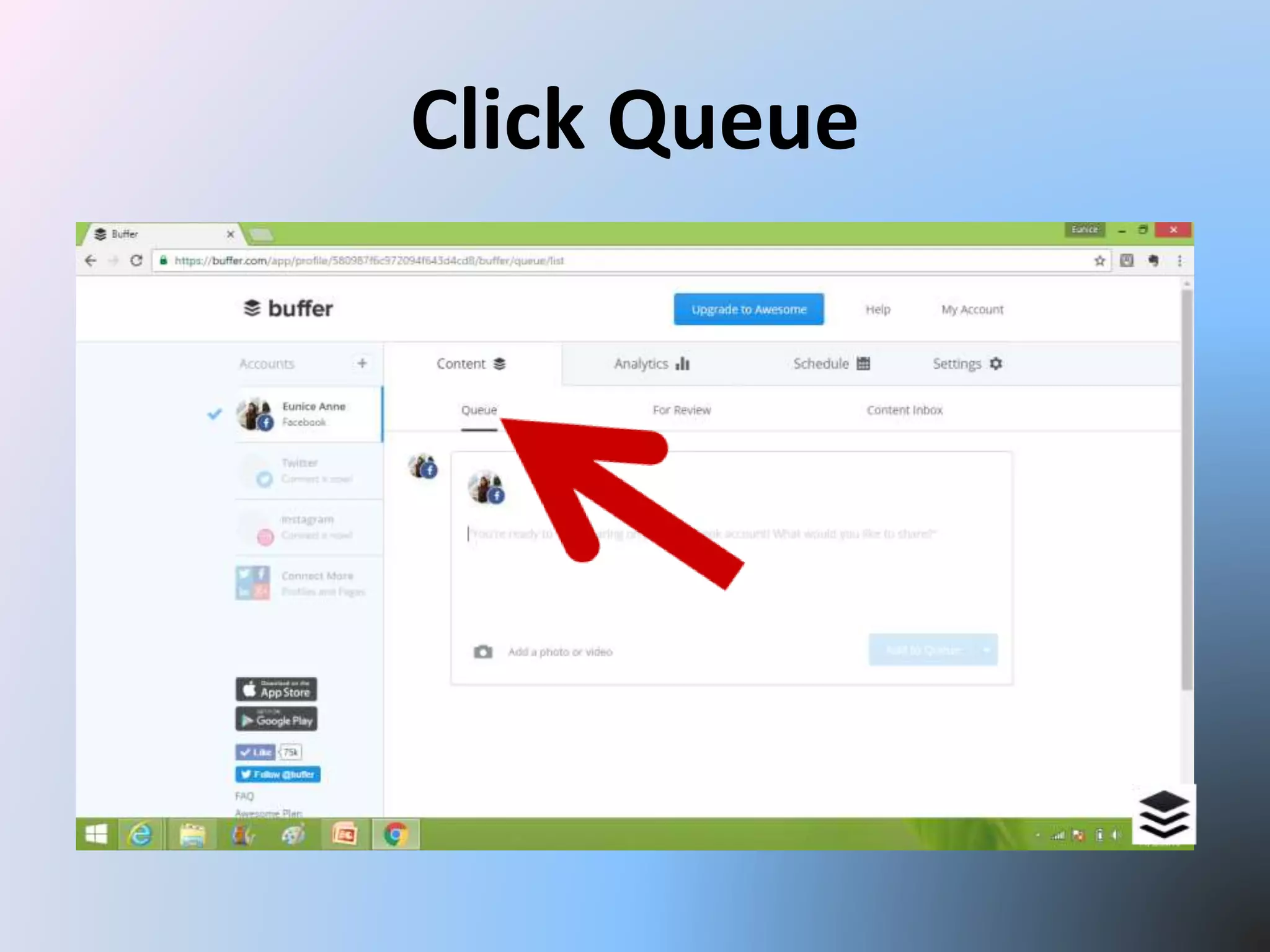
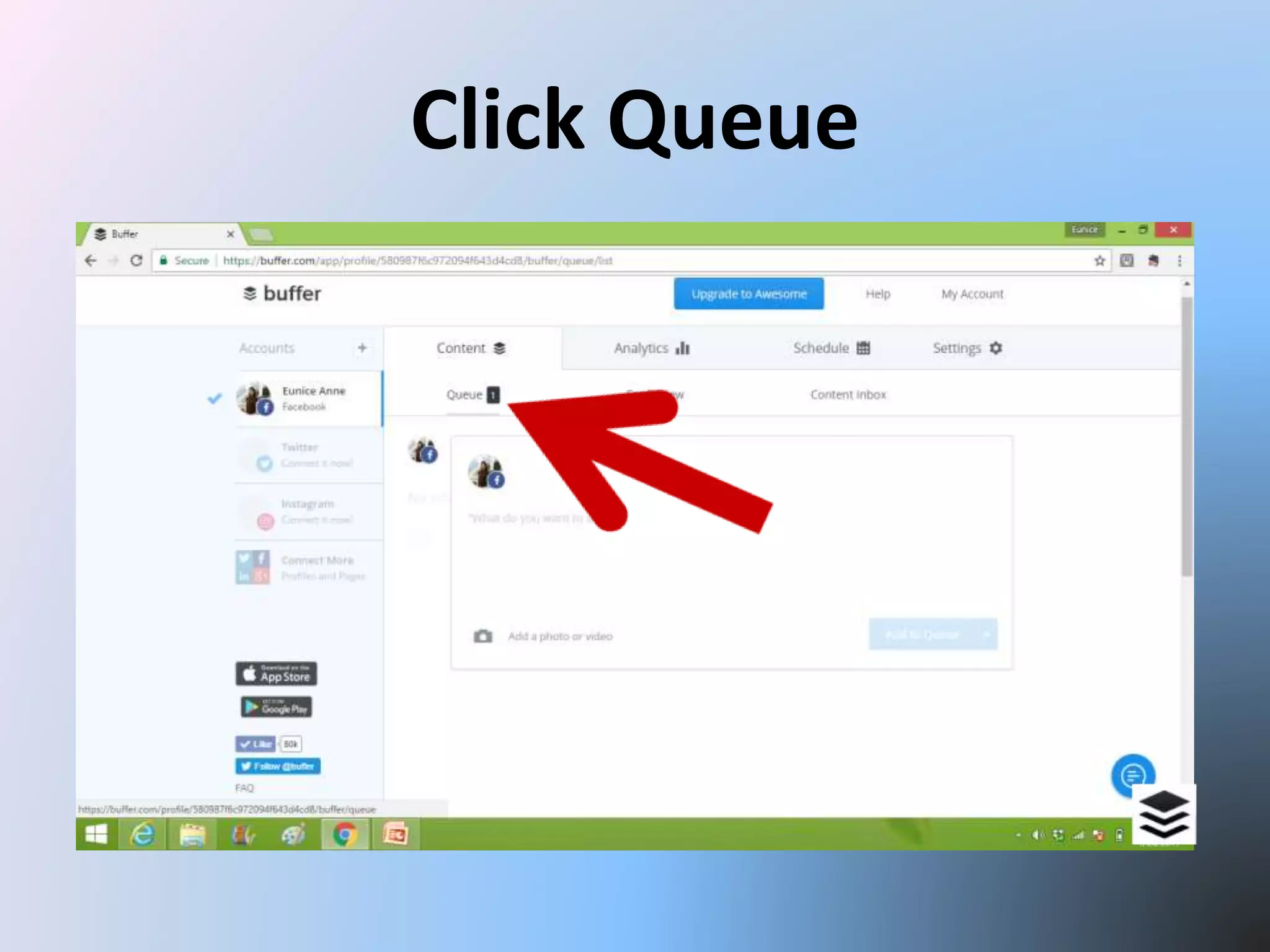
Click Queue
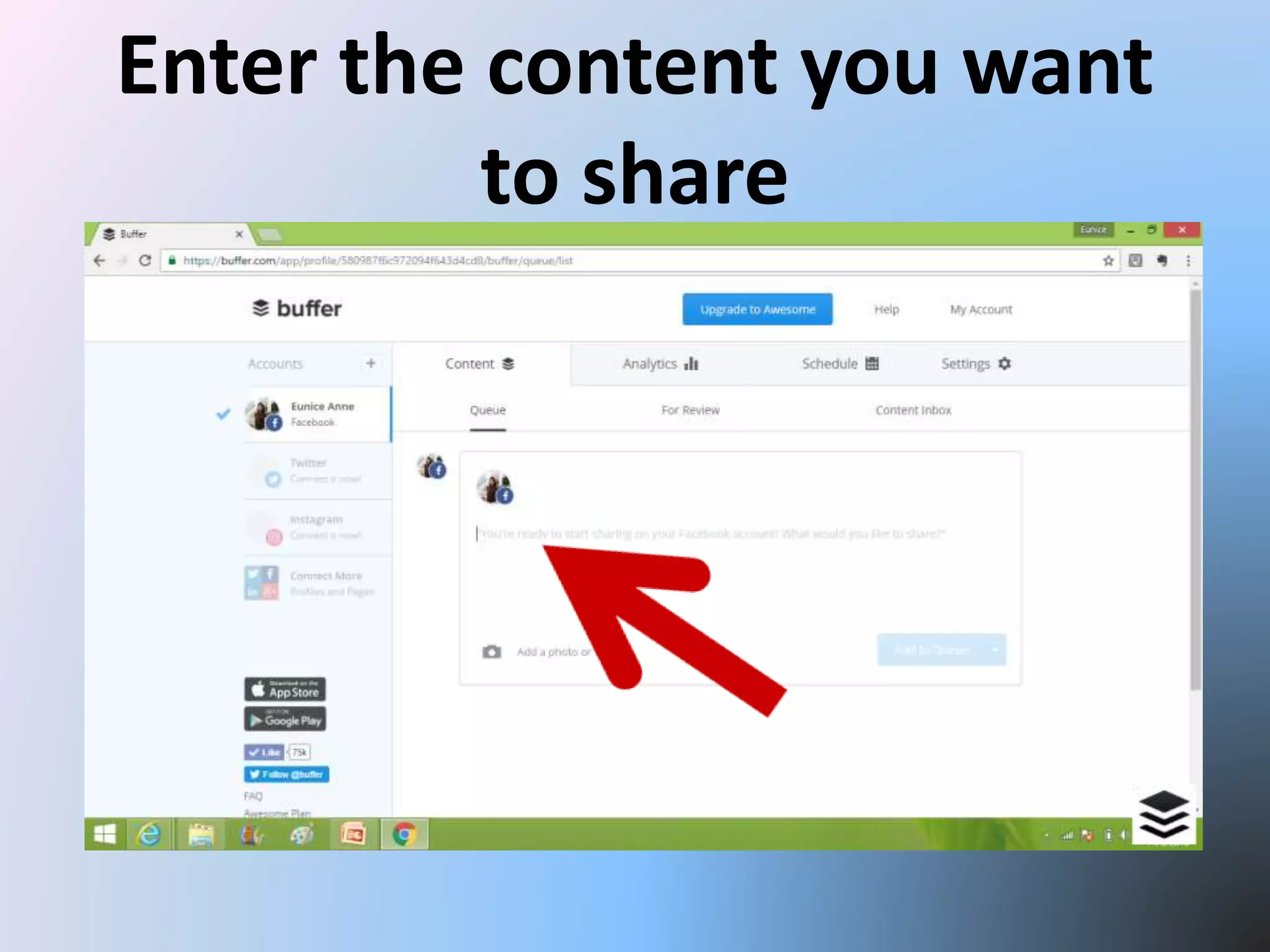
Enter the content you want
to share
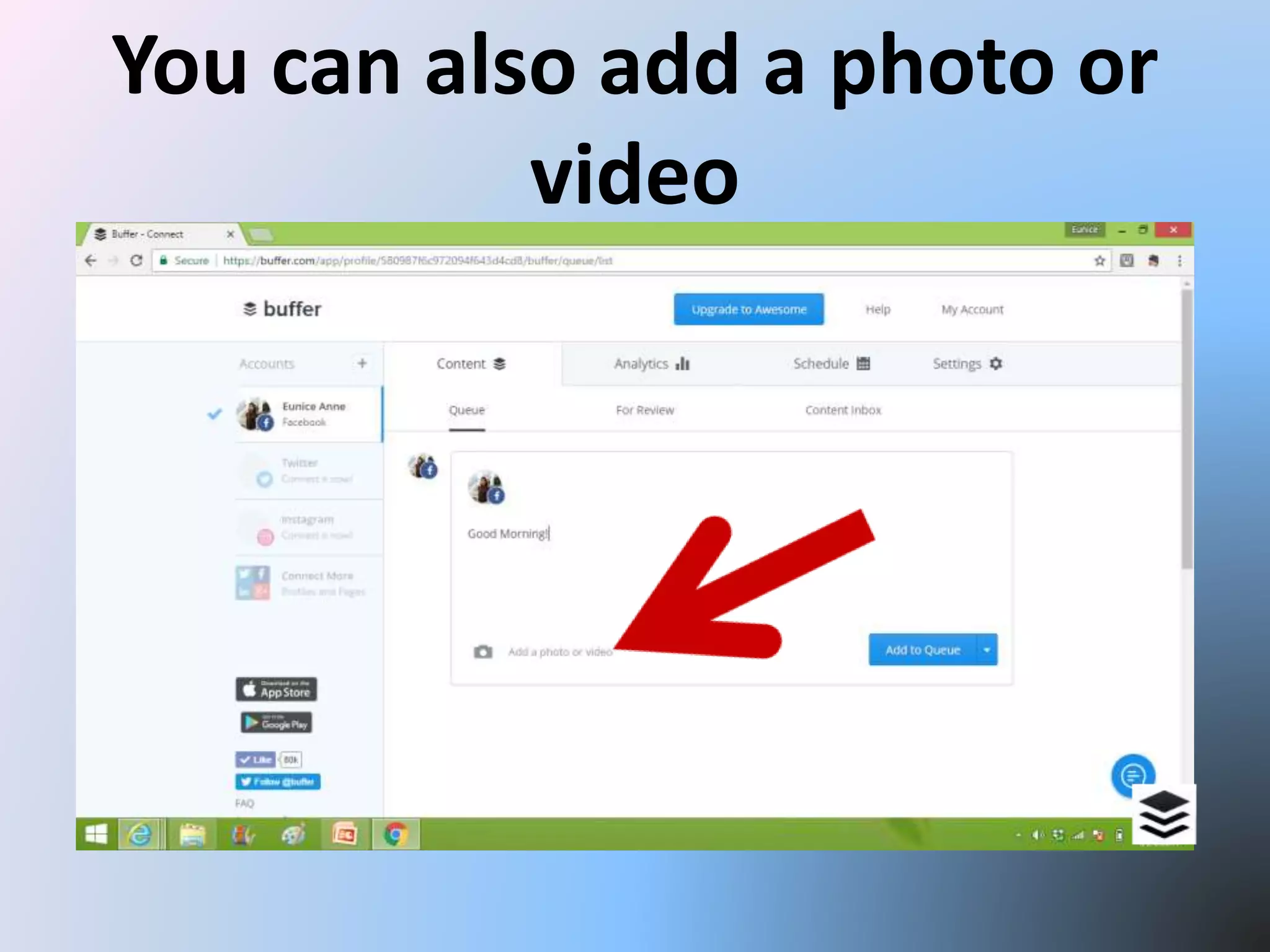
You can also add a photo or
video
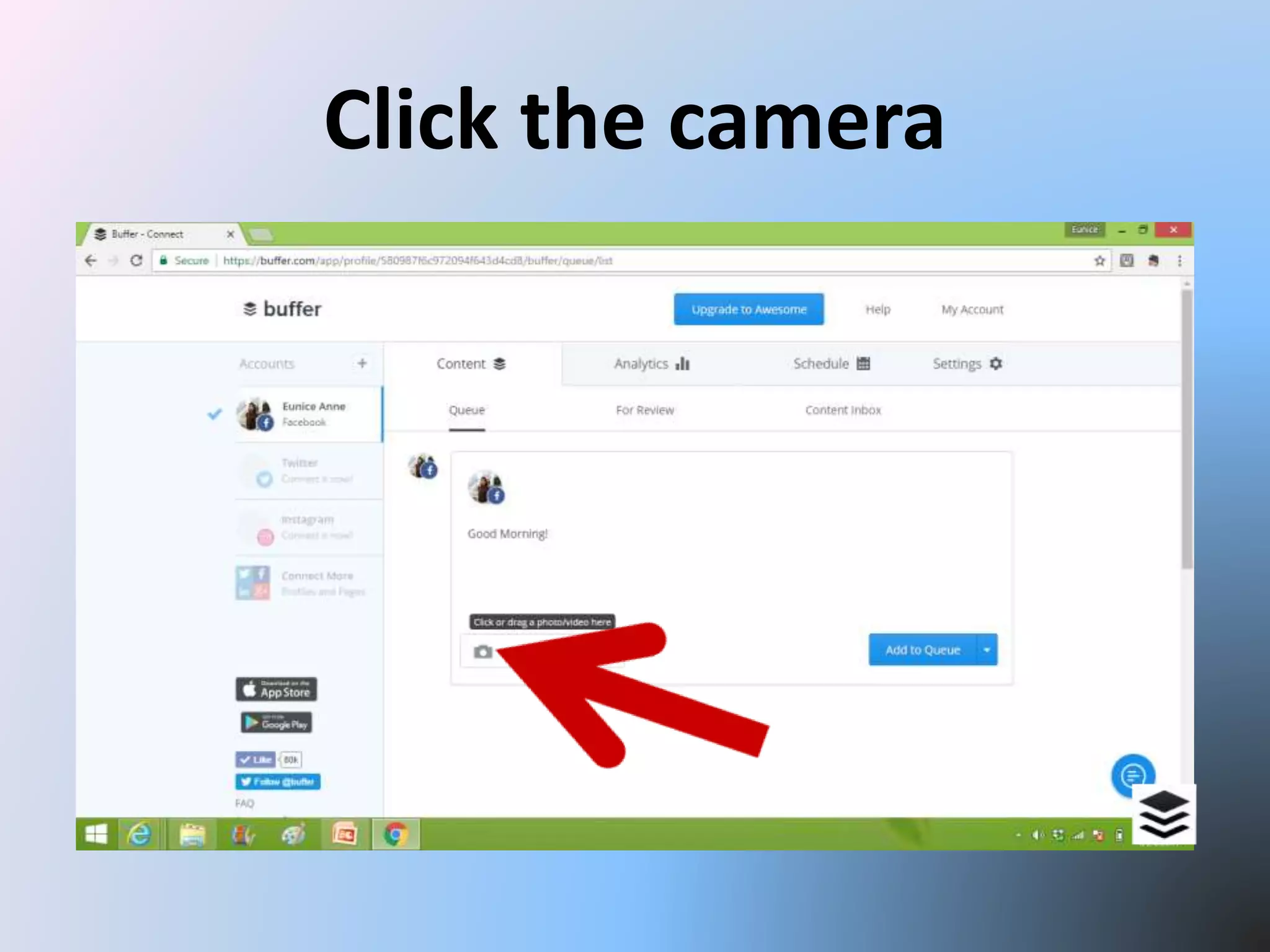
Click the camera
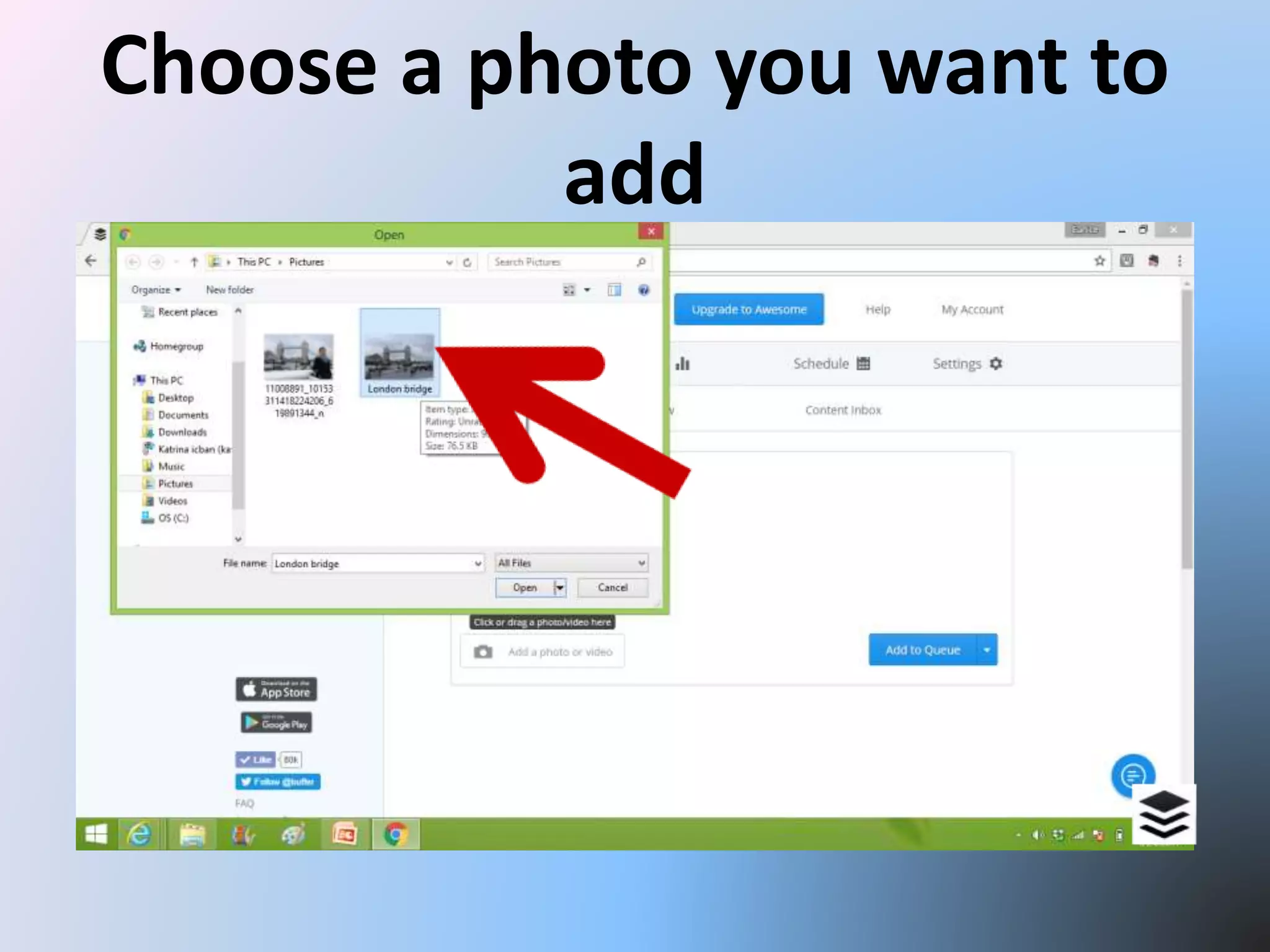
Choose a photo you want to
add
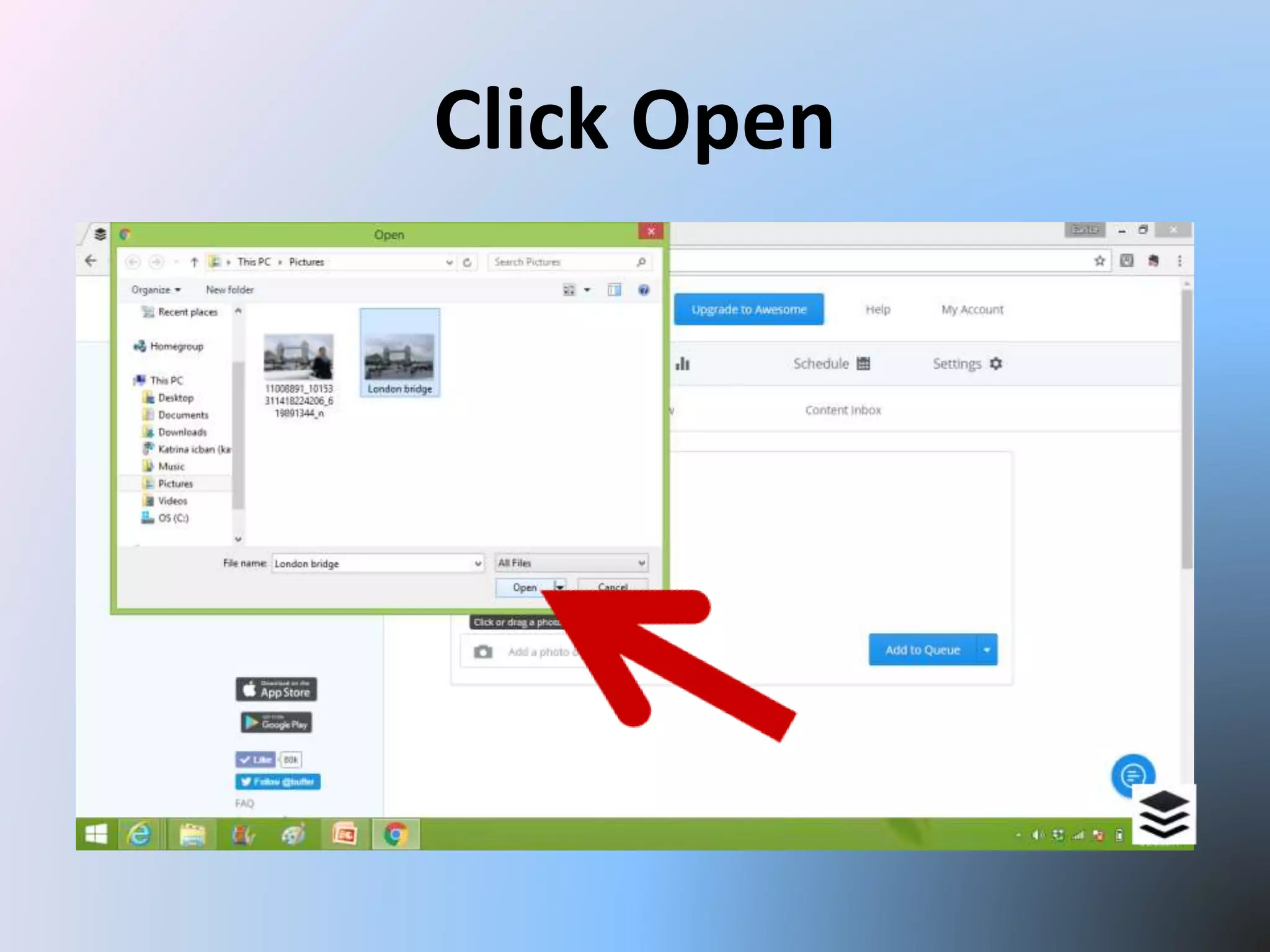
Click Open
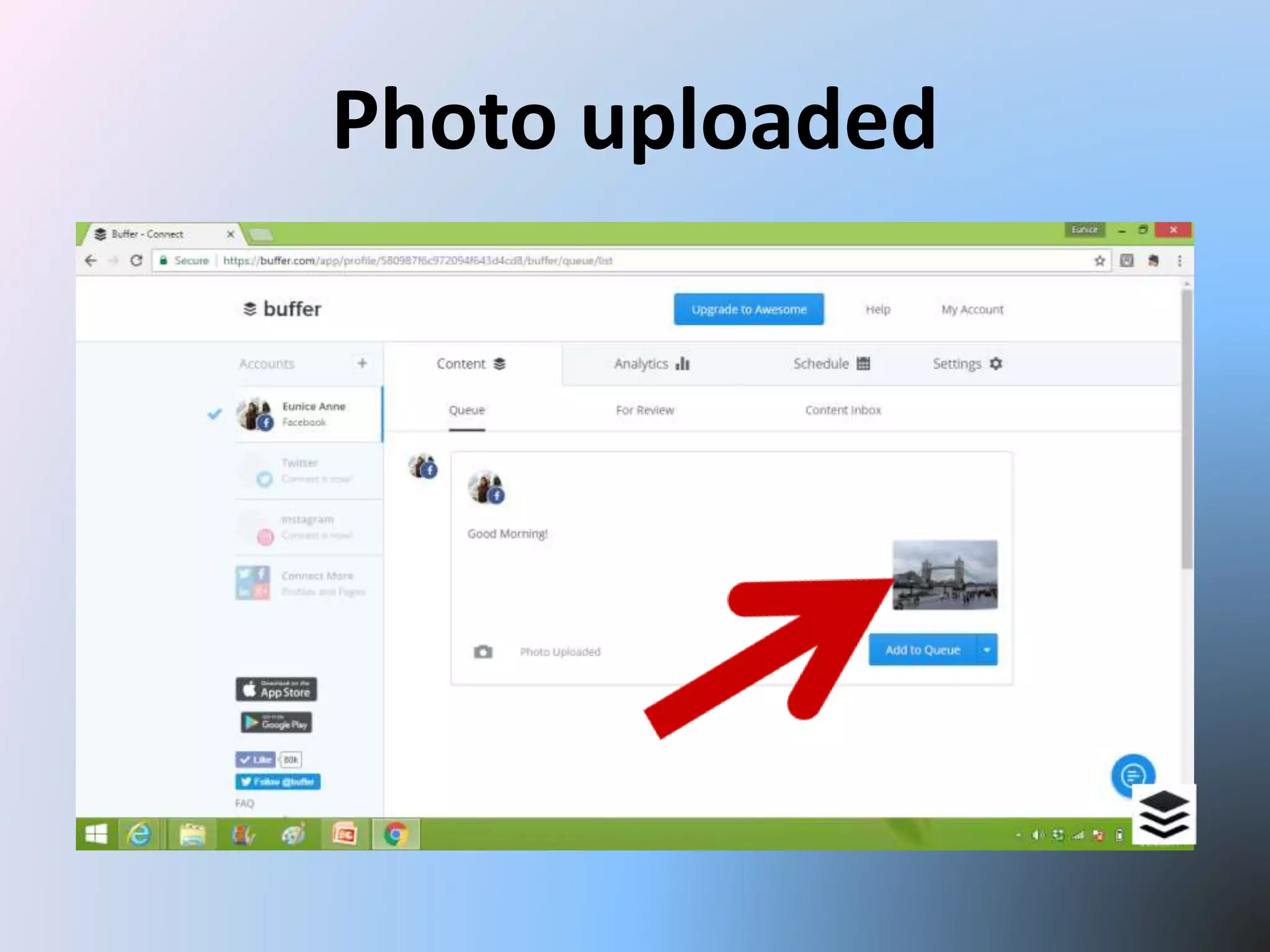
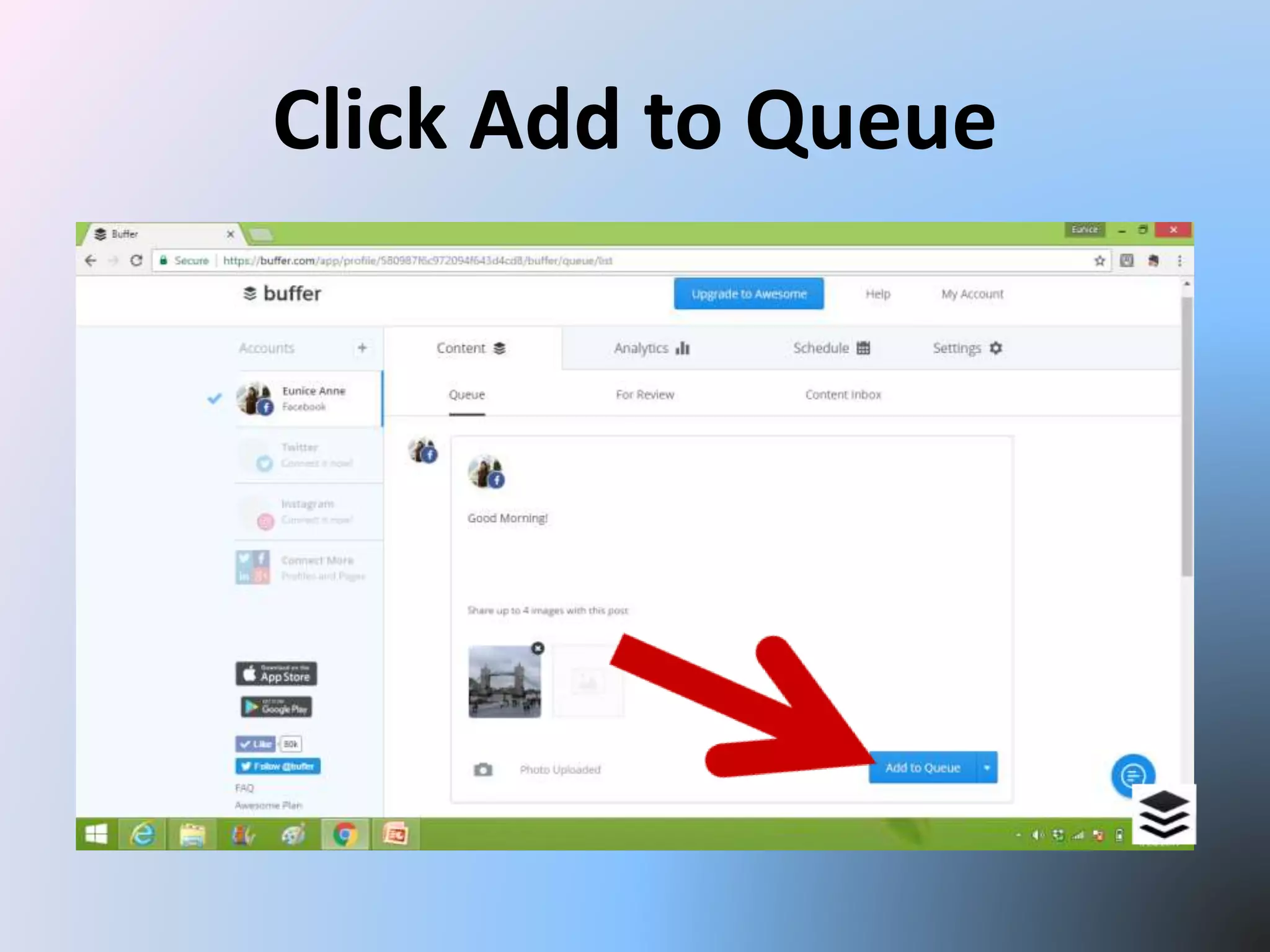
Photo uploaded
Click Add to Queue
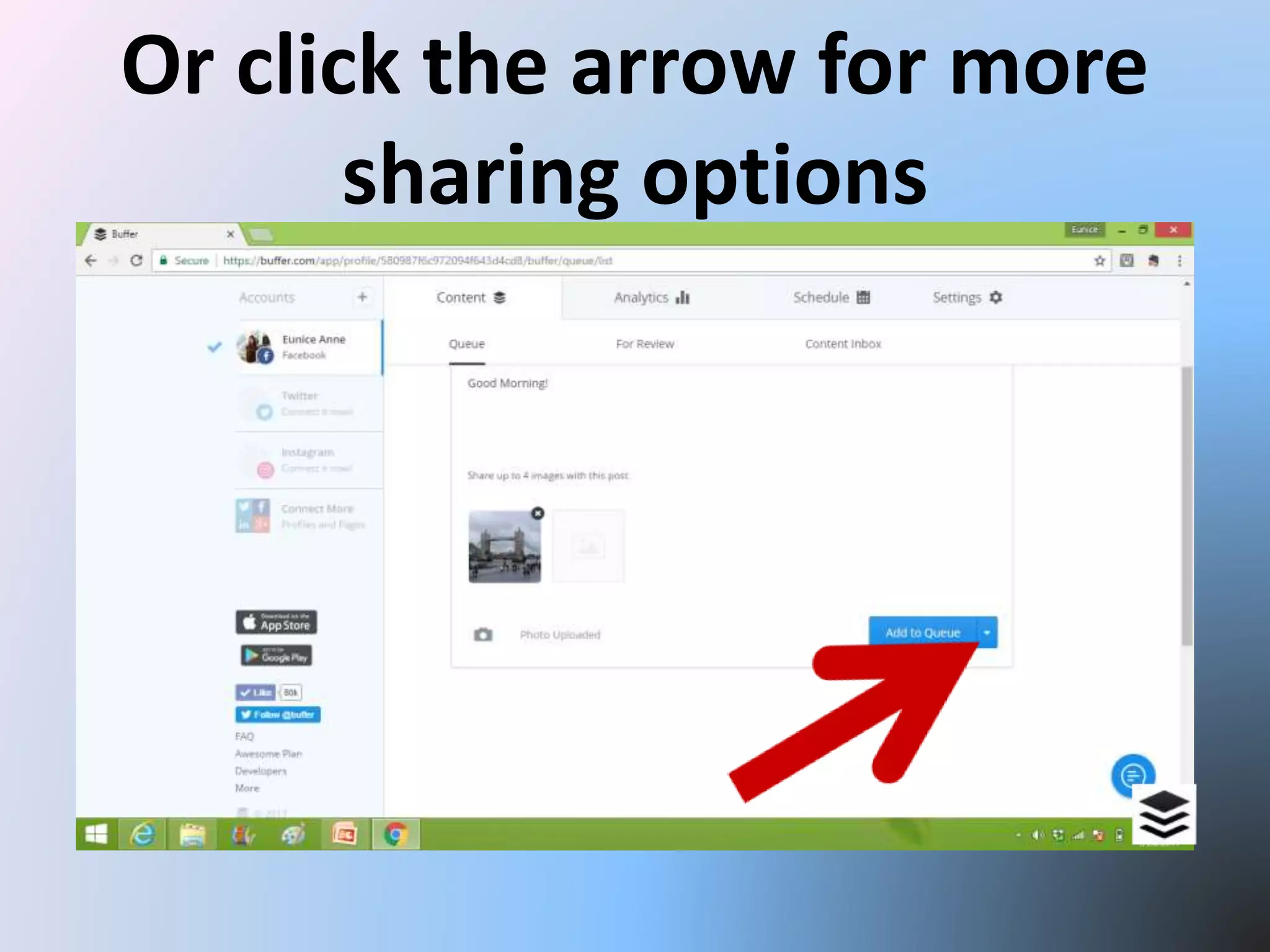
Or click the arrow for more
sharing options
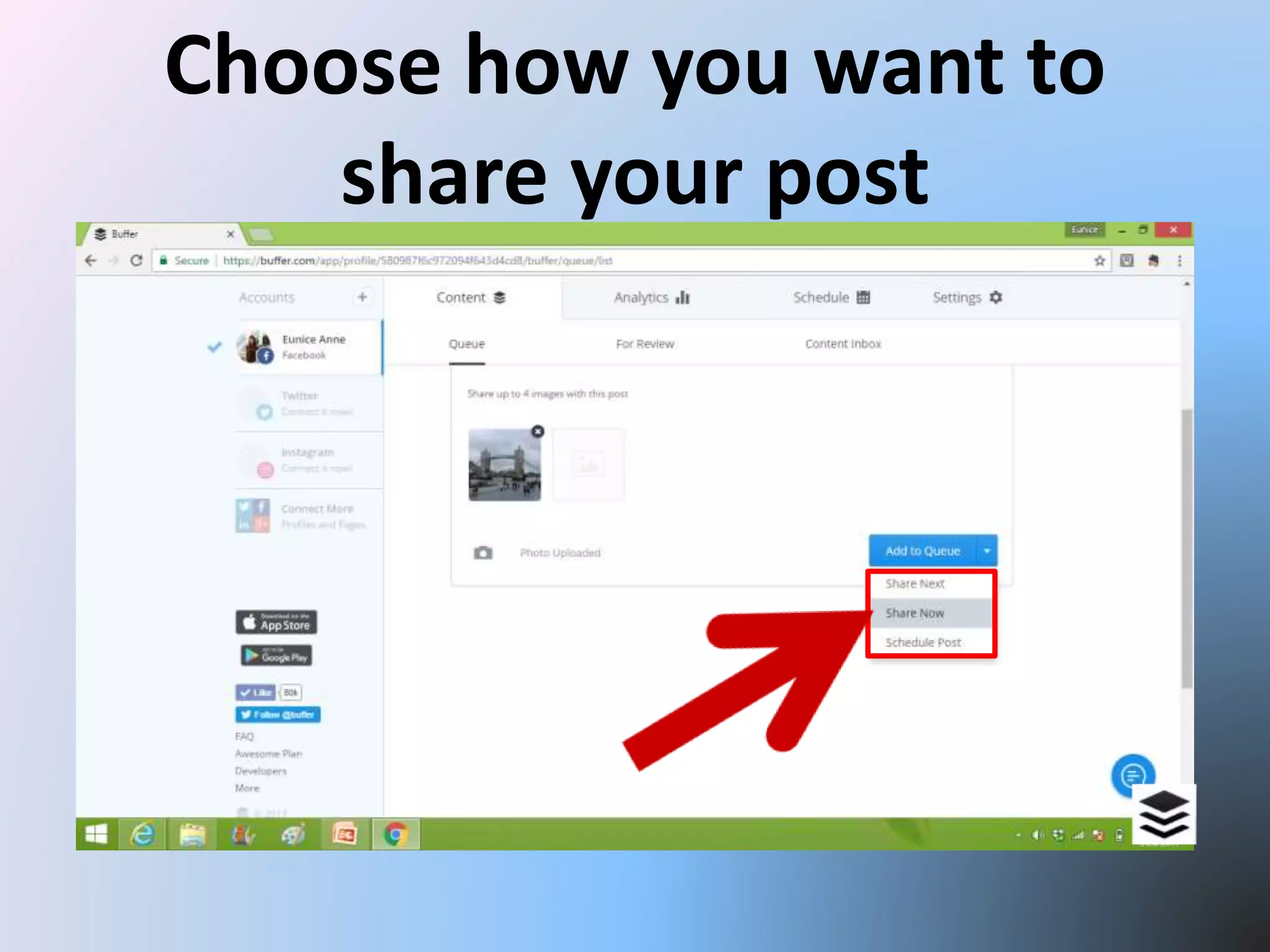
Choose how you want to
share your post
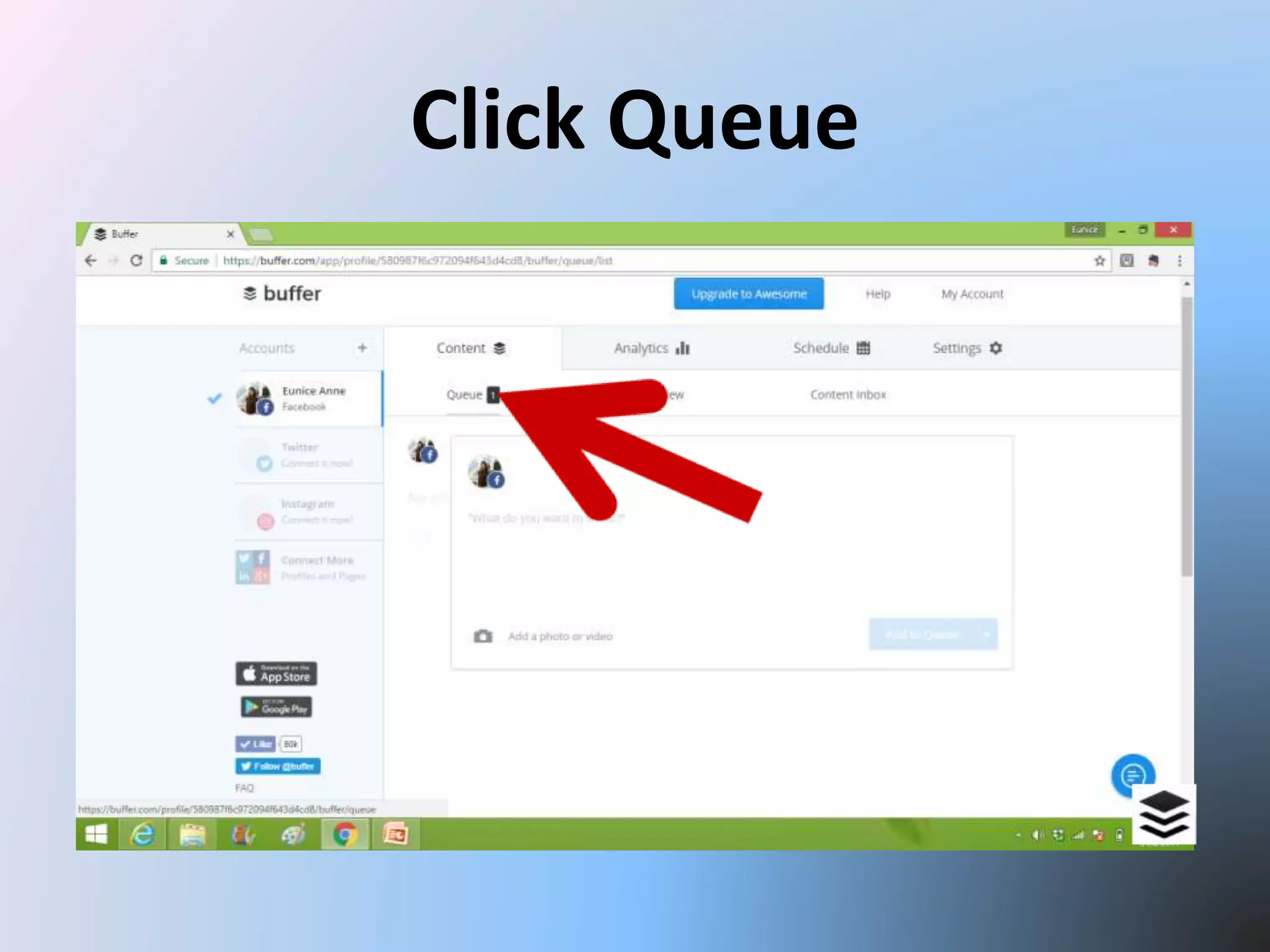
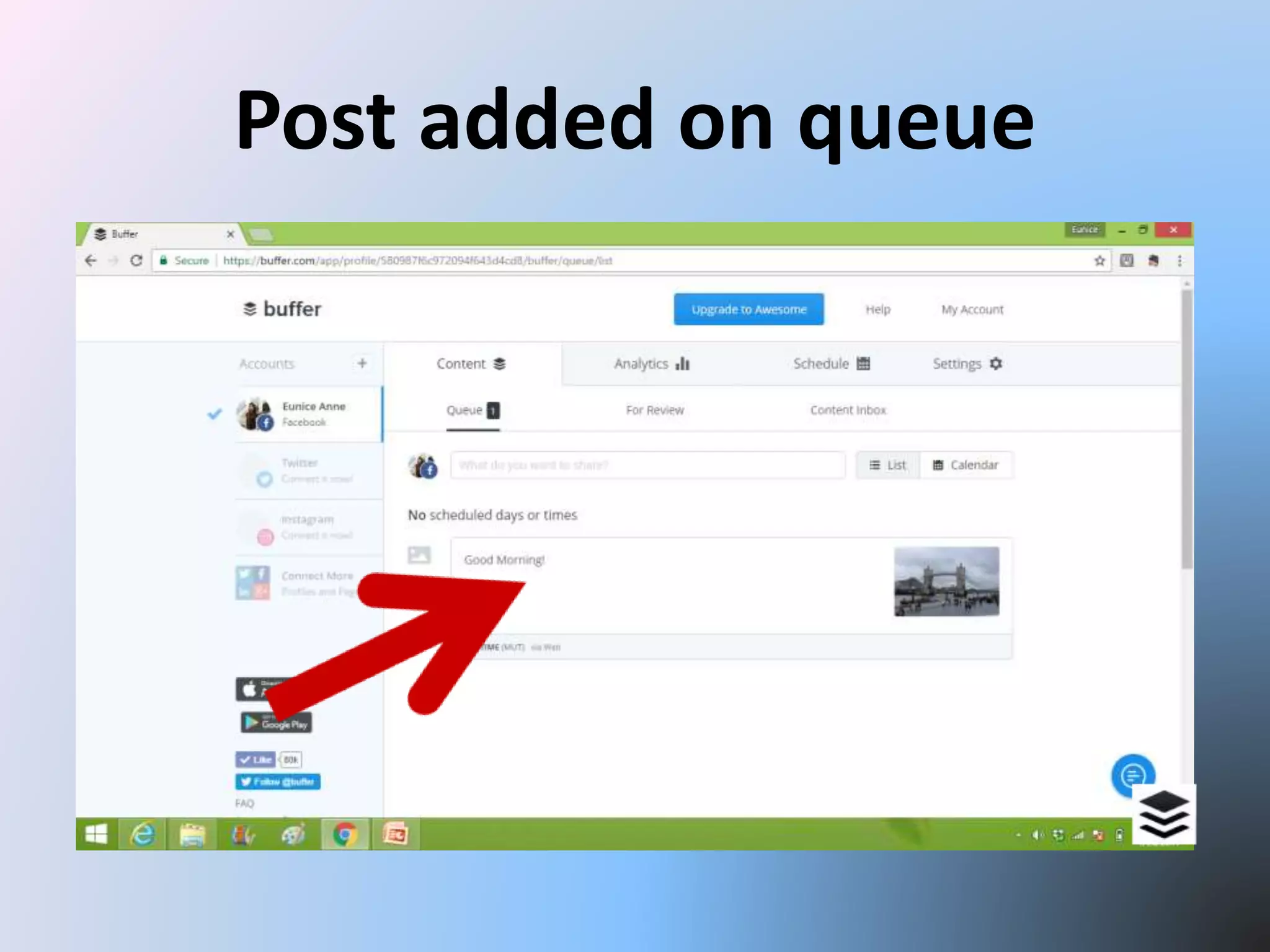
Click Queue
Post added on queue
To edit your post
Click Queue
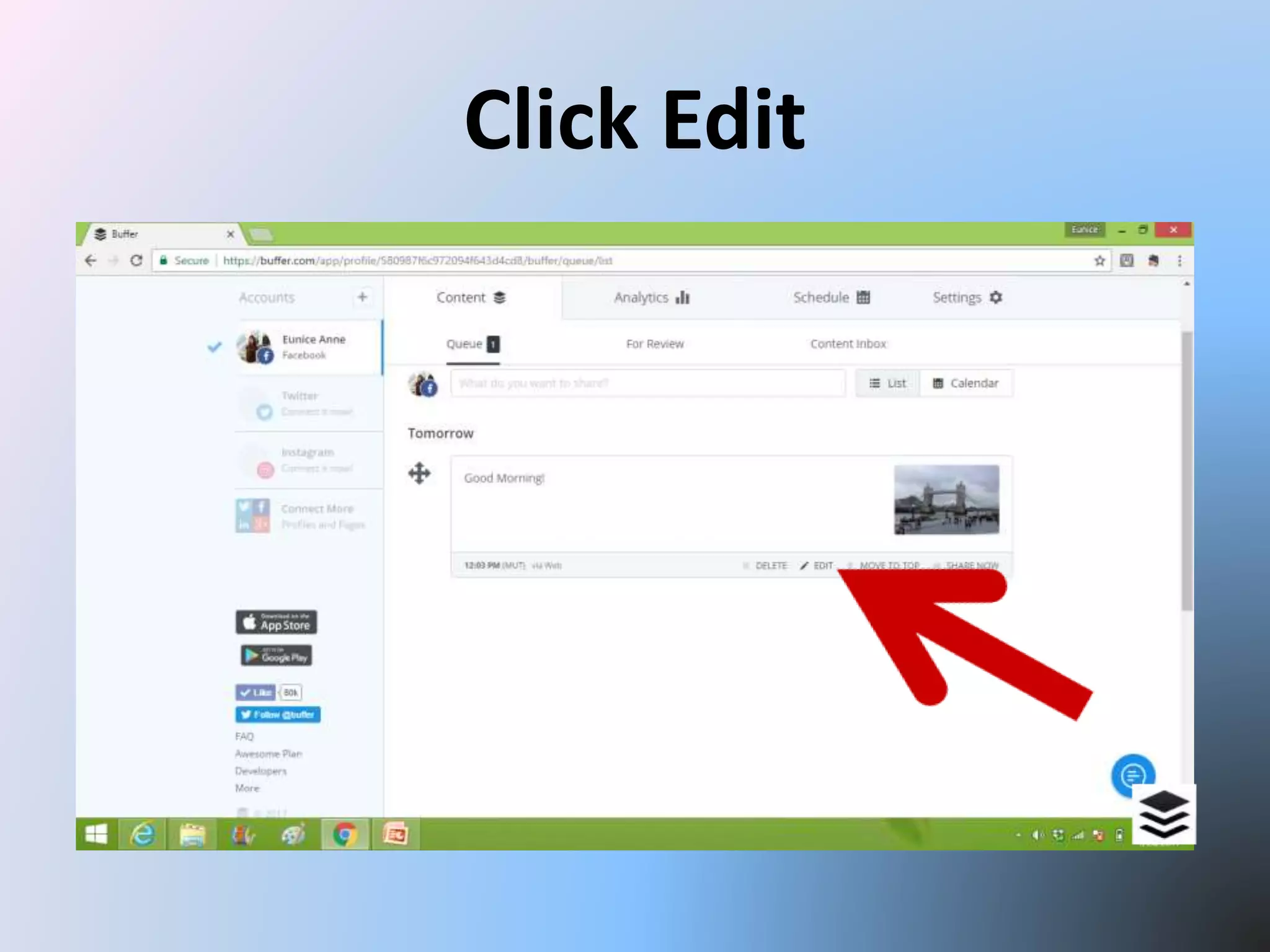
Click Edit
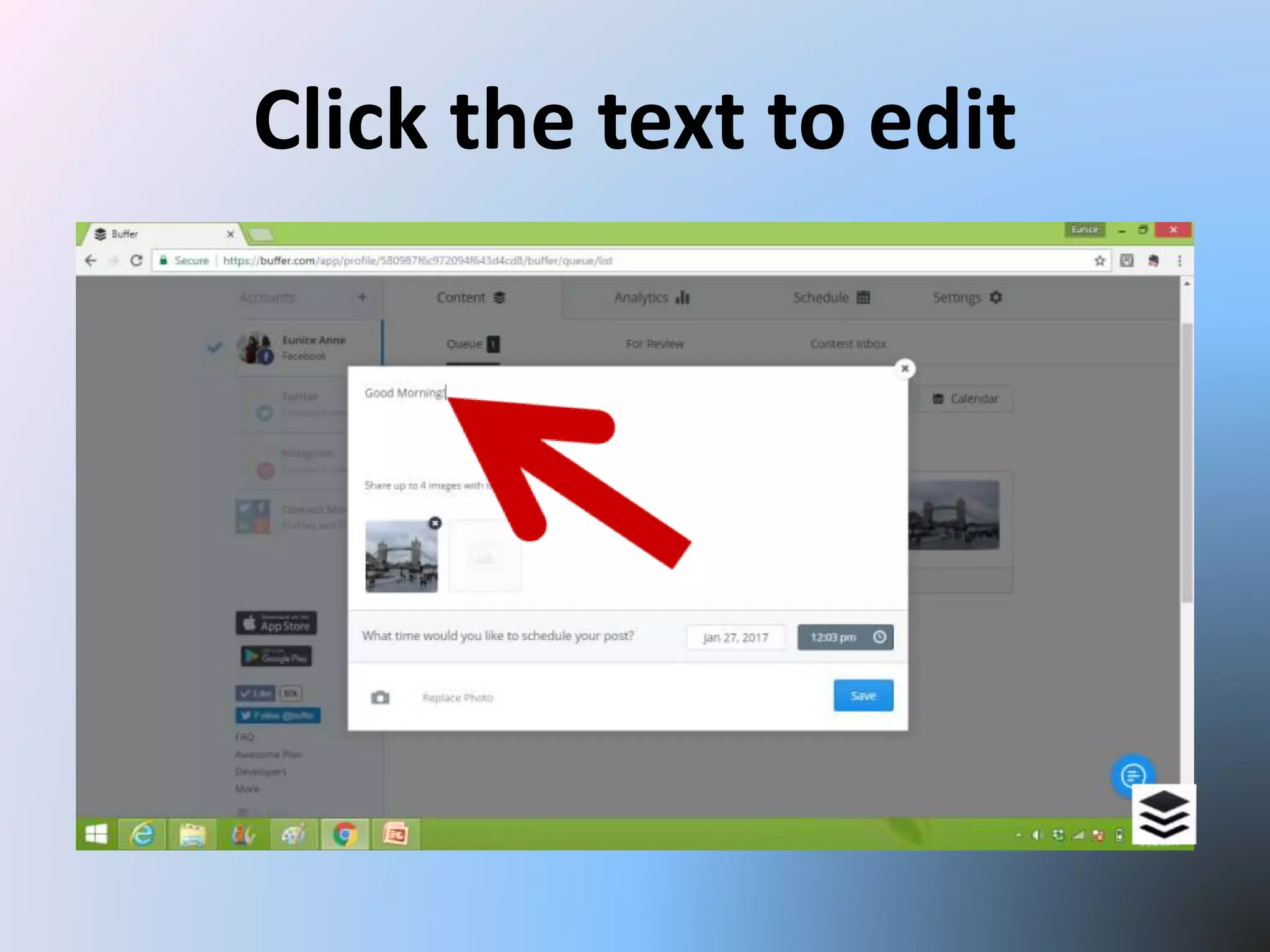
Click the text to edit
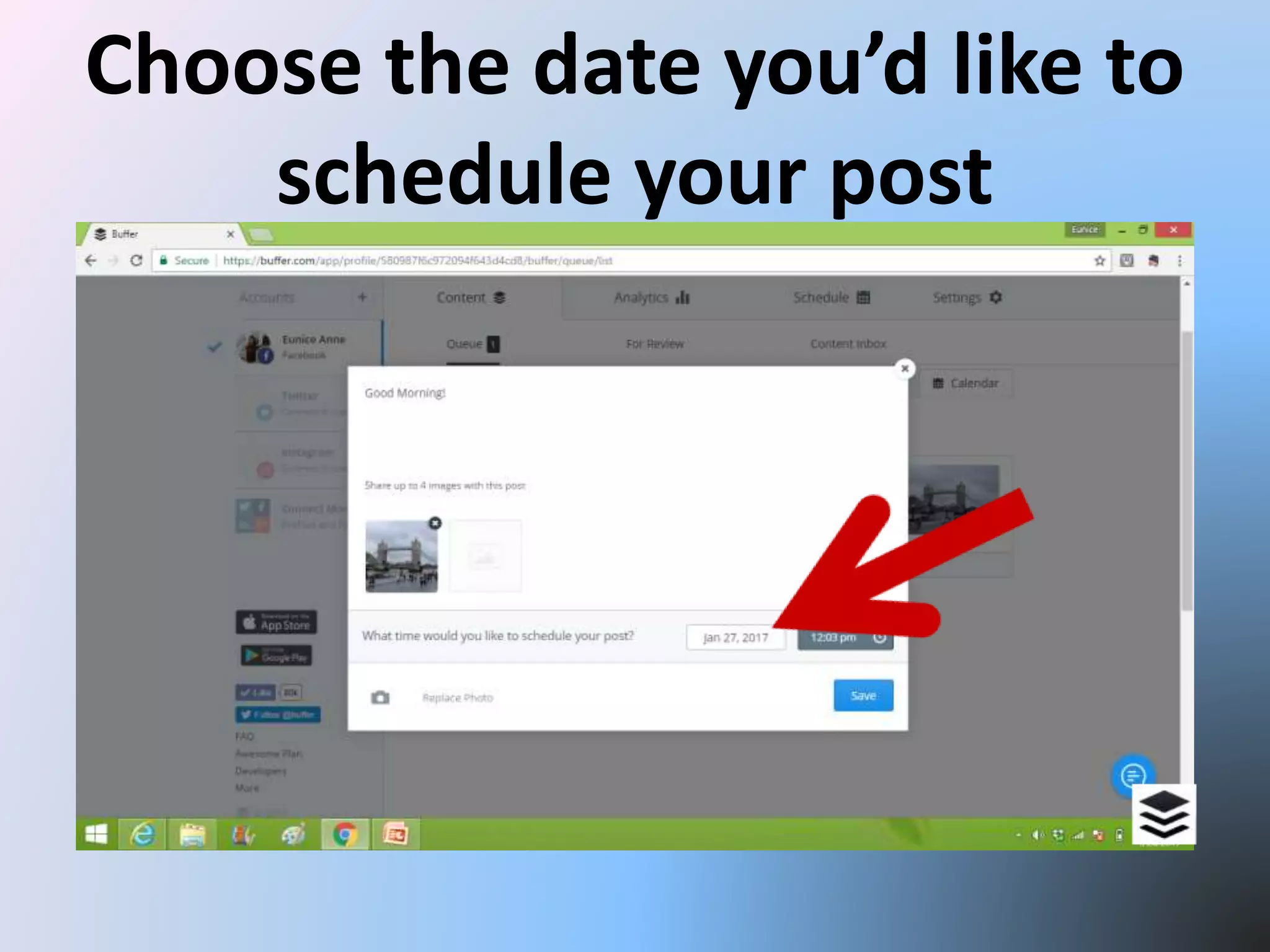
Choose the date you’d like to
schedule your post
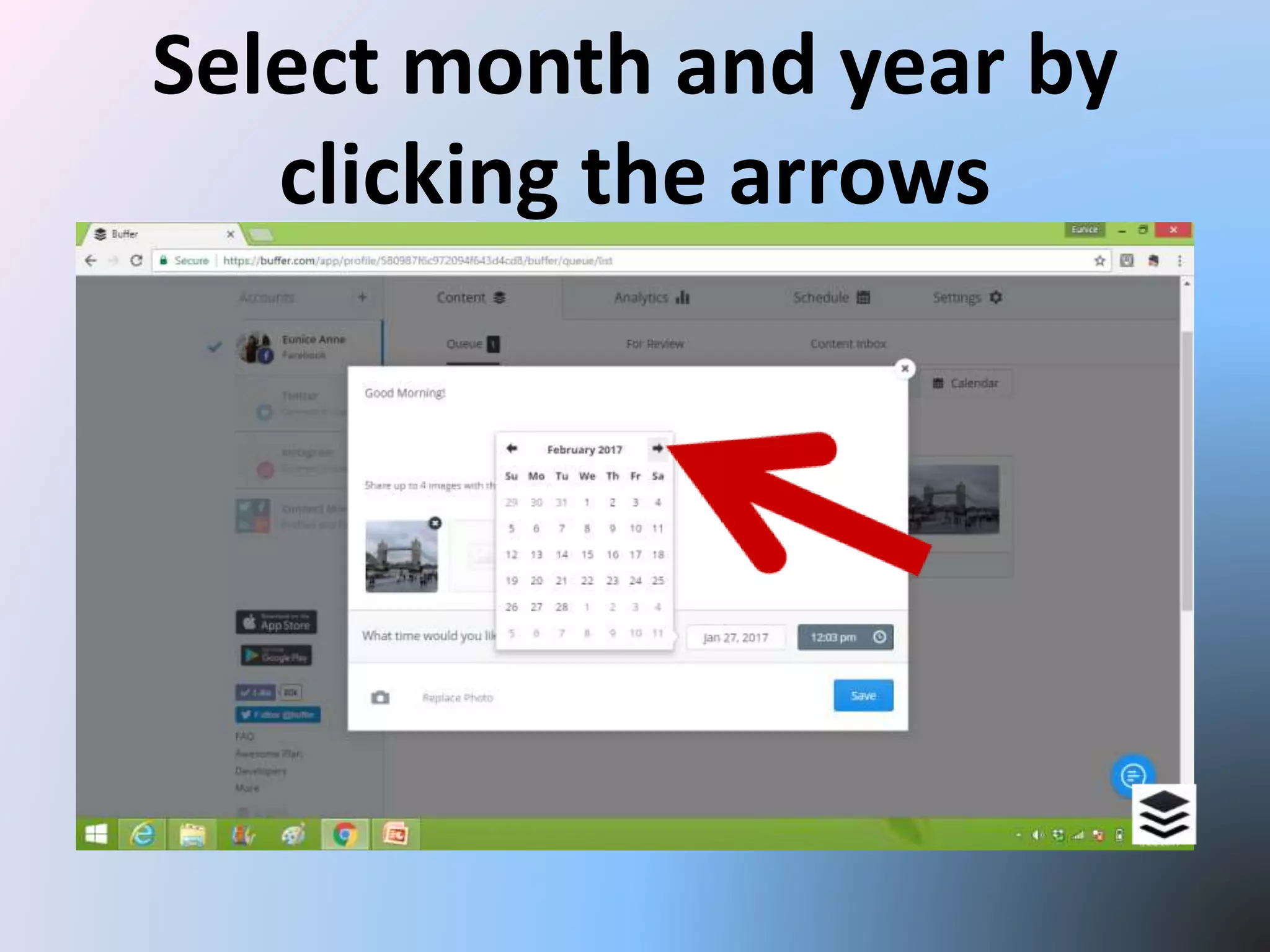
Select month and year by
clicking the arrows
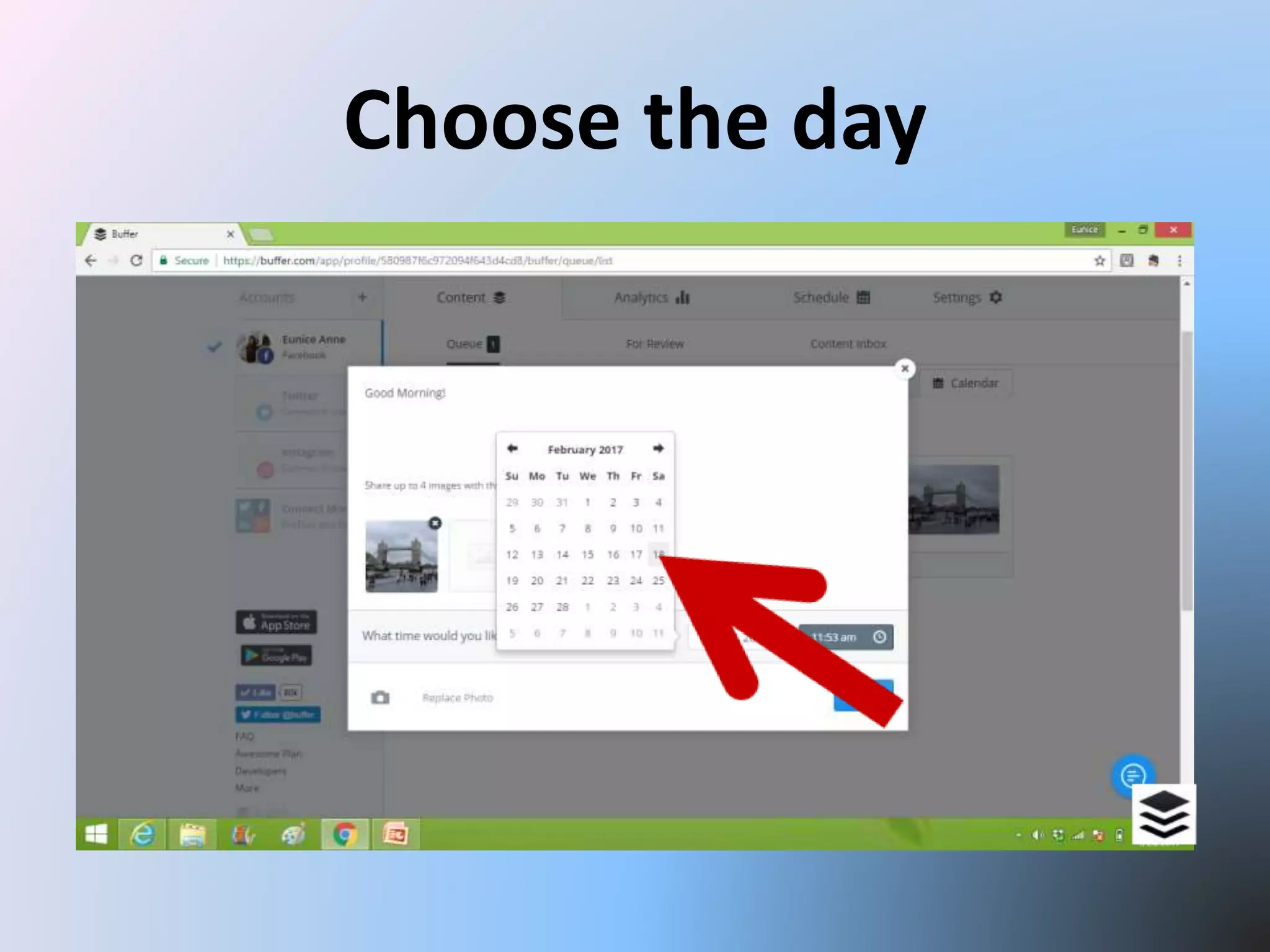
Choose the day
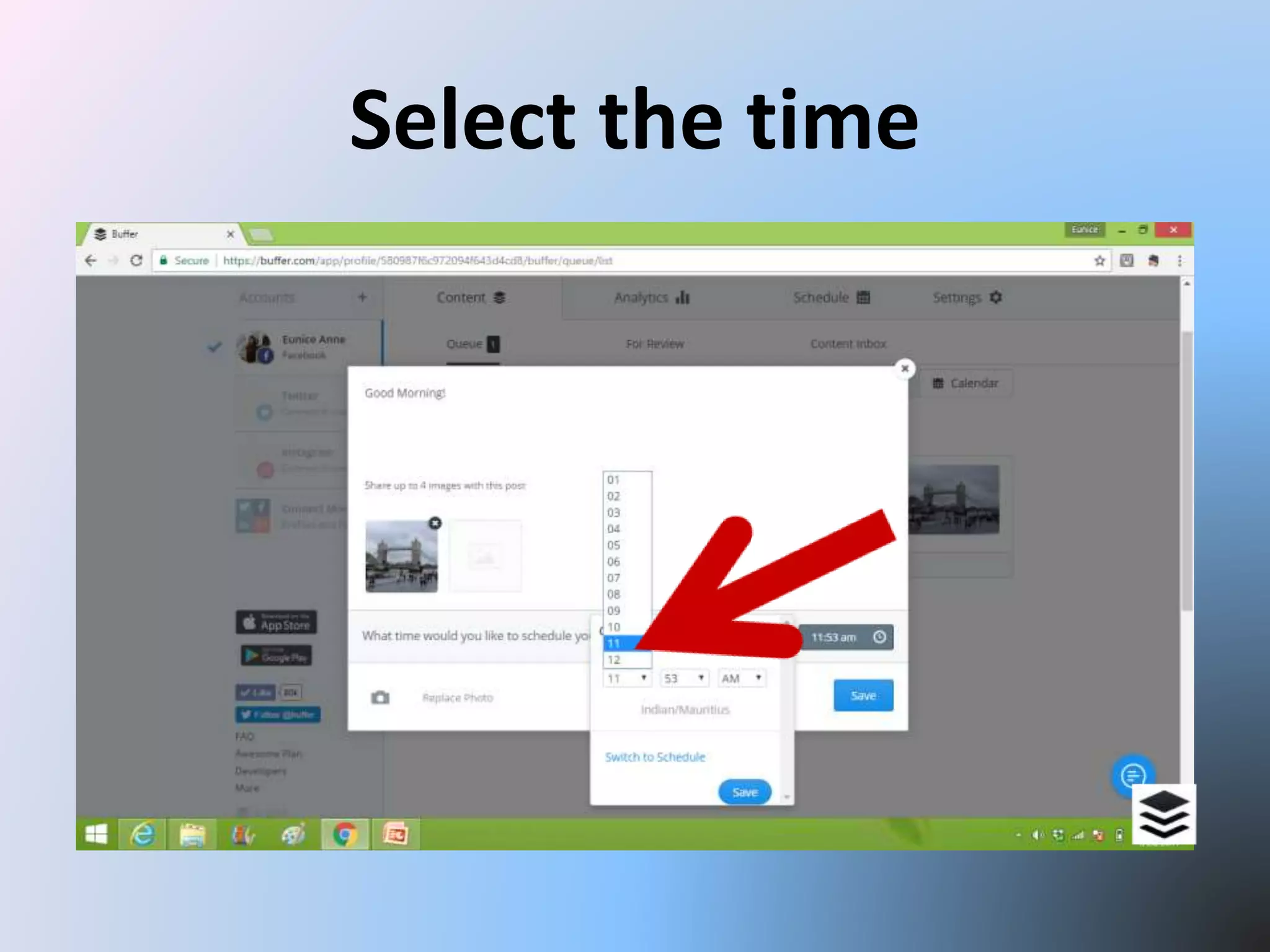
Select the time
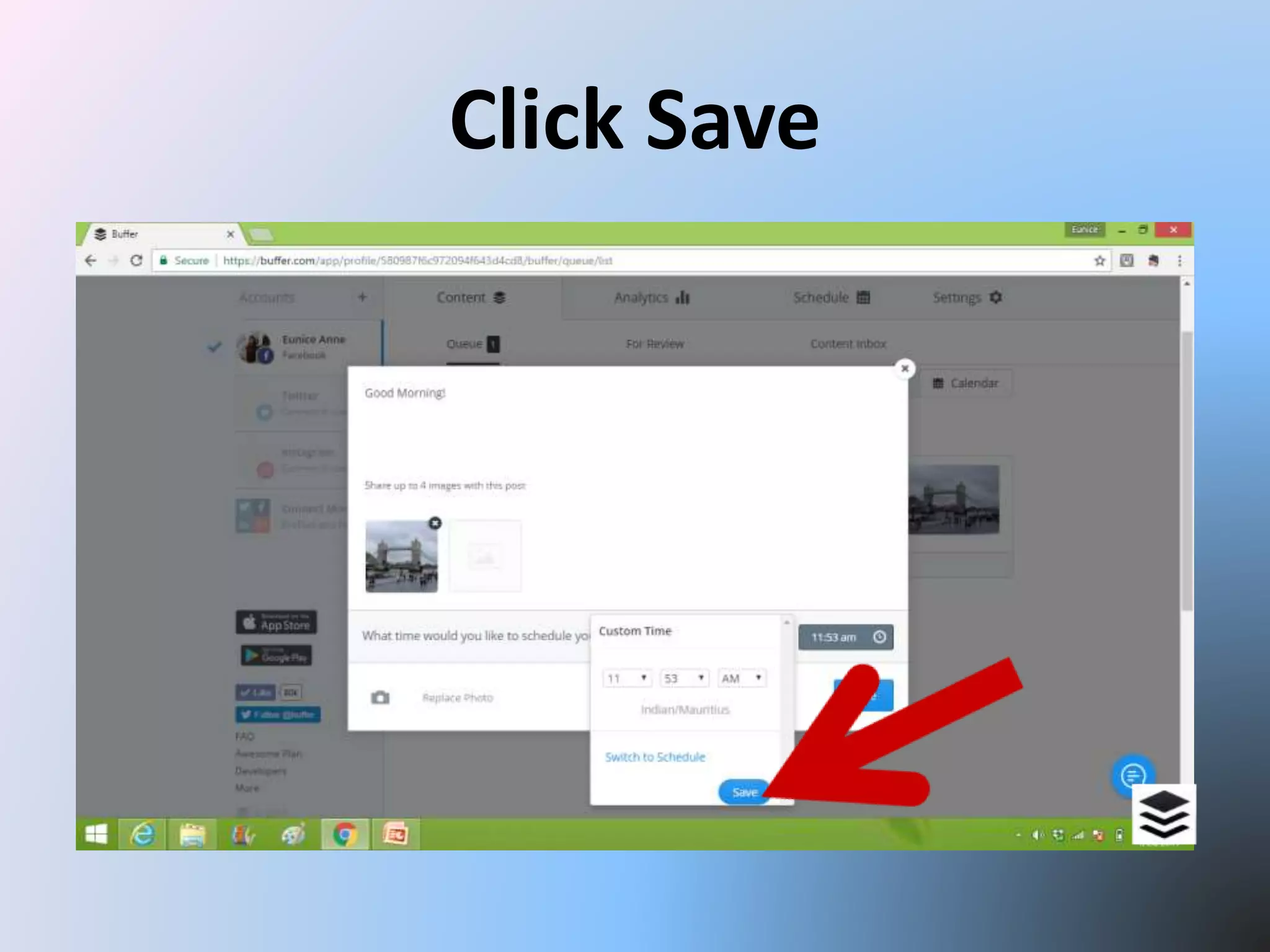
Click Save
To post a single message to
multiple social networks
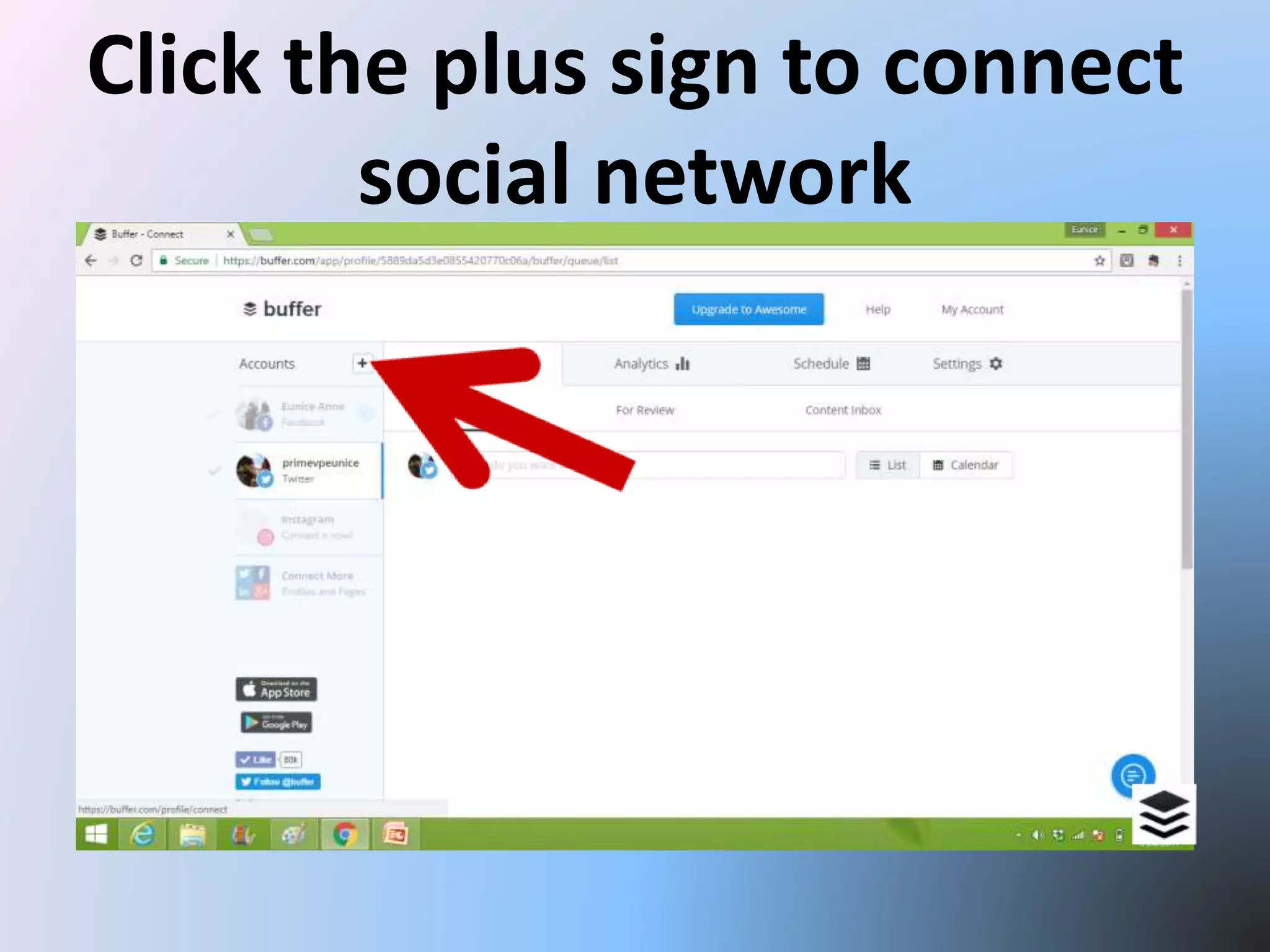
Click the plus sign to connect
social network
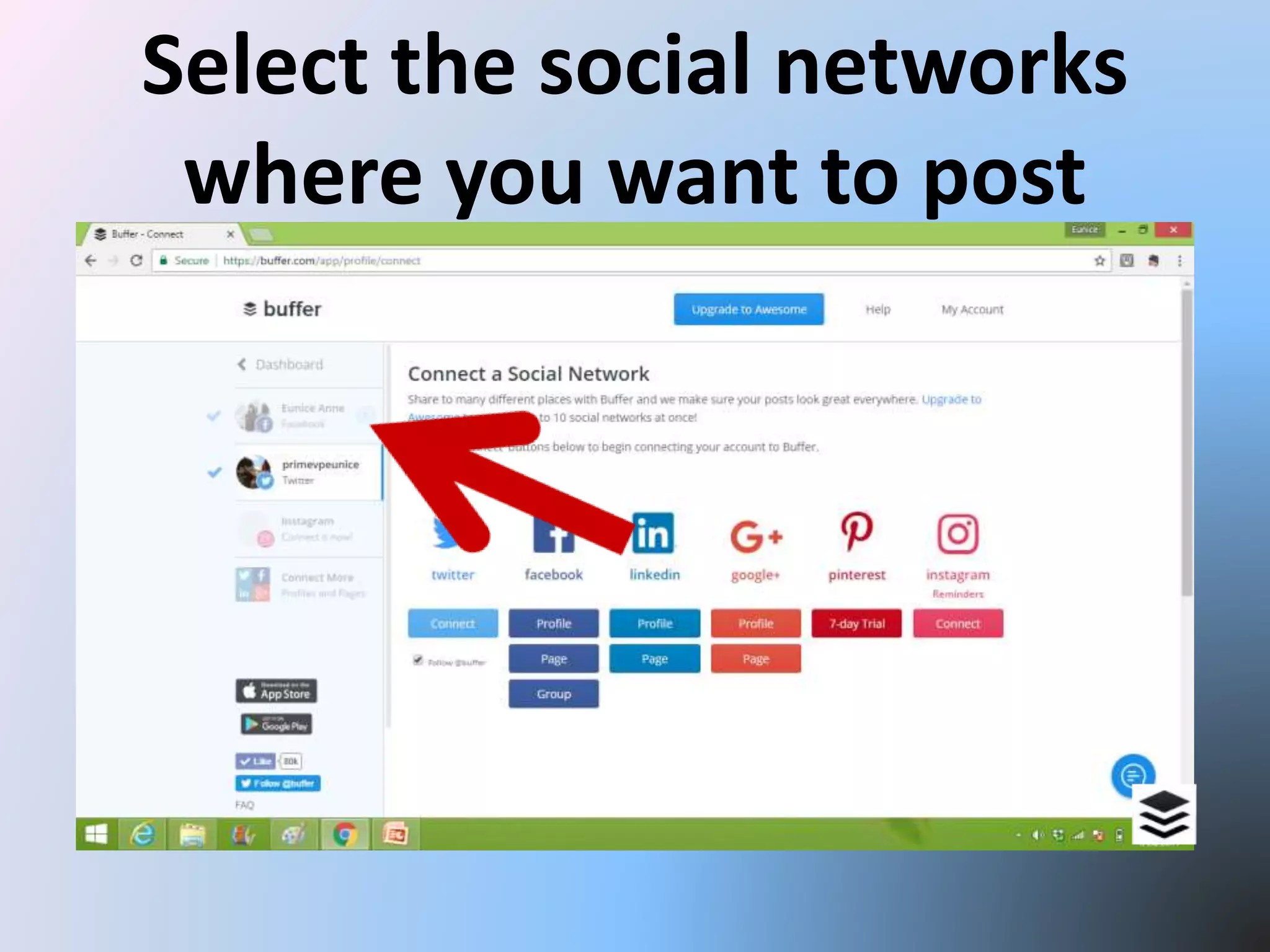
Select the social networks
where you want to post
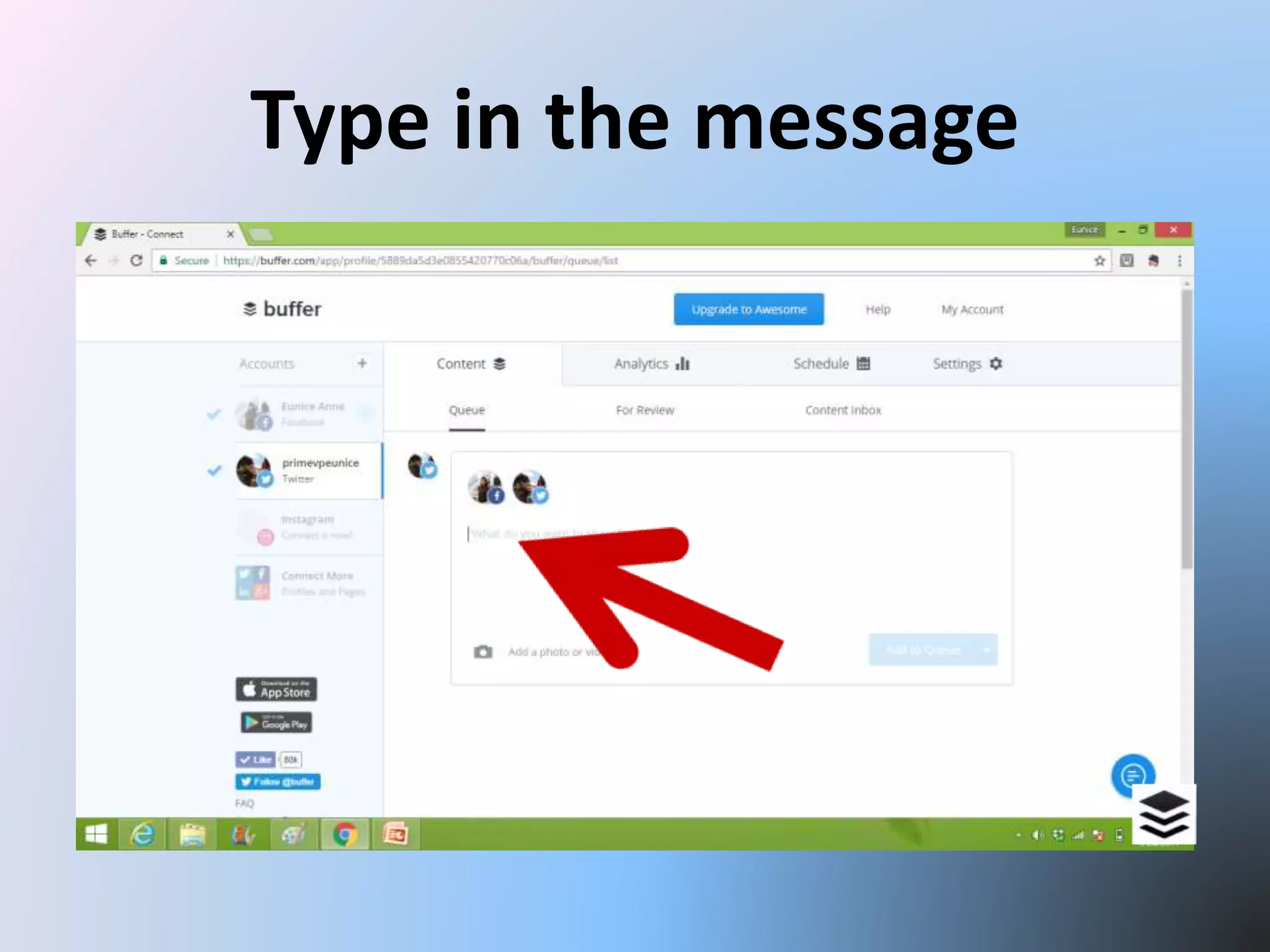
Type in the message
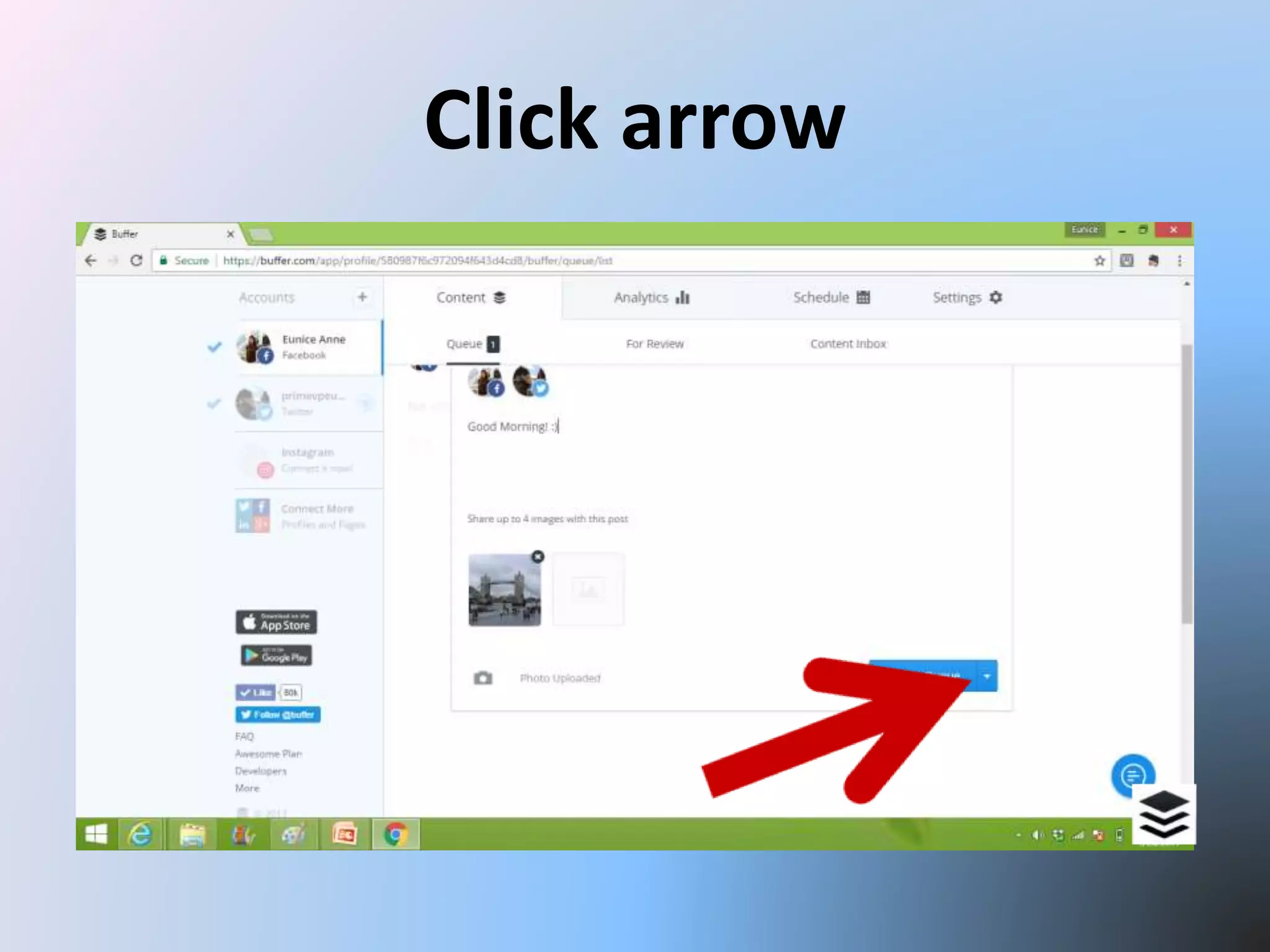
Click arrow
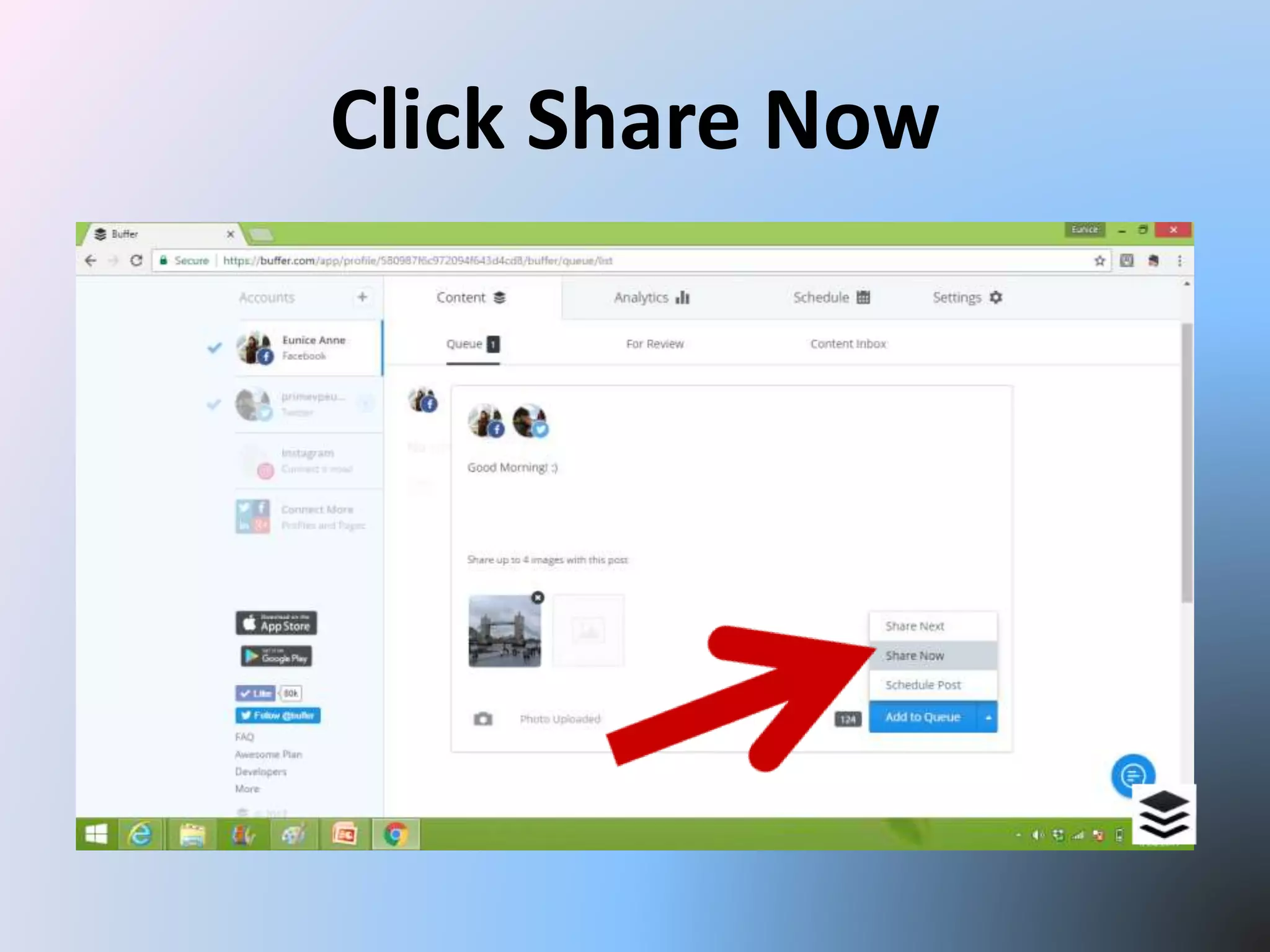
Click Share Now
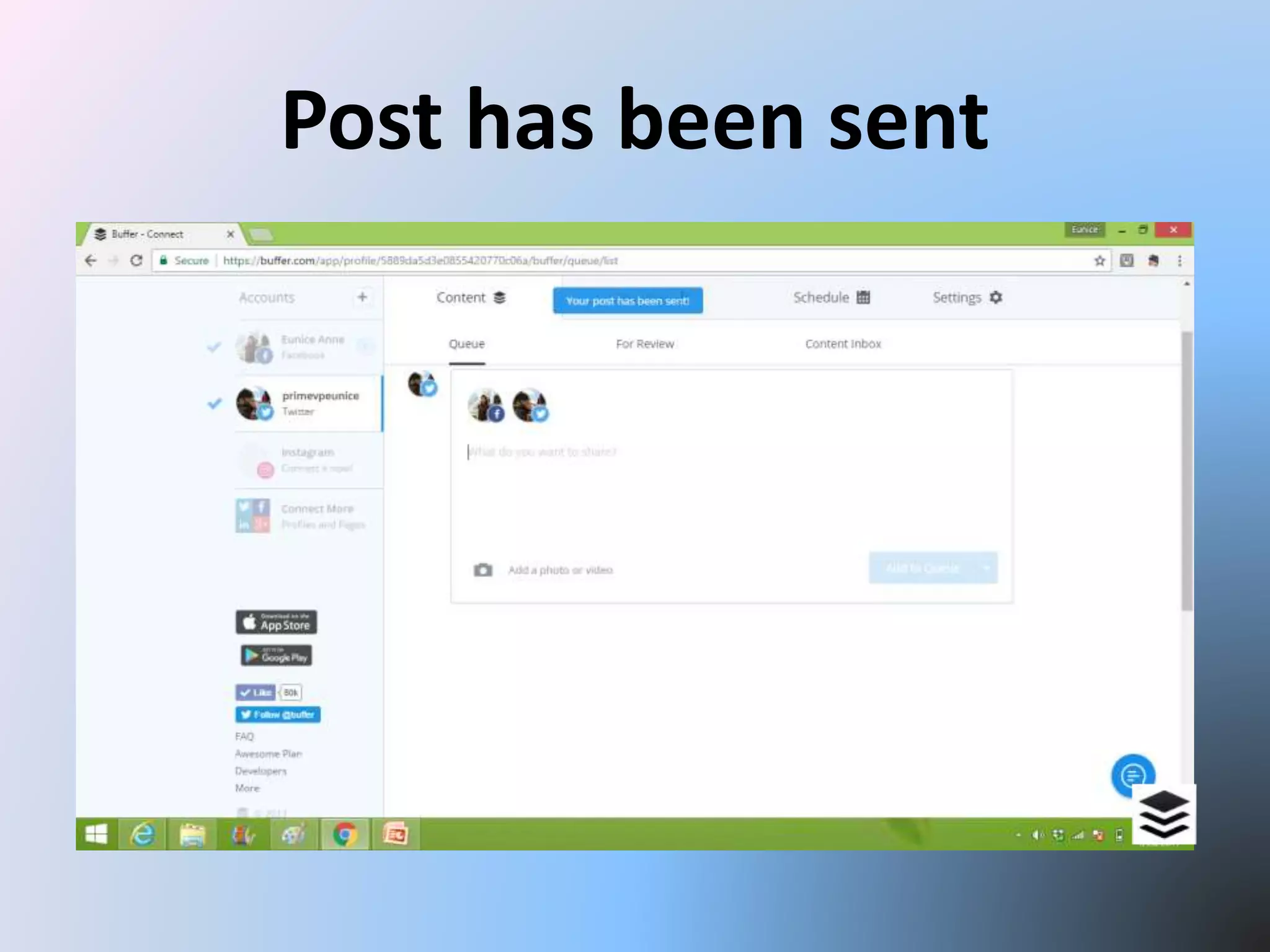
Post has been sent
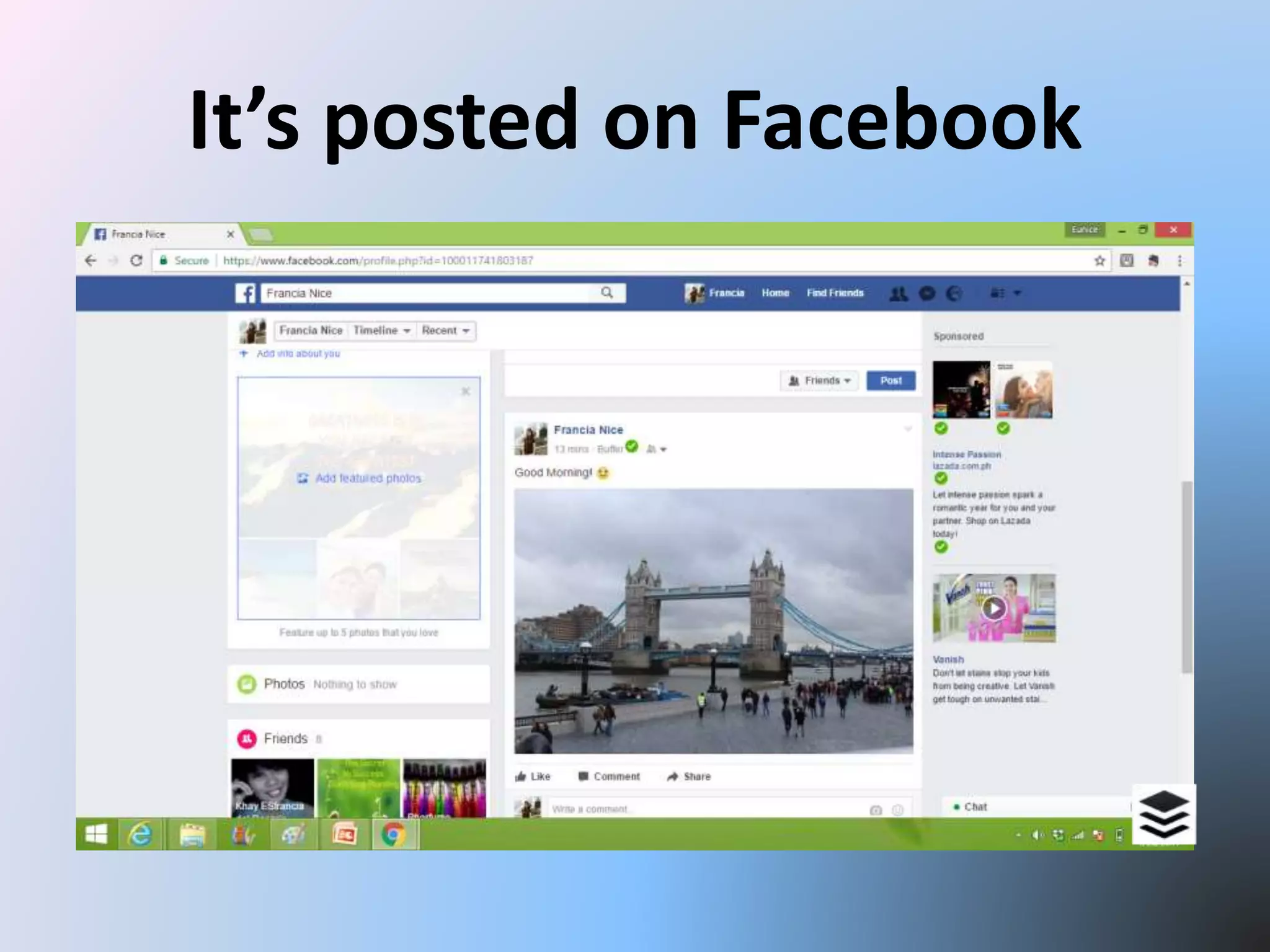
It’s posted on Facebook
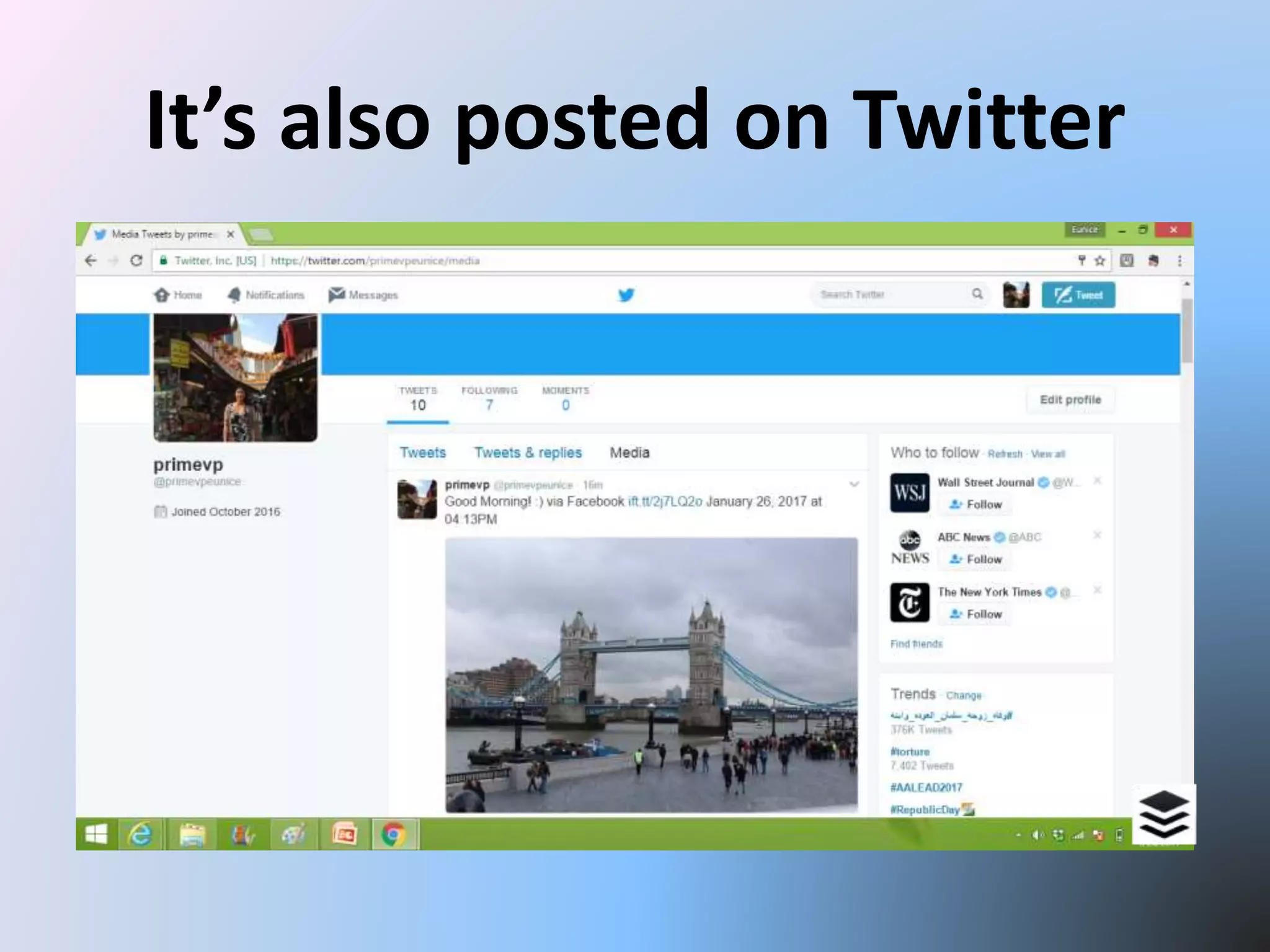
It’s also posted on Twitter
To change your timezone
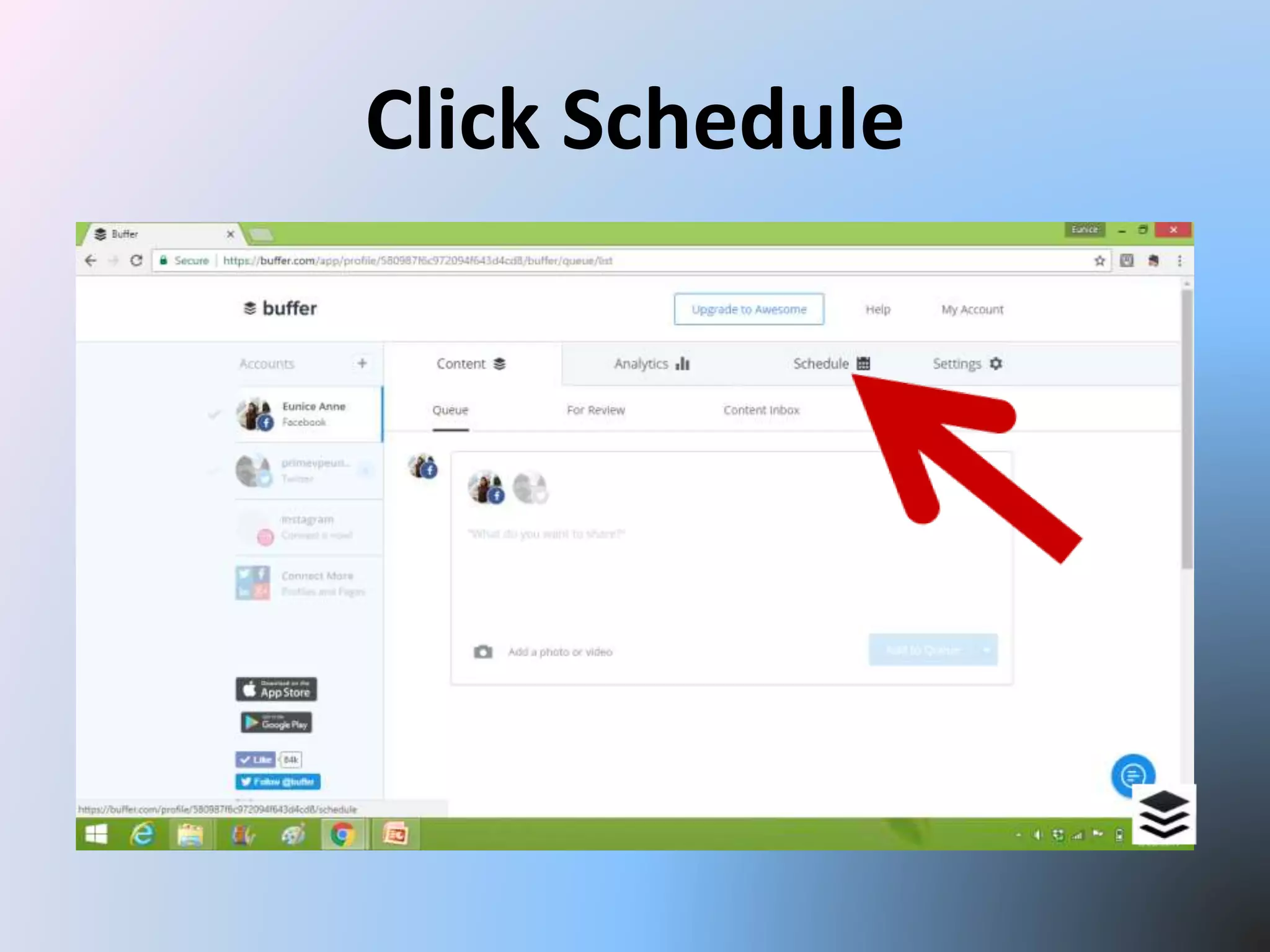
Click Schedule
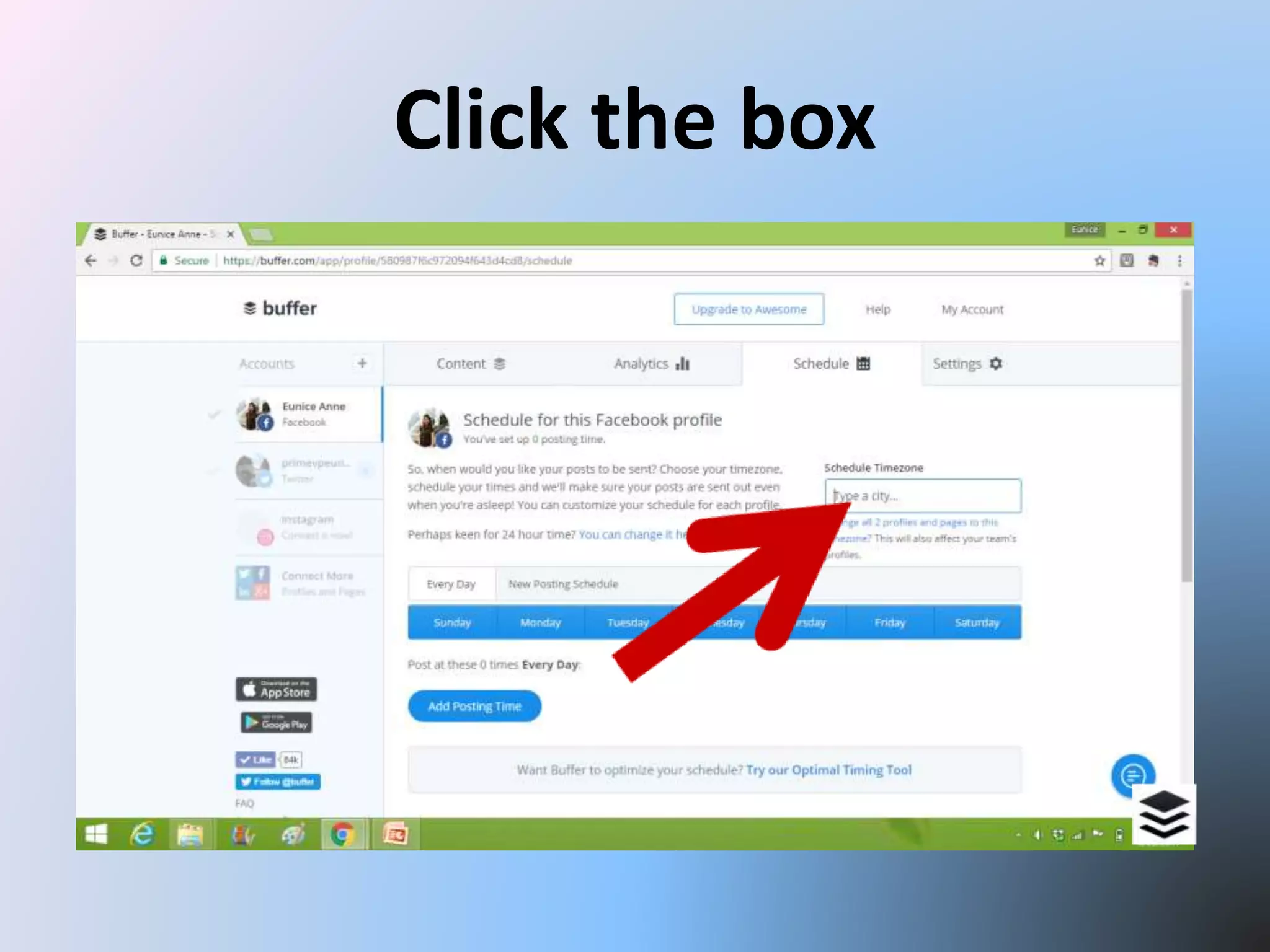
Click the box
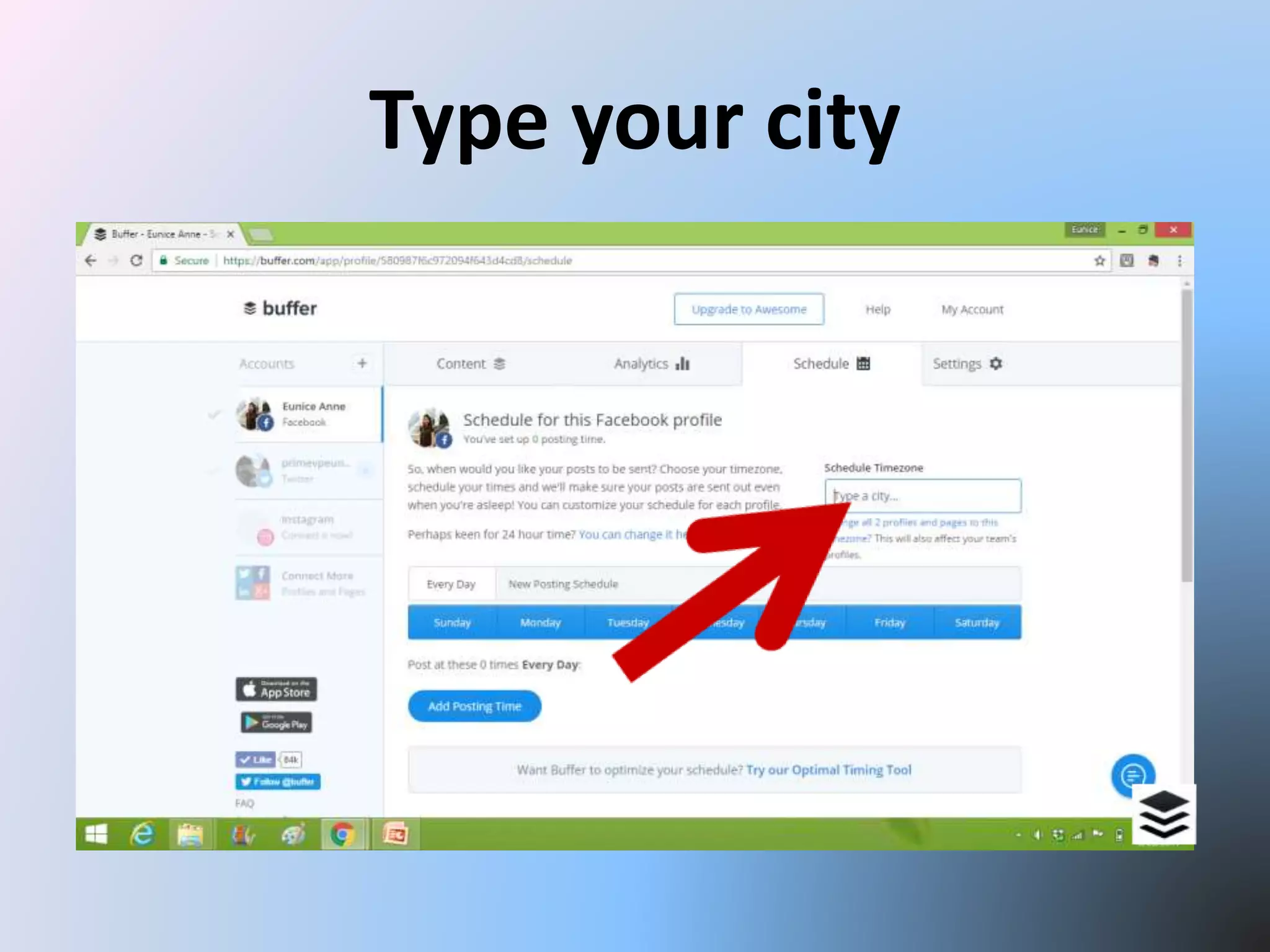
Type your city
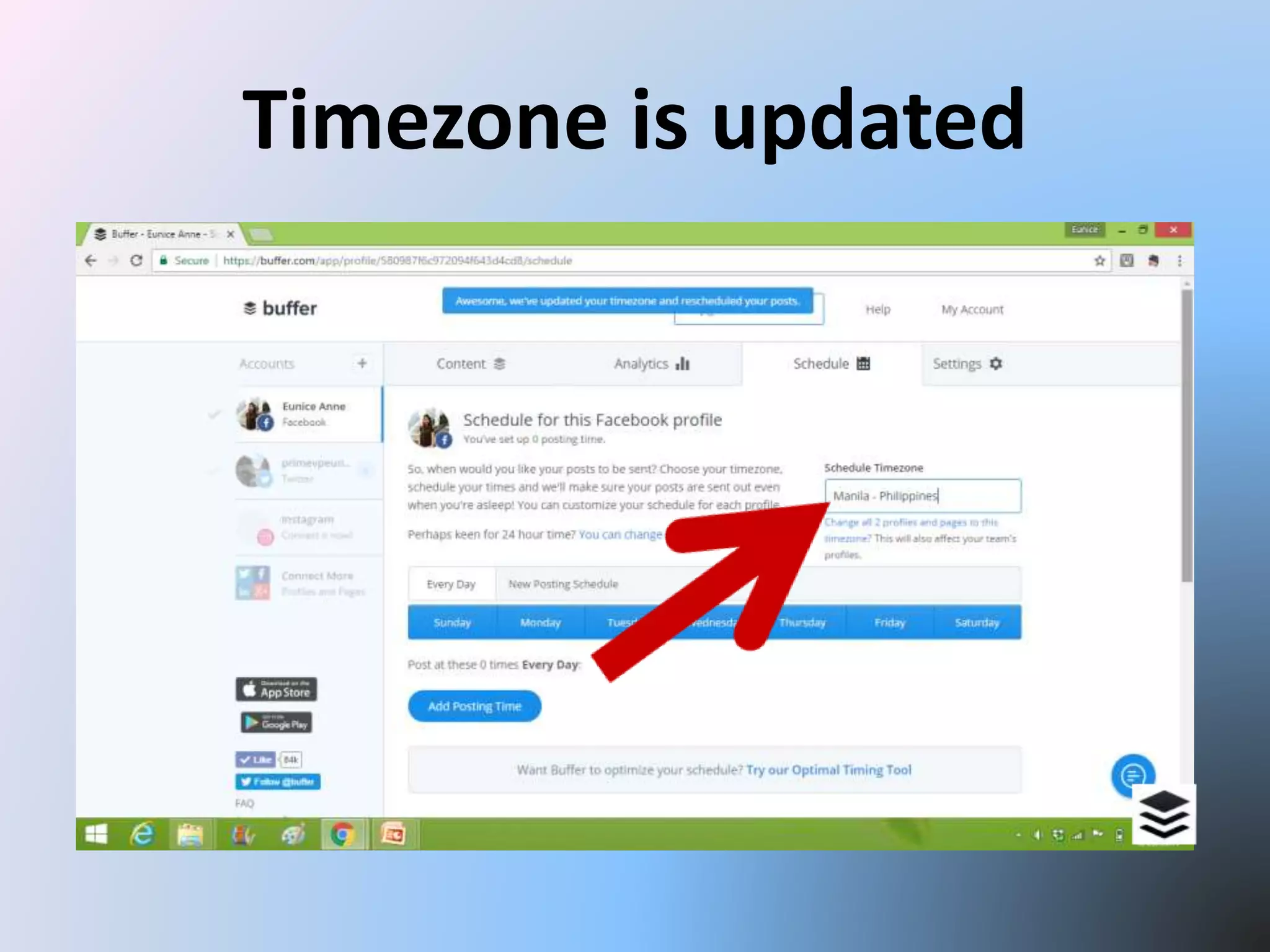
Timezone is updated
Awesome! Now you can apply
what you’ve just learned!
“Successful people
LAUNCH.

They START.
They just DO it.”
-Brian Tracy

How to use Buffer