The Course WEbsiteA quick how-to
What’s on the website?This website is a “blog.”  A blog is a specific kind of website the organizes frequently updated content from newest to oldest.  Blogs are often used by political commentators or news organizations, but more and more teachers are utitilizing blogs to share information and keep in touch with students.In this power point, you’ll learn about some of the basic features of the website.
Posts
PostsWhen you first load the website, you’ll see a series of posts from me listed from newest to oldest.These posts are often announcements about class or office hours.  Sometimes I’ll share news articles or information about BH that I think might be of interest to you.In addition to my announcements, each post contains a lot of information that you can use: the date, commenting feature, and categories.  We’ll discuss the commenting feature and categories in more detail.
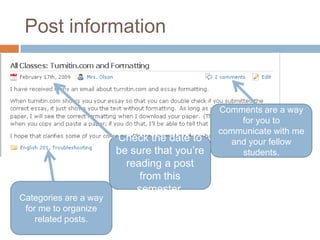
Post informationComments are a way for you to communicate with me and your fellow students.Check the date to be sure that you’re reading a post from this semester.Categories are a way for me to organize related posts.
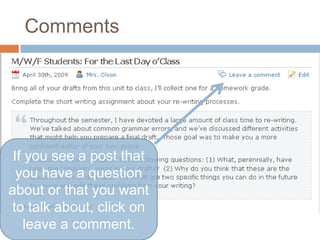
CommentsIf you see a post that you have a question about or that you want to talk about, click on leave a comment.
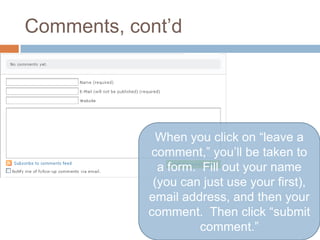
Comments, cont’dWhen you click on “leave a comment,” you’ll be taken to a form.  Fill out your name (you can just use your first), email address, and then your comment.  Then click “submit comment.”
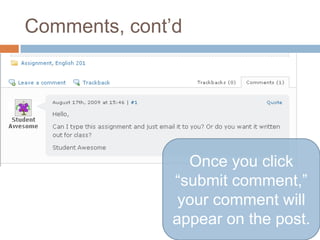
Comments, cont’dOnce you click “submit comment,” your comment will appear on the post.
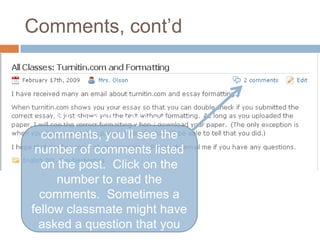
Comments, cont’dIf a post already has comments, you’ll see the number of comments listed on the post.  Click on the number to read the comments.  Sometimes a fellow classmate might have asked a question that you have.
Comments, cont’dComments are a useful way for you to ask a specific question without sending an email, and you can use them to just generally add your thoughts to something that I post.I check for new comments frequently, so don’t hesitate to posts comments and questions.  And be sure to read other comments, too.Remember, this is an English class.  So minor language and grammar errors are just fine; however, intentional subverting of language (I ndhlp 2day) is unacceptable.
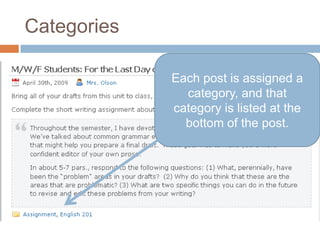
CategoriesEach post is assigned a category, and that category is listed at the bottom of the post.
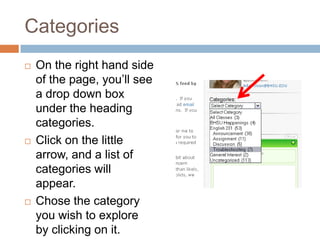
CategoriesOn the right hand side of the page, you’ll see a drop down box under the heading categories.Click on the little arrow, and a list of categories will appear.  Chose the category you wish to explore by clicking on it.
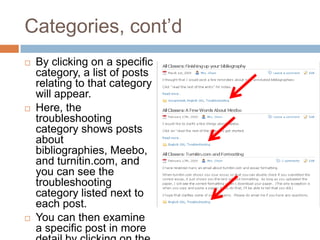
Categories, cont’dBy clicking on a specific category, a list of posts relating to that category will appear.Here, the troubleshooting category shows posts about bibliographies, Meebo, and turnitin.com, and you can see the troubleshooting category listed next to each post.You can then examine a specific post in more detail by clicking on the title.
Categories, cont’dYou will find the categories feature useful if you want to browse announcements related to just your class or read through the posts about BHSU.Remember, the categories feature will bring up posts from past semesters, so be sure to check the dates as you look at the posts.
Pages
PagesIn addition to posts and announcements, you’ll see a list of pages across the top of the website.These pages contain information that you’ll need to access on a regular basis for the course.
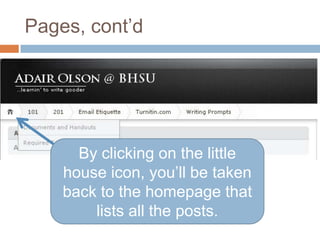
Pages, cont’dBy clicking on the little house icon, you’ll be taken back to the homepage that lists all the posts.
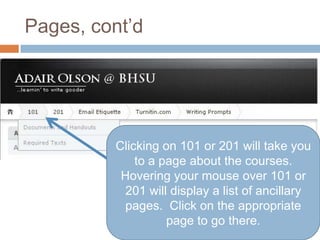
Pages, cont’dClicking on 101 or 201 will take you to a page about the courses.  Hovering your mouse over 101 or 201 will display a list of ancillary pages.  Click on the appropriate page to go there.
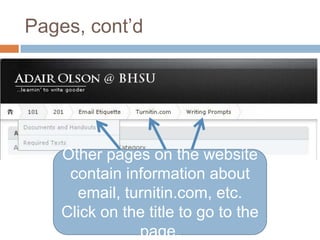
Pages, cont’dOther pages on the website contain information about email, turnitin.com, etc.  Click on the title to go to the page.
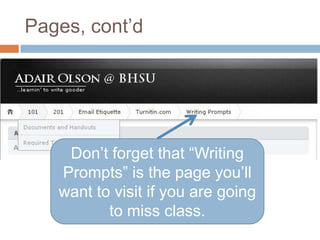
Pages, cont’dDon’t forget that “Writing Prompts” is the page you’ll want to visit if you are going to miss class.
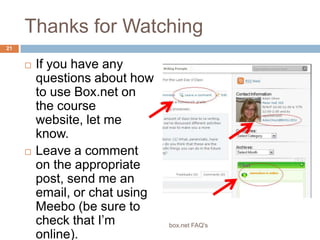
Thanks for WatchingIf you have any questions about how to use Box.net on the course website, let me know.Leave a comment on the appropriate post, send me an email, or chat using Meebo (be sure to check that I’m online).21box.net FAQ's

Coursewebsite

  • 1.
  • 2.
    What’s on thewebsite?This website is a “blog.” A blog is a specific kind of website the organizes frequently updated content from newest to oldest. Blogs are often used by political commentators or news organizations, but more and more teachers are utitilizing blogs to share information and keep in touch with students.In this power point, you’ll learn about some of the basic features of the website.
  • 3.
  • 4.
    PostsWhen you firstload the website, you’ll see a series of posts from me listed from newest to oldest.These posts are often announcements about class or office hours. Sometimes I’ll share news articles or information about BH that I think might be of interest to you.In addition to my announcements, each post contains a lot of information that you can use: the date, commenting feature, and categories. We’ll discuss the commenting feature and categories in more detail.
  • 5.
    Post informationComments area way for you to communicate with me and your fellow students.Check the date to be sure that you’re reading a post from this semester.Categories are a way for me to organize related posts.
  • 6.
    CommentsIf you seea post that you have a question about or that you want to talk about, click on leave a comment.
  • 7.
    Comments, cont’dWhen youclick on “leave a comment,” you’ll be taken to a form. Fill out your name (you can just use your first), email address, and then your comment. Then click “submit comment.”
  • 8.
    Comments, cont’dOnce youclick “submit comment,” your comment will appear on the post.
  • 9.
    Comments, cont’dIf apost already has comments, you’ll see the number of comments listed on the post. Click on the number to read the comments. Sometimes a fellow classmate might have asked a question that you have.
  • 10.
    Comments, cont’dComments area useful way for you to ask a specific question without sending an email, and you can use them to just generally add your thoughts to something that I post.I check for new comments frequently, so don’t hesitate to posts comments and questions. And be sure to read other comments, too.Remember, this is an English class. So minor language and grammar errors are just fine; however, intentional subverting of language (I ndhlp 2day) is unacceptable.
  • 11.
    CategoriesEach post isassigned a category, and that category is listed at the bottom of the post.
  • 12.
    CategoriesOn the righthand side of the page, you’ll see a drop down box under the heading categories.Click on the little arrow, and a list of categories will appear. Chose the category you wish to explore by clicking on it.
  • 13.
    Categories, cont’dBy clickingon a specific category, a list of posts relating to that category will appear.Here, the troubleshooting category shows posts about bibliographies, Meebo, and turnitin.com, and you can see the troubleshooting category listed next to each post.You can then examine a specific post in more detail by clicking on the title.
  • 14.
    Categories, cont’dYou willfind the categories feature useful if you want to browse announcements related to just your class or read through the posts about BHSU.Remember, the categories feature will bring up posts from past semesters, so be sure to check the dates as you look at the posts.
  • 15.
  • 16.
    PagesIn addition toposts and announcements, you’ll see a list of pages across the top of the website.These pages contain information that you’ll need to access on a regular basis for the course.
  • 17.
    Pages, cont’dBy clickingon the little house icon, you’ll be taken back to the homepage that lists all the posts.
  • 18.
    Pages, cont’dClicking on101 or 201 will take you to a page about the courses. Hovering your mouse over 101 or 201 will display a list of ancillary pages. Click on the appropriate page to go there.
  • 19.
    Pages, cont’dOther pageson the website contain information about email, turnitin.com, etc. Click on the title to go to the page.
  • 20.
    Pages, cont’dDon’t forgetthat “Writing Prompts” is the page you’ll want to visit if you are going to miss class.
  • 21.
    Thanks for WatchingIfyou have any questions about how to use Box.net on the course website, let me know.Leave a comment on the appropriate post, send me an email, or chat using Meebo (be sure to check that I’m online).21box.net FAQ's