Sofía Velázquez Ramírez Llaca
Educational Technology Coordination
Colegio Americano de Puebla Primaria
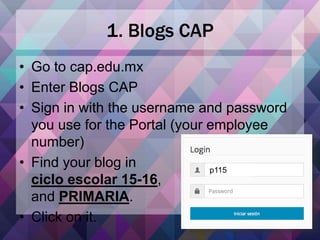
1. Blogs CAP
• Go to cap.edu.mx
• Enter Blogs CAP
• Sign in with the username and password
you use for the Portal (your employee
number)
• Find your blog in
ciclo escolar 15-16,
and PRIMARIA.
• Click on it.
p115
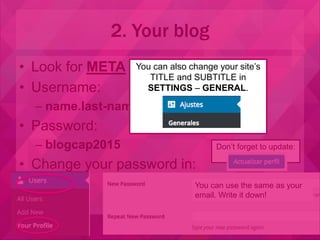
• Look for META and click on LOGIN
• Username:
– name.last-name (same as your email)
• Password:
– blogcap2015
• Change your password in:
2. Your blog
Don’t forget to update:
You can use the same as your
email. Write it down!
You can also change your site’s
TITLE and SUBTITLE in
SETTINGS – GENERAL.
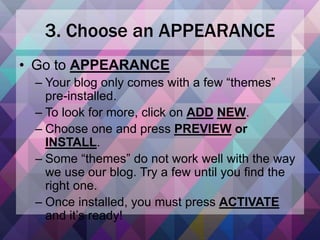
3. Choose an APPEARANCE
• Go to APPEARANCE
– Your blog only comes with a few “themes”
pre-installed.
– To look for more, click on ADD NEW.
– Choose one and press PREVIEW or
INSTALL.
– Some “themes” do not work well with the way
we use our blog. Try a few until you find the
right one.
– Once installed, you must press ACTIVATE
and it’s ready!
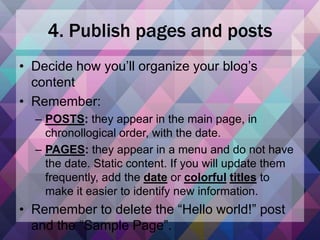
4. Publish pages and posts
• Decide how you’ll organize your blog’s
content
• Remember:
– POSTS: they appear in the main page, in
chronollogical order, with the date.
– PAGES: they appear in a menu and do not have
the date. Static content. If you will update them
frequently, add the date or colorful titles to
make it easier to identify new information.
• Remember to delete the “Hello world!” post
and the “Sample Page”.
5. Doubts and skills review
• Do you have any questions about your
blog?
• Feel free to ask!
6. Expectations
Blogs   previous teachers

Blogs previous teachers

  • 1.
    Sofía Velázquez RamírezLlaca Educational Technology Coordination Colegio Americano de Puebla Primaria
  • 2.
    1. Blogs CAP •Go to cap.edu.mx • Enter Blogs CAP • Sign in with the username and password you use for the Portal (your employee number) • Find your blog in ciclo escolar 15-16, and PRIMARIA. • Click on it. p115
  • 3.
    • Look forMETA and click on LOGIN • Username: – name.last-name (same as your email) • Password: – blogcap2015 • Change your password in: 2. Your blog Don’t forget to update: You can use the same as your email. Write it down! You can also change your site’s TITLE and SUBTITLE in SETTINGS – GENERAL.
  • 4.
    3. Choose anAPPEARANCE • Go to APPEARANCE – Your blog only comes with a few “themes” pre-installed. – To look for more, click on ADD NEW. – Choose one and press PREVIEW or INSTALL. – Some “themes” do not work well with the way we use our blog. Try a few until you find the right one. – Once installed, you must press ACTIVATE and it’s ready!
  • 5.
    4. Publish pagesand posts • Decide how you’ll organize your blog’s content • Remember: – POSTS: they appear in the main page, in chronollogical order, with the date. – PAGES: they appear in a menu and do not have the date. Static content. If you will update them frequently, add the date or colorful titles to make it easier to identify new information. • Remember to delete the “Hello world!” post and the “Sample Page”.
  • 6.
    5. Doubts andskills review • Do you have any questions about your blog? • Feel free to ask!
  • 7.