How to Use Buffer in Scheduling Your
Posts to Multiple Social Networks
www.aimdynamicvp.com
Buffer is a software
application which
allows you to connect
to multiple social
accounts.
It takes care in
scheduling your posts to
various social networks.
Even if you are falling asleep
or in a vacation!
Therefore you will have
more free time! 
But wait…
there’s more
It has Analytics to track
number of clicks, shares,
likes, comments and
retweets.
The application is
likewise compatible
with three different
platforms.
1. Browser – works as a
download extension to
2. iOS sytems and Androids
phones – it allows installation
to
3. Newsreader – it allows
integration with
Now, let’s get started.
Go to your browser.
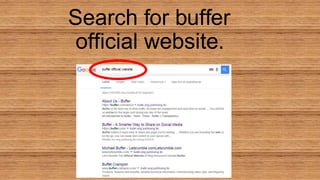
Search for buffer
official website.
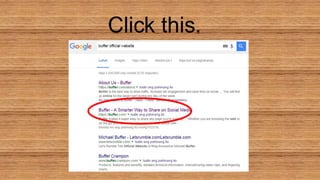
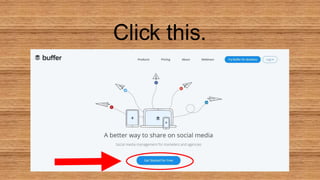
Click this.
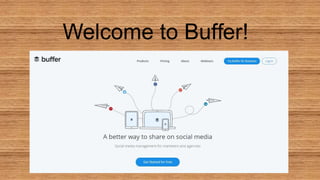
Welcome to Buffer!
Click this.
Choose which Social
Media you want to
sign up.
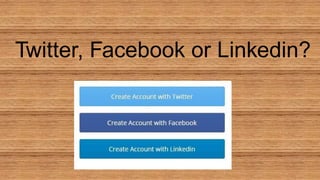
Twitter, Facebook or Linkedin?
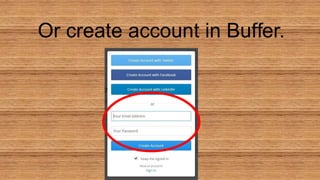
Or create account in Buffer.
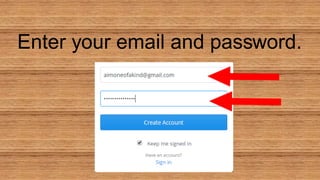
Enter your email and password.
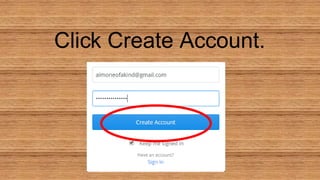
Click Create Account.
For this tutorial, I chose
to
sign up with
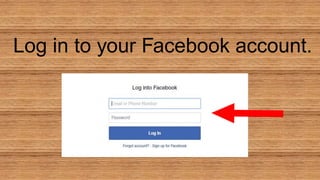
Log in to your Facebook account.
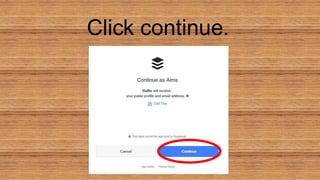
Click continue.
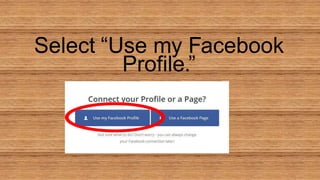
Select “Use my Facebook
Profile.”
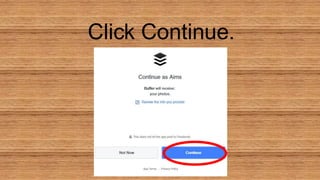
Click Continue.
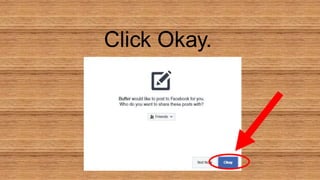
Click Okay.
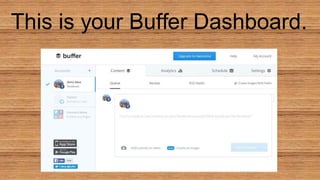
This is your Buffer Dashboard.
Wants to connect with
other social media
account?
This time, let’s try !
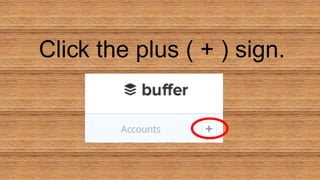
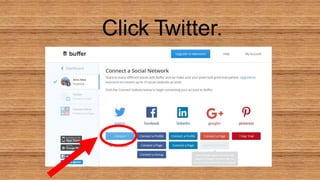
Click the plus ( + ) sign.
Click Twitter.
Basic Plan only offers one
account per social media site.
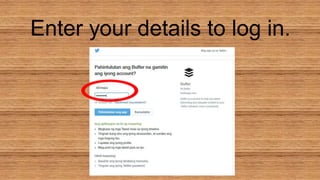
Enter your details to log in.
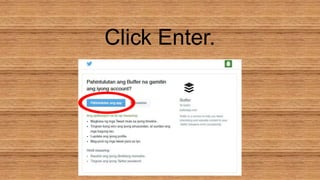
Click Enter.
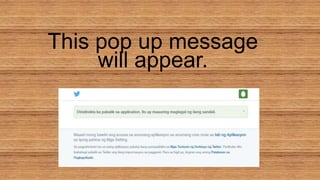
This pop up message
will appear.
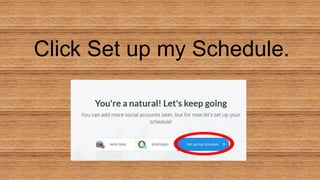
Click Set up my Schedule.
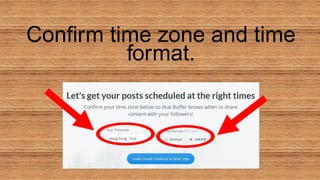
Setting up your Schedule.
Confirm time zone and time
format.
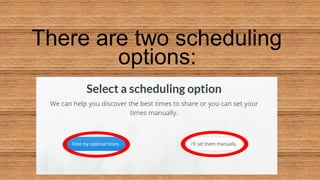
There are two scheduling
options:
If you want more people
to see your post…
let Buffer handles it. 
Click this.
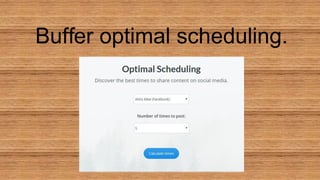
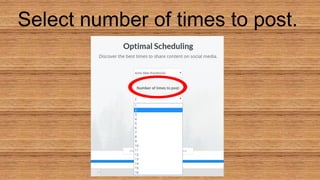
Buffer optimal scheduling.
Select number of times to post.
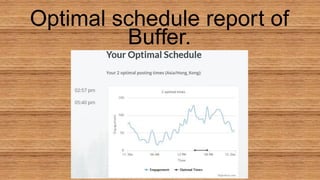
Optimal schedule report of
Buffer.
Click this.
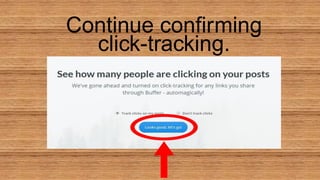
Continue confirming
click-tracking.
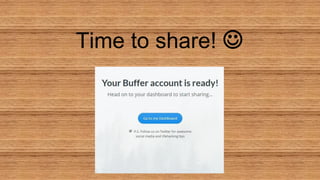
Time to share! 
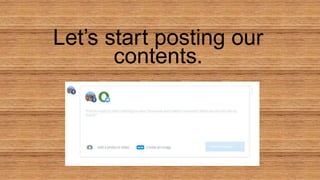
Let’s start posting our
contents.
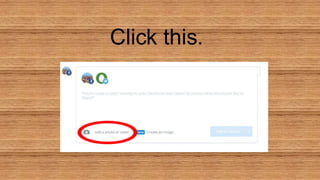
Adding photo or
video on your post.
Click this.
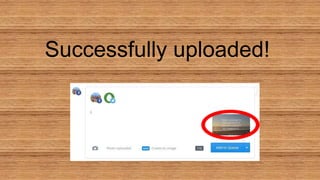
Import images from your
Computer.
Successfully uploaded!
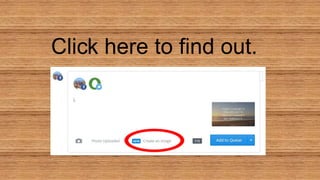
Or you can create an
image using Pablo.
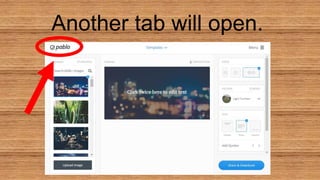
Who is Pablo!?
Click here to find out.
Another tab will open.
Pablo is a free
application software to
manage images.
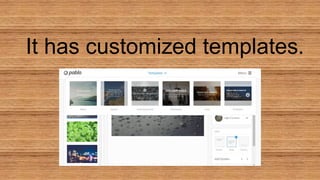
It has customized templates.
For now, let’s stick with
the uploaded poster.
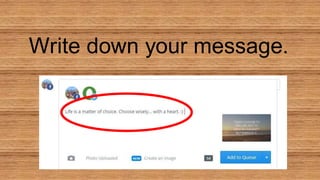
Write down your message.
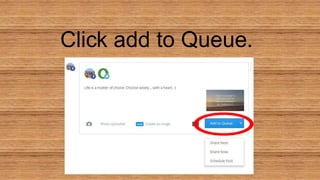
Click add to Queue.
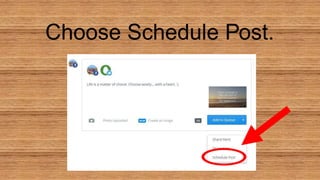
Choose Schedule Post.
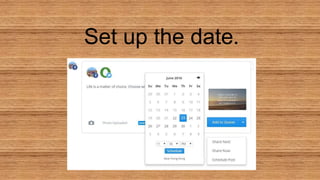
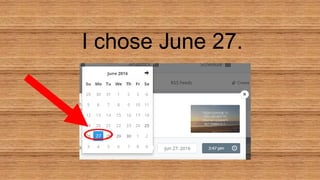
Set up the date.
I chose June 27.
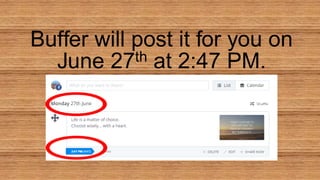
Buffer will post it for you on
June 27th at 2:47 PM.
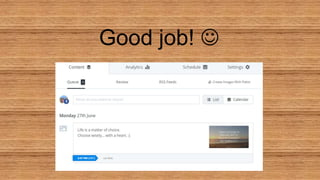
Good job! 
Take note that for the
Basic Account there are only
10 queued
posts allowed at any given
time.
Let’s check out what
Buffer Analytics can
offer.
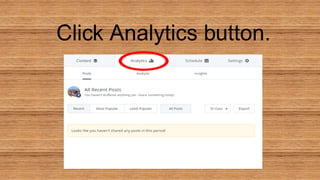
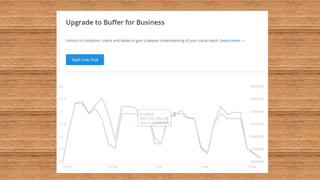
Click Analytics button.
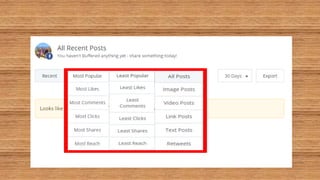
It will displayed
Most Popular, Least Popular and
All posts you’ve shared.
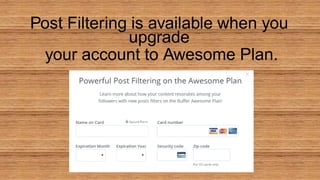
Post Filtering is available when you
upgrade
your account to Awesome Plan.
And a Powerful Analytics for
Business Plan.
Now, let’s download the
Browser Extension.
Why?
Because you can easily share
contents you like to post
directly from the web.
This is for extension.
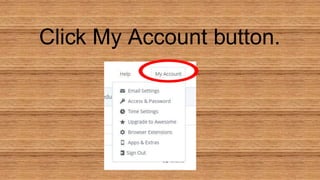
Click My Account button.
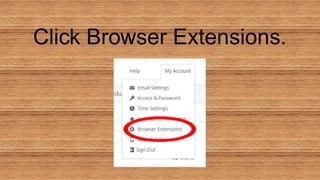
Click Browser Extensions.
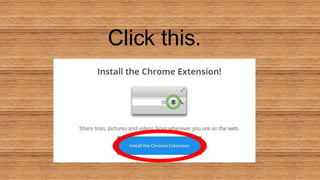
Click this.
While waiting… smile 
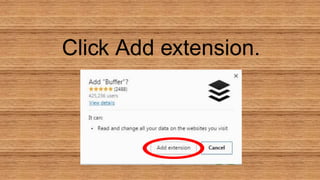
Click Add extension.
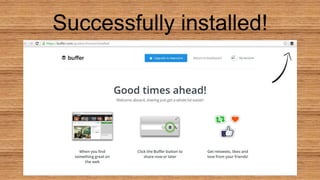
Successfully installed!
How it works?
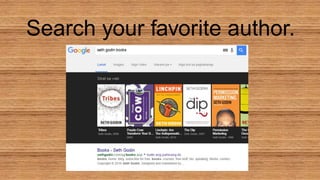
Search your favorite author.
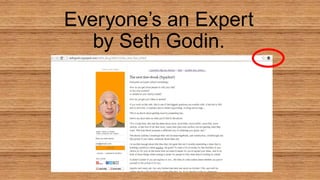
Everyone’s an Expert
by Seth Godin.
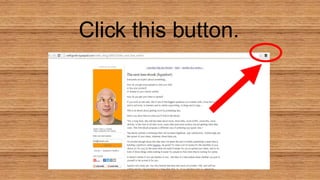
Click this button.
Another waiting time…
smile again 
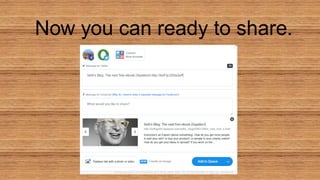
Now you can ready to share.
Another way is…
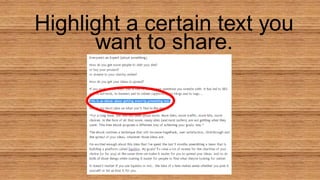
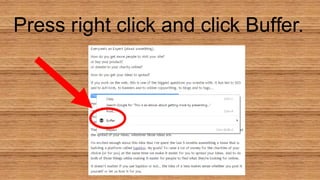
Highlight a certain text you
want to share.
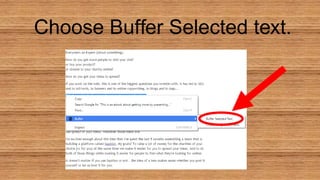
Press right click and click Buffer.
Choose Buffer Selected text.
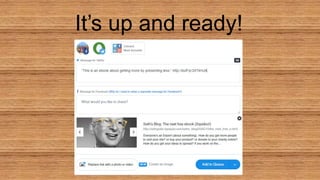
It’s up and ready!
Now, it’s your turn to
explore Buffer.
Have fun learning! 
Thank you for reading!
Visit
www.aimdynamicvp.com
for other dynamic tutorial guides.
I would love to hear
your comments! 
Sources:
https://en.wikipedia.org/wiki/Buffer_(application)
https://www.google.com.ph/search?q=buffer+logo&biw=1242&bih=606&tbm=isch&tbo
=u&source=univ&sa (buffer images)
https://buffer.com/
https://unsplash.com/photos/55_MpWjN1Lc (sleeping image)

How to use Buffer in Scheduling Your Posts to Multiple Social Networks