MADE
EASY!
by: edison s. villareal
Scheduling and Managing Your Social Media Post.Scheduling and Managing Your Social Media Post.
Introduction:
2
Introduction:
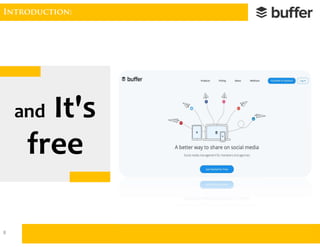
Buffer is mainly a social posting
scheduler for Facebook, Twitter,
LinkedIn, Google+ and Pinterest.
Buffer is mainly a social posting
scheduler for Facebook, Twitter,
LinkedIn, Google+ and Pinterest.
3
Introduction:
4
Introduction:
5
It lets you
schedule posts
for four of the
most popular social
networks.
It lets you
schedule posts
for four of the
most popular social
networks.
Introduction:
6
It gives you
total control
over your posting
schedule…
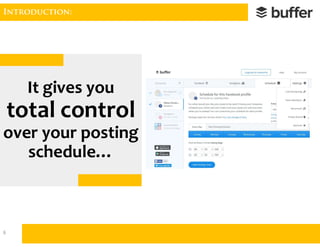
It gives you
total control
over your posting
schedule…
Introduction:
7
without
having to
schedule
every single
post
separately.
without
having to
schedule
every single
post
separately.
Introduction:
andand
8
Creating an Account:
9
Creating an Account:
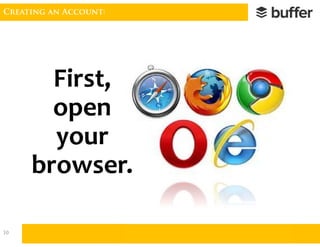
First,
open
your
browser.
10
Creating an Account:
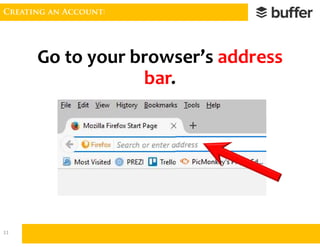
Go to your browser’s address
bar.
11
Creating an Account:
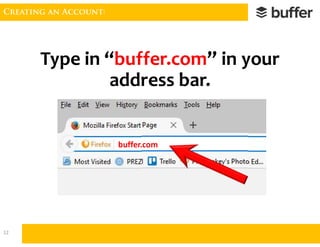
buffer.com
Type in “buffer.com” in your
address bar.
12
Creating an Account:
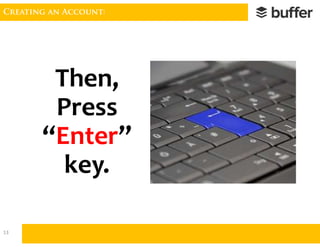
Then,
Press
“Enter”
key.
13
Creating an Account:
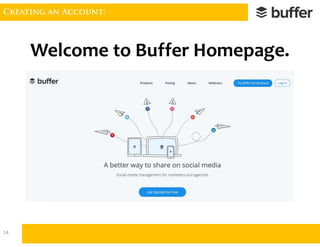
Welcome to Buffer Homepage.
14
Creating an Account:
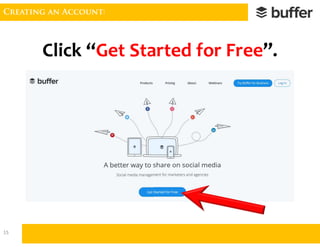
Click “Get Started for Free”.
15
Creating an Account:
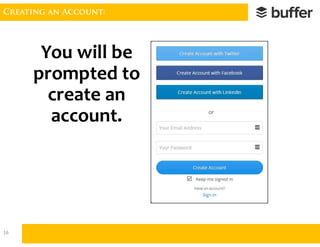
You will be
prompted to
create an
account.
16
Creating an Account:
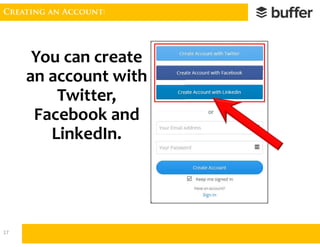
You can create
an account with
Twitter,
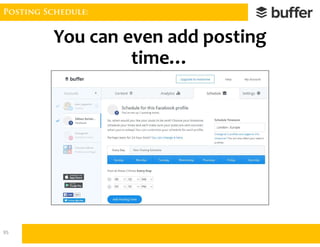
Facebook and
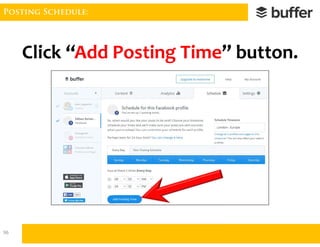
LinkedIn.
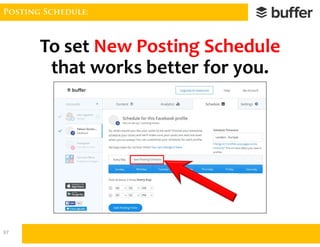
17
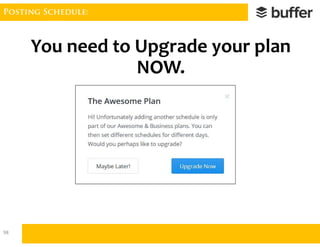
Creating an Account:
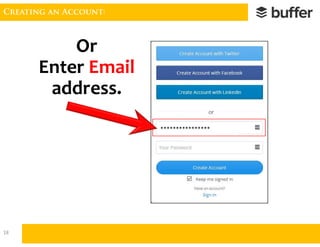
Or
Enter Email
address.
****************
18
Creating an Account:
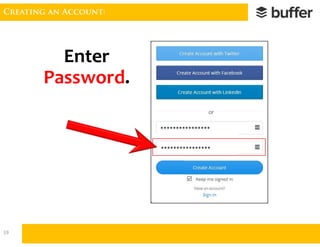
Enter
Password.
****************
****************
19
Creating an Account:
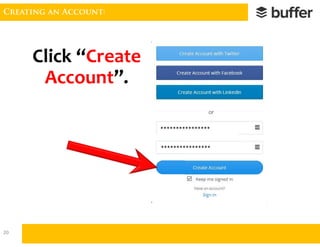
Click “Create
Account”.
****************
****************
20
Creating an Account:
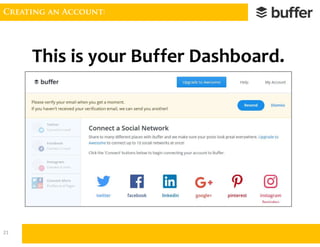
This is your Buffer Dashboard.
21
Creating an Account:
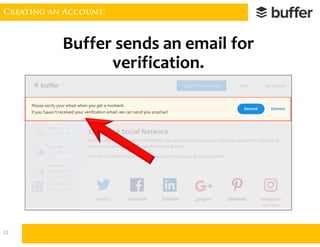
Buffer sends an email for
verification.
22
Creating an Account:
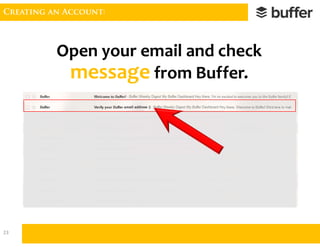
Open your email and check
message from Buffer.
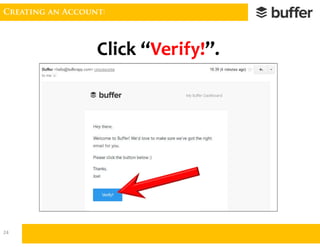
23
Creating an Account:
Click “Verify!”.
24
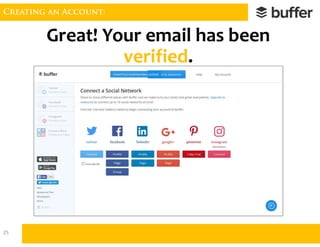
Creating an Account:
Great! Your email has been
verified.
25
Connect a Social Media:
Connect a Social MediaConnect a Social Media
26
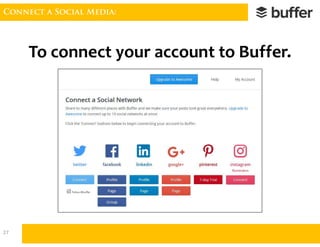
Connect a Social Media:
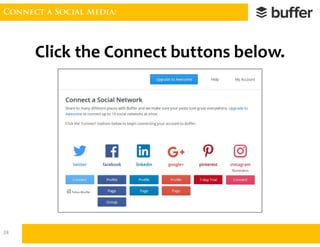
To connect your account to Buffer.
27
Connect a Social Media:
Click the Connect buttons below.
28
Connect a Social Media:
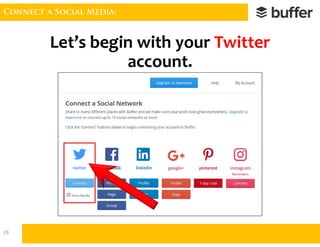
Let’s begin with your Twitter
account.
29
Connect a Social Media:
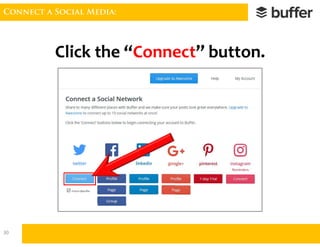
Click the “Connect” button.
30
Connect a Social Media:
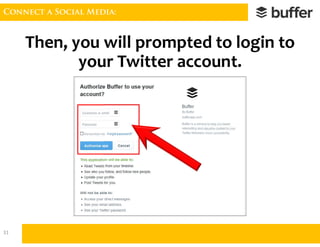
Then, you will prompted to login to
your Twitter account.
31
Connect a Social Media:
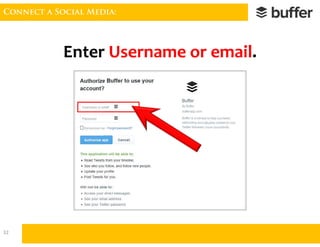
Enter Username or email.
32
Connect a Social Media:
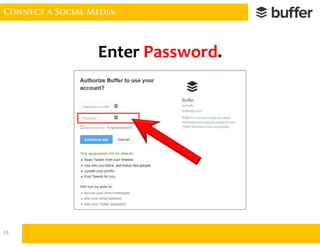
Enter Password.
33
Connect a Social Media:
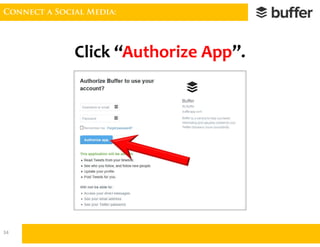
Click “Authorize App”.
34
Connect a Social Media:
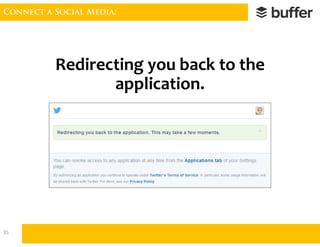
Redirecting you back to the
application.
35
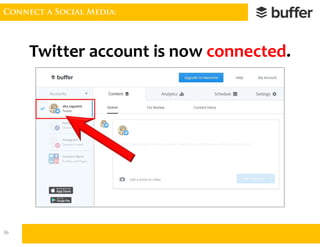
Connect a Social Media:
Twitter account is now connected.
36
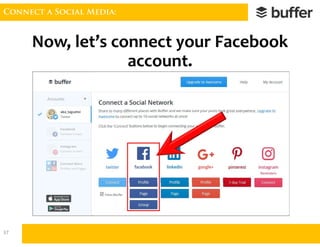
Connect a Social Media:
Now, let’s connect your Facebook
account.
37
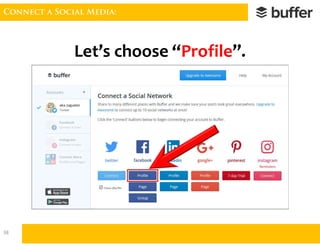
Connect a Social Media:
Let’s choose “Profile”.
38
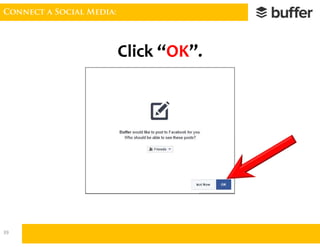
Connect a Social Media:
Click “OK”.
39
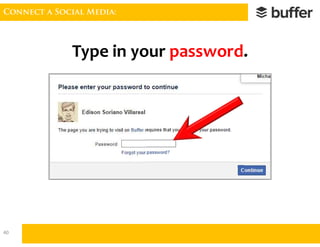
Connect a Social Media:
Type in your password.
40
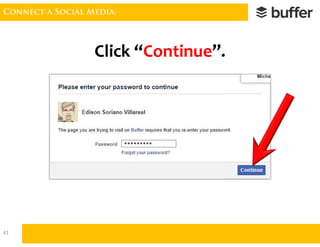
Connect a Social Media:
Click “Continue”.
*********
41
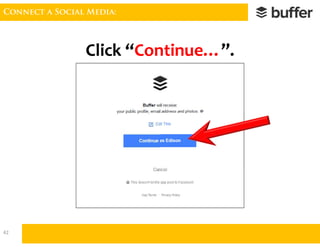
Connect a Social Media:
Click “Continue…”.
42
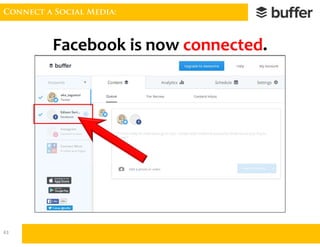
Connect a Social Media:
Facebook is now connected.
43
Connect a Social Media:
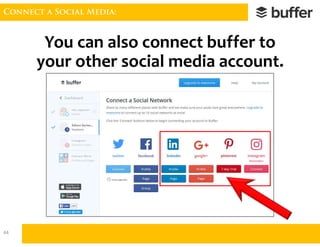
You can also connect buffer to
your other social media account.
44
Queue a Post:
45
Queue a Post:
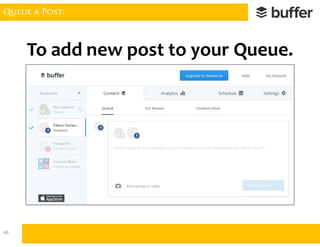
To add new post to your Queue.
46
Queue a Post:
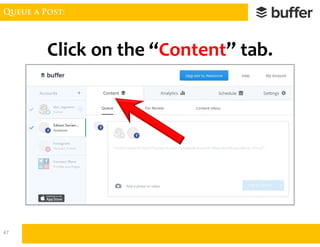
Click on the “Content” tab.
47
Queue a Post:
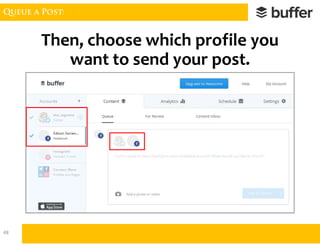
Then, choose which profile you
want to send your post.
48
Queue a Post:
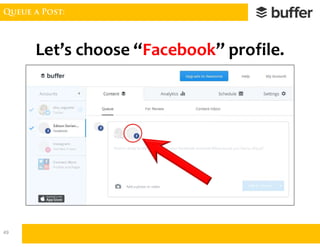
Let’s choose “Facebook” profile.
49
Queue a Post:
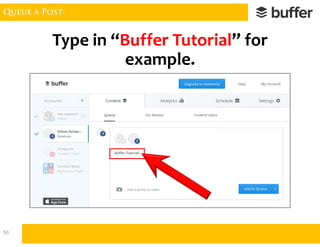
Type in “Buffer Tutorial” for
example.
50
Queue a Post:
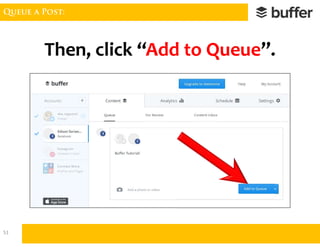
Then, click “Add to Queue”.
51
Queue a Post:
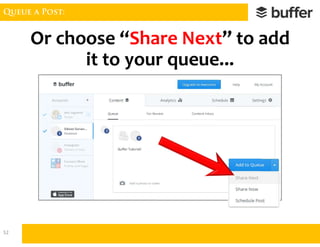
Or choose “Share Next” to add
it to your queue...
52
Queue a Post:
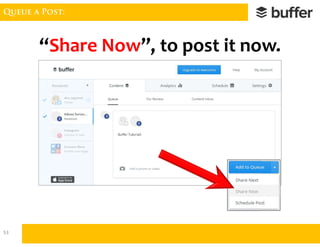
“Share Now”, to post it now.
53
Queue a Post:
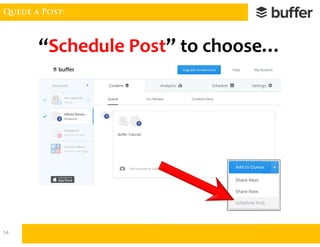
“Schedule Post” to choose…
54
Queue a Post:
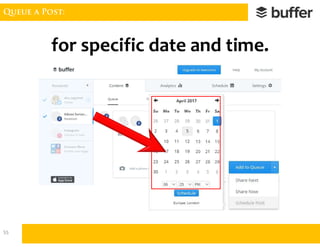
for specific date and time.
55
Queue a Post:
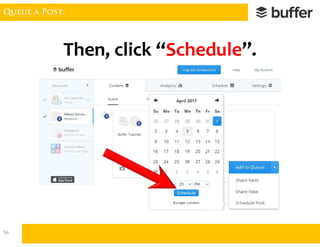
Then, click “Schedule”.
56
Queue a Post:
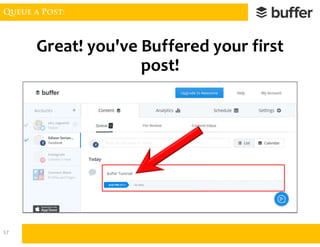
Great! you've Buffered your first
post!
57
Queue a Post:
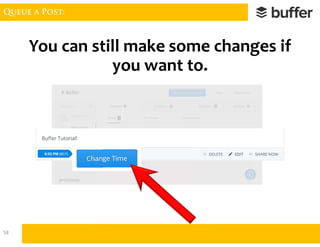
You can still make some changes if
you want to.
58
Queue a Post:
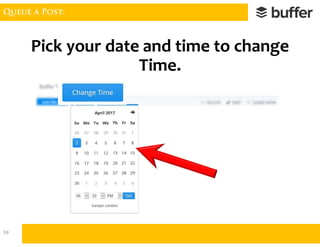
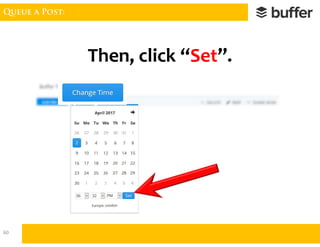
Pick your date and time to change
Time.
59
Queue a Post:
Then, click “Set”.
60
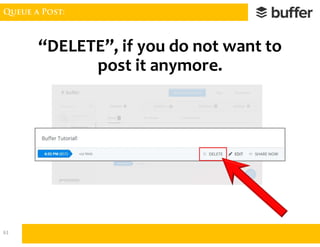
Queue a Post:
“DELETE”, if you do not want to
post it anymore.
61
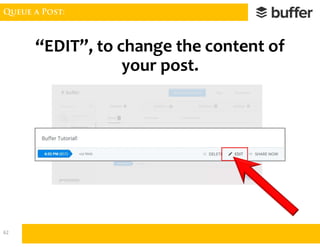
Queue a Post:
“EDIT”, to change the content of
your post.
62
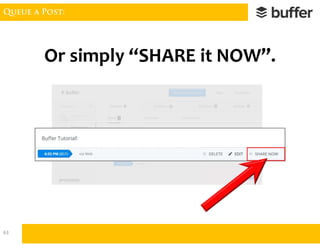
Queue a Post:
Or simply “SHARE it NOW”.
63
Queue a Post:
64
Queue a Post:
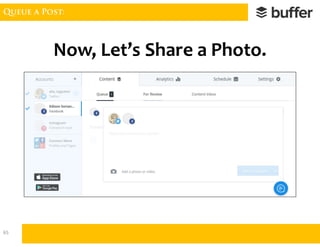
Now, Let’s Share a Photo.
65
Queue a Post:
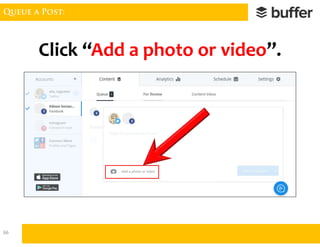
Click “Add a photo or video”.
66
Queue a Post:
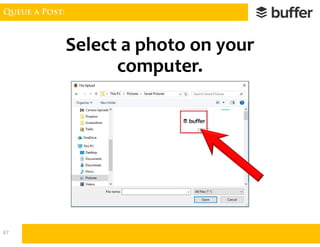
Select a photo on your
computer.
67
Queue a Post:
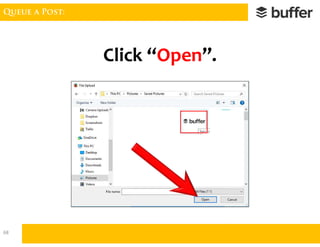
Click “Open”.
68
Queue a Post:
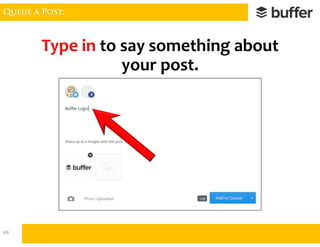
Type in to say something about
your post.
69
Queue a Post:
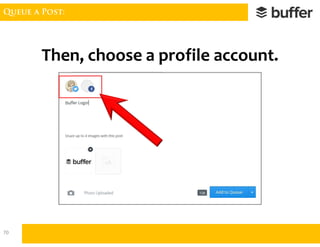
Then, choose a profile account.
70
Queue a Post:
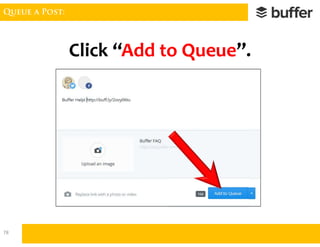
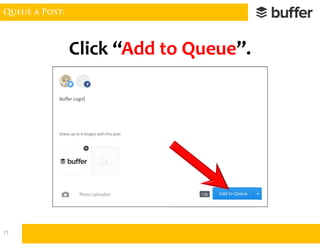
Click “Add to Queue”.
71
Queue a Post:
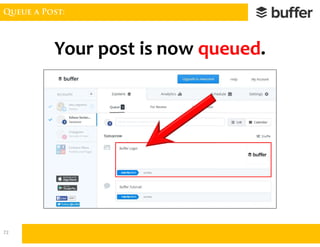
Your post is now queued.
72
Queue a Post:
73
Queue a Post:
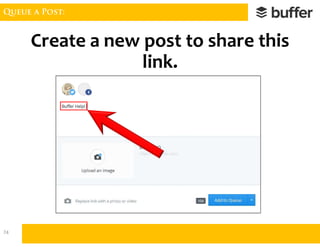
Create a new post to share this
link.
74
Queue a Post:
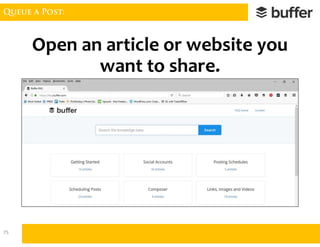
Open an article or website you
want to share.
75
Queue a Post:
Then, press [Ctrl] + [C] to copy
the URL address.
76
Queue a Post:
Then, press [Ctrl] + [V] to paste
the link.
77
Queue a Post:
Click “Add to Queue”.
78
Queue a Post:
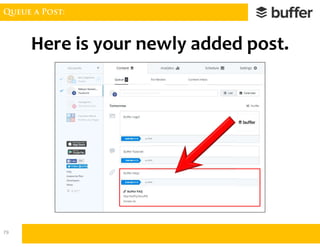
Here is your newly added post.
79
Buffer Analytics:
Buffer Analytics.Buffer Analytics.
80
Buffer Analytics:
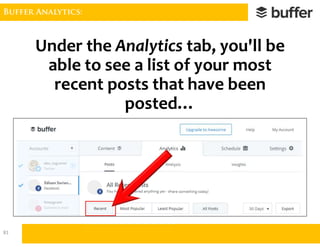
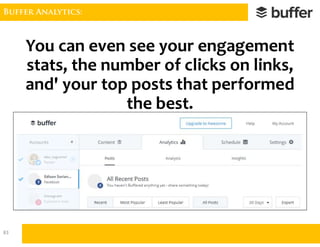
Under the Analytics tab, you'll be
able to see a list of your most
recent posts that have been
posted…
81
Buffer Analytics:
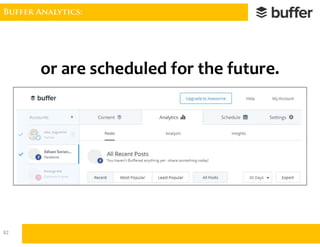
or are scheduled for the future.
82
Buffer Analytics:
You can even see your engagement
stats, the number of clicks on links,
and' your top posts that performed
the best.
83
Buffer Analytics:
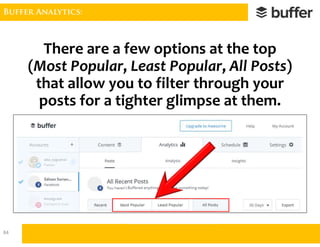
There are a few options at the top
(Most Popular, Least Popular, All Posts)
that allow you to filter through your
posts for a tighter glimpse at them.
84
Posting Schedule:
Posting Schedule.Posting Schedule.
85
Posting Schedule:
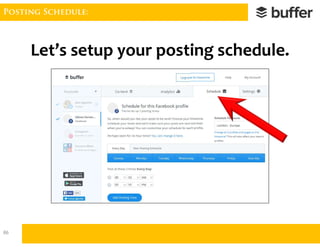
Let’s setup your posting schedule.
86
Posting Schedule:
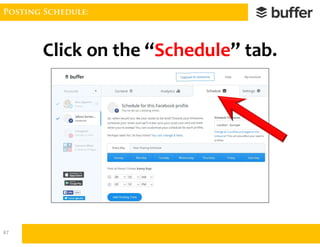
Click on the “Schedule” tab.
87
Posting Schedule:
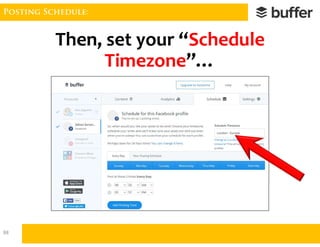
Then, set your “Schedule
Timezone”…
88
Posting Schedule:
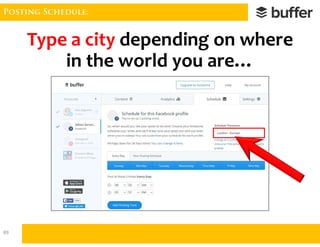
Type a city depending on where
in the world you are…
89
Posting Schedule:
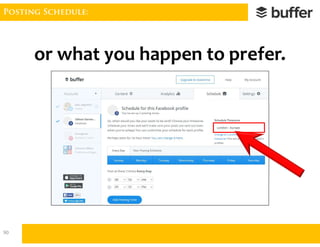
or what you happen to prefer.
90
Posting Schedule:
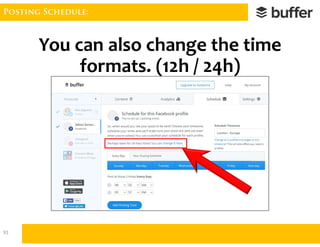
You can also change the time
formats. (12h / 24h)
91
Posting Schedule:
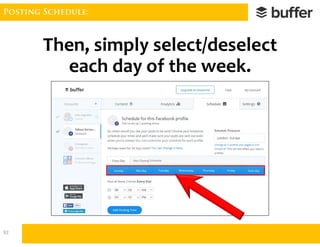
Then, simply select/deselect
each day of the week.
92
Posting Schedule:
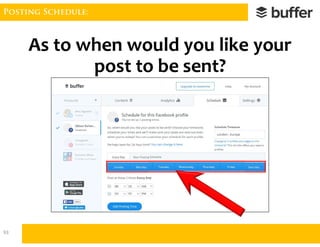
As to when would you like your
post to be sent?
93
Posting Schedule:
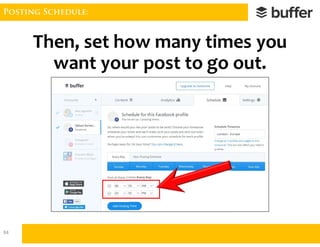
Then, set how many times you
want your post to go out.
94
Posting Schedule:
You can even add posting
time…
95
Posting Schedule:
Click “Add Posting Time” button.
96
Posting Schedule:
To set New Posting Schedule
that works better for you.
97
Posting Schedule:
You need to Upgrade your plan
NOW.
98
Browser’s Extension:
Buffer Browser’s
Extension Icon.
Buffer Browser’s
Extension Icon.
99
Browser’s Extension:
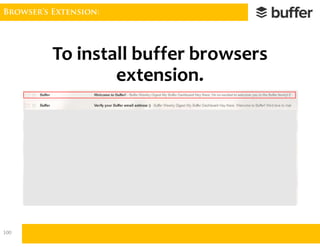
To install buffer browsers
extension.
100
Browser’s Extension:
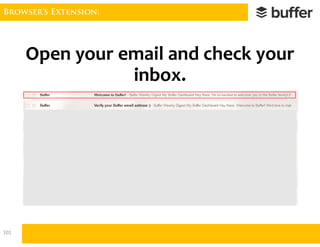
Open your email and check your
inbox.
101
Browser’s Extension:
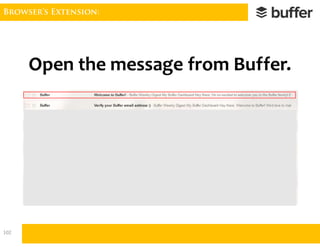
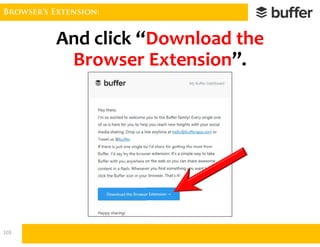
Open the message from Buffer.
102
Browser’s Extension:
And click “Download the
Browser Extension”.
103
Browser’s Extension:
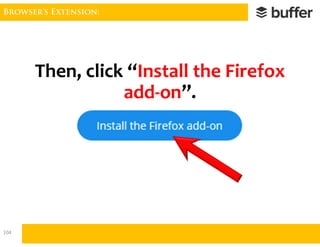
Then, click “Install the Firefox
add-on”.
104
Browser’s Extension:
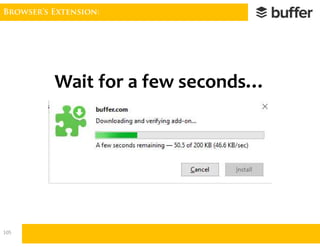
Wait for a few seconds…
105
Browser’s Extension:
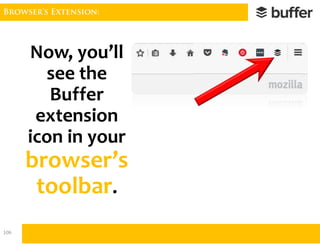
Now, you’ll
see the
Buffer
extension
icon in your
browser’s
toolbar.
106
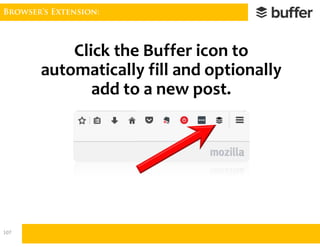
Browser’s Extension:
Click the Buffer icon to
automatically fill and optionally
add to a new post.
107
Logging Out:
Logging Out.Logging Out.
108
Logging Out:
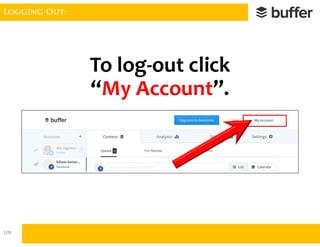
To log-out click
“My Account”.
109
Logging Out:
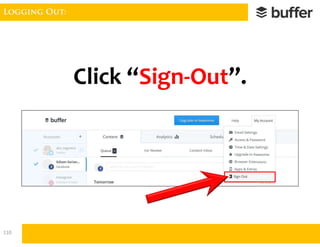
Click “Sign-Out”.
110
See you on my next tutorial.
Edison S. Villareal
Your Extraordinary Virtual Professional
edisonvillareal1078@gmail.com
@edisonvillareal

[Made Easy] How to use Buffer - Tutorial