How to sign up for a Quizlet
Account.
You will need an Email Account
User Name and Password
Quizlet.com
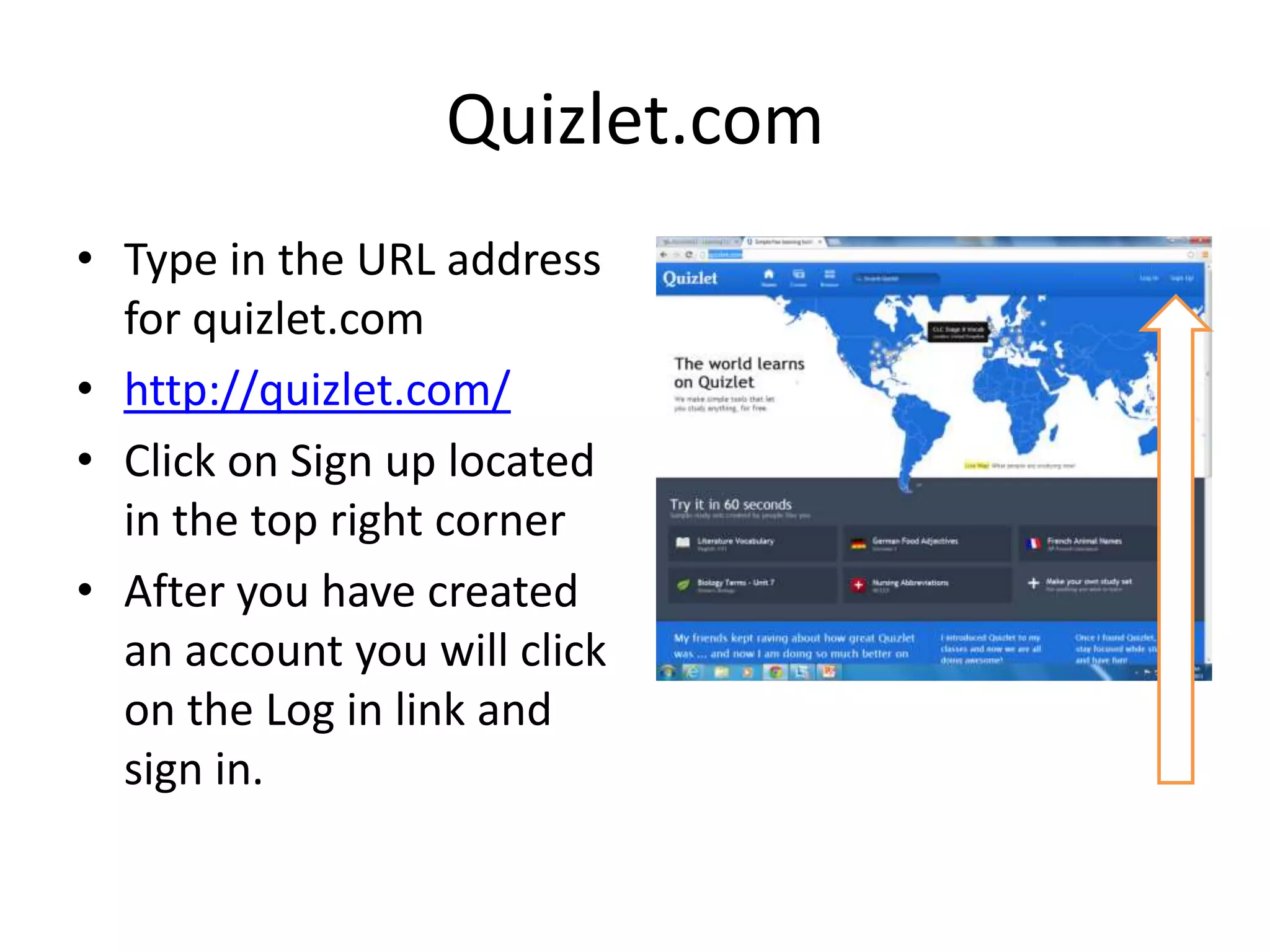
• Type in the URL address
for quizlet.com
• http://quizlet.com/
• Click on Sign up located
in the top right corner
• After you have created
an account you will click
on the Log in link and
sign in.
Sign Up for an account
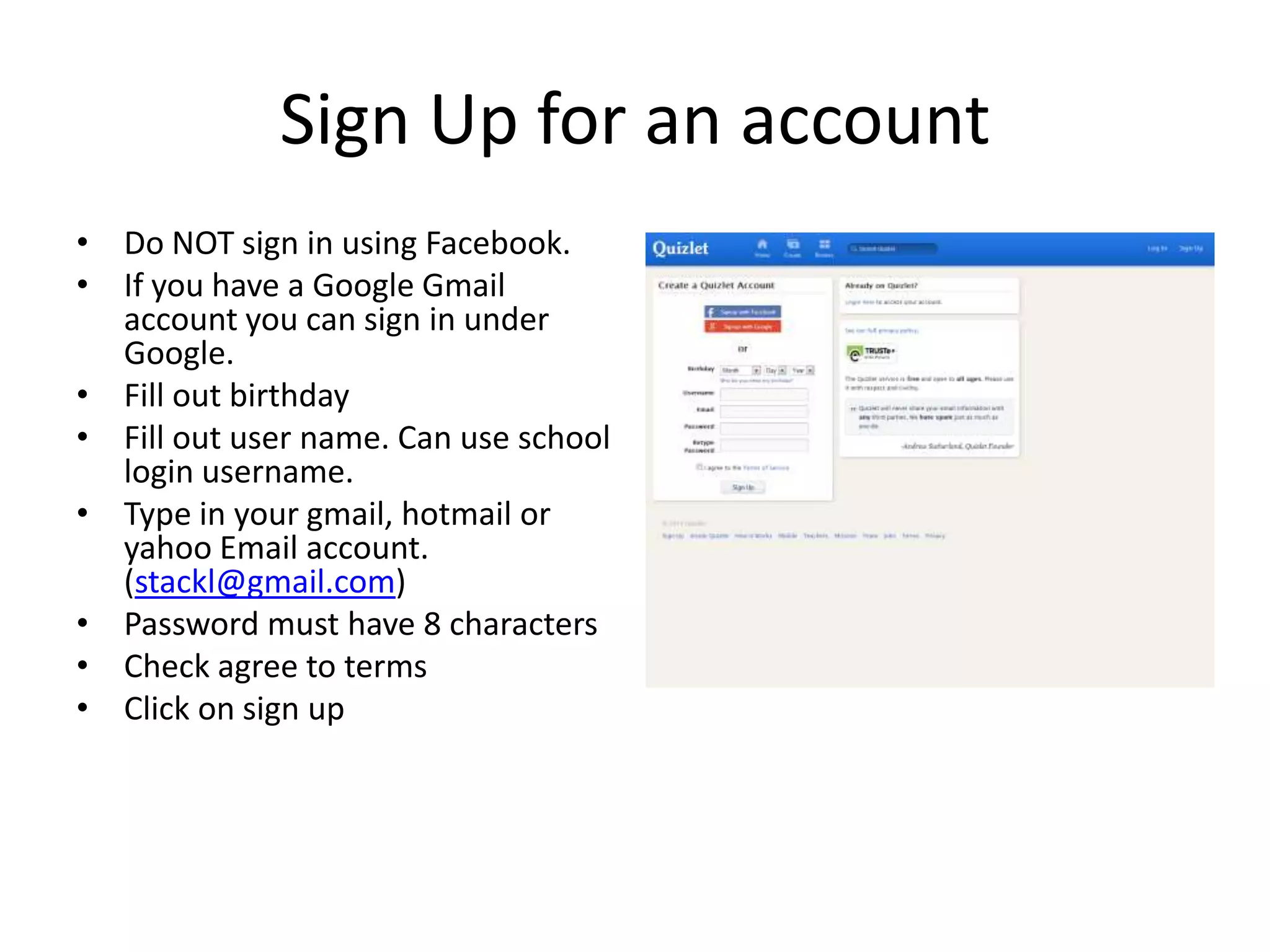
• Do NOT sign in using Facebook.
• If you have a Google Gmail
account you can sign in under
Google.
• Fill out birthday
• Fill out user name. Can use school
login username.
• Type in your gmail, hotmail or
yahoo Email account.
(stackl@gmail.com)
• Password must have 8 characters
• Check agree to terms
• Click on sign up
• You are almost done
setting up your account.
• Click on sign up for free
account.
• Confirm your Email
account to start
creating your own
quizlets. [you can do
this at home when you
check your Email
tonight.]
To Start Creating Your own Sets
• Click on Create Set [blue
arrow]

• Fill in About your study
set. Give it a title of the
subject.
• Enter your terms
choose a language’
Create a set
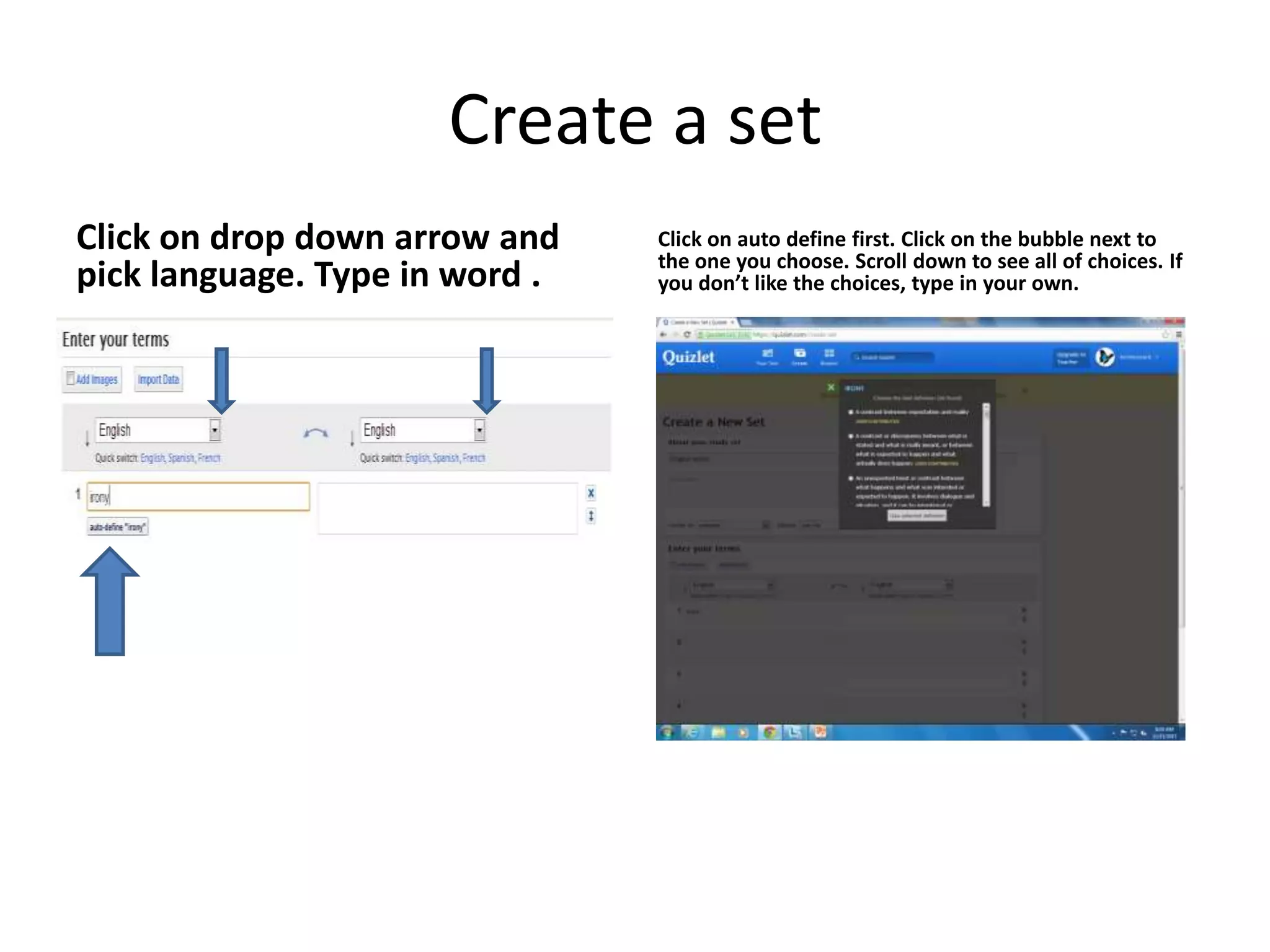
Click on drop down arrow and
pick language. Type in word .

Click on auto define first. Click on the bubble next to
the one you choose. Scroll down to see all of choices. If
you don’t like the choices, type in your own.
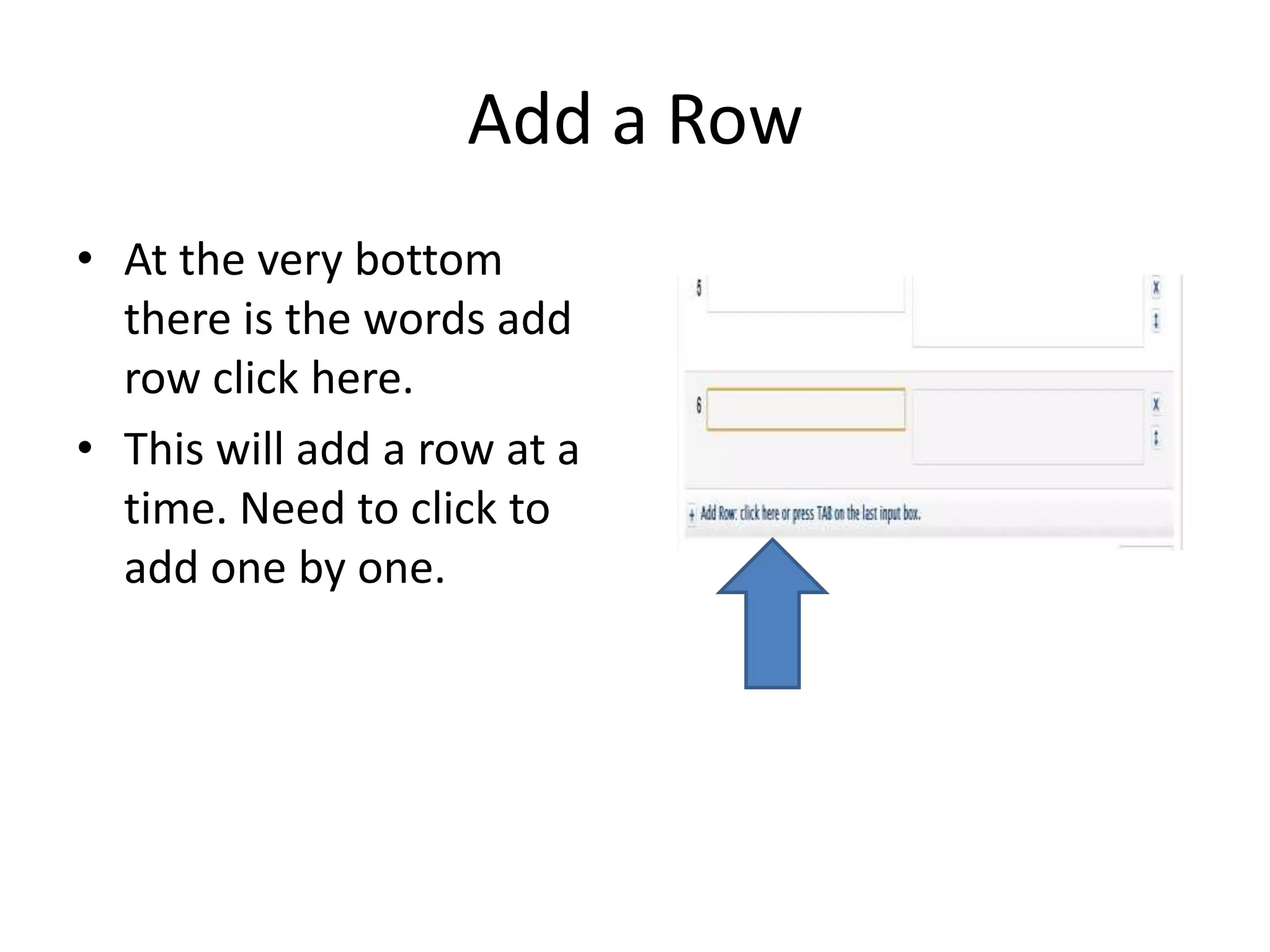
Add a Row
• At the very bottom
there is the words add
row click here.
• This will add a row at a
time. Need to click to
add one by one.
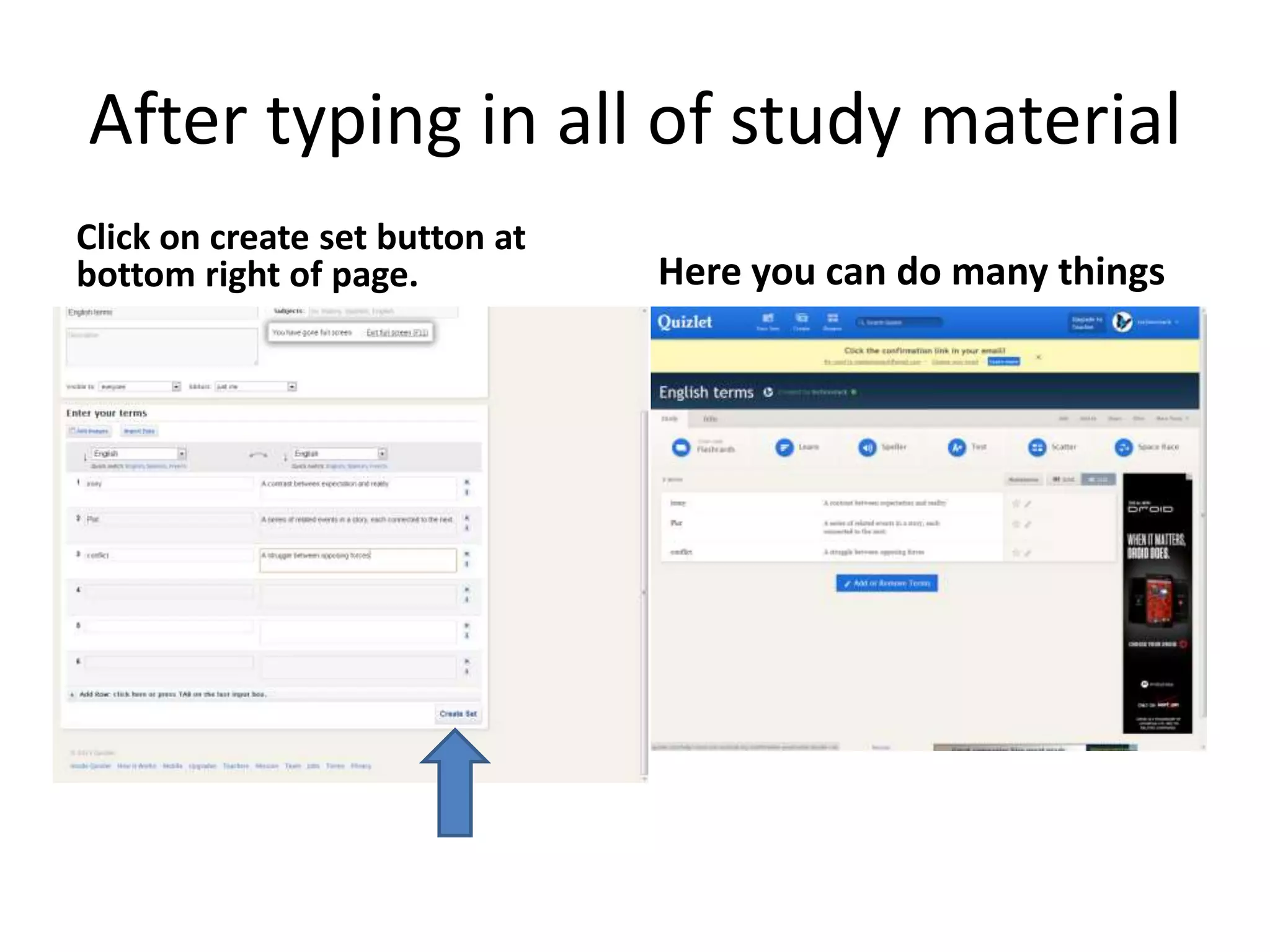
After typing in all of study material
Click on create set button at
bottom right of page.

Here you can do many things
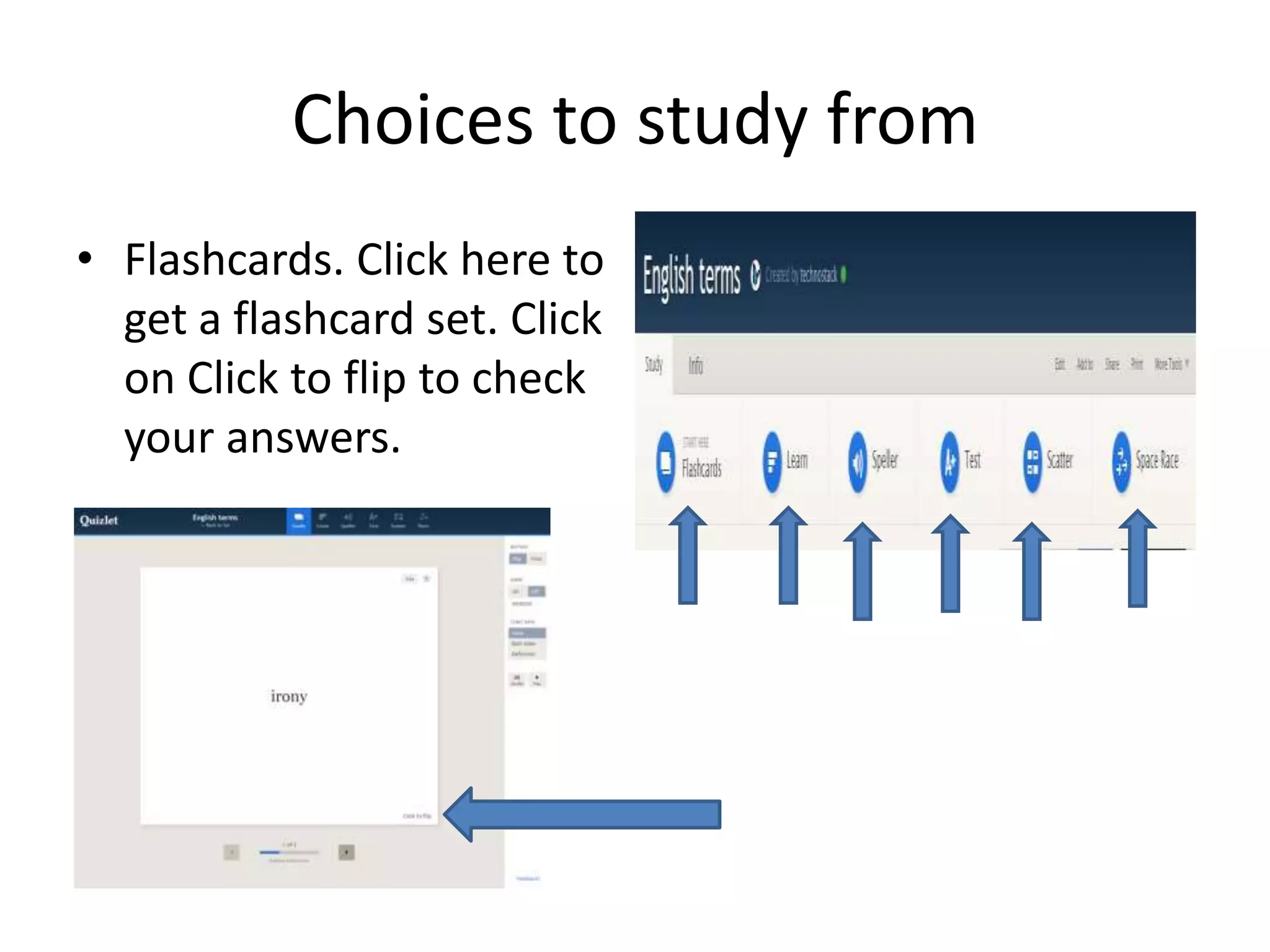
Choices to study from
• Flashcards. Click here to
get a flashcard set. Click
on Click to flip to check
your answers.
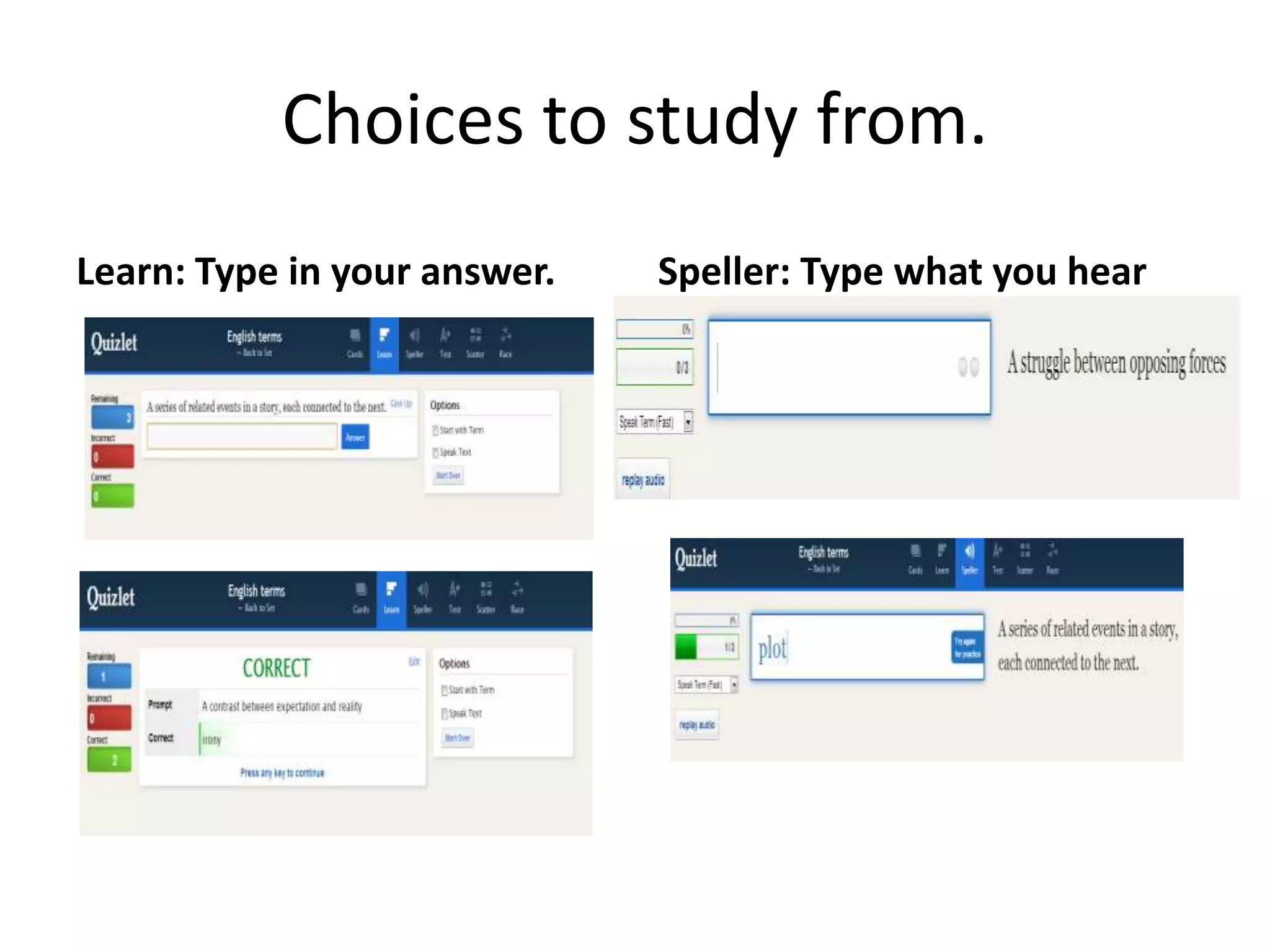
Choices to study from.
Learn: Type in your answer.

Speller: Type what you hear
Test Practice
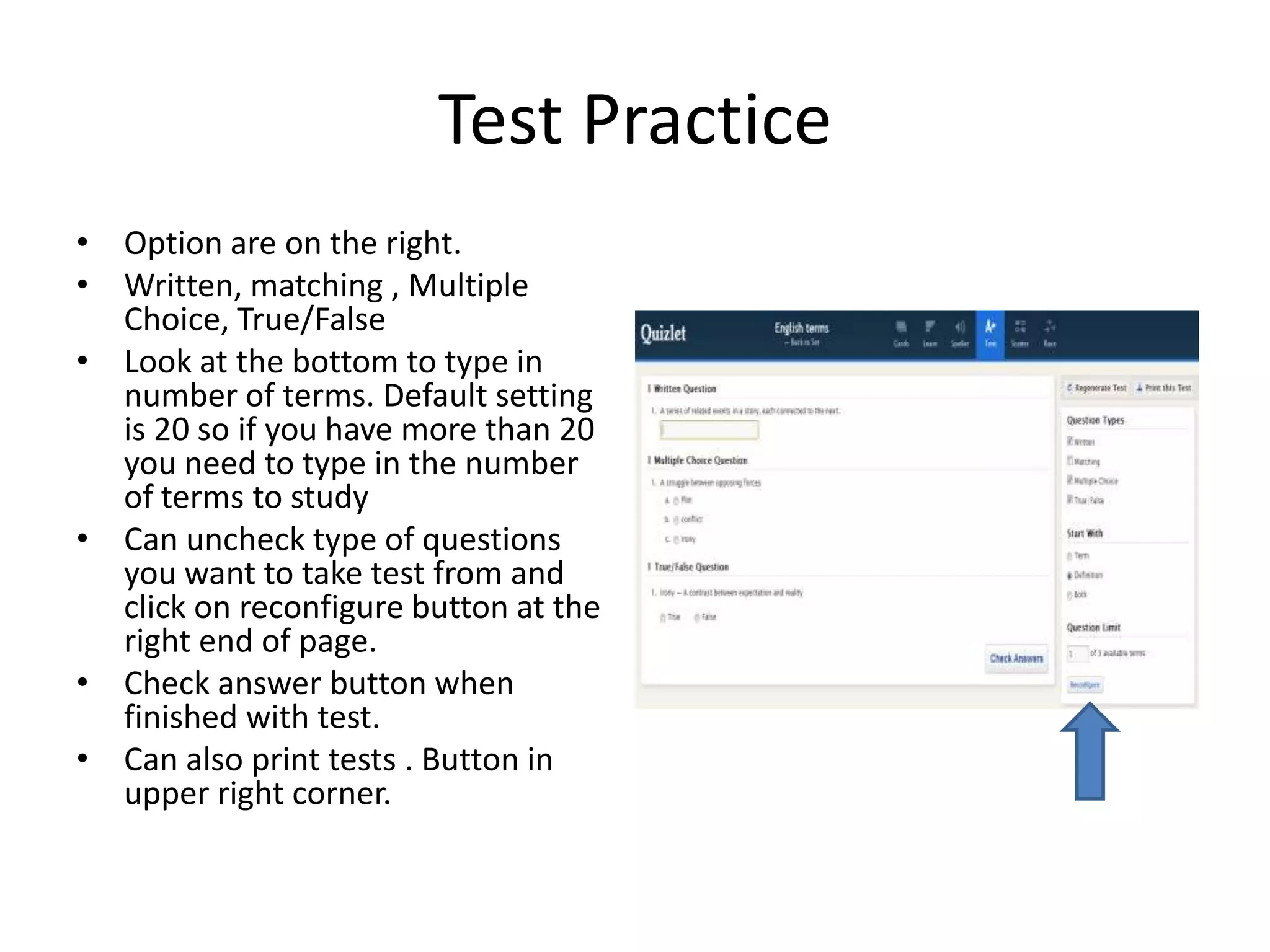
• Option are on the right.
• Written, matching , Multiple
Choice, True/False
• Look at the bottom to type in
number of terms. Default setting
is 20 so if you have more than 20
you need to type in the number
of terms to study
• Can uncheck type of questions
you want to take test from and
click on reconfigure button at the
right end of page.
• Check answer button when
finished with test.
• Can also print tests . Button in
upper right corner.
Scatter Study Game
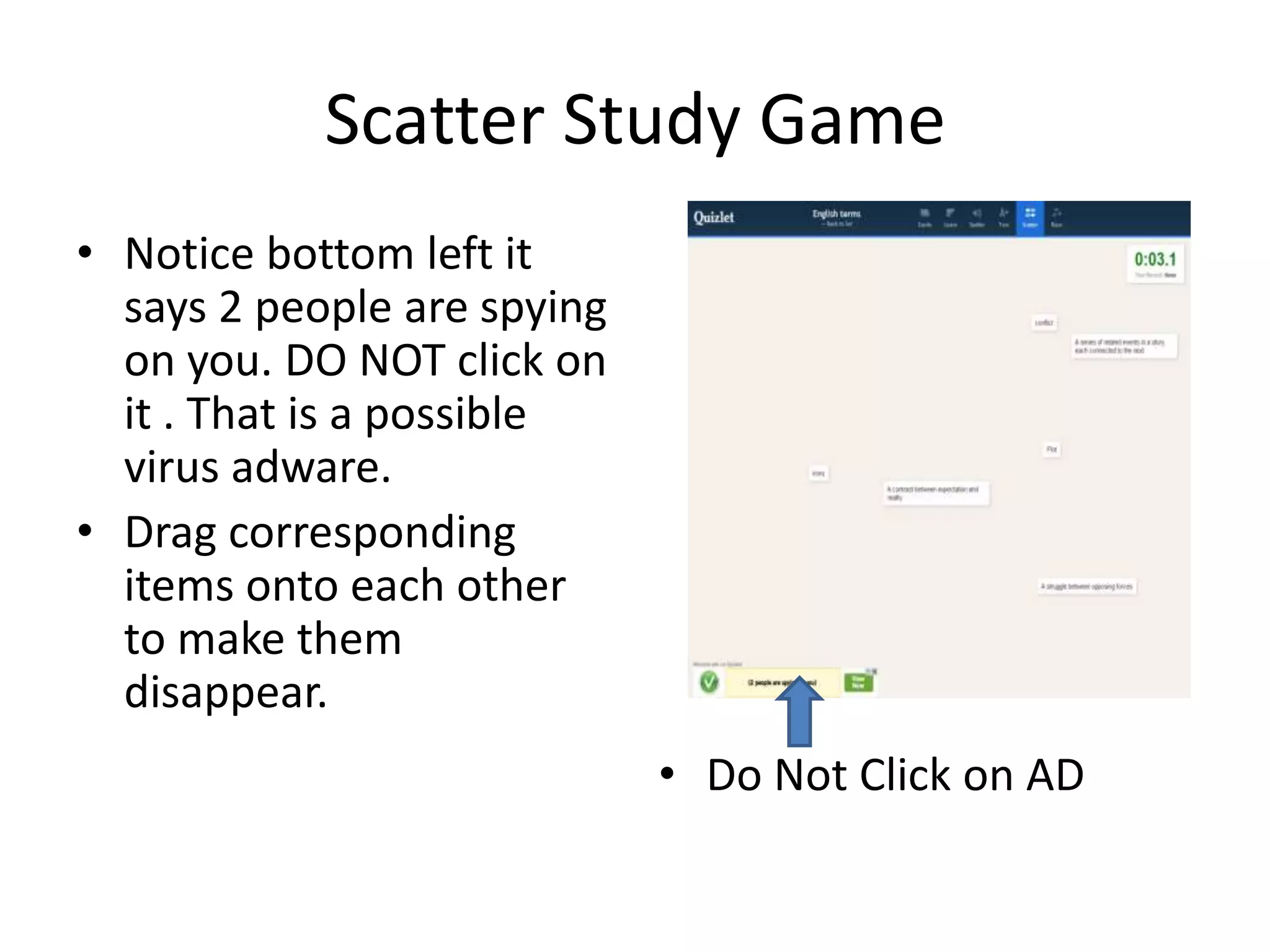
• Notice bottom left it
says 2 people are spying
on you. DO NOT click on
it . That is a possible
virus adware.
• Drag corresponding
items onto each other
to make them
disappear.

• Do Not Click on AD
Race
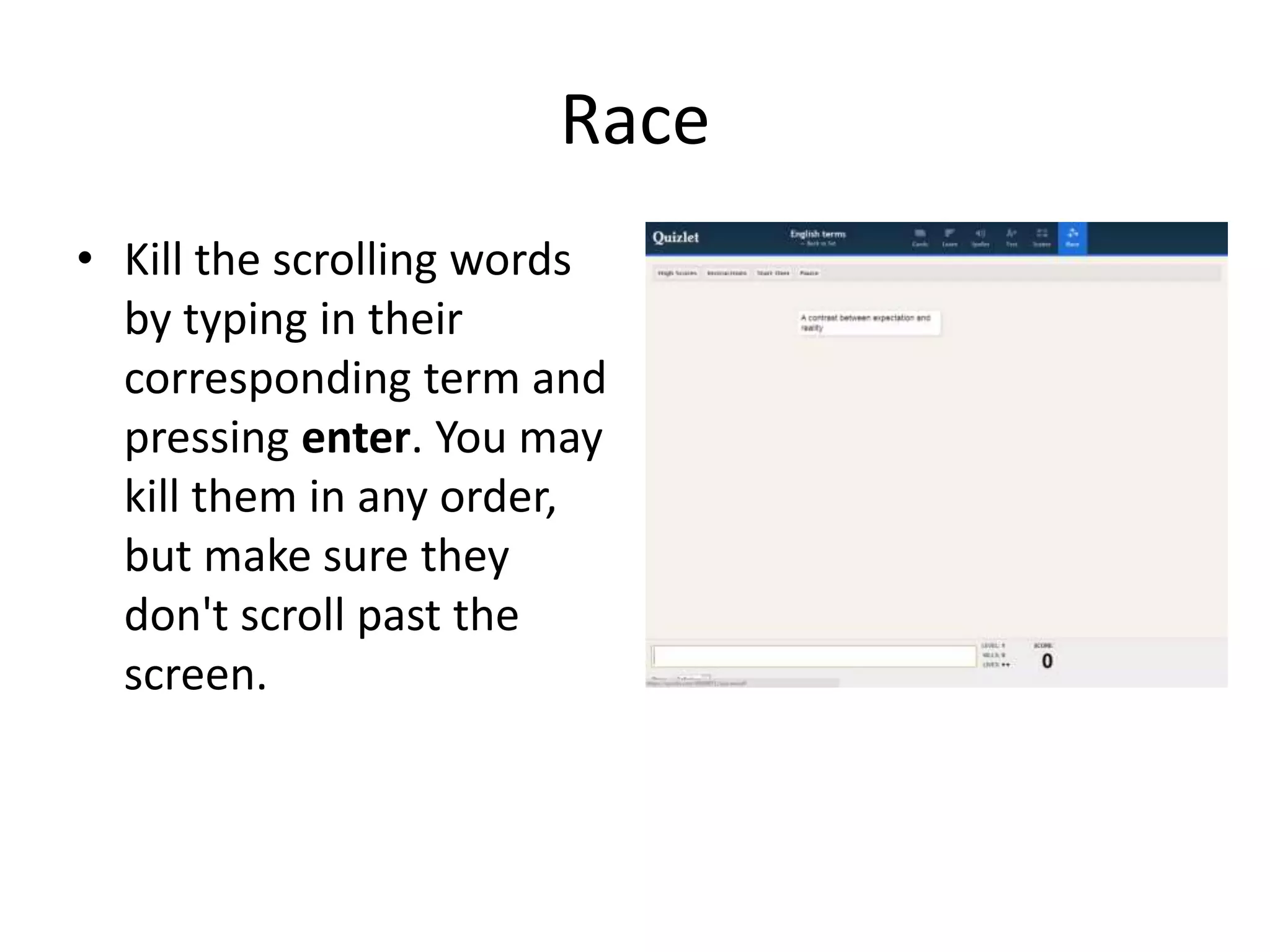
• Kill the scrolling words
by typing in their
corresponding term and
pressing enter. You may
kill them in any order,
but make sure they
don't scroll past the
screen.
Back to Set
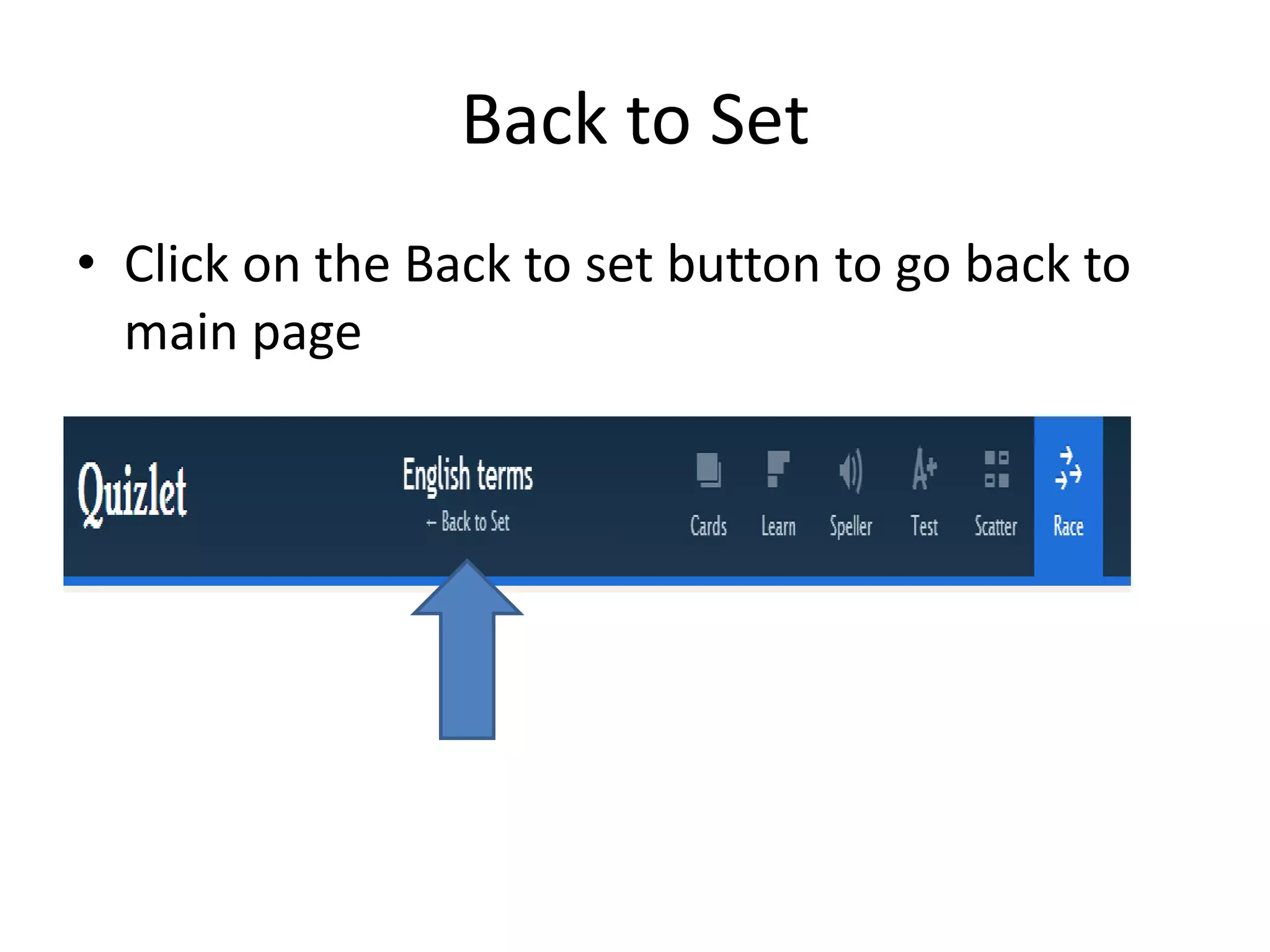
• Click on the Back to set button to go back to
main page
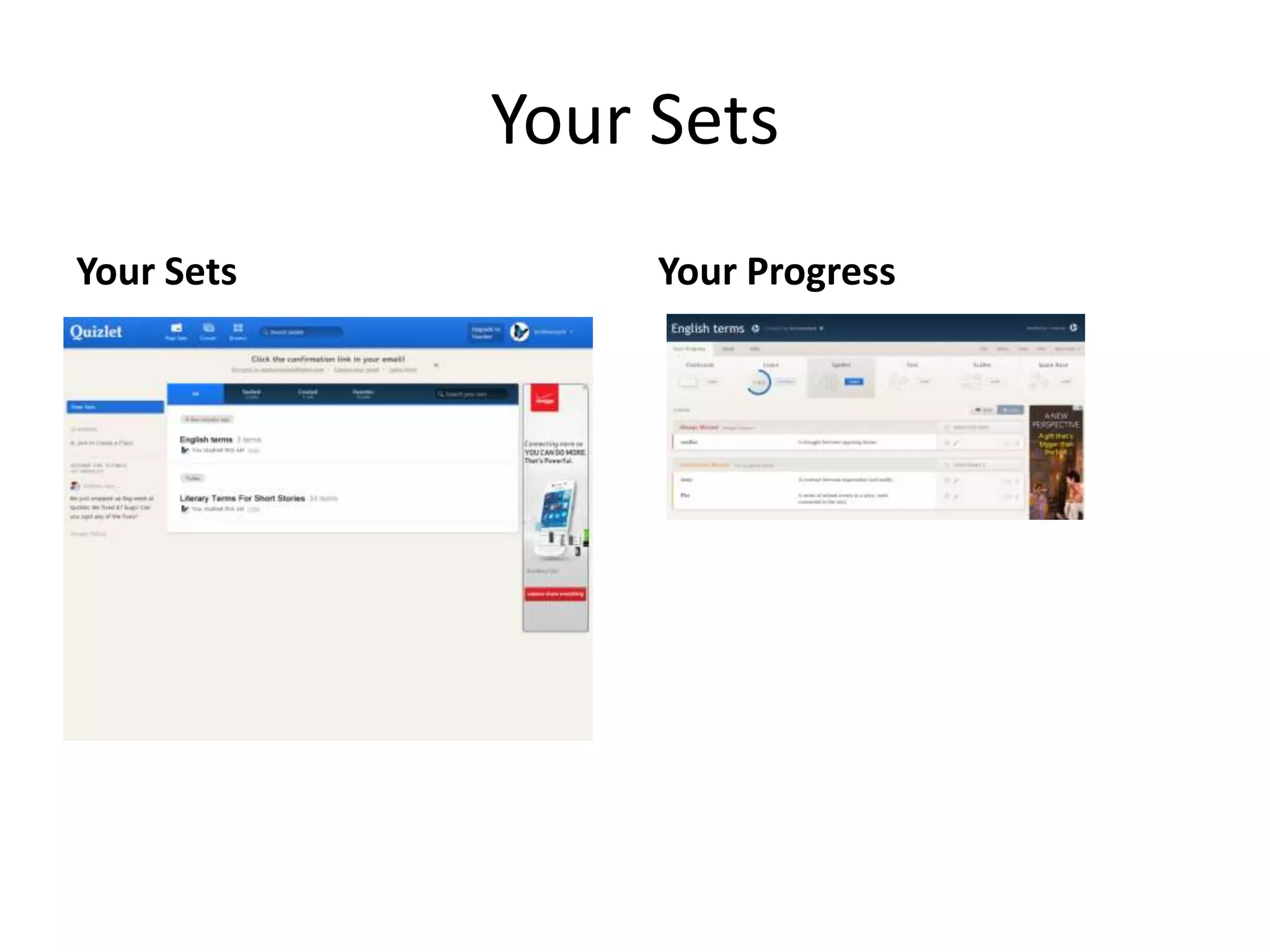
Your Sets
Your Sets

Your Progress
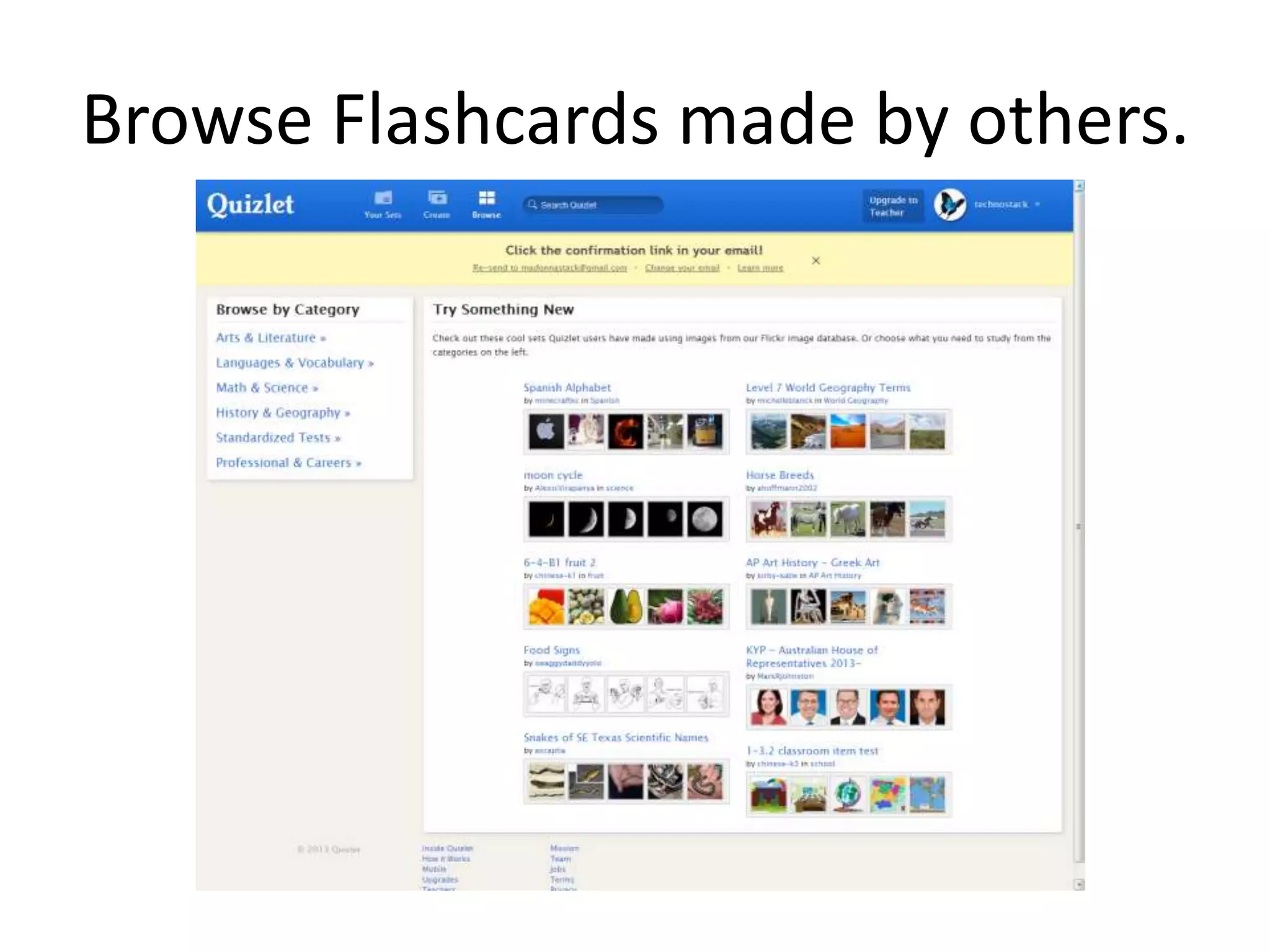
Browse Flashcards made by others.
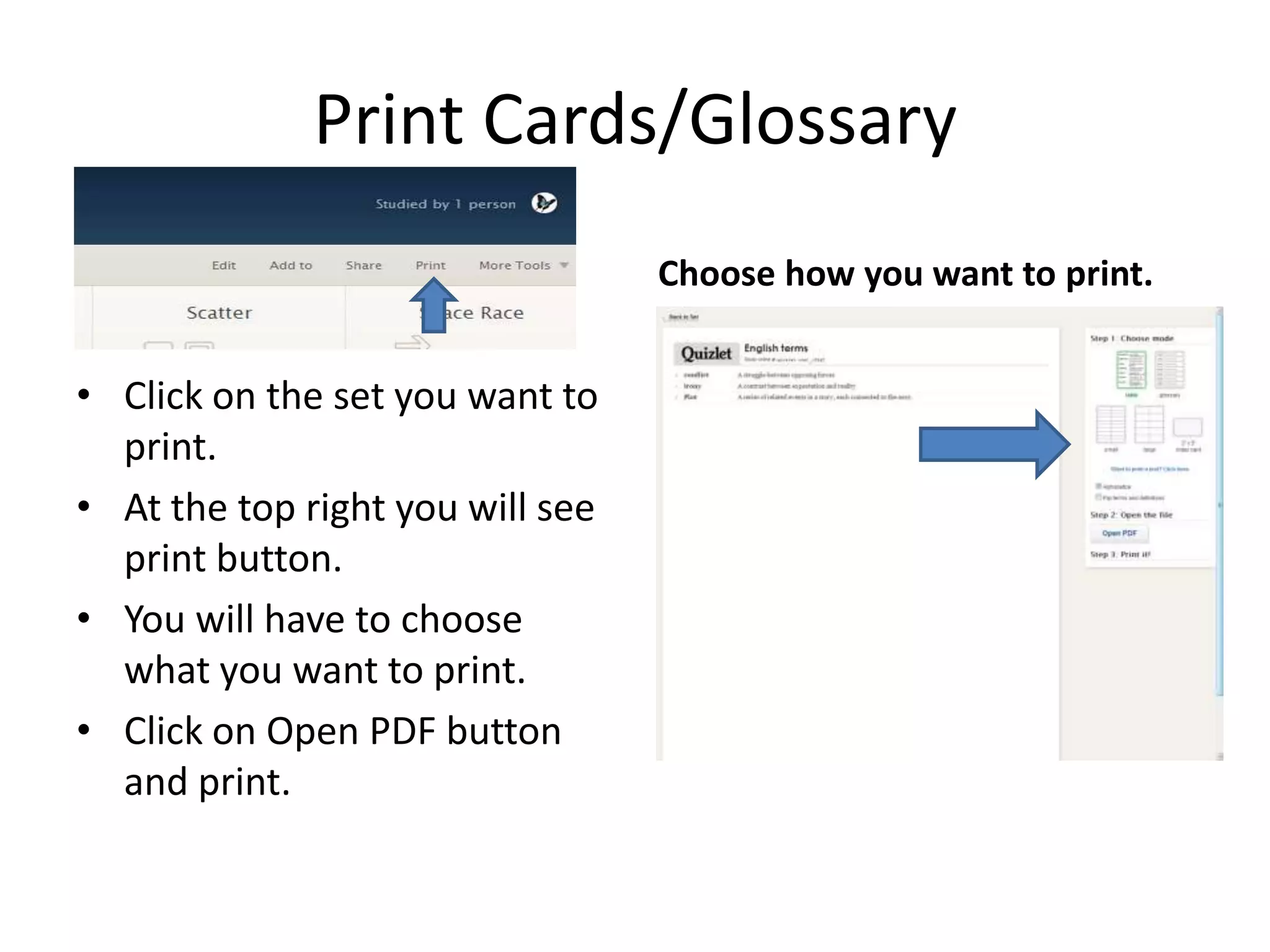
Print Cards/Glossary
Choose how you want to print.

• Click on the set you want to
print.
• At the top right you will see
print button.
• You will have to choose
what you want to print.
• Click on Open PDF button
and print.
Have fun Studying
http://quizlet.com

How to sign up for a quizlet account

  • 1.
    How to signup for a Quizlet Account. You will need an Email Account User Name and Password
  • 2.
    Quizlet.com • Type inthe URL address for quizlet.com • http://quizlet.com/ • Click on Sign up located in the top right corner • After you have created an account you will click on the Log in link and sign in.
  • 3.
    Sign Up foran account • Do NOT sign in using Facebook. • If you have a Google Gmail account you can sign in under Google. • Fill out birthday • Fill out user name. Can use school login username. • Type in your gmail, hotmail or yahoo Email account. (stackl@gmail.com) • Password must have 8 characters • Check agree to terms • Click on sign up
  • 4.
    • You arealmost done setting up your account. • Click on sign up for free account. • Confirm your Email account to start creating your own quizlets. [you can do this at home when you check your Email tonight.]
  • 5.
    To Start CreatingYour own Sets • Click on Create Set [blue arrow] • Fill in About your study set. Give it a title of the subject. • Enter your terms choose a language’
  • 6.
    Create a set Clickon drop down arrow and pick language. Type in word . Click on auto define first. Click on the bubble next to the one you choose. Scroll down to see all of choices. If you don’t like the choices, type in your own.
  • 7.
    Add a Row •At the very bottom there is the words add row click here. • This will add a row at a time. Need to click to add one by one.
  • 8.
    After typing inall of study material Click on create set button at bottom right of page. Here you can do many things
  • 9.
    Choices to studyfrom • Flashcards. Click here to get a flashcard set. Click on Click to flip to check your answers.
  • 10.
    Choices to studyfrom. Learn: Type in your answer. Speller: Type what you hear
  • 11.
    Test Practice • Optionare on the right. • Written, matching , Multiple Choice, True/False • Look at the bottom to type in number of terms. Default setting is 20 so if you have more than 20 you need to type in the number of terms to study • Can uncheck type of questions you want to take test from and click on reconfigure button at the right end of page. • Check answer button when finished with test. • Can also print tests . Button in upper right corner.
  • 12.
    Scatter Study Game •Notice bottom left it says 2 people are spying on you. DO NOT click on it . That is a possible virus adware. • Drag corresponding items onto each other to make them disappear. • Do Not Click on AD
  • 13.
    Race • Kill thescrolling words by typing in their corresponding term and pressing enter. You may kill them in any order, but make sure they don't scroll past the screen.
  • 14.
    Back to Set •Click on the Back to set button to go back to main page
  • 15.
  • 16.
  • 17.
    Print Cards/Glossary Choose howyou want to print. • Click on the set you want to print. • At the top right you will see print button. • You will have to choose what you want to print. • Click on Open PDF button and print.
  • 18.