Mikel Mindset Master presents
How to Use MailerLite in Creating
Email Campaigns?
MailerLite is a Tool
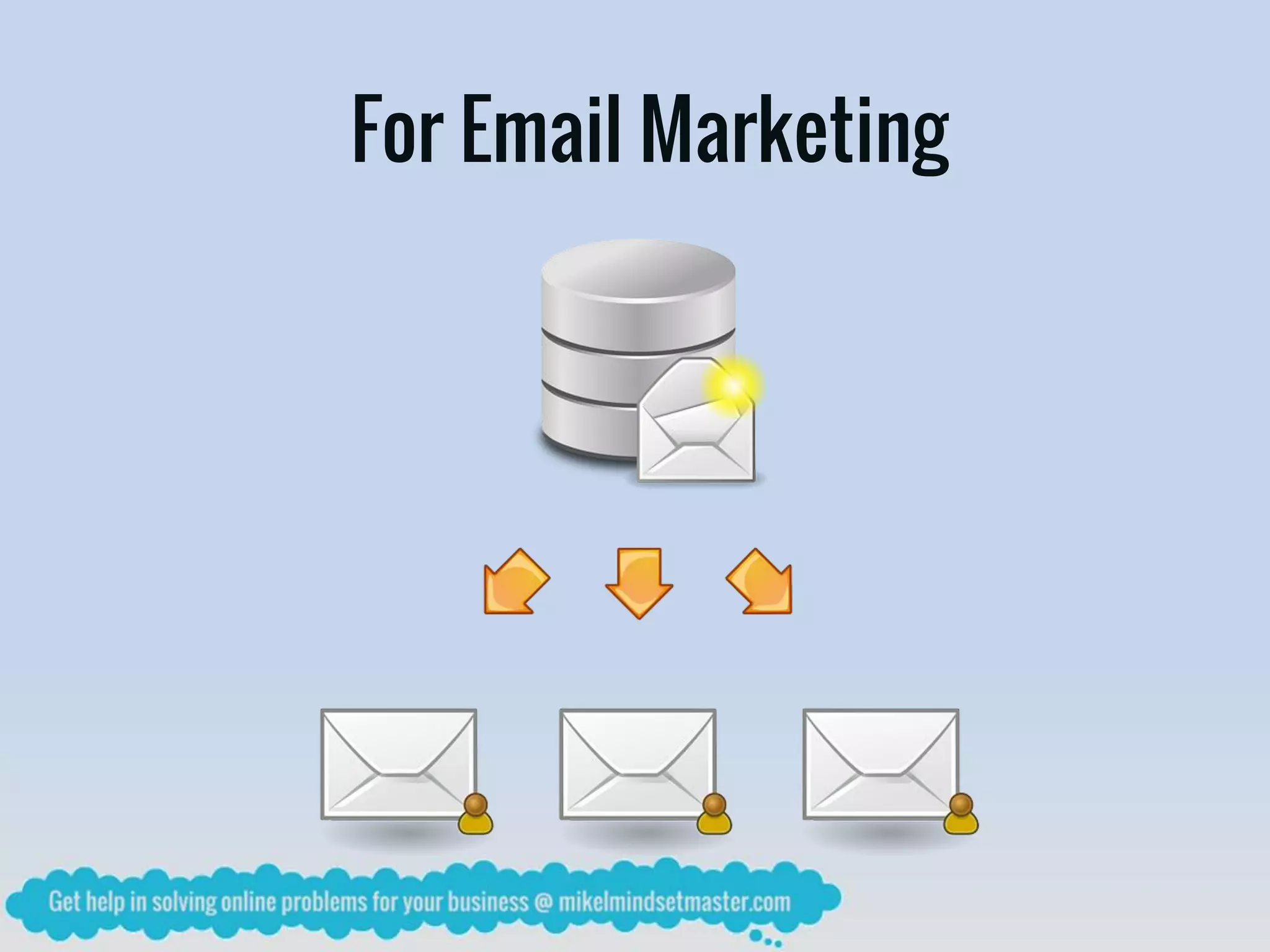
For Email Marketing
As a Start
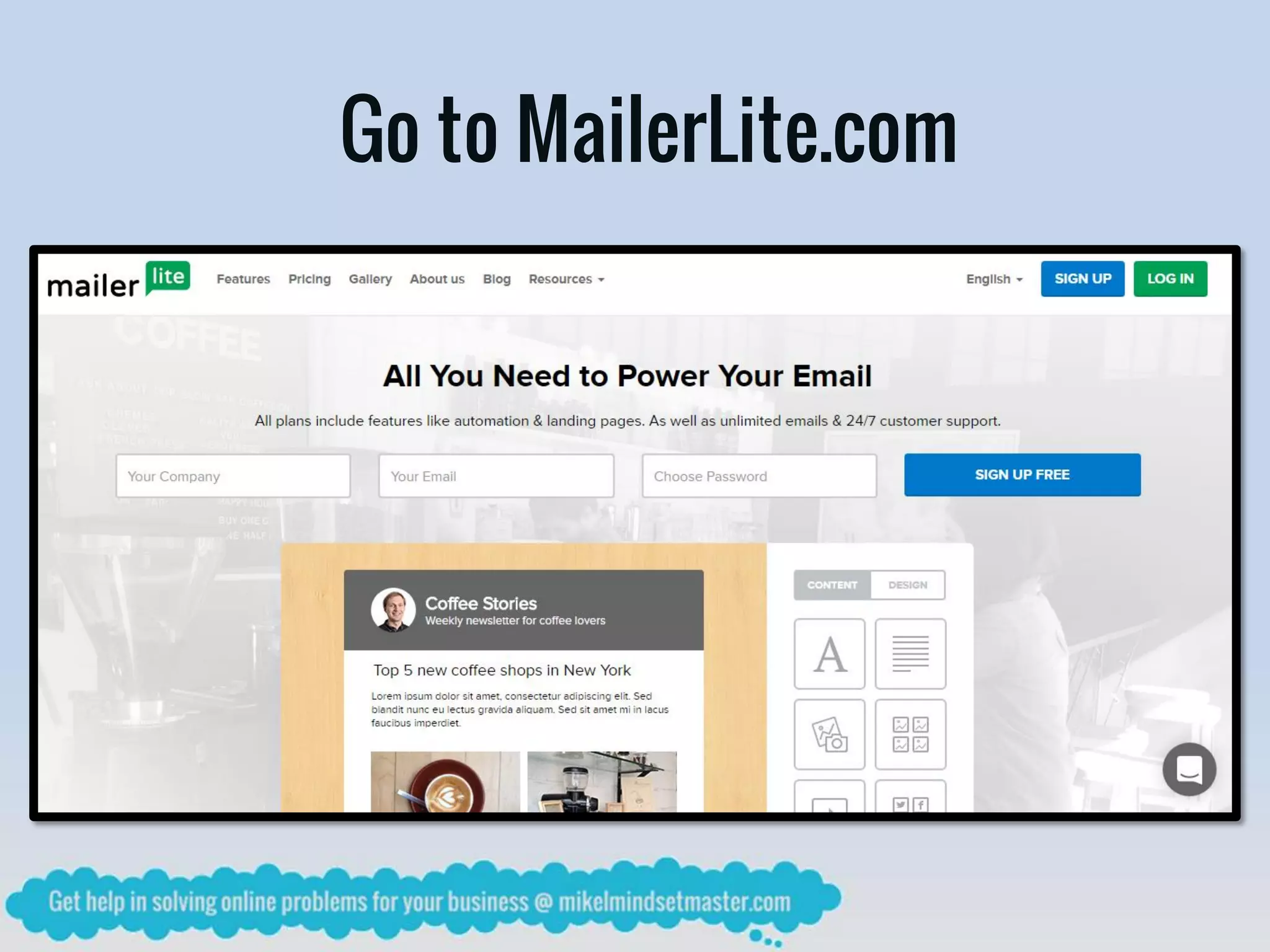
Go to MailerLite.com
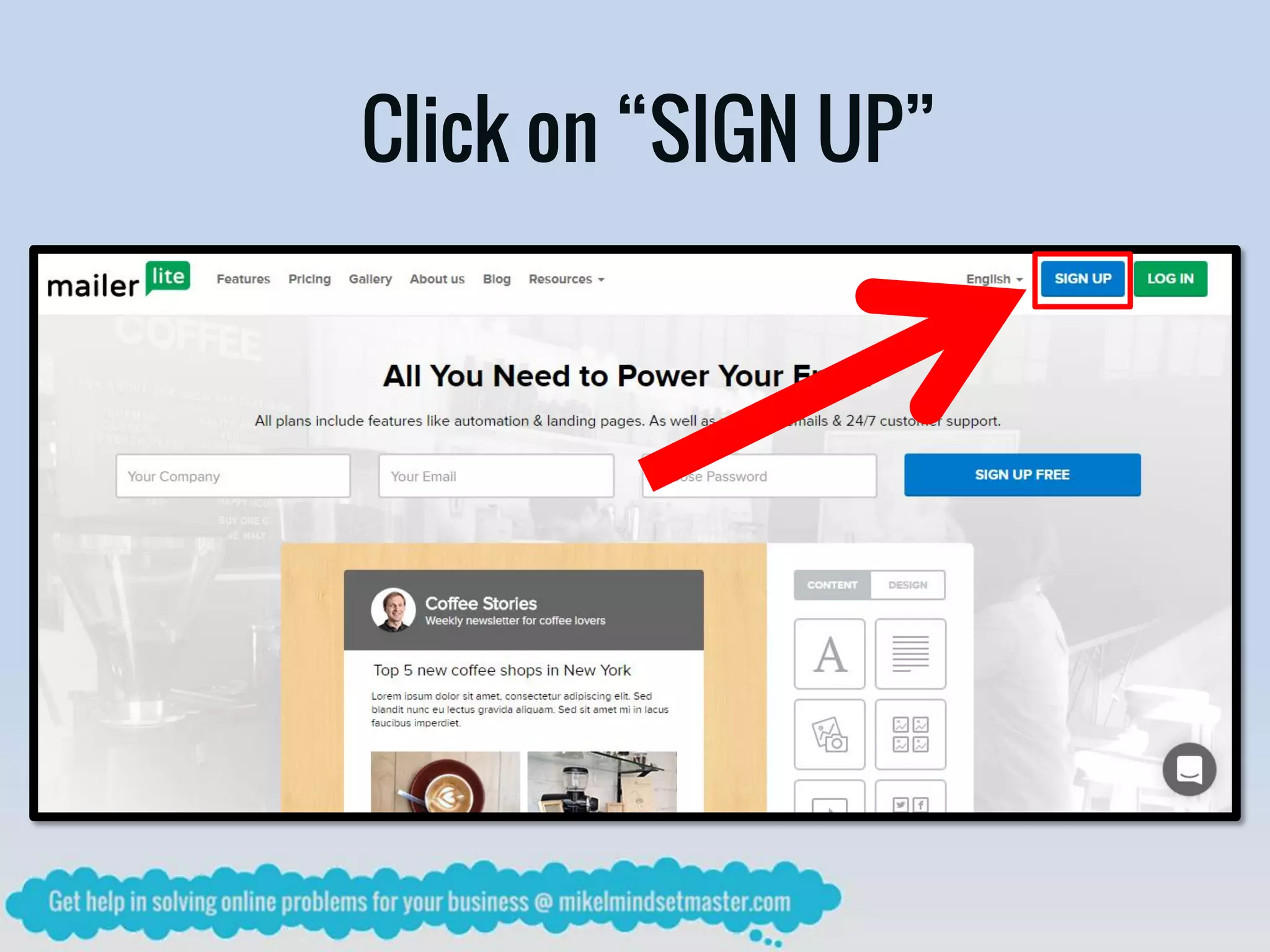
Click on “SIGN UP”
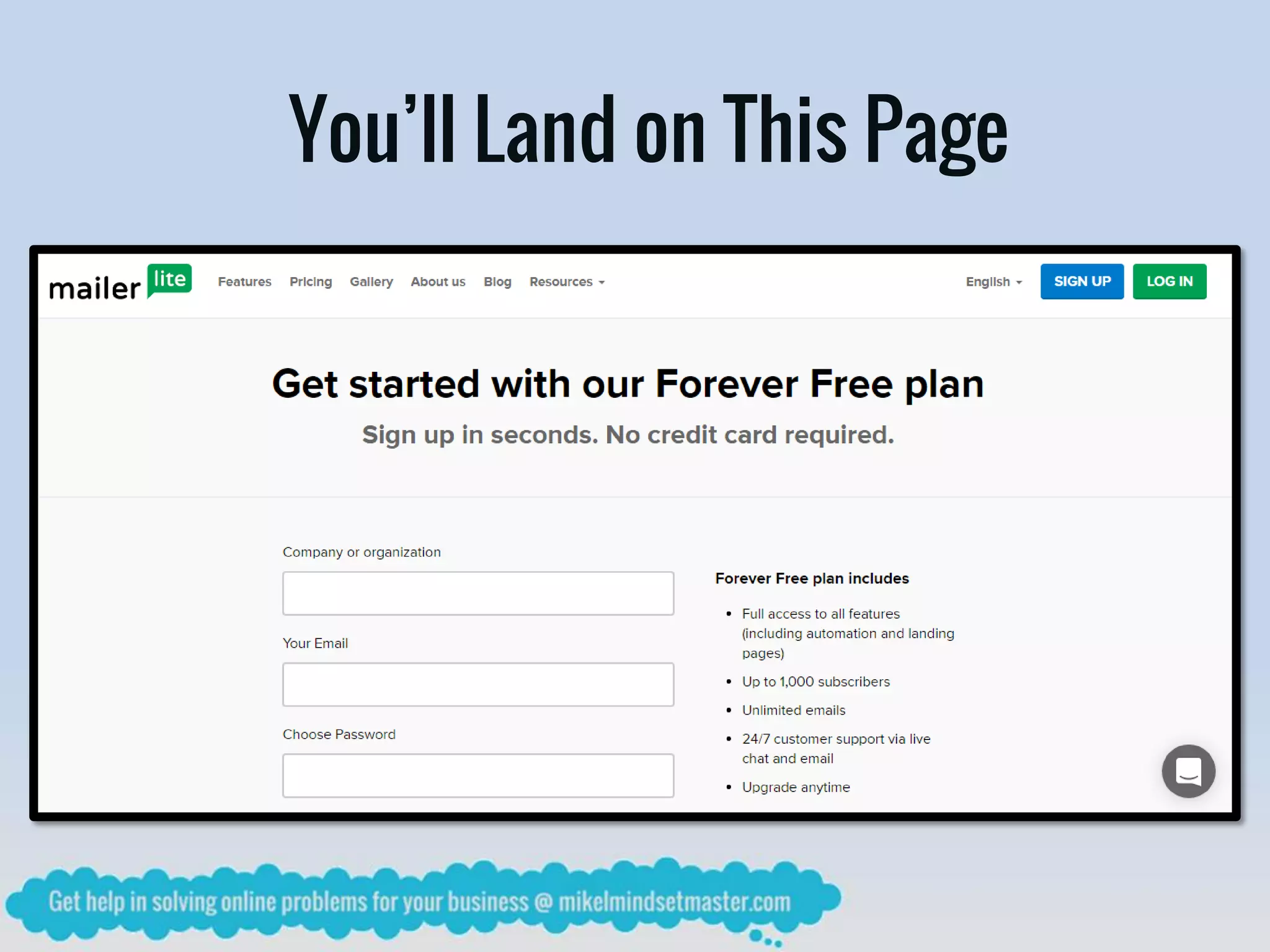
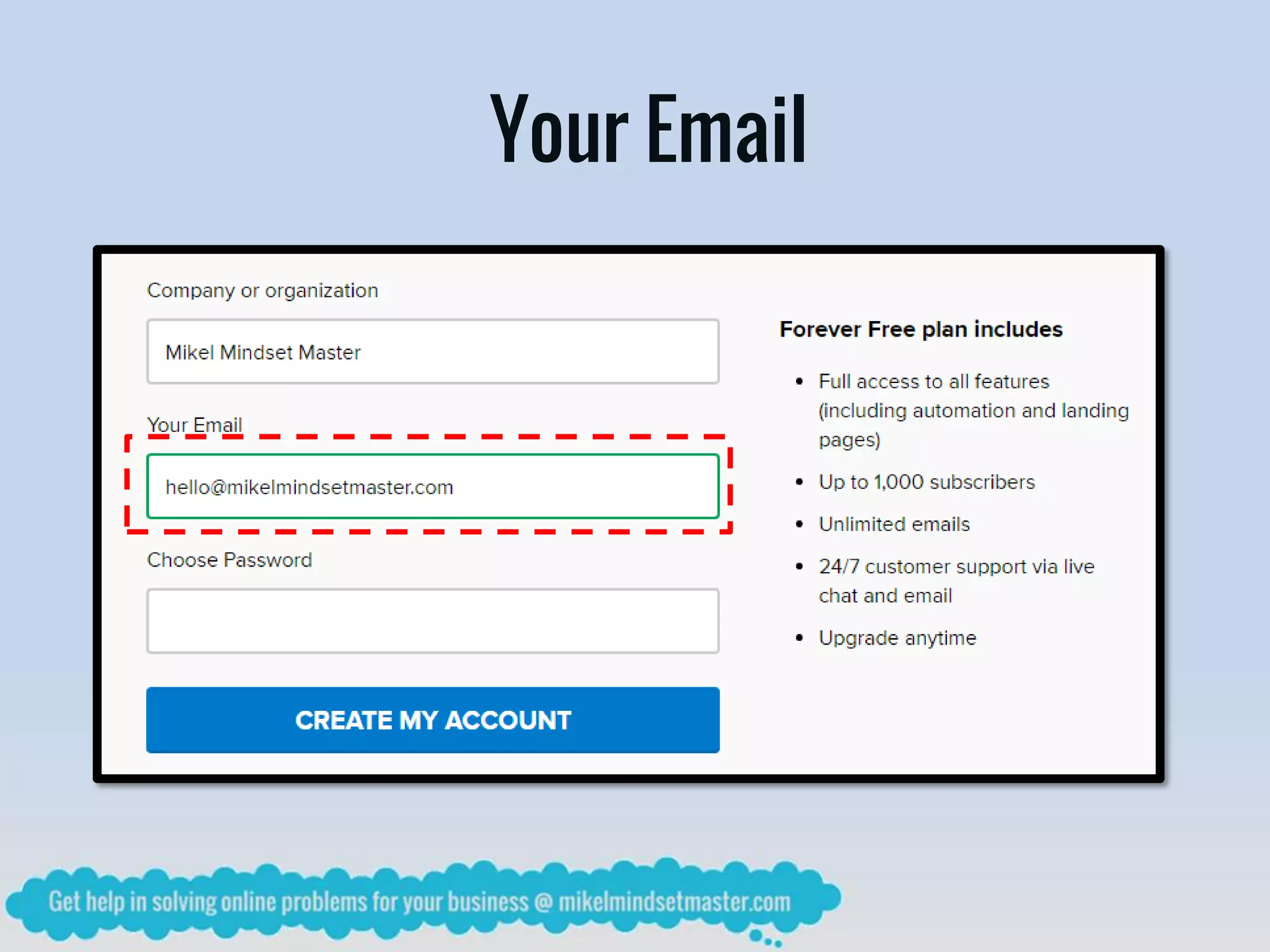
You’ll Land on This Page
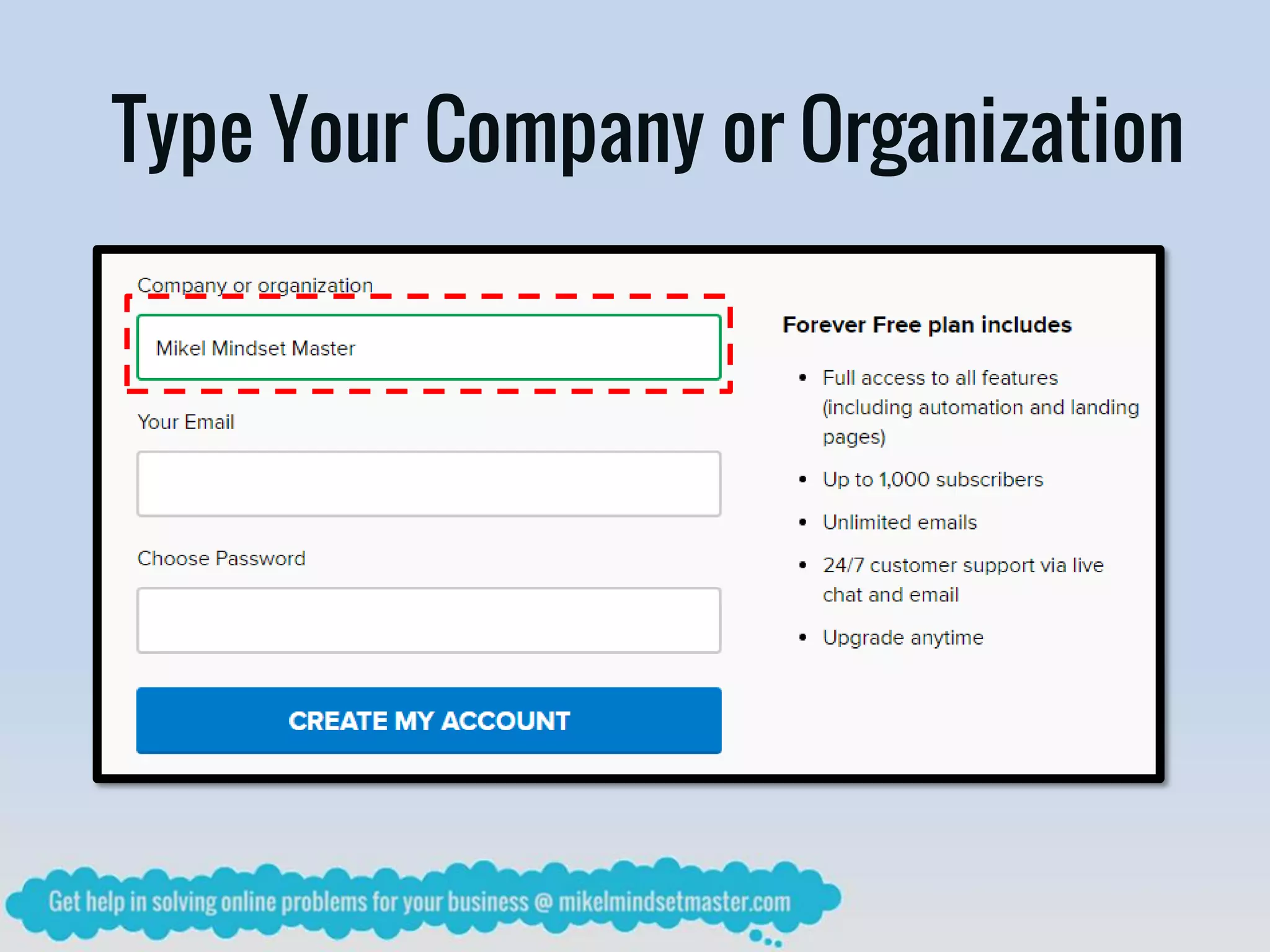
Type Your Company or Organization
Your Email
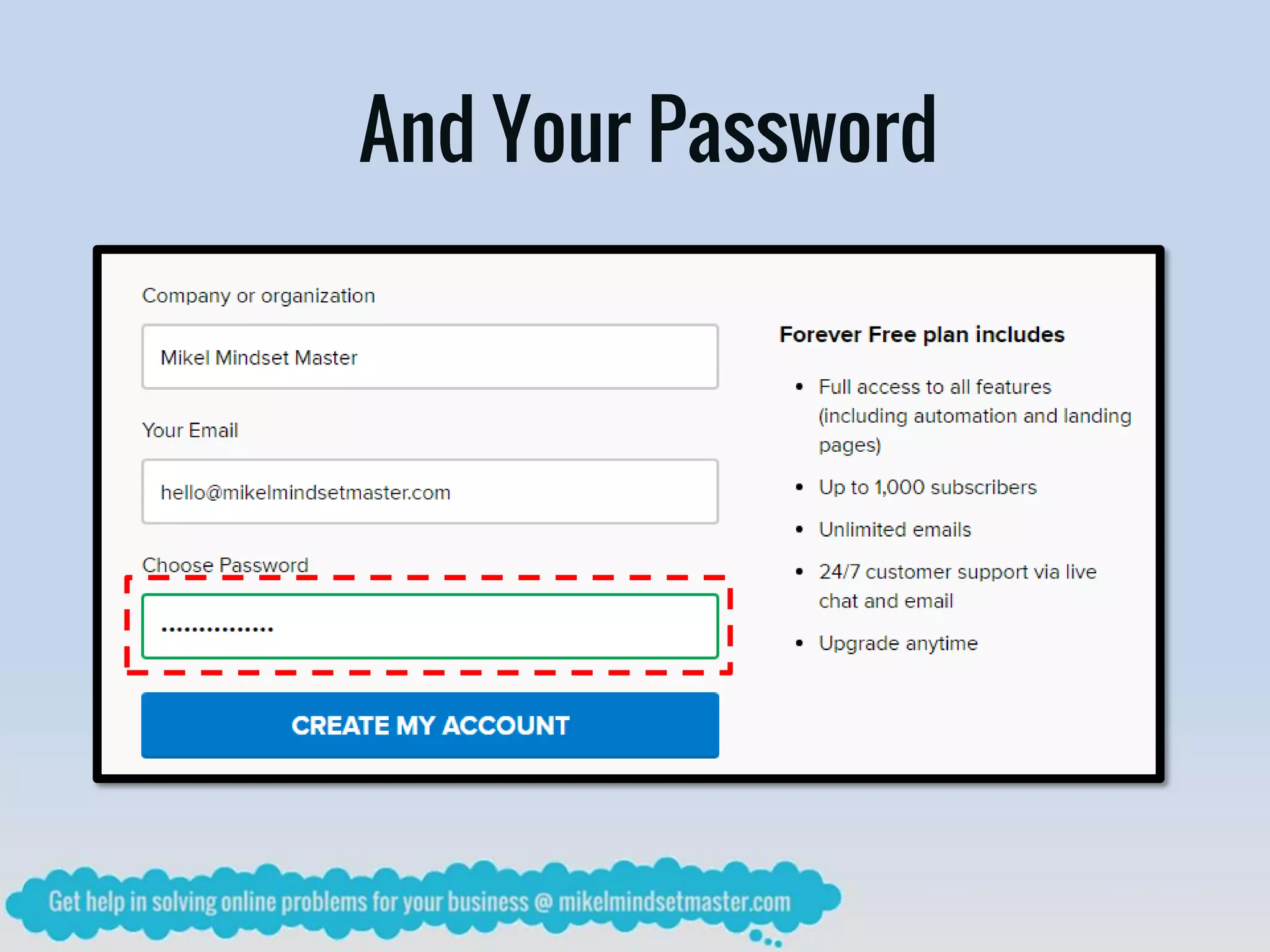
And Your Password
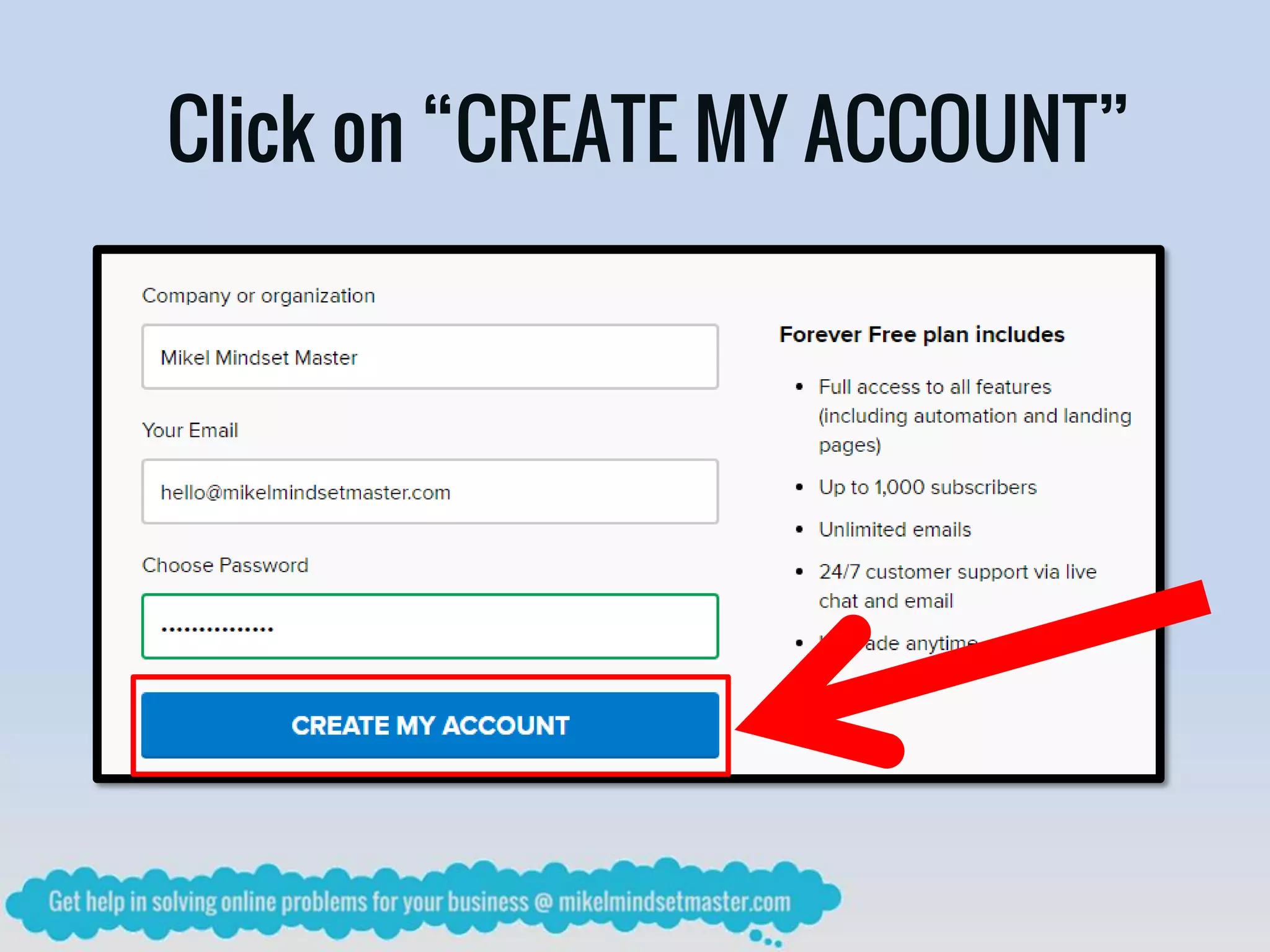
Click on “CREATE MY ACCOUNT”
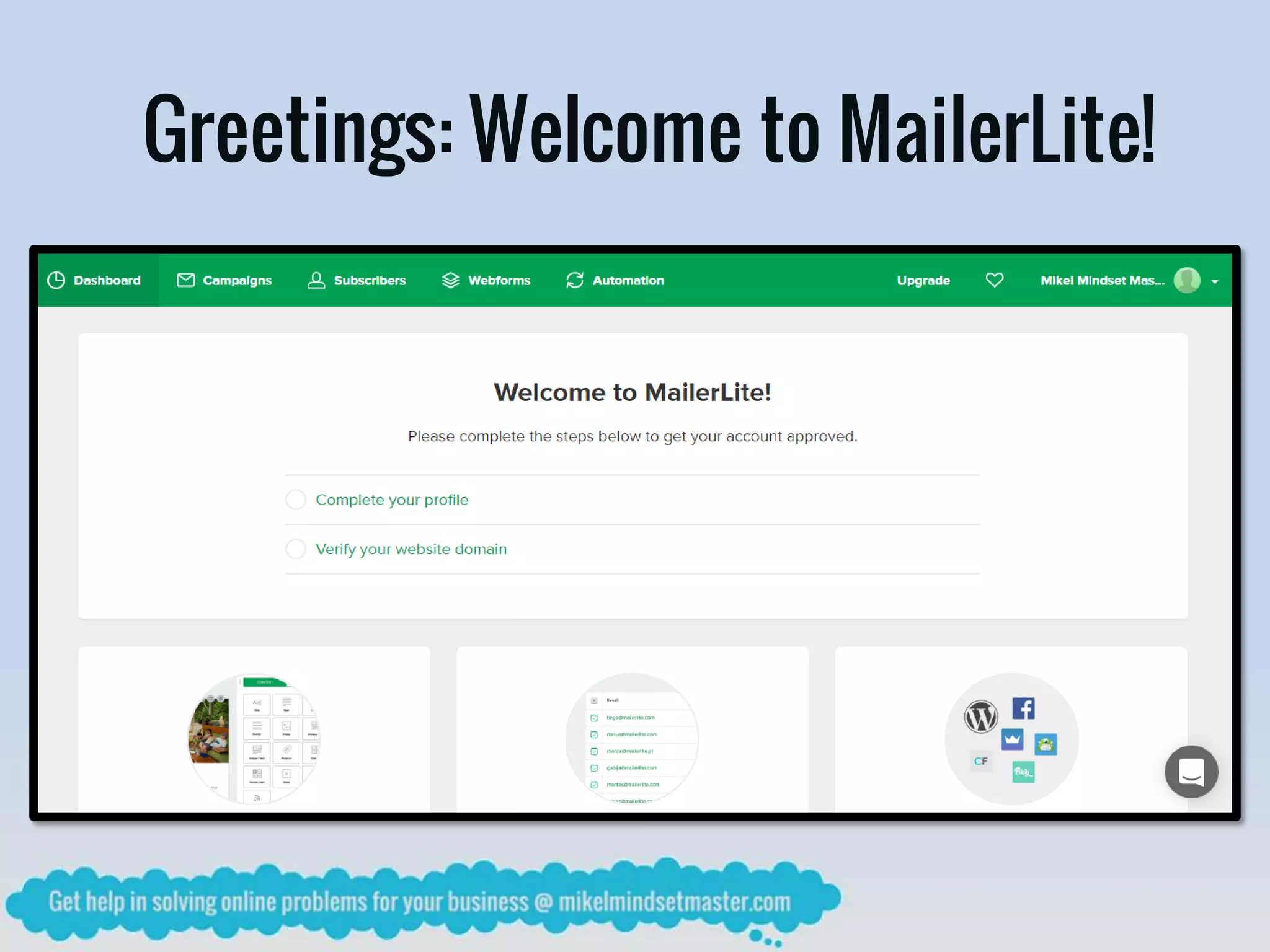
Greetings: Welcome to MailerLite!
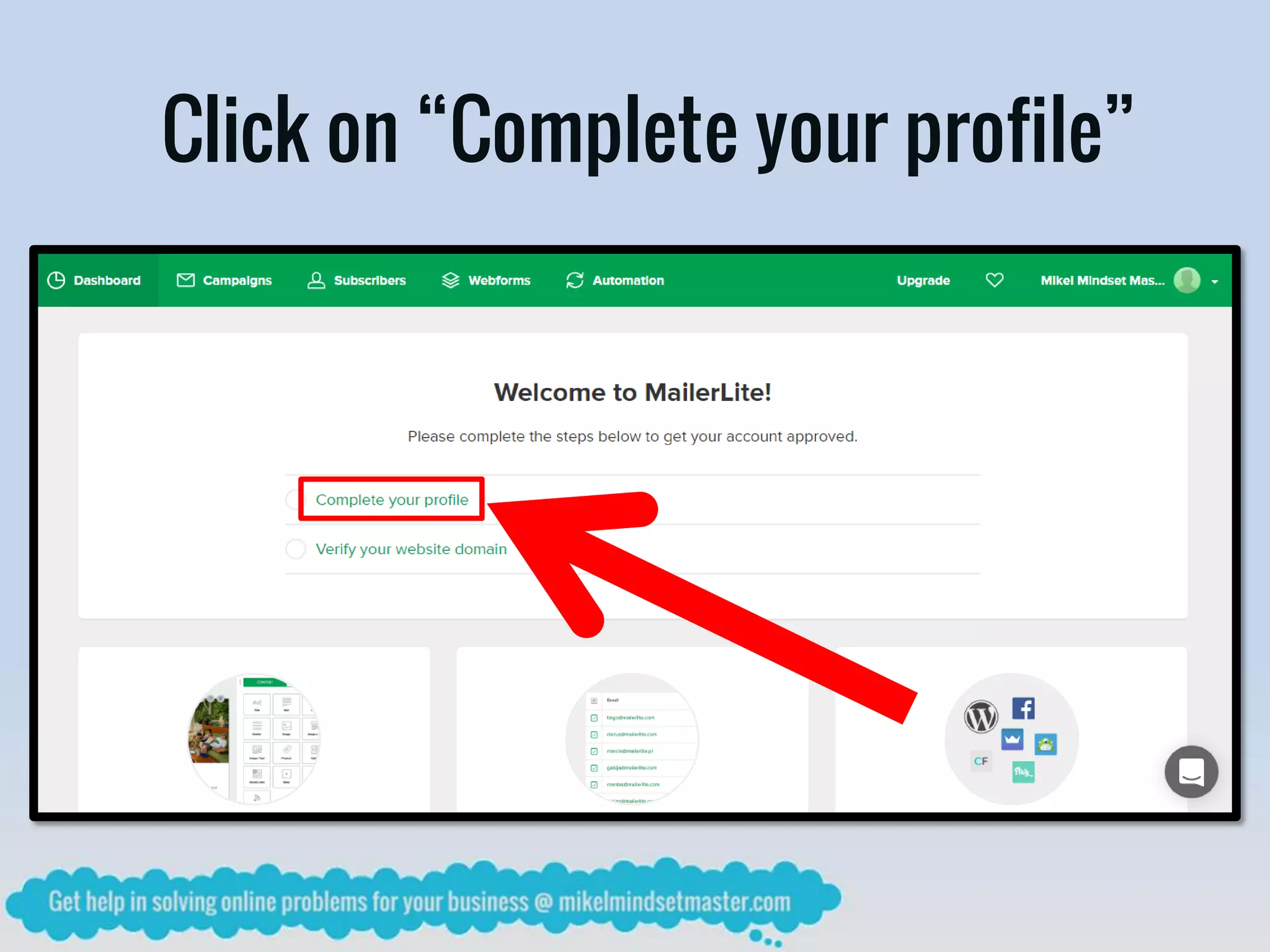
Click on “Complete your profile”
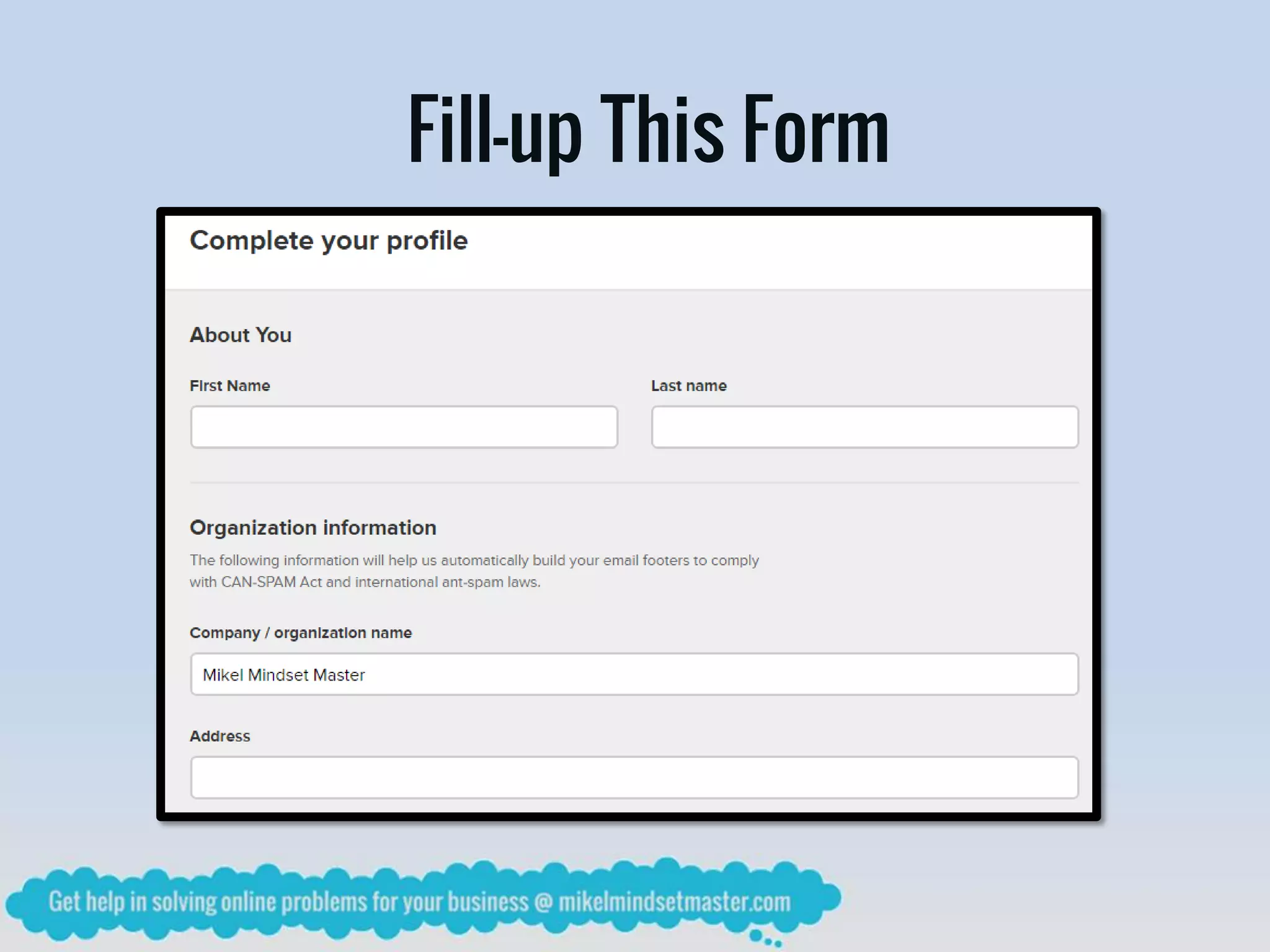
Fill-up This Form
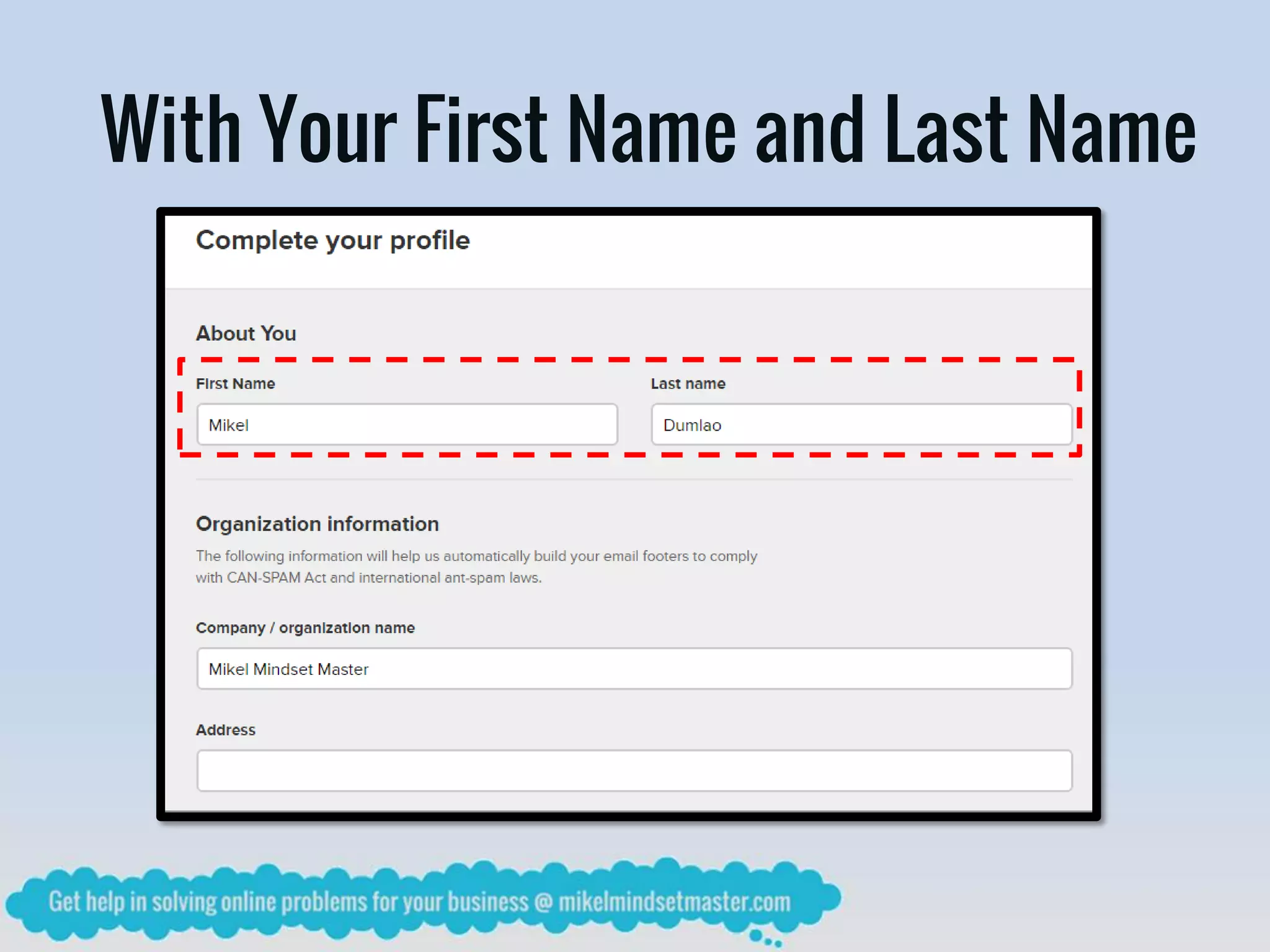
With Your First Name and Last Name
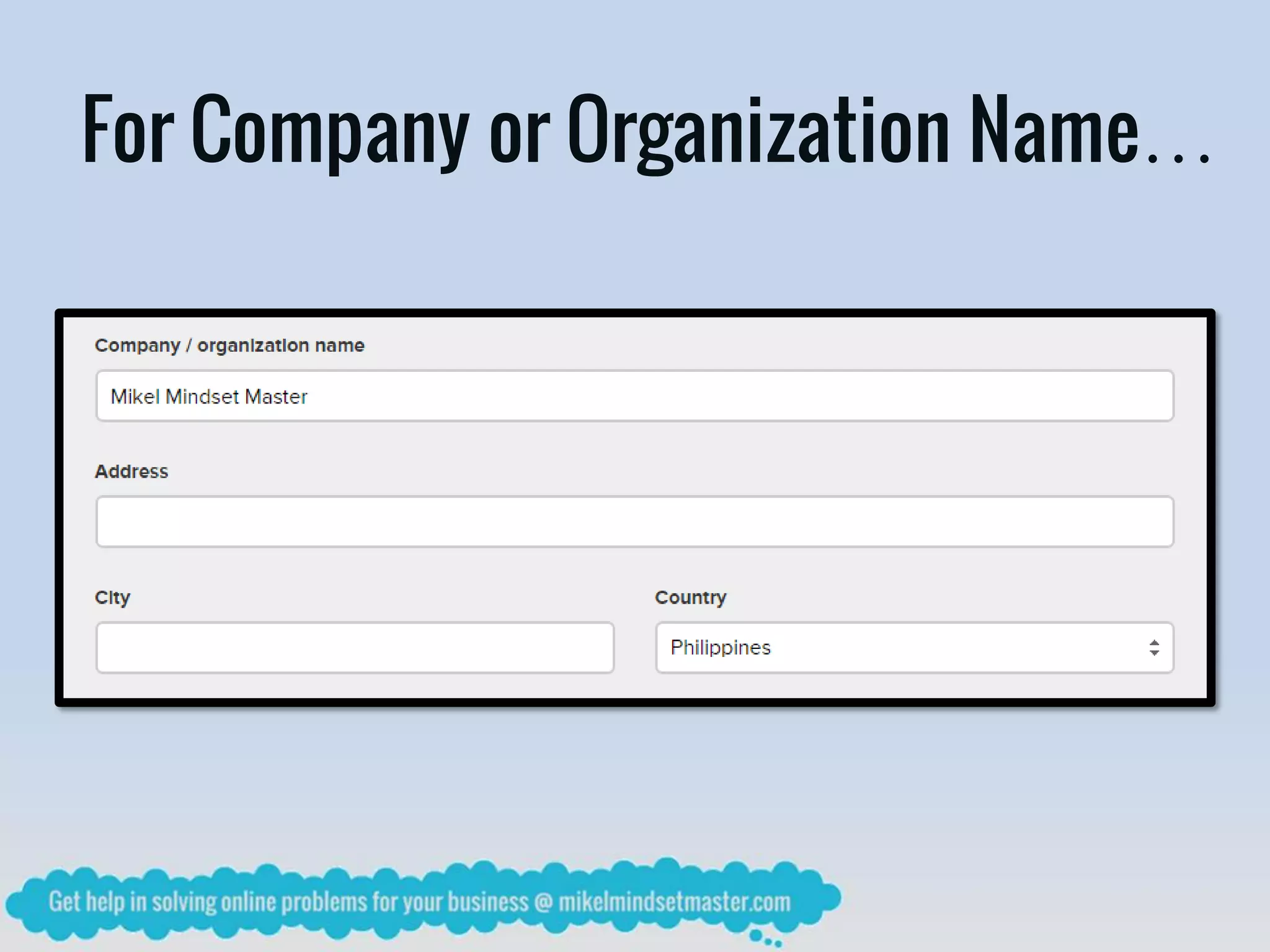
For Company or Organization Name…
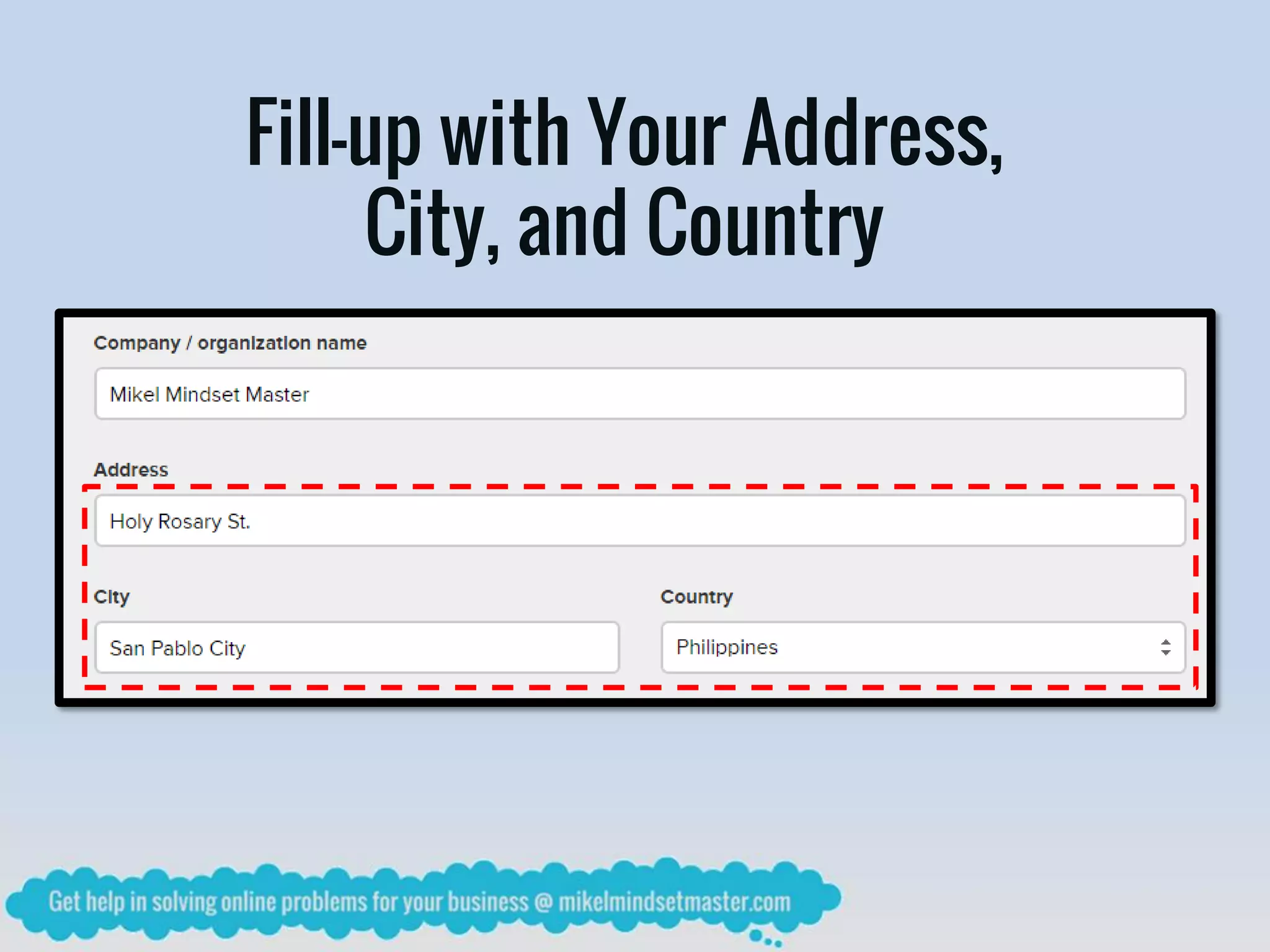
Fill-up with Your Address,
City, and Country
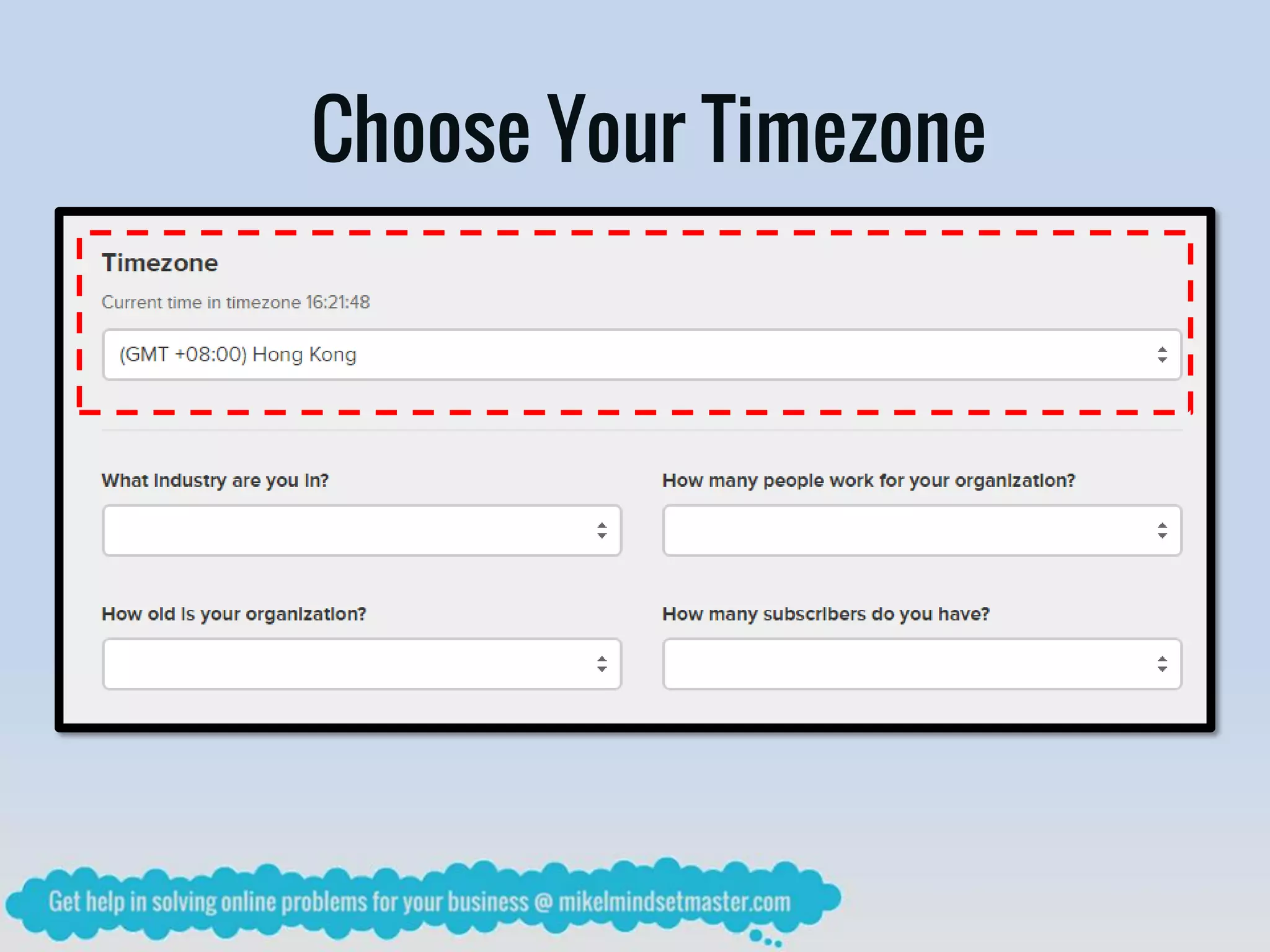
Choose Your Timezone
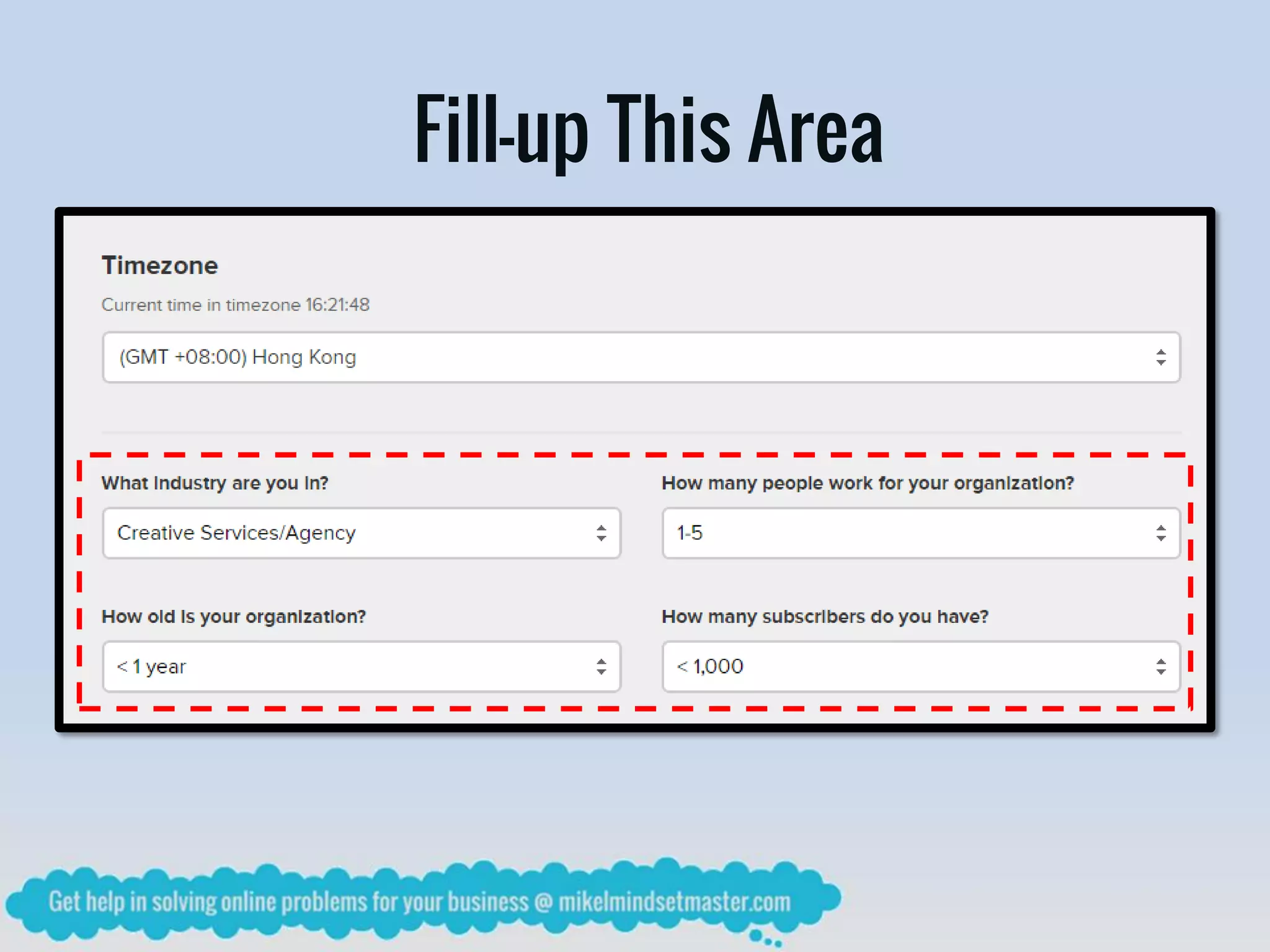
Fill-up This Area
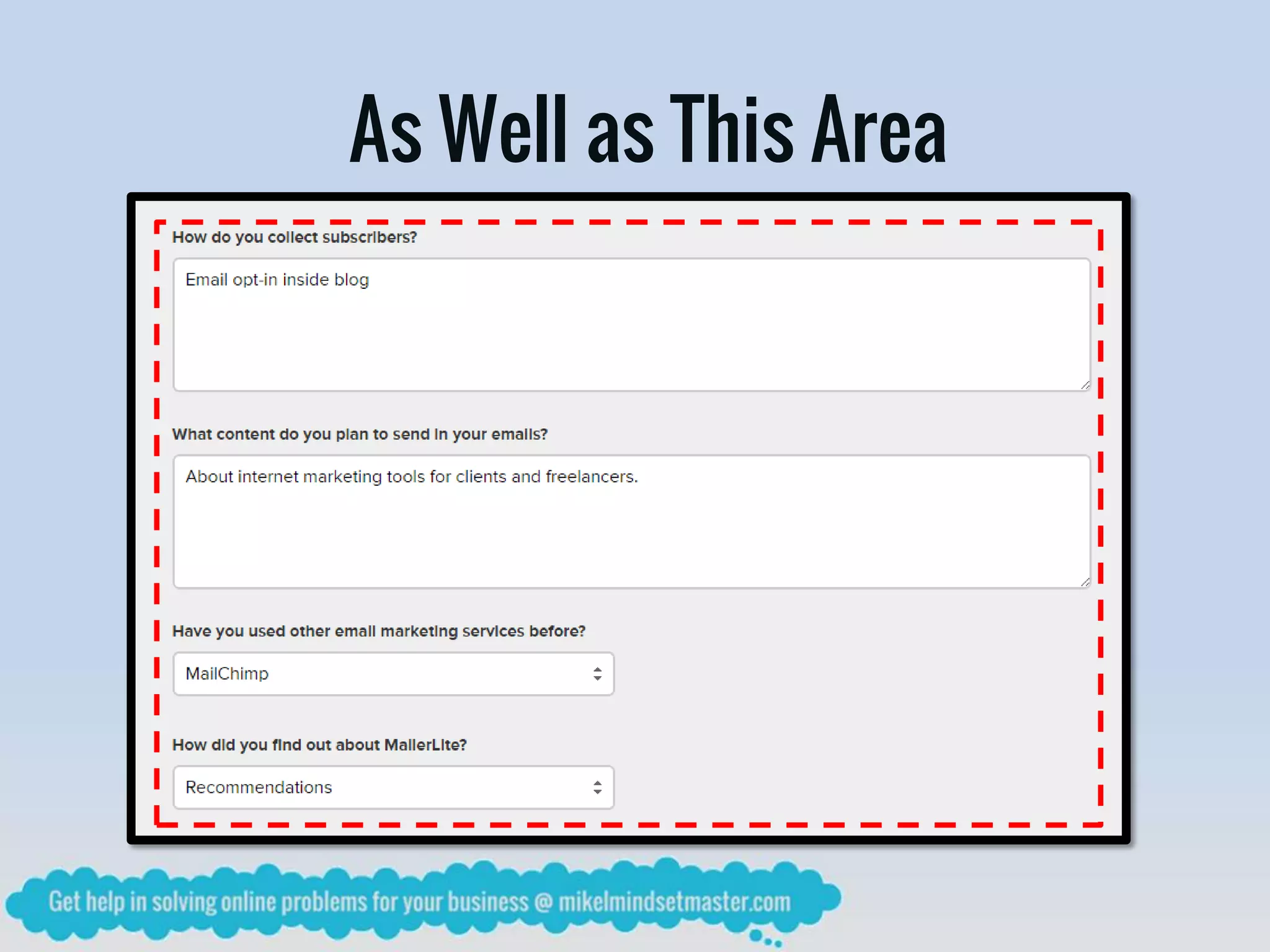
As Well as This Area
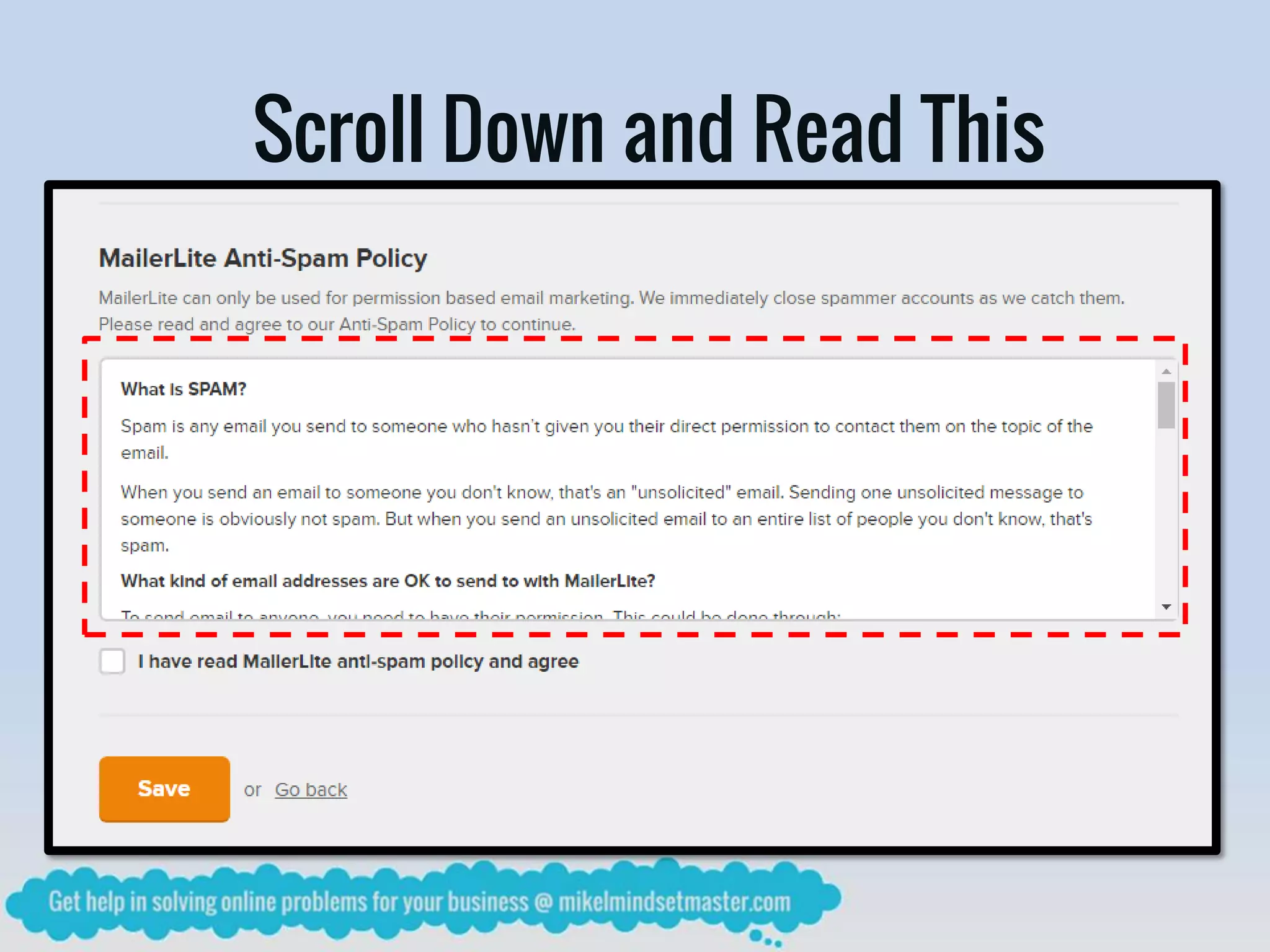
Scroll Down and Read This
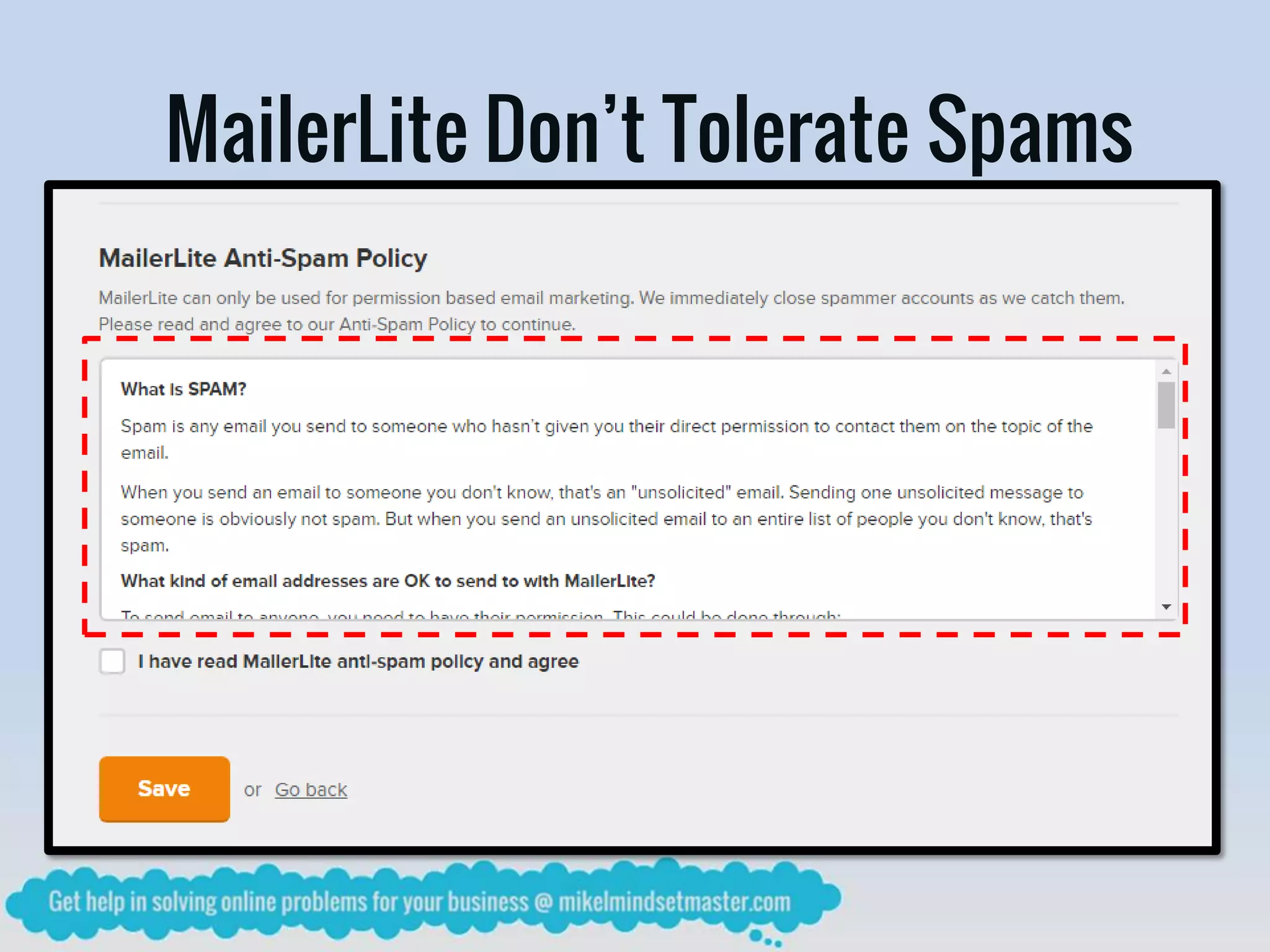
MailerLite Don’t Tolerate Spams
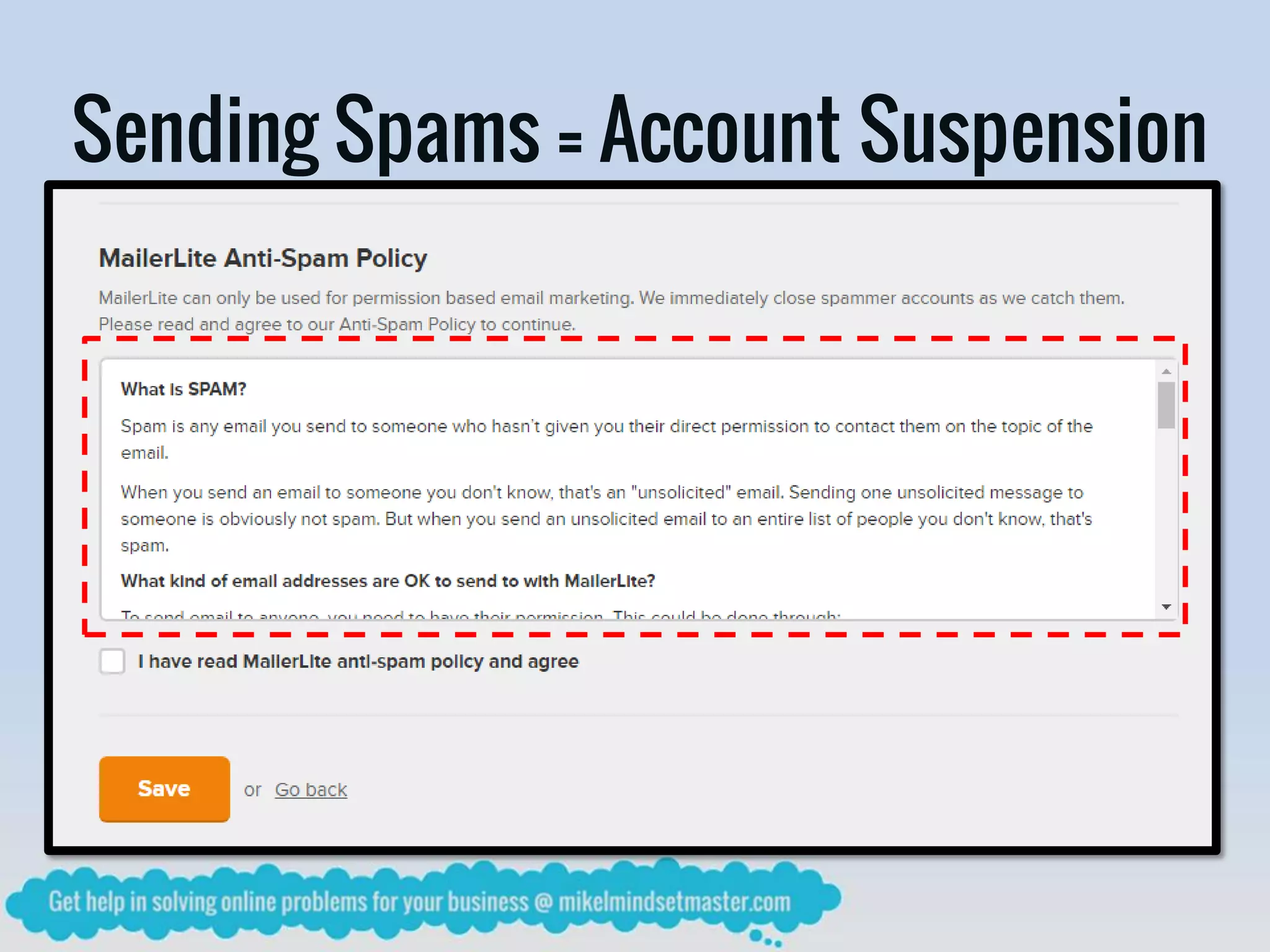
Sending Spams = Account Suspension
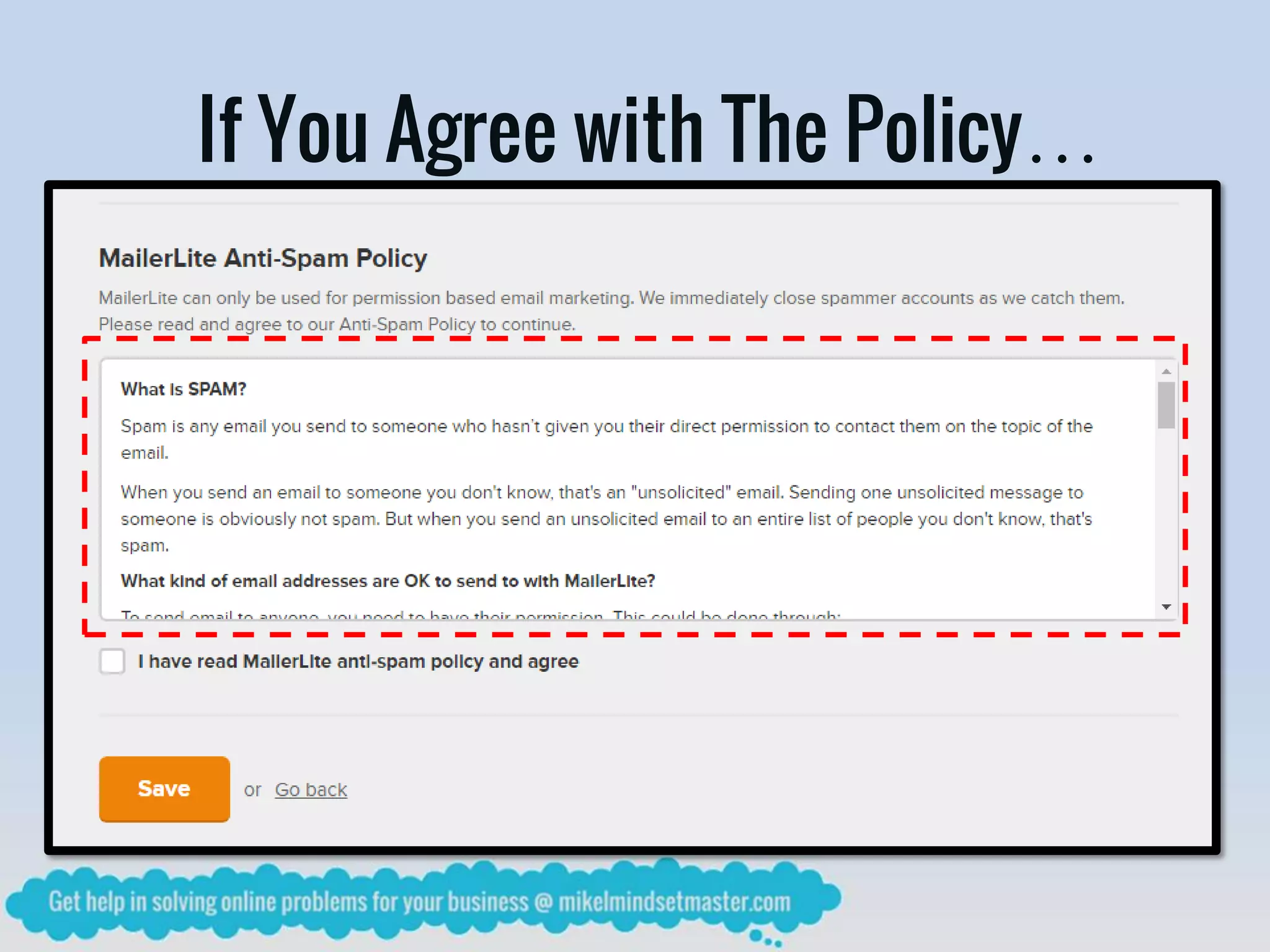
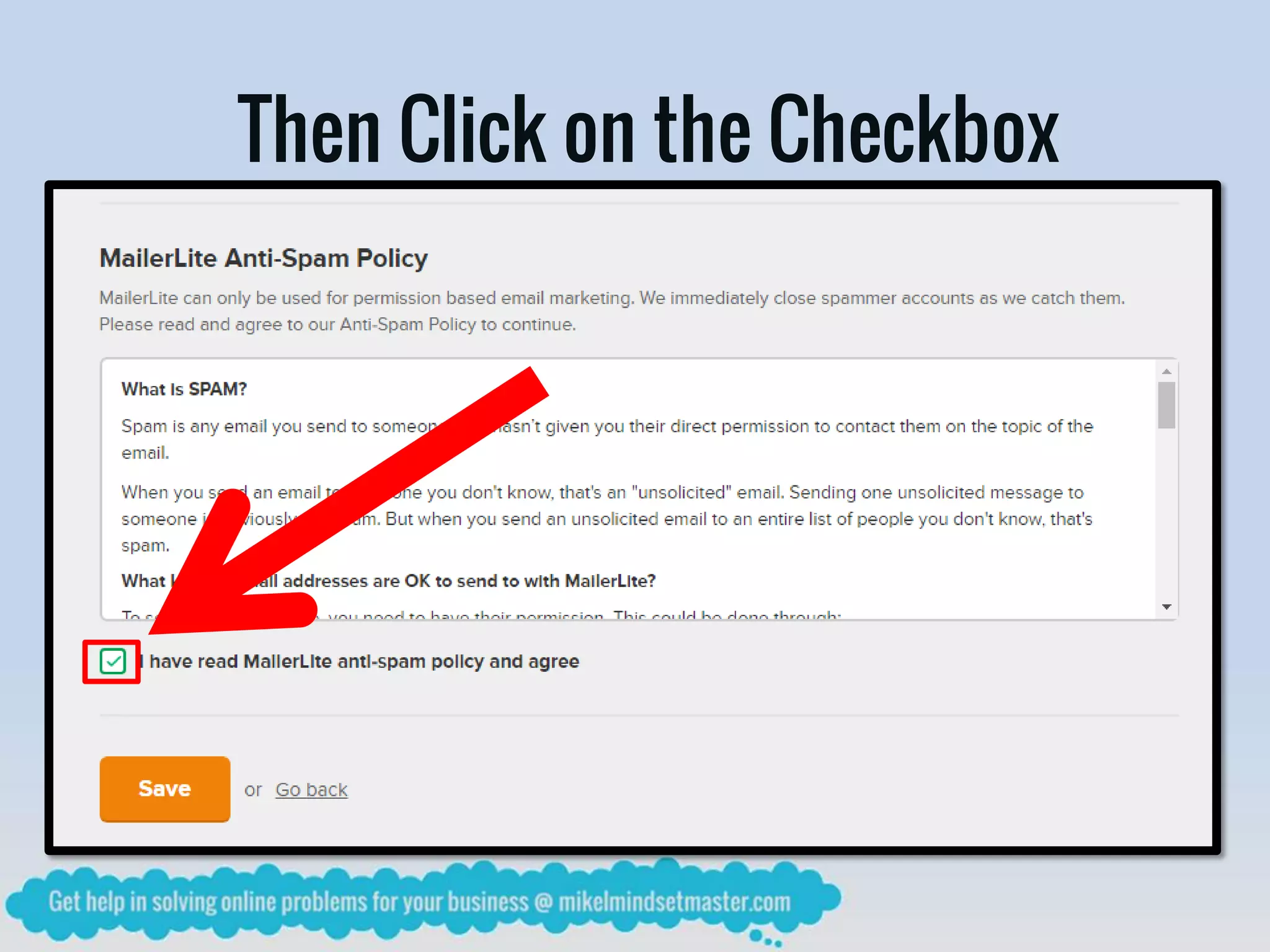
If You Agree with The Policy…
Then Click on the Checkbox
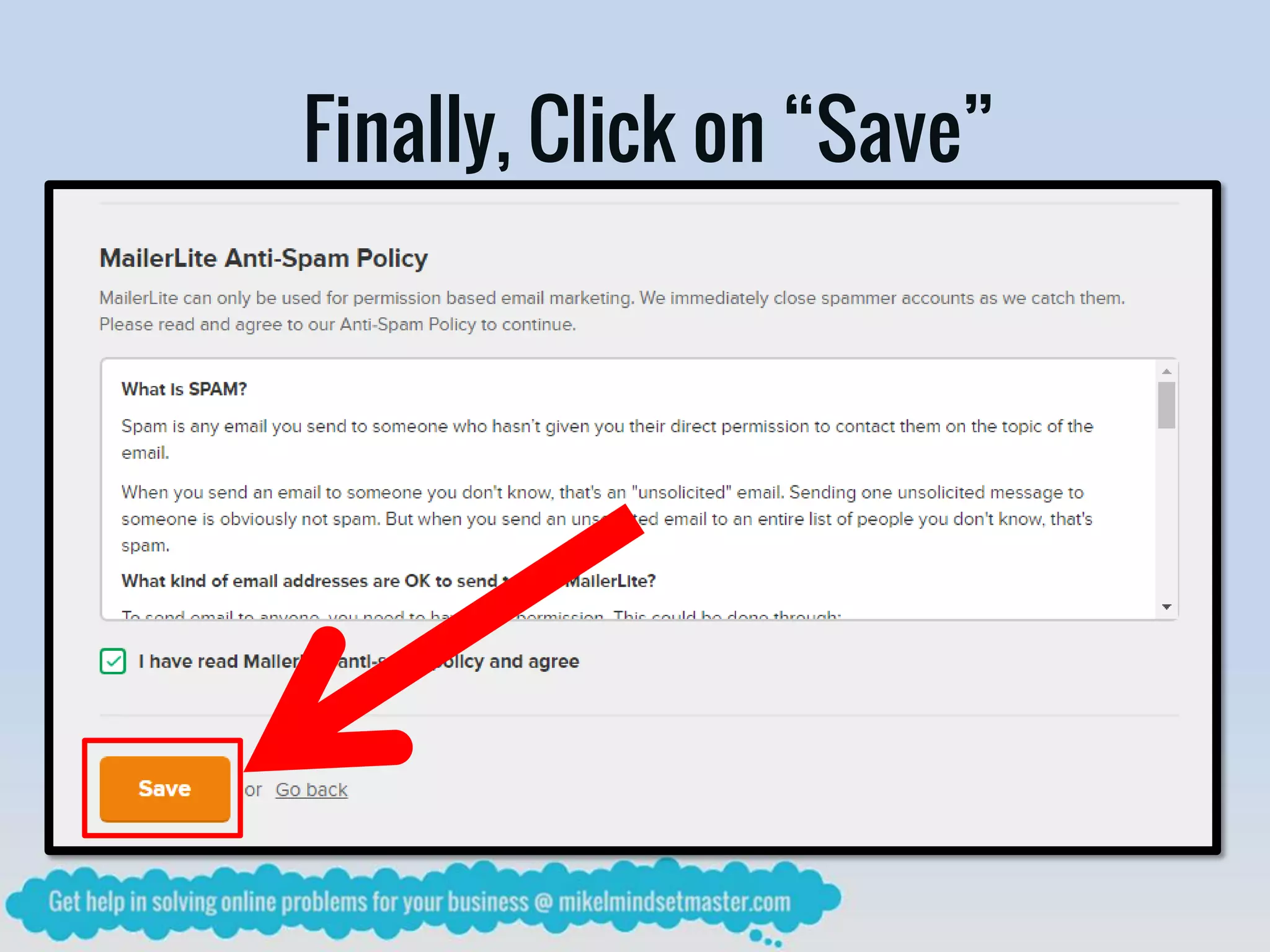
Finally, Click on “Save”
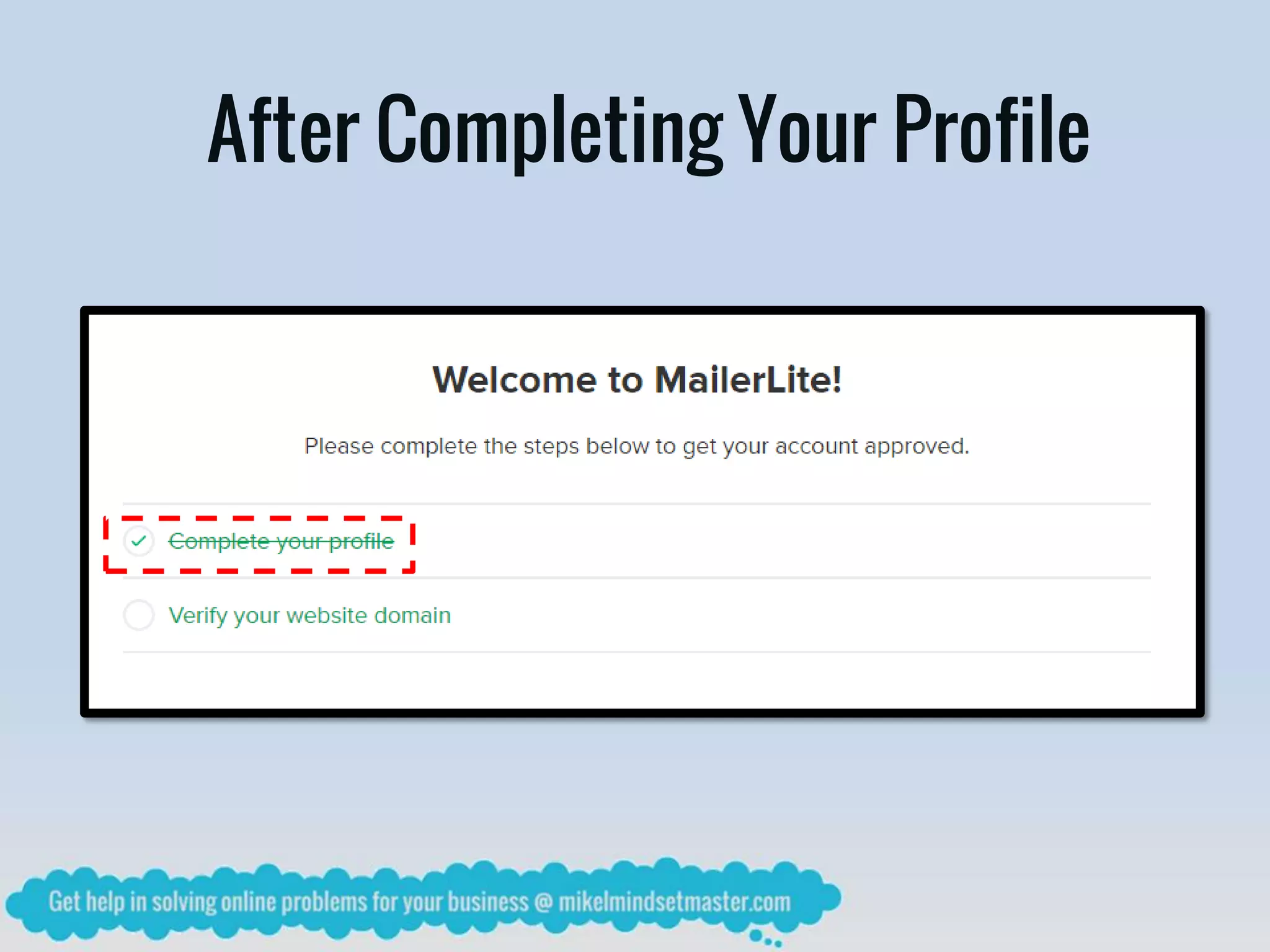
After Completing Your Profile
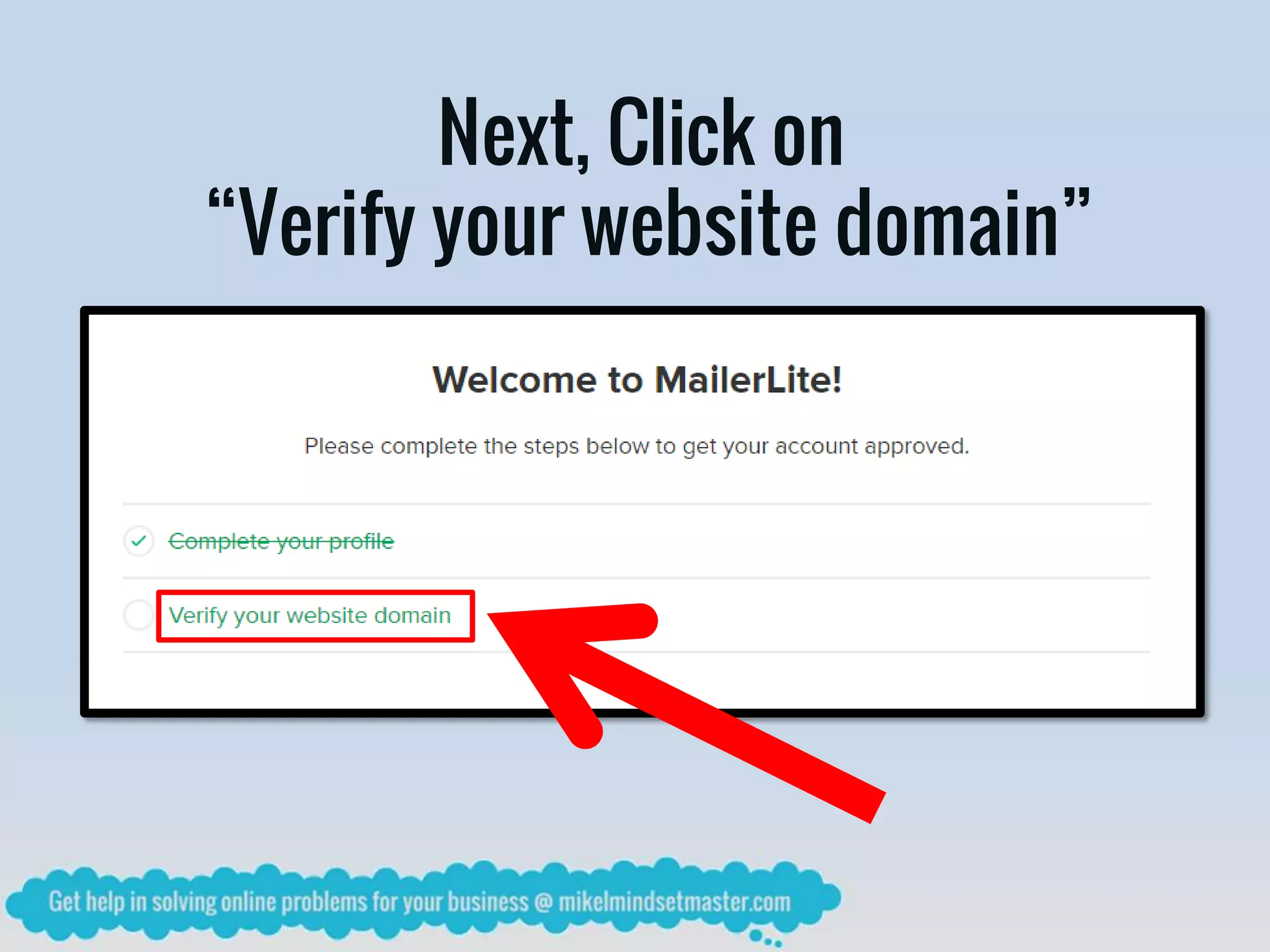
Next, Click on
“Verify your website domain”
You Should Owned a Domain Name
Required for Approval of Your Account
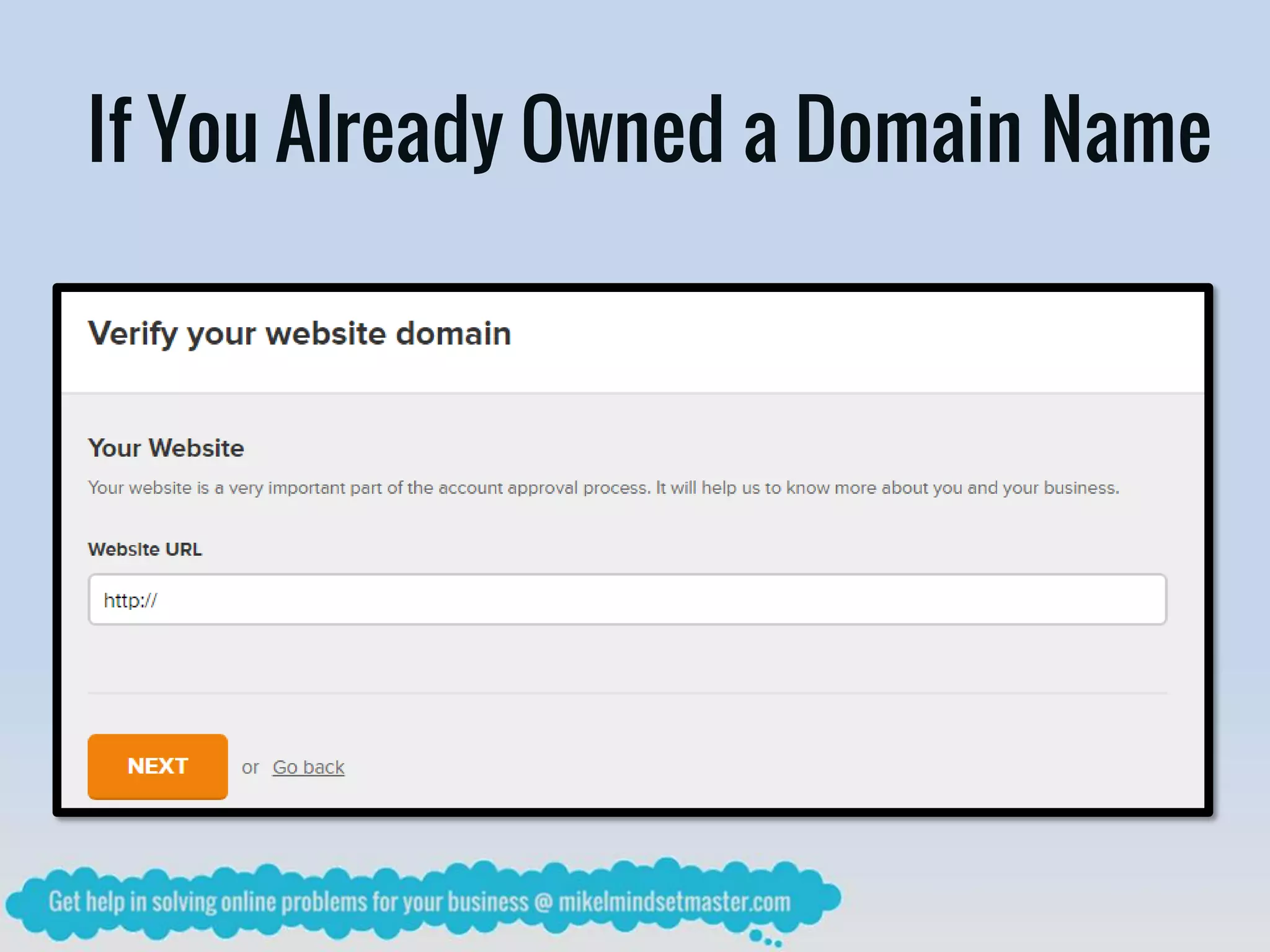
If You Already Owned a Domain Name
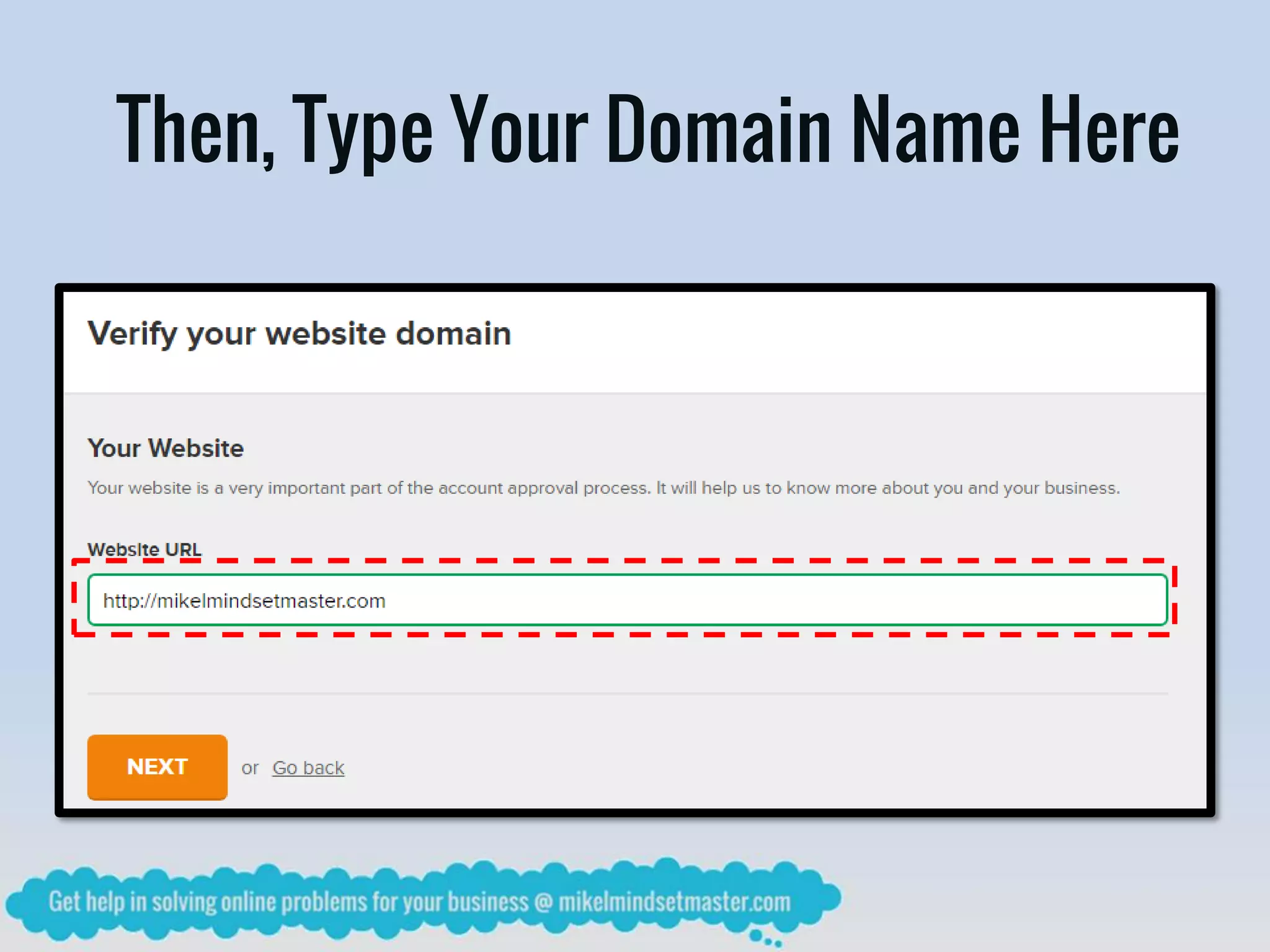
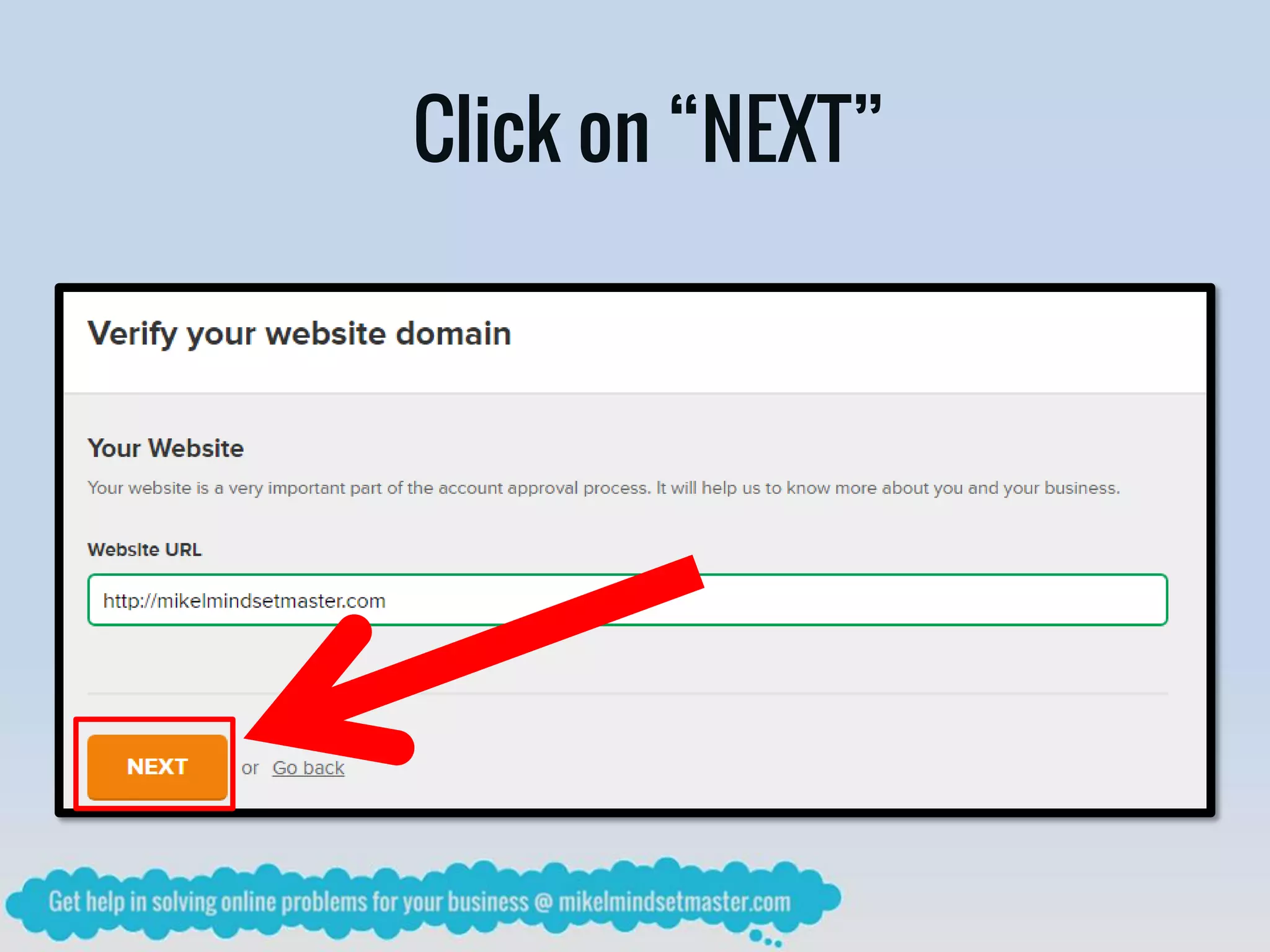
Then, Type Your Domain Name Here
Click on “NEXT”
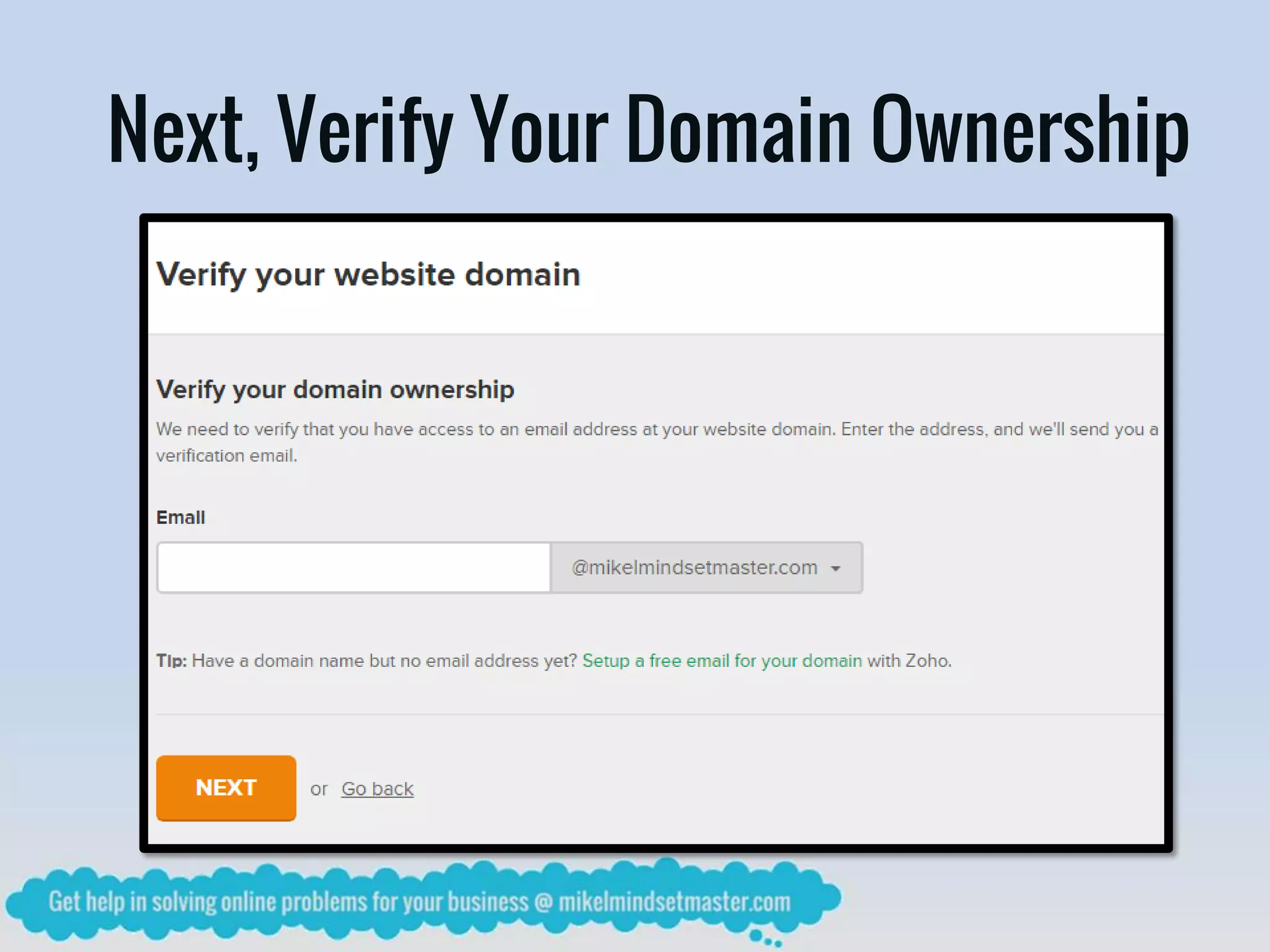
Next, Verify Your Domain Ownership
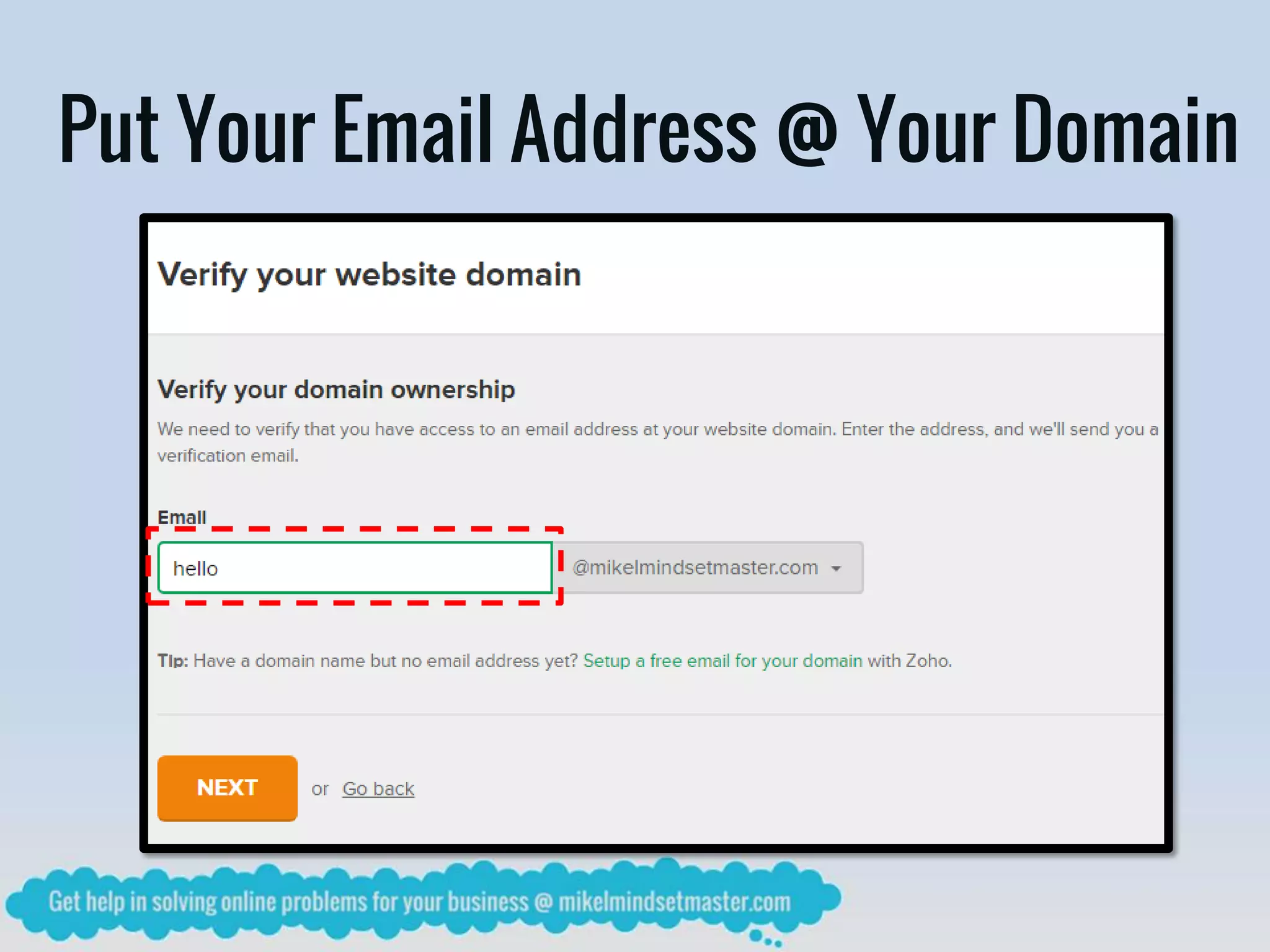
Put Your Email Address @ Your Domain
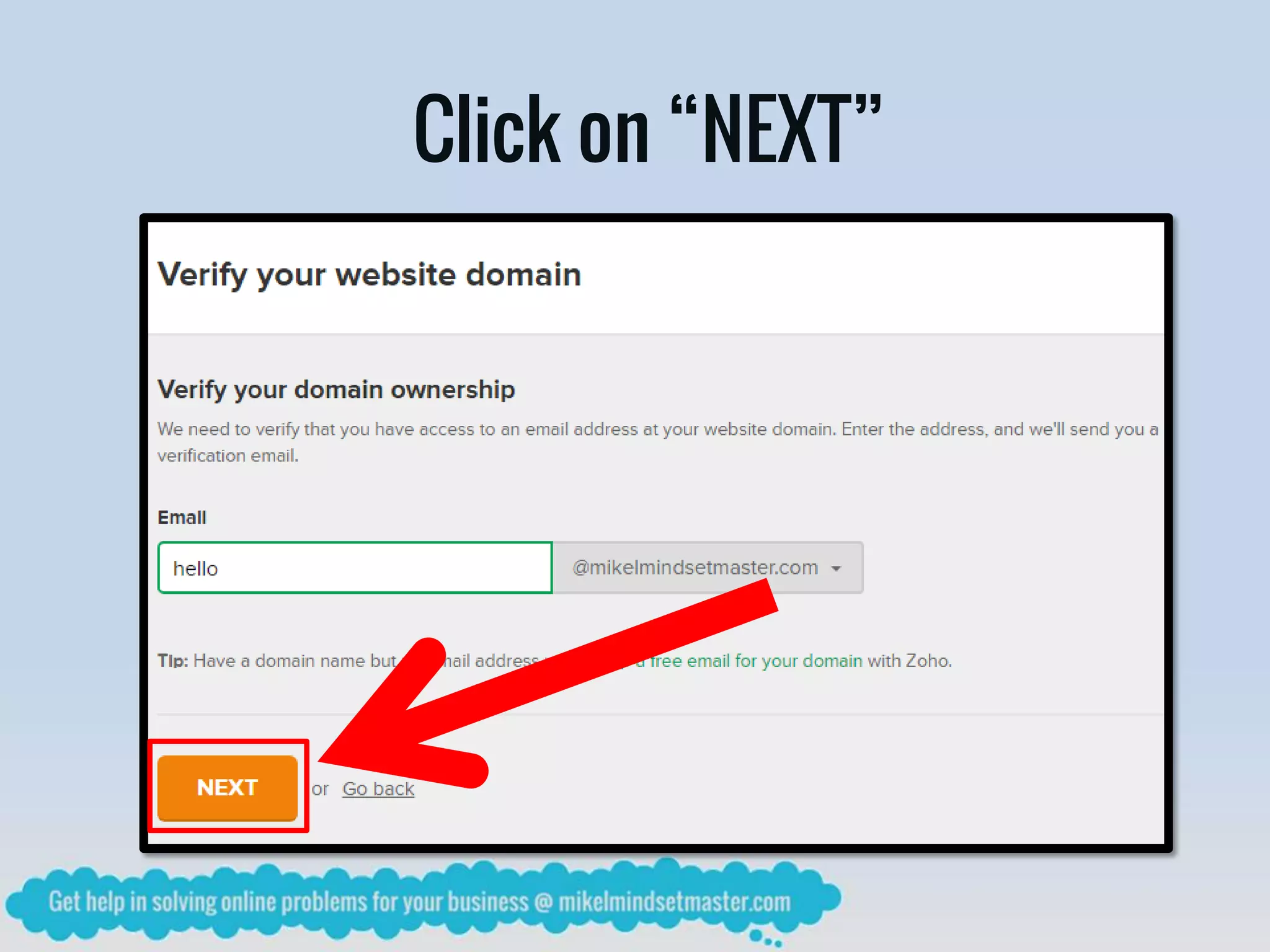
Click on “NEXT”
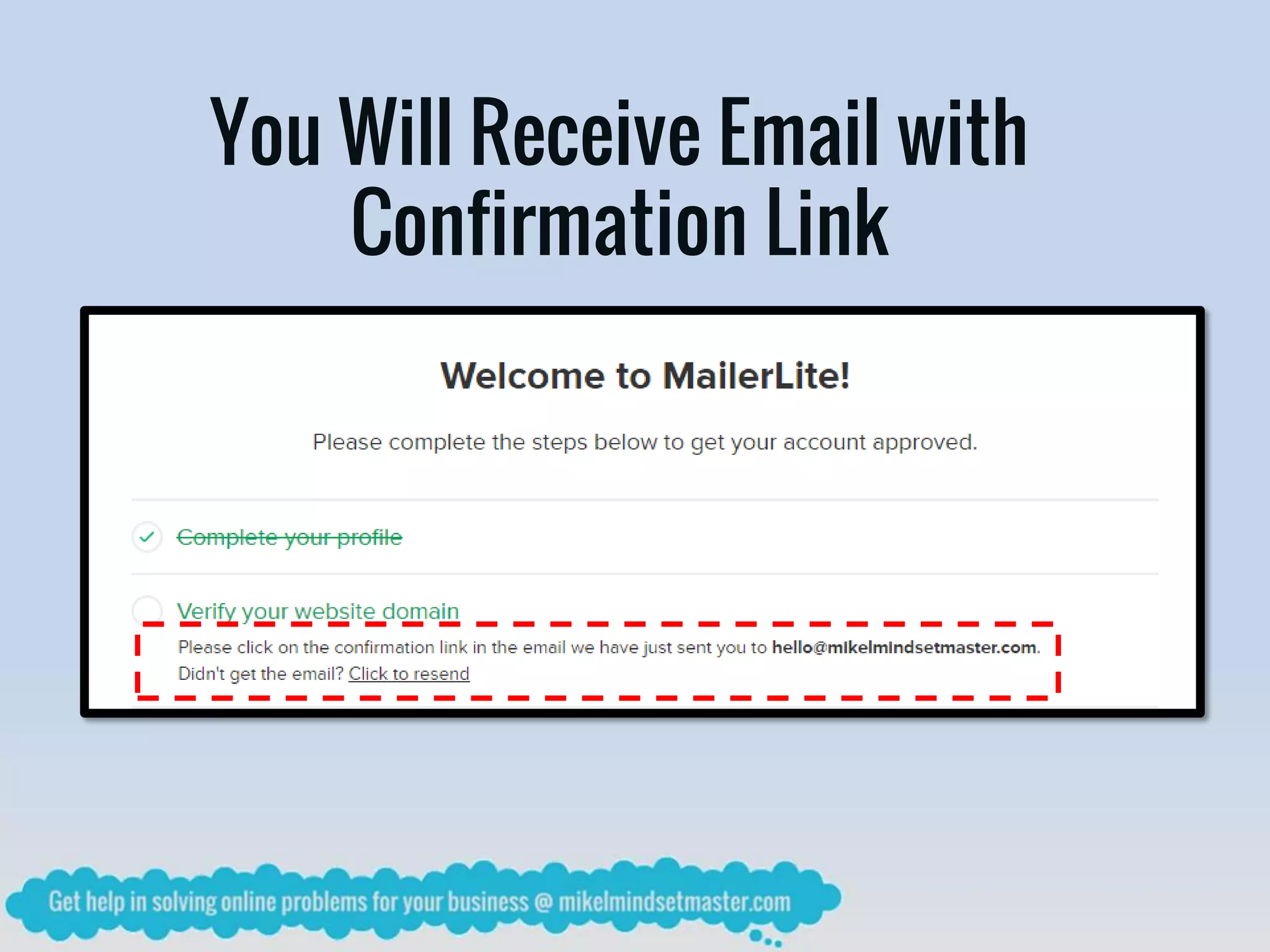
You Will Receive Email with
Confirmation Link
Check Your Email
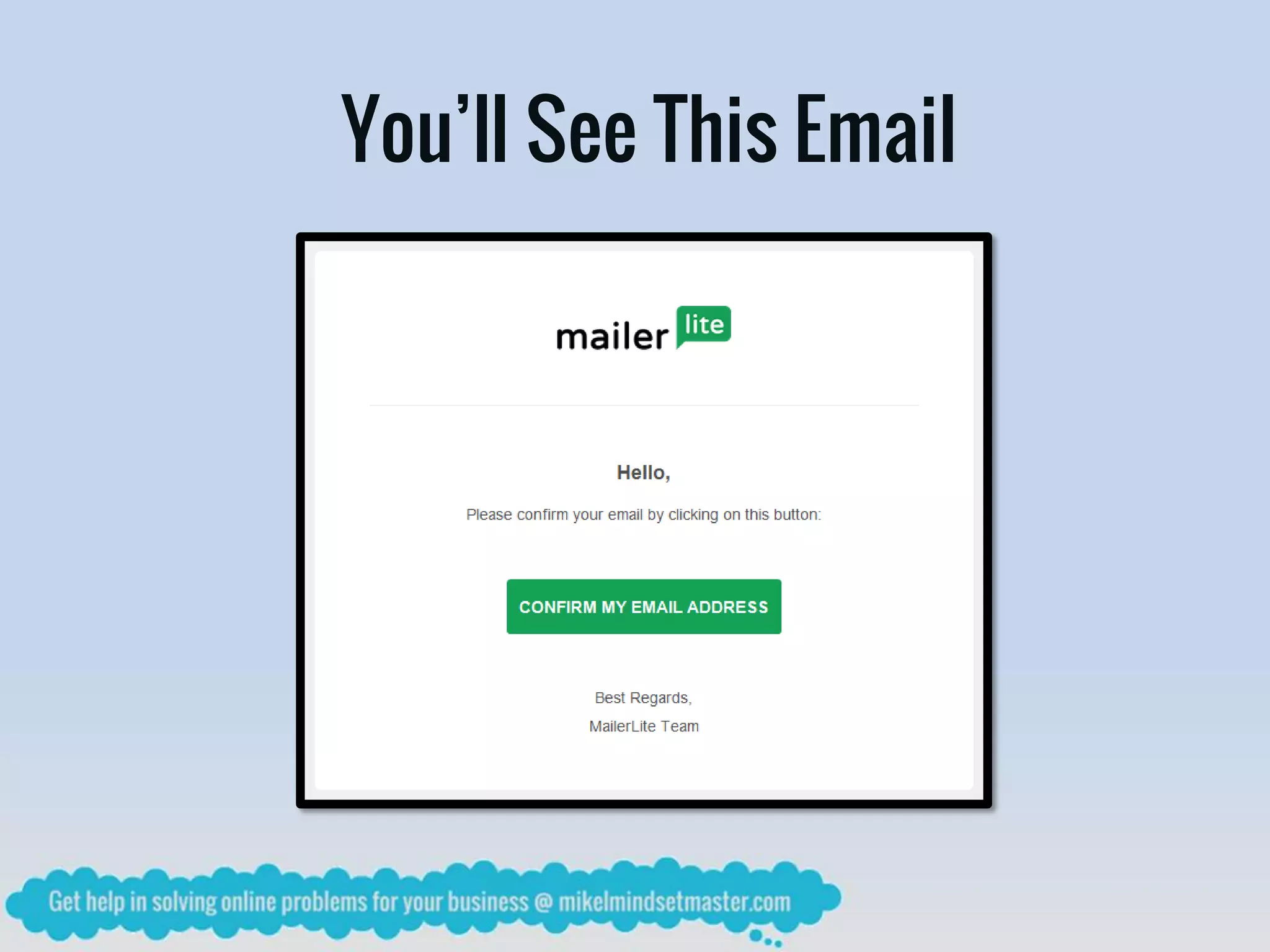
You’ll See This Email
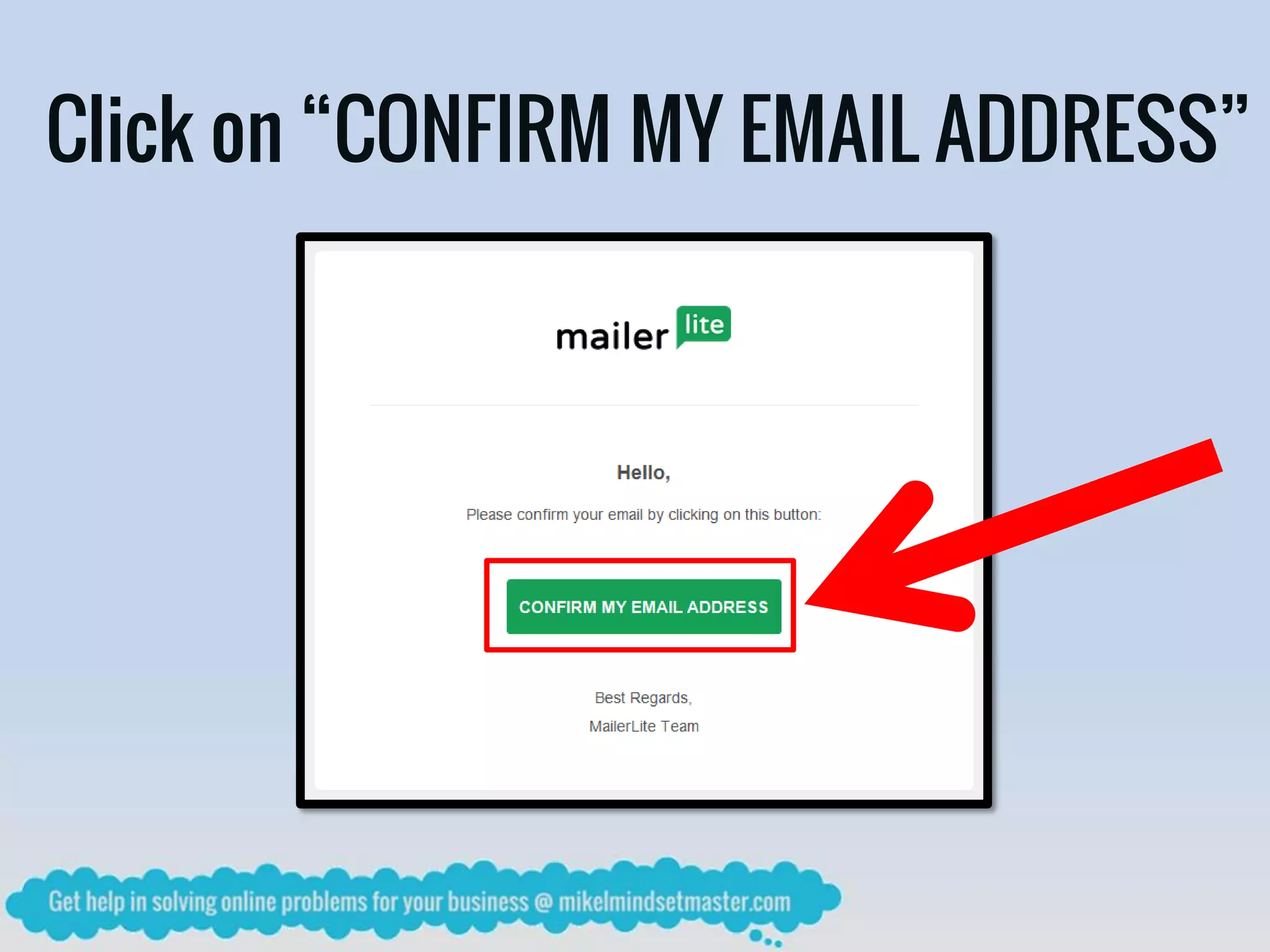
Click on “CONFIRM MY EMAIL ADDRESS”
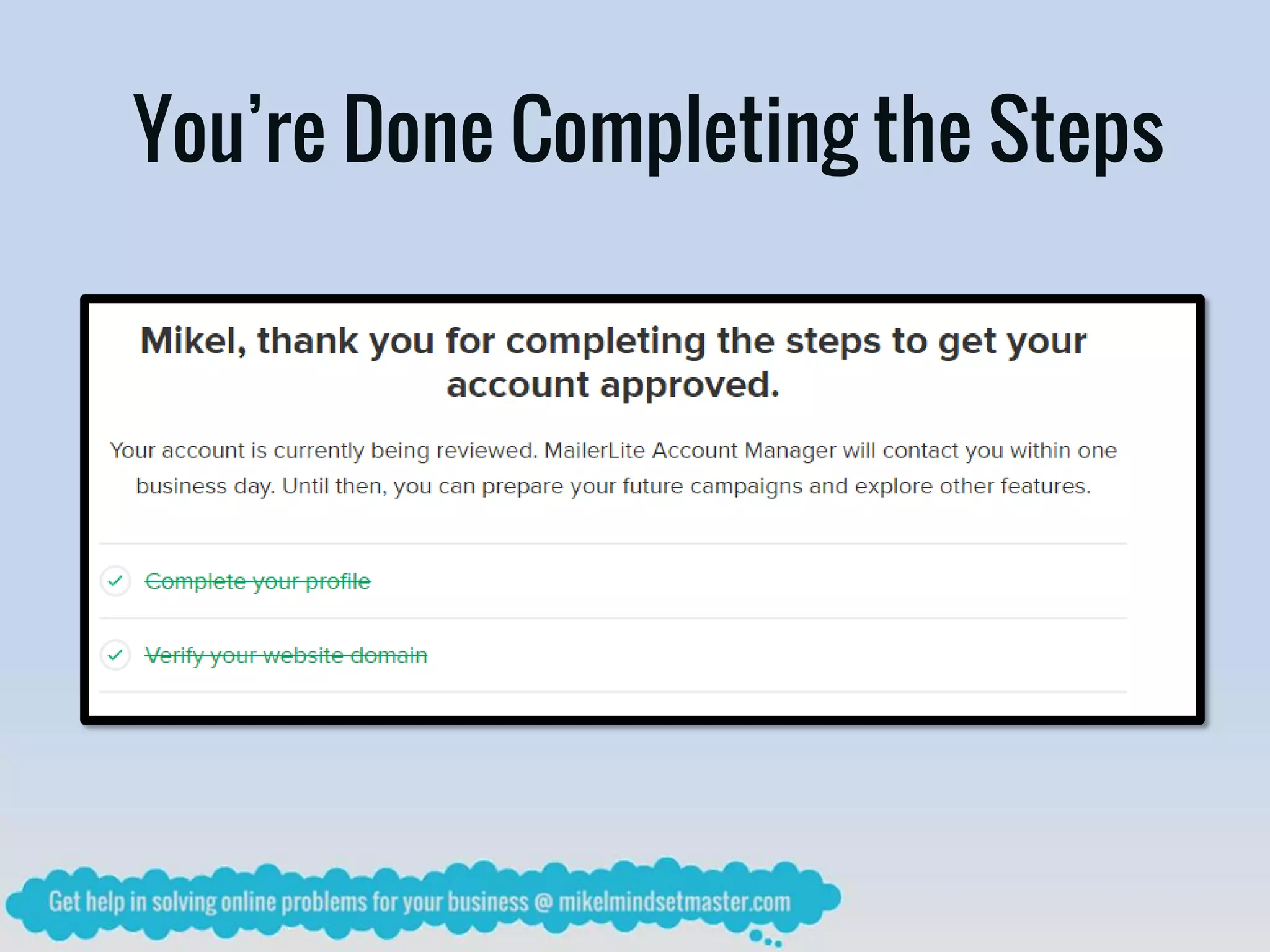
You’re Done Completing the Steps
Wait for about 2 to 24 Hours
For the Approval of Your Account
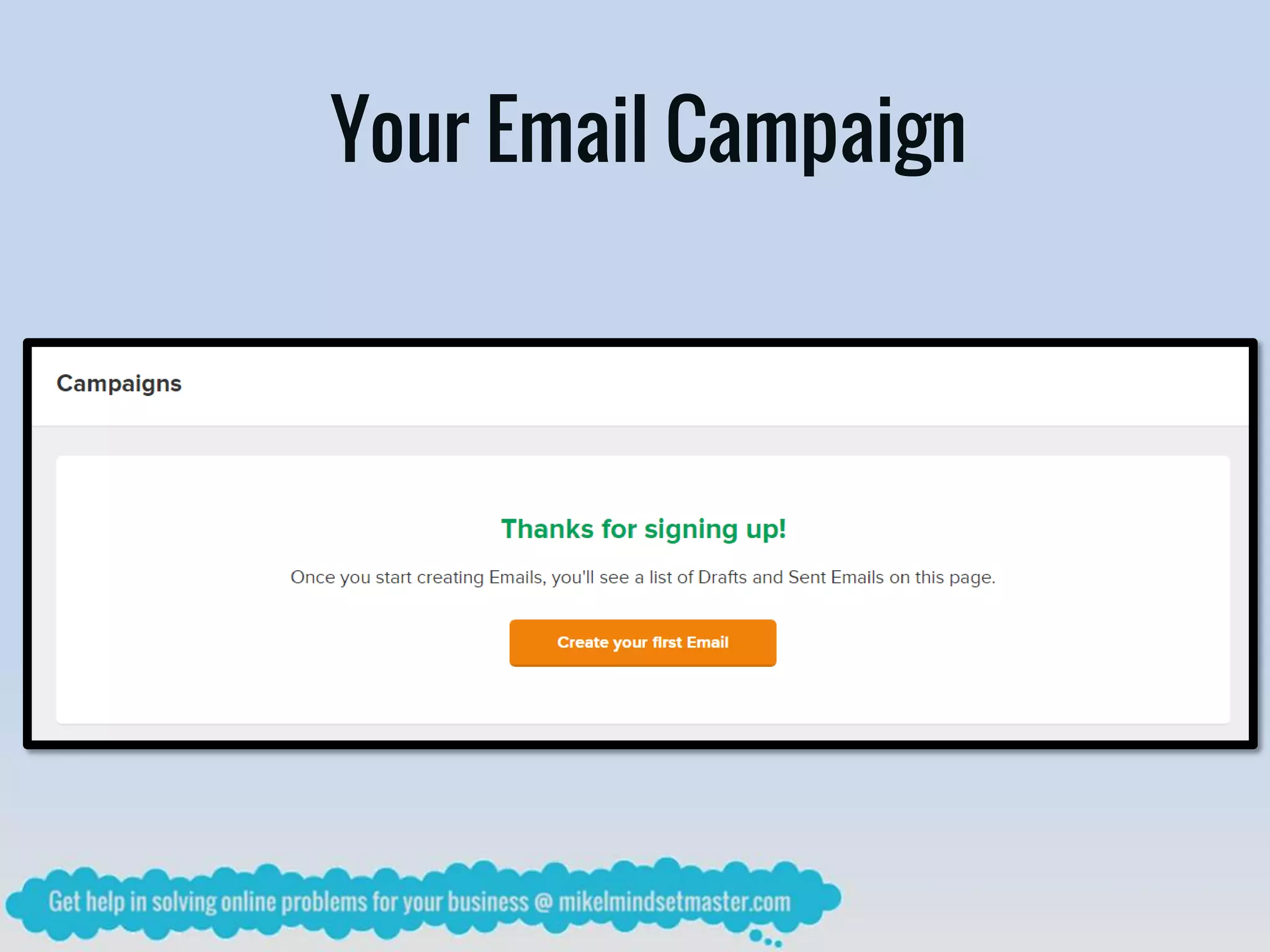
While Waiting, You Can Now Start
Your Email Campaign
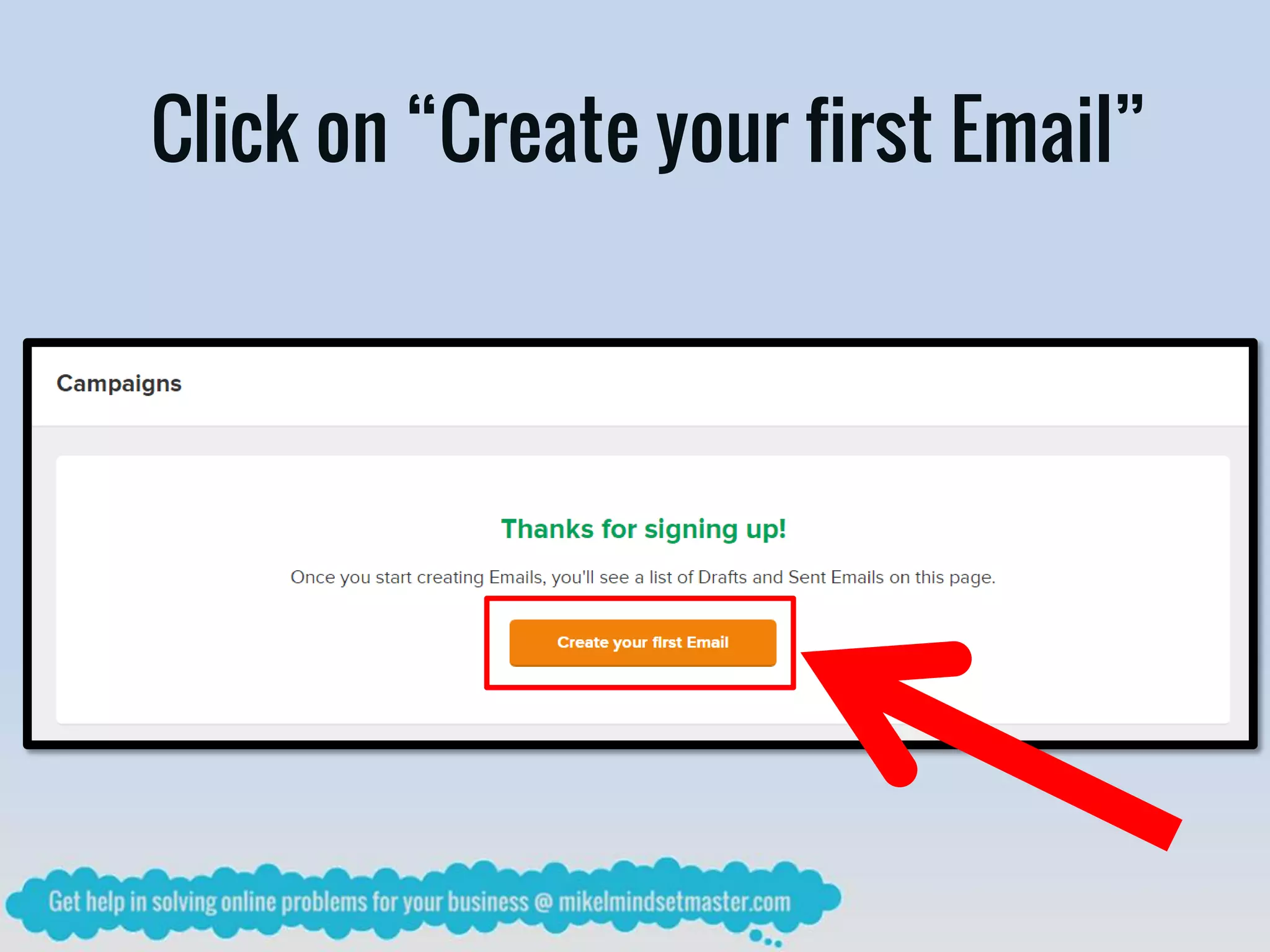
Click on “Create your first Email”
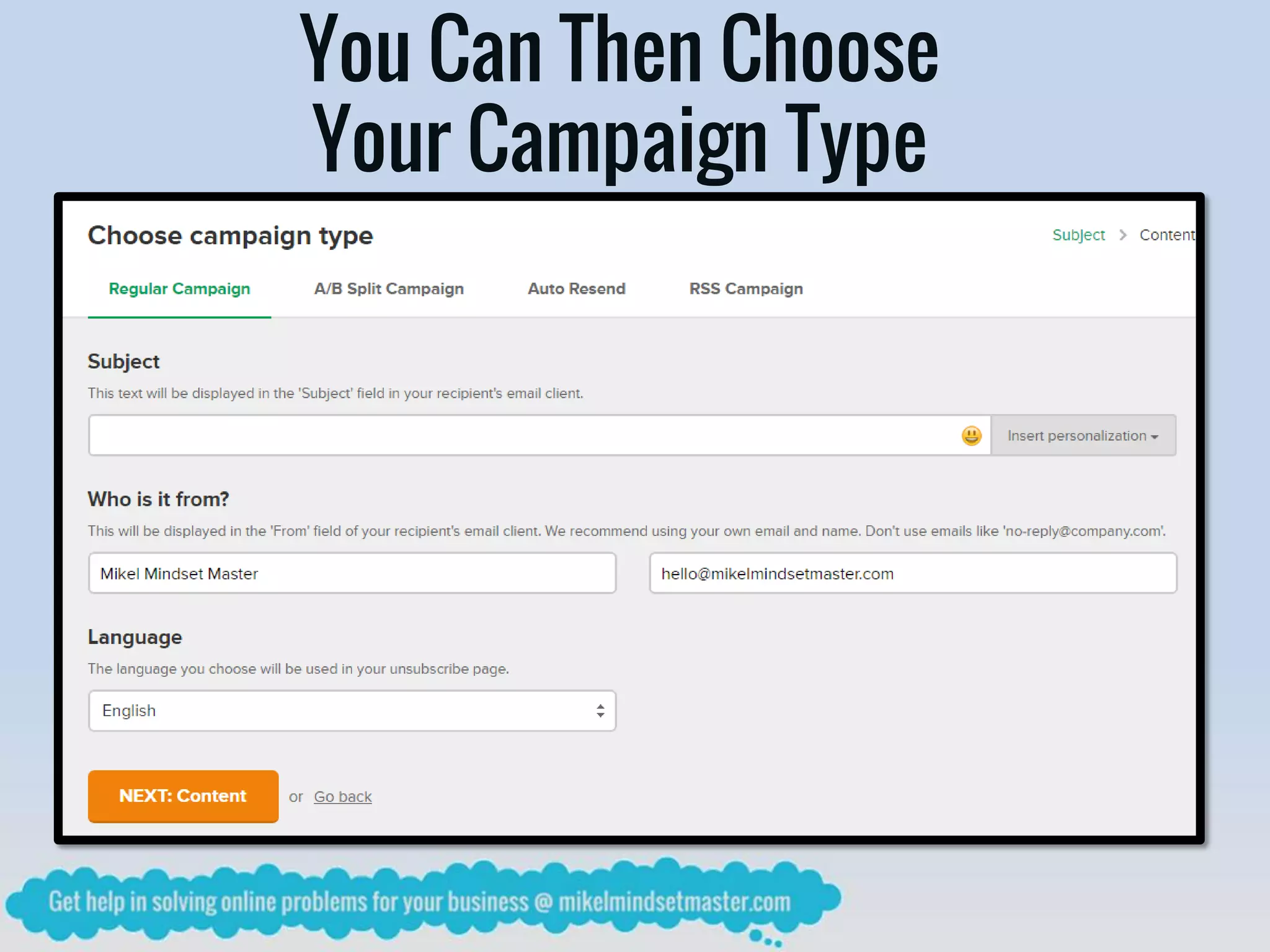
You Can Then Choose
Your Campaign Type
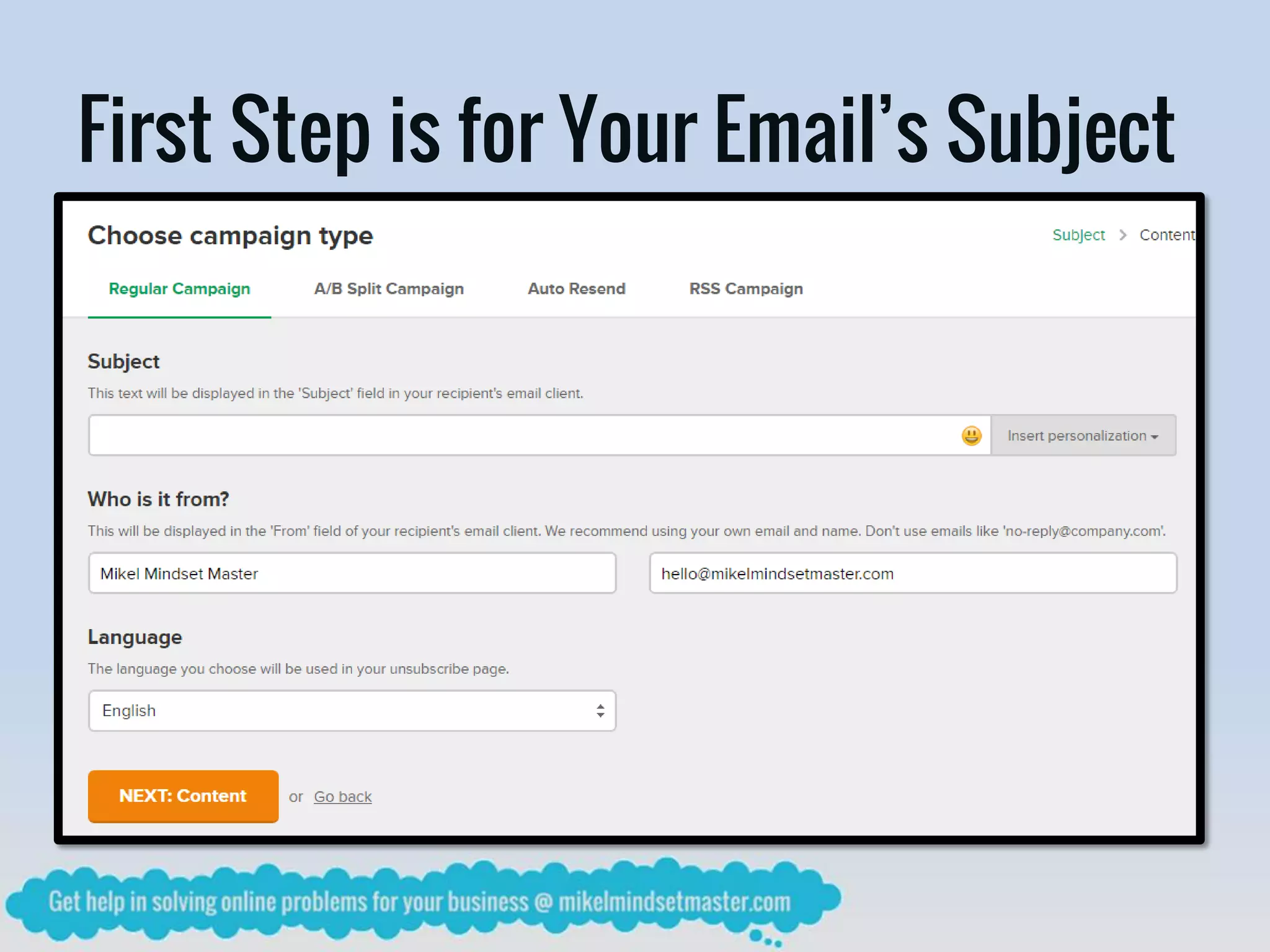
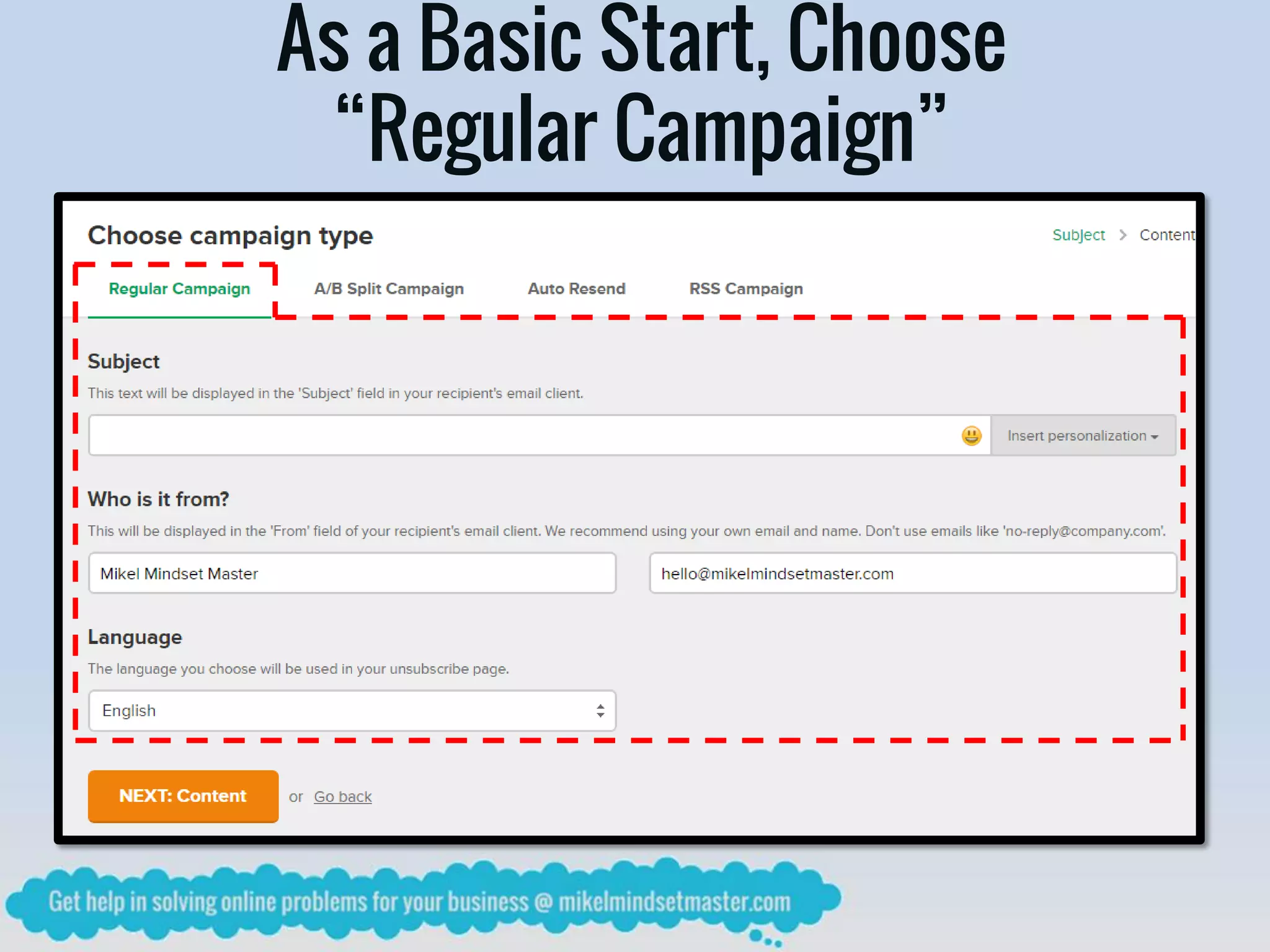
First Step is for Your Email’s Subject
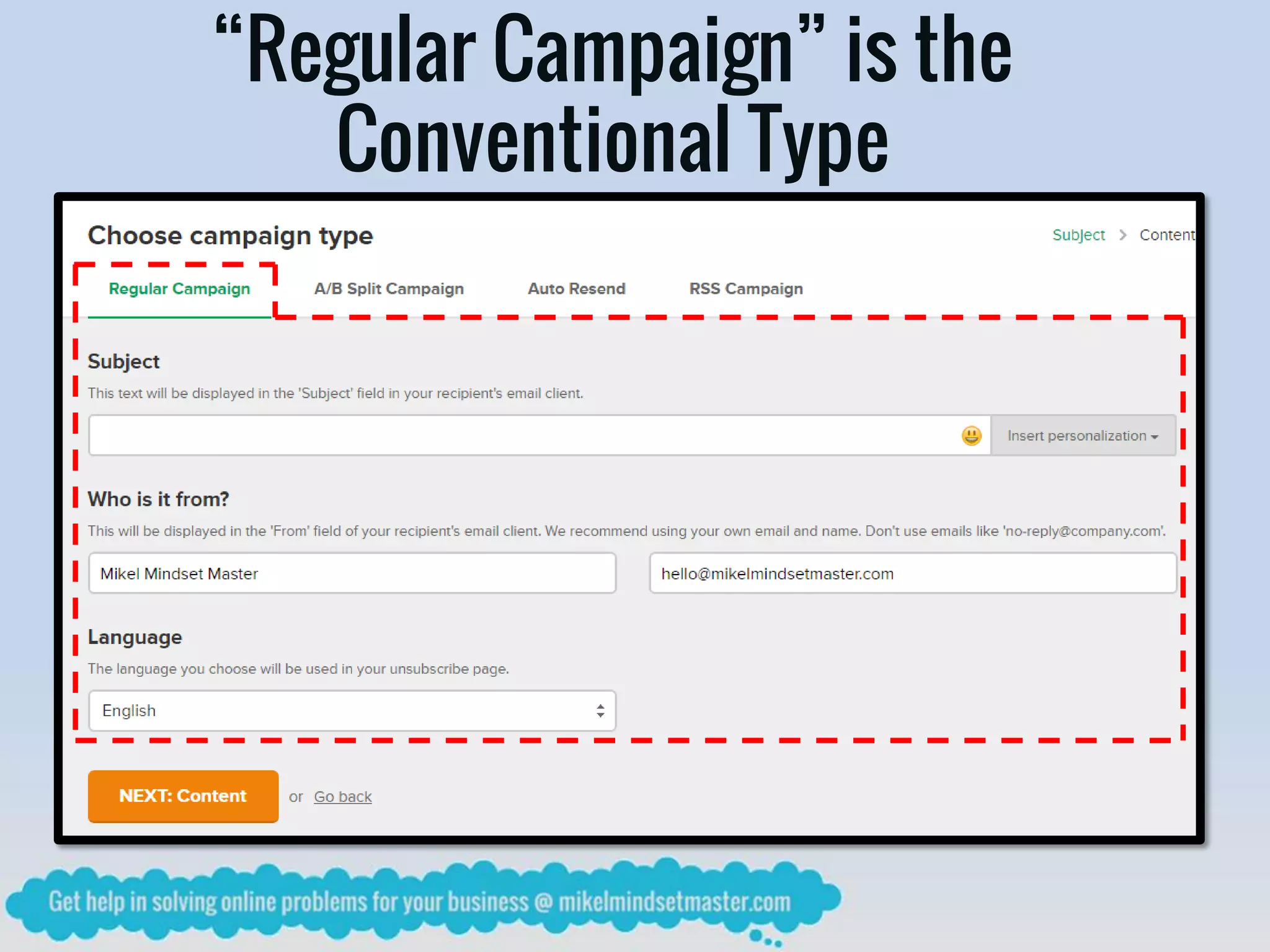
“Regular Campaign” is the
Conventional Type
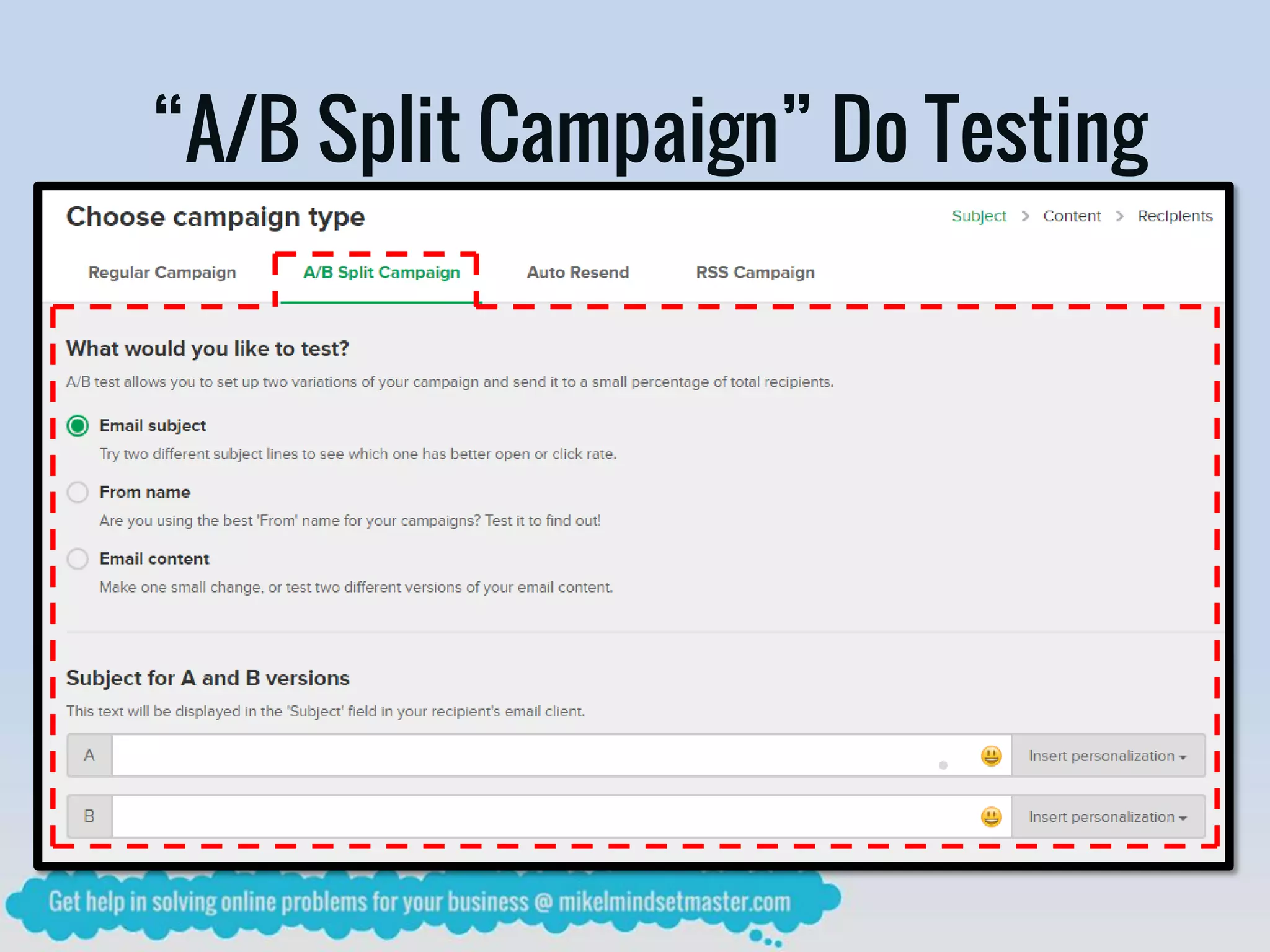
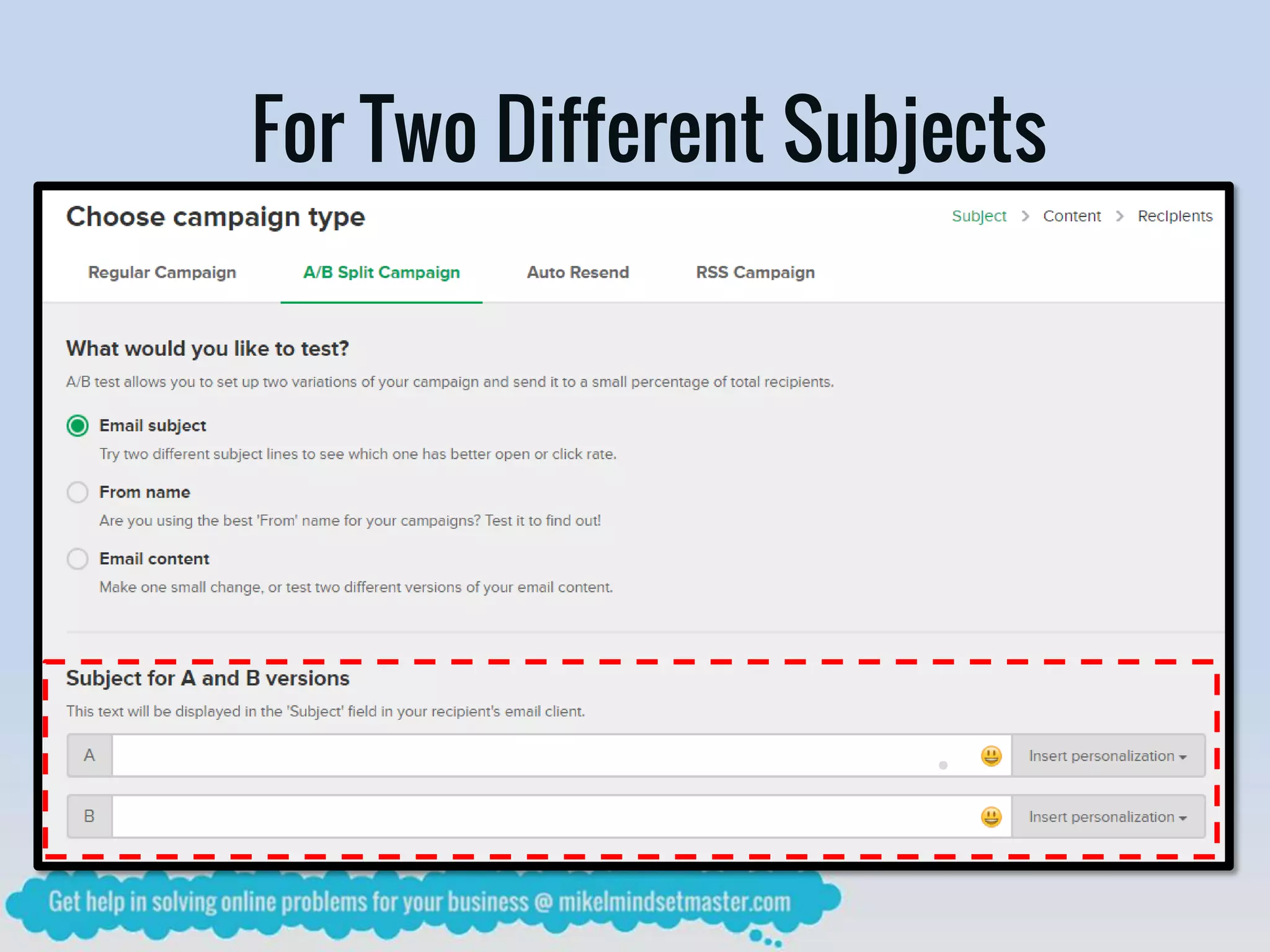
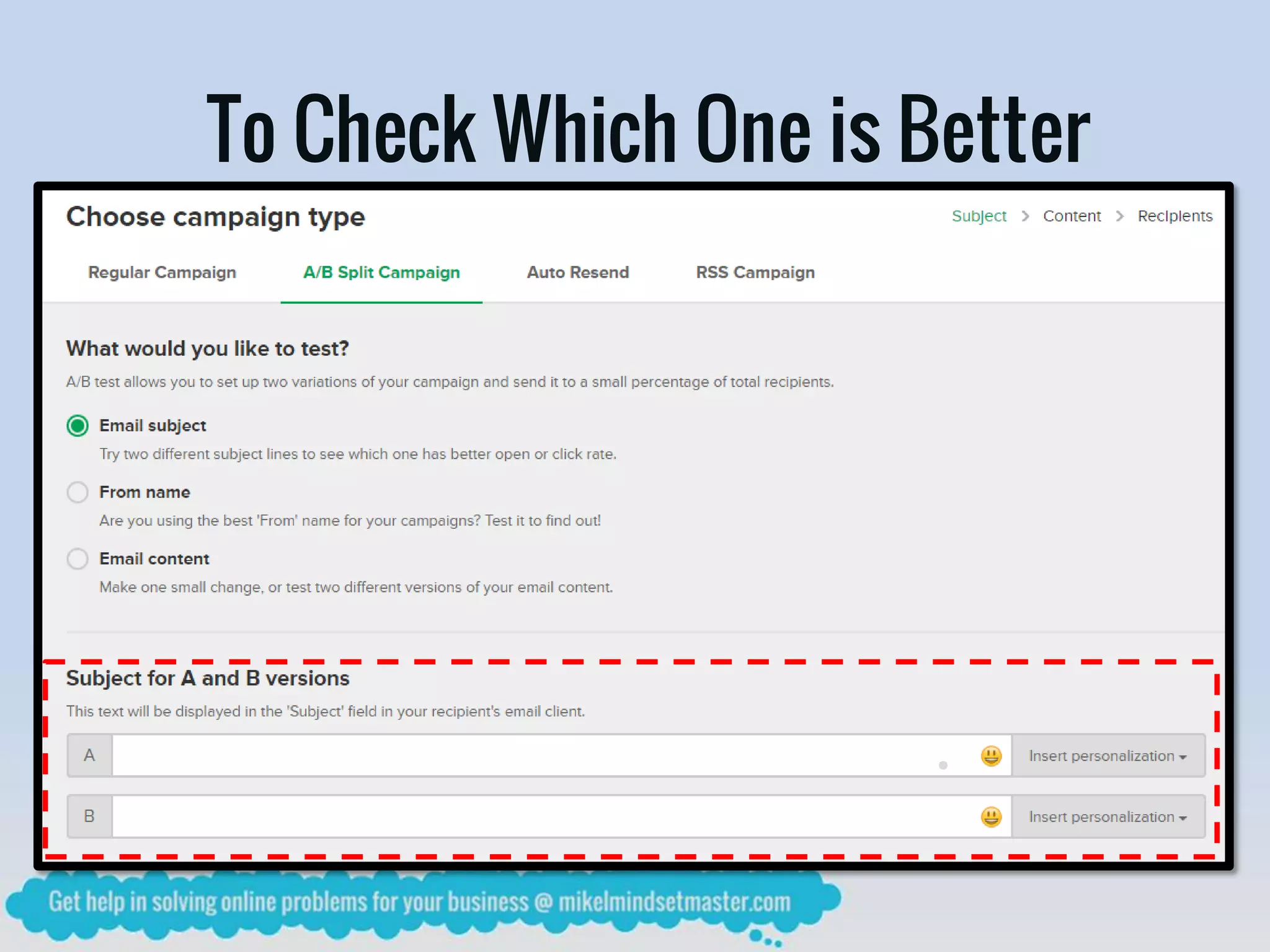
“A/B Split Campaign” Do Testing
For Two Different Subjects
To Check Which One is Better
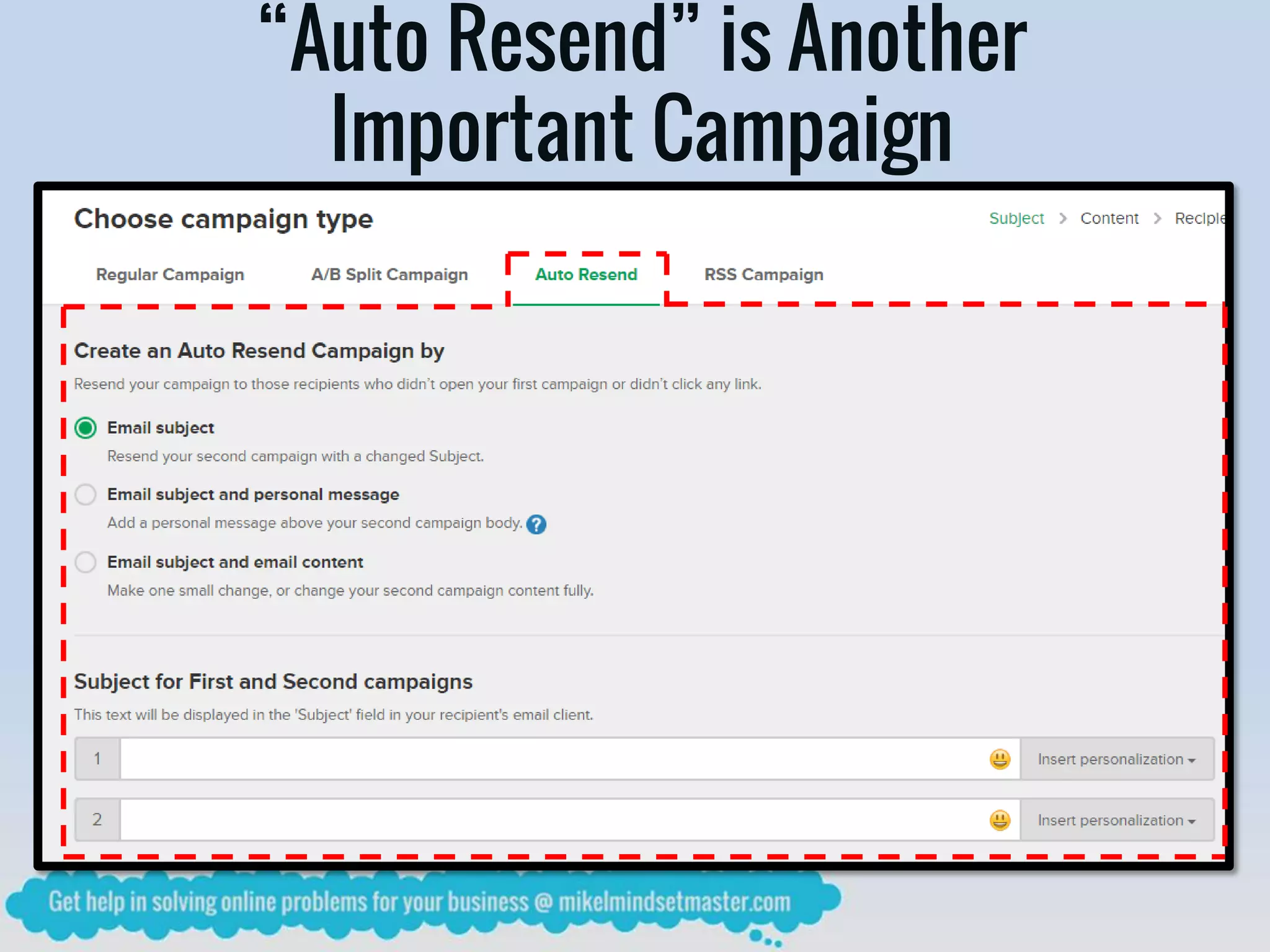
“Auto Resend” is Another
Important Campaign
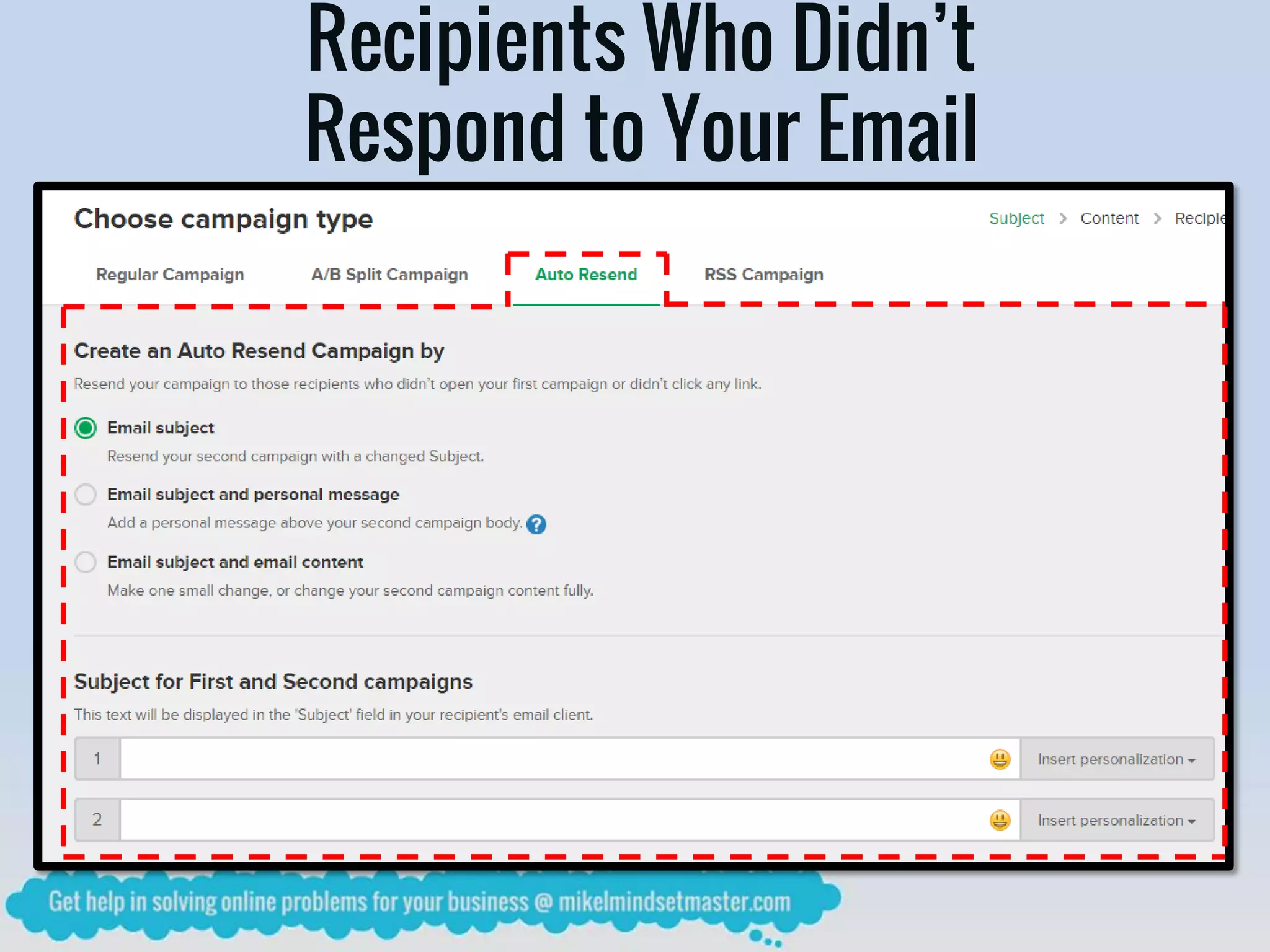
Recipients Who Didn’t
Respond to Your Email
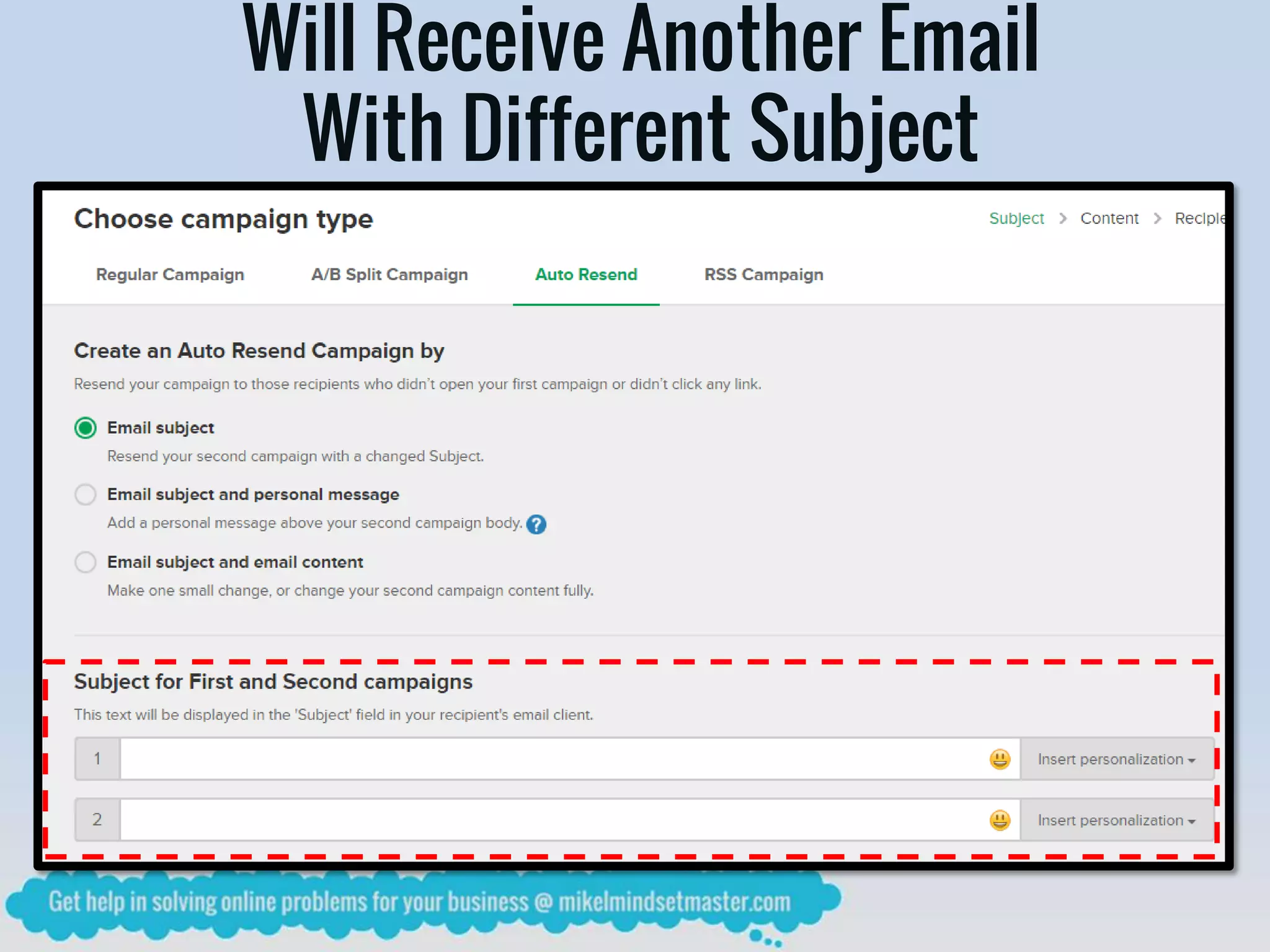
Will Receive Another Email
With Different Subject
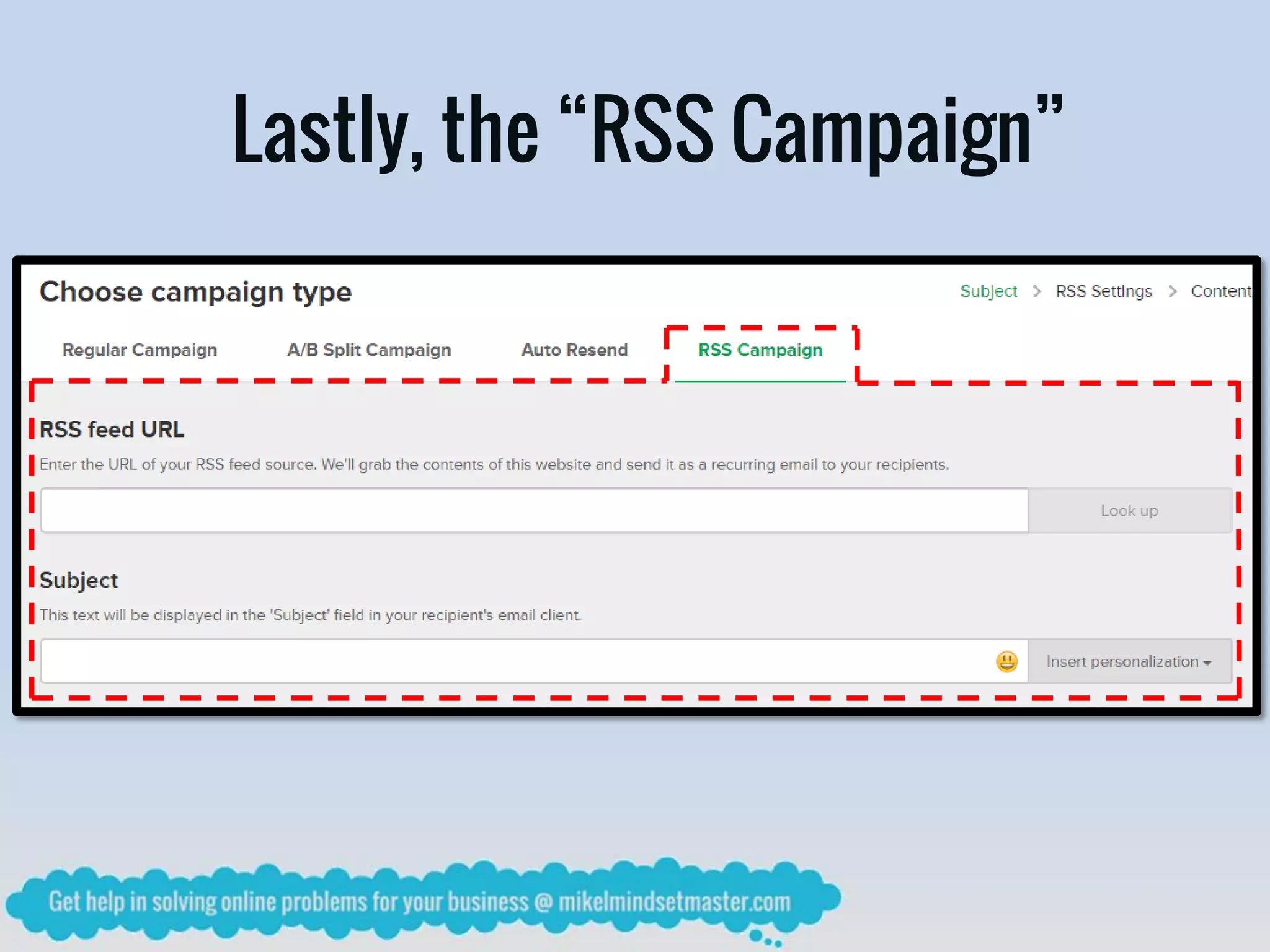
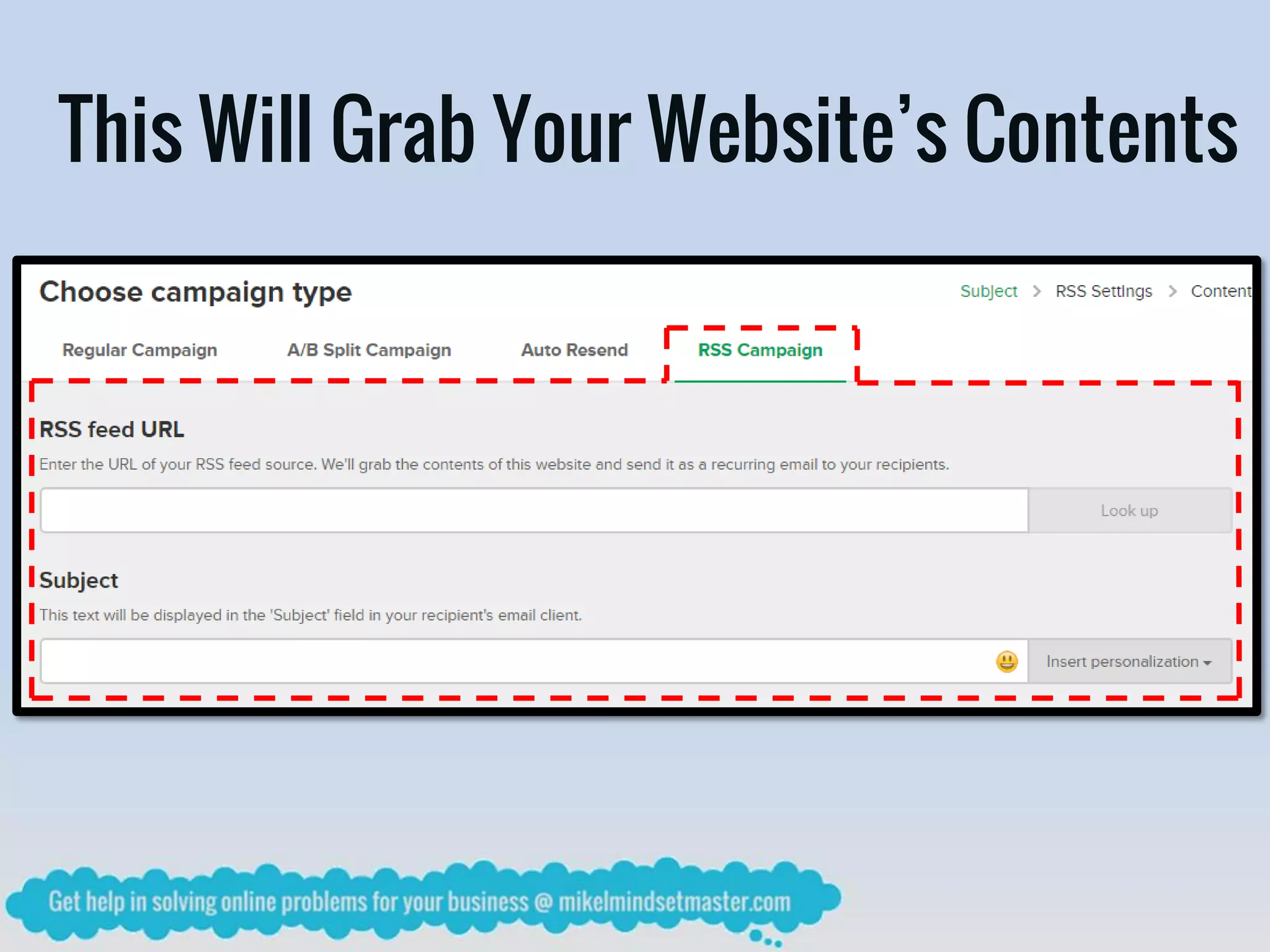
Lastly, the “RSS Campaign”
This Will Grab Your Website’s Contents
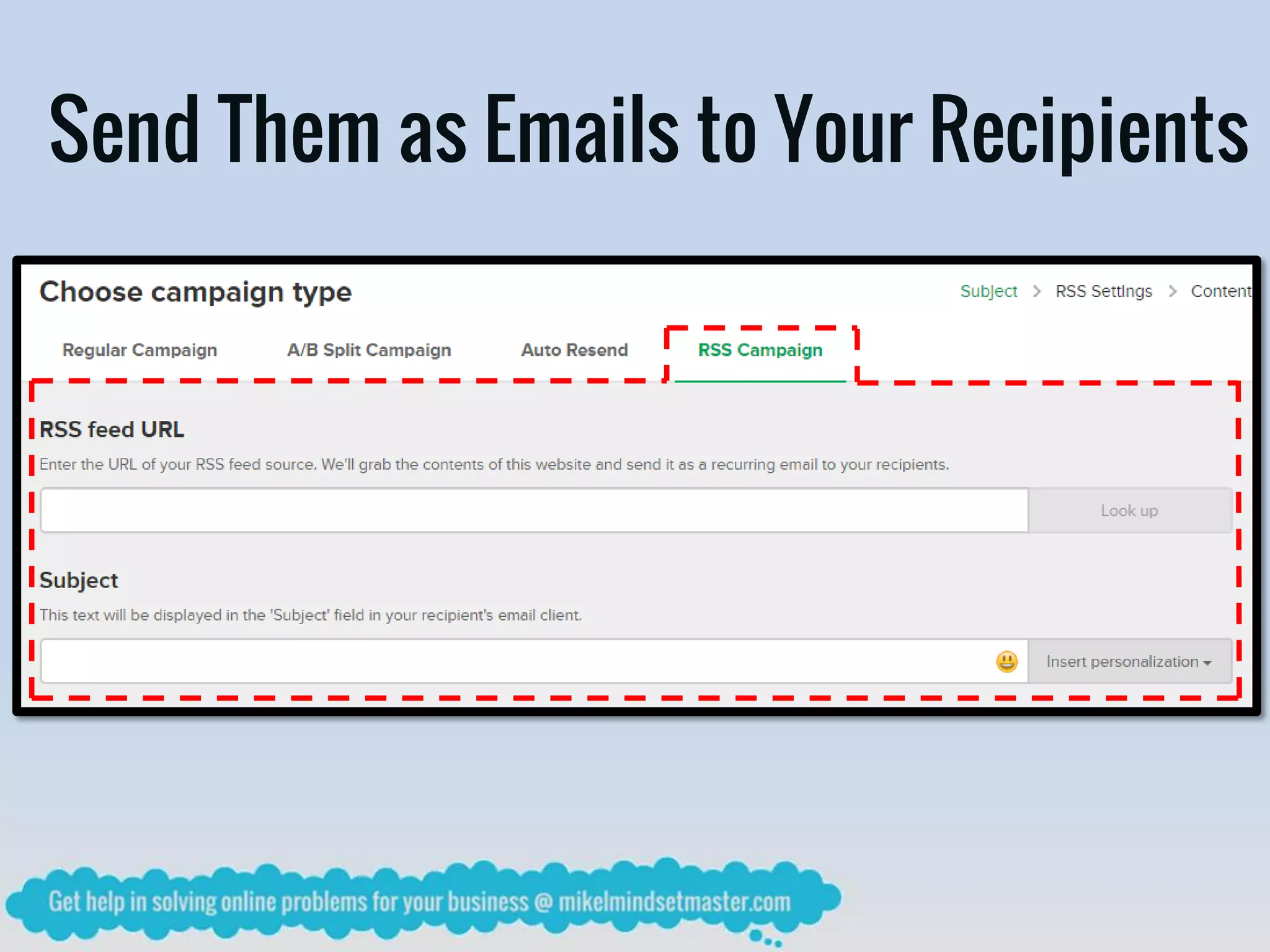
Send Them as Emails to Your Recipients
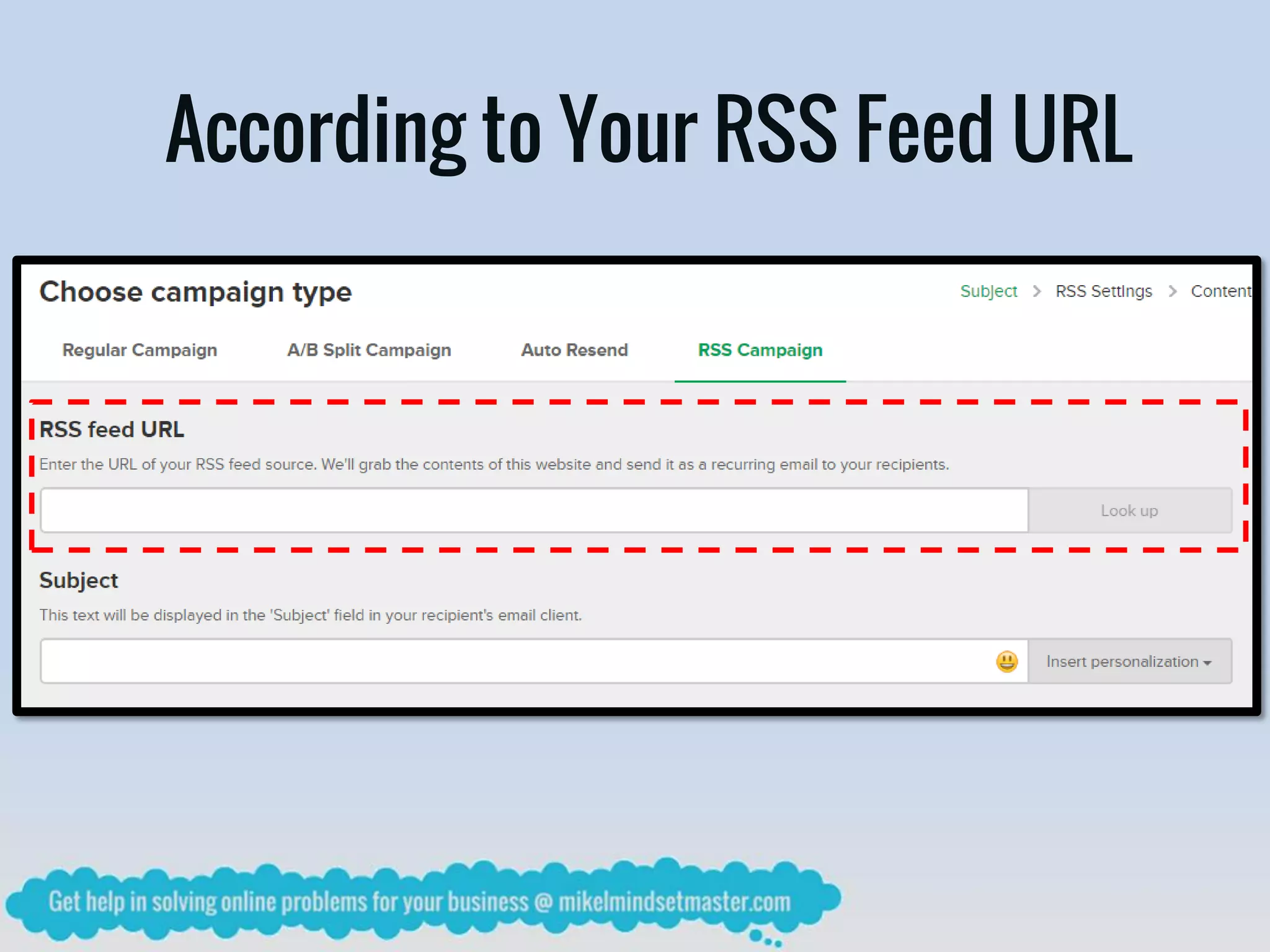
According to Your RSS Feed URL
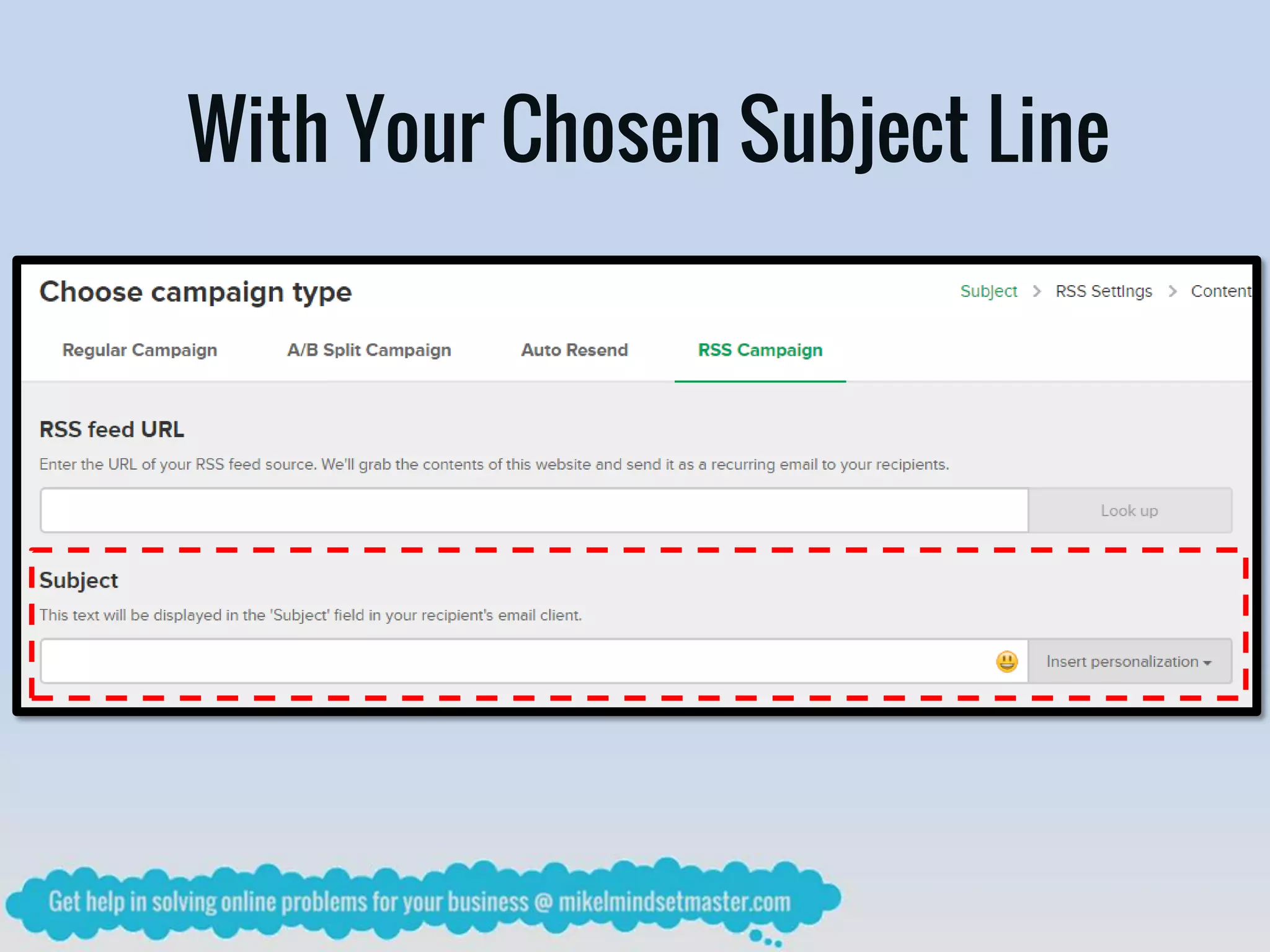
With Your Chosen Subject Line
As a Basic Start, Choose
“Regular Campaign”
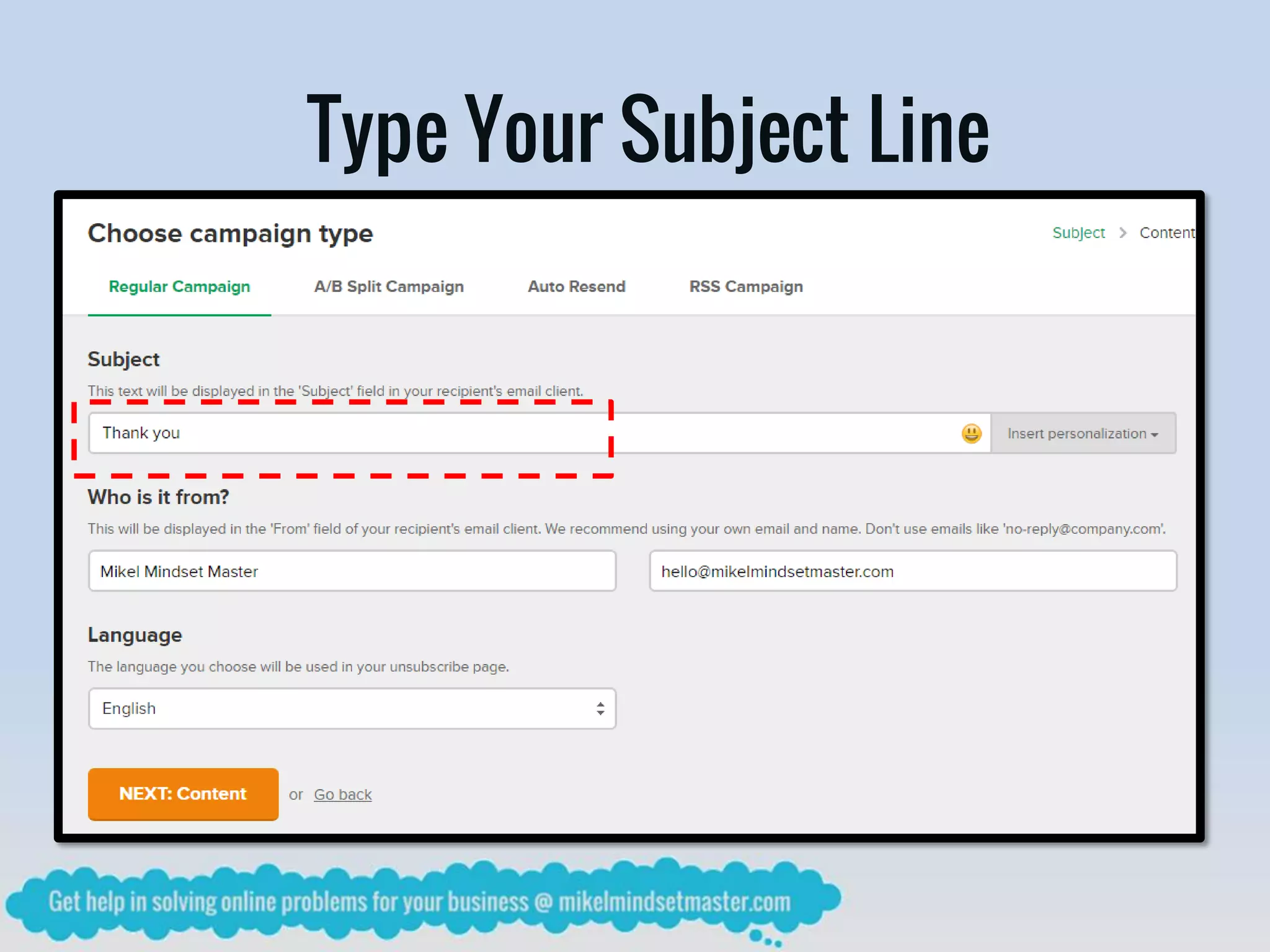
Type Your Subject Line
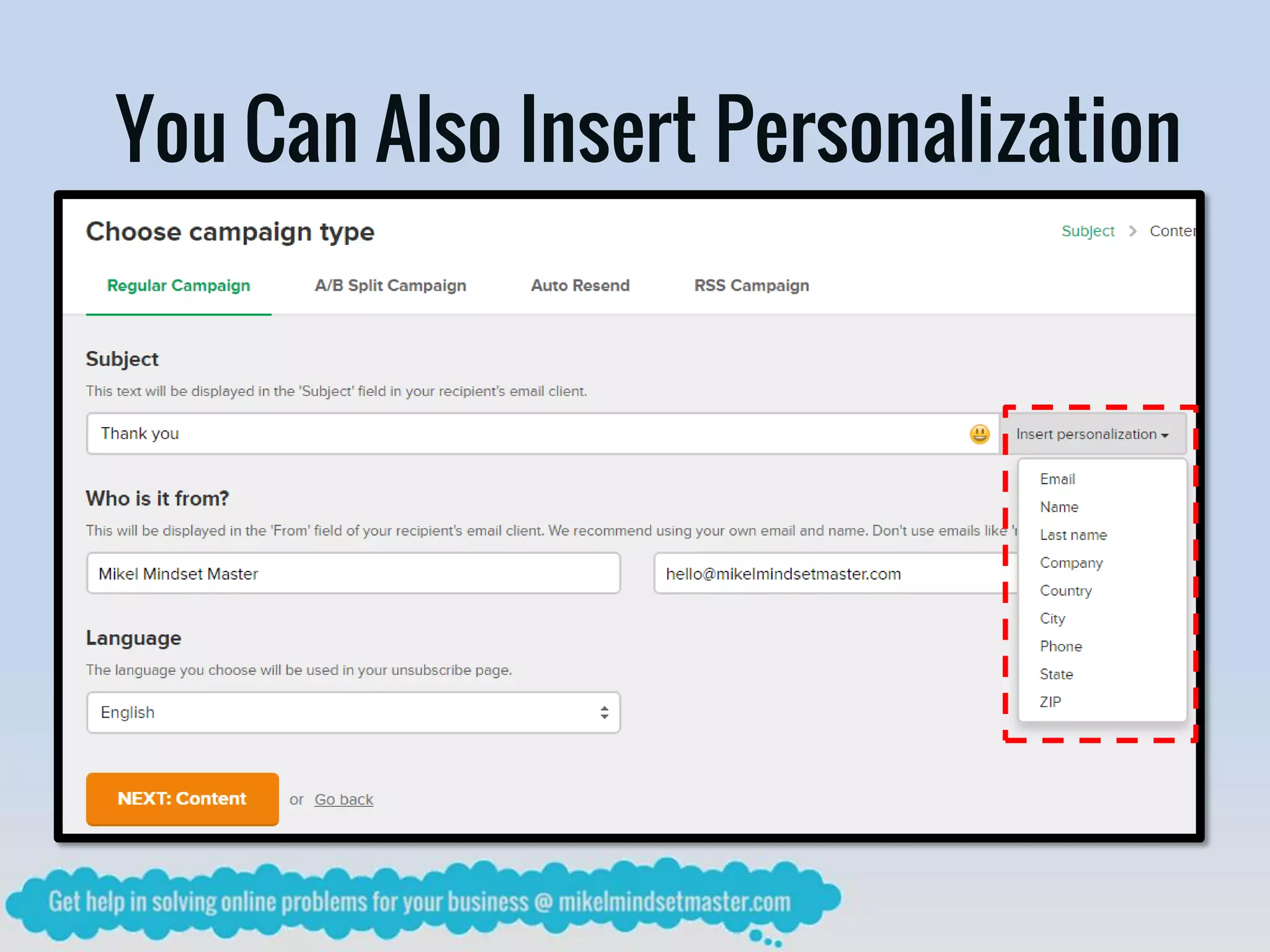
You Can Also Insert Personalization
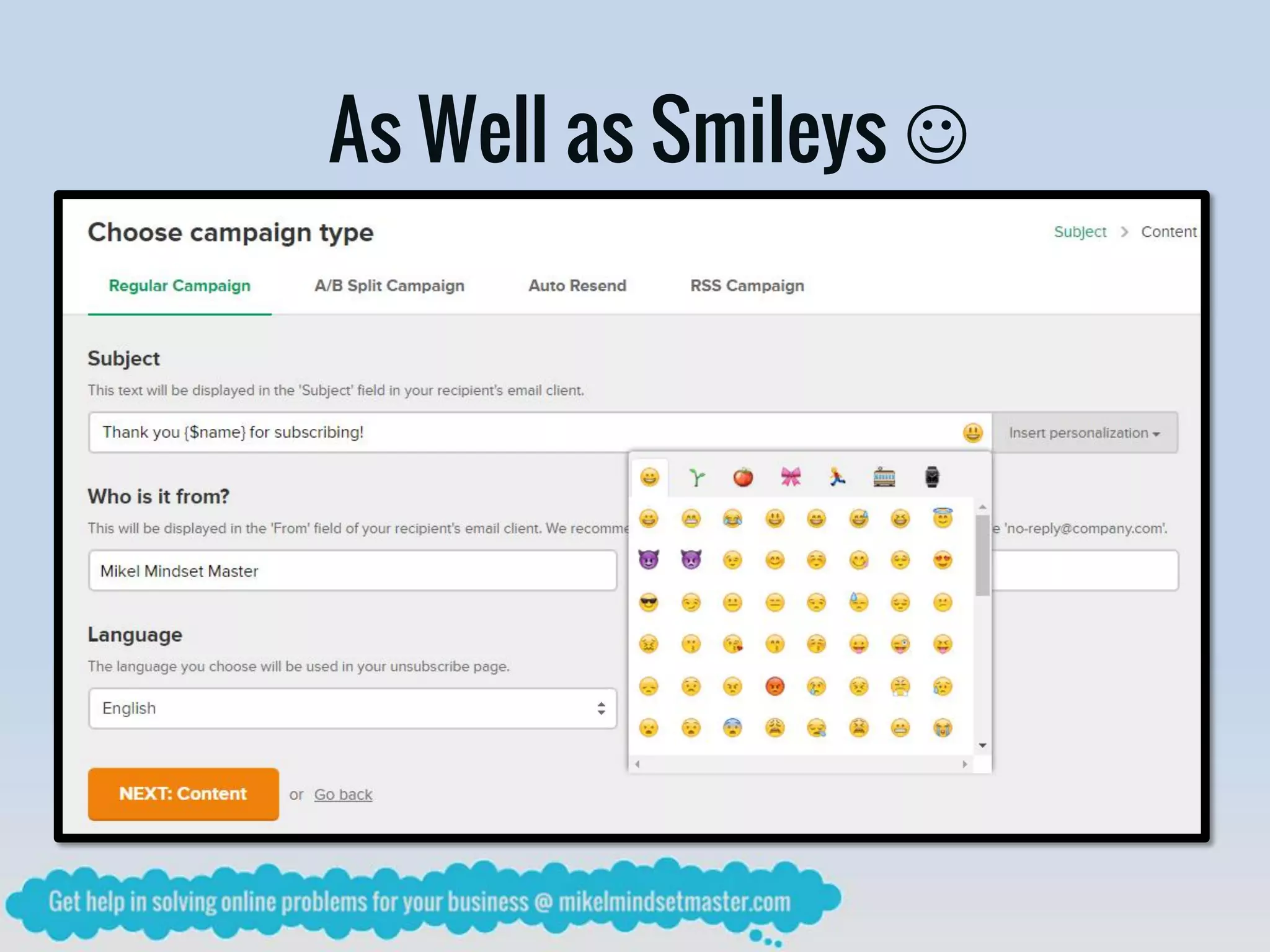
As Well as Smileys 
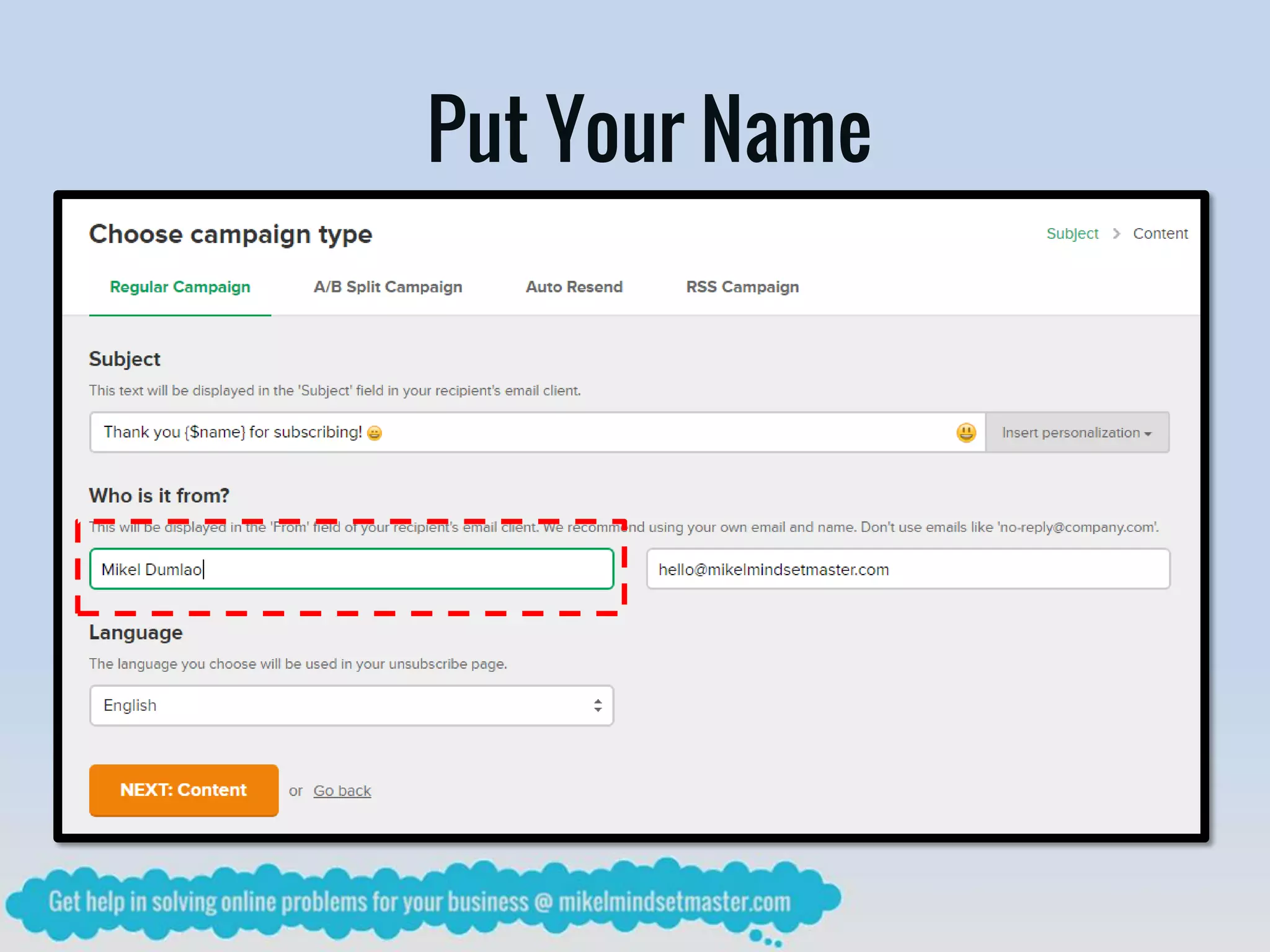
Put Your Name
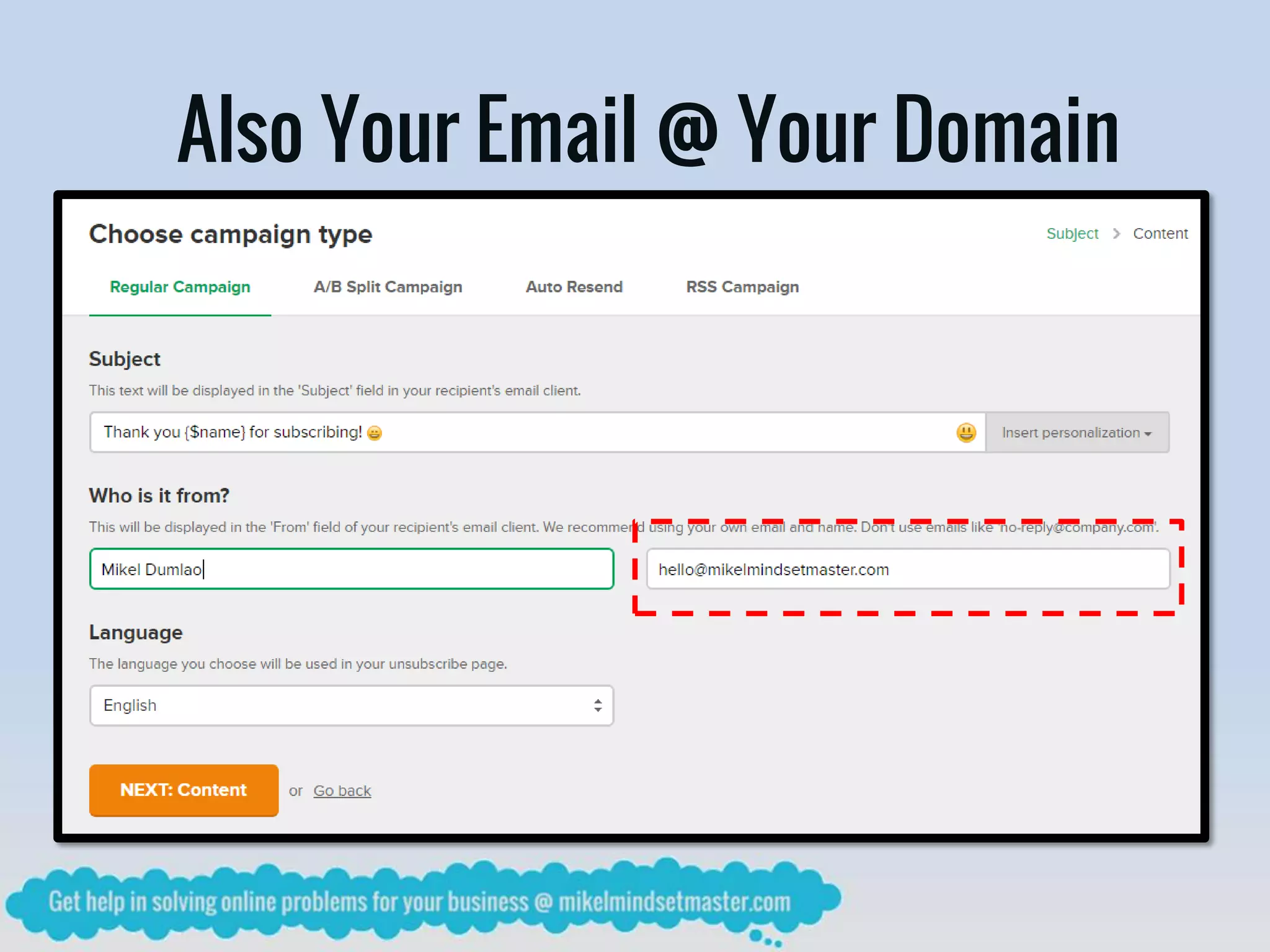
Also Your Email @ Your Domain
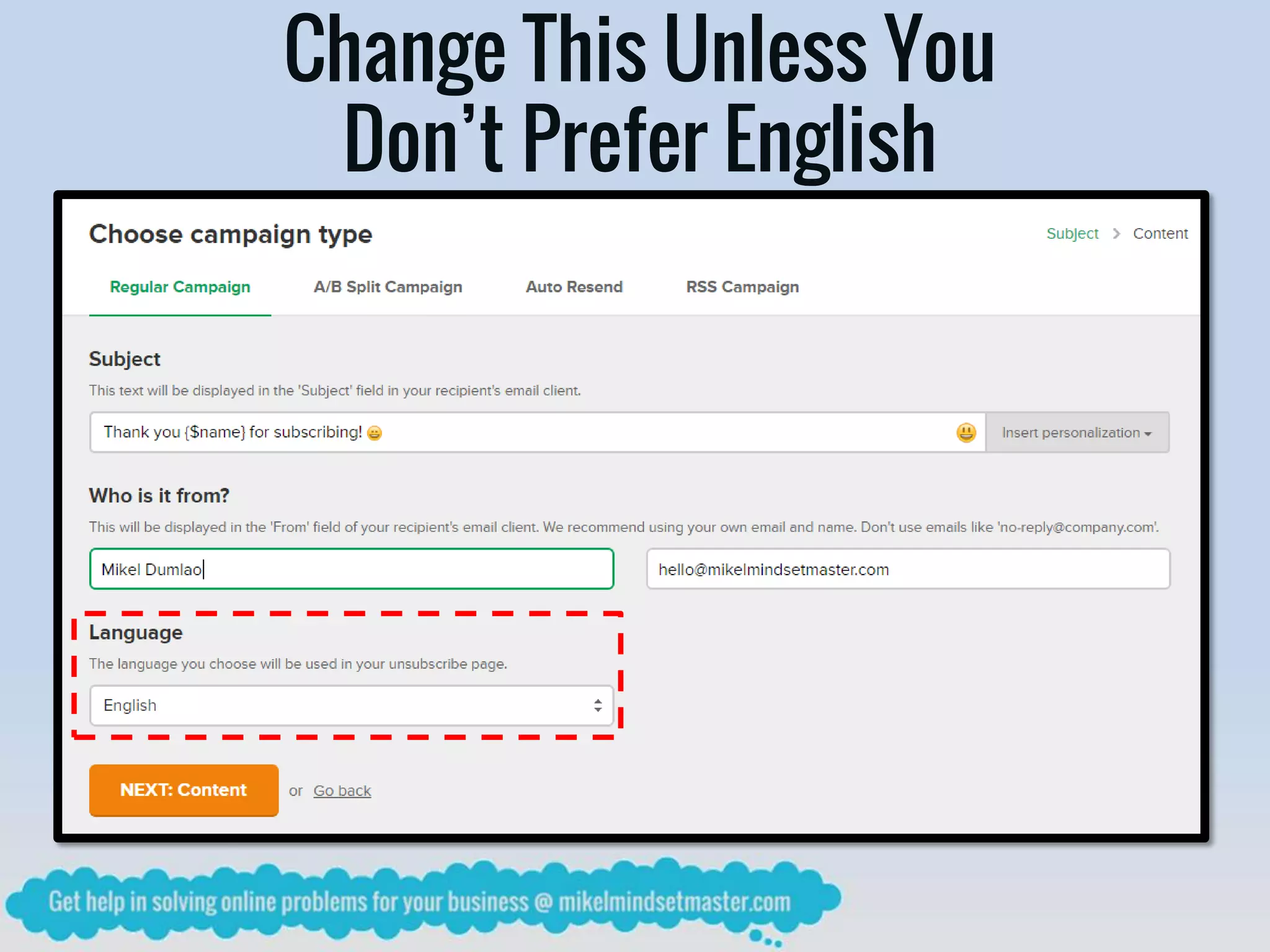
Change This Unless You
Don’t Prefer English
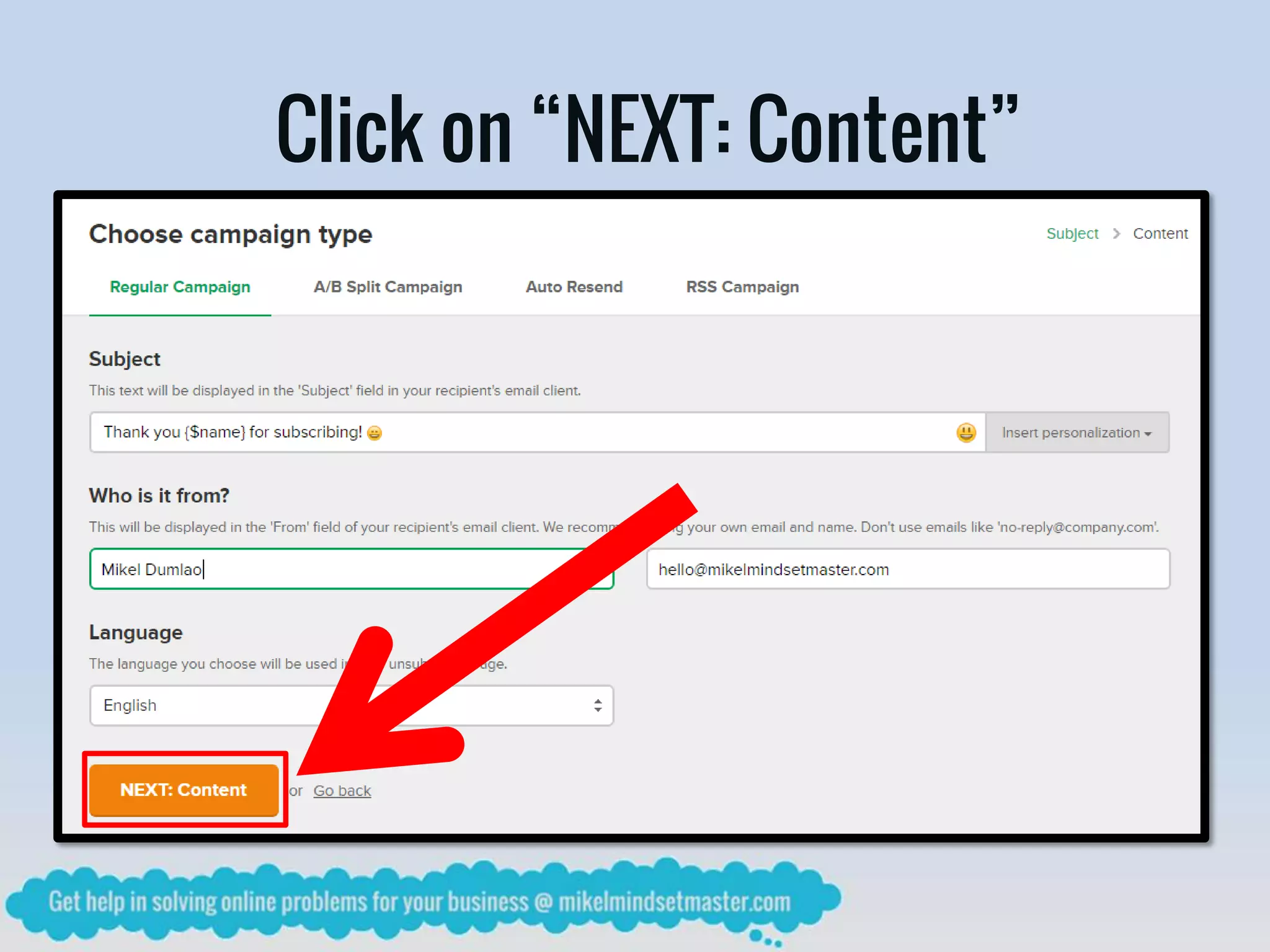
Click on “NEXT: Content”
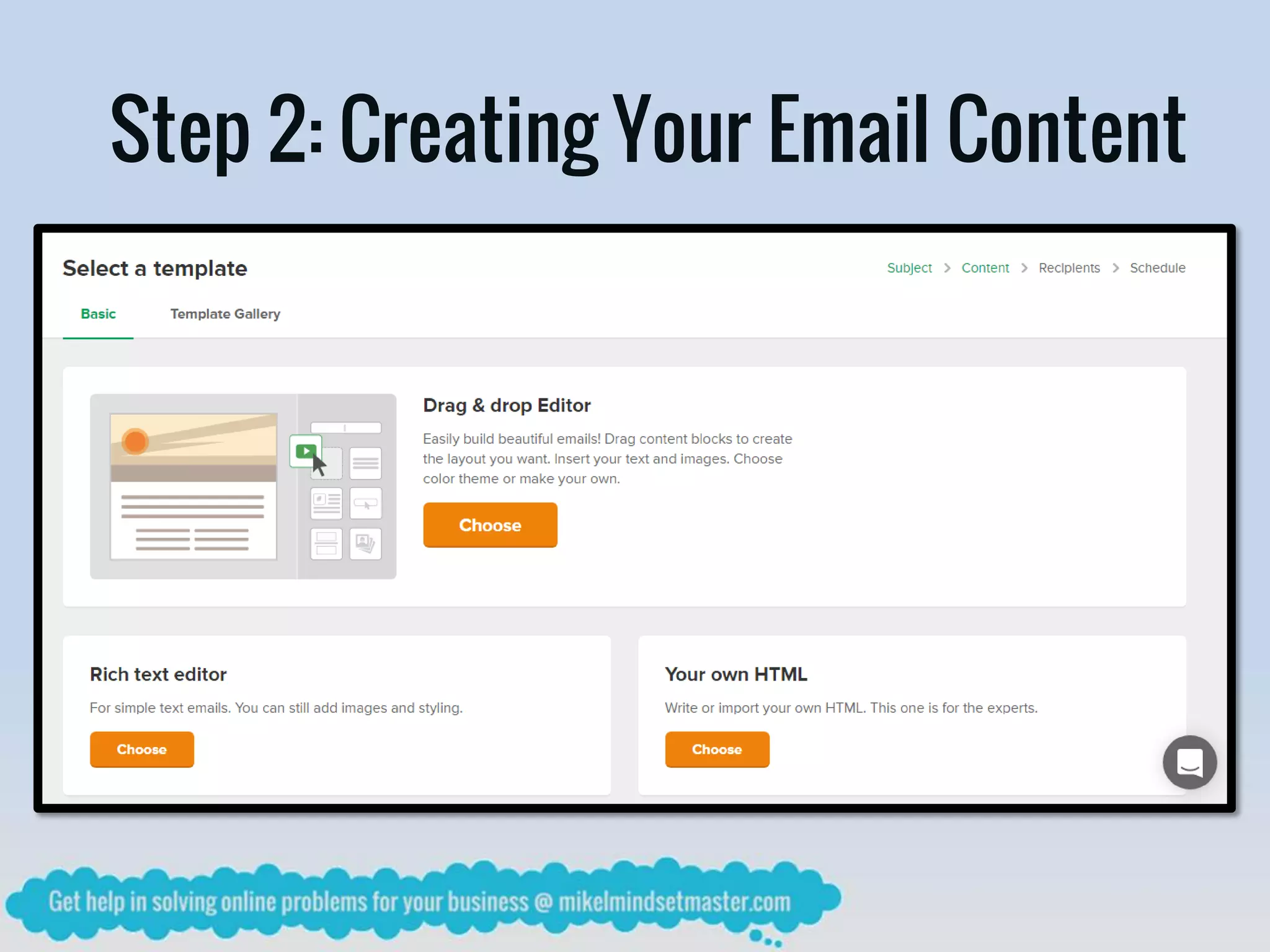
Step 2: Creating Your Email Content
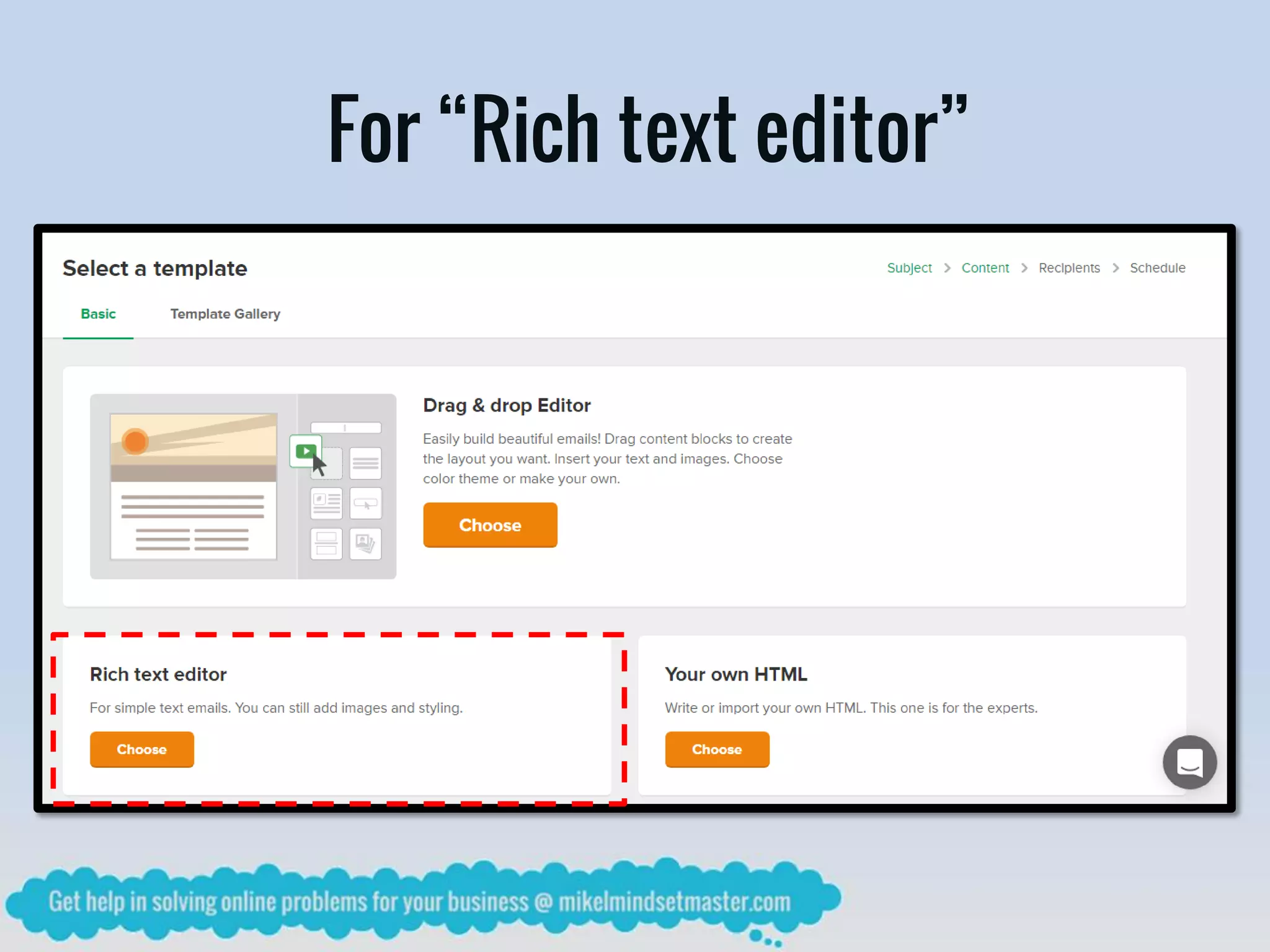
For “Rich text editor”
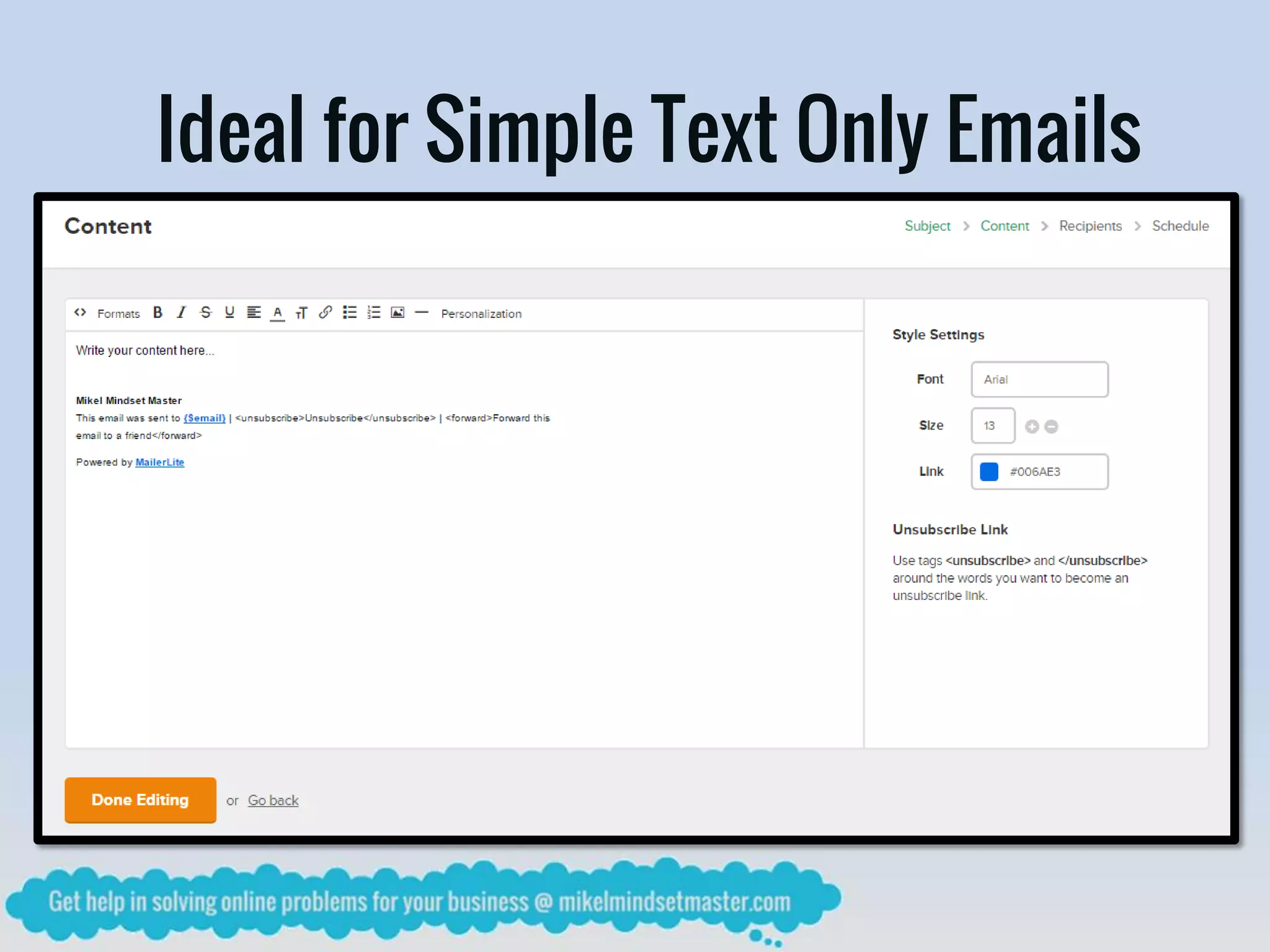
Ideal for Simple Text Only Emails
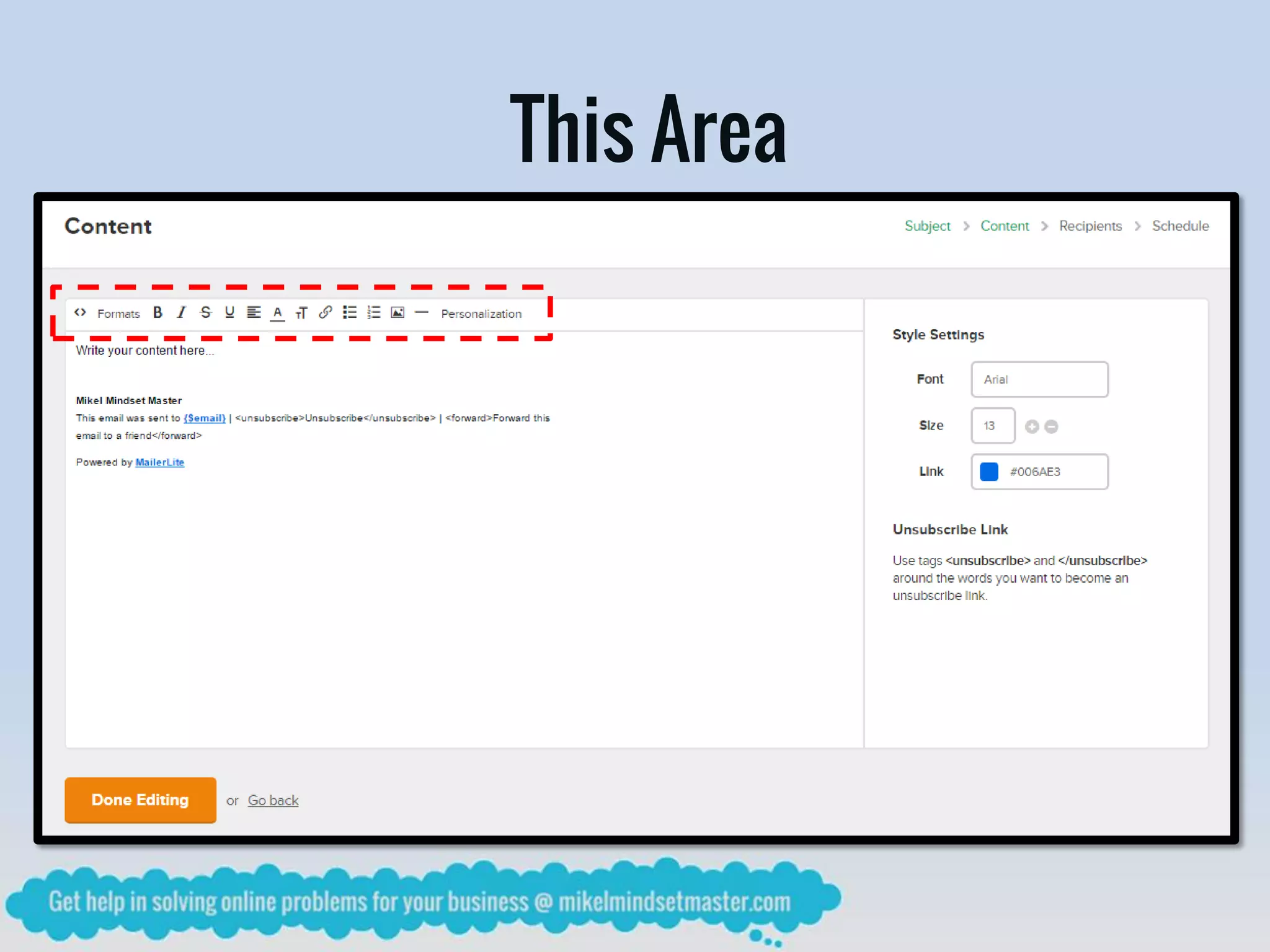
This Area
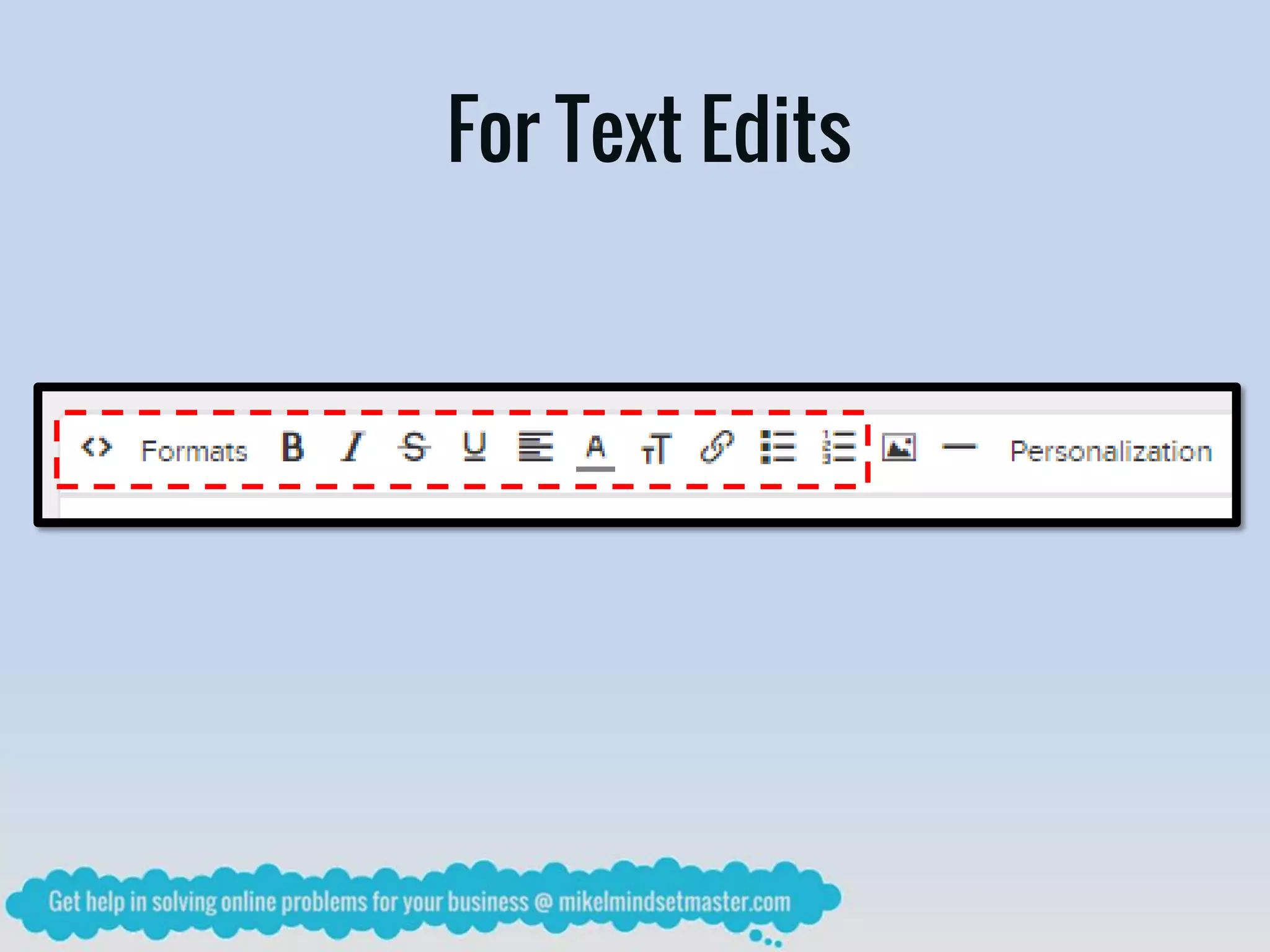
For Text Edits
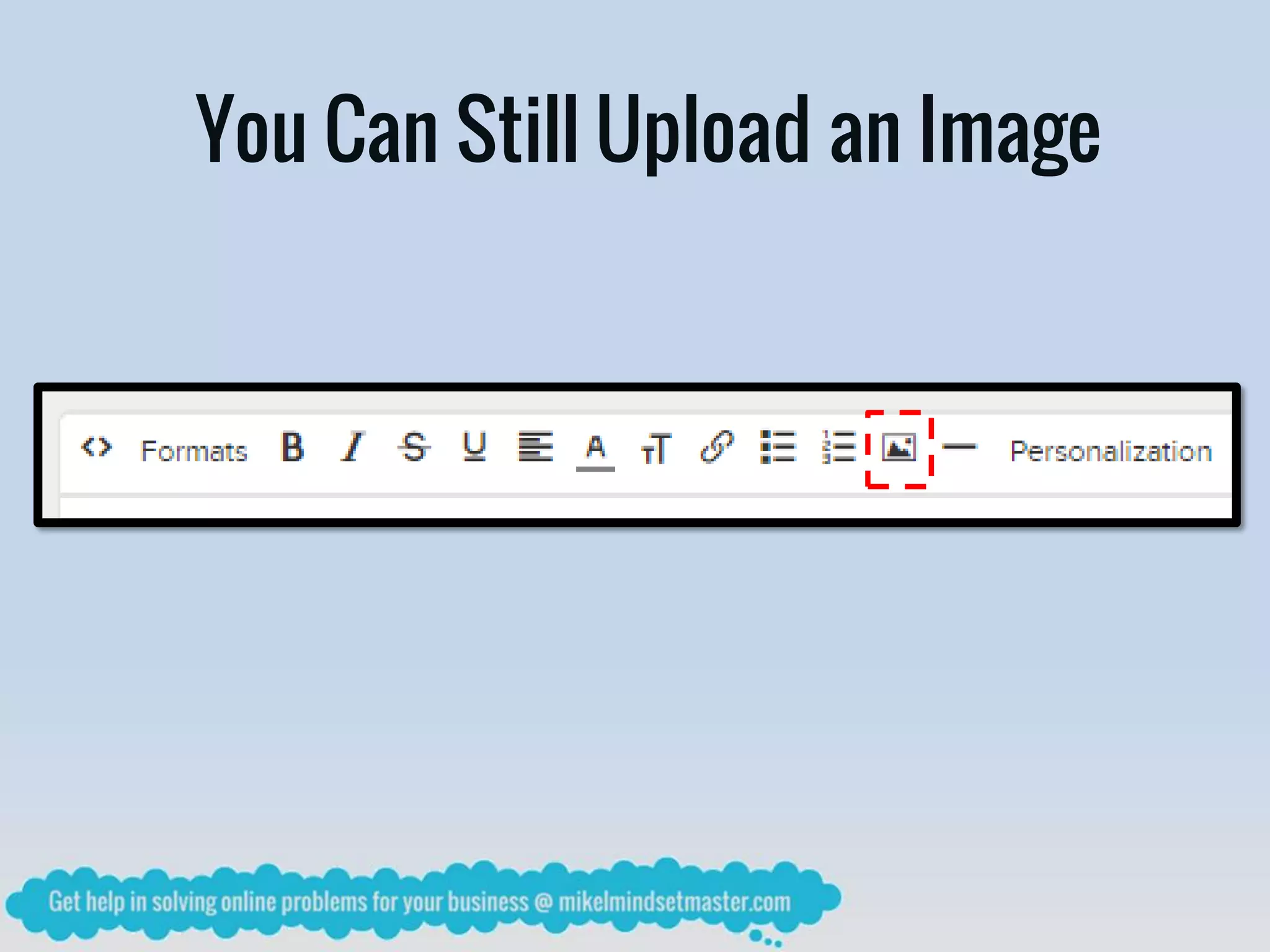
You Can Still Upload an Image
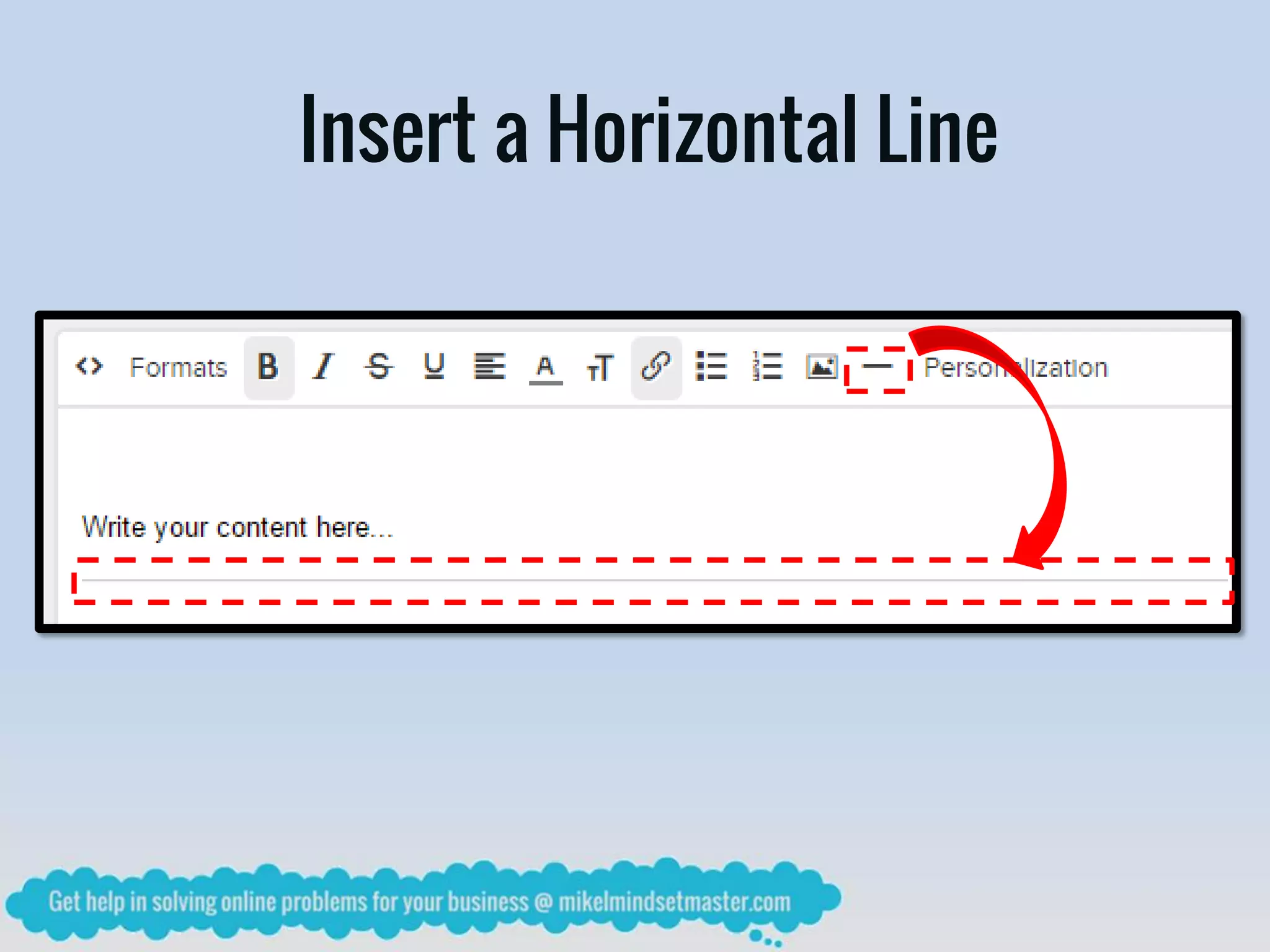
Insert a Horizontal Line
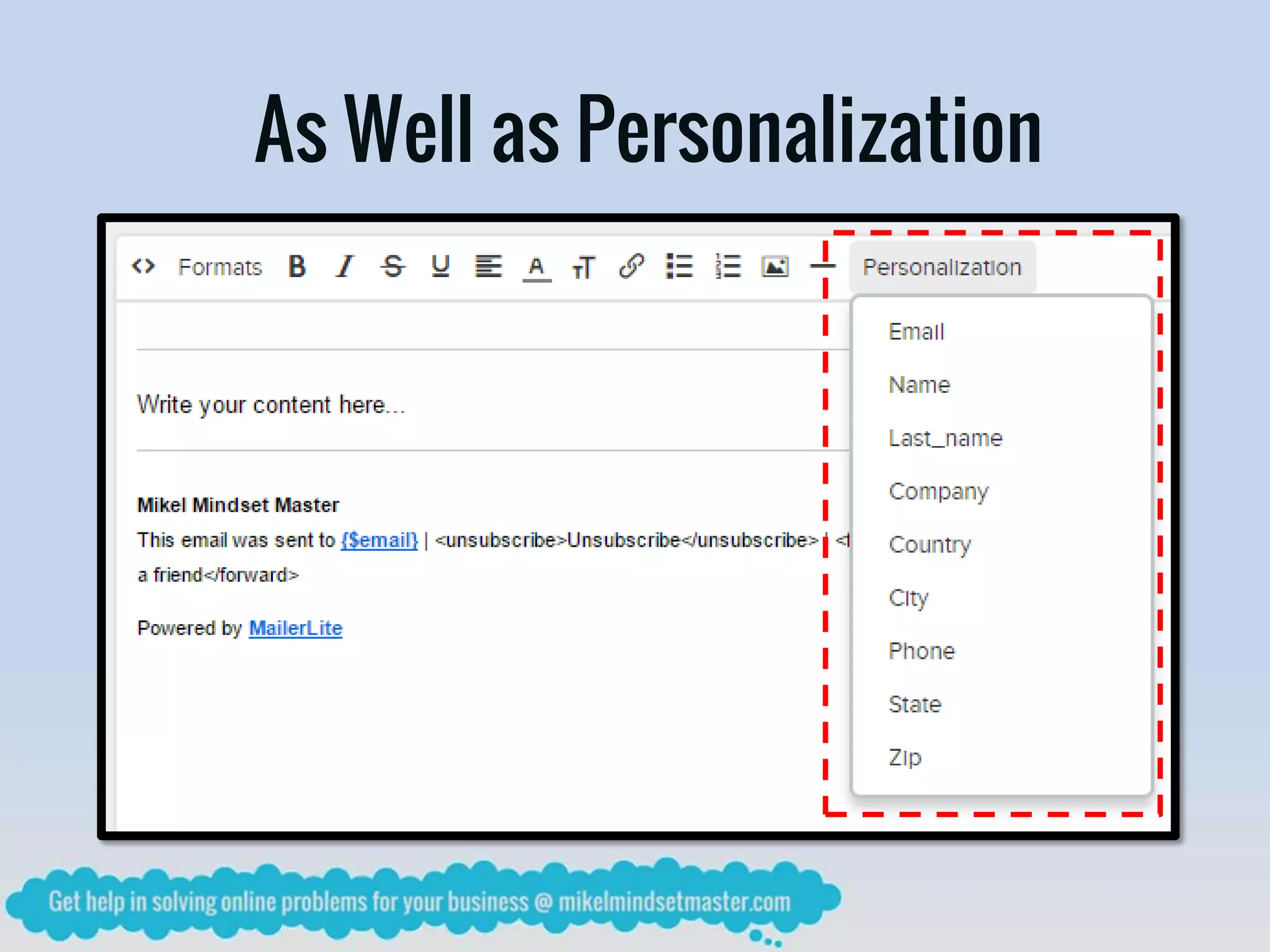
As Well as Personalization
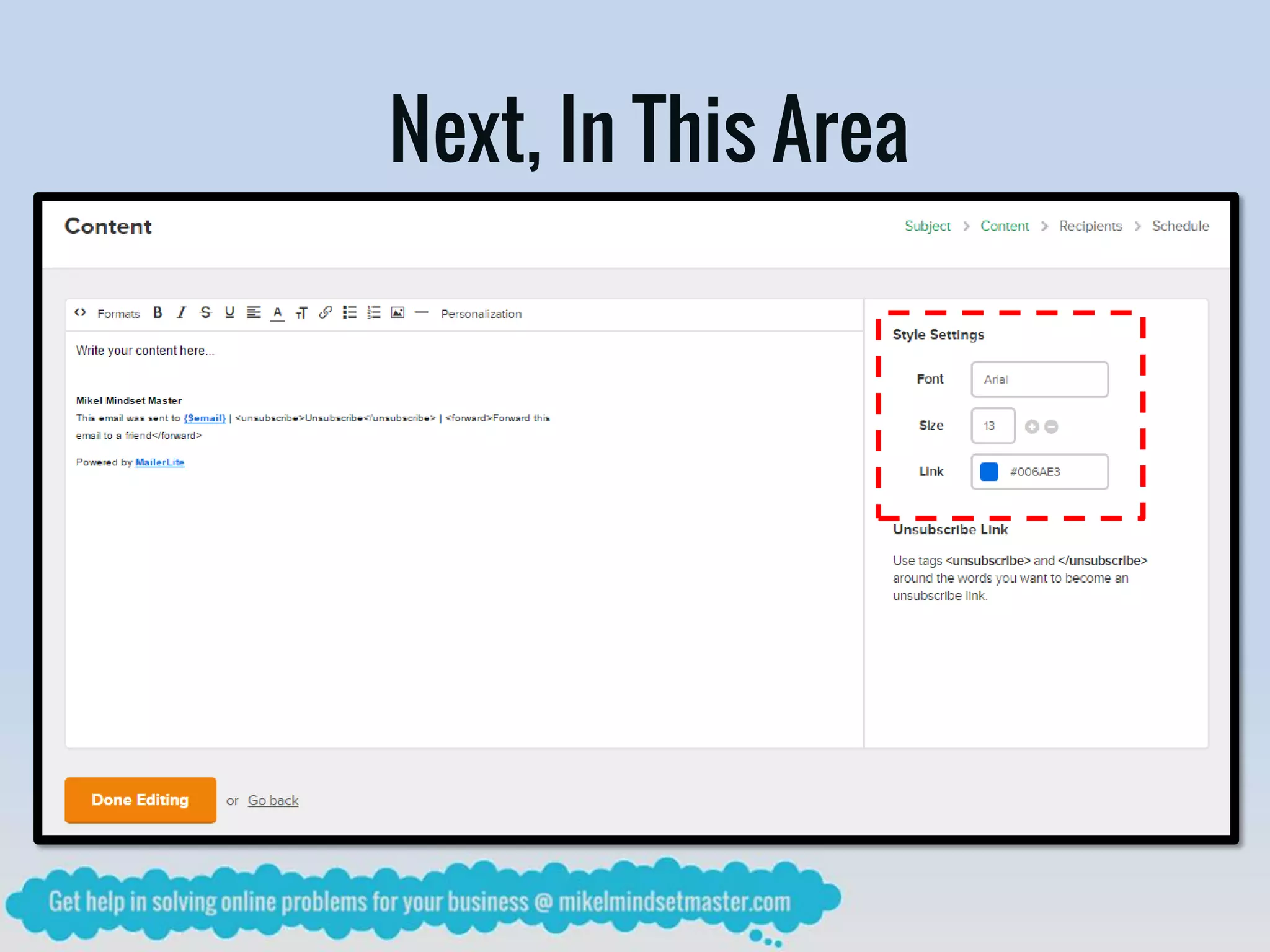
Next, In This Area
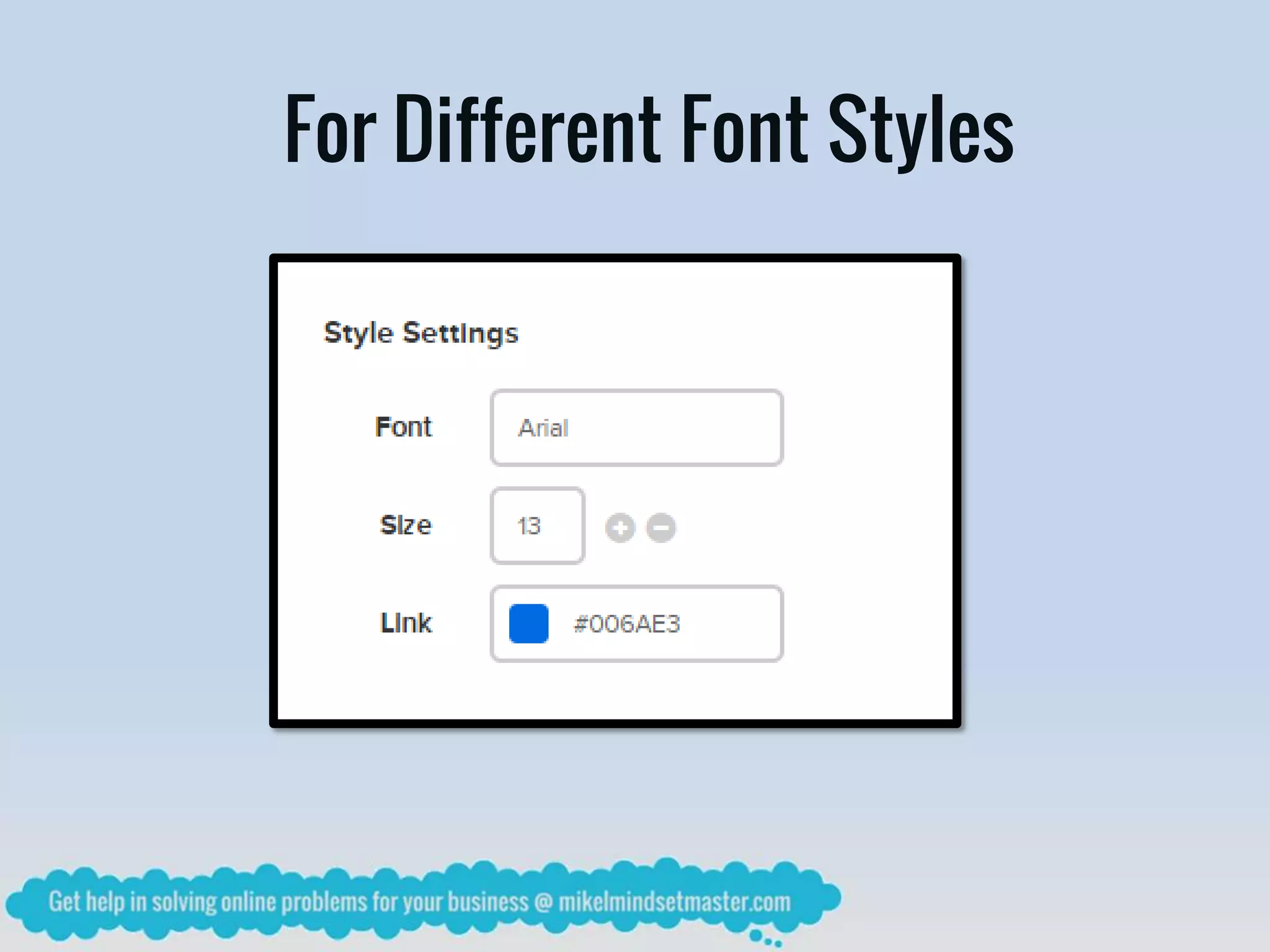
For Different Font Styles
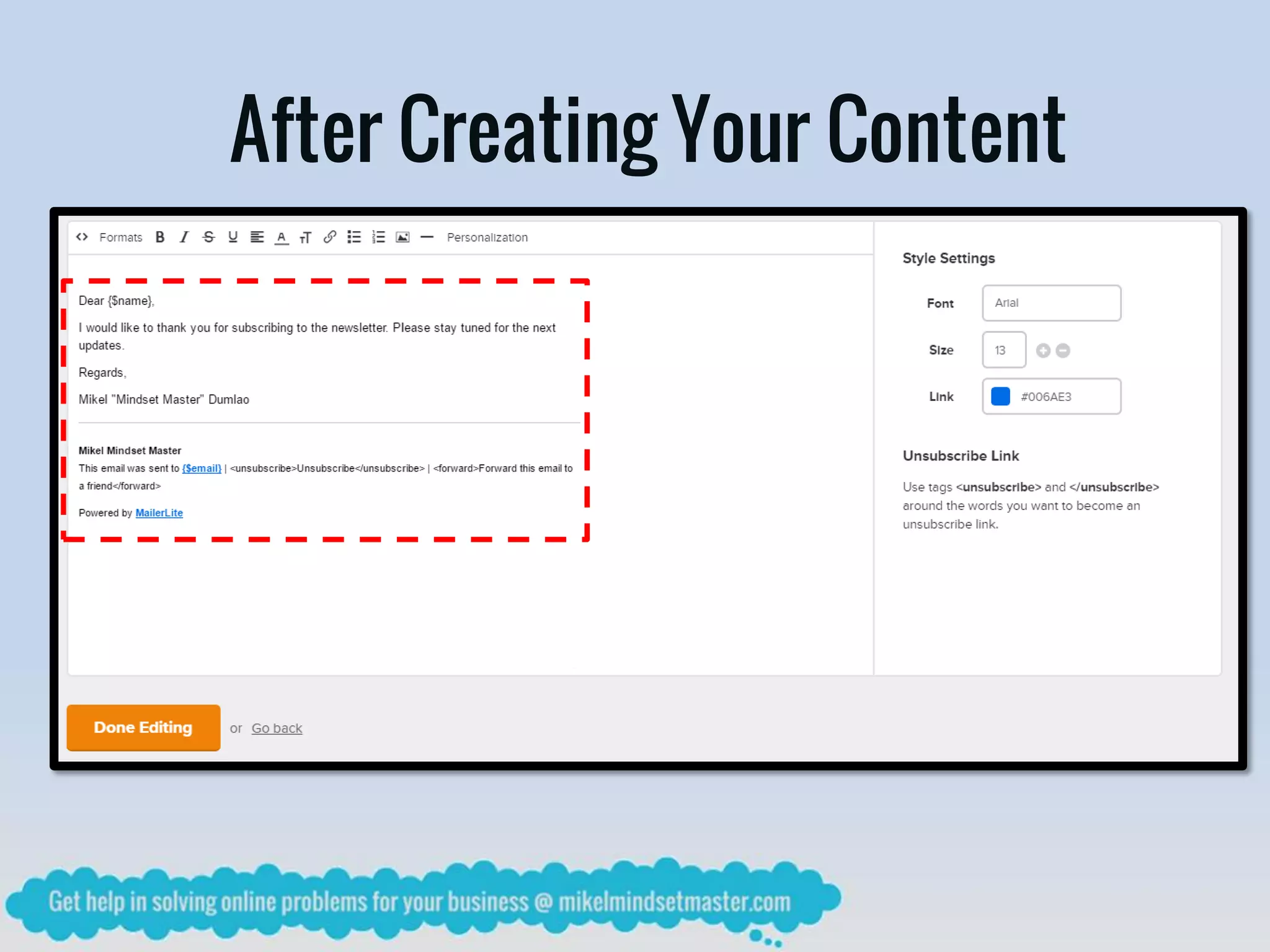
After Creating Your Content
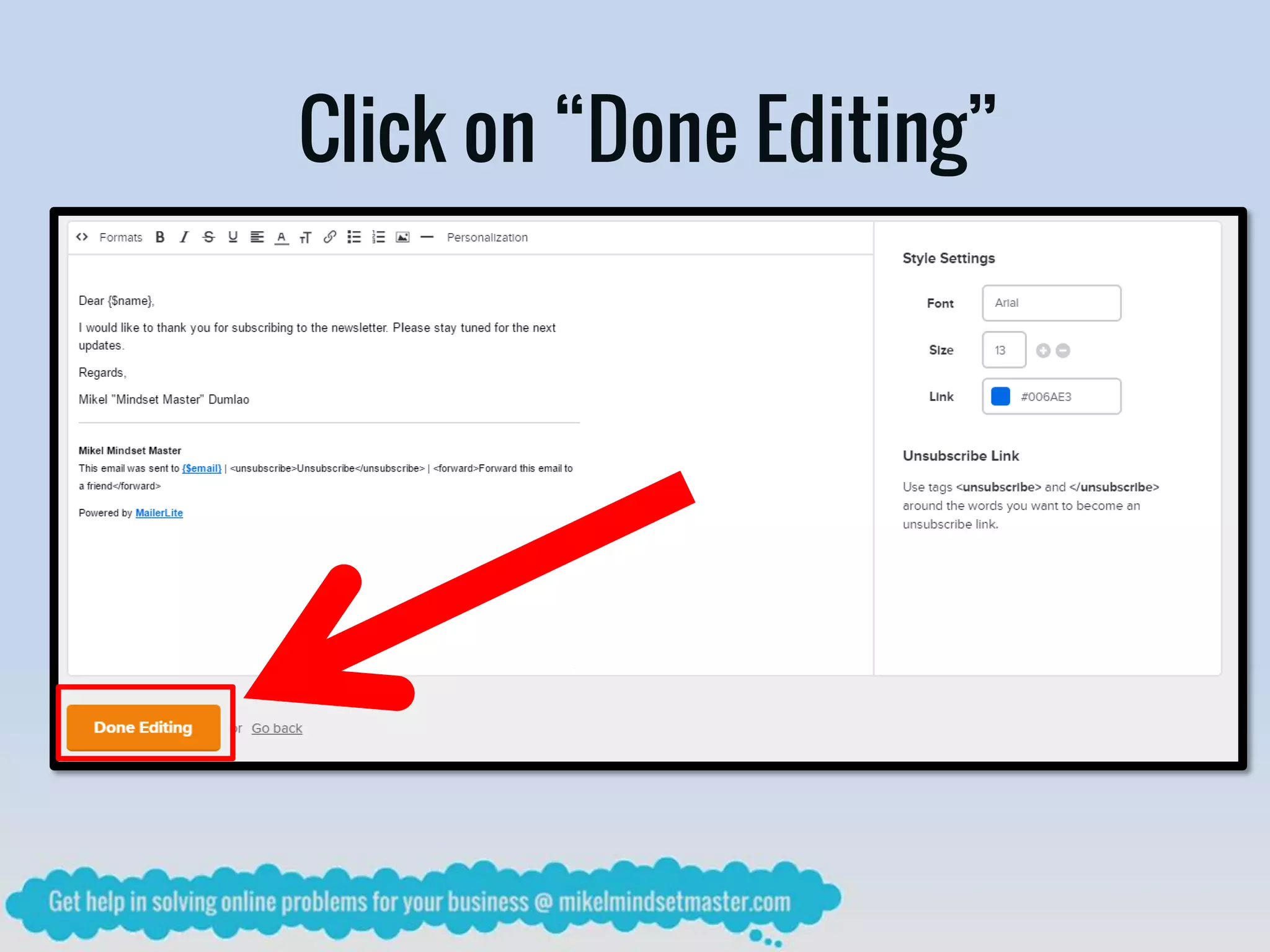
Click on “Done Editing”
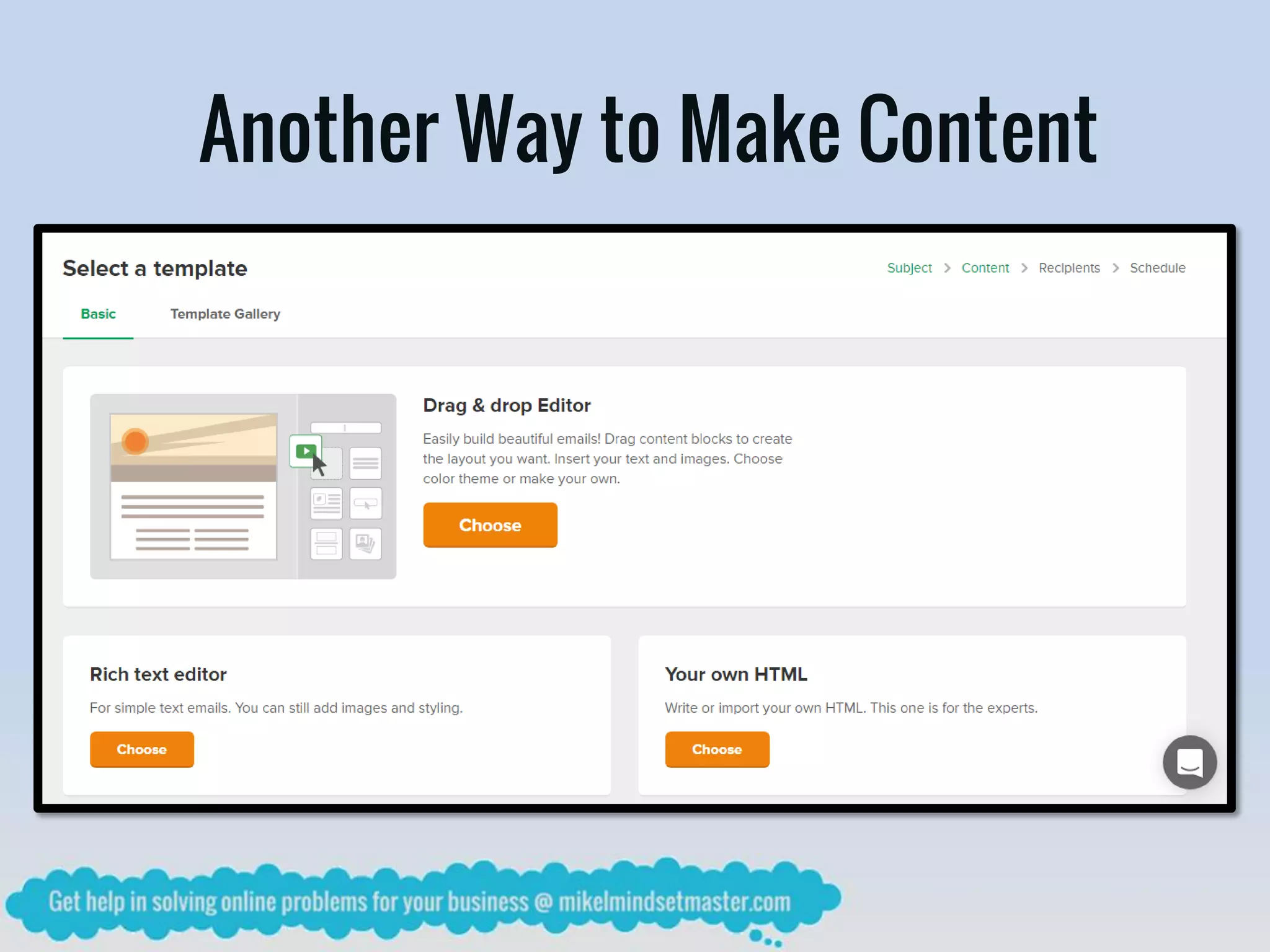
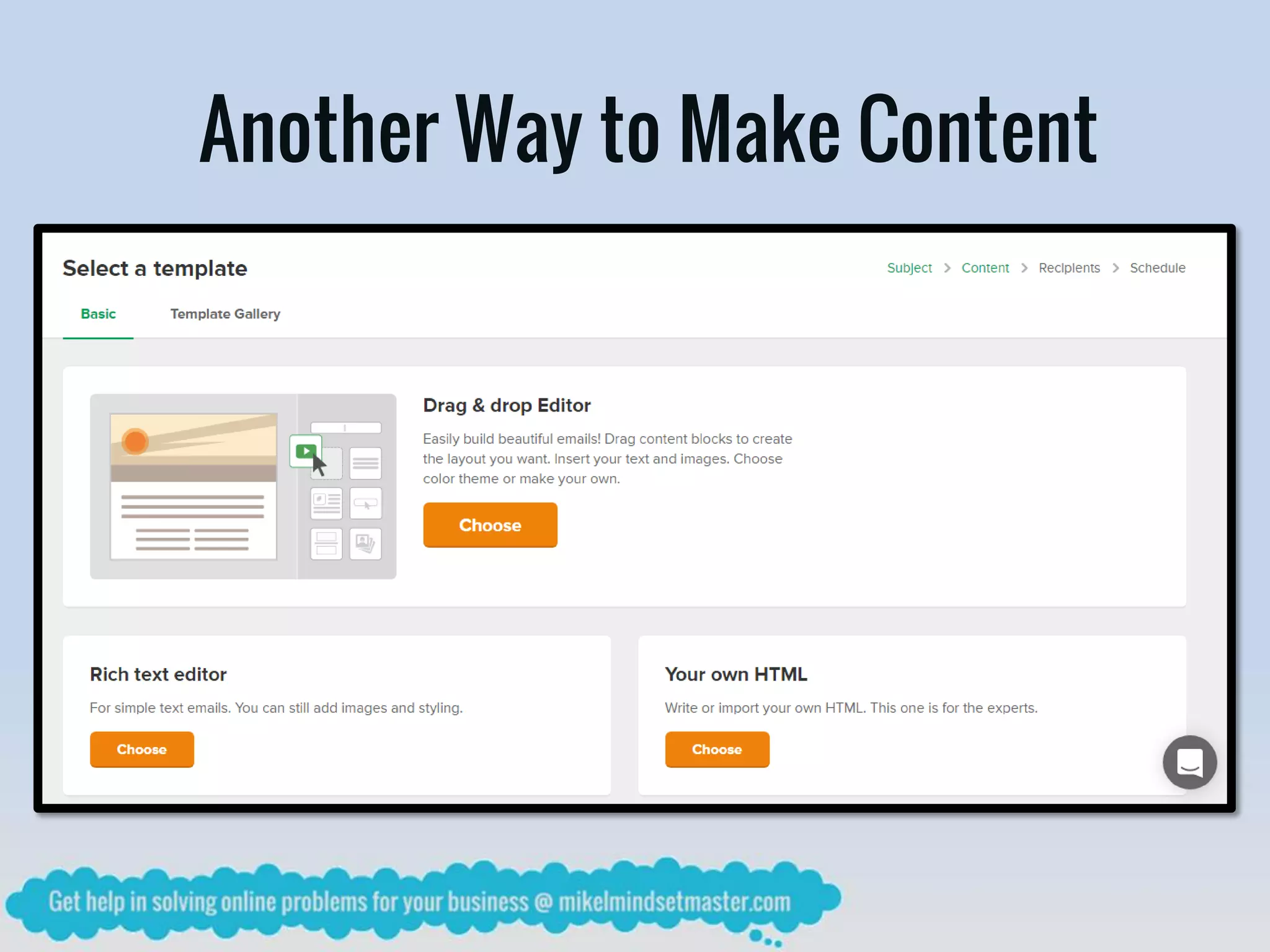
Another Way to Make Content
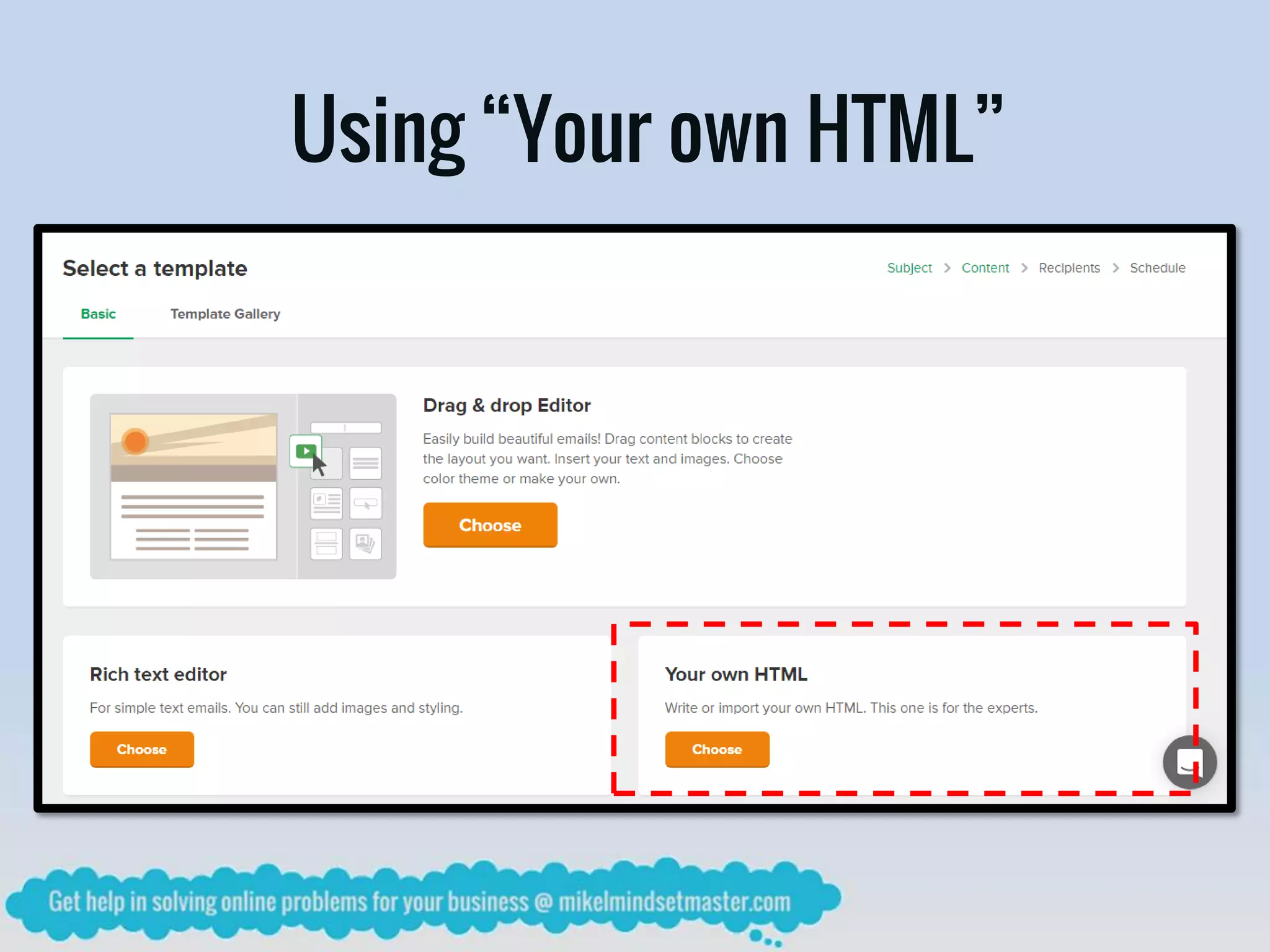
Using “Your own HTML”
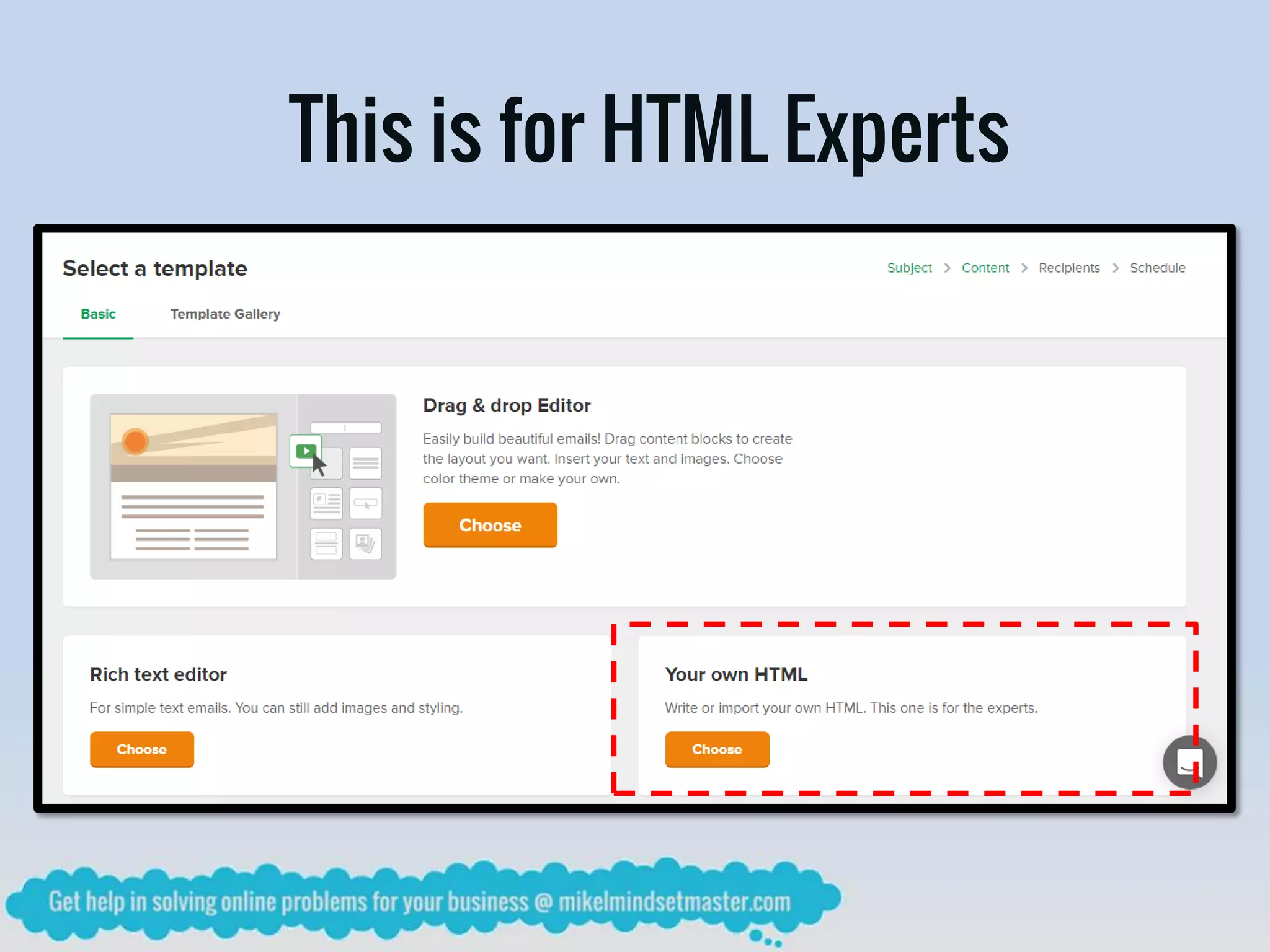
This is for HTML Experts
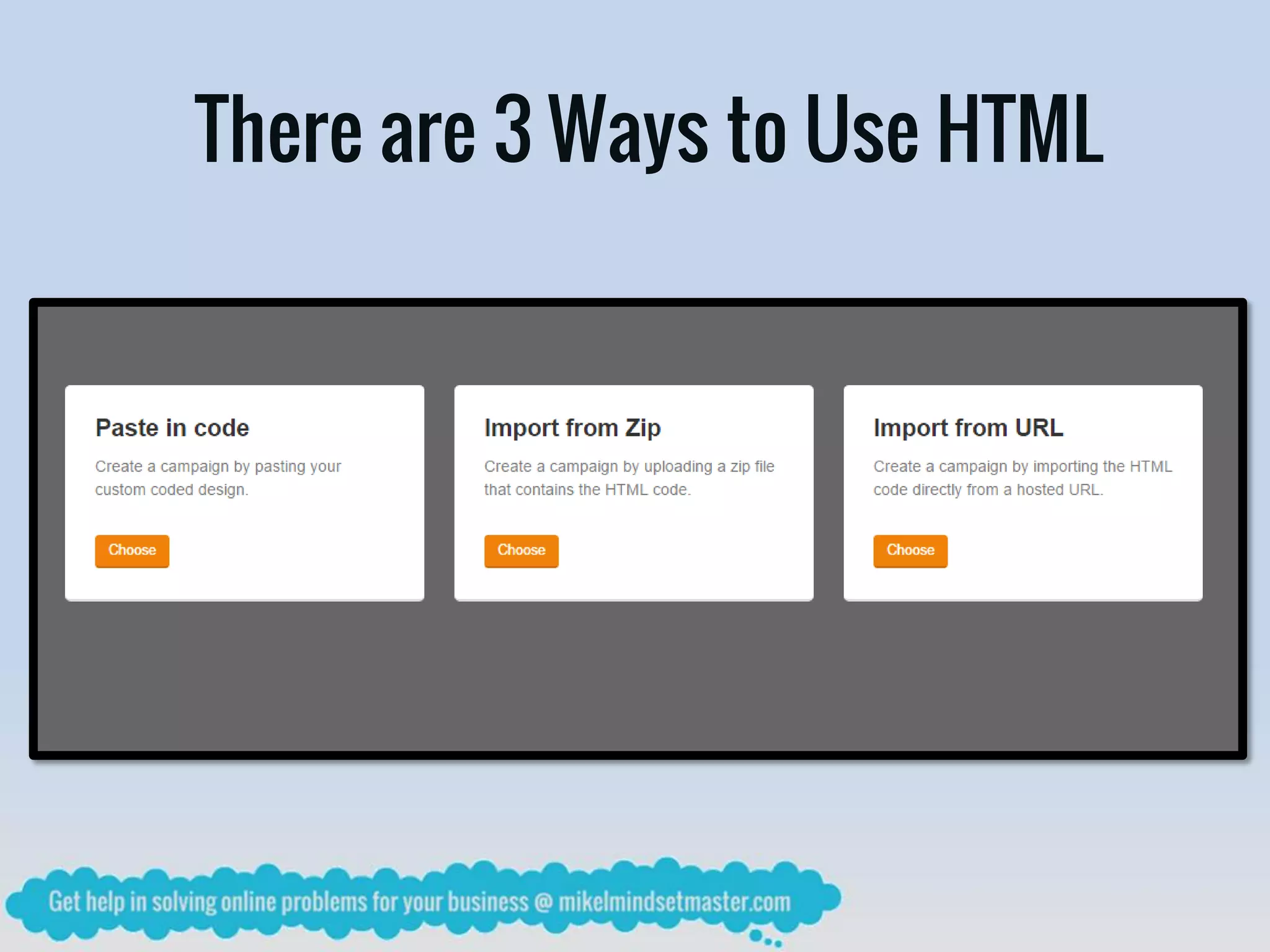
There are 3 Ways to Use HTML
Another Way to Make Content
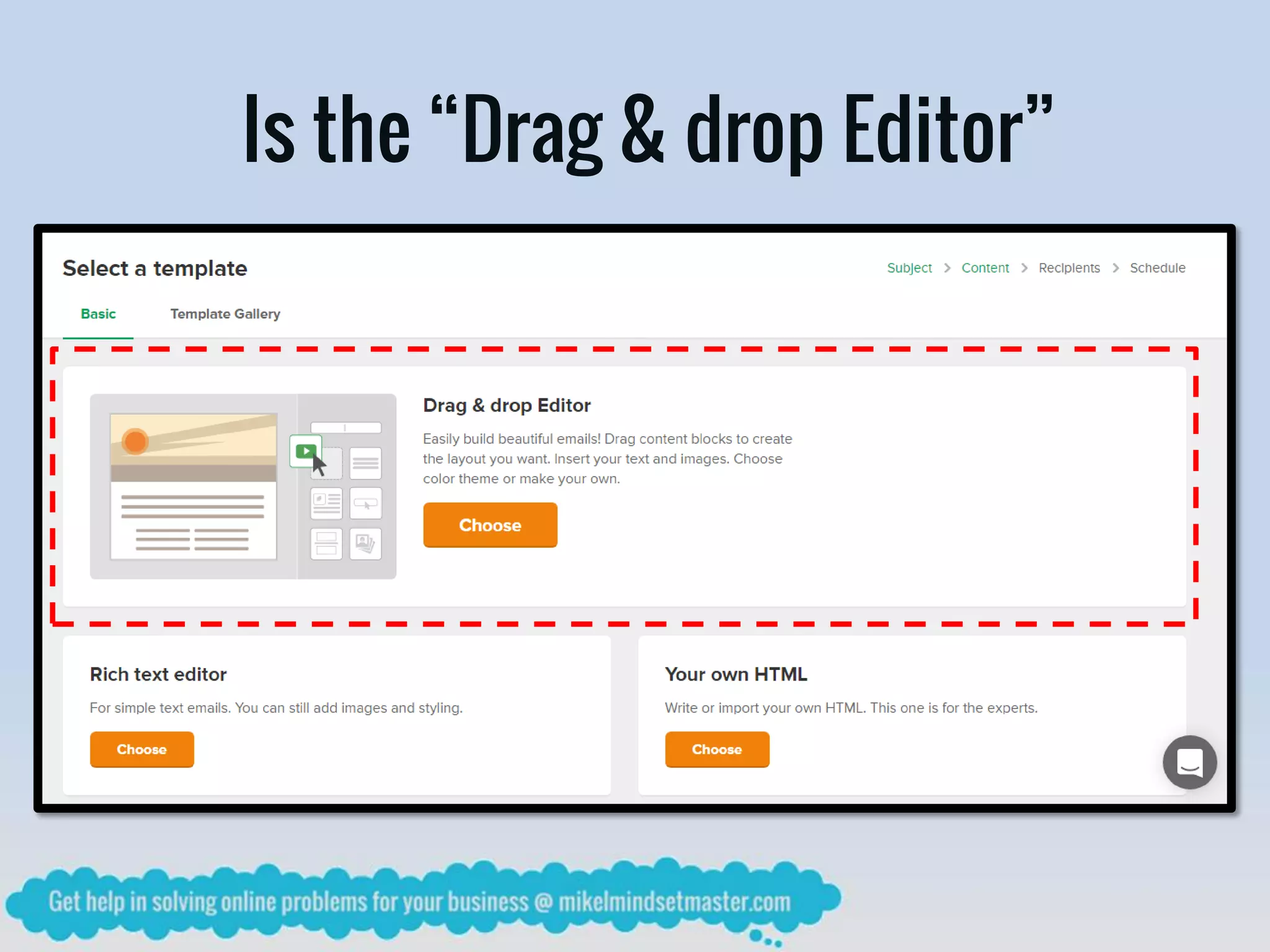
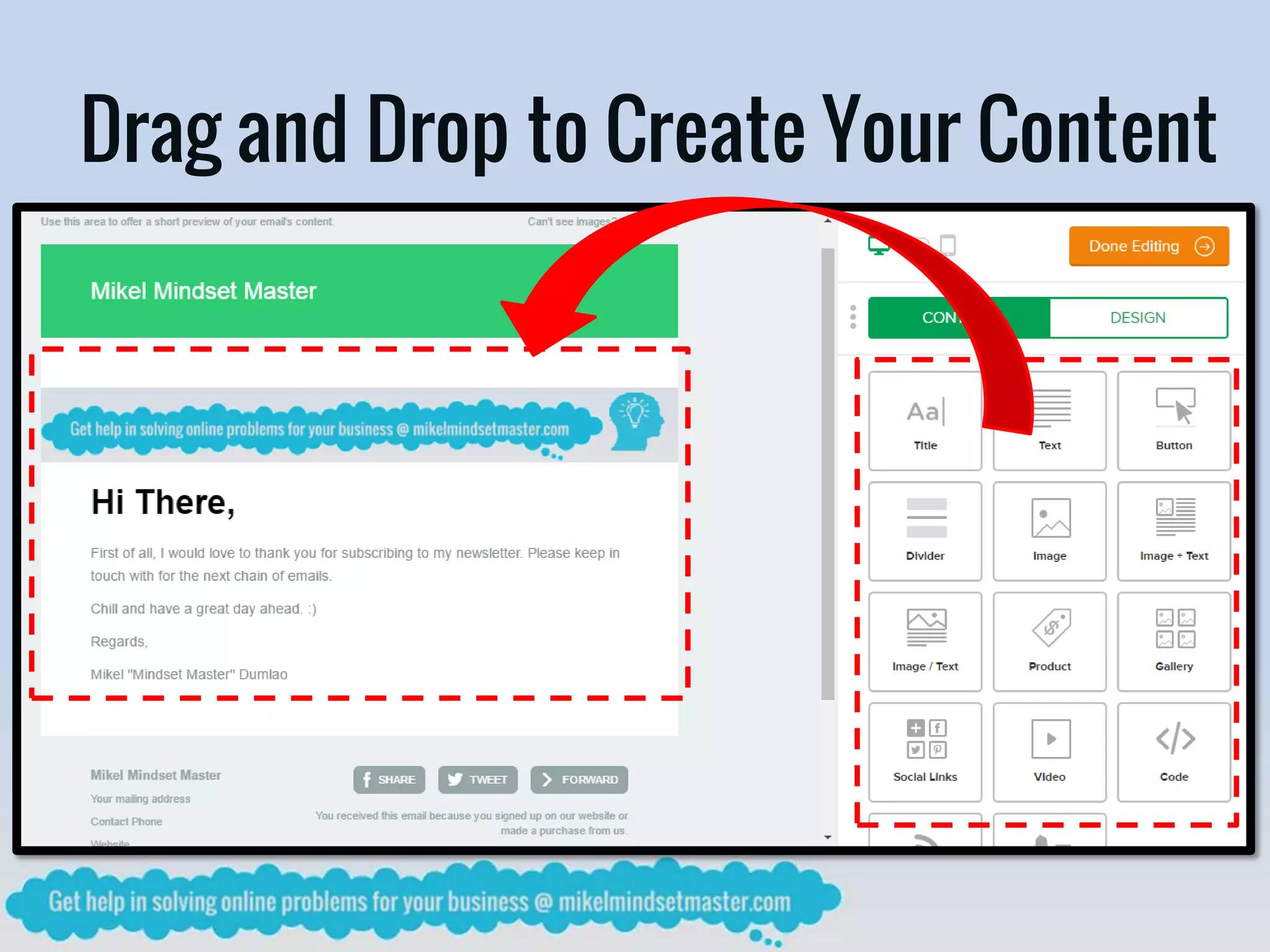
Is the “Drag & drop Editor”
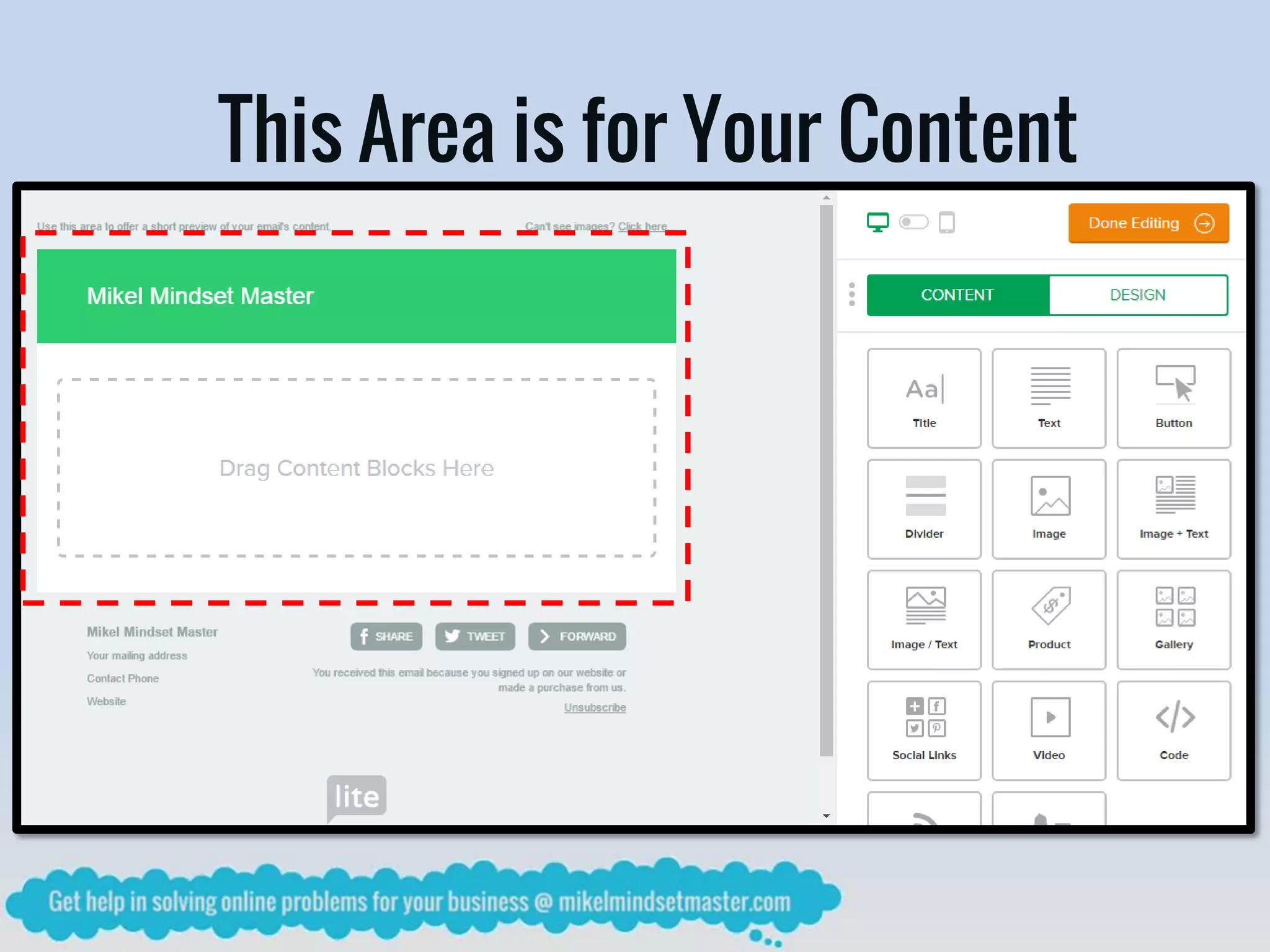
This Area is for Your Content
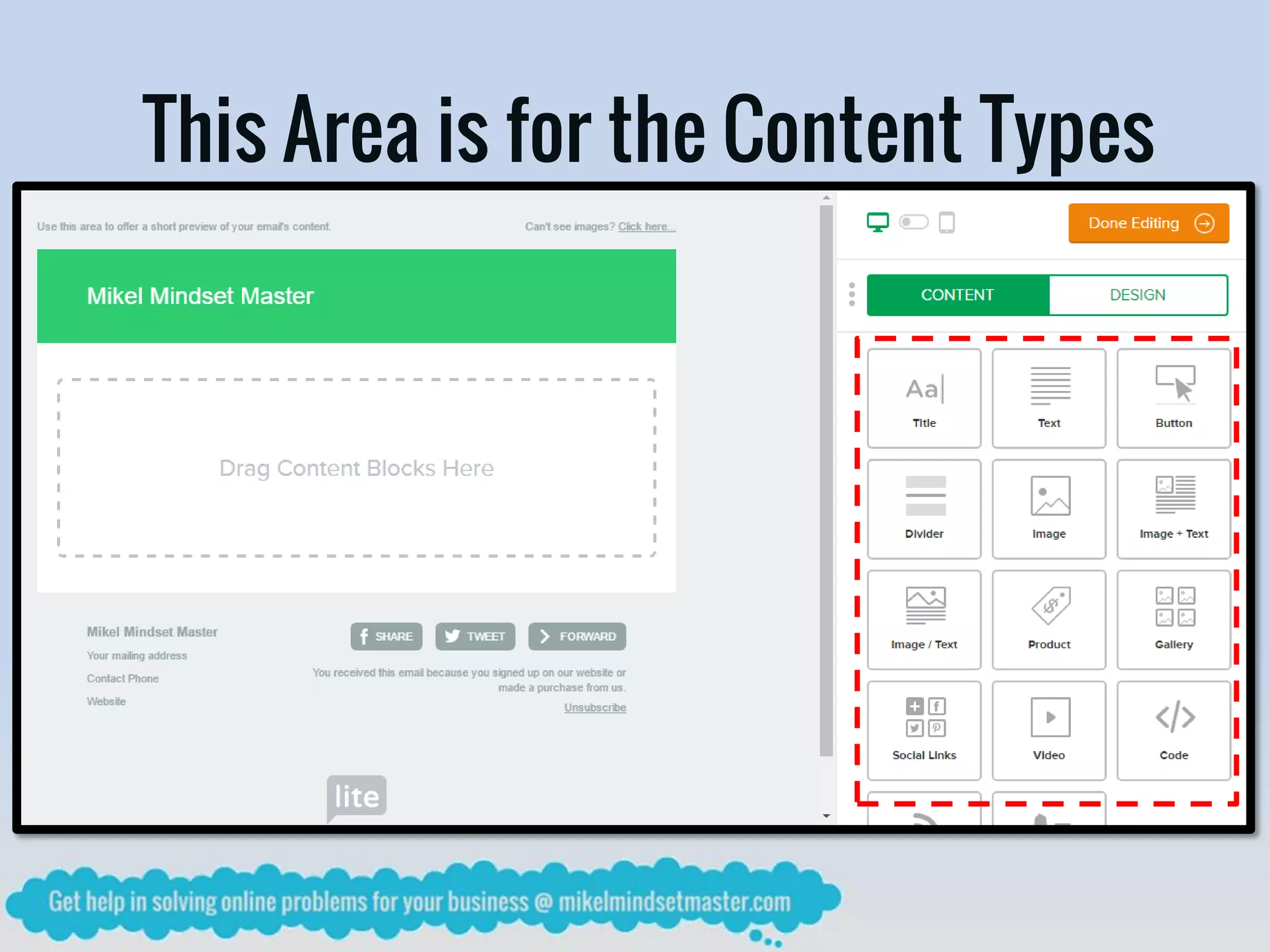
This Area is for the Content Types
Drag and Drop to Create Your Content
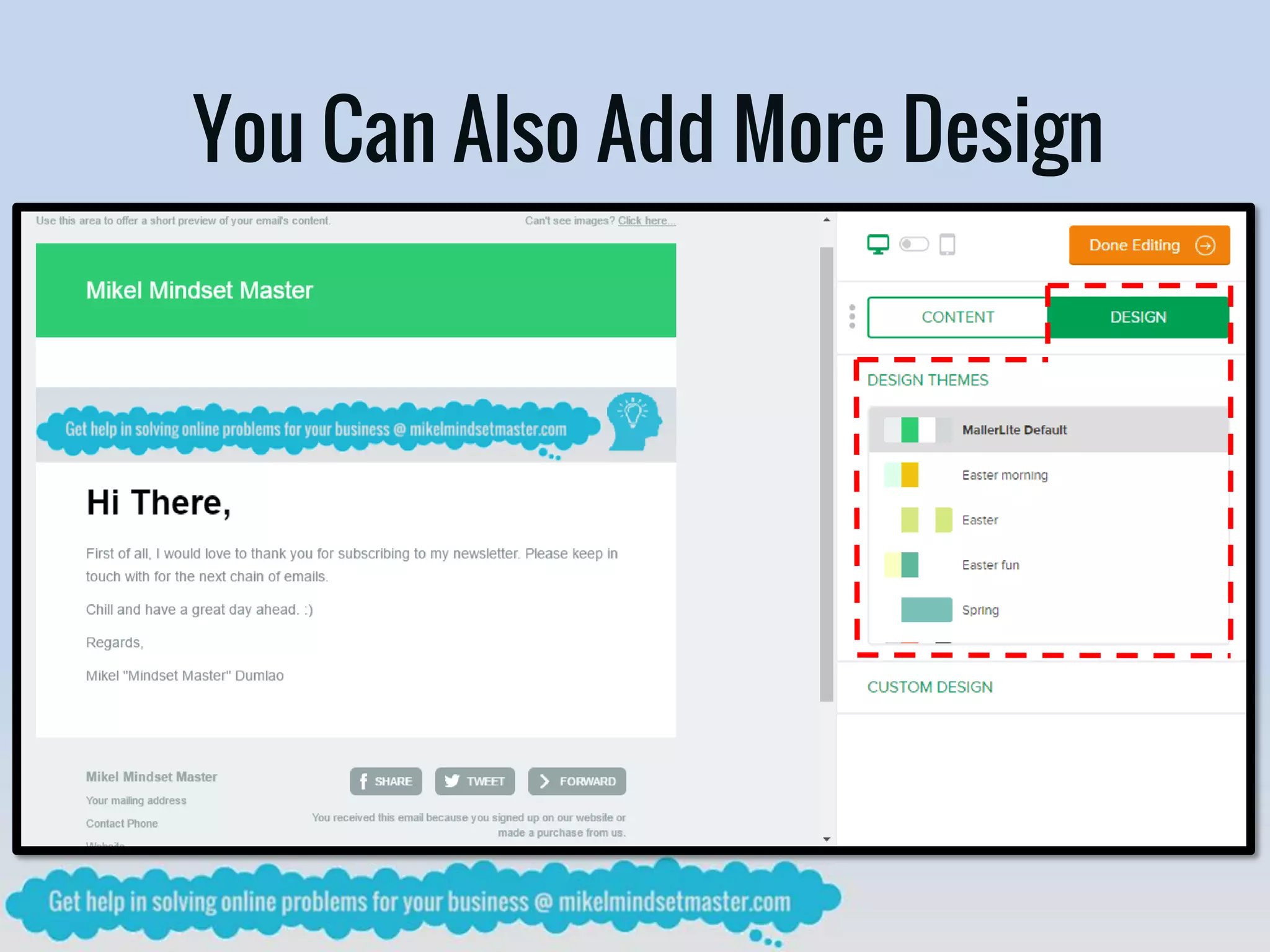
You Can Also Add More Design
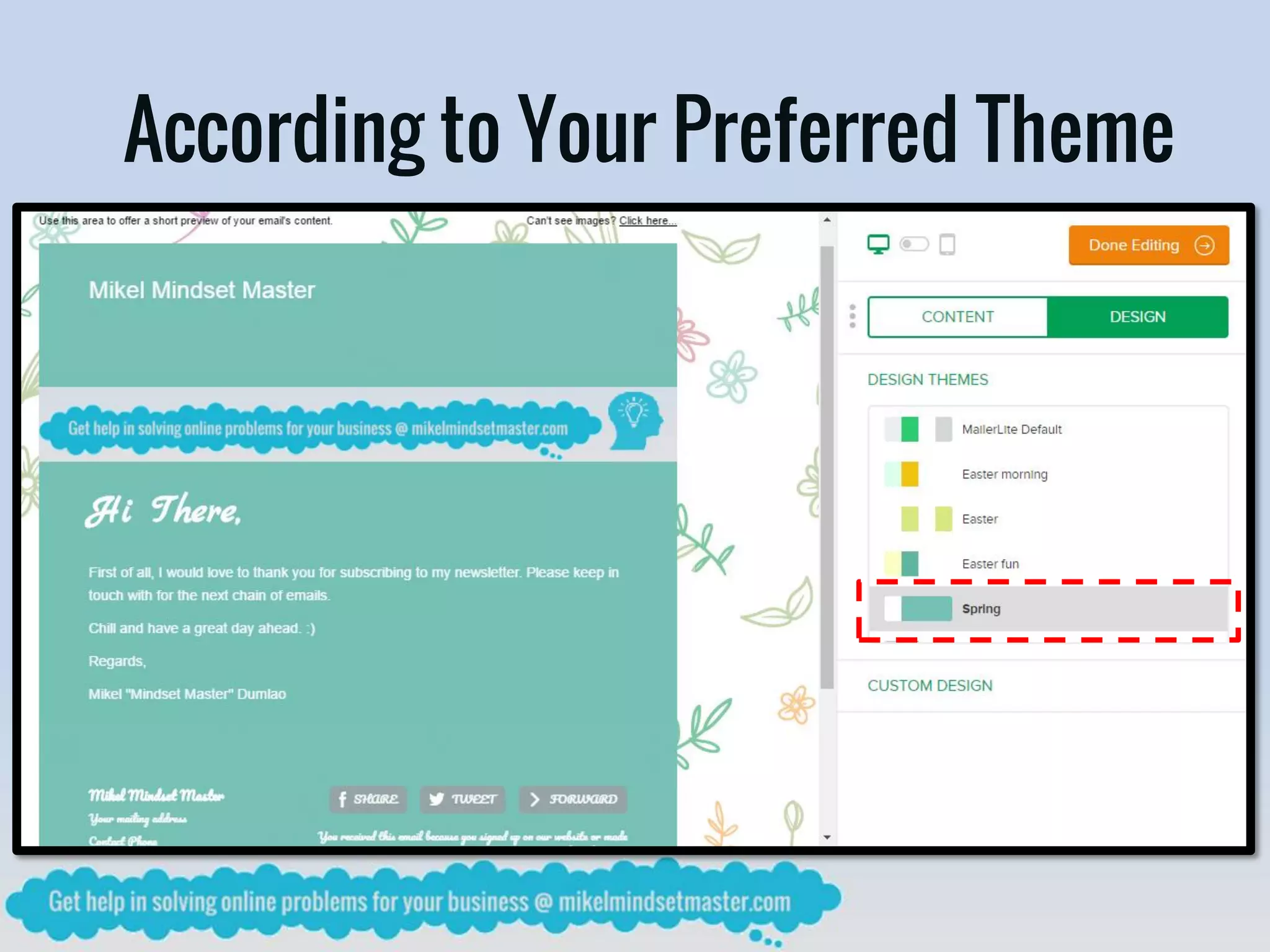
According to Your Preferred Theme
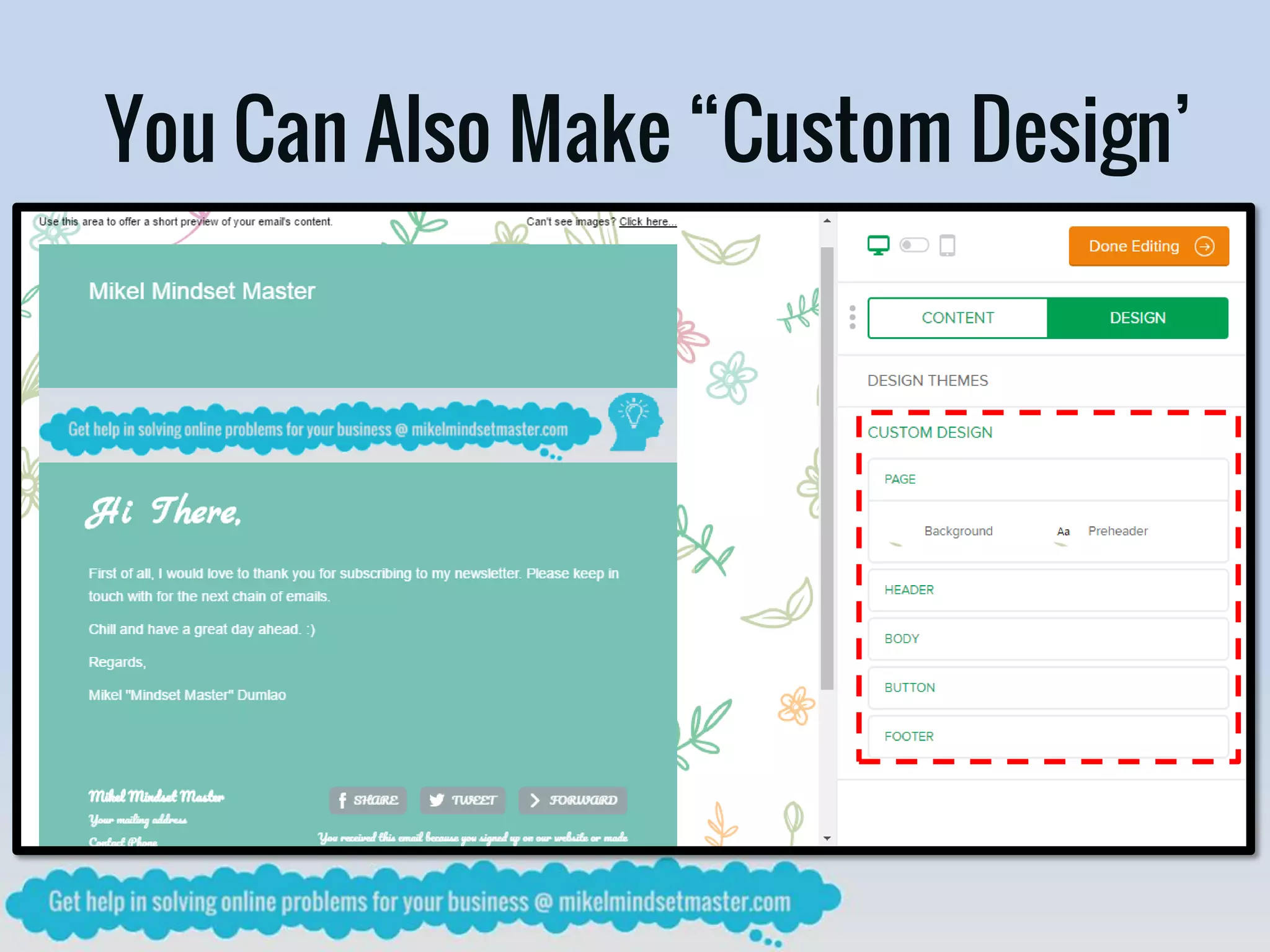
You Can Also Make “Custom Design’
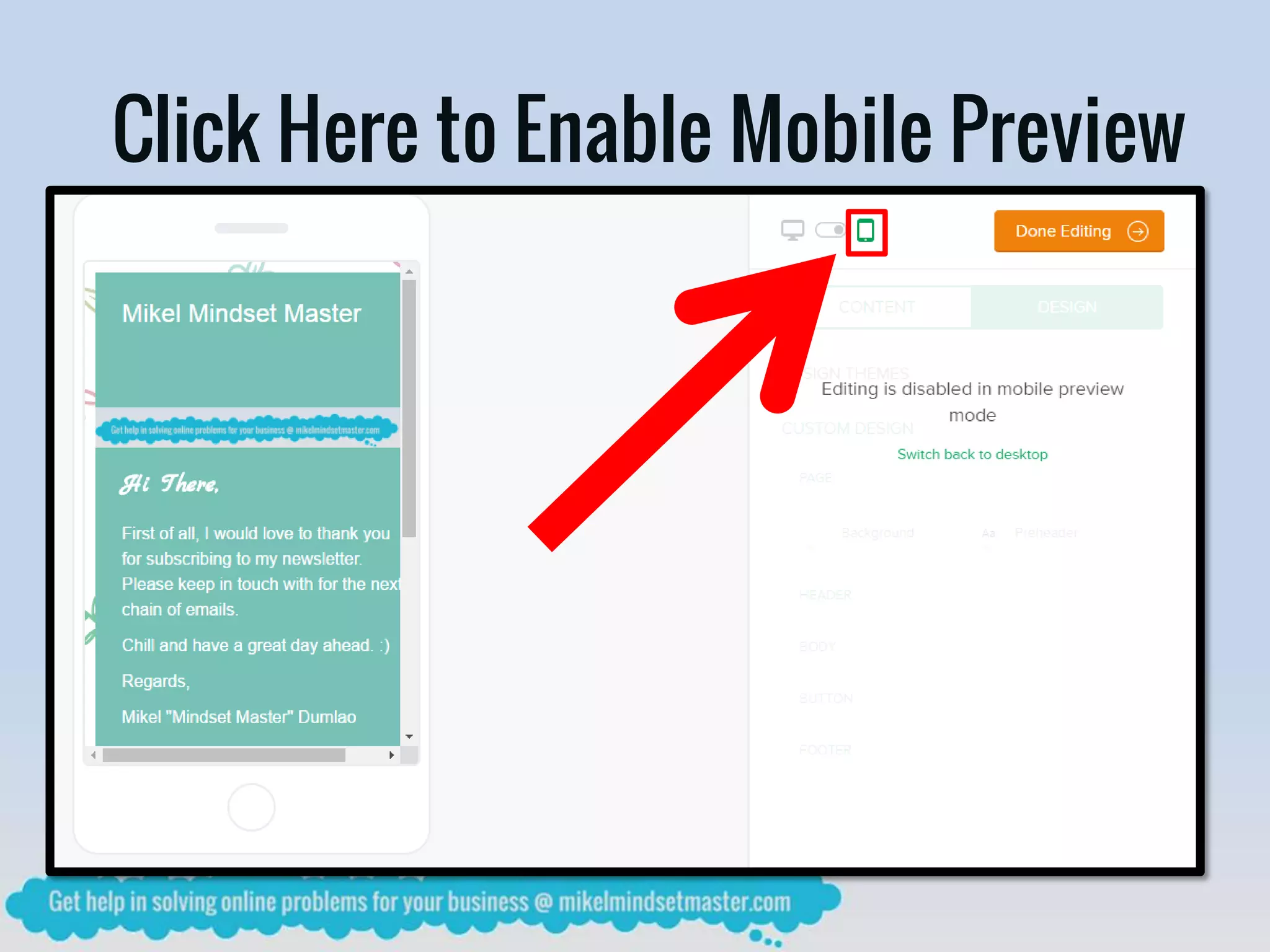
Click Here to Enable Mobile Preview
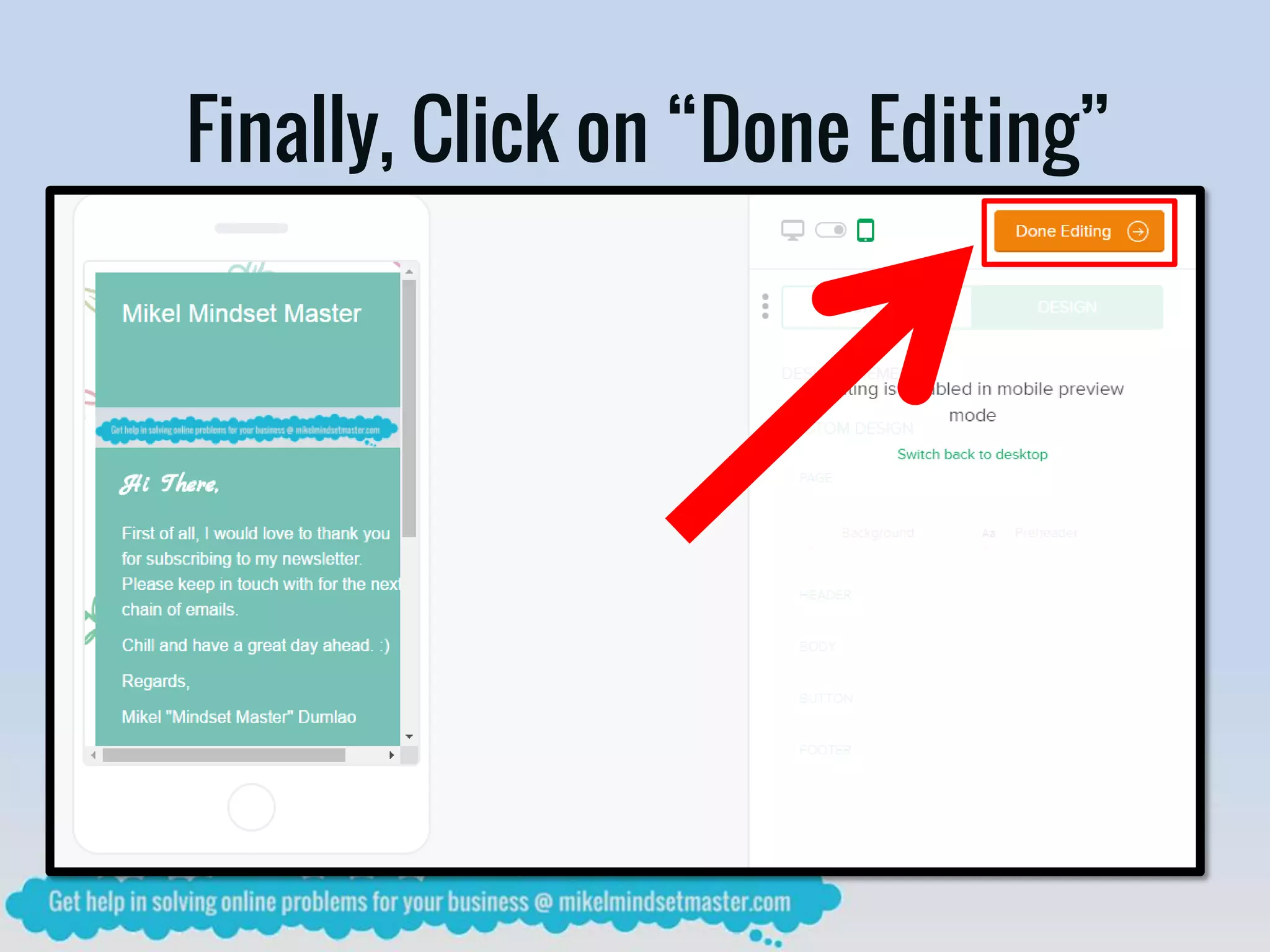
Finally, Click on “Done Editing”
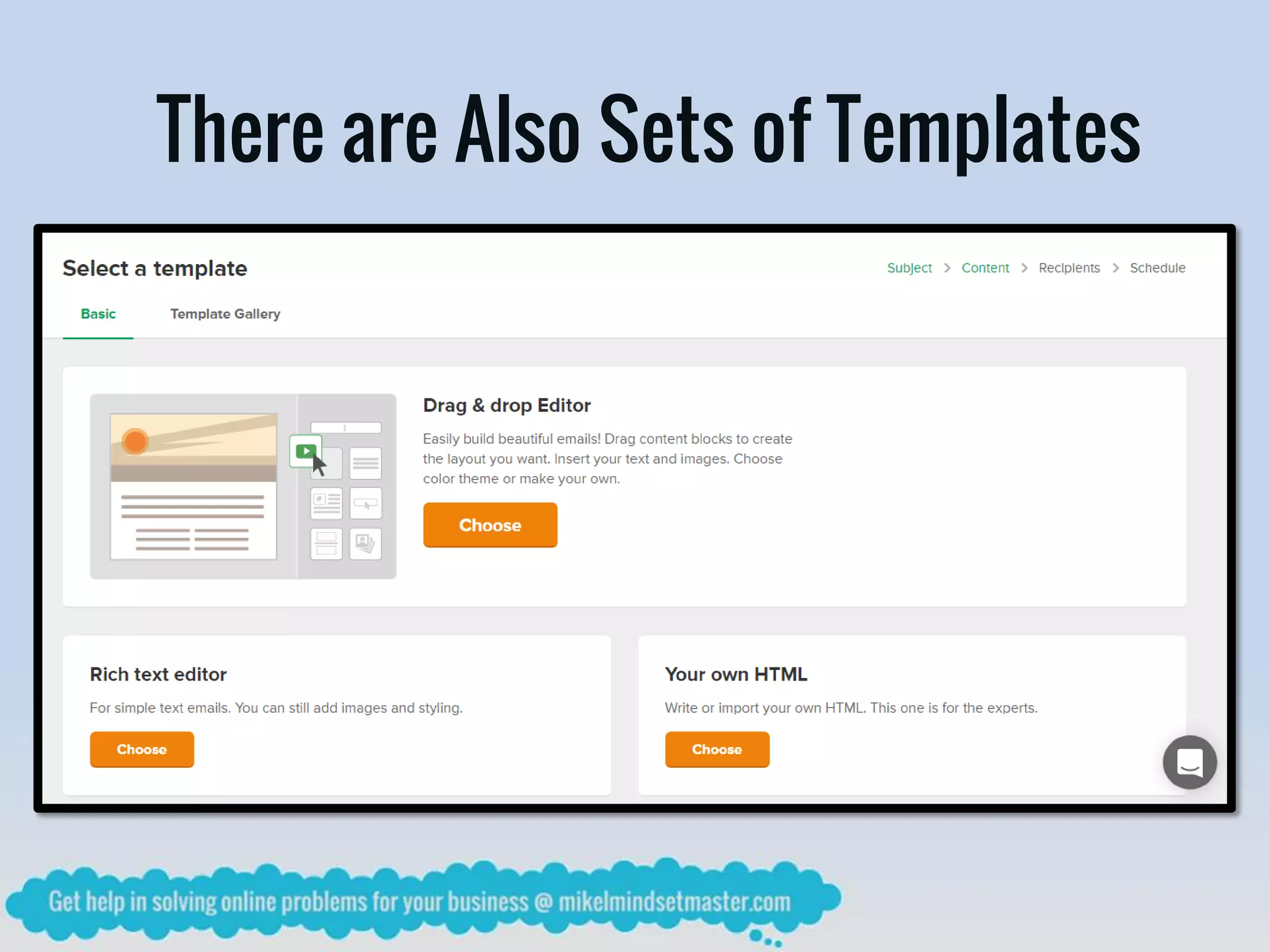
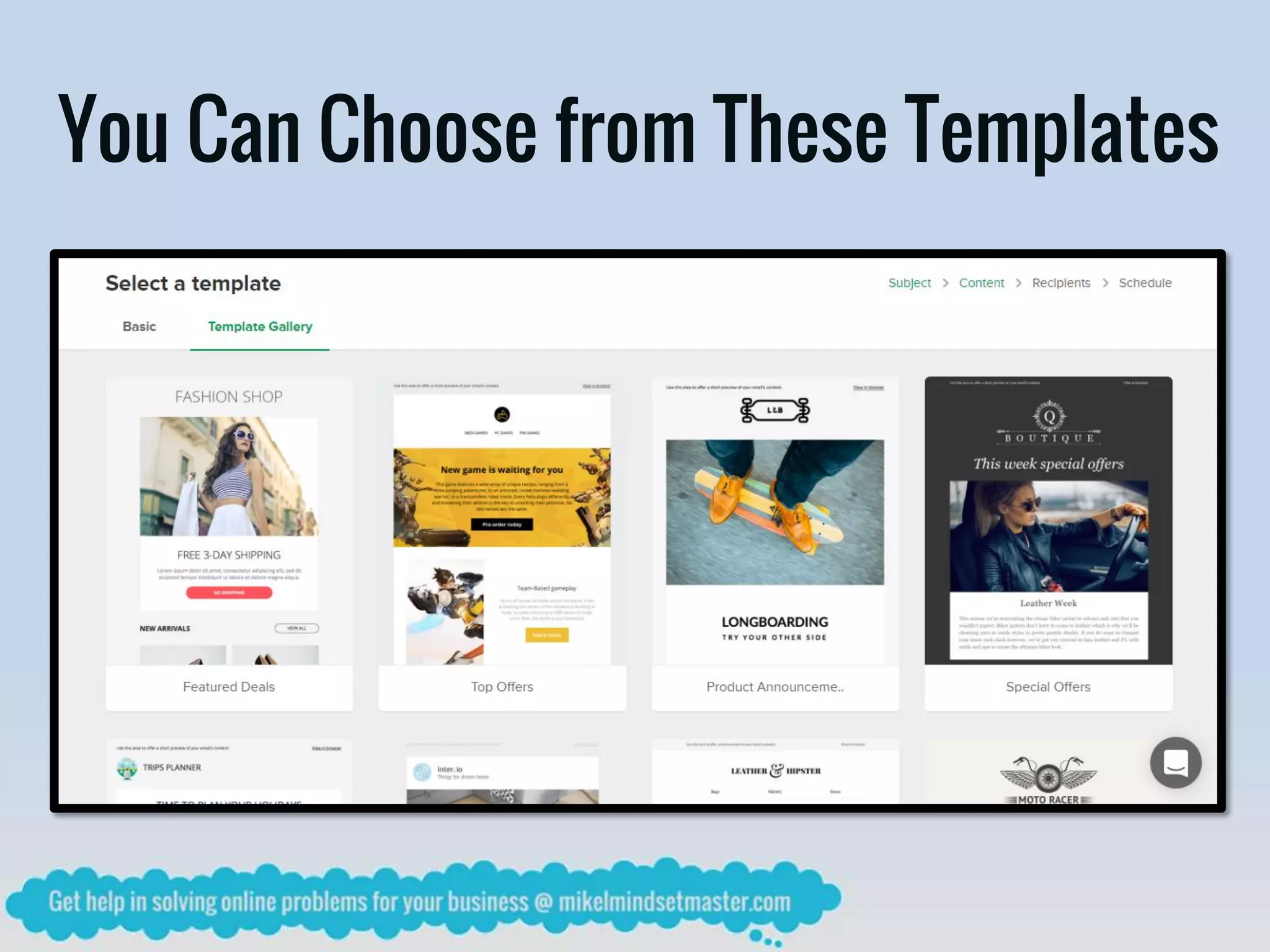
There are Also Sets of Templates
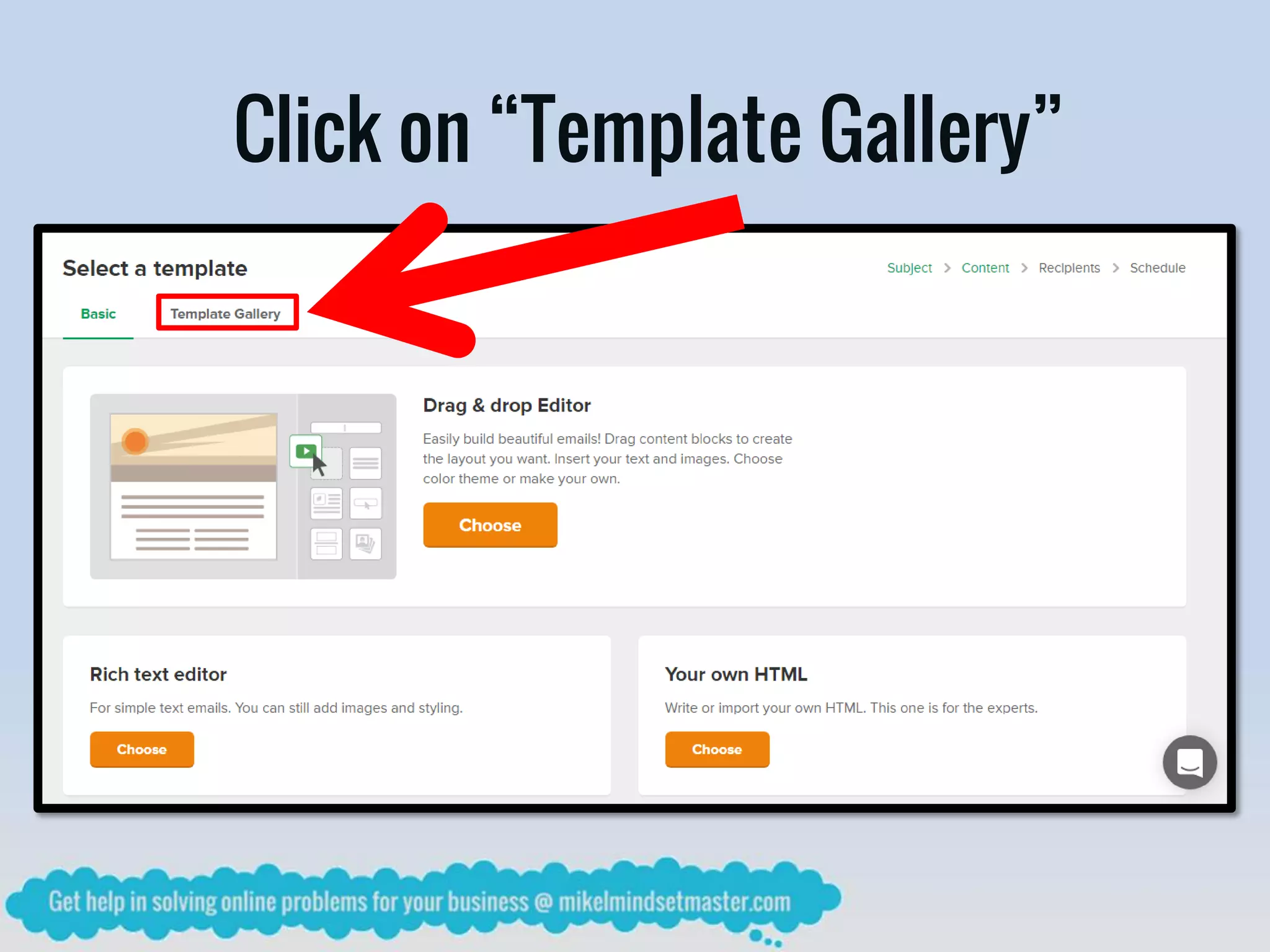
Click on “Template Gallery”
You Can Choose from These Templates
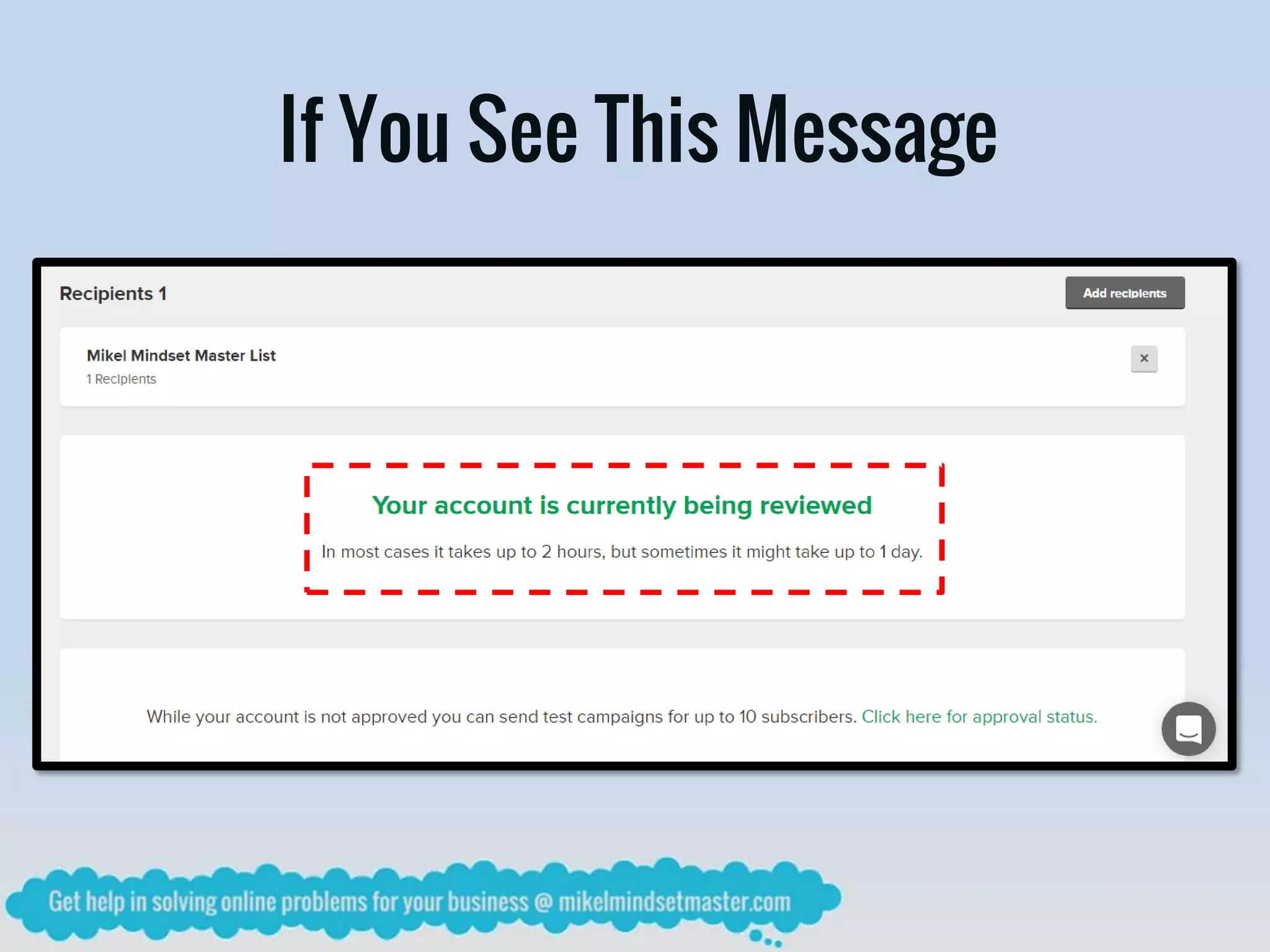
If You See This Message
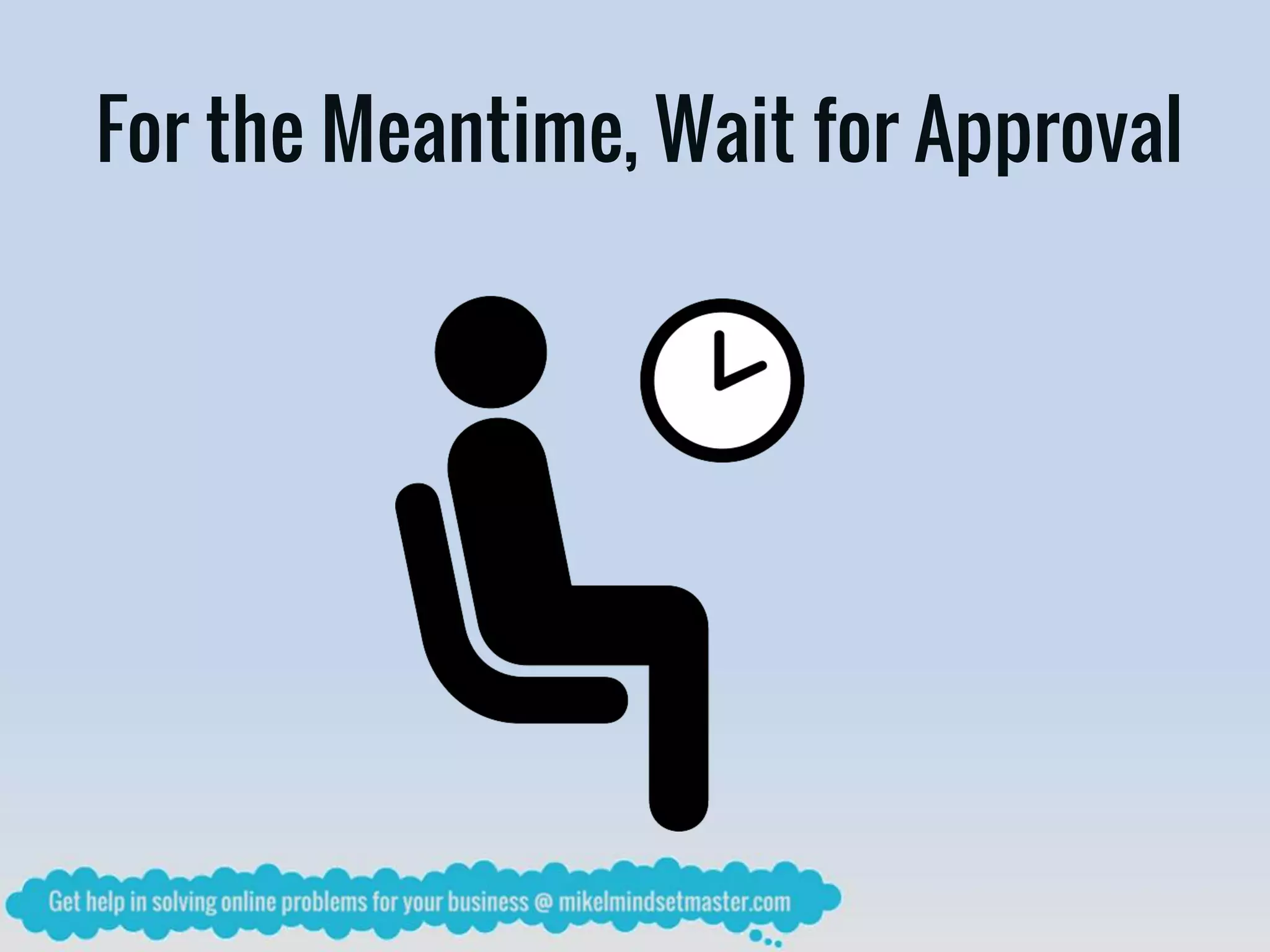
For the Meantime, Wait for Approval
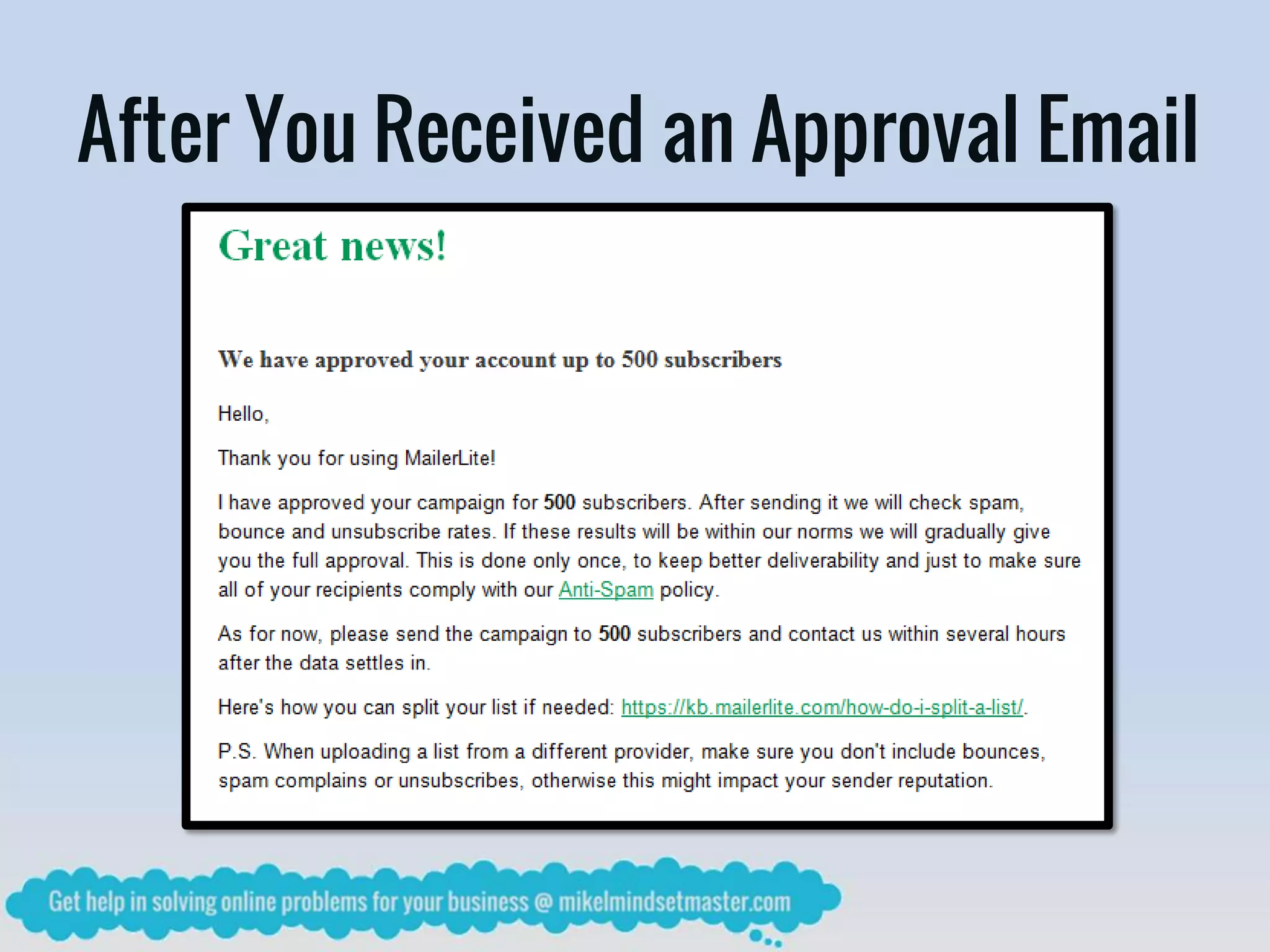
After You Received an Approval Email
You Can Proceed to Step 3
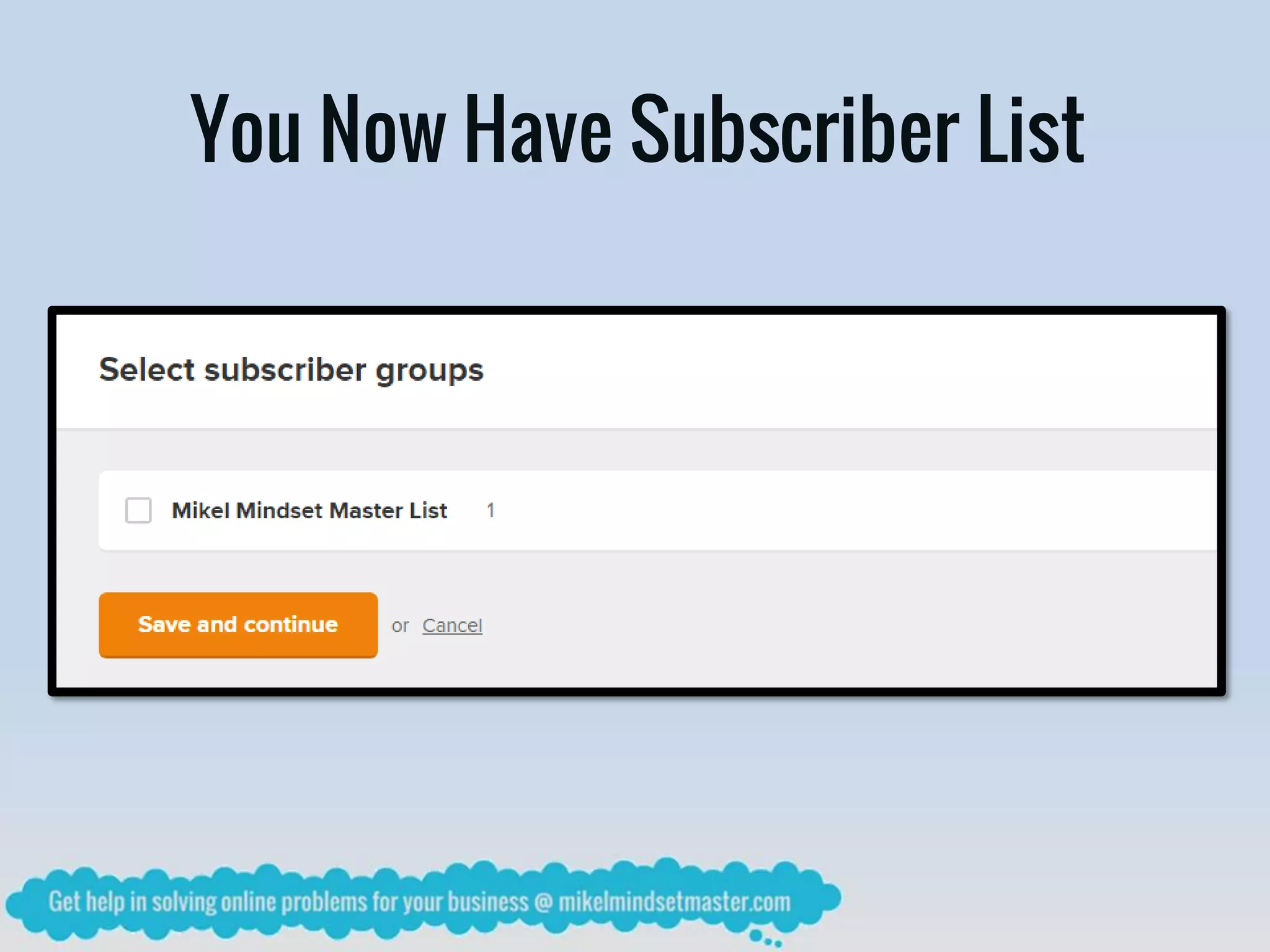
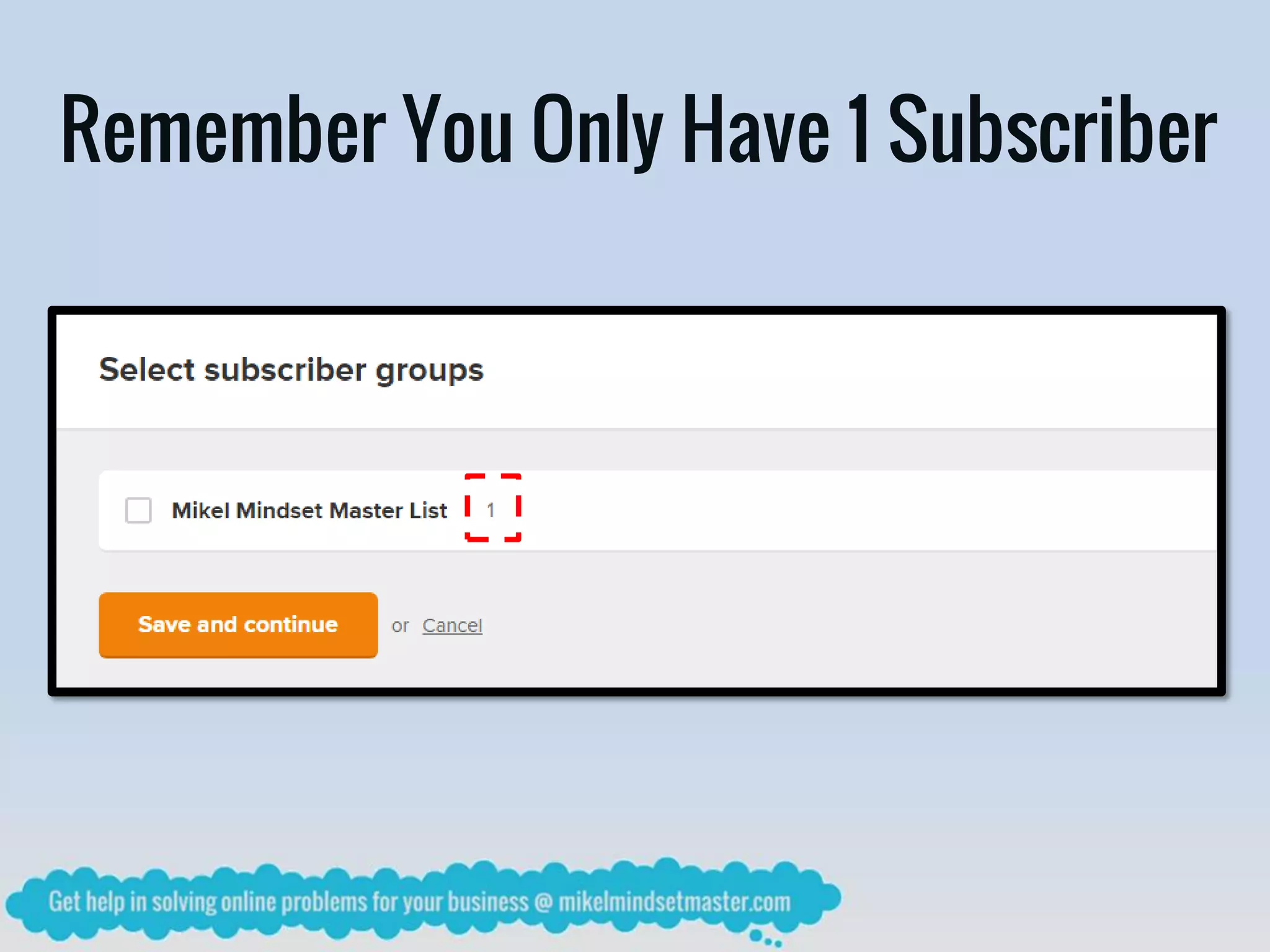
You Now Have Subscriber List
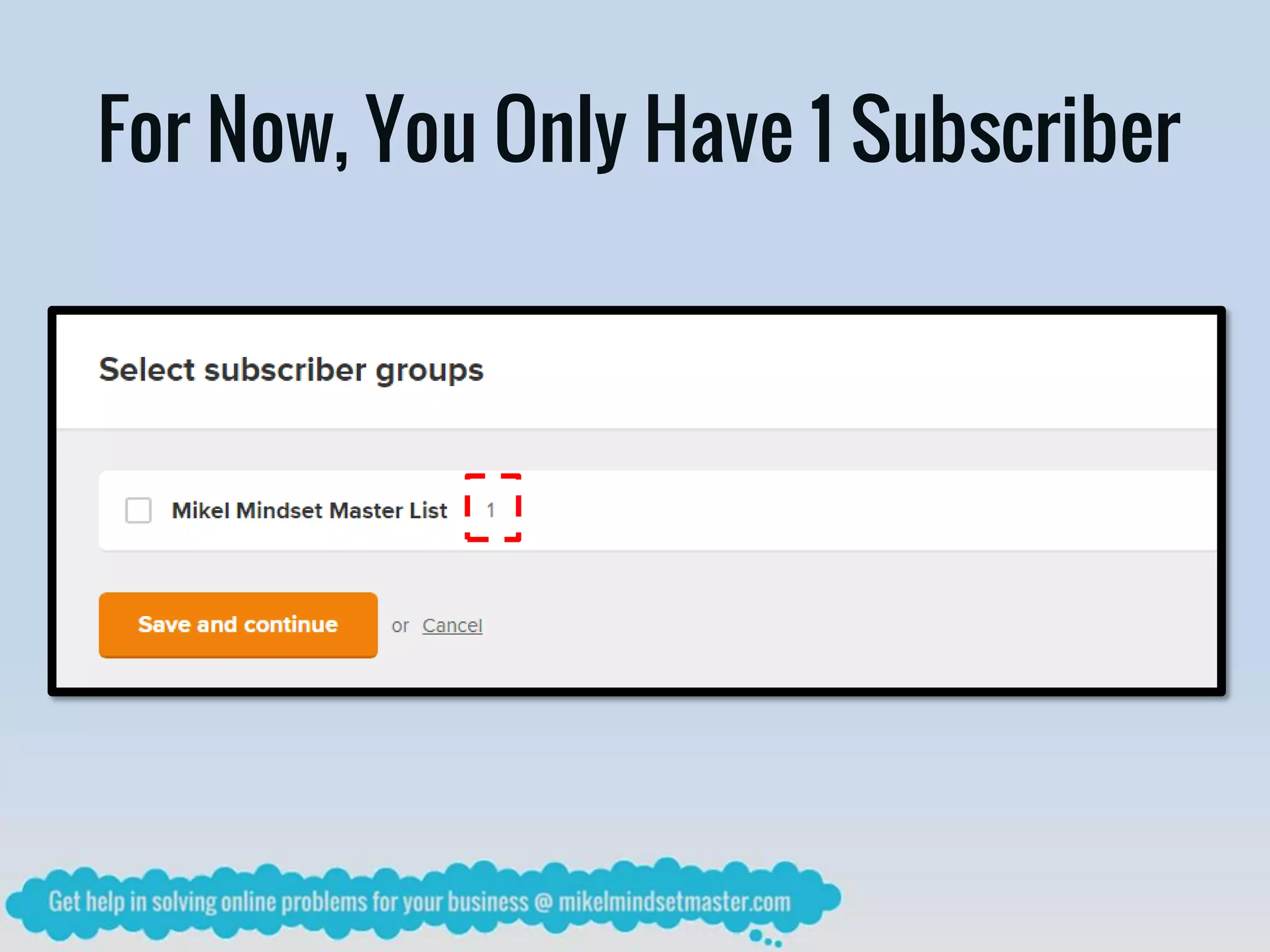
For Now, You Only Have 1 Subscriber
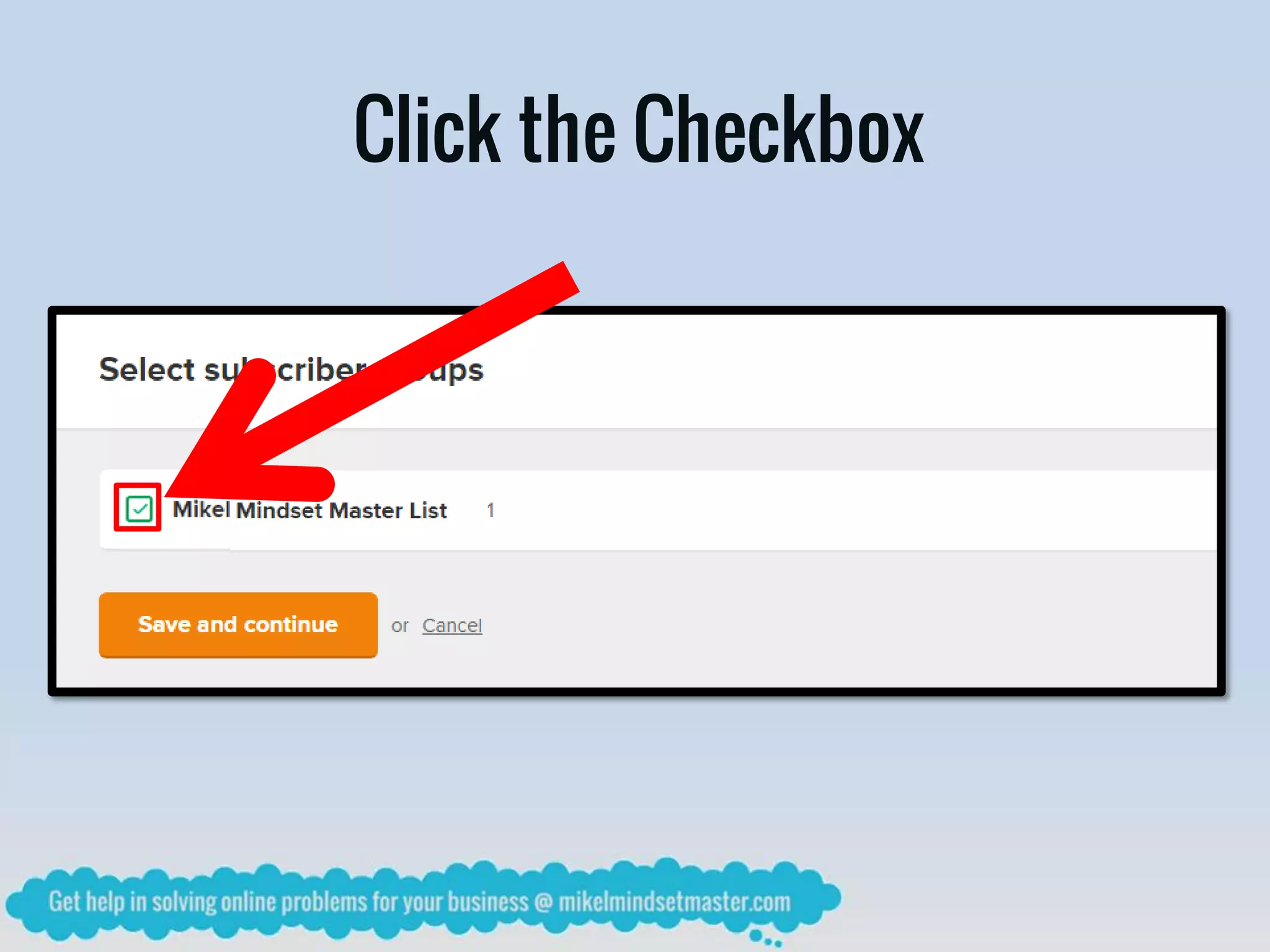
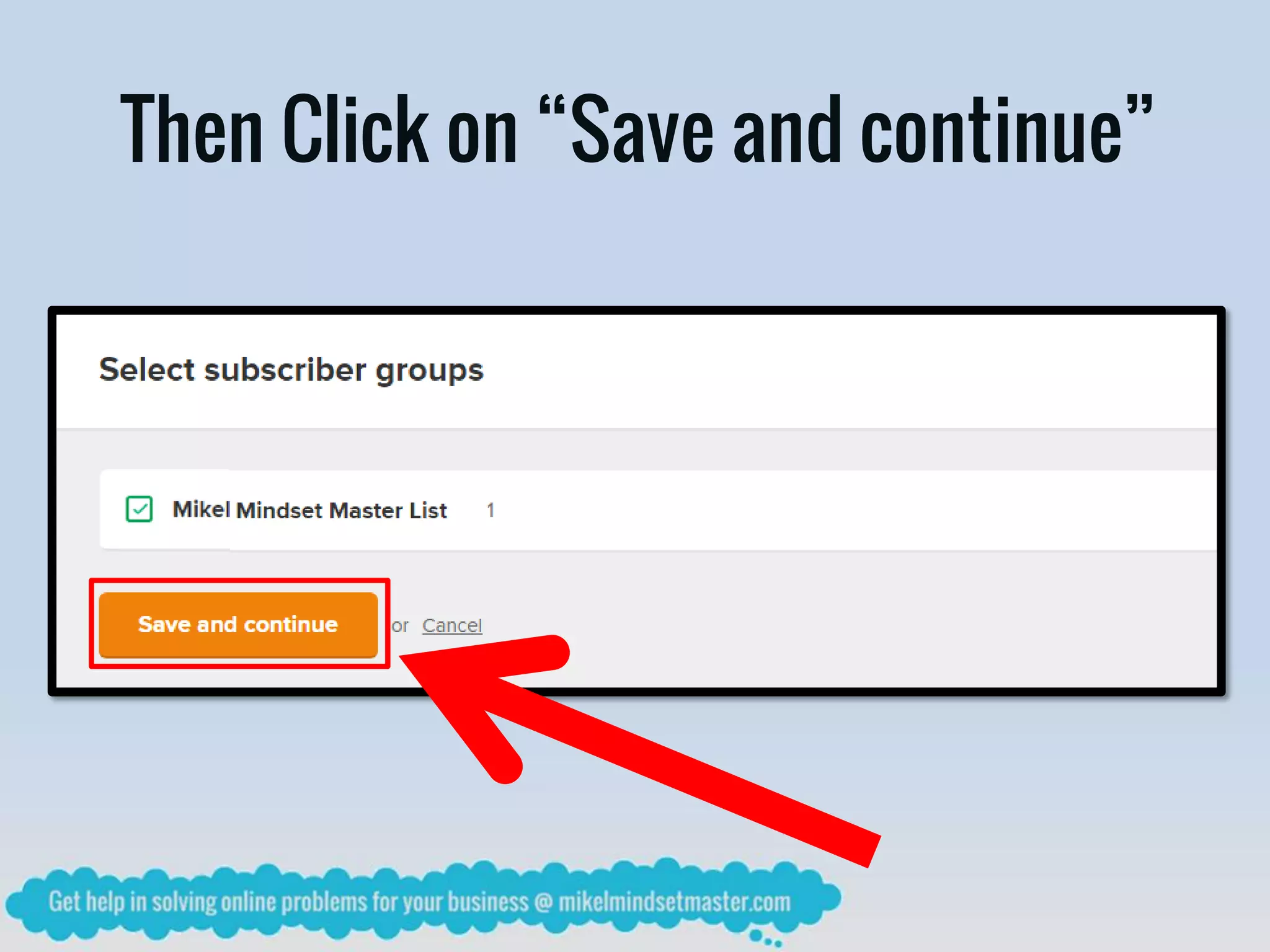
Click the Checkbox
Then Click on “Save and continue”
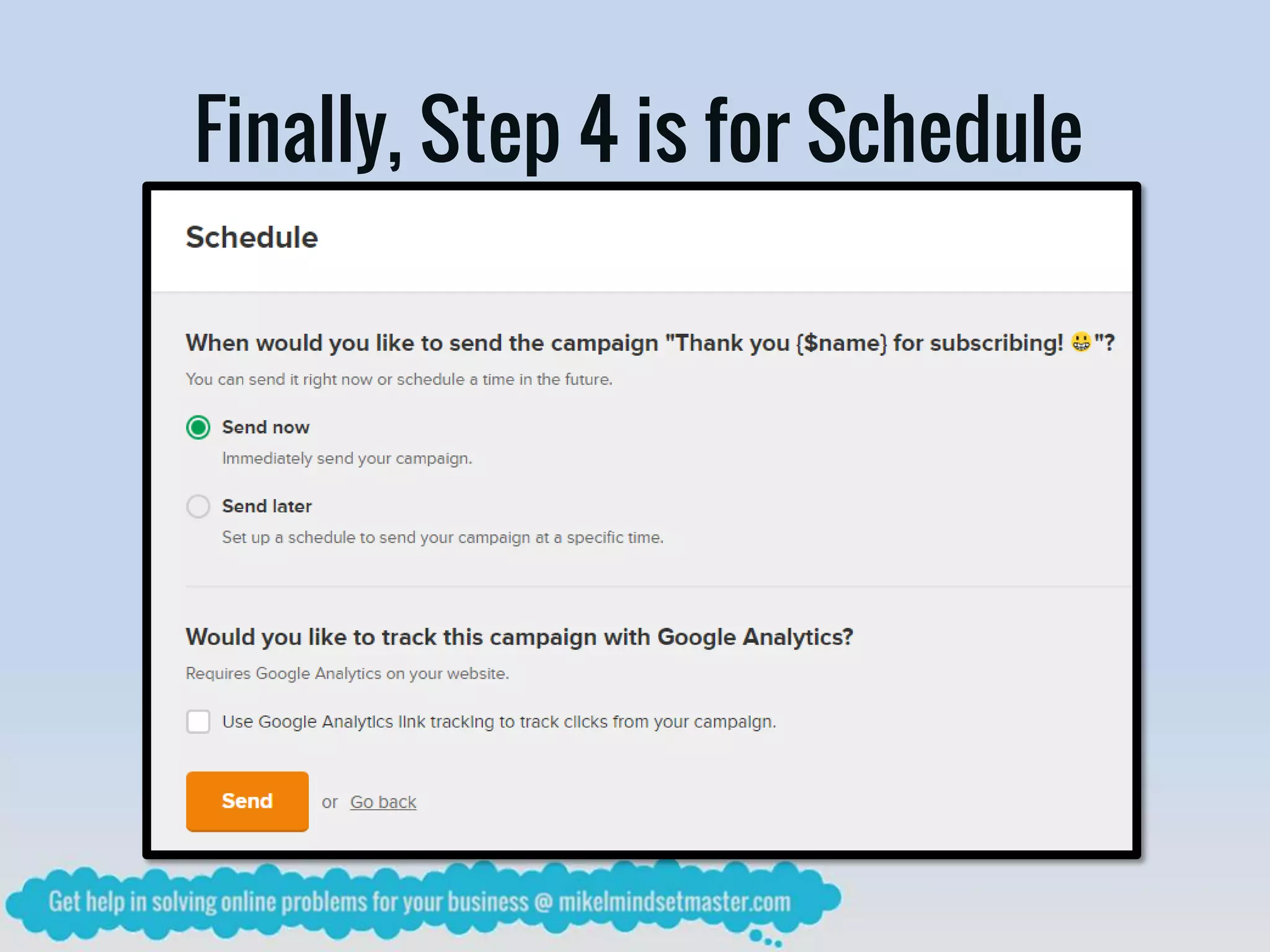
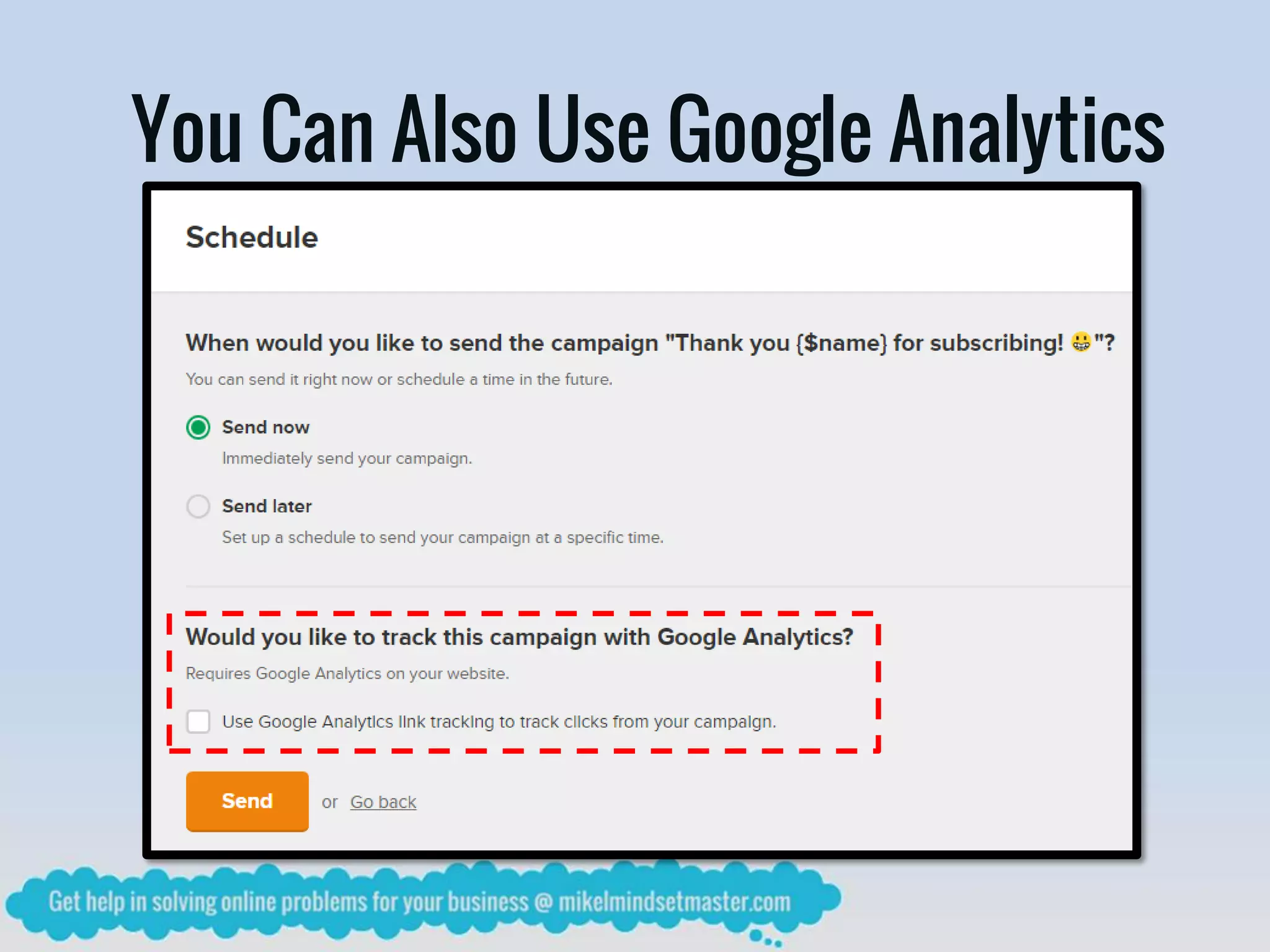
Finally, Step 4 is for Schedule
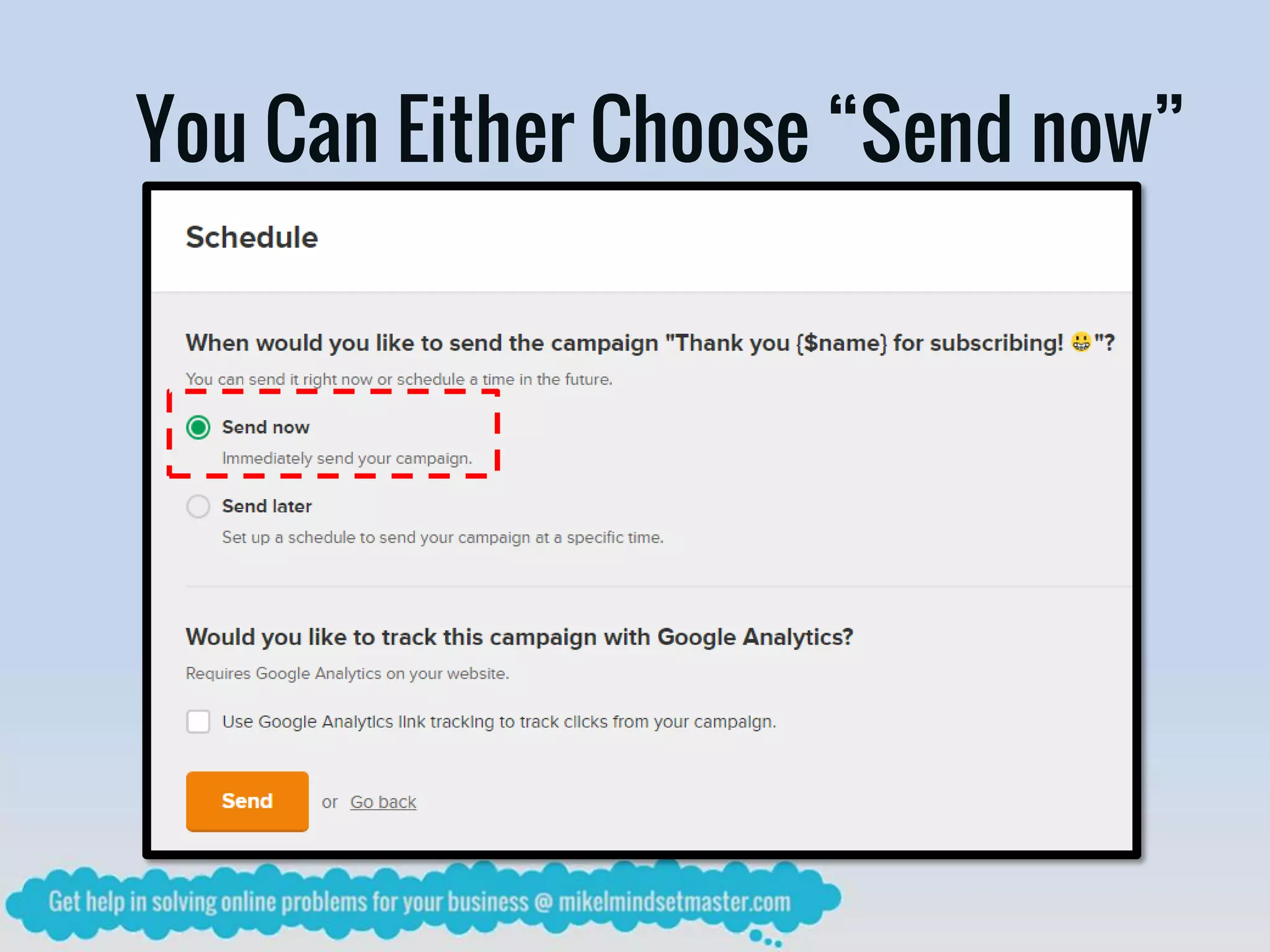
You Can Either Choose “Send now”
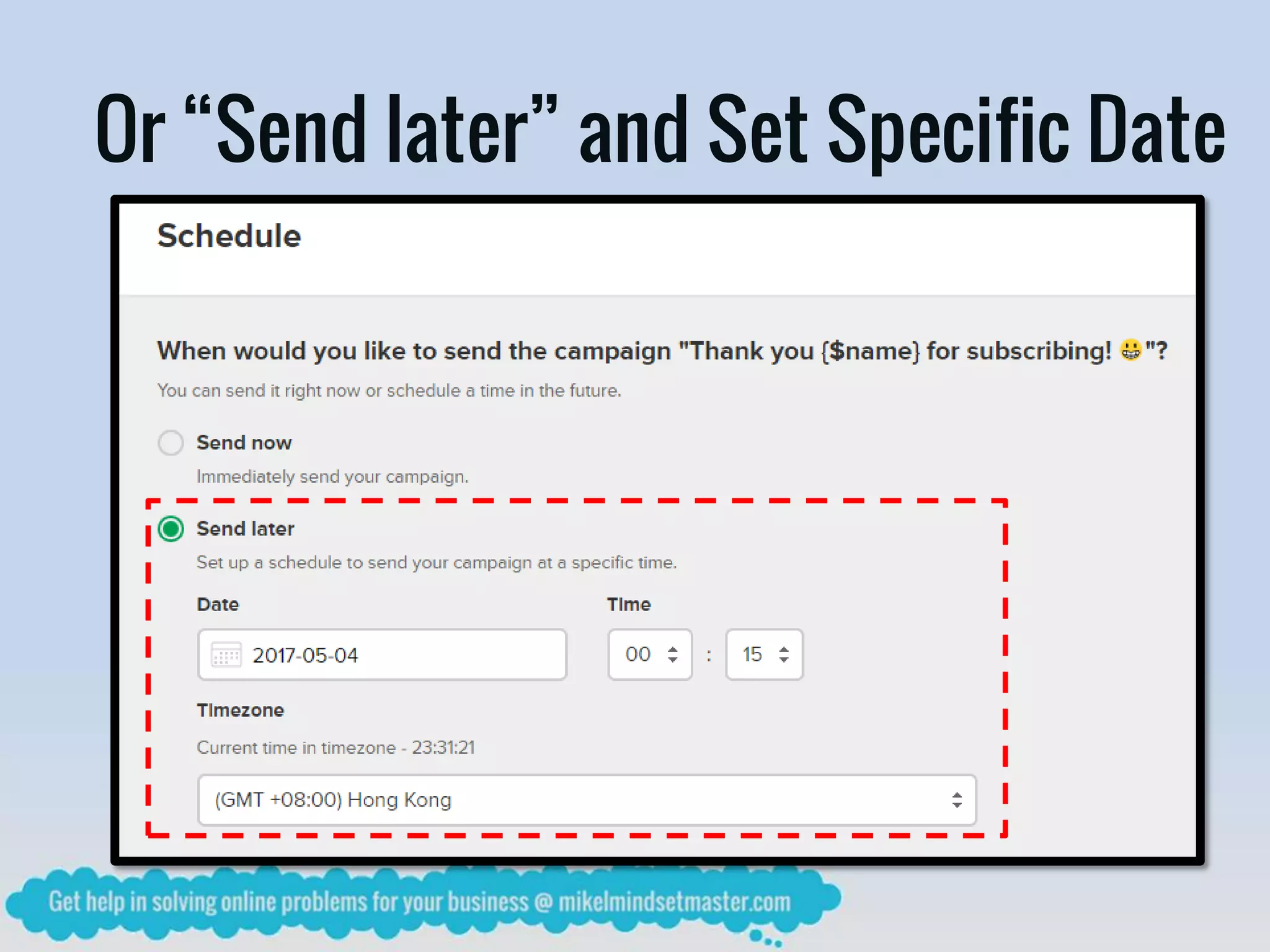
Or “Send later” and Set Specific Date
You Can Also Use Google Analytics
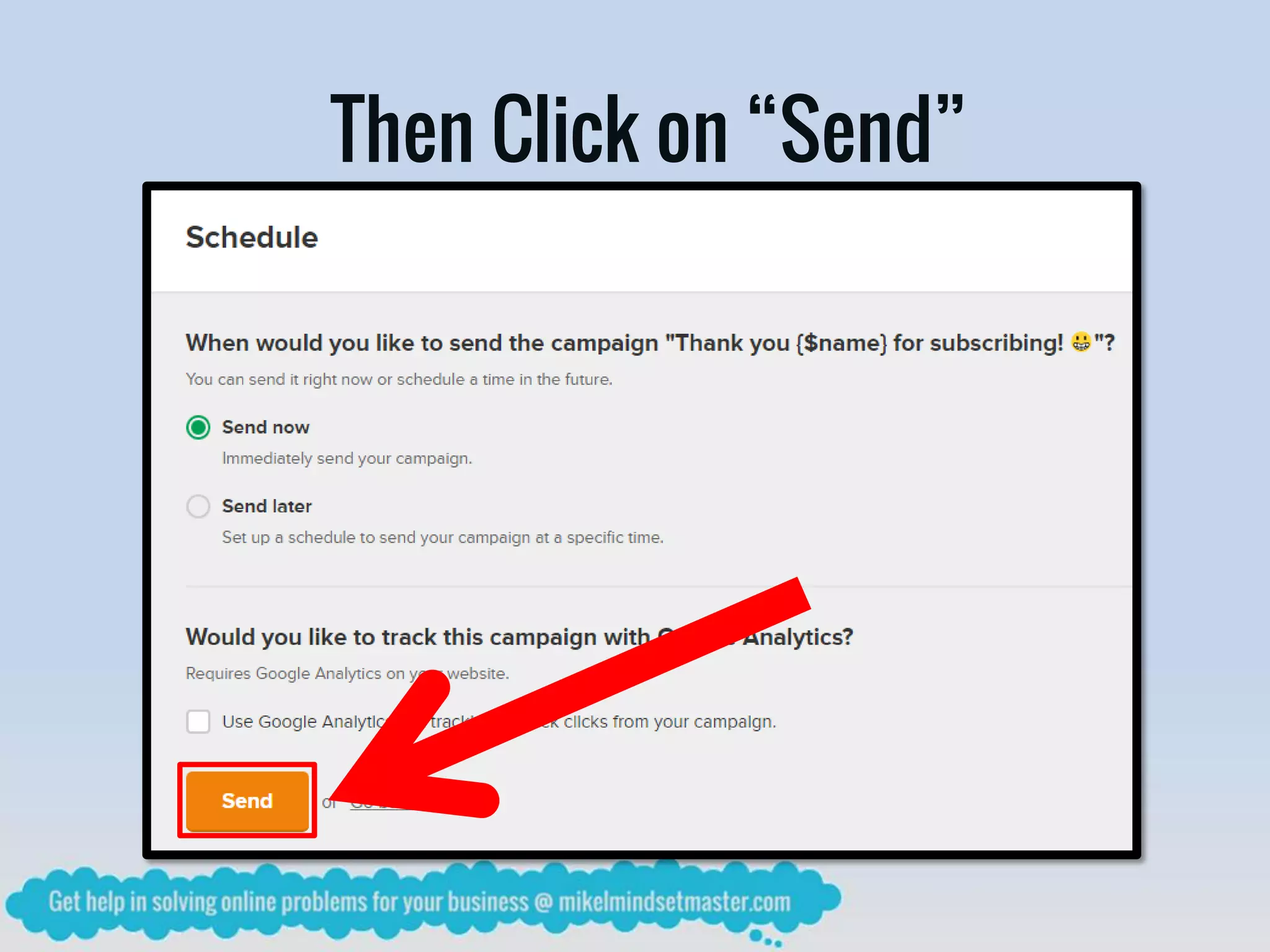
Then Click on “Send”
Remember You Only Have 1 Subscriber
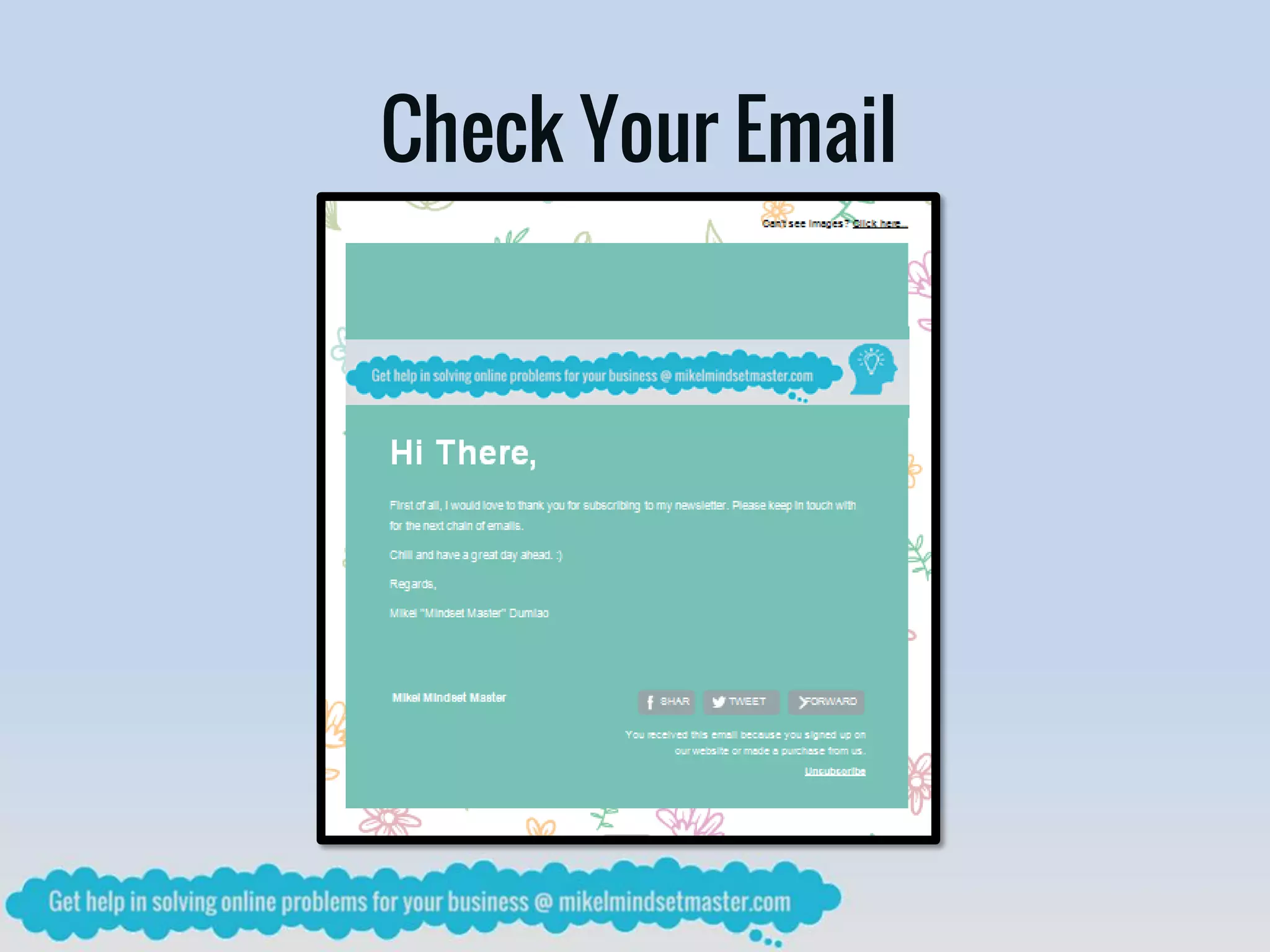
That Was You!
Check Your Email
You Just Finished an Email Campaign
Other Than Email Campaign
MailerLite Has Many Other Functions…
To Increase Your Email Subscriptions
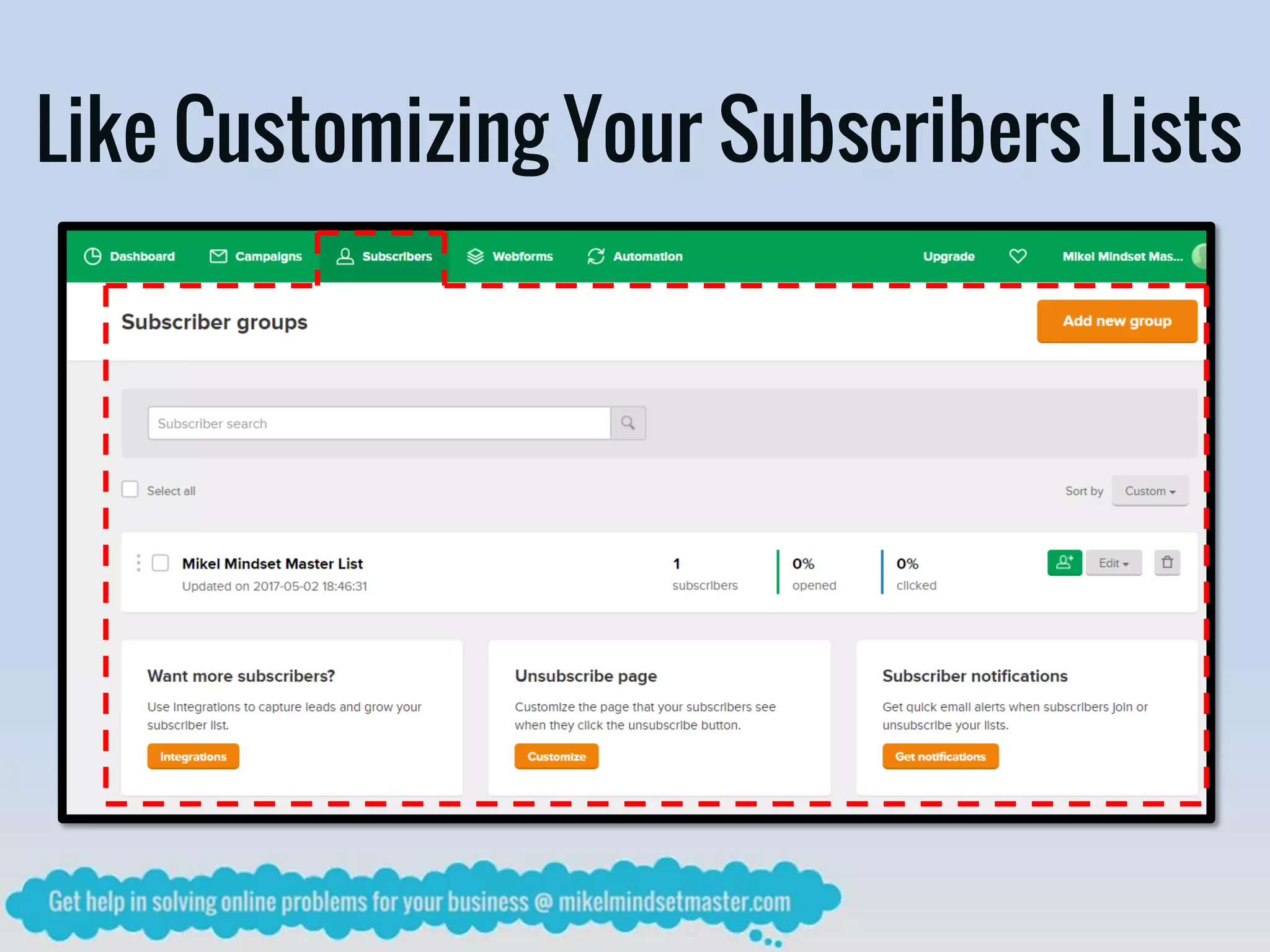
Like Customizing Your Subscribers Lists
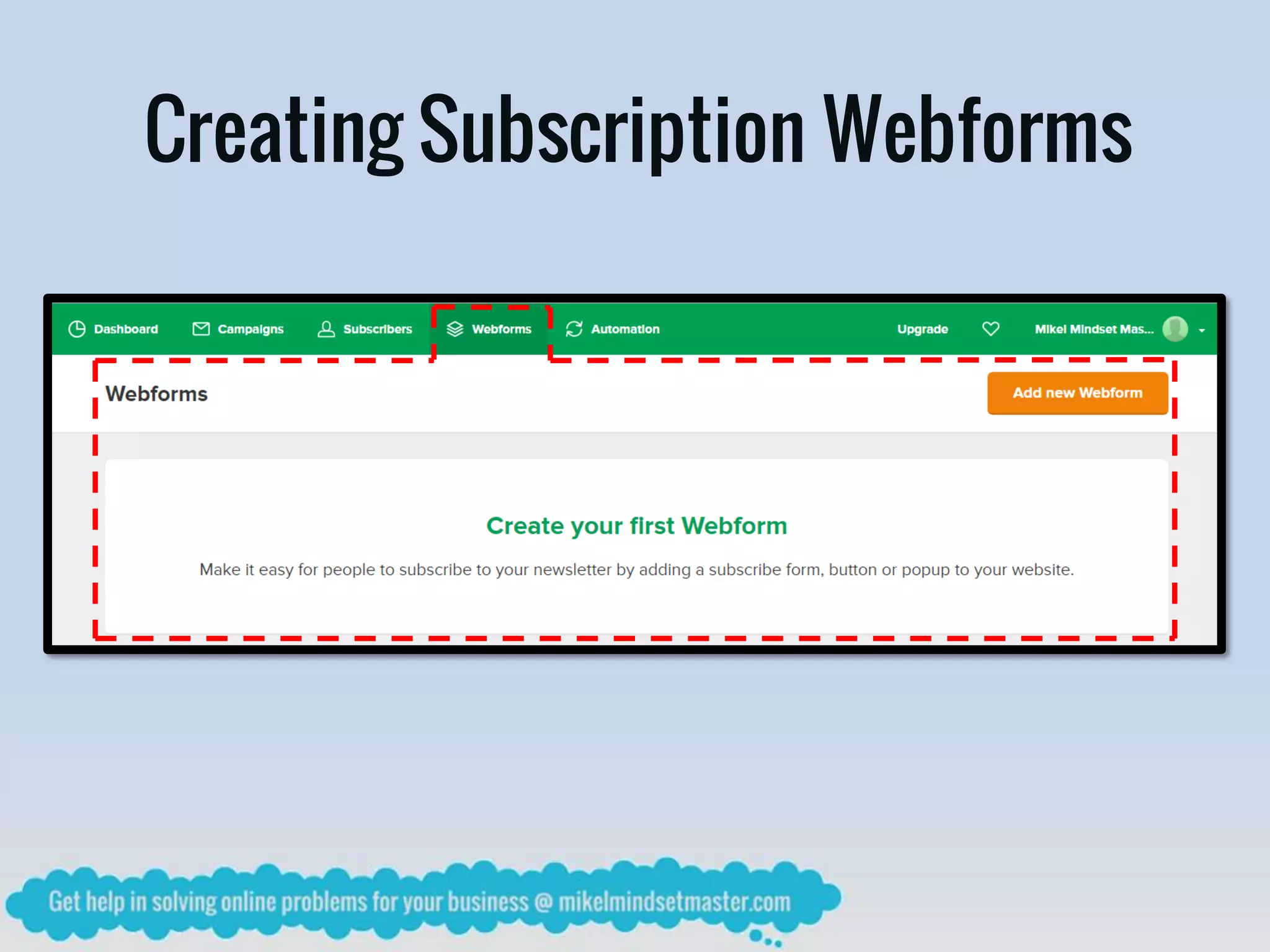
Creating Subscription Webforms
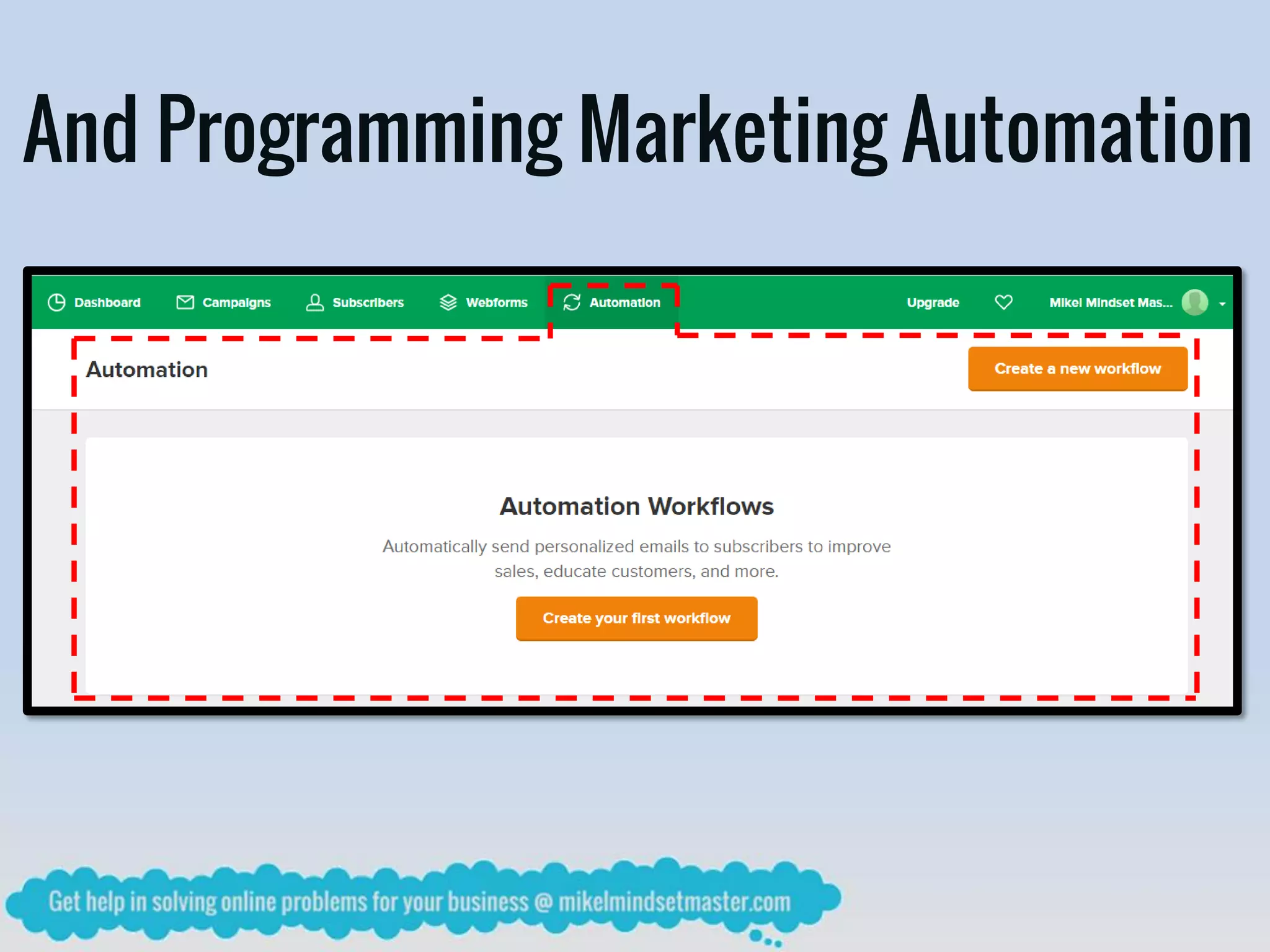
And Programming Marketing Automation
That’s All For Now
Thank You 

How to Use MailerLite inCreating Email Campaigns?