MOODLE

       To begin you have to type: http://www.edu.xunta.es/centros/eoicoruna/aulavirtual/

       Then you enter this site:


                                              To select language                 To enter


To enter


       If you already have a username and a password, type it and you enter the e-learning
       environment.

       If you are not registered this will appear:


               You will have to register by creating a new account and fill in those gaps
Then you will receive an email. You will have to follow the instructions, click on th link
and join the course. The enrolment Key is Grundtvig.

Most of you are already enrolled so you can skip that part.
UPDATE YOUR PROFILE

Once inside you can see your name on the top right corner. The information you will
see is your name, surname, email and the courses you are registered.


To update it, you have to click on your name and a new window will appear. If you
want to update the information you just have to click “edit”. It is advisable to write
something about you, upload a picture and add your skype ID.


To upload a picture, you just have to click on”Examine” and indicate where that is in
your computer and upload it.
If you want to add more information, press “Show Advanced” and there we can add
some other things such as your skype ID. Don’t forget to save at the end
MENSAJES

To send messages, you will need to find your contacts. Firstly you will have to click on
messages (on the right)


Once you click there a window with your contacts will appear. Then you will have to
search for the rests, so you press “Search”.


You can type the name of the person you are looking for.
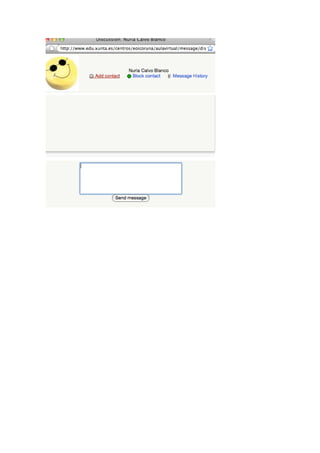
Once it appears, you click on the name and in the next window you add him /her to your
contacts and you can also send a message.
FOROS

This is its symbol:


We have to click on it and we can begin with a new topic. A window appears and we
have to write the title and what we want to add.
If we only want to answer a previous foro, we click on reply and then we will see all the
answers:
WIKI

This is its symbol :


With a wiki we can produce a collaborative document, that is to sya, all of us can add
more text, images,… When we enter we can create a new one or edit one already begun.
In your case you just have to edit them and begin writing. When you finish don’t forget
to save.


   •   Para añadir una imagen hay que pinchar en

   •   Para insertar una tabla hay que pinchar en


As a practice you can go to the Participants wiki and there write what time suits you
best to have a skype, so as to match the students to fulfil the tasks.
Once you click on participants, that is what you see


Press edit and you can write what you want


If you want to use a bigger editor, just click on the editor.

Don’t forget to save at the end.
Chat
This is its symbol

To enter a chat room you just to meet your colleges and click on that. The chat room
appears and you begin chatting.

Moodle English

  • 1.
    MOODLE To begin you have to type: http://www.edu.xunta.es/centros/eoicoruna/aulavirtual/ Then you enter this site: To select language To enter To enter If you already have a username and a password, type it and you enter the e-learning environment. If you are not registered this will appear: You will have to register by creating a new account and fill in those gaps
  • 2.
    Then you willreceive an email. You will have to follow the instructions, click on th link and join the course. The enrolment Key is Grundtvig. Most of you are already enrolled so you can skip that part.
  • 3.
    UPDATE YOUR PROFILE Onceinside you can see your name on the top right corner. The information you will see is your name, surname, email and the courses you are registered. To update it, you have to click on your name and a new window will appear. If you want to update the information you just have to click “edit”. It is advisable to write something about you, upload a picture and add your skype ID. To upload a picture, you just have to click on”Examine” and indicate where that is in your computer and upload it.
  • 4.
    If you wantto add more information, press “Show Advanced” and there we can add some other things such as your skype ID. Don’t forget to save at the end
  • 5.
    MENSAJES To send messages,you will need to find your contacts. Firstly you will have to click on messages (on the right) Once you click there a window with your contacts will appear. Then you will have to search for the rests, so you press “Search”. You can type the name of the person you are looking for.
  • 6.
    Once it appears,you click on the name and in the next window you add him /her to your contacts and you can also send a message.
  • 8.
    FOROS This is itssymbol: We have to click on it and we can begin with a new topic. A window appears and we have to write the title and what we want to add. If we only want to answer a previous foro, we click on reply and then we will see all the answers:
  • 9.
    WIKI This is itssymbol : With a wiki we can produce a collaborative document, that is to sya, all of us can add more text, images,… When we enter we can create a new one or edit one already begun. In your case you just have to edit them and begin writing. When you finish don’t forget to save. • Para añadir una imagen hay que pinchar en • Para insertar una tabla hay que pinchar en As a practice you can go to the Participants wiki and there write what time suits you best to have a skype, so as to match the students to fulfil the tasks.
  • 10.
    Once you clickon participants, that is what you see Press edit and you can write what you want If you want to use a bigger editor, just click on the editor. Don’t forget to save at the end.
  • 11.
    Chat This is itssymbol To enter a chat room you just to meet your colleges and click on that. The chat room appears and you begin chatting.