














What is ?
?
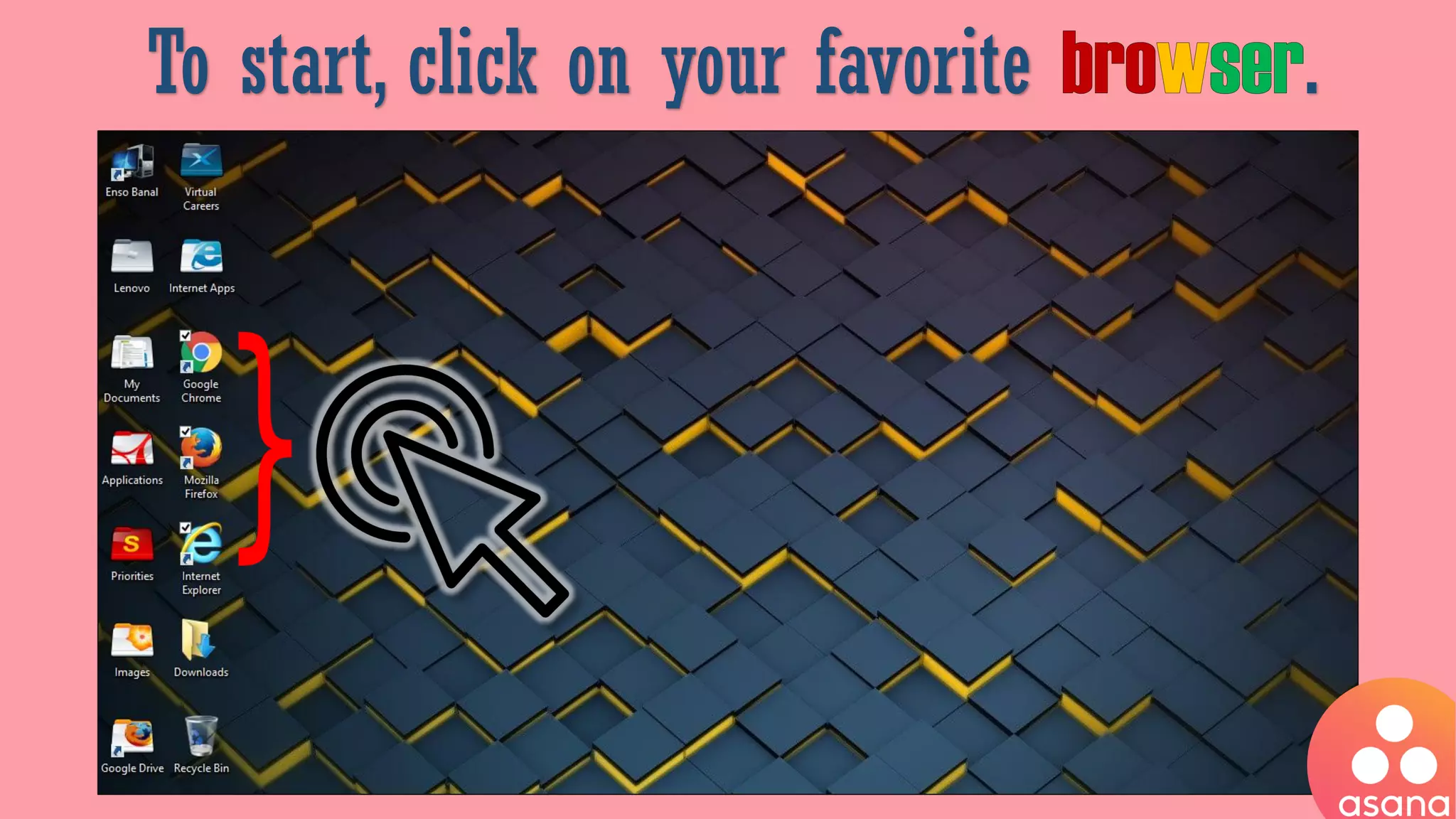
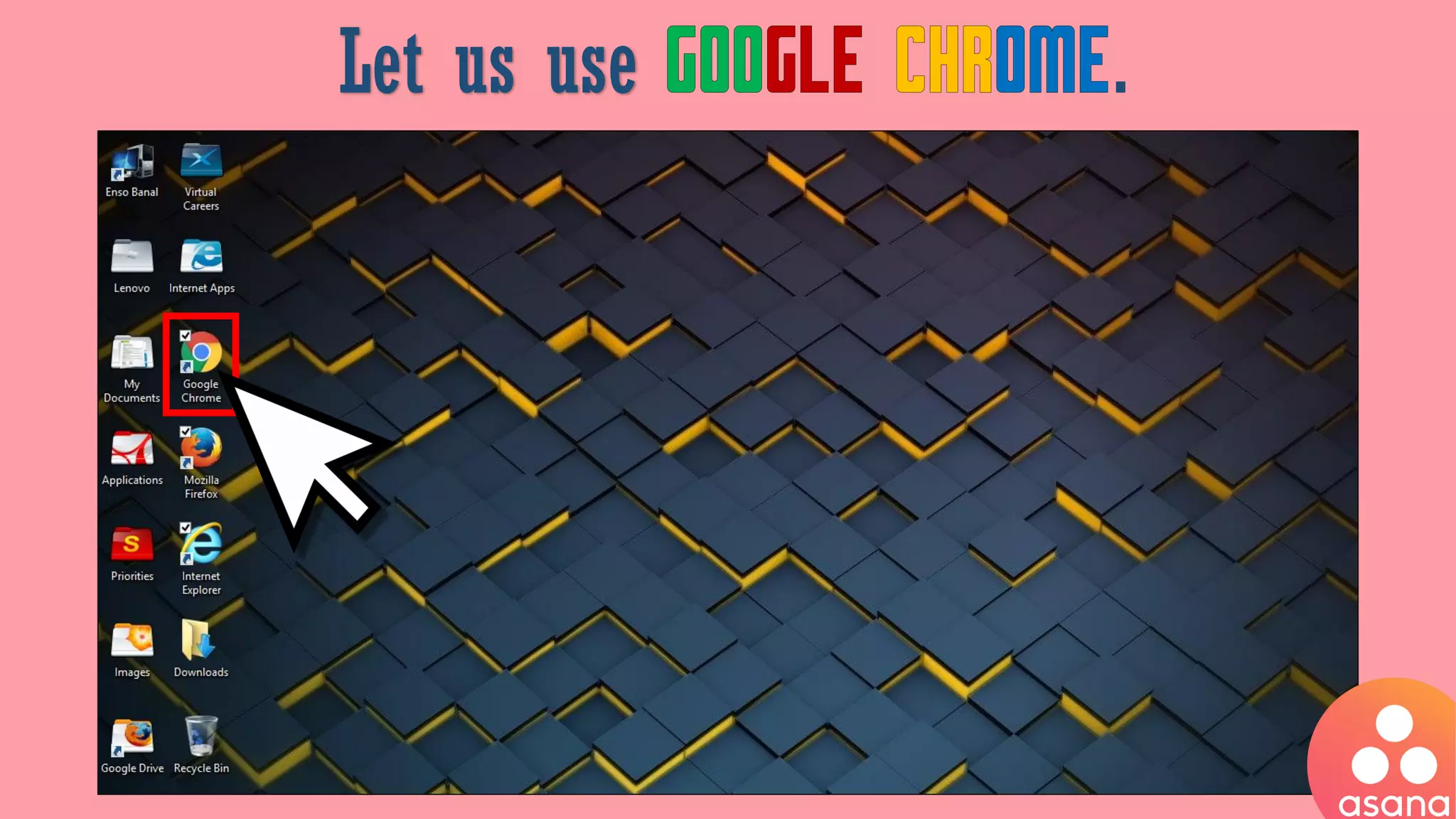
To start, click on your favorite .
We can choose any
Let us use
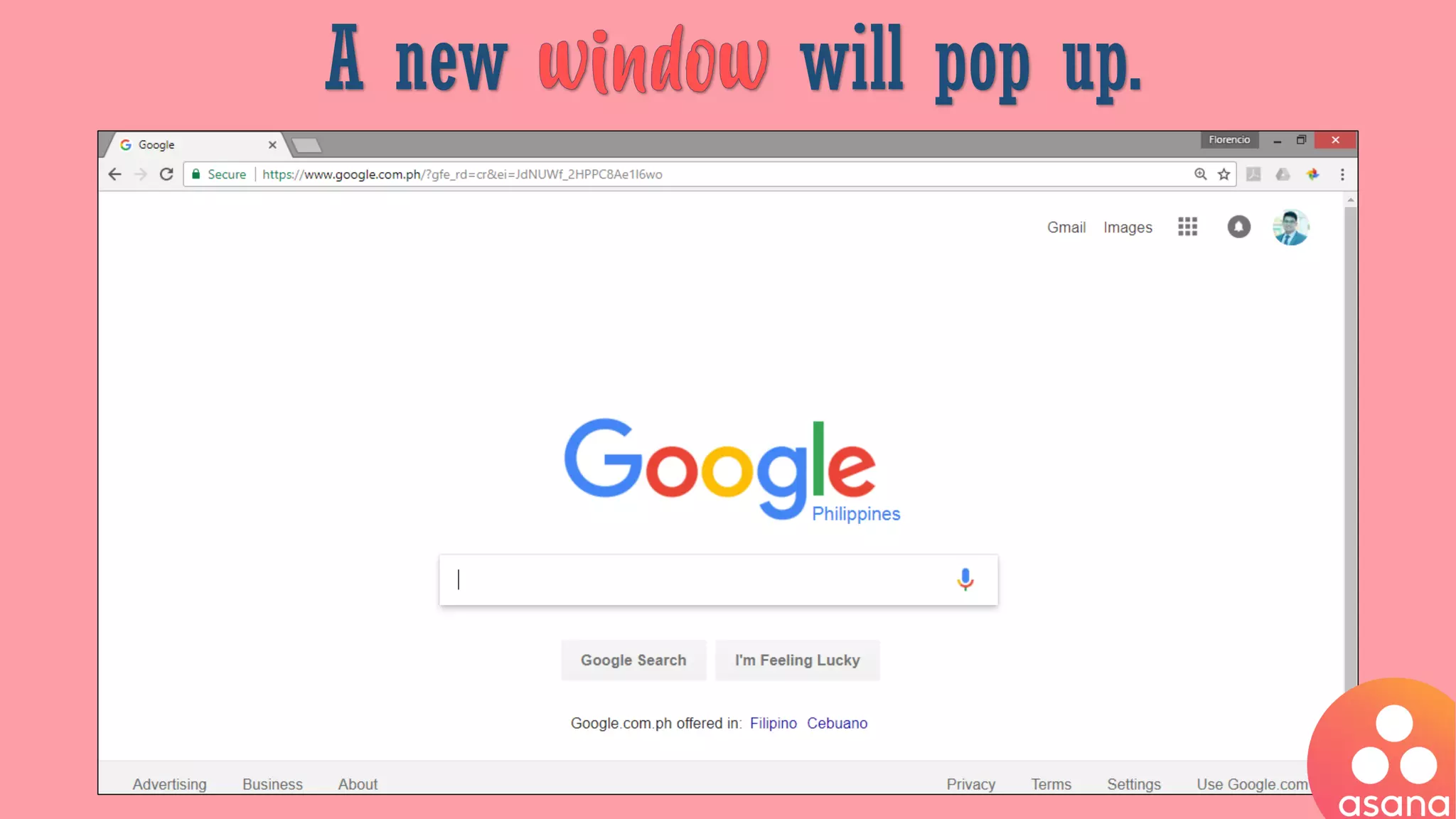
A new will pop up.
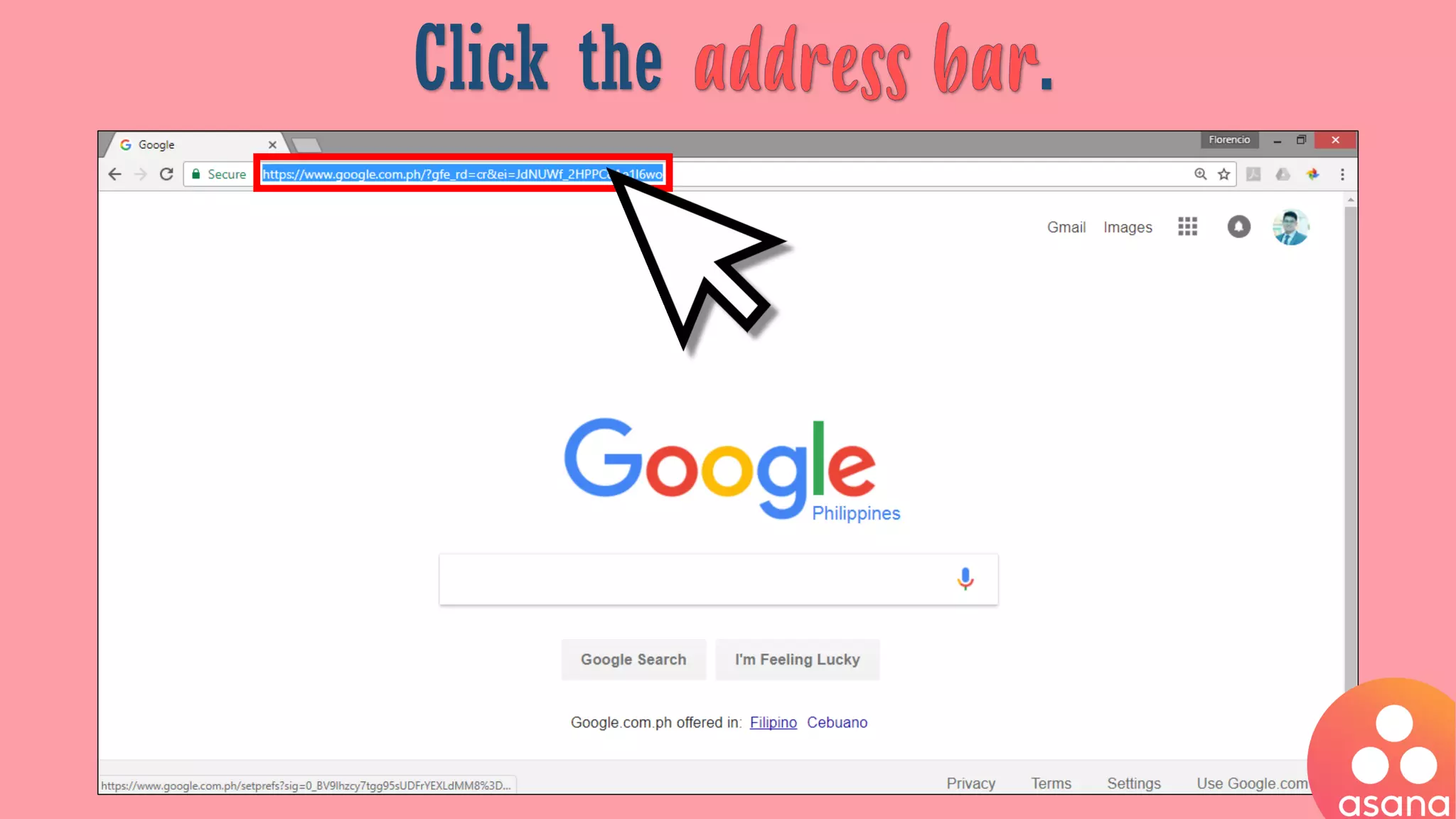
Click the .
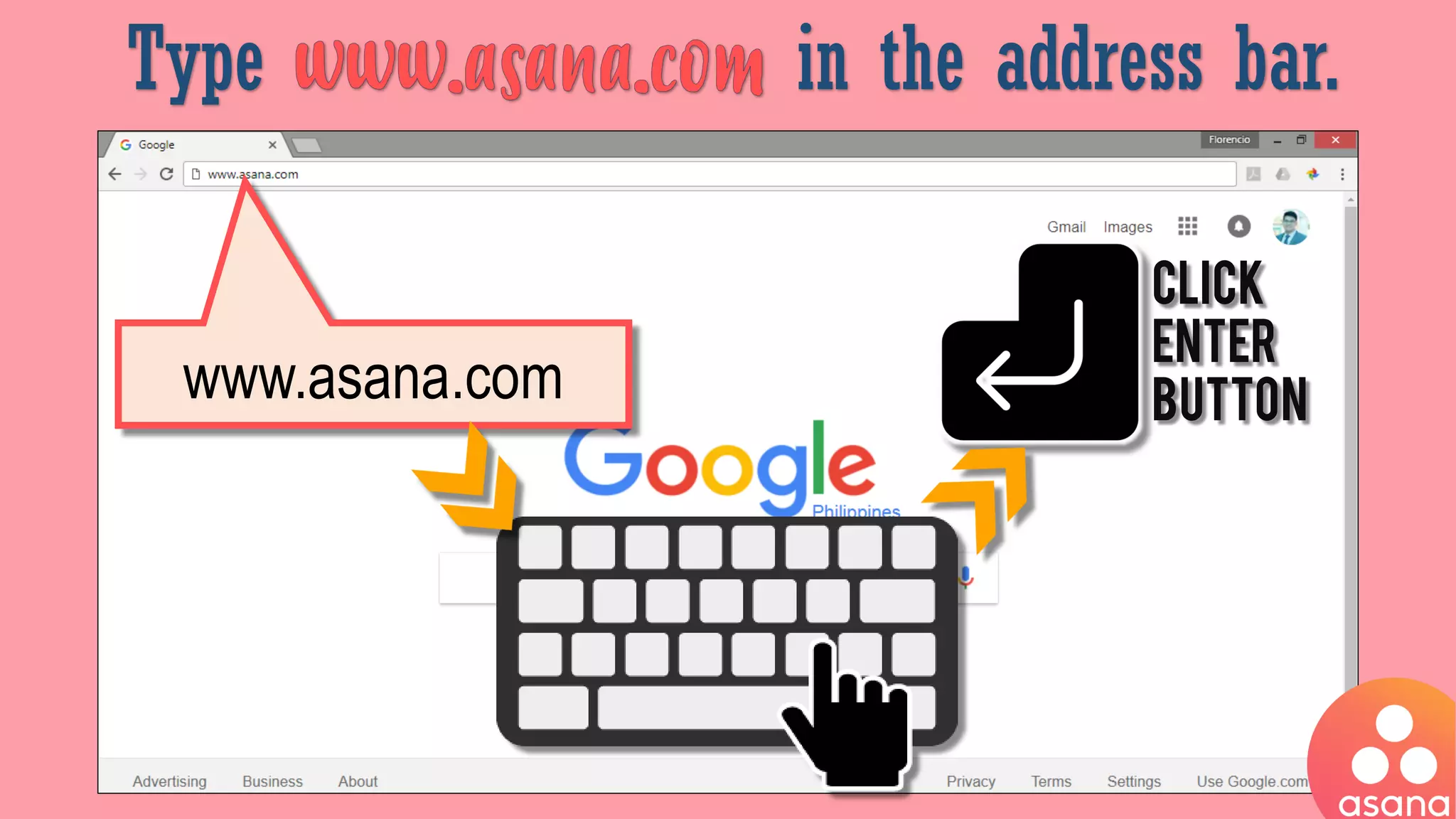
Type in the address bar.
www.asana.com
Click
ENTER
button
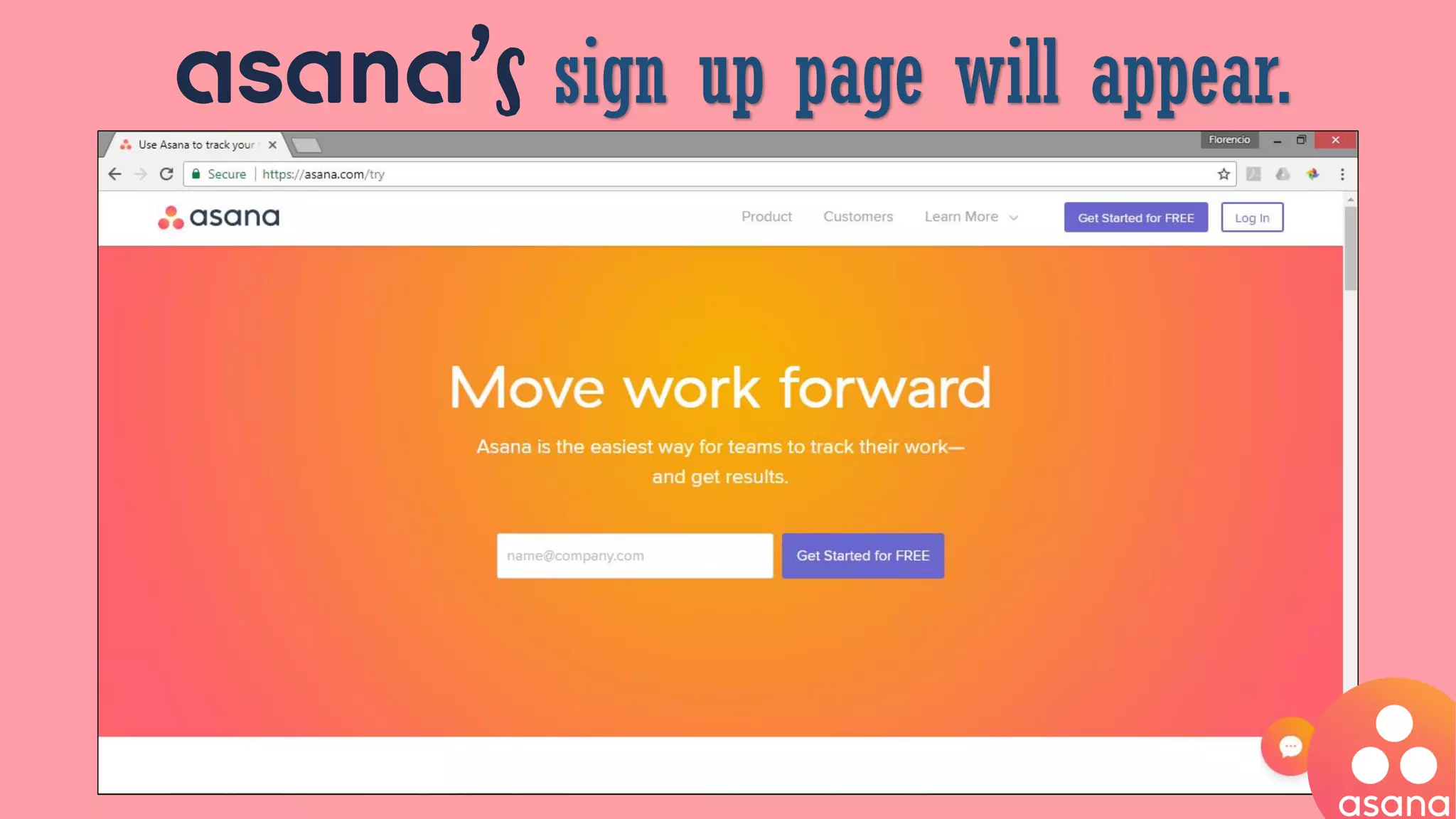
asana’s sign up page will appear.
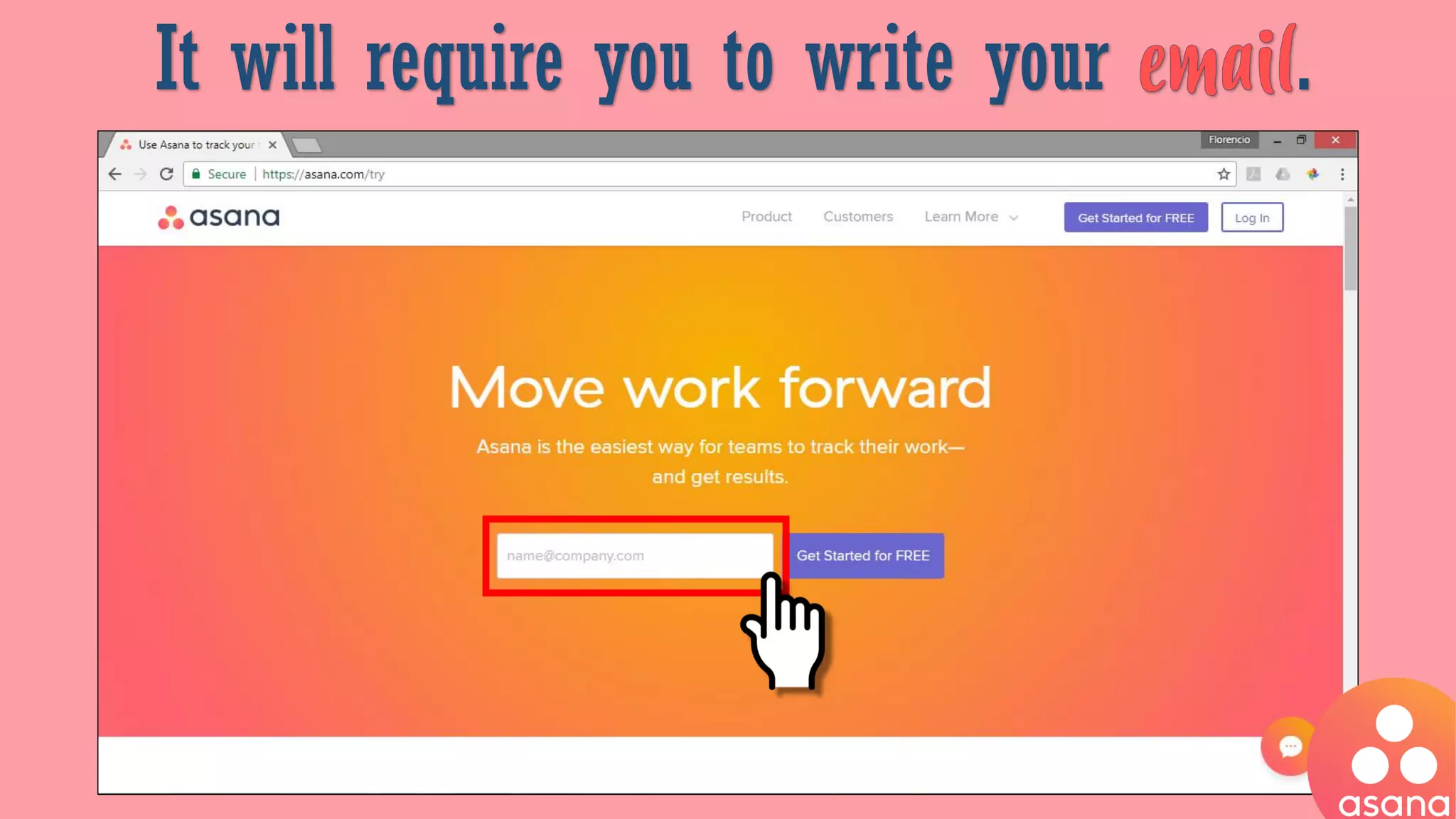
It will require you to write your .
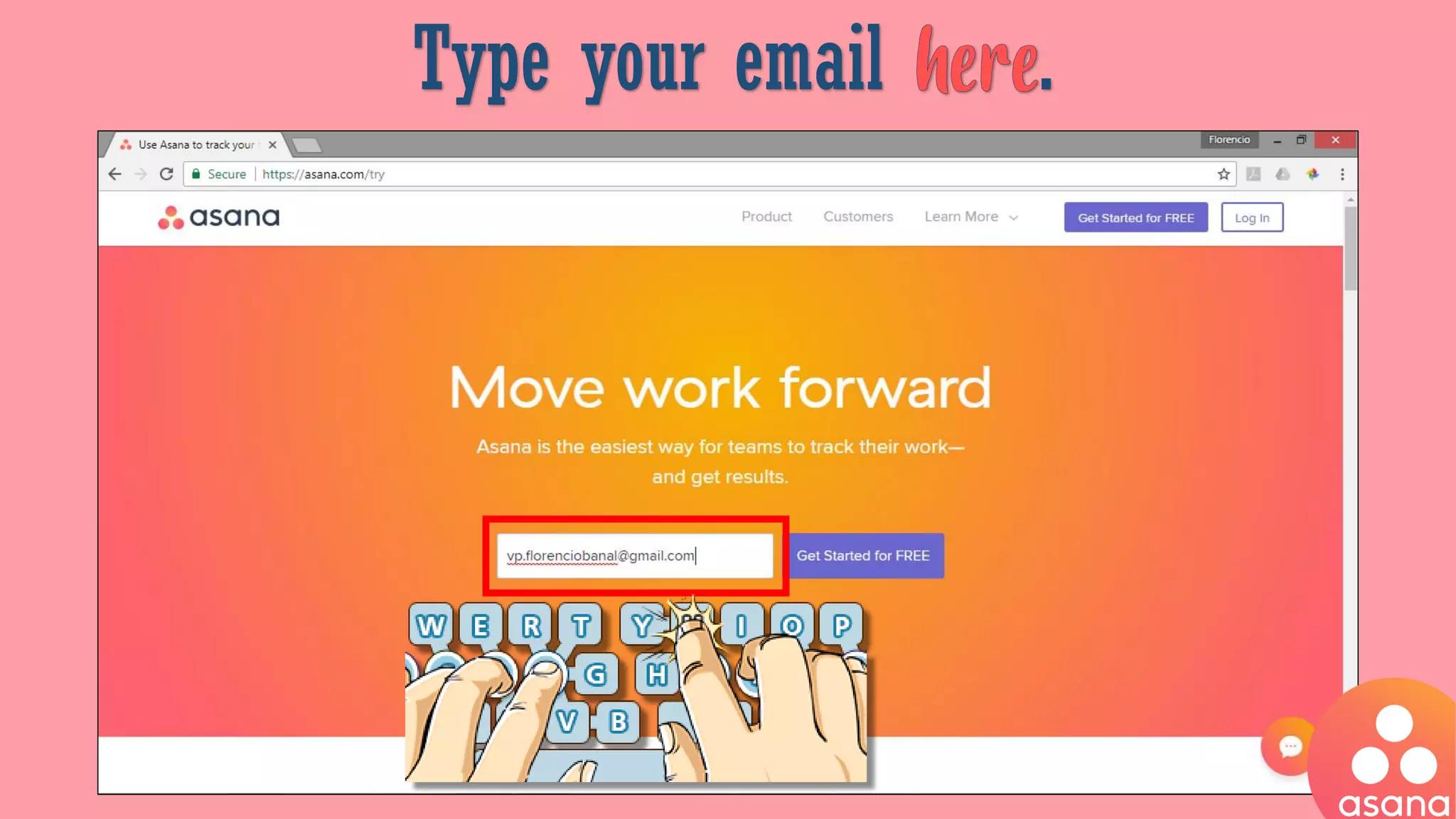
Type your email .
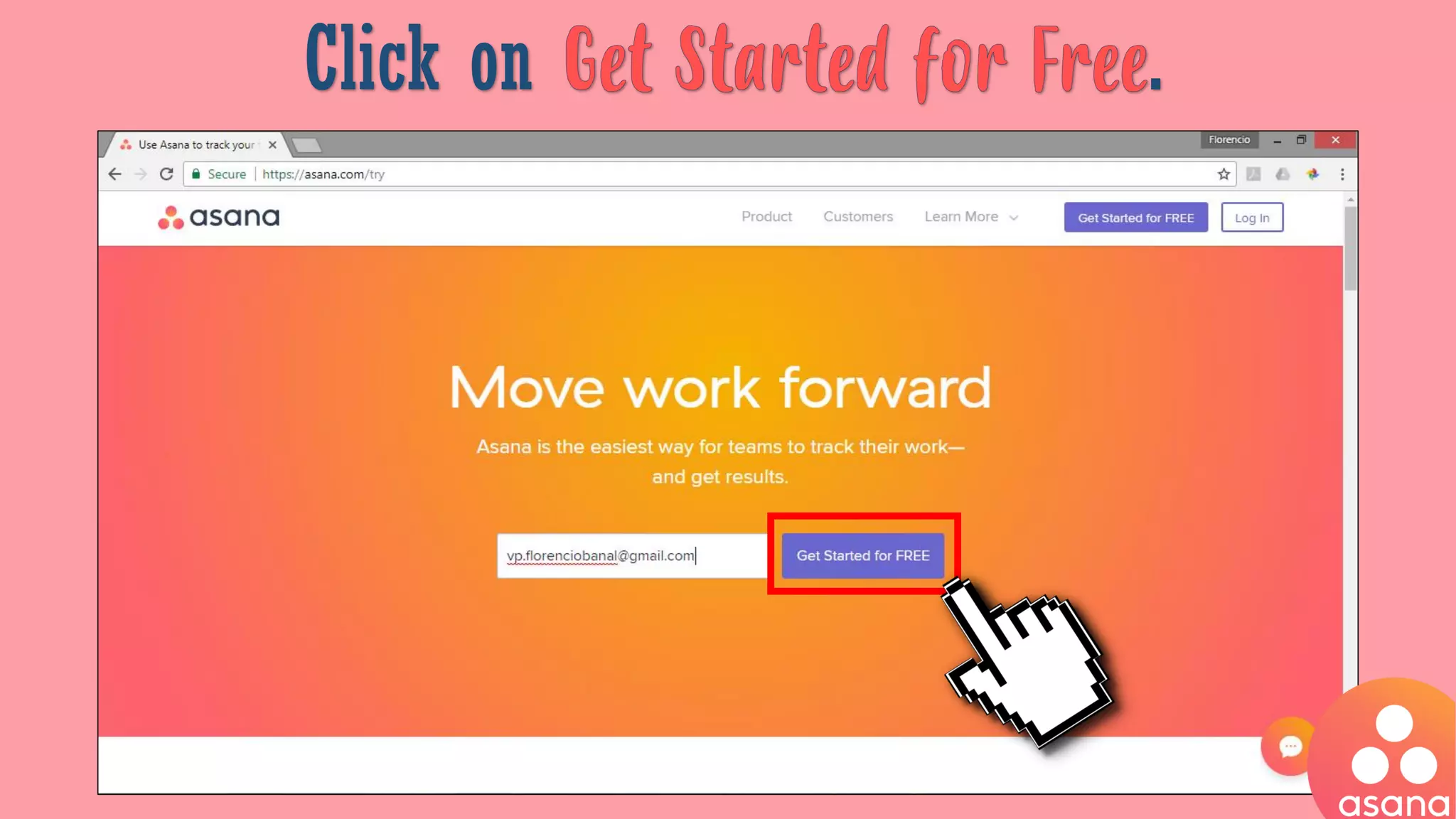
Click on .
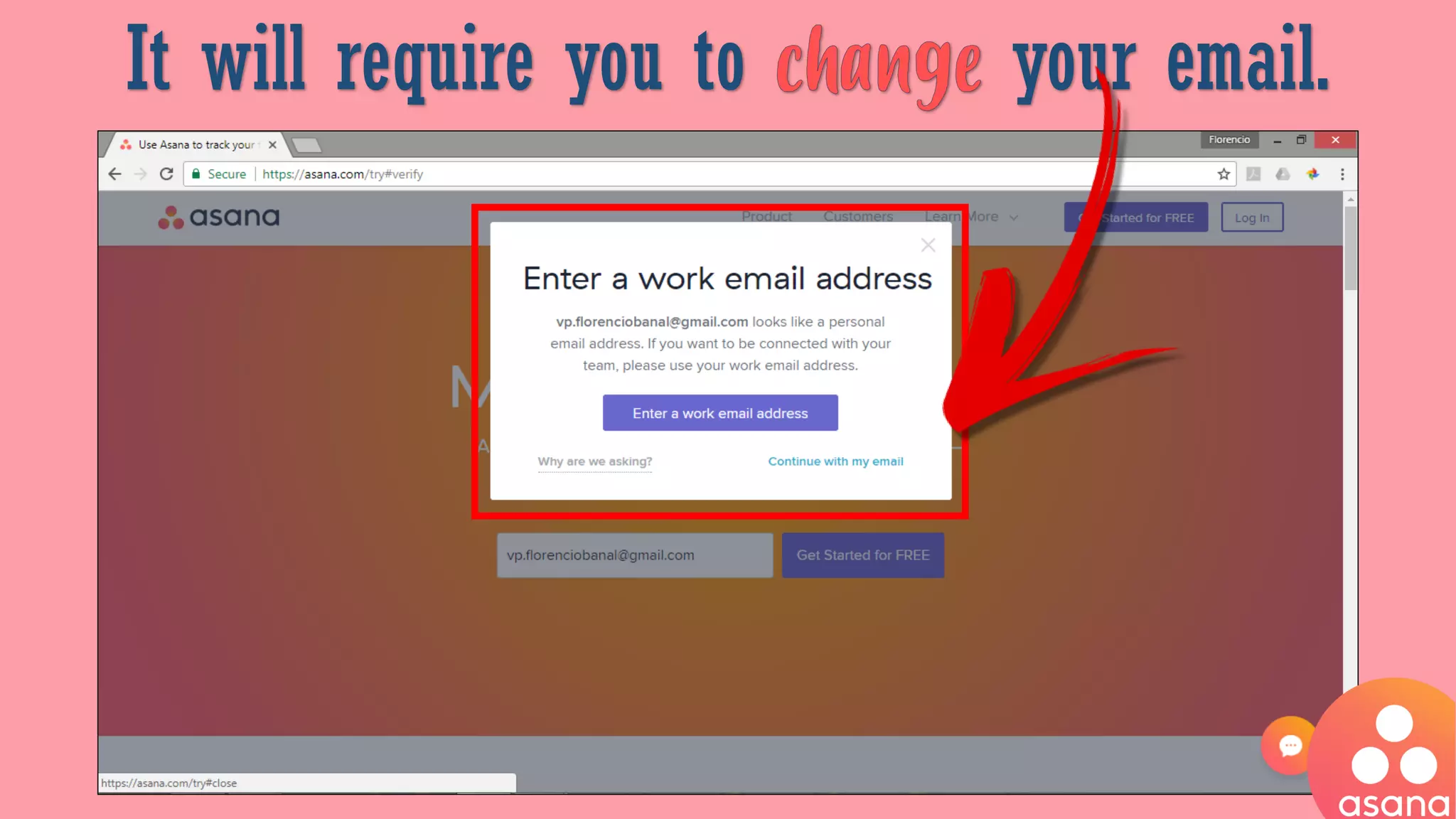
It will require you to your email.
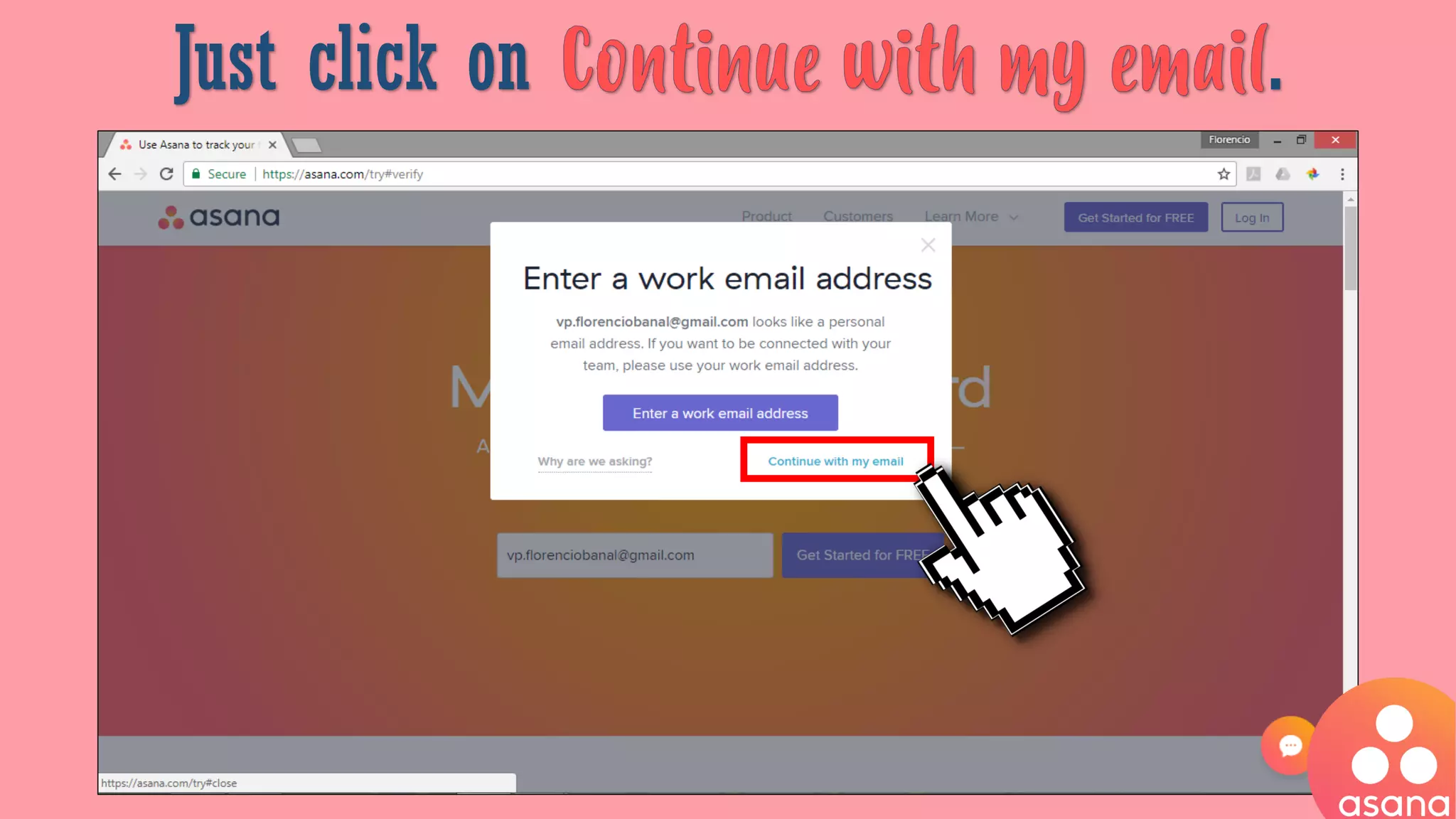
Just click on .
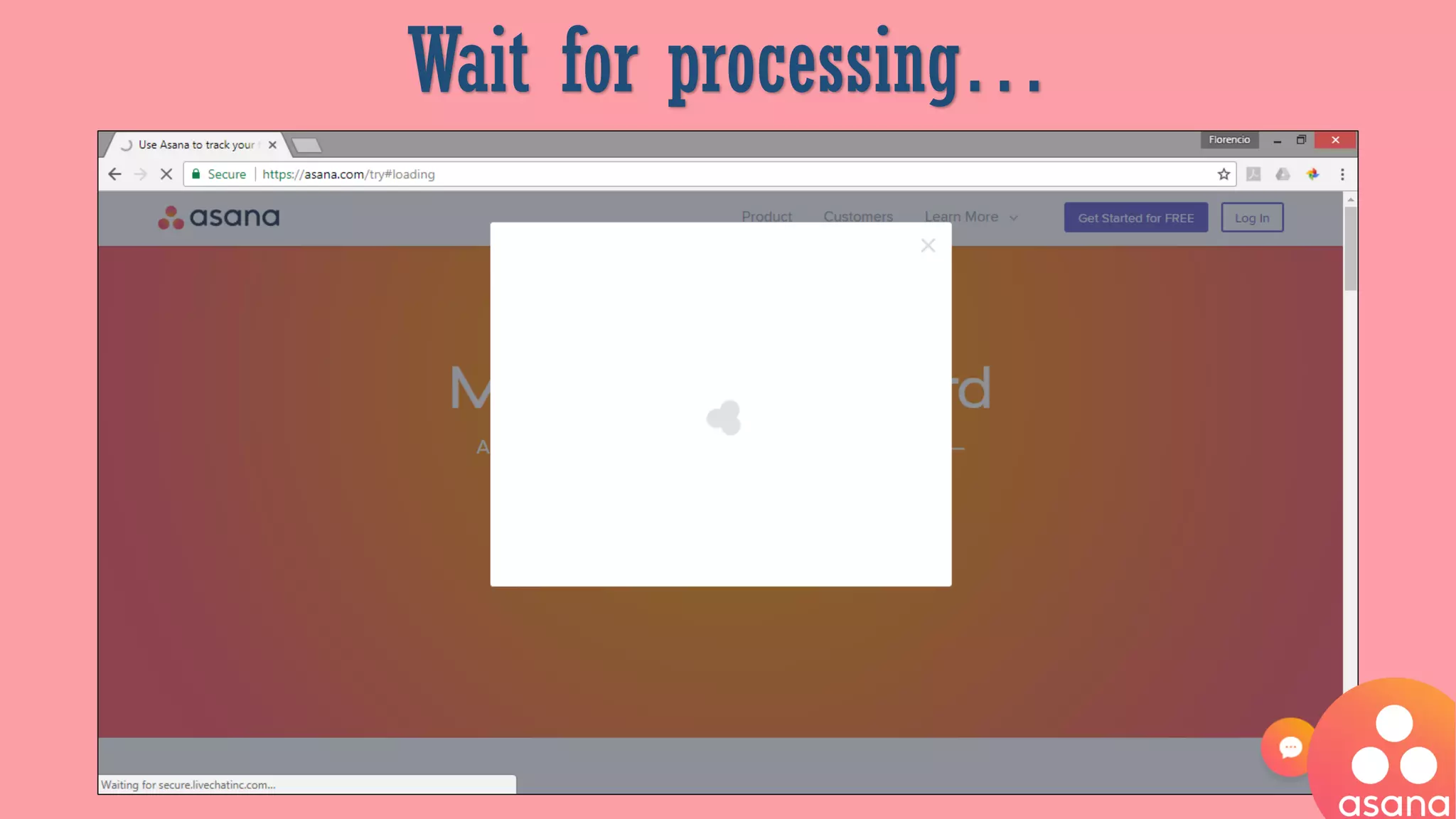
Wait for processing…
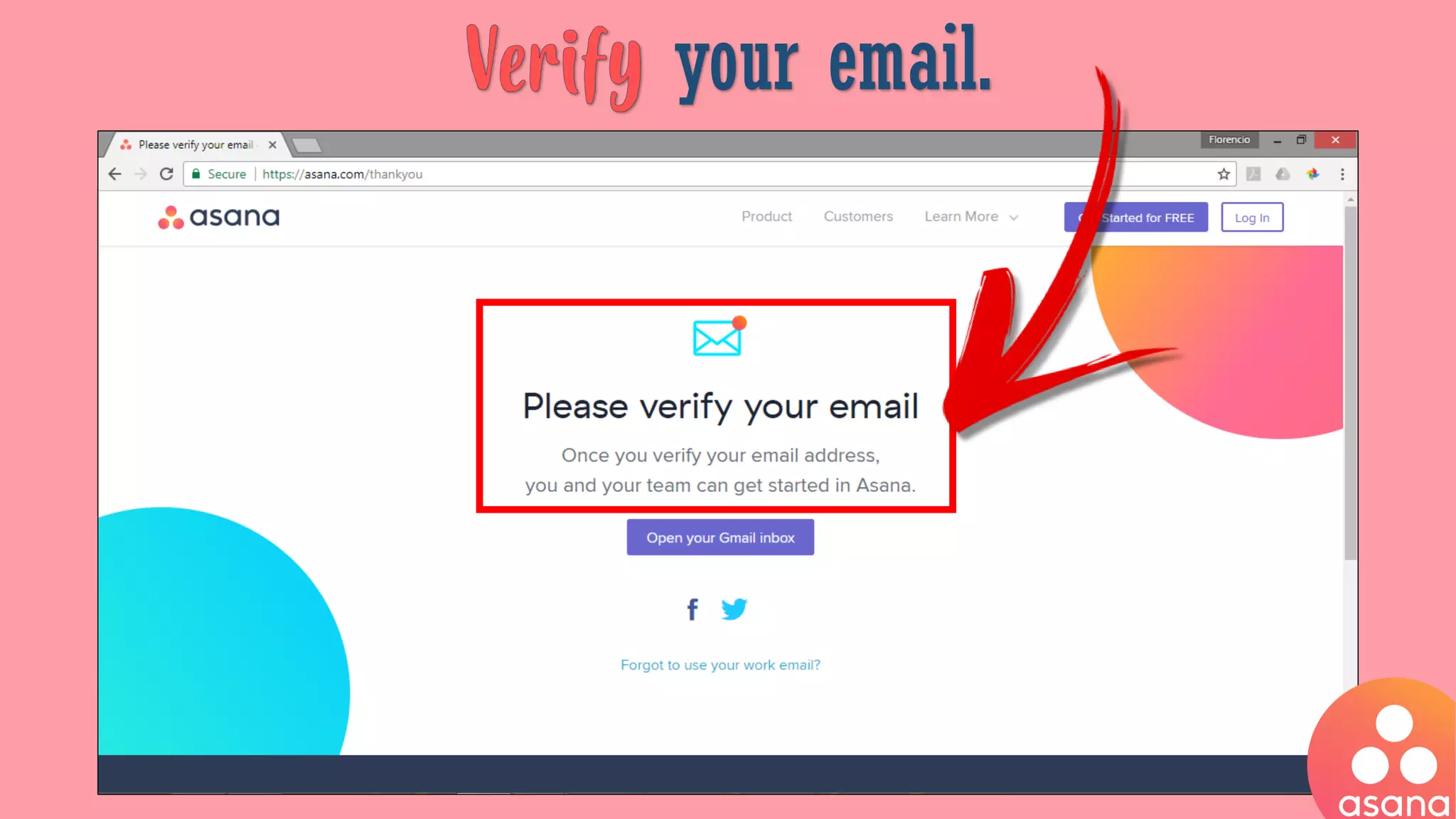
your email.
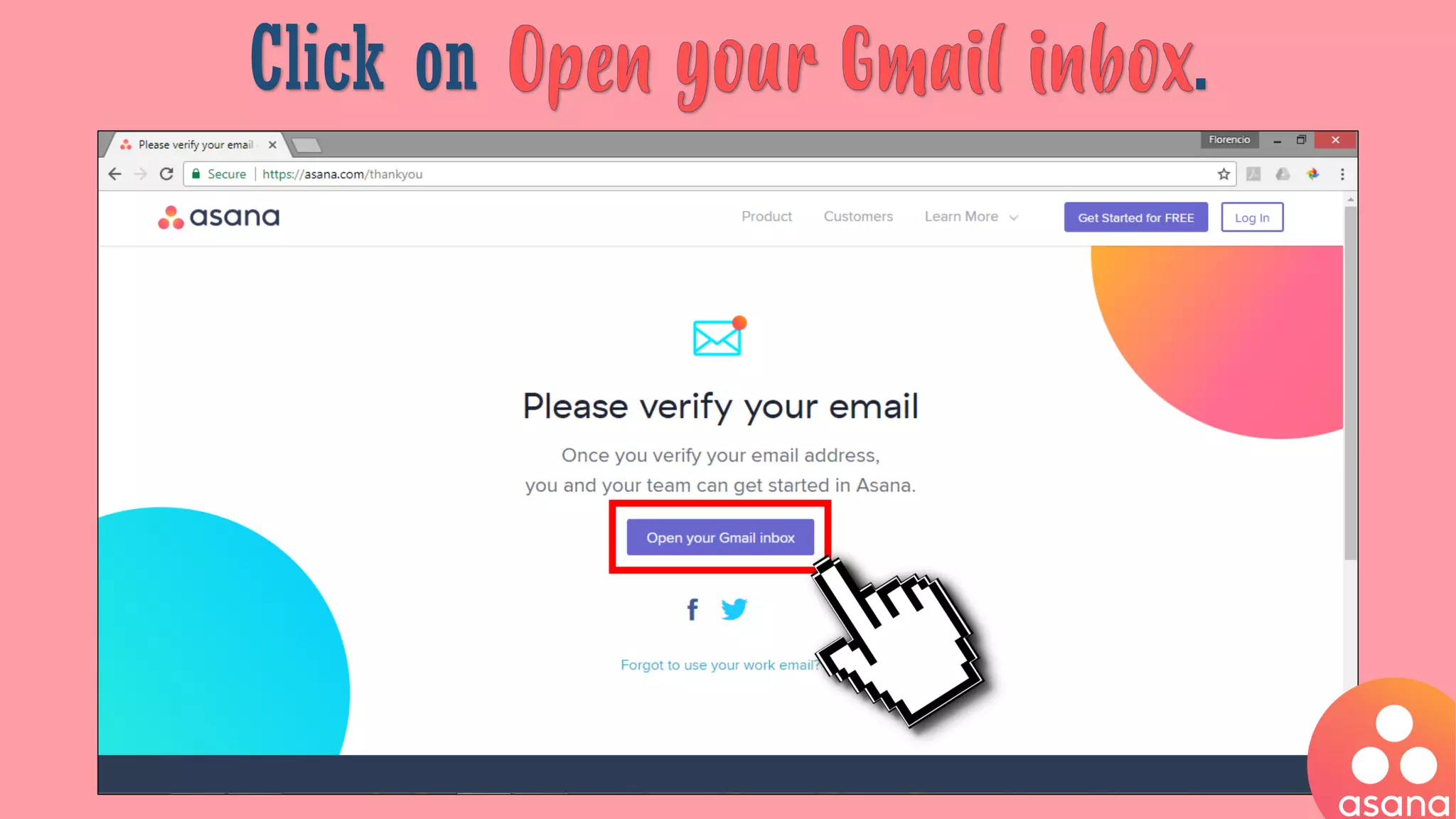
Click on .
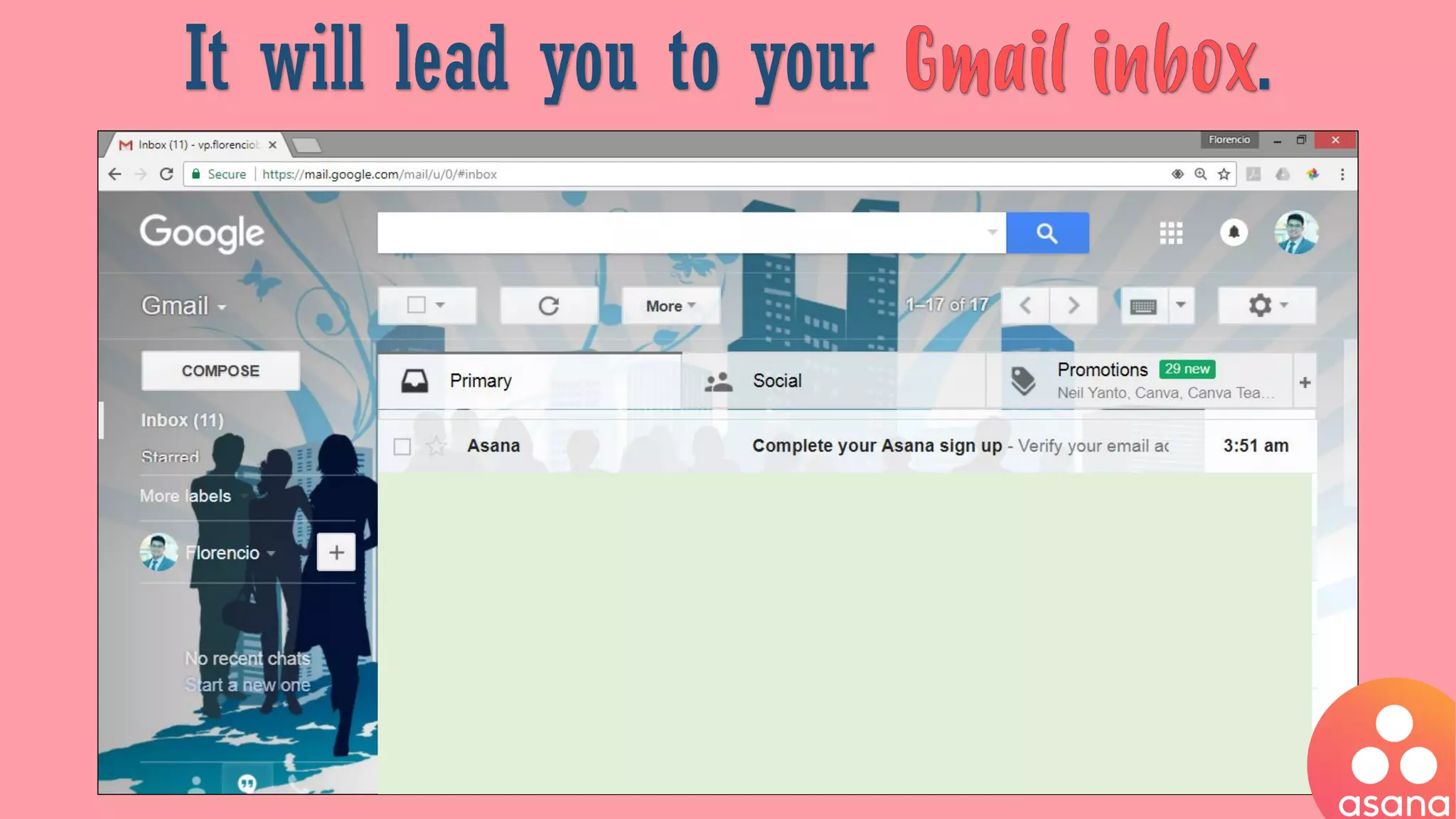
It will lead you to your .
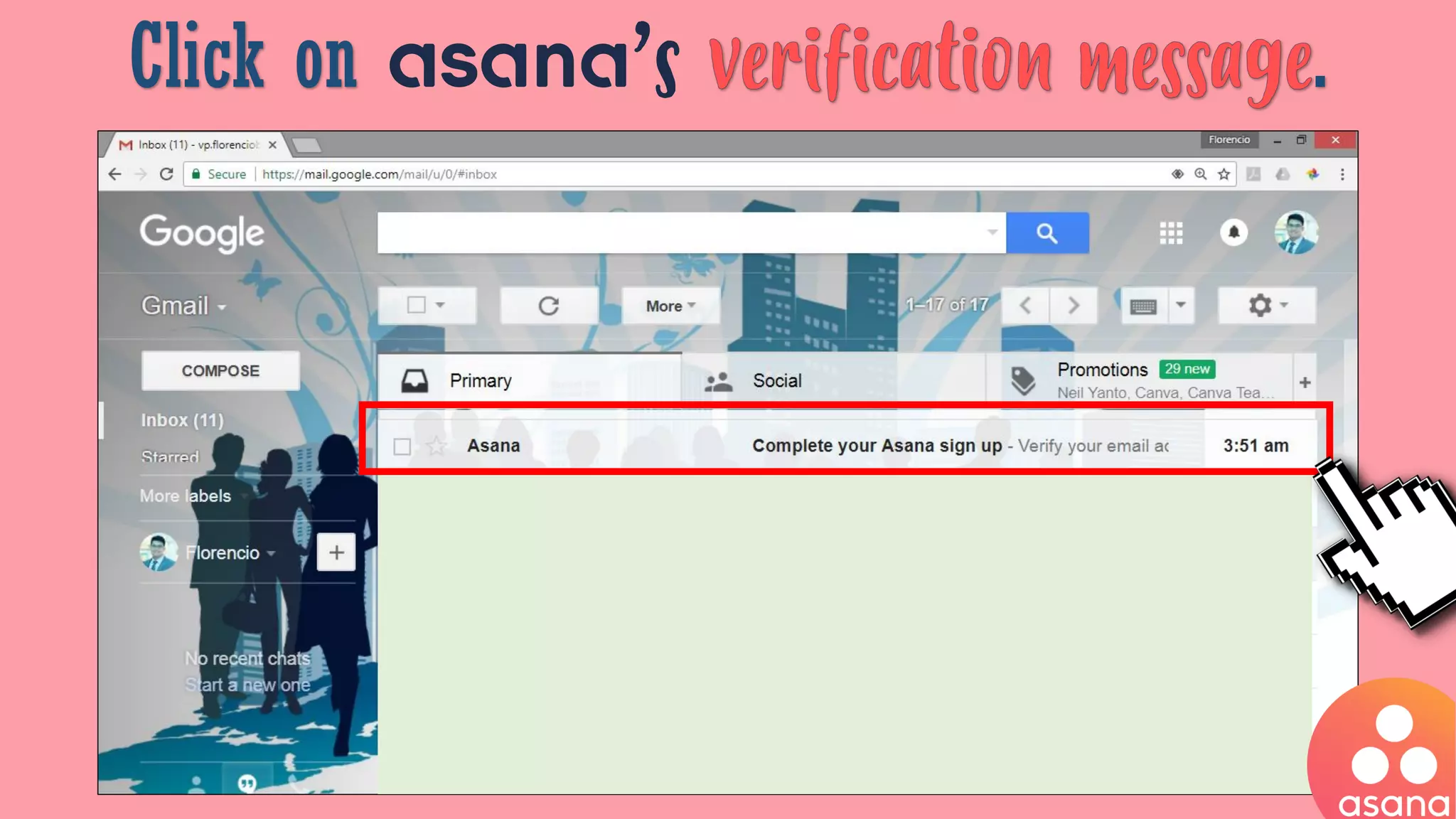
Click on asana’s .
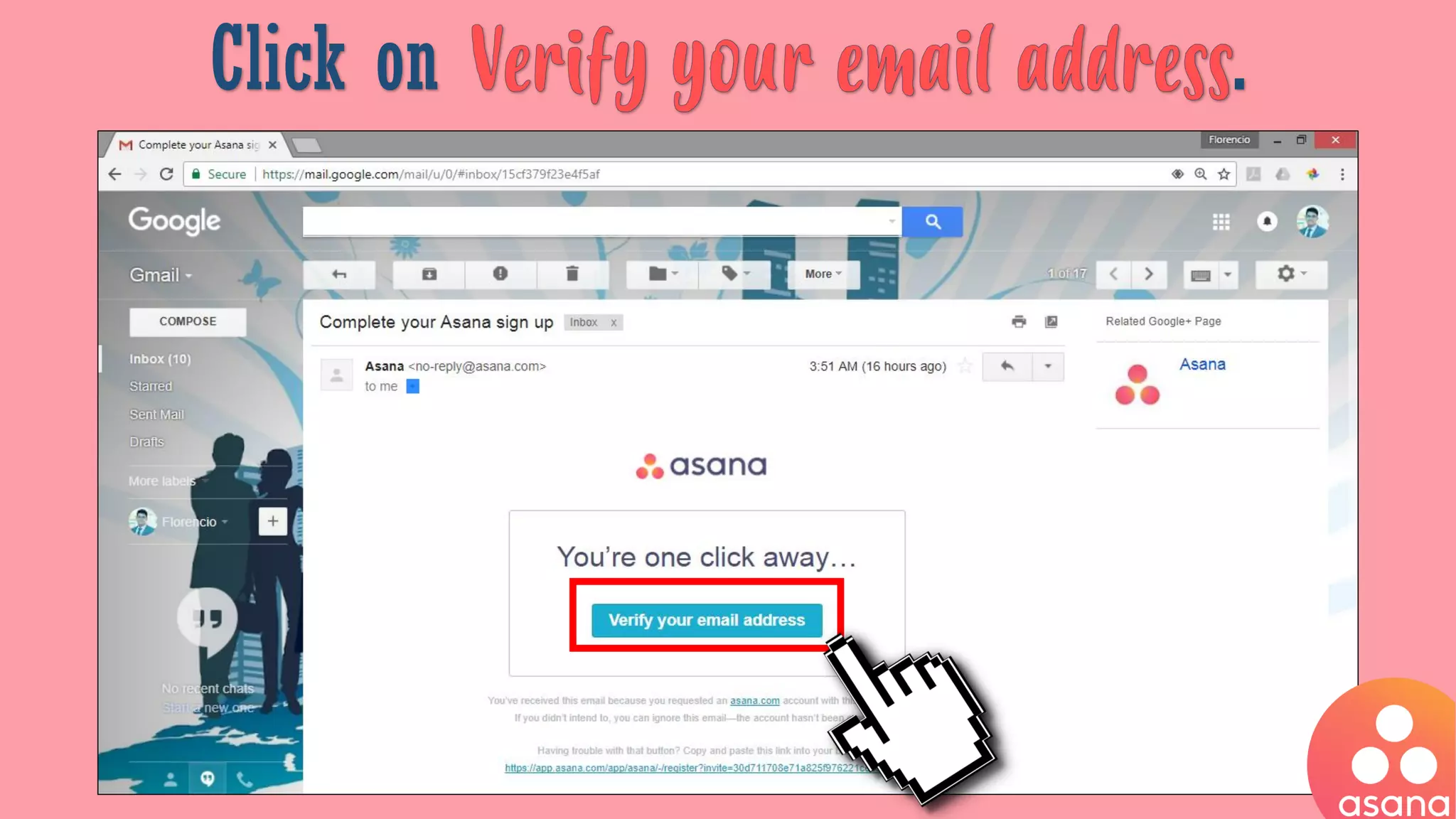
Click on .
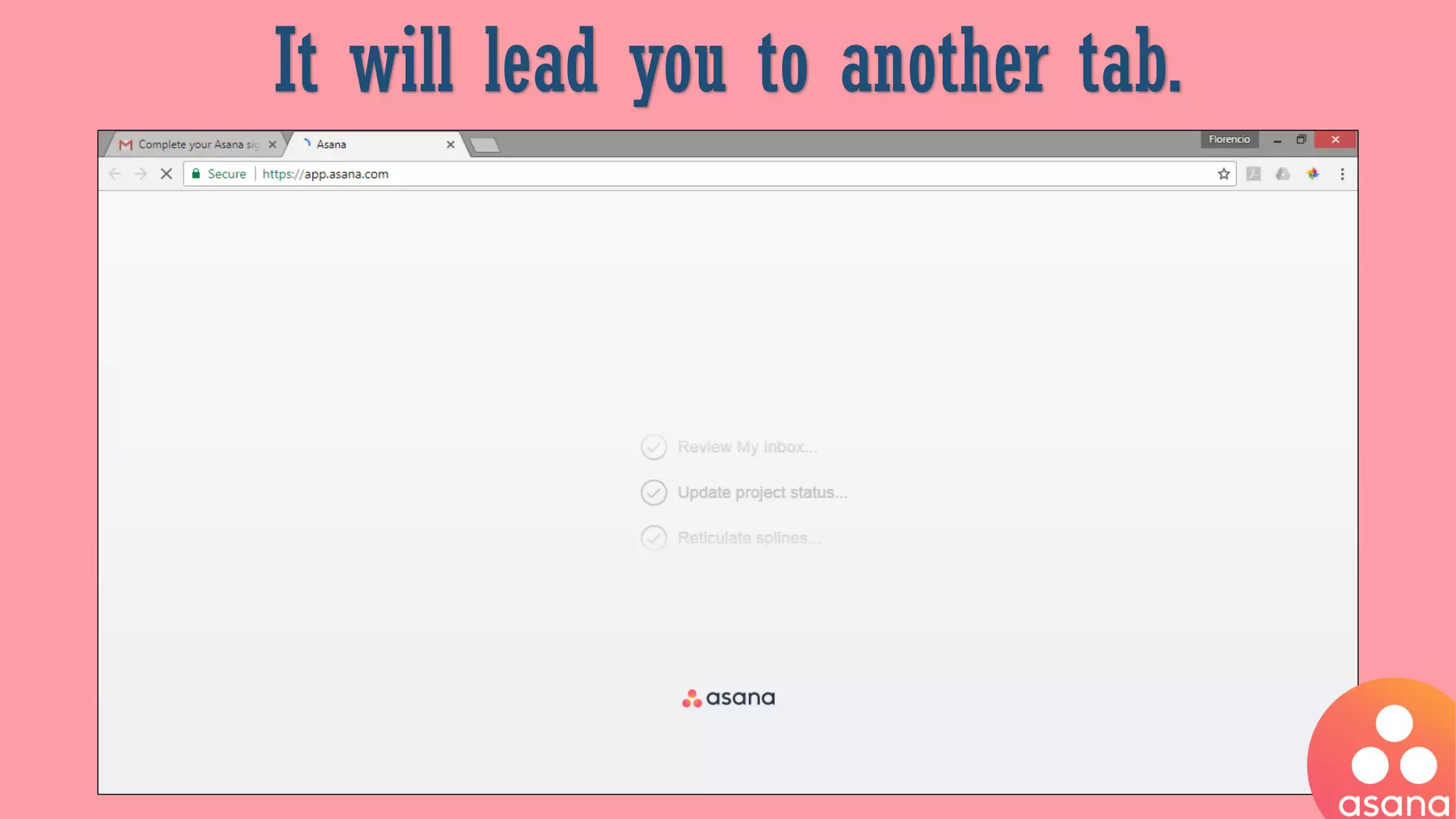
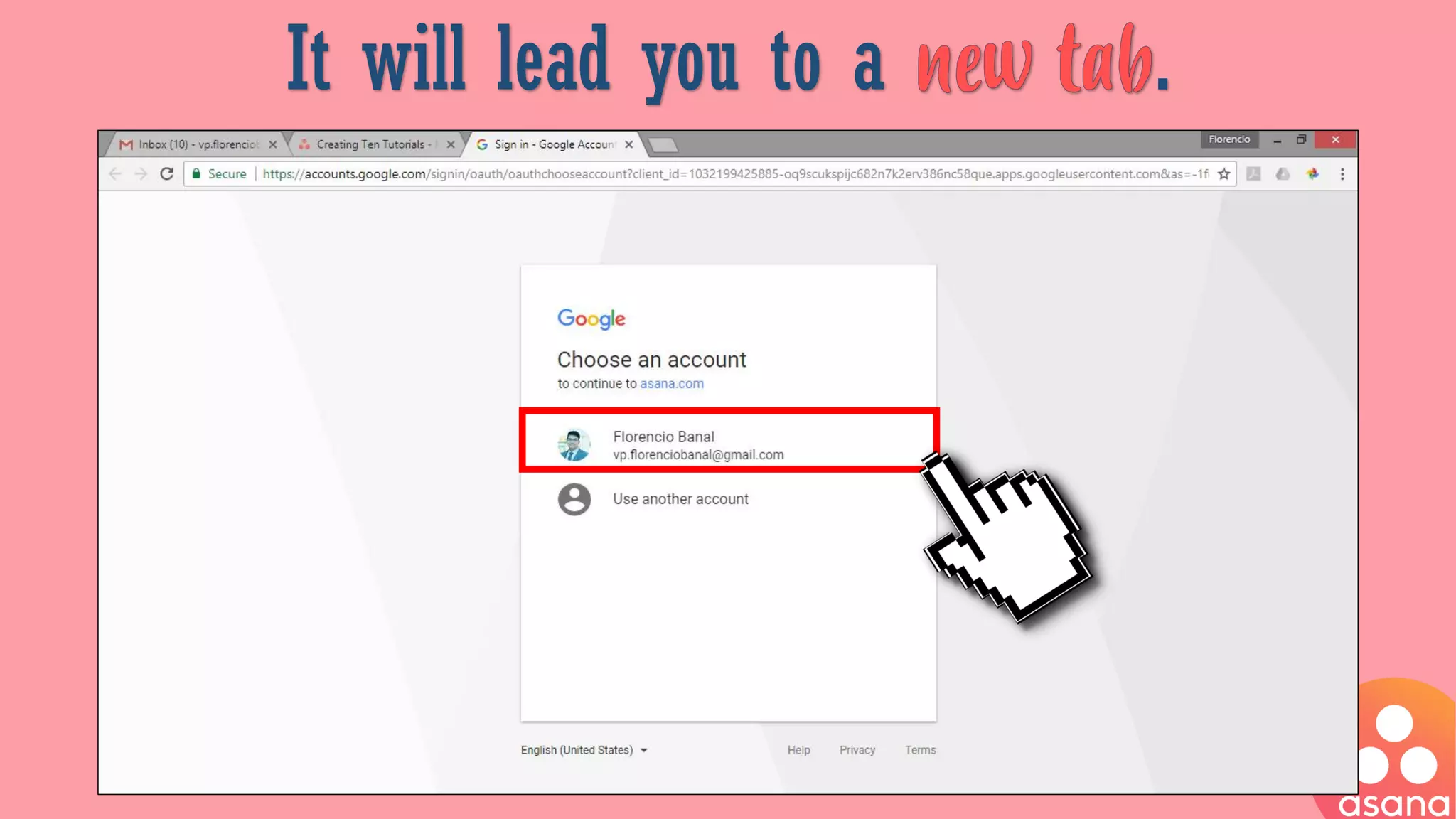
It will lead you to another tab.
Wait for less than a minute.
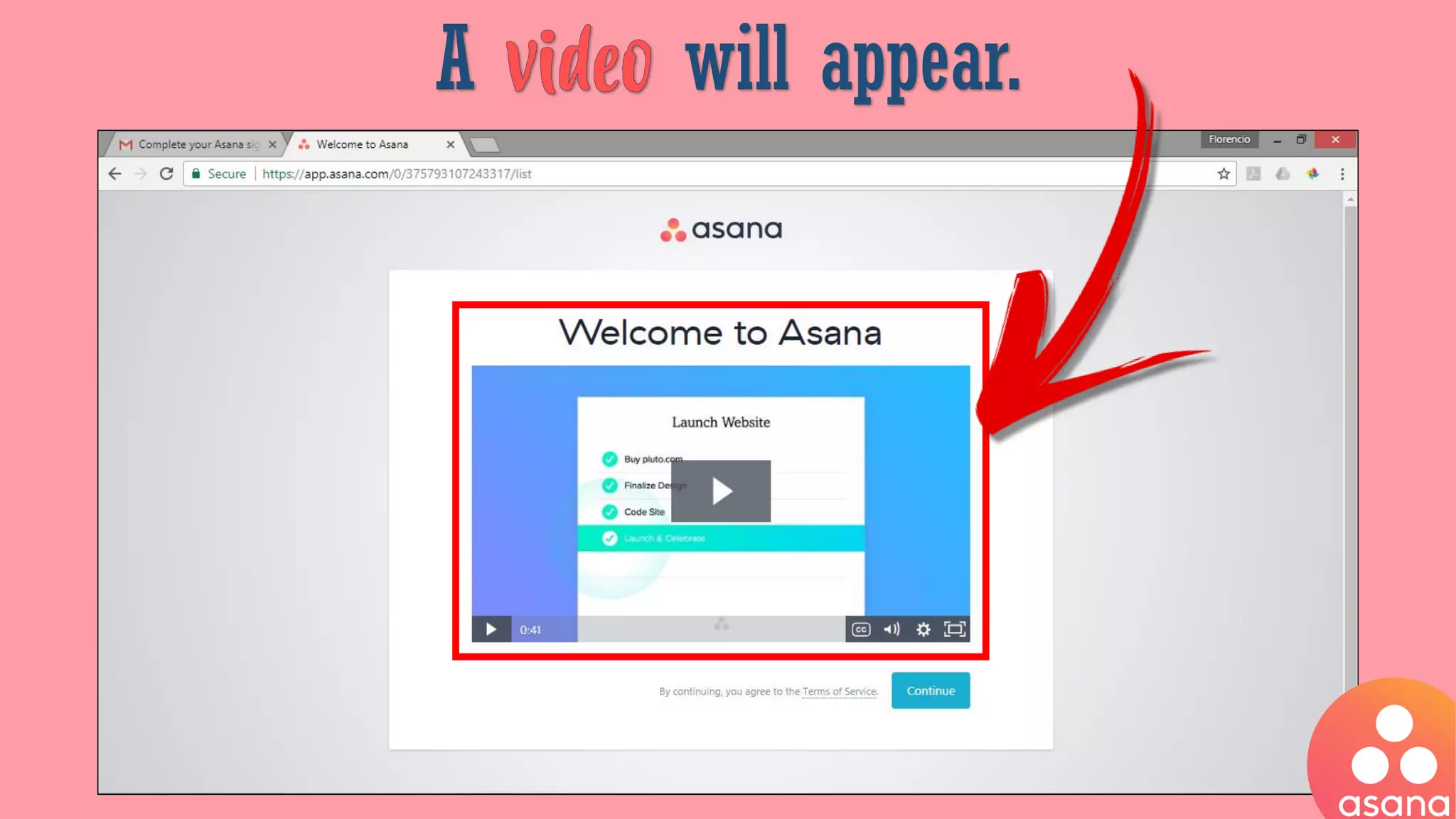
A will appear.
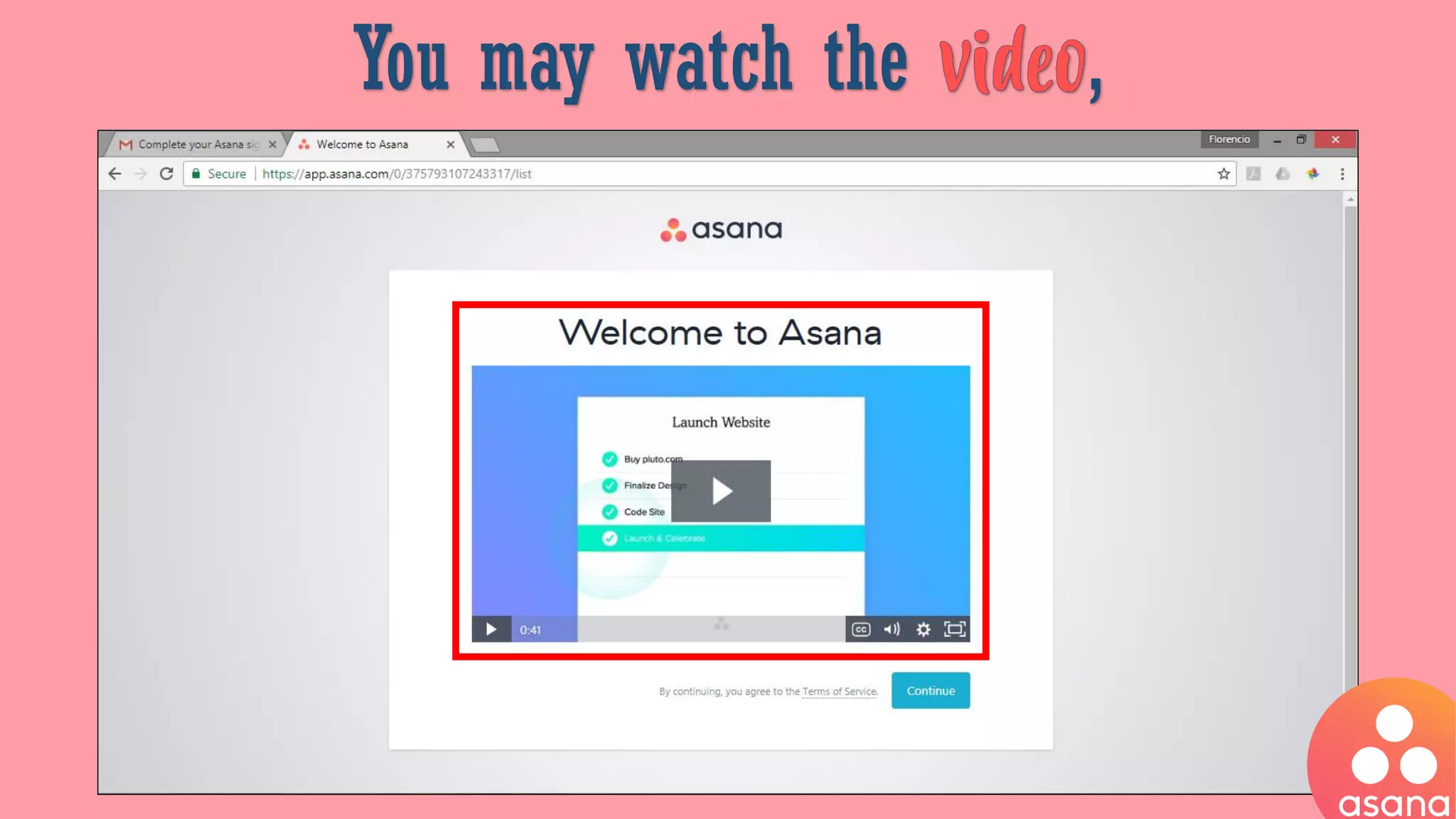
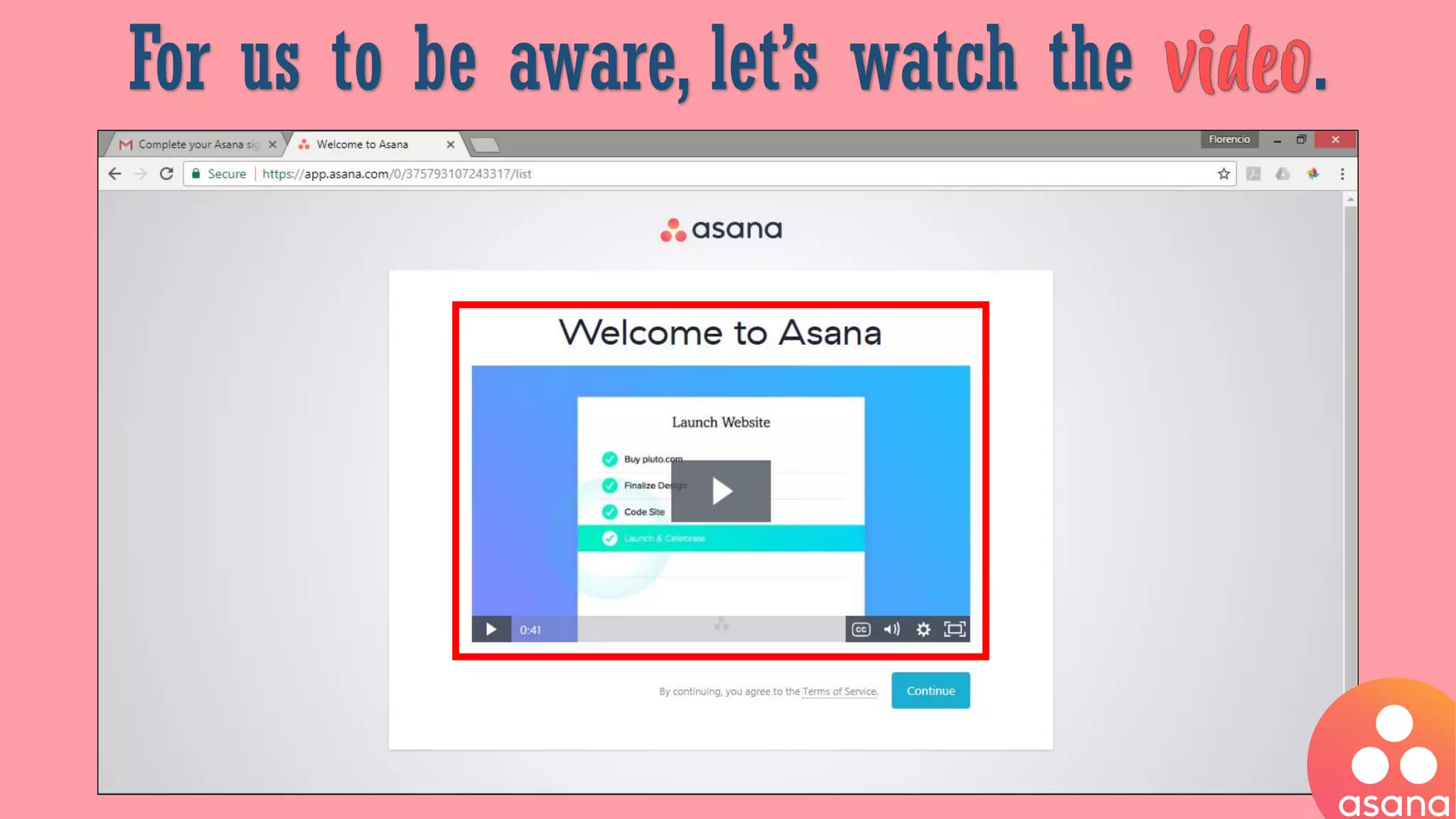
You may watch the ,
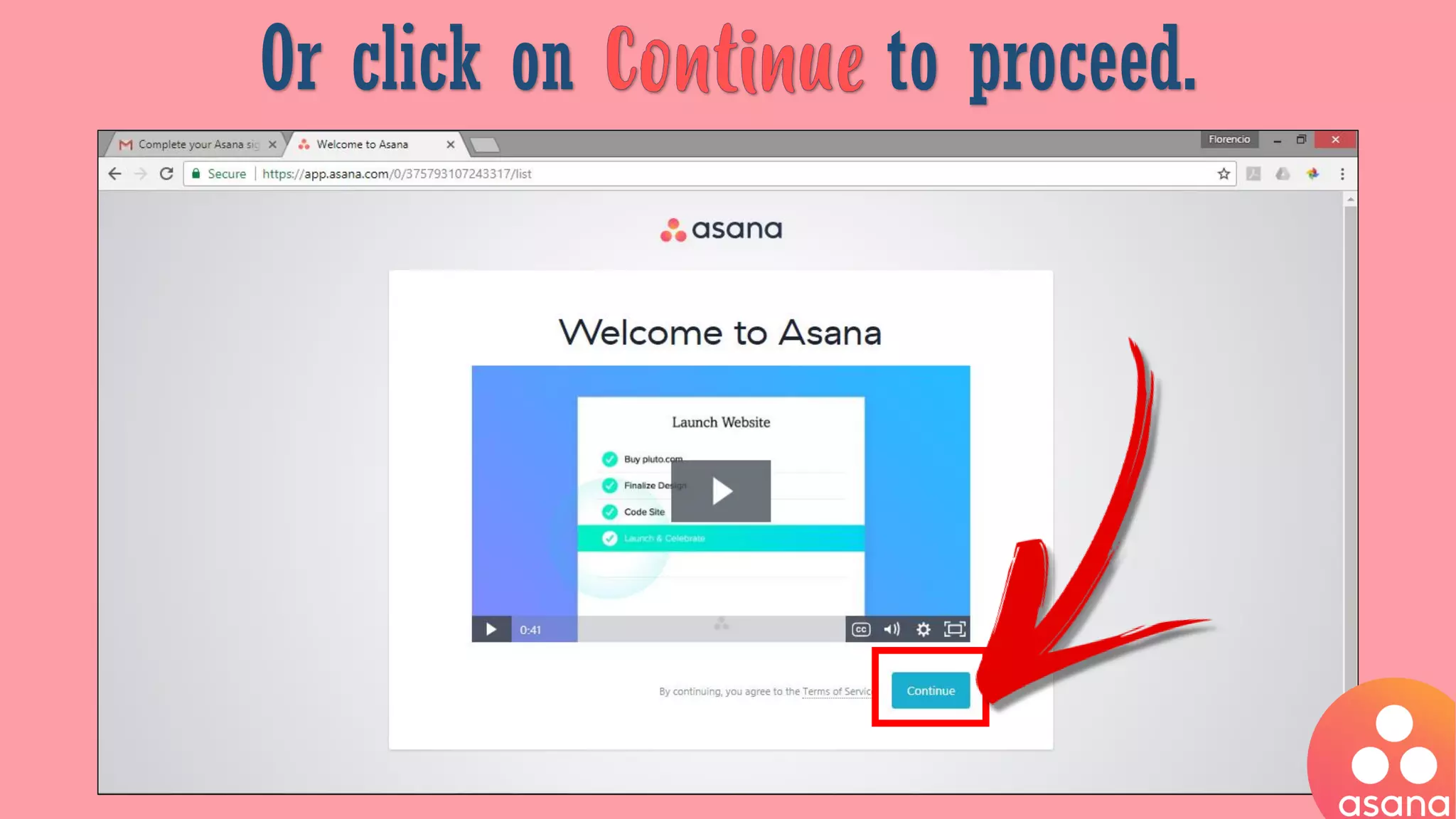
Or click on to proceed.
For us to be aware, let’s watch the .
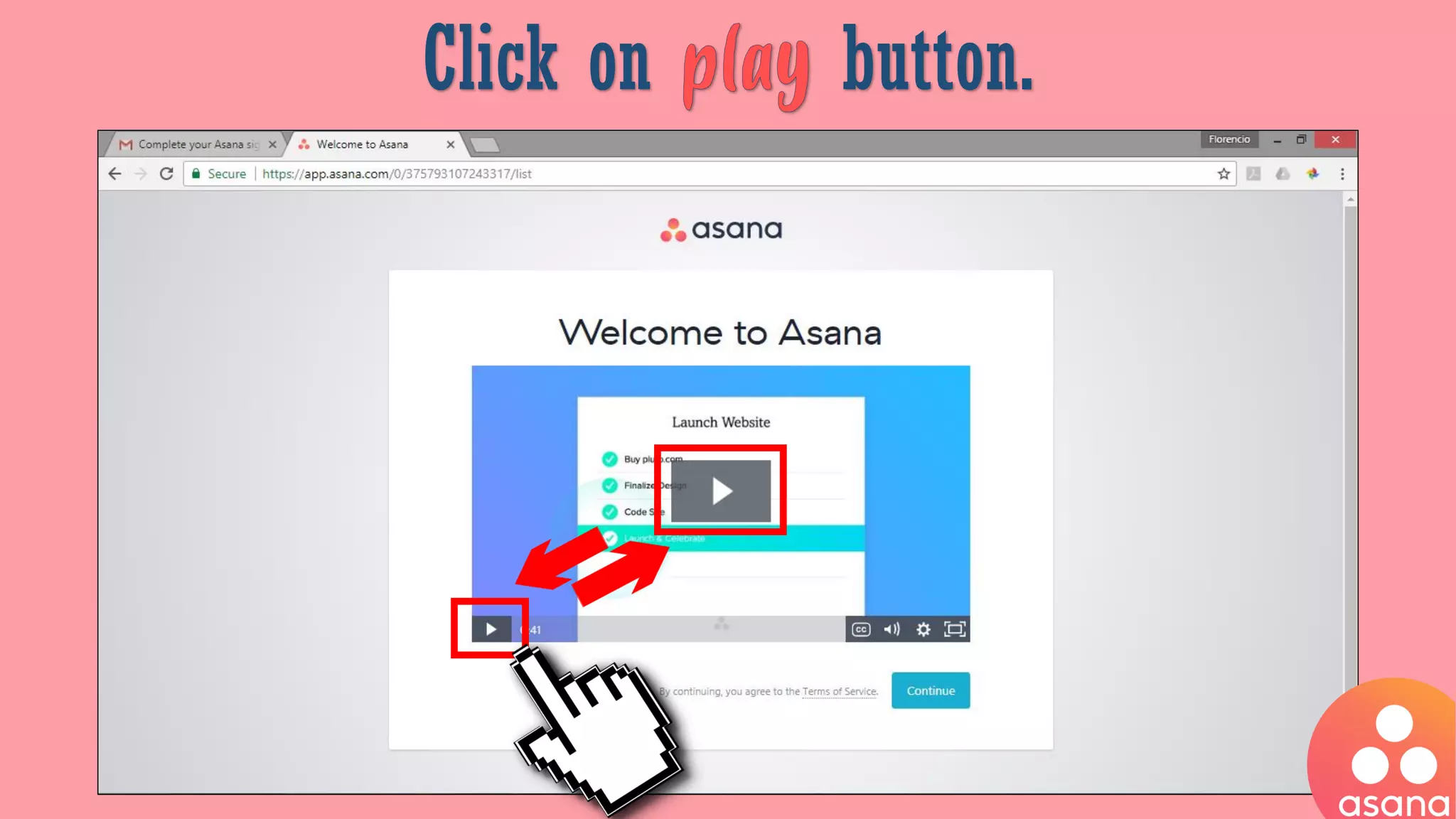
Click on button.
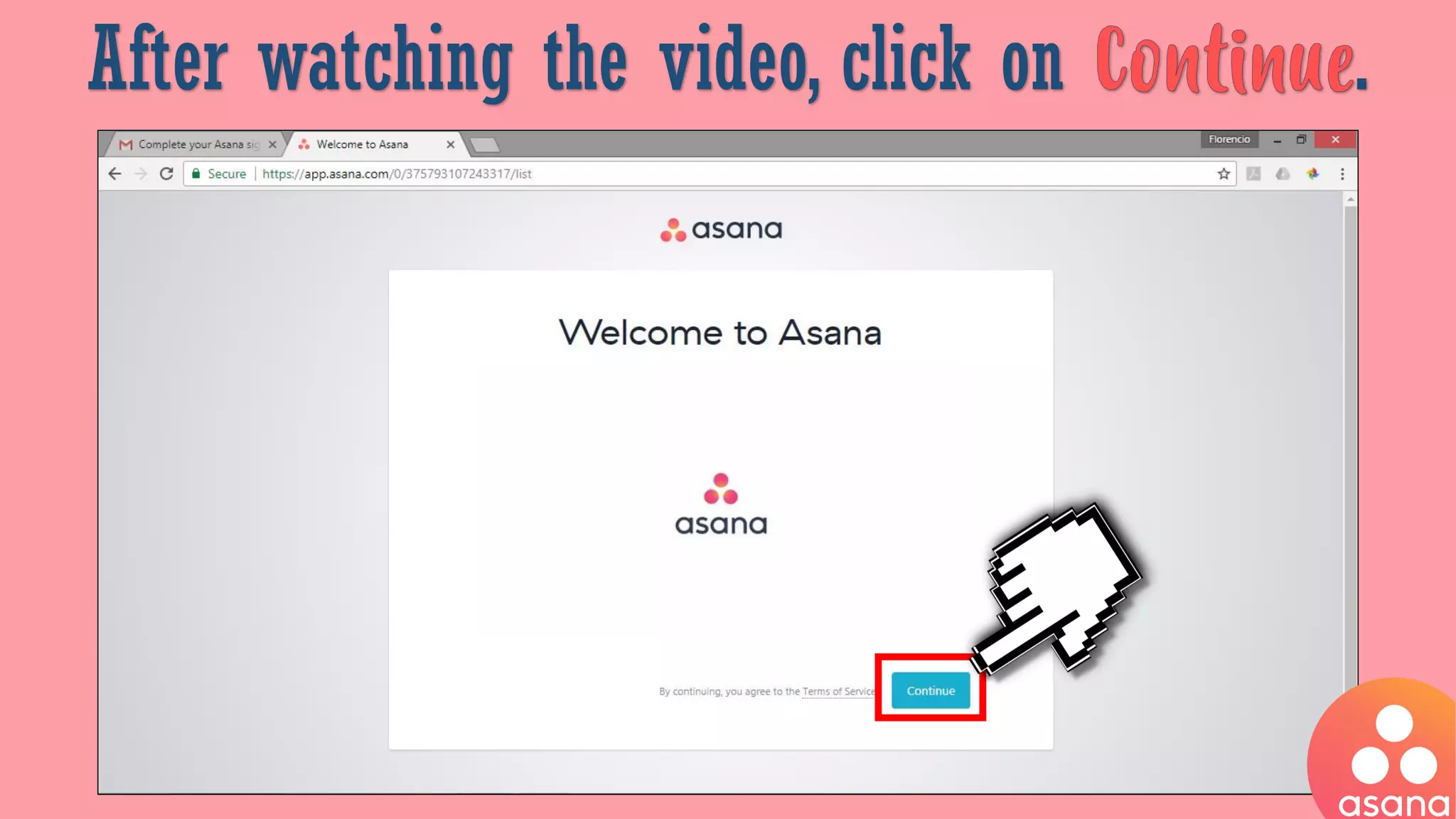
After watching the video, click on .
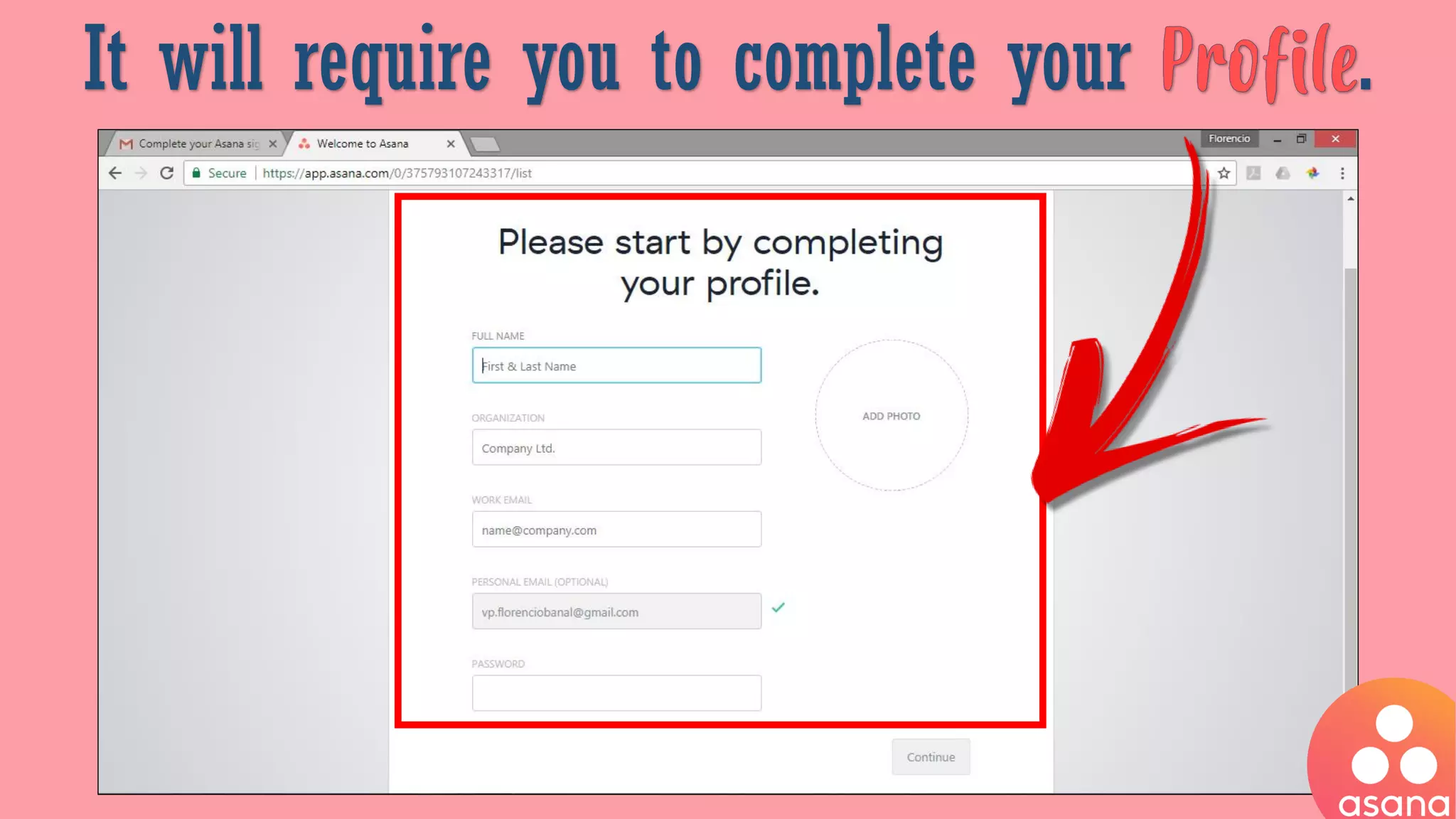
It will require you to complete your .
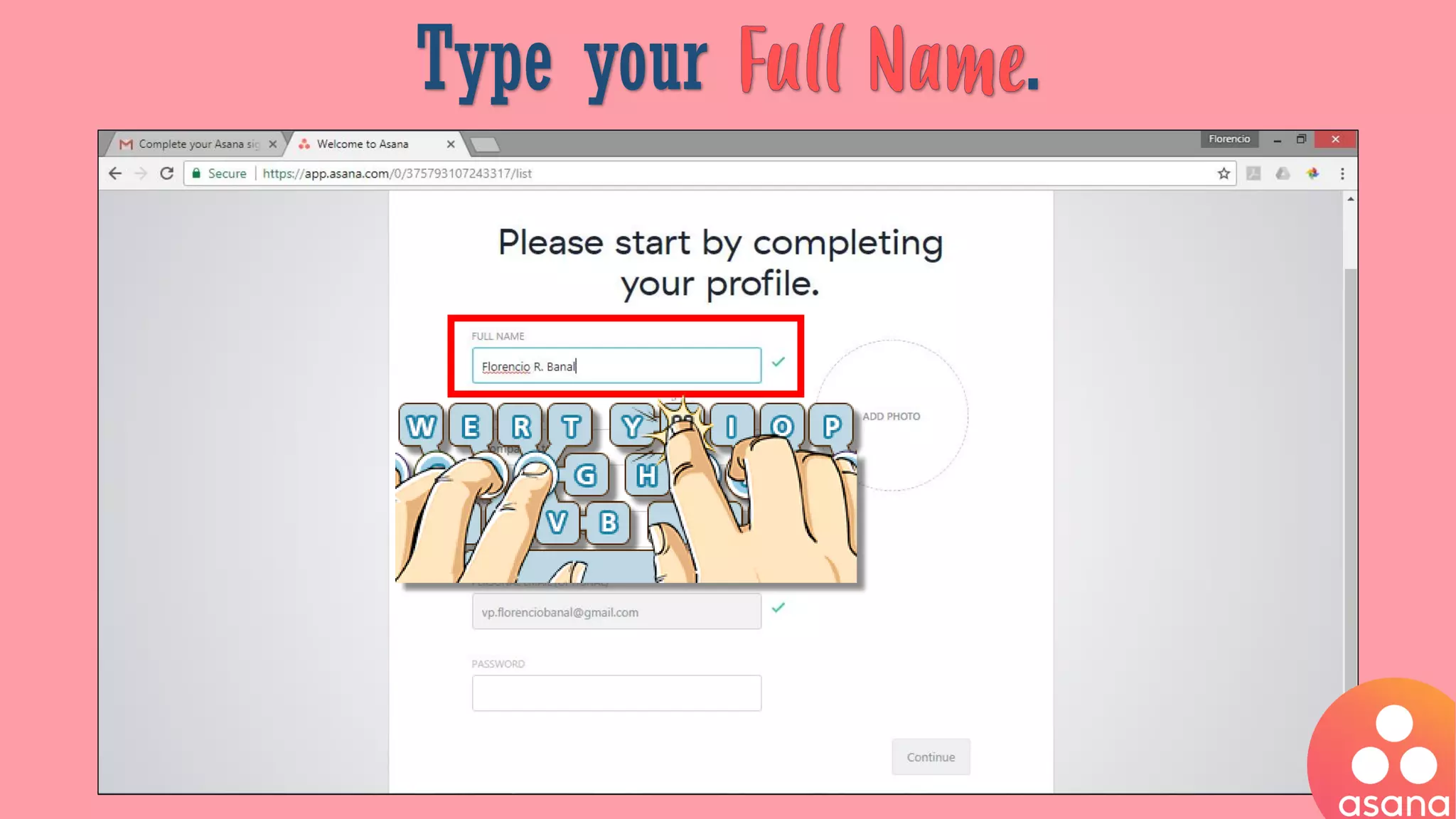
Type your .
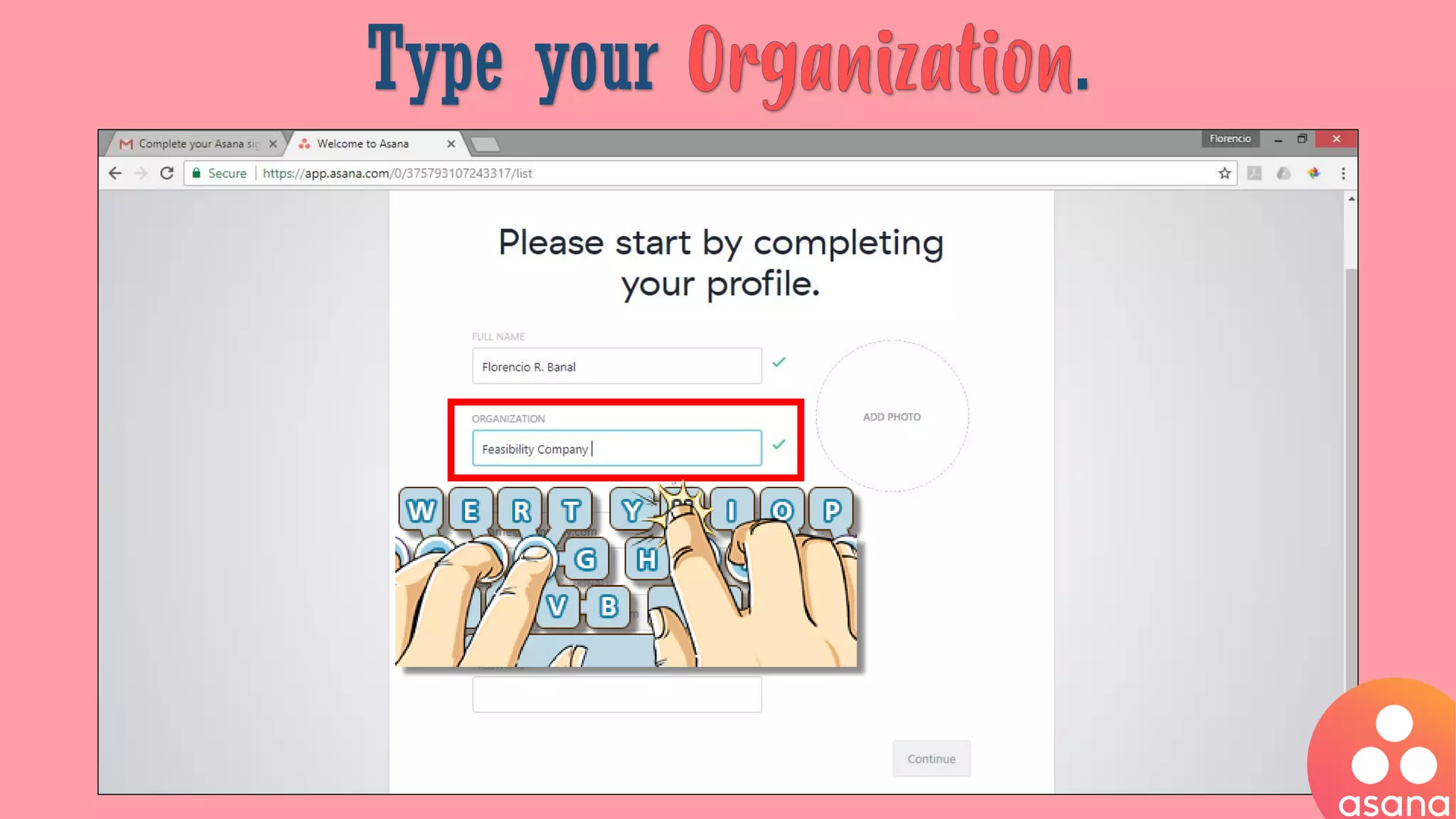
Type your .
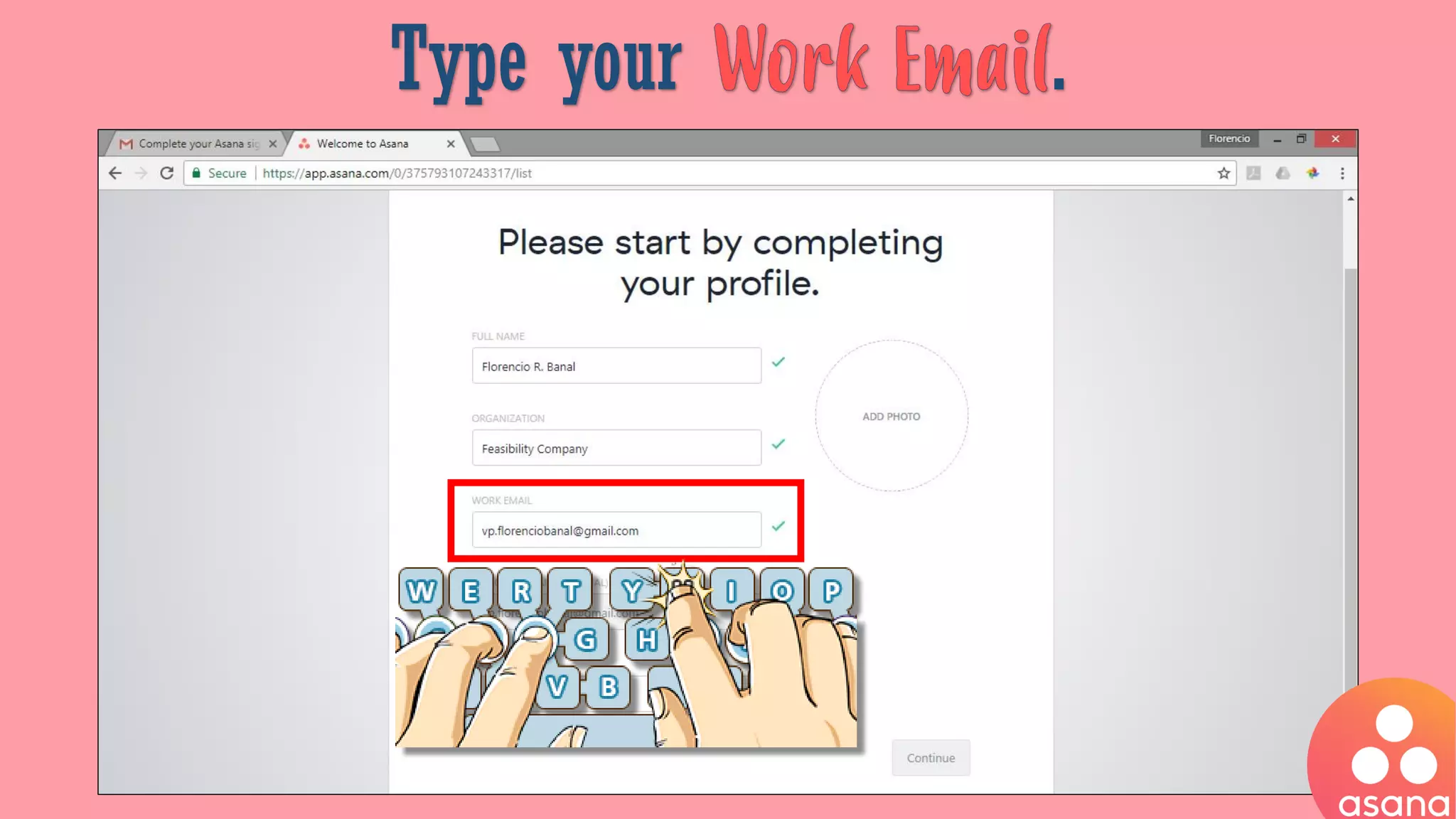
Type your .
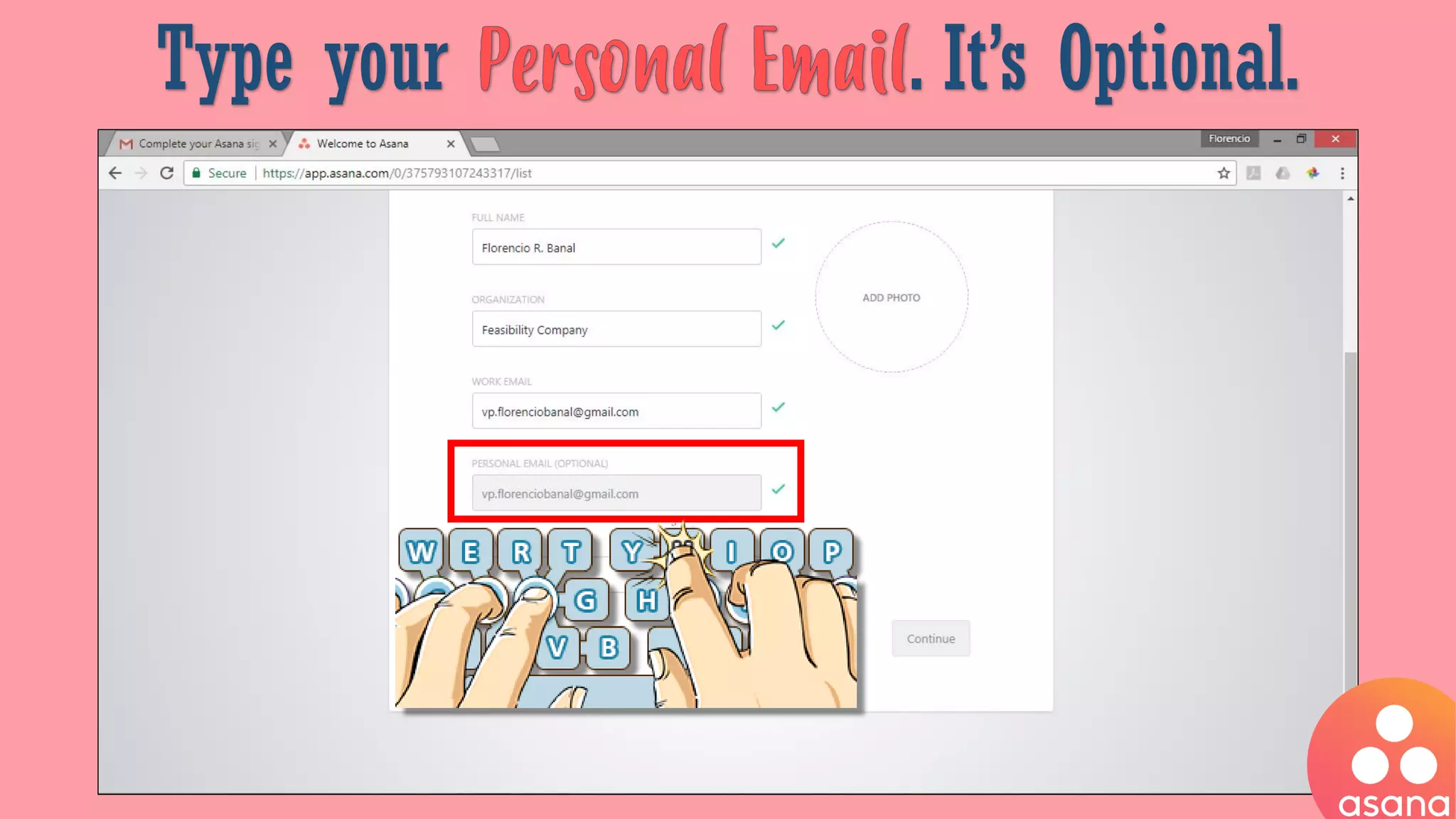
Type your . It’s Optional.
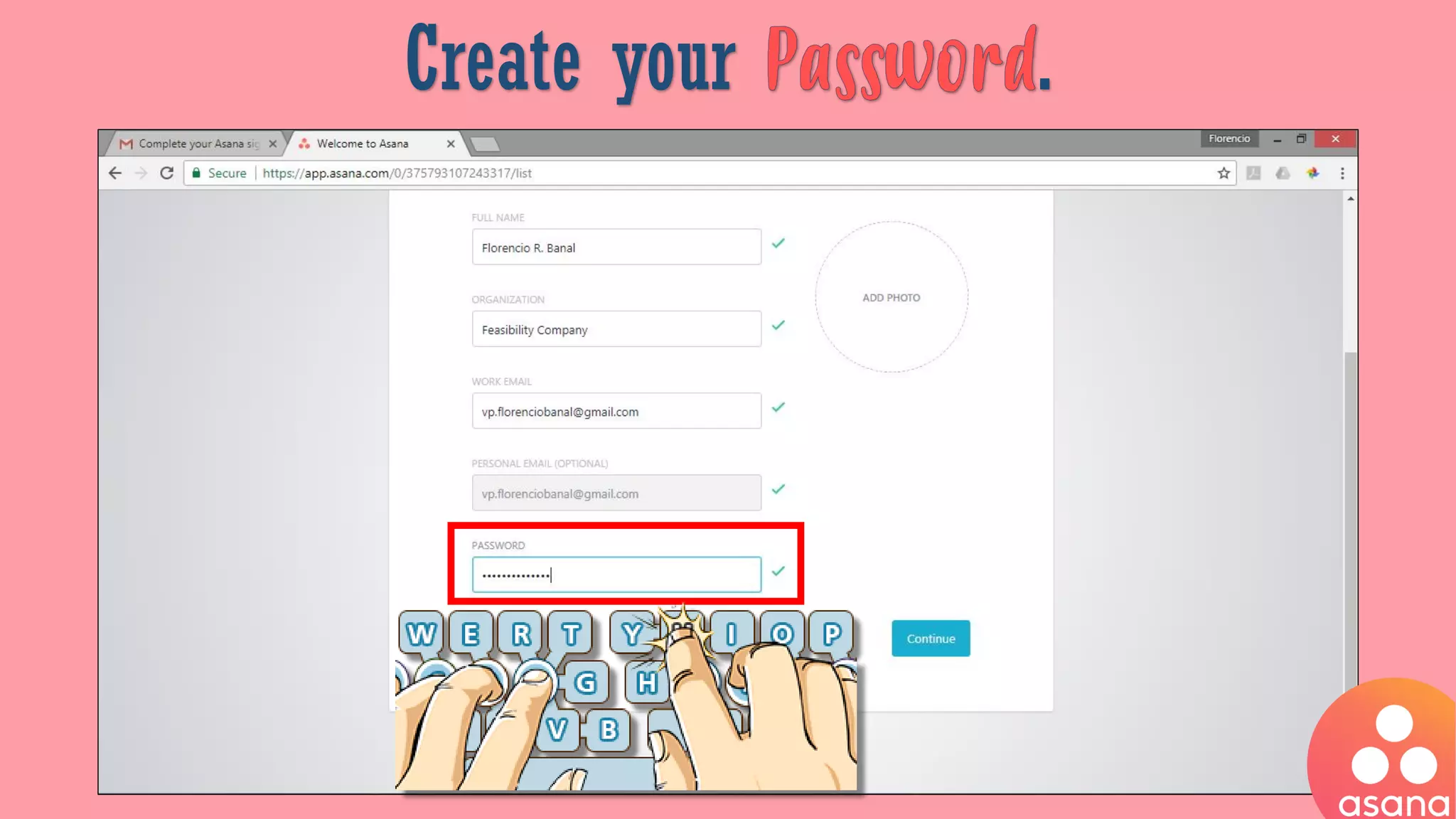
Create your .
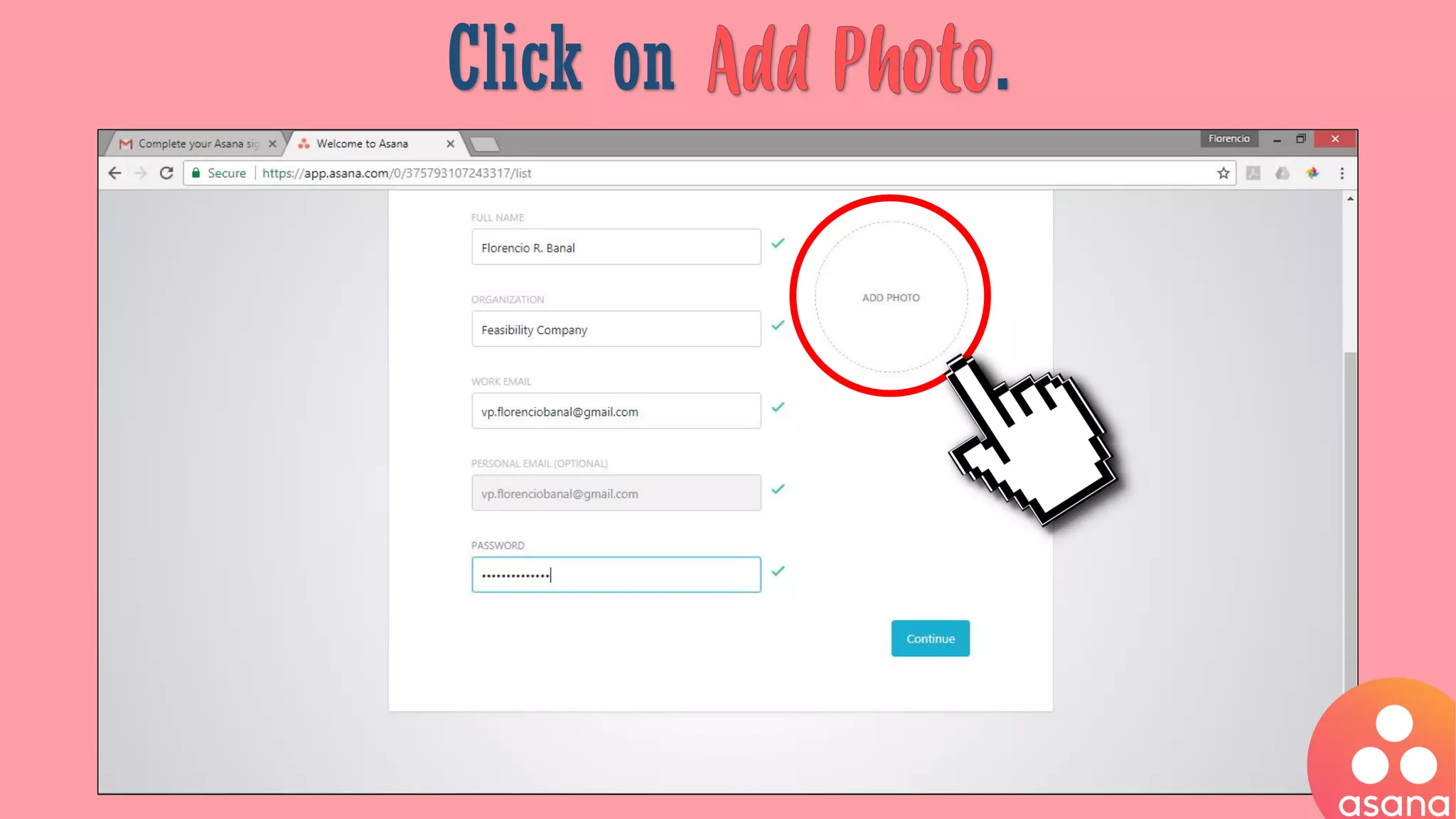
Click on .
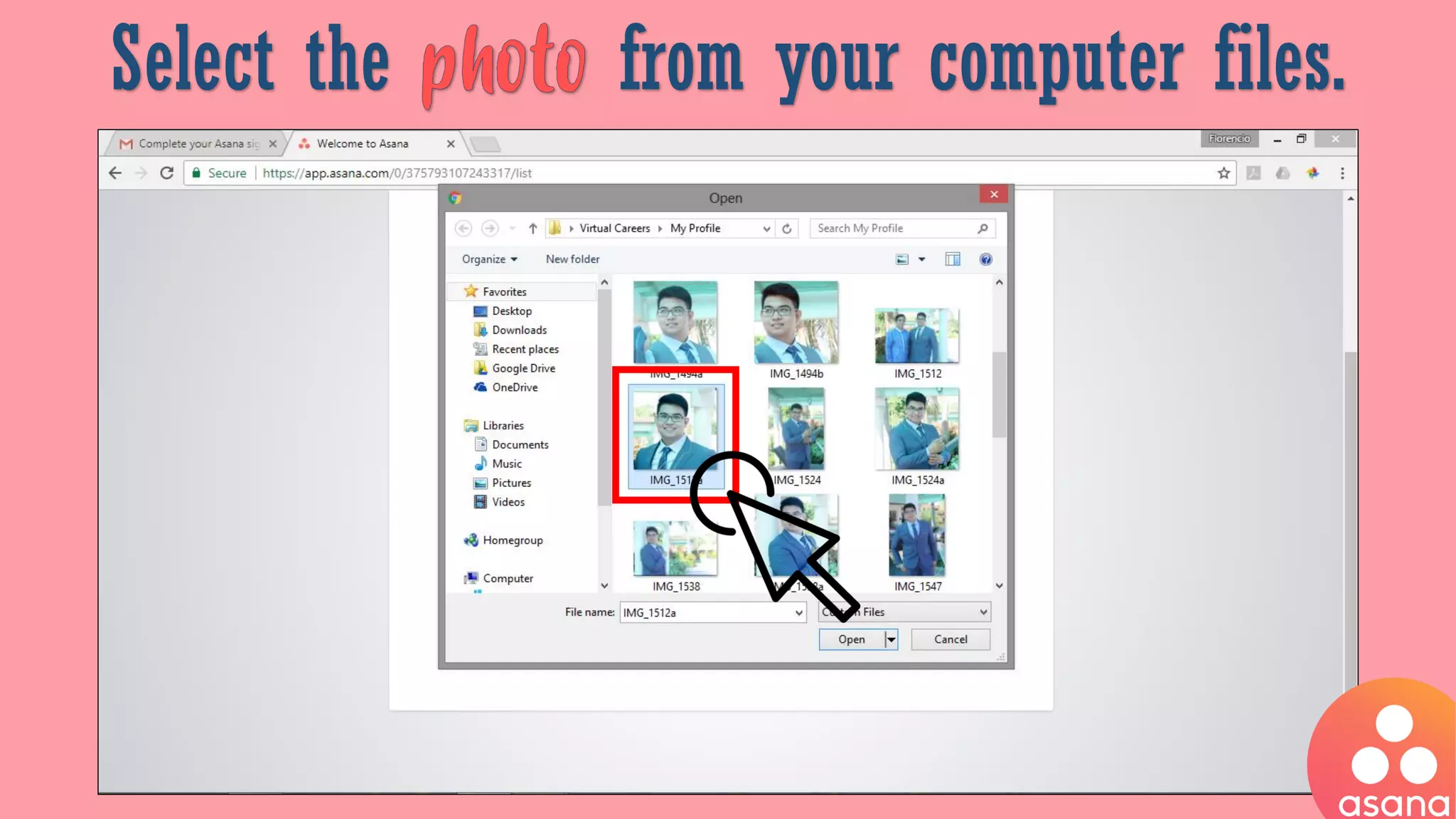
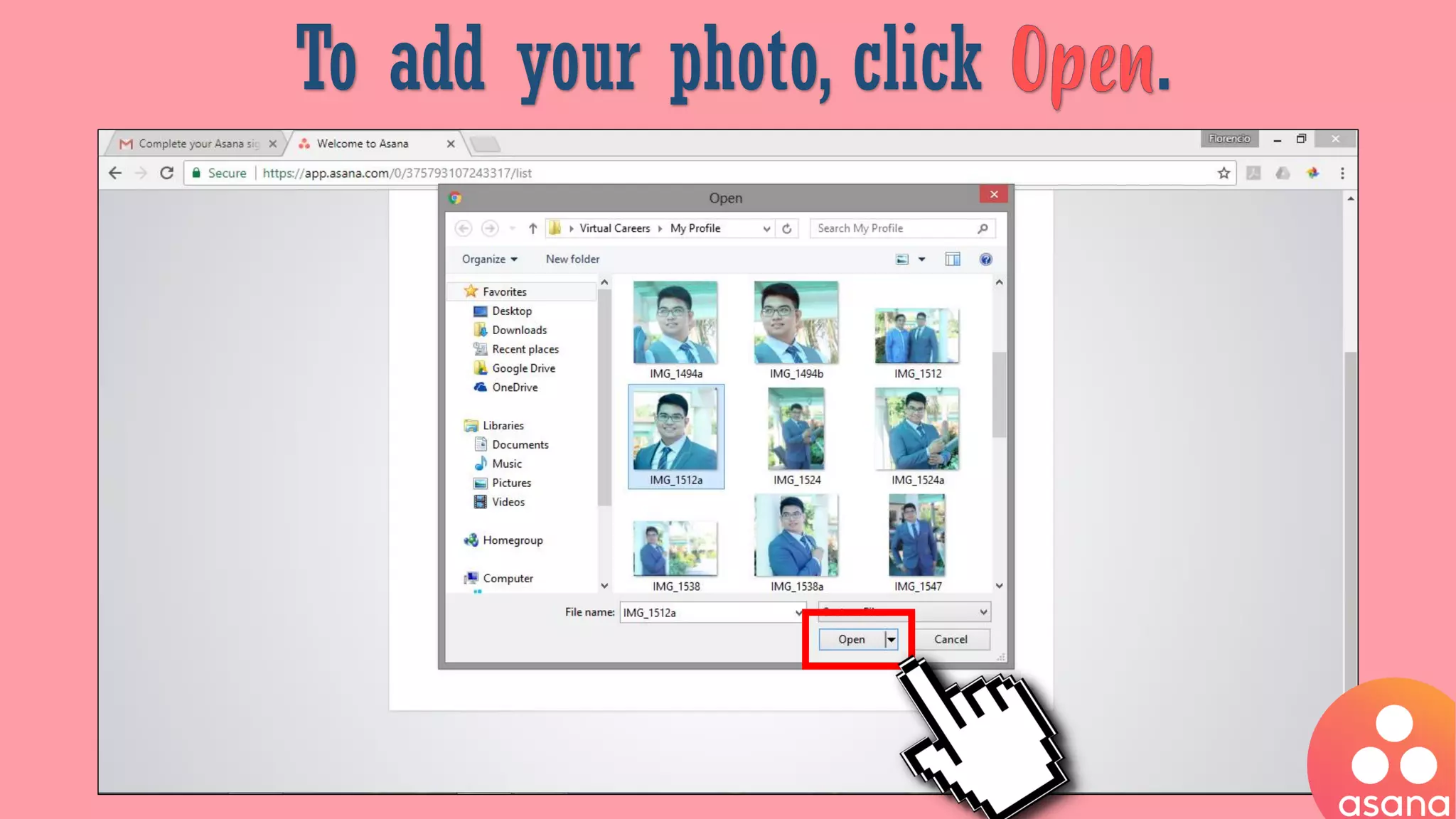
Select the from your computer files.
To add your photo, click .
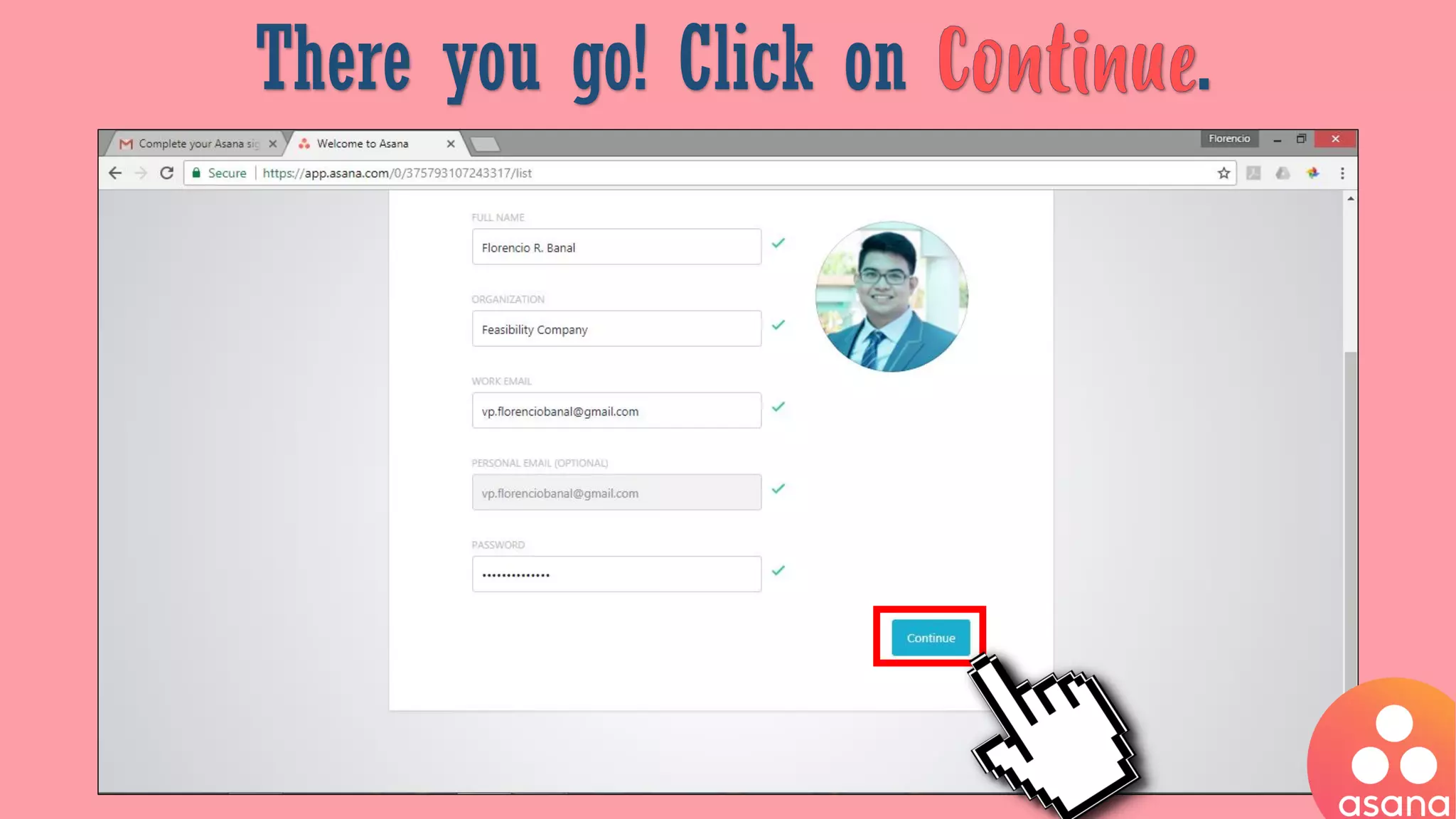
There you go! Click on .
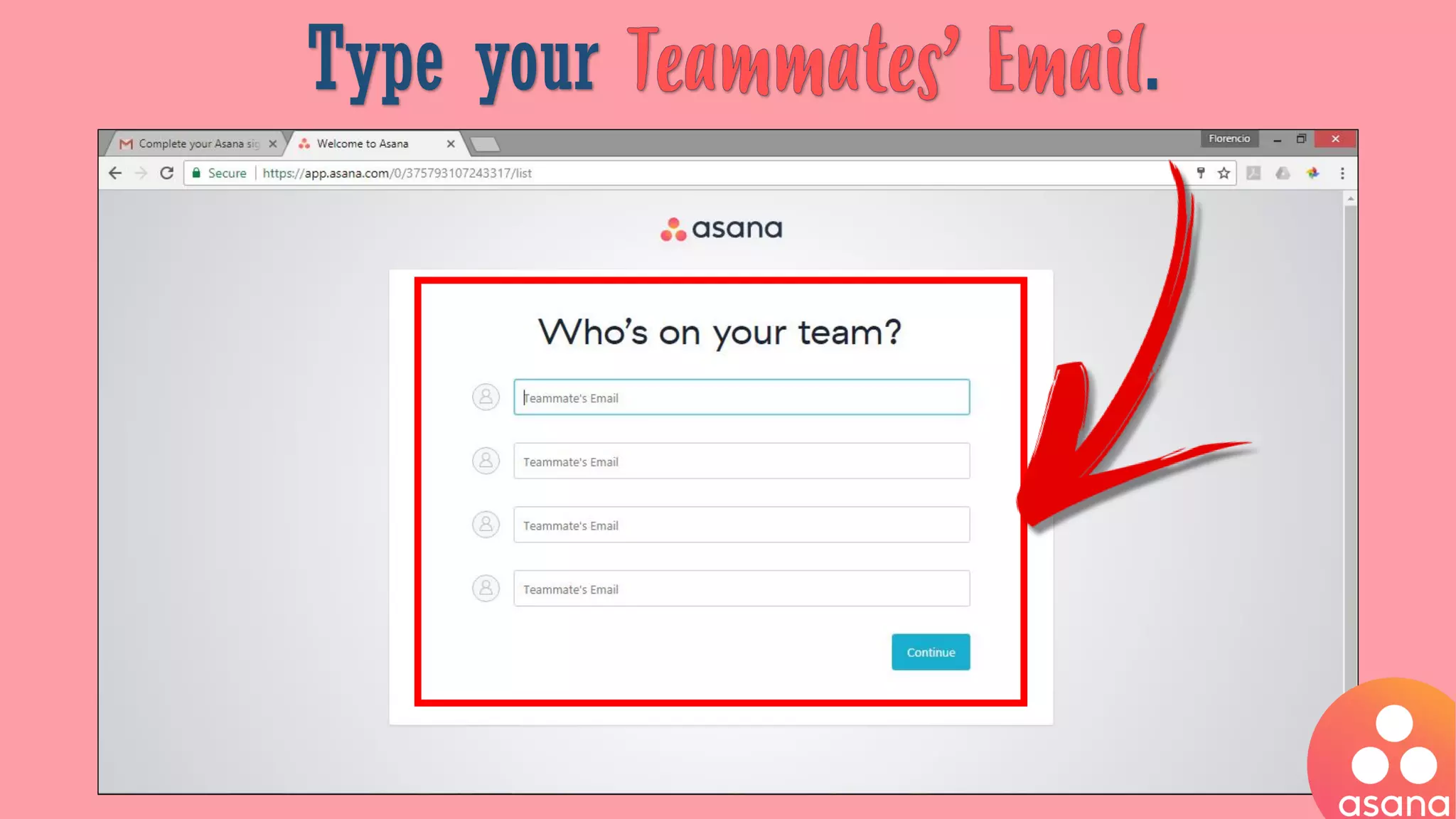
Type your .
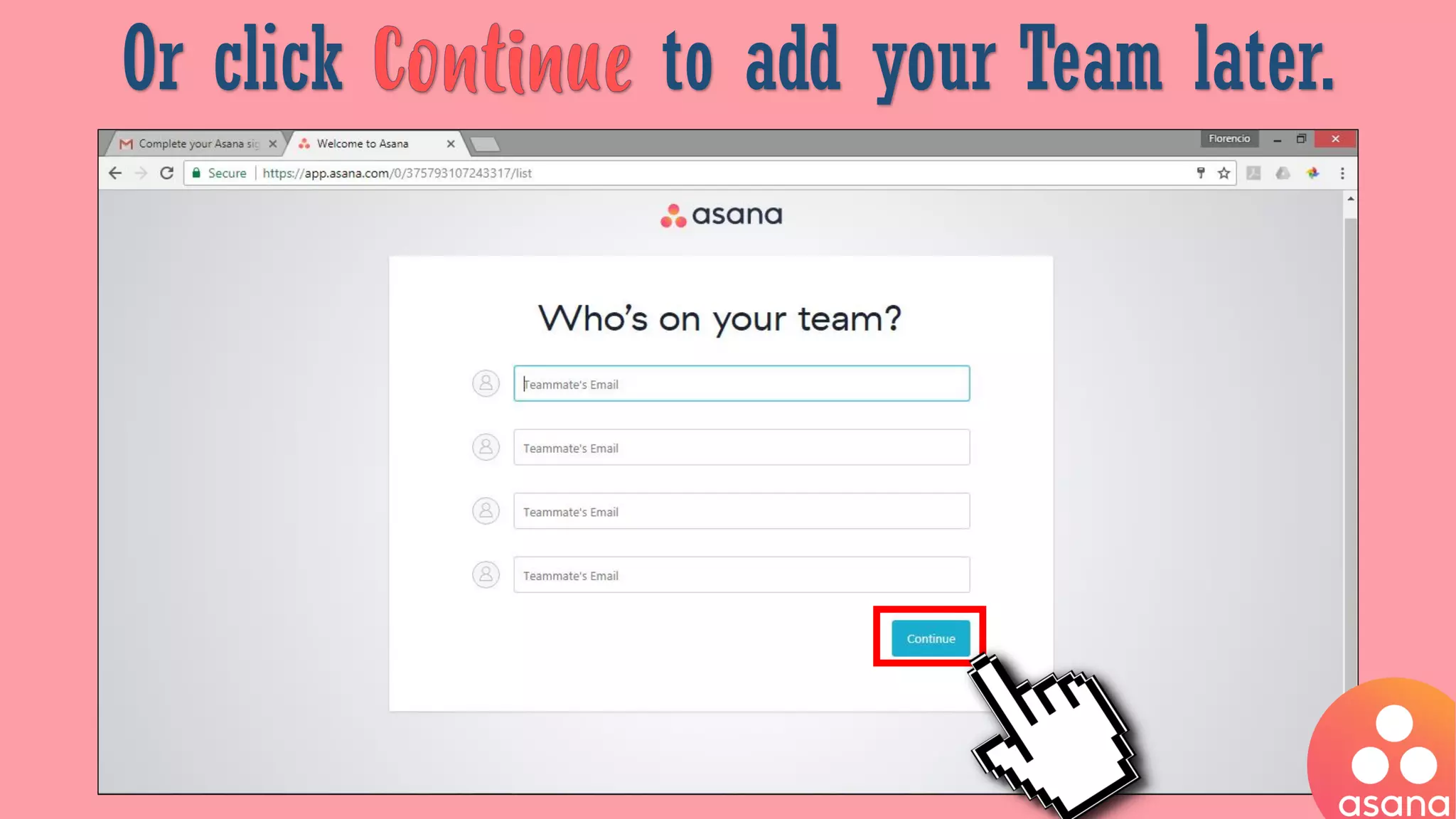
Or click to add your Team later.
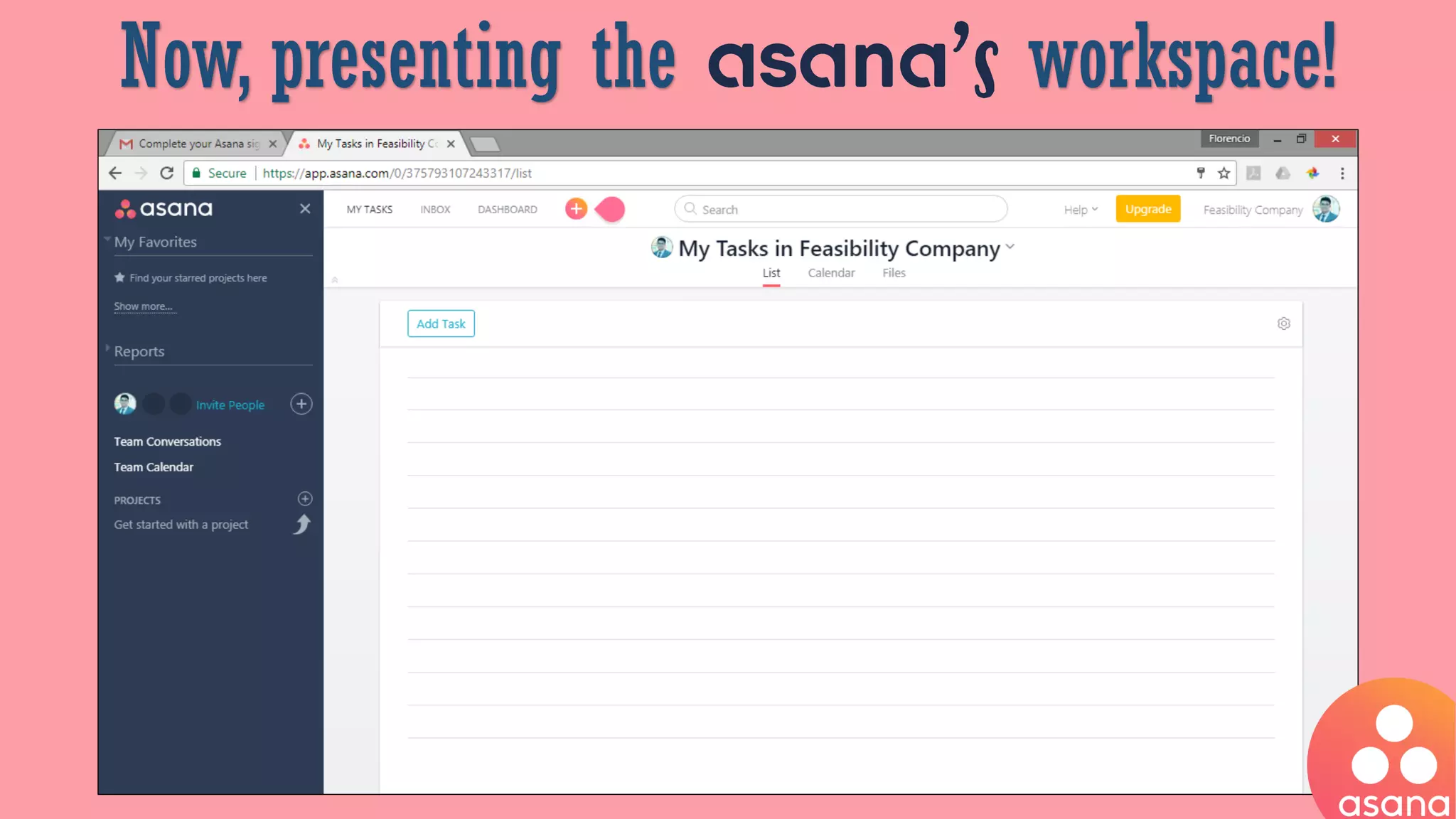
Now, presenting the asana’s workspace!
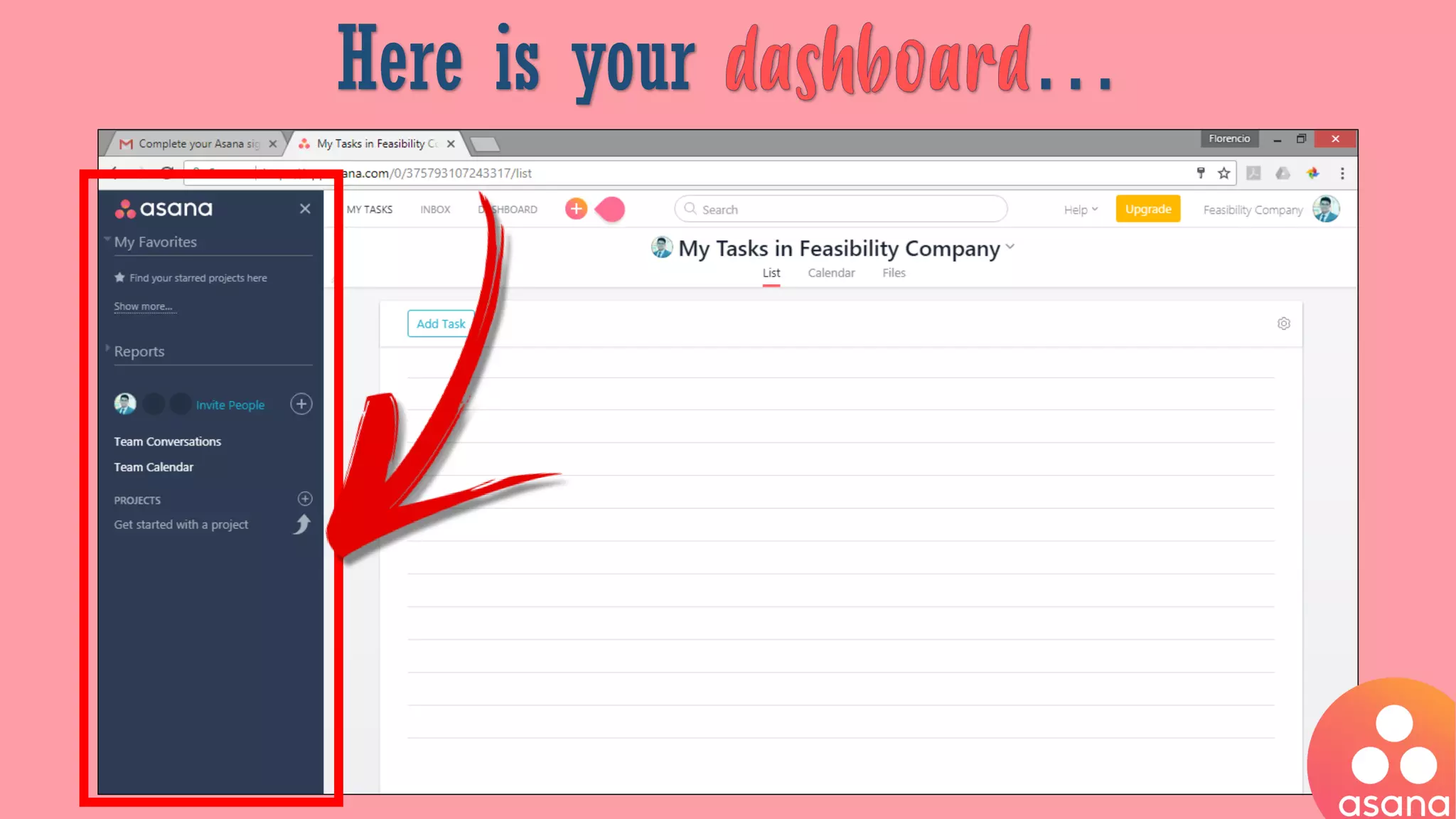
Here is your …
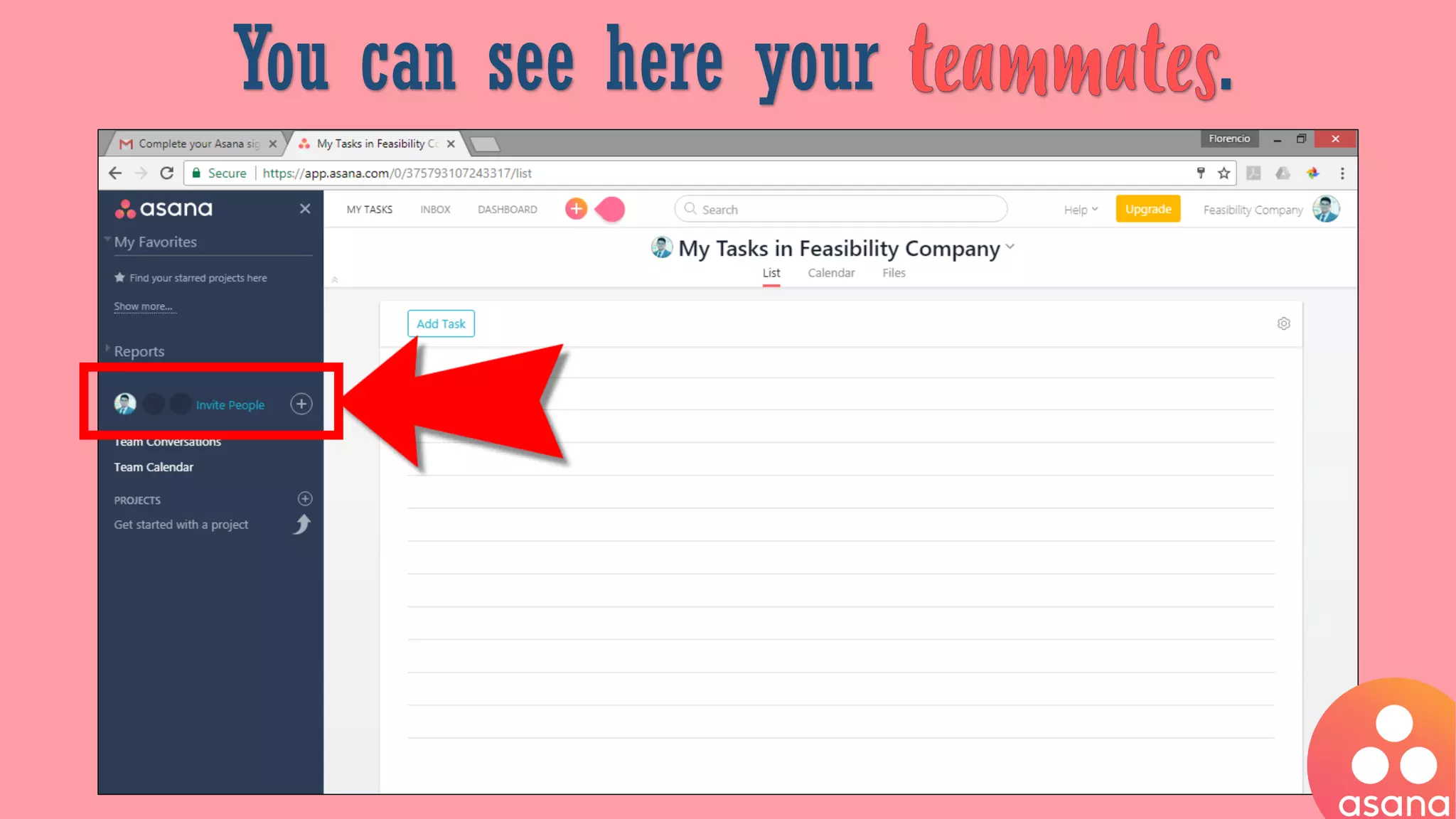
You can see here your .
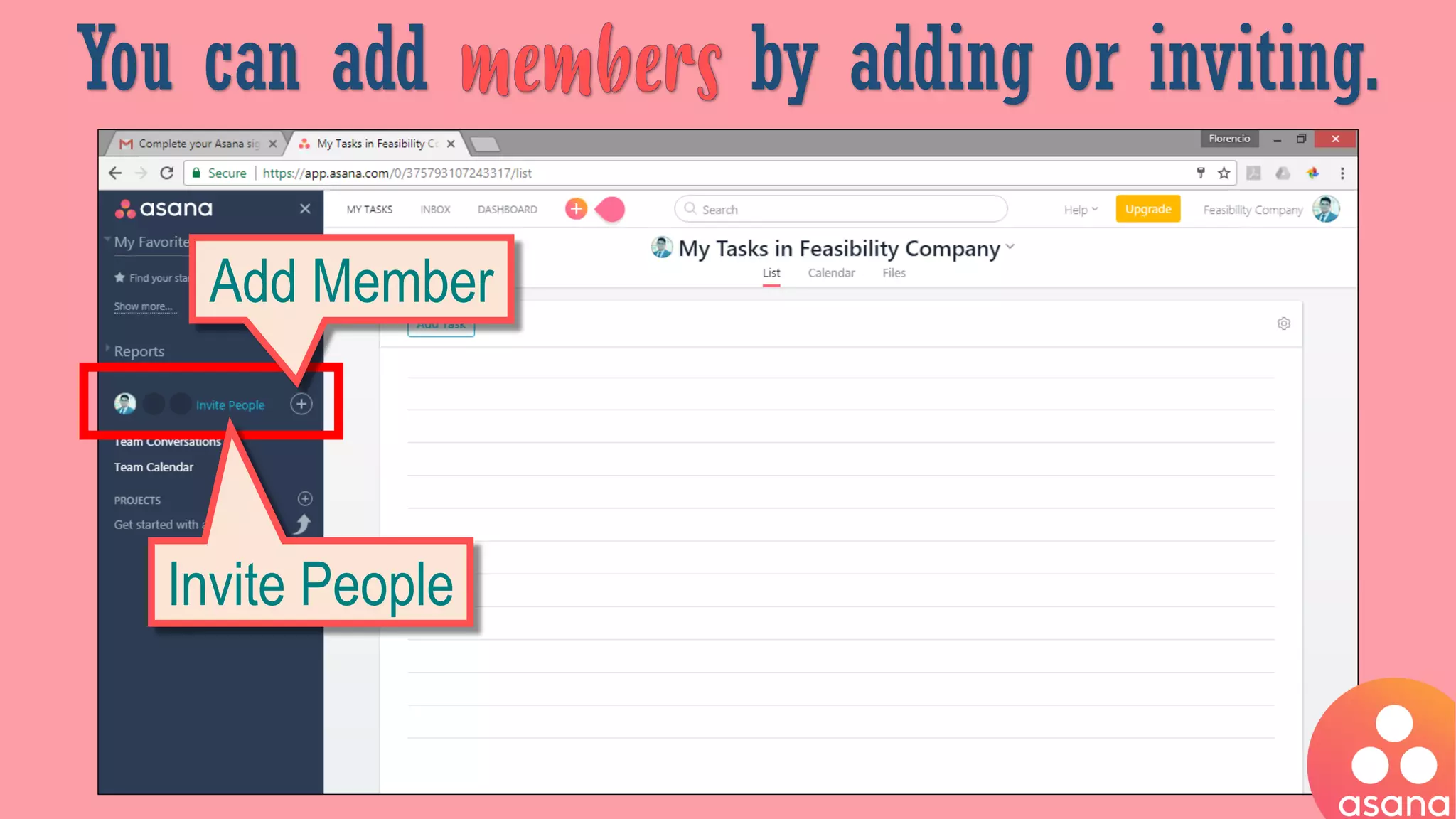
You can add by adding or inviting.
Invite People
Add Member
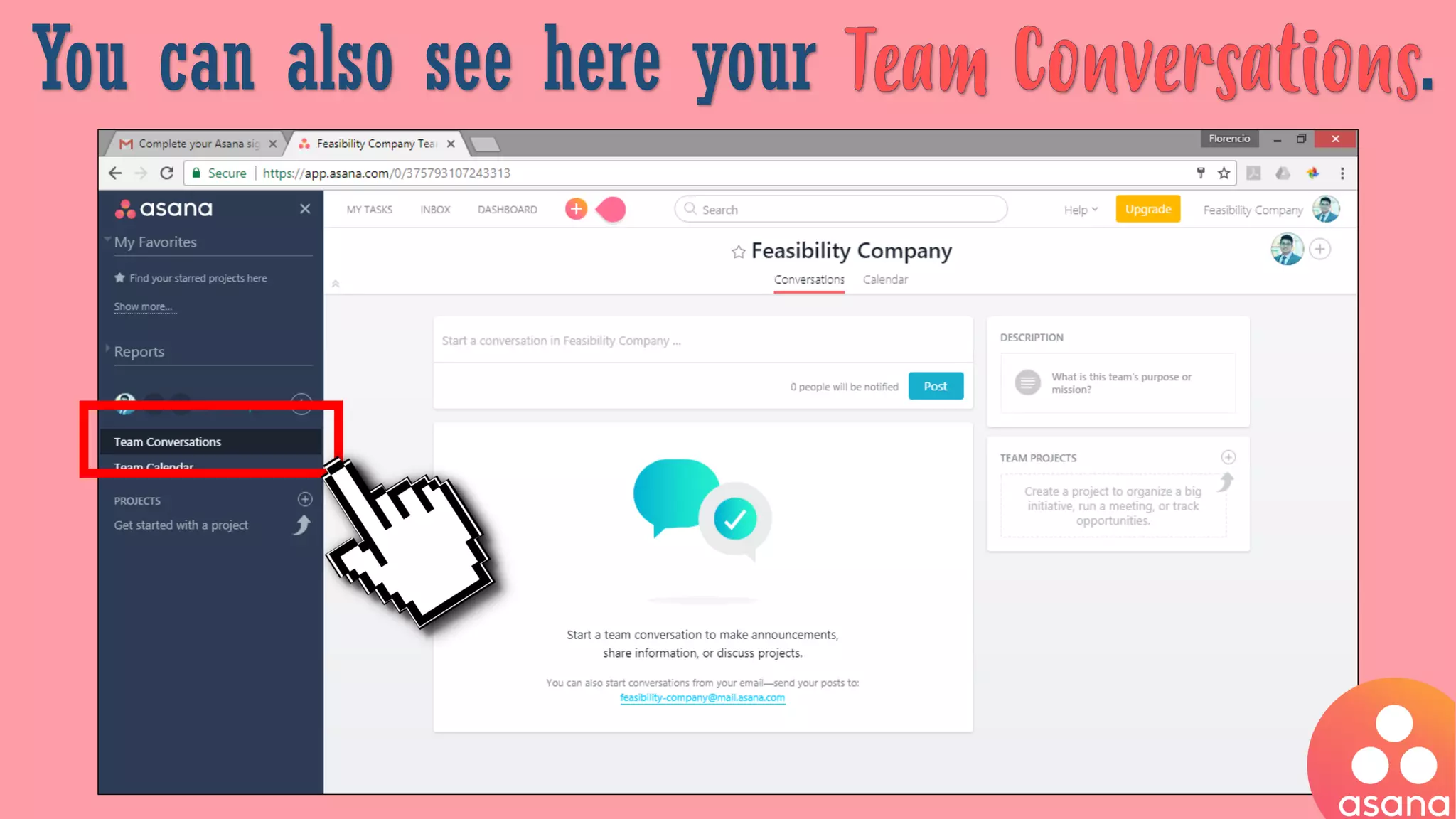
You can also see here your .
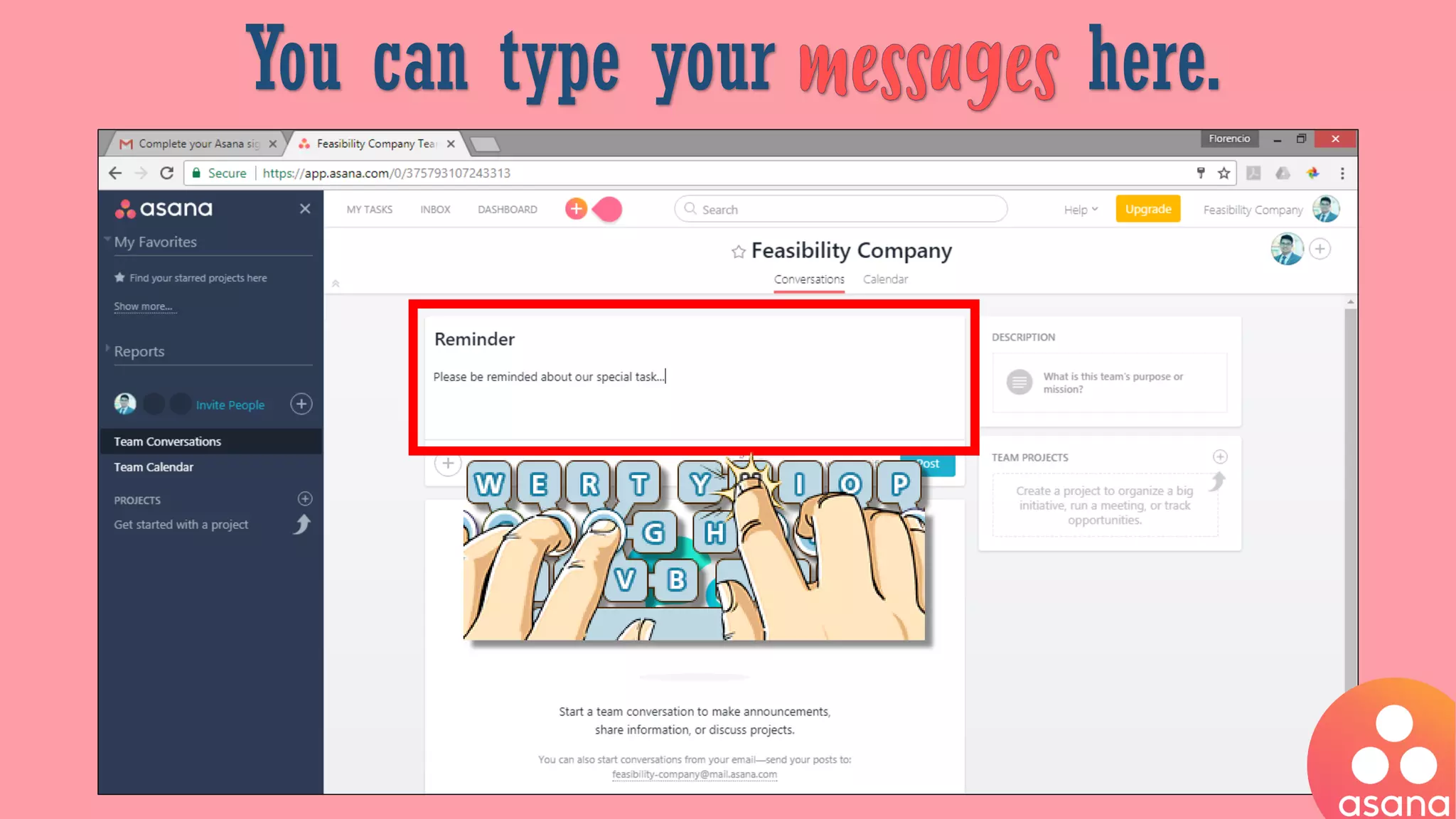
You can type your here.
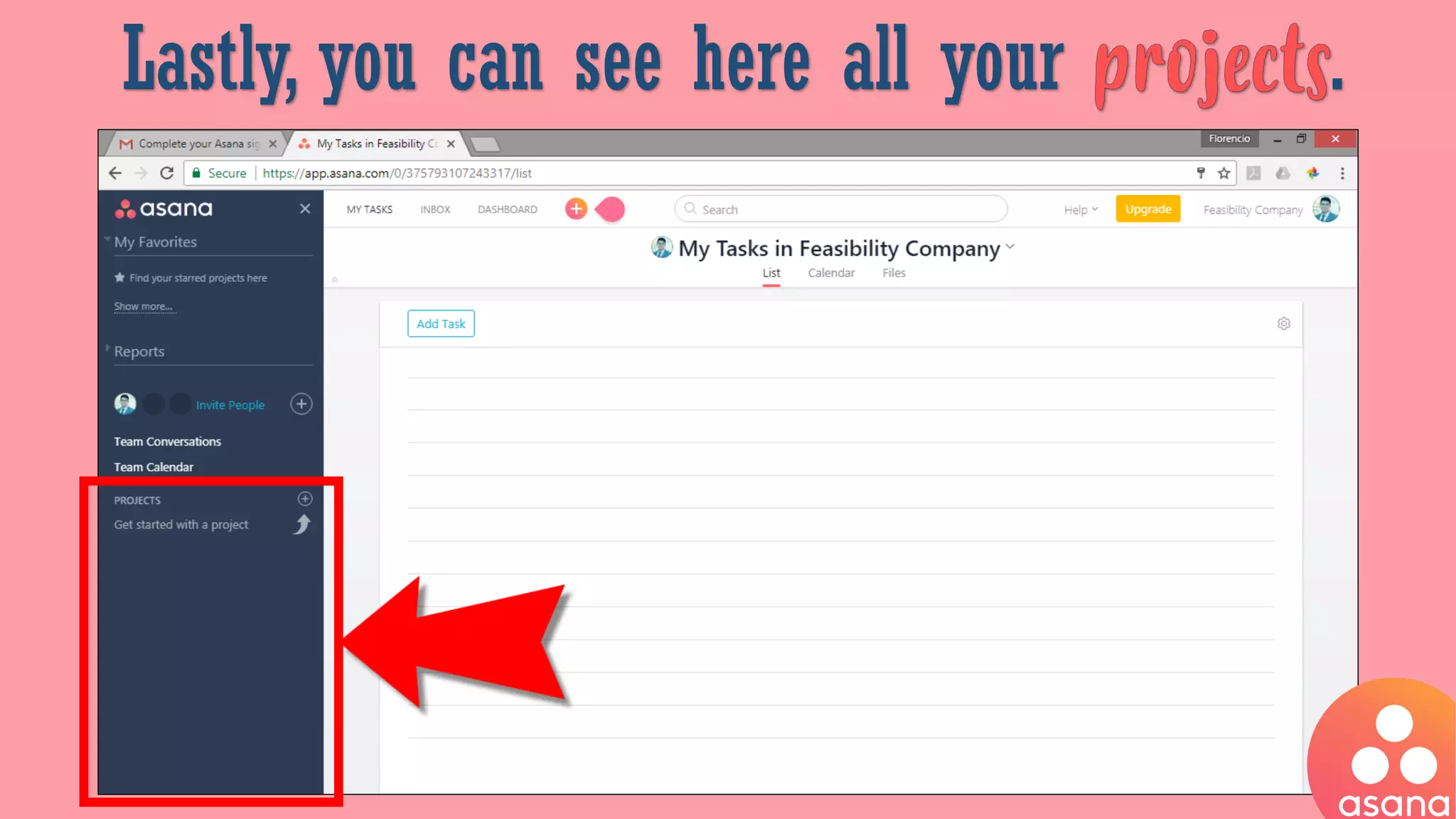
Lastly, you can see here all your .
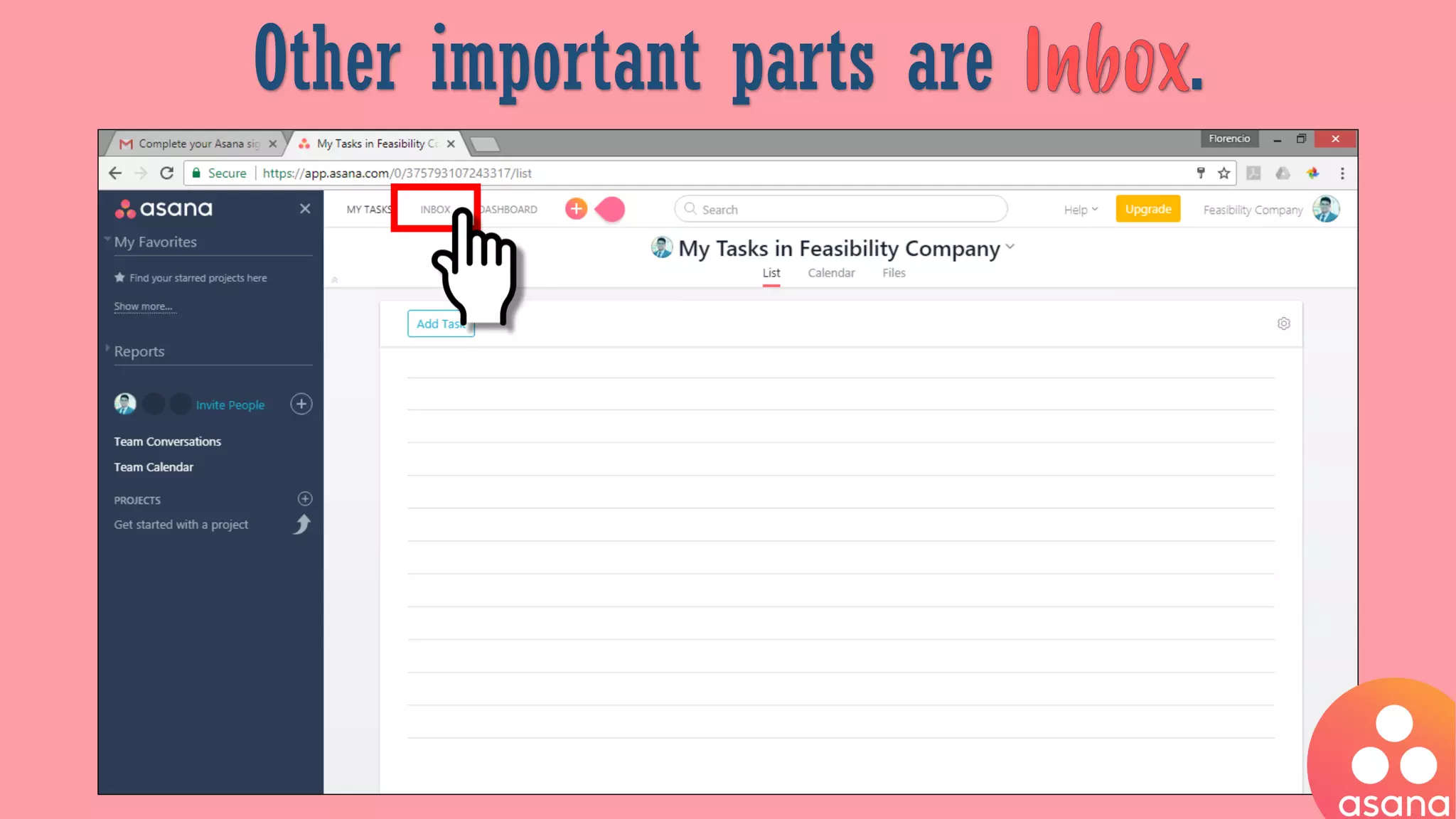
Other important parts are .
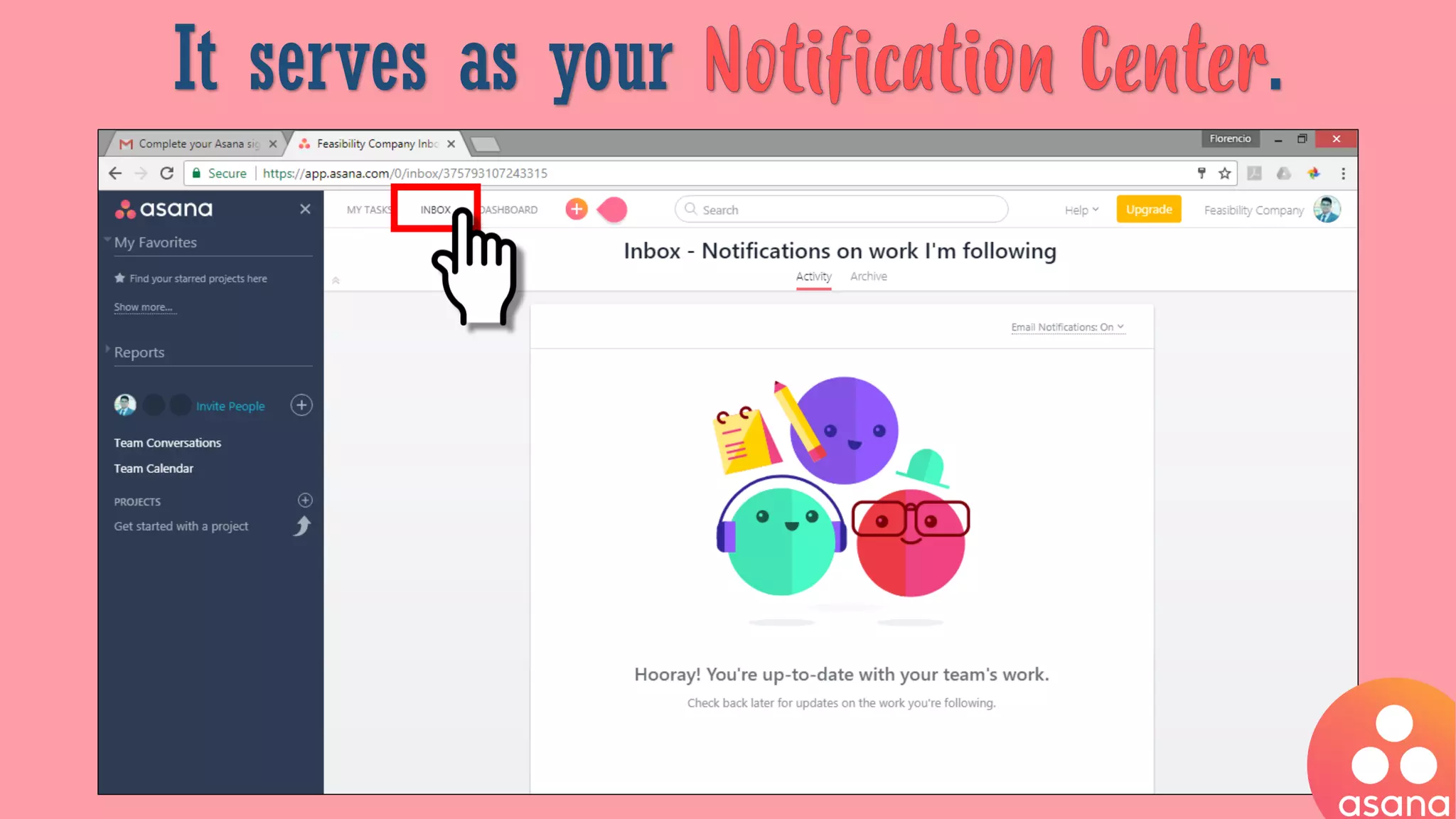
It serves as your .
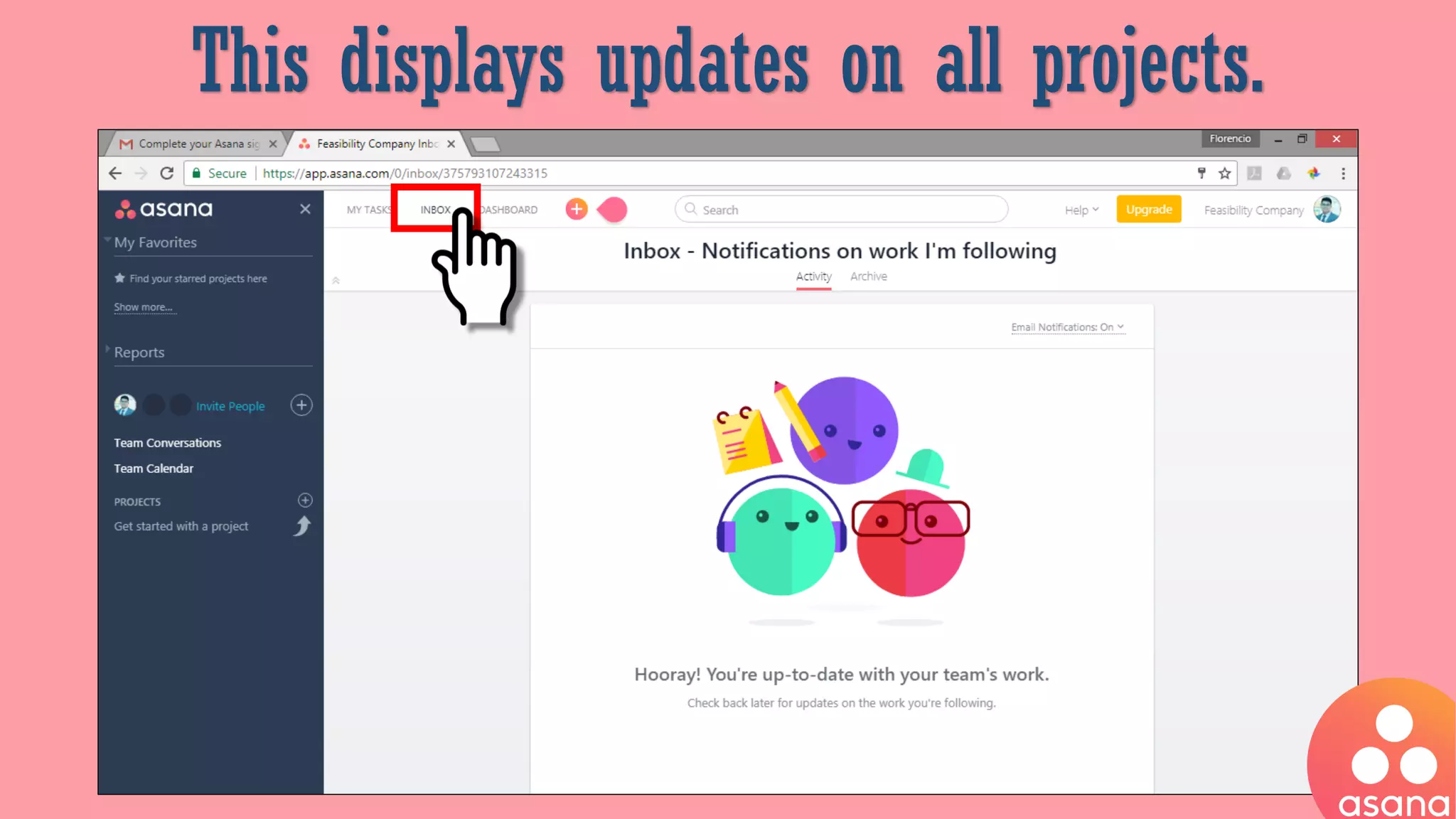
This displays updates on all projects.
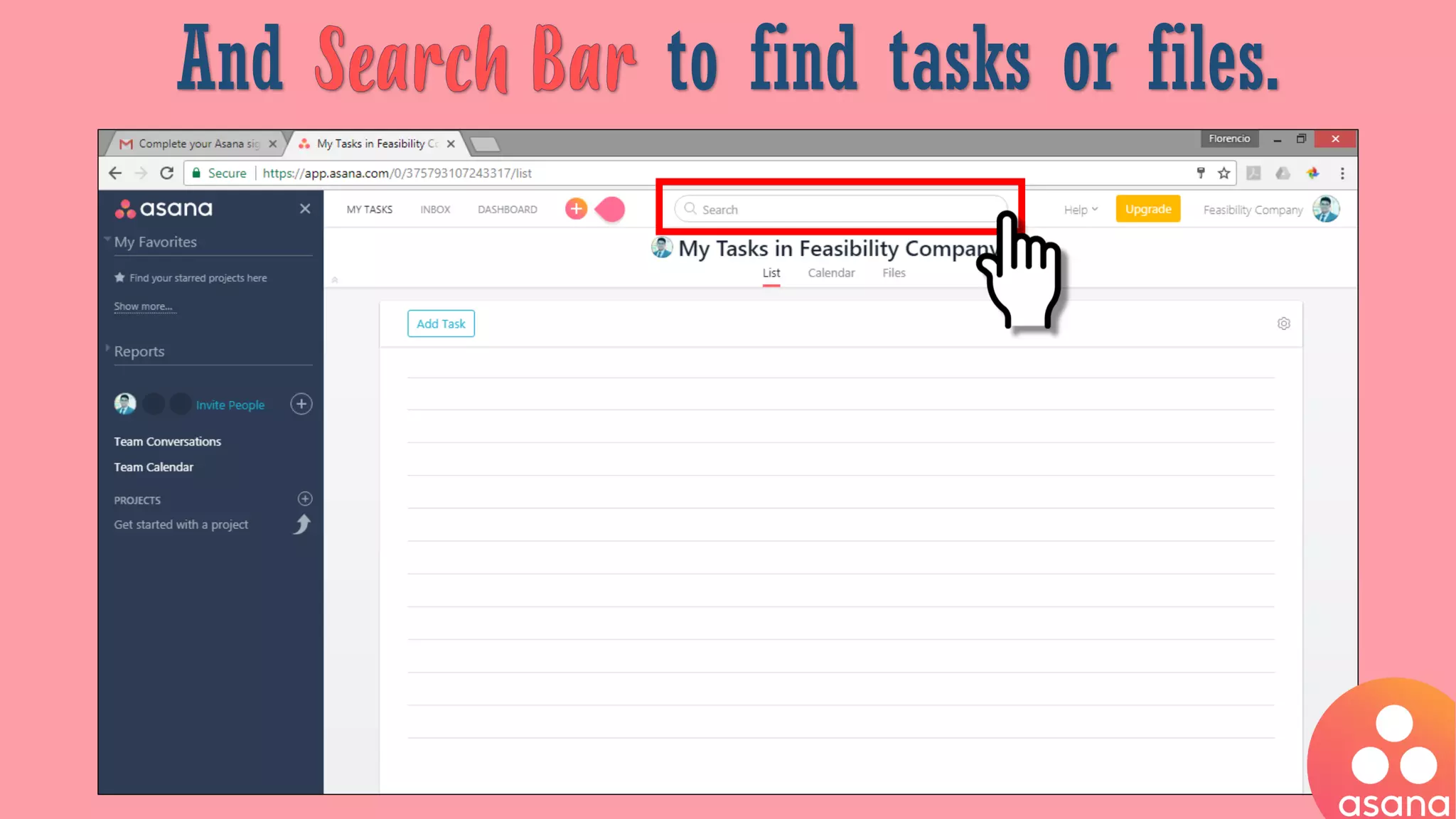
And to find tasks or files.
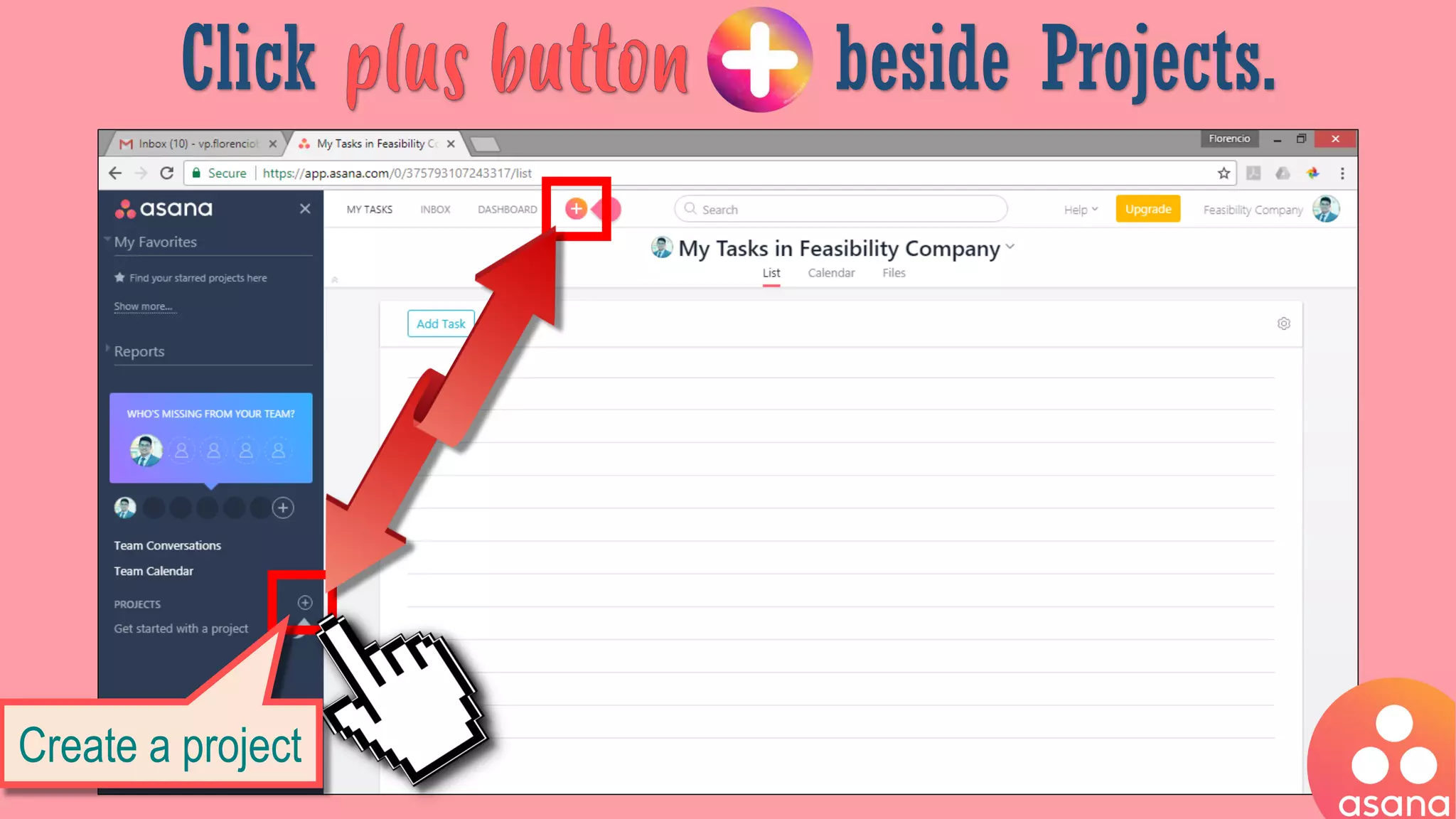
Click beside Projects.
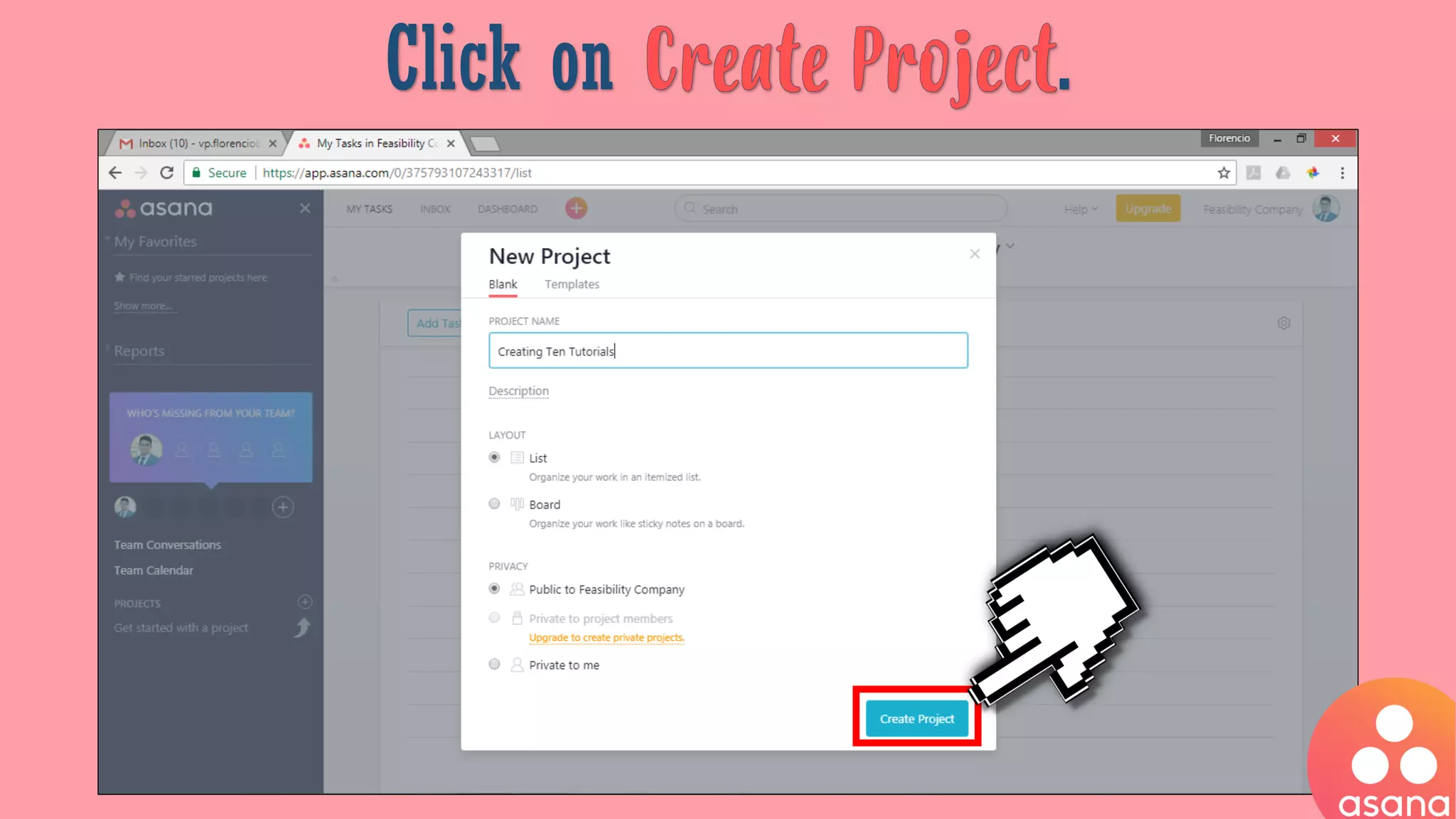
Create a project
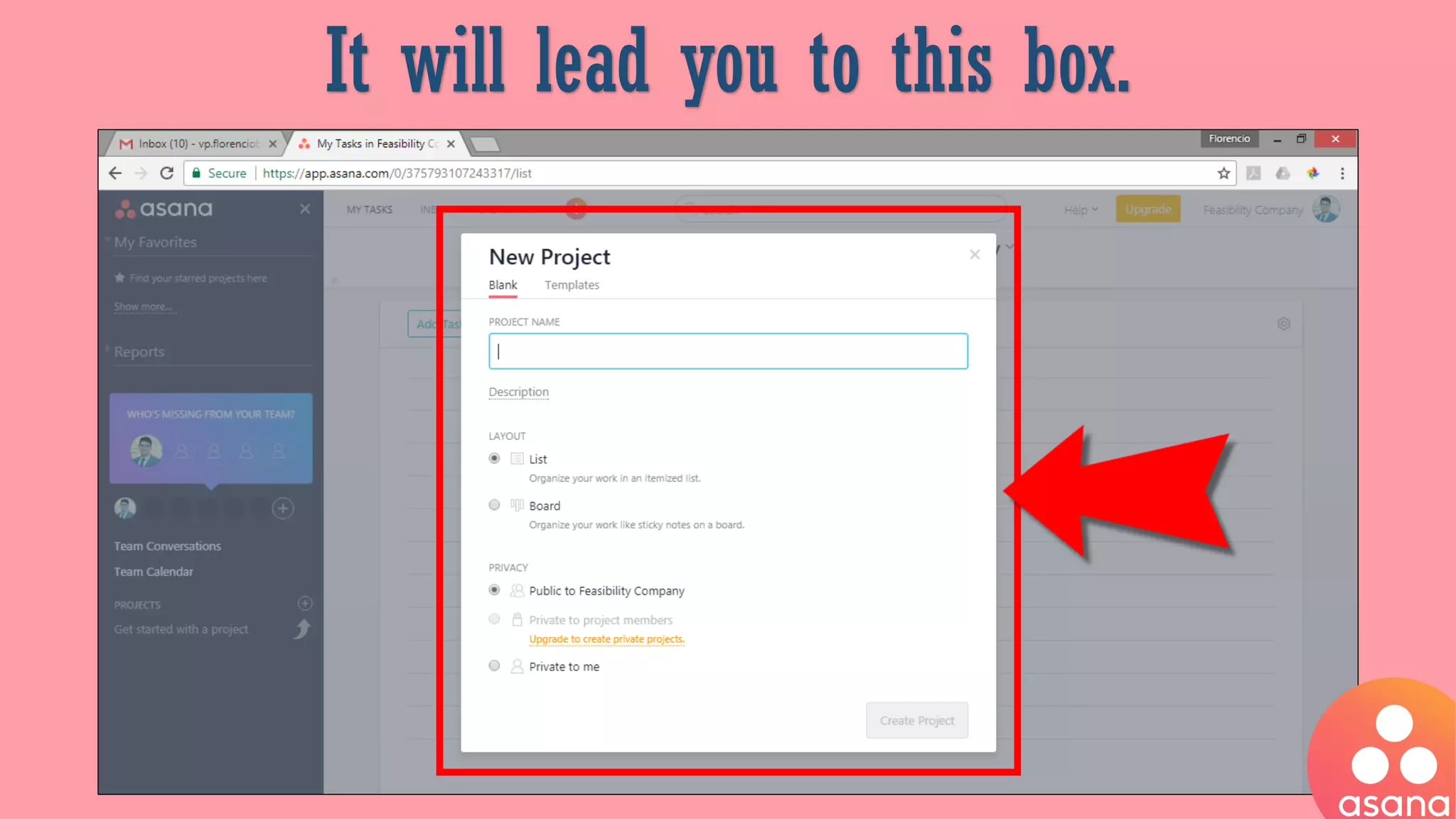
It will lead you to this box.
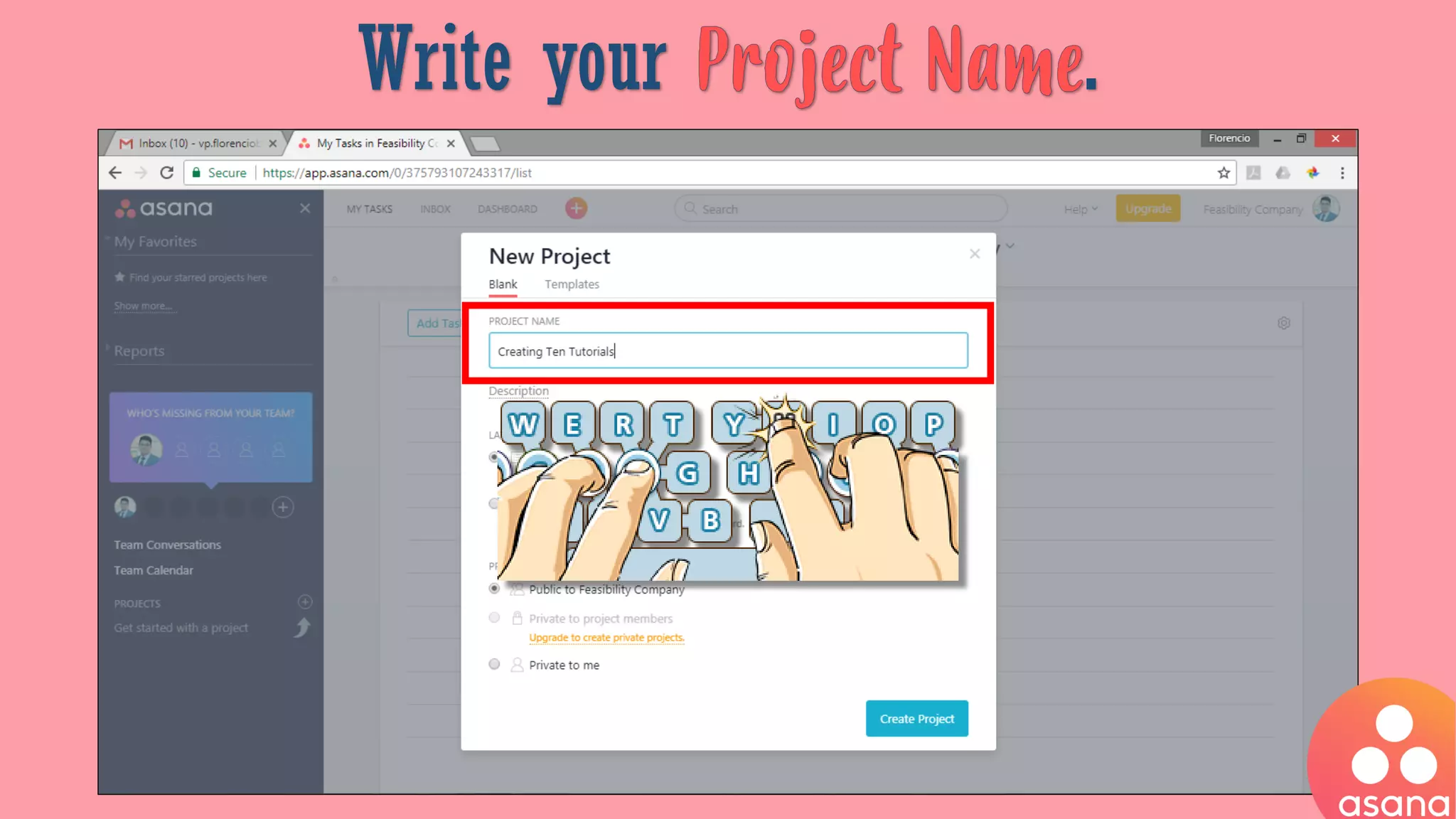
Write your .
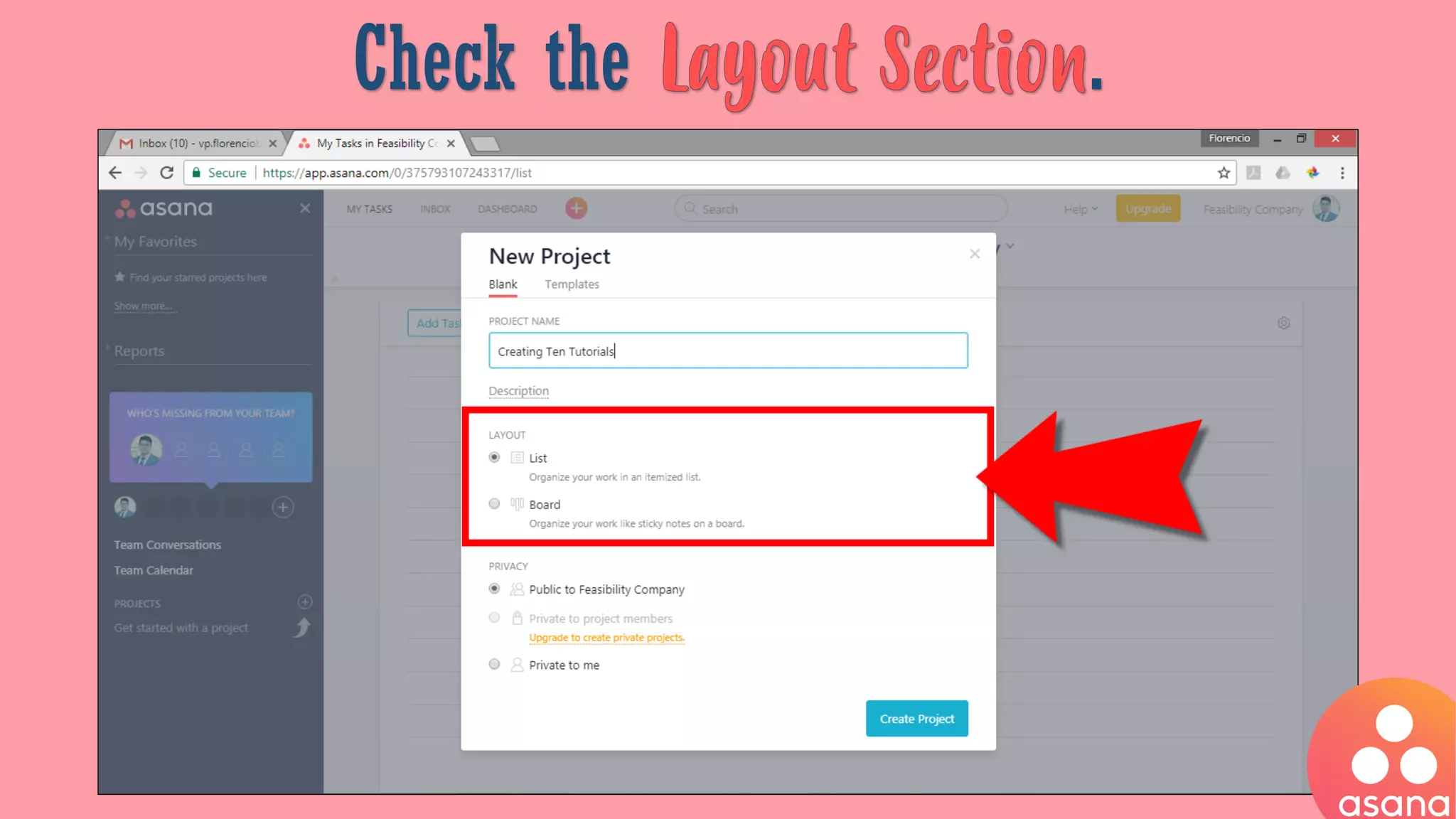
Check the .
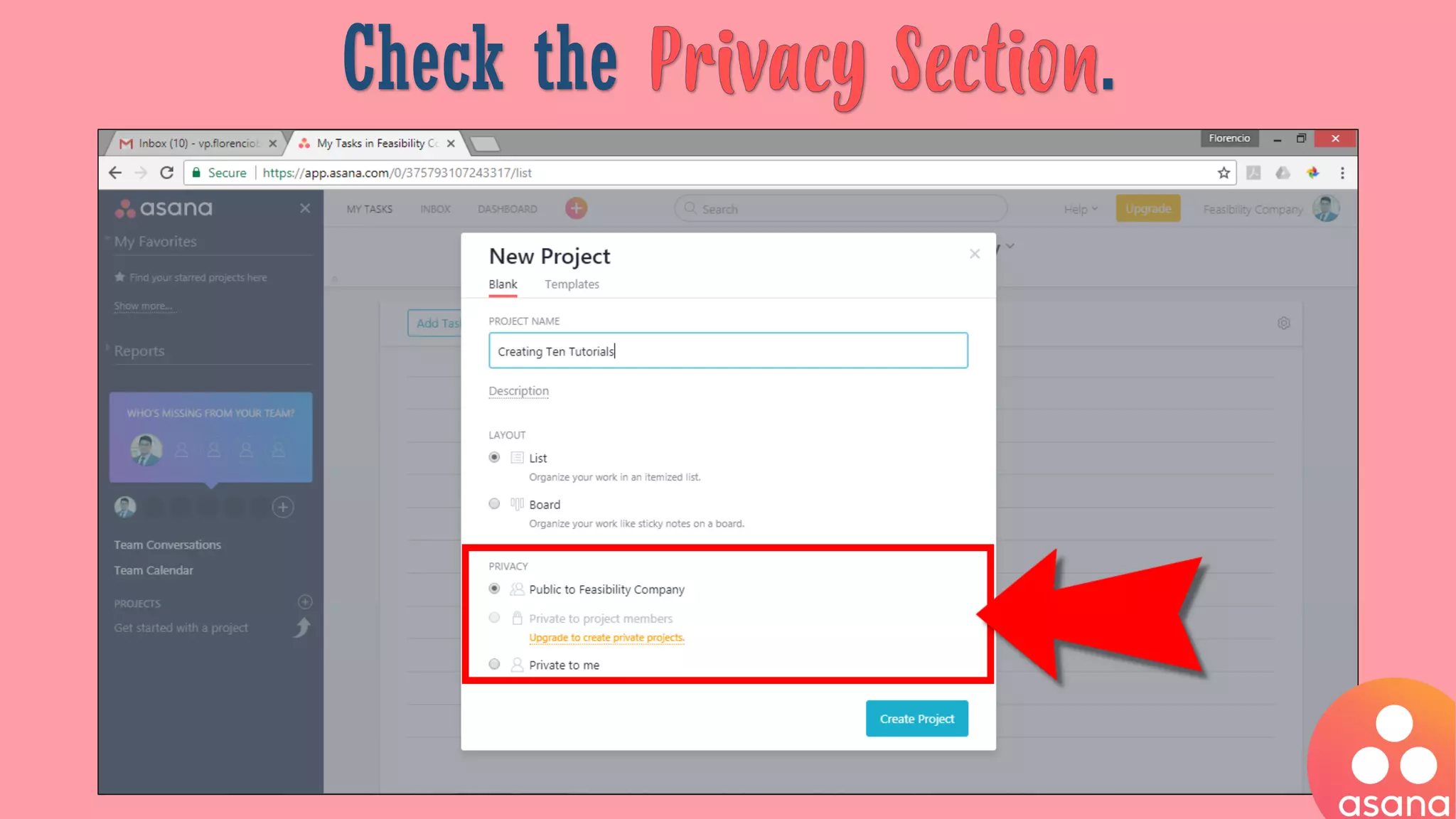
Check the .
Click on .
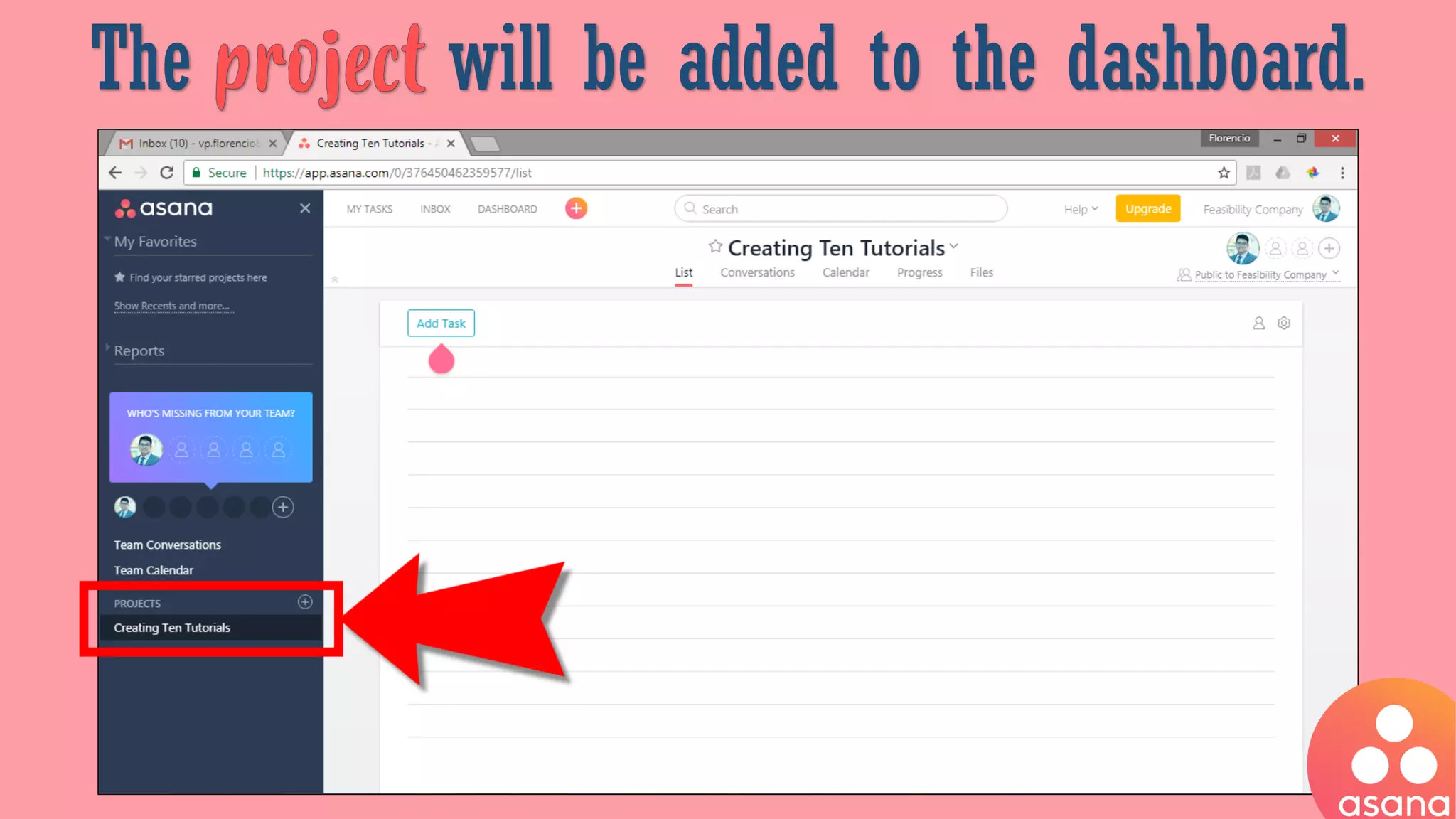
The will be added to the dashboard.
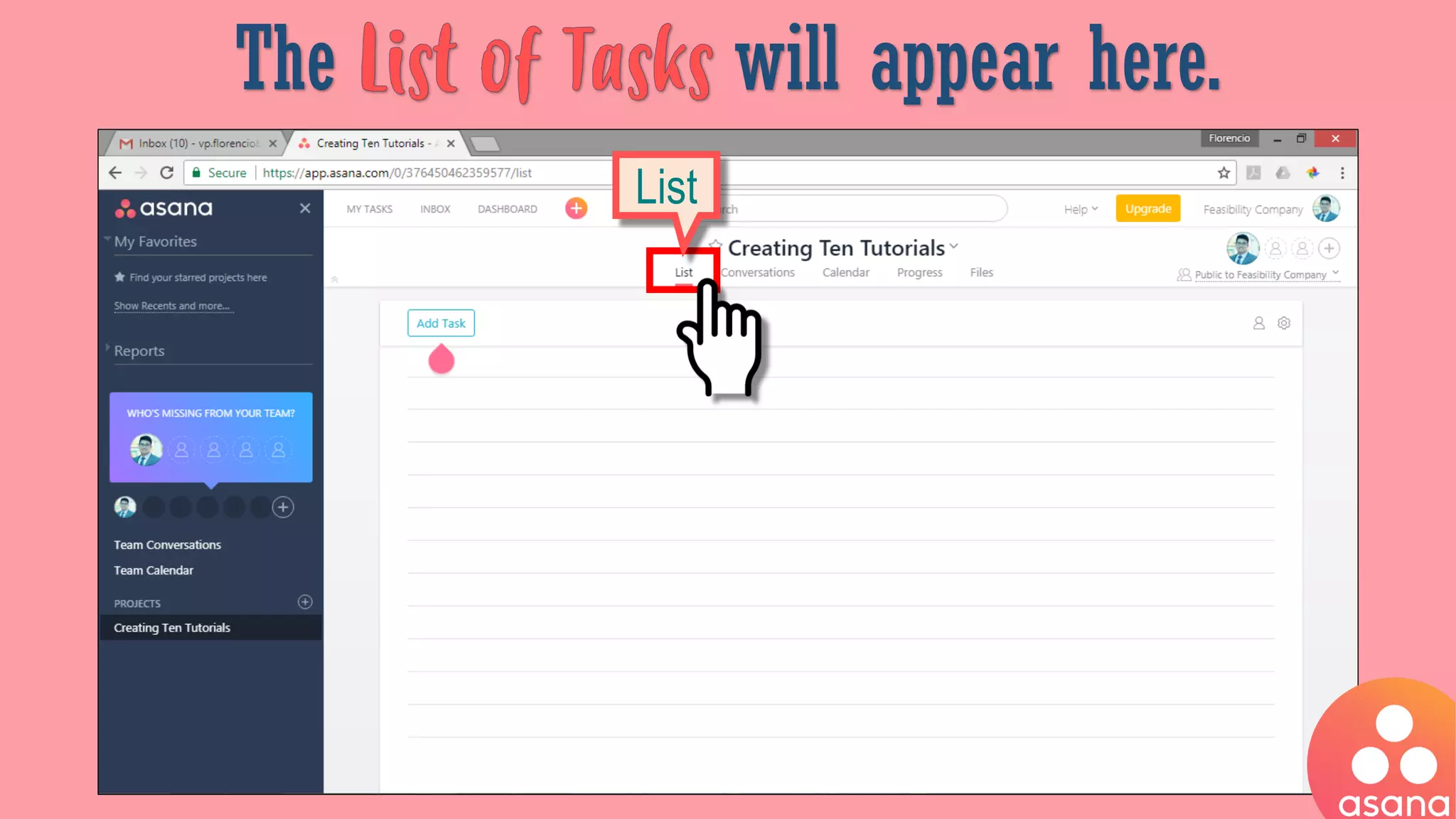
The will appear here.
List
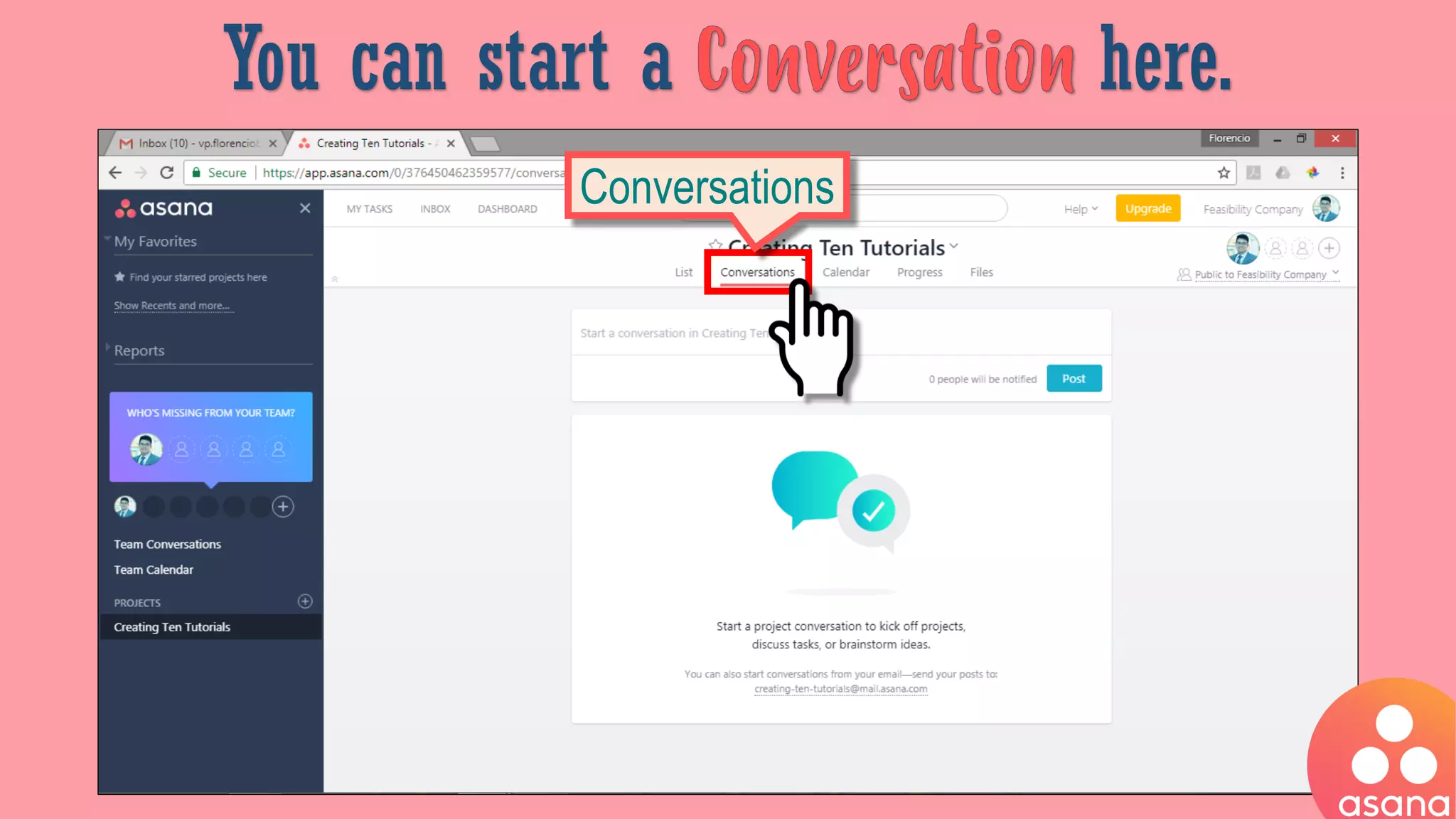
You can start a here.
Conversations
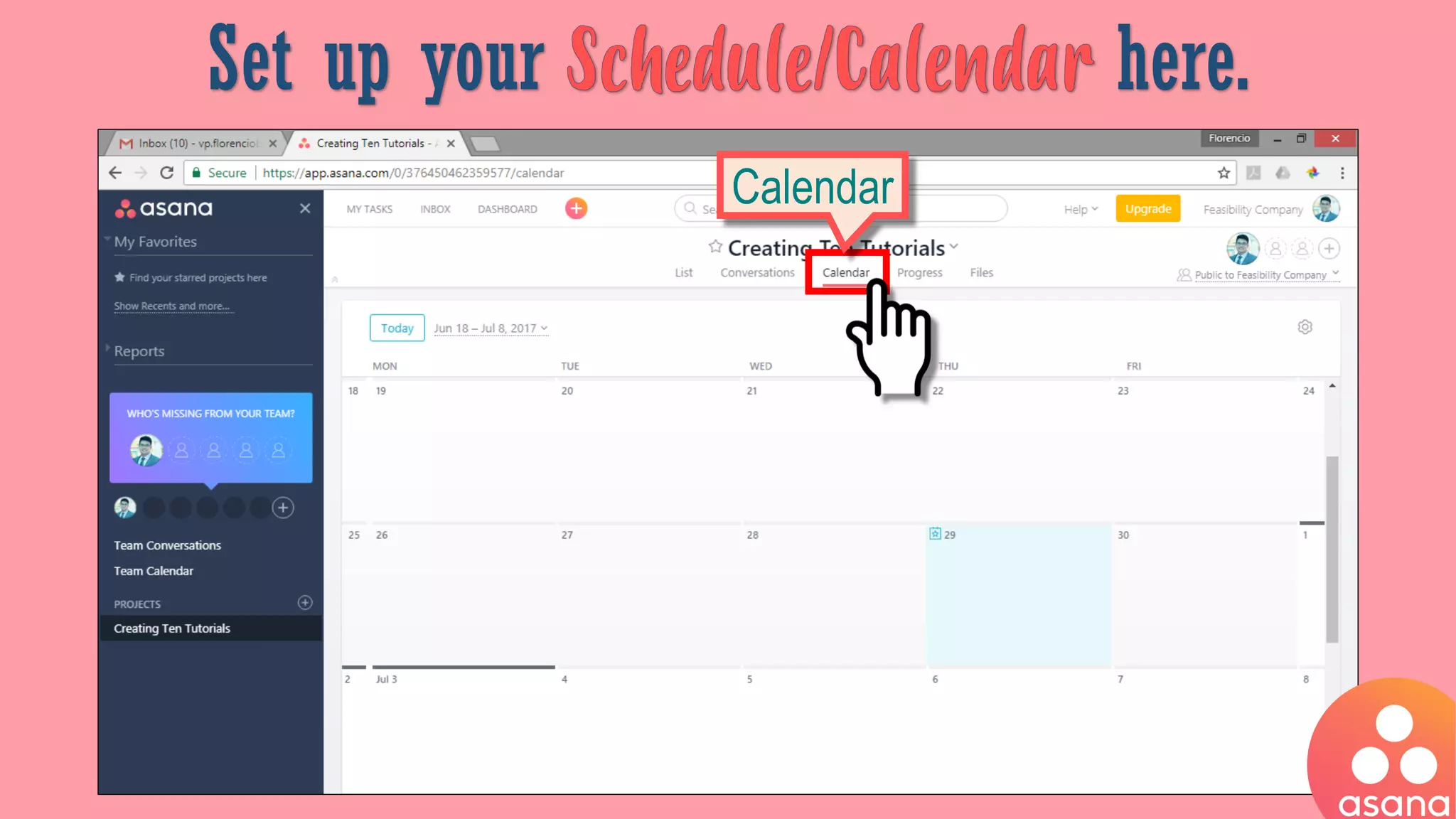
Set up your here.
Calendar
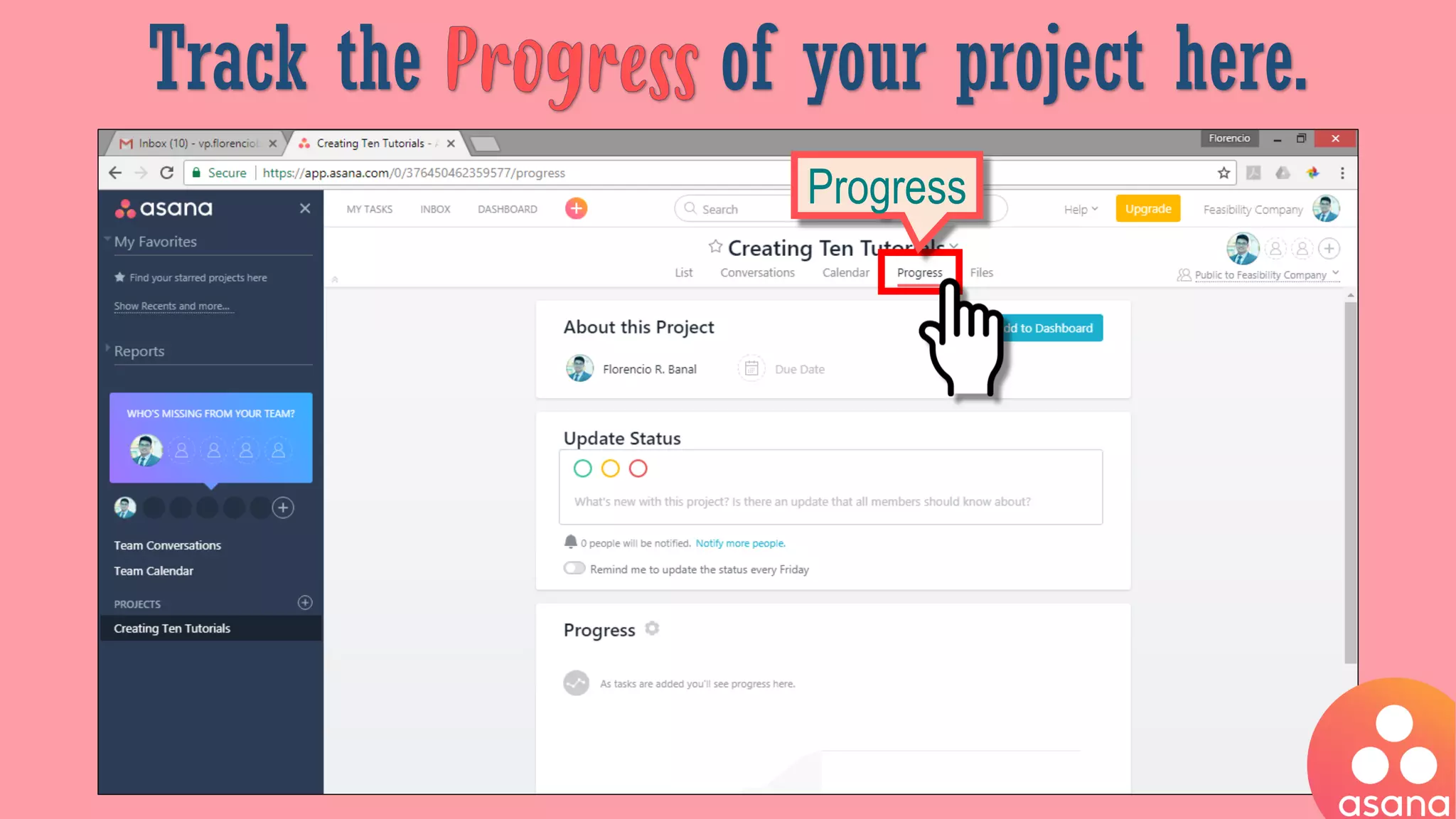
Track the of your project here.
Progress
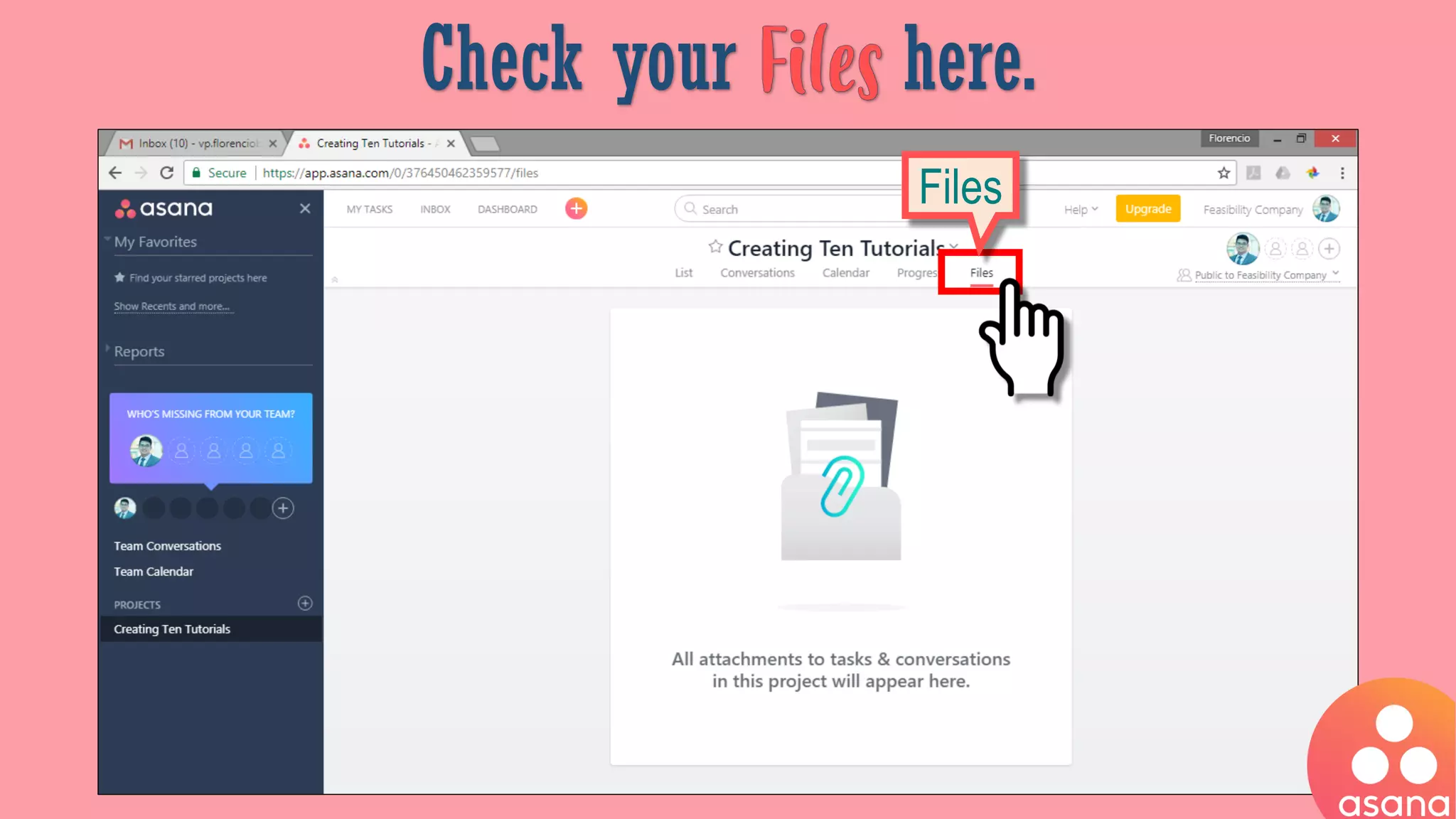
Check your here.
Files
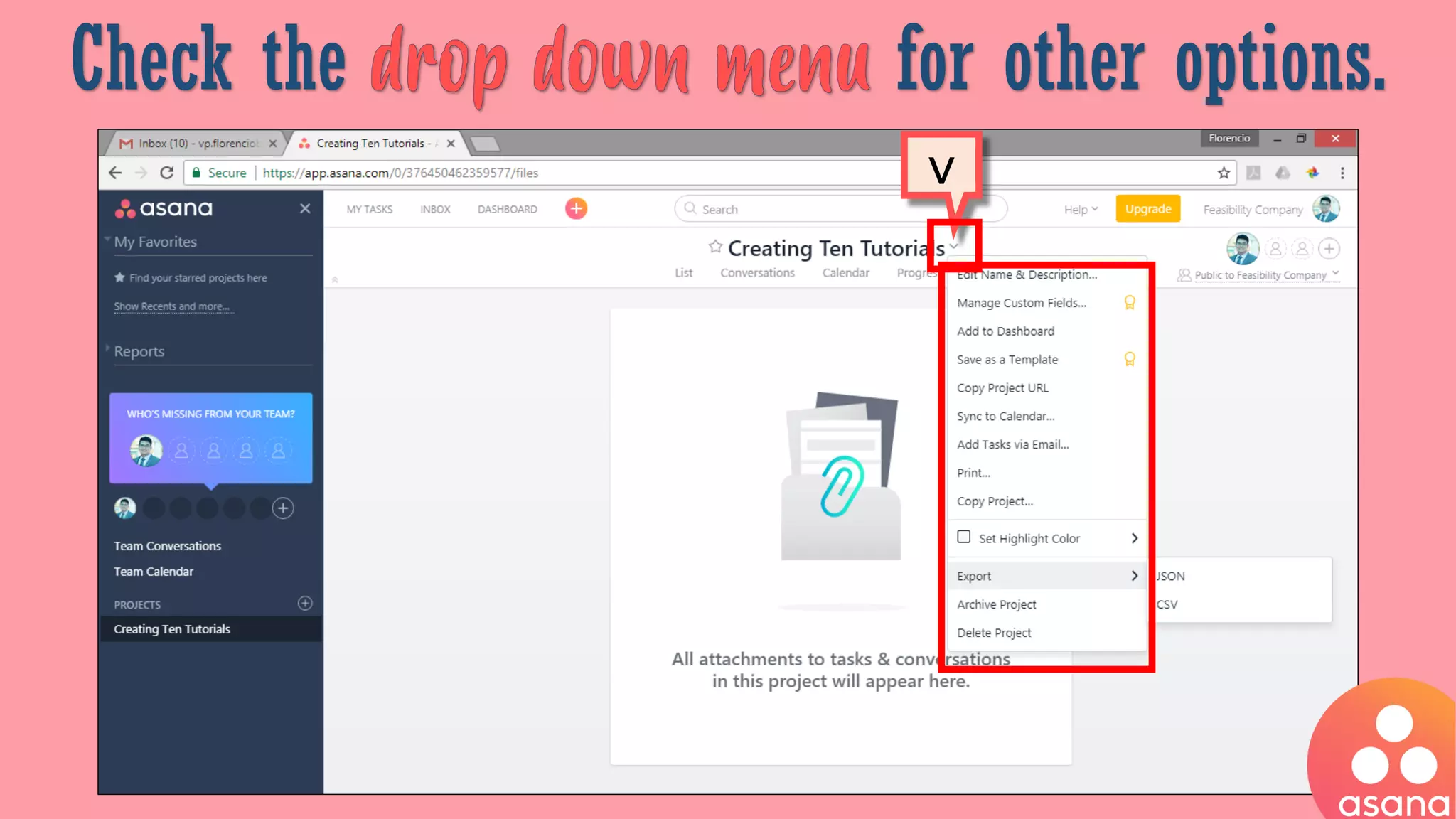
Check the for other options.
v
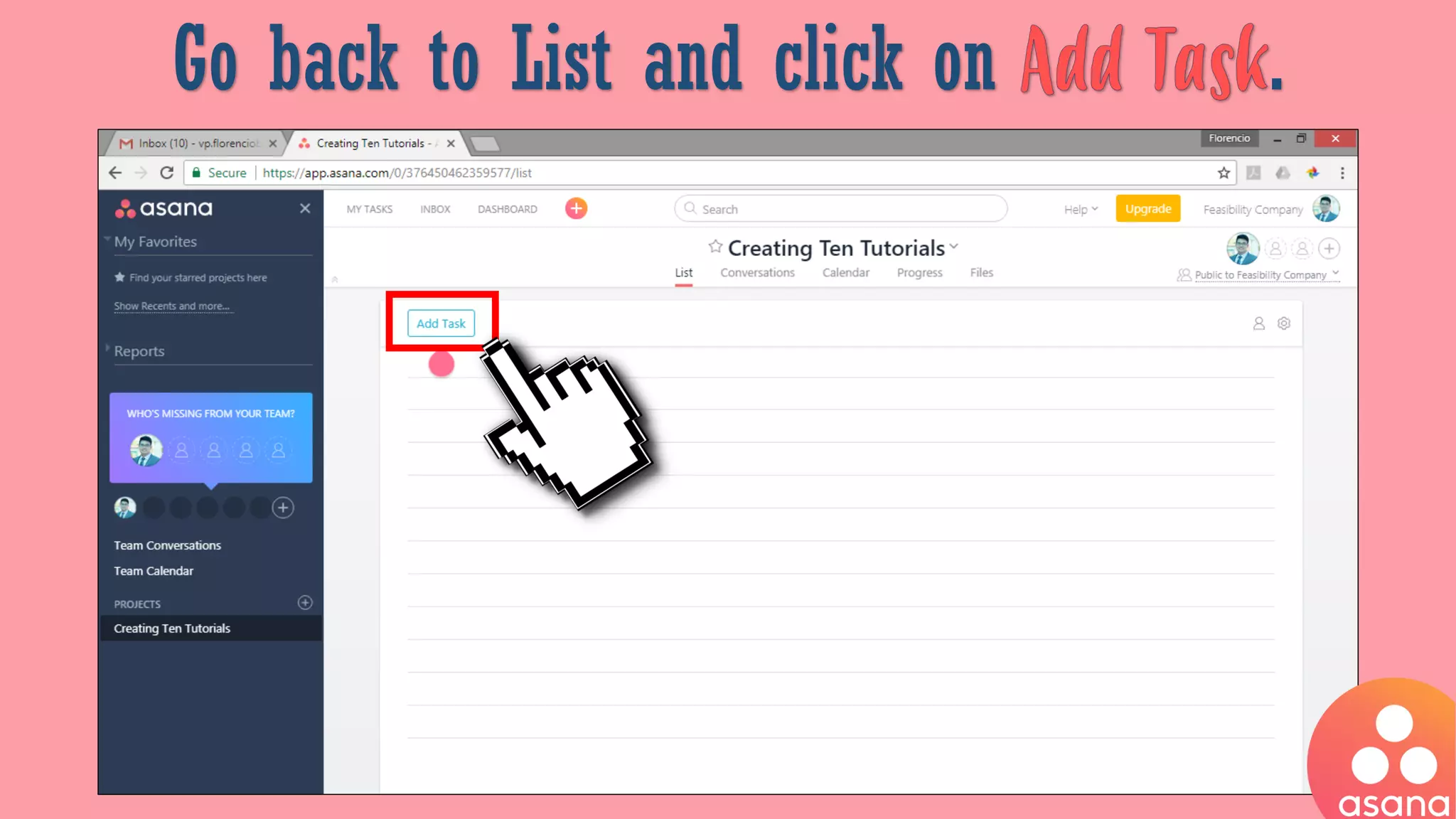
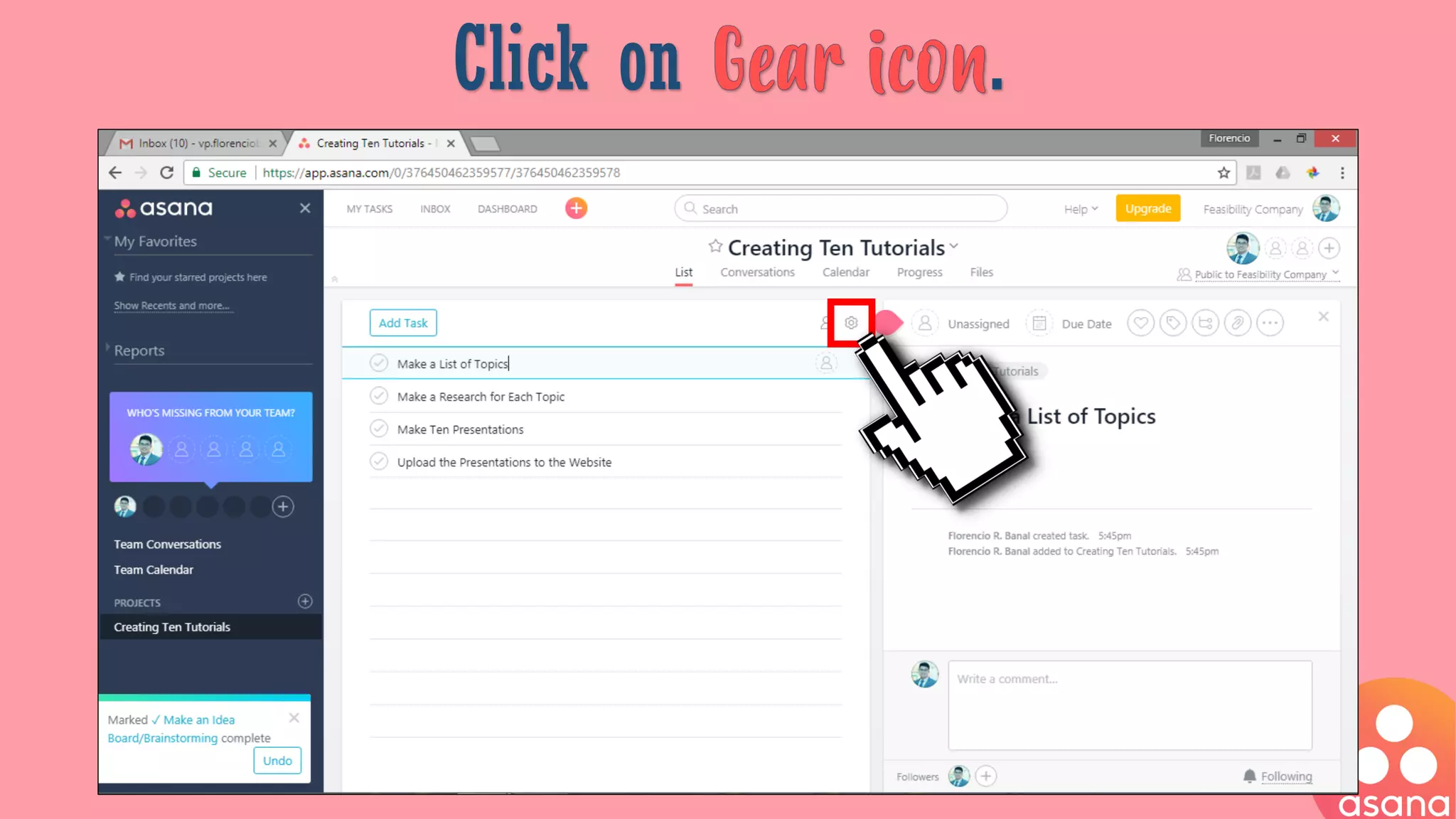
Go back to List and click on .
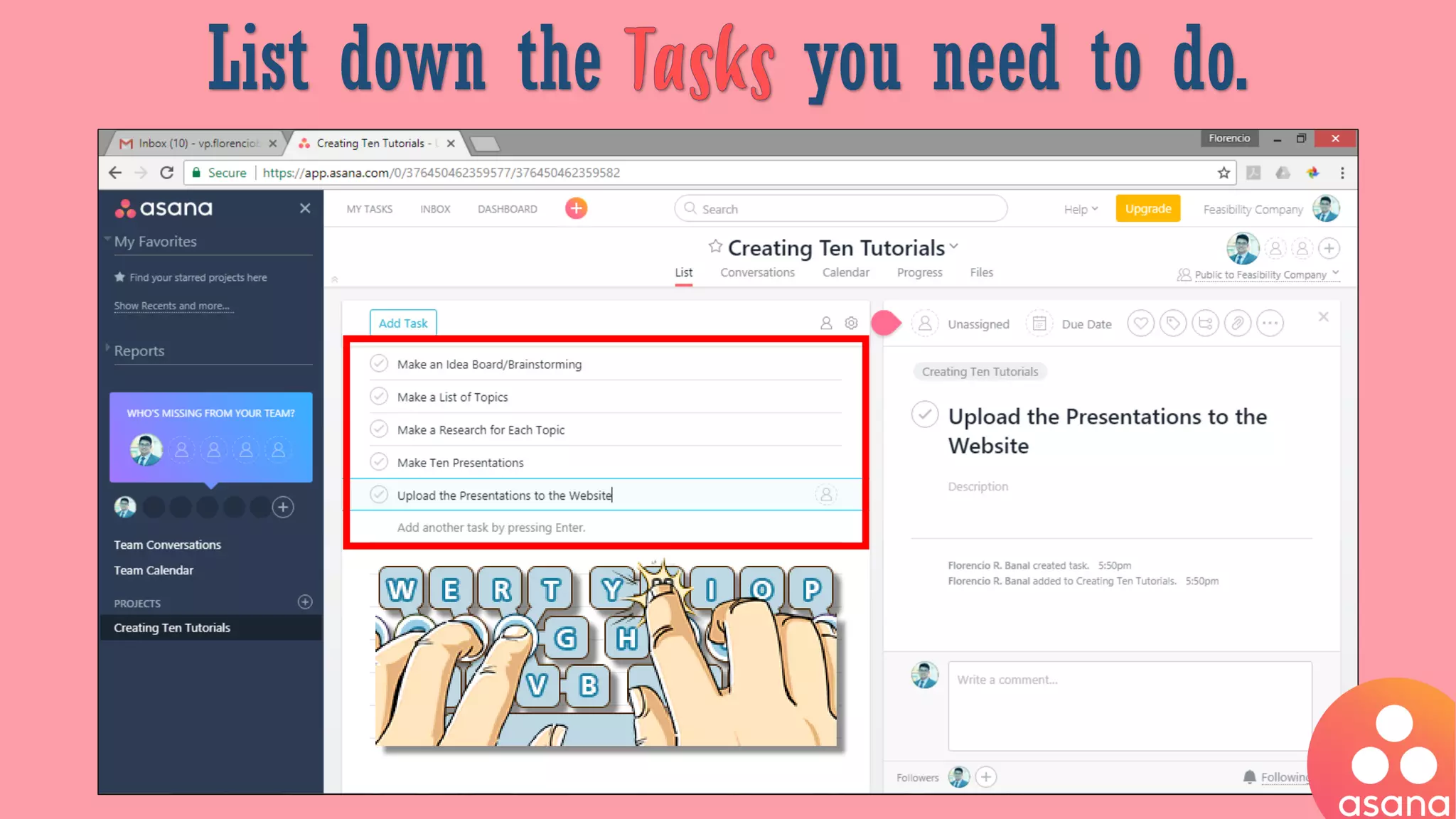
List down the you need to do.
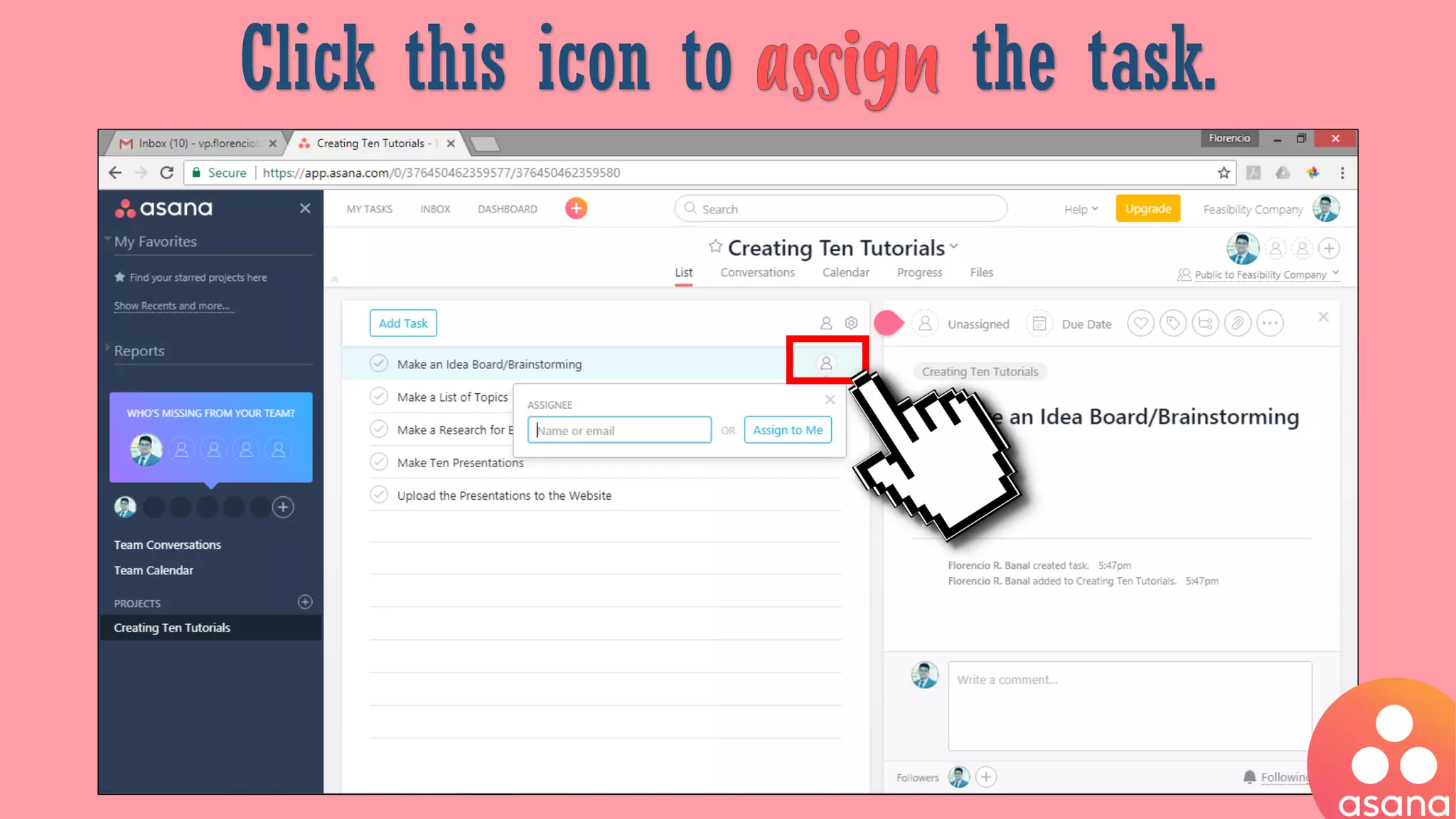
Click this icon to the task.
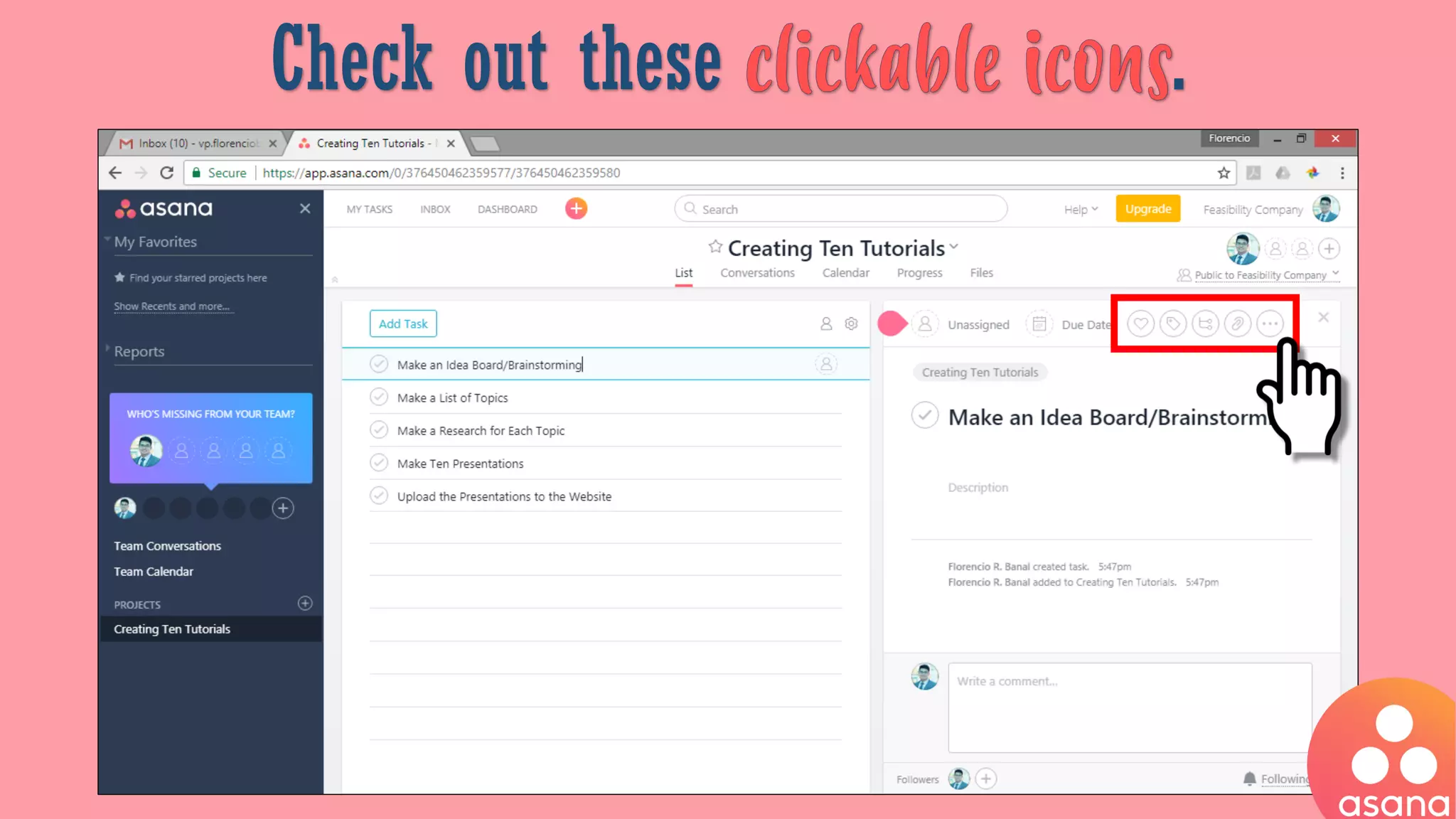
Check out these .
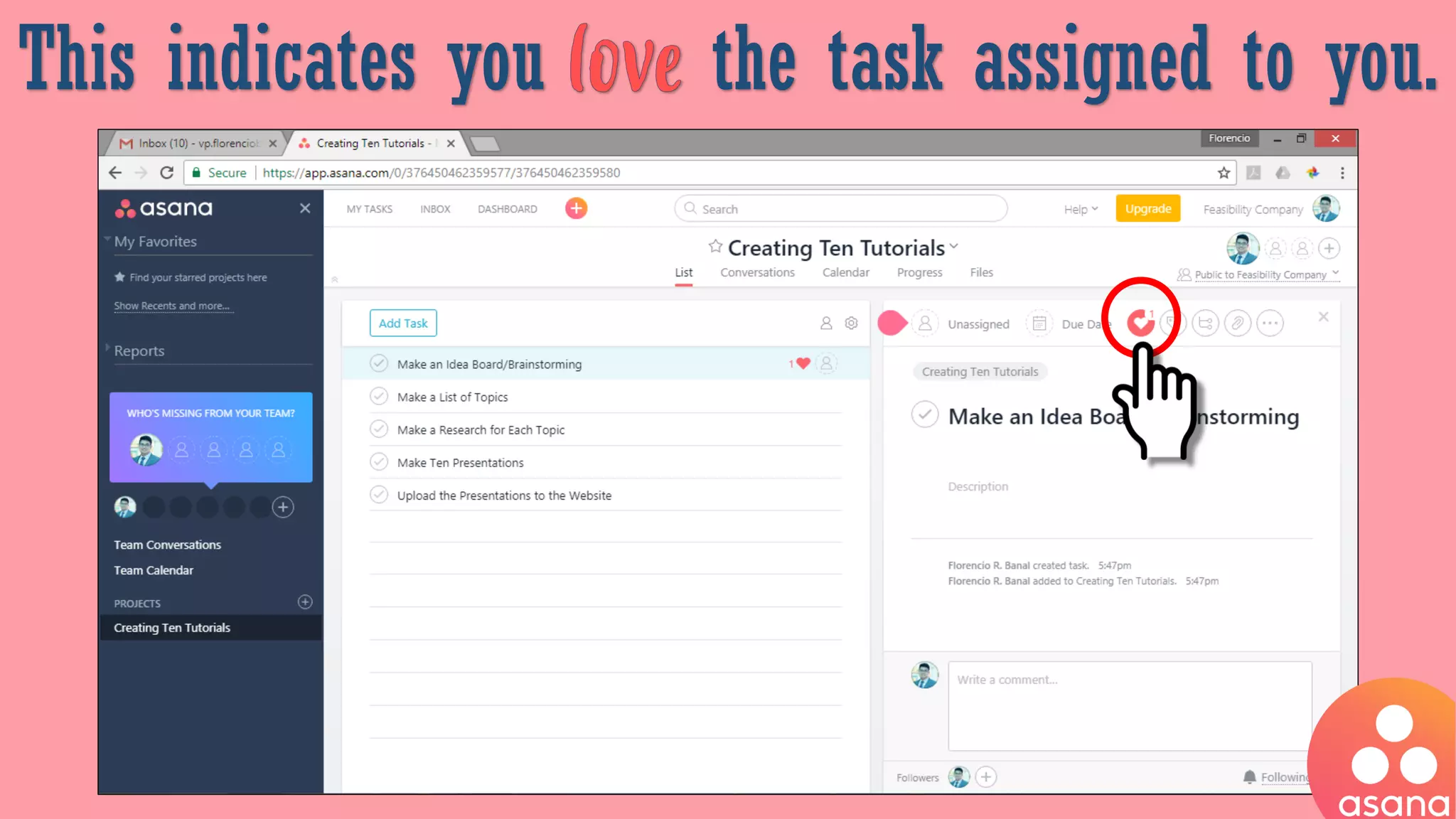
This indicates you the task assigned to you.
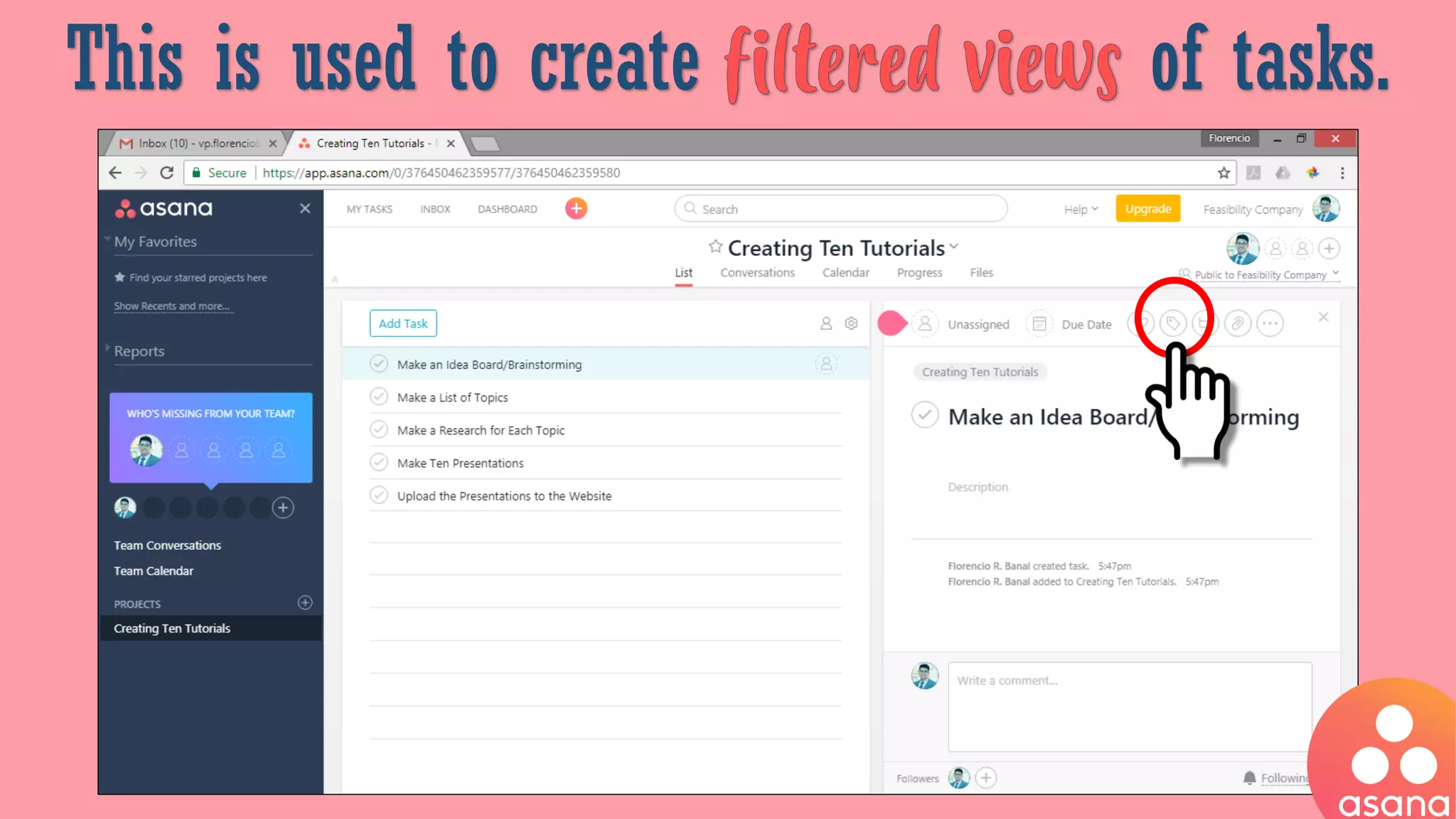
This is used to create of tasks.
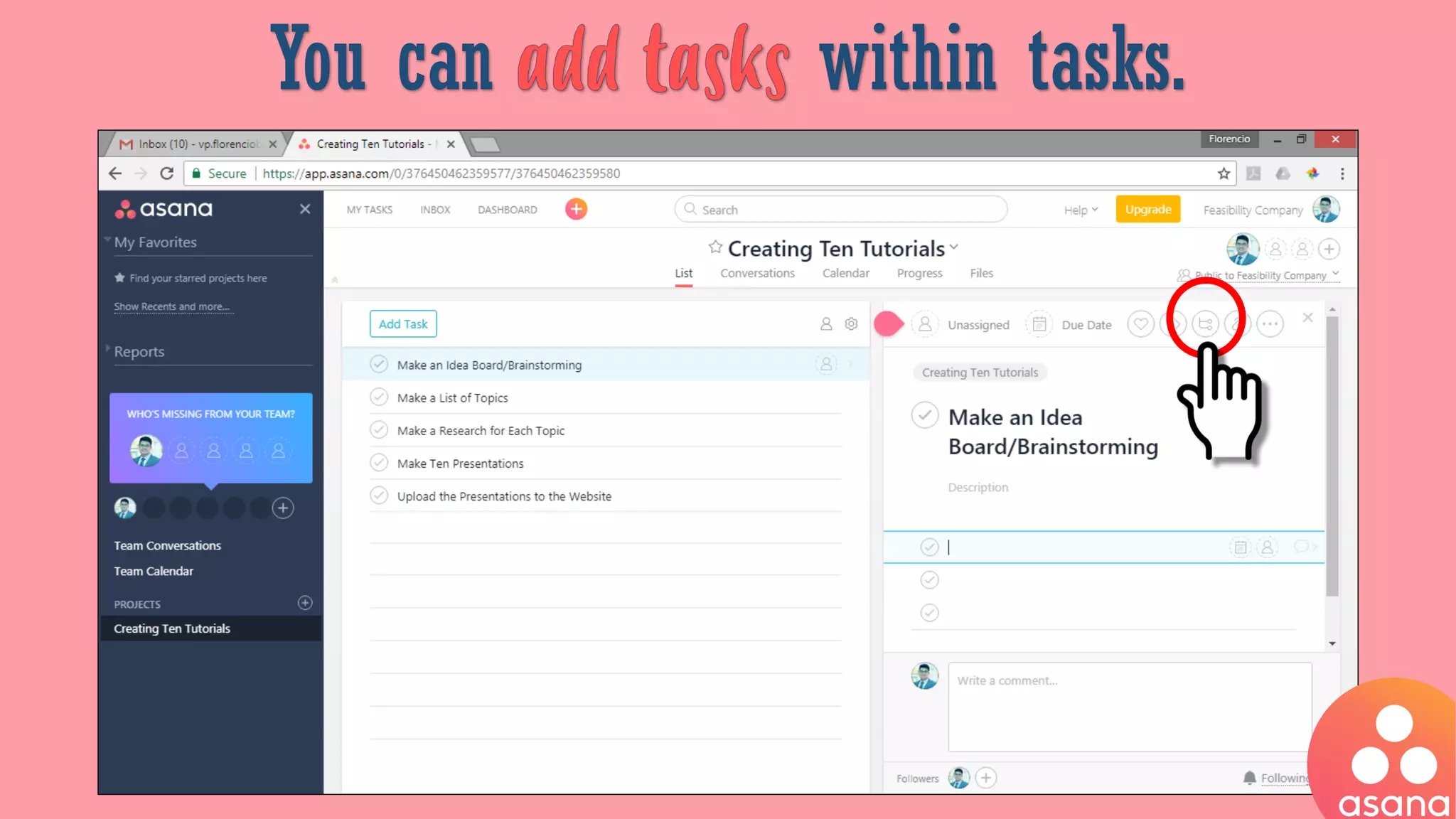
You can within tasks.
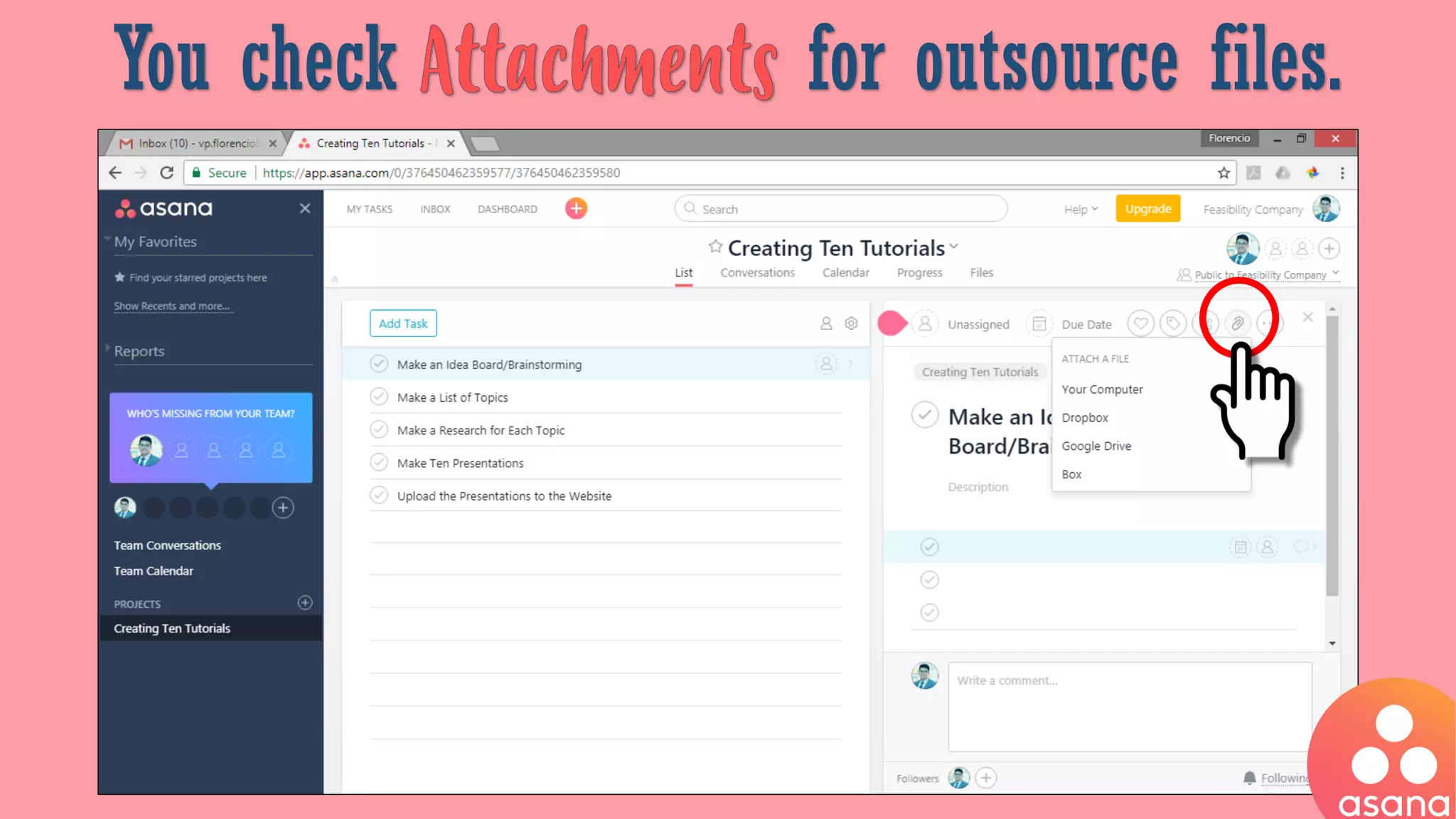
You check for outsource files.
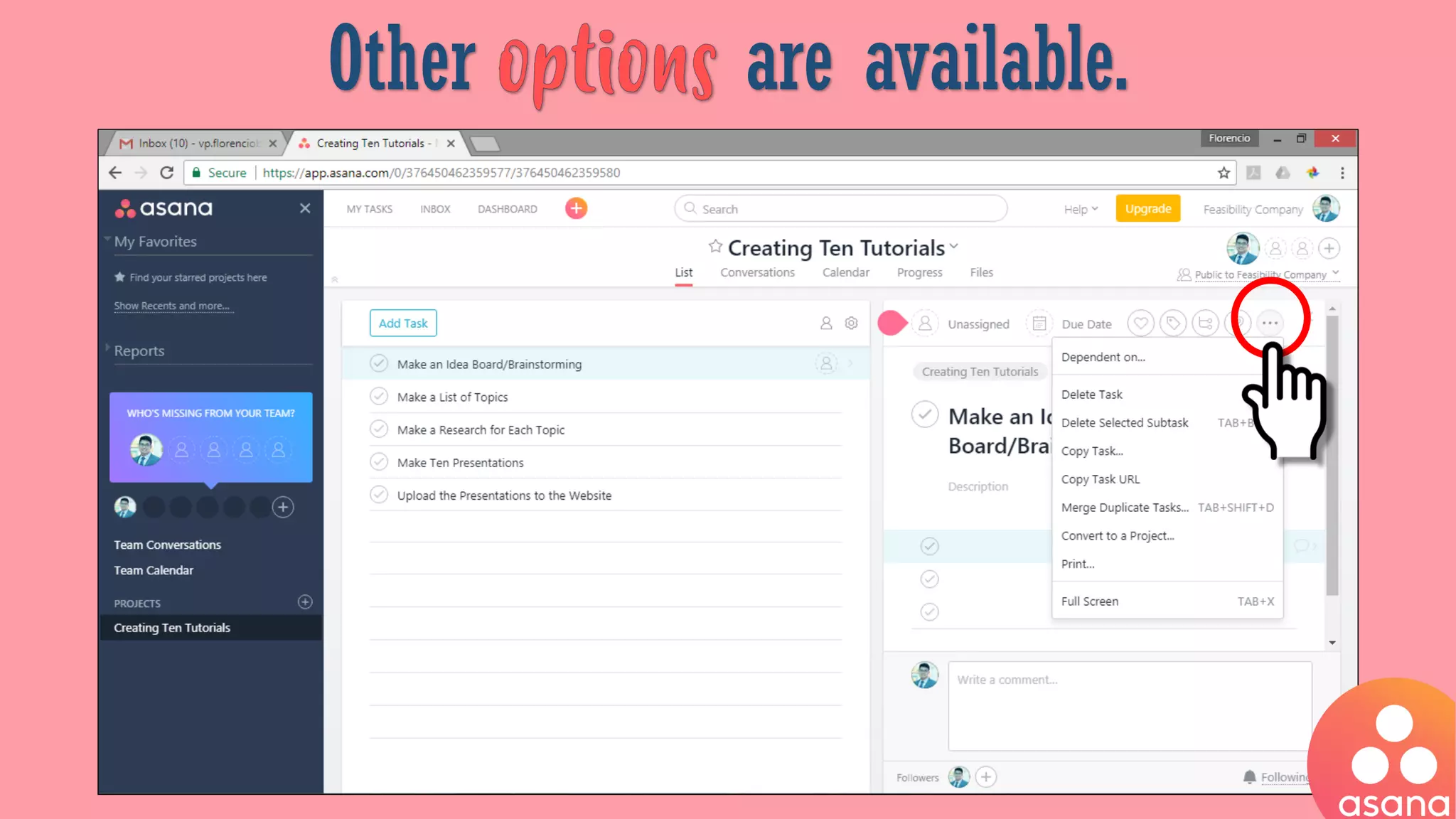
Other are available.
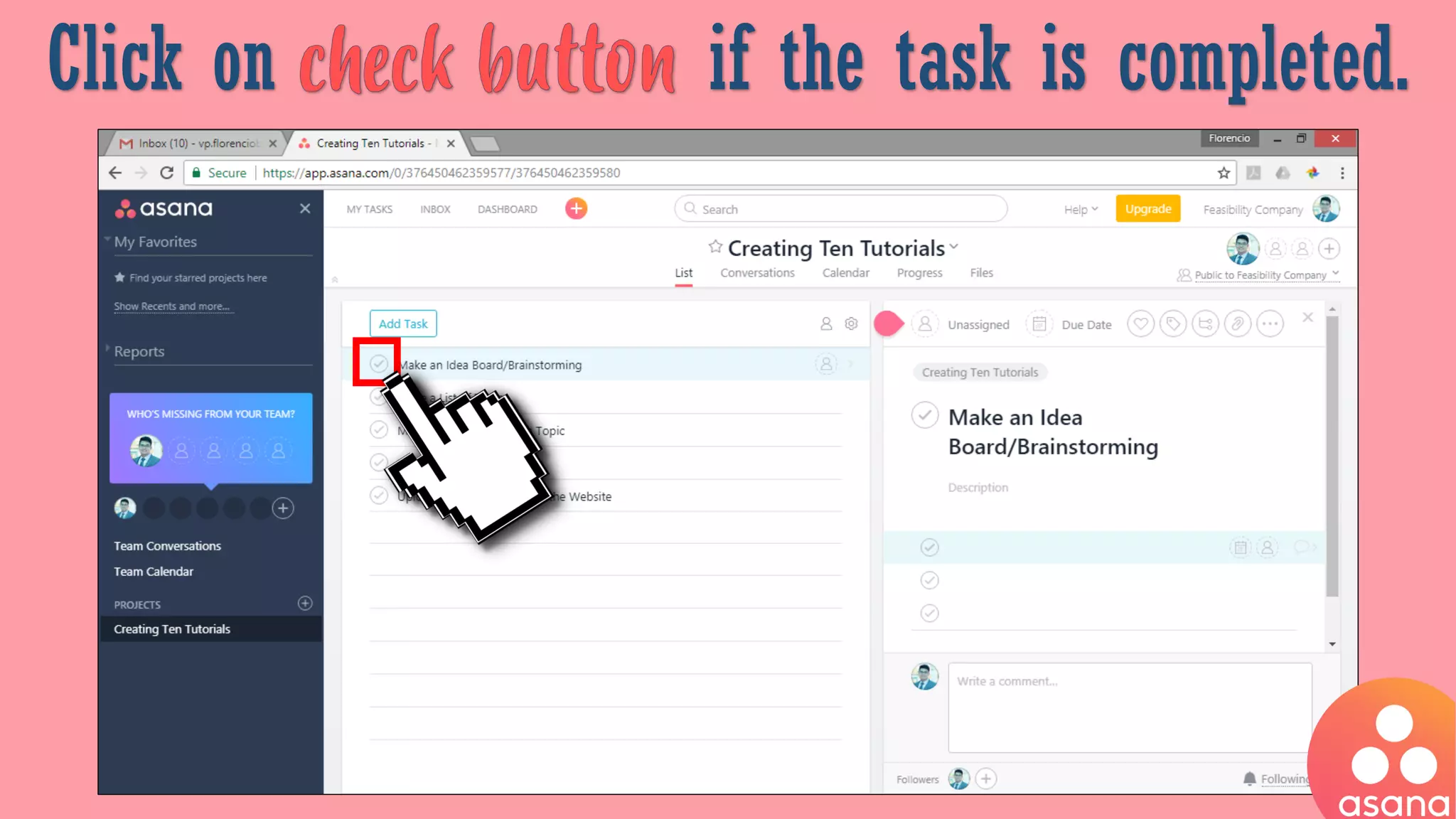
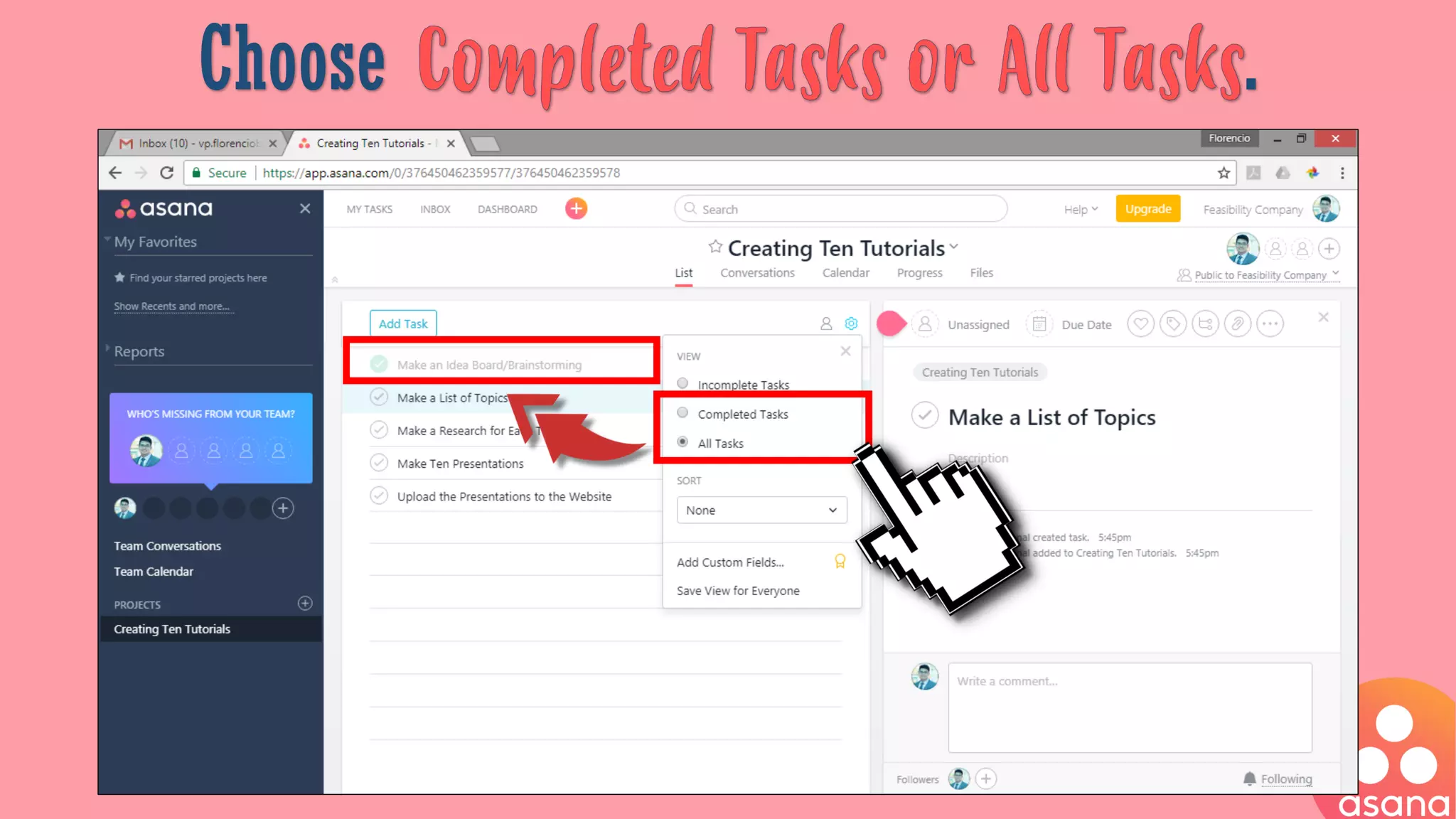
Click on if the task is completed.
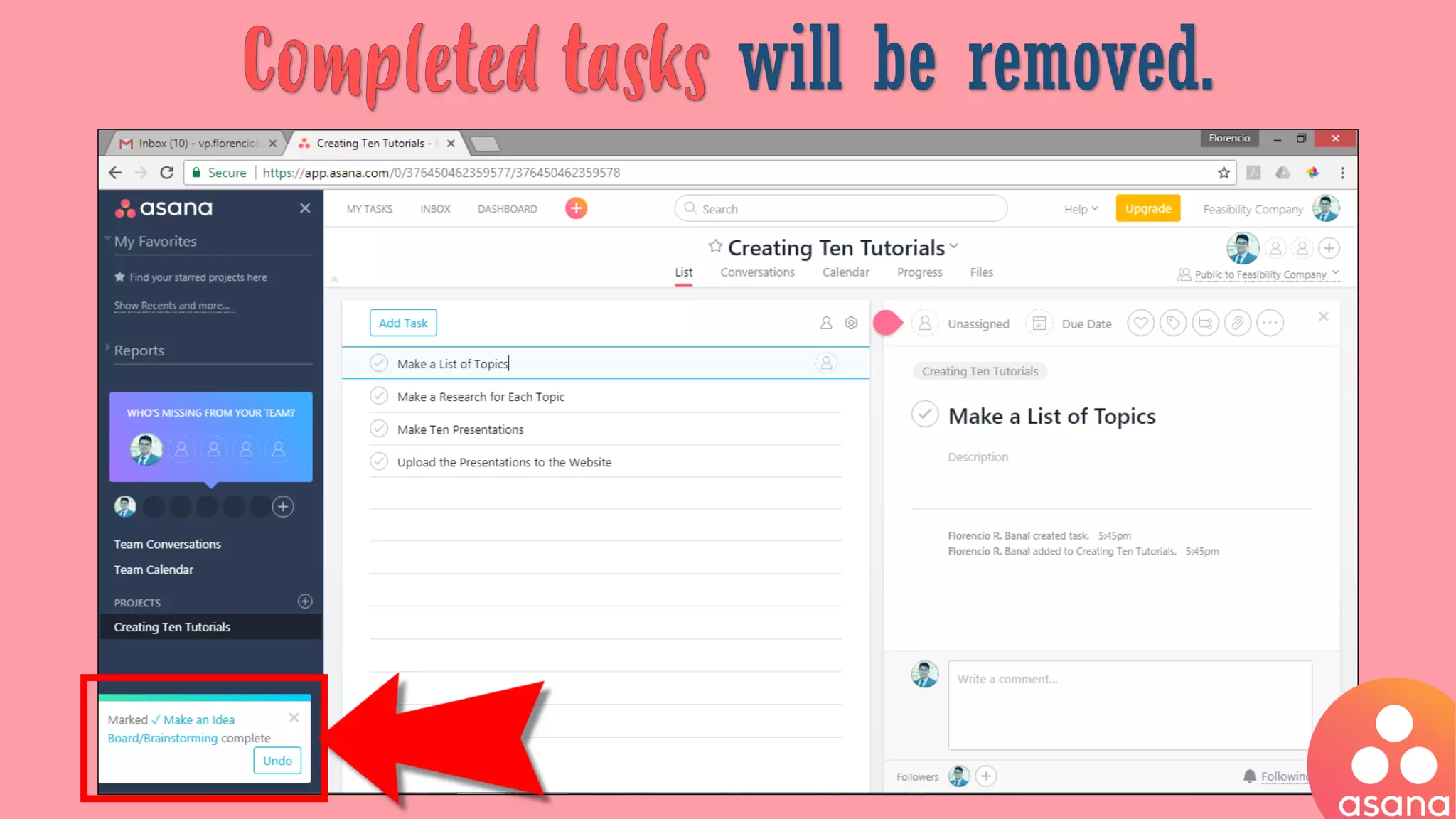
will be removed.
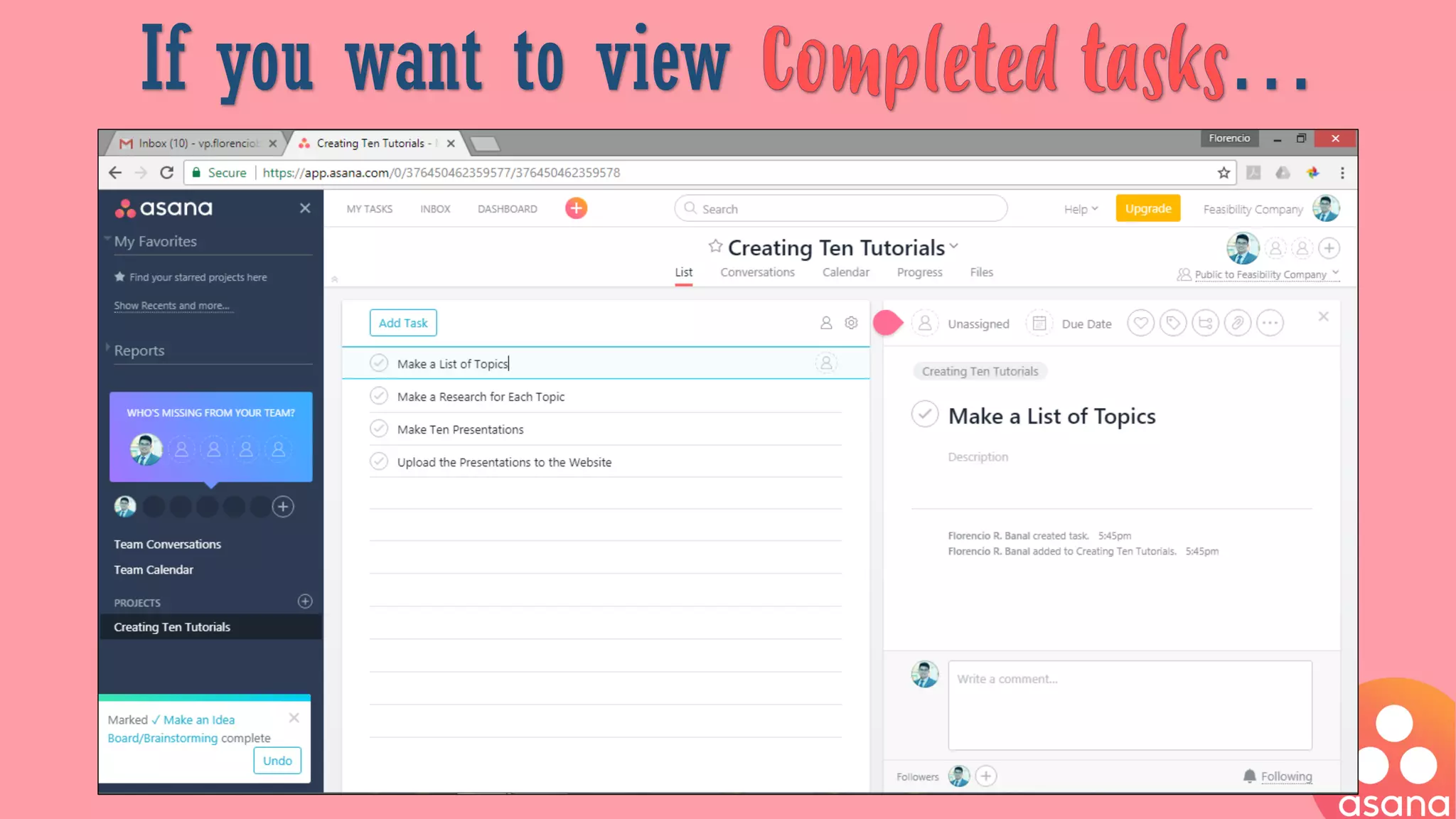
If you want to view …
Click on .
Choose .
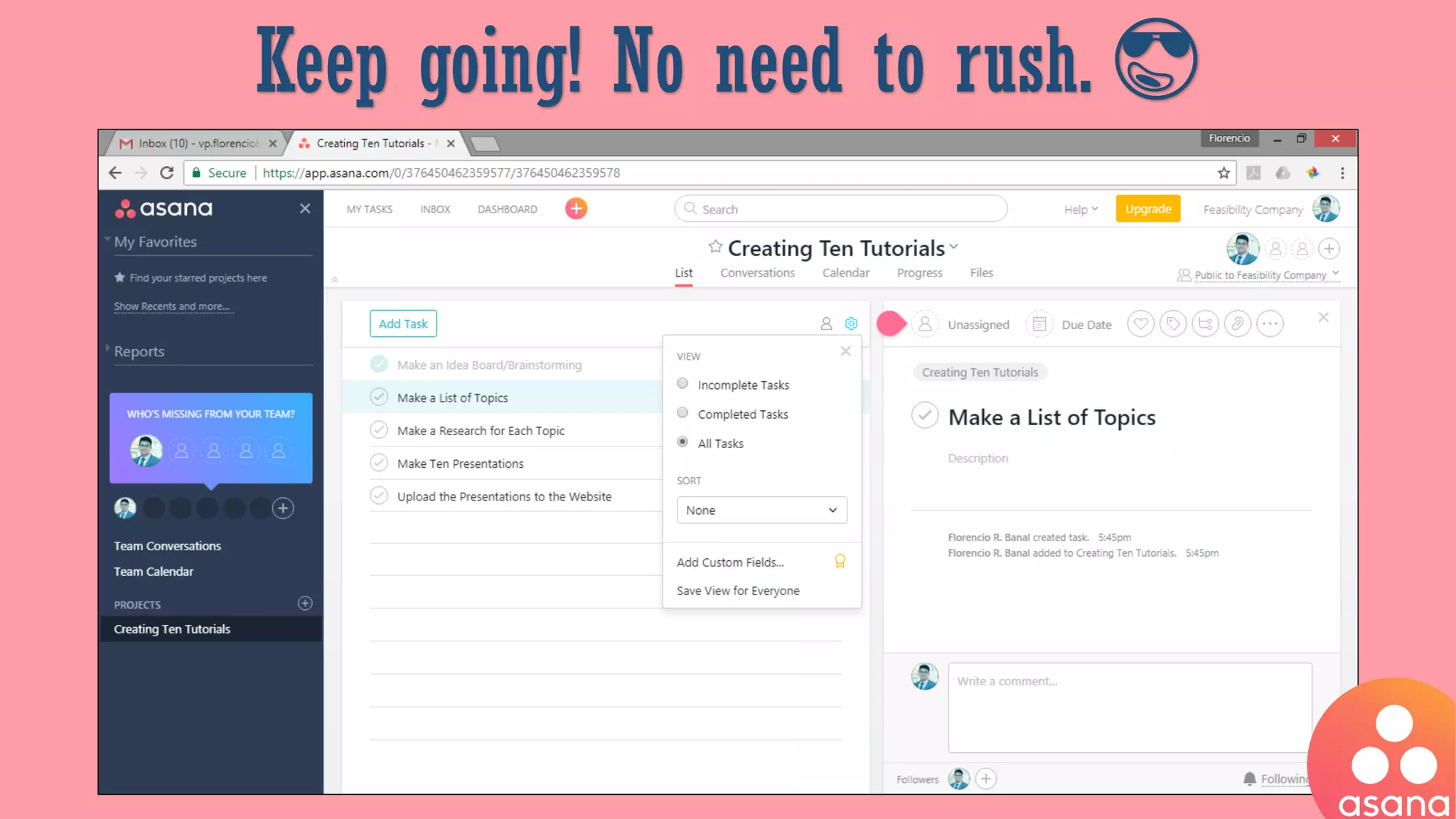
Keep going! No need to rush. 😎
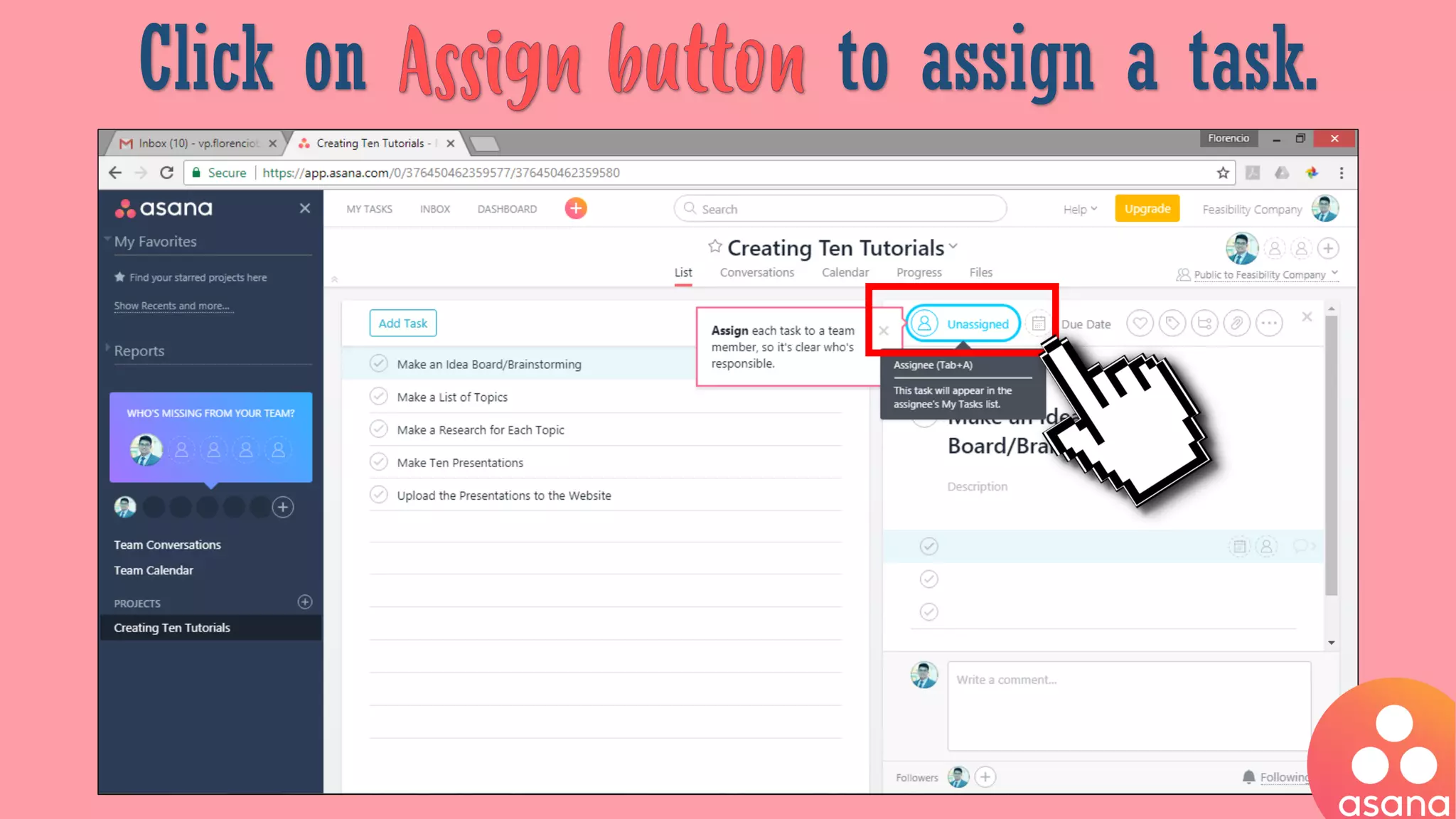
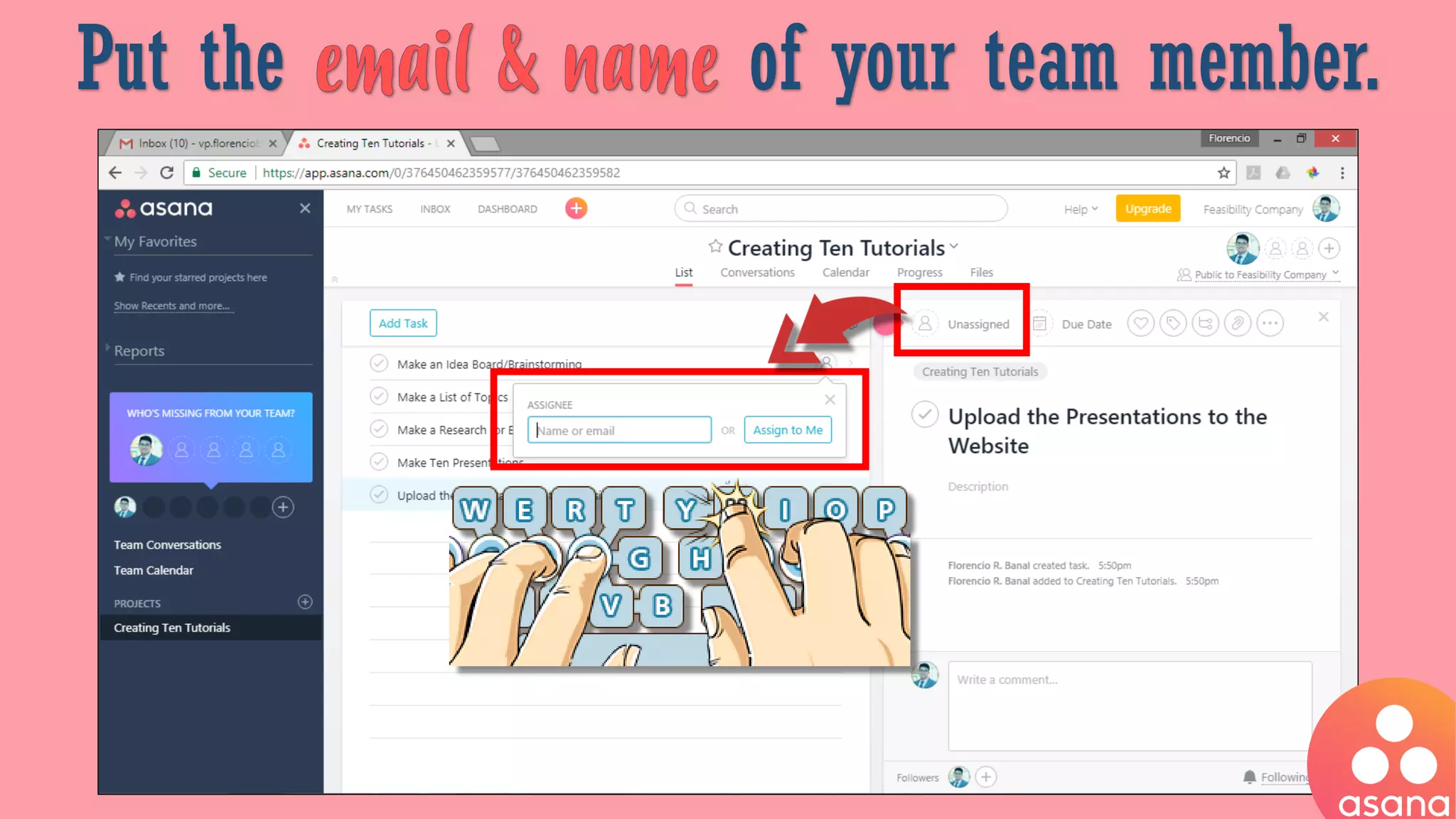
Click on to assign a task.
Put the of your team member.
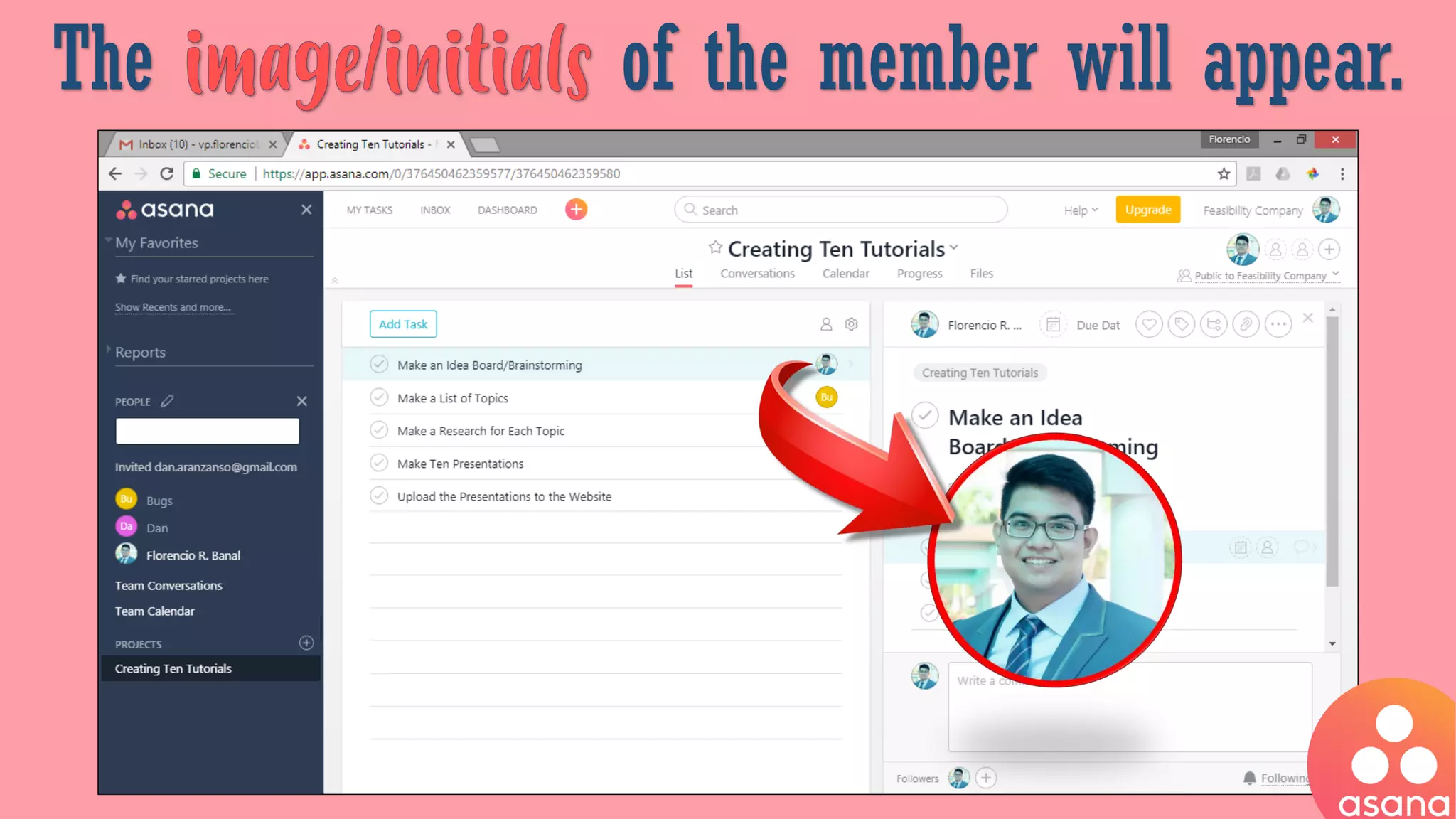
The of the member will appear.
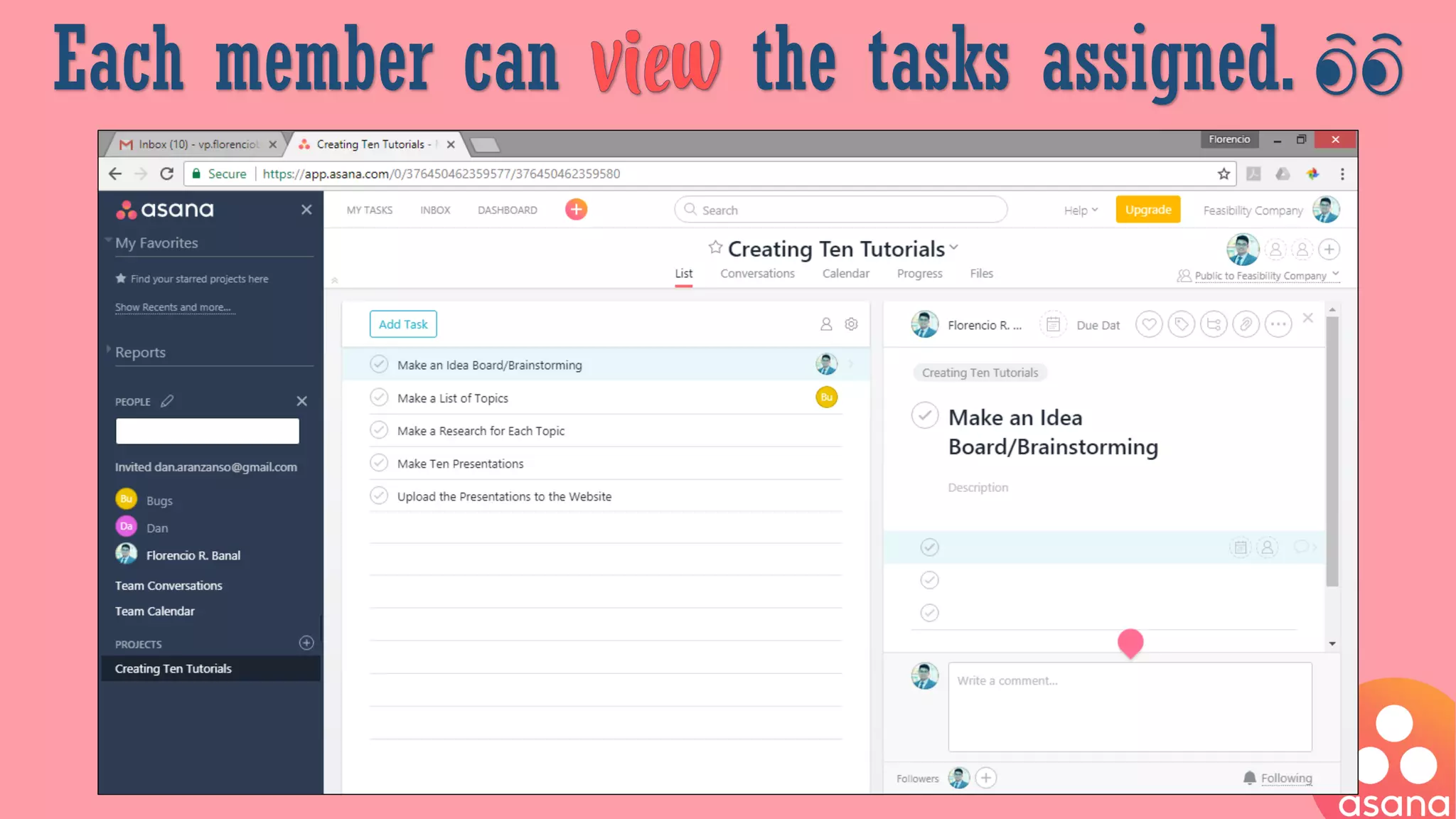
Each member can the tasks assigned. 👀
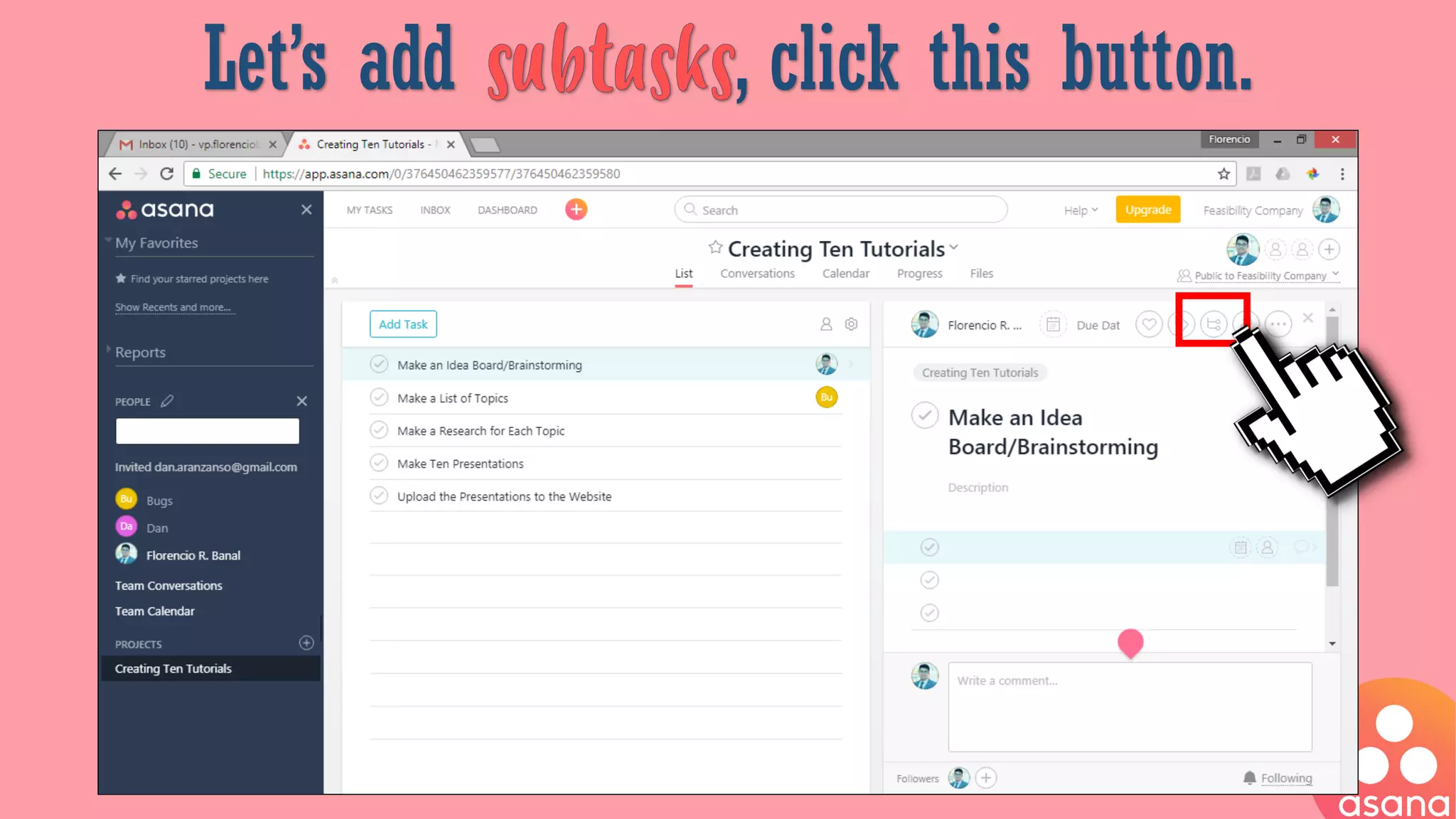
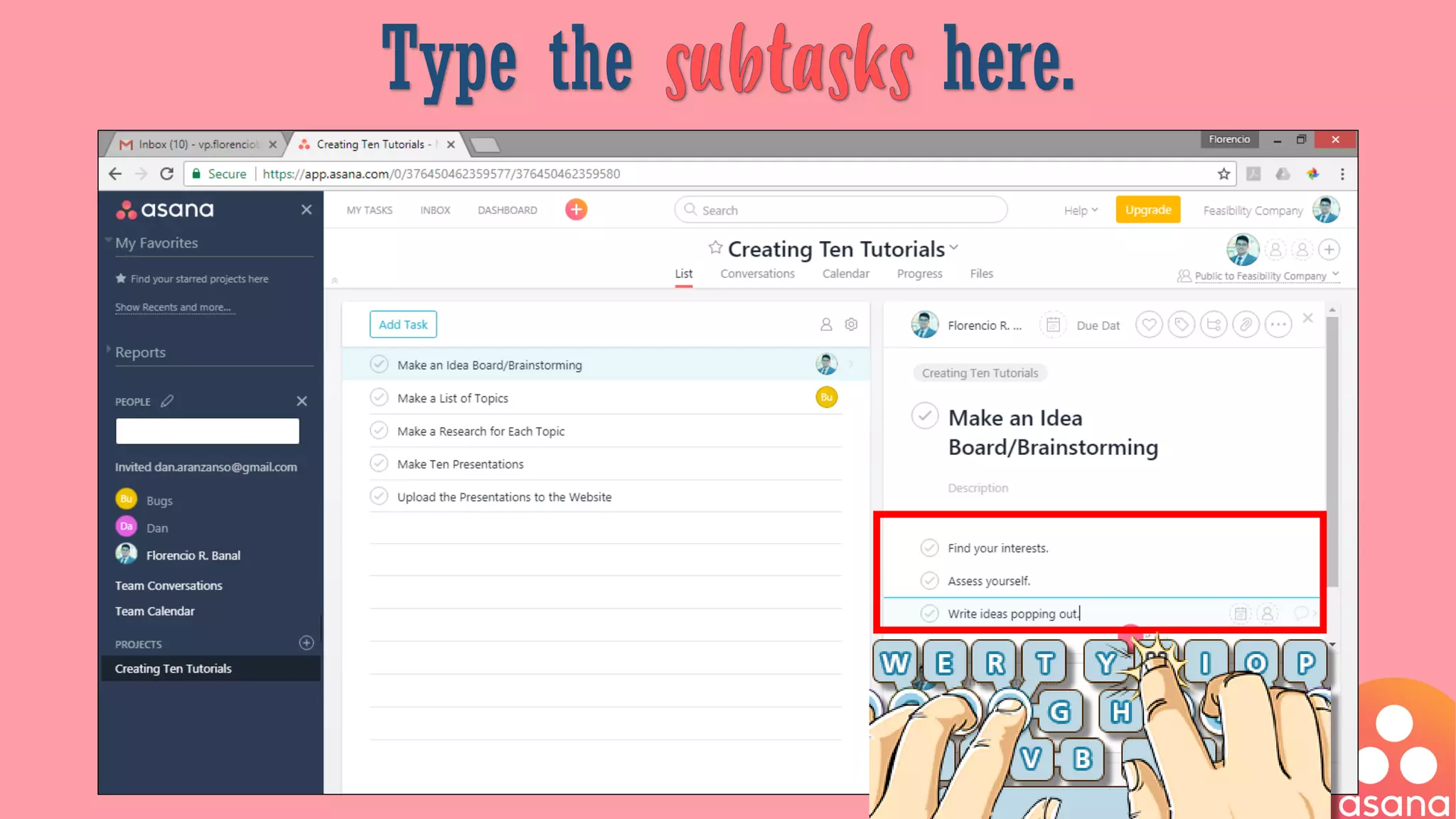
Let’s add , click this button.
Type the here.
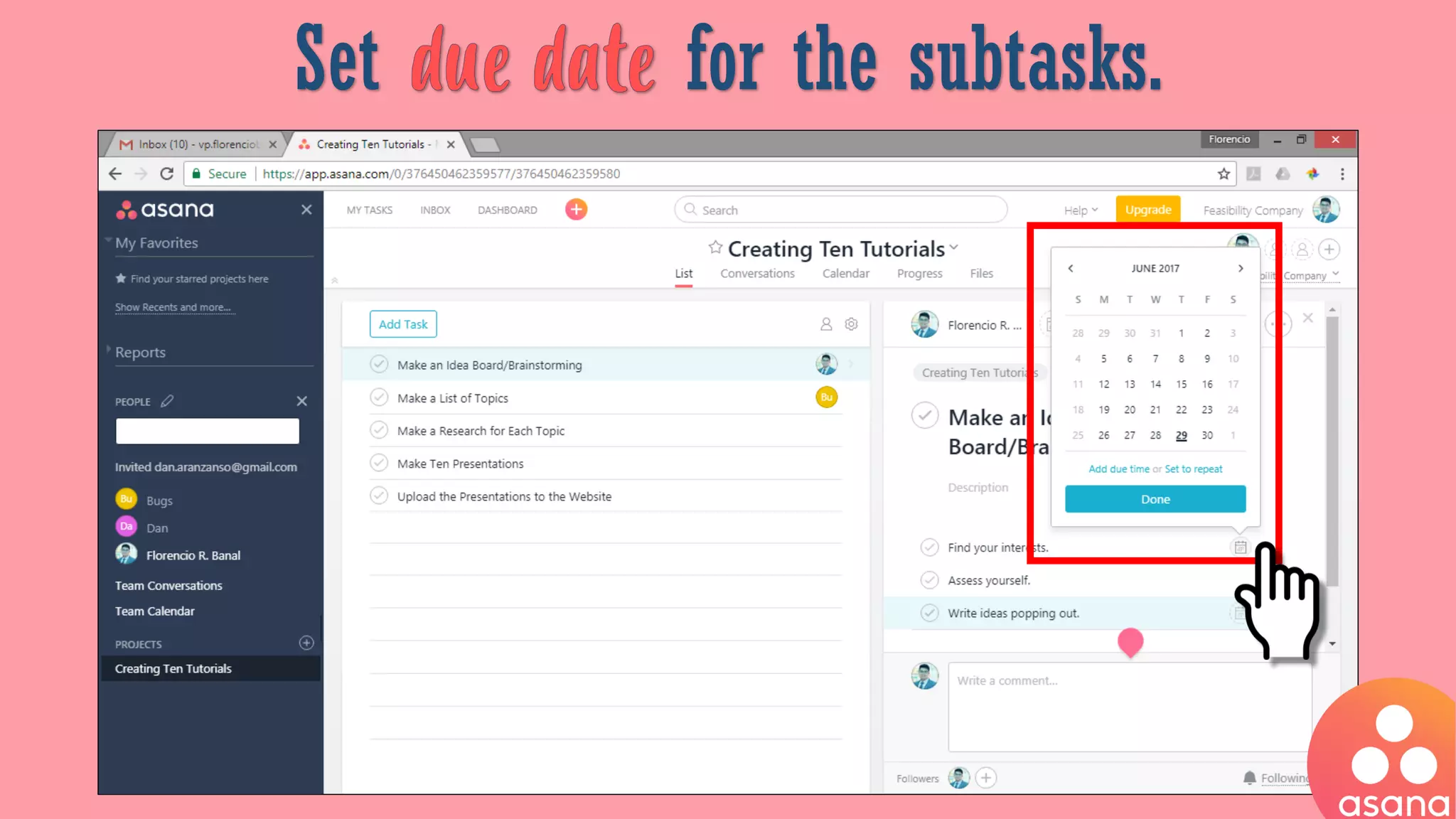
Set for the subtasks.
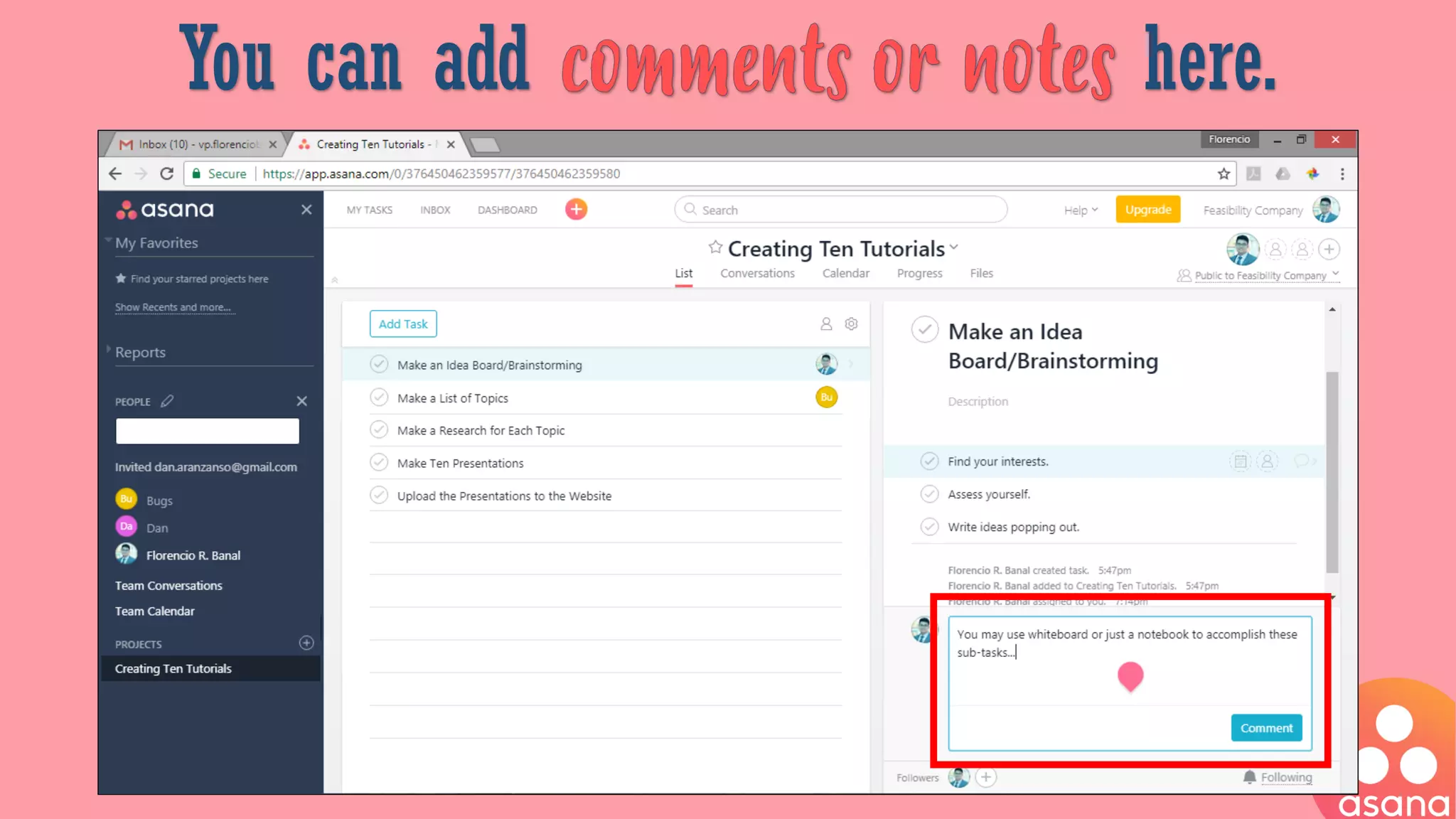
You can add here.
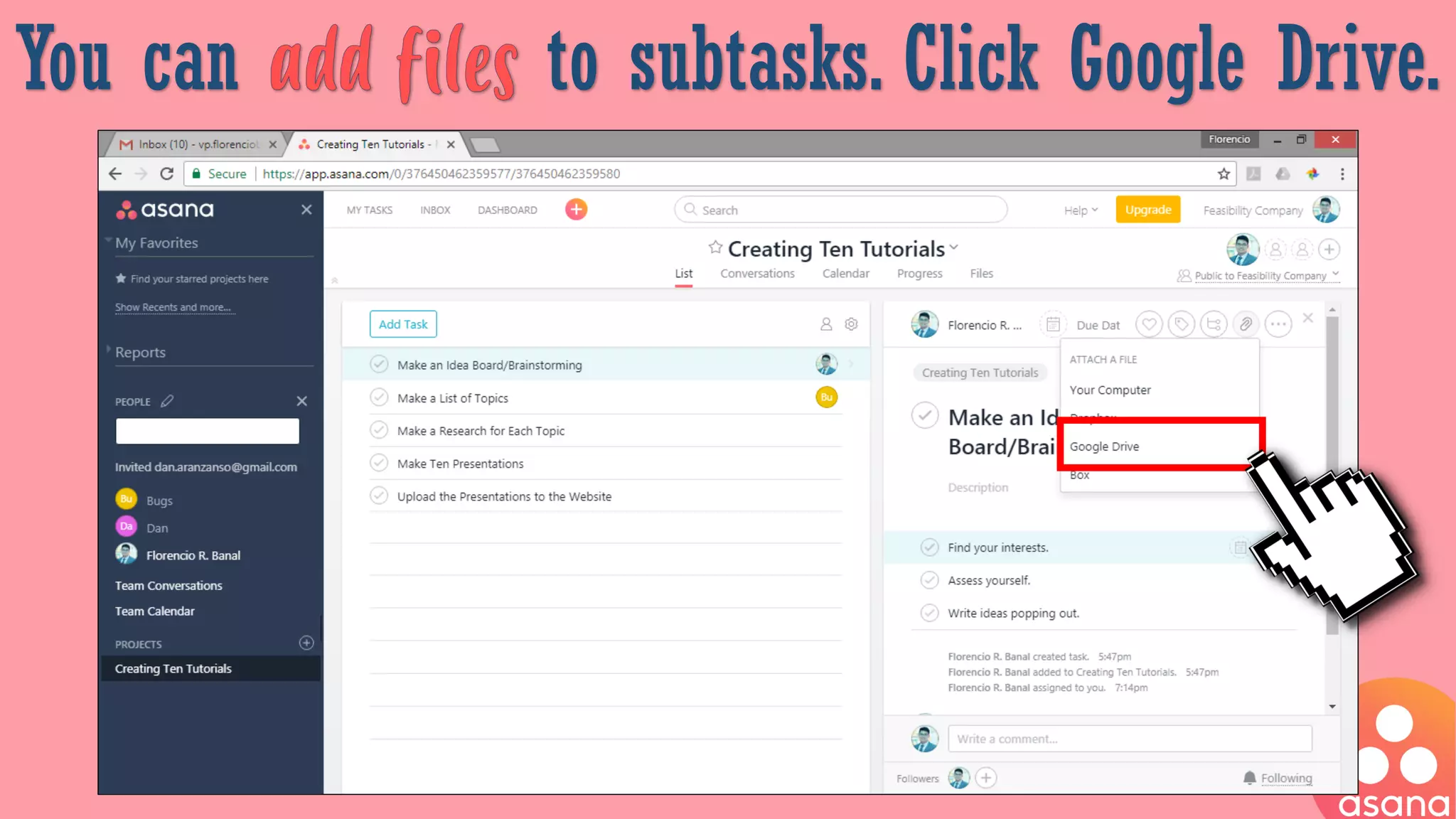
You can to subtasks. Click Google Drive.
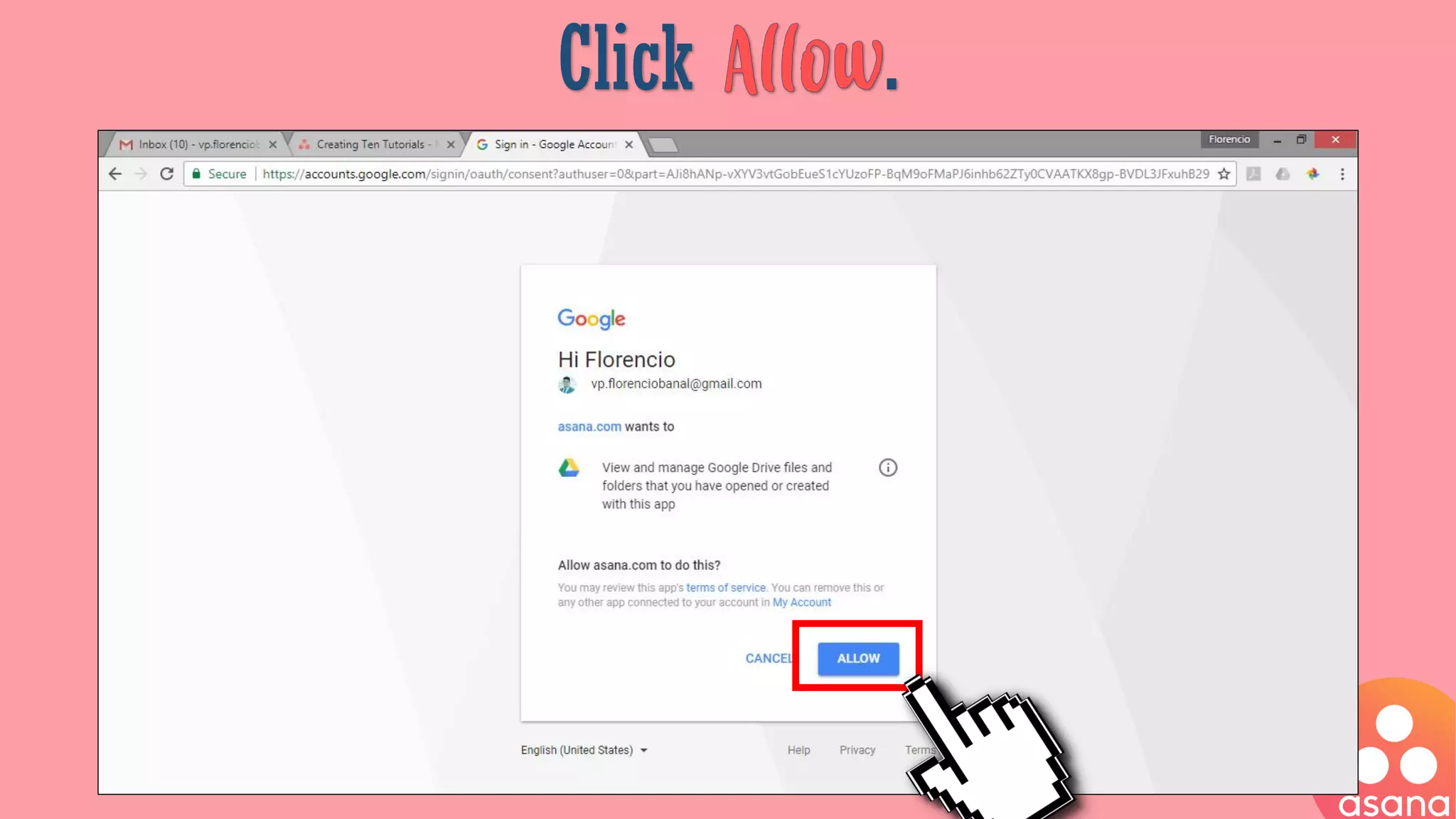
It will lead you to a .
Click .
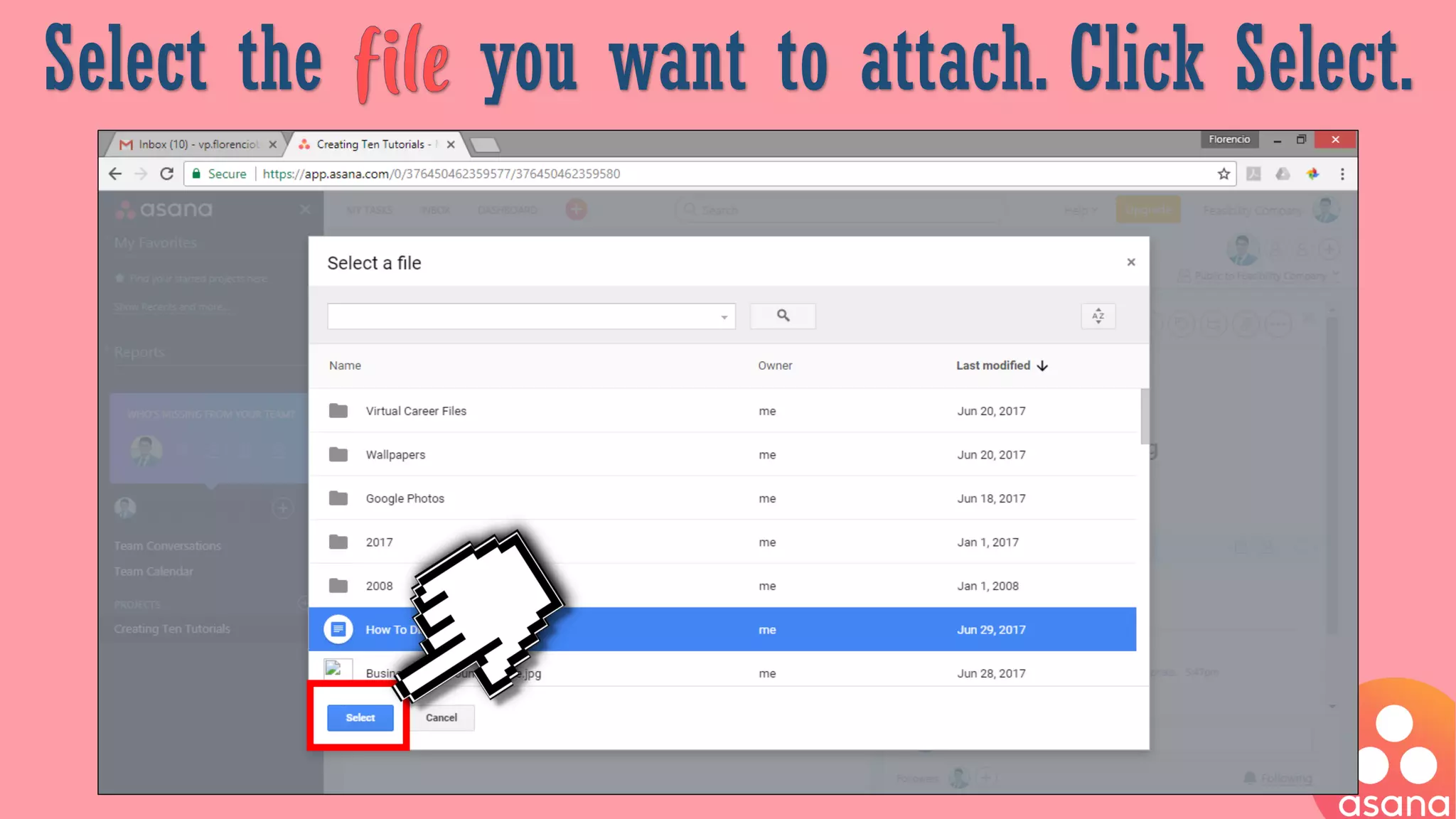
Select the you want to attach. Click Select.
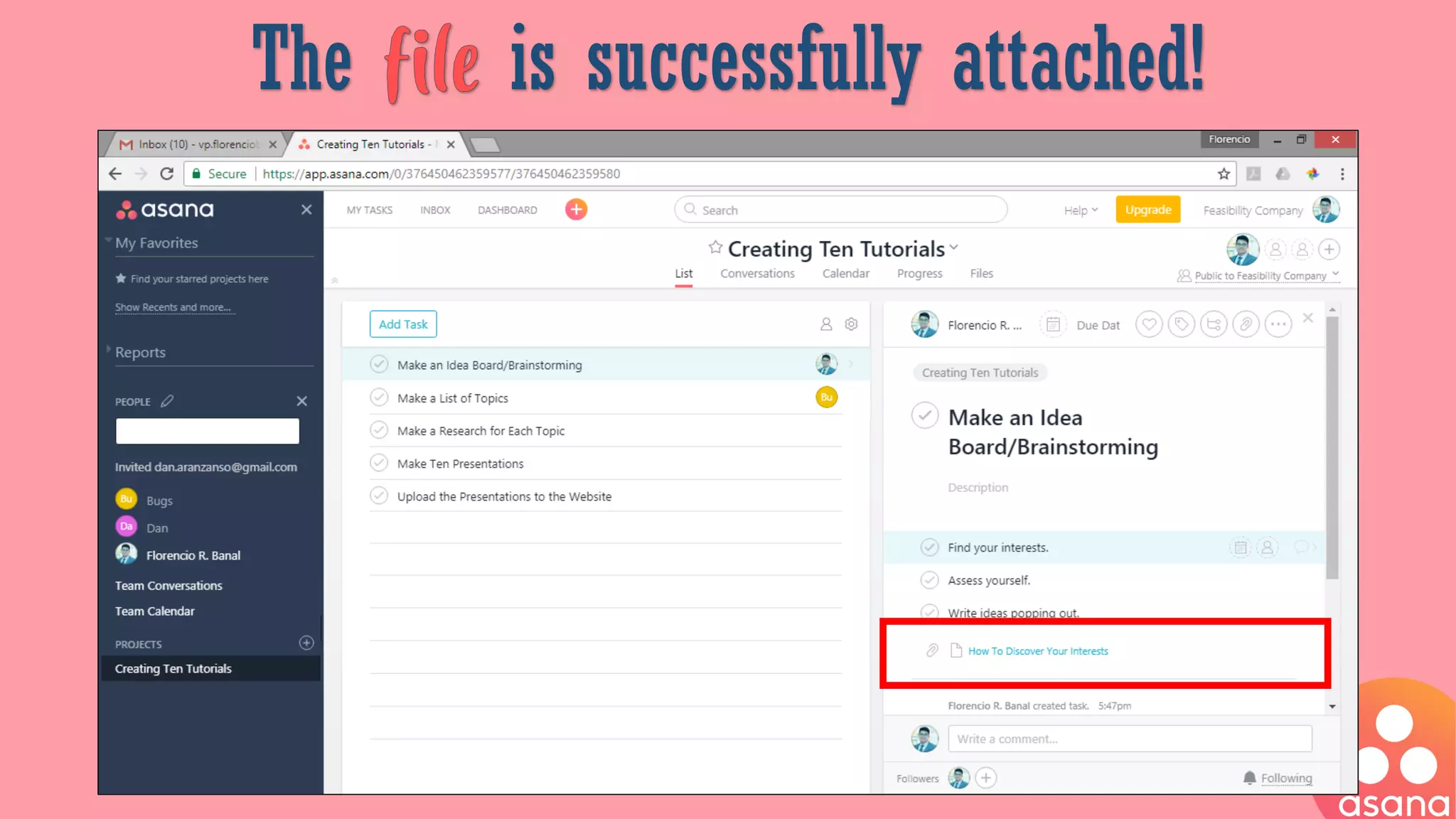
The is successfully attached!
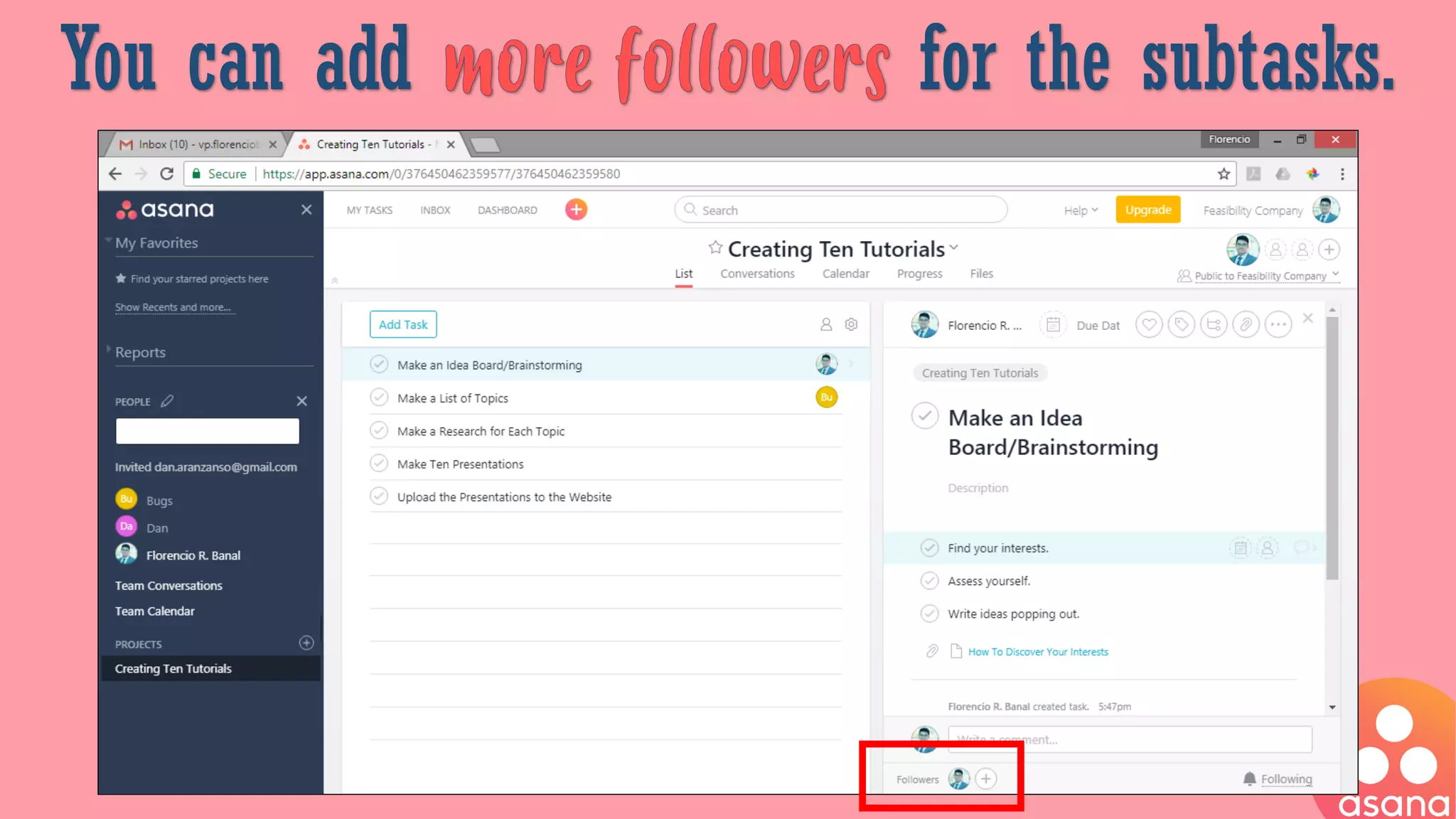
You can add for the subtasks.
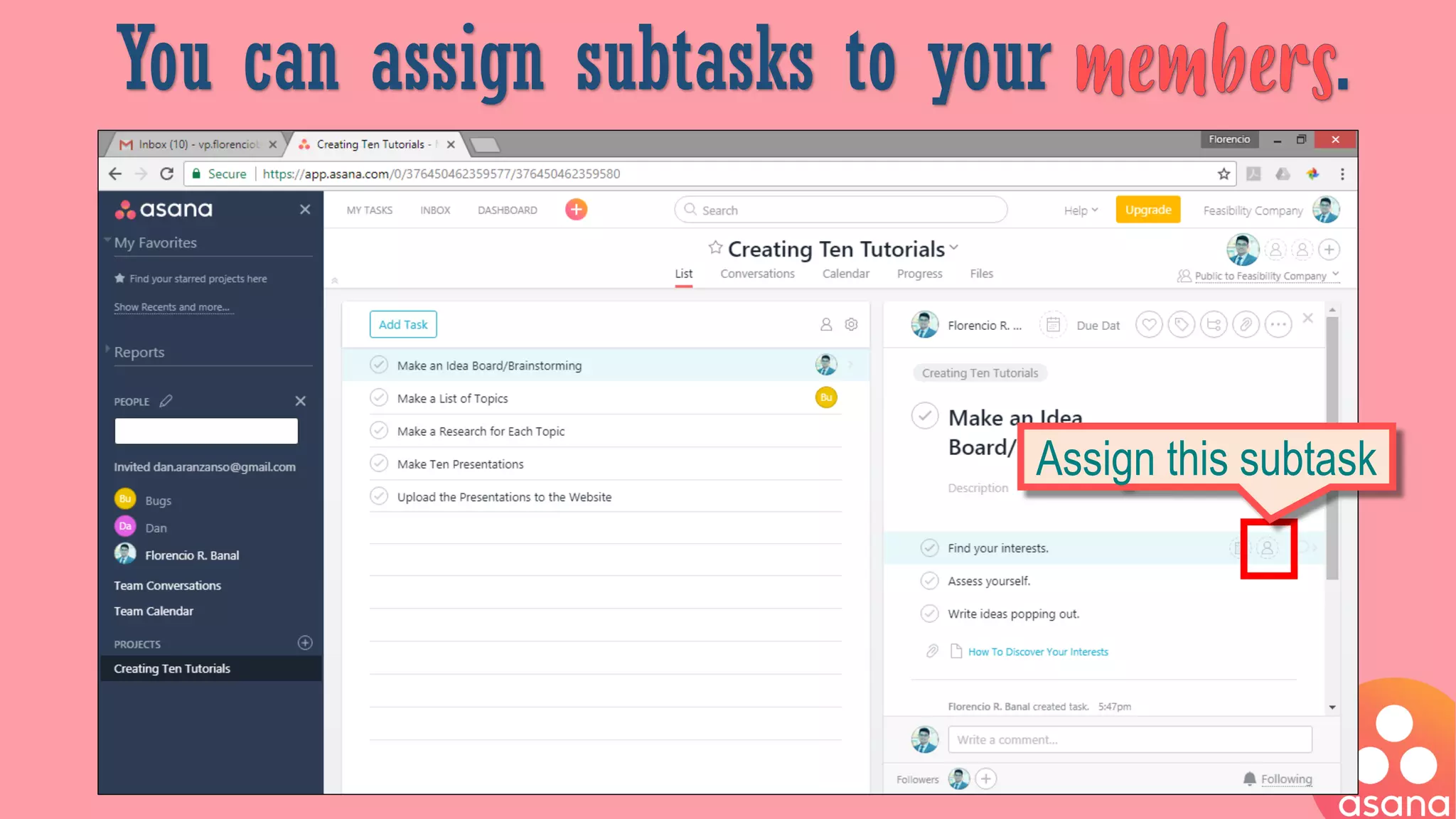
You can assign subtasks to your .
Assign this subtask
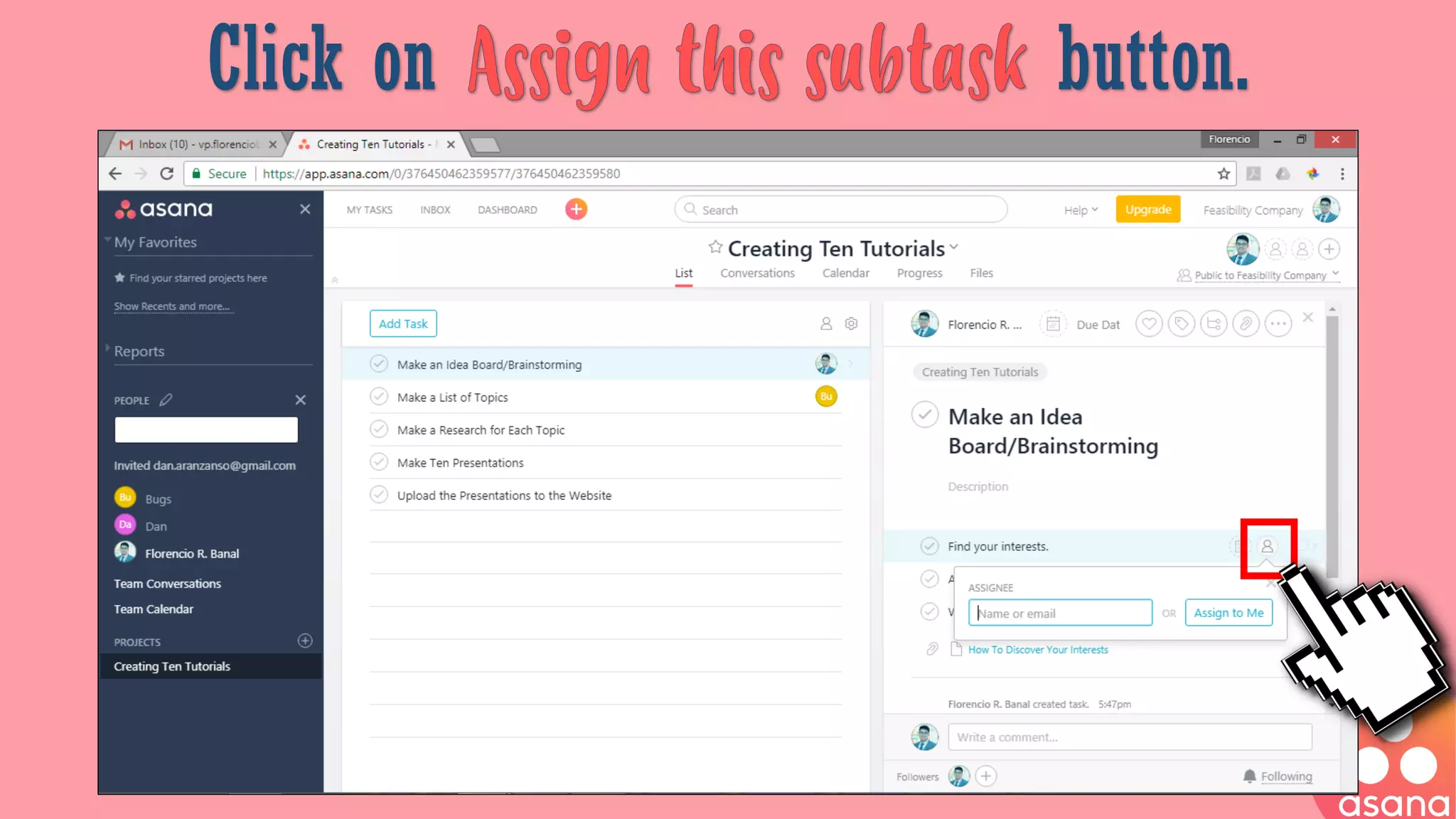
Click on button.
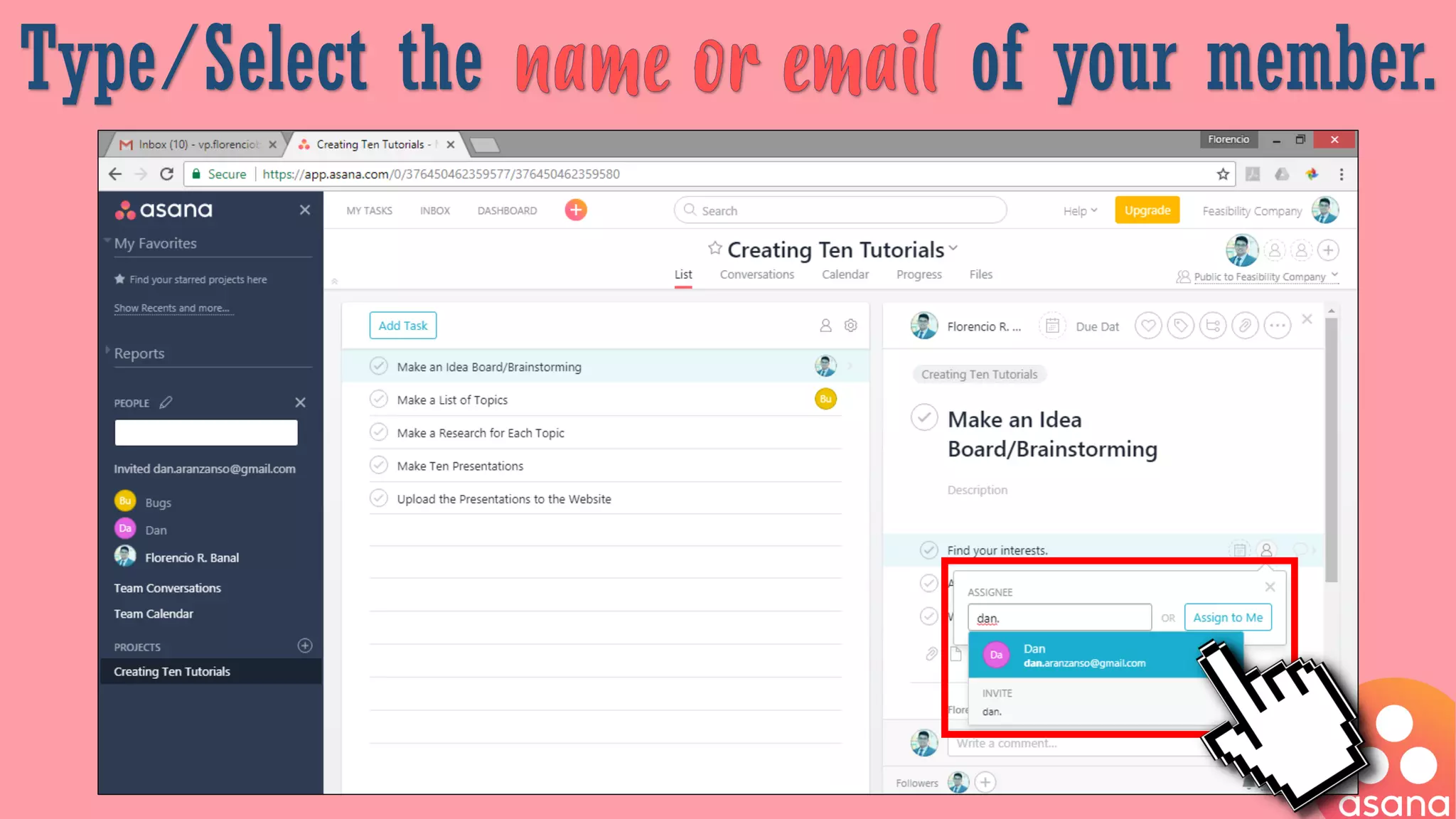
Type/Select the of your member.
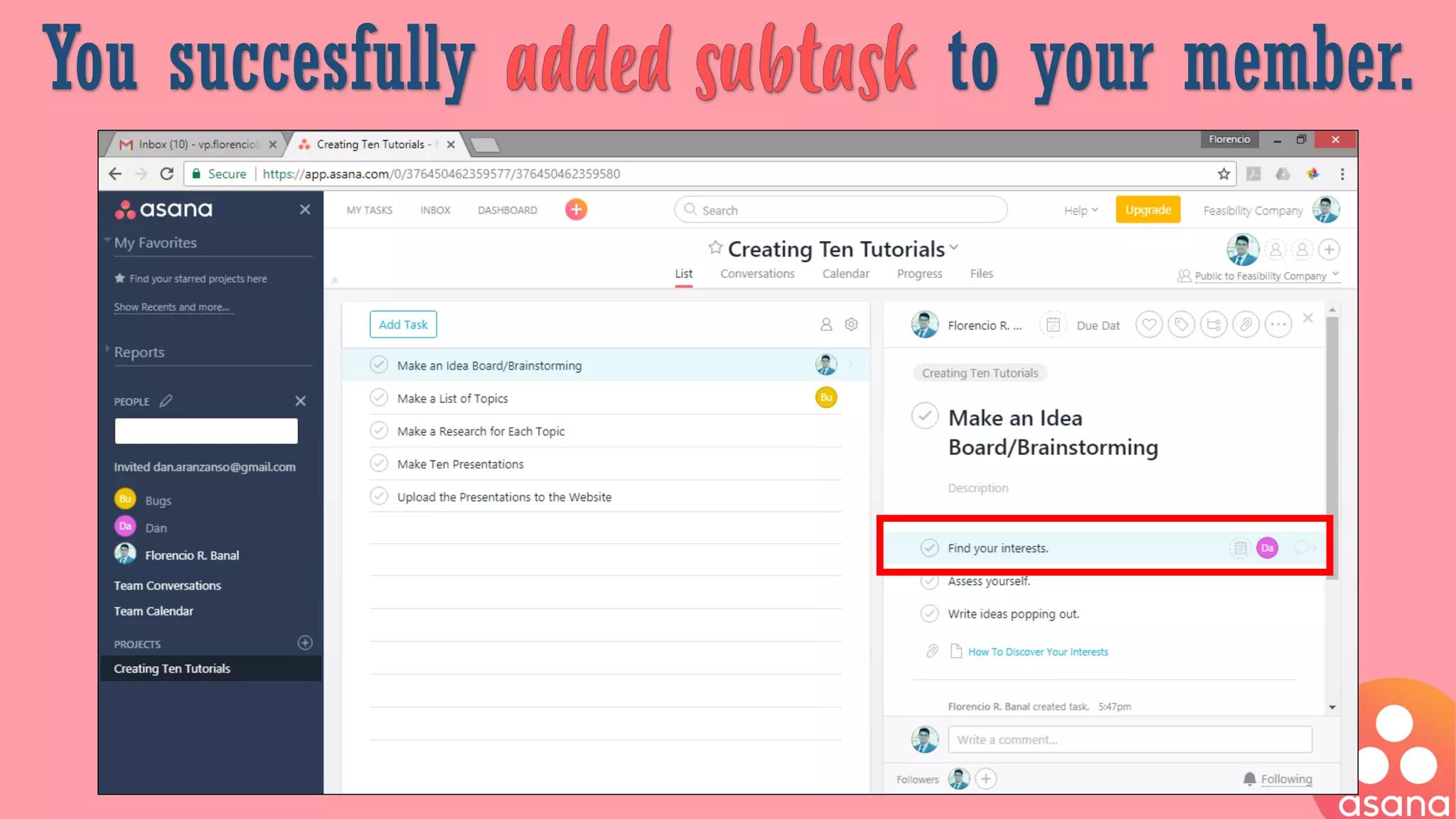
You succesfully to your member.
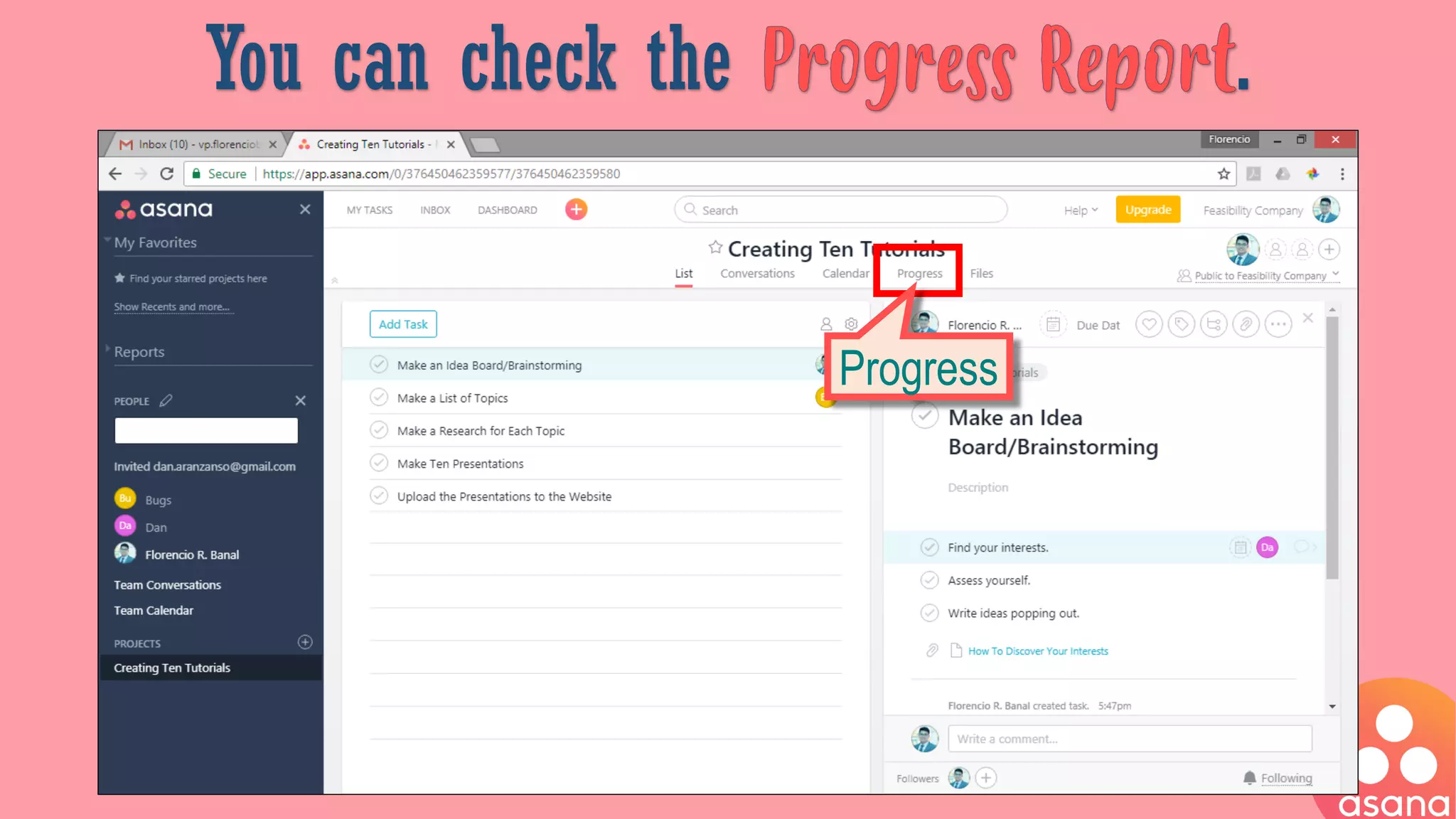
You can check the .
Progress
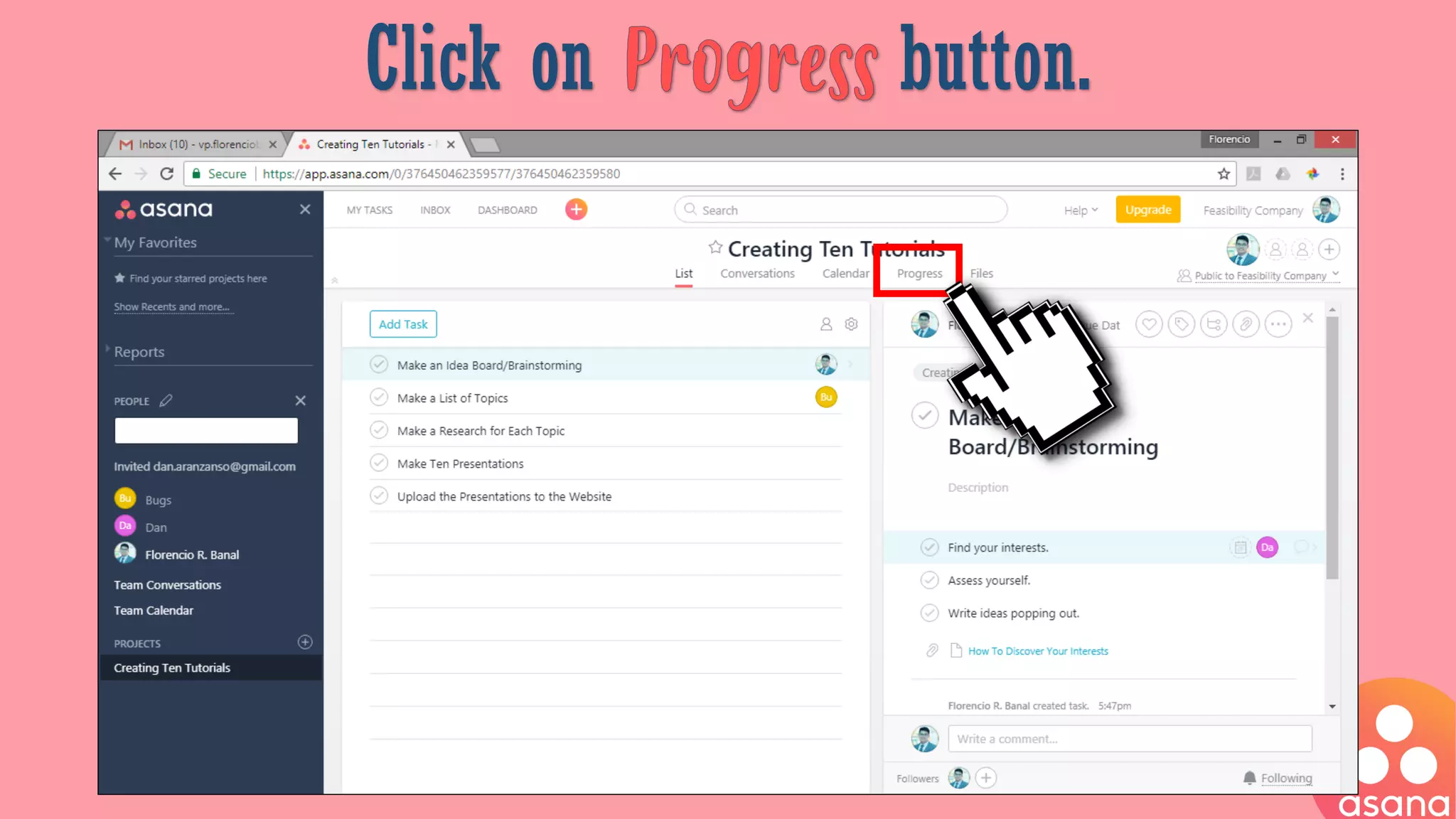
Click on button.
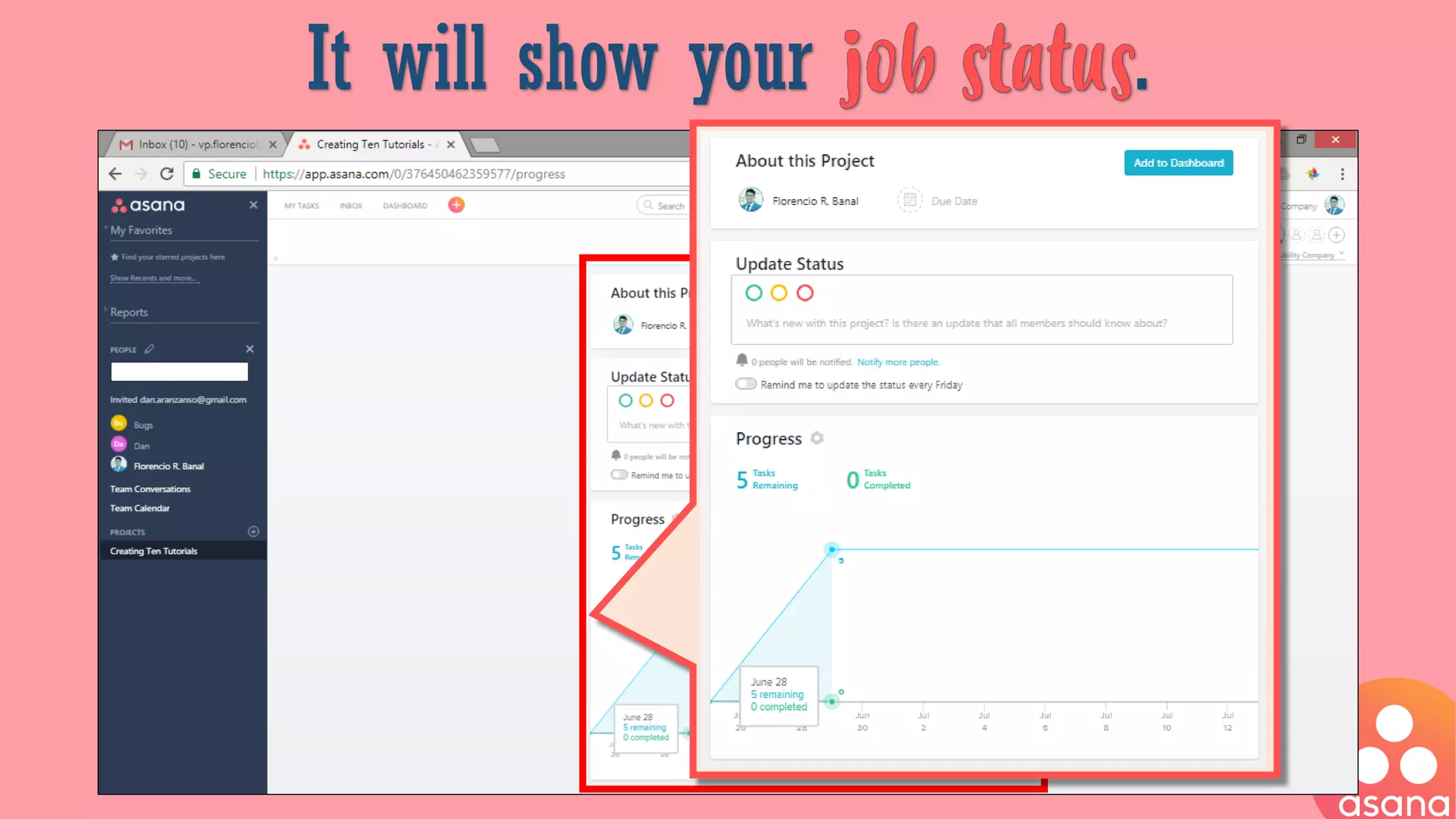
It will show your .
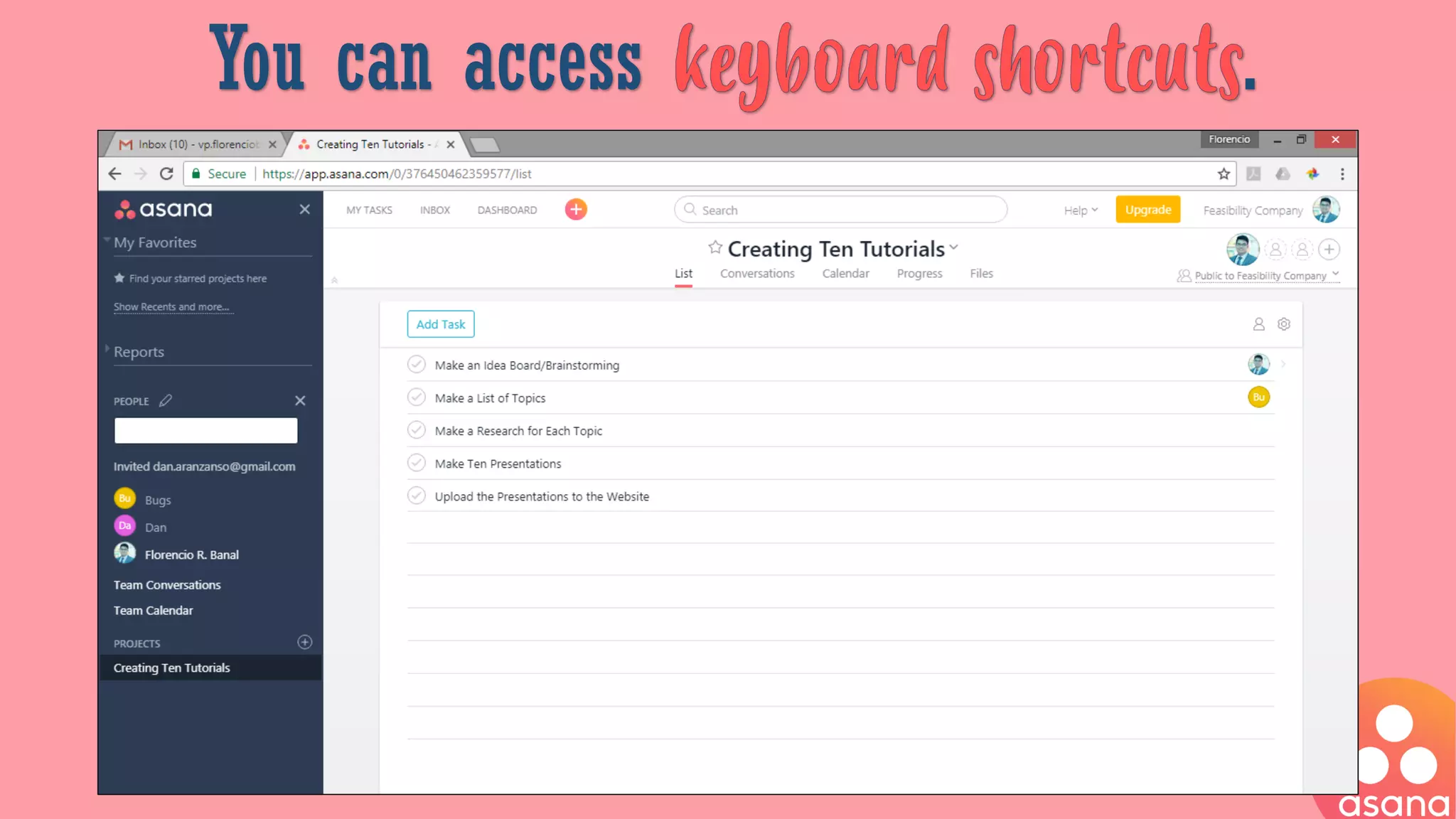
You can access .
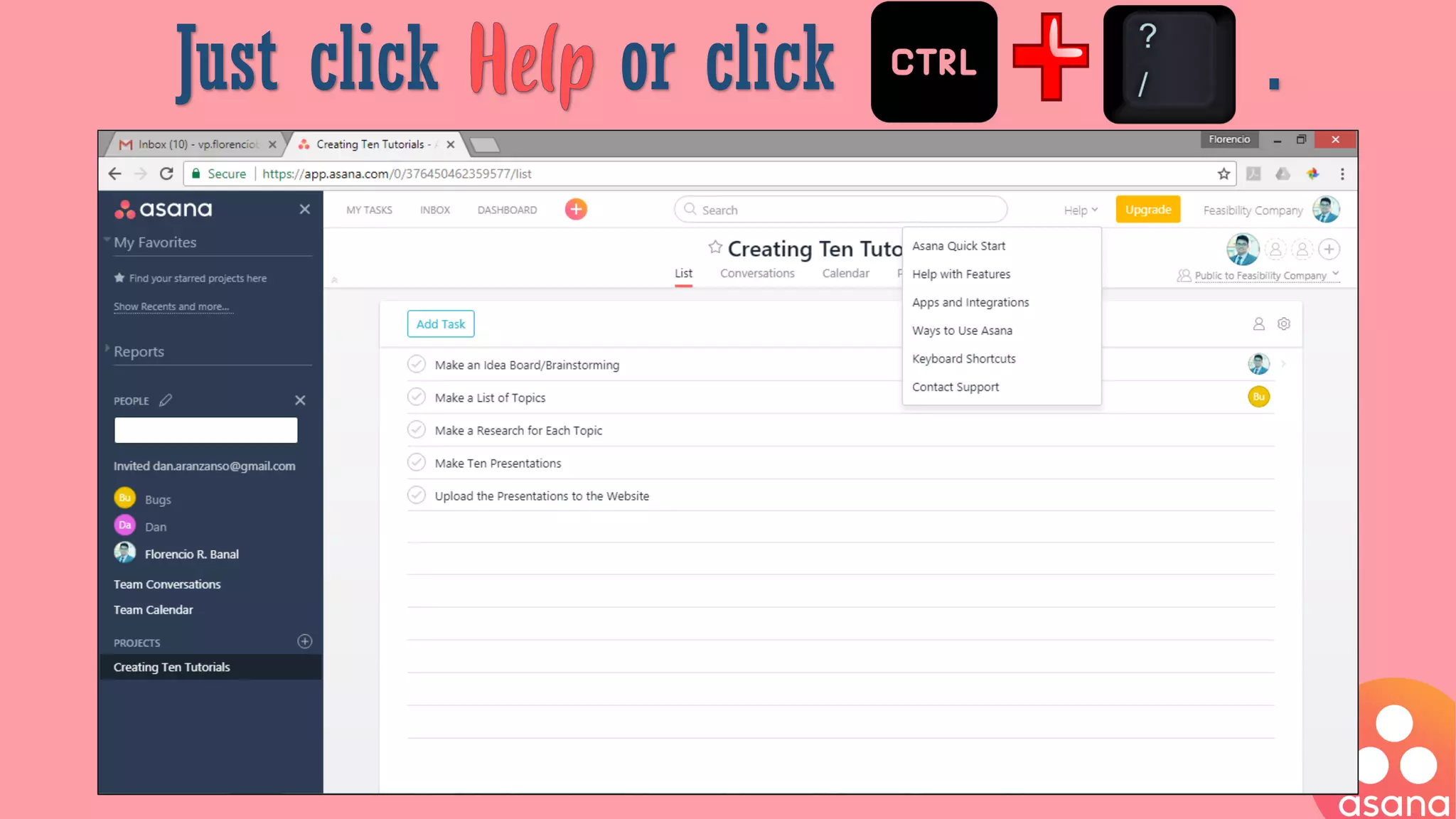
Just click or click .
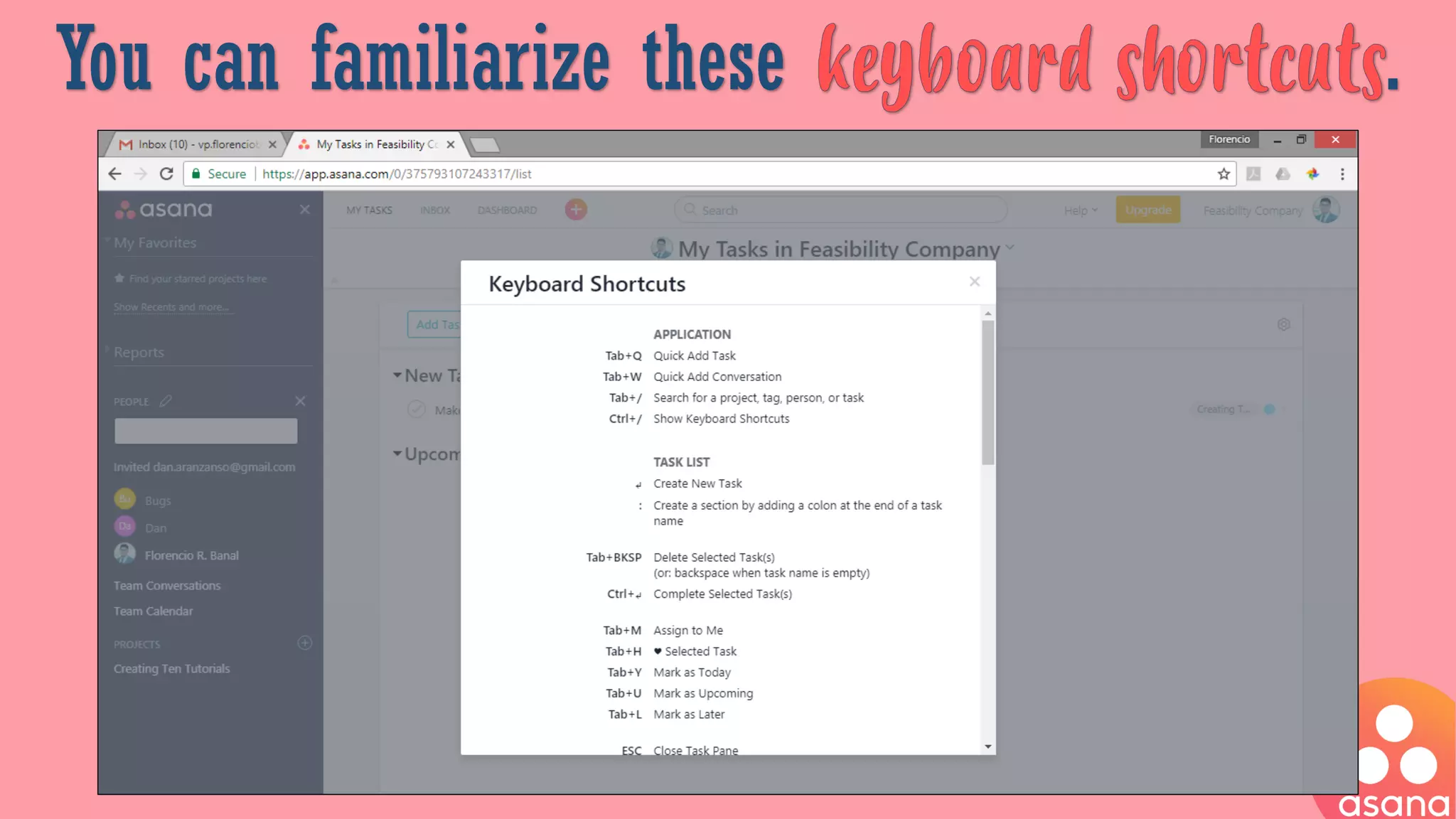
You can familiarize these .
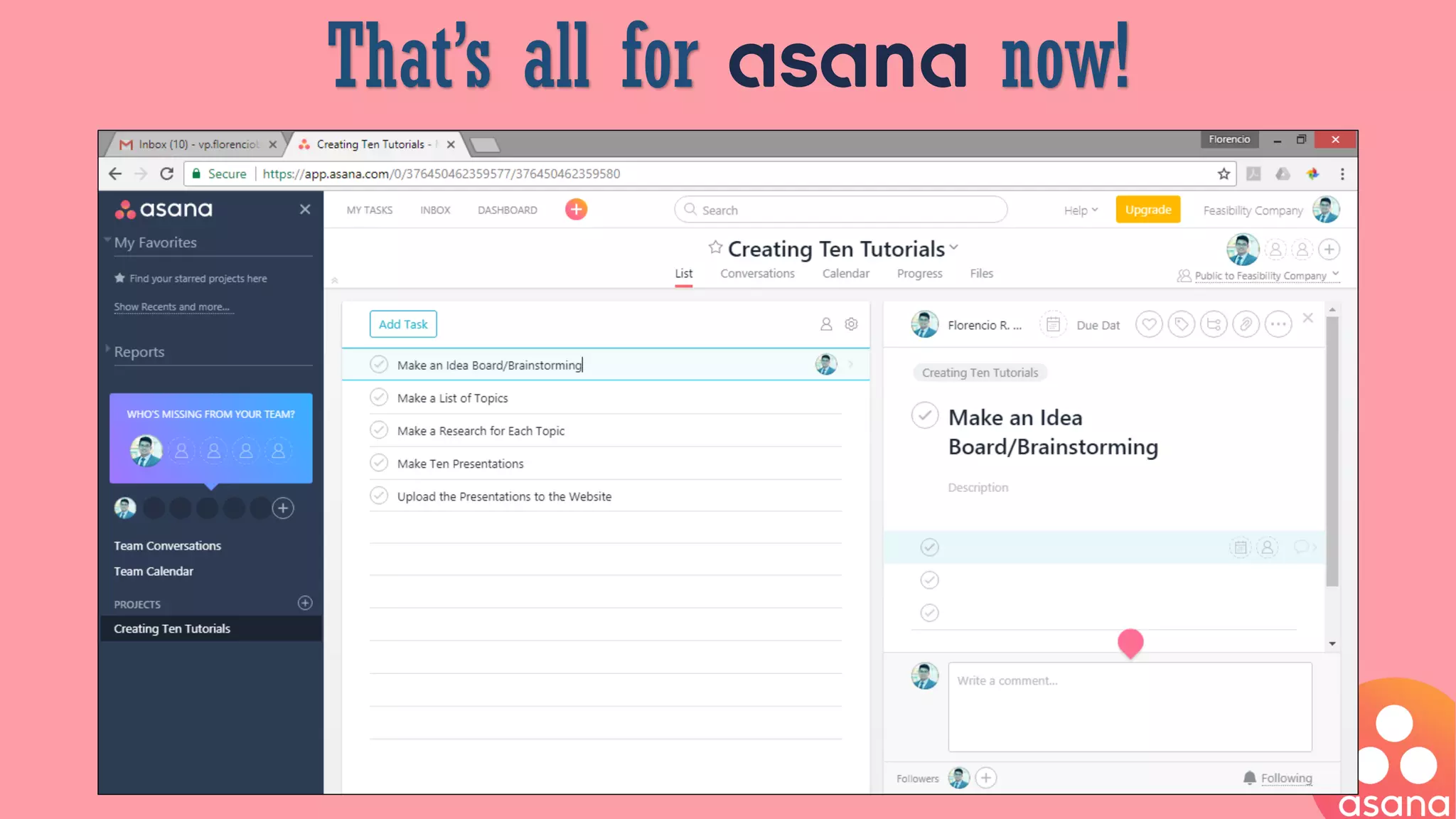
That’s all for asana now!
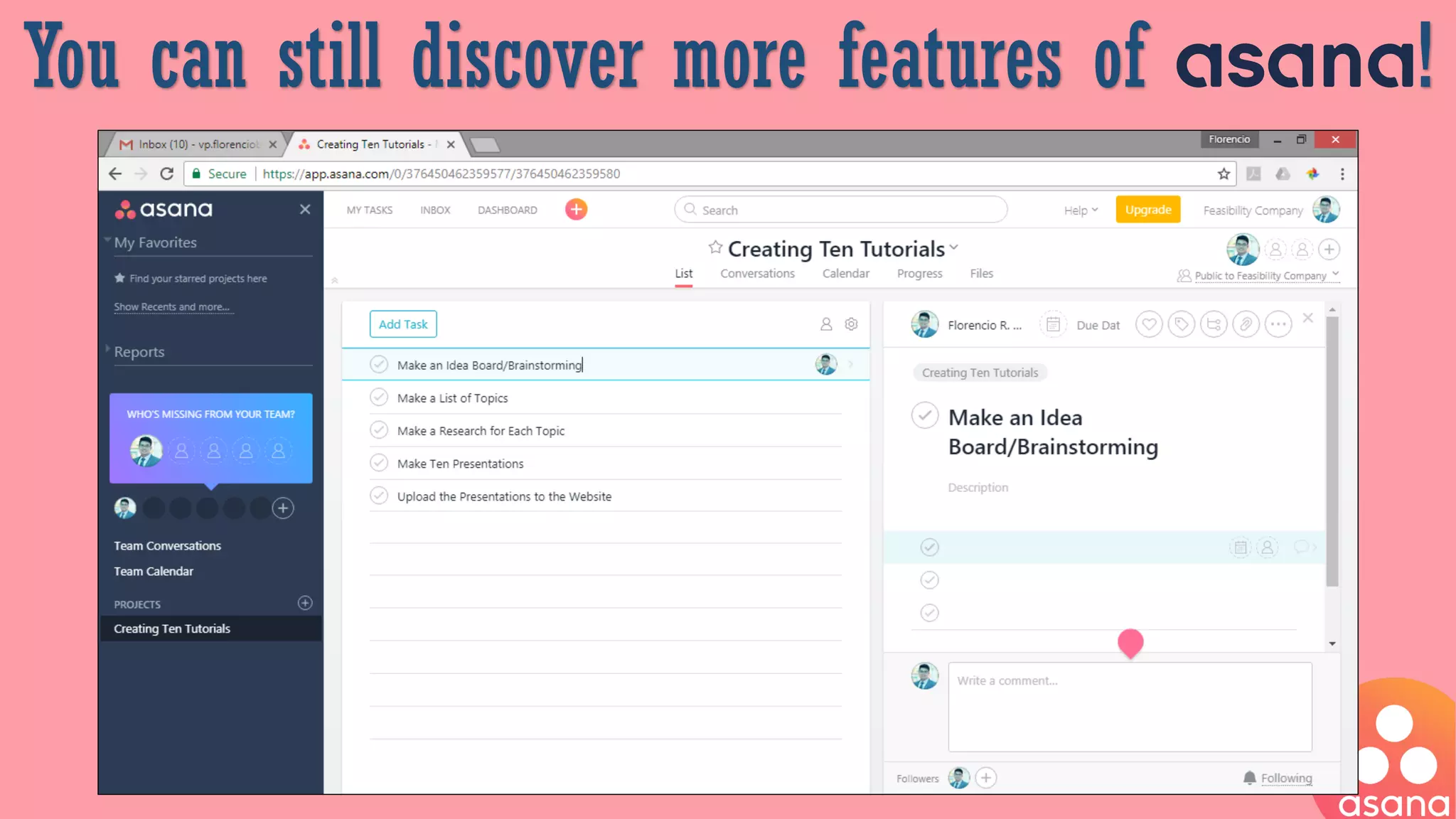
You can still discover more features of asana!
Do not
hesitate to
learn More about it.
Great job!
We’re done!
www.misterfeasibility.com
vp.florenciobanal@gmail.comfb.me/misterfeasibility
https://twitter.com/EnsoBanal www.slideshare.net/FlorencioBanal

How to Use Asana as Project Management Tool - Florencio_Banal - Mr_Feasibility