1Author: Ong-Art Sanpinit Electrical Charter Engineer วฟก. 1037
OS-MSP-001
Rev.: 01 / 1-06-2016
2Author: Ong-Art Sanpinit Electrical Charter Engineer วฟก. 1037
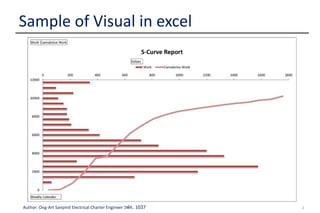
Sample of Visual in excel
3Author: Ong-Art Sanpinit Electrical Charter Engineer วฟก. 1037
 This article is to explain Project Management
Concept as a quick reference through step by step
guidance using MS Project 2007 or 2010
 The targeted audience is a beginner to the project
management and experienced with MS Project in
early version
Guide line
4Author: Ong-Art Sanpinit Electrical Charter Engineer วฟก. 1037
1. Start Project
2. Plan the Tasks
3. Assign resources
4. Project Baseline set up
5. Update progress
6. Forecast Information
7. Step by Step to S-Curve by using Visual Report
(Export to Excel
8. Close Project
Table of Contents
5Author: Ong-Art Sanpinit Electrical Charter Engineer วฟก. 1037
 Prior to start the project planning, Project manager
should be identified, who can set up a project plan
in MS project 2010
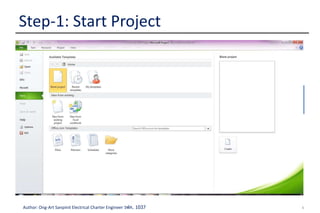
Step-1: Start Project
1. Create a new
Project File
To create a new blank project in Project,
click the file tab. Click new
6Author: Ong-Art Sanpinit Electrical Charter Engineer วฟก. 1037
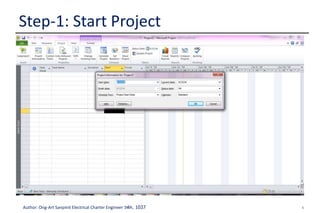
2. Set project
start date
Go to Project tab. Click Project information
Step-1: Start Project
7Author: Ong-Art Sanpinit Electrical Charter Engineer วฟก. 1037
Step-1: Start Project
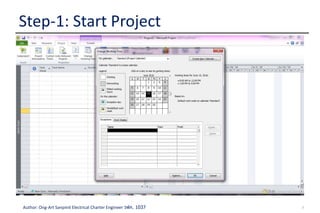
3. Define Project
Calendar
Go to Project tab. Click Change Working
time
8Author: Ong-Art Sanpinit Electrical Charter Engineer วฟก. 1037
Step-1: Start Project
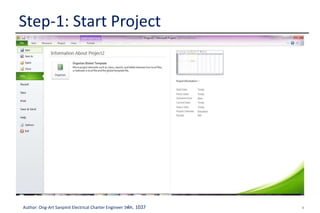
4. Save the
Project file
Go to Tab file, select save as with Project
Name or Job Order running number
9Author: Ong-Art Sanpinit Electrical Charter Engineer วฟก. 1037
 In the planning stage, we need to achieved project’s
goals. To do this, we have to identify the project’s
milestone, deliverables and tasks.
 This plan can be use work breakdown structure
(WBS).
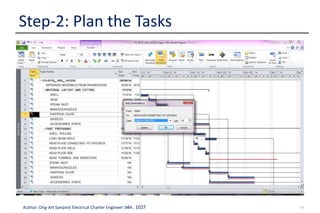
Step-2: Plan the Tasks
10Author: Ong-Art Sanpinit Electrical Charter Engineer วฟก. 1037
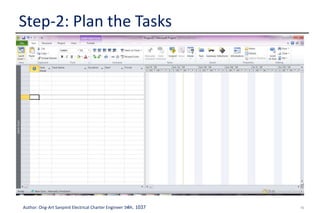
Step-2: Plan the Tasks
1. Enter Task Click View tab. In the Task View groups,
click Gantt Chart. In the Task Name fields,
enter tasks.
11Author: Ong-Art Sanpinit Electrical Charter Engineer วฟก. 1037
Step-2: Plan the Tasks
2. Decide how
you want to
Schedule Task
In Project 2010, we can schedule tasks
manually or automatically. Select schedule
method after enter a new tasks by clicking
in the Task Mode column:-
Note: New Tasks manually set by default in
Option Tab
12Author: Ong-Art Sanpinit Electrical Charter Engineer วฟก. 1037
Step-2: Plan the Tasks
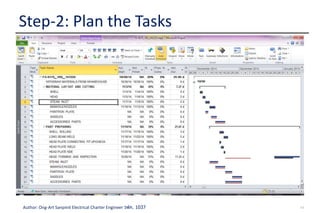
3. Outline Tasks Create task hierarchy including tasks and
milestones under summary task, which can
be represent phase or other work divisions.
Click the Task tab. In the Schedule group
select Indent or Outdent button
• Tip: if you created a summary task with
duration, start or finish date, then the
tasks that fall under the summary task
will not be rolled up to this summary
tasks.
13Author: Ong-Art Sanpinit Electrical Charter Engineer วฟก. 1037
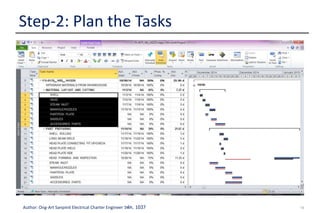
Step-2: Plan the Tasks
14Author: Ong-Art Sanpinit Electrical Charter Engineer วฟก. 1037
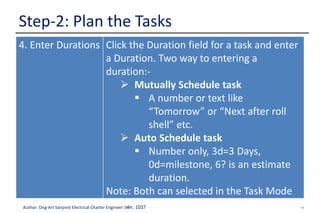
4. Enter Durations Click the Duration field for a task and enter
a Duration. Two way to entering a
duration:-
 Mutually Schedule task
 A number or text like
“Tomorrow” or “Next after roll
shell” etc.
 Auto Schedule task
 Number only, 3d=3 Days,
0d=milestone, 6? is an estimate
duration.
Note: Both can selected in the Task Mode
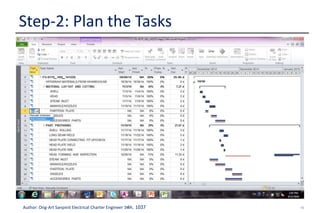
Step-2: Plan the Tasks
15Author: Ong-Art Sanpinit Electrical Charter Engineer วฟก. 1037
Step-2: Plan the Tasks
16Author: Ong-Art Sanpinit Electrical Charter Engineer วฟก. 1037
Step-2: Plan the Tasks
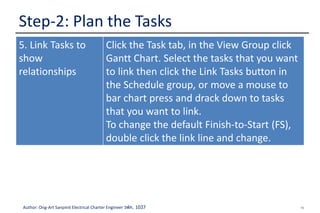
5. Link Tasks to
show
relationships
Click the Task tab, in the View Group click
Gantt Chart. Select the tasks that you want
to link then click the Link Tasks button in
the Schedule group, or move a mouse to
bar chart press and drack down to tasks
that you want to link.
To change the default Finish-to-Start (FS),
double click the link line and change.
17Author: Ong-Art Sanpinit Electrical Charter Engineer วฟก. 1037
Step-2: Plan the Tasks
18Author: Ong-Art Sanpinit Electrical Charter Engineer วฟก. 1037
 Assignments are the associations between specific
tasks and the resources needed to completed them.
We can assign more than one resources to a tasks.
 We can assign work resources (People), material
(Plates, Shell etc.) and cost (THB) to tasks.
Step-3: Assign Resources
19Author: Ong-Art Sanpinit Electrical Charter Engineer วฟก. 1037
Step-3: Assign Resources
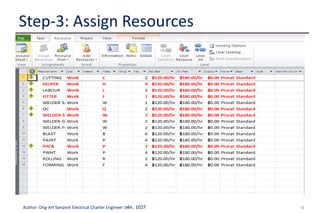
1. Add Resources
to Project
Click the Task Tab, in the Views dropdown
list select Resources Sheet. In the
Resources Name filed, type the name of
resources that we’ll use in this project.
20Author: Ong-Art Sanpinit Electrical Charter Engineer วฟก. 1037
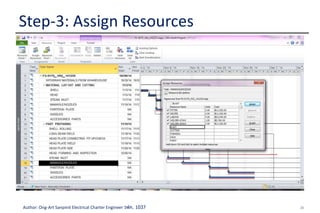
2. Assign
Resources to
Tasks
In the Resources Tab, Click Assign
Resources the click resources name then
click assign
Step-3: Assign Resources
21Author: Ong-Art Sanpinit Electrical Charter Engineer วฟก. 1037
Step-3: Assign Resources
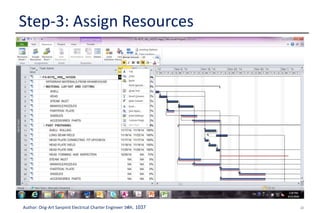
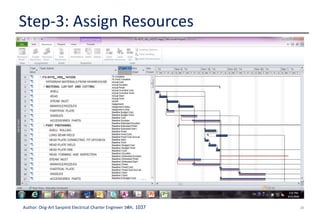
3. Enter the Work
Hours spending
on Tasks
After assign a resources to the Tasks, work
hours automatically show in a Work. If PM
prefer control a Working hours, it can be
change in in Work Field. Entering Work
reflects real world scheduling.
Go to Gantt Chart, right click on column
then click Insert Columns type "WORK” to
select the Work Columns
22Author: Ong-Art Sanpinit Electrical Charter Engineer วฟก. 1037
Step-3: Assign Resources
23Author: Ong-Art Sanpinit Electrical Charter Engineer วฟก. 1037
Step-3: Assign Resources
24Author: Ong-Art Sanpinit Electrical Charter Engineer วฟก. 1037
Step-3: Assign Resources
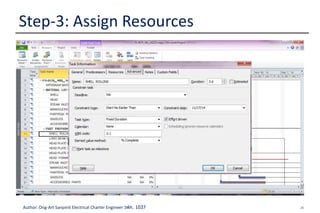
4. Know the Work
Tasks Type
After Assign a resources to Tasks, MS
Project determine how to schedule the
tasks based on the tasks type.(Manually
tasks don’t use task type) durations may
change as we assign resources to tasks.
How tasks types work
Work, duration and unit are determined by
formula:-
Work =Duration x Units
25Author: Ong-Art Sanpinit Electrical Charter Engineer วฟก. 1037
Step-3: Assign Resources
In a… If we revised
Work
If we revised
Duration
If we revised
units
Fixed units tasks Duration changes Work changes Duration changes
Fixed work tasks Duration changes Units change Duration changes
Fixed duration tasks Units change Work changes Work changes
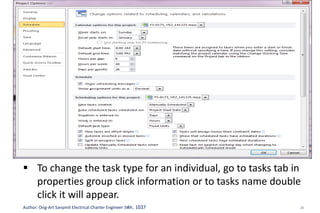
 To set a default task type for the entire project, click the
options. Go to Schedule group, in the default task type box
shown fixed units as a default, we can change to Fixed
Duration or Fixed Work
 To change the task type for an individual, go to tasks tab in
properties group click information or to tasks name double
click it will appear.
26Author: Ong-Art Sanpinit Electrical Charter Engineer วฟก. 1037
Step-3: Assign Resources
27Author: Ong-Art Sanpinit Electrical Charter Engineer วฟก. 1037
Step-3: Assign Resources
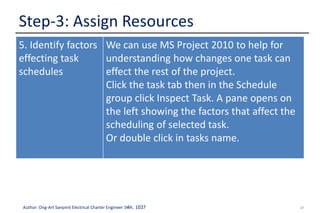
5. Identify factors
effecting task
schedules
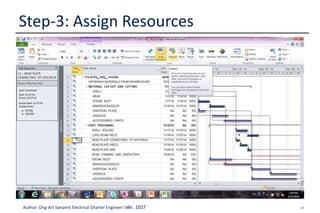
We can use MS Project 2010 to help for
understanding how changes one task can
effect the rest of the project.
Click the task tab then in the Schedule
group click Inspect Task. A pane opens on
the left showing the factors that affect the
scheduling of selected task.
Or double click in tasks name.
28Author: Ong-Art Sanpinit Electrical Charter Engineer วฟก. 1037
Step-3: Assign Resources
29Author: Ong-Art Sanpinit Electrical Charter Engineer วฟก. 1037
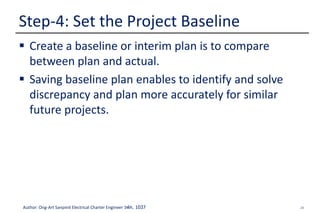
 Create a baseline or interim plan is to compare
between plan and actual.
 Saving baseline plan enables to identify and solve
discrepancy and plan more accurately for similar
future projects.
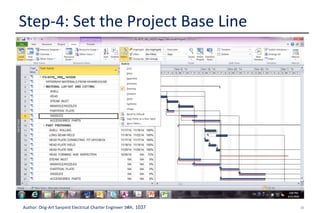
Step-4: Set the Project Baseline
30Author: Ong-Art Sanpinit Electrical Charter Engineer วฟก. 1037
Step-4: Set the Project Base Line
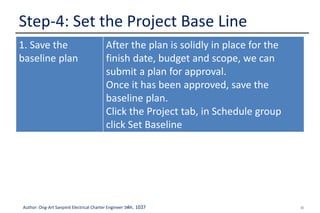
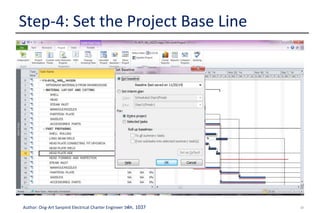
1. Save the
baseline plan
After the plan is solidly in place for the
finish date, budget and scope, we can
submit a plan for approval.
Once it has been approved, save the
baseline plan.
Click the Project tab, in Schedule group
click Set Baseline
31Author: Ong-Art Sanpinit Electrical Charter Engineer วฟก. 1037
Step-4: Set the Project Base Line
32Author: Ong-Art Sanpinit Electrical Charter Engineer วฟก. 1037
Step-4: Set the Project Base Line
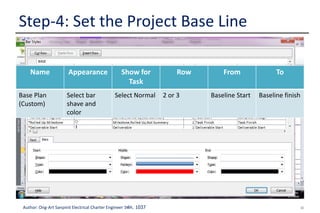
2.View baseline
data in Gantt
Chart views
In Gantt chart view, move a mouse to gantt
area, right click and select Bar Style.
Name Appearance Show for
Task
Row From To
Base Plan
(Custom)
Select bar
shave and
color
Select Normal 2 or 3 Baseline Start Baseline finish
33Author: Ong-Art Sanpinit Electrical Charter Engineer วฟก. 1037
Step-4: Set the Project Base Line
3. View Baseline
in a Table
Go to View tab, in Data group click to Table
and select Variance or insert columns with
custom field.
34Author: Ong-Art Sanpinit Electrical Charter Engineer วฟก. 1037
 Updating the progress is the only way to ensure it
stays on tracks as work is performed. The focus at
this point is on managing changes, updating the
schedule, tracking progress and communicating
project information.
 MS Project 2010 tracks 3 sets of date: Current,
Baseline and Actual. When we set the baseline,
current = baseline. when a task is 100% complete,
current=actual.
Step-5: Update Progress
35Author: Ong-Art Sanpinit Electrical Charter Engineer วฟก. 1037
Step-5: Update Progress
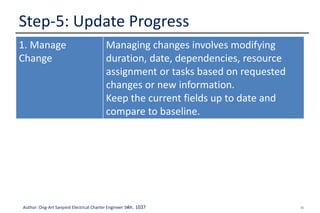
1. Manage
Change
Managing changes involves modifying
duration, date, dependencies, resource
assignment or tasks based on requested
changes or new information.
Keep the current fields up to date and
compare to baseline.
36Author: Ong-Art Sanpinit Electrical Charter Engineer วฟก. 1037
Step-5: Update Progress
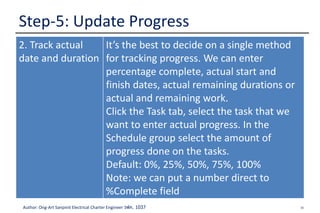
2. Track actual
date and duration
It’s the best to decide on a single method
for tracking progress. We can enter
percentage complete, actual start and
finish dates, actual remaining durations or
actual and remaining work.
Click the Task tab, select the task that we
want to enter actual progress. In the
Schedule group select the amount of
progress done on the tasks.
Default: 0%, 25%, 50%, 75%, 100%
Note: we can put a number direct to
%Complete field
37Author: Ong-Art Sanpinit Electrical Charter Engineer วฟก. 1037
Step-5: Update Progress
3. Track Actual
Hours and Cost
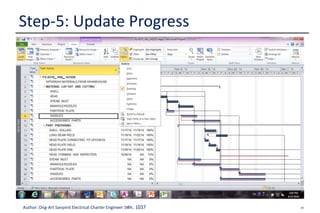
If we want to enter actual and remaining
work hours or costs, use tracking table.
Click View tab, in Data group point Table
and select Tracking.
Enter progress data in the Act. Work or Act.
Cost field for the task. Program is
determine if we put the actual start and
actual finish or % Complete.
38Author: Ong-Art Sanpinit Electrical Charter Engineer วฟก. 1037
Step-5: Update Progress
39Author: Ong-Art Sanpinit Electrical Charter Engineer วฟก. 1037
 MS Project 2010 provide many ways of built in
report, but for us we have to Visual report to create
S-Curve by export to Excel.
Step-6: View Report Information
40Author: Ong-Art Sanpinit Electrical Charter Engineer วฟก. 1037
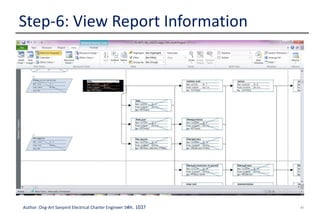
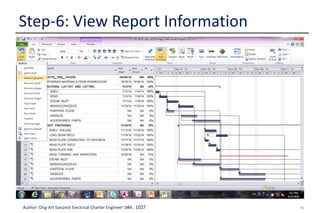
Step-6: View Report Information
1. Select a View MS Project 2010 has old and new views to
help you to see project information and
report it to others. Click the View Tab, in
either the Task Views group or Resources
Views group, select the view you want to
use. There’re many view but most useful
ones include:-
• Team planner View
• Timeline View
• Gantt Chart View
• Calendar View
41Author: Ong-Art Sanpinit Electrical Charter Engineer วฟก. 1037
Step-6: View Report Information
42Author: Ong-Art Sanpinit Electrical Charter Engineer วฟก. 1037
Step-6: View Report Information
43Author: Ong-Art Sanpinit Electrical Charter Engineer วฟก. 1037
Step-6: View Report Information
2. Customize a
View
Select the view you want to customize and
then on the Format tab click the type of
view element you want to change, such as
the bar style on the Gantt Chart or
gridlines and time scales of any views.
Tips & Tricks, if you want to filter, sort or
group tasks prior to printing, click the View
tab and then in the Data group, click sort,
Filter or Group options.
44Author: Ong-Art Sanpinit Electrical Charter Engineer วฟก. 1037
Step-6: View Report Information
3. Print a View or
Report
Set up the current view that we want it to
look when printed. Click the File Tab and
then click Print. A preview part of the view
to see the actual size of the view as it will
be printed.
45Author: Ong-Art Sanpinit Electrical Charter Engineer วฟก. 1037
Step-6: View Report Information
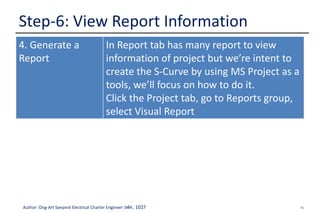
4. Generate a
Report
In Report tab has many report to view
information of project but we’re intent to
create the S-Curve by using MS Project as a
tools, we’ll focus on how to do it.
Click the Project tab, go to Reports group,
select Visual Report
46Author: Ong-Art Sanpinit Electrical Charter Engineer วฟก. 1037
Step-6: View Report Information
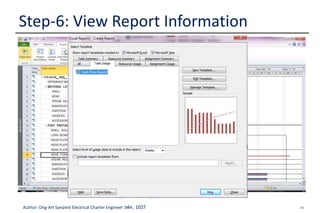
 Then select Task Usage
 After that click on View
 Then it will open to Excel
47Author: Ong-Art Sanpinit Electrical Charter Engineer วฟก. 1037
Step-7: Step by Step to S-Curve
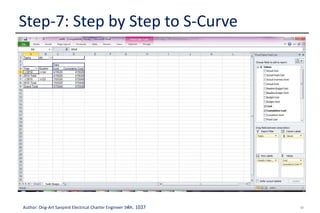
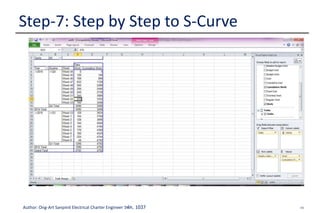
 In Excel it will export Cost and Cumulative Cost on a
Task Usages Tab
48Author: Ong-Art Sanpinit Electrical Charter Engineer วฟก. 1037
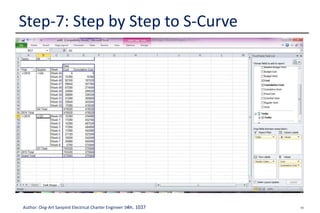
 Expand a Quarter column
Step-7: Step by Step to S-Curve
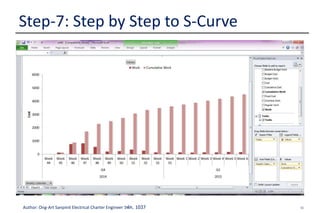
49Author: Ong-Art Sanpinit Electrical Charter Engineer วฟก. 1037
Step-7: Step by Step to S-Curve
 De-select Cost & Cumulative Cost
 Select Work and Cumulative Work
50Author: Ong-Art Sanpinit Electrical Charter Engineer วฟก. 1037
Step-7: Step by Step to S-Curve
 Go to Chart1 Tab
51Author: Ong-Art Sanpinit Electrical Charter Engineer วฟก. 1037
Step-7: Step by Step to S-Curve
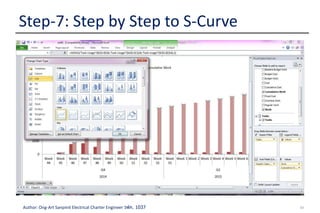
 Select to a group of Cumulative bar
 Right click, then select Change Series Chart Type and
Select “Line”
52Author: Ong-Art Sanpinit Electrical Charter Engineer วฟก. 1037
Step-7: Step by Step to S-Curve
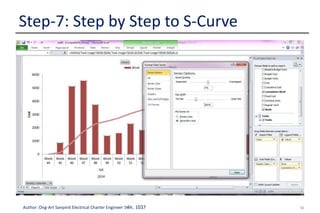
 It will appear a line on cumulative work
 The select a group of a small bar
 Right click and select a Format Data series
 Series Options lick on Secondary Axis
53Author: Ong-Art Sanpinit Electrical Charter Engineer วฟก. 1037
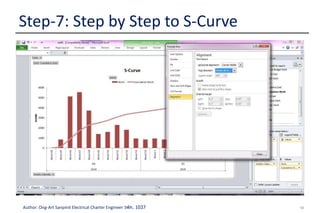
Step-7: Step by Step to S-Curve
 Click on bottom area of Graph (Time Scale)
 Then right click, select Format Axis
 Go to Alignment select Text Direction, Rotate All Text
270 or 90 degree as you like
54Author: Ong-Art Sanpinit Electrical Charter Engineer วฟก. 1037
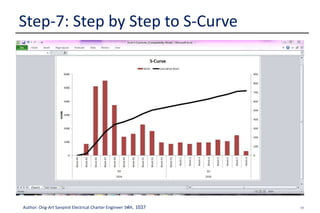
Step-7: Step by Step to S-Curve
 Select line option or bar option as you want it
55Author: Ong-Art Sanpinit Electrical Charter Engineer วฟก. 1037
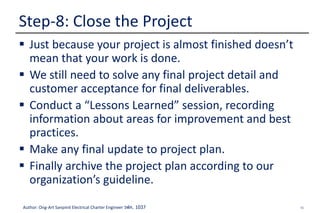
 Just because your project is almost finished doesn’t
mean that your work is done.
 We still need to solve any final project detail and
customer acceptance for final deliverables.
 Conduct a “Lessons Learned” session, recording
information about areas for improvement and best
practices.
 Make any final update to project plan.
 Finally archive the project plan according to our
organization’s guideline.
Step-8: Close the Project
56Author: Ong-Art Sanpinit Electrical Charter Engineer วฟก. 1037
Step-8: Close the Project
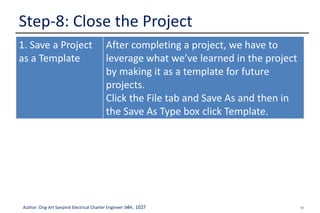
1. Save a Project
as a Template
After completing a project, we have to
leverage what we’ve learned in the project
by making it as a template for future
projects.
Click the File tab and Save As and then in
the Save As Type box click Template.
57Author: Ong-Art Sanpinit Electrical Charter Engineer วฟก. 1037
Thanks you
End

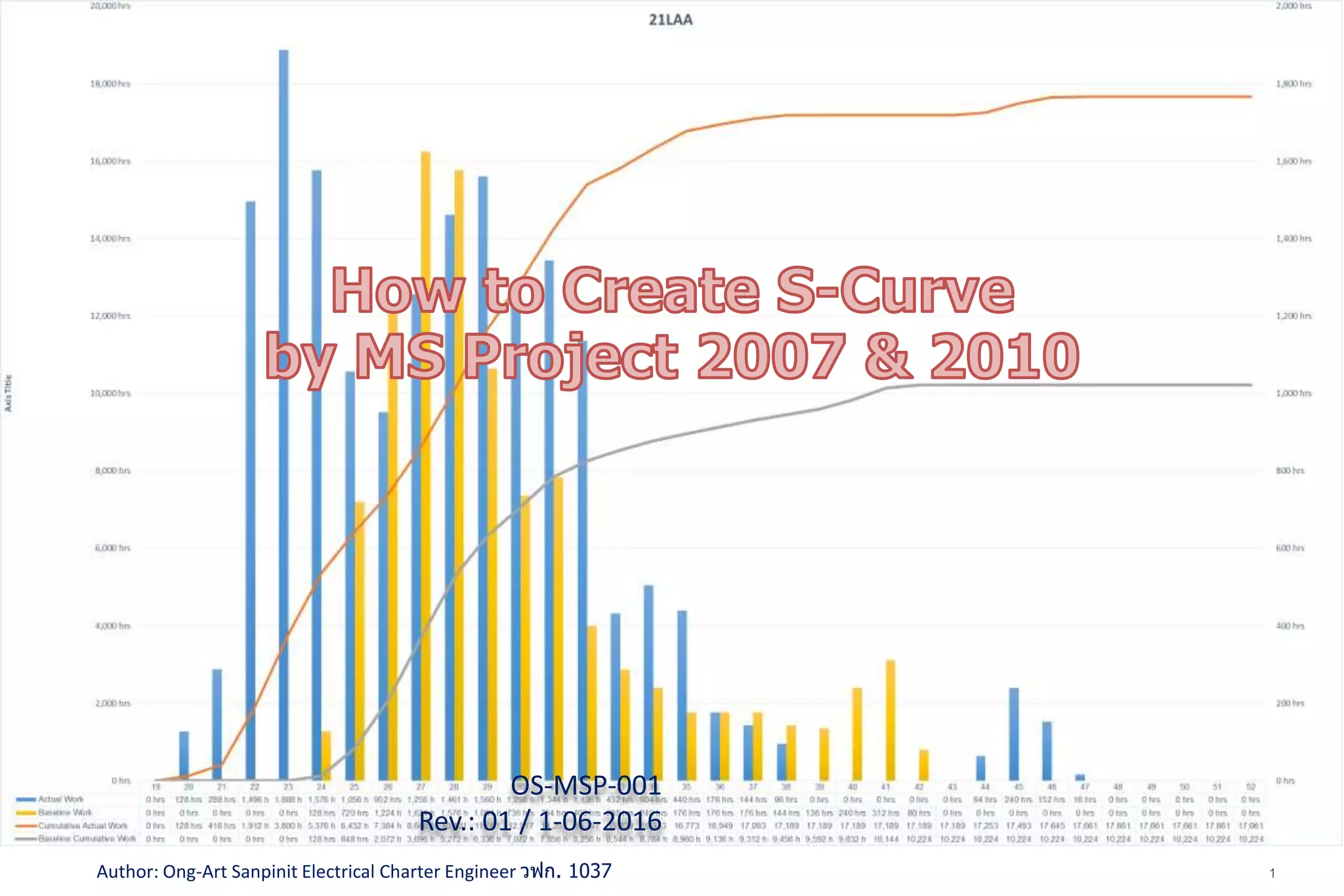
How to Create S-Curve by MS Project 2010

  • 1.
    1Author: Ong-Art SanpinitElectrical Charter Engineer วฟก. 1037 OS-MSP-001 Rev.: 01 / 1-06-2016
  • 2.
    2Author: Ong-Art SanpinitElectrical Charter Engineer วฟก. 1037 Sample of Visual in excel
  • 3.
    3Author: Ong-Art SanpinitElectrical Charter Engineer วฟก. 1037  This article is to explain Project Management Concept as a quick reference through step by step guidance using MS Project 2007 or 2010  The targeted audience is a beginner to the project management and experienced with MS Project in early version Guide line
  • 4.
    4Author: Ong-Art SanpinitElectrical Charter Engineer วฟก. 1037 1. Start Project 2. Plan the Tasks 3. Assign resources 4. Project Baseline set up 5. Update progress 6. Forecast Information 7. Step by Step to S-Curve by using Visual Report (Export to Excel 8. Close Project Table of Contents
  • 5.
    5Author: Ong-Art SanpinitElectrical Charter Engineer วฟก. 1037  Prior to start the project planning, Project manager should be identified, who can set up a project plan in MS project 2010 Step-1: Start Project 1. Create a new Project File To create a new blank project in Project, click the file tab. Click new
  • 6.
    6Author: Ong-Art SanpinitElectrical Charter Engineer วฟก. 1037 2. Set project start date Go to Project tab. Click Project information Step-1: Start Project
  • 7.
    7Author: Ong-Art SanpinitElectrical Charter Engineer วฟก. 1037 Step-1: Start Project 3. Define Project Calendar Go to Project tab. Click Change Working time
  • 8.
    8Author: Ong-Art SanpinitElectrical Charter Engineer วฟก. 1037 Step-1: Start Project 4. Save the Project file Go to Tab file, select save as with Project Name or Job Order running number
  • 9.
    9Author: Ong-Art SanpinitElectrical Charter Engineer วฟก. 1037  In the planning stage, we need to achieved project’s goals. To do this, we have to identify the project’s milestone, deliverables and tasks.  This plan can be use work breakdown structure (WBS). Step-2: Plan the Tasks
  • 10.
    10Author: Ong-Art SanpinitElectrical Charter Engineer วฟก. 1037 Step-2: Plan the Tasks 1. Enter Task Click View tab. In the Task View groups, click Gantt Chart. In the Task Name fields, enter tasks.
  • 11.
    11Author: Ong-Art SanpinitElectrical Charter Engineer วฟก. 1037 Step-2: Plan the Tasks 2. Decide how you want to Schedule Task In Project 2010, we can schedule tasks manually or automatically. Select schedule method after enter a new tasks by clicking in the Task Mode column:- Note: New Tasks manually set by default in Option Tab
  • 12.
    12Author: Ong-Art SanpinitElectrical Charter Engineer วฟก. 1037 Step-2: Plan the Tasks 3. Outline Tasks Create task hierarchy including tasks and milestones under summary task, which can be represent phase or other work divisions. Click the Task tab. In the Schedule group select Indent or Outdent button • Tip: if you created a summary task with duration, start or finish date, then the tasks that fall under the summary task will not be rolled up to this summary tasks.
  • 13.
    13Author: Ong-Art SanpinitElectrical Charter Engineer วฟก. 1037 Step-2: Plan the Tasks
  • 14.
    14Author: Ong-Art SanpinitElectrical Charter Engineer วฟก. 1037 4. Enter Durations Click the Duration field for a task and enter a Duration. Two way to entering a duration:-  Mutually Schedule task  A number or text like “Tomorrow” or “Next after roll shell” etc.  Auto Schedule task  Number only, 3d=3 Days, 0d=milestone, 6? is an estimate duration. Note: Both can selected in the Task Mode Step-2: Plan the Tasks
  • 15.
    15Author: Ong-Art SanpinitElectrical Charter Engineer วฟก. 1037 Step-2: Plan the Tasks
  • 16.
    16Author: Ong-Art SanpinitElectrical Charter Engineer วฟก. 1037 Step-2: Plan the Tasks 5. Link Tasks to show relationships Click the Task tab, in the View Group click Gantt Chart. Select the tasks that you want to link then click the Link Tasks button in the Schedule group, or move a mouse to bar chart press and drack down to tasks that you want to link. To change the default Finish-to-Start (FS), double click the link line and change.
  • 17.
    17Author: Ong-Art SanpinitElectrical Charter Engineer วฟก. 1037 Step-2: Plan the Tasks
  • 18.
    18Author: Ong-Art SanpinitElectrical Charter Engineer วฟก. 1037  Assignments are the associations between specific tasks and the resources needed to completed them. We can assign more than one resources to a tasks.  We can assign work resources (People), material (Plates, Shell etc.) and cost (THB) to tasks. Step-3: Assign Resources
  • 19.
    19Author: Ong-Art SanpinitElectrical Charter Engineer วฟก. 1037 Step-3: Assign Resources 1. Add Resources to Project Click the Task Tab, in the Views dropdown list select Resources Sheet. In the Resources Name filed, type the name of resources that we’ll use in this project.
  • 20.
    20Author: Ong-Art SanpinitElectrical Charter Engineer วฟก. 1037 2. Assign Resources to Tasks In the Resources Tab, Click Assign Resources the click resources name then click assign Step-3: Assign Resources
  • 21.
    21Author: Ong-Art SanpinitElectrical Charter Engineer วฟก. 1037 Step-3: Assign Resources 3. Enter the Work Hours spending on Tasks After assign a resources to the Tasks, work hours automatically show in a Work. If PM prefer control a Working hours, it can be change in in Work Field. Entering Work reflects real world scheduling. Go to Gantt Chart, right click on column then click Insert Columns type "WORK” to select the Work Columns
  • 22.
    22Author: Ong-Art SanpinitElectrical Charter Engineer วฟก. 1037 Step-3: Assign Resources
  • 23.
    23Author: Ong-Art SanpinitElectrical Charter Engineer วฟก. 1037 Step-3: Assign Resources
  • 24.
    24Author: Ong-Art SanpinitElectrical Charter Engineer วฟก. 1037 Step-3: Assign Resources 4. Know the Work Tasks Type After Assign a resources to Tasks, MS Project determine how to schedule the tasks based on the tasks type.(Manually tasks don’t use task type) durations may change as we assign resources to tasks. How tasks types work Work, duration and unit are determined by formula:- Work =Duration x Units
  • 25.
    25Author: Ong-Art SanpinitElectrical Charter Engineer วฟก. 1037 Step-3: Assign Resources In a… If we revised Work If we revised Duration If we revised units Fixed units tasks Duration changes Work changes Duration changes Fixed work tasks Duration changes Units change Duration changes Fixed duration tasks Units change Work changes Work changes  To set a default task type for the entire project, click the options. Go to Schedule group, in the default task type box shown fixed units as a default, we can change to Fixed Duration or Fixed Work  To change the task type for an individual, go to tasks tab in properties group click information or to tasks name double click it will appear.
  • 26.
    26Author: Ong-Art SanpinitElectrical Charter Engineer วฟก. 1037 Step-3: Assign Resources
  • 27.
    27Author: Ong-Art SanpinitElectrical Charter Engineer วฟก. 1037 Step-3: Assign Resources 5. Identify factors effecting task schedules We can use MS Project 2010 to help for understanding how changes one task can effect the rest of the project. Click the task tab then in the Schedule group click Inspect Task. A pane opens on the left showing the factors that affect the scheduling of selected task. Or double click in tasks name.
  • 28.
    28Author: Ong-Art SanpinitElectrical Charter Engineer วฟก. 1037 Step-3: Assign Resources
  • 29.
    29Author: Ong-Art SanpinitElectrical Charter Engineer วฟก. 1037  Create a baseline or interim plan is to compare between plan and actual.  Saving baseline plan enables to identify and solve discrepancy and plan more accurately for similar future projects. Step-4: Set the Project Baseline
  • 30.
    30Author: Ong-Art SanpinitElectrical Charter Engineer วฟก. 1037 Step-4: Set the Project Base Line 1. Save the baseline plan After the plan is solidly in place for the finish date, budget and scope, we can submit a plan for approval. Once it has been approved, save the baseline plan. Click the Project tab, in Schedule group click Set Baseline
  • 31.
    31Author: Ong-Art SanpinitElectrical Charter Engineer วฟก. 1037 Step-4: Set the Project Base Line
  • 32.
    32Author: Ong-Art SanpinitElectrical Charter Engineer วฟก. 1037 Step-4: Set the Project Base Line 2.View baseline data in Gantt Chart views In Gantt chart view, move a mouse to gantt area, right click and select Bar Style. Name Appearance Show for Task Row From To Base Plan (Custom) Select bar shave and color Select Normal 2 or 3 Baseline Start Baseline finish
  • 33.
    33Author: Ong-Art SanpinitElectrical Charter Engineer วฟก. 1037 Step-4: Set the Project Base Line 3. View Baseline in a Table Go to View tab, in Data group click to Table and select Variance or insert columns with custom field.
  • 34.
    34Author: Ong-Art SanpinitElectrical Charter Engineer วฟก. 1037  Updating the progress is the only way to ensure it stays on tracks as work is performed. The focus at this point is on managing changes, updating the schedule, tracking progress and communicating project information.  MS Project 2010 tracks 3 sets of date: Current, Baseline and Actual. When we set the baseline, current = baseline. when a task is 100% complete, current=actual. Step-5: Update Progress
  • 35.
    35Author: Ong-Art SanpinitElectrical Charter Engineer วฟก. 1037 Step-5: Update Progress 1. Manage Change Managing changes involves modifying duration, date, dependencies, resource assignment or tasks based on requested changes or new information. Keep the current fields up to date and compare to baseline.
  • 36.
    36Author: Ong-Art SanpinitElectrical Charter Engineer วฟก. 1037 Step-5: Update Progress 2. Track actual date and duration It’s the best to decide on a single method for tracking progress. We can enter percentage complete, actual start and finish dates, actual remaining durations or actual and remaining work. Click the Task tab, select the task that we want to enter actual progress. In the Schedule group select the amount of progress done on the tasks. Default: 0%, 25%, 50%, 75%, 100% Note: we can put a number direct to %Complete field
  • 37.
    37Author: Ong-Art SanpinitElectrical Charter Engineer วฟก. 1037 Step-5: Update Progress 3. Track Actual Hours and Cost If we want to enter actual and remaining work hours or costs, use tracking table. Click View tab, in Data group point Table and select Tracking. Enter progress data in the Act. Work or Act. Cost field for the task. Program is determine if we put the actual start and actual finish or % Complete.
  • 38.
    38Author: Ong-Art SanpinitElectrical Charter Engineer วฟก. 1037 Step-5: Update Progress
  • 39.
    39Author: Ong-Art SanpinitElectrical Charter Engineer วฟก. 1037  MS Project 2010 provide many ways of built in report, but for us we have to Visual report to create S-Curve by export to Excel. Step-6: View Report Information
  • 40.
    40Author: Ong-Art SanpinitElectrical Charter Engineer วฟก. 1037 Step-6: View Report Information 1. Select a View MS Project 2010 has old and new views to help you to see project information and report it to others. Click the View Tab, in either the Task Views group or Resources Views group, select the view you want to use. There’re many view but most useful ones include:- • Team planner View • Timeline View • Gantt Chart View • Calendar View
  • 41.
    41Author: Ong-Art SanpinitElectrical Charter Engineer วฟก. 1037 Step-6: View Report Information
  • 42.
    42Author: Ong-Art SanpinitElectrical Charter Engineer วฟก. 1037 Step-6: View Report Information
  • 43.
    43Author: Ong-Art SanpinitElectrical Charter Engineer วฟก. 1037 Step-6: View Report Information 2. Customize a View Select the view you want to customize and then on the Format tab click the type of view element you want to change, such as the bar style on the Gantt Chart or gridlines and time scales of any views. Tips & Tricks, if you want to filter, sort or group tasks prior to printing, click the View tab and then in the Data group, click sort, Filter or Group options.
  • 44.
    44Author: Ong-Art SanpinitElectrical Charter Engineer วฟก. 1037 Step-6: View Report Information 3. Print a View or Report Set up the current view that we want it to look when printed. Click the File Tab and then click Print. A preview part of the view to see the actual size of the view as it will be printed.
  • 45.
    45Author: Ong-Art SanpinitElectrical Charter Engineer วฟก. 1037 Step-6: View Report Information 4. Generate a Report In Report tab has many report to view information of project but we’re intent to create the S-Curve by using MS Project as a tools, we’ll focus on how to do it. Click the Project tab, go to Reports group, select Visual Report
  • 46.
    46Author: Ong-Art SanpinitElectrical Charter Engineer วฟก. 1037 Step-6: View Report Information  Then select Task Usage  After that click on View  Then it will open to Excel
  • 47.
    47Author: Ong-Art SanpinitElectrical Charter Engineer วฟก. 1037 Step-7: Step by Step to S-Curve  In Excel it will export Cost and Cumulative Cost on a Task Usages Tab
  • 48.
    48Author: Ong-Art SanpinitElectrical Charter Engineer วฟก. 1037  Expand a Quarter column Step-7: Step by Step to S-Curve
  • 49.
    49Author: Ong-Art SanpinitElectrical Charter Engineer วฟก. 1037 Step-7: Step by Step to S-Curve  De-select Cost & Cumulative Cost  Select Work and Cumulative Work
  • 50.
    50Author: Ong-Art SanpinitElectrical Charter Engineer วฟก. 1037 Step-7: Step by Step to S-Curve  Go to Chart1 Tab
  • 51.
    51Author: Ong-Art SanpinitElectrical Charter Engineer วฟก. 1037 Step-7: Step by Step to S-Curve  Select to a group of Cumulative bar  Right click, then select Change Series Chart Type and Select “Line”
  • 52.
    52Author: Ong-Art SanpinitElectrical Charter Engineer วฟก. 1037 Step-7: Step by Step to S-Curve  It will appear a line on cumulative work  The select a group of a small bar  Right click and select a Format Data series  Series Options lick on Secondary Axis
  • 53.
    53Author: Ong-Art SanpinitElectrical Charter Engineer วฟก. 1037 Step-7: Step by Step to S-Curve  Click on bottom area of Graph (Time Scale)  Then right click, select Format Axis  Go to Alignment select Text Direction, Rotate All Text 270 or 90 degree as you like
  • 54.
    54Author: Ong-Art SanpinitElectrical Charter Engineer วฟก. 1037 Step-7: Step by Step to S-Curve  Select line option or bar option as you want it
  • 55.
    55Author: Ong-Art SanpinitElectrical Charter Engineer วฟก. 1037  Just because your project is almost finished doesn’t mean that your work is done.  We still need to solve any final project detail and customer acceptance for final deliverables.  Conduct a “Lessons Learned” session, recording information about areas for improvement and best practices.  Make any final update to project plan.  Finally archive the project plan according to our organization’s guideline. Step-8: Close the Project
  • 56.
    56Author: Ong-Art SanpinitElectrical Charter Engineer วฟก. 1037 Step-8: Close the Project 1. Save a Project as a Template After completing a project, we have to leverage what we’ve learned in the project by making it as a template for future projects. Click the File tab and Save As and then in the Save As Type box click Template.
  • 57.
    57Author: Ong-Art SanpinitElectrical Charter Engineer วฟก. 1037 Thanks you End