W h y i s y o u r p r o f i l e
i m p o r t a n t ?
When people go to your account, your
profile is the first thing they see. If you
don't spend time crafting and polishing
your profile, people won't be clear on
what you do and you risk losing potential
target followers.
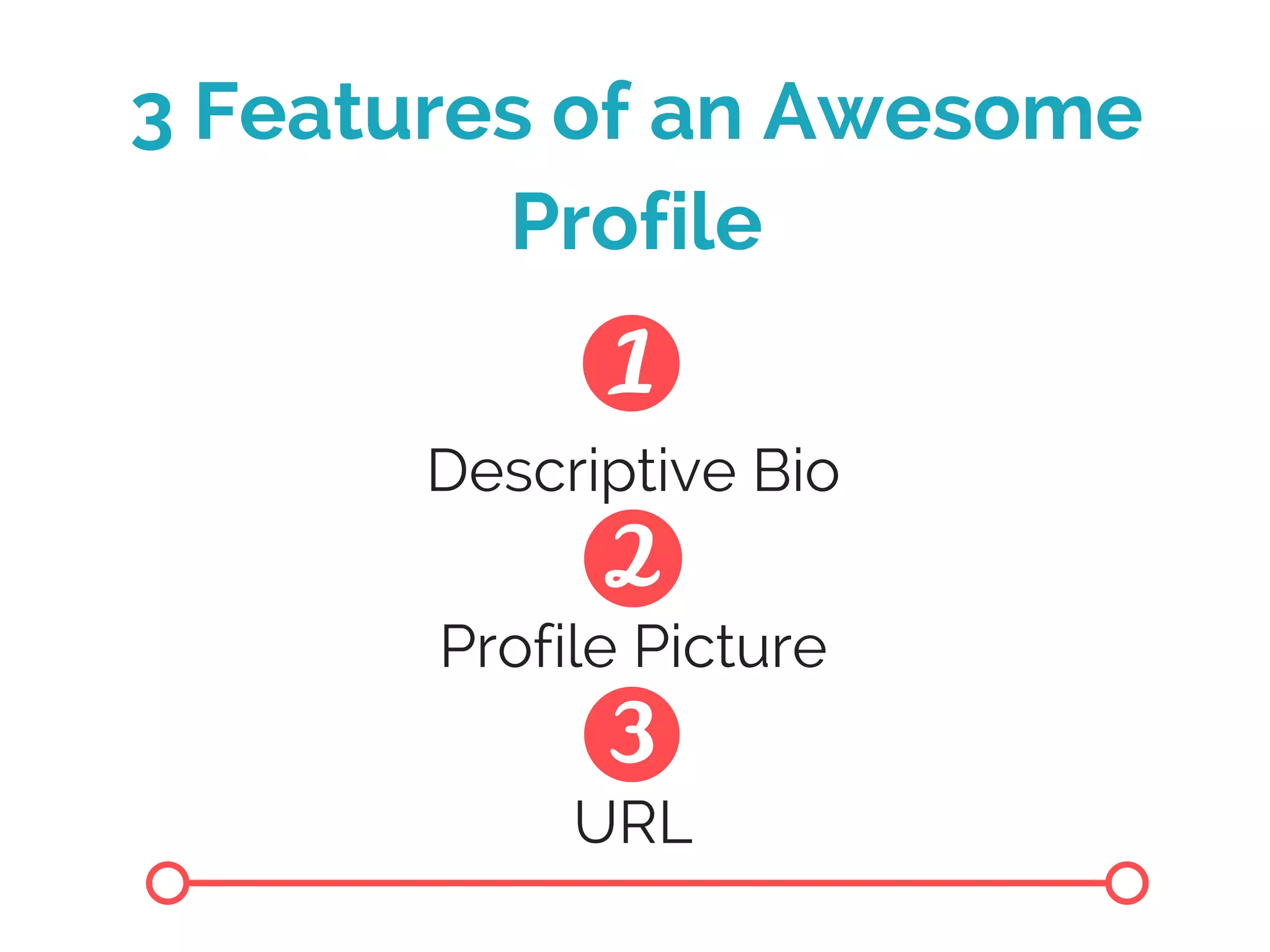
3 Features of an Awesome
Profile
Descriptive Bio
Profile Picture
URL
1: Descriptive Bio
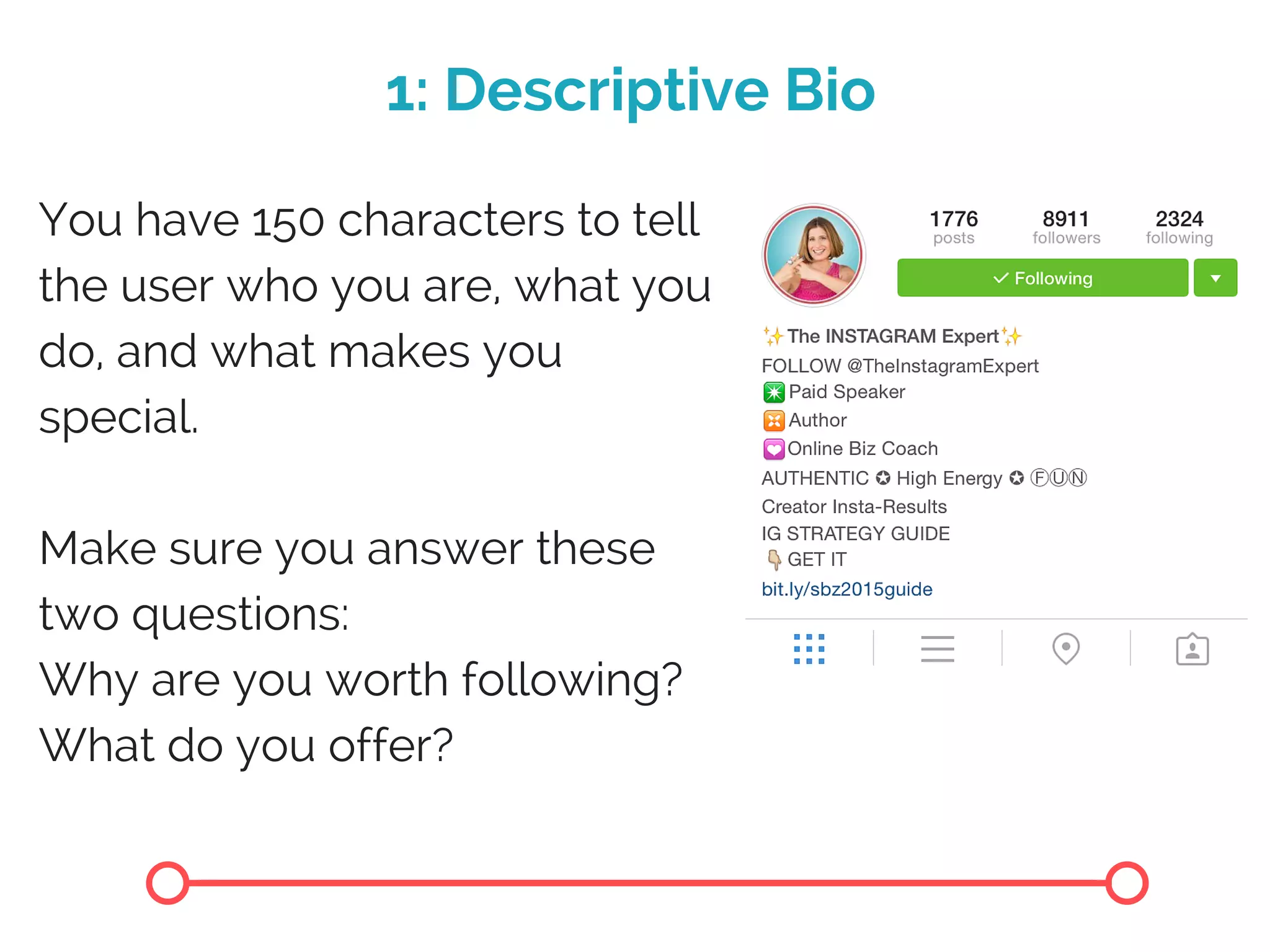
You have 150 characters to tell
the user who you are, what you
do, and what makes you
special.
Make sure you answer these
two questions:
Why are you worth following?
What do you offer?
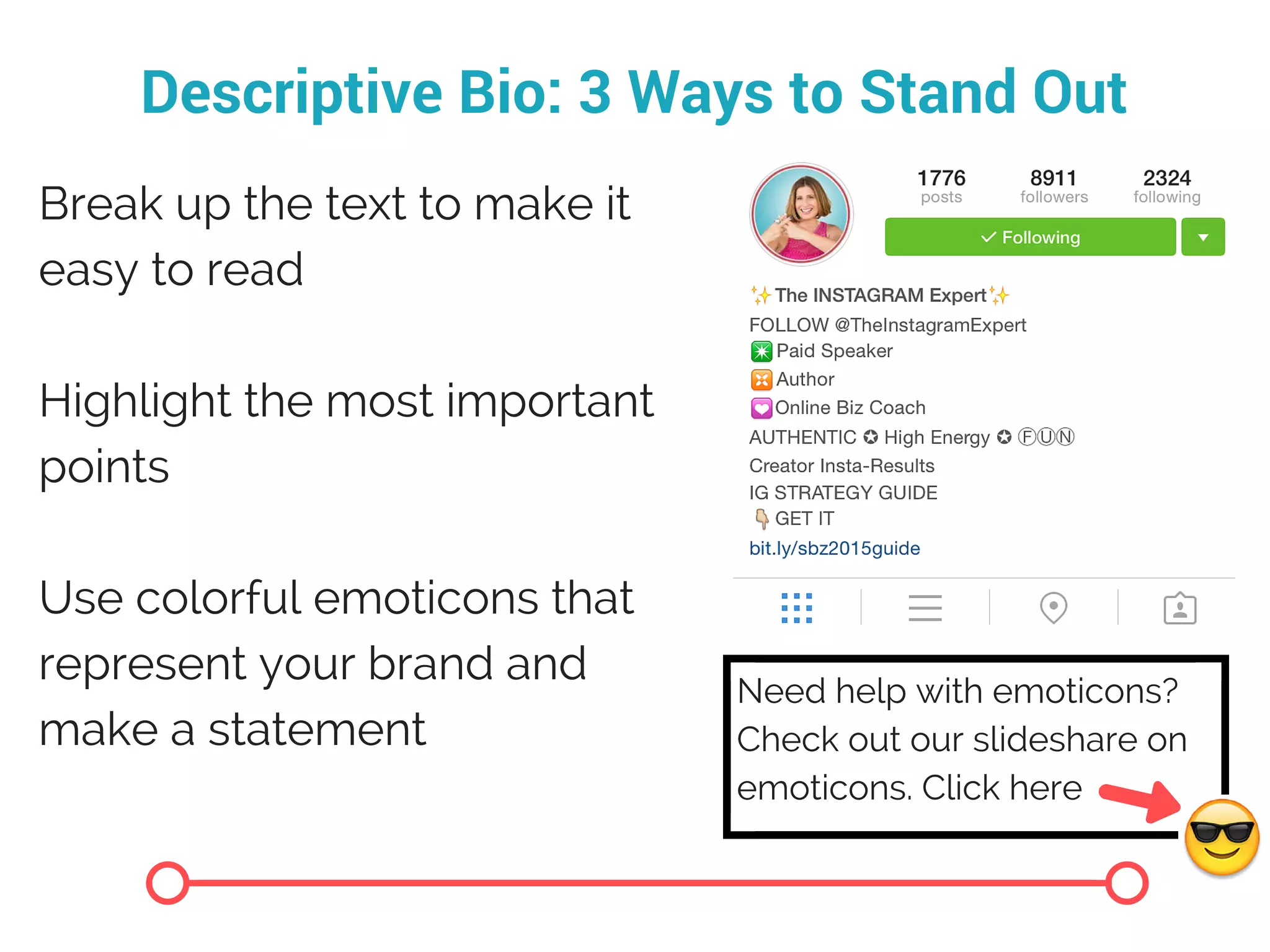
Descriptive Bio: 3 Ways to Stand Out
Break up the text to make it
easy to read
Highlight the most important
points
Use colorful emoticons that
represent your brand and
make a statement
Need help with emoticons?
Check out our slideshare on
emoticons. Click here
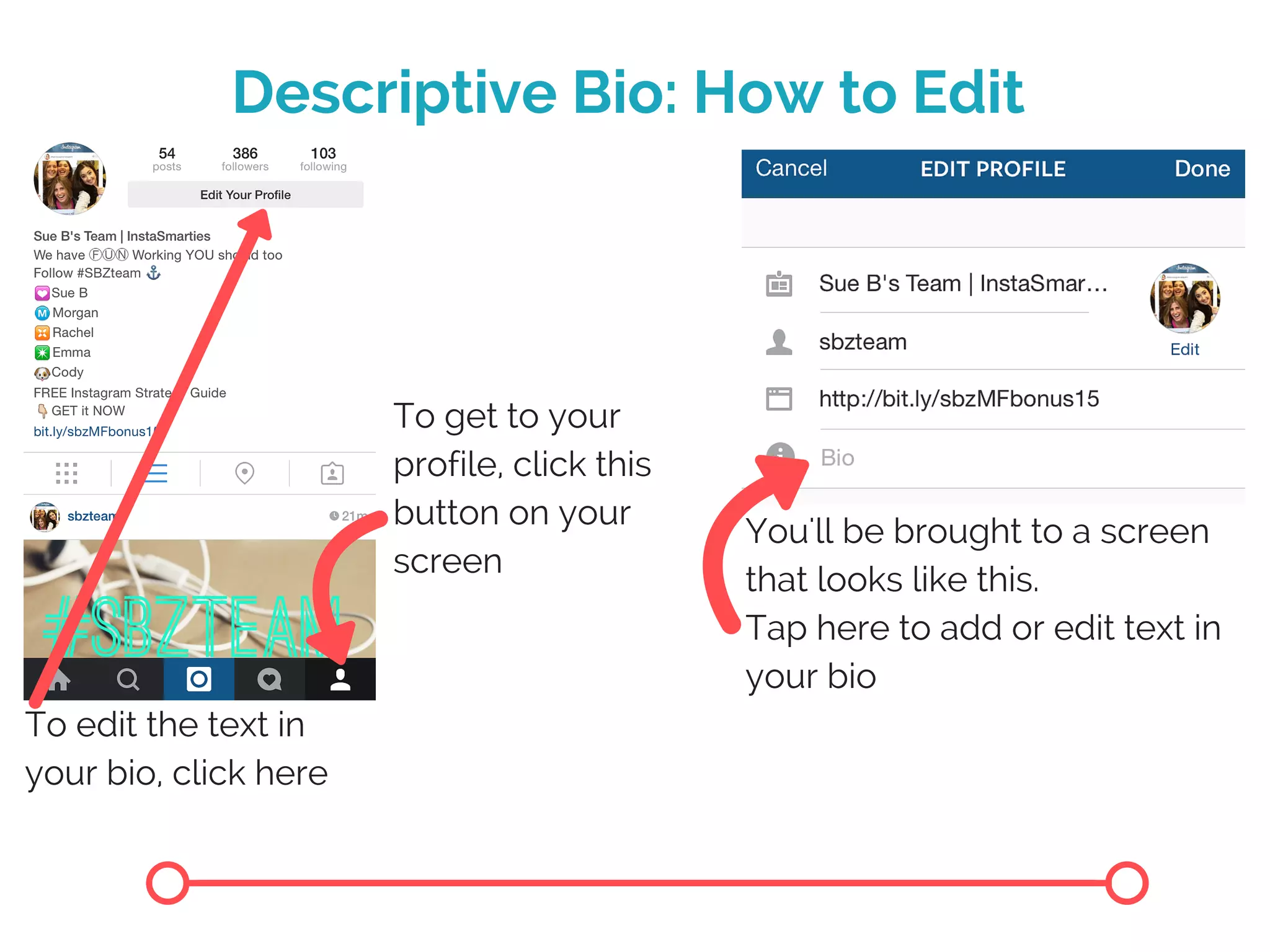
Descriptive Bio: How to Edit
To get to your
profile, click this
button on your
screen
To edit the text in
your bio, click here
You'll be brought to a screen
that looks like this.
Tap here to add or edit text in
your bio
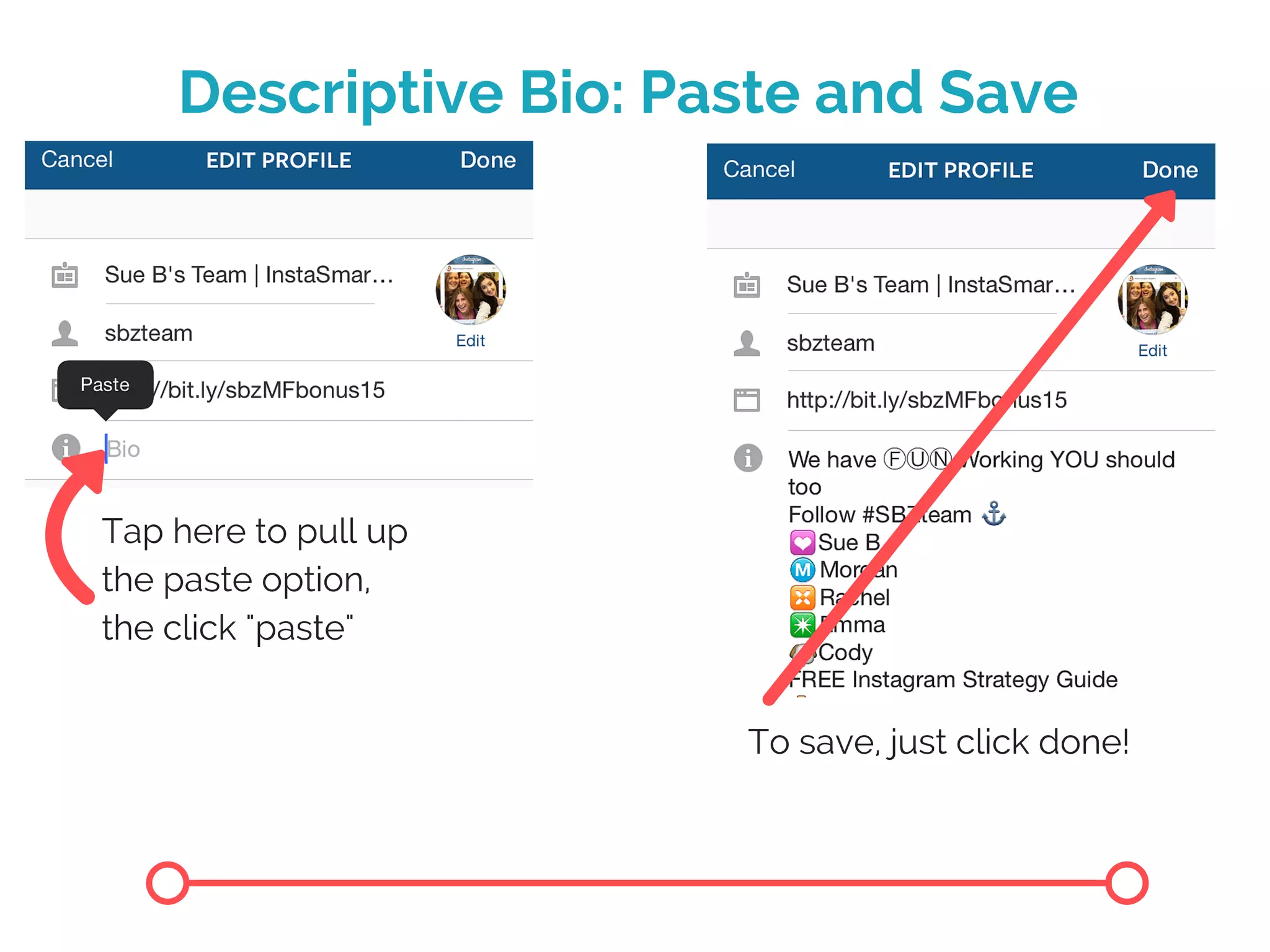
Descriptive Bio: Paste and Save
To save, just click done!
Tap here to pull up
the paste option,
the click "paste"
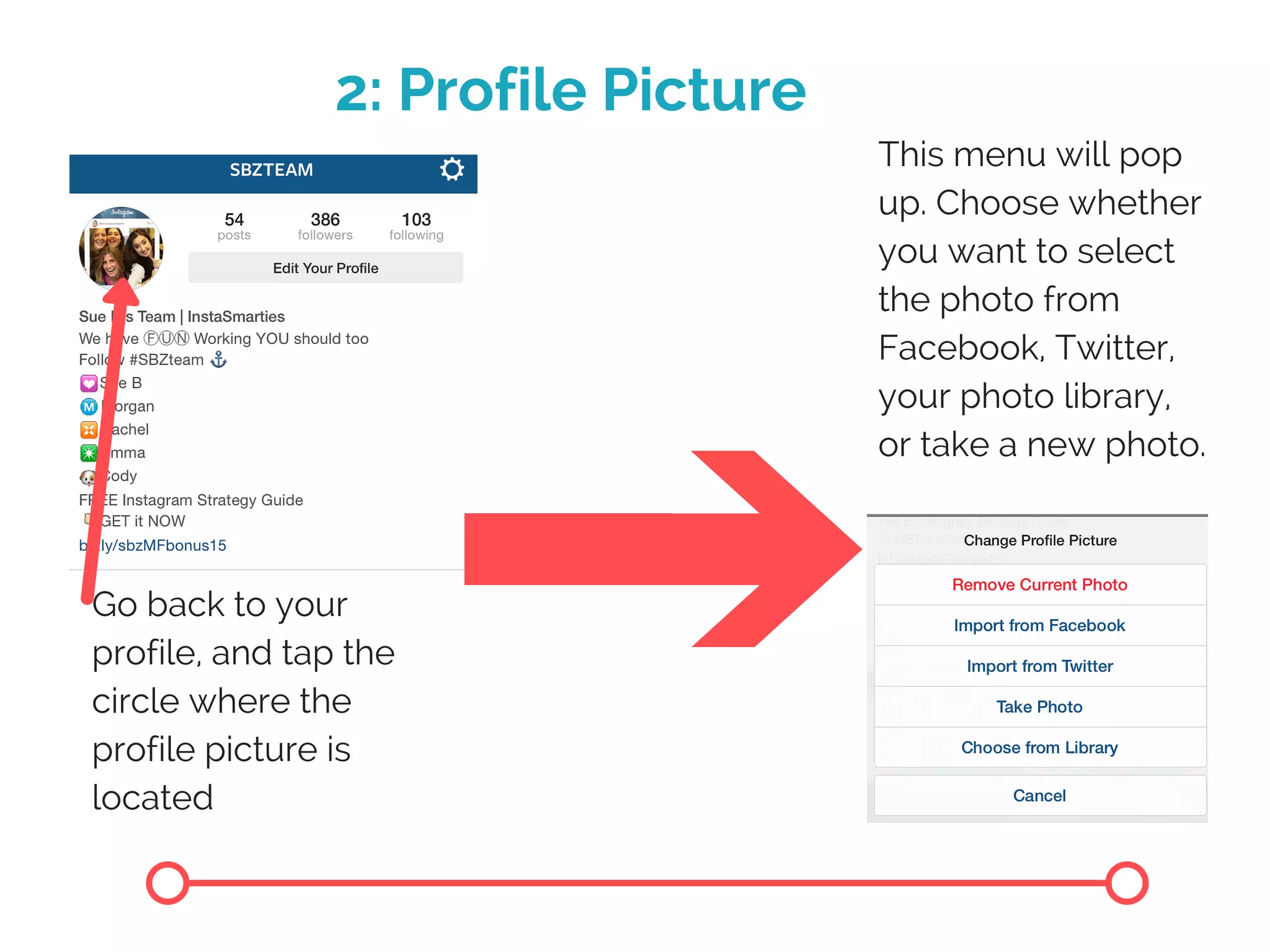
2: Profile Picture
Go back to your
profile, and tap the
circle where the
profile picture is
located
This menu will pop
up. Choose whether
you want to select
the photo from
Facebook, Twitter,
your photo library,
or take a new photo.
Profile Picture: Choose Carefully
Make sure the photo you choose
truly represents your business.
You should pick either your logo or
a high quality photo.
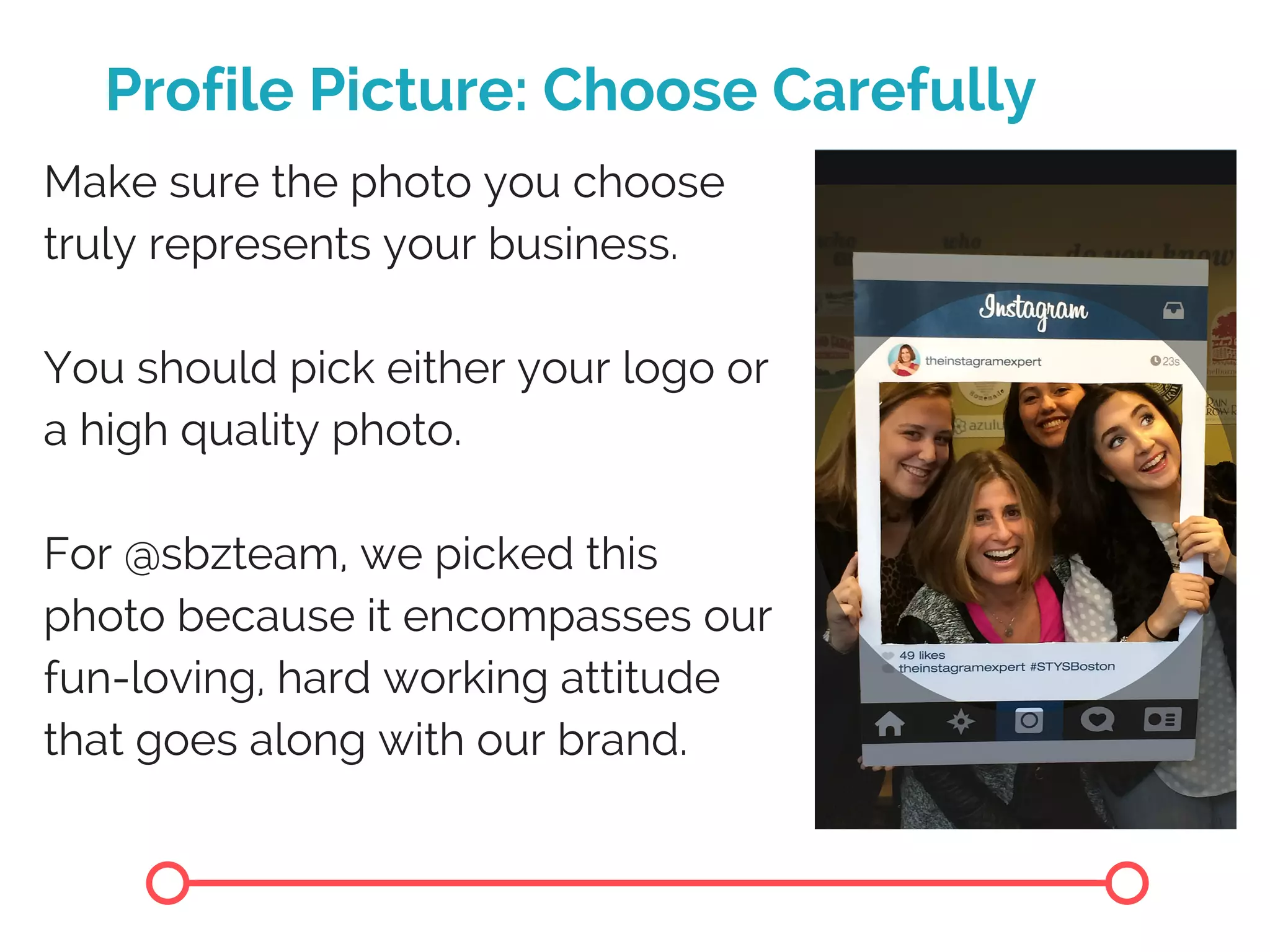
For @sbzteam, we picked this
photo because it encompasses our
fun-loving, hard working attitude
that goes along with our brand.
Profile Picture: Crop and Save
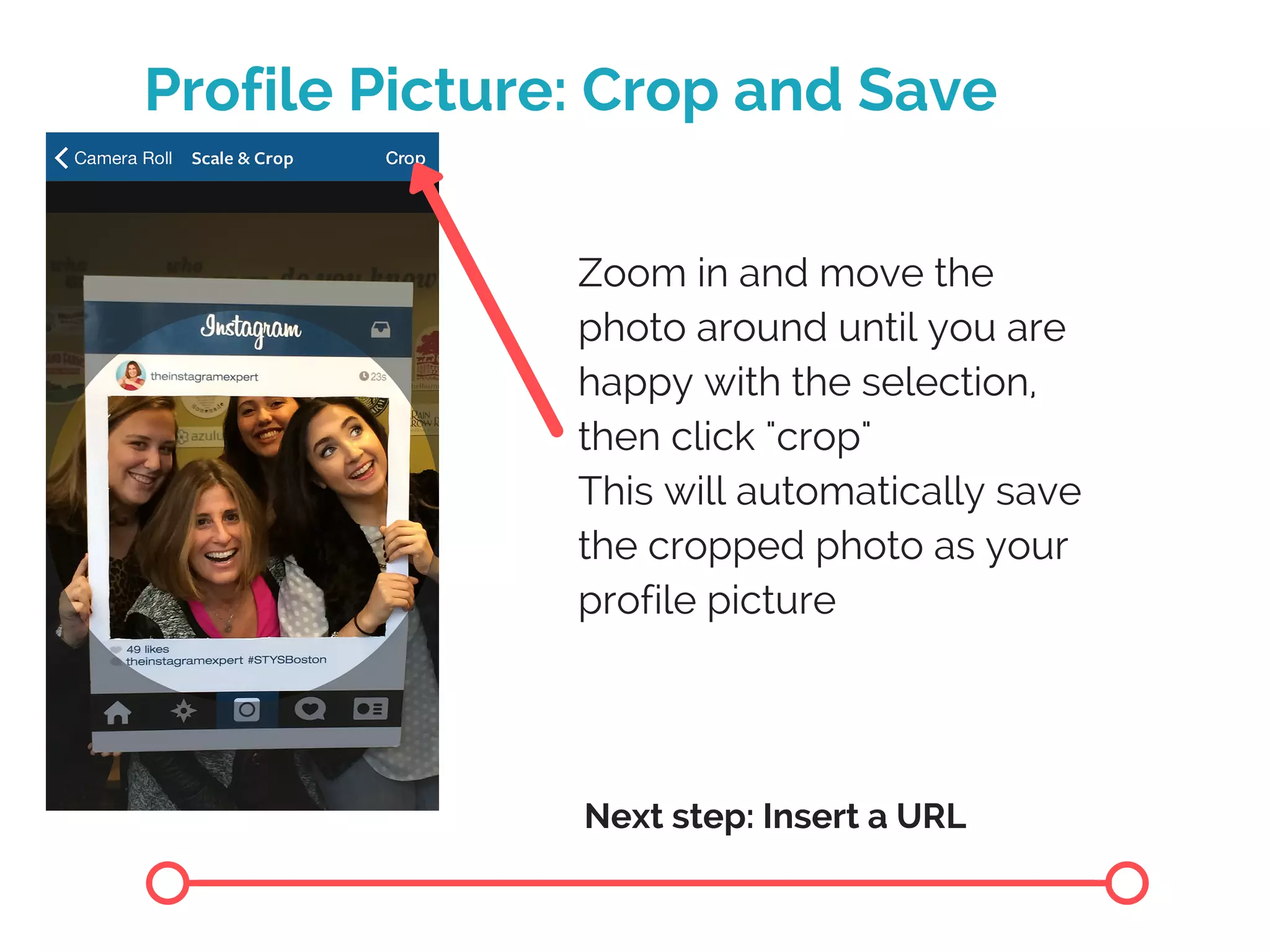
Zoom in and move the
photo around until you are
happy with the selection,
then click "crop"
This will automatically save
the cropped photo as your
profile picture
Next step: Insert a URL
3: Insert a URL
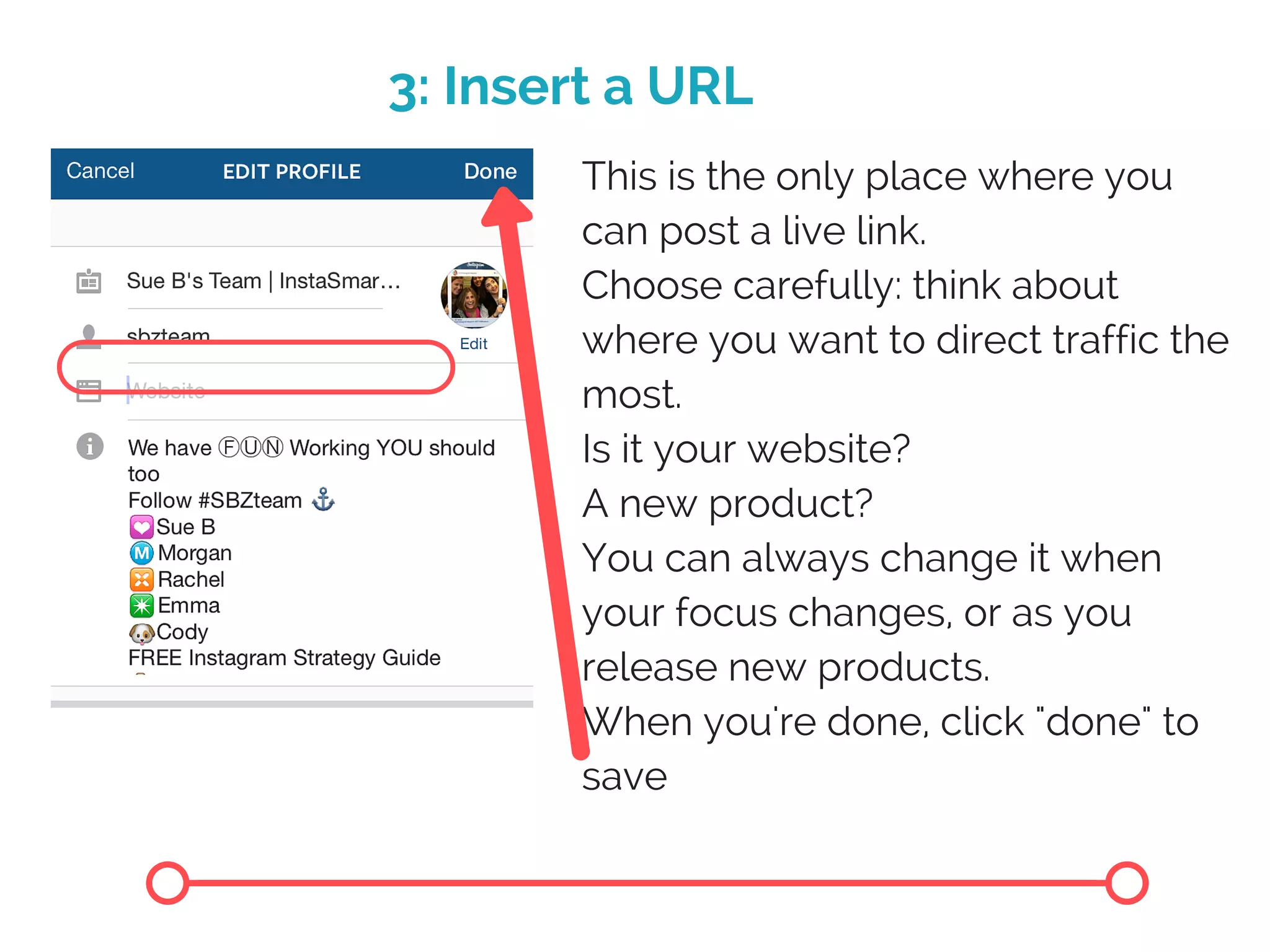
This is the only place where you
can post a live link.
Choose carefully: think about
where you want to direct traffic the
most.
Is it your website?
A new product?
You can always change it when
your focus changes, or as you
release new products.
When you're done, click "done" to
save
URL Tip: bit.ly
SBZ team tip: Use a bit.ly in this
space. This allows you to
shorten links and customize
them.
You will also be able to track
the bit.ly and see how many
people are clicking.
Click on the bit.ly logo to learn
more and create your own.
URL Tip
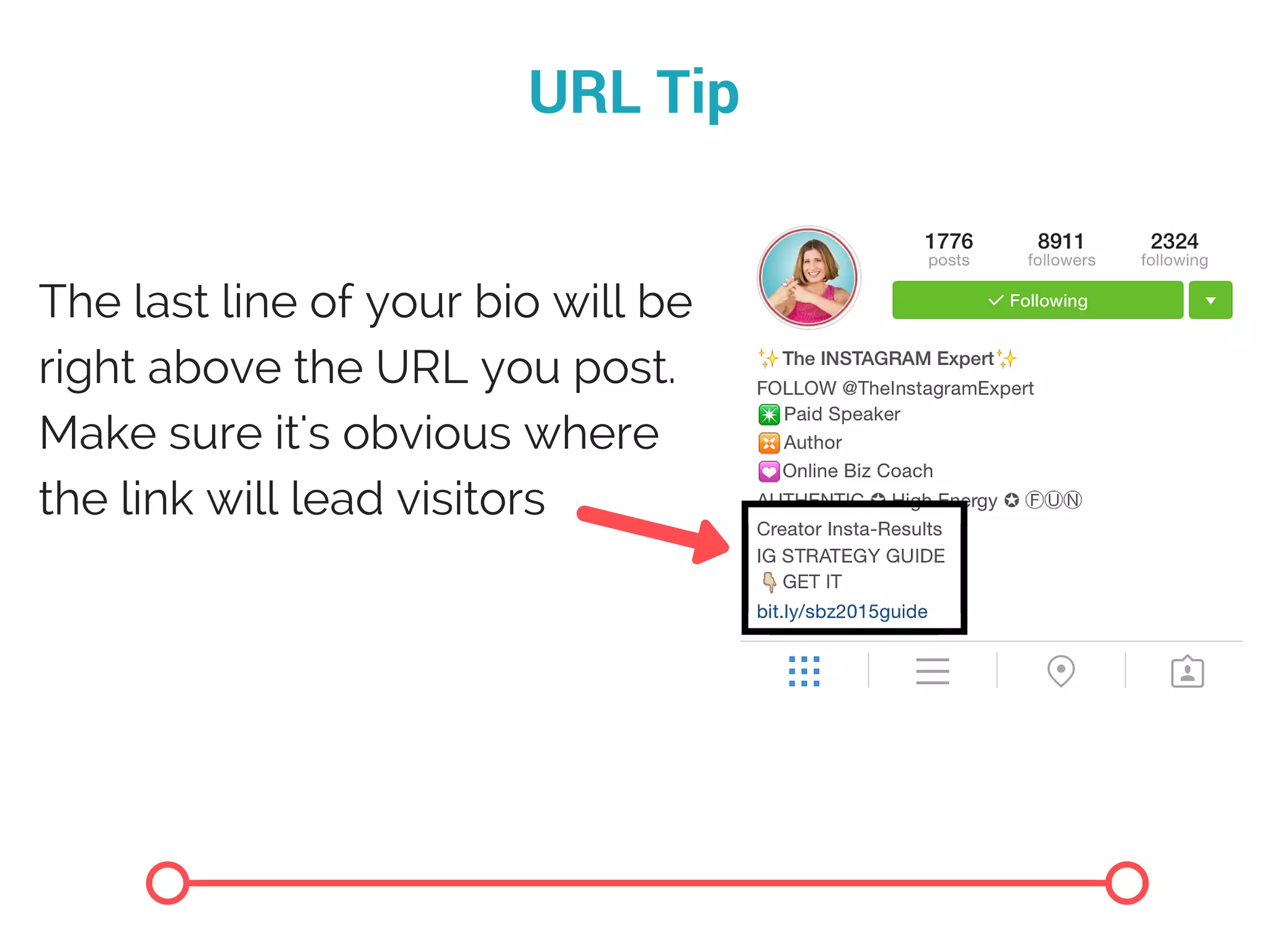
The last line of your bio will be
right above the URL you post.
Make sure it's obvious where
the link will lead visitors
BONUS TIP: Use a CTA in Posts
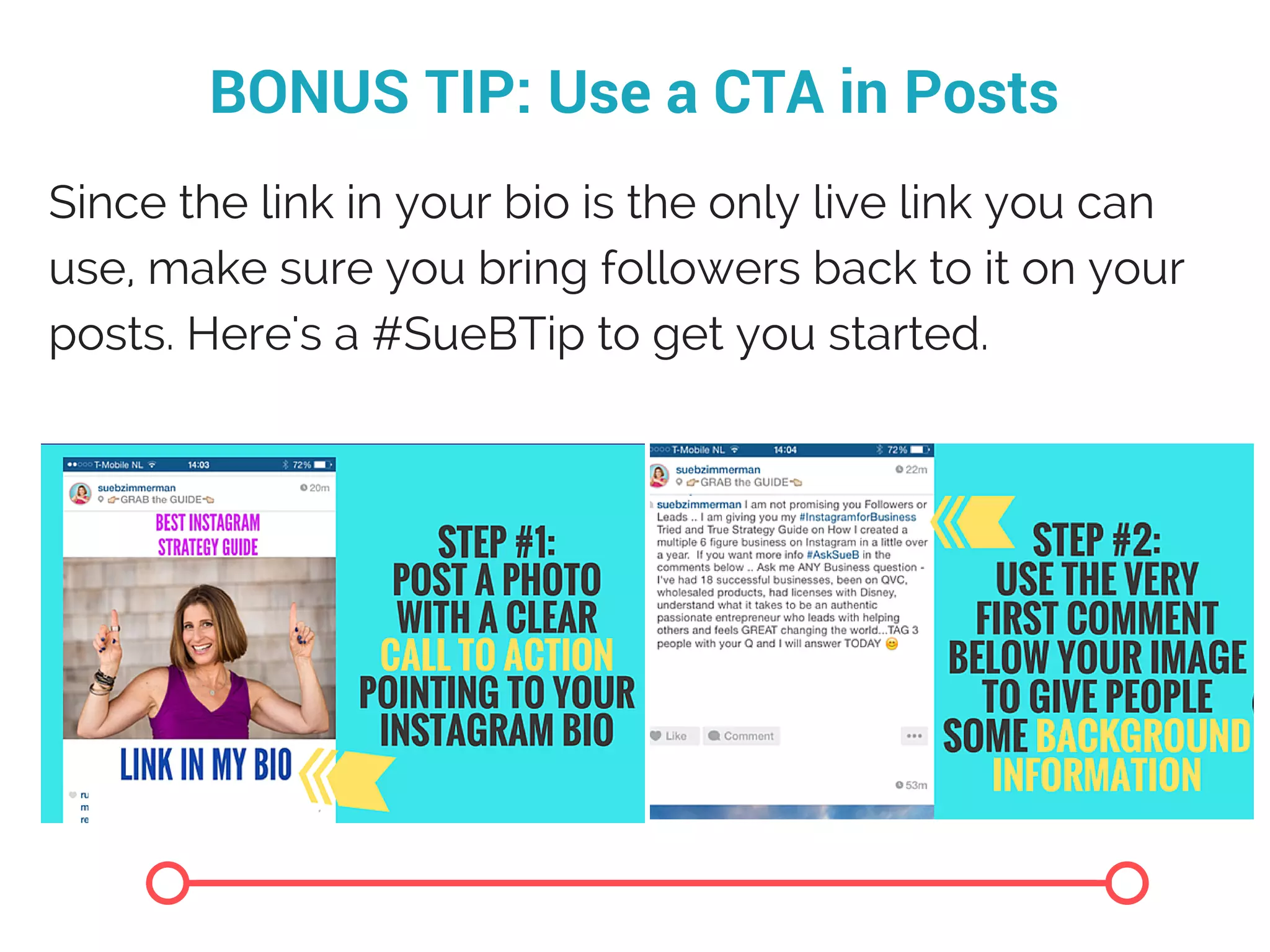
Since the link in your bio is the only live link you can
use, make sure you bring followers back to it on your
posts. Here's a #SueBTip to get you started.
( W i t h y o u r p r o f i l e , a t l e a s t ! )
N o w i t ' s t i m e t o t h i n k a b o u t a
p o s t i n g s t r a t e g y . S t a y t u n e d
f o r m o r e # i n s t a t i p s
You're done!
S e e Y o u O n l i n e !

How To Create A Stand Out Profile on Instagram

  • 2.
    W h yi s y o u r p r o f i l e i m p o r t a n t ? When people go to your account, your profile is the first thing they see. If you don't spend time crafting and polishing your profile, people won't be clear on what you do and you risk losing potential target followers.
  • 3.
    3 Features ofan Awesome Profile Descriptive Bio Profile Picture URL
  • 4.
    1: Descriptive Bio Youhave 150 characters to tell the user who you are, what you do, and what makes you special. Make sure you answer these two questions: Why are you worth following? What do you offer?
  • 5.
    Descriptive Bio: 3Ways to Stand Out Break up the text to make it easy to read Highlight the most important points Use colorful emoticons that represent your brand and make a statement Need help with emoticons? Check out our slideshare on emoticons. Click here
  • 6.
    Descriptive Bio: Howto Edit To get to your profile, click this button on your screen To edit the text in your bio, click here You'll be brought to a screen that looks like this. Tap here to add or edit text in your bio
  • 7.
    Descriptive Bio: Pasteand Save To save, just click done! Tap here to pull up the paste option, the click "paste"
  • 8.
    2: Profile Picture Goback to your profile, and tap the circle where the profile picture is located This menu will pop up. Choose whether you want to select the photo from Facebook, Twitter, your photo library, or take a new photo.
  • 9.
    Profile Picture: ChooseCarefully Make sure the photo you choose truly represents your business. You should pick either your logo or a high quality photo. For @sbzteam, we picked this photo because it encompasses our fun-loving, hard working attitude that goes along with our brand.
  • 10.
    Profile Picture: Cropand Save Zoom in and move the photo around until you are happy with the selection, then click "crop" This will automatically save the cropped photo as your profile picture Next step: Insert a URL
  • 11.
    3: Insert aURL This is the only place where you can post a live link. Choose carefully: think about where you want to direct traffic the most. Is it your website? A new product? You can always change it when your focus changes, or as you release new products. When you're done, click "done" to save
  • 12.
    URL Tip: bit.ly SBZteam tip: Use a bit.ly in this space. This allows you to shorten links and customize them. You will also be able to track the bit.ly and see how many people are clicking. Click on the bit.ly logo to learn more and create your own.
  • 13.
    URL Tip The lastline of your bio will be right above the URL you post. Make sure it's obvious where the link will lead visitors
  • 14.
    BONUS TIP: Usea CTA in Posts Since the link in your bio is the only live link you can use, make sure you bring followers back to it on your posts. Here's a #SueBTip to get you started.
  • 15.
    ( W it h y o u r p r o f i l e , a t l e a s t ! ) N o w i t ' s t i m e t o t h i n k a b o u t a p o s t i n g s t r a t e g y . S t a y t u n e d f o r m o r e # i n s t a t i p s You're done!
  • 16.
    S e eY o u O n l i n e !