+
• Part 1: How To Use Google+ For Your Local
Business

• Part 2: How To Set Up Google+ For Your Business
• Part 3: Google+ Tips and Tricks
• Places a heavy emphasis on search
engine optimization (SEO)
– Unlike other social media networks
– Google search favors sites that have more
social credibility from others
• Google “+1s” weigh heavier than Facebook “likes”
• To improve your ranking in Google search
• Because search results are now heavily influenced by
Google+
• To increase relevant traffic to your site

• To have genuine interaction with potential customers
• Social Media IS public relations for smaller businesses
–
–
–
–

Need to create more brand awareness?
Hire someone new?
Launch a new product/line?
Starting a new campaign?
• Google is integrating it’s social network
into your search results
– By adding a social layer on top of search
results

• Every single person’s search results will
be personalized based on what your social
graph recommends
• Video integration
• Google Hangouts
• Categorize/organize with Google circles
• Customized marketing

• Measure & track specific posts with Ripples
• YouTube is now fully integrated with Google+ Video
• Include this in your content marketing strategy
• Video tutorials:
– How does your product work? How does your product impact
customers’ lives?

• Weekly Wrap-up:
– Create a short video of one interesting story/completed project.

• “AMA” (Ask Me Anything) Events
– Great opportunity to build a community around your brand and to gain
exposure!
– Great for customer feed back

• Reputation Management
– Upset customer? Invite them to a Hangout and fix the situation. Then
use the session for a public relations/reputation management twist and
promote.
Basically a Skype group chat

1. Saves money on commuting/traveling for
meetings
•

Consider traveling costs + cost of lost productivity

2. Allows more genuine interaction with customers
• Live call with up to 10 people
• All shared photos and chats are stored so you can
revisit at any time
• You can easily jump into a Hangout to:
•
•
•
•
•
•
•

Go over routine meetings/updates
Meet with clients/team members
Give presentations/webinars
Talk with customers
Conduct interviews
Provide live support
Product Demos
• Party Mode
– Events created in G+ have a built-in feature called “Party Mode”
– Allows people to automatically upload photos to a single location
that allows access to all attendees.
• No more emailing and texting photos to each other!

• Photo Fun
– The “Auto Awesome” feature includes filters and editing tools
that allow you to overlay text on your pictures, create a
personalized meme or cover art
• Circles have a public and private option
– Categorize and organize
•
•
•
•
•
•

Niches
Customers
Employees: Designers/Marketing/Research/Customer Support
Pages to follow
Teams
VIPs

– Recent event? Create a circle with all the attendees so everyone
can find and follow each other. Hello Networking!
– You can customize posts for each specific circle (which only they
can see).
• A Google + feature that allows you to measure how
successful your posts are
• Can be found by clicking the drop down menu on each
post to find “Ripples”
• You can see who is sharing your content and how far the
reach of each particular post was
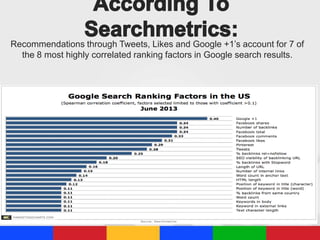
Recommendations through Tweets, Likes and Google +1’s account for 7 of
the 8 most highly correlated ranking factors in Google search results.
An app called “Google + Timing” calculates the
best time to share your posts.
1. Analyzes engagement on your posts

2. Determines the best time to post
Why you should use Google Plus for your business:
• To improve your ranking in Google search

• Because search results are now heavily influenced by Google+
• To increase relevant traffic to your site
• To have genuine interaction with potential customers
• Social Media IS public relations for smaller businesses
• To reduce travel & time expenses for meetings
• Google + is growing rapidly
• Joining gives you more online authority
Step 1: Set up a Gmail account
Step 2: Fill out your Google Profile
– Note: The data will automatically be imported to your
Google+ profile.
– You can manage your visibility settings & contact details.
– You can also allow people to contact you via your profile
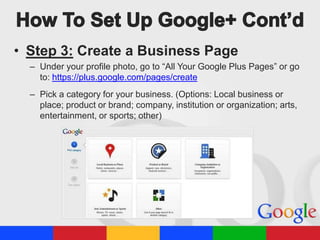
• Step 3: Create a Business Page
– Under your profile photo, go to “All Your Google Plus Pages” or go
to: https://plus.google.com/pages/create
– Pick a category for your business. (Options: Local business or
place; product or brand; company, institution or organization; arts,
entertainment, or sports; other)
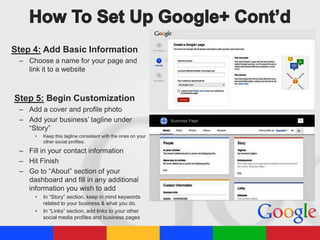
Step 4: Add Basic Information
– Choose a name for your page and
link it to a website

Step 5: Begin Customization
– Add a cover and profile photo
– Add your business’ tagline under
“Story”
•

Keep this tagline consistent with the ones on your
other social profiles.

– Fill in your contact information
– Hit Finish
– Go to “About” section of your
dashboard and fill in any additional
information you wish to add
•
•

In “Story” section, keep in mind keywords
related to your business & what you do.
In “Links” section, add links to your other
social media profiles and business pages
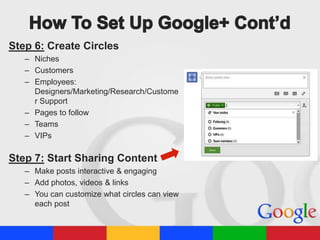
Step 6: Create Circles
– Niches
– Customers
– Employees:
Designers/Marketing/Research/Custome
r Support
– Pages to follow
– Teams
– VIPs

Step 7: Start Sharing Content
– Make posts interactive & engaging
– Add photos, videos & links
– You can customize what circles can view
each post
How To Set Up Your Business Google Plus Page:
Step 1: Set up a Gmail account
Step 2: Fill out your Google Profile
Step 3: Create a Business Page
Step 4: Add Basic Information
Step 5: Begin Customization
Step 6: Create Circles

Step 7: Start Sharing Content
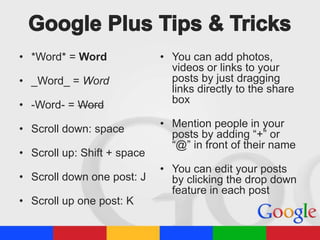
• *Word* = Word

• _Word_ = Word
• -Word- = Word
• Scroll down: space
• Scroll up: Shift + space
• Scroll down one post: J
• Scroll up one post: K

• You can add photos,
videos or links to your
posts by just dragging
links directly to the share
box
• Mention people in your
posts by adding “+” or
“@” in front of their name
• You can edit your posts
by clicking the drop down
feature in each post
Pinterest:
http://www.pinterest.com/joannchedid/
Google+:
https://plus.google.com/u/0/108461537119252334760/posts
LinkedIn:
http://www.linkedin.com/pub/joann-chedid/16/5a4/159

Google Plus Tutorial

  • 1.
  • 2.
    • Part 1:How To Use Google+ For Your Local Business • Part 2: How To Set Up Google+ For Your Business • Part 3: Google+ Tips and Tricks
  • 4.
    • Places aheavy emphasis on search engine optimization (SEO) – Unlike other social media networks – Google search favors sites that have more social credibility from others • Google “+1s” weigh heavier than Facebook “likes”
  • 5.
    • To improveyour ranking in Google search • Because search results are now heavily influenced by Google+ • To increase relevant traffic to your site • To have genuine interaction with potential customers • Social Media IS public relations for smaller businesses – – – – Need to create more brand awareness? Hire someone new? Launch a new product/line? Starting a new campaign?
  • 6.
    • Google isintegrating it’s social network into your search results – By adding a social layer on top of search results • Every single person’s search results will be personalized based on what your social graph recommends
  • 7.
    • Video integration •Google Hangouts • Categorize/organize with Google circles • Customized marketing • Measure & track specific posts with Ripples
  • 8.
    • YouTube isnow fully integrated with Google+ Video • Include this in your content marketing strategy • Video tutorials: – How does your product work? How does your product impact customers’ lives? • Weekly Wrap-up: – Create a short video of one interesting story/completed project. • “AMA” (Ask Me Anything) Events – Great opportunity to build a community around your brand and to gain exposure! – Great for customer feed back • Reputation Management – Upset customer? Invite them to a Hangout and fix the situation. Then use the session for a public relations/reputation management twist and promote.
  • 9.
    Basically a Skypegroup chat 1. Saves money on commuting/traveling for meetings • Consider traveling costs + cost of lost productivity 2. Allows more genuine interaction with customers
  • 10.
    • Live callwith up to 10 people • All shared photos and chats are stored so you can revisit at any time • You can easily jump into a Hangout to: • • • • • • • Go over routine meetings/updates Meet with clients/team members Give presentations/webinars Talk with customers Conduct interviews Provide live support Product Demos
  • 11.
    • Party Mode –Events created in G+ have a built-in feature called “Party Mode” – Allows people to automatically upload photos to a single location that allows access to all attendees. • No more emailing and texting photos to each other! • Photo Fun – The “Auto Awesome” feature includes filters and editing tools that allow you to overlay text on your pictures, create a personalized meme or cover art
  • 12.
    • Circles havea public and private option – Categorize and organize • • • • • • Niches Customers Employees: Designers/Marketing/Research/Customer Support Pages to follow Teams VIPs – Recent event? Create a circle with all the attendees so everyone can find and follow each other. Hello Networking! – You can customize posts for each specific circle (which only they can see).
  • 13.
    • A Google+ feature that allows you to measure how successful your posts are • Can be found by clicking the drop down menu on each post to find “Ripples” • You can see who is sharing your content and how far the reach of each particular post was
  • 14.
    Recommendations through Tweets,Likes and Google +1’s account for 7 of the 8 most highly correlated ranking factors in Google search results.
  • 15.
    An app called“Google + Timing” calculates the best time to share your posts. 1. Analyzes engagement on your posts 2. Determines the best time to post
  • 16.
    Why you shoulduse Google Plus for your business: • To improve your ranking in Google search • Because search results are now heavily influenced by Google+ • To increase relevant traffic to your site • To have genuine interaction with potential customers • Social Media IS public relations for smaller businesses • To reduce travel & time expenses for meetings • Google + is growing rapidly • Joining gives you more online authority
  • 18.
    Step 1: Setup a Gmail account Step 2: Fill out your Google Profile – Note: The data will automatically be imported to your Google+ profile. – You can manage your visibility settings & contact details. – You can also allow people to contact you via your profile
  • 19.
    • Step 3:Create a Business Page – Under your profile photo, go to “All Your Google Plus Pages” or go to: https://plus.google.com/pages/create – Pick a category for your business. (Options: Local business or place; product or brand; company, institution or organization; arts, entertainment, or sports; other)
  • 20.
    Step 4: AddBasic Information – Choose a name for your page and link it to a website Step 5: Begin Customization – Add a cover and profile photo – Add your business’ tagline under “Story” • Keep this tagline consistent with the ones on your other social profiles. – Fill in your contact information – Hit Finish – Go to “About” section of your dashboard and fill in any additional information you wish to add • • In “Story” section, keep in mind keywords related to your business & what you do. In “Links” section, add links to your other social media profiles and business pages
  • 21.
    Step 6: CreateCircles – Niches – Customers – Employees: Designers/Marketing/Research/Custome r Support – Pages to follow – Teams – VIPs Step 7: Start Sharing Content – Make posts interactive & engaging – Add photos, videos & links – You can customize what circles can view each post
  • 22.
    How To SetUp Your Business Google Plus Page: Step 1: Set up a Gmail account Step 2: Fill out your Google Profile Step 3: Create a Business Page Step 4: Add Basic Information Step 5: Begin Customization Step 6: Create Circles Step 7: Start Sharing Content
  • 24.
    • *Word* =Word • _Word_ = Word • -Word- = Word • Scroll down: space • Scroll up: Shift + space • Scroll down one post: J • Scroll up one post: K • You can add photos, videos or links to your posts by just dragging links directly to the share box • Mention people in your posts by adding “+” or “@” in front of their name • You can edit your posts by clicking the drop down feature in each post
  • 25.