EverythingWebmastersNeed To KnowAbout++Powered by: http://www.SocialMotus.com
I’ll help you discover:How to get itHow to use Google + to market your business and help with relationship buildingHow to optimize your Google + profile for the search enginesAdvanced tips & tricks Powered by: http://www.SocialMotus.com
Howdoyoucreatean accountforyourbusiness?Powered by: http://www.SocialMotus.com
Before creating a Google+ account, you need to be aware that:Google has banned unauthorized business profiles for now, instead recommending you use a “real person who is willing to represent your organization on Google+ using a real profile as him-or-herself”. Powered by: http://www.SocialMotus.com
Step 1: Choose who you think can best represent your company on this social network i.e. CEO, Owner, Marketing Spokesman. Powered by: http://www.SocialMotus.com
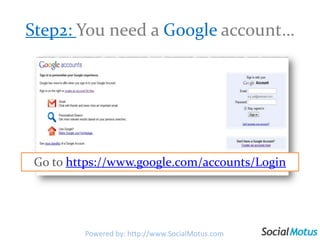
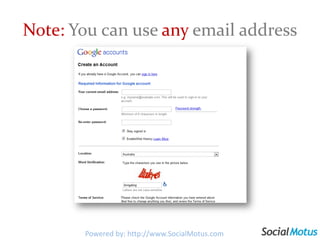
Step2: You need a Google account…   Go to https://www.google.com/accounts/LoginPowered by: http://www.SocialMotus.com
Note: You can use any email addressPowered by: http://www.SocialMotus.com
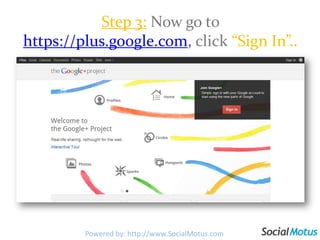
Step 3:Now go to https://plus.google.com, click“Sign In”.. Powered by: http://www.SocialMotus.comPowered by: http://www.SocialMotus.com
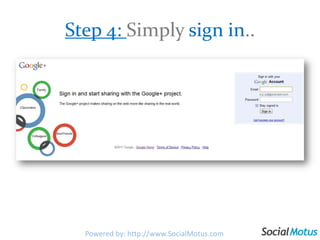
Step 4: Simply sign in..
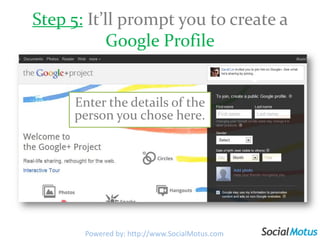
Step 5: It’ll prompt you to create a Google ProfileEnter the details of the person you chose here.Powered by: http://www.SocialMotus.com
CreateYourProfilePowered by: http://www.SocialMotus.com
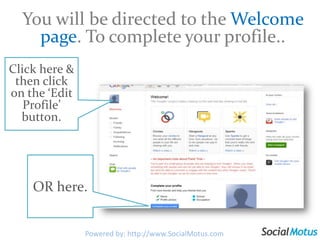
You will be directed to the Welcome page. To complete your profile..Click here & then click on the ‘Edit Profile’ button.OR here.Powered by: http://www.SocialMotus.com
Googlehas made it clear that:“Once these pages/profiles arrive they will probably operate in a way that’s pretty similar to Facebook Pages, but with some Google SEO benefits. They will be indexed, “followable” and individual updates or posts can be +1′d — much or all of which will be fed back into search results and rankings.”Powered by: http://www.SocialMotus.com
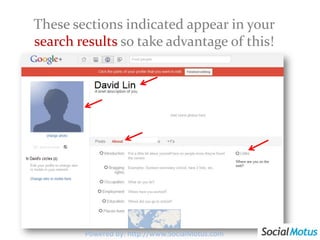
These sections indicated appear in your search results so take advantage of this!Powered by: http://www.SocialMotus.com
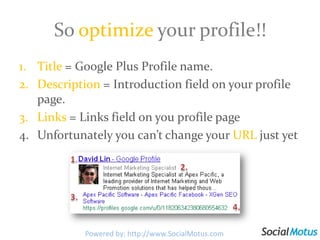
So optimize your profile!!Title = Google Plus Profile name.Description = Introduction field on your profile page.Links = Links field on you profile pageUnfortunately you can’t change your URL just yet1.2.3.4.Powered by: http://www.SocialMotus.com
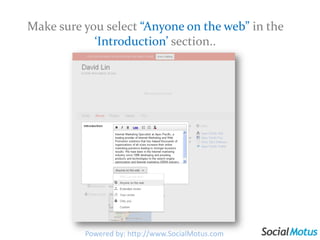
Make sure you select “Anyone on the web” in the ‘Introduction’ section..Powered by: http://www.SocialMotus.com
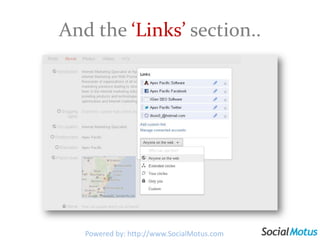
And the ‘Links’ section..Powered by: http://www.SocialMotus.com
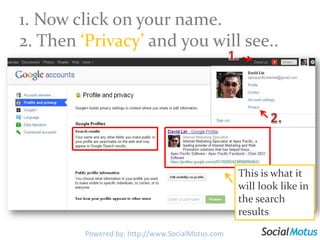
1. Now click on your name.2. Then ‘Privacy’ and you will see..1.2.This is what it will look like in the search resultsPowered by: http://www.SocialMotus.com
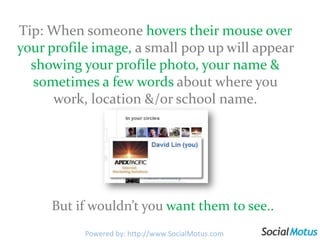
Tip: When someone hovers their mouse over your profile image, a small pop up will appear showing your profile photo, your name & sometimes a few words about where you work, location &/or school name.But if wouldn’t you want them to see..Powered by: http://www.SocialMotus.com
This when they hover their mouse over your image?Here’s a simple trick to do this for your profile. Powered by: http://www.SocialMotus.com
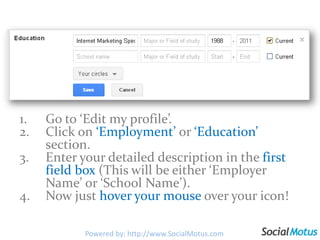
Go to ‘Edit my profile’.Click on ‘Employment’ or ‘Education’ section.Enter your detailed description in the first field box (This will be either ‘Employer Name’ or ‘School Name’).Now just hover your mouse over your icon!Powered by: http://www.SocialMotus.com
And while you can’t change your permanent Google + URL, you can shortenitso it is easier to use to promote your Google + account to existing & potential customers by..Powered by: http://www.SocialMotus.com
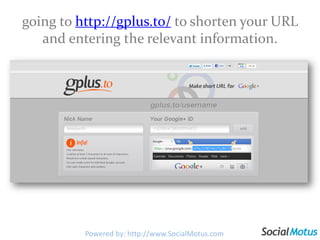
going to http://gplus.to/ to shorten your URL and entering the relevant information.Powered by: http://www.SocialMotus.com
Circles&StreamsCircles help you organize people in groups so you can share content relevant to that particular circle only. Streams show the content shared by people in different Circles.Powered by: http://www.SocialMotus.com
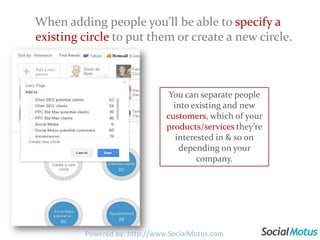
When adding people you’ll be able to specify a existing circle to put them or create a new circle. You can separate people into existing and new customers, which of your products/services they’re interested in & so on depending on your company.Powered by: http://www.SocialMotus.com
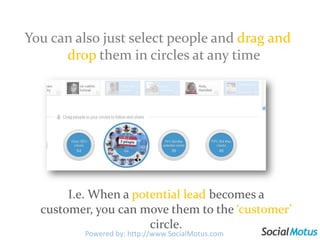
You can also just select people and drag and dropthem in circles at any timeI.e. When a potential lead becomes a customer, you can move them to the ‘customer’ circle.Powered by: http://www.SocialMotus.com
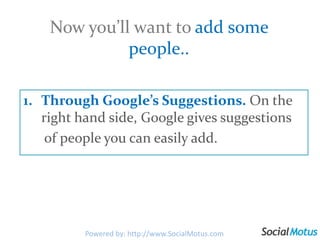
Now you’ll want to add some people..Through Google’s Suggestions. On the right hand side, Google gives suggestions       of people you can easily add.Powered by: http://www.SocialMotus.com
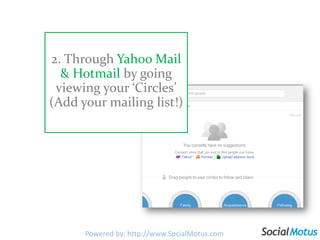
2. Through Yahoo Mail & Hotmail by going viewing your ‘Circles’ (Add your mailing list!)Powered by: http://www.SocialMotus.com
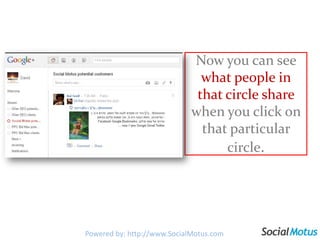
Now you can see what people in that circle share when you click on that particular circle.Powered by: http://www.SocialMotus.com
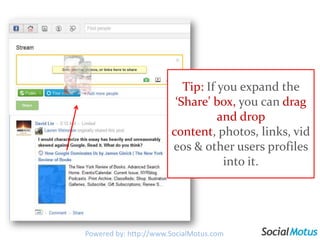
Tip: If you expand the ‘Share’ box, you can drag and drop content, photos, links, videos & other users profiles into it.Powered by: http://www.SocialMotus.com
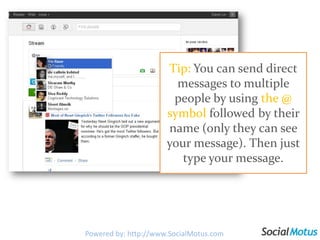
Tip: You can send direct messages to multiple people by using the @ symbol followed by their name (only they can see your message). Then just type your message.Powered by: http://www.SocialMotus.com
But Circles aren’t just for sorting contacts, you can use them as a bookmarking device!Powered by: http://www.SocialMotus.com
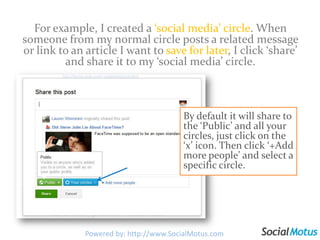
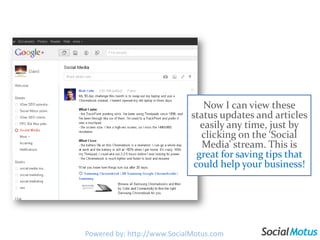
For example, I created a ‘social media’ circle. When someone from my normal circle posts a related message or link to an article I want to save for later, I click ‘share’ and share it to my ‘social media’ circle. By default it will share to the ‘Public’ and all your circles, just click on the ‘x’ icon. Then click ‘+Add more people’ and select a specific circle.Powered by: http://www.SocialMotus.com
Now I can view these status updates and articles easily any time, just by clicking on the ‘Social Media’ stream. This is great for saving tips that could help your business!Powered by: http://www.SocialMotus.com
HangoutsLet’s up to 10 users video and voice chat with each otherPowered by: http://www.SocialMotus.com
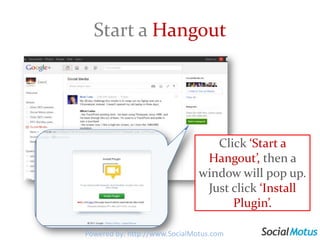
Start a HangoutClick ‘Start a Hangout’, then a window will pop up. Just click ‘Install Plugin’.Powered by: http://www.SocialMotus.com
Now just ‘Add circles or people’ you want to hangout with.Powered by: http://www.SocialMotus.com
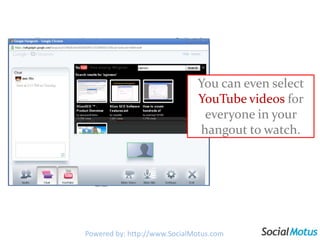
You can even select YouTube videos for everyone in your hangout to watch.Powered by: http://www.SocialMotus.com
Hangouts have great potential for businesses.. Conduct workshops and seminars.
 Communicate exclusive promotions to priority .customers Reveal to industry bloggers & expertsupcoming products or services. Engage in product demonstrations and training with   new and potential customers. And so on..Powered by: http://www.SocialMotus.com
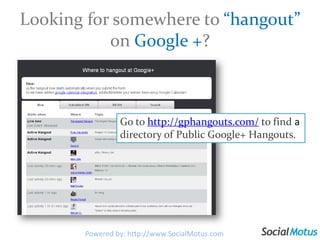
Looking for somewhere to “hangout” on Google +? Go to http://gphangouts.com/to find a directory of Public Google+ Hangouts.Powered by: http://www.SocialMotus.com
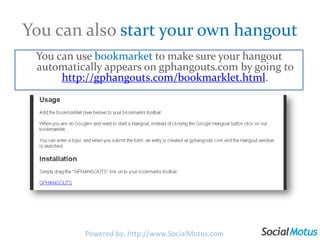
You can also start your own hangoutYou can use bookmarket to make sure your hangout automatically appears on gphangouts.com by going to http://gphangouts.com/bookmarklet.html.Powered by: http://www.SocialMotus.com
SparksReceive content from around the internet on any topic so you can easily share this with the circles you choose.Powered by: http://www.SocialMotus.com
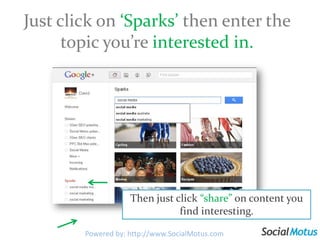
Just click on ‘Sparks’ then enter the topic you’re interested in.Then just click “share” on content you find interesting.Powered by: http://www.SocialMotus.com
This allows for targeted marketing opportunities for businessesYou can suggest information you think is valuable to a certain circle rather than posting it to everyone.  For example, I could have a circle for ‘SEO customers’, ‘Email marketing customers’ and so on. Then if I find something related to email marketing, I can post it only to my email marketing customers! Powered by: http://www.SocialMotus.com
PhotosPowered by: http://www.SocialMotus.com
When you click on a photo, you will see this page.A useful feature is the ability to see the photo while commenting or reviewing comments.Powered by: http://www.SocialMotus.comPowered by: http://www.SocialMotus.com
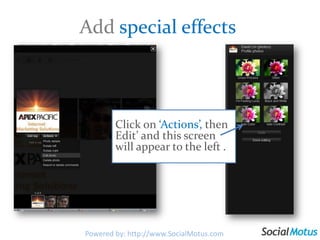
Add special effectsClick on ‘Actions’, then Edit’ and this screen will appear to the left .
You can instantly upload photos from your phone.Add photos from company events and seminars as they happen to help customers feel more connected to your business.Powered by: http://www.SocialMotus.com
SecuritySettingsPowered by: http://www.SocialMotus.com
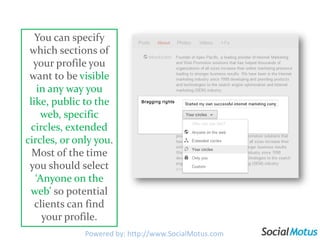
You can specify which sections of your profile you want to be visible in any way you like, public to the web, specific circles, extended circles, or only you. Most of the time you should select ‘Anyone on the web’ so potential clients can find your profile.Powered by: http://www.SocialMotus.com
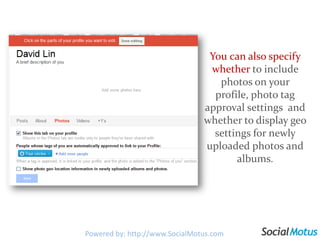
Youcan also specify whether to include photos on your profile, photo tag approval settings and whether to display geo settings for newly uploaded photos and albums.Powered by: http://www.SocialMotus.comPowered by: http://www.SocialMotus.com
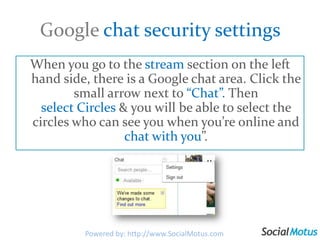
Google chat security settings When you go to the streamsection on the left hand side, there is a Google chat area. Click the small arrow next to “Chat”. Then select Circles & you will be able to select the circles who can see you when you’re online and chat with you”.Powered by: http://www.SocialMotus.com
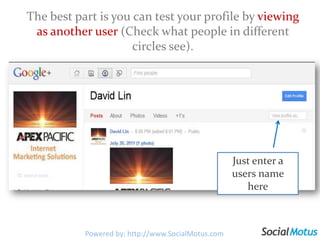
The best part is you can test your profile by viewing as another user (Check what people in different circles see).Just enter a users name herePowered by: http://www.SocialMotus.com
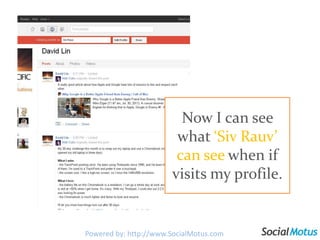
Now I can see what ‘Siv Rauv’ can see when if visits my profile.Powered by: http://www.SocialMotus.com
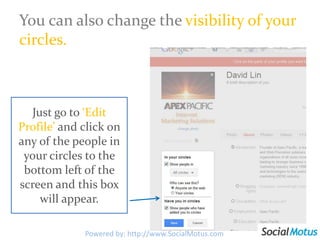
You can also change the visibility of your circles.Just go to ‘Edit Profile’ and click on any of the people in your circles to the bottom left of the screen and this box will appear.Powered by: http://www.SocialMotus.com
NotificationsGoogle+  creates notifications when events occur that involve you, such as when you're tagged in a photo or are added to a circle. Powered by: http://www.SocialMotus.com
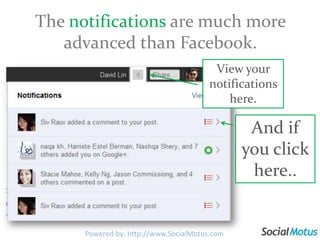
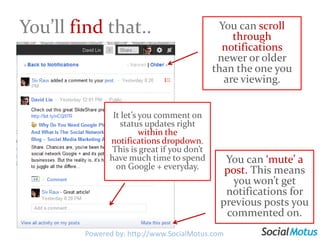
The notificationsare much more advanced than Facebook.View your notifications here.And if you click here..Powered by: http://www.SocialMotus.comPowered by: http://www.SocialMotus.com
You’llfind that..You can scroll through notifications newer or older than the one you are viewing.It let’s you comment on status updates right within the notifications dropdown. This is great if you don’t have much time to spend on Google + everyday.You can ‘mute’ a post. This means you won’t get notifications for previous posts you commented on.Powered by: http://www.SocialMotus.com
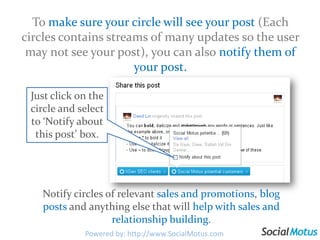
To make sure your circle will see your post (Each circles contains streams of many updates so the user may not see your post), you can also notify them of your post.Just click on the circle and select to ‘Notify about this post’ box.Notify circles of relevant sales and promotions, blog posts and anything else that will help with sales and relationship building.Powered by: http://www.SocialMotus.com
Advanced TipsPowered by: http://www.SocialMotus.com
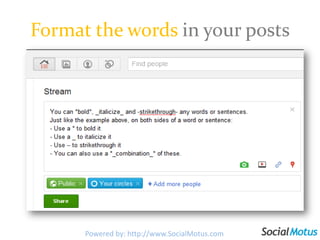
Format the words in your postsPowered by: http://www.SocialMotus.comPowered by: http://www.SocialMotus.comPowered by: http://www.SocialMotus.com
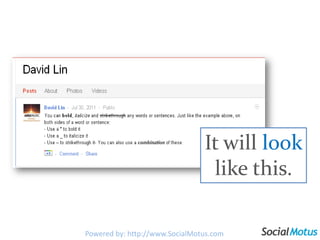
It will look like this.
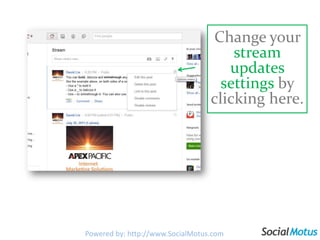
Change your stream updates settings by clicking here.
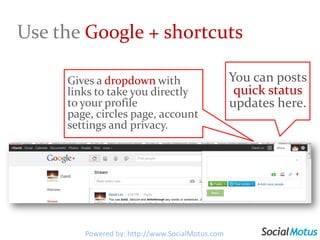
Use the Google + shortcutsYou can posts quick status updates here. Gives a dropdown with links to take you directly to your profile page, circles page, account settings and privacy.Powered by: http://www.SocialMotus.com
Some greatChromeextensionsPowered by: http://www.SocialMotus.com
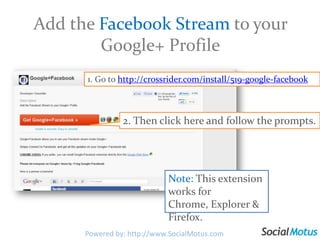
Add the Facebook Stream to your Google+ Profile1. Go to http://crossrider.com/install/519-google-facebook2. Then click here and follow the prompts.Note: This extension works for Chrome, Explorer & Firefox.Powered by: http://www.SocialMotus.comPowered by: http://www.SocialMotus.com
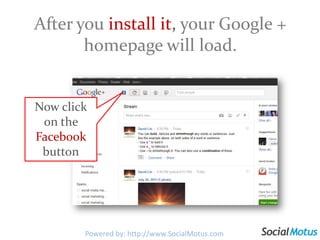
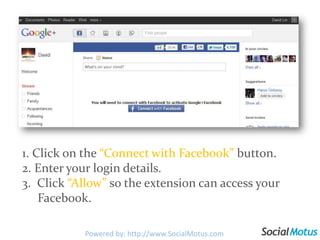
After you install it, your Google + homepage will load.Now click on the Facebook button
1. Click on the “Connect with Facebook” button. 2. Enter your login details.3.  Click “Allow” so the extension can access your     Facebook.Powered by: http://www.SocialMotus.com
And now you can see & post to your FacebookinGoogle!Powered by: http://www.SocialMotus.com
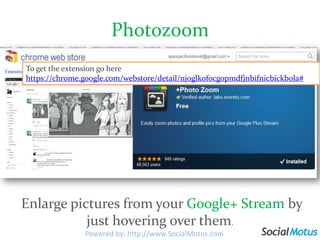
PhotozoomTo get the extension go here https://chrome.google.com/webstore/detail/njoglkofocgopmdfjnbifnicbickbola# Enlarge pictures from your Google+ Stream by just hovering over them.Powered by: http://www.SocialMotus.com
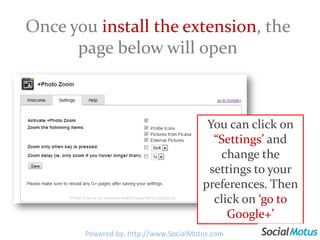
Once you install the extension, the  page below will openYou can click on “Settings’ and change the settings to your preferences. Then click on ‘go to Google+’Powered by: http://www.SocialMotus.com
Then just hover over an image to see a larger view of it.Powered by: http://www.SocialMotus.com
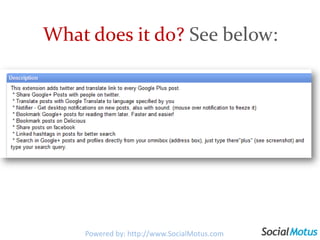
Get Helper for Google+By going to: https://chrome.google.com/webstore/detail/hehfpbphnjppmganambkgdnkfliaipgdPowered by: http://www.SocialMotus.com
What does it do? See below:Powered by: http://www.SocialMotus.com
To keep up-to-date with the latest news & tips on Google + & other social media sites, visit http://socialmotus.com/blogPowered by: http://www.SocialMotus.com
And please connect with us on:http://www.facebook.com/socialmotushttp://twitter.com/socialmotus http://gplus.to/socialmotusPowered by: http://www.SocialMotus.com
Now if youwant to Manage, Publish, Monitor, Engage and Measure all your social media channels from one platform..Powered by: http://www.SocialMotus.com

Everything You Need To Know About Google Plus

  • 1.
  • 2.
    I’ll help youdiscover:How to get itHow to use Google + to market your business and help with relationship buildingHow to optimize your Google + profile for the search enginesAdvanced tips & tricks Powered by: http://www.SocialMotus.com
  • 3.
  • 4.
    Before creating aGoogle+ account, you need to be aware that:Google has banned unauthorized business profiles for now, instead recommending you use a “real person who is willing to represent your organization on Google+ using a real profile as him-or-herself”. Powered by: http://www.SocialMotus.com
  • 5.
    Step 1: Choosewho you think can best represent your company on this social network i.e. CEO, Owner, Marketing Spokesman. Powered by: http://www.SocialMotus.com
  • 6.
    Step2: You needa Google account… Go to https://www.google.com/accounts/LoginPowered by: http://www.SocialMotus.com
  • 7.
    Note: You canuse any email addressPowered by: http://www.SocialMotus.com
  • 8.
    Step 3:Now goto https://plus.google.com, click“Sign In”.. Powered by: http://www.SocialMotus.comPowered by: http://www.SocialMotus.com
  • 9.
  • 10.
    Step 5: It’llprompt you to create a Google ProfileEnter the details of the person you chose here.Powered by: http://www.SocialMotus.com
  • 11.
  • 12.
    You will bedirected to the Welcome page. To complete your profile..Click here & then click on the ‘Edit Profile’ button.OR here.Powered by: http://www.SocialMotus.com
  • 13.
    Googlehas made itclear that:“Once these pages/profiles arrive they will probably operate in a way that’s pretty similar to Facebook Pages, but with some Google SEO benefits. They will be indexed, “followable” and individual updates or posts can be +1′d — much or all of which will be fed back into search results and rankings.”Powered by: http://www.SocialMotus.com
  • 14.
    These sections indicatedappear in your search results so take advantage of this!Powered by: http://www.SocialMotus.com
  • 15.
    So optimize yourprofile!!Title = Google Plus Profile name.Description = Introduction field on your profile page.Links = Links field on you profile pageUnfortunately you can’t change your URL just yet1.2.3.4.Powered by: http://www.SocialMotus.com
  • 16.
    Make sure youselect “Anyone on the web” in the ‘Introduction’ section..Powered by: http://www.SocialMotus.com
  • 17.
    And the ‘Links’section..Powered by: http://www.SocialMotus.com
  • 18.
    1. Now clickon your name.2. Then ‘Privacy’ and you will see..1.2.This is what it will look like in the search resultsPowered by: http://www.SocialMotus.com
  • 19.
    Tip: When someonehovers their mouse over your profile image, a small pop up will appear showing your profile photo, your name & sometimes a few words about where you work, location &/or school name.But if wouldn’t you want them to see..Powered by: http://www.SocialMotus.com

  • 20.
    This when theyhover their mouse over your image?Here’s a simple trick to do this for your profile. Powered by: http://www.SocialMotus.com
  • 21.
    Go to ‘Editmy profile’.Click on ‘Employment’ or ‘Education’ section.Enter your detailed description in the first field box (This will be either ‘Employer Name’ or ‘School Name’).Now just hover your mouse over your icon!Powered by: http://www.SocialMotus.com
  • 22.
    And while youcan’t change your permanent Google + URL, you can shortenitso it is easier to use to promote your Google + account to existing & potential customers by..Powered by: http://www.SocialMotus.com
  • 23.
    going to http://gplus.to/to shorten your URL and entering the relevant information.Powered by: http://www.SocialMotus.com
  • 24.
    Circles&StreamsCircles help youorganize people in groups so you can share content relevant to that particular circle only. Streams show the content shared by people in different Circles.Powered by: http://www.SocialMotus.com
  • 25.
    When adding peopleyou’ll be able to specify a existing circle to put them or create a new circle. You can separate people into existing and new customers, which of your products/services they’re interested in & so on depending on your company.Powered by: http://www.SocialMotus.com
  • 26.
    You can alsojust select people and drag and dropthem in circles at any timeI.e. When a potential lead becomes a customer, you can move them to the ‘customer’ circle.Powered by: http://www.SocialMotus.com
  • 27.
    Now you’ll wantto add some people..Through Google’s Suggestions. On the right hand side, Google gives suggestions of people you can easily add.Powered by: http://www.SocialMotus.com

  • 28.
    2. Through YahooMail & Hotmail by going viewing your ‘Circles’ (Add your mailing list!)Powered by: http://www.SocialMotus.com
  • 29.
    Now you cansee what people in that circle share when you click on that particular circle.Powered by: http://www.SocialMotus.com
  • 30.
    Tip: If youexpand the ‘Share’ box, you can drag and drop content, photos, links, videos & other users profiles into it.Powered by: http://www.SocialMotus.com
  • 31.
    Tip: You cansend direct messages to multiple people by using the @ symbol followed by their name (only they can see your message). Then just type your message.Powered by: http://www.SocialMotus.com
  • 32.
    But Circles aren’tjust for sorting contacts, you can use them as a bookmarking device!Powered by: http://www.SocialMotus.com
  • 33.
    For example, Icreated a ‘social media’ circle. When someone from my normal circle posts a related message or link to an article I want to save for later, I click ‘share’ and share it to my ‘social media’ circle. By default it will share to the ‘Public’ and all your circles, just click on the ‘x’ icon. Then click ‘+Add more people’ and select a specific circle.Powered by: http://www.SocialMotus.com
  • 34.
    Now I canview these status updates and articles easily any time, just by clicking on the ‘Social Media’ stream. This is great for saving tips that could help your business!Powered by: http://www.SocialMotus.com
  • 35.
    HangoutsLet’s up to10 users video and voice chat with each otherPowered by: http://www.SocialMotus.com
  • 36.
    Start a HangoutClick‘Start a Hangout’, then a window will pop up. Just click ‘Install Plugin’.Powered by: http://www.SocialMotus.com
  • 37.
    Now just ‘Addcircles or people’ you want to hangout with.Powered by: http://www.SocialMotus.com
  • 38.
    You can evenselect YouTube videos for everyone in your hangout to watch.Powered by: http://www.SocialMotus.com
  • 39.
    Hangouts have greatpotential for businesses.. Conduct workshops and seminars.
  • 40.
    Communicate exclusivepromotions to priority .customers Reveal to industry bloggers & expertsupcoming products or services. Engage in product demonstrations and training with new and potential customers. And so on..Powered by: http://www.SocialMotus.com
  • 41.
    Looking for somewhereto “hangout” on Google +? Go to http://gphangouts.com/to find a directory of Public Google+ Hangouts.Powered by: http://www.SocialMotus.com
  • 42.
    You can alsostart your own hangoutYou can use bookmarket to make sure your hangout automatically appears on gphangouts.com by going to http://gphangouts.com/bookmarklet.html.Powered by: http://www.SocialMotus.com
  • 43.
    SparksReceive content fromaround the internet on any topic so you can easily share this with the circles you choose.Powered by: http://www.SocialMotus.com
  • 44.
    Just click on‘Sparks’ then enter the topic you’re interested in.Then just click “share” on content you find interesting.Powered by: http://www.SocialMotus.com
  • 45.
    This allows fortargeted marketing opportunities for businessesYou can suggest information you think is valuable to a certain circle rather than posting it to everyone. For example, I could have a circle for ‘SEO customers’, ‘Email marketing customers’ and so on. Then if I find something related to email marketing, I can post it only to my email marketing customers! Powered by: http://www.SocialMotus.com
  • 46.
  • 47.
    When you clickon a photo, you will see this page.A useful feature is the ability to see the photo while commenting or reviewing comments.Powered by: http://www.SocialMotus.comPowered by: http://www.SocialMotus.com
  • 48.
    Add special effectsClickon ‘Actions’, then Edit’ and this screen will appear to the left .
  • 49.
    You can instantlyupload photos from your phone.Add photos from company events and seminars as they happen to help customers feel more connected to your business.Powered by: http://www.SocialMotus.com
  • 50.
  • 51.
    You can specifywhich sections of your profile you want to be visible in any way you like, public to the web, specific circles, extended circles, or only you. Most of the time you should select ‘Anyone on the web’ so potential clients can find your profile.Powered by: http://www.SocialMotus.com
  • 52.
    Youcan also specifywhether to include photos on your profile, photo tag approval settings and whether to display geo settings for newly uploaded photos and albums.Powered by: http://www.SocialMotus.comPowered by: http://www.SocialMotus.com
  • 53.
    Google chat securitysettings When you go to the streamsection on the left hand side, there is a Google chat area. Click the small arrow next to “Chat”. Then select Circles & you will be able to select the circles who can see you when you’re online and chat with you”.Powered by: http://www.SocialMotus.com
  • 54.
    The best partis you can test your profile by viewing as another user (Check what people in different circles see).Just enter a users name herePowered by: http://www.SocialMotus.com
  • 55.
    Now I cansee what ‘Siv Rauv’ can see when if visits my profile.Powered by: http://www.SocialMotus.com
  • 56.
    You can alsochange the visibility of your circles.Just go to ‘Edit Profile’ and click on any of the people in your circles to the bottom left of the screen and this box will appear.Powered by: http://www.SocialMotus.com
  • 57.
    NotificationsGoogle+  creates notifications whenevents occur that involve you, such as when you're tagged in a photo or are added to a circle. Powered by: http://www.SocialMotus.com
  • 58.
    The notificationsare muchmore advanced than Facebook.View your notifications here.And if you click here..Powered by: http://www.SocialMotus.comPowered by: http://www.SocialMotus.com
  • 59.
    You’llfind that..You canscroll through notifications newer or older than the one you are viewing.It let’s you comment on status updates right within the notifications dropdown. This is great if you don’t have much time to spend on Google + everyday.You can ‘mute’ a post. This means you won’t get notifications for previous posts you commented on.Powered by: http://www.SocialMotus.com
  • 60.
    To make sureyour circle will see your post (Each circles contains streams of many updates so the user may not see your post), you can also notify them of your post.Just click on the circle and select to ‘Notify about this post’ box.Notify circles of relevant sales and promotions, blog posts and anything else that will help with sales and relationship building.Powered by: http://www.SocialMotus.com
  • 61.
    Advanced TipsPowered by:http://www.SocialMotus.com
  • 62.
    Format the wordsin your postsPowered by: http://www.SocialMotus.comPowered by: http://www.SocialMotus.comPowered by: http://www.SocialMotus.com
  • 63.
    It will looklike this.
  • 64.
    Change your streamupdates settings by clicking here.
  • 65.
    Use the Google+ shortcutsYou can posts quick status updates here. Gives a dropdown with links to take you directly to your profile page, circles page, account settings and privacy.Powered by: http://www.SocialMotus.com
  • 66.
    Some greatChromeextensionsPowered by:http://www.SocialMotus.com
  • 67.
    Add the FacebookStream to your Google+ Profile1. Go to http://crossrider.com/install/519-google-facebook2. Then click here and follow the prompts.Note: This extension works for Chrome, Explorer & Firefox.Powered by: http://www.SocialMotus.comPowered by: http://www.SocialMotus.com
  • 68.
    After you installit, your Google + homepage will load.Now click on the Facebook button
  • 69.
    1. Click onthe “Connect with Facebook” button. 2. Enter your login details.3. Click “Allow” so the extension can access your Facebook.Powered by: http://www.SocialMotus.com
  • 70.
    And now youcan see & post to your FacebookinGoogle!Powered by: http://www.SocialMotus.com
  • 71.
    PhotozoomTo get theextension go here https://chrome.google.com/webstore/detail/njoglkofocgopmdfjnbifnicbickbola# Enlarge pictures from your Google+ Stream by just hovering over them.Powered by: http://www.SocialMotus.com
  • 72.
    Once you installthe extension, the page below will openYou can click on “Settings’ and change the settings to your preferences. Then click on ‘go to Google+’Powered by: http://www.SocialMotus.com
  • 73.
    Then just hoverover an image to see a larger view of it.Powered by: http://www.SocialMotus.com
  • 74.
    Get Helper forGoogle+By going to: https://chrome.google.com/webstore/detail/hehfpbphnjppmganambkgdnkfliaipgdPowered by: http://www.SocialMotus.com
  • 75.
    What does itdo? See below:Powered by: http://www.SocialMotus.com
  • 76.
    To keep up-to-datewith the latest news & tips on Google + & other social media sites, visit http://socialmotus.com/blogPowered by: http://www.SocialMotus.com
  • 77.
    And please connectwith us on:http://www.facebook.com/socialmotushttp://twitter.com/socialmotus http://gplus.to/socialmotusPowered by: http://www.SocialMotus.com
  • 78.
    Now if youwantto Manage, Publish, Monitor, Engage and Measure all your social media channels from one platform..Powered by: http://www.SocialMotus.com