Chapter 3
Getting a Quick Start with
Visualforce
Mohammed S. A. Kwaik
26/8/2013
msabukwaik@gmil.com
www.facebook.com/msabukwaik
Creating Your First Page
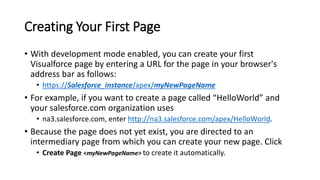
• With development mode enabled, you can create your first
Visualforce page by entering a URL for the page in your browser's
address bar as follows:
• https://Salesforce_instance/apex/myNewPageName
• For example, if you want to create a page called “HelloWorld” and
your salesforce.com organization uses
• na3.salesforce.com, enter http://na3.salesforce.com/apex/HelloWorld.
• Because the page does not yet exist, you are directed to an
intermediary page from which you can create your new page. Click
• Create Page <myNewPageName> to create it automatically.
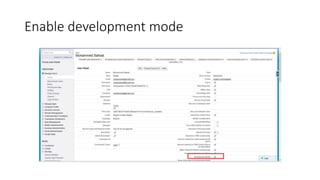
Enable development mode
Creating Your First Page
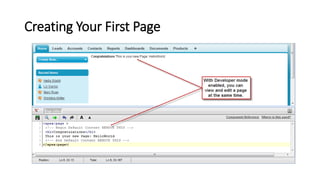
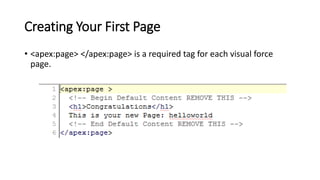
• <apex:page> </apex:page> is a required tag for each visual force
page.
Displaying Field Values with Visualforce
• Visualforce pages use the same expression language as formulas—
that is, anything inside {! } is evaluated as an expression
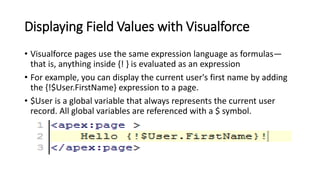
• For example, you can display the current user's first name by adding
the {!$User.FirstName} expression to a page.
• $User is a global variable that always represents the current user
record. All global variables are referenced with a $ symbol.
Displaying Field Values with Visualforce
• To access fields from a record that is not globally available, like a
specific account, contact, or custom object record, you need to
associate your page with a controller.
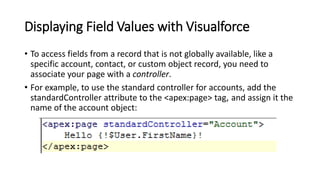
• For example, to use the standard controller for accounts, add the
standardController attribute to the <apex:page> tag, and assign it the
name of the account object:
Displaying Field Values with Visualforce
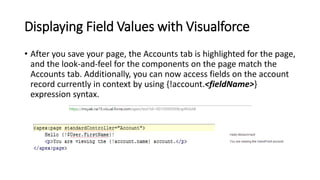
• After you save your page, the Accounts tab is highlighted for the page,
and the look-and-feel for the components on the page match the
Accounts tab. Additionally, you can now access fields on the account
record currently in context by using {!account.<fieldName>}
expression syntax.
Using the Visualforce Component Library
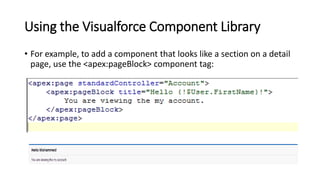
• For example, to add a component that looks like a section on a detail
page, use the <apex:pageBlock> component tag:
Using the Visualforce Component Library
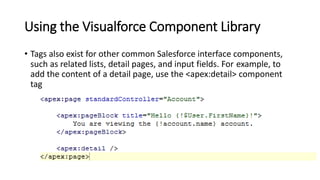
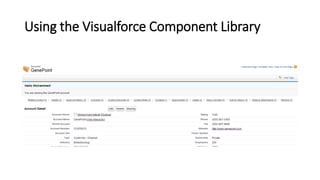
• Tags also exist for other common Salesforce interface components,
such as related lists, detail pages, and input fields. For example, to
add the content of a detail page, use the <apex:detail> component
tag
Using the Visualforce Component Library
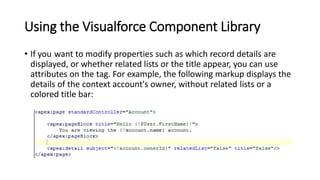
• If you want to modify properties such as which record details are
displayed, or whether related lists or the title appear, you can use
attributes on the tag. For example, the following markup displays the
details of the context account's owner, without related lists or a
colored title bar:
Overriding an Existing Page with a Visualforce
Page
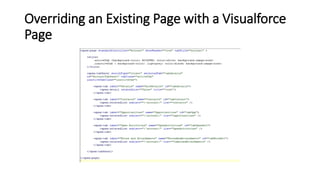
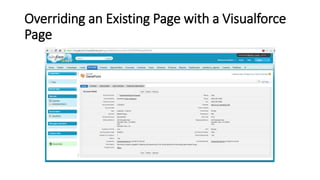
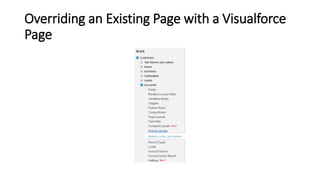
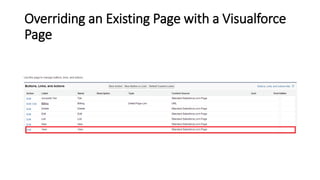
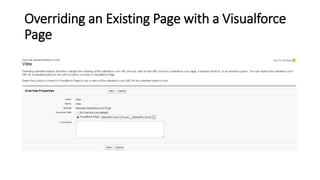
• Suppose you want to change the format of an existing page, such as
the standard account detail page. All the information for an account
displays on a single page. If there's a lot of information, you might
end up doing a lot of scrolling. Using a Visualforce page you can make
each section for an account display in a tab, such as contacts,
opportunities, and so on.
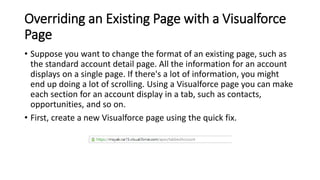
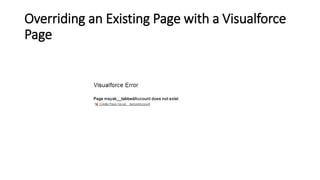
• First, create a new Visualforce page using the quick fix.
Overriding an Existing Page with a Visualforce
Page
Overriding an Existing Page with a Visualforce
Page
Overriding an Existing Page with a Visualforce
Page
Overriding an Existing Page with a Visualforce
Page
Overriding an Existing Page with a Visualforce
Page
Overriding an Existing Page with a Visualforce
Page
Using Input Components in a Page
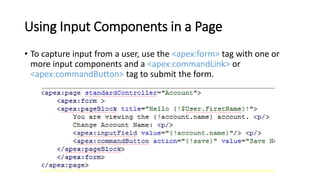
• To capture input from a user, use the <apex:form> tag with one or
more input components and a <apex:commandLink> or
<apex:commandButton> tag to submit the form.
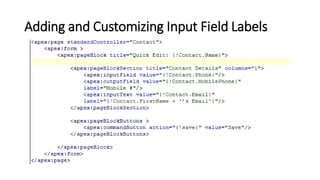
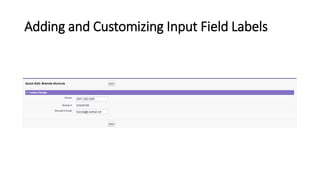
Adding and Customizing Input Field Labels
• The label attribute may be a string, or an expression that evaluates to a
string. If you set label to an empty string, the form label for that field will
be suppressed.
• The label attribute can be set on the following Visualforce components:
• <apex:inputCheckbox>
• <apex:inputField>
• <apex:inputSecret>
• <apex:inputText>
• <apex:inputTextarea>
• <apex:outputField>
• <apex:outputText>
• <apex:selectCheckboxes>
• <apex:selectList>
• <apex:selectRadio>
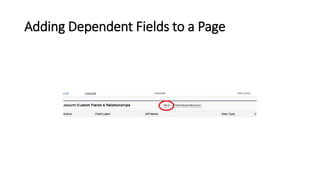
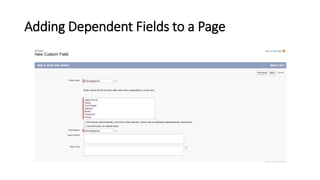
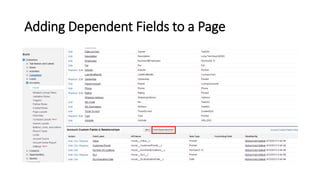
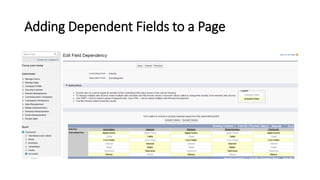
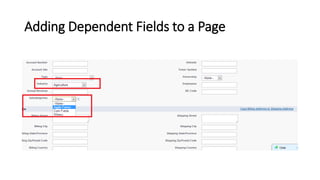
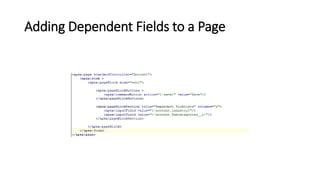
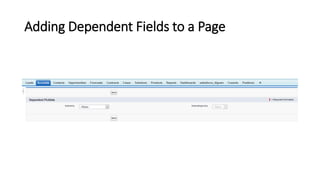
Adding Dependent Fields to a Page
Creating Visualforce Dashboard Components
• Visualforce pages can be used as dashboard components. A
dashboard shows data from source reports as visual components,
which can be charts, gauges, tables, metrics, or Visualforce pages. The
components provide a snapshot of key metrics and performance
indicators for your organization. Each dashboard can have up to 20
components.
• Visualforce pages that use the Standard Controller can’t be used in
dashboards. To be included in a dashboard, a Visualforce page must
have either no controller, use a custom controller, or reference a page
bound to the StandardSetController Class. If a Visualforce page does
not meet these requirements, it does not appear as an option in the
dashboard component Visualforce Page drop-down list.
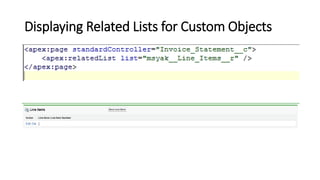
Displaying Related Lists for Custom Objects
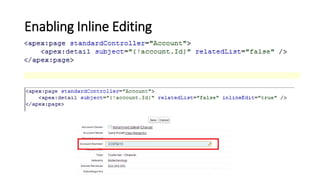
Enabling Inline Editing
• Components that support inline editing must always be descendants of the
<apex:form> tag. However, the <apex:detail> component doesn’t have to
be a descendant of an <apex:form> to support inline editing.
• The <apex:inlineEditSupport> component must be a descendant of the
following components:
• <apex:dataList>
• <apex:dataTable>
• <apex:form>
• <apex:outputField>
• <apex:pageBlock>
• <apex:pageBlockSection>
• <apex:pageBlockTable>
• <apex:repeat>
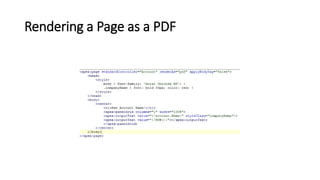
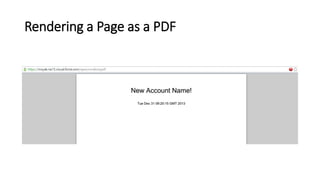
Rendering a Page as a PDF
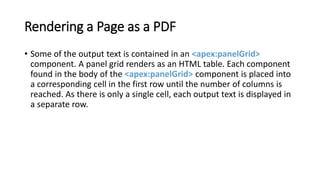
• Some of the output text is contained in an <apex:panelGrid>
component. A panel grid renders as an HTML table. Each component
found in the body of the <apex:panelGrid> component is placed into
a corresponding cell in the first row until the number of columns is
reached. As there is only a single cell, each output text is displayed in
a separate row.
Rendering a Page as a PDF
• Verify the format of your rendered page before deploying it. Some other
things to note about using renderAs:
• PDF is the only supported rendering service.
• Rendering a Visualforce page as a PDF is intended for pages designed and optimized
for print.
• Standard components that aren’t easily formatted for print, or form elements like
inputs, buttons, or any component that requires JavaScript to be formatted,
shouldn’t be used. This includes, but isn’t limited to, any component that requires a
form element.
• PDF rendering doesn’t support JavaScript-rendered content.
• If the PDF fails to display all of the page’s text, particularly multi-byte characters such
as Japanese or accented international characters, adjust the fonts in your CSS to use
a font that supports them. The font selected must be available on the Visualforce
PDF rendering service.
Rendering a Page as a PDF
• Verify the format of your rendered page before deploying it. Some
other things to note about using renderAs:
• The maximum response size when creating a PDF must be below 15 MB before being
rendered as a PDF. This is the standard limit for all Visualforce requests.
• The maximum file size for a generated PDF is 60 MB.
• The maximum total size of all images included in a generated PDF is 30 MB.
• PDF rendering doesn’t support images encoded in the data: URI scheme format.
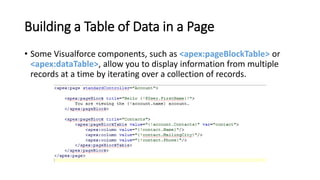
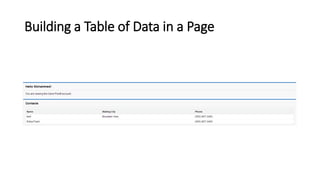
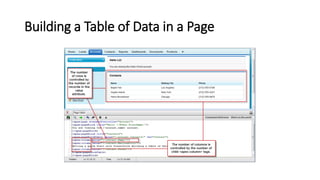
Building a Table of Data in a Page
• Some Visualforce components, such as <apex:pageBlockTable> or
<apex:dataTable>, allow you to display information from multiple
records at a time by iterating over a collection of records.
Building a Table of Data in a Page
Editing a Table of Data in a Page
Using Query String Parameters in a Page
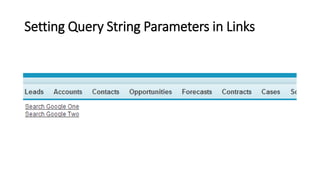
Setting Query String Parameters in Links
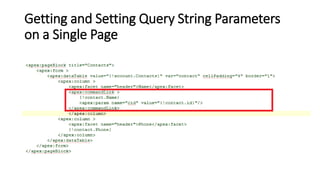
Getting and Setting Query String Parameters
on a Single Page
Using Ajax in a Page
• Some Visualforce components are Ajax aware and allow you to add
Ajax behaviors to a page without having to write any JavaScript. The
following topics provide examples:
• Implementing Partial Page Updates with Command Links and Buttons
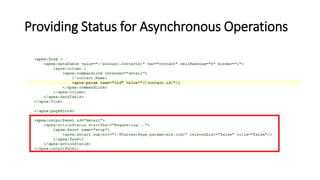
• Providing Status for Asynchronous Operations
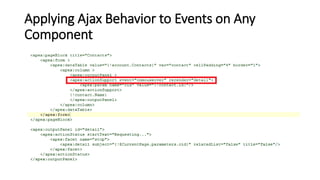
• Applying Ajax Behavior to Events on Any Component
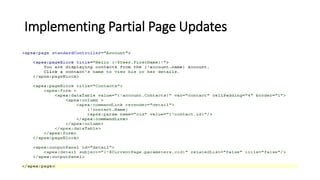
Implementing Partial Page Updates
• The simplest way to implement a partial page update is to use the
reRender attribute on an <apex:commandLink> or
<apex:commandButton> tag to identify a component that should be
refreshed. When a user clicks the button or link, only the identified
component and all of its child components are refreshed.
Implementing Partial Page Updates
Providing Status for Asynchronous Operations
Applying Ajax Behavior to Events on Any
Component

Getting a Quick Start with Visualforce

  • 1.
    Chapter 3 Getting aQuick Start with Visualforce Mohammed S. A. Kwaik 26/8/2013 msabukwaik@gmil.com www.facebook.com/msabukwaik
  • 2.
    Creating Your FirstPage • With development mode enabled, you can create your first Visualforce page by entering a URL for the page in your browser's address bar as follows: • https://Salesforce_instance/apex/myNewPageName • For example, if you want to create a page called “HelloWorld” and your salesforce.com organization uses • na3.salesforce.com, enter http://na3.salesforce.com/apex/HelloWorld. • Because the page does not yet exist, you are directed to an intermediary page from which you can create your new page. Click • Create Page <myNewPageName> to create it automatically.
  • 3.
  • 4.
  • 5.
    Creating Your FirstPage • <apex:page> </apex:page> is a required tag for each visual force page.
  • 6.
    Displaying Field Valueswith Visualforce • Visualforce pages use the same expression language as formulas— that is, anything inside {! } is evaluated as an expression • For example, you can display the current user's first name by adding the {!$User.FirstName} expression to a page. • $User is a global variable that always represents the current user record. All global variables are referenced with a $ symbol.
  • 7.
    Displaying Field Valueswith Visualforce • To access fields from a record that is not globally available, like a specific account, contact, or custom object record, you need to associate your page with a controller. • For example, to use the standard controller for accounts, add the standardController attribute to the <apex:page> tag, and assign it the name of the account object:
  • 8.
    Displaying Field Valueswith Visualforce • After you save your page, the Accounts tab is highlighted for the page, and the look-and-feel for the components on the page match the Accounts tab. Additionally, you can now access fields on the account record currently in context by using {!account.<fieldName>} expression syntax.
  • 9.
    Using the VisualforceComponent Library • For example, to add a component that looks like a section on a detail page, use the <apex:pageBlock> component tag:
  • 10.
    Using the VisualforceComponent Library • Tags also exist for other common Salesforce interface components, such as related lists, detail pages, and input fields. For example, to add the content of a detail page, use the <apex:detail> component tag
  • 11.
    Using the VisualforceComponent Library
  • 12.
    Using the VisualforceComponent Library • If you want to modify properties such as which record details are displayed, or whether related lists or the title appear, you can use attributes on the tag. For example, the following markup displays the details of the context account's owner, without related lists or a colored title bar:
  • 13.
    Overriding an ExistingPage with a Visualforce Page • Suppose you want to change the format of an existing page, such as the standard account detail page. All the information for an account displays on a single page. If there's a lot of information, you might end up doing a lot of scrolling. Using a Visualforce page you can make each section for an account display in a tab, such as contacts, opportunities, and so on. • First, create a new Visualforce page using the quick fix.
  • 14.
    Overriding an ExistingPage with a Visualforce Page
  • 15.
    Overriding an ExistingPage with a Visualforce Page
  • 16.
    Overriding an ExistingPage with a Visualforce Page
  • 17.
    Overriding an ExistingPage with a Visualforce Page
  • 18.
    Overriding an ExistingPage with a Visualforce Page
  • 19.
    Overriding an ExistingPage with a Visualforce Page
  • 20.
    Using Input Componentsin a Page • To capture input from a user, use the <apex:form> tag with one or more input components and a <apex:commandLink> or <apex:commandButton> tag to submit the form.
  • 21.
    Adding and CustomizingInput Field Labels
  • 22.
    Adding and CustomizingInput Field Labels
  • 23.
    Adding and CustomizingInput Field Labels • The label attribute may be a string, or an expression that evaluates to a string. If you set label to an empty string, the form label for that field will be suppressed. • The label attribute can be set on the following Visualforce components: • <apex:inputCheckbox> • <apex:inputField> • <apex:inputSecret> • <apex:inputText> • <apex:inputTextarea> • <apex:outputField> • <apex:outputText> • <apex:selectCheckboxes> • <apex:selectList> • <apex:selectRadio>
  • 24.
  • 25.
  • 26.
  • 27.
  • 28.
  • 29.
  • 30.
  • 31.
  • 32.
    Creating Visualforce DashboardComponents • Visualforce pages can be used as dashboard components. A dashboard shows data from source reports as visual components, which can be charts, gauges, tables, metrics, or Visualforce pages. The components provide a snapshot of key metrics and performance indicators for your organization. Each dashboard can have up to 20 components. • Visualforce pages that use the Standard Controller can’t be used in dashboards. To be included in a dashboard, a Visualforce page must have either no controller, use a custom controller, or reference a page bound to the StandardSetController Class. If a Visualforce page does not meet these requirements, it does not appear as an option in the dashboard component Visualforce Page drop-down list.
  • 33.
    Displaying Related Listsfor Custom Objects
  • 34.
  • 35.
    Enabling Inline Editing •Components that support inline editing must always be descendants of the <apex:form> tag. However, the <apex:detail> component doesn’t have to be a descendant of an <apex:form> to support inline editing. • The <apex:inlineEditSupport> component must be a descendant of the following components: • <apex:dataList> • <apex:dataTable> • <apex:form> • <apex:outputField> • <apex:pageBlock> • <apex:pageBlockSection> • <apex:pageBlockTable> • <apex:repeat>
  • 36.
  • 37.
  • 38.
    Rendering a Pageas a PDF • Some of the output text is contained in an <apex:panelGrid> component. A panel grid renders as an HTML table. Each component found in the body of the <apex:panelGrid> component is placed into a corresponding cell in the first row until the number of columns is reached. As there is only a single cell, each output text is displayed in a separate row.
  • 39.
    Rendering a Pageas a PDF • Verify the format of your rendered page before deploying it. Some other things to note about using renderAs: • PDF is the only supported rendering service. • Rendering a Visualforce page as a PDF is intended for pages designed and optimized for print. • Standard components that aren’t easily formatted for print, or form elements like inputs, buttons, or any component that requires JavaScript to be formatted, shouldn’t be used. This includes, but isn’t limited to, any component that requires a form element. • PDF rendering doesn’t support JavaScript-rendered content. • If the PDF fails to display all of the page’s text, particularly multi-byte characters such as Japanese or accented international characters, adjust the fonts in your CSS to use a font that supports them. The font selected must be available on the Visualforce PDF rendering service.
  • 40.
    Rendering a Pageas a PDF • Verify the format of your rendered page before deploying it. Some other things to note about using renderAs: • The maximum response size when creating a PDF must be below 15 MB before being rendered as a PDF. This is the standard limit for all Visualforce requests. • The maximum file size for a generated PDF is 60 MB. • The maximum total size of all images included in a generated PDF is 30 MB. • PDF rendering doesn’t support images encoded in the data: URI scheme format.
  • 41.
    Building a Tableof Data in a Page • Some Visualforce components, such as <apex:pageBlockTable> or <apex:dataTable>, allow you to display information from multiple records at a time by iterating over a collection of records.
  • 42.
    Building a Tableof Data in a Page
  • 43.
    Building a Tableof Data in a Page
  • 44.
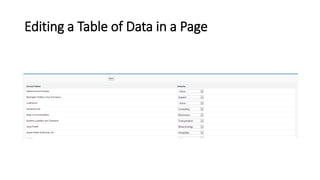
    Editing a Tableof Data in a Page
  • 45.
    Editing a Tableof Data in a Page
  • 46.
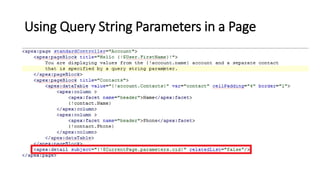
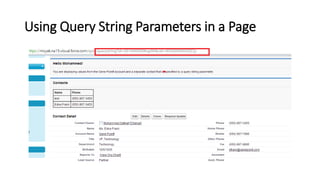
    Using Query StringParameters in a Page
  • 47.
    Using Query StringParameters in a Page
  • 48.
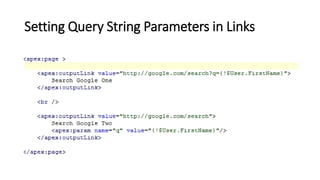
    Setting Query StringParameters in Links
  • 49.
    Setting Query StringParameters in Links
  • 50.
    Getting and SettingQuery String Parameters on a Single Page
  • 51.
    Using Ajax ina Page • Some Visualforce components are Ajax aware and allow you to add Ajax behaviors to a page without having to write any JavaScript. The following topics provide examples: • Implementing Partial Page Updates with Command Links and Buttons • Providing Status for Asynchronous Operations • Applying Ajax Behavior to Events on Any Component
  • 52.
    Implementing Partial PageUpdates • The simplest way to implement a partial page update is to use the reRender attribute on an <apex:commandLink> or <apex:commandButton> tag to identify a component that should be refreshed. When a user clicks the button or link, only the identified component and all of its child components are refreshed.
  • 53.
  • 54.
    Providing Status forAsynchronous Operations
  • 55.
    Applying Ajax Behaviorto Events on Any Component

Editor's Notes

  • #38 <apex:page standardController="Account" recordSetVar="records" id="thePage" renderAs="pdf"> <apex:form id="theForm"> <apex:pageBlock id="thePageBlock"> <apex:pageBlockTable value="{!records}" var="record" id="thePageBlockTable"> <apex:column > <apex:outputField value="{!record.Name}" id="AccountNameDOM" /> <apex:facet name="header">Name</apex:facet> </apex:column> <apex:column > <apex:outputField value="{!record.Type}" id="AccountTypeDOM" /> <apex:facet name="header">Type</apex:facet> </apex:column> <apex:column > <apex:outputField value="{!record.Industry}" id="AccountIndustryDOM" /> <apex:facet name="header">Industry</apex:facet> </apex:column> </apex:pageBlockTable> <apex:pageBlockButtons > <apex:commandButton value="Edit" action="{!save}" id="editButton" /> <apex:commandButton value="Save" action="{!save}" id="saveButton" /> <apex:commandButton value="Cancel" action="{!cancel}" id="cancelButton" /> </apex:pageBlockButtons> </apex:pageBlock> </apex:form> </apex:page>