Chapter 6
Standard List Controllers
Mohammed S. A. Kwaik
26/8/2013
msabukwaik@gmil.com
www.facebook.com/msabukwaik
Associating a Standard List Controller with a
Visualforce Page
• Using a standard list controller is very similar to using a standard
controller. First you set the standardController attribute on the
<apex:page> component, then you set the recordSetVar attribute on
the same component.
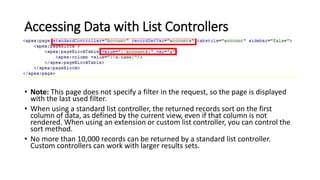
• For example, to associate a page with the standard list controller for
accounts, use the following markup:
• The recordSetVar attribute not only indicates that the page uses a list
controller, it can indicates the variable name of therecord collection.
This variable can be used to access data in the record collection.
Accessing Data with List Controllers
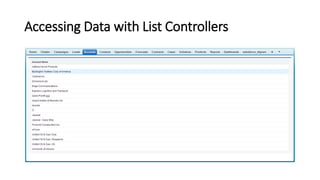
• Note: This page does not specify a filter in the request, so the page is displayed
with the last used filter.
• When using a standard list controller, the returned records sort on the first
column of data, as defined by the current view, even if that column is not
rendered. When using an extension or custom list controller, you can control the
sort method.
• No more than 10,000 records can be returned by a standard list controller.
Custom controllers can work with larger results sets.
Accessing Data with List Controllers
Using Standard List Controller Actions
• Action methods perform logic or navigation when a page event
occurs, such as when a user clicks a button, or hovers over an area of
the page. Action methods can be called from page markup by using
{! } notation in the action parameter of one of the following tags:
• <apex:commandButton> creates a button that calls an action
• <apex:commandLink> creates a link that calls an action
• <apex:actionPoller> periodically calls an action
• <apex:actionSupport> makes an event (such as “onclick”, “onmouseover”,
and so on) on another, named component, call an action
• <apex:actionFunction> defines a new JavaScript function that calls an action
• <apex:page> calls an action when the page is loaded
Using Standard List Controller Actions
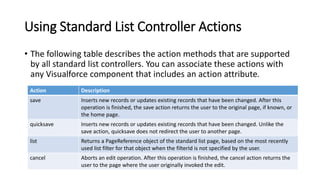
• The following table describes the action methods that are supported
by all standard list controllers. You can associate these actions with
any Visualforce component that includes an action attribute.
Action Description
save Inserts new records or updates existing records that have been changed. After this
operation is finished, the save action returns the user to the original page, if known, or
the home page.
quicksave Inserts new records or updates existing records that have been changed. Unlike the
save action, quicksave does not redirect the user to another page.
list Returns a PageReference object of the standard list page, based on the most recently
used list filter for that object when the filterId is not specified by the user.
cancel Aborts an edit operation. After this operation is finished, the cancel action returns the
user to the page where the user originally invoked the edit.
Using Standard List Controller Actions
Action Description
first Displays the first page of records in the set.
last Displays the last page of records in the set.
next Displays the next page of records in the set.
previous Displays the previous page of records in the set.
Using Standard List Controller Actions
Pagination with a List Controller
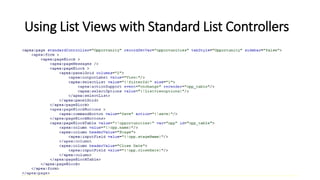
Using List Views with Standard List Controllers
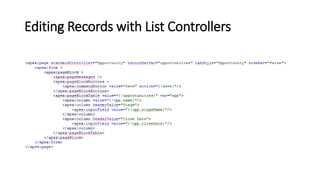
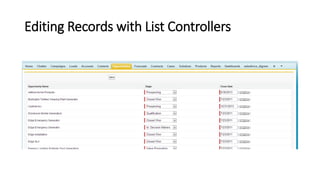
Editing Records with List Controllers

Standard List Controllers

  • 1.
    Chapter 6 Standard ListControllers Mohammed S. A. Kwaik 26/8/2013 msabukwaik@gmil.com www.facebook.com/msabukwaik
  • 2.
    Associating a StandardList Controller with a Visualforce Page • Using a standard list controller is very similar to using a standard controller. First you set the standardController attribute on the <apex:page> component, then you set the recordSetVar attribute on the same component. • For example, to associate a page with the standard list controller for accounts, use the following markup: • The recordSetVar attribute not only indicates that the page uses a list controller, it can indicates the variable name of therecord collection. This variable can be used to access data in the record collection.
  • 3.
    Accessing Data withList Controllers • Note: This page does not specify a filter in the request, so the page is displayed with the last used filter. • When using a standard list controller, the returned records sort on the first column of data, as defined by the current view, even if that column is not rendered. When using an extension or custom list controller, you can control the sort method. • No more than 10,000 records can be returned by a standard list controller. Custom controllers can work with larger results sets.
  • 4.
    Accessing Data withList Controllers
  • 5.
    Using Standard ListController Actions • Action methods perform logic or navigation when a page event occurs, such as when a user clicks a button, or hovers over an area of the page. Action methods can be called from page markup by using {! } notation in the action parameter of one of the following tags: • <apex:commandButton> creates a button that calls an action • <apex:commandLink> creates a link that calls an action • <apex:actionPoller> periodically calls an action • <apex:actionSupport> makes an event (such as “onclick”, “onmouseover”, and so on) on another, named component, call an action • <apex:actionFunction> defines a new JavaScript function that calls an action • <apex:page> calls an action when the page is loaded
  • 6.
    Using Standard ListController Actions • The following table describes the action methods that are supported by all standard list controllers. You can associate these actions with any Visualforce component that includes an action attribute. Action Description save Inserts new records or updates existing records that have been changed. After this operation is finished, the save action returns the user to the original page, if known, or the home page. quicksave Inserts new records or updates existing records that have been changed. Unlike the save action, quicksave does not redirect the user to another page. list Returns a PageReference object of the standard list page, based on the most recently used list filter for that object when the filterId is not specified by the user. cancel Aborts an edit operation. After this operation is finished, the cancel action returns the user to the page where the user originally invoked the edit.
  • 7.
    Using Standard ListController Actions Action Description first Displays the first page of records in the set. last Displays the last page of records in the set. next Displays the next page of records in the set. previous Displays the previous page of records in the set.
  • 8.
    Using Standard ListController Actions
  • 9.
    Pagination with aList Controller
  • 10.
    Using List Viewswith Standard List Controllers
  • 11.
    Using List Viewswith Standard List Controllers
  • 12.
    Using List Viewswith Standard List Controllers
  • 13.
    Editing Records withList Controllers
  • 14.
    Editing Records withList Controllers

Editor's Notes

  • #4 <apex:page standardController="Account" recordSetVar="accounts" tabstyle="account" sidebar="false"> <apex:pageBlock > <apex:pageBlockTable value="{!accounts}" var="a"> <apex:column value="{!a.name}"/> </apex:pageBlockTable> </apex:pageBlock> </apex:page>
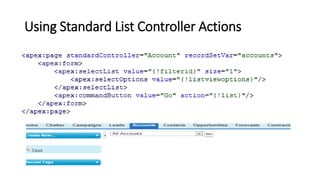
  • #9 <apex:page standardController="Account" recordSetVar="accounts"> <apex:form> <apex:selectList value="{!filterid}" size="1"> <apex:selectOptions value="{!listviewoptions}"/> </apex:selectList> <apex:commandButton value="Go" action="{!list}"/> </apex:form> </apex:page>
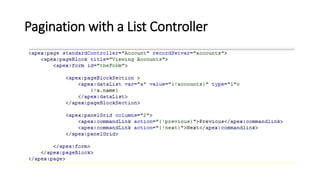
  • #10 <apex:page standardController="Account" recordSetvar="accounts"> <apex:pageBlock title="Viewing Accounts"> <apex:form id="theForm"> <apex:pageBlockSection > <apex:dataList var="a" value="{!accounts}" type="1"> {!a.name} </apex:dataList> </apex:pageBlockSection> <apex:panelGrid columns="2"> <apex:commandLink action="{!previous}">Previous</apex:commandlink> <apex:commandLink action="{!next}">Next</apex:commandlink> </apex:panelGrid> </apex:form> </apex:pageBlock> </apex:page>
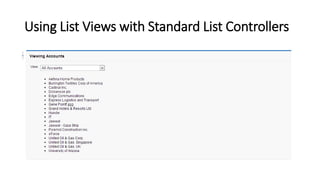
  • #11 <apex:page standardController="Account" recordSetvar="accounts"> <apex:pageBlock title="Viewing Accounts"> <apex:form id="theForm"> <apex:panelGrid columns="2"> <apex:outputLabel value="View:"/> <apex:selectList value="{!filterId}" size="1"> <apex:actionSupport event="onchange" rerender="list"/> <apex:selectOptions value="{!listviewoptions}"/> </apex:selectList> </apex:panelGrid> <apex:pageBlockSection > <apex:dataList var="a" value="{!accounts}" id="list"> {!a.name} </apex:dataList> </apex:pageBlockSection> </apex:form> </apex:pageBlock> </apex:page>
  • #13 <apex:page standardController="Opportunity" recordSetVar="opportunities" tabStyle="Opportunity" sidebar="false"> <apex:form > <apex:pageBlock > <apex:pageMessages /> <apex:pageBlock > <apex:panelGrid columns="2"> <apex:outputLabel value="View:"/> <apex:selectList value="{!filterId}" size="1"> <apex:actionSupport event="onchange" rerender="opp_table"/> <apex:selectOptions value="{!listviewoptions}"/> </apex:selectList> </apex:panelGrid> </apex:pageBlock> <apex:pageBlockButtons > <apex:commandButton value="Save" action="{!save}"/> </apex:pageBlockButtons> <apex:pageBlockTable value="{!opportunities}" var="opp" id="opp_table"> <apex:column value="{!opp.name}"/> <apex:column headerValue="Stage"> <apex:inputField value="{!opp.stageName}"/> </apex:column> <apex:column headerValue="Close Date"> <apex:inputField value="{!opp.closeDate}"/> </apex:column> </apex:pageBlockTable> </apex:pageBlock> </apex:form> </apex:page>
  • #14 <apex:page standardController="Opportunity" recordSetVar="opportunities" tabStyle="Opportunity" sidebar="false"> <apex:form > <apex:pageBlock > <apex:pageMessages /> <apex:pageBlockButtons > <apex:commandButton value="Save" action="{!save}"/> </apex:pageBlockButtons> <apex:pageBlockTable value="{!opportunities}" var="opp"> <apex:column value="{!opp.name}"/> <apex:column headerValue="Stage"> <apex:inputField value="{!opp.stageName}"/> </apex:column> <apex:column headerValue="Close Date"> <apex:inputField value="{!opp.closeDate}"/> </apex:column> </apex:pageBlockTable> </apex:pageBlock> </apex:form> </apex:page>