Get Good With Git
Eric Roberts
Hoffman Lab
1
2
Presentation Guide
● Brief overview of versioning
● Configuration
● The Three Magical States of Git
● Basic operations
● Basic collaborating
● Branching
● * Some Git internals discussion to
provide context to its labyrinthian
output at times
3
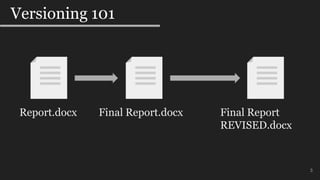
Versioning 101
Report.docx Final Report.docx Final Report
REVISED.docx
4
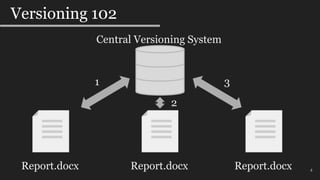
Versioning 102
Report.docx
Central Versioning System
Report.docx Report.docx
31
2
5
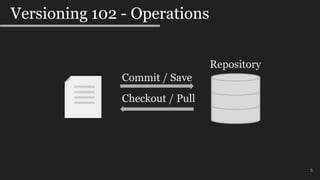
Versioning 102 - Operations
Repository
Commit / Save
Checkout / Pull
6
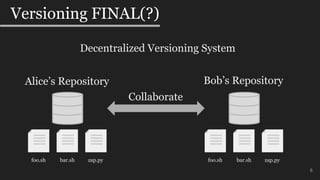
Versioning FINAL(?)
Alice’s Repository
foo.sh bar.sh zap.py
Bob’s Repository
foo.sh bar.sh zap.py
Collaborate
Decentralized Versioning System
7
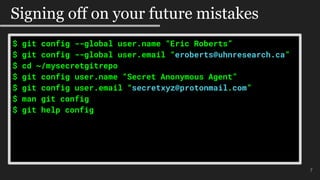
Signing off on your future mistakes
$ git config --global user.name “Eric Roberts”
$ git config --global user.email “eroberts@uhnresearch.ca”
$ cd ~/mysecretgitrepo
$ git config user.name “Secret Anonymous Agent”
$ git config user.email “secretxyz@protonmail.com”
$ man git config
$ git help config
8
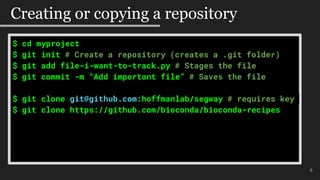
Creating or copying a repository
$ cd myproject
$ git init # Create a repository (creates a .git folder)
$ git add file-i-want-to-track.py # Stages the file
$ git commit -m “Add important file” # Saves the file
$ git clone git@github.com:hoffmanlab/segway # requires key
$ git clone https://github.com/bioconda/bioconda-recipes
9
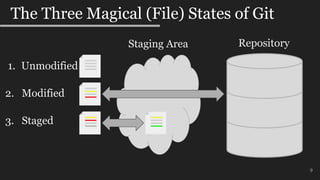
The Three Magical (File) States of Git
RepositoryStaging Area
1. Unmodified
2. Modified
3. Staged
10
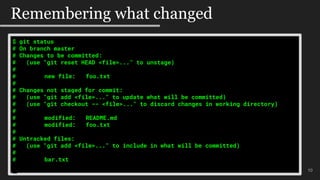
Remembering what changed
$ git status
# On branch master
# Changes to be committed:
# (use "git reset HEAD <file>..." to unstage)
#
# new file: foo.txt
#
# Changes not staged for commit:
# (use "git add <file>..." to update what will be committed)
# (use "git checkout -- <file>..." to discard changes in working directory)
#
# modified: README.md
# modified: foo.txt
#
# Untracked files:
# (use "git add <file>..." to include in what will be committed)
#
# bar.txt
11
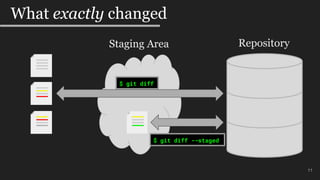
What exactly changed
RepositoryStaging Area
$ git diff
$ git diff --staged
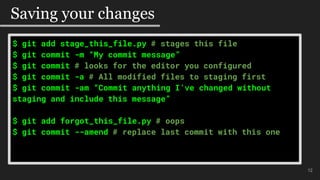
$ git add stage_this_file.py # stages this file
$ git commit -m “My commit message”
$ git commit # looks for the editor you configured
$ git commit -a # All modified files to staging first
$ git commit -am “Commit anything I’ve changed without
staging and include this message”
$ git add forgot_this_file.py # oops
$ git commit --amend # replace last commit with this one
#$mo
12
Saving your changes
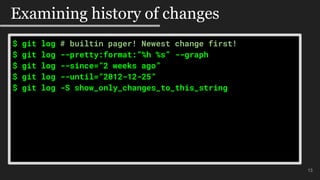
$ git log # builtin pager! Newest change first!
$ git log --pretty:format:”%h %s” --graph
$ git log --since=”2 weeks ago”
$ git log --until=”2012-12-25”
$ git log -S show_only_changes_to_this_string
#$mo
13
Examining history of changes
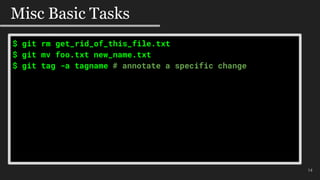
$ git rm get_rid_of_this_file.txt
$ git mv foo.txt new_name.txt
$ git tag -a tagname # annotate a specific change
#$mo
14
Misc Basic Tasks
15
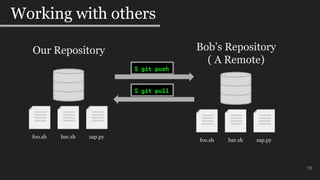
Working with others
Our Repository
foo.sh bar.sh zap.py
Bob’s Repository
( A Remote)
foo.sh bar.sh zap.py
$ git push
$ git pull
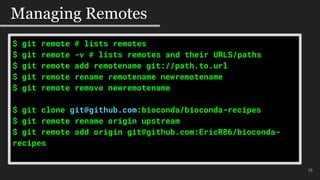
$ git remote # lists remotes
$ git remote -v # lists remotes and their URLS/paths
$ git remote add remotename git://path.to.url
$ git remote rename remotename newremotename
$ git remote remove newremotename
$ git clone git@github.com:bioconda/bioconda-recipes
$ git remote rename origin upstream
$ git remote add origin git@github.com:EricR86/bioconda-
recipes
16
Managing Remotes
17
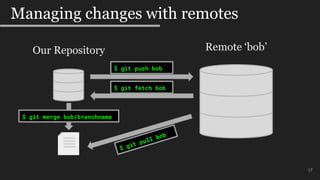
Managing changes with remotes
Our Repository Remote ‘bob’
$ git push bob
$ git merge bob/branchname
$ git fetch bob
$ git remote show origin
* remote origin
Fetch URL: git@github.com:neovim/neovim.git
Push URL: git@github.com:neovim/neovim.git
HEAD branch: master
Remote branches:
master tracked
release-0.3 tracked
Local branch configured for 'git pull':
master merges with remote master
Local ref configured for 'git push':
master pushes to master (local out of date)
18
Where things are coming and going
19
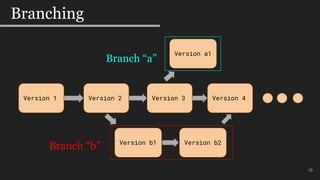
Branching
Version 1 Version 2 Version 3 Version 4
Version a1
Version b2Version b1
Branch “a”
Branch “b”
20
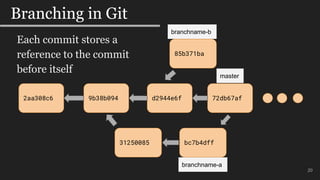
Branching in Git
2aa308c6 9b38b094 d2944e6f 72db67af
85b371ba
bc7b4dff31250085
master
branchname-b
branchname-a
Each commit stores a
reference to the commit
before itself
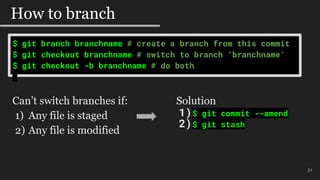
$ git branch branchname # create a branch from this commit
$ git checkout branchname # switch to branch ‘branchname’
$ git checkout -b branchname # do both
21
How to branch
Can’t switch branches if:
1) Any file is staged
2) Any file is modified
Solution
1)$ git commit --amend
2)$ git stash
22
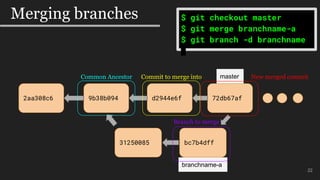
Merging branches
2aa308c6 9b38b094 d2944e6f 72db67af
bc7b4dff31250085
master
branchname-a
$ git checkout master
$ git merge branchname-a
$ git branch -d branchname
Common Ancestor
Branch to merge
Commit to merge into New merged commit
23
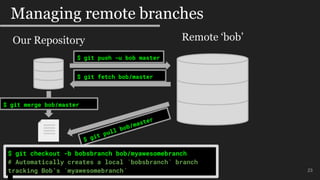
Managing remote branches
Our Repository Remote ‘bob’
$ git push -u bob master
$ git merge bob/master
$ git fetch bob/master
$ git checkout -b bobsbranch bob/myawesomebranch
# Automatically creates a local `bobsbranch` branch
tracking Bob’s `myawesomebranch`
24
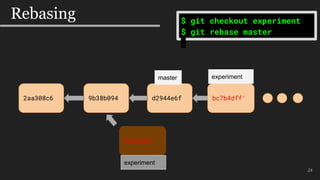
Rebasing
2aa308c6 9b38b094 d2944e6f
bc7b4dff
master
$ git checkout experiment
$ git rebase master
experiment
bc7b4dff’
experiment
25
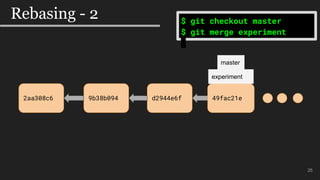
Rebasing - 2
2aa308c6 9b38b094 d2944e6f
$ git checkout master
$ git merge experiment
49fac21e
experiment
master
26
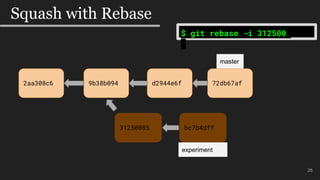
Squash with Rebase
$ git rebase -i 312500
2aa308c6 9b38b094 d2944e6f 72db67af
bc7b4dff31250085
master
experiment
27
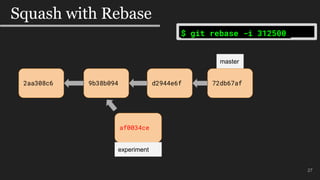
Squash with Rebase
$ git rebase -i 312500
2aa308c6 9b38b094 d2944e6f 72db67af
af0034ce
master
experiment
28
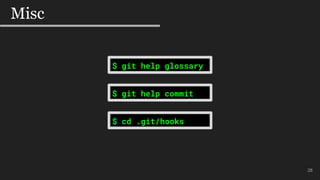
Misc
$ git help glossary
$ cd .git/hooks
$ git help commit
Questions
29
30
How Git (and Mercurial) came to be
● 1991 - Linux Kernel was versioned by a series of .patch files
○ Releases were in tarballs (.tar.gz)
● 2002 - Linux switches over to a free version of BitKeeper
● 2005 - BitKeeper no longer free
● 2005 (days after) - Git and Mercurial start development
○ An initial Git release was completed in a few weeks
■ Mercurial released few days after Git was released
31
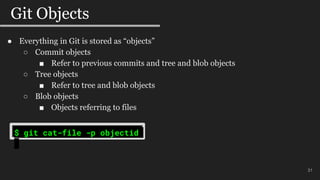
Git Objects
● Everything in Git is stored as “objects”
○ Commit objects
■ Refer to previous commits and tree and blob objects
○ Tree objects
■ Refer to tree and blob objects
○ Blob objects
■ Objects referring to files
$ git cat-file -p objectid

Get Good With Git

  • 1.
    Get Good WithGit Eric Roberts Hoffman Lab 1
  • 2.
    2 Presentation Guide ● Briefoverview of versioning ● Configuration ● The Three Magical States of Git ● Basic operations ● Basic collaborating ● Branching ● * Some Git internals discussion to provide context to its labyrinthian output at times
  • 3.
    3 Versioning 101 Report.docx FinalReport.docx Final Report REVISED.docx
  • 4.
    4 Versioning 102 Report.docx Central VersioningSystem Report.docx Report.docx 31 2
  • 5.
    5 Versioning 102 -Operations Repository Commit / Save Checkout / Pull
  • 6.
    6 Versioning FINAL(?) Alice’s Repository foo.shbar.sh zap.py Bob’s Repository foo.sh bar.sh zap.py Collaborate Decentralized Versioning System
  • 7.
    7 Signing off onyour future mistakes $ git config --global user.name “Eric Roberts” $ git config --global user.email “eroberts@uhnresearch.ca” $ cd ~/mysecretgitrepo $ git config user.name “Secret Anonymous Agent” $ git config user.email “secretxyz@protonmail.com” $ man git config $ git help config
  • 8.
    8 Creating or copyinga repository $ cd myproject $ git init # Create a repository (creates a .git folder) $ git add file-i-want-to-track.py # Stages the file $ git commit -m “Add important file” # Saves the file $ git clone git@github.com:hoffmanlab/segway # requires key $ git clone https://github.com/bioconda/bioconda-recipes
  • 9.
    9 The Three Magical(File) States of Git RepositoryStaging Area 1. Unmodified 2. Modified 3. Staged
  • 10.
    10 Remembering what changed $git status # On branch master # Changes to be committed: # (use "git reset HEAD <file>..." to unstage) # # new file: foo.txt # # Changes not staged for commit: # (use "git add <file>..." to update what will be committed) # (use "git checkout -- <file>..." to discard changes in working directory) # # modified: README.md # modified: foo.txt # # Untracked files: # (use "git add <file>..." to include in what will be committed) # # bar.txt
  • 11.
    11 What exactly changed RepositoryStagingArea $ git diff $ git diff --staged
  • 12.
    $ git addstage_this_file.py # stages this file $ git commit -m “My commit message” $ git commit # looks for the editor you configured $ git commit -a # All modified files to staging first $ git commit -am “Commit anything I’ve changed without staging and include this message” $ git add forgot_this_file.py # oops $ git commit --amend # replace last commit with this one #$mo 12 Saving your changes
  • 13.
    $ git log# builtin pager! Newest change first! $ git log --pretty:format:”%h %s” --graph $ git log --since=”2 weeks ago” $ git log --until=”2012-12-25” $ git log -S show_only_changes_to_this_string #$mo 13 Examining history of changes
  • 14.
    $ git rmget_rid_of_this_file.txt $ git mv foo.txt new_name.txt $ git tag -a tagname # annotate a specific change #$mo 14 Misc Basic Tasks
  • 15.
    15 Working with others OurRepository foo.sh bar.sh zap.py Bob’s Repository ( A Remote) foo.sh bar.sh zap.py $ git push $ git pull
  • 16.
    $ git remote# lists remotes $ git remote -v # lists remotes and their URLS/paths $ git remote add remotename git://path.to.url $ git remote rename remotename newremotename $ git remote remove newremotename $ git clone git@github.com:bioconda/bioconda-recipes $ git remote rename origin upstream $ git remote add origin git@github.com:EricR86/bioconda- recipes 16 Managing Remotes
  • 17.
    17 Managing changes withremotes Our Repository Remote ‘bob’ $ git push bob $ git merge bob/branchname $ git fetch bob
  • 18.
    $ git remoteshow origin * remote origin Fetch URL: git@github.com:neovim/neovim.git Push URL: git@github.com:neovim/neovim.git HEAD branch: master Remote branches: master tracked release-0.3 tracked Local branch configured for 'git pull': master merges with remote master Local ref configured for 'git push': master pushes to master (local out of date) 18 Where things are coming and going
  • 19.
    19 Branching Version 1 Version2 Version 3 Version 4 Version a1 Version b2Version b1 Branch “a” Branch “b”
  • 20.
    20 Branching in Git 2aa308c69b38b094 d2944e6f 72db67af 85b371ba bc7b4dff31250085 master branchname-b branchname-a Each commit stores a reference to the commit before itself
  • 21.
    $ git branchbranchname # create a branch from this commit $ git checkout branchname # switch to branch ‘branchname’ $ git checkout -b branchname # do both 21 How to branch Can’t switch branches if: 1) Any file is staged 2) Any file is modified Solution 1)$ git commit --amend 2)$ git stash
  • 22.
    22 Merging branches 2aa308c6 9b38b094d2944e6f 72db67af bc7b4dff31250085 master branchname-a $ git checkout master $ git merge branchname-a $ git branch -d branchname Common Ancestor Branch to merge Commit to merge into New merged commit
  • 23.
    23 Managing remote branches OurRepository Remote ‘bob’ $ git push -u bob master $ git merge bob/master $ git fetch bob/master $ git checkout -b bobsbranch bob/myawesomebranch # Automatically creates a local `bobsbranch` branch tracking Bob’s `myawesomebranch`
  • 24.
    24 Rebasing 2aa308c6 9b38b094 d2944e6f bc7b4dff master $git checkout experiment $ git rebase master experiment bc7b4dff’ experiment
  • 25.
    25 Rebasing - 2 2aa308c69b38b094 d2944e6f $ git checkout master $ git merge experiment 49fac21e experiment master
  • 26.
    26 Squash with Rebase $git rebase -i 312500 2aa308c6 9b38b094 d2944e6f 72db67af bc7b4dff31250085 master experiment
  • 27.
    27 Squash with Rebase $git rebase -i 312500 2aa308c6 9b38b094 d2944e6f 72db67af af0034ce master experiment
  • 28.
    28 Misc $ git helpglossary $ cd .git/hooks $ git help commit
  • 29.
  • 30.
    30 How Git (andMercurial) came to be ● 1991 - Linux Kernel was versioned by a series of .patch files ○ Releases were in tarballs (.tar.gz) ● 2002 - Linux switches over to a free version of BitKeeper ● 2005 - BitKeeper no longer free ● 2005 (days after) - Git and Mercurial start development ○ An initial Git release was completed in a few weeks ■ Mercurial released few days after Git was released
  • 31.
    31 Git Objects ● Everythingin Git is stored as “objects” ○ Commit objects ■ Refer to previous commits and tree and blob objects ○ Tree objects ■ Refer to tree and blob objects ○ Blob objects ■ Objects referring to files $ git cat-file -p objectid

Editor's Notes

  • #4 ## Version control system * Often when working on any document (code, paper, etc.) it is not perfect the first time around and goes through revisions and different versions. * Without a system in place, most people come up with creative solutions to keep track of the versions of documents they are working on. * `Paper-FINAL.doc`, `Paper-FINAL-REVISED.doc`, etc. * A good VCS (Version control system) is software that manages you documents versions in a sane and controlled manner * "Can you put back that section you deleted a month ago?"
  • #5 Central Versioning Systems are typically stored on a separate server, well maintained, with backups, etc. Being able to manage, save, retrieve versions depends on the speed of the server and the network. To get some terminology out of the way we will talk about the names for things happening in those arrows
  • #7 ### Centralized vs Distributed * A Centralized version control system has a single dedicated repository (computer) that contains all the files and versions and serves as the master copy in which all versions are saved too * Simple * Single point of failure * Managing changes and general operations are slow and dependant on the server * A Decentralized version control system gives everyone an exact copy of the repository on their own local machines * Mercurial is decentralized * Git is decentralized * Operations are much faster - no server to connect to * Allows for changes to be saved without connecting to a server * Allows for some confusion
  • #8 ## Configuration Commiting to your future mistakes * Need a name and e-mail address associated with all git commits * This is required but not verified. It's just a nice thing so people can reach you * Information is stored in a `.gitconfig` file in your home directory * By omitting the `--global` option you can set repository-specific settings * There's a very long list of configuration options: `man git config` or `git help config` * You can lookup detailed instructions on all commands using `git help`, e.g. `git help commit`
  • #9 ## Commiting to your future mistakes * Need a name and e-mail address associated with all git commits * This is required but not verified. It's just a nice thing so people can reach you * Information is stored in a `.gitconfig` file in your home directory * By omitting the `--global` option you can set repository-specific settings * There's a very long list of configuration options: `man git config` or `git help config` * You can lookup detailed instructions on all commands using `git help`, e.g. `git help commit`
  • #10 * The most important aspect of Git to understand in order for your future git career to go smoothly 1. Modified * Git is tracking this file and has noticed it's been changed but has not ¦ been commited into the repository 2. Staged * This file is modified and you've marked it to be committed into the next ¦ snapshot/changeset * Sometimes referred to physically as the "index" or "cache" * Any modified files must be staged before they can be committed * You can modify files being tracked and not commit them by simply not ¦ staging them * Files that are staged are cached and kept in that exact state until committed (or unstaged). ¦ * If you make changes to an already staged file, those changes won't be ¦ ¦ automatically staged 3. Committed (or unmodified and tracked) * The file and current version is safely stored inside the repository * Sometimes git is considered a "2 stage" version control system since there's the intermediate "staged" step
  • #11 * Example of a staged file ready to be committed - foo.txt * Example of modified files that are not staged for commit - README and foo.txt * Reminder that files that are staged are internally cached and don't ¦ reflect future modifications until you stage them again * And of course an untracked file that has not yet been added to the repository (and not ignored in a .gitignore file) * The commands to move changes in and out between the "Three Magical States" of git are conveniently shown to you
  • #12 * `git diff` * By default shows changes made on modified files not yet staged for commit * Performs a diff between working directory and (unstaged) modified files * `git diff --staged` (or `git diff --cached`) * Shows differences staged for commit and the previous commit * Shows exactly, after staging your files for commit, what will go into your next commit * Practically, it is more common to check your changes with `git diff` then stage
  • #13 ## Saving your work * `git commit` * Saves your staged changes into a commit * Opens an editor (defined by `$EDITOR` or `git config --global core.editor`) * `git commit -m "My commit message without using an editory` * `git commit -a` * Adds all modified files to staging area before commiting * `git commit -am "Commit anything I've changed without needing to stage."` * What 99% of all git users use when they don't understand the "The Three ¦ Magical States" and they can't figure out how to quit vim (ZZ) ``` git add forgot_this_file # oops git commit --amend # replace latest existing commit with a new one ``` It’s worth noting this is one of the first noticable changes from Mercurial. Git allows you to effectively re-write history if you’ve messed up a saved change. Mecurial, by design, does not. All mistakes are permanently marked unless you work very hard to work around it.
  • #14 ## Looking back in history `git log` * Builtin pager which starts at the latest commit * `git log --pretty:format:"%h %s" --graph` ¦ * Fancy graphical (coloured) ascii logs * `git log --since="2 weeks ago"` * `git log --until="2012-12-25"` * `git log -S broken_function` ¦ * Only shows commits where the number of occurrances of the string have ¦ ¦ changed
  • #15 ## Tagging * `git tag -a tagname` * Annotated tags are closer to Mercurial tags are are likely what you want * Create a git object and has an associated message * Lightweight tags are simple files stored with the filename as the tag and the checksum it refers to
  • #17 ## Remotes - Keeping track of everyone else's repositories * Since Git is a distributed version control system, others will have copies of the repository * Remotes are shorthand names for full URLs or paths to other git repositories * When you clone a repository you've automatically added a remote called "origin" which is the location you cloned from * `git remote` lists remotes * `git remote -v` lists remotes and their URLs (or path) * `git remote add` add a remote * `git remote remove` remove a remote * `git remote rename` rename a remote * Originally cloned a repository but then created your own fork? ``` git clone git@github.com:bioconda/bioconda-recipes git remote rename origin upstream git remote add origin git@github.com:EricR86/bioconda-recipes ``` * In this example I called my own repository "origin" and I called the "main" respository "upstream"
  • #18 ### Fetching, Pulling, Pushing * `git fetch remotename` gets all respository information and its branches locally into your reposistory * Does not merge anything * Branches may be referenced by `remote/branchname` * May merge with `git merge` later * `git pull remotename` does an automatic fetch and merge if the current branch you are on is setup to track a remote branch * More on branching later * `git push remotename branchname` to push your commited changes from branch to a remote I’ve been sorta hand waving and ignoring the branch names at this point but the only thing to note here is there is implicit branch names in these operations. The most important thing to note is that fetching is only used if you want to get changes and inspect them before putting them into your own work. I suspect most people will just pull changes 99% of the time. A pull does an implicit fetch and merge.
  • #19 ## Remotes - Keeping track of everyone else's repositories * Since Git is a distributed version control system, others will have copies of the repository * Remotes are shorthand names for full URLs or paths to other git repositories * When you clone a repository you've automatically added a remote called "origin" which is the location you cloned from * `git remote` lists remotes * `git remote -v` lists remotes and their URLs (or path) * `git remote add` add a remote * `git remote remove` remove a remote * `git remote rename` rename a remote * Originally cloned a repository but then created your own fork? ``` git clone git@github.com:bioconda/bioconda-recipes git remote rename origin upstream git remote add origin git@github.com:EricR86/bioconda-recipes ``` * In this example I called my own repository "origin" and I called the "main" respository "upstream"
  • #20 * Branching means being able to diverge from your current state of work to try something new, experimental, etc. * The idea being is that you want to keep your "main" (master) branch as clean as possible while you go about messing around on branches to your heart's content
  • #21 In git, like Mercurial, each commit or change when saved has a unique id associated with. Hence made up hexidecimal numbers in the figure. Branches are just sane human readable aliases to the latest commit in a particular line of changes. In git you can explicitly use the identifier if you give it enough significant digits but why bother unless you need to. In actuality the branches are stored as files with the filename as the branch name and the contents being the unique identifier of the commit. Also if you end up deleting a branch or undoing any changes chances are unless you’ve worked incredibly hard, you always refer back to the commit ID and see all the contents. The hardest part would be to find the ID again. * Branches in Git are notoriously fast and cheap so feel free to create, abandon and delete at will
  • #22 ## Switching branches while working * You cannot switch branches if you're working directory is not clean or you have changes staged * Two options: 1. Commit your work now and potentially `--amend` later 2. `git stash push` - save you changes temporarily inside of a stack for use later To use later you can git stash apply. You can stash changes as many times as you want and it is internally stored in a stack. So when you ‘apply’ your changes you should probably specify what specific change you want. You can list them with a list option
  • #23 You cannot, by default, delete a branch that has not been merged into another branch.
  • #24 ### Fetching, Pulling, Pushing * `git fetch remotename` gets all respository information and its branches locally into your reposistory * Does not merge anything * Branches may be referenced by `remote/branchname` * May merge with `git merge` later * `git pull remotename` does an automatic fetch and merge if the current branch you are on is setup to track a remote branch * More on branching later * `git push remotename branchname` to push your commited changes from branch to a remote I’ve been sorta hand waving and ignoring the branch names at this point but the only thing to note here is there is implicit branch names in these operations. The most important thing to note is that fetching is only used if you want to get changes and inspect them before putting them into your own work. I suspect most people will just pull changes 99% of the time. A pull does an implicit fetch and merge.
  • #25 Rebasing is the act of taking a branch a make believing itself onto the end of another branch
  • #26 You cannot, by default, delete a branch that has not been merged into another branch.
  • #27 You cannot, by default, delete a branch that has not been merged into another branch.
  • #28 Never ever rebase a branch someone else is using/tracking etc. They will be mad at you because you suddenly re-wrote their history and will have no real way of comparing changes
  • #29 Never ever rebase a branch someone else is using/tracking etc. They will be mad at you because you suddenly re-wrote their history and will have no real way of comparing changes
  • #32 * All of a Git reposistory internals are stored in "objects" * Commit objects - used to describe the snapshot of the commit * Tree objects - used to describe directory structures * Blob objects - used for files * Tag objects - used to describe a tag (if annotated) * Each object is uniquely identified by it's checksum of it's contents (SHA 256) * Git objects store these unique identifiers to refer to other objects * Commit objects refer to trees and previous commit object(s) * Tree objects refer to blob objects and other tree objects * A Branch is essentially a file with a name that contains the identifier of a commit object * `git show objectid` * See show contents of that object * `git cat-file -p object` * To see git info about that object ``` $ git cat-file -p e121b1d tree 9b38b0944d078da2b0fa30f2bfe70d6c5233e89b parent 2aa308c6852b7c51caef5dd6dc4e809719ca7a55 parent d2944e6a298e824e5084ac0dfd8701ff9cd1a523 author Justin M. Keyes <justinkz@gmail.com> 1526541294 +0200 committer Justin M. Keyes <justinkz@gmail.com> 1526541294 +0200 Merge #8331 'handle various errors' closes #8331 ``` ``` $ git cat-file -p 9b38b09 ... 100644 blob 85b371b926edeacb8750cf1fc8d2ce98b1235cd1 .gitignore ... 100644 blob 72db67a0d9694c0c110788901cef0fa182120e78 Makefile 100644 blob f0e69fee63a298d72ef04829317ae490c8cf03b8 README.md ... 040000 tree 31250085a4ece57cedfecc60e450aed433fb9591 src 040000 tree bc7b4dfff820142b59ad0b09f1ac209efb53c19f test ... ``` * There's a list of commands to create these objects at will