“lets talk solution”
1
GIT Workflow
Getting Started
Downloading git
Download the software - it's free http://git-scm.com/downloads
or on Mac (homebrew), $ brew install git
FIRST STEP
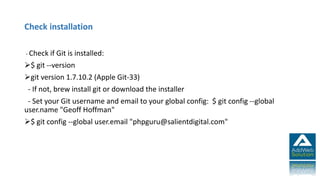
Check installation
- Check if Git is installed:
$ git --version
git version 1.7.10.2 (Apple Git-33)
- If not, brew install git or download the installer
- Set your Git username and email to your global config: $ git config --global
user.name "Geoff Hoffman"
$ git config --global user.email "phpguru@salientdigital.com"
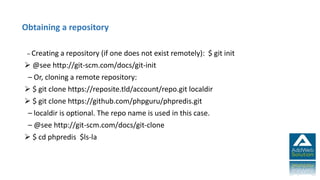
– Creating a repository (if one does not exist remotely): $ git init
 @see http://git-scm.com/docs/git-init
– Or, cloning a remote repository:
 $ git clone https://reposite.tld/account/repo.git localdir
 $ git clone https://github.com/phpguru/phpredis.git
– localdir is optional. The repo name is used in this case.
– @see http://git-scm.com/docs/git-clone
 $ cd phpredis $ls-la
Obtaining a repository
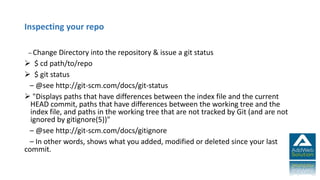
Inspecting your repo
– Change Directory into the repository & issue a git status
 $ cd path/to/repo
 $ git status
– @see http://git-scm.com/docs/git-status
 "Displays paths that have differences between the index file and the current
HEAD commit, paths that have differences between the working tree and the
index file, and paths in the working tree that are not tracked by Git (and are not
ignored by gitignore(5))"
– @see http://git-scm.com/docs/gitignore
– In other words, shows what you added, modified or deleted since your last
commit.
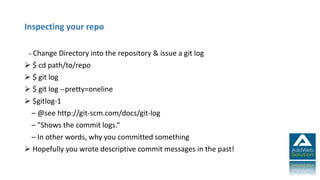
Inspecting your repo
– Change Directory into the repository & issue a git log
 $ cd path/to/repo
 $ git log
 $ git log --pretty=oneline
 $gitlog-1
– @see http://git-scm.com/docs/git-log
– "Shows the commit logs.“
– In other words, why you committed something
 Hopefully you wrote descriptive commit messages in the past!
Making Edits & Committing
 You can use whatever program you normally use to edit files.
 Make a new file - newfile.txt
 Edit the file as desired
 Save it in your working directory
 $ git status
– will show the file as "Changes not staged for commit"
 $ git add newfile.txt
 $ git status
– will show newfile.txt as "Changes to be committed"
– git commit -m "Added newfile.txt as an example"
» [Master 1e77a20] Added newfile.txt as an example
 1 file changed, 0 insertions(+), 0 deletions(-)
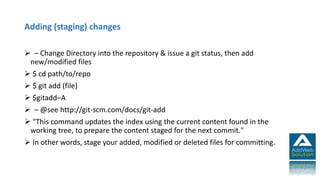
Adding (staging) changes
 – Change Directory into the repository & issue a git status, then add
new/modified files
 $ cd path/to/repo
 $ git add (file)
 $gitadd–A
 – @see http://git-scm.com/docs/git-add
 "This command updates the index using the current content found in the
working tree, to prepare the content staged for the next commit."
 In other words, stage your added, modified or deleted files for committing.
Committing (staged) changes
– Change Directory into the repository & issue a git status, then add new/modified
files, then commit them to your local repository
 $ cd path/to/repo
 $ git add (file)
 $ git commit -m "What did you change? Log messages matter." – @see
http://git-scm.com/docs/git-commit
 "Stores the current contents of the index in a new commit along with a log
message from the user describing the changes."
 In other words, store the added, modified or deleted files you staged in your
repository.
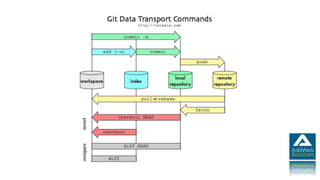
Pushing
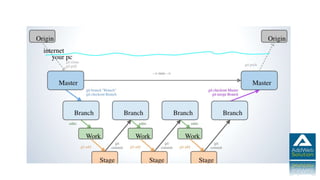
At this point, none of those changes you've made have left your computer. (You still
have local "infinite undo".) Let's push those changes to the remote repo.
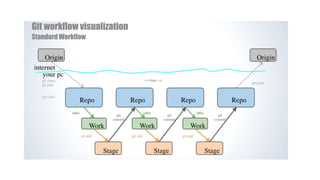
 git push <repository> <refspec> • git push origin master
 git push origin master:master
– You now have an annotated, offsite backup of the work you performed!
 REMEMBER:
– If you never commit, you have no history.
– If you never push, you have no offsite backup.
 As a rule of thumb, commit every hour, push every day.
– There is no reason not to commit after every "logical stopping-point" and push
when a good section of work is complete, unit tests pass, etc.
 After you commit, your colleagues can pull changes down from the origin
repository to their local working repository.
Pushing your changes offsite (local -> remote)
– Change Directory into the repository & issue a git push
 $ cd path/to/repo
 $ git push origin master
– @see http://git-scm.com/docs/git-push
 "Updates remote refs using local refs, while sending objects necessary to
complete the given refs."
 In other words, send your local changes back to the remote repo you cloned
from.
Pulling someone else's changes (remote -> local)
– Change Directory into the repository & issue a git pull
$ cd path/to/repo
$ git pull origin master
– @see http://git-scm.com/docs/git-pull
 "Incorporates changes from a remote repository into the current branch. In its
default mode, git pull is shorthand for git fetch followed by git merge
FETCH_HEAD."
 In other words, retrieve changes made to the remote repo and merge them into
your local repo, updating your working copy to match.
NEXT STEP
Working smart(er)
– Merge changes made in a feature branch into another branch, typically
development, to then be tested, and ultimately merged to the master branch and
tagged.
$ cd path/to/repo
$ git branch
$ git checkout master
$ git merge featurename
– @see http://git-scm.com/docs/git-merge
"Incorporates changes from the named commits (since the time their histories
diverged from the current branch) into the current branch. This command is used
by git pull to incorporate changes from another repository and can be used by
hand to merge changes from one branch into another."
In other words, apply changes from another branch to the current one.
Wrap Up: Review
The most common commands you will use during a normal day/week working with Git to manage
versions of code:
Download/Create a local repo $ git clone
$ git init
Checking what's changed $ git status
$ git log
Storing edits $ git add
$ git commit
Updating your local repo $ git pull (git fetch)
$ git branch
$ git merge
Storing changes offsite/offbox $ git commit
$ git push
Storing changes offsite/offbox $ git tag
$ git push
GOAL
To learn to resolve merging conflicts
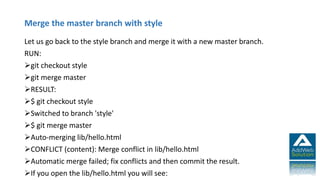
Merge the master branch with style
Let us go back to the style branch and merge it with a new master branch.
RUN:
git checkout style
git merge master
RESULT:
$ git checkout style
Switched to branch 'style'
$ git merge master
Auto-merging lib/hello.html
CONFLICT (content): Merge conflict in lib/hello.html
Automatic merge failed; fix conflicts and then commit the result.
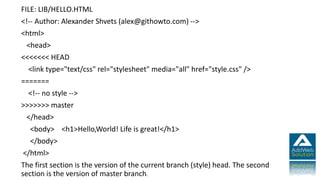
If you open the lib/hello.html you will see:
FILE: LIB/HELLO.HTML
<!-- Author: Alexander Shvets (alex@githowto.com) -->
<html>
<head>
<<<<<<< HEAD
<link type="text/css" rel="stylesheet" media="all" href="style.css" />
=======
<!-- no style -->
>>>>>>> master
</head>
<body> <h1>Hello,World! Life is great!</h1>
</body>
</html>
The first section is the version of the current branch (style) head. The second
section is the version of master branch.
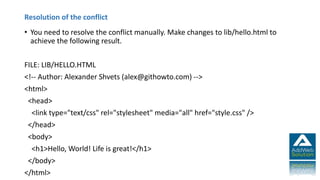
Resolution of the conflict
• You need to resolve the conflict manually. Make changes to lib/hello.html to
achieve the following result.
FILE: LIB/HELLO.HTML
<!-- Author: Alexander Shvets (alex@githowto.com) -->
<html>
<head>
<link type="text/css" rel="stylesheet" media="all" href="style.css" />
</head>
<body>
<h1>Hello, World! Life is great!</h1>
</body>
</html>
Make a commit of conflict resolution
• RUN:
git add lib/hello.html
git commit -m "Merged master fixed conflict."
• RESULT:
$ git add lib/hello.html
$ git commit -m "Merged master fixed conflict."
Recorded resolution for 'lib/hello.html'.
[style 645c4e6] Merged master fixed conflict.
26
CONTACT US add.websolution
contact@addwebsolution.comPut us to work
“lets talk solution”

Git

  • 1.
  • 2.
    Getting Started Downloading git Downloadthe software - it's free http://git-scm.com/downloads or on Mac (homebrew), $ brew install git
  • 4.
  • 5.
    Check installation - Checkif Git is installed: $ git --version git version 1.7.10.2 (Apple Git-33) - If not, brew install git or download the installer - Set your Git username and email to your global config: $ git config --global user.name "Geoff Hoffman" $ git config --global user.email "phpguru@salientdigital.com"
  • 6.
    – Creating arepository (if one does not exist remotely): $ git init  @see http://git-scm.com/docs/git-init – Or, cloning a remote repository:  $ git clone https://reposite.tld/account/repo.git localdir  $ git clone https://github.com/phpguru/phpredis.git – localdir is optional. The repo name is used in this case. – @see http://git-scm.com/docs/git-clone  $ cd phpredis $ls-la Obtaining a repository
  • 7.
    Inspecting your repo –Change Directory into the repository & issue a git status  $ cd path/to/repo  $ git status – @see http://git-scm.com/docs/git-status  "Displays paths that have differences between the index file and the current HEAD commit, paths that have differences between the working tree and the index file, and paths in the working tree that are not tracked by Git (and are not ignored by gitignore(5))" – @see http://git-scm.com/docs/gitignore – In other words, shows what you added, modified or deleted since your last commit.
  • 8.
    Inspecting your repo –Change Directory into the repository & issue a git log  $ cd path/to/repo  $ git log  $ git log --pretty=oneline  $gitlog-1 – @see http://git-scm.com/docs/git-log – "Shows the commit logs.“ – In other words, why you committed something  Hopefully you wrote descriptive commit messages in the past!
  • 9.
    Making Edits &Committing  You can use whatever program you normally use to edit files.  Make a new file - newfile.txt  Edit the file as desired  Save it in your working directory  $ git status – will show the file as "Changes not staged for commit"  $ git add newfile.txt  $ git status – will show newfile.txt as "Changes to be committed" – git commit -m "Added newfile.txt as an example" » [Master 1e77a20] Added newfile.txt as an example  1 file changed, 0 insertions(+), 0 deletions(-)
  • 10.
    Adding (staging) changes – Change Directory into the repository & issue a git status, then add new/modified files  $ cd path/to/repo  $ git add (file)  $gitadd–A  – @see http://git-scm.com/docs/git-add  "This command updates the index using the current content found in the working tree, to prepare the content staged for the next commit."  In other words, stage your added, modified or deleted files for committing.
  • 11.
    Committing (staged) changes –Change Directory into the repository & issue a git status, then add new/modified files, then commit them to your local repository  $ cd path/to/repo  $ git add (file)  $ git commit -m "What did you change? Log messages matter." – @see http://git-scm.com/docs/git-commit  "Stores the current contents of the index in a new commit along with a log message from the user describing the changes."  In other words, store the added, modified or deleted files you staged in your repository.
  • 13.
    Pushing At this point,none of those changes you've made have left your computer. (You still have local "infinite undo".) Let's push those changes to the remote repo.  git push <repository> <refspec> • git push origin master  git push origin master:master – You now have an annotated, offsite backup of the work you performed!  REMEMBER: – If you never commit, you have no history. – If you never push, you have no offsite backup.  As a rule of thumb, commit every hour, push every day. – There is no reason not to commit after every "logical stopping-point" and push when a good section of work is complete, unit tests pass, etc.  After you commit, your colleagues can pull changes down from the origin repository to their local working repository.
  • 14.
    Pushing your changesoffsite (local -> remote) – Change Directory into the repository & issue a git push  $ cd path/to/repo  $ git push origin master – @see http://git-scm.com/docs/git-push  "Updates remote refs using local refs, while sending objects necessary to complete the given refs."  In other words, send your local changes back to the remote repo you cloned from.
  • 15.
    Pulling someone else'schanges (remote -> local) – Change Directory into the repository & issue a git pull $ cd path/to/repo $ git pull origin master – @see http://git-scm.com/docs/git-pull  "Incorporates changes from a remote repository into the current branch. In its default mode, git pull is shorthand for git fetch followed by git merge FETCH_HEAD."  In other words, retrieve changes made to the remote repo and merge them into your local repo, updating your working copy to match.
  • 17.
  • 18.
    Working smart(er) – Mergechanges made in a feature branch into another branch, typically development, to then be tested, and ultimately merged to the master branch and tagged. $ cd path/to/repo $ git branch $ git checkout master $ git merge featurename – @see http://git-scm.com/docs/git-merge "Incorporates changes from the named commits (since the time their histories diverged from the current branch) into the current branch. This command is used by git pull to incorporate changes from another repository and can be used by hand to merge changes from one branch into another." In other words, apply changes from another branch to the current one.
  • 19.
    Wrap Up: Review Themost common commands you will use during a normal day/week working with Git to manage versions of code: Download/Create a local repo $ git clone $ git init Checking what's changed $ git status $ git log Storing edits $ git add $ git commit Updating your local repo $ git pull (git fetch) $ git branch $ git merge Storing changes offsite/offbox $ git commit $ git push Storing changes offsite/offbox $ git tag $ git push
  • 20.
    GOAL To learn toresolve merging conflicts
  • 21.
    Merge the masterbranch with style Let us go back to the style branch and merge it with a new master branch. RUN: git checkout style git merge master RESULT: $ git checkout style Switched to branch 'style' $ git merge master Auto-merging lib/hello.html CONFLICT (content): Merge conflict in lib/hello.html Automatic merge failed; fix conflicts and then commit the result. If you open the lib/hello.html you will see:
  • 22.
    FILE: LIB/HELLO.HTML <!-- Author:Alexander Shvets (alex@githowto.com) --> <html> <head> <<<<<<< HEAD <link type="text/css" rel="stylesheet" media="all" href="style.css" /> ======= <!-- no style --> >>>>>>> master </head> <body> <h1>Hello,World! Life is great!</h1> </body> </html> The first section is the version of the current branch (style) head. The second section is the version of master branch.
  • 23.
    Resolution of theconflict • You need to resolve the conflict manually. Make changes to lib/hello.html to achieve the following result. FILE: LIB/HELLO.HTML <!-- Author: Alexander Shvets (alex@githowto.com) --> <html> <head> <link type="text/css" rel="stylesheet" media="all" href="style.css" /> </head> <body> <h1>Hello, World! Life is great!</h1> </body> </html>
  • 24.
    Make a commitof conflict resolution • RUN: git add lib/hello.html git commit -m "Merged master fixed conflict." • RESULT: $ git add lib/hello.html $ git commit -m "Merged master fixed conflict." Recorded resolution for 'lib/hello.html'. [style 645c4e6] Merged master fixed conflict.
  • 26.