WHAT IS GIT?
Distributed (Decentralized)
version control system
GIT DOESN'T DELETE
• Git generally only adds data
• If you mess up, you can usually recover your stuff
• Recovery can be tricky though
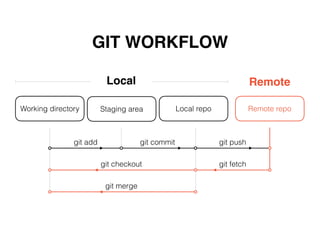
GIT WORKFLOW
Working directory Staging area Local repo Remote repo
git add git commit git push
git checkout git fetch
git merge
Local Remote
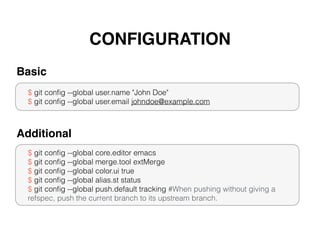
CONFIGURATION
$ git config --global user.name "John Doe"
$ git config --global user.email johndoe@example.com
Basic
$ git config --global core.editor emacs
$ git config --global merge.tool extMerge
$ git config --global color.ui true
$ git config --global alias.st status
$ git config --global push.default tracking #When pushing without giving a
refspec, push the current branch to its upstream branch.
Additional
GIT COMMANDS
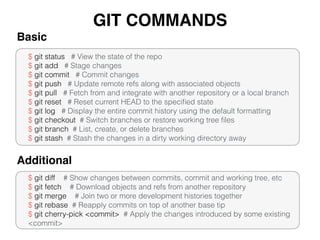
$ git status # View the state of the repo
$ git add # Stage changes
$ git commit # Commit changes
$ git push # Update remote refs along with associated objects
$ git pull # Fetch from and integrate with another repository or a local branch
$ git reset # Reset current HEAD to the specified state
$ git log # Display the entire commit history using the default formatting
$ git checkout # Switch branches or restore working tree files
$ git branch # List, create, or delete branches
$ git stash # Stash the changes in a dirty working directory away
Basic
$ git diff # Show changes between commits, commit and working tree, etc
$ git fetch # Download objects and refs from another repository
$ git merge # Join two or more development histories together
$ git rebase # Reapply commits on top of another base tip
$ git cherry-pick <commit> # Apply the changes introduced by some existing
<commit>
Additional
GIT ADD
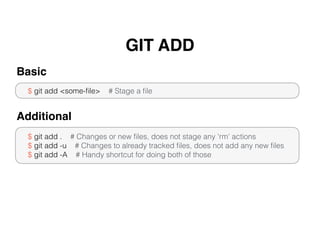
$ git add <some-file> # Stage a file
Basic
$ git add . # Changes or new files, does not stage any 'rm' actions
$ git add -u # Changes to already tracked files, does not add any new files
$ git add -A # Handy shortcut for doing both of those
Additional
GIT COMMIT
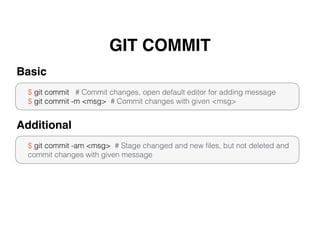
$ git commit # Commit changes, open default editor for adding message
$ git commit -m <msg> # Commit changes with given <msg>
Basic
$ git commit -am <msg> # Stage changed and new files, but not deleted and
commit changes with given message
Additional
GIT PUSH
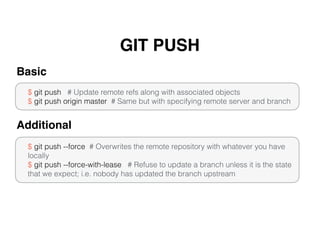
$ git push # Update remote refs along with associated objects
$ git push origin master # Same but with specifying remote server and branch
Basic
$ git push --force # Overwrites the remote repository with whatever you have
locally
$ git push --force-with-lease # Refuse to update a branch unless it is the state
that we expect; i.e. nobody has updated the branch upstream
Additional
GIT FETCH
$ git fetch # Download objects and refs from another repository
Basic
You can do a git fetch at any time to update your remote-tracking branches under
refs/remotes/<remote>/.
This operation never changes any of your own local branches under refs/heads,
and is safe to do without changing your working copy.
GIT MERGE
$ git merge # Merge remote branch with same name into the current branch
$ git merge <branch> # Merge the specified branch into the current branch
Basic
GIT REBASE
$ git rebase # Reapply commits on top of another base tip
Basic
$ git add .
$ git rebase --continue # Continue the rebasing process
$ git rebase --abort # Undo the git rebase
Resolving conflicts
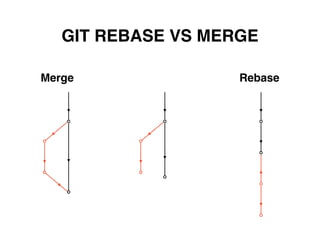
GIT REBASE VS MERGE
Merge Rebase
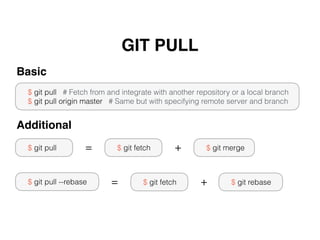
GIT PULL
$ git pull # Fetch from and integrate with another repository or a local branch
$ git pull origin master # Same but with specifying remote server and branch
Basic
$ git pull
Additional
$ git pull --rebase
$ git fetch $ git merge
$ git fetch $ git rebase
=
=
+
+
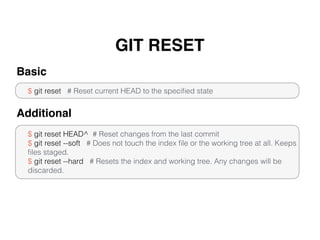
GIT RESET
$ git reset # Reset current HEAD to the specified state
Basic
$ git reset HEAD^ # Reset changes from the last commit
$ git reset --soft # Does not touch the index file or the working tree at all. Keeps
files staged.
$ git reset --hard # Resets the index and working tree. Any changes will be
discarded.
Additional
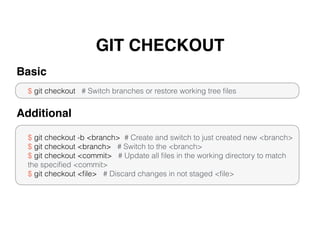
GIT CHECKOUT
$ git checkout # Switch branches or restore working tree files
Basic
$ git checkout -b <branch> # Create and switch to just created new <branch>
$ git checkout <branch> # Switch to the <branch>
$ git checkout <commit> # Update all files in the working directory to match
the specified <commit>
$ git checkout <file> # Discard changes in not staged <file>
Additional
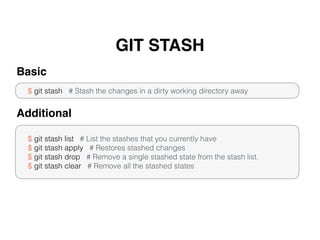
GIT STASH
$ git stash # Stash the changes in a dirty working directory away
Basic
$ git stash list # List the stashes that you currently have
$ git stash apply # Restores stashed changes
$ git stash drop # Remove a single stashed state from the stash list.
$ git stash clear # Remove all the stashed states
Additional
GIT CHERRY-PICK
$ git cherry-pick <commit> # Apply the changes introduced by some existing
<commit>
Basic
GIT LOG
$ git log # Show commit logs
Basic
$ git log --oneline # This is a shorthand for "--pretty=oneline --abbrev-commit"
used together.
$ git log --decorate # Print out the ref names of any commits that are shown
$ git log --graph # Draw a text-based graphical representation of the commit
history on the left hand side of the output. 

$ git log --grep=<pattern> # Limit the commits output to ones with log
message that matches the specified pattern (regular expression)
Additional
Thank you

Git

  • 2.
    WHAT IS GIT? Distributed(Decentralized) version control system
  • 3.
    GIT DOESN'T DELETE •Git generally only adds data • If you mess up, you can usually recover your stuff • Recovery can be tricky though
  • 4.
    GIT WORKFLOW Working directoryStaging area Local repo Remote repo git add git commit git push git checkout git fetch git merge Local Remote
  • 5.
    CONFIGURATION $ git config--global user.name "John Doe" $ git config --global user.email johndoe@example.com Basic $ git config --global core.editor emacs $ git config --global merge.tool extMerge $ git config --global color.ui true $ git config --global alias.st status $ git config --global push.default tracking #When pushing without giving a refspec, push the current branch to its upstream branch. Additional
  • 6.
    GIT COMMANDS $ gitstatus # View the state of the repo $ git add # Stage changes $ git commit # Commit changes $ git push # Update remote refs along with associated objects $ git pull # Fetch from and integrate with another repository or a local branch $ git reset # Reset current HEAD to the specified state $ git log # Display the entire commit history using the default formatting $ git checkout # Switch branches or restore working tree files $ git branch # List, create, or delete branches $ git stash # Stash the changes in a dirty working directory away Basic $ git diff # Show changes between commits, commit and working tree, etc $ git fetch # Download objects and refs from another repository $ git merge # Join two or more development histories together $ git rebase # Reapply commits on top of another base tip $ git cherry-pick <commit> # Apply the changes introduced by some existing <commit> Additional
  • 7.
    GIT ADD $ gitadd <some-file> # Stage a file Basic $ git add . # Changes or new files, does not stage any 'rm' actions $ git add -u # Changes to already tracked files, does not add any new files $ git add -A # Handy shortcut for doing both of those Additional
  • 8.
    GIT COMMIT $ gitcommit # Commit changes, open default editor for adding message $ git commit -m <msg> # Commit changes with given <msg> Basic $ git commit -am <msg> # Stage changed and new files, but not deleted and commit changes with given message Additional
  • 9.
    GIT PUSH $ gitpush # Update remote refs along with associated objects $ git push origin master # Same but with specifying remote server and branch Basic $ git push --force # Overwrites the remote repository with whatever you have locally $ git push --force-with-lease # Refuse to update a branch unless it is the state that we expect; i.e. nobody has updated the branch upstream Additional
  • 10.
    GIT FETCH $ gitfetch # Download objects and refs from another repository Basic You can do a git fetch at any time to update your remote-tracking branches under refs/remotes/<remote>/. This operation never changes any of your own local branches under refs/heads, and is safe to do without changing your working copy.
  • 11.
    GIT MERGE $ gitmerge # Merge remote branch with same name into the current branch $ git merge <branch> # Merge the specified branch into the current branch Basic
  • 12.
    GIT REBASE $ gitrebase # Reapply commits on top of another base tip Basic $ git add . $ git rebase --continue # Continue the rebasing process $ git rebase --abort # Undo the git rebase Resolving conflicts
  • 13.
    GIT REBASE VSMERGE Merge Rebase
  • 14.
    GIT PULL $ gitpull # Fetch from and integrate with another repository or a local branch $ git pull origin master # Same but with specifying remote server and branch Basic $ git pull Additional $ git pull --rebase $ git fetch $ git merge $ git fetch $ git rebase = = + +
  • 15.
    GIT RESET $ gitreset # Reset current HEAD to the specified state Basic $ git reset HEAD^ # Reset changes from the last commit $ git reset --soft # Does not touch the index file or the working tree at all. Keeps files staged. $ git reset --hard # Resets the index and working tree. Any changes will be discarded. Additional
  • 16.
    GIT CHECKOUT $ gitcheckout # Switch branches or restore working tree files Basic $ git checkout -b <branch> # Create and switch to just created new <branch> $ git checkout <branch> # Switch to the <branch> $ git checkout <commit> # Update all files in the working directory to match the specified <commit> $ git checkout <file> # Discard changes in not staged <file> Additional
  • 17.
    GIT STASH $ gitstash # Stash the changes in a dirty working directory away Basic $ git stash list # List the stashes that you currently have $ git stash apply # Restores stashed changes $ git stash drop # Remove a single stashed state from the stash list. $ git stash clear # Remove all the stashed states Additional
  • 18.
    GIT CHERRY-PICK $ gitcherry-pick <commit> # Apply the changes introduced by some existing <commit> Basic
  • 19.
    GIT LOG $ gitlog # Show commit logs Basic $ git log --oneline # This is a shorthand for "--pretty=oneline --abbrev-commit" used together. $ git log --decorate # Print out the ref names of any commits that are shown $ git log --graph # Draw a text-based graphical representation of the commit history on the left hand side of the output. 
 $ git log --grep=<pattern> # Limit the commits output to ones with log message that matches the specified pattern (regular expression) Additional
  • 20.