Introduction to Git and GitHub
Michael A. Dolan, Ph.D
May 19, 2016
Outline
I. Introductionto source control
A. History and fundamental concepts behind source control
B. Centralized vs. distributed version control
II. Introductionto Git
A. What is Git? Basic Git concepts and architecture
B. Git workflows: Creating a new repo (adding, committing code)
C. HEAD
D. Git commands (checking out code)
E. Master vs branch concept
F.Creating a branch/switching between branches
G. Merging branches and resolving conflicts
III. Introductionto GitHub
A. What is GitHub? Basic GitHub concepts
B. GitHub in practice: Distributed version control
C. Cloning a remote repo
D. Fetching/Pushing to a remote repo
E. Collaborating using Git and GitHub
What is a ‘version control system?’
• a way to manage files and directories
• track changes over time
• recall previous versions
• ‘source control’ is a subset of a VCS.
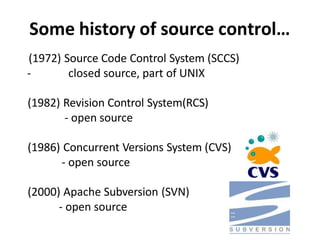
Some history of source control…
(1972) Source Code Control System (SCCS)
- closed source, part of UNIX
(1982) Revision Control System(RCS)
- open source
(1986) Concurrent Versions System (CVS)
- open source
(2000) Apache Subversion (SVN)
- open source
…more history
(2000) BitKeeper SCM
- closed source, proprietary, used with
source code management of Linux kernel
- free until 2005
- distributed version control
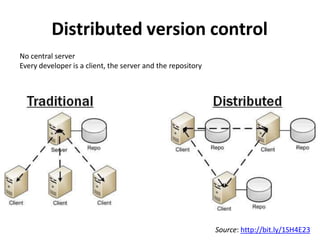
Distributed version control
No central server
Every developer is a client, the server and the repository
Source: http://bit.ly/1SH4E23
What is git?
What is git?
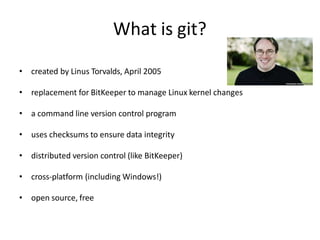
• created by Linus Torvalds, April 2005
• replacement for BitKeeper to manage Linux kernel changes
• a command line version control program
• uses checksums to ensure data integrity
• distributed version control (like BitKeeper)
• cross-platform (including Windows!)
• open source, free
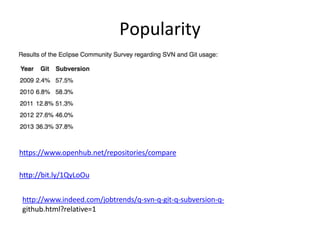
Popularity
https://www.openhub.net/repositories/compare
http://bit.ly/1QyLoOu
http://www.indeed.com/jobtrends/q-svn-q-git-q-subversion-q-
github.html?relative=1
Git distributed version control
• “If you’re not distributed, you’re not worth using.” – Linus Torvalds
• no need to connect to central server
• can work without internet connection
• no single failure point
• developers can work independently and merge their work later
• every copy of a Git repository can serve either as the server or as a client
(and has complete history!)
• Git tracks changes, not versions
• Bunch of little change sets floating around
Is Git for me?
• People primarily working with source code
• Anyone wanting to track edits (especially changes
to text files)
- review history of changes
- anyone wanting to share, merge changes
• Anyone not afraid of
command line tools
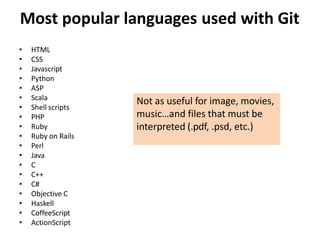
Most popular languages used with Git
• HTML
• CSS
• Javascript
• Python
• ASP
• Scala
• Shell scripts
• PHP
• Ruby
• Ruby on Rails
• Perl
• Java
• C
• C++
• C#
• Objective C
• Haskell
• CoffeeScript
• ActionScript
Not as useful for image, movies,
music…and files that must be
interpreted (.pdf, .psd, etc.)
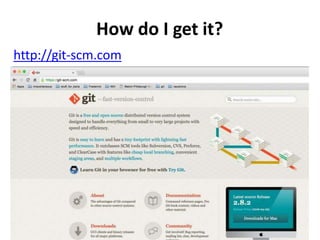
How do I get it?
http://git-scm.com
Git install tip
• Much better to set up on a per-user basis
(instead of a global, system-wide install)
What is a repository?
• “repo” = repository
• usually used to organize a single project
• repos can contain folders and files, images,
videos, spreadsheets, and data sets – anything
your project needs
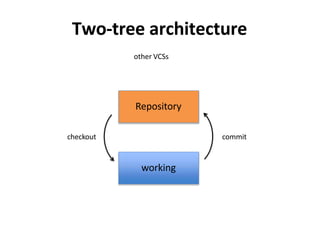
Two-tree architecture
other VCSs
Repository
working
checkout commit
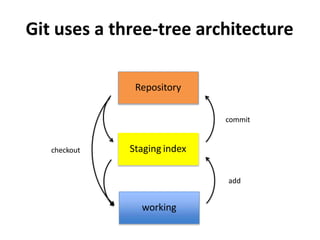
Git uses a three-tree architecture
Staging index
working
Repository
checkout
add
commit
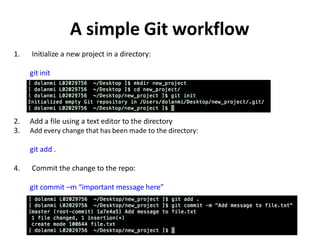
A simple Git workflow
1. Initialize a new project in a directory:
git init
2. Add a file using a text editor to the directory
3. Add every change that has been made to the directory:
git add .
4. Commit the change to the repo:
git commit –m “important message here”
.
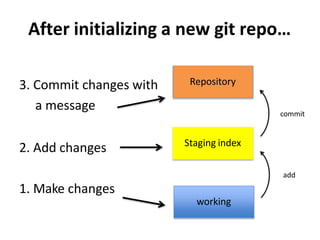
After initializing a new git repo…
3. Commit changes with
a message
2. Add changes
1. Make changes
Staging index
working
Repository
add
commit
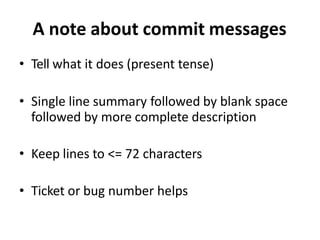
A note about commit messages
• Tell what it does (present tense)
• Single line summary followed by blank space
followed by more complete description
• Keep lines to <= 72 characters
• Ticket or bug number helps
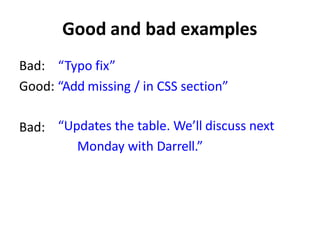
Good and bad examples
Bad: “Typo fix”
Good: “Add missing / in CSS section”
Bad: “Updates the table. We’ll discuss next
Monday with Darrell.”
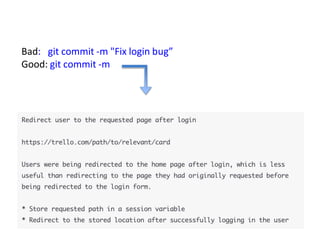
Bad: git commit -m "Fix login bug”
Good: git commit -m
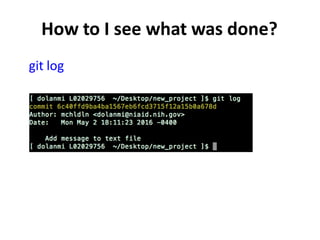
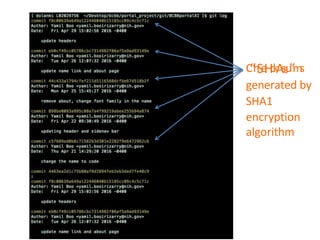
How to I see what was done?
git log
C
“h
Se
Hc
k
As
s
u
”m
s
generated by
SHA1
encryption
algorithm
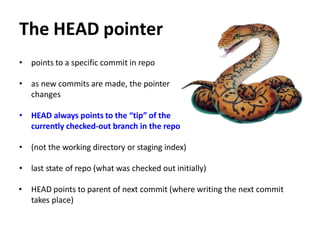
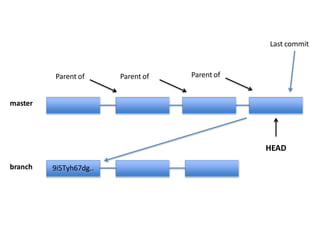
The HEAD pointer
• points to a specific commit in repo
• as new commits are made, the pointer
changes
• HEAD always points to the “tip” of the
currently checked-out branch in the repo
• (not the working directory or staging index)
• last state of repo (what was checked out initially)
• HEAD points to parent of next commit (where writing the next commit
takes place)
Y4f7uiPRRo… Pu87rRi4DD.. Qs2o0k64ja… i7Ewd37kL9…
HEAD
Parent of
Parent of
Parent of
Last commit
9i5Tyh67dg.. oe48Hr3Gh9.. d3Ui94Hje4...
master
branch
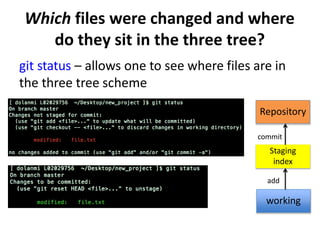
Which files were changed and where
do they sit in the three tree?
git status – allows one to see where files are in
the three tree scheme
Staging
index
working
Repository
add
commit
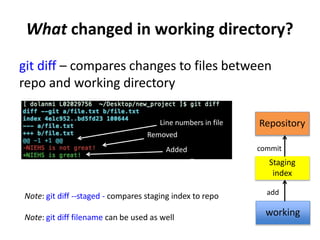
What changed in working directory?
git diff – compares changes to files between
repo and working directory
Note: git diff --staged - compares staging index to repo
Note: git diff filename can be used as well
Staging
index
working
Repository
add
commit
Line numbers in file
Removed
Added
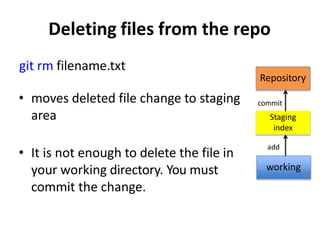
Deleting files from the repo
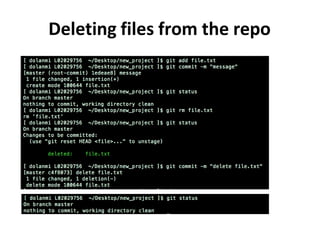
git rm filename.txt
• moves deleted file change to staging
area
• It is not enough to delete the file in
your working directory. You must
commit the change.
Staging
index
working
Repository
add
commit
Deleting files from the repo
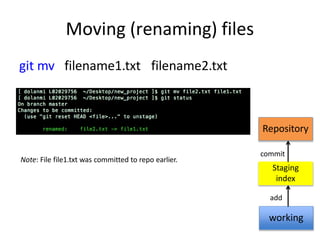
Moving (renaming) files
git mv filename1.txt filename2.txt
Note: File file1.txt was committed to repo earlier.
Staging
index
working
Repository
add
commit
Good news!
git init
git status
git log
git add
git commit
git diff
git rm
git mv
75% of the time you’ll be using
only these commands
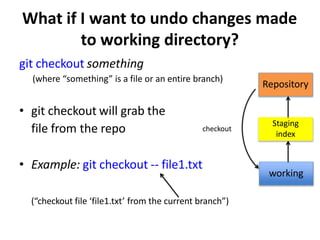
What if I want to undo changes made
to working directory?
git checkout something
(where “something” is a file or an entire branch)
• git checkout will grab the
file from the repo
• Example: git checkout -- file1.txt
(“checkout file ‘file1.txt’ from the current branch”)
Staging
index
working
Repository
checkout
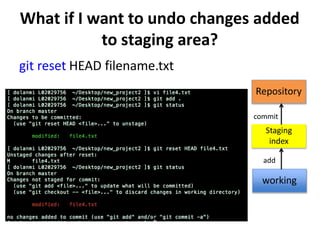
What if I want to undo changes added
to staging area?
git reset HEAD filename.txt
Staging
index
working
Repository
add
commit
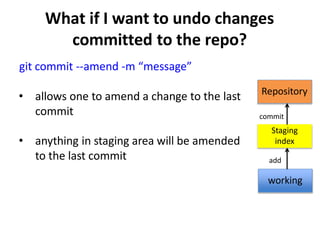
What if I want to undo changes
committed to the repo?
Staging
index
working
Repository
add
commit
git commit --amend -m “message”
• allows one to amend a change to the last
commit
• anything in staging area will be amended
to the last commit
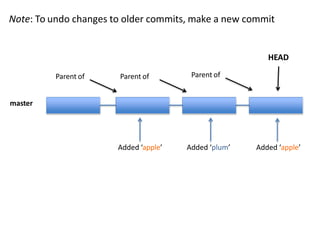
Y4f7uiPRRo… Pu87rRi4DD.. Qs2o0k64ja… i7Ewd37kL9…
HEAD
Parent of
Parent of
Parent of
master
Note: To undo changes to older commits, make a new commit
Added ‘apple’ Added ‘plum’ Added ‘apple’
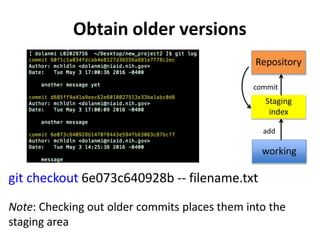
Obtain older versions
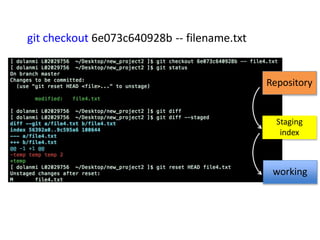
git checkout 6e073c640928b -- filename.txt
Note: Checking out older commits places them into the
staging area
Staging
index
working
Repository
add
commit
git checkout 6e073c640928b -- filename.txt
Staging
index
working
Repository
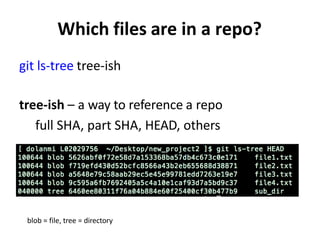
Which files are in a repo?
git ls-tree tree-ish
tree-ish – a way to reference a repo
full SHA, part SHA, HEAD, others
blob = file, tree = directory
branching
• allows one to try new ideas
• If an idea doesn’t work, throw away the branch.
Don’t have to undo many changes to master
branch
• If it does work, merge ideas into master branch.
• There is only one working directory
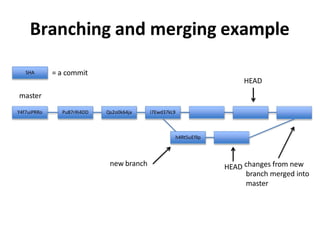
Branching and merging example
master
new branch
h4Rt5uEl9p Ge8r67elOp
Y4f7uiPRRo Pu87rRi4DD Qs2o0k64ja i7Ewd37kL9 he8o9iKlreD kle987yYieo mN34i4uwQ
SHA = a commit
HEAD changes from new
branch merged into
master
HEAD
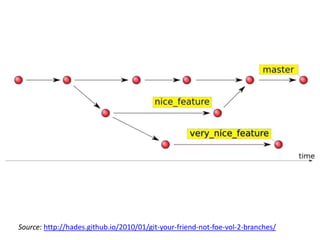
Source: http://hades.github.io/2010/01/git-your-friend-not-foe-vol-2-branches/
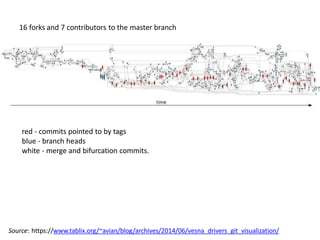
Source: https://www.tablix.org/~avian/blog/archives/2014/06/vesna_drivers_git_visualization/
16 forks and 7 contributors to the master branch
red - commits pointed to by tags
blue - branch heads
white - merge and bifurcation commits.
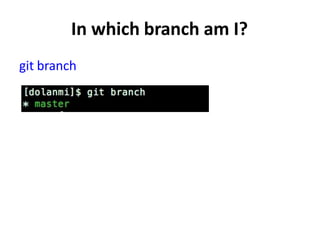
In which branch am I?
git branch
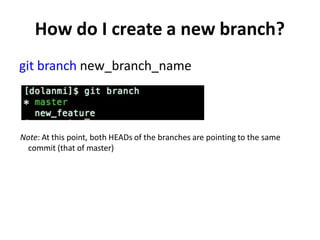
How do I create a new branch?
git branch new_branch_name
Note: At this point, both HEADs of the branches are pointing to the same
commit (that of master)
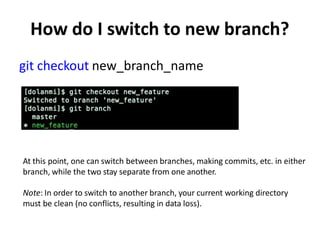
How do I switch to new branch?
git checkout new_branch_name
At this point, one can switch between branches, making commits, etc. in either
branch, while the two stay separate from one another.
Note: In order to switch to another branch, your current working directory
must be clean (no conflicts, resulting in data loss).
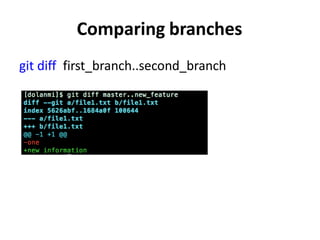
Comparing branches
git diff first_branch..second_branch
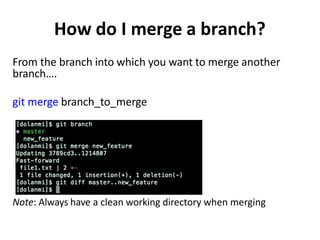
How do I merge a branch?
From the branch into which you want to merge another
branch….
git merge branch_to_merge
Note: Always have a clean working directory when merging
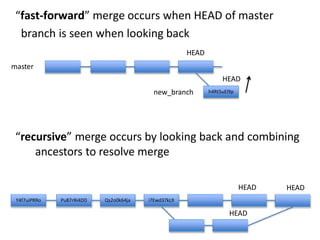
“fast-forward” merge occurs when HEAD of master
branch is seen when looking back
Y4f7uiPRRo Pu87rRi4DD Qs2o0k64ja i7Ewd37kL9
h4Rt5uEl9p
HEAD
h4Rt5uEl9p Ge8r67elOp
Y4f7uiPRRo Pu87rRi4DD Qs2o0k64ja i7Ewd37kL9 he8o9iKlreD kle987yYieo mN34i4uwQ
HEAD
HEAD
HEAD
master
new_branch
“recursive” merge occurs by looking back and combining
ancestors to resolve merge
HEAD
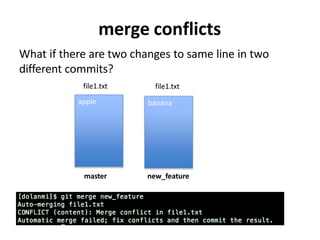
merge conflicts
What if there are two changes to same line in two
different commits?
file1.txt file1.txt
apple
master new_feature
banana
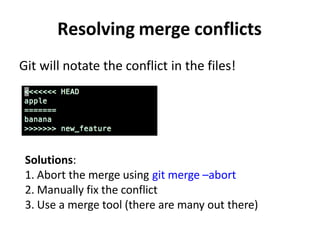
Resolving merge conflicts
Git will notate the conflict in the files!
Solutions:
1. Abort the merge using git merge –abort
2. Manually fix the conflict
3. Use a merge tool (there are many out there)
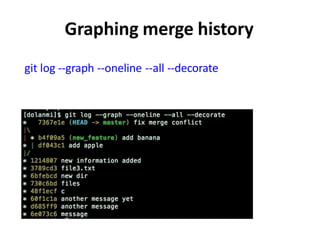
Graphing merge history
git log --graph --oneline --all --decorate
Tips to reduce merge pain
• merge often
• keep commits small/focused
• bring changes occurring to master into your
branch frequently (“tracking”)
What is ?
GitHub
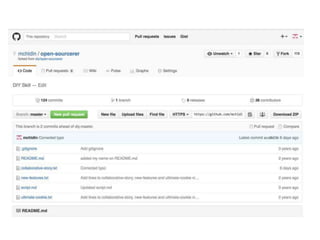
• a platform to host git code repositories
• http://github.com
• launched in 2008
• most popular Git host
• allows users to collaborate on projects from anywhere
• GitHub makes git social!
• Free to start
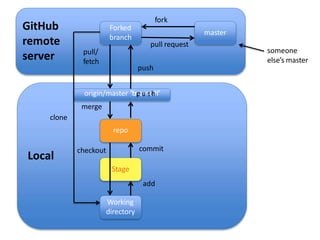
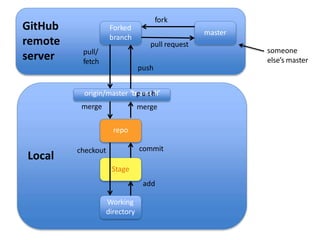
Local
GitHub
remote
server
Forked
branch
master
repo
Working
directory
commit
pull/
fetch
pull request
fork
Stage
add
checkout
origin/master “brpaunschh”
merge merge
origin/master
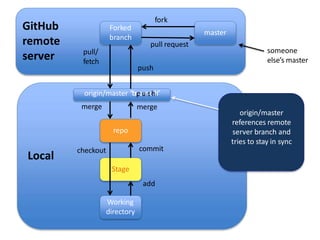
references remote
server branch and
tries to stay in sync
push
someone
else’s master
Important to remember
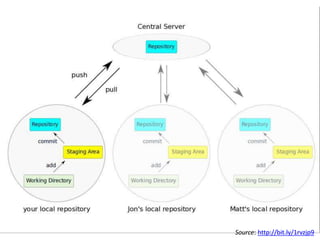
Sometimes developers choose to place repo on
GitHub as a centralized place where everyone
commits changes, but it doesn’t have to be on
GitHub
Source: http://bit.ly/1rvzjp9
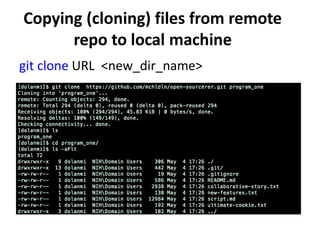
Copying (cloning) files from remote
repo to local machine
git clone URL <new_dir_name>
Local
GitHub
remote
server
Forked
branch
master
Working
directory
commit
pull/
fetch
pull request
fork
Stage
add
checkout
push
origin/master “brpaunschh”
merge
clone
repo
someone
else’s master
How do I link my local repo to a remote repo?
git remote add <alias> <URL>
Note: This just establishes a connection…no files are copied/moved
Note: Yes! You may have more than one remote linked to your local
directory!
Which remotes am I linked to?
git remote
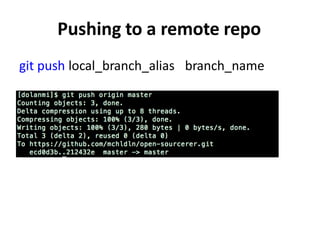
Pushing to a remote repo
git push local_branch_alias branch_name
Fetching from a remote repo
git fetch remote_repo_name
Fetch in no way changes a your working dir or any
commits that you’ve made.
• Fetch before you work
• Fetch before you push
• Fetch often
git merge must be done to merge fetched changes into
local branch
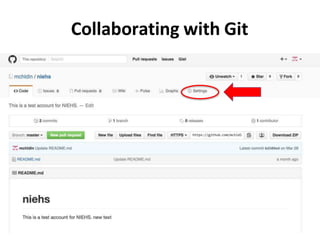
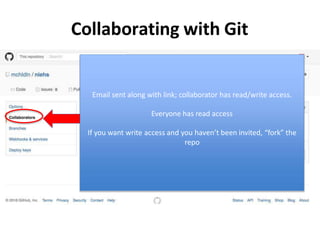
Collaborating with Git
Email sent along with link; collaborator has read/write access.
Everyone has read access
If you want write access and you haven’t been invited, “fork” the
repo
Local
GitHub
remote
server
Forked
branch
master
Working
directory
commit
pull/
fetch
pull request
fork
Stage
add
checkout
origin/master “brpaunschh”
merge merge
repo
push
someone
else’s master
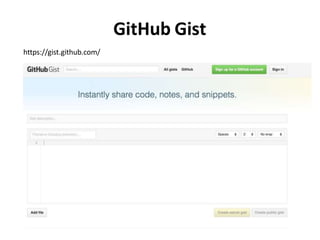
GitHub Gist
https://gist.github.com/
Good resources
• Git from Git: https://git-scm.com/book/en/v2
• A guided tour that walks through the fundamentals of Git:
https://githowto.com
• Linus Torvalds on Git:
https://www.youtube.com/watch?v=idLyobOhtO4
• Git tutorial from Atlassian:
https://www.atlassian.com/git/tutorials/
• A number of easy-to-understand guides by the GitHub folks
https://guides.github.com
git commit -a
• Allows one to add to staging index and
commit at the same time
• Grabs everything in working direcotry
• Files not tracked or being deleted are not
included
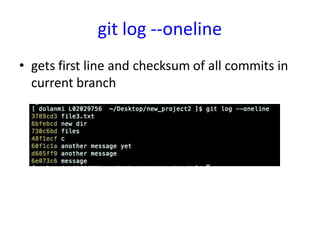
git log --oneline
• gets first line and checksum of all commits in
current branch
git diff g5iU0oPe7x
When using checksum of older commit, will
show you all changes compared to those in
your working directory
Renaming and deleting branches
git branch –m/--move old_name new_name
git branch –d branch_name
Note: Must not be in branch_name
Note: Must not have commits in branch_name unmerged in
branch from which you are deleting
git branch –D branch_name
Note: If you are *really* sure that you want to delete branch
with commits
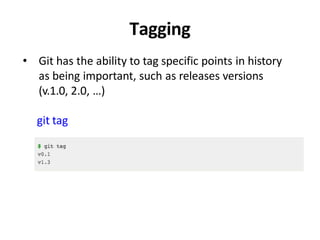
Tagging
• Git has the ability to tag specific points in history
as being important, such as releases versions
(v.1.0, 2.0, …)
git tag
Tagging
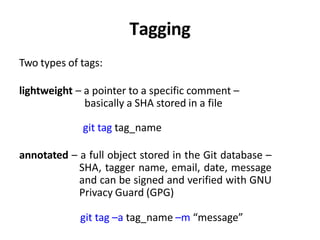
Two types of tags:
lightweight – a pointer to a specific comment –
basically a SHA stored in a file
git tag tag_name
annotated – a full object stored in the Git database –
SHA, tagger name, email, date, message
and can be signed and verified with GNU
Privacy Guard (GPG)
git tag –a tag_name –m “message”
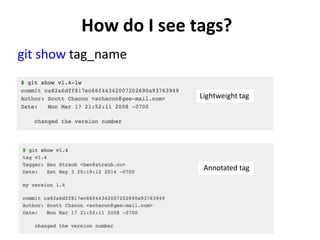
git show tag_name
How do I see tags?
Lightweight tag
Annotated tag

Git_new.pptx

  • 1.
    Introduction to Gitand GitHub Michael A. Dolan, Ph.D May 19, 2016
  • 2.
    Outline I. Introductionto sourcecontrol A. History and fundamental concepts behind source control B. Centralized vs. distributed version control II. Introductionto Git A. What is Git? Basic Git concepts and architecture B. Git workflows: Creating a new repo (adding, committing code) C. HEAD D. Git commands (checking out code) E. Master vs branch concept F.Creating a branch/switching between branches G. Merging branches and resolving conflicts III. Introductionto GitHub A. What is GitHub? Basic GitHub concepts B. GitHub in practice: Distributed version control C. Cloning a remote repo D. Fetching/Pushing to a remote repo E. Collaborating using Git and GitHub
  • 3.
    What is a‘version control system?’ • a way to manage files and directories • track changes over time • recall previous versions • ‘source control’ is a subset of a VCS.
  • 4.
    Some history ofsource control… (1972) Source Code Control System (SCCS) - closed source, part of UNIX (1982) Revision Control System(RCS) - open source (1986) Concurrent Versions System (CVS) - open source (2000) Apache Subversion (SVN) - open source
  • 5.
    …more history (2000) BitKeeperSCM - closed source, proprietary, used with source code management of Linux kernel - free until 2005 - distributed version control
  • 6.
    Distributed version control Nocentral server Every developer is a client, the server and the repository Source: http://bit.ly/1SH4E23
  • 7.
  • 8.
    What is git? •created by Linus Torvalds, April 2005 • replacement for BitKeeper to manage Linux kernel changes • a command line version control program • uses checksums to ensure data integrity • distributed version control (like BitKeeper) • cross-platform (including Windows!) • open source, free
  • 9.
  • 10.
    Git distributed versioncontrol • “If you’re not distributed, you’re not worth using.” – Linus Torvalds • no need to connect to central server • can work without internet connection • no single failure point • developers can work independently and merge their work later • every copy of a Git repository can serve either as the server or as a client (and has complete history!) • Git tracks changes, not versions • Bunch of little change sets floating around
  • 11.
    Is Git forme? • People primarily working with source code • Anyone wanting to track edits (especially changes to text files) - review history of changes - anyone wanting to share, merge changes • Anyone not afraid of command line tools
  • 12.
    Most popular languagesused with Git • HTML • CSS • Javascript • Python • ASP • Scala • Shell scripts • PHP • Ruby • Ruby on Rails • Perl • Java • C • C++ • C# • Objective C • Haskell • CoffeeScript • ActionScript Not as useful for image, movies, music…and files that must be interpreted (.pdf, .psd, etc.)
  • 13.
    How do Iget it? http://git-scm.com
  • 14.
    Git install tip •Much better to set up on a per-user basis (instead of a global, system-wide install)
  • 15.
    What is arepository? • “repo” = repository • usually used to organize a single project • repos can contain folders and files, images, videos, spreadsheets, and data sets – anything your project needs
  • 16.
  • 17.
    Git uses athree-tree architecture Staging index working Repository checkout add commit
  • 18.
    A simple Gitworkflow 1. Initialize a new project in a directory: git init 2. Add a file using a text editor to the directory 3. Add every change that has been made to the directory: git add . 4. Commit the change to the repo: git commit –m “important message here” .
  • 19.
    After initializing anew git repo… 3. Commit changes with a message 2. Add changes 1. Make changes Staging index working Repository add commit
  • 20.
    A note aboutcommit messages • Tell what it does (present tense) • Single line summary followed by blank space followed by more complete description • Keep lines to <= 72 characters • Ticket or bug number helps
  • 21.
    Good and badexamples Bad: “Typo fix” Good: “Add missing / in CSS section” Bad: “Updates the table. We’ll discuss next Monday with Darrell.”
  • 22.
    Bad: git commit-m "Fix login bug” Good: git commit -m
  • 23.
    How to Isee what was done? git log
  • 24.
  • 25.
    The HEAD pointer •points to a specific commit in repo • as new commits are made, the pointer changes • HEAD always points to the “tip” of the currently checked-out branch in the repo • (not the working directory or staging index) • last state of repo (what was checked out initially) • HEAD points to parent of next commit (where writing the next commit takes place)
  • 26.
    Y4f7uiPRRo… Pu87rRi4DD.. Qs2o0k64ja…i7Ewd37kL9… HEAD Parent of Parent of Parent of Last commit 9i5Tyh67dg.. oe48Hr3Gh9.. d3Ui94Hje4... master branch
  • 27.
    Which files werechanged and where do they sit in the three tree? git status – allows one to see where files are in the three tree scheme Staging index working Repository add commit
  • 28.
    What changed inworking directory? git diff – compares changes to files between repo and working directory Note: git diff --staged - compares staging index to repo Note: git diff filename can be used as well Staging index working Repository add commit Line numbers in file Removed Added
  • 29.
    Deleting files fromthe repo git rm filename.txt • moves deleted file change to staging area • It is not enough to delete the file in your working directory. You must commit the change. Staging index working Repository add commit
  • 30.
  • 31.
    Moving (renaming) files gitmv filename1.txt filename2.txt Note: File file1.txt was committed to repo earlier. Staging index working Repository add commit
  • 32.
    Good news! git init gitstatus git log git add git commit git diff git rm git mv 75% of the time you’ll be using only these commands
  • 33.
    What if Iwant to undo changes made to working directory? git checkout something (where “something” is a file or an entire branch) • git checkout will grab the file from the repo • Example: git checkout -- file1.txt (“checkout file ‘file1.txt’ from the current branch”) Staging index working Repository checkout
  • 34.
    What if Iwant to undo changes added to staging area? git reset HEAD filename.txt Staging index working Repository add commit
  • 35.
    What if Iwant to undo changes committed to the repo? Staging index working Repository add commit git commit --amend -m “message” • allows one to amend a change to the last commit • anything in staging area will be amended to the last commit
  • 36.
    Y4f7uiPRRo… Pu87rRi4DD.. Qs2o0k64ja…i7Ewd37kL9… HEAD Parent of Parent of Parent of master Note: To undo changes to older commits, make a new commit Added ‘apple’ Added ‘plum’ Added ‘apple’
  • 37.
    Obtain older versions gitcheckout 6e073c640928b -- filename.txt Note: Checking out older commits places them into the staging area Staging index working Repository add commit
  • 38.
    git checkout 6e073c640928b-- filename.txt Staging index working Repository
  • 39.
    Which files arein a repo? git ls-tree tree-ish tree-ish – a way to reference a repo full SHA, part SHA, HEAD, others blob = file, tree = directory
  • 40.
    branching • allows oneto try new ideas • If an idea doesn’t work, throw away the branch. Don’t have to undo many changes to master branch • If it does work, merge ideas into master branch. • There is only one working directory
  • 41.
    Branching and mergingexample master new branch h4Rt5uEl9p Ge8r67elOp Y4f7uiPRRo Pu87rRi4DD Qs2o0k64ja i7Ewd37kL9 he8o9iKlreD kle987yYieo mN34i4uwQ SHA = a commit HEAD changes from new branch merged into master HEAD
  • 42.
  • 43.
    Source: https://www.tablix.org/~avian/blog/archives/2014/06/vesna_drivers_git_visualization/ 16 forksand 7 contributors to the master branch red - commits pointed to by tags blue - branch heads white - merge and bifurcation commits.
  • 44.
    In which brancham I? git branch
  • 45.
    How do Icreate a new branch? git branch new_branch_name Note: At this point, both HEADs of the branches are pointing to the same commit (that of master)
  • 46.
    How do Iswitch to new branch? git checkout new_branch_name At this point, one can switch between branches, making commits, etc. in either branch, while the two stay separate from one another. Note: In order to switch to another branch, your current working directory must be clean (no conflicts, resulting in data loss).
  • 47.
    Comparing branches git difffirst_branch..second_branch
  • 48.
    How do Imerge a branch? From the branch into which you want to merge another branch…. git merge branch_to_merge Note: Always have a clean working directory when merging
  • 49.
    “fast-forward” merge occurswhen HEAD of master branch is seen when looking back Y4f7uiPRRo Pu87rRi4DD Qs2o0k64ja i7Ewd37kL9 h4Rt5uEl9p HEAD h4Rt5uEl9p Ge8r67elOp Y4f7uiPRRo Pu87rRi4DD Qs2o0k64ja i7Ewd37kL9 he8o9iKlreD kle987yYieo mN34i4uwQ HEAD HEAD HEAD master new_branch “recursive” merge occurs by looking back and combining ancestors to resolve merge HEAD
  • 50.
    merge conflicts What ifthere are two changes to same line in two different commits? file1.txt file1.txt apple master new_feature banana
  • 51.
    Resolving merge conflicts Gitwill notate the conflict in the files! Solutions: 1. Abort the merge using git merge –abort 2. Manually fix the conflict 3. Use a merge tool (there are many out there)
  • 52.
    Graphing merge history gitlog --graph --oneline --all --decorate
  • 53.
    Tips to reducemerge pain • merge often • keep commits small/focused • bring changes occurring to master into your branch frequently (“tracking”)
  • 54.
  • 56.
    GitHub • a platformto host git code repositories • http://github.com • launched in 2008 • most popular Git host • allows users to collaborate on projects from anywhere • GitHub makes git social! • Free to start
  • 57.
  • 58.
    Important to remember Sometimesdevelopers choose to place repo on GitHub as a centralized place where everyone commits changes, but it doesn’t have to be on GitHub
  • 59.
  • 61.
    Copying (cloning) filesfrom remote repo to local machine git clone URL <new_dir_name>
  • 62.
  • 63.
    How do Ilink my local repo to a remote repo? git remote add <alias> <URL> Note: This just establishes a connection…no files are copied/moved Note: Yes! You may have more than one remote linked to your local directory! Which remotes am I linked to? git remote
  • 64.
    Pushing to aremote repo git push local_branch_alias branch_name
  • 65.
    Fetching from aremote repo git fetch remote_repo_name Fetch in no way changes a your working dir or any commits that you’ve made. • Fetch before you work • Fetch before you push • Fetch often git merge must be done to merge fetched changes into local branch
  • 66.
  • 67.
    Collaborating with Git Emailsent along with link; collaborator has read/write access. Everyone has read access If you want write access and you haven’t been invited, “fork” the repo
  • 68.
  • 69.
  • 70.
    Good resources • Gitfrom Git: https://git-scm.com/book/en/v2 • A guided tour that walks through the fundamentals of Git: https://githowto.com • Linus Torvalds on Git: https://www.youtube.com/watch?v=idLyobOhtO4 • Git tutorial from Atlassian: https://www.atlassian.com/git/tutorials/ • A number of easy-to-understand guides by the GitHub folks https://guides.github.com
  • 71.
    git commit -a •Allows one to add to staging index and commit at the same time • Grabs everything in working direcotry • Files not tracked or being deleted are not included
  • 72.
    git log --oneline •gets first line and checksum of all commits in current branch
  • 73.
    git diff g5iU0oPe7x Whenusing checksum of older commit, will show you all changes compared to those in your working directory
  • 74.
    Renaming and deletingbranches git branch –m/--move old_name new_name git branch –d branch_name Note: Must not be in branch_name Note: Must not have commits in branch_name unmerged in branch from which you are deleting git branch –D branch_name Note: If you are *really* sure that you want to delete branch with commits
  • 75.
    Tagging • Git hasthe ability to tag specific points in history as being important, such as releases versions (v.1.0, 2.0, …) git tag
  • 76.
    Tagging Two types oftags: lightweight – a pointer to a specific comment – basically a SHA stored in a file git tag tag_name annotated – a full object stored in the Git database – SHA, tagger name, email, date, message and can be signed and verified with GNU Privacy Guard (GPG) git tag –a tag_name –m “message”
  • 77.
    git show tag_name Howdo I see tags? Lightweight tag Annotated tag