@DivineOmega
By Jordan Hall
The Fundamentals of Git
@DivineOmega
Background
What, why, when?
@DivineOmega
What is Git?
● Version control
● Distributed
● Free (GNU GPL2)
@DivineOmega
History of Git
● Developed in 2005
– Started on 3 April
– 1.0 release on 21 December 2005
● Created
– For the Linux Kernel
– By Linus Torvalds
● Maintained by Junio Hamano
@DivineOmega
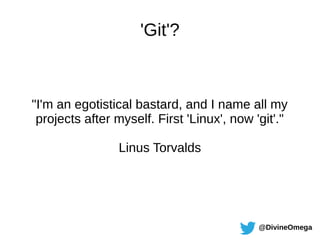
'Git'?
"I'm an egotistical bastard, and I name all my
projects after myself. First 'Linux', now 'git'."
Linus Torvalds
@DivineOmega
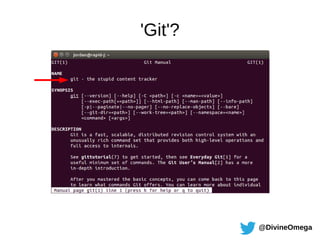
'Git'?
@DivineOmega
How people use Git
● Many different ways
● Can just be used locally
– Just on your PC
● Or between teams
– Using a remote repository
● Many web services/interfaces
– GitHub, GitLab, BitBucket, etc.
@DivineOmega
Git Internals
What makes up typical Git usage
@DivineOmega
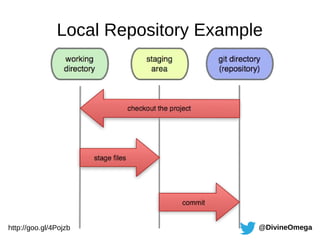
The Git Places
● Working directory
● 'Stage' or 'Staging Area'
● Local Git repository
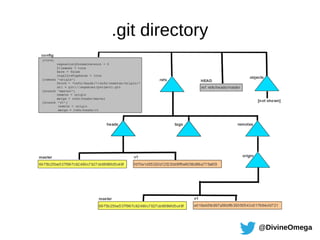
– '.git' directory
● Optionally, remote Git repository
– Known as 'remotes'
@DivineOmega
Working directory
● Where you work
● Where you make your changes
● Use 'git checkout' to revert changes to a file in
the working directory (back to the last commit)
● Sometimes called the 'workspace'
@DivineOmega
Staging area
● Any files about to be committed ('staged')
● Use 'git add' to move files to the staging area
('stage' them)
● Use 'git reset' to remove files from the staging area
● Stored in index file in your .git directory
● Sometimes called the 'index'
@DivineOmega
Local Git Repository
● All committed files, revision history, etc.
– Commits (objects identified by SHA1 hashes – commit IDs)
– Pointers to certain commits (known as references)
●
Branches
●
Tags
– 'Head' – where you currently are, a pointer to another reference
● Use 'git commit' to store any staged files in a new commit
● Use 'git revert' to undo a commit by its ID (creates a new commit)
●
Most of what is stored in your .git directory (.git/objects/ & .git/refs/)
@DivineOmega
Remote Git Repository
● Any repository not on your computer
● Known as a 'remote'
● Consists of a name and a URL
● 'git remote add', 'git remote remove', 'git remote'
● 'git push' to send changes to the remote
● 'git pull' to fetch & merge changes from the remote
@DivineOmega
Git Branches
Splitting off to do new things
@DivineOmega
Quick Explanation of Branches
● Just a named pointer to a specific commit
● Use 'git branch branch_name' to create one
pointing at your current commit
● File containing the SHA-1 hash of the commit it
points to
– .git/refs/heads/master
– .git/refs/heads/branch_name
@DivineOmega
Quick Explanation of Branches
http://goo.gl/wpesH6
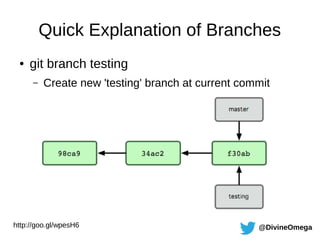
● git branch testing
– Create new 'testing' branch at current commit
@DivineOmega
Quick Explanation of Branches
● Used to separate developments from the
'master' branch
– New features
– Phases of development
● Typically merged back into master when feature
is complete
@DivineOmega
Every Day Git Usage
Local and remote examples
@DivineOmega
Local Repository Example
http://goo.gl/4Pojzb
@DivineOmega
Local Repository Example
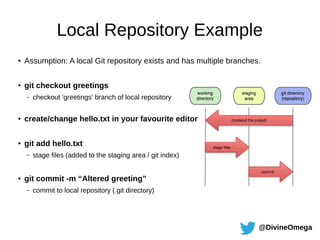
●
Assumption: A local Git repository exists and has multiple branches.
● git checkout greetings
– checkout 'greetings' branch of local repository
● create/change hello.txt in your favourite editor
● git add hello.txt
– stage files (added to the staging area / git index)
● git commit -m “Altered greeting”
– commit to local repository (.git directory)
@DivineOmega
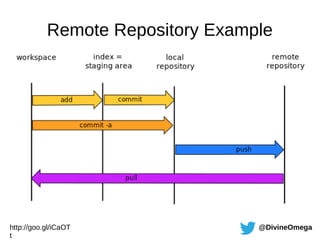
Remote Repository Example
http://goo.gl/iCaOT
t
@DivineOmega
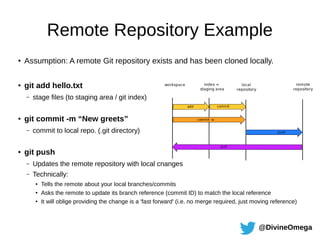
Remote Repository Example
●
Assumption: A remote Git repository exists and has been cloned locally.
● git add hello.txt
– stage files (to staging area / git index)
● git commit -m “New greets”
– commit to local repo. (.git directory)
● git push
– Updates the remote repository with local changes
– Technically:
● Tells the remote about your local branches/commits
● Asks the remote to update its branch reference (commit ID) to match the local reference
● It will oblige providing the change is a 'fast forward' (i.e. no merge required, just moving reference)
@DivineOmega
Merging
Bringing branches together
@DivineOmega
Create your new branch
● git branch super_new_feature
– Create a new branch for the new feature
● git checkout super_new_feature
– Switch to the new branch
@DivineOmega
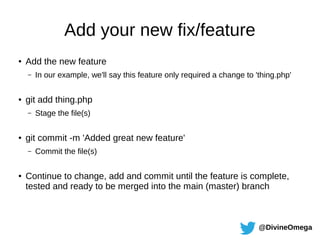
Add your new fix/feature
● Add the new feature
– In our example, we'll say this feature only required a change to 'thing.php'
● git add thing.php
– Stage the file(s)
● git commit -m 'Added great new feature'
– Commit the file(s)
● Continue to change, add and commit until the feature is complete,
tested and ready to be merged into the main (master) branch
@DivineOmega
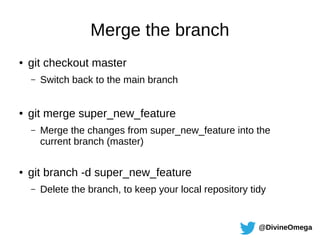
Merge the branch
● git checkout master
– Switch back to the main branch
● git merge super_new_feature
– Merge the changes from super_new_feature into the
current branch (master)
● git branch -d super_new_feature
– Delete the branch, to keep your local repository tidy
@DivineOmega
Notes on Merging and Conflicts
● Branches can be used however you wish.
● Master is nothing special, it's just the default.
● Automatic merges sometimes fail.
– CONFLICT (content): Merge conflict in thing.php
– Automatic merge failed; fix conflicts and then commit the result.
● When they do:
– Go into the files specified and fix the conflicts.
– Stages the files ('git add')
– Commit the fixes ('git commit') with an appropriate message
@DivineOmega
Git Directory and Commands
A quick overview
@DivineOmega
.git directory
@DivineOmega
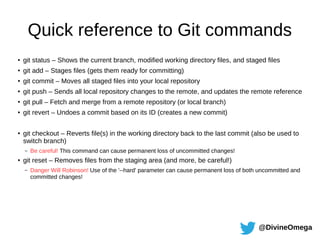
Quick reference to Git commands
●
git status – Shows the current branch, modified working directory files, and staged files
●
git add – Stages files (gets them ready for committing)
● git commit – Moves all staged files into your local repository
●
git push – Sends all local repository changes to the remote, and updates the remote reference
●
git pull – Fetch and merge from a remote repository (or local branch)
● git revert – Undoes a commit based on its ID (creates a new commit)
●
git checkout – Reverts file(s) in the working directory back to the last commit (also be used to
switch branch)
– Be careful! This command can cause permanent loss of uncommitted changes!
● git reset – Removes files from the staging area (and more, be careful!)
– Danger Will Robinson! Use of the '--hard' parameter can cause permanent loss of both uncommitted and
committed changes!
@DivineOmega
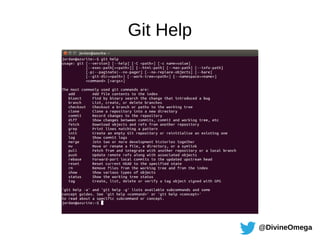
Git Help
@DivineOmega
End!
Thanks. :)
@DivineOmega
References and useful links
● Explaining Git Push - http://goo.gl/VK2aiE
● About Git References - http://goo.gl/IwyJZZ
● The .git Directory - http://goo.gl/8vghFq
● Git Branching - http://goo.gl/oAbQDM
● Branching and Merging - http://goo.gl/lJkuUD
● Undoing Changes - http://goo.gl/VKpRhM
● The 'Master' Branch - http://goo.gl/NbECCY

The Fundamentals of Git

  • 1.
  • 2.
  • 3.
    @DivineOmega What is Git? ●Version control ● Distributed ● Free (GNU GPL2)
  • 4.
    @DivineOmega History of Git ●Developed in 2005 – Started on 3 April – 1.0 release on 21 December 2005 ● Created – For the Linux Kernel – By Linus Torvalds ● Maintained by Junio Hamano
  • 5.
    @DivineOmega 'Git'? "I'm an egotisticalbastard, and I name all my projects after myself. First 'Linux', now 'git'." Linus Torvalds
  • 6.
  • 7.
    @DivineOmega How people useGit ● Many different ways ● Can just be used locally – Just on your PC ● Or between teams – Using a remote repository ● Many web services/interfaces – GitHub, GitLab, BitBucket, etc.
  • 8.
  • 9.
    @DivineOmega The Git Places ●Working directory ● 'Stage' or 'Staging Area' ● Local Git repository – '.git' directory ● Optionally, remote Git repository – Known as 'remotes'
  • 10.
    @DivineOmega Working directory ● Whereyou work ● Where you make your changes ● Use 'git checkout' to revert changes to a file in the working directory (back to the last commit) ● Sometimes called the 'workspace'
  • 11.
    @DivineOmega Staging area ● Anyfiles about to be committed ('staged') ● Use 'git add' to move files to the staging area ('stage' them) ● Use 'git reset' to remove files from the staging area ● Stored in index file in your .git directory ● Sometimes called the 'index'
  • 12.
    @DivineOmega Local Git Repository ●All committed files, revision history, etc. – Commits (objects identified by SHA1 hashes – commit IDs) – Pointers to certain commits (known as references) ● Branches ● Tags – 'Head' – where you currently are, a pointer to another reference ● Use 'git commit' to store any staged files in a new commit ● Use 'git revert' to undo a commit by its ID (creates a new commit) ● Most of what is stored in your .git directory (.git/objects/ & .git/refs/)
  • 13.
    @DivineOmega Remote Git Repository ●Any repository not on your computer ● Known as a 'remote' ● Consists of a name and a URL ● 'git remote add', 'git remote remove', 'git remote' ● 'git push' to send changes to the remote ● 'git pull' to fetch & merge changes from the remote
  • 14.
  • 15.
    @DivineOmega Quick Explanation ofBranches ● Just a named pointer to a specific commit ● Use 'git branch branch_name' to create one pointing at your current commit ● File containing the SHA-1 hash of the commit it points to – .git/refs/heads/master – .git/refs/heads/branch_name
  • 16.
    @DivineOmega Quick Explanation ofBranches http://goo.gl/wpesH6 ● git branch testing – Create new 'testing' branch at current commit
  • 17.
    @DivineOmega Quick Explanation ofBranches ● Used to separate developments from the 'master' branch – New features – Phases of development ● Typically merged back into master when feature is complete
  • 18.
    @DivineOmega Every Day GitUsage Local and remote examples
  • 19.
  • 20.
    @DivineOmega Local Repository Example ● Assumption:A local Git repository exists and has multiple branches. ● git checkout greetings – checkout 'greetings' branch of local repository ● create/change hello.txt in your favourite editor ● git add hello.txt – stage files (added to the staging area / git index) ● git commit -m “Altered greeting” – commit to local repository (.git directory)
  • 21.
  • 22.
    @DivineOmega Remote Repository Example ● Assumption:A remote Git repository exists and has been cloned locally. ● git add hello.txt – stage files (to staging area / git index) ● git commit -m “New greets” – commit to local repo. (.git directory) ● git push – Updates the remote repository with local changes – Technically: ● Tells the remote about your local branches/commits ● Asks the remote to update its branch reference (commit ID) to match the local reference ● It will oblige providing the change is a 'fast forward' (i.e. no merge required, just moving reference)
  • 23.
  • 24.
    @DivineOmega Create your newbranch ● git branch super_new_feature – Create a new branch for the new feature ● git checkout super_new_feature – Switch to the new branch
  • 25.
    @DivineOmega Add your newfix/feature ● Add the new feature – In our example, we'll say this feature only required a change to 'thing.php' ● git add thing.php – Stage the file(s) ● git commit -m 'Added great new feature' – Commit the file(s) ● Continue to change, add and commit until the feature is complete, tested and ready to be merged into the main (master) branch
  • 26.
    @DivineOmega Merge the branch ●git checkout master – Switch back to the main branch ● git merge super_new_feature – Merge the changes from super_new_feature into the current branch (master) ● git branch -d super_new_feature – Delete the branch, to keep your local repository tidy
  • 27.
    @DivineOmega Notes on Mergingand Conflicts ● Branches can be used however you wish. ● Master is nothing special, it's just the default. ● Automatic merges sometimes fail. – CONFLICT (content): Merge conflict in thing.php – Automatic merge failed; fix conflicts and then commit the result. ● When they do: – Go into the files specified and fix the conflicts. – Stages the files ('git add') – Commit the fixes ('git commit') with an appropriate message
  • 28.
    @DivineOmega Git Directory andCommands A quick overview
  • 29.
  • 30.
    @DivineOmega Quick reference toGit commands ● git status – Shows the current branch, modified working directory files, and staged files ● git add – Stages files (gets them ready for committing) ● git commit – Moves all staged files into your local repository ● git push – Sends all local repository changes to the remote, and updates the remote reference ● git pull – Fetch and merge from a remote repository (or local branch) ● git revert – Undoes a commit based on its ID (creates a new commit) ● git checkout – Reverts file(s) in the working directory back to the last commit (also be used to switch branch) – Be careful! This command can cause permanent loss of uncommitted changes! ● git reset – Removes files from the staging area (and more, be careful!) – Danger Will Robinson! Use of the '--hard' parameter can cause permanent loss of both uncommitted and committed changes!
  • 31.
  • 32.
  • 33.
    @DivineOmega References and usefullinks ● Explaining Git Push - http://goo.gl/VK2aiE ● About Git References - http://goo.gl/IwyJZZ ● The .git Directory - http://goo.gl/8vghFq ● Git Branching - http://goo.gl/oAbQDM ● Branching and Merging - http://goo.gl/lJkuUD ● Undoing Changes - http://goo.gl/VKpRhM ● The 'Master' Branch - http://goo.gl/NbECCY