Prepare Your Photoshop
Document:
1
Prepare Your
Photoshop
Document:
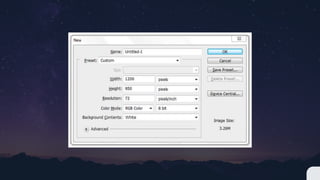
Create a new document in Photoshop (Ctrl/Cmd + N) using
the settings from the following image.
Slide into the next page.
Set The Units And Rulers
Settings:
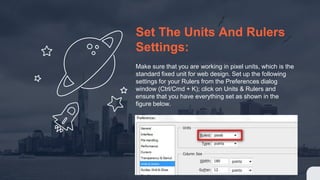
Make sure that you are working in pixel units, which is the
standard fixed unit for web design. Set up the following
settings for your Rulers from the Preferences dialog
window (Ctrl/Cmd + K); click on Units & Rulers and
ensure that you have everything set as shown in the
figure below.
Add Guides To Designate
The Content Area:
Activate Photoshop Rulers from View > Rulers. Toggle
the visibility of the rulers by pressing “Ctrl/Cmd + R”. Also
open the Info panel from Window > Info (shortcut key:
F8). The Info panel gives useful information depending on
the selected tool.
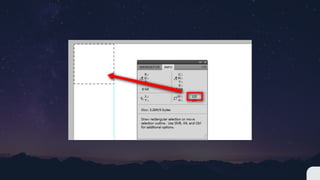
By pressing “M”, choose the Rectangular Marquee Tool
and create a box that is 120px wide from the left corner of
the canvas. You can adjust the size by looking into the
Info panel while making the selection. Now click on the
left ruler and drag a guide to the right of the marquee
selection.
Then in the Character panel, set the font to Arial,
the style to Bold and the size to 42pt. Also set the
anti-aliasing method option to Sharp and use the
color #101112. You can also set these options in
the Options bar when the Type Tool is the active
tool.

Prepare Your Photoshop Document:

  • 1.
  • 2.
    Prepare Your Photoshop Document: Create anew document in Photoshop (Ctrl/Cmd + N) using the settings from the following image. Slide into the next page.
  • 4.
    Set The UnitsAnd Rulers Settings: Make sure that you are working in pixel units, which is the standard fixed unit for web design. Set up the following settings for your Rulers from the Preferences dialog window (Ctrl/Cmd + K); click on Units & Rulers and ensure that you have everything set as shown in the figure below.
  • 5.
    Add Guides ToDesignate The Content Area: Activate Photoshop Rulers from View > Rulers. Toggle the visibility of the rulers by pressing “Ctrl/Cmd + R”. Also open the Info panel from Window > Info (shortcut key: F8). The Info panel gives useful information depending on the selected tool. By pressing “M”, choose the Rectangular Marquee Tool and create a box that is 120px wide from the left corner of the canvas. You can adjust the size by looking into the Info panel while making the selection. Now click on the left ruler and drag a guide to the right of the marquee selection.
  • 7.
    Then in theCharacter panel, set the font to Arial, the style to Bold and the size to 42pt. Also set the anti-aliasing method option to Sharp and use the color #101112. You can also set these options in the Options bar when the Type Tool is the active tool.