ACH 245 Computer Applications  for Design Lecture 3-  Beginning to Draw with AutoCAD Drawing Objects Drawing Ribbon, Toolbar & Menu Drawing Aids Selecting Objects Entering Values
Launch the AutoCAD program
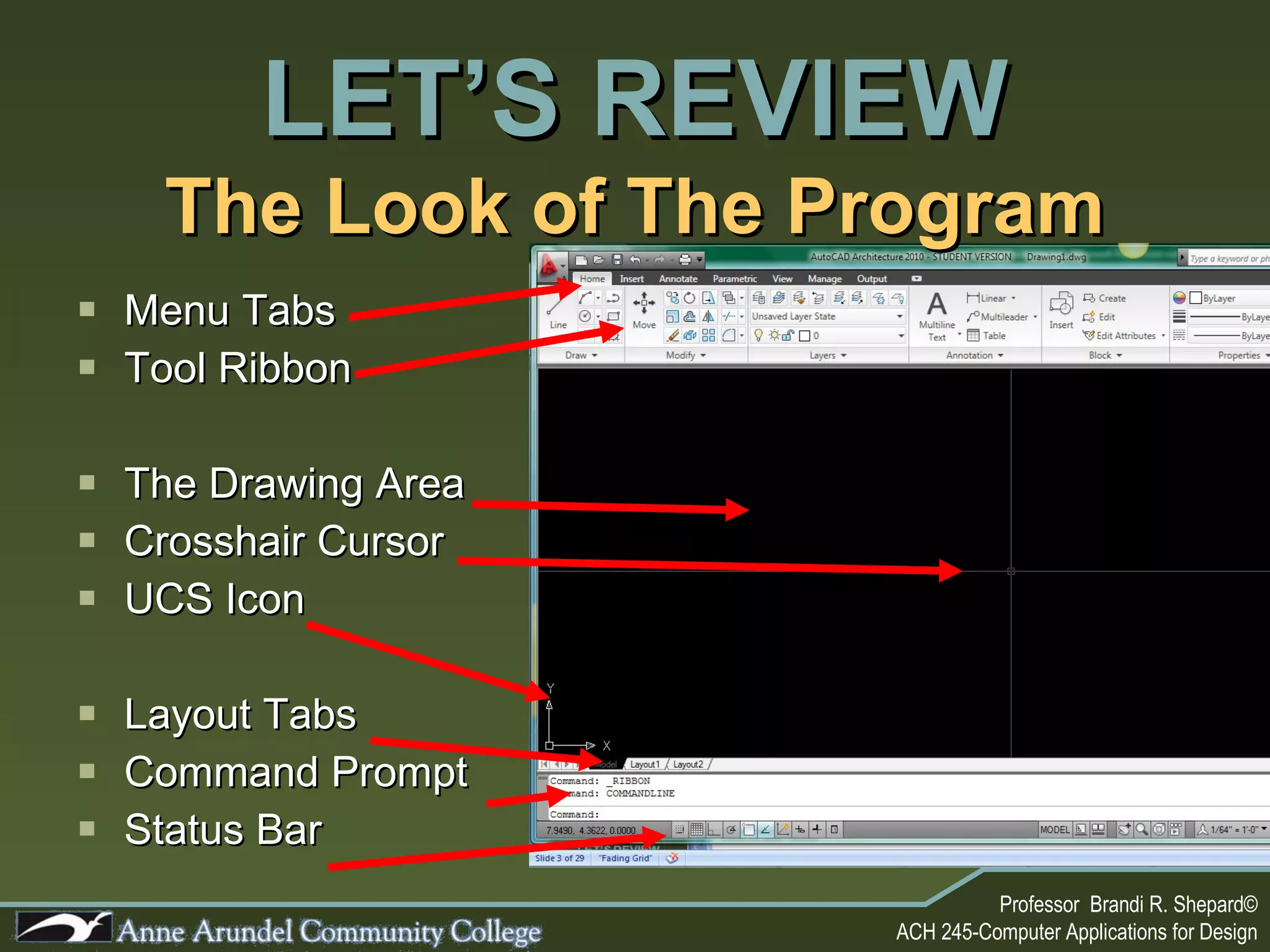
The Look of The Program Menu Tabs Tool Ribbon The Drawing Area Crosshair Cursor UCS Icon Layout Tabs Command Prompt Status Bar LET’S REVIEW
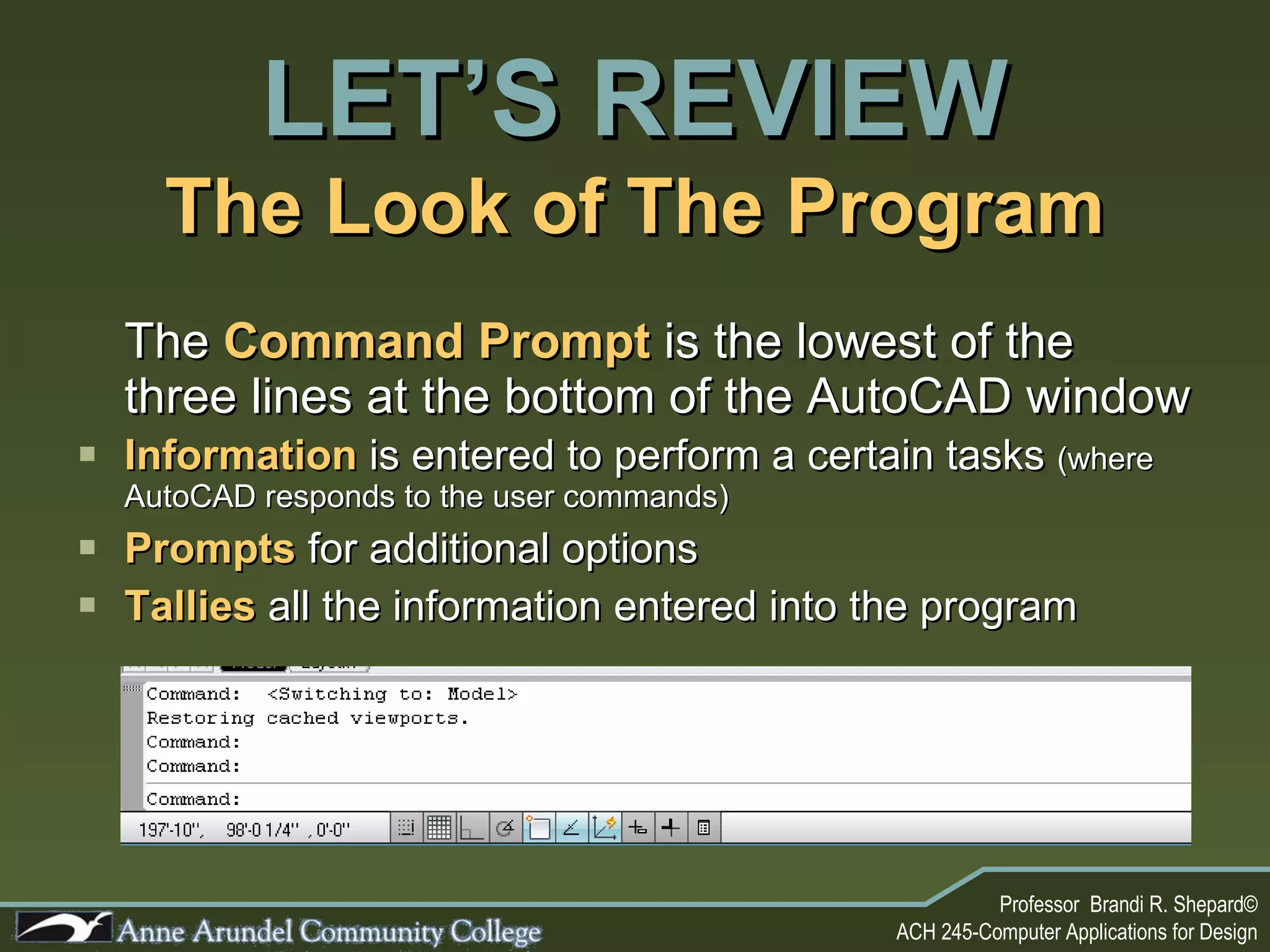
The  Command Prompt   is the lowest of the three lines at the bottom of the AutoCAD window  Information  is entered to perform a certain tasks  (where AutoCAD responds to the user commands) Prompts  for additional options Tallies  all the information entered into the program The Look of The Program LET’S REVIEW
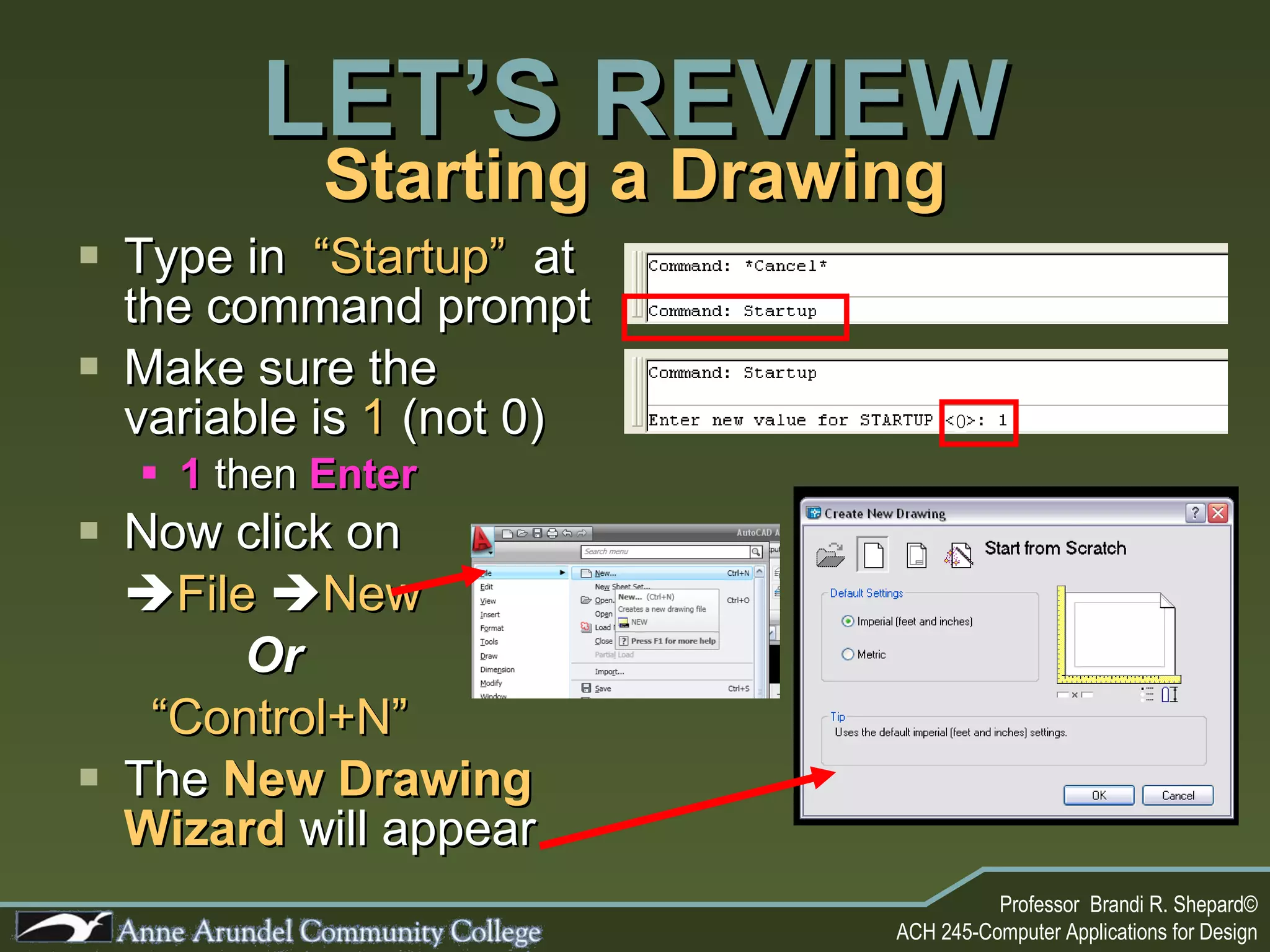
Starting a Drawing Type in  “Startup”   at the command prompt Make sure the variable is  1  (not 0) 1  then  Enter Now click on  File    New     Or   “ Control+N” The  New Drawing Wizard  will appear LET’S REVIEW 0
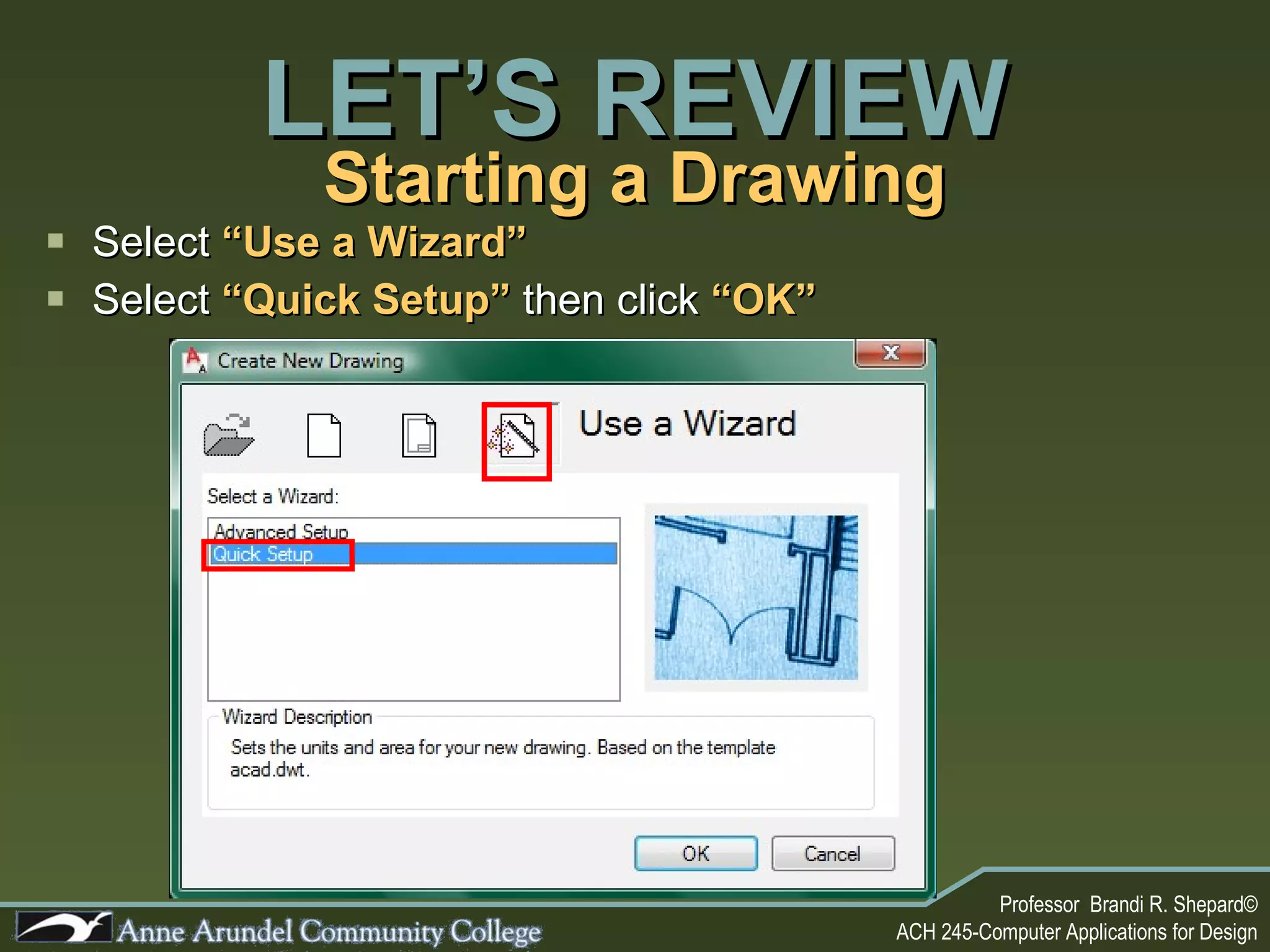
Starting a Drawing Select  “Use a Wizard” Select  “Quick Setup”   then click   “OK” LET’S REVIEW
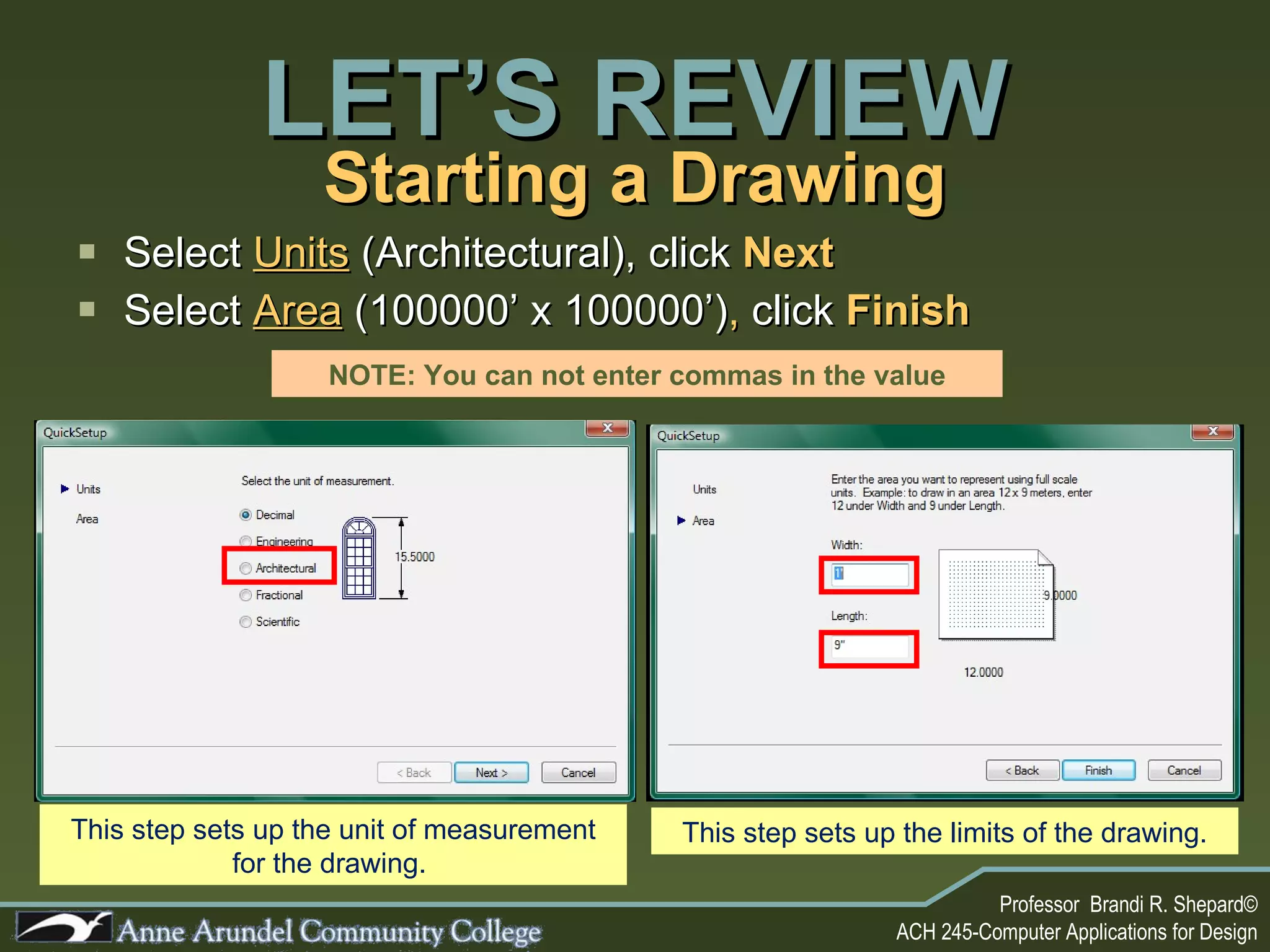
Starting a Drawing Select  Units  (Architectural), click  Next Select  Area   (100000’ x 100000’) ,  click   Finish LET’S REVIEW NOTE: You can not enter commas in the value This step sets up the unit of measurement for the drawing.  This step sets up the limits of the drawing.
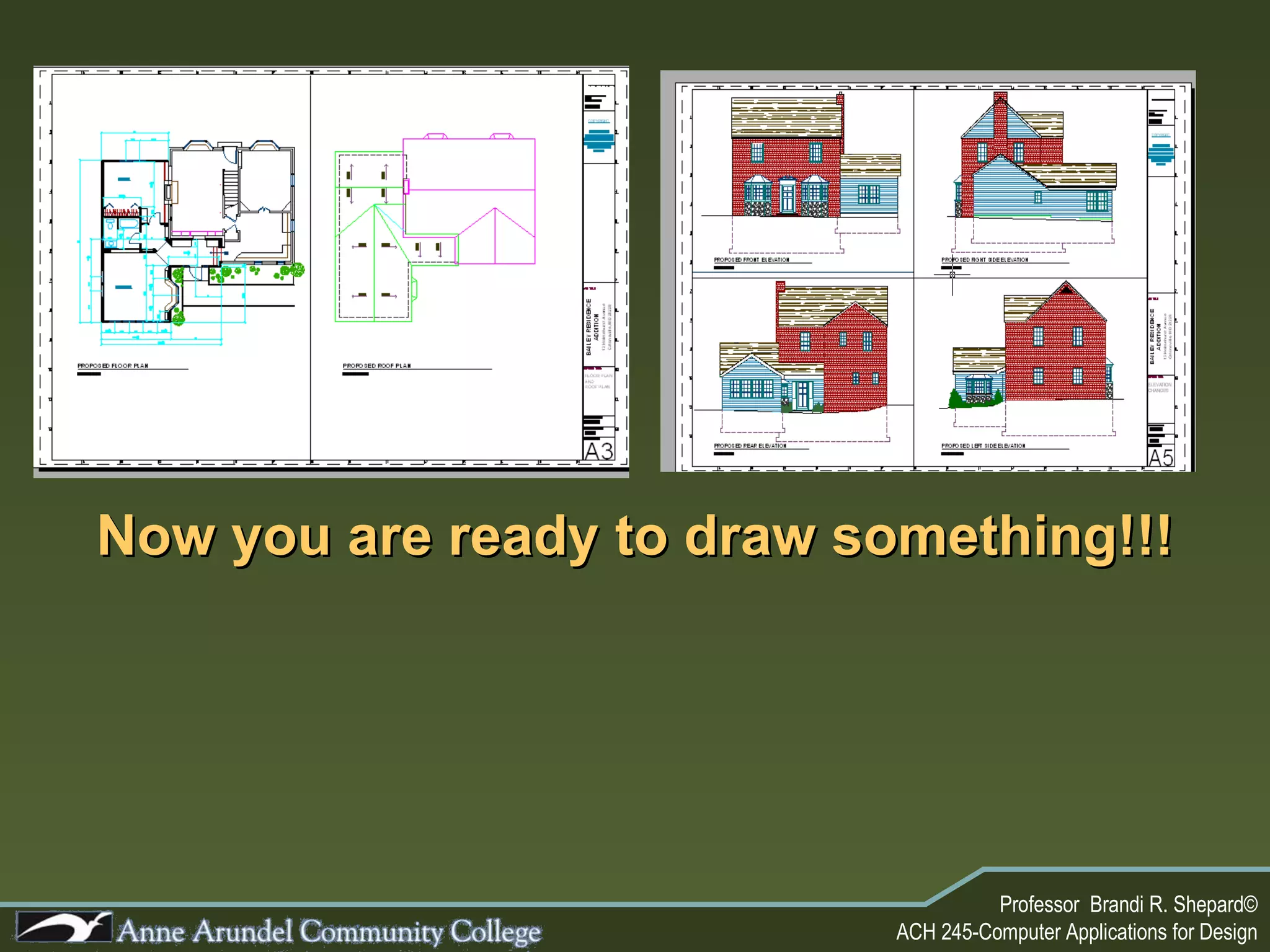
Now you are ready to draw something!!!
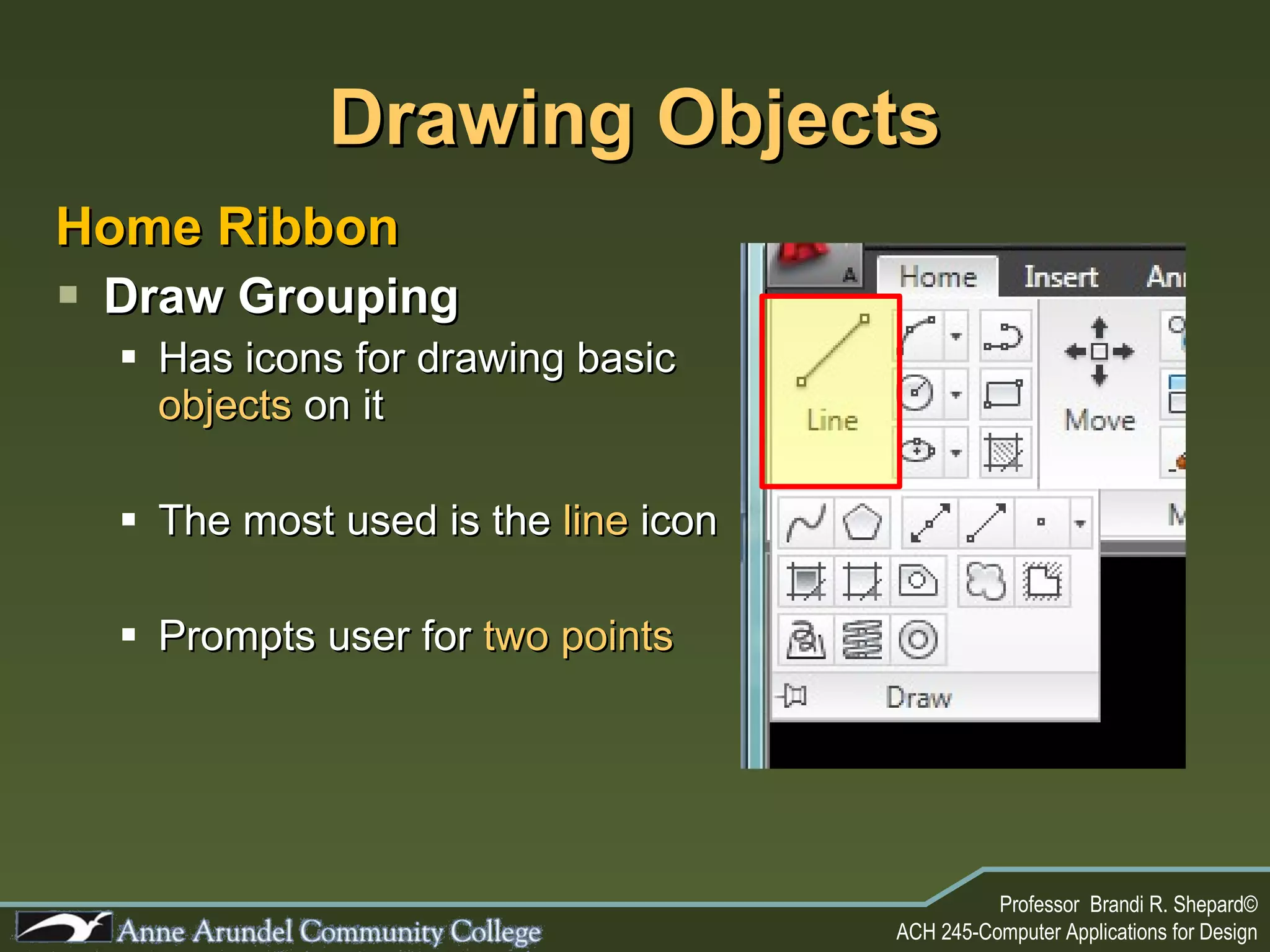
Drawing Objects Home Ribbon Draw Grouping Has icons for drawing basic  objects  on it The most used is the  line  icon Prompts user for  two points
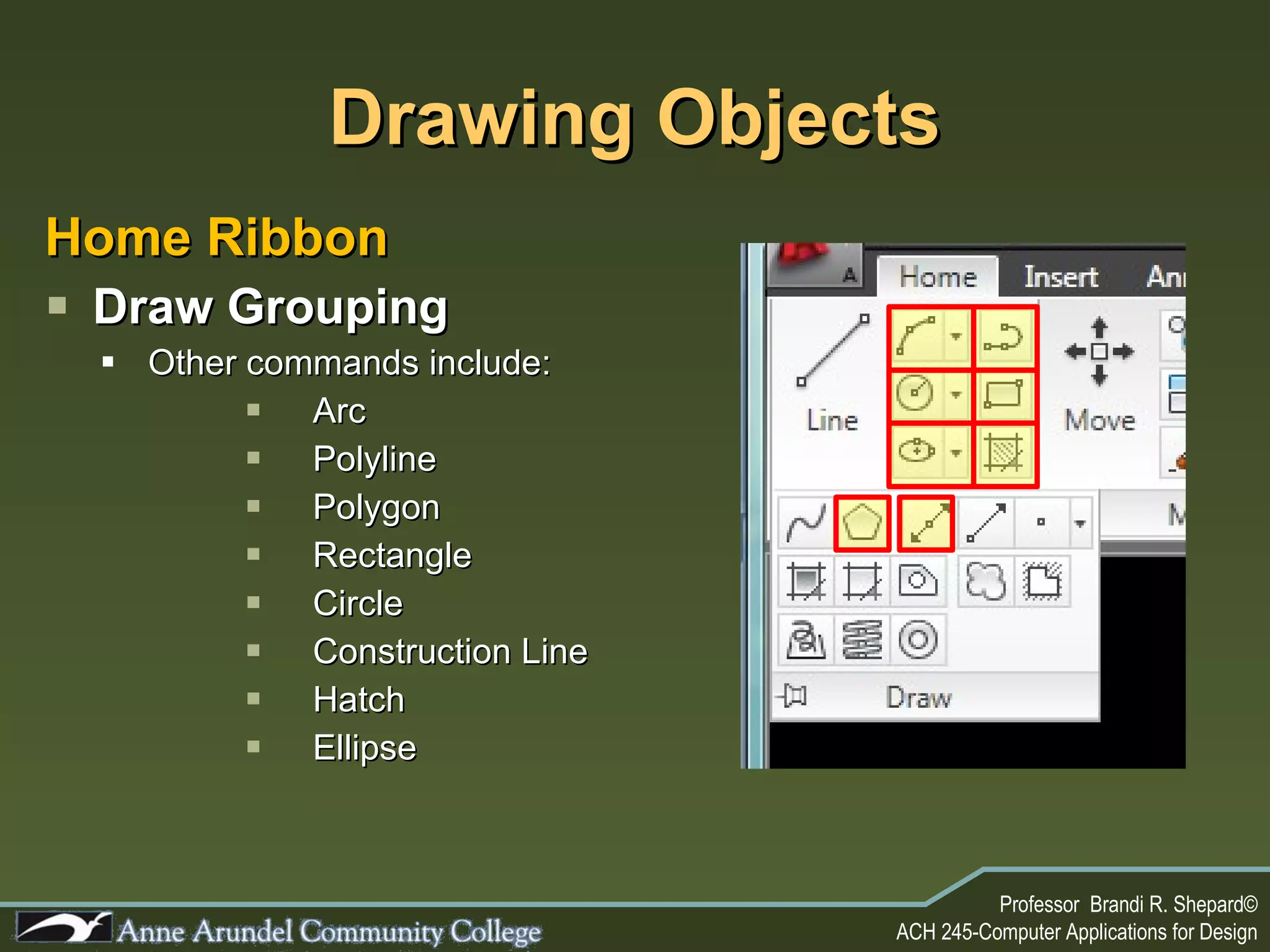
Drawing Objects Home Ribbon Draw Grouping Other commands include: Arc Polyline Polygon  Rectangle Circle Construction Line Hatch Ellipse
Drawing Objects Home Ribbon Draw Grouping  Has  multiple  options for drawing some objects For Example: Circles from the draw menu shows 6 ways to construct a circle versus the single way from the toolbar
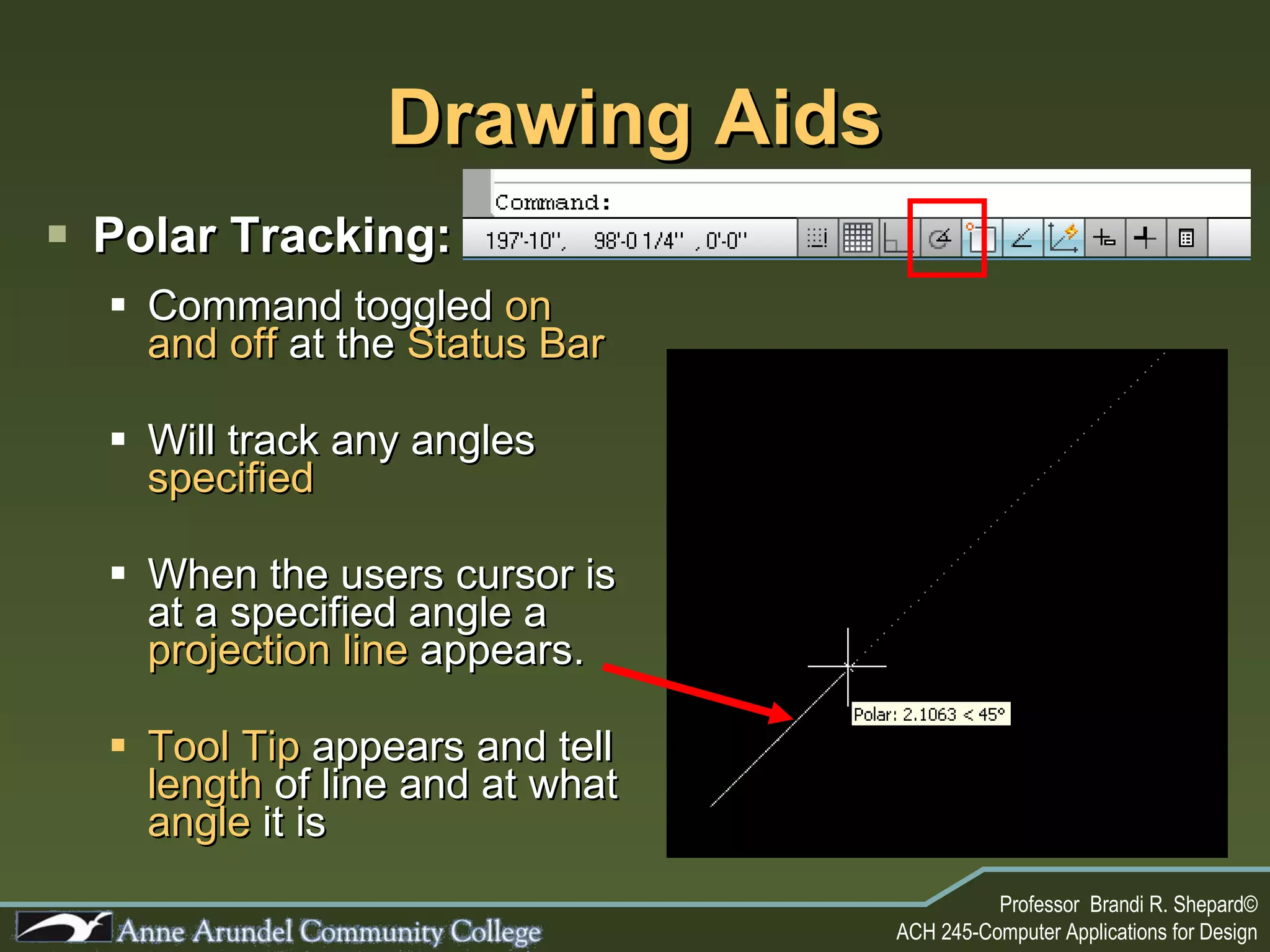
Drawing Aids Polar Tracking: Command toggled  on and off  at the  Status Bar Will track any angles  specified When the users cursor is at a specified angle a  projection line  appears. Tool Tip  appears and tell  length  of line and at what   angle  it is
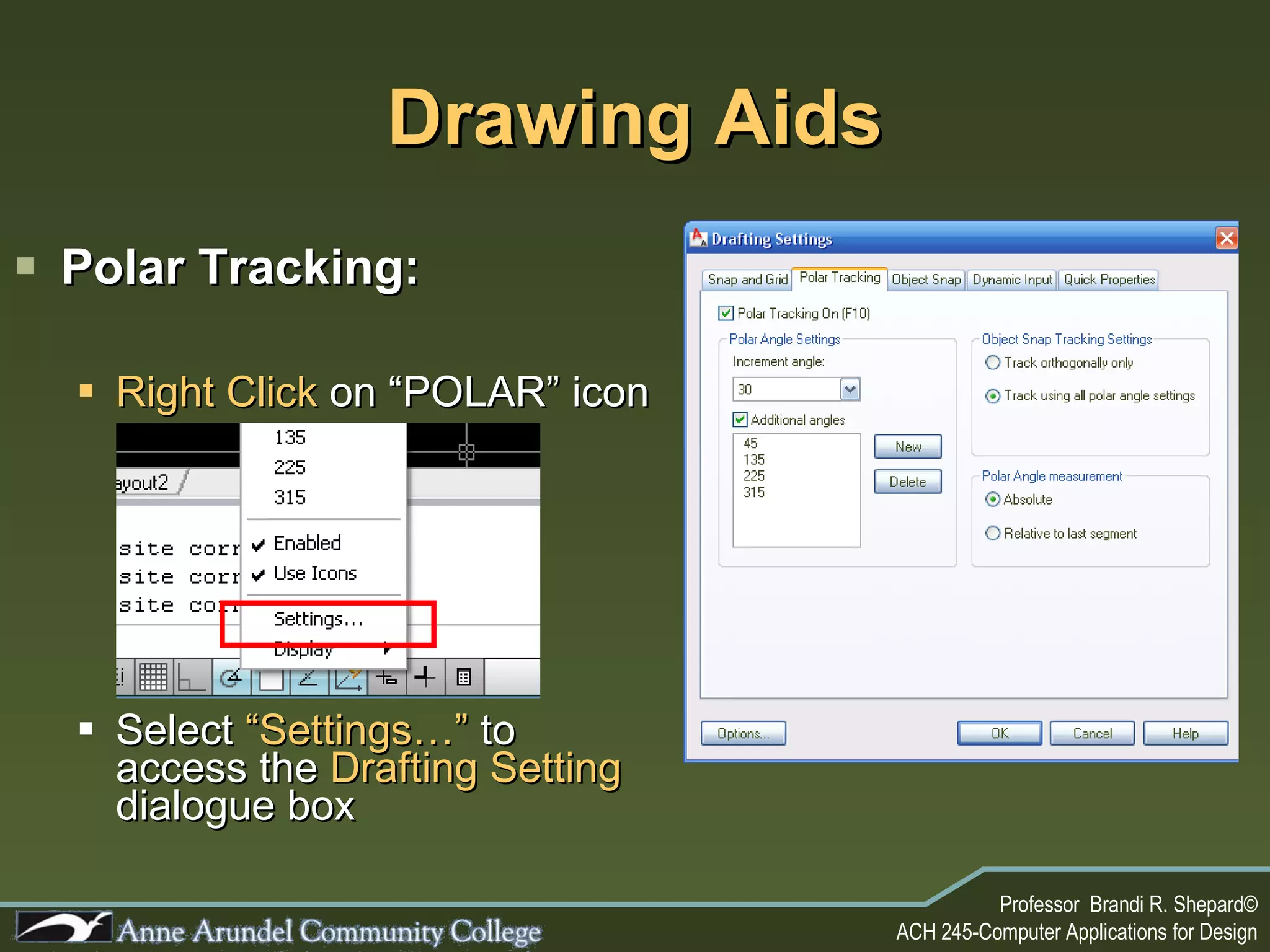
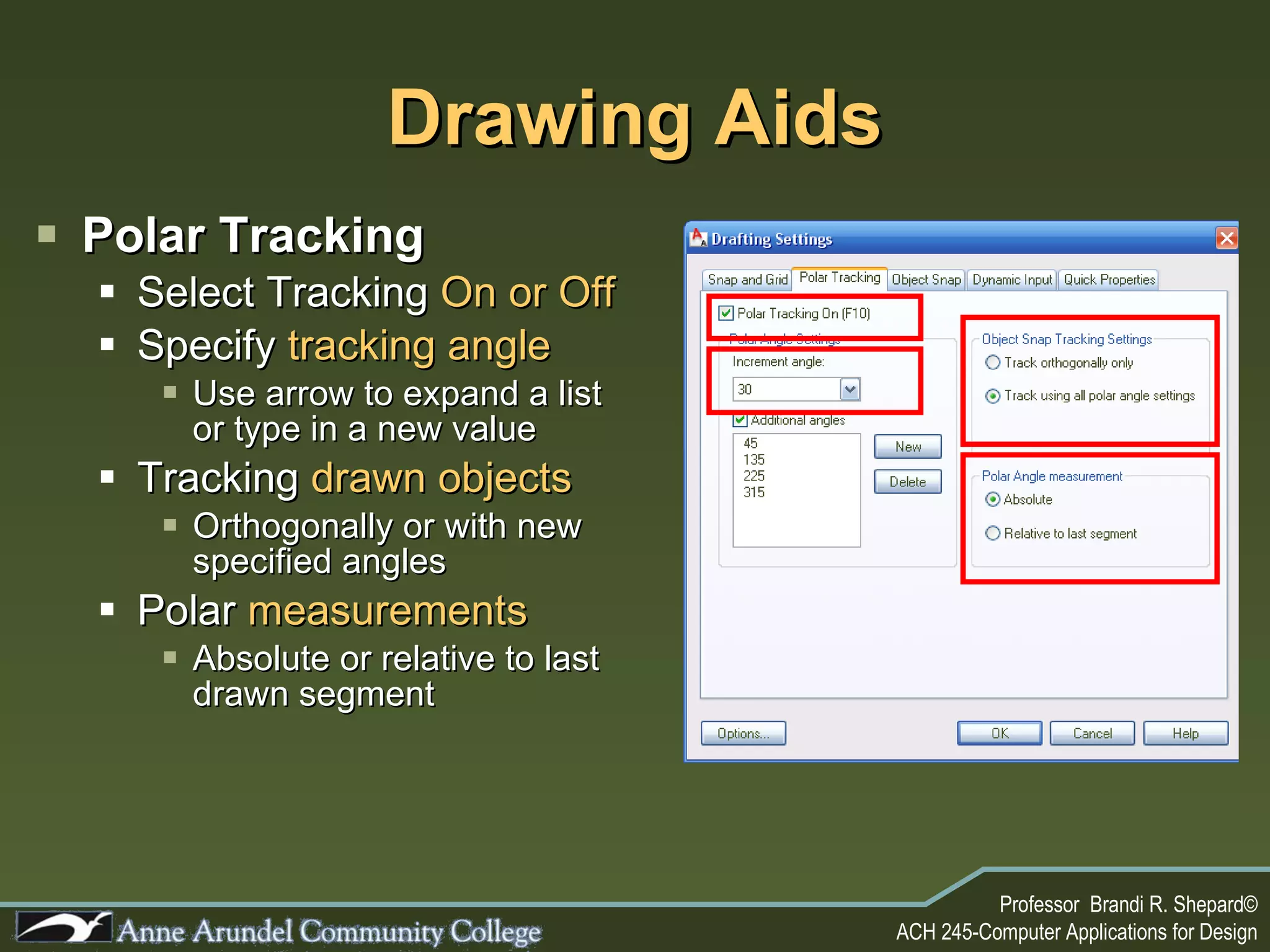
Polar Tracking: Right Click  on “POLAR” icon Select  “Settings…”  to access the  Drafting Setting  dialogue box Drawing Aids
Drawing Aids Polar Tracking Select Tracking  On or Off Specify  tracking angle Use arrow to expand a list or type in a new value Tracking  drawn objects Orthogonally or with new specified angles Polar  measurements Absolute or relative to last drawn segment
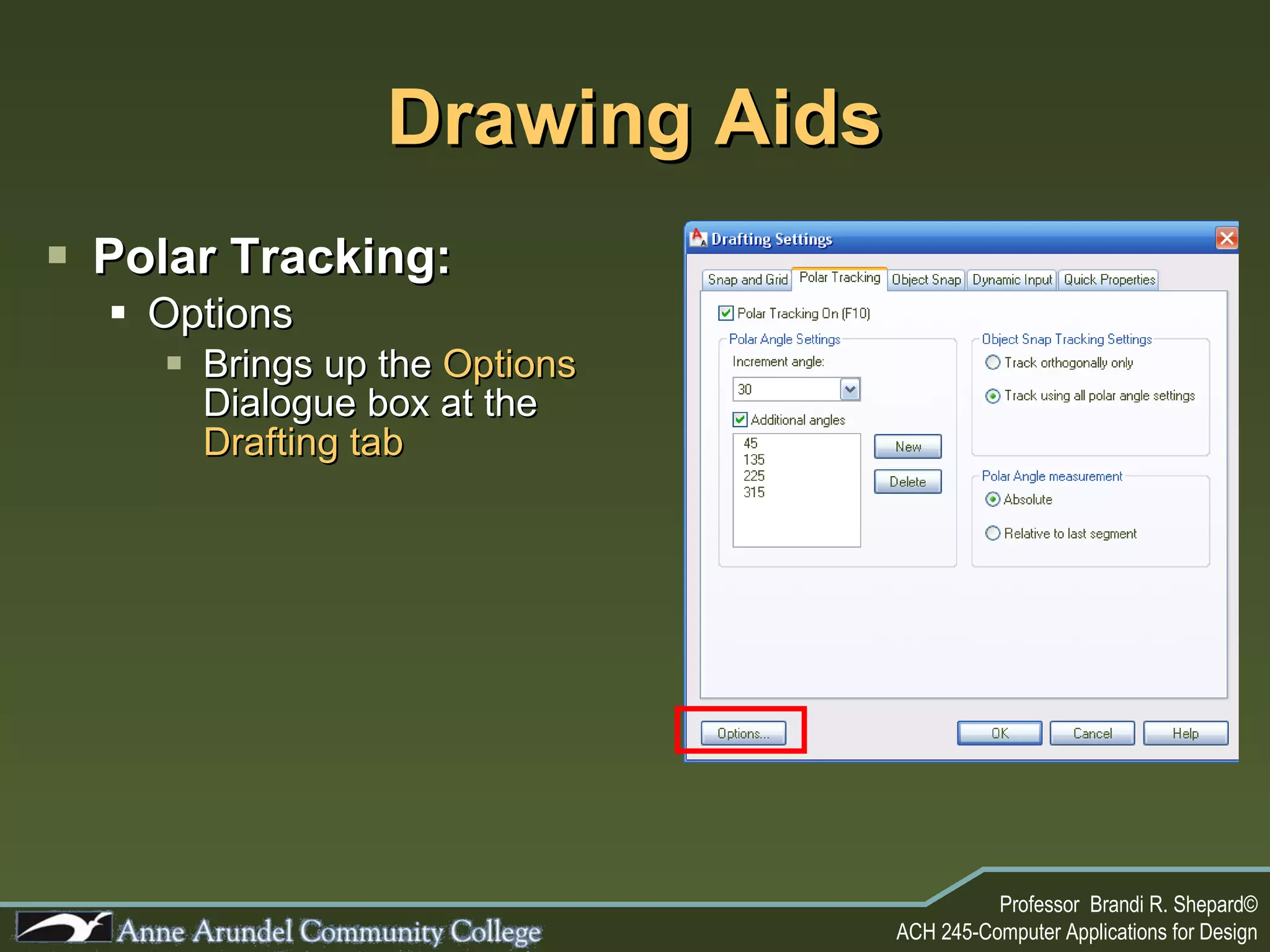
Drawing Aids Polar Tracking: Options Brings up the  Options  Dialogue box at the  Drafting tab
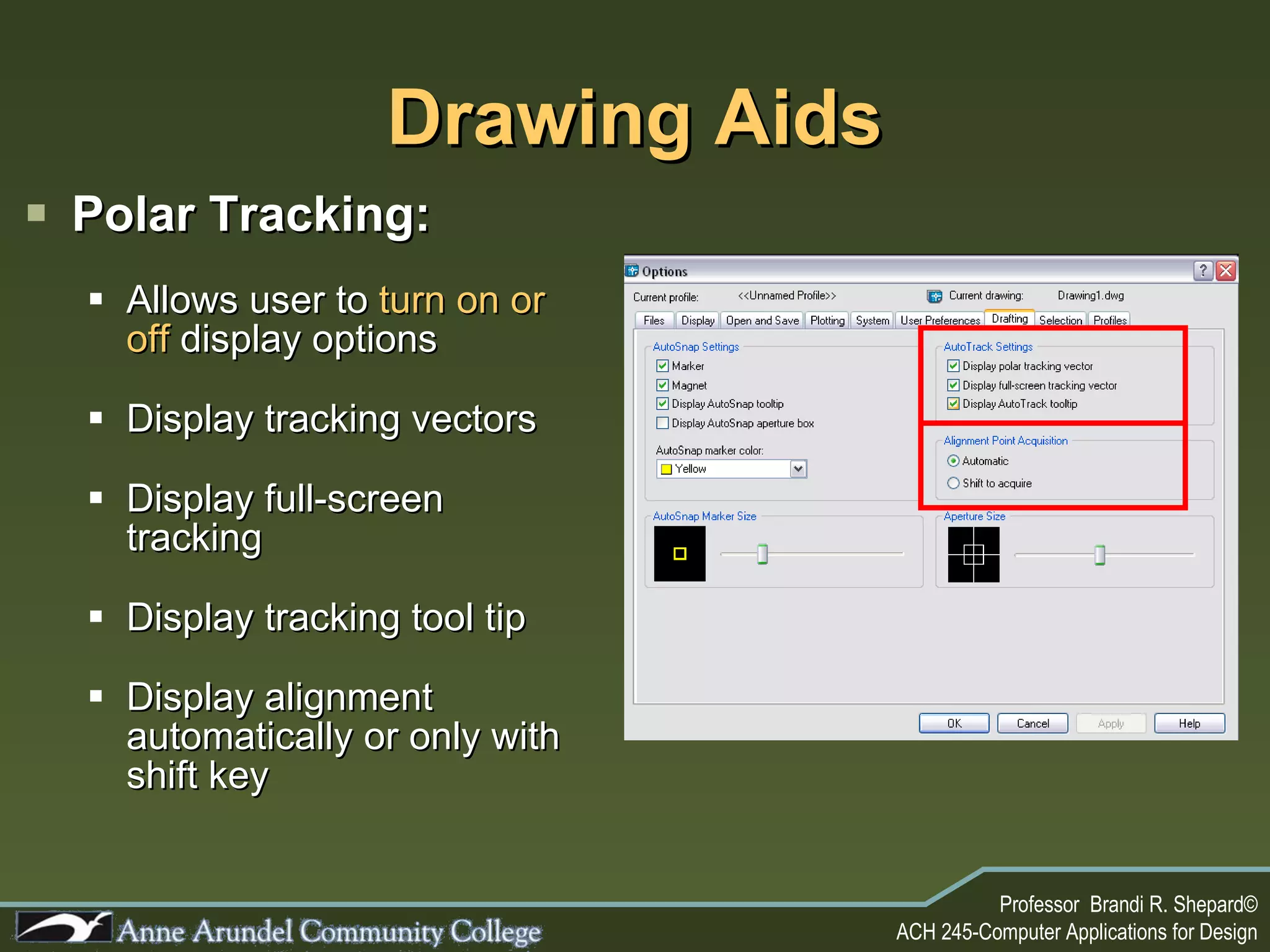
Drawing Aids Polar Tracking: Allows user to  turn on or off  display options Display tracking vectors Display full-screen tracking Display tracking tool tip Display alignment automatically or only with shift key
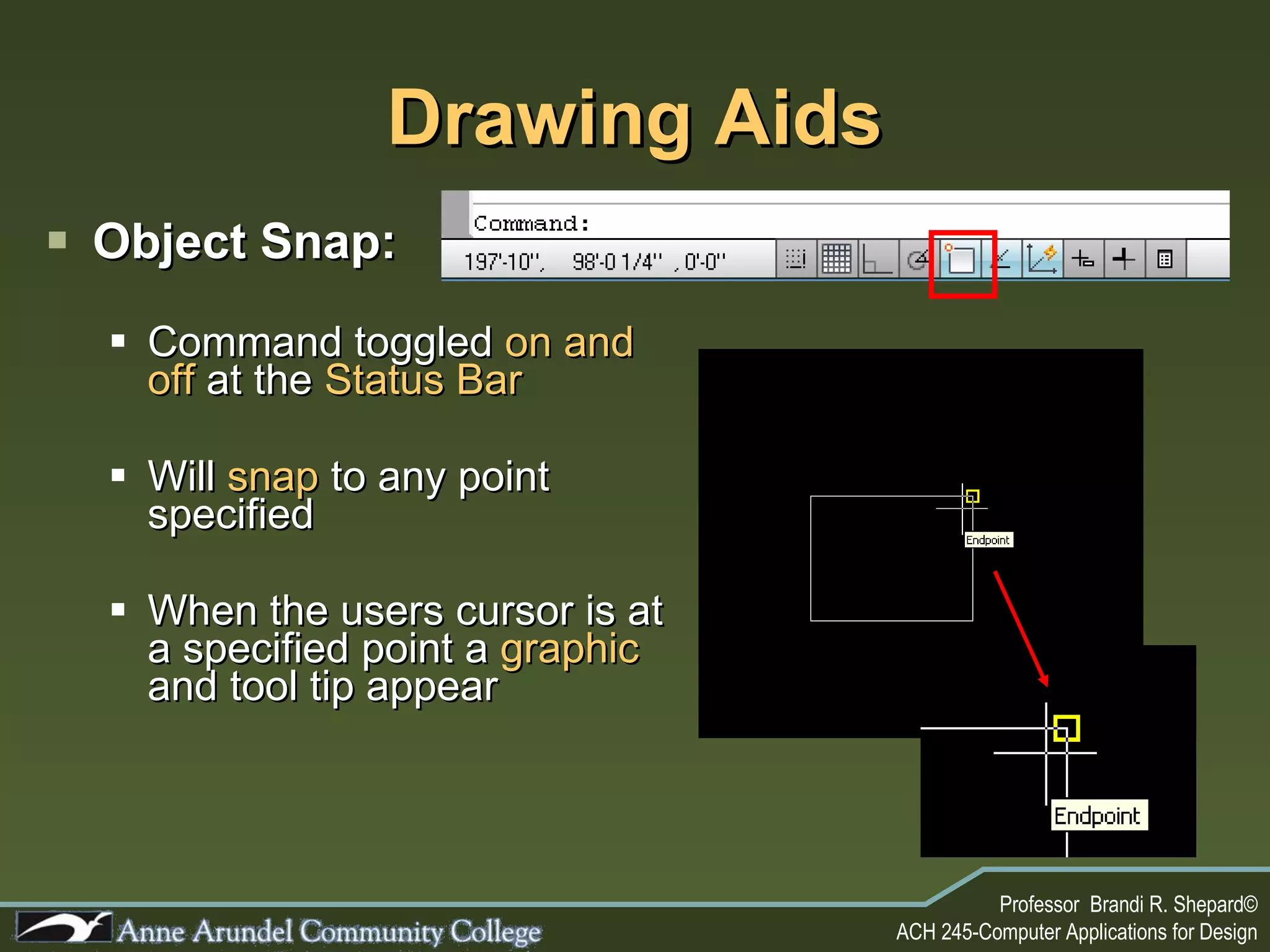
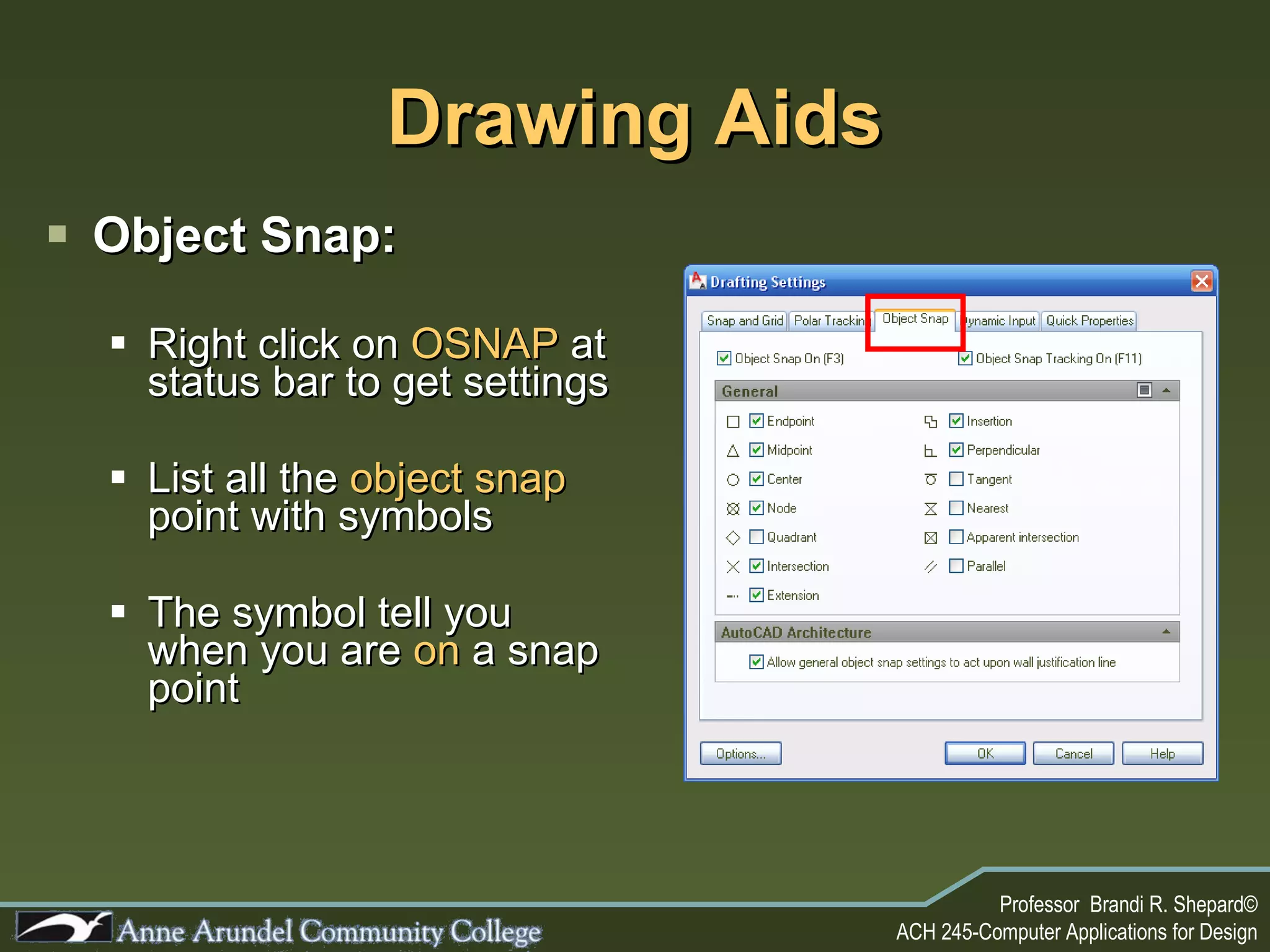
Drawing Aids Object Snap: Command toggled  on and off  at the  Status Bar Will  snap  to any point specified When the users cursor is at a specified point a  graphic  and tool tip appear
Drawing Aids Object Snap: Right click on  OSNAP  at status bar to get settings List all the  object snap  point with symbols The symbol tell you when you are  on  a snap point
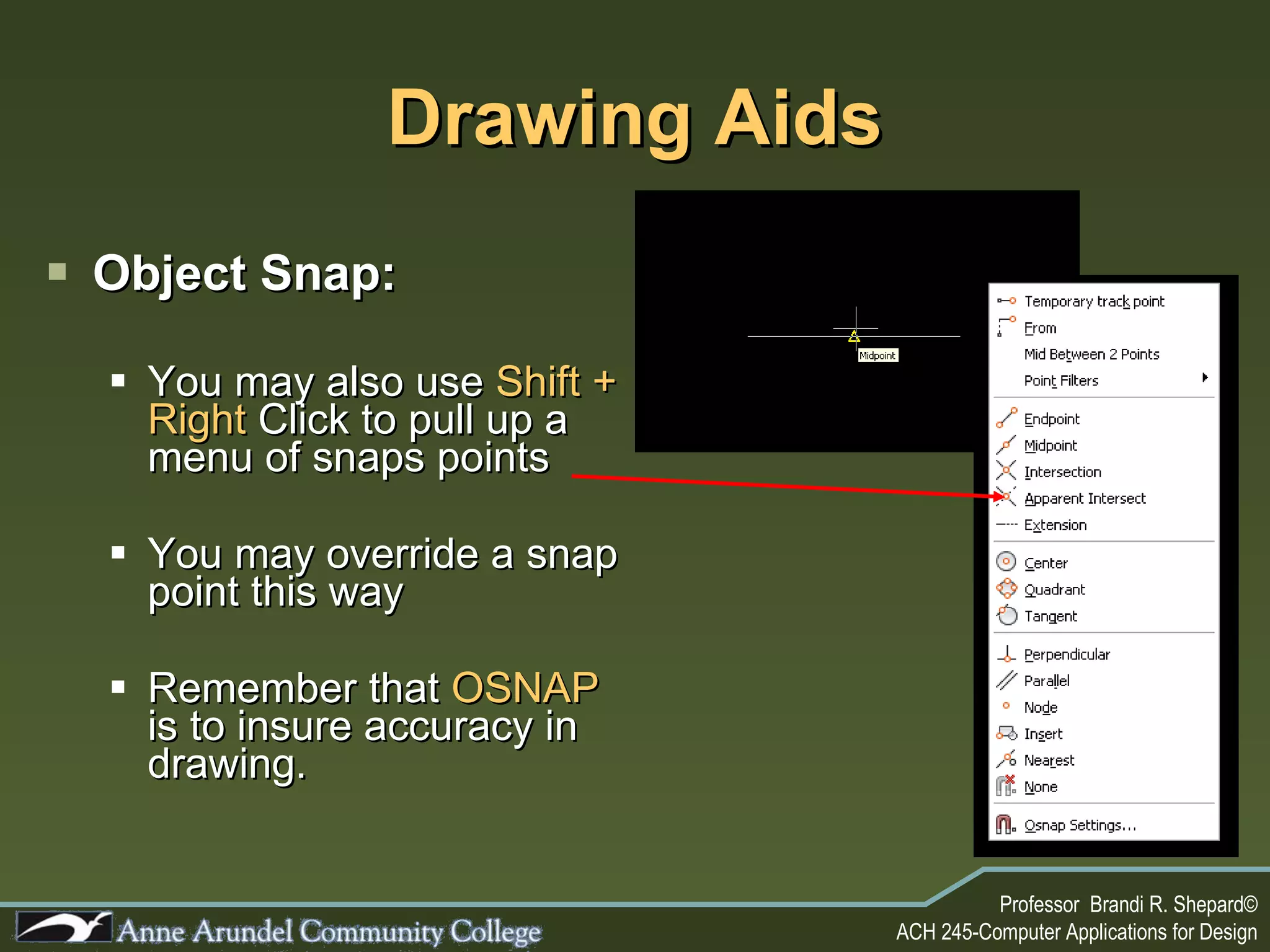
Drawing Aids Object Snap: You may also use  Shift + Right  Click to pull up a menu of snaps points You may override a snap point this way Remember that  OSNAP  is to insure accuracy in drawing.
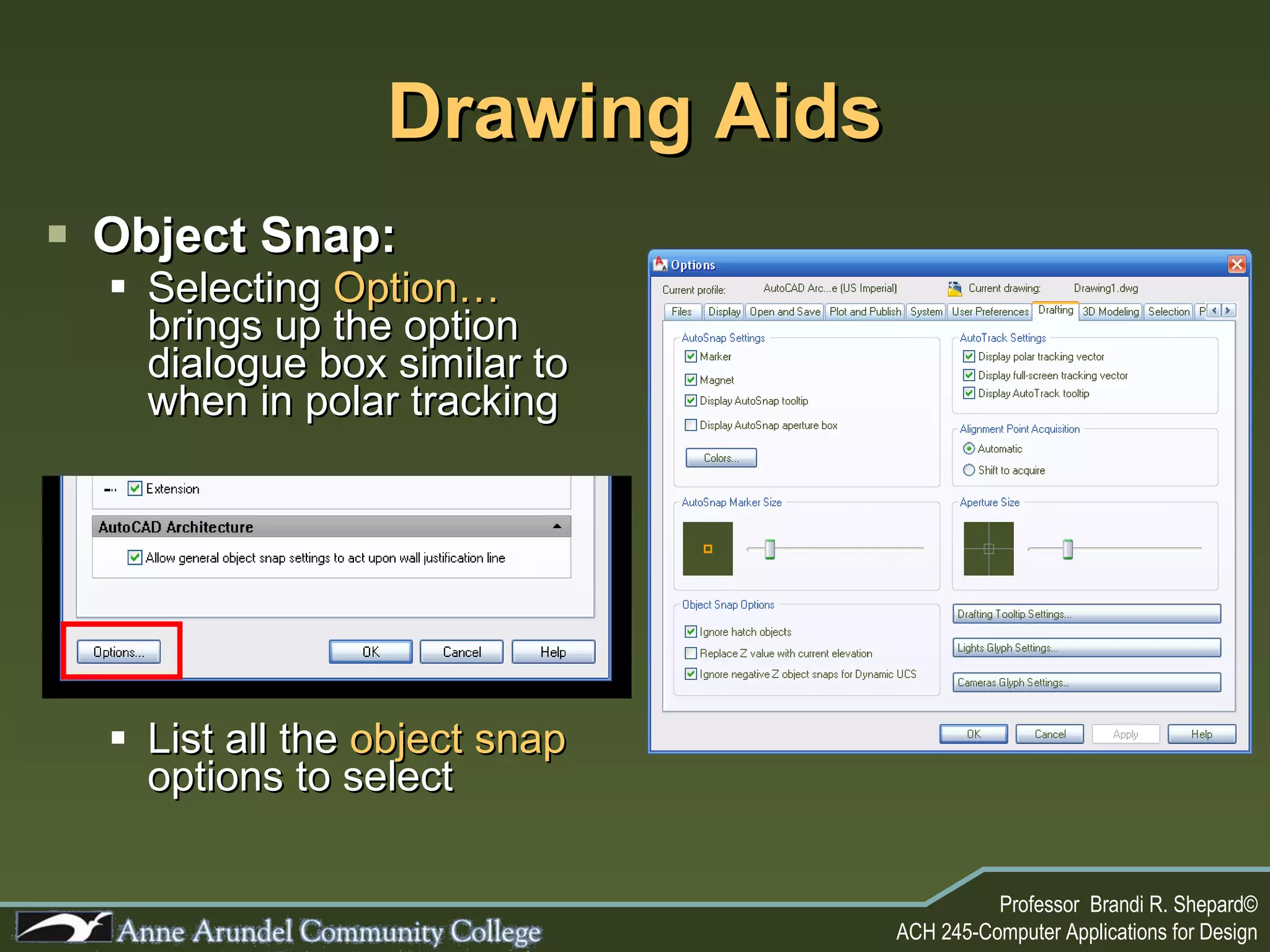
Object Snap: Selecting  Option…  brings up the option dialogue box similar to when in polar tracking List all the  object snap  options to select Drawing Aids
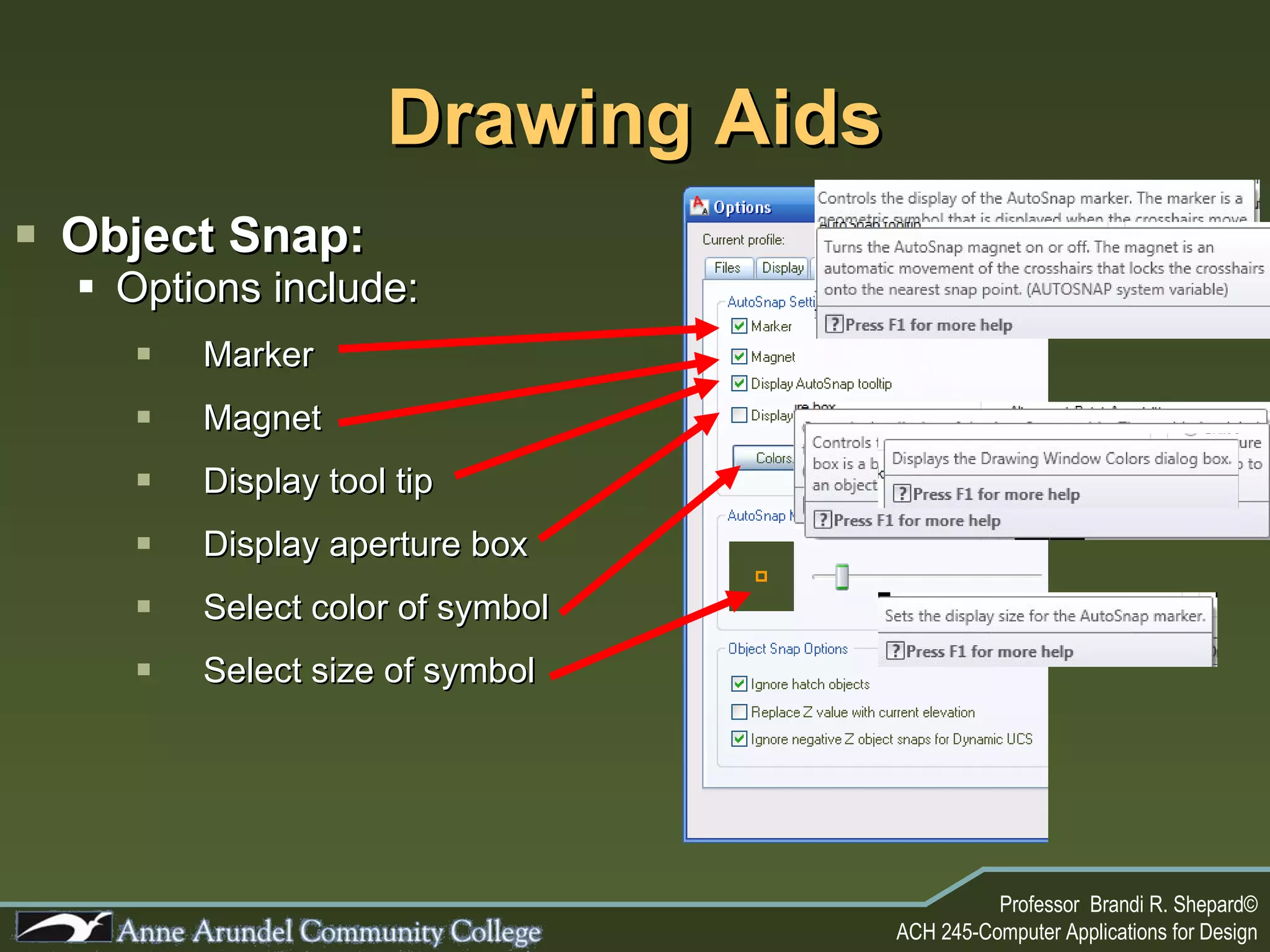
Drawing Aids Object Snap: Options include: Marker Magnet Display tool tip Display aperture box Select color of symbol Select size of symbol
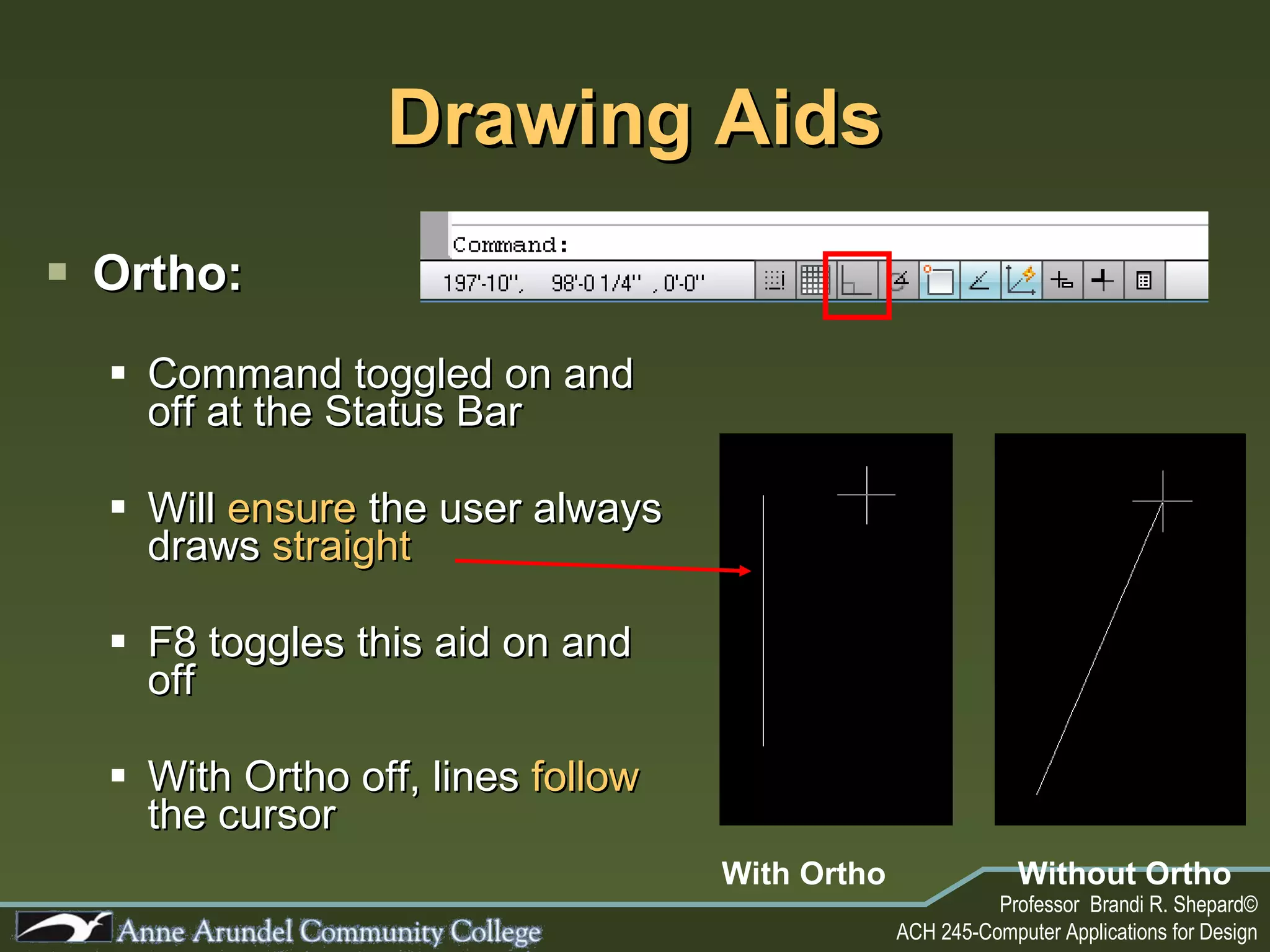
Drawing Aids Ortho: Command toggled on and off at the Status Bar Will  ensure  the user always draws  straight  F8 toggles this aid on and off With Ortho off, lines  follow  the cursor With Ortho Without Ortho
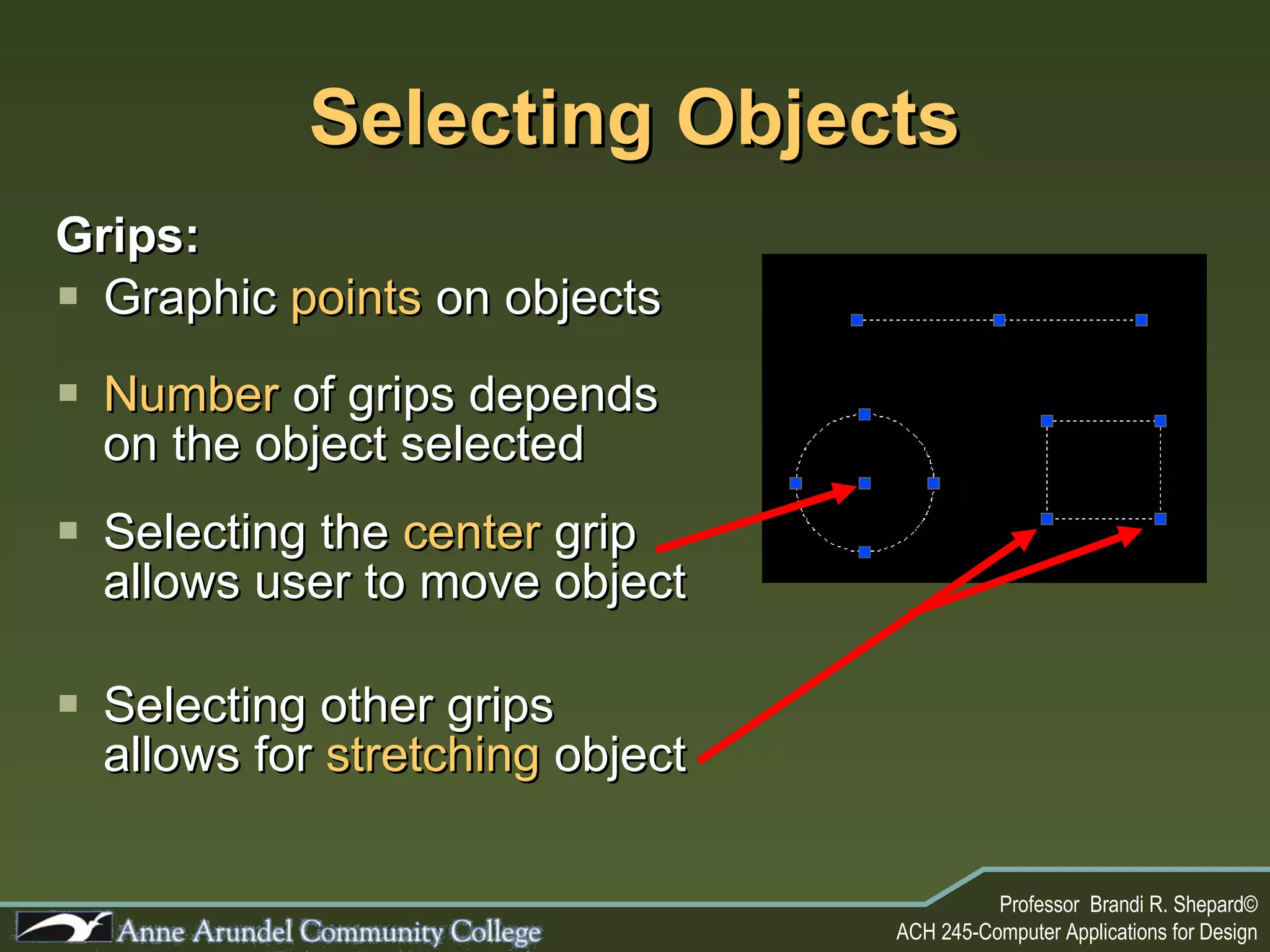
Selecting Objects Grips: Graphic  points  on objects Number  of grips depends on the object selected Selecting the  center  grip allows user to move object Selecting other grips allows for  stretching  object
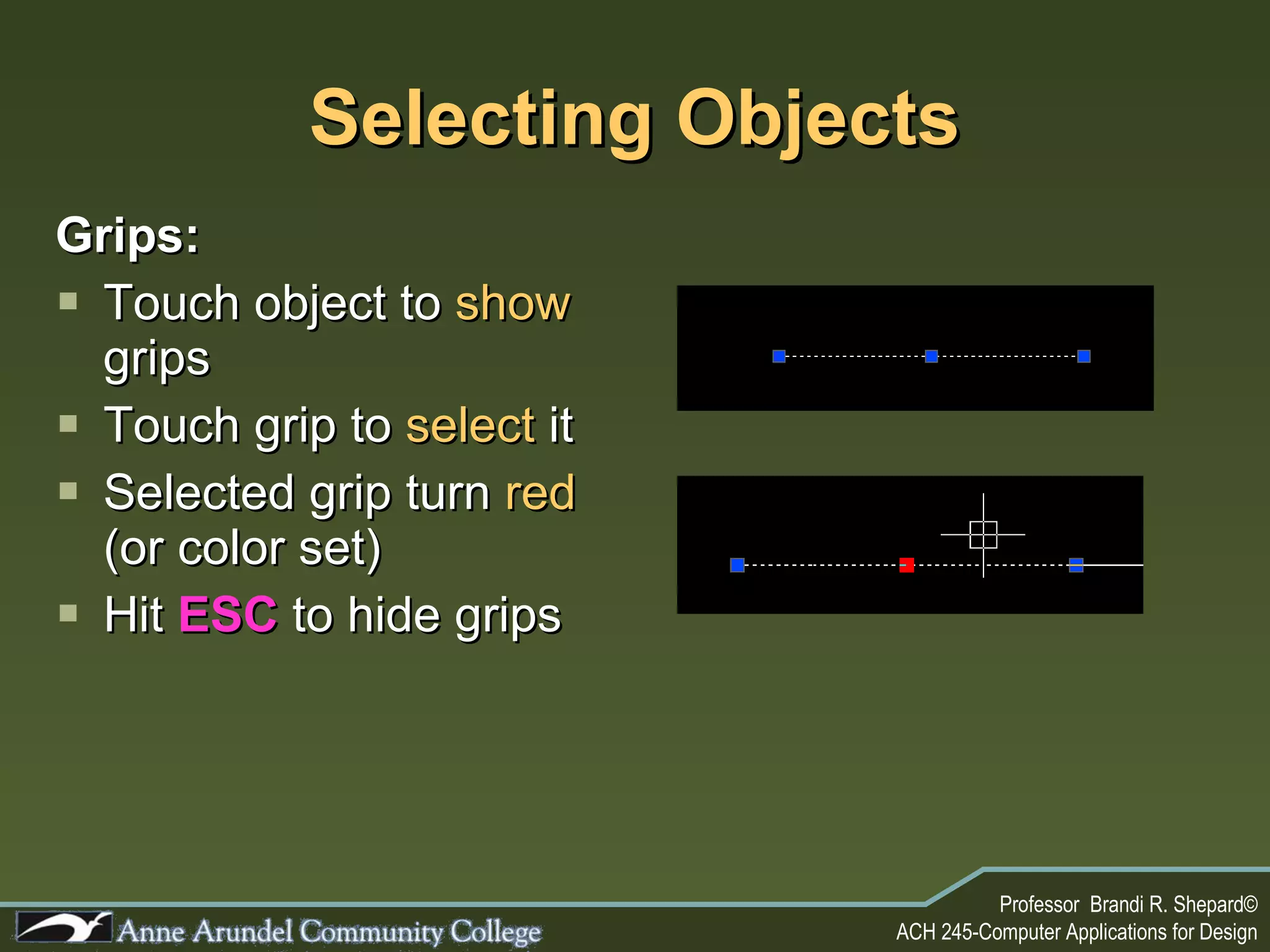
Selecting Objects Grips: Touch object to  show  grips Touch grip to  select  it Selected grip turn  red  (or color set) Hit  ESC  to hide grips
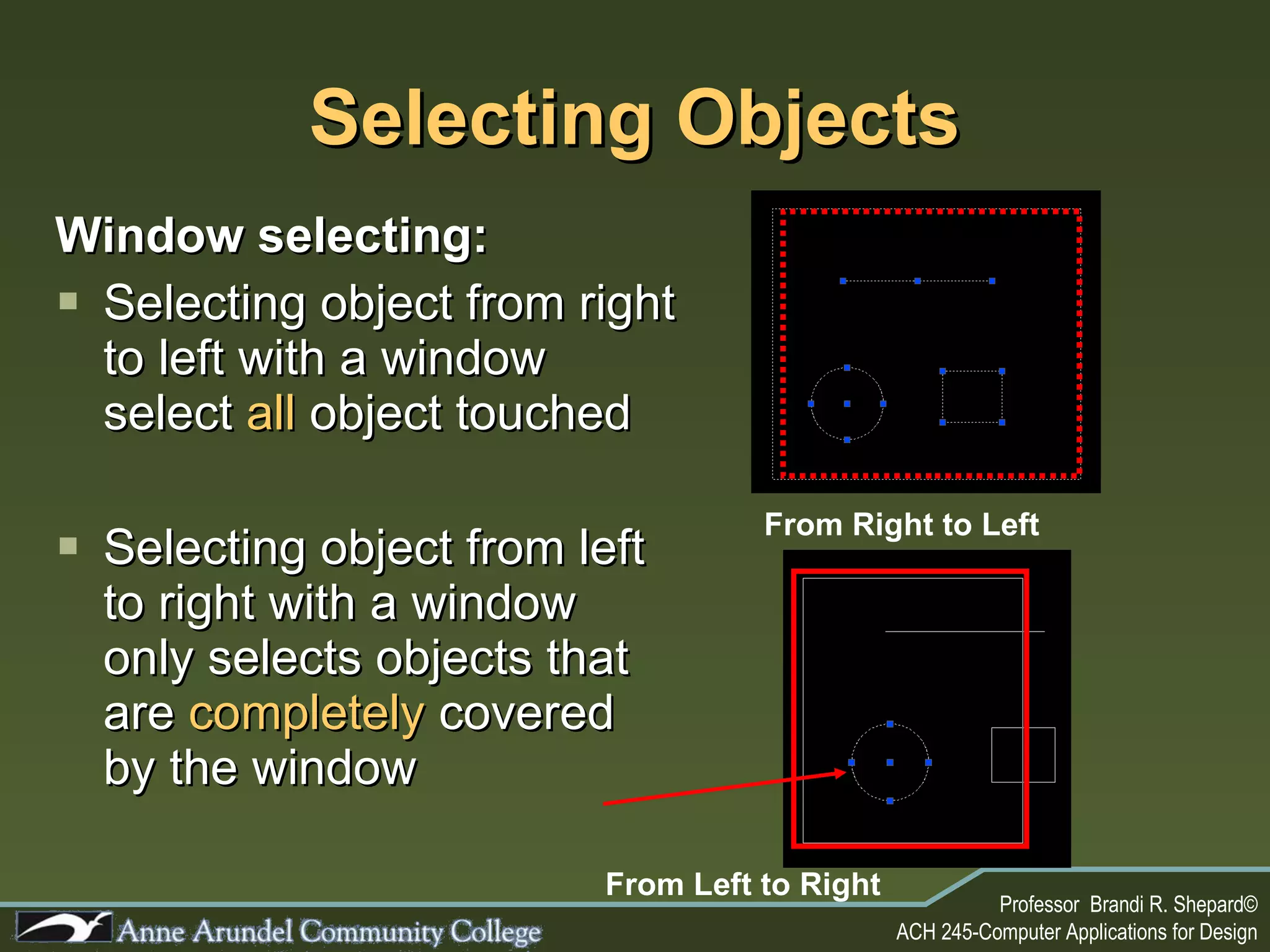
Selecting Objects Window selecting: Selecting object from right to left with a window select  all  object touched Selecting object from left to right with a window only selects objects that are  completely  covered by the window From Right to Left From Left to Right
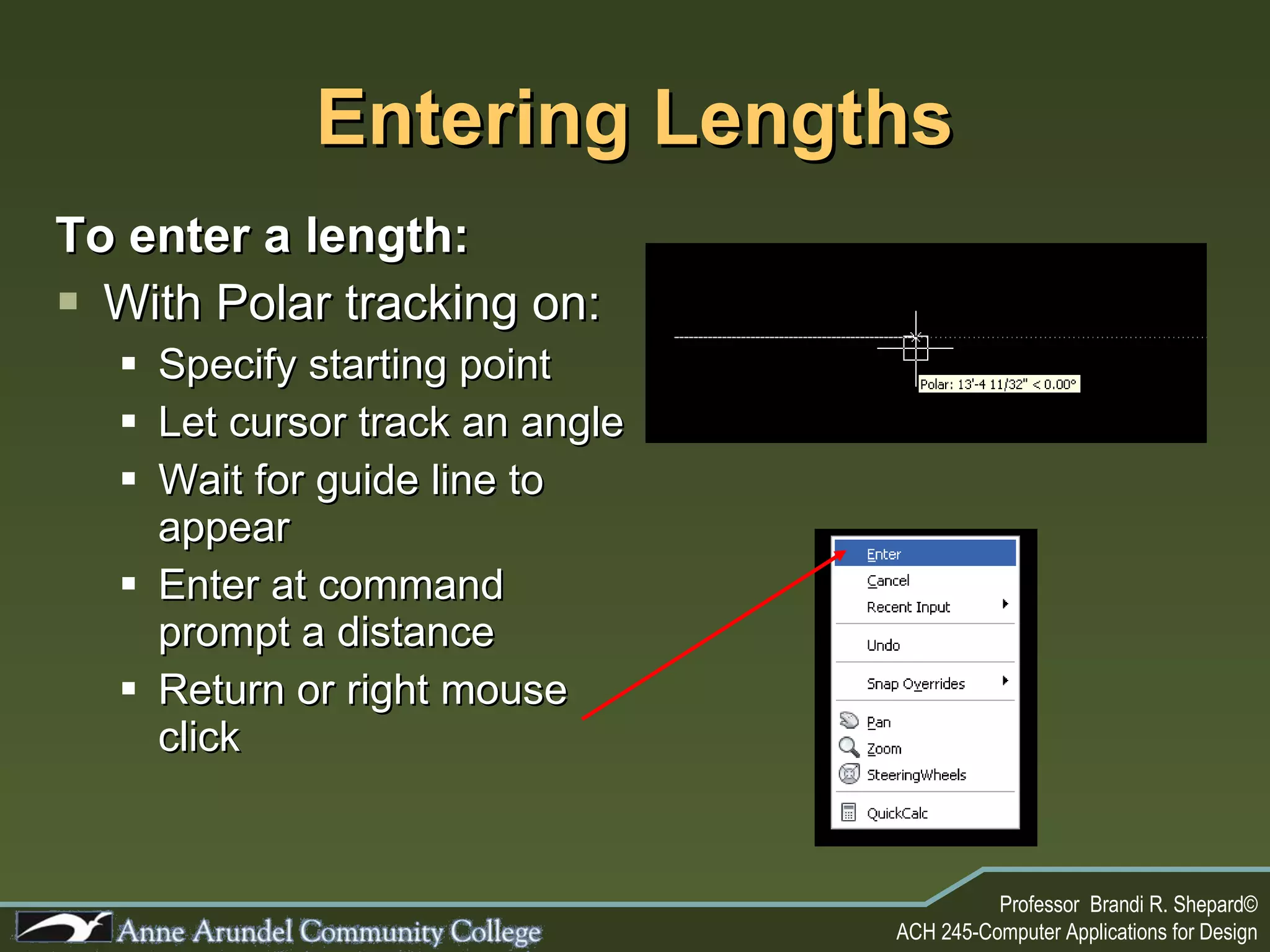
Entering Lengths To enter a length: With Polar tracking on: Specify starting point Let cursor track an angle Wait for guide line to appear Enter at command prompt a distance Return or right mouse click
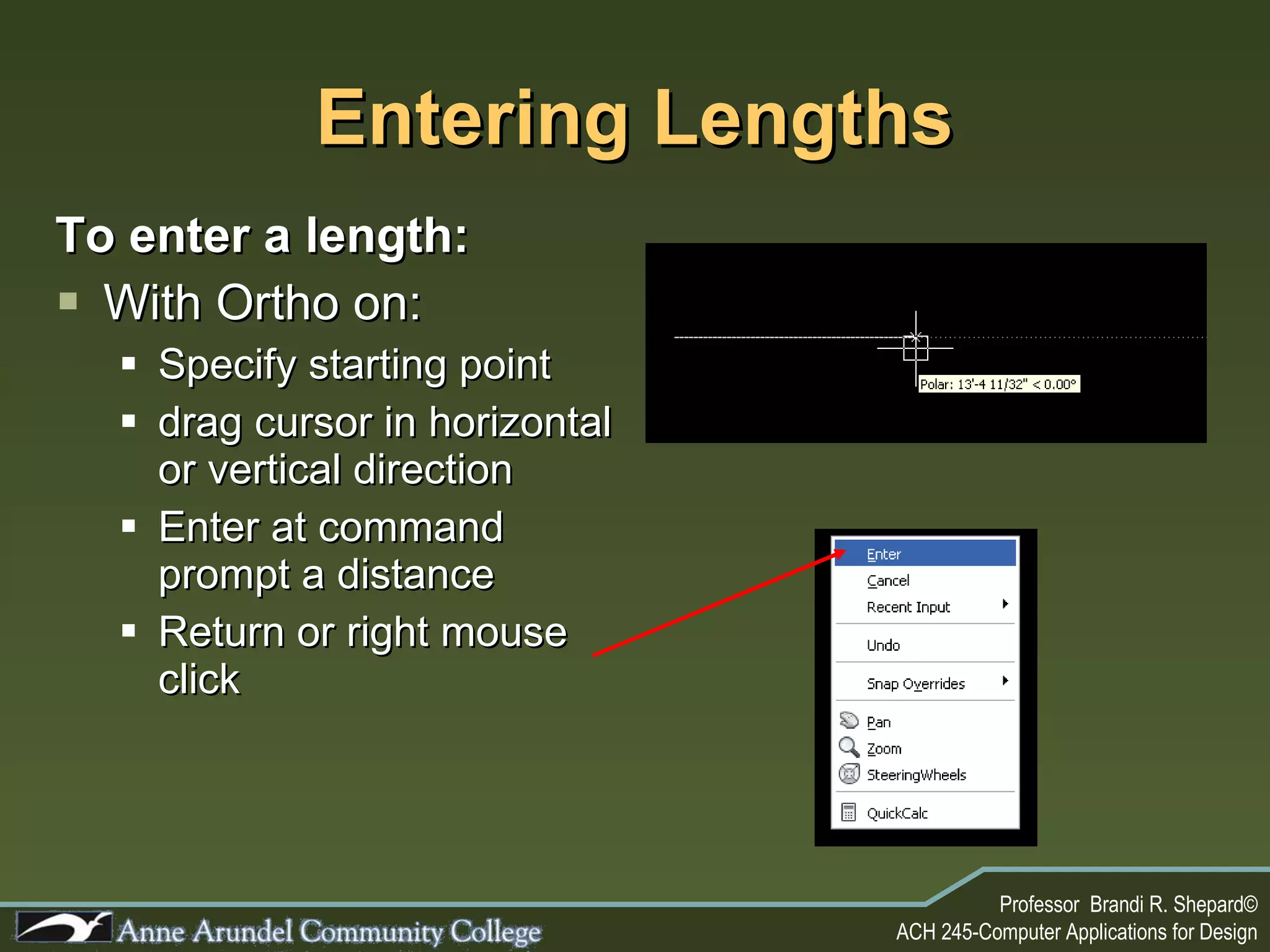
Entering Lengths To enter a length: With Ortho on: Specify starting point drag cursor in horizontal or vertical direction Enter at command prompt a distance Return or right mouse click
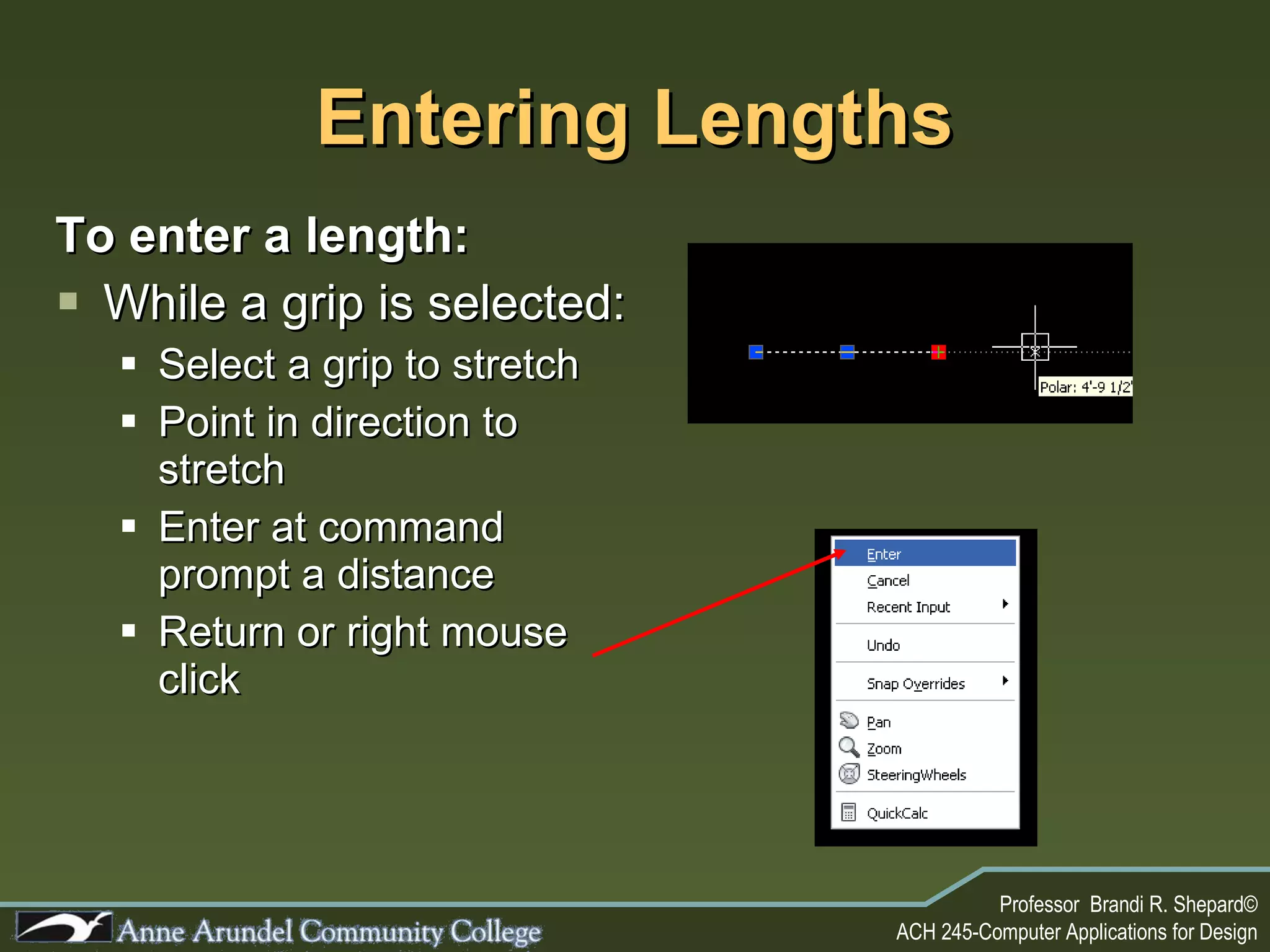
Entering Lengths To enter a length: While a grip is selected: Select a grip to stretch Point in direction to stretch Enter at command prompt a distance Return or right mouse click
NEXT CLASS Lecture 4 –  Organizing and Modifying a Drawing Understanding Layers Modify Commands

ACH 245 Lecture 03 (Drawing 2010)

  • 1.
    ACH 245 ComputerApplications for Design Lecture 3- Beginning to Draw with AutoCAD Drawing Objects Drawing Ribbon, Toolbar & Menu Drawing Aids Selecting Objects Entering Values
  • 2.
  • 3.
    The Look ofThe Program Menu Tabs Tool Ribbon The Drawing Area Crosshair Cursor UCS Icon Layout Tabs Command Prompt Status Bar LET’S REVIEW
  • 4.
    The CommandPrompt is the lowest of the three lines at the bottom of the AutoCAD window Information is entered to perform a certain tasks (where AutoCAD responds to the user commands) Prompts for additional options Tallies all the information entered into the program The Look of The Program LET’S REVIEW
  • 5.
    Starting a DrawingType in “Startup” at the command prompt Make sure the variable is 1 (not 0) 1 then Enter Now click on  File  New Or “ Control+N” The New Drawing Wizard will appear LET’S REVIEW 0
  • 6.
    Starting a DrawingSelect “Use a Wizard” Select “Quick Setup” then click “OK” LET’S REVIEW
  • 7.
    Starting a DrawingSelect Units (Architectural), click Next Select Area (100000’ x 100000’) , click Finish LET’S REVIEW NOTE: You can not enter commas in the value This step sets up the unit of measurement for the drawing. This step sets up the limits of the drawing.
  • 8.
    Now you areready to draw something!!!
  • 9.
    Drawing Objects HomeRibbon Draw Grouping Has icons for drawing basic objects on it The most used is the line icon Prompts user for two points
  • 10.
    Drawing Objects HomeRibbon Draw Grouping Other commands include: Arc Polyline Polygon Rectangle Circle Construction Line Hatch Ellipse
  • 11.
    Drawing Objects HomeRibbon Draw Grouping Has multiple options for drawing some objects For Example: Circles from the draw menu shows 6 ways to construct a circle versus the single way from the toolbar
  • 12.
    Drawing Aids PolarTracking: Command toggled on and off at the Status Bar Will track any angles specified When the users cursor is at a specified angle a projection line appears. Tool Tip appears and tell length of line and at what angle it is
  • 13.
    Polar Tracking: RightClick on “POLAR” icon Select “Settings…” to access the Drafting Setting dialogue box Drawing Aids
  • 14.
    Drawing Aids PolarTracking Select Tracking On or Off Specify tracking angle Use arrow to expand a list or type in a new value Tracking drawn objects Orthogonally or with new specified angles Polar measurements Absolute or relative to last drawn segment
  • 15.
    Drawing Aids PolarTracking: Options Brings up the Options Dialogue box at the Drafting tab
  • 16.
    Drawing Aids PolarTracking: Allows user to turn on or off display options Display tracking vectors Display full-screen tracking Display tracking tool tip Display alignment automatically or only with shift key
  • 17.
    Drawing Aids ObjectSnap: Command toggled on and off at the Status Bar Will snap to any point specified When the users cursor is at a specified point a graphic and tool tip appear
  • 18.
    Drawing Aids ObjectSnap: Right click on OSNAP at status bar to get settings List all the object snap point with symbols The symbol tell you when you are on a snap point
  • 19.
    Drawing Aids ObjectSnap: You may also use Shift + Right Click to pull up a menu of snaps points You may override a snap point this way Remember that OSNAP is to insure accuracy in drawing.
  • 20.
    Object Snap: Selecting Option… brings up the option dialogue box similar to when in polar tracking List all the object snap options to select Drawing Aids
  • 21.
    Drawing Aids ObjectSnap: Options include: Marker Magnet Display tool tip Display aperture box Select color of symbol Select size of symbol
  • 22.
    Drawing Aids Ortho:Command toggled on and off at the Status Bar Will ensure the user always draws straight F8 toggles this aid on and off With Ortho off, lines follow the cursor With Ortho Without Ortho
  • 23.
    Selecting Objects Grips:Graphic points on objects Number of grips depends on the object selected Selecting the center grip allows user to move object Selecting other grips allows for stretching object
  • 24.
    Selecting Objects Grips:Touch object to show grips Touch grip to select it Selected grip turn red (or color set) Hit ESC to hide grips
  • 25.
    Selecting Objects Windowselecting: Selecting object from right to left with a window select all object touched Selecting object from left to right with a window only selects objects that are completely covered by the window From Right to Left From Left to Right
  • 26.
    Entering Lengths Toenter a length: With Polar tracking on: Specify starting point Let cursor track an angle Wait for guide line to appear Enter at command prompt a distance Return or right mouse click
  • 27.
    Entering Lengths Toenter a length: With Ortho on: Specify starting point drag cursor in horizontal or vertical direction Enter at command prompt a distance Return or right mouse click
  • 28.
    Entering Lengths Toenter a length: While a grip is selected: Select a grip to stretch Point in direction to stretch Enter at command prompt a distance Return or right mouse click
  • 29.
    NEXT CLASS Lecture4 – Organizing and Modifying a Drawing Understanding Layers Modify Commands