What are scholarly journal
         articles?
0 Scholarly journal articles are those written by experts
      and researchers in the field you are studying.
0 They are the gold standard for quality in sources for
 your research, and your instructors often require you
                       to use them.
  0 You will find them most easily through the library
                         website.
        0 They are also known as peer-reviewed
     articles, academic journal articles, and refereed
                         articles.
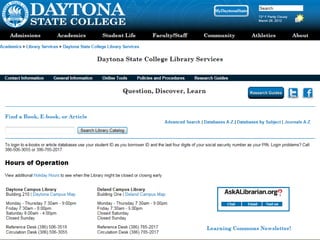
The Library Website
0 http://www.daytonastate.edu/library/
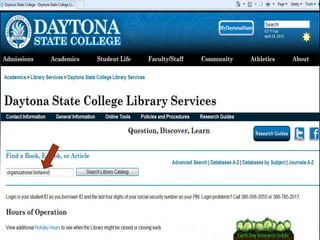
Type your topic or search
  terms into the box on the
library home page, and click
         on “Search.”
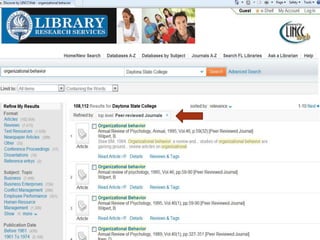
Refine your results

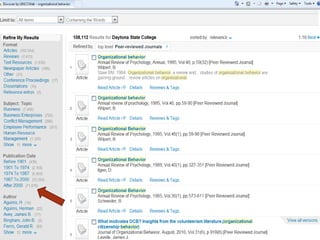
0 First, click on the “Peer Reviewed Journals” link just
                above the list of results.
Next, narrow your date range
0 The results list is in order of relevance, which means
   that the best results should be at the top of the list.
      0 So, some of your results might be too old.
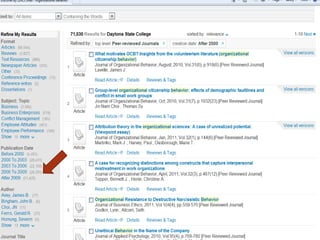
0 Narrow the results with the “Publication Date” links
                  on the menu at the left.
0 Choose the newest date (you may have to do this two
   or three times) until the results are within the date
  range you need (usually, instructors want you to use
     sources that are no more than five years old).
Using your results
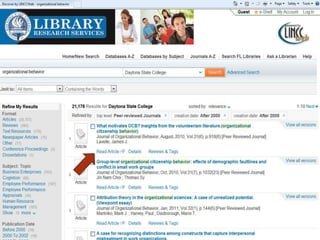
  0 Now all of your articles are new enough, and still
             arranged in order of relevance.
0 Now you can begin to choose the articles you want to
                             use.
 0 To read an article, click on “Read Article” below the
                       article details.
0 You will be asked to sign in. Your Borrower ID is your
   student ID #, and your PIN is the last four digits of
               your Social Security number.
Read the article
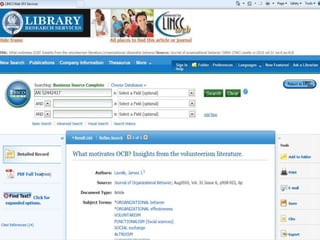
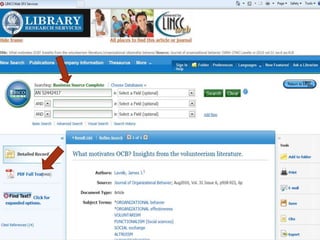
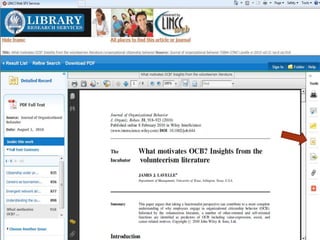
  0 Click on “PDF Full Text” to the left of the
               article description
0 If you have a choice between PDF and HTML
               Full Text, choose PDF.
0 PDF articles come with page numbers. If you
       use a quote from your article in your
  paper, you will need the page number. HTML
           does not have page numbers.
0 (Note the name of the database from which
  the article comes. It is usually near the top of
 the page. In this case, the database is Business
                Source Complete.)
Using article tools
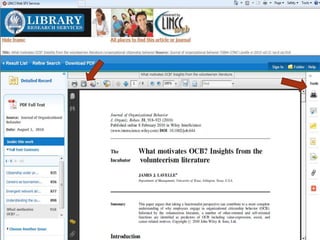
0Look at the “Tools” menu at the right of
                 the page
0From here, you can print the article, or
           email it to yourself
0You can also print or save the article by
 using the icons at the upper left corner
              of the article
Citing the Article
0 Under the Tools menu, find the icon that looks like a
  yellow sheet of paper.
0 When you mouse over it, it will say “Cite.”
0 Click on that, then choose your citation style (APA or
  MLA) from the list.
0 You can copy and paste the citation into your works
  cited or references page.
0 Note: the citation may not be 100% correct. Check
  with an APA or MLA style guide for the correct format.
0 This does not give you the in-text citation.
Need more help? Call 386-506-3055 or 386-785-2017


         Add us on Facebook


         Follow us on Twitter


         Watch on YouTube

Finding Scholarly Articles

  • 2.
    What are scholarlyjournal articles? 0 Scholarly journal articles are those written by experts and researchers in the field you are studying. 0 They are the gold standard for quality in sources for your research, and your instructors often require you to use them. 0 You will find them most easily through the library website. 0 They are also known as peer-reviewed articles, academic journal articles, and refereed articles.
  • 3.
    The Library Website 0http://www.daytonastate.edu/library/
  • 5.
    Type your topicor search terms into the box on the library home page, and click on “Search.”
  • 8.
    Refine your results 0First, click on the “Peer Reviewed Journals” link just above the list of results.
  • 11.
    Next, narrow yourdate range 0 The results list is in order of relevance, which means that the best results should be at the top of the list. 0 So, some of your results might be too old. 0 Narrow the results with the “Publication Date” links on the menu at the left. 0 Choose the newest date (you may have to do this two or three times) until the results are within the date range you need (usually, instructors want you to use sources that are no more than five years old).
  • 16.
    Using your results 0 Now all of your articles are new enough, and still arranged in order of relevance. 0 Now you can begin to choose the articles you want to use. 0 To read an article, click on “Read Article” below the article details. 0 You will be asked to sign in. Your Borrower ID is your student ID #, and your PIN is the last four digits of your Social Security number.
  • 20.
    Read the article 0 Click on “PDF Full Text” to the left of the article description 0 If you have a choice between PDF and HTML Full Text, choose PDF. 0 PDF articles come with page numbers. If you use a quote from your article in your paper, you will need the page number. HTML does not have page numbers. 0 (Note the name of the database from which the article comes. It is usually near the top of the page. In this case, the database is Business Source Complete.)
  • 23.
    Using article tools 0Lookat the “Tools” menu at the right of the page 0From here, you can print the article, or email it to yourself 0You can also print or save the article by using the icons at the upper left corner of the article
  • 25.
    Citing the Article 0Under the Tools menu, find the icon that looks like a yellow sheet of paper. 0 When you mouse over it, it will say “Cite.” 0 Click on that, then choose your citation style (APA or MLA) from the list. 0 You can copy and paste the citation into your works cited or references page. 0 Note: the citation may not be 100% correct. Check with an APA or MLA style guide for the correct format. 0 This does not give you the in-text citation.
  • 28.
    Need more help?Call 386-506-3055 or 386-785-2017 Add us on Facebook Follow us on Twitter Watch on YouTube