An Overview of Library Resources at the Miller Center


                Learning Resources & Technology Services
                James W. Miller Learning Resources Center
                         St. Cloud State University
                        http://lrts.stcloudstate.edu
   Jump start your research process

   Focus on several basic tools available to students

   Demonstrate the library’s catalog: MnPALS and the
    database Academic Search Premier

   Provide contacts for further assistance
 Many of the LR &TS library resources are
 available from your desktop

 Toaccess the libraries’ resources go to:
 http://lrts.stcloudstate.edu/library/

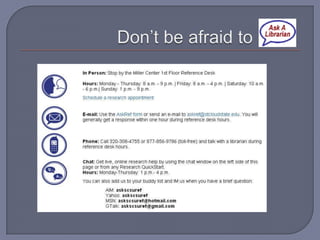
 Don’tforget to contact us if you need further
 assistance.
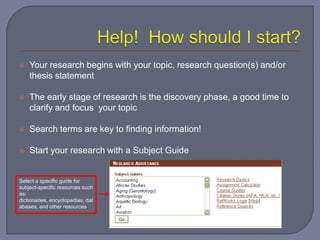
   Your research begins with your topic, research question(s) and/or
    thesis statement

   The early stage of research is the discovery phase, a good time to
    clarify and focus your topic

   Search terms are key to finding information!

   Start your research with a Subject Guide


Select a specific guide for
subject-specific resources such
as:
dictionaries, encyclopedias, dat
abases, and other resources
Need ideas for an argument , current events, or research
          paper? Take a look at following resource tools!

1.        CQ Researcher
      •     Reliable, unbiased, and in-depth information on a wide variety of current issues. Excellent for browsing hot
            topics.


2.        Opposing Viewpoints
      •     Provides overviews and multiple points of view on contemporary social issues. Includes viewpoint
            articles, articles drawn from popular magazines, academic journals, and newspapers, primary
            sources, statistics, podcasts, and links to Websites on topics ranging from abortion to illegal
            immigration, from gambling to war crimes.


3.        Facts.com (World News Digest)
      •     FACTS.com brings together content from reference sources about events, issues, statistics and people of
            the last 20 years. Special features include maps, photographs, historic documents, and overviews of key
            issues, newsmakers and events since 1980.
Look for background information*

Dictionaries

               Encyclopedias


                           Fact
                           Books
                                   Almanacs


                                       and other fact based resources
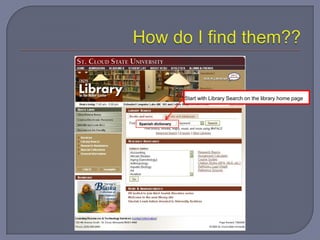
Start with Library Search on the library home page


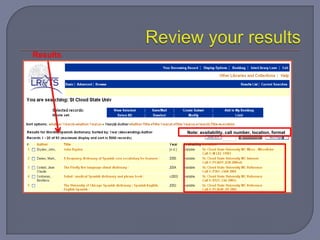
Spanish dictionary
Results


          Note: availability, call number, location, format
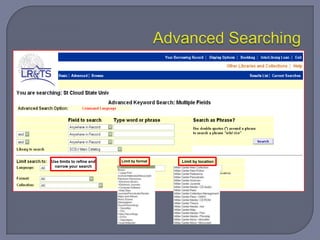
Use limits to refine and   Limit by format   Limit by location
 narrow your search
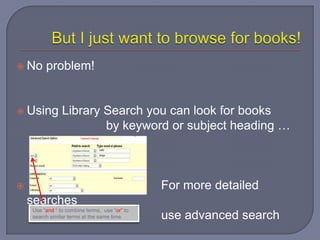
 No     problem!


 Using         Library Search you can look for books
                        by keyword or subject heading …
                               cats

                               dogs


                                              For more detailed
    searches
    Use “and “ to combine terms, use “or” to
    search similar terms at the same time.     use advanced search
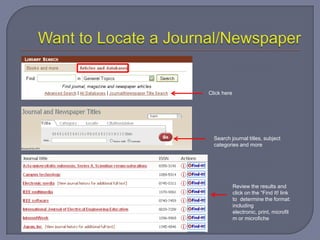
Click here


  Search journal titles, subject
  categories and more


             Review the results and
             click on the “Find It! link
             to determine the format:
             including
             electronic, print, microfil
             m or microfiche
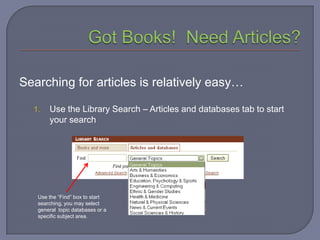
Searching for articles is relatively easy…

  1.   Use the Library Search – Articles and databases tab to start
       your search


   Use the “Find” box to start
   searching, you may select
   general topic databases or a
   specific subject area.
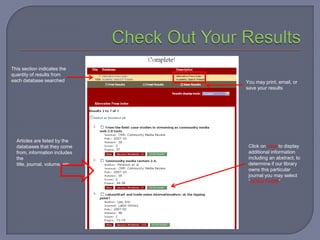
This section indicates the
quantity of results from
each database searched           You may print, email, or
                                 save your results


  Articles are listed by the
  databases that they come        Click on view to display
  from, information includes      additional information
  the                             including an abstract, to
  title, journal, volume, etc…    determine if our library
                                  owns this particular
                                  journal you may select
                                  “SCSU FindIt!”
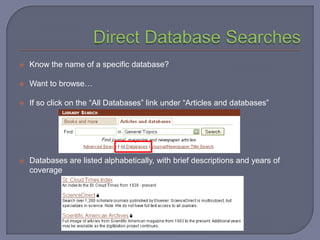
   Know the name of a specific database?

   Want to browse…

   If so click on the “All Databases” link under “Articles and databases”


   Databases are listed alphabetically, with brief descriptions and years of
    coverage
   Article databases vary in topics, years covered, and
    search screen

   Remember to use the “Find It” button to check MnPALS
    for availability

   Know the difference:
    • Scholarly articles
       Peer-reviewed, usually more than 5 pages, includes references
    • Popular press
       General audience, attractive, advertisements, glossy paper
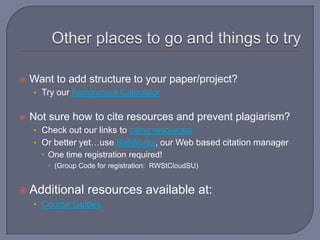
   Want to add structure to your paper/project?
    • Try our Assignment Calculator


   Not sure how to cite resources and prevent plagiarism?
    • Check out our links to citing resources
    • Or better yet…use RefWorks, our Web based citation manager
       One time registration required!
        (Group Code for registration: RWStCloudSU)


 Additional      resources available at:
    • Course Guides
Cindy Gruwell
           Associate Professor
Library Resources & Technology Services
           Miller Center 140C
             320-308-1508
       cagruwell@stcloudstate.edu

Library 101 82208

  • 1.
    An Overview ofLibrary Resources at the Miller Center Learning Resources & Technology Services James W. Miller Learning Resources Center St. Cloud State University http://lrts.stcloudstate.edu
  • 2.
    Jump start your research process  Focus on several basic tools available to students  Demonstrate the library’s catalog: MnPALS and the database Academic Search Premier  Provide contacts for further assistance
  • 3.
     Many ofthe LR &TS library resources are available from your desktop  Toaccess the libraries’ resources go to: http://lrts.stcloudstate.edu/library/  Don’tforget to contact us if you need further assistance.
  • 4.
    Your research begins with your topic, research question(s) and/or thesis statement  The early stage of research is the discovery phase, a good time to clarify and focus your topic  Search terms are key to finding information!  Start your research with a Subject Guide Select a specific guide for subject-specific resources such as: dictionaries, encyclopedias, dat abases, and other resources
  • 5.
    Need ideas foran argument , current events, or research paper? Take a look at following resource tools! 1. CQ Researcher • Reliable, unbiased, and in-depth information on a wide variety of current issues. Excellent for browsing hot topics. 2. Opposing Viewpoints • Provides overviews and multiple points of view on contemporary social issues. Includes viewpoint articles, articles drawn from popular magazines, academic journals, and newspapers, primary sources, statistics, podcasts, and links to Websites on topics ranging from abortion to illegal immigration, from gambling to war crimes. 3. Facts.com (World News Digest) • FACTS.com brings together content from reference sources about events, issues, statistics and people of the last 20 years. Special features include maps, photographs, historic documents, and overviews of key issues, newsmakers and events since 1980.
  • 6.
    Look for backgroundinformation* Dictionaries Encyclopedias Fact Books Almanacs and other fact based resources
  • 7.
    Start with LibrarySearch on the library home page Spanish dictionary
  • 8.
    Results Note: availability, call number, location, format
  • 9.
    Use limits torefine and Limit by format Limit by location narrow your search
  • 10.
     No problem!  Using Library Search you can look for books by keyword or subject heading … cats dogs  For more detailed searches Use “and “ to combine terms, use “or” to search similar terms at the same time. use advanced search
  • 11.
    Click here Search journal titles, subject categories and more Review the results and click on the “Find It! link to determine the format: including electronic, print, microfil m or microfiche
  • 12.
    Searching for articlesis relatively easy… 1. Use the Library Search – Articles and databases tab to start your search Use the “Find” box to start searching, you may select general topic databases or a specific subject area.
  • 13.
    This section indicatesthe quantity of results from each database searched You may print, email, or save your results Articles are listed by the databases that they come Click on view to display from, information includes additional information the including an abstract, to title, journal, volume, etc… determine if our library owns this particular journal you may select “SCSU FindIt!”
  • 14.
    Know the name of a specific database?  Want to browse…  If so click on the “All Databases” link under “Articles and databases”  Databases are listed alphabetically, with brief descriptions and years of coverage
  • 15.
    Article databases vary in topics, years covered, and search screen  Remember to use the “Find It” button to check MnPALS for availability  Know the difference: • Scholarly articles  Peer-reviewed, usually more than 5 pages, includes references • Popular press  General audience, attractive, advertisements, glossy paper
  • 16.
    Want to add structure to your paper/project? • Try our Assignment Calculator  Not sure how to cite resources and prevent plagiarism? • Check out our links to citing resources • Or better yet…use RefWorks, our Web based citation manager  One time registration required!  (Group Code for registration: RWStCloudSU)  Additional resources available at: • Course Guides
  • 18.
    Cindy Gruwell Associate Professor Library Resources & Technology Services Miller Center 140C 320-308-1508 cagruwell@stcloudstate.edu