BROWN MACKIE
COLLEGE LIBRARY
DATABASES
Introducing the EBSCO databases
New databases are here!
 Our new EBSCO subscription includes
34 databases, including:
 Academic Search Complete
 CINAHL
 MEDLINE
 Associated Press Images Collection
 These replace our core ProQuest
databases but do not affect other
subscriptions, including:
 Credo Reference
 Learning Express Library
 WestLaw
Let‟s take a tour of a typical EBSCO
database
Introducing EBSCO
Accessing EBSCO
 Students, log in to your portal and click
„Library‟
 Faculty, go to
www.onlinelibrary.brownmackie.edu and log in
with your Brown Mackie username and
password
 Then click „Find by Resource‟ or „Find by
Subject‟ and choose a database
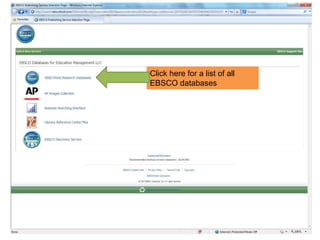
Click here for a list of all
EBSCO databases
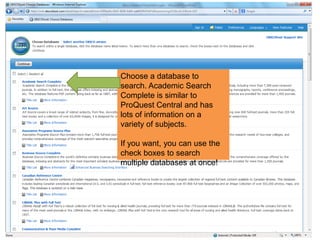
Choose a database to
search. Academic Search
Complete is similar to
ProQuest Central and has
lots of information on a
variety of subjects.
If you want, you can use the
check boxes to search
multiple databases at once!
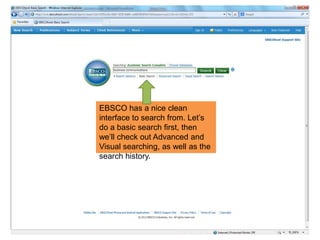
EBSCO has a nice clean
interface to search from. Let‟s
do a basic search first, then
we‟ll check out Advanced and
Visual searching, as well as the
search history.
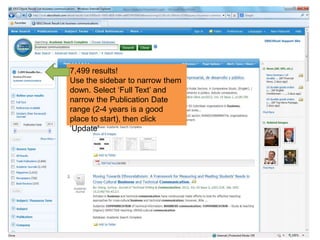
7,499 results!
Use the sidebar to narrow them
down. Select „Full Text‟ and
narrow the Publication Date
range (2-4 years is a good
place to start), then click
„Update‟
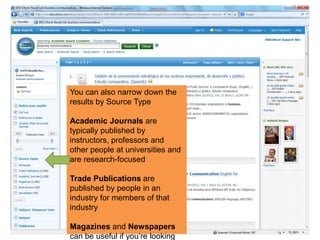
You can also narrow down the
results by Source Type
Academic Journals are
typically published by
instructors, professors and
other people at universities and
are research-focused
Trade Publications are
published by people in an
industry for members of that
industry
Magazines and Newspapers
can be useful if you‟re looking
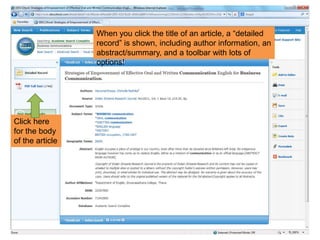
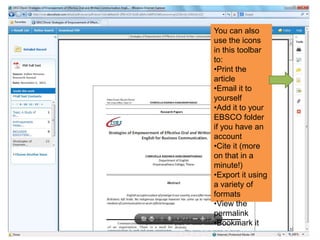
When you click the title of an article, a “detailed
record” is shown, including author information, an
abstract/summary, and a toolbar with lots of
options!
Click here
for the body
of the article
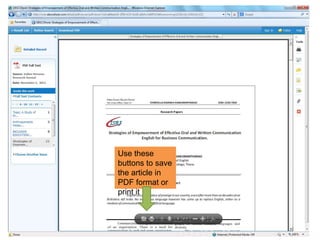
Use these
buttons to save
the article in
PDF format or
print it
You can also
use the icons
in this toolbar
to:
•Print the
article
•Email it to
yourself
•Add it to your
EBSCO folder
if you have an
account
•Cite it (more
on that in a
minute!)
•Export it using
a variety of
formats
•View the
permalink
•Bookmark it
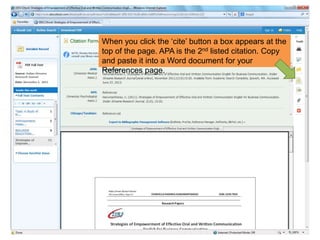
When you click the „cite‟ button a box appears at the
top of the page. APA is the 2nd listed citation. Copy
and paste it into a Word document for your
References page.
Advanced Features
Now we‟ll check out the “fun stuff” like
Advanced and Visual Searching, and
Search History.
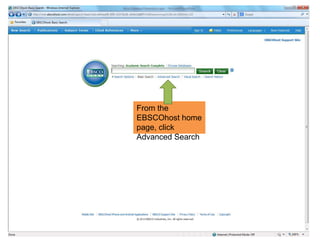
From the
EBSCOhost home
page, click
Advanced Search
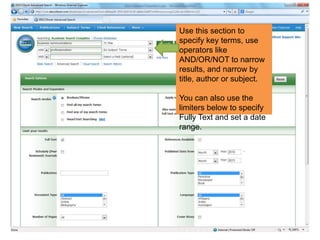
Use this section to
specify key terms, use
operators like
AND/OR/NOT to narrow
results, and narrow by
title, author or subject.
You can also use the
limiters below to specify
Fully Text and set a date
range.
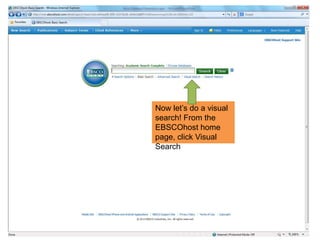
Now let‟s do a visual
search! From the
EBSCOhost home
page, click Visual
Search
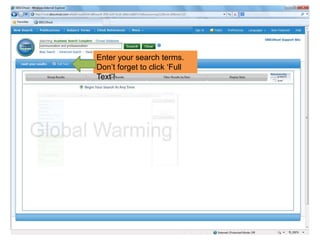
Enter your search terms.
Don‟t forget to click „Full
Text‟!
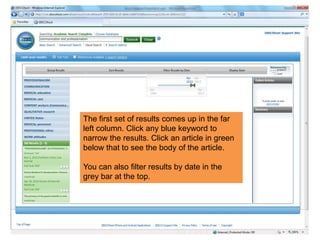
The first set of results comes up in the far
left column. Click any blue keyword to
narrow the results. Click an article in green
below that to see the body of the article.
You can also filter results by date in the
grey bar at the top.
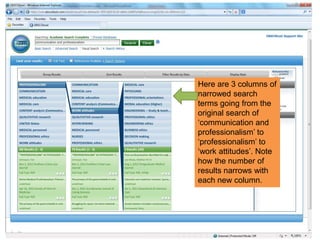
Here are 3 columns of
narrowed search
terms going from the
original search of
„communication and
professionalism‟ to
„professionalism‟ to
„work attitudes‟. Note
how the number of
results narrows with
each new column.
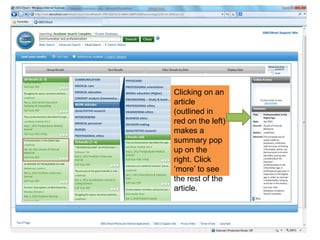
Clicking on an
article
(outlined in
red on the left)
makes a
summary pop
up on the
right. Click
„more‟ to see
the rest of the
article.
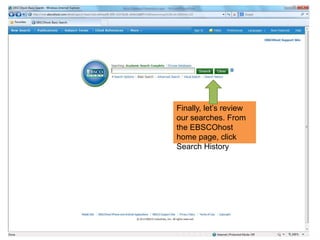
Finally, let‟s review
our searches. From
the EBSCOhost
home page, click
Search History
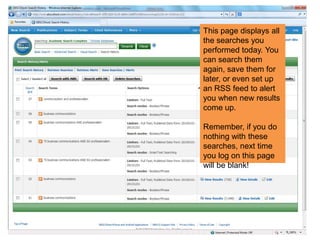
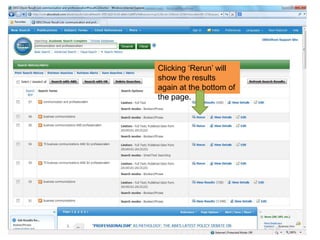
This page displays all
the searches you
performed today. You
can search them
again, save them for
later, or even set up
an RSS feed to alert
you when new results
come up.
Remember, if you do
nothing with these
searches, next time
you log on this page
will be blank!
Clicking „Rerun‟ will
show the results
again at the bottom of
the page.
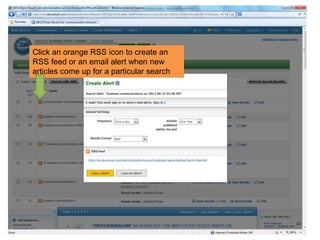
Click an orange RSS icon to create an
RSS feed or an email alert when new
articles come up for a particular search
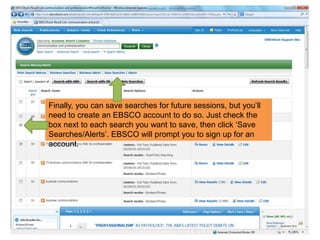
Finally, you can save searches for future sessions, but you‟ll
need to create an EBSCO account to do so. Just check the
box next to each search you want to save, then click „Save
Searches/Alerts‟. EBSCO will prompt you to sign up for an
account.

Using EBSCO Databases

  • 1.
  • 2.
    New databases arehere!  Our new EBSCO subscription includes 34 databases, including:  Academic Search Complete  CINAHL  MEDLINE  Associated Press Images Collection  These replace our core ProQuest databases but do not affect other subscriptions, including:  Credo Reference  Learning Express Library  WestLaw
  • 3.
    Let‟s take atour of a typical EBSCO database Introducing EBSCO
  • 4.
    Accessing EBSCO  Students,log in to your portal and click „Library‟  Faculty, go to www.onlinelibrary.brownmackie.edu and log in with your Brown Mackie username and password  Then click „Find by Resource‟ or „Find by Subject‟ and choose a database
  • 5.
    Click here fora list of all EBSCO databases
  • 6.
    Choose a databaseto search. Academic Search Complete is similar to ProQuest Central and has lots of information on a variety of subjects. If you want, you can use the check boxes to search multiple databases at once!
  • 7.
    EBSCO has anice clean interface to search from. Let‟s do a basic search first, then we‟ll check out Advanced and Visual searching, as well as the search history.
  • 8.
    7,499 results! Use thesidebar to narrow them down. Select „Full Text‟ and narrow the Publication Date range (2-4 years is a good place to start), then click „Update‟
  • 9.
    You can alsonarrow down the results by Source Type Academic Journals are typically published by instructors, professors and other people at universities and are research-focused Trade Publications are published by people in an industry for members of that industry Magazines and Newspapers can be useful if you‟re looking
  • 10.
    When you clickthe title of an article, a “detailed record” is shown, including author information, an abstract/summary, and a toolbar with lots of options! Click here for the body of the article
  • 11.
    Use these buttons tosave the article in PDF format or print it
  • 12.
    You can also usethe icons in this toolbar to: •Print the article •Email it to yourself •Add it to your EBSCO folder if you have an account •Cite it (more on that in a minute!) •Export it using a variety of formats •View the permalink •Bookmark it
  • 13.
    When you clickthe „cite‟ button a box appears at the top of the page. APA is the 2nd listed citation. Copy and paste it into a Word document for your References page.
  • 14.
    Advanced Features Now we‟llcheck out the “fun stuff” like Advanced and Visual Searching, and Search History.
  • 15.
    From the EBSCOhost home page,click Advanced Search
  • 16.
    Use this sectionto specify key terms, use operators like AND/OR/NOT to narrow results, and narrow by title, author or subject. You can also use the limiters below to specify Fully Text and set a date range.
  • 17.
    Now let‟s doa visual search! From the EBSCOhost home page, click Visual Search
  • 18.
    Enter your searchterms. Don‟t forget to click „Full Text‟!
  • 19.
    The first setof results comes up in the far left column. Click any blue keyword to narrow the results. Click an article in green below that to see the body of the article. You can also filter results by date in the grey bar at the top.
  • 20.
    Here are 3columns of narrowed search terms going from the original search of „communication and professionalism‟ to „professionalism‟ to „work attitudes‟. Note how the number of results narrows with each new column.
  • 21.
    Clicking on an article (outlinedin red on the left) makes a summary pop up on the right. Click „more‟ to see the rest of the article.
  • 22.
    Finally, let‟s review oursearches. From the EBSCOhost home page, click Search History
  • 23.
    This page displaysall the searches you performed today. You can search them again, save them for later, or even set up an RSS feed to alert you when new results come up. Remember, if you do nothing with these searches, next time you log on this page will be blank!
  • 24.
    Clicking „Rerun‟ will showthe results again at the bottom of the page.
  • 25.
    Click an orangeRSS icon to create an RSS feed or an email alert when new articles come up for a particular search
  • 26.
    Finally, you cansave searches for future sessions, but you‟ll need to create an EBSCO account to do so. Just check the box next to each search you want to save, then click „Save Searches/Alerts‟. EBSCO will prompt you to sign up for an account.