Managing a Microsoft Windows Server 2003 Environment Chapter 9: Implementing and Using Group Policy
Objectives Create and manage Group Policy objects to control user desktop settings, security, scripts, and folder redirection Manage and troubleshoot Group Policy inheritance Deploy and manage software using Group Policy
Introduction to Group Policy Group policy  centralizes management of user and computer configuration settings throughout a network A  group policy object  is an Active Directory object used to configure policy settings for user and computer objects There are two default Group Policy Objects: Default Domain Policy (linked to domain container) Default Domain Controllers Policy (linked to domain controller OU)
Introduction to Group Policy (continued) You can modify default GPOs You can create new GPOs and link them to particular sites, domains, and OUs Policy settings will be propagated to all users and computers in container including child OUs Group policy can only be applied to computers running Windows Server 2003, Windows 2000, and Windows XP
Creating a Group Policy Object Two ways to create a GPO: Group Policy standalone Microsoft Management Console (MMC) snap-in Group Policy extension in Active Directory Users and Computers
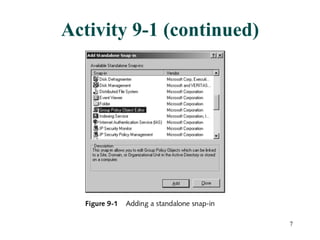
Activity 9-1: Creating a Group Policy Object Using the MMC Objective: To create a GPO using the Group Policy Object Editor MMC snap-in Locate the MMC Group Policy Object Editor snap-in Create a new GPO
Activity 9-1 (continued)
Activity 9-2: Creating OUs and Moving User Accounts Objective:  To create new Organizational Units and move existing user accounts into them.  Must be familiar with using OUs for controlling the application of Group Policy settings Create new OUs using Active Directory Users and Computers Move users into the new OUs
Activity 9-3: Creating a Group Policy Object and Browsing Settings Using Active Directory  Users and Computers Objective: Create a GPO using Active Directory Users and Computers as an alternative to MMC snap-in From Active Directory Users and Computers, use the Group Policy tab of the Properties of an existing OU to add and create GPOs Browse configuration settings of a Group Policy Object
Editing a GPO
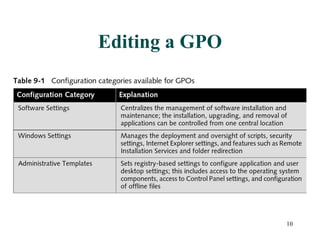
Editing a GPO (continued) Table 9-1 shows configuration categories for both computer and user configurations Two tabs in Properties of each setting: Setting allows you to enable or disable the setting Explain provides information about the setting GPO content is stored in 2 locations: Group Policy container (GPC) Group Policy template (GPT) A GPO is identified by a 128-bit  globally unique identifier  (GUID)
Activity 9-4: Deleting Group Policy Objects Objective: To delete a GPO using Active Directory Users and Computers A previously created GPO is deleted from an OU
Application of Group Policy Two main categories to a Group Policy Computer configuration (settings apply to computers in the container) User configuration (settings apply to users in the container) Upon computer startup (or user logon) Computer queries domain controller for GPOs. Domain controller finds applicable GPOs. Domain controller presents list of GPOs. The client gets Group Policy templates, applies the settings and runs the scripts. Same basic process happens for user logons
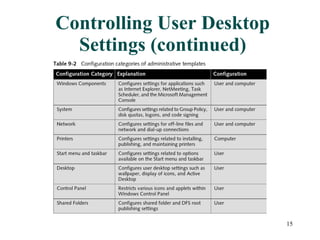
Controlling User Desktop Settings Administrative templates  Used to limit user manipulation of user desktop and computer configurations Aim is to reduce administrative costs Seven main categories of configuration settings can be applied to either computer or user section of a GPO
Controlling User Desktop Settings (continued)
Activity 9-5: Configuring Group Policy Object User Desktop Settings Objective: To configure and test the application of Group Policy settings  Use Active Directory Users and Computers to access the desired configuration settings Configure settings using the Group Policy Object Editor Verify that the configured settings have the expected results
Managing Security Settings with Group Policy Password Policy, Account Policy, and Kerberos Policy settings are only applicable to domain objects Other nodes in Security Settings category can be applied at both domain and OU levels Local Policies Audit Policy User Rights Assignment Security Options
Managing Security Settings with Group Policy (continued) Event Log Restricted Groups System Services Registry File System Wireless Network Policies Public Key Policies Software Restriction Policies IP Security Policies on Active Directory
Activity 9-6: Configuring Group Policy Object Security Settings Objective: Use Group Policy settings to configure a logon banner for domain users Use Active Directory Users and Computers to access the Default Domain Policy GPO Create a logon banner Verify that the banner appears
Activity 9-7: Configuring File System Security Using Group Policy Settings Objective: Use Group Policy settings to configure security permissions Create a folder Use Active Directory Users and Computers to configure the permissions on the folders Update Group Policy settings on the server Verify that the permissions are explicitly defined
Assigning Scripts Windows Server 2003 can run scripts during: User logon or logoff User section of GPO Computer startup and shutdown Computer section of GPO Default is for scripts to run synchronously from top to bottom Can specify script time-outs, asynchronous execution, and hiding of scripts
Activity 9-8: Assigning Logon Scripts to Users Using Group Policy Objective:  Use GPOs to assign logon scripts to domain users Create a script file Add the script to the logon policies of a particular group using Active Directory Users and Computers Verify that the script runs for members of the group and not for other users
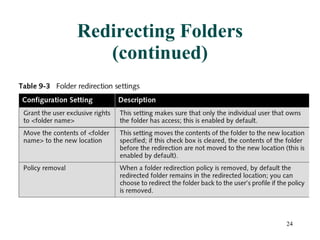
Redirecting Folders Allows you to redirect the contents of a user’s profile to a network location Profile contents that can be redirected are application data, desktop, My Documents, Start menu Redirection is useful because it: Aids in backup Reduces logon time Allows creation of a standard desktop for multiple users
Redirecting Folders (continued)
Managing Group Policy Inheritance Specific order for GPO application: Local computer    Site    Domain    Parent OU    Child OU By default, all GPO settings are inherited At each level, there can be multiple GPOs Policies are applied in the order that they appear on the Group Policy tab for each container, bottom GPO first Applying a large number of GPOs can affect startup and logon performance
Managing Group Policy Inheritance (continued) Conflicts are resolved according to a set formula Policies are updated automatically at intervals and can be updated manually Policies can be linked to a site, domain, or specific OU containers Multiple Group Policies can be assigned to a single container A single Group Policy can be linked to multiple containers
Activity 9-9: Linking a Group Policy Object to Multiple Containers Objective: Link a single GPO to multiple containers Using Active Directory Users and Computers, create and configure a new GPO in one OU Add the GPO to another OU
Configuring Block Policy Inheritance, No Override, and Filtering These options allow default behavior to be changed for specific containers  Can change default inheritance policy Can change default conflict resolution Can change permissions for a specific member within a group to deny GPO application for that member
Blocking Group Policy Inheritance To change default inheritance, use the Block Policy inheritance check box on the Group Policy tab for a child container Child will not inherit parent’s policies Useful if one OU needs to be managed separately
Configuring No Override If a policy is configured with No Override It will be enforced despite conflicts in lower-level policies It will be enforced on lower-level containers with Block Policy inheritance set
Filtering Using Permissions Prevents policy settings from applying to a particular user, group, or computer within a container To filter a GPO from a particular container member, deny Read and Apply Group Policy permissions for the member account only
Activity 9-10: Configuring Group Policy Object Inheritance Settings Objective: Explore and configure Group Policy inheritance settings Configure the Default Domain Policy GPO using Active Directory Users and Computers Override the Default Domain Policy configuration at the OU level and verify the override Configure No Override option at the domain level Verify No Override option
Activity 9-11: Filtering Group Policy Objects Using Security Permissions Objective: Use security permissions to filter and control the application of Group Policy settings Using Active Directory Users and Computers, add a user account to a group but deny the group’s GPO permissions  Verify that the added user account is not configured with the group’s GPO
Troubleshooting Group Policy Settings Potential trouble areas: Order of Group Policy processing Improper use of No Override or Block Policy inheritance settings Read and Apply Group Policy permissions Utilities that show effective Group Policy settings GPRESULT  Command-line utility Resultant Set of Policy (RSoP) Graphical utility
Activity 9-12: Determining Group Policy Settings Using the Resultant Set of Policy Tool Objective: Use RSoP to determine effective Group Policy settings Use Active Directory Users and Computers to configure the Default Domain Policy Open a new MMC with the Resultant Set of Policy snap-in Use RSoP to Generate RSoP Data
Activity 9-12 (continued)
Deploying Software Using Group Policy Applications that can be deployed using Group Policy include: Business applications (e.g., Microsoft Office) Anti-virus software Software updates (e.g., service packs) Four phases of software rollout Software preparation Deployment Software maintenance Software removal
Software Preparation Microsoft Windows installer package (MSI) MSI file contains all of the information needed to install an application in a variety of configurations Software vendors include preconfigured MSI packages For older applications, can create MSI packages using 3 rd  party utilities (e.g., VERITAS) To install, place MSI file in a shared folder and configure Group Policy to access for installation
Software Preparation (continued) If application doesn’t have an MSI package can use ZAP file Text file used by Group Policy to deploy an application Can only be published and not assigned Is not resilient Requires user intervention and proper permissions
Deployment Two ways to deploy an application Assigning applications  Publishing applications
Assigning Applications When a policy is created to assign an application Any user who the policy applies to has a shortcut on the Start menu Application is installed when user clicks shortcut the first time or opens it with an associated document If policy configured in computer section, application is installed next time the computer is started Applications are resilient (if files are corrupted, will reinstall itself)
Publishing Applications When a policy is created to publish an application Not advertised in Start menu Installed using the Add/Remove Programs applet or by opening an associated document Only published to users and not computers
Configuring the Deployment Create or edit a GPO and specify deployment options Assign or publish application to computers or users to install at the appropriate time
Activity 9-13: Publishing an Application to Users Using Group Policy Objective: Publish an application using Group Policy settings Create a shared folder and copy files into it Create a GPO to publish the msi software files in the folder Login as a member of the group using the GPO and install the software
Activity 9-14: Assigning an Application to Users Using Group Policy Objective: To assign an application using Group Policy settings Create and configure a new GPO to assign software installation to the users in an OU Log on as a user in the OU Verify that the software installs and executes as expected
Software Maintenance Software must be maintained with patches and updates Deployment of patches and updates can be: Mandatory upgrade Optional upgrade Redeployment of an application
Software Removal Application must have been originally installed using a Windows installer package Removal can be: Forced removal Optional removal Forced removal uninstalls application and prevents it from being reinstalled Optional removal does not uninstall application but does prevent it from being reinstalled once removed
Summary A Group Policy Object is an object in Active Directory used to configure and apply settings for user and computer objects Two default GPOs created when Active Directory is installed: Default Domain Policy Default Domain Controllers Policy Two mechanisms for creating GPOs Microsoft Management Console Group Policy snap-in Group Policy extension in Active Directory Users and Computers
Summary GPOs can be used: to control user desktop settings and security settings to apply scripts on user logon and logoff and computer startup and shutdown for folder redirection GPOs are applied in a specific order GPOs are inherited by default Can be changed by blocking Group Policy inheritance, configuring No Override, or filtering using user permissions Use GPRESULT or Resultant Set of Policy tool to view effective Group Policy settings
Summary GPOs are useful in deploying and maintaining software applications GPOs are used for four main phases of software rollout: preparation, deployment, maintenance, removal For deployment, Group Policy uses an MSI file containing information needed to install in a variety of configurations Deployed applications can be either assigned or published

Chapter09 Implementing And Using Group Policy

  • 1.
    Managing a MicrosoftWindows Server 2003 Environment Chapter 9: Implementing and Using Group Policy
  • 2.
    Objectives Create andmanage Group Policy objects to control user desktop settings, security, scripts, and folder redirection Manage and troubleshoot Group Policy inheritance Deploy and manage software using Group Policy
  • 3.
    Introduction to GroupPolicy Group policy centralizes management of user and computer configuration settings throughout a network A group policy object is an Active Directory object used to configure policy settings for user and computer objects There are two default Group Policy Objects: Default Domain Policy (linked to domain container) Default Domain Controllers Policy (linked to domain controller OU)
  • 4.
    Introduction to GroupPolicy (continued) You can modify default GPOs You can create new GPOs and link them to particular sites, domains, and OUs Policy settings will be propagated to all users and computers in container including child OUs Group policy can only be applied to computers running Windows Server 2003, Windows 2000, and Windows XP
  • 5.
    Creating a GroupPolicy Object Two ways to create a GPO: Group Policy standalone Microsoft Management Console (MMC) snap-in Group Policy extension in Active Directory Users and Computers
  • 6.
    Activity 9-1: Creatinga Group Policy Object Using the MMC Objective: To create a GPO using the Group Policy Object Editor MMC snap-in Locate the MMC Group Policy Object Editor snap-in Create a new GPO
  • 7.
  • 8.
    Activity 9-2: CreatingOUs and Moving User Accounts Objective: To create new Organizational Units and move existing user accounts into them. Must be familiar with using OUs for controlling the application of Group Policy settings Create new OUs using Active Directory Users and Computers Move users into the new OUs
  • 9.
    Activity 9-3: Creatinga Group Policy Object and Browsing Settings Using Active Directory Users and Computers Objective: Create a GPO using Active Directory Users and Computers as an alternative to MMC snap-in From Active Directory Users and Computers, use the Group Policy tab of the Properties of an existing OU to add and create GPOs Browse configuration settings of a Group Policy Object
  • 10.
  • 11.
    Editing a GPO(continued) Table 9-1 shows configuration categories for both computer and user configurations Two tabs in Properties of each setting: Setting allows you to enable or disable the setting Explain provides information about the setting GPO content is stored in 2 locations: Group Policy container (GPC) Group Policy template (GPT) A GPO is identified by a 128-bit globally unique identifier (GUID)
  • 12.
    Activity 9-4: DeletingGroup Policy Objects Objective: To delete a GPO using Active Directory Users and Computers A previously created GPO is deleted from an OU
  • 13.
    Application of GroupPolicy Two main categories to a Group Policy Computer configuration (settings apply to computers in the container) User configuration (settings apply to users in the container) Upon computer startup (or user logon) Computer queries domain controller for GPOs. Domain controller finds applicable GPOs. Domain controller presents list of GPOs. The client gets Group Policy templates, applies the settings and runs the scripts. Same basic process happens for user logons
  • 14.
    Controlling User DesktopSettings Administrative templates Used to limit user manipulation of user desktop and computer configurations Aim is to reduce administrative costs Seven main categories of configuration settings can be applied to either computer or user section of a GPO
  • 15.
    Controlling User DesktopSettings (continued)
  • 16.
    Activity 9-5: ConfiguringGroup Policy Object User Desktop Settings Objective: To configure and test the application of Group Policy settings Use Active Directory Users and Computers to access the desired configuration settings Configure settings using the Group Policy Object Editor Verify that the configured settings have the expected results
  • 17.
    Managing Security Settingswith Group Policy Password Policy, Account Policy, and Kerberos Policy settings are only applicable to domain objects Other nodes in Security Settings category can be applied at both domain and OU levels Local Policies Audit Policy User Rights Assignment Security Options
  • 18.
    Managing Security Settingswith Group Policy (continued) Event Log Restricted Groups System Services Registry File System Wireless Network Policies Public Key Policies Software Restriction Policies IP Security Policies on Active Directory
  • 19.
    Activity 9-6: ConfiguringGroup Policy Object Security Settings Objective: Use Group Policy settings to configure a logon banner for domain users Use Active Directory Users and Computers to access the Default Domain Policy GPO Create a logon banner Verify that the banner appears
  • 20.
    Activity 9-7: ConfiguringFile System Security Using Group Policy Settings Objective: Use Group Policy settings to configure security permissions Create a folder Use Active Directory Users and Computers to configure the permissions on the folders Update Group Policy settings on the server Verify that the permissions are explicitly defined
  • 21.
    Assigning Scripts WindowsServer 2003 can run scripts during: User logon or logoff User section of GPO Computer startup and shutdown Computer section of GPO Default is for scripts to run synchronously from top to bottom Can specify script time-outs, asynchronous execution, and hiding of scripts
  • 22.
    Activity 9-8: AssigningLogon Scripts to Users Using Group Policy Objective: Use GPOs to assign logon scripts to domain users Create a script file Add the script to the logon policies of a particular group using Active Directory Users and Computers Verify that the script runs for members of the group and not for other users
  • 23.
    Redirecting Folders Allowsyou to redirect the contents of a user’s profile to a network location Profile contents that can be redirected are application data, desktop, My Documents, Start menu Redirection is useful because it: Aids in backup Reduces logon time Allows creation of a standard desktop for multiple users
  • 24.
  • 25.
    Managing Group PolicyInheritance Specific order for GPO application: Local computer  Site  Domain  Parent OU  Child OU By default, all GPO settings are inherited At each level, there can be multiple GPOs Policies are applied in the order that they appear on the Group Policy tab for each container, bottom GPO first Applying a large number of GPOs can affect startup and logon performance
  • 26.
    Managing Group PolicyInheritance (continued) Conflicts are resolved according to a set formula Policies are updated automatically at intervals and can be updated manually Policies can be linked to a site, domain, or specific OU containers Multiple Group Policies can be assigned to a single container A single Group Policy can be linked to multiple containers
  • 27.
    Activity 9-9: Linkinga Group Policy Object to Multiple Containers Objective: Link a single GPO to multiple containers Using Active Directory Users and Computers, create and configure a new GPO in one OU Add the GPO to another OU
  • 28.
    Configuring Block PolicyInheritance, No Override, and Filtering These options allow default behavior to be changed for specific containers Can change default inheritance policy Can change default conflict resolution Can change permissions for a specific member within a group to deny GPO application for that member
  • 29.
    Blocking Group PolicyInheritance To change default inheritance, use the Block Policy inheritance check box on the Group Policy tab for a child container Child will not inherit parent’s policies Useful if one OU needs to be managed separately
  • 30.
    Configuring No OverrideIf a policy is configured with No Override It will be enforced despite conflicts in lower-level policies It will be enforced on lower-level containers with Block Policy inheritance set
  • 31.
    Filtering Using PermissionsPrevents policy settings from applying to a particular user, group, or computer within a container To filter a GPO from a particular container member, deny Read and Apply Group Policy permissions for the member account only
  • 32.
    Activity 9-10: ConfiguringGroup Policy Object Inheritance Settings Objective: Explore and configure Group Policy inheritance settings Configure the Default Domain Policy GPO using Active Directory Users and Computers Override the Default Domain Policy configuration at the OU level and verify the override Configure No Override option at the domain level Verify No Override option
  • 33.
    Activity 9-11: FilteringGroup Policy Objects Using Security Permissions Objective: Use security permissions to filter and control the application of Group Policy settings Using Active Directory Users and Computers, add a user account to a group but deny the group’s GPO permissions Verify that the added user account is not configured with the group’s GPO
  • 34.
    Troubleshooting Group PolicySettings Potential trouble areas: Order of Group Policy processing Improper use of No Override or Block Policy inheritance settings Read and Apply Group Policy permissions Utilities that show effective Group Policy settings GPRESULT Command-line utility Resultant Set of Policy (RSoP) Graphical utility
  • 35.
    Activity 9-12: DeterminingGroup Policy Settings Using the Resultant Set of Policy Tool Objective: Use RSoP to determine effective Group Policy settings Use Active Directory Users and Computers to configure the Default Domain Policy Open a new MMC with the Resultant Set of Policy snap-in Use RSoP to Generate RSoP Data
  • 36.
  • 37.
    Deploying Software UsingGroup Policy Applications that can be deployed using Group Policy include: Business applications (e.g., Microsoft Office) Anti-virus software Software updates (e.g., service packs) Four phases of software rollout Software preparation Deployment Software maintenance Software removal
  • 38.
    Software Preparation MicrosoftWindows installer package (MSI) MSI file contains all of the information needed to install an application in a variety of configurations Software vendors include preconfigured MSI packages For older applications, can create MSI packages using 3 rd party utilities (e.g., VERITAS) To install, place MSI file in a shared folder and configure Group Policy to access for installation
  • 39.
    Software Preparation (continued)If application doesn’t have an MSI package can use ZAP file Text file used by Group Policy to deploy an application Can only be published and not assigned Is not resilient Requires user intervention and proper permissions
  • 40.
    Deployment Two waysto deploy an application Assigning applications Publishing applications
  • 41.
    Assigning Applications Whena policy is created to assign an application Any user who the policy applies to has a shortcut on the Start menu Application is installed when user clicks shortcut the first time or opens it with an associated document If policy configured in computer section, application is installed next time the computer is started Applications are resilient (if files are corrupted, will reinstall itself)
  • 42.
    Publishing Applications Whena policy is created to publish an application Not advertised in Start menu Installed using the Add/Remove Programs applet or by opening an associated document Only published to users and not computers
  • 43.
    Configuring the DeploymentCreate or edit a GPO and specify deployment options Assign or publish application to computers or users to install at the appropriate time
  • 44.
    Activity 9-13: Publishingan Application to Users Using Group Policy Objective: Publish an application using Group Policy settings Create a shared folder and copy files into it Create a GPO to publish the msi software files in the folder Login as a member of the group using the GPO and install the software
  • 45.
    Activity 9-14: Assigningan Application to Users Using Group Policy Objective: To assign an application using Group Policy settings Create and configure a new GPO to assign software installation to the users in an OU Log on as a user in the OU Verify that the software installs and executes as expected
  • 46.
    Software Maintenance Softwaremust be maintained with patches and updates Deployment of patches and updates can be: Mandatory upgrade Optional upgrade Redeployment of an application
  • 47.
    Software Removal Applicationmust have been originally installed using a Windows installer package Removal can be: Forced removal Optional removal Forced removal uninstalls application and prevents it from being reinstalled Optional removal does not uninstall application but does prevent it from being reinstalled once removed
  • 48.
    Summary A GroupPolicy Object is an object in Active Directory used to configure and apply settings for user and computer objects Two default GPOs created when Active Directory is installed: Default Domain Policy Default Domain Controllers Policy Two mechanisms for creating GPOs Microsoft Management Console Group Policy snap-in Group Policy extension in Active Directory Users and Computers
  • 49.
    Summary GPOs canbe used: to control user desktop settings and security settings to apply scripts on user logon and logoff and computer startup and shutdown for folder redirection GPOs are applied in a specific order GPOs are inherited by default Can be changed by blocking Group Policy inheritance, configuring No Override, or filtering using user permissions Use GPRESULT or Resultant Set of Policy tool to view effective Group Policy settings
  • 50.
    Summary GPOs areuseful in deploying and maintaining software applications GPOs are used for four main phases of software rollout: preparation, deployment, maintenance, removal For deployment, Group Policy uses an MSI file containing information needed to install in a variety of configurations Deployed applications can be either assigned or published