Data Storage A Module of the CYC Course – Computer Basics 7-19-10
What’s data? Data is any piece of information. Data is stored in your computer as a file with a specific name (filename). For example: A picture taken with your digital camera is data. All the files you create are data.
Filenames Unique name of up to 255 letters, numbers, spaces or a combination, but don’t use \ “ * ? “ > < | May have an extension at the end - “.xxx” - that indicates what type of file it is.
Types of files .wma, .wav,  .mp3 or .mp4 .doc Software Programs & Saved Files Images, Photos, Clipart, Graphics Music & Video . jpg .wmv, .mpeg, .avi or .mov . gif .ppt
File size Byte  - A unit of information equivalent to a single keyboard character.  Kilobyte (KB)  - A unit of approximately 1000 bytes (1024 to be exact).  Megabyte (MB)  - A unit of approximately 1 million bytes. Average size for a 3.5-4 minute song is 4 MB. Gigabyte (GB)  - A unit of approximately 1 billion bytes. Most hard drive sizes are listed in gigabytes.
Where are files stored or  saved on your computer?
How does it work? Think of a filing cabinet… File Folders with Labels Document (create or copy) Move or save files to folders on your computer just like a paper system
Storage Types USB Flash Drive Hard Drive: C CD-ROMs & DVD-ROMs Internet (cloud)
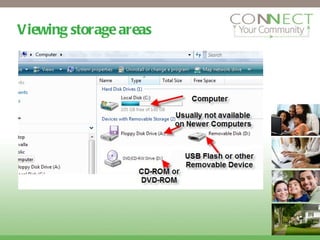
Viewing storage areas
Practice Save a file to your desk top. Create a file, click File, Save As Open a file already on your hard drive. Go to Start, My Computer
Sources This curriculum was partially adapted from a workshop created by N. Riesgraf for the Hibbing Public Library (MN).  Funding provided by IRRRA Do I.T. Community Technology Awareness Program. Updated March 2004. Revised for Jacksonville Public Library Dec 2005 by Kate Holmes. Updated March 2004.  This curriculum was partially adapted from a slide presentation entitled “Windows Presentation 2009” created by the Indian Prairie Public Library. Additional content created by Connect Your Community, a project of  OneCommunity , funded by the federal  Broadband Technology Opportunities Program . 14
Creative Commons License This work is licensed under the Creative Commons Attribution 3.0 Unported License. To view a copy of this license, visit http://creativecommons.org/licenses/by/3.0 15

5 module data storage 1

  • 1.
    Data Storage AModule of the CYC Course – Computer Basics 7-19-10
  • 2.
    What’s data? Datais any piece of information. Data is stored in your computer as a file with a specific name (filename). For example: A picture taken with your digital camera is data. All the files you create are data.
  • 3.
    Filenames Unique nameof up to 255 letters, numbers, spaces or a combination, but don’t use \ “ * ? “ > < | May have an extension at the end - “.xxx” - that indicates what type of file it is.
  • 4.
    Types of files.wma, .wav, .mp3 or .mp4 .doc Software Programs & Saved Files Images, Photos, Clipart, Graphics Music & Video . jpg .wmv, .mpeg, .avi or .mov . gif .ppt
  • 5.
    File size Byte - A unit of information equivalent to a single keyboard character. Kilobyte (KB) - A unit of approximately 1000 bytes (1024 to be exact). Megabyte (MB) - A unit of approximately 1 million bytes. Average size for a 3.5-4 minute song is 4 MB. Gigabyte (GB) - A unit of approximately 1 billion bytes. Most hard drive sizes are listed in gigabytes.
  • 6.
    Where are filesstored or saved on your computer?
  • 7.
    How does itwork? Think of a filing cabinet… File Folders with Labels Document (create or copy) Move or save files to folders on your computer just like a paper system
  • 8.
    Storage Types USBFlash Drive Hard Drive: C CD-ROMs & DVD-ROMs Internet (cloud)
  • 9.
  • 10.
    Practice Save afile to your desk top. Create a file, click File, Save As Open a file already on your hard drive. Go to Start, My Computer
  • 11.
    Sources This curriculumwas partially adapted from a workshop created by N. Riesgraf for the Hibbing Public Library (MN). Funding provided by IRRRA Do I.T. Community Technology Awareness Program. Updated March 2004. Revised for Jacksonville Public Library Dec 2005 by Kate Holmes. Updated March 2004. This curriculum was partially adapted from a slide presentation entitled “Windows Presentation 2009” created by the Indian Prairie Public Library. Additional content created by Connect Your Community, a project of OneCommunity , funded by the federal Broadband Technology Opportunities Program . 14
  • 12.
    Creative Commons LicenseThis work is licensed under the Creative Commons Attribution 3.0 Unported License. To view a copy of this license, visit http://creativecommons.org/licenses/by/3.0 15

Editor's Notes

  • #2 Set each student’s computer to the URL http://www.ckls.org/~crippel/computerlab/tutorials/mouse/page1.html before class begins.
  • #5 Talk about what kinds of files they might use or create: A Microsoft Word file: a resume, a cover letter, a recipe. A Microsoft Excel file: Your family budget, Your family’s summer schedule A Microsoft PowerPoint file: A sales presentation
  • #9 Talk through each of these. Mention the cloud only briefly, but let them know that there is another module in the course that talks about using the cloud.
  • #10 Ask students to open “My computer” and follow along.
  • #11 Walk students through these steps