Managing Your MobyMax
Ways to Enhance Your Classroom Experience
Presented by: Ashley Miller
Overview of Workshop
 Pre-test
 What do you already know?
 Objectives
 What do we hope to accomplish?
 MobyMax description
 Essential Question
 Utilizing Features
 Post-Assessment, Ticket Out, & Workshop Evaluation
Objectives
 To successfully be able to obtain and print student progress reports within
MobyMax.
 To compile and present data to school administrators from MobyMax that
demonstrates student growth.
 To be able to describe features of MobyMax and apply them in your own
professional practice.
What is It and the Benefits
What is MobyMax?
 Is a digital learning environment that provides practice in math and language skills.
 Follows Common Core standards
What are the benefits of MobyMax?
 Provides placement tests to ensure that students are starting skills where they need to.
 Helps teachers and students identify missing skills
 Progress monitors to assist in making each students’ experience customized to their needs and
effective.
 Shows how engaged, motivated, and successful each student is in his/her learning by providing
data of how much time or progress a student(s) has made during a lesson.
Essential Question
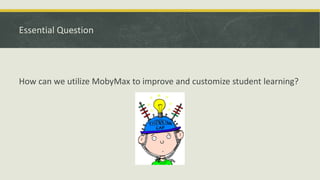
How can we utilize MobyMax to improve and customize student learning?
Some Essentials
Things you may want to know
Printing Reports
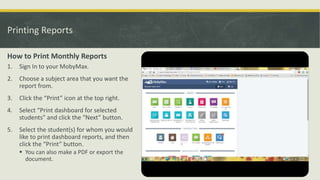
How to Print Monthly Reports
1. Sign In to your MobyMax.
2. Choose a subject area that you want the
report from.
3. Click the “Print” icon at the top right.
4. Select “Print dashboard for selected
students” and click the “Next” button.
5. Select the student(s) for whom you would
like to print dashboard reports, and then
click the “Print” button.
 You can also make a PDF or export the
document.
Printing Reports
How to Print Progress Monitoring
Reports
1. Sign In to your MobyMax.
2. Choose a subject area that you want the report from.
3. Click the “Progress” tab.
4. Check the box directly below the “Print” button to
select all students or only the ones you want.
5. Click the “Print” button.
6. Select “All standards and score” or “Missing
standards.”
7. Click “Print” or you can also make a PDF or Export
the document.
How to Assign Students Work
1. Choose the subject.
2. Select the “Lessons” tab you want the student(s) to
complete.
3. Select the student’s name that you want to assign
lessons for.
4. Select the “Assign Lessons” tab.
5. Choose the “Grade Level” you want the students to
complete.
6. Check the boxes next to the lesson(s) you want to
assign to the student(s).
7. Once you have selected he lessons you want to assign,
choose “Assign” under the “Assign Lessons” tab.
8. A window prompts you to select the “Lesson
Sequence.” Once you have chosen, click “Continue.”
How to Assign Students to Groups
1. Sign in.
2. Select the “Roster” button.
3. On the right hand side of the student list
choose “Create or edit group.”
4. A window prompts you to “Enter name of the
group.”
5. Choose the students that you want to assign to
the group.
6. Check the box next to the student(s) you want
to assign to that group.
7. If you want to create another group go to the
bottom right of the Groups window.
Manually Assigning Facts- Fact Fluency Settings
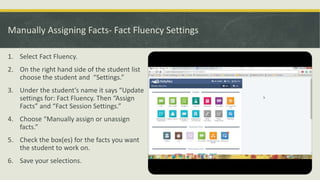
1. Select Fact Fluency.
2. On the right hand side of the student list
choose the student and “Settings.”
3. Under the student’s name it says “Update
settings for: Fact Fluency. Then “Assign
Facts” and “Fact Session Settings.”
4. Choose “Manually assign or unassign
facts.”
5. Check the box(es) for the facts you want
the student to work on.
6. Save your selections.
Some Fun Features
Things you could use to engage or motivate
students
The Wall
It’s like a discussion board for the
entire class:
 Post messages
 Create assignments
 Poll students
 Schedule events
 Students can comment and
download materials.
Student Response System
A quick and easy way to assess student
performance, in real time.
 Write your own questions or choose from the
MobyMax curriculum library.
 Students answer right then.
 Answers will be tallied into a chart for the
teachers to see immediate student needs.
Contests
A way to motivate students to help build their
skills throughout the year.
 Can see which students complete the most
correct problems in a given amount of time.
 Provide struggling learners a fair shot in the
competition by weighting students differently.
 You are free to create the contests however you
wish.
Recap
What we learned today…
What Did We Talk About?
 Benefits of MobyMax
 Printing Monthly and Progress Monitoring
Reports
 Assigning lessons to students
 Assigning students to groups
 The Wall
 Student Response System
 Contests
YouTube
Have questions or want to know more?
MobyMax has its own YouTube Channel:
https://www.youtube.com/user/MobyLearning
Find tutorials and ideas for using MobyMax in your
classroom.

Face-to-Face Staff Development: MobyMax

  • 1.
    Managing Your MobyMax Waysto Enhance Your Classroom Experience Presented by: Ashley Miller
  • 2.
    Overview of Workshop Pre-test  What do you already know?  Objectives  What do we hope to accomplish?  MobyMax description  Essential Question  Utilizing Features  Post-Assessment, Ticket Out, & Workshop Evaluation
  • 3.
    Objectives  To successfullybe able to obtain and print student progress reports within MobyMax.  To compile and present data to school administrators from MobyMax that demonstrates student growth.  To be able to describe features of MobyMax and apply them in your own professional practice.
  • 4.
    What is Itand the Benefits What is MobyMax?  Is a digital learning environment that provides practice in math and language skills.  Follows Common Core standards What are the benefits of MobyMax?  Provides placement tests to ensure that students are starting skills where they need to.  Helps teachers and students identify missing skills  Progress monitors to assist in making each students’ experience customized to their needs and effective.  Shows how engaged, motivated, and successful each student is in his/her learning by providing data of how much time or progress a student(s) has made during a lesson.
  • 5.
    Essential Question How canwe utilize MobyMax to improve and customize student learning?
  • 6.
  • 7.
    Printing Reports How toPrint Monthly Reports 1. Sign In to your MobyMax. 2. Choose a subject area that you want the report from. 3. Click the “Print” icon at the top right. 4. Select “Print dashboard for selected students” and click the “Next” button. 5. Select the student(s) for whom you would like to print dashboard reports, and then click the “Print” button.  You can also make a PDF or export the document.
  • 8.
    Printing Reports How toPrint Progress Monitoring Reports 1. Sign In to your MobyMax. 2. Choose a subject area that you want the report from. 3. Click the “Progress” tab. 4. Check the box directly below the “Print” button to select all students or only the ones you want. 5. Click the “Print” button. 6. Select “All standards and score” or “Missing standards.” 7. Click “Print” or you can also make a PDF or Export the document.
  • 9.
    How to AssignStudents Work 1. Choose the subject. 2. Select the “Lessons” tab you want the student(s) to complete. 3. Select the student’s name that you want to assign lessons for. 4. Select the “Assign Lessons” tab. 5. Choose the “Grade Level” you want the students to complete. 6. Check the boxes next to the lesson(s) you want to assign to the student(s). 7. Once you have selected he lessons you want to assign, choose “Assign” under the “Assign Lessons” tab. 8. A window prompts you to select the “Lesson Sequence.” Once you have chosen, click “Continue.”
  • 10.
    How to AssignStudents to Groups 1. Sign in. 2. Select the “Roster” button. 3. On the right hand side of the student list choose “Create or edit group.” 4. A window prompts you to “Enter name of the group.” 5. Choose the students that you want to assign to the group. 6. Check the box next to the student(s) you want to assign to that group. 7. If you want to create another group go to the bottom right of the Groups window.
  • 11.
    Manually Assigning Facts-Fact Fluency Settings 1. Select Fact Fluency. 2. On the right hand side of the student list choose the student and “Settings.” 3. Under the student’s name it says “Update settings for: Fact Fluency. Then “Assign Facts” and “Fact Session Settings.” 4. Choose “Manually assign or unassign facts.” 5. Check the box(es) for the facts you want the student to work on. 6. Save your selections.
  • 12.
    Some Fun Features Thingsyou could use to engage or motivate students
  • 13.
    The Wall It’s likea discussion board for the entire class:  Post messages  Create assignments  Poll students  Schedule events  Students can comment and download materials.
  • 14.
    Student Response System Aquick and easy way to assess student performance, in real time.  Write your own questions or choose from the MobyMax curriculum library.  Students answer right then.  Answers will be tallied into a chart for the teachers to see immediate student needs.
  • 15.
    Contests A way tomotivate students to help build their skills throughout the year.  Can see which students complete the most correct problems in a given amount of time.  Provide struggling learners a fair shot in the competition by weighting students differently.  You are free to create the contests however you wish.
  • 16.
  • 17.
    What Did WeTalk About?  Benefits of MobyMax  Printing Monthly and Progress Monitoring Reports  Assigning lessons to students  Assigning students to groups  The Wall  Student Response System  Contests
  • 18.
    YouTube Have questions orwant to know more? MobyMax has its own YouTube Channel: https://www.youtube.com/user/MobyLearning Find tutorials and ideas for using MobyMax in your classroom.

Editor's Notes

  • #6 Today I am going to show you four essential features that I feel can help to improve and/or customize student learning.