Track My Progress
Level 1 Training
Getting Started with
Track My Progress
December 9, 2020
True Progress
Track My Progress Level 1 Training
TMP Advantages
2
Protects instructional time
• Fast
• Easy to use
• Simple to understand
Same standardized scale
reported 4 times a year
• 72 data points from K
through 8
• Math and ELA on the same
scale
Early warning system
• Identify issues early in a
student’s career
(Kindergarten)
• Identify issues early in the
school year (September)
Predicts end of year
assessment performance
• Meaningful outcome
indicator
• Find out in a fraction of the
time
• Updates on progress
throughout the year
Track My Progress
Track My Progress Level 1 Training
• Online assessment for grades K-8:
Math & ELA
• Measures learning of the
Common Core State Standards
• Computer Adaptive Test
• Instant results
4 testing windows each school year
• Fall: August 1 through October
31
• Winter: Nov 1 through January
31
• Spring: February 1 through April
30
• Summer: May 1 through July 31
3
Track My
Progress
1: Assessment Overview
Track My Progress Level 1 Training
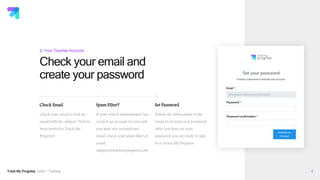
Spam Filter?
If your school administrator has
created an account for you and
you have not received our
email, check your spam filter or
email
support@trackmyprogress.com.
Check your email and
create your password
4
2: Your Teacher Account
Check Email
Check your email to find an
email with the subject: “You’ve
been invited to Track My
Progress”.
Set Password
Follow the instructions in the
email to set your new password.
After you have set your
password you are ready to sign
in to Track My Progress.
Track My Progress Level 1 Training 5
www.trackmyprogress.com
2: Your Teacher Account
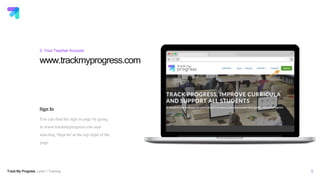
Sign In
You can find the sign in page by going
to www.trackmyprogress.com and
selecting “Sign In” at the top right of the
page.
Track My Progress Level 1 Training
trackmyprogress.com
6
2: Signing In
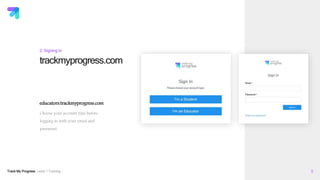
educators.trackmyprogress.com
Choose your account type before
logging in with your email and
password.
Track My Progress Level 1 Training 7
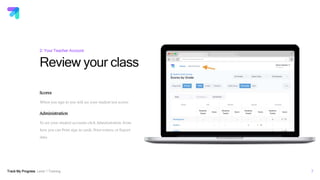
Review your class
2: Your Teacher Account
Scores
When you sign in you will see your student test scores.
Administration
To see your student accounts click Administration. From
here you can Print sign in cards, Print rosters, or Export
data.
educators.trackmyprogress.com
Track My Progress Level 1 Training 8
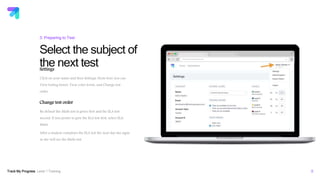
Select the subject of
the next test
3: Preparing to Test
Settings
Click on your name and then Settings. From here you can
View testing hours, View color levels, and Change test
order.
Change test order
By default the Math test is given first and the ELA test
second. If you prefer to give the ELA test first, select ELA,
Math.
After a student completes the ELA test the next day she signs
in she will see the Math test.
educators.trackmyprogress.com
Track My Progress Level 1 Training 9
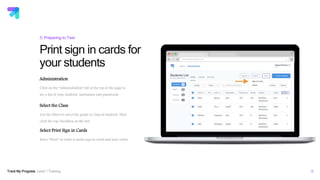
Print sign in cards for
your students
3: Preparing to Test
Administration
Click on the “Administration” tab at the top of the page to
see a list of your students’ usernames and passwords.
Select the Class
Use the filters to select the grade or class of students. Then
click the top checkbox on the left.
Select Print Sign in Cards
Select “Print” in order to print sign in cards and your roster.
educators.trackmyprogress.com
Track My Progress Level 1 Training
Headphones
Make sure you have headphones or ear
buds for each student. Track My
Progress requires listening to audio
instructions in each test.
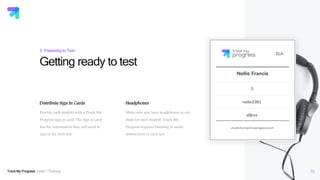
Getting ready to test
10
3: Preparing to Test
Distribute Sign In Cards
Provide each student with a Track My
Progress sign in card. The sign in card
has the information they will need to
sign in for each test.
Track My Progress Level 1 Training
Helping
students sign in
to the test
11
3: Preparing to Test
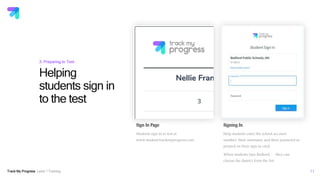
Sign In Page
Students sign in to test at
www.student.trackmyprogress.com
Signing In
Help students enter the school account
number, their username and their password as
printed on their sign in card.
When students type Bedford . . . they can
choose the district form the list.
Track My Progress Level 1 Training
Overview of student tests
12
Test Days
Math and ELA tests must
be taken on separate days.
Bookmarks
The bookmarking feature
allows students to exit the
test and return to sign in
and complete it at a
different time without
having to start over.
Test Time
The average test time is
20-25 minutes, but be
prepared for some
students to need less or
more time. Track My
Progress is not a timed
test.
Adaptive Testing
The Computer Adaptive
Test will find the optimal
learning zone for each
student, so the test time,
content and experience
will vary based on student
need.
4: Taking a Test
Skipping Questions
Students can skip a
question that is too hard
for them by pressing the
NEXT button and
confirming they want to
skip the current test
question.
Track My Progress Level 1 Training
Supporting students testing at home
13
Home Tests
Track My Progress can be
taken at home with your
supervision or without
your supervision.
Main Concerns
Main concerns are
students rushing through
the test (low scores) or
getting too much parent
help (high scores).
Using Zoom
Use zoom to connect with
your students and guide
them through the sign in
process and the test
taking process.
Supervised Tests
If students are testing
without your supervision
parents must be
instructed to help only
with sign in and
navigating the interface.
Helping solve for the
answer will result in
harder and harder test
questions.
4: Remote Testing
Devices
Students may test on
iPads, Chromebooks,
laptops and desktops.
Track My Progress will
not work on phones and
small tablets.
Track My Progress Level 1 Training 14
Orientation
4: Taking a Test
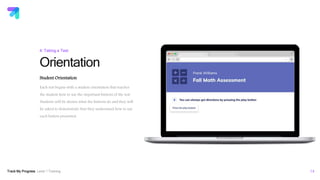
Student Orientation
Each test begins with a student orientation that teaches
the student how to use the important buttons of the test.
Students will be shown what the buttons do and they will
be asked to demonstrate that they understand how to use
each button presented.
Track My Progress Level 1 Training 15
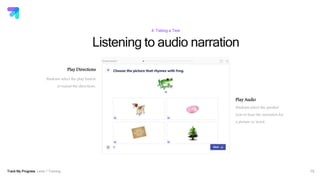
Listening to audio narration
4: Taking a Test
Play Directions
Students select the play button
to repeat the directions.
Play Audio
Students select the speaker
icon to hear the narration for
a picture or word.
Track My Progress Level 1 Training 16
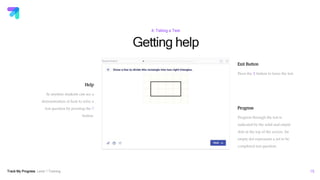
Getting help
4: Taking a Test
Help
At anytime students can see a
demonstration of how to solve a
test question by pressing the ?
button.
Exit Button
Press the X button to leave the test.
Progress
Progress through the test is
indicated by the solid and empty
dots at the top of the screen. An
empty dot represents a yet to be
completed test question.
Track My Progress Level 1 Training
Grade 1 Reading Test
17
Computer Adaptive Test Saves Time
450
480
510
540
570
600
1 2 3 4 5 6 7 8 9 10 11 12 13 14 15 16 17 18 19 20 21 22 23 24 25
ScaleScore
Test Question Number
Track My Progress Level 1 Training 18
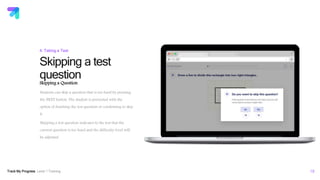
Skipping a test
question
4: Taking a Test
Skipping a Question
Students can skip a question that is too hard by pressing
the NEXT button. The student is presented with the
option of finishing the test question or confirming to skip
it.
Skipping a test question indicates to the test that the
current question is too hard and the difficulty level will
be adjusted.
Track My Progress Level 1 Training 19
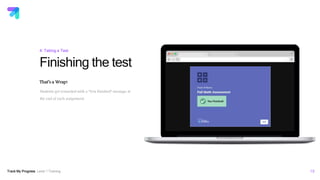
Finishing the test
4: Taking a Test
That’s a Wrap!
Students get rewarded with a “You Finished” message at
the end of each assignment.
Track My Progress Level 1 Training
Contact us
20
Questions or concerns?
800-294-0989
Online chat by signing in to your account
support@trackmyprogress.com
www.support.trackmyprogress.com
Track My Progress
Level 1 Training
Thank You
December 9, 2020
True Progress

Getting Started with Track My Progress

  • 1.
    Track My Progress Level1 Training Getting Started with Track My Progress December 9, 2020 True Progress
  • 2.
    Track My ProgressLevel 1 Training TMP Advantages 2 Protects instructional time • Fast • Easy to use • Simple to understand Same standardized scale reported 4 times a year • 72 data points from K through 8 • Math and ELA on the same scale Early warning system • Identify issues early in a student’s career (Kindergarten) • Identify issues early in the school year (September) Predicts end of year assessment performance • Meaningful outcome indicator • Find out in a fraction of the time • Updates on progress throughout the year Track My Progress
  • 3.
    Track My ProgressLevel 1 Training • Online assessment for grades K-8: Math & ELA • Measures learning of the Common Core State Standards • Computer Adaptive Test • Instant results 4 testing windows each school year • Fall: August 1 through October 31 • Winter: Nov 1 through January 31 • Spring: February 1 through April 30 • Summer: May 1 through July 31 3 Track My Progress 1: Assessment Overview
  • 4.
    Track My ProgressLevel 1 Training Spam Filter? If your school administrator has created an account for you and you have not received our email, check your spam filter or email support@trackmyprogress.com. Check your email and create your password 4 2: Your Teacher Account Check Email Check your email to find an email with the subject: “You’ve been invited to Track My Progress”. Set Password Follow the instructions in the email to set your new password. After you have set your password you are ready to sign in to Track My Progress.
  • 5.
    Track My ProgressLevel 1 Training 5 www.trackmyprogress.com 2: Your Teacher Account Sign In You can find the sign in page by going to www.trackmyprogress.com and selecting “Sign In” at the top right of the page.
  • 6.
    Track My ProgressLevel 1 Training trackmyprogress.com 6 2: Signing In educators.trackmyprogress.com Choose your account type before logging in with your email and password.
  • 7.
    Track My ProgressLevel 1 Training 7 Review your class 2: Your Teacher Account Scores When you sign in you will see your student test scores. Administration To see your student accounts click Administration. From here you can Print sign in cards, Print rosters, or Export data. educators.trackmyprogress.com
  • 8.
    Track My ProgressLevel 1 Training 8 Select the subject of the next test 3: Preparing to Test Settings Click on your name and then Settings. From here you can View testing hours, View color levels, and Change test order. Change test order By default the Math test is given first and the ELA test second. If you prefer to give the ELA test first, select ELA, Math. After a student completes the ELA test the next day she signs in she will see the Math test. educators.trackmyprogress.com
  • 9.
    Track My ProgressLevel 1 Training 9 Print sign in cards for your students 3: Preparing to Test Administration Click on the “Administration” tab at the top of the page to see a list of your students’ usernames and passwords. Select the Class Use the filters to select the grade or class of students. Then click the top checkbox on the left. Select Print Sign in Cards Select “Print” in order to print sign in cards and your roster. educators.trackmyprogress.com
  • 10.
    Track My ProgressLevel 1 Training Headphones Make sure you have headphones or ear buds for each student. Track My Progress requires listening to audio instructions in each test. Getting ready to test 10 3: Preparing to Test Distribute Sign In Cards Provide each student with a Track My Progress sign in card. The sign in card has the information they will need to sign in for each test.
  • 11.
    Track My ProgressLevel 1 Training Helping students sign in to the test 11 3: Preparing to Test Sign In Page Students sign in to test at www.student.trackmyprogress.com Signing In Help students enter the school account number, their username and their password as printed on their sign in card. When students type Bedford . . . they can choose the district form the list.
  • 12.
    Track My ProgressLevel 1 Training Overview of student tests 12 Test Days Math and ELA tests must be taken on separate days. Bookmarks The bookmarking feature allows students to exit the test and return to sign in and complete it at a different time without having to start over. Test Time The average test time is 20-25 minutes, but be prepared for some students to need less or more time. Track My Progress is not a timed test. Adaptive Testing The Computer Adaptive Test will find the optimal learning zone for each student, so the test time, content and experience will vary based on student need. 4: Taking a Test Skipping Questions Students can skip a question that is too hard for them by pressing the NEXT button and confirming they want to skip the current test question.
  • 13.
    Track My ProgressLevel 1 Training Supporting students testing at home 13 Home Tests Track My Progress can be taken at home with your supervision or without your supervision. Main Concerns Main concerns are students rushing through the test (low scores) or getting too much parent help (high scores). Using Zoom Use zoom to connect with your students and guide them through the sign in process and the test taking process. Supervised Tests If students are testing without your supervision parents must be instructed to help only with sign in and navigating the interface. Helping solve for the answer will result in harder and harder test questions. 4: Remote Testing Devices Students may test on iPads, Chromebooks, laptops and desktops. Track My Progress will not work on phones and small tablets.
  • 14.
    Track My ProgressLevel 1 Training 14 Orientation 4: Taking a Test Student Orientation Each test begins with a student orientation that teaches the student how to use the important buttons of the test. Students will be shown what the buttons do and they will be asked to demonstrate that they understand how to use each button presented.
  • 15.
    Track My ProgressLevel 1 Training 15 Listening to audio narration 4: Taking a Test Play Directions Students select the play button to repeat the directions. Play Audio Students select the speaker icon to hear the narration for a picture or word.
  • 16.
    Track My ProgressLevel 1 Training 16 Getting help 4: Taking a Test Help At anytime students can see a demonstration of how to solve a test question by pressing the ? button. Exit Button Press the X button to leave the test. Progress Progress through the test is indicated by the solid and empty dots at the top of the screen. An empty dot represents a yet to be completed test question.
  • 17.
    Track My ProgressLevel 1 Training Grade 1 Reading Test 17 Computer Adaptive Test Saves Time 450 480 510 540 570 600 1 2 3 4 5 6 7 8 9 10 11 12 13 14 15 16 17 18 19 20 21 22 23 24 25 ScaleScore Test Question Number
  • 18.
    Track My ProgressLevel 1 Training 18 Skipping a test question 4: Taking a Test Skipping a Question Students can skip a question that is too hard by pressing the NEXT button. The student is presented with the option of finishing the test question or confirming to skip it. Skipping a test question indicates to the test that the current question is too hard and the difficulty level will be adjusted.
  • 19.
    Track My ProgressLevel 1 Training 19 Finishing the test 4: Taking a Test That’s a Wrap! Students get rewarded with a “You Finished” message at the end of each assignment.
  • 20.
    Track My ProgressLevel 1 Training Contact us 20 Questions or concerns? 800-294-0989 Online chat by signing in to your account support@trackmyprogress.com www.support.trackmyprogress.com
  • 21.
    Track My Progress Level1 Training Thank You December 9, 2020 True Progress