Home Base IIS
Schoolnet Classrooms
Introduction
Trainer Name
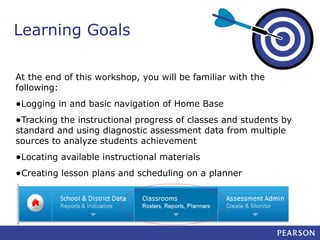
Learning Goals
At the end of this workshop, you will be familiar with the
following:

•Logging in and basic navigation of Home Base
•Tracking the instructional progress of classes and students by
standard and using diagnostic assessment data from multiple
sources to analyze students achievement

•Locating available instructional materials
•Creating lesson plans and scheduling on a planner
•Strategies for turnaround training
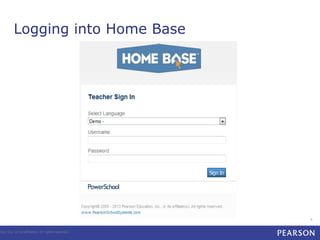
Logging into Home Base

tion, Inc. or its affiliates. All rights reserved.

4
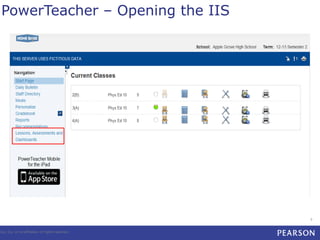
PowerTeacher – Opening the IIS

tion, Inc. or its affiliates. All rights reserved.

9
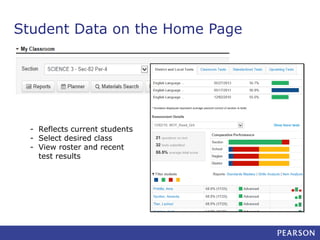
Student Data on the Home Page

- Reflects current students
- Select desired class
- View roster and recent
test results
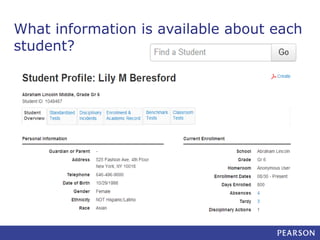
What information is available about each
student?
Try It Out
Practice

•Find a student
•Create a PDF of the profile
•If available, compare classroom grade and test
scores for a subject

Check for Understanding

•What are two ways to get to a student profile?
•What kinds of data are available?
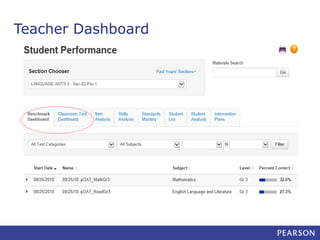
Teacher Dashboard
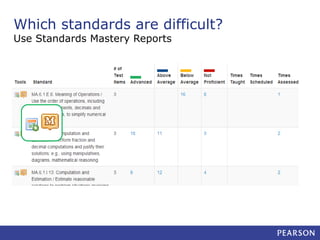
Which standards are difficult?
Use Standards Mastery Reports
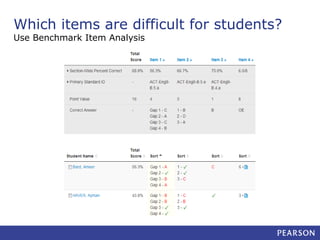
Which items are difficult for students?
Use Benchmark Item Analysis
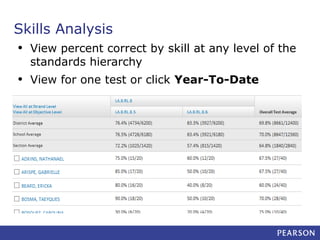
Skills Analysis
• View percent correct by skill at any level of the
standards hierarchy

•

View for one test or click Year-To-Date
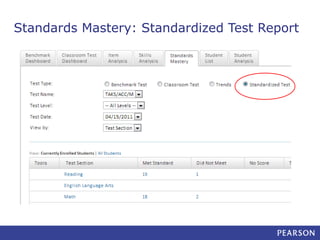
Standards Mastery: Standardized Test Report
Discussion
Try It Out
Practice

•Access each type of report

- Change view by options

Discussion

•
•
•

How can report data impact instruction?
What is the purpose of each report?
What kinds of questions could each report
answer?
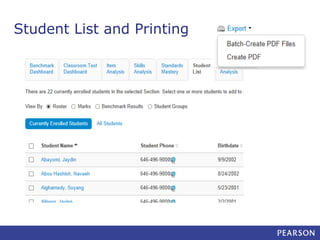
Student List and Printing
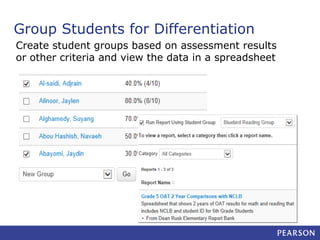
Group Students for Differentiation
Create student groups based on assessment results
or other criteria and view the data in a spreadsheet
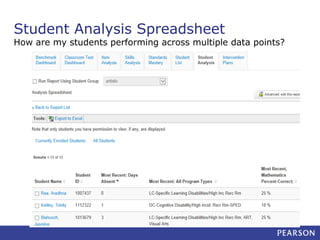
Student Analysis Spreadsheet

How are my students performing across multiple data points?
Try It Out
Practice

•Batch print profiles
•View a spreadsheet
•Sort a column
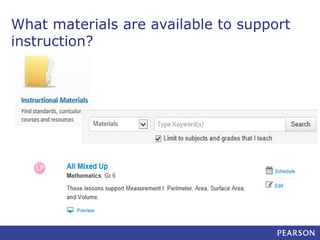
INSTRUCTIONAL MATERIALS
What materials are available to support
instruction?
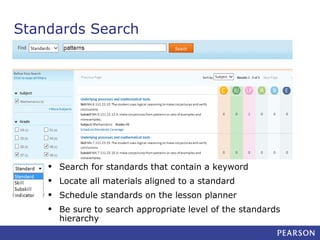
Standards Search

•
•
•
•

Search for standards that contain a keyword
Locate all materials aligned to a standard
Schedule standards on the lesson planner
Be sure to search appropriate level of the standards
hierarchy
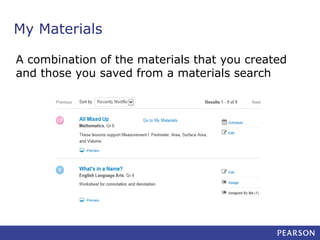
My Materials
A combination of the materials that you created
and those you saved from a materials search
Try it Out
Practice

•Locate a lesson and a resource and save to My
Materials

Check for understanding

•What are two ways a material gets into My
Materials?

•What materials are available for the subjects
you teach?
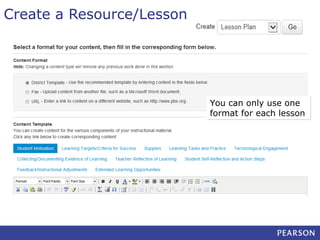
Create a Resource/Lesson

You can only use one
format for each lesson
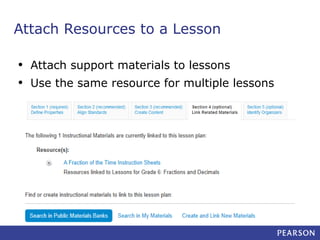
Attach Resources to a Lesson
•
•

Attach support materials to lessons
Use the same resource for multiple lessons
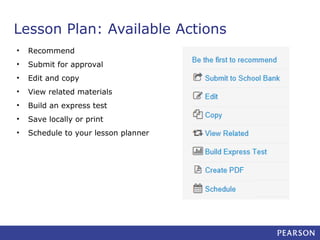
Lesson Plan: Available Actions
•

Recommend

•

Submit for approval

•

Edit and copy

•

View related materials

•

Build an express test

•

Save locally or print

•

Schedule to your lesson planner
Try It Out
Practice

•Create a resource (for students)
•Create a lesson with the above resource
attached

•Edit a lesson
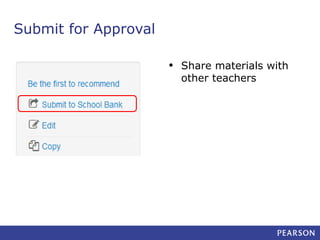
Submit for Approval
• Share materials with
other teachers
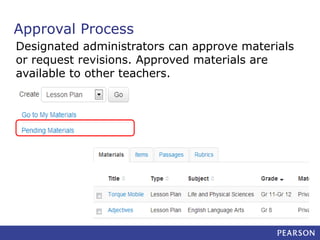
Approval Process
Designated administrators can approve materials
or request revisions. Approved materials are
available to other teachers.
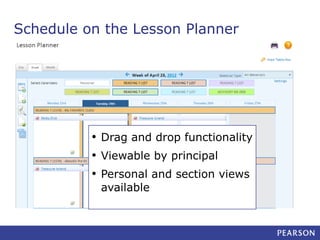
Schedule on the Lesson Planner

• Drag and drop functionality
• Viewable by principal
• Personal and section views
available
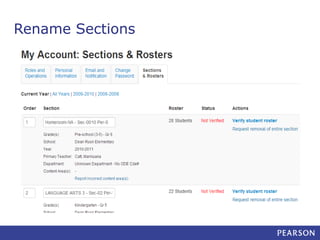
Rename Sections
Try It Out
Practice

•Schedule a lesson and event on your planner
•Rename sections if helpful/time
•Add a note to one day
Check for Understanding

•Who can see your planner?
•Who can add to your planner?
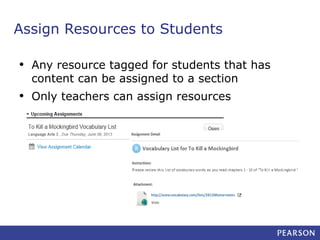
Assign Resources to Students
•

Any resource tagged for students that has
content can be assigned to a section

•

Only teachers can assign resources
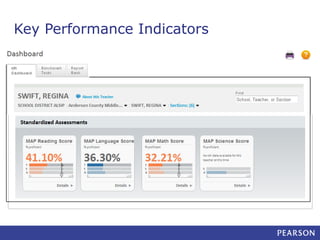
Key Performance Indicators
Practice Scenarios
•
•

Which students have perfect attendance so far this year?

•
•

Do you see improvement from one test to the next?

•

Which benchmark question did your students do collectively
better or worse than the district as a whole?

•
•
•

Which students are in an LEP (or ELL/ESL) program?

On what standard/skill is your class doing the best? The
worst?
What instructional materials are available to help students
with the skills they are having trouble mastering?

Which students perform well in math, but not reading?
Looking at the data, do you think that benchmark scores are
good predictors of standardized test results?
Next Steps
• Wrap Up Classrooms - Lunch
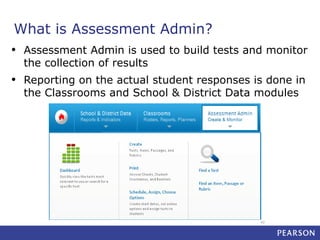
What is Assessment Admin?
•

Assessment Admin is used to build tests and monitor
the collection of results

•

Reporting on the actual student responses is done in
the Classrooms and School & District Data modules

42
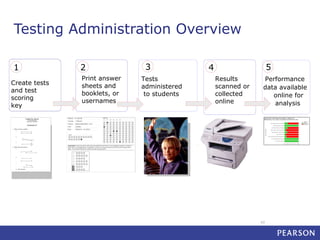
Testing Administration Overview
1
Create tests
and test
scoring
key

2
Print answer
sheets and
booklets, or
usernames

3
Tests
administered
to students

5

4
Results
scanned or
collected
online

Performance
data available
online for
analysis

43
LOCATE AND CREATE ITEMS

44
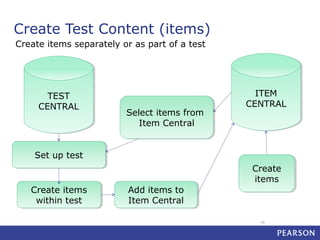
Create Test Content (items)
Create items separately or as part of a test

TEST
TEST
CENTRAL
CENTRAL

Select items from
Select items from
Item Central
Item Central

ITEM
ITEM
CENTRAL
CENTRAL

Set up test
Set up test

Create items
Create items
within test
within test

Add items to
Add items to
Item Central
Item Central

Create
Create
items
items

45
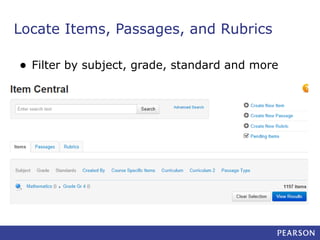
Locate Items, Passages, and Rubrics
•

Filter by subject, grade, standard and more
Create Items – Multiple Types Available
• Multiple choice
• True/false
• Gridded
• Open response (can attach a rubric – if time)
• Inline response*
• Matching*
Any item type may be attached to a passage
Insert Images
•
•

Do not paste in image – must insert as a file

•
•
•
•

Resize images before adding

For peak online test performance, use sizes
below 250KB
Supported file formats: png, jpg, or gif
Not suggested for passages of text
Be sure to preview the item
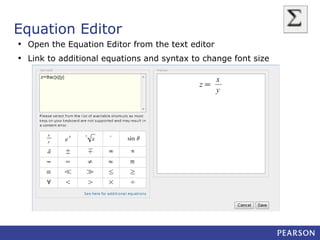
Equation Editor
• Open the Equation Editor from the text editor
• Link to additional equations and syntax to change font size
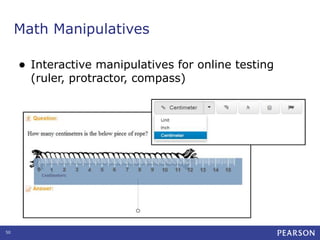
Math Manipulatives
•

50

Interactive manipulatives for online testing
(ruler, protractor, compass)
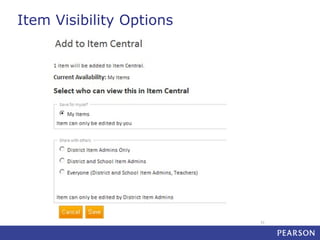
Item Visibility Options

51
Try It: Create Items
•
•

Create one item of each type
Discuss pros and cons of each
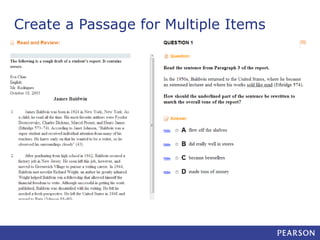
Create a Passage for Multiple Items
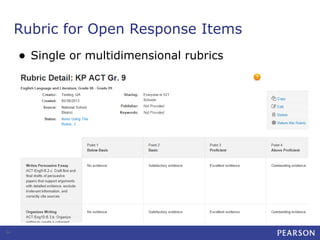
Rubric for Open Response Items
•

54

Single or multidimensional rubrics
Submit and Approval Process
•

Any user can submit an item, passage or rubric
to be shared

•

Users who are permissioned to do so can
approve content at their default institution

•

Once approved, content is no longer editable
by the submitter
CREATE AND SCHEDULE A TEST

56
Two Kinds of Tests
Benchmark

Classroom

•Results appear in School &

•Results only appear in

•Tests created at the district or

•Tests created for the purpose of

District Data and Classrooms
school level for the purpose of
institution-wide data collection

•Only highest level category
used for KPI calculations

Classrooms

classroom use

•Can be teacher-created or

selected from a pool of premade tests

•My Classroom or Common

Classroom categories available
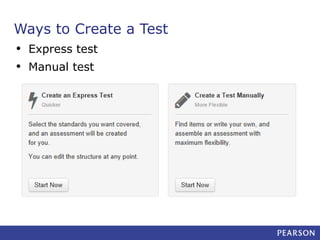
Ways to Create a Test
• Express test
• Manual test
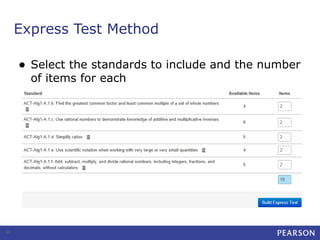
Express Test Method
•

59

Select the standards to include and the number
of items for each
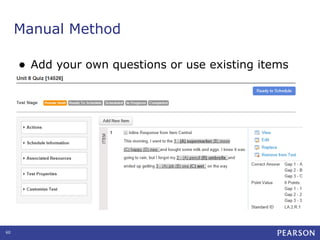
Manual Method
•

60

Add your own questions or use existing items
Try It Out: Create a Test
-

Create a test with the items you created
Add additional items from the item bank
Modify the score group or item numbering

itle runs here l 00/00/00
61
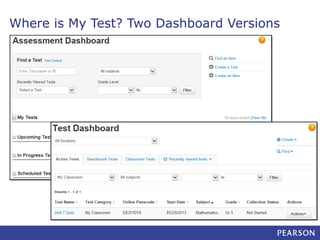
Where is My Test? Two Dashboard Versions
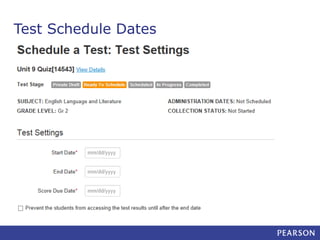
Test Schedule Dates
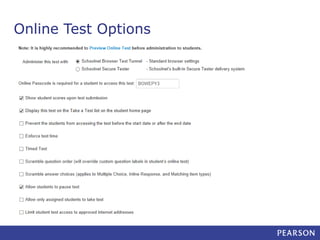
Online Test Options
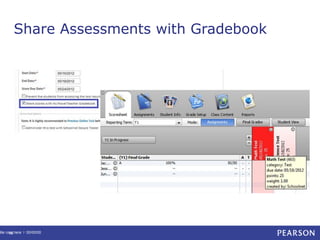
Share Assessments with Gradebook

itle runs here l 00/00/00
65
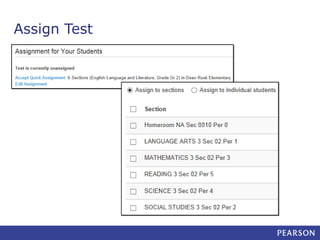
Assign Test
ADMINISTER A TEST

67
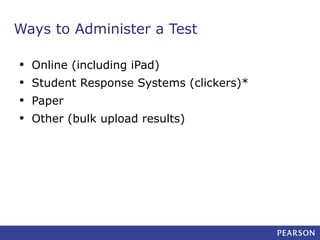
Ways to Administer a Test
•
•
•
•

Online (including iPad)
Student Response Systems (clickers)*
Paper
Other (bulk upload results)
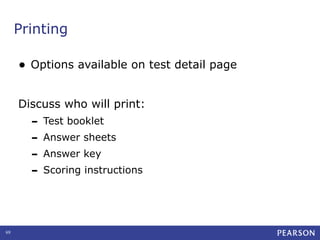
Printing
•

Options available on test detail page

Discuss who will print:

- Test booklet
- Answer sheets
- Answer key
- Scoring instructions

69
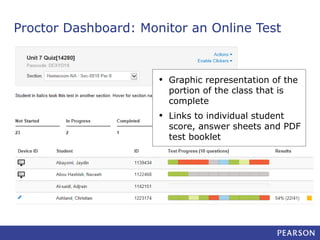
Proctor Dashboard: Monitor an Online Test

•

Graphic representation of the
portion of the class that is
complete

•

Links to individual student
score, answer sheets and PDF
test booklet
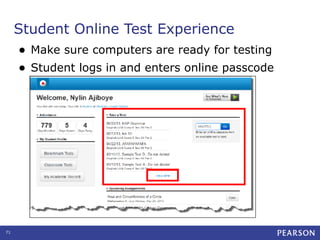
Student Online Test Experience
• Make sure computers are ready for testing
• Student logs in and enters online passcode

71
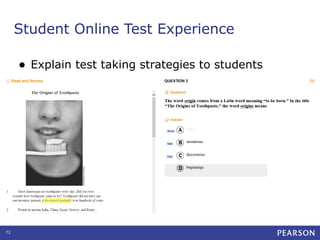
Student Online Test Experience
•

72

Explain test taking strategies to students
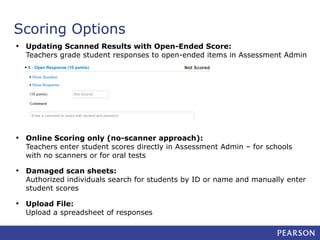
Scoring Options
• Updating Scanned Results with Open-Ended Score:

Teachers grade student responses to open-ended items in Assessment Admin

• Online Scoring only (no-scanner approach):

Teachers enter student scores directly in Assessment Admin – for schools
with no scanners or for oral tests

• Damaged scan sheets:

Authorized individuals search for students by ID or name and manually enter
student scores

• Upload File:

Upload a spreadsheet of responses
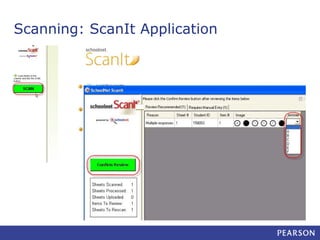
Scanning: ScanIt Application
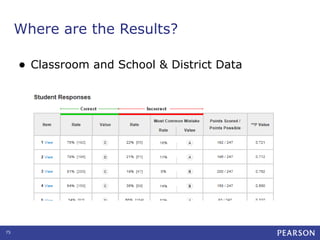
Where are the Results?
•

75

Classroom and School & District Data
Available support materials
-

Additional Home Base questions – NCDPI PD leads -have been
through Certification training and can help with implementation

-

PowerSchool info provided by NC WISE coordinator

-

76

PowerSource documents and Distance Learning available they were
already provided access.

All LEAs will receive training logins for turnaround training Mid July

Home Base IIS training materials available within Home Base IIS –
Search under materials for Home Base IIS
Next Steps
• Wrap up
• Questions and answers
• Evaluation -
Don’t Forget!!
Navigate to the survey
and tell us what you think!

Home base sn ppt t4 t

  • 2.
    Home Base IIS SchoolnetClassrooms Introduction Trainer Name
  • 3.
    Learning Goals At theend of this workshop, you will be familiar with the following: •Logging in and basic navigation of Home Base •Tracking the instructional progress of classes and students by standard and using diagnostic assessment data from multiple sources to analyze students achievement •Locating available instructional materials •Creating lesson plans and scheduling on a planner •Strategies for turnaround training
  • 4.
    Logging into HomeBase tion, Inc. or its affiliates. All rights reserved. 4
  • 5.
    PowerTeacher – Openingthe IIS tion, Inc. or its affiliates. All rights reserved. 9
  • 6.
    Student Data onthe Home Page - Reflects current students - Select desired class - View roster and recent test results
  • 7.
    What information isavailable about each student?
  • 8.
    Try It Out Practice •Finda student •Create a PDF of the profile •If available, compare classroom grade and test scores for a subject Check for Understanding •What are two ways to get to a student profile? •What kinds of data are available?
  • 9.
  • 10.
    Which standards aredifficult? Use Standards Mastery Reports
  • 11.
    Which items aredifficult for students? Use Benchmark Item Analysis
  • 12.
    Skills Analysis • Viewpercent correct by skill at any level of the standards hierarchy • View for one test or click Year-To-Date
  • 13.
  • 14.
  • 15.
    Try It Out Practice •Accesseach type of report - Change view by options Discussion • • • How can report data impact instruction? What is the purpose of each report? What kinds of questions could each report answer?
  • 16.
  • 17.
    Group Students forDifferentiation Create student groups based on assessment results or other criteria and view the data in a spreadsheet
  • 18.
    Student Analysis Spreadsheet Howare my students performing across multiple data points?
  • 19.
    Try It Out Practice •Batchprint profiles •View a spreadsheet •Sort a column
  • 20.
  • 21.
    What materials areavailable to support instruction?
  • 22.
    Standards Search • • • • Search forstandards that contain a keyword Locate all materials aligned to a standard Schedule standards on the lesson planner Be sure to search appropriate level of the standards hierarchy
  • 23.
    My Materials A combinationof the materials that you created and those you saved from a materials search
  • 24.
    Try it Out Practice •Locatea lesson and a resource and save to My Materials Check for understanding •What are two ways a material gets into My Materials? •What materials are available for the subjects you teach?
  • 25.
    Create a Resource/Lesson Youcan only use one format for each lesson
  • 26.
    Attach Resources toa Lesson • • Attach support materials to lessons Use the same resource for multiple lessons
  • 27.
    Lesson Plan: AvailableActions • Recommend • Submit for approval • Edit and copy • View related materials • Build an express test • Save locally or print • Schedule to your lesson planner
  • 28.
    Try It Out Practice •Createa resource (for students) •Create a lesson with the above resource attached •Edit a lesson
  • 29.
    Submit for Approval •Share materials with other teachers
  • 30.
    Approval Process Designated administratorscan approve materials or request revisions. Approved materials are available to other teachers.
  • 31.
    Schedule on theLesson Planner • Drag and drop functionality • Viewable by principal • Personal and section views available
  • 32.
  • 33.
    Try It Out Practice •Schedulea lesson and event on your planner •Rename sections if helpful/time •Add a note to one day Check for Understanding •Who can see your planner? •Who can add to your planner?
  • 34.
    Assign Resources toStudents • Any resource tagged for students that has content can be assigned to a section • Only teachers can assign resources
  • 35.
  • 36.
    Practice Scenarios • • Which studentshave perfect attendance so far this year? • • Do you see improvement from one test to the next? • Which benchmark question did your students do collectively better or worse than the district as a whole? • • • Which students are in an LEP (or ELL/ESL) program? On what standard/skill is your class doing the best? The worst? What instructional materials are available to help students with the skills they are having trouble mastering? Which students perform well in math, but not reading? Looking at the data, do you think that benchmark scores are good predictors of standardized test results?
  • 37.
    Next Steps • WrapUp Classrooms - Lunch
  • 38.
    What is AssessmentAdmin? • Assessment Admin is used to build tests and monitor the collection of results • Reporting on the actual student responses is done in the Classrooms and School & District Data modules 42
  • 39.
    Testing Administration Overview 1 Createtests and test scoring key 2 Print answer sheets and booklets, or usernames 3 Tests administered to students 5 4 Results scanned or collected online Performance data available online for analysis 43
  • 40.
  • 41.
    Create Test Content(items) Create items separately or as part of a test TEST TEST CENTRAL CENTRAL Select items from Select items from Item Central Item Central ITEM ITEM CENTRAL CENTRAL Set up test Set up test Create items Create items within test within test Add items to Add items to Item Central Item Central Create Create items items 45
  • 42.
    Locate Items, Passages,and Rubrics • Filter by subject, grade, standard and more
  • 43.
    Create Items –Multiple Types Available • Multiple choice • True/false • Gridded • Open response (can attach a rubric – if time) • Inline response* • Matching* Any item type may be attached to a passage
  • 44.
    Insert Images • • Do notpaste in image – must insert as a file • • • • Resize images before adding For peak online test performance, use sizes below 250KB Supported file formats: png, jpg, or gif Not suggested for passages of text Be sure to preview the item
  • 45.
    Equation Editor • Openthe Equation Editor from the text editor • Link to additional equations and syntax to change font size
  • 46.
    Math Manipulatives • 50 Interactive manipulativesfor online testing (ruler, protractor, compass)
  • 47.
  • 48.
    Try It: CreateItems • • Create one item of each type Discuss pros and cons of each
  • 49.
    Create a Passagefor Multiple Items
  • 50.
    Rubric for OpenResponse Items • 54 Single or multidimensional rubrics
  • 51.
    Submit and ApprovalProcess • Any user can submit an item, passage or rubric to be shared • Users who are permissioned to do so can approve content at their default institution • Once approved, content is no longer editable by the submitter
  • 52.
  • 53.
    Two Kinds ofTests Benchmark Classroom •Results appear in School & •Results only appear in •Tests created at the district or •Tests created for the purpose of District Data and Classrooms school level for the purpose of institution-wide data collection •Only highest level category used for KPI calculations Classrooms classroom use •Can be teacher-created or selected from a pool of premade tests •My Classroom or Common Classroom categories available
  • 54.
    Ways to Createa Test • Express test • Manual test
  • 55.
    Express Test Method • 59 Selectthe standards to include and the number of items for each
  • 56.
    Manual Method • 60 Add yourown questions or use existing items
  • 57.
    Try It Out:Create a Test - Create a test with the items you created Add additional items from the item bank Modify the score group or item numbering itle runs here l 00/00/00 61
  • 58.
    Where is MyTest? Two Dashboard Versions
  • 59.
  • 60.
  • 61.
    Share Assessments withGradebook itle runs here l 00/00/00 65
  • 62.
  • 63.
  • 64.
    Ways to Administera Test • • • • Online (including iPad) Student Response Systems (clickers)* Paper Other (bulk upload results)
  • 65.
    Printing • Options available ontest detail page Discuss who will print: - Test booklet - Answer sheets - Answer key - Scoring instructions 69
  • 66.
    Proctor Dashboard: Monitoran Online Test • Graphic representation of the portion of the class that is complete • Links to individual student score, answer sheets and PDF test booklet
  • 67.
    Student Online TestExperience • Make sure computers are ready for testing • Student logs in and enters online passcode 71
  • 68.
    Student Online TestExperience • 72 Explain test taking strategies to students
  • 69.
    Scoring Options • UpdatingScanned Results with Open-Ended Score: Teachers grade student responses to open-ended items in Assessment Admin • Online Scoring only (no-scanner approach): Teachers enter student scores directly in Assessment Admin – for schools with no scanners or for oral tests • Damaged scan sheets: Authorized individuals search for students by ID or name and manually enter student scores • Upload File: Upload a spreadsheet of responses
  • 70.
  • 71.
    Where are theResults? • 75 Classroom and School & District Data
  • 72.
    Available support materials - AdditionalHome Base questions – NCDPI PD leads -have been through Certification training and can help with implementation - PowerSchool info provided by NC WISE coordinator - 76 PowerSource documents and Distance Learning available they were already provided access. All LEAs will receive training logins for turnaround training Mid July Home Base IIS training materials available within Home Base IIS – Search under materials for Home Base IIS
  • 73.
    Next Steps • Wrapup • Questions and answers • Evaluation -
  • 74.
    Don’t Forget!! Navigate tothe survey and tell us what you think!

Editor's Notes

  • #4 Today the focus will be on the Classrooms tab.
  • #6 Taking attendance - Chair must not be greyed out. If it is greyed out the class is not in session
  • #7 Single day attendance Student – alerts – medical, guardian, discipline, etc.
  • #10 For any more training information regarding Power School please contact your NC Wise Coordinator or visit PowerSource
  • #11 - Have participants log in now - Show My Classroom section picker – this is the ‘student set’ - Show roster - Show Classroom Assessment Monitor – if no benchmark available, defaults to standardized test – most recent - teachers typically see this web part, frequently turned off for administrators
  • #12 Note- Schoolnet is like a shell all information is being pulled from PowerSchool. Anywhere you see a student name in blue text, such as on a report, you can click it to access the student profile. The Student Profile page is similar to an online cumulative folder. Teachers have a roster in the Schoolnet home page and in the Classrooms module that links to each profile. Show how to link to the student profile from the name in a roster or the Classroom Assessment Monitor. Also show the Find a Student (type-ahead) search field—search using first name last name or student ID Anywhere you see a student name in blue text, such as on a report, you can click it to access the student profile. The Student Profile page is similar to an online cumulative folder. Teachers have a roster in the Schoolnet home page and in the Classrooms module that links to each profile. Building block of all reports Demonstrate and discuss the available information on each tab of the Student Profile page Show PDF link (do batch print later)
  • #14 Show how to pick a section, and the navigation options available Explain course vs. section – in Classrooms can look at 2 sections of same course together Show how to get here from sub-navigation Talk about teacher drop-down menu for principals Point out link to curriculum and past year sections, if applicable Classrooms and benchmarks dashboards work the same way—difference between two categories Expand a test—the best way to navigate to reports—these are the same links we saw on the Classroom Assessment Monitor
  • #15 In this classroom report, results are grouped by standard; it shows how many students are in each score group per standard Materials and standards coverage Drill in to see names Try it out Discuss Times Taught and Times Assessed Will parse out results from open response items associated with multi-dimensional rubric Standards and Materials may be scheduled directly to the Lesson Planner from this screen—try it later
  • #16 This report is available both at the school and classroom level. In this classroom example, the teacher can see not only which questions struggled with, but also see the most popular wrong answers Go to benchmark/classroom dashboard (or My Schoolnet) to get to item analysis Views – Low performing option, Current vs. total enrollment Section wide comparison Click on item - sometimes content not available Generate PDF to view printable view Practice – have participants identify a question that many students missed and speculate on reasons why
  • #17 Year-To-Date option Switching levels—names may vary V15 note – multi-dimensional rubrics
  • #18 It works the same way for standardized tests Can drill down to skill level IF score group results are available
  • #21 Look at groups, marks, latest benchmarks Quick access to profiles Use to batch print profiles—demonstrate Birthday feature
  • #22 Discuss a student group from the Item Analysis report or Standards Mastery report Only you can see your student groups Make notes regarding student instruction or progress Determine appropriate instructional strategies Differentiate instruction based on student needs View in the analysis spreadsheet Edit membership Comments Print list
  • #23 Should have at least one pre-made column set available; you can also add your own columns By default, student set is the selected section – can override with student group If available, show running existing and editing Otherwise, start with creating Maximum of 25 columns Can export to Excel
  • #26 Trainer–be familiar with what is available for audience Discuss how materials get in bank—source—NCLOR (North Carolina Learning Object Repository) Instructional Materials will be provided by the state (currently approx 7000 loaded) Explain suggested materials, if implemented Just click Search to see all available filters or browse available materials Search by subject, grade, keyword, standard, material type, and more Demonstrate external materials, if available, and explain differences – External Resources an be saved to My Materials but not edited. Demonstrate how to search and save to My Materials Sorting
  • #27 Not only can you search for materials, but you can also search for standards and see what materials are available per standard Be sure to point out that you can only search for one level of the standards hierarchy at a time. Select which level in the bottom left. Use this screen to discuss the different material types—point to icons and discuss
  • #28 This stays from one school year to the next. Filtering works the same way as in the Materials Bank
  • #30 In the lesson template, enter the information identified by the required fields, marked with an asterisks (*) Include the duration (recommended because of the impacts on the planner) Align to standards. which can be from other grades and subjects Create content for each template type—but don’t switch If usign the district template, any attachments must be added as a linked resource later In the lesson template, enter the information identified by the required fields, marked with an asterisks If your lesson already exists in another document, you can simply copy and paste text into this template Any attachments must be added as a linked resource
  • #31 Instructional units – Attached lesson plans, resources, and assessments Lesson plans – Attach resources and assessments This is the only way to add an attachment when using the district template Can pull from bank, My Materials, or create on the fly—new resources become separate material Show organizers in next tab Show how to view detail to exit and return to lesson through My Materials
  • #32 Actions will vary according to your role and the source of the material We’ll discuss the submission process in a moment You can: Recommend an instructional material (similar to a “Like” on Facebook) View Related Materials – Will display any material that is aligned to the same standards Express test – create a pre- or post quiz using items aligned to the same standards
  • #34 Submit to School then District the State. If none, discuss all possible options. Reference QRC. Once you submit a lesson: The lesson goes first to a school approver If approved, it is available to other teachers at your school and can be submitted to the district When approved at the district level, it is available district-wide If approved, it is available to all Teachers in your District and can be submitted to the State When approved at the State level, it is available State-wide It can’t be edited once approved, but you can make editable copies
  • #35 Designated users have a link to approve materials. There is an approval alert web part that can be added to My Schoolnet.
  • #36 Benefit – keep track of standards coverage (reference Standards Mastery report) Show views, scheduling events Copying, extending length Add note, attachment Printing options Discuss how principals can view (read only access)
  • #37 If you can’t tell multiple sections of the same course apart, you can rename them. If time demonstrate otherwise just talk to it
  • #39 If needed, can copy some existing resources and edit the local copy to be tagged for students so they can be assigned.
  • #40 If time permits, give a preview of School & District Data
  • #41 Use for individual or group practice. Tell participants to adjust scenarios to make them more meaningful, if desired.
  • #43 This is the focus of this afternoon’s training
  • #44 This is the workflow…. Note that #5 happens in School & District Data and Classrooms. Online testing, Clickers, Scanning, Traditional Paper and Pencil
  • #46 <KEEP SLIDE ANIMATION> In Assessment Admin, test items can be created in two different ways. NCDPI have loaded approx 22,000 items (ELA, Math, Science, and Social Studies a bank of items to start with. <CLICK and TALK THROUGH FIRST WORKFLOW – TEST CENTRAL to ITEM CENTRAL> <CLICK and TALK THROUGH SECOND WORKLOW – ITEM CENTRAL, THEN PULLED INTO A TEST>
  • #47 ‘Layer’ filters to locate desired items, such as by keyword, grade and subject Advanced search options This is why you want to add meta data to items Give participants time to see what is available for the subjects and grades they teach
  • #48 If items aren’t available for your needs, easy to build new items Refer back to quiz if taken All types supported by paper and online, some on clickers Demonstrate basic multiple choice with preview Note that alerts don’t refresh until page does – can ignore unless you need to submit – preview make completed alerts go away
  • #49 Demo site is having issues so talk to it but do not do Size limitation – will let you know if too big Resize before pasting in
  • #50 Can put text in window
  • #51 Coming in V15 Something else for math teachers… Interactive manipulatives can be made available to students for online testing (ruler, protractor, compass)  Manipulatives are enabled on a test by test basis  Images in the test tunnels and printed test booklets will no longer be scaled down, this ensures image measurements remain as intended  Each manipulative has its own button which will launch the tool  NOTE: Due to a Safari 5 defect we are unable to support manipulatives on this browser, Mac users can use Safari 6 or Google Chrome Reference QRC
  • #52 Users permissioned to create items for other users will see this screen when they save an item and have the option to choose who else will be able to see the item. Discuss use case for each
  • #53 Suggest sticking with one grade and subject – invite participants to try out the features that apply to their classes (math equations, reading passages…) Discuss Demo best practices – use sample text doc to copy and paste
  • #54 Discuss potential uses – Social studies adding Maps and Pictures, Math – Graphs and charts, ELA reading passages. Create with first item, when you create additional items link the new passage to them Add subject and grade, type Orientation – can change later Save or add new item Passage orientation is for online testing only
  • #55 Contrast to scoring instructions – if you have multiple items for same rubric, worth building a rubric Will replace standard on item Lowest level first Can define a 0 level Reference QRC
  • #56 Items will be submitted to school. Approved by nominated Approver. – Reference QRCs
  • #58 In Assessment Admin, we can create two kinds of tests. Benchmark is a generic term that covers all interim assessments not loaded as standardized tests – might call them progress checks, baselines, minis, etc. Tests can be made required or optional for teachers.
  • #59 Express test (With or without existing items), add passages manually Manual test – either from within item central or start new naming conventions Test categories – review If teachers have access to create common classroom, they also have school benchmark category – be sure to pick appropriately All multiple choice options Explain AKO option Score type Customization options on test: Numbering, cut scores, attach resources
  • #60 How differs No passages Ok if no items Tip – request more than you need so you came pick the best options
  • #63 Screen varies for teachers with no extra permissions Use to locate tests Point out recently viewed test drop-down
  • #64 When entering dates, take the following into consideration: The dates must be within the current school year You can scan paper tests any time after the start date, even beyond the end date Online tests can be administered any time within the window, and even after if the window restriction option is not selected Remember, students can’t actually take the test until they are provided with the online passcode. The score date is the recommended date for the test proctor to complete and score open response items and scan test results Unless granted additional permissions, teachers do not have access to test content until the start date; however, they can print answer sheets once the test is scheduled Benchmark assessments created at the highest level institution are used to calculate Key Performance Indicators in the School and District Data module If benchmark KPIs are enabled, and if there are multiple tests assigned to the same grade level and subject, you may wish to consider coordinating the start date within the same window.For example, if 10th-grade students may take either a geometry or an algebra assessment in October, enter the same start date for each to include both tests in the calculation.
  • #65 Schoolnet Secure Tester is not being used in the State of North Carolina North Carolina will have an option to share the test with their gradebook. Students use the passcode to access the test online. The code must be unique site-wide for each test. Scramble questions -Do not use this option if your test has multiple passages with multiple linked questions. This feature could hinder students by forcing them to answer multiple questions on the same passage out of order. Limit student test access to approved internet addresses is not being used in the State of North Carolina
  • #66 Teachers can share assessments with PowerTeacher Gradebook when creating a test or after the test has been scheduled. Sharing tests with the Gradebook allows test details and student scores to automatically be added to the Gradebook upon saving, preventing information from being entered twice. Share Assessments with PowerSchool
  • #67 Teachers can accept quick assignment (based on subject and grade level), choose specific sections or pick students Test admins can assign or recommend by course: Assign - teachers are required to administer the test Recommend to teachers – Select to recommend this test to students based on their course enrollment; teachers may assign the test to students, but are not required to do so Recommend to schools – Select to recommend this test to adminstrators who may assign the test to a teacher or section. Use the option to recommend to schools when you do not have sufficient knowledge of the courses at each school to assign the tests to courses. Will need to set up a test admin at the school
  • #69 Which will you use Advantages and barriers for each Strategies – stations, rotating labs *supported models only
  • #70 Will you print district tests centrally or at each school or classroom?
  • #71 Don’t use username/password links here (or in Assessment Admin) if students log in thru powerschool or another portal
  • #72 Reference QRC
  • #73 Point out highlighting, hide, flag, manipulatives if applicable, test summary, timer Teachers can experience via test preview
  • #74 Upload file is useful for results from 3rd party tests, such as clickers
  • #75 Answer sheets must be scanned on a scanner attached to a computer installed with ScanIt
  • #78 Point out My Schoolnet link is the ‘I’m lost, reset button What’s new Any custom links to materials Online help Knowledgebase in PowerSource – Mastery in Mins, Courses and documentation i.e. QRC’s DL if applicable