Enhancing Instruction with  NovaNet John Parker Andrews High School December 2006
Remembering Our Goal Participants will be able to manage students, evaluate performance, and select curricula using the NovaNET online courseware and management tools.
Today’s Objective Workshop participants will be able to use the administrative functions of NovaNET to create a class of online students and assign appropriate content that will enhance their student’s basic academic skills. NCSCOS English I Competency Goals 1-3; Algebra I Competency Goals 1, 3; Technical Math Competency Goal 1
By the End of Today You should be able to answer this question: How does one begin using NovaNET at Andrews High to create different user accounts and assign them to a teacher?
Let’s Begin! Log into the computer with your normal teacher login or use the generic Ahstudent account. 1 st  Great Benefit – You do not have to be logged into the machine as an administrator to do your thing in NovaNET.
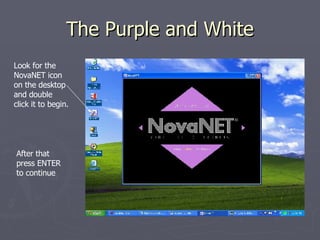
The Purple and White Look for the NovaNET icon on the desktop and double click it to begin. After that press ENTER to continue
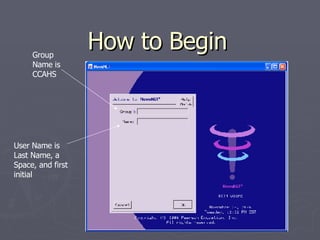
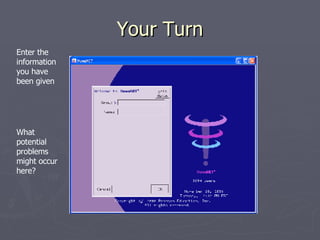
How to Begin Group Name is CCAHS User Name is Last Name, a Space, and first initial
Your Turn Enter the information you have been given What potential problems might occur here?
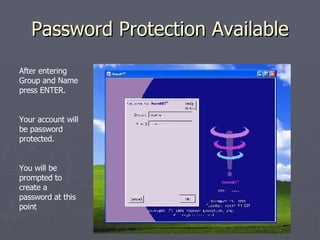
Password Protection Available After entering Group and Name press ENTER. Your account will be password protected. You will be prompted to create a password at this point
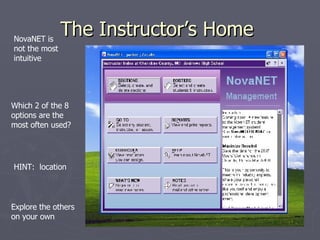
The Instructor’s Home  NovaNET is not the most intuitive  Which 2 of the 8 options are the most often used? HINT:  location Explore the others on your own
Return to The Instructor’s Home Navigation is not always simple or quick What other things did you notice? Did you notice the tabs on each page that make for easy navigation? Let's Get started with Sections!
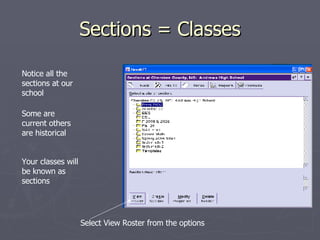
Sections = Classes Notice all the sections at our school  Some are current others are historical Your classes will be known as sections Select View Roster from the options
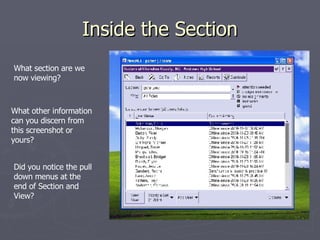
Inside the Section What section are we now viewing? What other information can you discern from this screenshot or yours? Did you notice the pull down menus at the end of Section and View?
Section First or Student First? Can I have an empty container/section? Yes Can I have students without containers? Yes Each of us will create their sections first and then add students. Do you see potential problems?
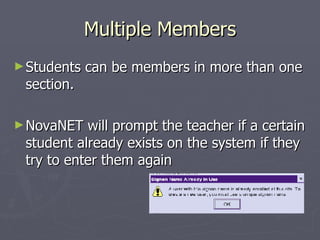
Multiple Members Students can be members in more than one section. NovaNET will prompt the teacher if a certain student already exists on the system if they try to enter them again
Use the Legal Names Use the legal names provided on your class lists (grade sheets) What was the naming convention that we use? Last Name – Space – First Initial
Create your Classes Task: Create a Section for each class that you teach. Label it so you and others can easily identify it Look at your partner’s and several other classes. Problems? Time: 30 minutes – includes break Help: Use your partner first, then others, then me Break Time Buzz: Can I already show a student how to get into their account?
What Did the Buzz Reveal? I know how to login I can explain that to a student I can also create a section I can build a proper login name
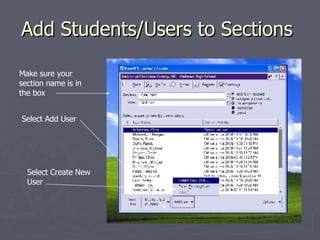
Add Students/Users to Sections  Make sure your section name is in the box  Select Add User Select Create New User
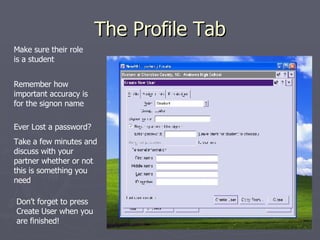
The Profile Tab Make sure their role is a student Remember how important accuracy is for the signon name Ever Lost a password? Take a few minutes and discuss with your partner whether or not this is something you need Don’t forget to press Create User when you are finished!
For Each Class/Section Add all your students Have your partner check for accuracy When/If you encounter a problem Try to figure it out yourself (Experiment!) Ask your partner Ask another team Tell the facilitator what you have done to resolve the problem
Mission Complete I can manage students By being an efficient user By creating sections By enrolling students I can provide expertise to others What else did I learn from this experience?
Next Time Advanced Management Tracking Student Performance Reporting

Novanet

  • 1.
    Enhancing Instruction with NovaNet John Parker Andrews High School December 2006
  • 2.
    Remembering Our GoalParticipants will be able to manage students, evaluate performance, and select curricula using the NovaNET online courseware and management tools.
  • 3.
    Today’s Objective Workshopparticipants will be able to use the administrative functions of NovaNET to create a class of online students and assign appropriate content that will enhance their student’s basic academic skills. NCSCOS English I Competency Goals 1-3; Algebra I Competency Goals 1, 3; Technical Math Competency Goal 1
  • 4.
    By the Endof Today You should be able to answer this question: How does one begin using NovaNET at Andrews High to create different user accounts and assign them to a teacher?
  • 5.
    Let’s Begin! Loginto the computer with your normal teacher login or use the generic Ahstudent account. 1 st Great Benefit – You do not have to be logged into the machine as an administrator to do your thing in NovaNET.
  • 6.
    The Purple andWhite Look for the NovaNET icon on the desktop and double click it to begin. After that press ENTER to continue
  • 7.
    How to BeginGroup Name is CCAHS User Name is Last Name, a Space, and first initial
  • 8.
    Your Turn Enterthe information you have been given What potential problems might occur here?
  • 9.
    Password Protection AvailableAfter entering Group and Name press ENTER. Your account will be password protected. You will be prompted to create a password at this point
  • 10.
    The Instructor’s Home NovaNET is not the most intuitive Which 2 of the 8 options are the most often used? HINT: location Explore the others on your own
  • 11.
    Return to TheInstructor’s Home Navigation is not always simple or quick What other things did you notice? Did you notice the tabs on each page that make for easy navigation? Let's Get started with Sections!
  • 12.
    Sections = ClassesNotice all the sections at our school Some are current others are historical Your classes will be known as sections Select View Roster from the options
  • 13.
    Inside the SectionWhat section are we now viewing? What other information can you discern from this screenshot or yours? Did you notice the pull down menus at the end of Section and View?
  • 14.
    Section First orStudent First? Can I have an empty container/section? Yes Can I have students without containers? Yes Each of us will create their sections first and then add students. Do you see potential problems?
  • 15.
    Multiple Members Studentscan be members in more than one section. NovaNET will prompt the teacher if a certain student already exists on the system if they try to enter them again
  • 16.
    Use the LegalNames Use the legal names provided on your class lists (grade sheets) What was the naming convention that we use? Last Name – Space – First Initial
  • 17.
    Create your ClassesTask: Create a Section for each class that you teach. Label it so you and others can easily identify it Look at your partner’s and several other classes. Problems? Time: 30 minutes – includes break Help: Use your partner first, then others, then me Break Time Buzz: Can I already show a student how to get into their account?
  • 18.
    What Did theBuzz Reveal? I know how to login I can explain that to a student I can also create a section I can build a proper login name
  • 19.
    Add Students/Users toSections Make sure your section name is in the box Select Add User Select Create New User
  • 20.
    The Profile TabMake sure their role is a student Remember how important accuracy is for the signon name Ever Lost a password? Take a few minutes and discuss with your partner whether or not this is something you need Don’t forget to press Create User when you are finished!
  • 21.
    For Each Class/SectionAdd all your students Have your partner check for accuracy When/If you encounter a problem Try to figure it out yourself (Experiment!) Ask your partner Ask another team Tell the facilitator what you have done to resolve the problem
  • 22.
    Mission Complete Ican manage students By being an efficient user By creating sections By enrolling students I can provide expertise to others What else did I learn from this experience?
  • 23.
    Next Time AdvancedManagement Tracking Student Performance Reporting