Automated Marking 
By James Abela 
http://goo.gl/oppq7s
LAST ACADEMIC YEAR 
1. I marked 
the work 
2. I had a half-term 
break 
3. My students got 
best results in the 
county!
Why Automate? 
● Students REMEMBER feedback when given quickly. 
● Only timely marked work can effectively inform 
planning of the next lesson 
● Saves Teacher time 
● Provides hard data 
● No formulae knowledge needed 
● Ensures all classes cover critical knowledge 
You can mark their work in-lesson or before the kettle boils 
at break time.
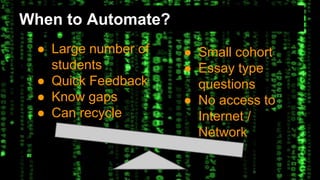
When to Automate? 
● Large number of 
students 
● Quick Feedback 
● Know gaps 
● Can recycle 
● Small cohort 
● Essay type 
questions 
● No access to 
Internet / 
Network
Getting Started
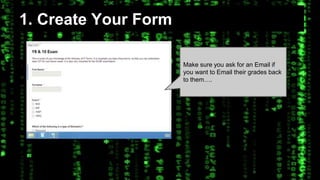
1. Create Your Form 
Make sure you ask for an Email if 
you want to Email their grades back 
to them….
2. Fill it out 
To create the answer key, just fill out the form 
yourself. Points to note: 
1. You can include name fields etc 
2. You can include an email field 
3. You do NOT have to auto-mark every 
question
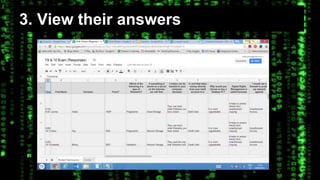
3. View their answers
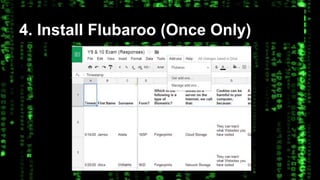
4. Install Flubaroo (Once Only)
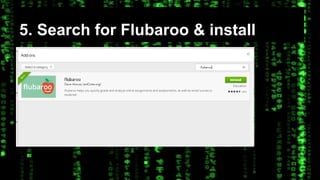
5. Search for Flubaroo & install
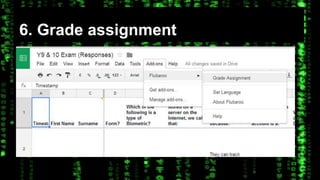
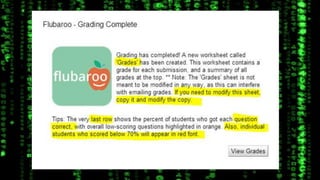
6. Grade assignment
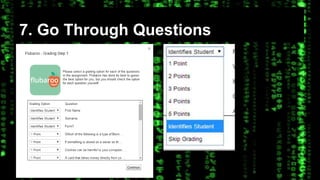
7. Go Through Questions
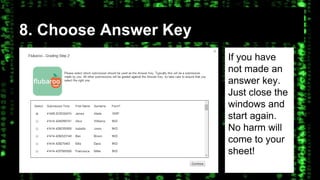
8. Choose Answer Key 
If you have 
not made an 
answer key. 
Just close the 
windows and 
start again. 
No harm will 
come to your 
sheet!
Job Done, if it is just one 
class...
Even more functionality
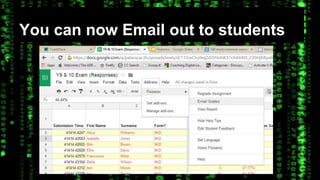
You can now Email out to students
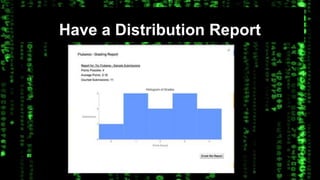
Have a Distribution Report
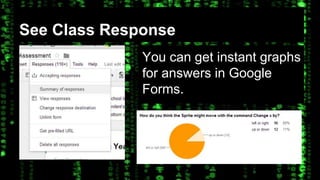
See Class Response 
You can get instant graphs 
for answers in Google 
Forms.
It’s a Spreadsheet 
● New Sheets has CountIf, AverageIf & 
Conditional Formatting 
● If Statements to create lettered gradings etc. 
● Plus all the other usual analytical tools...
Further Data Analysis
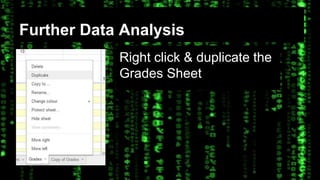
Further Data Analysis 
Right click & duplicate the 
Grades Sheet
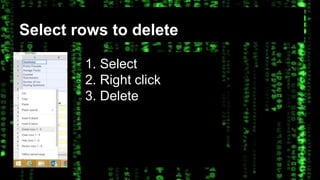
Select rows to delete 
1. Select 
2. Right click 
3. Delete
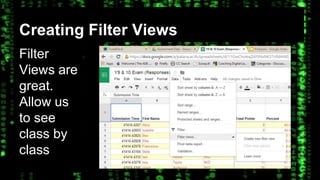
Creating Filter Views 
Filter 
Views are 
great. 
Allow us 
to see 
class by 
class
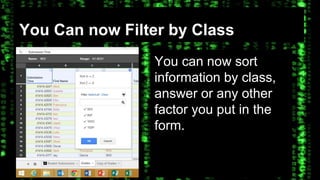
You Can now Filter by Class 
You can now sort 
information by class, 
answer or any other 
factor you put in the 
form.
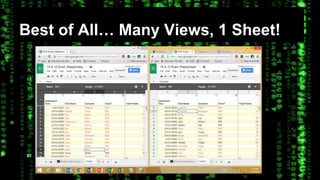
Best of All… Many Views, 1 Sheet!
School & Department Overviews 
● Enables heads of departments to see what 
is being learnt in all classrooms 
● Gain feedback from all classes
Alternatives 
● Google Moderator - Ask questions for response 
● Hot Potatoes - Large variety of tasks, Instant feedback, but can be 
tricky to record large quantities of data 
● Socrative - Great for testing in-class knowledge & works very well with 
a Google Spreadsheet 
● Code it yourself - Any spreadsheet can do it with a series of IF 
commands 
Don’t need a device per student: 
● Plickers - Free response system using your mobile phone 
● Self Marking 
● Peer Marking

Automated Marking 2014

  • 1.
    Automated Marking ByJames Abela http://goo.gl/oppq7s
  • 2.
    LAST ACADEMIC YEAR 1. I marked the work 2. I had a half-term break 3. My students got best results in the county!
  • 3.
    Why Automate? ●Students REMEMBER feedback when given quickly. ● Only timely marked work can effectively inform planning of the next lesson ● Saves Teacher time ● Provides hard data ● No formulae knowledge needed ● Ensures all classes cover critical knowledge You can mark their work in-lesson or before the kettle boils at break time.
  • 4.
    When to Automate? ● Large number of students ● Quick Feedback ● Know gaps ● Can recycle ● Small cohort ● Essay type questions ● No access to Internet / Network
  • 5.
  • 6.
    1. Create YourForm Make sure you ask for an Email if you want to Email their grades back to them….
  • 7.
    2. Fill itout To create the answer key, just fill out the form yourself. Points to note: 1. You can include name fields etc 2. You can include an email field 3. You do NOT have to auto-mark every question
  • 8.
  • 9.
  • 10.
    5. Search forFlubaroo & install
  • 11.
  • 12.
    7. Go ThroughQuestions
  • 13.
    8. Choose AnswerKey If you have not made an answer key. Just close the windows and start again. No harm will come to your sheet!
  • 15.
    Job Done, ifit is just one class...
  • 16.
  • 17.
    You can nowEmail out to students
  • 18.
  • 19.
    See Class Response You can get instant graphs for answers in Google Forms.
  • 20.
    It’s a Spreadsheet ● New Sheets has CountIf, AverageIf & Conditional Formatting ● If Statements to create lettered gradings etc. ● Plus all the other usual analytical tools...
  • 21.
  • 22.
    Further Data Analysis Right click & duplicate the Grades Sheet
  • 23.
    Select rows todelete 1. Select 2. Right click 3. Delete
  • 24.
    Creating Filter Views Filter Views are great. Allow us to see class by class
  • 25.
    You Can nowFilter by Class You can now sort information by class, answer or any other factor you put in the form.
  • 26.
    Best of All…Many Views, 1 Sheet!
  • 27.
    School & DepartmentOverviews ● Enables heads of departments to see what is being learnt in all classrooms ● Gain feedback from all classes
  • 28.
    Alternatives ● GoogleModerator - Ask questions for response ● Hot Potatoes - Large variety of tasks, Instant feedback, but can be tricky to record large quantities of data ● Socrative - Great for testing in-class knowledge & works very well with a Google Spreadsheet ● Code it yourself - Any spreadsheet can do it with a series of IF commands Don’t need a device per student: ● Plickers - Free response system using your mobile phone ● Self Marking ● Peer Marking