Exploring New Technologies For the Public Library
Class Overview  The purpose of this class is to learn about new technologies from the computer user’s point of view.  (The second class will focus on utilizing these technologies to reach your patrons.)
Class Goals To learn about a variety of new technologies available to computer users.
Class Objectives  Participants will have a firm understanding of the concepts of social software, tagging, and using RSS feeds.
Class Outcomes Participants will be able: To recognize and use social software features To customize a start page  To search for and subscribe to RSS feeds  To add tags to online media To edit and add pages to a wiki
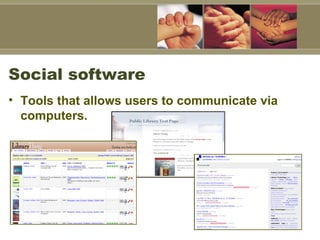
Social software Tools that allows users to communicate via computers.
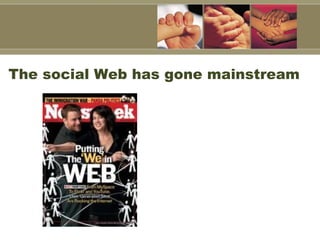
The social Web has gone mainstream
Early examples of social software Listservs  Usenet Mailing Lists
Newer examples Blogs: A way for individuals to post their daily thoughts or opinions to a Website Bookmarking: Find your favorite sites from any computer Calendars: Present an online calendar Catalogs for Media: Keep track of your books, movies, and music online Wikis: An electronic chalkboard Social Networking Sites: Make friends, share photos, chat all from one online location
Making them social  Most of these activities could be done privately, but social software makes your information public and accessible to the online world.
Reasons for examining social software:   To stay current with technology trends To be able to communicate in new ways with our patrons  To be able to assist our patrons To incorporate new technologies into the library world To make informed decisions when purchasing library software
Future thoughts… Throughout the class, think about ways in which this technology would enhance the ways in which library information is managed and disseminated.
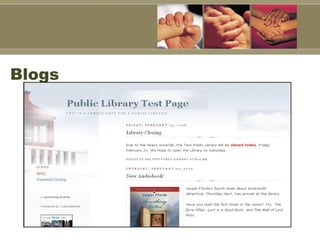
Blogs
Definition of a Blog…  A blog is simply a Website.  The author posts entries to the blog.  The newest entry is found at the top of the blog. Older entries follow the newest. Entries are archived for easier retrieval.
Blogs can be…  Interactive (Oftentimes) Free A more personal and flexible way to communicate online than a stagnant Website Easy to use & edit
Blogs can be, II… Accessible through the library’s URL, if available As easy or as complex as the librarian’s skill level Accessed and changed (with password) from any online location Visually attractive thanks to the provided templates
However…  The simplest editing of your blog’s template involves HTML code (which can be done completely in class!) Blogging requires the at least some basic knowledge of computer/Web skills. There can be potential problems when the server is down.
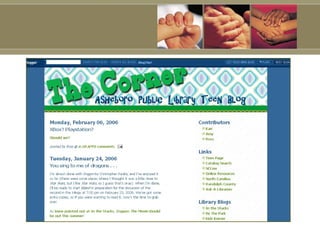
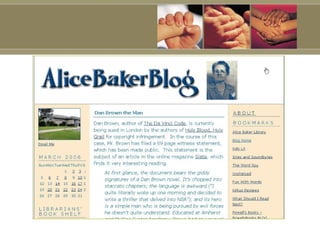
Examples of library blogs Let’s take a few minutes and look at some examples of blogs created for public libraries.  Please see your Links Page for more examples.
 
 
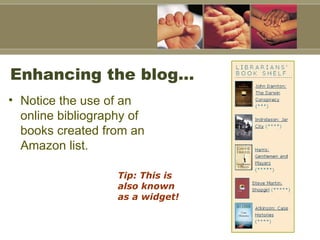
Enhancing the blog…  Notice the use of an online bibliography of books created from an Amazon list.  Tip: This is also known as a widget!
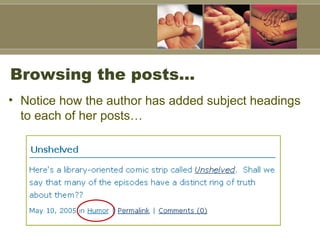
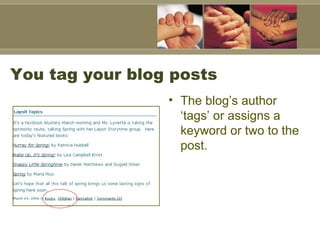
Browsing the posts…  Notice how the author has added subject headings to each of her posts…
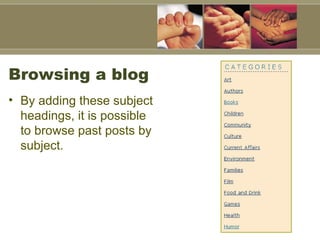
Browsing a blog  By adding these subject headings, it is possible to browse past posts by subject.
Links in a blog…  Notice how they take  advantage of the blog to provide links to useful sites.
Preparing for the next class Think about the type of blog you want to create.  Think about a name for your blog. (www. yourname .blogspot.com)  Gather or write some press releases and some digital photos of the library and library activities.
Personal Start Pages
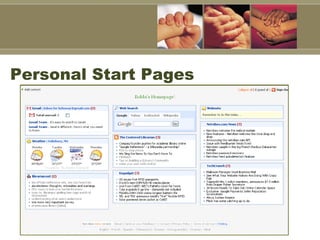
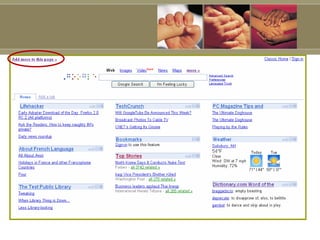
Definition of a Start Page This is a page that you can personalize to meet your needs. You can add a Google search box, your favorite news information, the local weather, and a variety of other information that you want to know at a glance.
Why examine start pages?  Start pages can also act as news readers, which we will learn about shortly.  They can also act as a roaming homepage for your patrons who want to save their personal bookmarks, news feeds and up to 1 GB of personal files.  Imagine only having to teach your patrons to log into one site and having all of their favorites and other Web-based tools available to them!
Getting used to the flexibility Watch how easy it is to change the appearance of your start page.
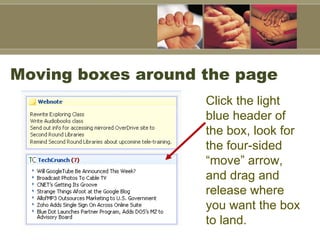
Moving boxes around the page Click the light blue header of the box, look for the four-sided “move” arrow, and drag and release where you want the box to land.
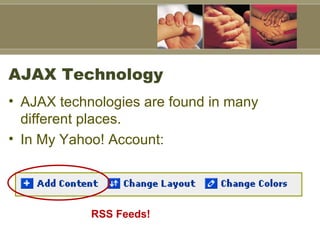
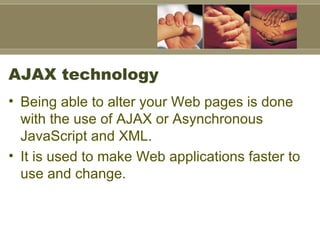
AJAX technology Being able to alter your Web pages is done with the use of AJAX or Asynchronous JavaScript and XML. It is used to make Web applications faster to use and change.
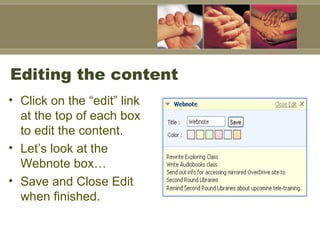
Editing the content  Click on the “edit” link at the top of each box to edit the content.  Let’s look at the Webnote box…  Save and Close Edit when finished.
News Readers (or Aggregators)  Start pages can also act as news readers.  What are news readers?
Definition of a News Reader A news reader does just what its name implies: It reads the news. Essentially, it gathers the news headlines and compiles them in one place for you to read. Theoretically, this saves you time; the information you want to know about is forwarded to your news reader.
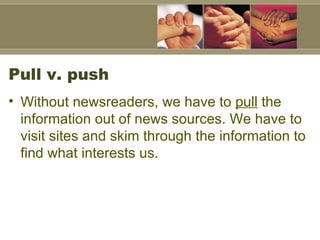
Pull v. push Without newsreaders, we have to  pull  the information out of news sources. We have to visit sites and skim through the information to find what interests us.
Push v. pull Using feeds, once we subscribe to a news source, all of the information is automatically pushed to us. We can skim a variety of news articles relevant to us from one location.  It is like having your own customized newspaper.
News Reader Examples There are dedicated News Readers, such as Bloglines, which only act as an aggregator, and there are News Readers which are incorporated into a Start Page, such as ones from Google, MyYahoo!, Windows Live, Netvibes, among many others.
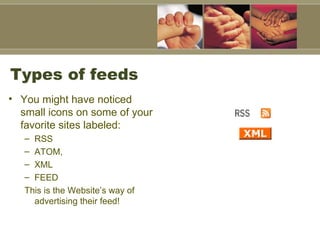
Types of feeds  You might have noticed small icons on some of your favorite sites labeled:  RSS  ATOM, XML FEED This is the Website’s way of advertising their feed!
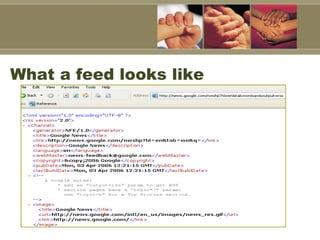
Definition of feeds  Strictly speaking, feeds are documents. They are often written in XML and to the untrained eye they might look a little like HTML code you’ve seen. As we will see, you subscribe to feeds with your news reader.
What a feed looks like
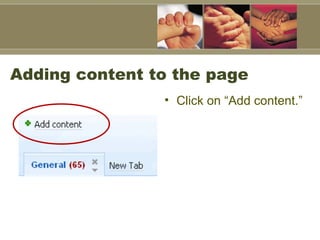
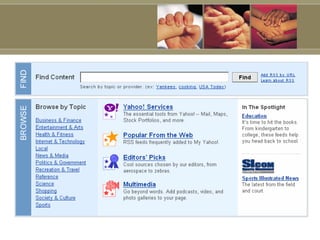
Adding content to the page Click on “Add content.”
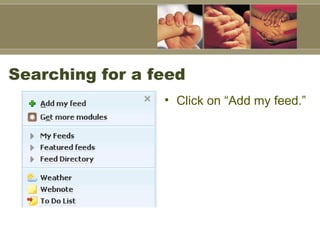
Searching for a feed Click on “Add my feed.”
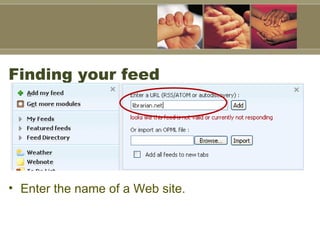
Finding your feed Enter the name of a Web site.
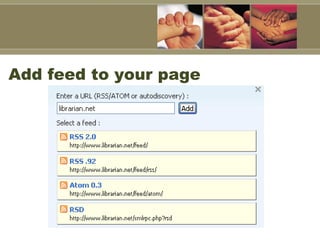
Add feed to your page
Where to find feeds On a Website, look for a feed on one of the sidebars or at the bottom of the page.  Visit  CNN  and find their feed link.
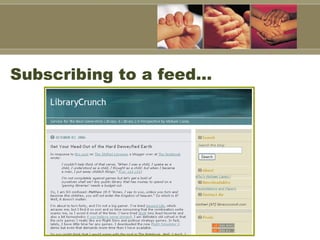
Subscribing to a feed…
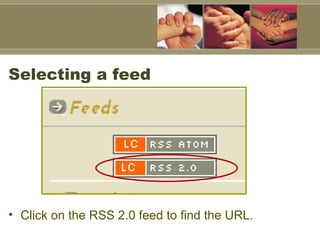
Selecting a feed  Click on the RSS 2.0 feed to find the URL.
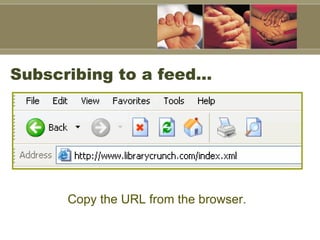
Subscribing to a feed…  Copy the URL from the browser.
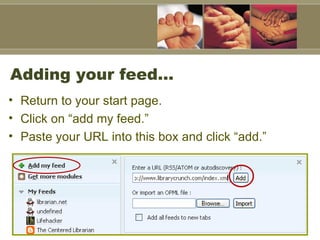
Adding your feed…  Return to your start page. Click on “add my feed.” Paste your URL into this box and click “add.”
Library applications Imagine being able to post a closing notice on your library blog and having that message go to everyone who subscribes to that blog. You could send out programming reminders or information about new books.
AJAX Technology AJAX technologies are found in many different places.  In My Yahoo! Account: RSS Feeds!
 
 
Enticing patrons to subscribe to the feed Create an interesting and frequently updated blog with feeds (like the one we’ll be creating in the next class!). Hold patron classes on how to use the blog, how to create a news reader account, and how to subscribe to the library’s blog through a news reader or through their email account.
Enticing your patrons, II  Add links to the blog from your current library site.  Provide print and online information about the blog and feeds.  Ask all of your staff members to contribute to the blog!
Tagging…  (You’re it!)   Think of tagging as assigning keywords to an item.
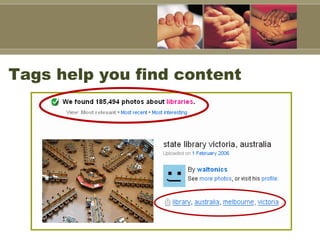
Why tag? Tagging helps you find: Bookmarks Media Books Blog postings Photos
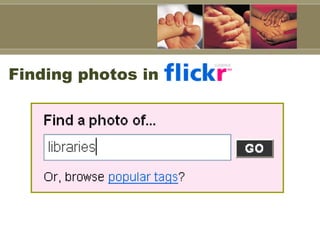
Finding photos in
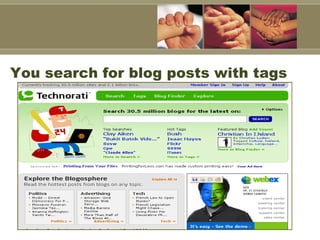
Tags help you find content
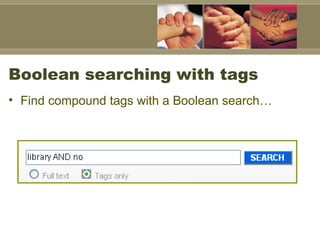
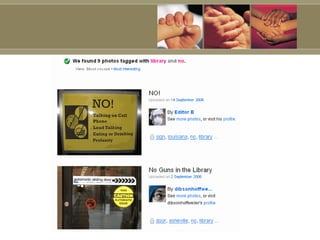
Boolean searching with tags Find compound tags with a Boolean search…
 
Deciding which tags to use…  That’s the fun of tagging; there are no rules dictating which tags you must use.  Instead of using: Cookery, Italian Use what makes sense to you: Italian recipes  or  Italian cooking
Terminology to know…  Using non-regulated keywords (or tags) is called “Folksonomy”  Folks (for people) ‘onomy’ (for taxonomy.)
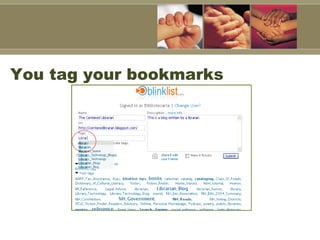
You tag your bookmarks
You tag your blog posts  The blog’s author ‘tags’ or assigns a keyword or two to the post.
You search for blog posts with tags
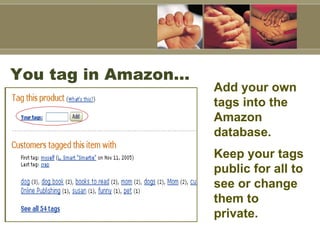
You tag in Amazon… Add your own tags into the Amazon database.  Keep your tags public for all to see or change them to private.
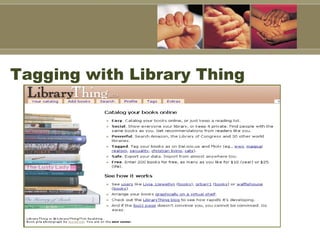
Tagging with Library Thing
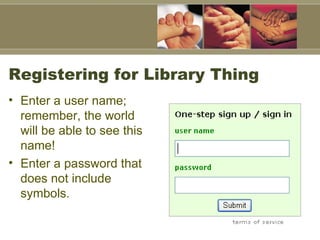
Registering for Library Thing Enter a user name; remember, the world will be able to see this name!  Enter a password that does not include symbols.
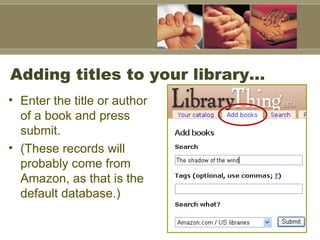
Adding titles to your library… Enter the title or author of a book and press submit.  (These records will probably come from Amazon, as that is the default database.)
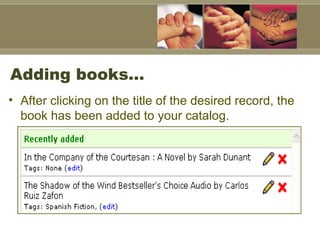
Adding books…  After clicking on the title of the desired record, the book has been added to your catalog.
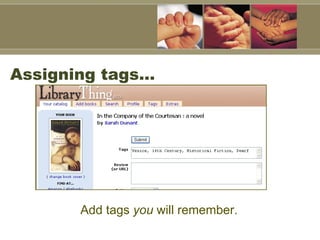
Assigning tags…  Add tags  you  will remember.
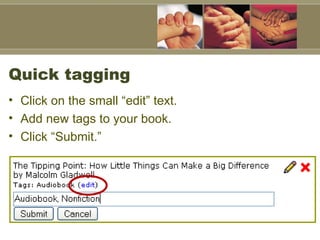
Quick tagging Click on the small “edit” text. Add new tags to your book.  Click “Submit.”
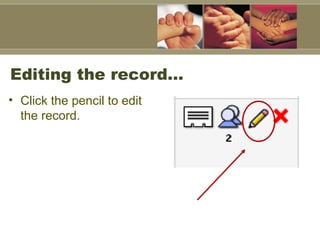
Editing the record…  Click the pencil to edit the record.
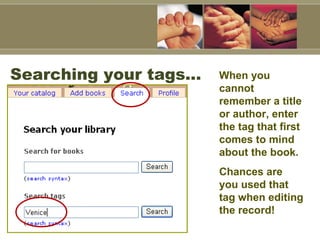
Searching your tags…  When you cannot remember a title or author, enter the tag that first comes to mind about the book.  Chances are you used that tag when editing the record!
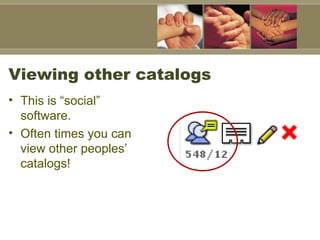
Viewing other catalogs This is “social” software.  Often times you can view other peoples’ catalogs!
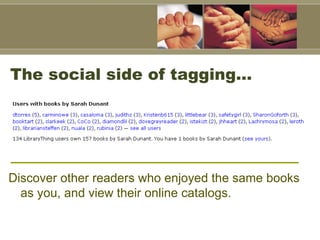
The social side of tagging…  Discover other readers who enjoyed the same books as you, and view their online catalogs.
Library uses for Library Thing Add new YA books, provide a detailed summary and review, and post a widget on the YA blog.  Keep track of the books used in a monthly display.  Basically, this database could be used as a simple way to create an online and visually stimulating bibliography for a myriad of library uses.  FYI: Library Thing “might” be available in the future as a true library automation system!
Future thoughts…  Imagine a library catalog that allows users to opt-in and create accounts, keep track of their past records, and edit the records – independently. Library staff would not have access to their records.
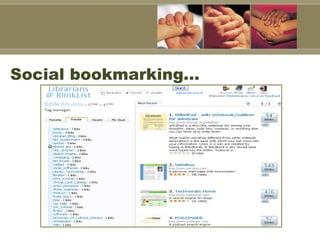
Social bookmarking…
Using your browser to bookmark Limitations for entering descriptive information about the site Available only at one computer (or network) Limited sorting capabilities
Using social bookmarking Access your saved sites from any online computer Ample area to fully annotate a site Give each site multiple tags or keyword descriptions for easy retrieval
Starting an account Sign into your Yahoo account.  Visit a Webpage to bookmark it…
How social bookmarking works As you are browsing the Web, you often find pages you wish to bookmark.  Instead of using your browser, which can only be used from one computer, save the page to a Web-based account.
Social bookmarking  There is a Yahoo toolbar installed on your computer’s browser.  If you wish to continue using this account, you will need to install the toolbar onto your own computers.
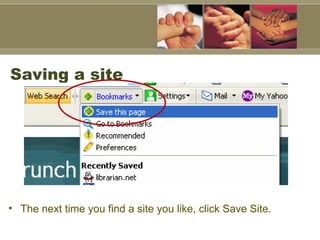
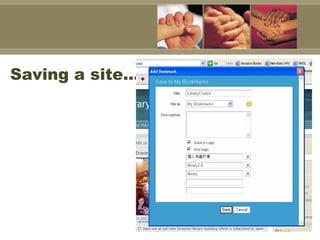
Saving a site The next time you find a site you like, click Save Site.
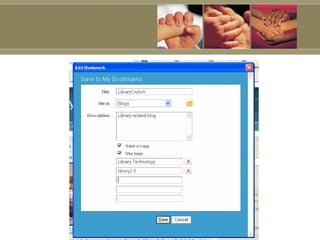
Saving a site…
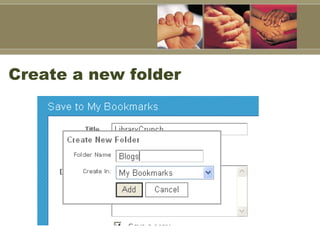
Create a new folder
 
Using bookmarks in the library Quickly create an online list of sites for a homework project, upcoming holidays, or hot topics Annotate the bookmark to fully explain what can be found on that site – and where.  Post a link to the list in “high-value real estate” areas of your site or blog.
Definition of a wiki A wiki is a type of social software that allows multiple users to edit and add content to a Website. Some wikis can be edited by anyone, while others can only be edited by a specified group. A favorite analogy is to compare wikis to “electronic chalkboards!” (UMN Libraries)
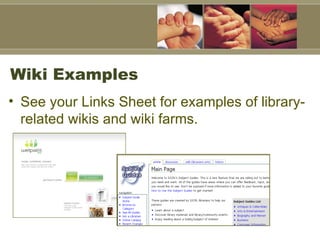
Wiki Examples See your Links Sheet for examples of library-related wikis and wiki farms.
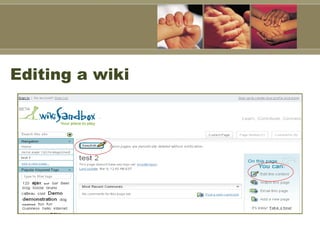
Editing a wiki
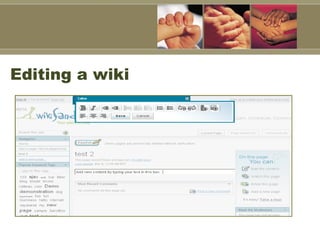
Editing a wiki
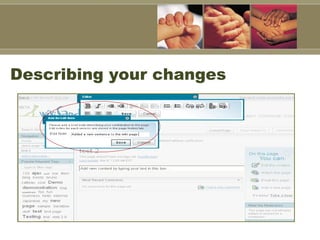
Describing your changes
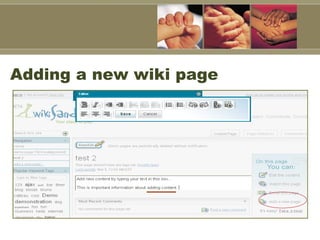
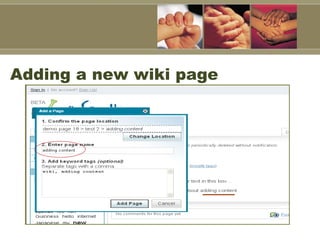
Adding a new wiki page
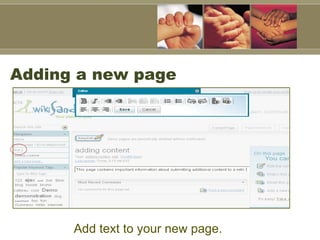
Adding a new page Add text to your new page.
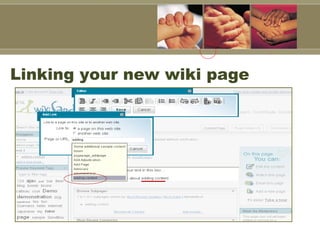
Linking your new wiki page
Wiki Uses in Public Libraries Book discussion groups Collecting local history Information about your town or community Subject Guides Readers’ advisory guides with patron input
Social Calendars
Purpose of a social calendar This is an effective way to disseminate event information to your library patrons.
A social calendar is… Free Easy to set up & edit Edit from any computer Can be used in conjunction with the blog to provide up-to-date event information
Uses for a social calendar Reach a wide-or target-audience to keep them informed of library events Can be made into an RSS feed to be sent to patrons’ personal news readers or email  Can be placed as a widget into the blog
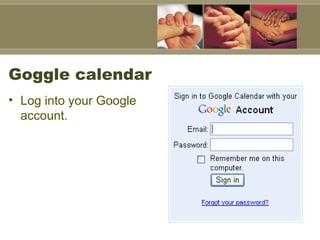
Goggle calendar Log into your Google account.
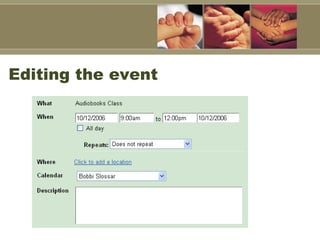
Adding an event Click on the day to which you wish to add an event.  Type in the title of the event. Edit the event details to give further description or times.
Editing the event
Homework Add a week’s worth of library events to your Google calendar.
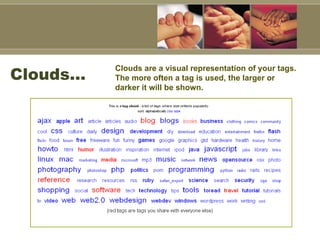
Clouds…  Clouds are a visual representation of your tags. The more often a tag is used, the larger or darker it will be shown.
Everything’s beta… Don’t be afraid to try new software that is still ‘beta!’  Some of the best things online are beta.

Exploring New Technologies

  • 1.
    Exploring New TechnologiesFor the Public Library
  • 2.
    Class Overview The purpose of this class is to learn about new technologies from the computer user’s point of view. (The second class will focus on utilizing these technologies to reach your patrons.)
  • 3.
    Class Goals Tolearn about a variety of new technologies available to computer users.
  • 4.
    Class Objectives Participants will have a firm understanding of the concepts of social software, tagging, and using RSS feeds.
  • 5.
    Class Outcomes Participantswill be able: To recognize and use social software features To customize a start page To search for and subscribe to RSS feeds To add tags to online media To edit and add pages to a wiki
  • 6.
    Social software Toolsthat allows users to communicate via computers.
  • 7.
    The social Webhas gone mainstream
  • 8.
    Early examples ofsocial software Listservs Usenet Mailing Lists
  • 9.
    Newer examples Blogs:A way for individuals to post their daily thoughts or opinions to a Website Bookmarking: Find your favorite sites from any computer Calendars: Present an online calendar Catalogs for Media: Keep track of your books, movies, and music online Wikis: An electronic chalkboard Social Networking Sites: Make friends, share photos, chat all from one online location
  • 10.
    Making them social Most of these activities could be done privately, but social software makes your information public and accessible to the online world.
  • 11.
    Reasons for examiningsocial software: To stay current with technology trends To be able to communicate in new ways with our patrons To be able to assist our patrons To incorporate new technologies into the library world To make informed decisions when purchasing library software
  • 12.
    Future thoughts… Throughoutthe class, think about ways in which this technology would enhance the ways in which library information is managed and disseminated.
  • 13.
  • 14.
    Definition of aBlog… A blog is simply a Website. The author posts entries to the blog. The newest entry is found at the top of the blog. Older entries follow the newest. Entries are archived for easier retrieval.
  • 15.
    Blogs can be… Interactive (Oftentimes) Free A more personal and flexible way to communicate online than a stagnant Website Easy to use & edit
  • 16.
    Blogs can be,II… Accessible through the library’s URL, if available As easy or as complex as the librarian’s skill level Accessed and changed (with password) from any online location Visually attractive thanks to the provided templates
  • 17.
    However… Thesimplest editing of your blog’s template involves HTML code (which can be done completely in class!) Blogging requires the at least some basic knowledge of computer/Web skills. There can be potential problems when the server is down.
  • 18.
    Examples of libraryblogs Let’s take a few minutes and look at some examples of blogs created for public libraries. Please see your Links Page for more examples.
  • 19.
  • 20.
  • 21.
    Enhancing the blog… Notice the use of an online bibliography of books created from an Amazon list. Tip: This is also known as a widget!
  • 22.
    Browsing the posts… Notice how the author has added subject headings to each of her posts…
  • 23.
    Browsing a blog By adding these subject headings, it is possible to browse past posts by subject.
  • 24.
    Links in ablog… Notice how they take advantage of the blog to provide links to useful sites.
  • 25.
    Preparing for thenext class Think about the type of blog you want to create. Think about a name for your blog. (www. yourname .blogspot.com) Gather or write some press releases and some digital photos of the library and library activities.
  • 26.
  • 27.
    Definition of aStart Page This is a page that you can personalize to meet your needs. You can add a Google search box, your favorite news information, the local weather, and a variety of other information that you want to know at a glance.
  • 28.
    Why examine startpages? Start pages can also act as news readers, which we will learn about shortly. They can also act as a roaming homepage for your patrons who want to save their personal bookmarks, news feeds and up to 1 GB of personal files. Imagine only having to teach your patrons to log into one site and having all of their favorites and other Web-based tools available to them!
  • 29.
    Getting used tothe flexibility Watch how easy it is to change the appearance of your start page.
  • 30.
    Moving boxes aroundthe page Click the light blue header of the box, look for the four-sided “move” arrow, and drag and release where you want the box to land.
  • 31.
    AJAX technology Beingable to alter your Web pages is done with the use of AJAX or Asynchronous JavaScript and XML. It is used to make Web applications faster to use and change.
  • 32.
    Editing the content Click on the “edit” link at the top of each box to edit the content. Let’s look at the Webnote box… Save and Close Edit when finished.
  • 33.
    News Readers (orAggregators) Start pages can also act as news readers. What are news readers?
  • 34.
    Definition of aNews Reader A news reader does just what its name implies: It reads the news. Essentially, it gathers the news headlines and compiles them in one place for you to read. Theoretically, this saves you time; the information you want to know about is forwarded to your news reader.
  • 35.
    Pull v. pushWithout newsreaders, we have to pull the information out of news sources. We have to visit sites and skim through the information to find what interests us.
  • 36.
    Push v. pullUsing feeds, once we subscribe to a news source, all of the information is automatically pushed to us. We can skim a variety of news articles relevant to us from one location. It is like having your own customized newspaper.
  • 37.
    News Reader ExamplesThere are dedicated News Readers, such as Bloglines, which only act as an aggregator, and there are News Readers which are incorporated into a Start Page, such as ones from Google, MyYahoo!, Windows Live, Netvibes, among many others.
  • 38.
    Types of feeds You might have noticed small icons on some of your favorite sites labeled: RSS ATOM, XML FEED This is the Website’s way of advertising their feed!
  • 39.
    Definition of feeds Strictly speaking, feeds are documents. They are often written in XML and to the untrained eye they might look a little like HTML code you’ve seen. As we will see, you subscribe to feeds with your news reader.
  • 40.
    What a feedlooks like
  • 41.
    Adding content tothe page Click on “Add content.”
  • 42.
    Searching for afeed Click on “Add my feed.”
  • 43.
    Finding your feedEnter the name of a Web site.
  • 44.
    Add feed toyour page
  • 45.
    Where to findfeeds On a Website, look for a feed on one of the sidebars or at the bottom of the page. Visit CNN and find their feed link.
  • 46.
  • 47.
    Selecting a feed Click on the RSS 2.0 feed to find the URL.
  • 48.
    Subscribing to afeed… Copy the URL from the browser.
  • 49.
    Adding your feed… Return to your start page. Click on “add my feed.” Paste your URL into this box and click “add.”
  • 50.
    Library applications Imaginebeing able to post a closing notice on your library blog and having that message go to everyone who subscribes to that blog. You could send out programming reminders or information about new books.
  • 51.
    AJAX Technology AJAXtechnologies are found in many different places. In My Yahoo! Account: RSS Feeds!
  • 52.
  • 53.
  • 54.
    Enticing patrons tosubscribe to the feed Create an interesting and frequently updated blog with feeds (like the one we’ll be creating in the next class!). Hold patron classes on how to use the blog, how to create a news reader account, and how to subscribe to the library’s blog through a news reader or through their email account.
  • 55.
    Enticing your patrons,II Add links to the blog from your current library site. Provide print and online information about the blog and feeds. Ask all of your staff members to contribute to the blog!
  • 56.
    Tagging… (You’reit!) Think of tagging as assigning keywords to an item.
  • 57.
    Why tag? Tagginghelps you find: Bookmarks Media Books Blog postings Photos
  • 58.
  • 59.
    Tags help youfind content
  • 60.
    Boolean searching withtags Find compound tags with a Boolean search…
  • 61.
  • 62.
    Deciding which tagsto use… That’s the fun of tagging; there are no rules dictating which tags you must use. Instead of using: Cookery, Italian Use what makes sense to you: Italian recipes or Italian cooking
  • 63.
    Terminology to know… Using non-regulated keywords (or tags) is called “Folksonomy” Folks (for people) ‘onomy’ (for taxonomy.)
  • 64.
    You tag yourbookmarks
  • 65.
    You tag yourblog posts The blog’s author ‘tags’ or assigns a keyword or two to the post.
  • 66.
    You search forblog posts with tags
  • 67.
    You tag inAmazon… Add your own tags into the Amazon database. Keep your tags public for all to see or change them to private.
  • 68.
  • 69.
    Registering for LibraryThing Enter a user name; remember, the world will be able to see this name! Enter a password that does not include symbols.
  • 70.
    Adding titles toyour library… Enter the title or author of a book and press submit. (These records will probably come from Amazon, as that is the default database.)
  • 71.
    Adding books… After clicking on the title of the desired record, the book has been added to your catalog.
  • 72.
    Assigning tags… Add tags you will remember.
  • 73.
    Quick tagging Clickon the small “edit” text. Add new tags to your book. Click “Submit.”
  • 74.
    Editing the record… Click the pencil to edit the record.
  • 75.
    Searching your tags… When you cannot remember a title or author, enter the tag that first comes to mind about the book. Chances are you used that tag when editing the record!
  • 76.
    Viewing other catalogsThis is “social” software. Often times you can view other peoples’ catalogs!
  • 77.
    The social sideof tagging… Discover other readers who enjoyed the same books as you, and view their online catalogs.
  • 78.
    Library uses forLibrary Thing Add new YA books, provide a detailed summary and review, and post a widget on the YA blog. Keep track of the books used in a monthly display. Basically, this database could be used as a simple way to create an online and visually stimulating bibliography for a myriad of library uses. FYI: Library Thing “might” be available in the future as a true library automation system!
  • 79.
    Future thoughts… Imagine a library catalog that allows users to opt-in and create accounts, keep track of their past records, and edit the records – independently. Library staff would not have access to their records.
  • 80.
  • 81.
    Using your browserto bookmark Limitations for entering descriptive information about the site Available only at one computer (or network) Limited sorting capabilities
  • 82.
    Using social bookmarkingAccess your saved sites from any online computer Ample area to fully annotate a site Give each site multiple tags or keyword descriptions for easy retrieval
  • 83.
    Starting an accountSign into your Yahoo account. Visit a Webpage to bookmark it…
  • 84.
    How social bookmarkingworks As you are browsing the Web, you often find pages you wish to bookmark. Instead of using your browser, which can only be used from one computer, save the page to a Web-based account.
  • 85.
    Social bookmarking There is a Yahoo toolbar installed on your computer’s browser. If you wish to continue using this account, you will need to install the toolbar onto your own computers.
  • 86.
    Saving a siteThe next time you find a site you like, click Save Site.
  • 87.
  • 88.
  • 89.
  • 90.
    Using bookmarks inthe library Quickly create an online list of sites for a homework project, upcoming holidays, or hot topics Annotate the bookmark to fully explain what can be found on that site – and where. Post a link to the list in “high-value real estate” areas of your site or blog.
  • 91.
    Definition of awiki A wiki is a type of social software that allows multiple users to edit and add content to a Website. Some wikis can be edited by anyone, while others can only be edited by a specified group. A favorite analogy is to compare wikis to “electronic chalkboards!” (UMN Libraries)
  • 92.
    Wiki Examples Seeyour Links Sheet for examples of library-related wikis and wiki farms.
  • 93.
  • 94.
  • 95.
  • 96.
    Adding a newwiki page
  • 97.
    Adding a newwiki page
  • 98.
    Adding a newpage Add text to your new page.
  • 99.
  • 100.
    Wiki Uses inPublic Libraries Book discussion groups Collecting local history Information about your town or community Subject Guides Readers’ advisory guides with patron input
  • 101.
  • 102.
    Purpose of asocial calendar This is an effective way to disseminate event information to your library patrons.
  • 103.
    A social calendaris… Free Easy to set up & edit Edit from any computer Can be used in conjunction with the blog to provide up-to-date event information
  • 104.
    Uses for asocial calendar Reach a wide-or target-audience to keep them informed of library events Can be made into an RSS feed to be sent to patrons’ personal news readers or email Can be placed as a widget into the blog
  • 105.
    Goggle calendar Loginto your Google account.
  • 106.
    Adding an eventClick on the day to which you wish to add an event. Type in the title of the event. Edit the event details to give further description or times.
  • 107.
  • 108.
    Homework Add aweek’s worth of library events to your Google calendar.
  • 109.
    Clouds… Cloudsare a visual representation of your tags. The more often a tag is used, the larger or darker it will be shown.
  • 110.
    Everything’s beta… Don’tbe afraid to try new software that is still ‘beta!’ Some of the best things online are beta.