How to make a Wikipedia article

        Turn sound on for audio instructions!
First of all:
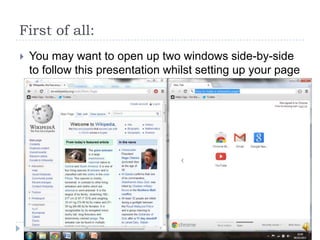
   You may want to open up two windows side-by-side
    to follow this presentation whilst setting up your page
Creating an account
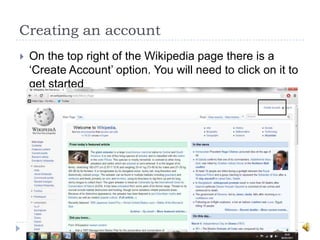
   On the top right of the Wikipedia page there is a
    „Create Account‟ option. You will need to click on it to
    get started
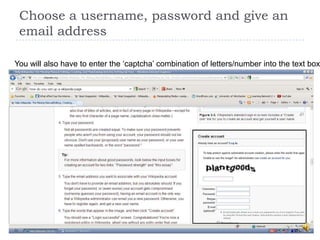
Choose a username, password and give an
 email address

You will also have to enter the „captcha‟ combination of letters/number into the text box
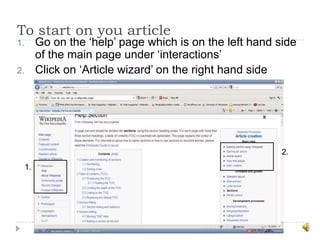
To start on you article
1.        Go on the „help‟ page which is on the left hand side
          of the main page under „interactions‟
2.        Click on „Article wizard‟ on the right hand side


                                                           2.
     1.
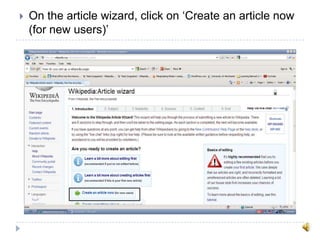
   On the article wizard, click on „Create an article now
    (for new users)‟
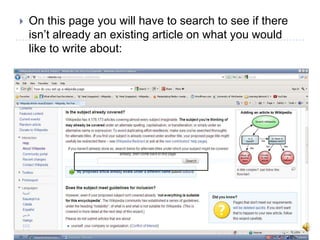
   On this page you will have to search to see if there
    isn‟t already an existing article on what you would
    like to write about:
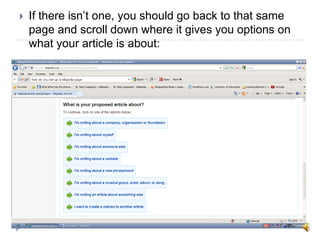
   If there isn‟t one, you should go back to that same
    page and scroll down where it gives you options on
    what your article is about:
At this point you may click on any of
the links which suits you article, but I
will use the ‘I’m writing about a
company, organisation or foundation’
link to show you the next steps
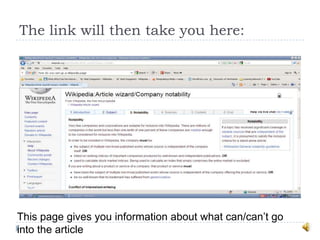
The link will then take you here:


This page gives you information about what can/can‟t go
into the article
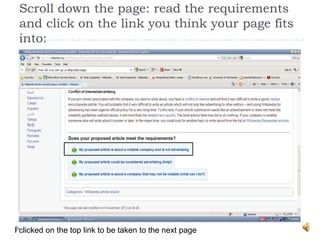
Scroll down the page: read the requirements
 and click on the link you think your page fits
 into:


I clicked on the top link to be taken to the next page
WAIT!
   Before you continue, it would be a good idea to have
    1 or more relevant source(s) for your article…


   (although if you carry on without sources, Wikipedia
    may be able to help you)
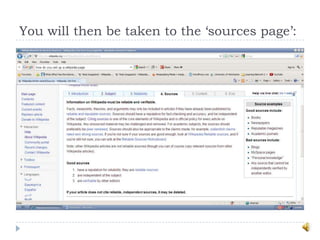
You will then be taken to the ‘sources page’:
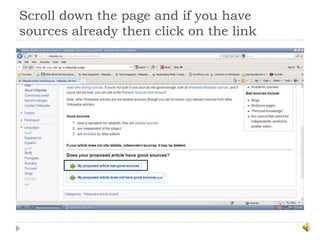
Scroll down the page and if you have
sources already then click on the link
At this point…
   I am going to include 6 slides on how to edit your
    Wikipedia page
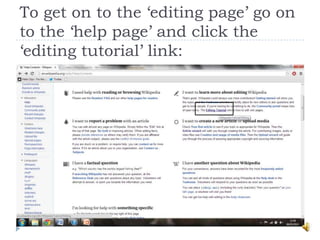
To get on to the ‘editing page’ go on
to the ‘help page’ and click the
‘editing tutorial’ link:
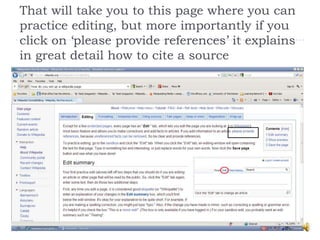
That will take you to this page where you can
practice editing, but more importantly if you
click on ‘please provide references’ it explains
in great detail how to cite a source
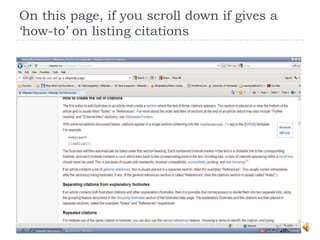
On this page, if you scroll down if gives a
‘how-to’ on listing citations
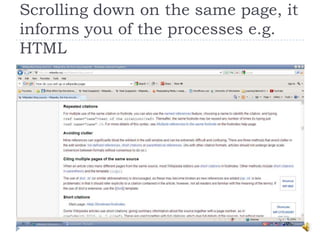
Scrolling down on the same page, it
informs you of the processes e.g.
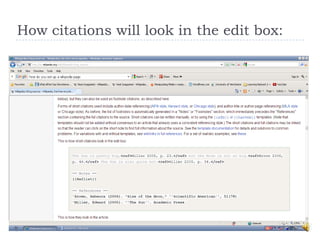
HTML
How citations will look in the edit box:
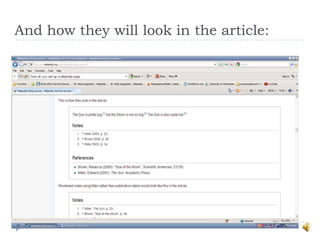
And how they will look in the article:
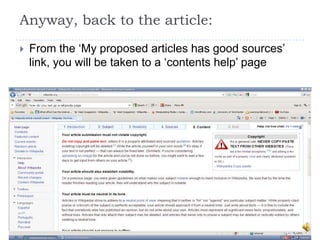
Anyway, back to the article:
   From the „My proposed articles has good sources‟
    link, you will be taken to a „contents help‟ page
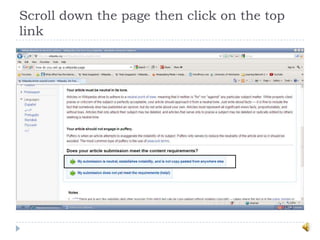
Scroll down the page then click on the top
link
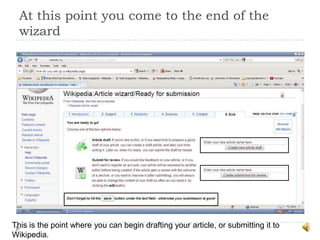
At this point you come to the end of the
  wizard


This is the point where you can begin drafting your article, or submitting it to
Wikipedia.
The next two slides are some quick notes on
creating your page:
   If there isn‟t an article already, at the top of the page, it
    should say “you may create the page”.
   You will then be taken to a page which will allow you to
    start writing the article.
   There will appear a large text box where you can start
    writing your article.
   There is a “help” tab if ever you are stuck with how to
    format the article.
   When you have finished typing the text, there is a tab in
    the middle at the bottom of the text box which reads
    “show preview”.
   This will allow you to see the page as it will appear once
    you have finished and saved it.
   This gives you the opportunity to see if there is anything
    you have missed.
   In the “help” tab, there will be advice on how to write a
    successful article.
   Subsections will include headings, titles etc and each of
    these links will inform you of how best to lay out your
    Wikipedia page.
   If everything is in the right place, you can then proceed to
    click “Save page” at the bottom of the text box.
   There will be another visual “captcha” to answer and for
    the article to be saved, this needs to be answered.
   Once the text has been answered, you can click “save
    page” again.
   The article will have been saved and you will
    automatically be taken to the page you have created.
Editing:
   If any changes need to be made, you can click “edit”
    at the top of the page.
   The edit page will then appear and any changes can
    be made here.
   In order to save the changes made, follow the save
    procedure as discussed in the setting up of a
    Wikipedia page.
I hope this has helped you to set up
your own Wikipedia page!

How to make a wikipedia article

  • 1.
    How to makea Wikipedia article Turn sound on for audio instructions!
  • 2.
    First of all:  You may want to open up two windows side-by-side to follow this presentation whilst setting up your page
  • 3.
    Creating an account  On the top right of the Wikipedia page there is a „Create Account‟ option. You will need to click on it to get started
  • 4.
    Choose a username,password and give an email address You will also have to enter the „captcha‟ combination of letters/number into the text box
  • 5.
    To start onyou article 1. Go on the „help‟ page which is on the left hand side of the main page under „interactions‟ 2. Click on „Article wizard‟ on the right hand side 2. 1.
  • 6.
    On the article wizard, click on „Create an article now (for new users)‟
  • 7.
    On this page you will have to search to see if there isn‟t already an existing article on what you would like to write about:
  • 8.
    If there isn‟t one, you should go back to that same page and scroll down where it gives you options on what your article is about:
  • 9.
    At this pointyou may click on any of the links which suits you article, but I will use the ‘I’m writing about a company, organisation or foundation’ link to show you the next steps
  • 10.
    The link willthen take you here: This page gives you information about what can/can‟t go into the article
  • 11.
    Scroll down thepage: read the requirements and click on the link you think your page fits into: I clicked on the top link to be taken to the next page
  • 12.
    WAIT!  Before you continue, it would be a good idea to have 1 or more relevant source(s) for your article…  (although if you carry on without sources, Wikipedia may be able to help you)
  • 13.
    You will thenbe taken to the ‘sources page’:
  • 14.
    Scroll down thepage and if you have sources already then click on the link
  • 15.
    At this point…  I am going to include 6 slides on how to edit your Wikipedia page
  • 16.
    To get onto the ‘editing page’ go on to the ‘help page’ and click the ‘editing tutorial’ link:
  • 17.
    That will takeyou to this page where you can practice editing, but more importantly if you click on ‘please provide references’ it explains in great detail how to cite a source
  • 18.
    On this page,if you scroll down if gives a ‘how-to’ on listing citations
  • 19.
    Scrolling down onthe same page, it informs you of the processes e.g. HTML
  • 20.
    How citations willlook in the edit box:
  • 21.
    And how theywill look in the article:
  • 22.
    Anyway, back tothe article:  From the „My proposed articles has good sources‟ link, you will be taken to a „contents help‟ page
  • 23.
    Scroll down thepage then click on the top link
  • 24.
    At this pointyou come to the end of the wizard This is the point where you can begin drafting your article, or submitting it to Wikipedia.
  • 25.
    The next twoslides are some quick notes on creating your page:  If there isn‟t an article already, at the top of the page, it should say “you may create the page”.  You will then be taken to a page which will allow you to start writing the article.  There will appear a large text box where you can start writing your article.  There is a “help” tab if ever you are stuck with how to format the article.  When you have finished typing the text, there is a tab in the middle at the bottom of the text box which reads “show preview”.  This will allow you to see the page as it will appear once you have finished and saved it.
  • 26.
    This gives you the opportunity to see if there is anything you have missed.  In the “help” tab, there will be advice on how to write a successful article.  Subsections will include headings, titles etc and each of these links will inform you of how best to lay out your Wikipedia page.  If everything is in the right place, you can then proceed to click “Save page” at the bottom of the text box.  There will be another visual “captcha” to answer and for the article to be saved, this needs to be answered.  Once the text has been answered, you can click “save page” again.  The article will have been saved and you will automatically be taken to the page you have created.
  • 27.
    Editing:  If any changes need to be made, you can click “edit” at the top of the page.  The edit page will then appear and any changes can be made here.  In order to save the changes made, follow the save procedure as discussed in the setting up of a Wikipedia page.
  • 28.
    I hope thishas helped you to set up your own Wikipedia page!