Frequency Distribution
of Numeric data:
Step-wise Tutorial using
Excel
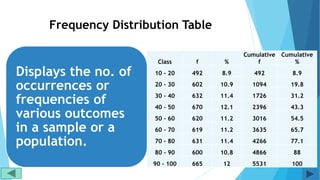
Frequency Distribution Table
Displays the no. of
occurrences or
frequencies of
various outcomes
in a sample or a
population.
Class f %
Cumulative
f
Cumulative
%
10 - 20 492 8.9 492 8.9
20 - 30 602 10.9 1094 19.8
30 - 40 632 11.4 1726 31.2
40 - 50 670 12.1 2396 43.3
50 - 60 620 11.2 3016 54.5
60 - 70 619 11.2 3635 65.7
70 - 80 631 11.4 4266 77.1
80 - 90 600 10.8 4866 88
90 - 100 665 12 5531 100
Let us start with a set of data
To illustrate how easy it is with Excel, a set of
fictitious data of 5531 patients of Hypertension who
were treated with an antihypertensive drug is
presented
Data set is resident in Sheet1 which has been
renamed “Data Table” to make it easy to remember
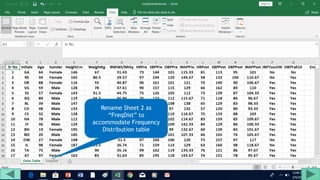
Rename Sheet 2 as
“FreqDist” to
accommodate Frequency
Distribution table
Should be descriptive i.e. they should indicate the type of data
contained in the field
Units of measurement should be mentioned where needed e.g.
HeightCm, WeightKg etc
Many workers use underscore to separate the field name and
units e.g. Height_cm, Weight_kg
In this presentation, underscores have been dispensed with and
the first letter of the units has been capitalized for convenience
e.g. HeightCm instead of Height_cm
Field Titles
In Excel, data is referred to as addresses of
the cells in which it resides
It is impossible to remember the cell addresses
in which data of Age, Height and all other
numeric fields reside
We can give names to a range of data so as to
use the Range Name e.g. Age instead of cell
address (C2:C5532)
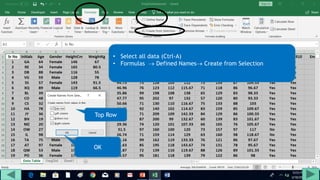
Select the entire data and instruct
Excel to give the Name in the top
cell of each column to all the data
below that field name e.g.
C2:C5532 would be named as Age,
E2:E5532 as HeightCm and so on
• Select all data (Ctrl-A)
• Formulas  Defined Names Create from Selection
Top Row
OK
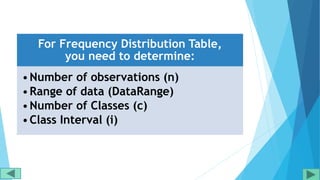
For Frequency Distribution Table,
you need to determine:
•Number of observations (n)
•Range of data (DataRange)
•Number of Classes (c)
•Class Interval (i)
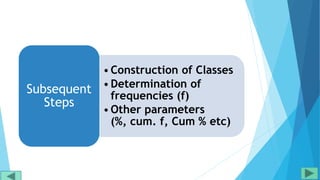
•Construction of Classes
•Determination of
frequencies (f)
•Other parameters
(%, cum. f, Cum % etc)
Subsequent
Steps
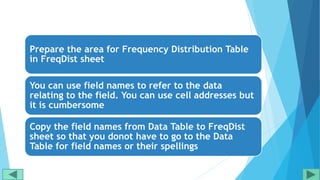
Prepare the area for Frequency Distribution Table
in FreqDist sheet
You can use field names to refer to the data
relating to the field. You can use cell addresses but
it is cumbersome
Copy the field names from Data Table to FreqDist
sheet so that you donot have to go to the Data
Table for field names or their spellings
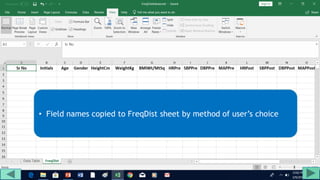
• Field names copied to FreqDist sheet by method of user’s choice
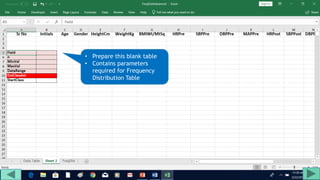
• Prepare this blank table
• Contains parameters
required for Frequency
Distribution Table
We will now give the name “Field” to B3, “n” to
B4 and so on I.e. contents in Cells A3 to A9 will
be used as Names for Cells B3 to B9 for
convenience
This can be done in one go by giving B3:B9 the
names from the left column as shown in the next
slides
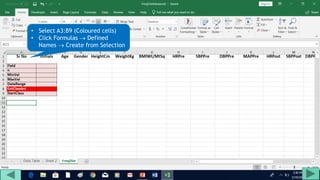
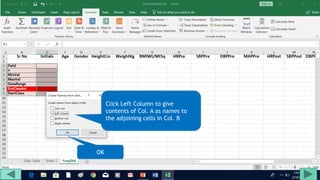
• Select A3:B9 (Coloured cells)
• Click Formulas  Defined
Names  Create from Selection
Click Left Column to give
contents of Col. A as names to
the adjoining cells in Col. B
OK
Time to fill the blank table
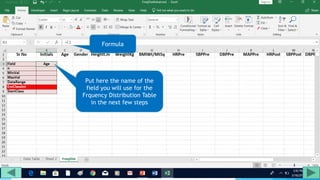
Put here the name of the
field you will use for the
Frquency Distribution Table
in the next few steps
Formula
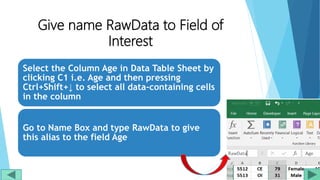
Give name RawData to Field of
Interest
Select the Column Age in Data Table Sheet by
clicking C1 i.e. Age and then pressing
Ctrl+Shift+↓ to select all data-containing cells
in the column
Go to Name Box and type RawData to give
this alias to the field Age
Why use a single Alias?
You can use cell references or range names of different ranges
(fields) for creating separate Frequency Distribution tables
Using a single alias for all fields, turn by turn, has the
advantage that you only change the column reference of
RawData and it starts representing the new field
Saves plenty of time and energy
Frequency Distribution
of Age
Determination of “n”
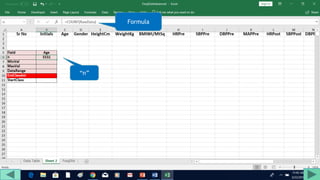
Can easily be done by using the COUNT
function of Excel
All you have to do is click cell B6 and
enter “=count(RawData)” without
quotes
Cell B6 has the name “n”. You can
access this data by using this name
Determination of “n”
“=” tells Excel that what follows is a
formula and not merely text
COUNT function counts all cells which
contain numeric data, even if it is zero,
i.e. it gives “n”
It will not count cells which are blank
or contain text
“n”
Formula
Correct “n” reassures that all cells
will be used in the subsequent steps
“n” will also be used for calculating
percentages
Determination of Minimum and
Maximum Values
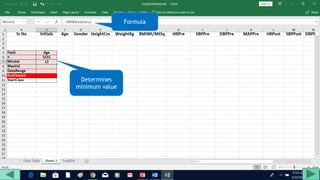
For minimum value, enter
“=min(RawData)” in B7
For maximum value, enter
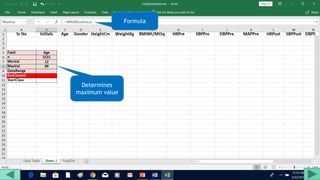
“=max(RawData)” in B8
Determines
minimum value
Formula
Determines
maximum value
Formula
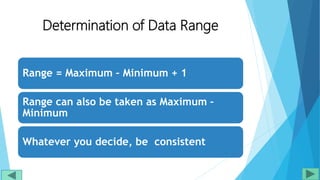
Determination of Data Range
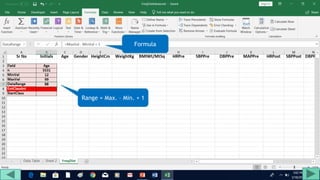
Range = Maximum – Minimum + 1
Range can also be taken as Maximum –
Minimum
Whatever you decide, be consistent
Range = Max. – Min. + 1
Formula
No. of Classes (C)
Several formulas available
to calculate C
Best to go by conventions in
your area of work
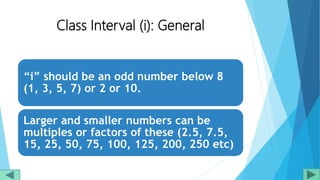
Class Interval (i): General
“i” should be an odd number below 8
(1, 3, 5, 7) or 2 or 10.
Larger and smaller numbers can be
multiples or factors of these (2.5, 7.5,
15, 25, 50, 75, 100, 125, 200, 250 etc)
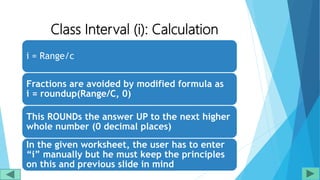
i = Range/c
Fractions are avoided by modified formula as
i = roundup(Range/C, 0)
This ROUNDs the answer UP to the next higher
whole number (0 decimal places)
In the given worksheet, the user has to enter
“i” manually but he must keep the principles
on this and previous slide in mind
Class Interval (i): Calculation
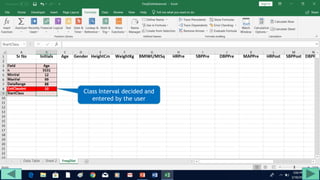
Class Interval decided and
entered by the user
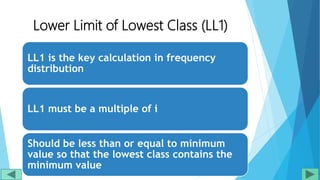
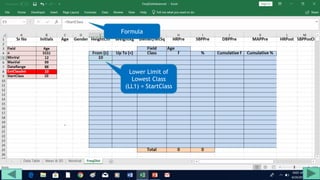
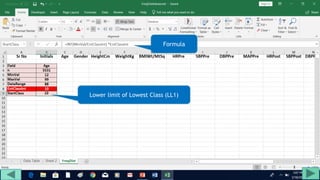
Lower Limit of Lowest Class (LL1)
LL1 is the key calculation in frequency
distribution
LL1 must be a multiple of i
Should be less than or equal to minimum
value so that the lowest class contains the
minimum value
Ll1 (Contd)
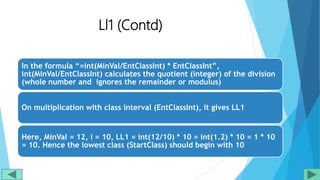
In the formula “=int(MinVal/EntClassInt) * EntClassInt”,
int(MinVal/EntClassInt) calculates the quotient (integer) of the division
(whole number and ignores the remainder or modulus)
On multiplication with class interval (EntClassInt), it gives LL1
Here, MinVal = 12, i = 10, LL1 = int(12/10) * 10 = int(1.2) * 10 = 1 * 10
= 10. Hence the lowest class (StartClass) should begin with 10
Lower limit of Lowest Class (LL1)
Formula
Construction of Classes
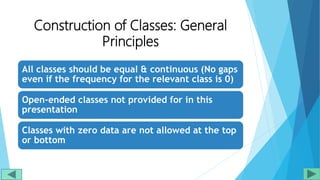
Construction of Classes: General
Principles
All classes should be equal & continuous (No gaps
even if the frequency for the relevant class is 0)
Open-ended classes not provided for in this
presentation
Classes with zero data are not allowed at the top
or bottom
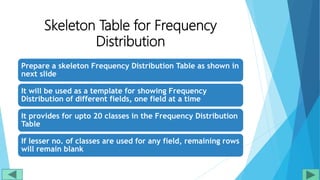
Skeleton Table for Frequency
Distribution
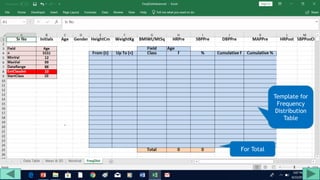
Prepare a skeleton Frequency Distribution Table as shown in
next slide
It will be used as a template for showing Frequency
Distribution of different fields, one field at a time
It provides for upto 20 classes in the Frequency Distribution
Table
If lesser no. of classes are used for any field, remaining rows
will remain blank
Template for
Frequency
Distribution
Table
For Total
Preparing the Lowest Class
Lower Limit of
Lowest Class
(LL1) = StartClass
Formula
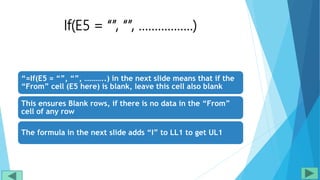
If(E5 = “”, “”, ……………..)
“=If(E5 = “”, “”, ………..) in the next slide means that if the
“From” cell (E5 here) is blank, leave this cell also blank
This ensures Blank rows, if there is no data in the “From”
cell of any row
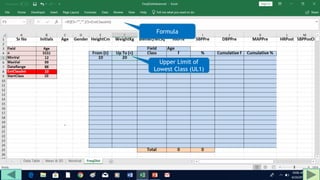
The formula in the next slide adds “I” to LL1 to get UL1
Upper Limit of
Lowest Class (UL1)
Formula
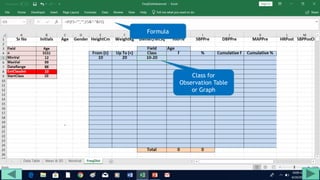
Concatenation Operation
The formula in the next slide, concatenates (joins
fragments of text) the numbers in “From” and
“To” columns, separated by a hyphen.
This column is not required for mathematical
operations but is very useful to show the classes
when you prepare an observation table or a graph
or chart from the Frequency Distribution Table
Class for
Observation Table
or Graph
Formula
Using COUNTIF to Count
Frequencies
“COUNT” simply counts numeric-data containing cells
irrespective of their values
“COUNTIF”, on the other hand, counts cells that contain
values that meet pre-defined criteria e.g. < 10, > 20, ≥ 30,
<> (not equal to) 40 and so on
COUNTIF will be used to count cells which contain data
belonging to a specific class, turn by turn
Two Methods of Determining
Frequencies
 Frequency (f) for 30-40 class = Count cells
containing values ≥ 30 and < 40
 f for 30-40 class also determined as Cumulative f for < 40
minus Cumulative f for < 30
 In this presentation, the second method has been used
Need for “From” and “Upto”
ColumnsNow we shall ask Excel to read an UPTO value from a
cell (e.g. F5) and count the cells in the range in
question (RawData) that contain values below that
(F5)
For this reason, we have to have separate “From (≥)”
and “Upto (<)” columns.
The mathematical symbols also indicate that for the
30-40 class, all values 30 or more (upto, but less than
40) will be placed in the 30-40 class whereas 40 and
above (upto, but less than 50) in the 40-50 class
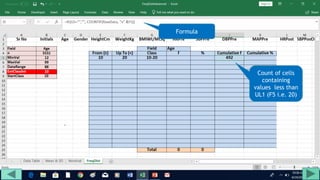
Count of cells
containing
values less than
UL1 (F5 i.e. 20)
Formula
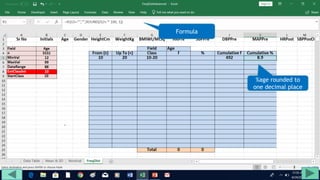
%age rounded to
one decimal place
Formula
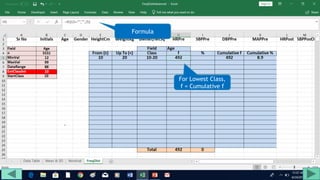
For Lowest Class,
f = Cumulative f
Formula
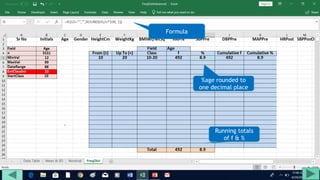
%age rounded to
one decimal place
Running totals
of f & %
Formula
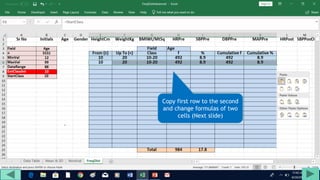
Preparing the Second Class
Copy first row to the second
and change formulas of two
cells (Next slide)
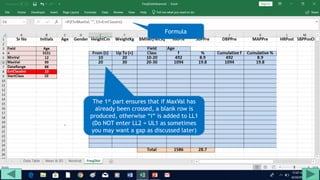
The 1st part ensures that if MaxVal has
already been crossed, a blank row is
produced, otherwise “i“ is added to LL1
(Do NOT enter LL2 = UL1 as sometimes
you may want a gap as discussed later)
Formula
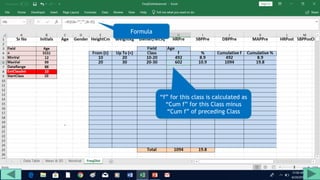
“f” for this class is calculated as
“Cum f” for this Class minus
“Cum f” of preceding Class
Formula
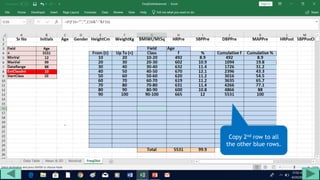
Preparing Higher Classes:
Piece of Cake
Copy 2nd row to all
the other blue rows.
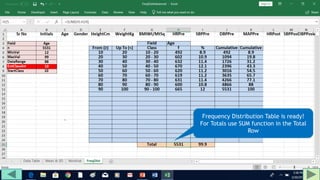
Frequency Distribution Table is ready!
For Totals use SUM function in the Total
Row
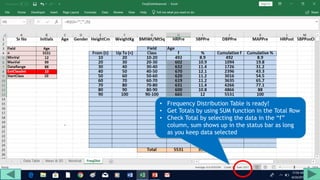
• Frequency Distribution Table is ready!
• Get Totals by using SUM function in the Total Row
• Check Total by selecting the data in the “f”
column, sum shows up in the status bar as long
as you keep data selected
Frequency
Distribution
Chart/Graph
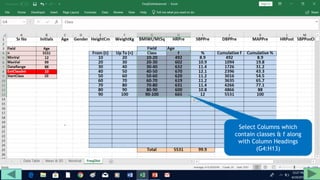
Select Columns which
contain classes & f along
with Column Headings
(G4:H13)
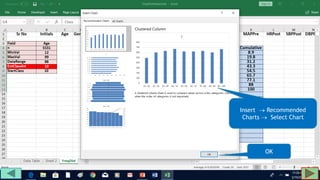
Insert  Recommended
Charts  Select Chart
OK
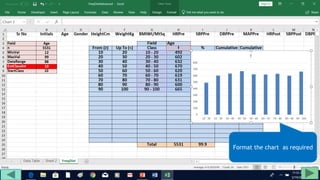
Format the chart as required
Frequency
Distribution
with other class
intervals
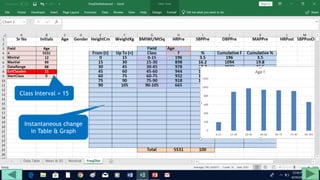
I want data in
classes of 15 each
All you have to do is to change the
EntClassInt value which you had
entered earlier
Let us see the effects of changing the
Class interval from 10 to 15
Class Interval = 15
Instantaneous change
in Table & Graph
Comparison with
automatic Data
Analysis tool
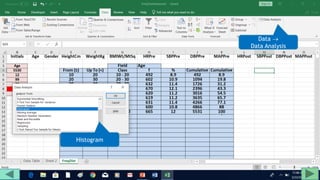
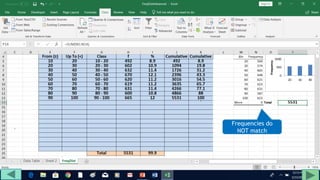
Data 
Data Analysis
Histogram
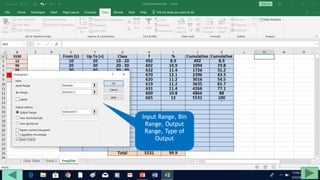
Input Range, Bin
Range, Output
Range, Type of
Output
Frequencies do
NOT match
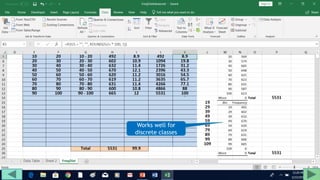
Works well for
discrete classes
• Understand the
working of tools
before you use themCaution
Save this Workbook for Future Use
A little laborious to get the Frequency
Distribution for the first time
Save this table
After this comes the easy part
To get the frequency distribution of other fields,
turn by turn, all you have to do is to change the
cell reference of the RawData range
To get the frequency distribution of HeightCm,
you have to change the cell reference of
RawData to that of HeightCm i.e. from

$C$2:$C$5532 to $E$2:$E$5532
If your data is in a rectangular table, just change
the two column references from C to E, without
disturbing the row numbers.
Frequency Distribution
of other numeric fields
e.g. HeightCm
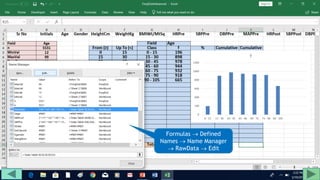
Formulas  Defined
Names  Name Manager
 RawData  Edit
Change Column from C to E
at both places
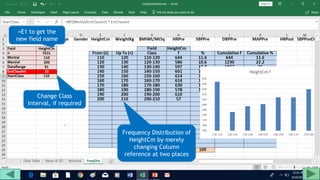
Frequency Distribution of
HeightCm by merely
changing Column
reference at two places
=E1 to get the
new field name
Change Class
Interval, if required
This way you can change Columns in RawData
to the columns of any other numeric field to
get the frequency distribution of that field
You can also change the graph type and its
formatting as desired
For Discontinuous data,
use discontinuous classes
e.g. 10-19, 20-29 etc
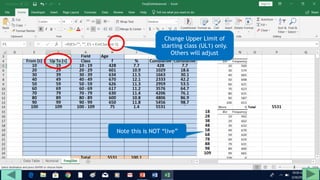
Change Upper Limit of
starting class (UL1) only.
Others will adjust
Note this is NOT “live”
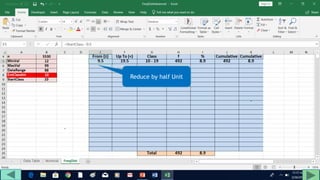
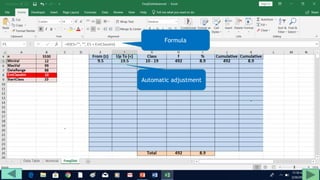
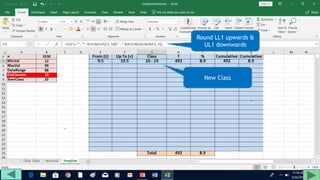
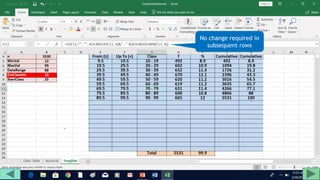
For true (Actual) Class Limits,
subtract half unit from lower limit
and add half unit to upper limit e.g.
for 10-19, you should take 9.5-19.5
into account. For 20-29, take 19.5
to 29.5 into account and so on
Reduce by half Unit
Automatic adjustment
Formula
Round LL1 upwards &
UL1 downwards
New Class
No change required in
subsequent rows
Excel tutorial for frequency distribution

Excel tutorial for frequency distribution

  • 1.
    Frequency Distribution of Numericdata: Step-wise Tutorial using Excel
  • 2.
    Frequency Distribution Table Displaysthe no. of occurrences or frequencies of various outcomes in a sample or a population. Class f % Cumulative f Cumulative % 10 - 20 492 8.9 492 8.9 20 - 30 602 10.9 1094 19.8 30 - 40 632 11.4 1726 31.2 40 - 50 670 12.1 2396 43.3 50 - 60 620 11.2 3016 54.5 60 - 70 619 11.2 3635 65.7 70 - 80 631 11.4 4266 77.1 80 - 90 600 10.8 4866 88 90 - 100 665 12 5531 100
  • 3.
    Let us startwith a set of data To illustrate how easy it is with Excel, a set of fictitious data of 5531 patients of Hypertension who were treated with an antihypertensive drug is presented Data set is resident in Sheet1 which has been renamed “Data Table” to make it easy to remember
  • 4.
    Rename Sheet 2as “FreqDist” to accommodate Frequency Distribution table
  • 5.
    Should be descriptivei.e. they should indicate the type of data contained in the field Units of measurement should be mentioned where needed e.g. HeightCm, WeightKg etc Many workers use underscore to separate the field name and units e.g. Height_cm, Weight_kg In this presentation, underscores have been dispensed with and the first letter of the units has been capitalized for convenience e.g. HeightCm instead of Height_cm Field Titles
  • 6.
    In Excel, datais referred to as addresses of the cells in which it resides It is impossible to remember the cell addresses in which data of Age, Height and all other numeric fields reside We can give names to a range of data so as to use the Range Name e.g. Age instead of cell address (C2:C5532)
  • 7.
    Select the entiredata and instruct Excel to give the Name in the top cell of each column to all the data below that field name e.g. C2:C5532 would be named as Age, E2:E5532 as HeightCm and so on
  • 8.
    • Select alldata (Ctrl-A) • Formulas  Defined Names Create from Selection Top Row OK
  • 9.
    For Frequency DistributionTable, you need to determine: •Number of observations (n) •Range of data (DataRange) •Number of Classes (c) •Class Interval (i)
  • 10.
    •Construction of Classes •Determinationof frequencies (f) •Other parameters (%, cum. f, Cum % etc) Subsequent Steps
  • 11.
    Prepare the areafor Frequency Distribution Table in FreqDist sheet You can use field names to refer to the data relating to the field. You can use cell addresses but it is cumbersome Copy the field names from Data Table to FreqDist sheet so that you donot have to go to the Data Table for field names or their spellings
  • 12.
    • Field namescopied to FreqDist sheet by method of user’s choice
  • 13.
    • Prepare thisblank table • Contains parameters required for Frequency Distribution Table
  • 14.
    We will nowgive the name “Field” to B3, “n” to B4 and so on I.e. contents in Cells A3 to A9 will be used as Names for Cells B3 to B9 for convenience This can be done in one go by giving B3:B9 the names from the left column as shown in the next slides
  • 15.
    • Select A3:B9(Coloured cells) • Click Formulas  Defined Names  Create from Selection
  • 16.
    Click Left Columnto give contents of Col. A as names to the adjoining cells in Col. B OK
  • 17.
    Time to fillthe blank table
  • 18.
    Put here thename of the field you will use for the Frquency Distribution Table in the next few steps Formula
  • 19.
    Give name RawDatato Field of Interest Select the Column Age in Data Table Sheet by clicking C1 i.e. Age and then pressing Ctrl+Shift+↓ to select all data-containing cells in the column Go to Name Box and type RawData to give this alias to the field Age
  • 20.
    Why use asingle Alias? You can use cell references or range names of different ranges (fields) for creating separate Frequency Distribution tables Using a single alias for all fields, turn by turn, has the advantage that you only change the column reference of RawData and it starts representing the new field Saves plenty of time and energy
  • 21.
  • 22.
    Determination of “n” Caneasily be done by using the COUNT function of Excel All you have to do is click cell B6 and enter “=count(RawData)” without quotes Cell B6 has the name “n”. You can access this data by using this name
  • 23.
    Determination of “n” “=”tells Excel that what follows is a formula and not merely text COUNT function counts all cells which contain numeric data, even if it is zero, i.e. it gives “n” It will not count cells which are blank or contain text
  • 24.
  • 25.
    Correct “n” reassuresthat all cells will be used in the subsequent steps “n” will also be used for calculating percentages
  • 26.
    Determination of Minimumand Maximum Values For minimum value, enter “=min(RawData)” in B7 For maximum value, enter “=max(RawData)” in B8
  • 27.
  • 28.
  • 29.
    Determination of DataRange Range = Maximum – Minimum + 1 Range can also be taken as Maximum – Minimum Whatever you decide, be consistent
  • 30.
    Range = Max.– Min. + 1 Formula
  • 31.
    No. of Classes(C) Several formulas available to calculate C Best to go by conventions in your area of work
  • 32.
    Class Interval (i):General “i” should be an odd number below 8 (1, 3, 5, 7) or 2 or 10. Larger and smaller numbers can be multiples or factors of these (2.5, 7.5, 15, 25, 50, 75, 100, 125, 200, 250 etc)
  • 33.
    i = Range/c Fractionsare avoided by modified formula as i = roundup(Range/C, 0) This ROUNDs the answer UP to the next higher whole number (0 decimal places) In the given worksheet, the user has to enter “i” manually but he must keep the principles on this and previous slide in mind Class Interval (i): Calculation
  • 34.
    Class Interval decidedand entered by the user
  • 35.
    Lower Limit ofLowest Class (LL1) LL1 is the key calculation in frequency distribution LL1 must be a multiple of i Should be less than or equal to minimum value so that the lowest class contains the minimum value
  • 36.
    Ll1 (Contd) In theformula “=int(MinVal/EntClassInt) * EntClassInt”, int(MinVal/EntClassInt) calculates the quotient (integer) of the division (whole number and ignores the remainder or modulus) On multiplication with class interval (EntClassInt), it gives LL1 Here, MinVal = 12, i = 10, LL1 = int(12/10) * 10 = int(1.2) * 10 = 1 * 10 = 10. Hence the lowest class (StartClass) should begin with 10
  • 37.
    Lower limit ofLowest Class (LL1) Formula
  • 38.
  • 39.
    Construction of Classes:General Principles All classes should be equal & continuous (No gaps even if the frequency for the relevant class is 0) Open-ended classes not provided for in this presentation Classes with zero data are not allowed at the top or bottom
  • 40.
    Skeleton Table forFrequency Distribution Prepare a skeleton Frequency Distribution Table as shown in next slide It will be used as a template for showing Frequency Distribution of different fields, one field at a time It provides for upto 20 classes in the Frequency Distribution Table If lesser no. of classes are used for any field, remaining rows will remain blank
  • 41.
  • 42.
  • 43.
    Lower Limit of LowestClass (LL1) = StartClass Formula
  • 44.
    If(E5 = “”,“”, ……………..) “=If(E5 = “”, “”, ………..) in the next slide means that if the “From” cell (E5 here) is blank, leave this cell also blank This ensures Blank rows, if there is no data in the “From” cell of any row The formula in the next slide adds “I” to LL1 to get UL1
  • 45.
    Upper Limit of LowestClass (UL1) Formula
  • 46.
    Concatenation Operation The formulain the next slide, concatenates (joins fragments of text) the numbers in “From” and “To” columns, separated by a hyphen. This column is not required for mathematical operations but is very useful to show the classes when you prepare an observation table or a graph or chart from the Frequency Distribution Table
  • 47.
  • 48.
    Using COUNTIF toCount Frequencies “COUNT” simply counts numeric-data containing cells irrespective of their values “COUNTIF”, on the other hand, counts cells that contain values that meet pre-defined criteria e.g. < 10, > 20, ≥ 30, <> (not equal to) 40 and so on COUNTIF will be used to count cells which contain data belonging to a specific class, turn by turn
  • 49.
    Two Methods ofDetermining Frequencies  Frequency (f) for 30-40 class = Count cells containing values ≥ 30 and < 40  f for 30-40 class also determined as Cumulative f for < 40 minus Cumulative f for < 30  In this presentation, the second method has been used
  • 50.
    Need for “From”and “Upto” ColumnsNow we shall ask Excel to read an UPTO value from a cell (e.g. F5) and count the cells in the range in question (RawData) that contain values below that (F5) For this reason, we have to have separate “From (≥)” and “Upto (<)” columns. The mathematical symbols also indicate that for the 30-40 class, all values 30 or more (upto, but less than 40) will be placed in the 30-40 class whereas 40 and above (upto, but less than 50) in the 40-50 class
  • 51.
    Count of cells containing valuesless than UL1 (F5 i.e. 20) Formula
  • 52.
    %age rounded to onedecimal place Formula
  • 53.
    For Lowest Class, f= Cumulative f Formula
  • 54.
    %age rounded to onedecimal place Running totals of f & % Formula
  • 55.
  • 56.
    Copy first rowto the second and change formulas of two cells (Next slide)
  • 57.
    The 1st partensures that if MaxVal has already been crossed, a blank row is produced, otherwise “i“ is added to LL1 (Do NOT enter LL2 = UL1 as sometimes you may want a gap as discussed later) Formula
  • 58.
    “f” for thisclass is calculated as “Cum f” for this Class minus “Cum f” of preceding Class Formula
  • 59.
  • 60.
    Copy 2nd rowto all the other blue rows.
  • 61.
    Frequency Distribution Tableis ready! For Totals use SUM function in the Total Row
  • 62.
    • Frequency DistributionTable is ready! • Get Totals by using SUM function in the Total Row • Check Total by selecting the data in the “f” column, sum shows up in the status bar as long as you keep data selected
  • 63.
  • 64.
    Select Columns which containclasses & f along with Column Headings (G4:H13)
  • 65.
    Insert  Recommended Charts Select Chart OK
  • 66.
    Format the chartas required
  • 67.
  • 68.
    All you haveto do is to change the EntClassInt value which you had entered earlier Let us see the effects of changing the Class interval from 10 to 15
  • 69.
    Class Interval =15 Instantaneous change in Table & Graph
  • 70.
  • 71.
  • 72.
    Input Range, Bin Range,Output Range, Type of Output
  • 73.
  • 74.
  • 75.
    • Understand the workingof tools before you use themCaution
  • 76.
    Save this Workbookfor Future Use A little laborious to get the Frequency Distribution for the first time Save this table After this comes the easy part
  • 77.
    To get thefrequency distribution of other fields, turn by turn, all you have to do is to change the cell reference of the RawData range To get the frequency distribution of HeightCm, you have to change the cell reference of RawData to that of HeightCm i.e. from $C$2:$C$5532 to $E$2:$E$5532 If your data is in a rectangular table, just change the two column references from C to E, without disturbing the row numbers.
  • 78.
    Frequency Distribution of othernumeric fields e.g. HeightCm
  • 79.
    Formulas  Defined Names Name Manager  RawData  Edit
  • 80.
    Change Column fromC to E at both places
  • 81.
    Frequency Distribution of HeightCmby merely changing Column reference at two places =E1 to get the new field name Change Class Interval, if required
  • 82.
    This way youcan change Columns in RawData to the columns of any other numeric field to get the frequency distribution of that field You can also change the graph type and its formatting as desired
  • 83.
    For Discontinuous data, usediscontinuous classes e.g. 10-19, 20-29 etc
  • 84.
    Change Upper Limitof starting class (UL1) only. Others will adjust Note this is NOT “live”
  • 85.
    For true (Actual)Class Limits, subtract half unit from lower limit and add half unit to upper limit e.g. for 10-19, you should take 9.5-19.5 into account. For 20-29, take 19.5 to 29.5 into account and so on
  • 86.
  • 87.
  • 88.
    Round LL1 upwards& UL1 downwards New Class
  • 89.
    No change requiredin subsequent rows