TUTORIAL support.ebsco.com Reading an EBSCO host  Article
Welcome to EBSCO ’s  Reading an Article on EBSCO host  tutorial. In this tutorial, we will look at the features of the EBSCO host  Detailed Record of a Result List item.
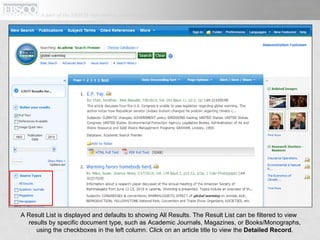
A Result List is displayed and defaults to showing All Results. The Result List can be filtered to view results by specific document type, such as Academic Journals, Magazines, or Books/Monographs, using the checkboxes in the left column. Click on an article title to view the  Detailed Record .
From the column on the left, you can access all available versions of the item you are viewing. This may include  HTML  or  PDF Full Text .  You can also execute a SmartText Search for your search terms to find similar results.
Using the tools in the right column, you can  Print ,  E-mail ,  Save ,  Cite , or  Export  your article, as well as add it to your folder. You can also  Create a Note  on the article and save it to your personal folder. Click  Permalink  to access a persistent link to the article, or click  Bookmark  to add the article to your browser favorites or share it via services such as Facebook, Twitter, or Del.icio.us.
If enabled by your administrator for HTML Full Text, you may see the option to  Listen  to your article using the Text-To-Speech feature, as well as the option to  Translate  the article into one of several available languages.
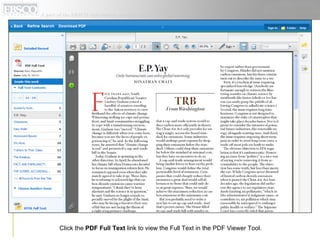
Click the  PDF Full Text  link to view the Full Text in the PDF Viewer Tool.
You can return to the result list, refine your search, or download the PDF by clicking the links at the top of the Viewer. Using the  Inside this work  column, you can access other articles from the same issue of your source or  Choose Another Issue .
Using the icons on the right, you can  Add the article to the folder  as well as  E-mail  or  Export  the article.
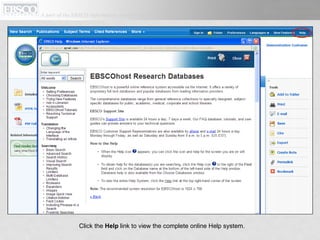
Click the  Help  link to view the complete online Help system.
 

En ehost reading_an_article_tut (lrc)

  • 1.
  • 2.
    Welcome to EBSCO’s Reading an Article on EBSCO host tutorial. In this tutorial, we will look at the features of the EBSCO host Detailed Record of a Result List item.
  • 3.
    A Result Listis displayed and defaults to showing All Results. The Result List can be filtered to view results by specific document type, such as Academic Journals, Magazines, or Books/Monographs, using the checkboxes in the left column. Click on an article title to view the Detailed Record .
  • 4.
    From the columnon the left, you can access all available versions of the item you are viewing. This may include HTML or PDF Full Text . You can also execute a SmartText Search for your search terms to find similar results.
  • 5.
    Using the toolsin the right column, you can Print , E-mail , Save , Cite , or Export your article, as well as add it to your folder. You can also Create a Note on the article and save it to your personal folder. Click Permalink to access a persistent link to the article, or click Bookmark to add the article to your browser favorites or share it via services such as Facebook, Twitter, or Del.icio.us.
  • 6.
    If enabled byyour administrator for HTML Full Text, you may see the option to Listen to your article using the Text-To-Speech feature, as well as the option to Translate the article into one of several available languages.
  • 7.
    Click the PDF Full Text link to view the Full Text in the PDF Viewer Tool.
  • 8.
    You can returnto the result list, refine your search, or download the PDF by clicking the links at the top of the Viewer. Using the Inside this work column, you can access other articles from the same issue of your source or Choose Another Issue .
  • 9.
    Using the iconson the right, you can Add the article to the folder as well as E-mail or Export the article.
  • 10.
    Click the Help link to view the complete online Help system.
  • 11.