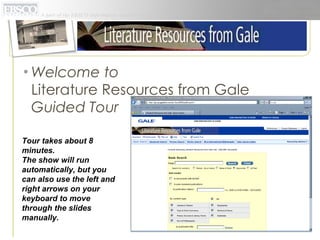
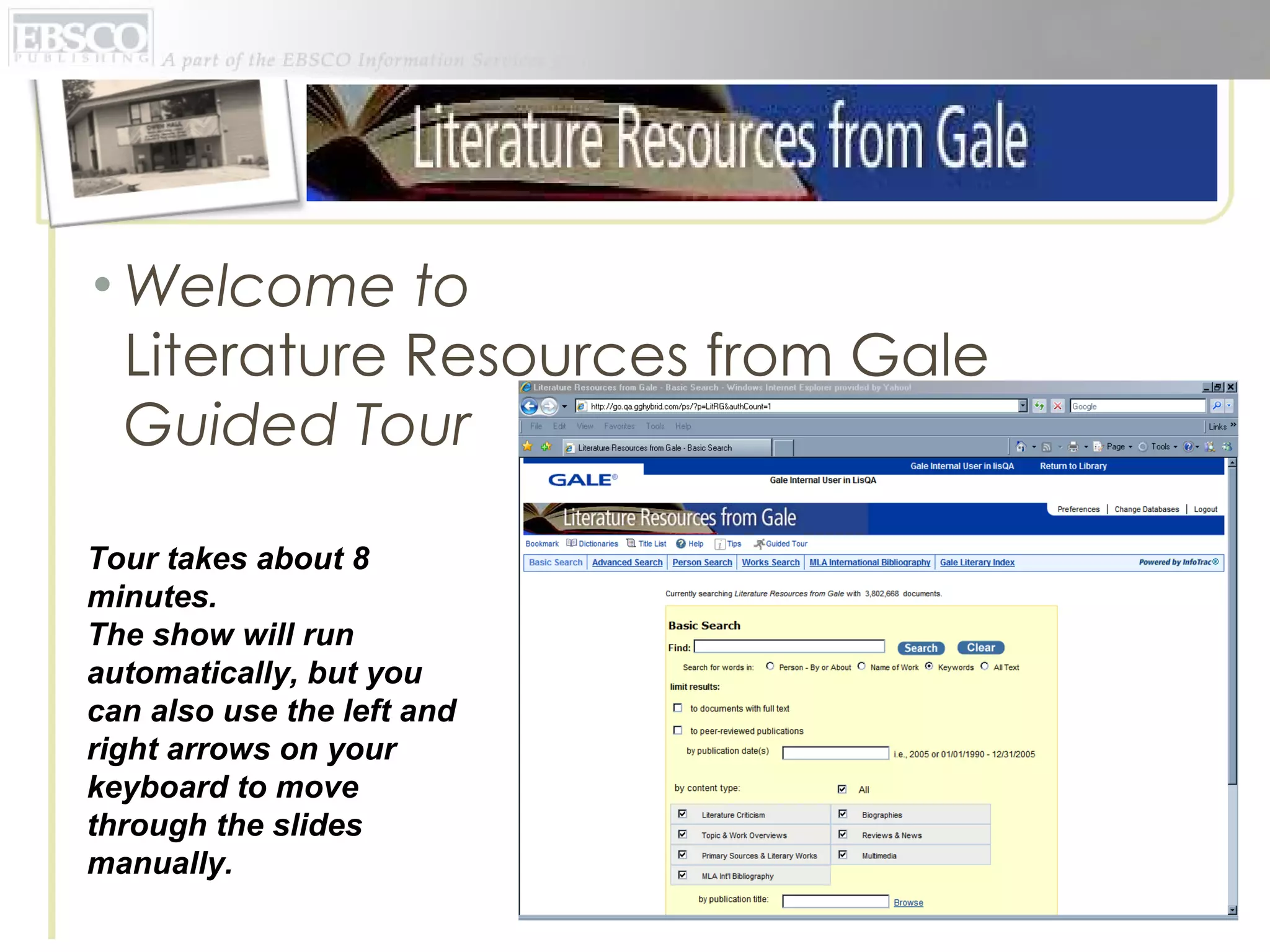
Welcome to  Literature Resources from Gale Guided Tour Tour takes about 8 minutes. The show will run automatically, but you can also use the left and right arrows on your keyboard to move through the slides manually.
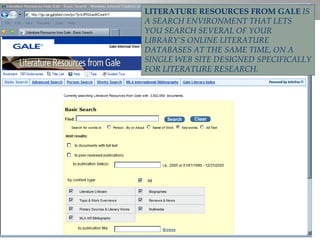
LITERATURE RESOURCES FROM GALE   IS A SEARCH ENVIRONMENT THAT LETS YOU SEARCH SEVERAL OF YOUR LIBRARY’S ONLINE LITERATURE DATABASES AT THE SAME TIME, ON A SINGLE WEB SITE DESIGNED SPECIFICALLY FOR LITERATURE RESEARCH.
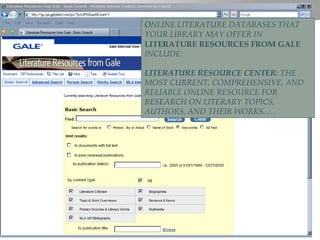
O NLINE LITERATURE DATABASES THAT YOUR LIBRARY MAY OFFER IN  LITERATURE RESOURCES FROM GALE   INCLUDE: LITERATURE RESOURCE CENTER:  THE MOST CURRENT, COMPREHENSIVE, AND RELIABLE ONLINE RESOURCE FOR RESEARCH ON LITERARY TOPICS, AUTHORS, AND THEIR WORKS. …
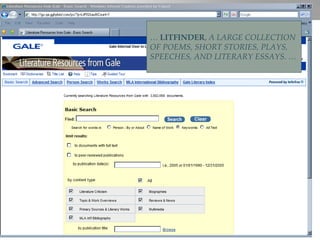
…  LITFINDER ,  A LARGE COLLECTION OF POEMS, SHORT STORIES, PLAYS, SPEECHES, AND LITERARY ESSAYS. …
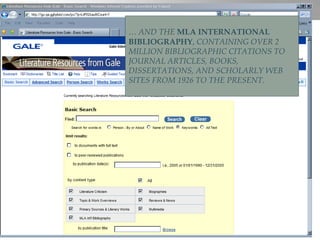
…  AND THE  MLA INTERNATIONAL BIBLIOGRAPHY ,  CONTAINING OVER 2 MILLION BIBLIOGRAPHIC CITATIONS TO JOURNAL ARTICLES, BOOKS, DISSERTATIONS, AND SCHOLARLY WEB SITES FROM 1926 TO THE PRESENT.
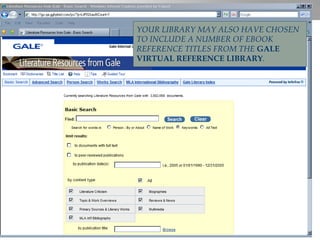
YOUR LIBRARY MAY ALSO HAVE CHOSEN TO INCLUDE A NUMBER OF EBOOK REFERENCE TITLES FROM THE  GALE VIRTUAL REFERENCE LIBRARY .
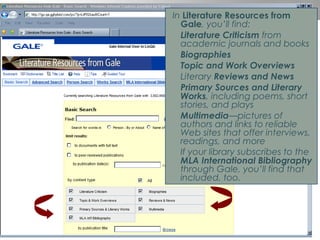
In  Literature Resources from Gale , you’ll find: Literature Criticism  from academic journals and books Biographies Topic and Work Overviews Literary  Reviews and News Primary Sources and Literary Works , including poems, short stories, and plays Multimedia —pictures of authors and links to reliable Web sites that offer interviews, readings, and more If your library subscribes to the  MLA International Bibliography  through Gale, you’ll find that included, too.
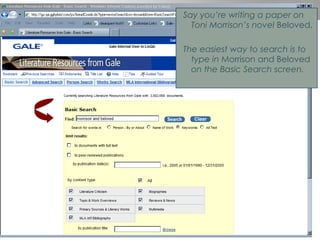
Say you’re writing a paper on Toni Morrison’s novel  Beloved. The easiest way to search is to type in  Morrison and Beloved  on the Basic Search screen.
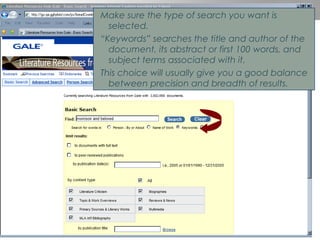
Make sure the type of search you want is selected. “ Keywords” searches the title and author of the document, its abstract or first 100 words, and subject terms associated with it. This choice will usually give you a good balance between precision and breadth of results.
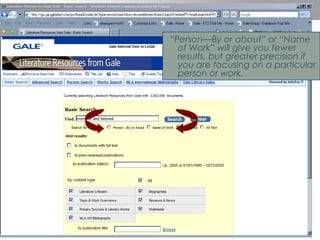
“ Person—By or about” or “Name of Work” will give you fewer results, but greater precision if you are focusing on a particular person or work.
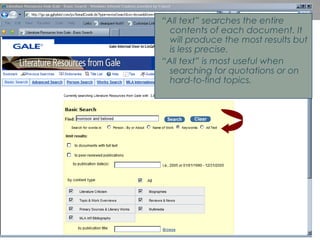
“ All text” searches the entire contents of each document. It will produce the most results but is less precise.  “ All text” is most useful when searching for quotations or on hard-to-find topics.
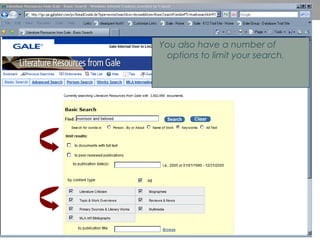
You also have a number of options to limit your search.
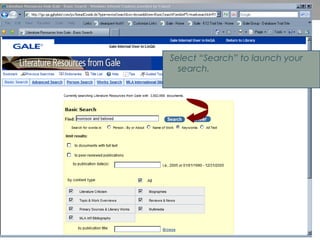
Select “Search” to launch your search.
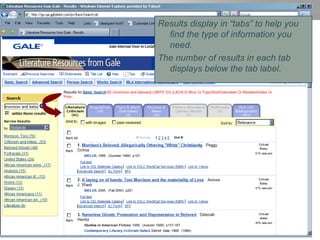
Results display in “tabs” to help you find the type of information you need. The number of results in each tab displays below the tab label.
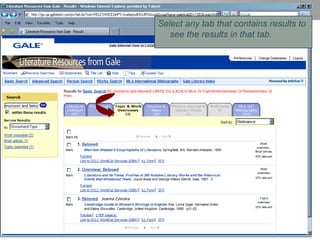
Select any tab that contains results to see the results in that tab.
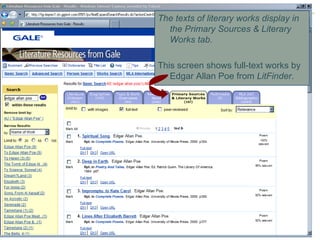
The texts of literary works display in the Primary Sources & Literary Works tab. This screen shows full-text works by Edgar Allan Poe from  LitFinder .
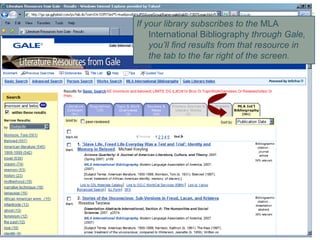
If your library subscribes to the  MLA International Bibliography  through Gale, you’ll find results from that resource in the tab to the far right of the screen.
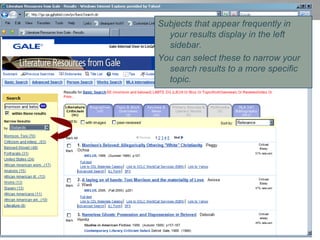
Subjects that appear frequently in your results display in the left sidebar. You can select these to narrow your search results to a more specific topic.
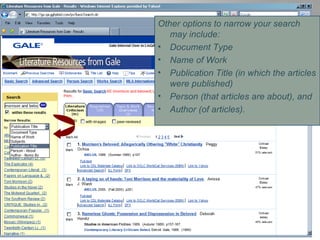
Other options to narrow your search may include: Document Type Name of Work Publication Title (in which the articles were published) Person (that articles are about), and Author (of articles).
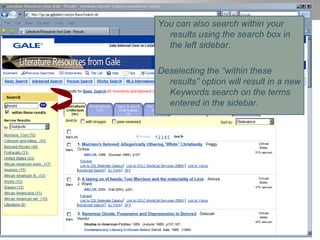
You can also search within your results using the search box in the left sidebar. Deselecting the “within these results” option will result in a new Keywords search on the terms entered in the sidebar.
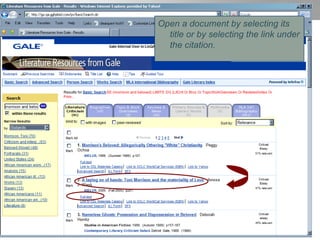
Open a document by selecting its title or by selecting the link under the citation.
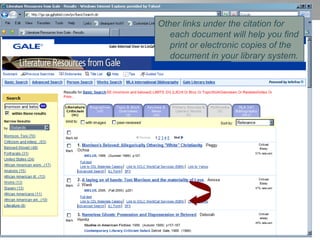
Other links under the citation for each document will help you find print or electronic copies of the document in your library system.
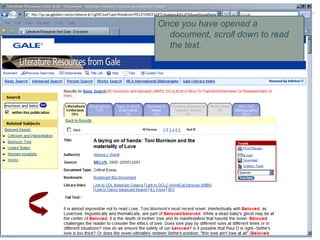
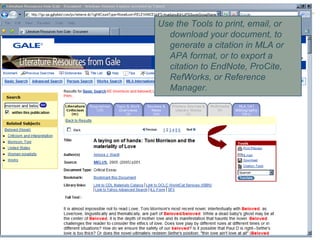
Once you have opened a document, scroll down to read the text.
Use the Tools to print, email, or download your document, to generate a citation in MLA or APA format, or to export a citation to EndNote, ProCite, RefWorks, or Reference Manager.
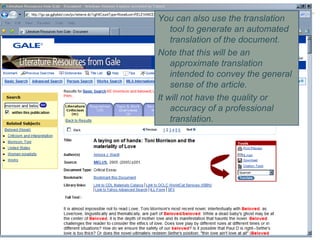
You can also use the translation tool to generate an automated translation of the document.  Note that this will be an approximate translation intended to convey the general sense of the article.  It will not have the quality or accuracy of a professional translation.
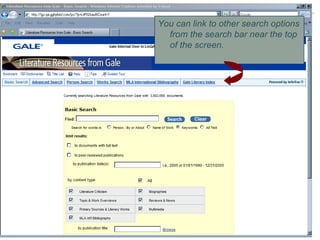
You can link to other search options from the search bar near the top of the screen.
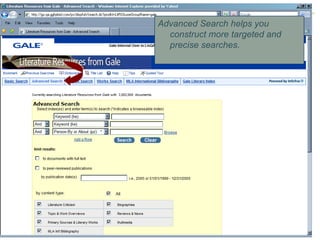
Advanced Search helps you construct more targeted and precise searches.
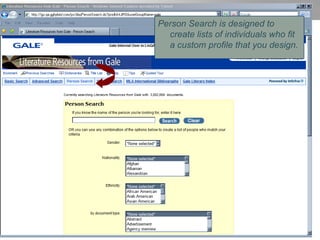
Person Search is designed to create lists of individuals who fit a custom profile that you design.
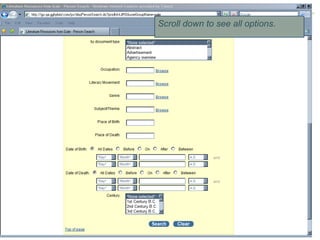
Scroll down to see all options.
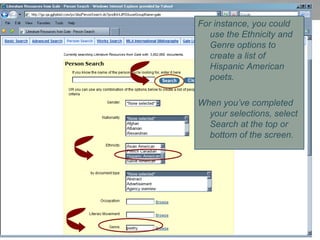
For instance, you could use the Ethnicity and Genre options to create a list of Hispanic American poets. When you’ve completed your selections, select Search at the top or bottom of the screen.
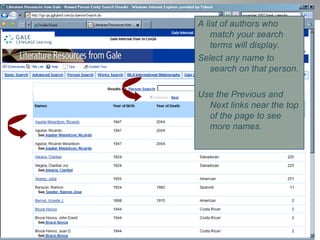
A list of authors who match your search terms will display. Select any name to search on that person. Use the Previous and Next links near the top of the page to see more names.
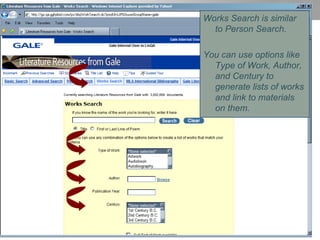
Works Search is similar to Person Search. You can use options like Type of Work, Author, and Century to generate lists of works and link to materials on them.
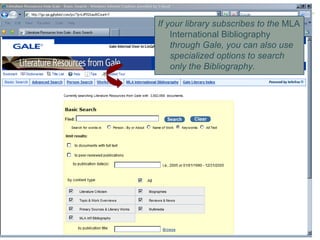
If your library subscribes to the  MLA International Bibliography  through Gale, you can also use specialized options to search only the Bibliography.
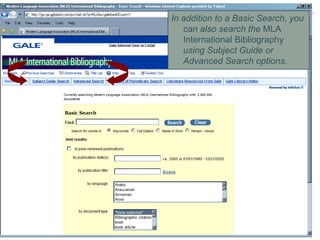
In addition to a Basic Search, you can also search the  MLA International Bibliography  using Subject Guide or Advanced Search options.
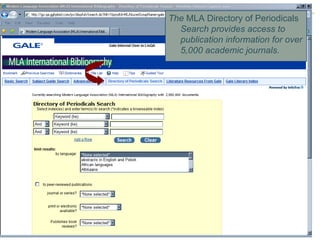
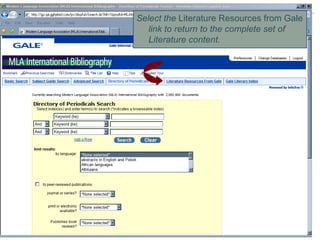
The  MLA Directory of Periodicals  Search provides access to publication information for over 5,000 academic journals.
Select the  Literature Resources from Gale  link to return to the complete set of Literature content.
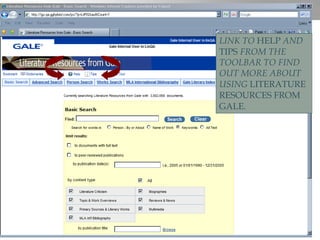
LINK TO  HELP  AND  TIPS  FROM THE TOOLBAR TO FIND OUT MORE ABOUT USING  LITERATURE RESOURCES FROM GALE .
THANKS FOR TAKING OUR TOUR! PLEASE CLOSE THIS WINDOW TO START SEARCHING  LITERATURE RESOURCES FROM GALE.

Lit rg guided_tour (lrc)

  • 1.
    Welcome to Literature Resources from Gale Guided Tour Tour takes about 8 minutes. The show will run automatically, but you can also use the left and right arrows on your keyboard to move through the slides manually.
  • 2.
    LITERATURE RESOURCES FROMGALE IS A SEARCH ENVIRONMENT THAT LETS YOU SEARCH SEVERAL OF YOUR LIBRARY’S ONLINE LITERATURE DATABASES AT THE SAME TIME, ON A SINGLE WEB SITE DESIGNED SPECIFICALLY FOR LITERATURE RESEARCH.
  • 3.
    O NLINE LITERATUREDATABASES THAT YOUR LIBRARY MAY OFFER IN LITERATURE RESOURCES FROM GALE INCLUDE: LITERATURE RESOURCE CENTER: THE MOST CURRENT, COMPREHENSIVE, AND RELIABLE ONLINE RESOURCE FOR RESEARCH ON LITERARY TOPICS, AUTHORS, AND THEIR WORKS. …
  • 4.
    … LITFINDER, A LARGE COLLECTION OF POEMS, SHORT STORIES, PLAYS, SPEECHES, AND LITERARY ESSAYS. …
  • 5.
    … ANDTHE MLA INTERNATIONAL BIBLIOGRAPHY , CONTAINING OVER 2 MILLION BIBLIOGRAPHIC CITATIONS TO JOURNAL ARTICLES, BOOKS, DISSERTATIONS, AND SCHOLARLY WEB SITES FROM 1926 TO THE PRESENT.
  • 6.
    YOUR LIBRARY MAYALSO HAVE CHOSEN TO INCLUDE A NUMBER OF EBOOK REFERENCE TITLES FROM THE GALE VIRTUAL REFERENCE LIBRARY .
  • 7.
    In LiteratureResources from Gale , you’ll find: Literature Criticism from academic journals and books Biographies Topic and Work Overviews Literary Reviews and News Primary Sources and Literary Works , including poems, short stories, and plays Multimedia —pictures of authors and links to reliable Web sites that offer interviews, readings, and more If your library subscribes to the MLA International Bibliography through Gale, you’ll find that included, too.
  • 8.
    Say you’re writinga paper on Toni Morrison’s novel Beloved. The easiest way to search is to type in Morrison and Beloved on the Basic Search screen.
  • 9.
    Make sure thetype of search you want is selected. “ Keywords” searches the title and author of the document, its abstract or first 100 words, and subject terms associated with it. This choice will usually give you a good balance between precision and breadth of results.
  • 10.
    “ Person—By orabout” or “Name of Work” will give you fewer results, but greater precision if you are focusing on a particular person or work.
  • 11.
    “ All text”searches the entire contents of each document. It will produce the most results but is less precise. “ All text” is most useful when searching for quotations or on hard-to-find topics.
  • 12.
    You also havea number of options to limit your search.
  • 13.
    Select “Search” tolaunch your search.
  • 14.
    Results display in“tabs” to help you find the type of information you need. The number of results in each tab displays below the tab label.
  • 15.
    Select any tabthat contains results to see the results in that tab.
  • 16.
    The texts ofliterary works display in the Primary Sources & Literary Works tab. This screen shows full-text works by Edgar Allan Poe from LitFinder .
  • 17.
    If your librarysubscribes to the MLA International Bibliography through Gale, you’ll find results from that resource in the tab to the far right of the screen.
  • 18.
    Subjects that appearfrequently in your results display in the left sidebar. You can select these to narrow your search results to a more specific topic.
  • 19.
    Other options tonarrow your search may include: Document Type Name of Work Publication Title (in which the articles were published) Person (that articles are about), and Author (of articles).
  • 20.
    You can alsosearch within your results using the search box in the left sidebar. Deselecting the “within these results” option will result in a new Keywords search on the terms entered in the sidebar.
  • 21.
    Open a documentby selecting its title or by selecting the link under the citation.
  • 22.
    Other links underthe citation for each document will help you find print or electronic copies of the document in your library system.
  • 23.
    Once you haveopened a document, scroll down to read the text.
  • 24.
    Use the Toolsto print, email, or download your document, to generate a citation in MLA or APA format, or to export a citation to EndNote, ProCite, RefWorks, or Reference Manager.
  • 25.
    You can alsouse the translation tool to generate an automated translation of the document. Note that this will be an approximate translation intended to convey the general sense of the article. It will not have the quality or accuracy of a professional translation.
  • 26.
    You can linkto other search options from the search bar near the top of the screen.
  • 27.
    Advanced Search helpsyou construct more targeted and precise searches.
  • 28.
    Person Search isdesigned to create lists of individuals who fit a custom profile that you design.
  • 29.
    Scroll down tosee all options.
  • 30.
    For instance, youcould use the Ethnicity and Genre options to create a list of Hispanic American poets. When you’ve completed your selections, select Search at the top or bottom of the screen.
  • 31.
    A list ofauthors who match your search terms will display. Select any name to search on that person. Use the Previous and Next links near the top of the page to see more names.
  • 32.
    Works Search issimilar to Person Search. You can use options like Type of Work, Author, and Century to generate lists of works and link to materials on them.
  • 33.
    If your librarysubscribes to the MLA International Bibliography through Gale, you can also use specialized options to search only the Bibliography.
  • 34.
    In addition toa Basic Search, you can also search the MLA International Bibliography using Subject Guide or Advanced Search options.
  • 35.
    The MLADirectory of Periodicals Search provides access to publication information for over 5,000 academic journals.
  • 36.
    Select the Literature Resources from Gale link to return to the complete set of Literature content.
  • 37.
    LINK TO HELP AND TIPS FROM THE TOOLBAR TO FIND OUT MORE ABOUT USING LITERATURE RESOURCES FROM GALE .
  • 38.
    THANKS FOR TAKINGOUR TOUR! PLEASE CLOSE THIS WINDOW TO START SEARCHING LITERATURE RESOURCES FROM GALE.