TUTORIAL support.ebsco.com Creating a Basic Search  on EBSCO host
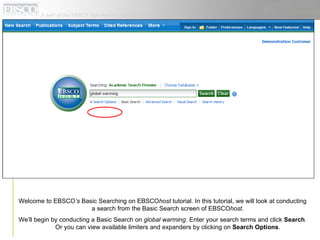
Welcome to EBSCO ’s  Basic Searching on EBSCO host  tutorial. In this tutorial, we will look at conducting a search from the Basic Search screen of EBSCO host .  We’ll begin by conducting a Basic Search on  global warming . Enter your search terms and click  Search . Or you can view available limiters and expanders by clicking on  Search Options .
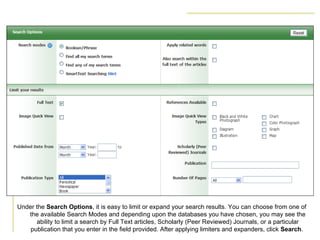
Under the  Search Options , it is easy to limit or expand your search results. You can choose from one of the available Search Modes and depending upon the databases you have chosen, you may see the ability to limit a search by Full Text articles, Scholarly (Peer Reviewed) Journals, or a particular publication that you enter in the field provided. After applying limiters and expanders, click  Search .
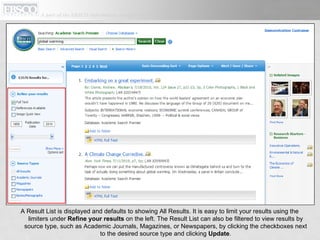
A Result List is displayed and defaults to showing All Results. It is easy to limit your results using the limiters under  Refine your results  on the left. The Result List can also be filtered to view results by source type, such as Academic Journals, Magazines, or Newspapers, by clicking the checkboxes next to the desired source type and clicking  Update .
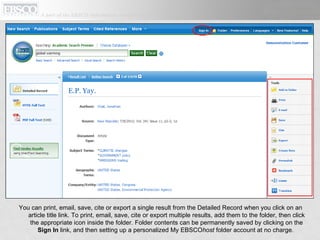
You can print, email, save, cite or export a single result from the Detailed Record when you click on an article title link. To print, email, save, cite or export multiple results, add them to the folder, then click the appropriate icon inside the folder. Folder contents can be permanently saved by clicking on the  Sign In  link, and then setting up a personalized My EBSCO host  folder account at no charge.
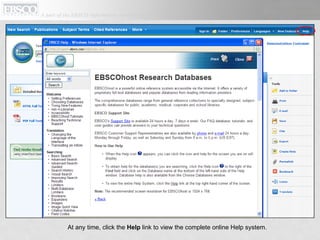
At any time, click the  Help  link to view the complete online Help system.
 

En ehost basic_search_tut (lrc)

  • 1.
    TUTORIAL support.ebsco.com Creatinga Basic Search on EBSCO host
  • 2.
    Welcome to EBSCO’s Basic Searching on EBSCO host tutorial. In this tutorial, we will look at conducting a search from the Basic Search screen of EBSCO host . We’ll begin by conducting a Basic Search on global warming . Enter your search terms and click Search . Or you can view available limiters and expanders by clicking on Search Options .
  • 3.
    Under the Search Options , it is easy to limit or expand your search results. You can choose from one of the available Search Modes and depending upon the databases you have chosen, you may see the ability to limit a search by Full Text articles, Scholarly (Peer Reviewed) Journals, or a particular publication that you enter in the field provided. After applying limiters and expanders, click Search .
  • 4.
    A Result Listis displayed and defaults to showing All Results. It is easy to limit your results using the limiters under Refine your results on the left. The Result List can also be filtered to view results by source type, such as Academic Journals, Magazines, or Newspapers, by clicking the checkboxes next to the desired source type and clicking Update .
  • 5.
    You can print,email, save, cite or export a single result from the Detailed Record when you click on an article title link. To print, email, save, cite or export multiple results, add them to the folder, then click the appropriate icon inside the folder. Folder contents can be permanently saved by clicking on the Sign In link, and then setting up a personalized My EBSCO host folder account at no charge.
  • 6.
    At any time,click the Help link to view the complete online Help system.
  • 7.