Empowerment
Technologies
Quarter 1 – Module 4: Advanced Techniques using Microsoft Word
ADVANCED TECHNIQUES USING
MICROSOFT WORD
MAIL MERGE
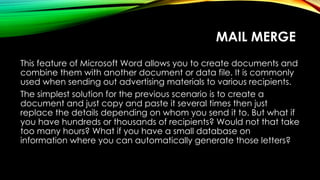
This feature of Microsoft Word allows you to create documents and
combine them with another document or data file. It is commonly
used when sending out advertising materials to various recipients.
The simplest solution for the previous scenario is to create a
document and just copy and paste it several times then just
replace the details depending on whom you send it to. But what if
you have hundreds or thousands of recipients? Would not that take
too many hours? What if you have a small database on
information where you can automatically generate those letters?
MAIL MERGING BASICALLY
REQUIRES TWO COMPONENTS:
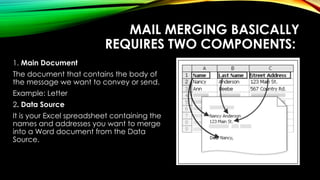
1. Main Document
The document that contains the body of
the message we want to convey or send.
Example: Letter
2. Data Source
It is your Excel spreadsheet containing the
names and addresses you want to merge
into a Word document from the Data
Source.
HOW TO PERFORM MAIL MERGE?
In Mail Merge you need to:
Create the main document
Create data source
Merge data with document
To create a form letter, do the following:
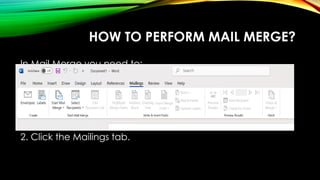
1. Open an existing Word document, or create a new one.
2. Click the Mailings tab.
TO CREATE A FORM LETTER, DO THE
FOLLOWING:
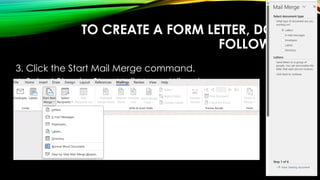
3. Click the Start Mail Merge command.
4. Select Step by Step Mail Merge Wizard.
Mail Merge task pane appears at the right
side of your screen.
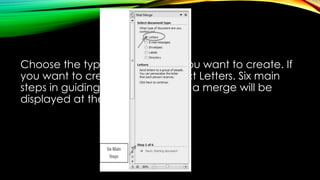
Choose the type of document you want to create. If
you want to create a letter, select Letters. Six main
steps in guiding you to complete a merge will be
displayed at the bottom.
TO CREATE A FORM LETTER, DO
THE FOLLOWING:
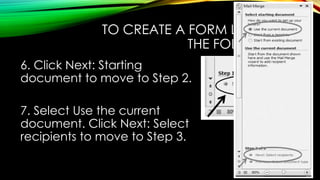
6. Click Next: Starting
document to move to Step 2.
7. Select Use the current
document. Click Next: Select
recipients to move to Step 3.
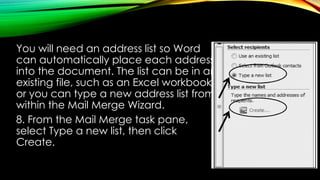
You will need an address list so Word
can automatically place each address
into the document. The list can be in an
existing file, such as an Excel workbook,
or you can type a new address list from
within the Mail Merge Wizard.
8. From the Mail Merge task pane,
select Type a new list, then click
Create.
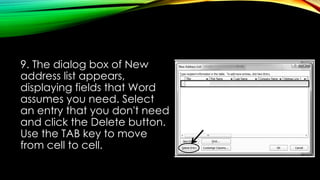
9. The dialog box of New
address list appears,
displaying fields that Word
assumes you need. Select
an entry that you don't need
and click the Delete button.
Use the TAB key to move
from cell to cell.
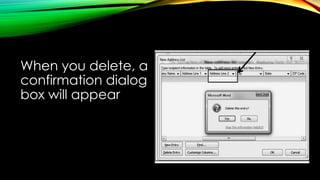
When you delete, a
confirmation dialog
box will appear
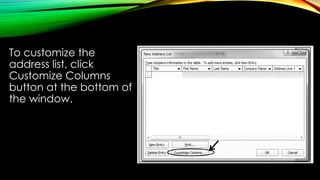
To customize the
address list, click
Customize Columns
button at the bottom of
the window.
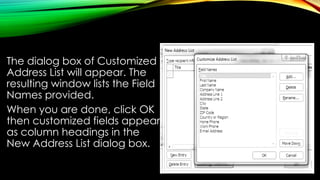
The dialog box of Customized
Address List will appear. The
resulting window lists the Field
Names provided.
When you are done, click OK
then customized fields appear
as column headings in the
New Address List dialog box.
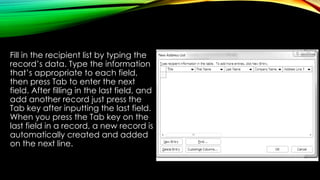
Fill in the recipient list by typing the
record’s data. Type the information
that’s appropriate to each field,
then press Tab to enter the next
field. After filling in the last field, and
add another record just press the
Tab key after inputting the last field.
When you press the Tab key on the
last field in a record, a new record is
automatically created and added
on the next line.
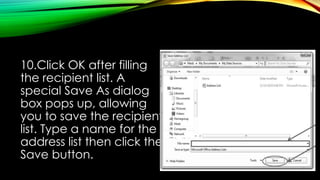
10.Click OK after filling
the recipient list. A
special Save As dialog
box pops up, allowing
you to save the recipient
list. Type a name for the
address list then click the
Save button.
Return to your document. You are now ready to write
your letter, each copy of the letter will mostly be the
same, except the recipient data (name and
address).
You have to add placeholders for the recipient data
so Mail Merge identifies correctly where to add the
data. If you're using Mail Merge with an existing letter,
make sure the file is open.
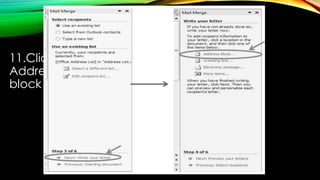
11.Click Next: Write your letter. Click the
Address Block button to insert an address
block into your letter.
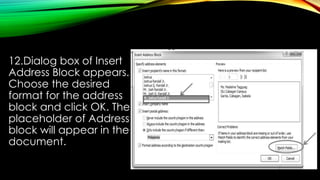
12.Dialog box of Insert
Address Block appears.
Choose the desired
format for the address
block and click OK. The
placeholder of Address
block will appear in the
document.
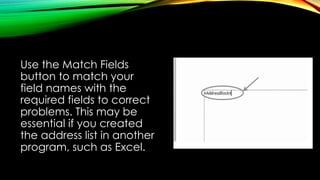
Use the Match Fields
button to match your
field names with the
required fields to correct
problems. This may be
essential if you created
the address list in another
program, such as Excel.
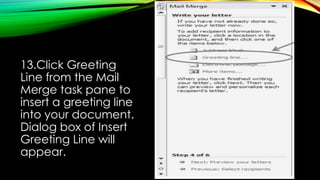
13.Click Greeting
Line from the Mail
Merge task pane to
insert a greeting line
into your document.
Dialog box of Insert
Greeting Line will
appear.
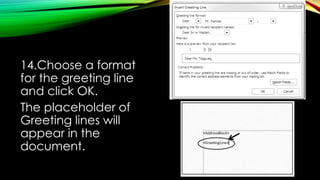
14.Choose a format
for the greeting line
and click OK.
The placeholder of
Greeting lines will
appear in the
document.
15. To view your merged data, click the Preview
Results button on the Mail merge task pane or
on the ribbon to replace the merge fields with
data from your recipient list.
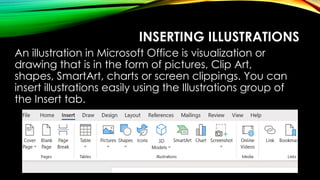
INSERTING ILLUSTRATIONS
An illustration in Microsoft Office is visualization or
drawing that is in the form of pictures, Clip Art,
shapes, SmartArt, charts or screen clippings. You can
insert illustrations easily using the Illustrations group of
the Insert tab.
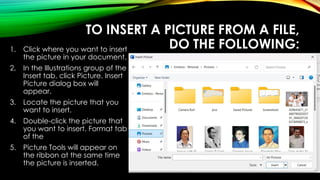
TO INSERT A PICTURE FROM A FILE,
DO THE FOLLOWING:
1. Click where you want to insert
the picture in your document.
2. In the Illustrations group of the
Insert tab, click Picture. Insert
Picture dialog box will
appear.
3. Locate the picture that you
want to insert.
4. Double-click the picture that
you want to insert. Format tab
of the
5. Picture Tools will appear on
the ribbon at the same time
the picture is inserted.
TO INSERT A CLIP ART, DO THE
FOLLOWING:
1. Click where you want to insert the Clip Art in
your document.
2. In the Illustrations group of the Insert tab,
click Clip Art. Clip Art task pane will appear
usually at the right side of the window.
3. In the Search for text box of the Clip Art task
pane, type a word or phrase that describes
the clip art that you want.
4. In the Results should be drop-down list box,
you may want to modify your search by
selecting a particular media type or all
media file types.
5. Click Go. List of results will be displayed.
6. Click the desired clip art to insert it.
TO INSERT A SHAPE, DO THE
FOLLOWING:
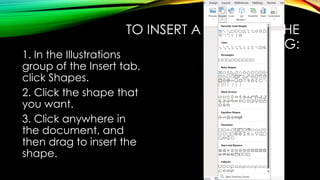
1. In the Illustrations
group of the Insert tab,
click Shapes.
2. Click the shape that
you want.
3. Click anywhere in
the document, and
then drag to insert the
shape.
TO INSERT A SMARTART, DO THE
FOLLOWING:
1. In the Illustrations group of the Insert tab, click
SmartArt. Choose a SmartArt Graphic dialog box
will appear.
2. Select from the list of SmartArt that you want and
then click OK.
3. Enter your text by clicking [Text] in the Text pane,
and then type your text. If the Text pane is not
visible, click the control as shown.
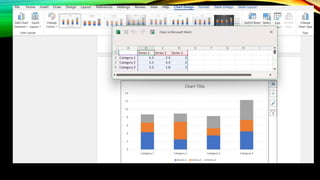
TO INSERT A CHART, DO THE
FOLLOWING:
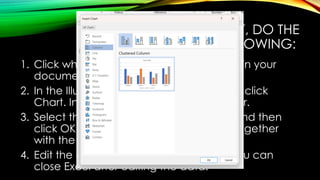
1. Click where you want to insert the chart in your
document.
2. In the Illustrations group of the Insert tab, click
Chart. Insert Chart dialog box will appear.
3. Select the type of chart that you want and then
click OK. MS Excel window will appear together
with the chart.
4. Edit the data in the MS Excel window. You can
close Excel after editing the data.
TO INSERT A SCREEN CLIPPING, DO
THE FOLLOWING:
When you click the Screenshot button, you can insert the whole program
window or use the Screen Clipping tool to select part of a window. Remember
that only windows that have not been minimized to the taskbar can be
captured.
1. Click the window you want to clip from.
2. Click where you want to insert the screen clipping in your document.
3. In the Illustrations group of the Insert tab, click Screenshot.
4. Click Screen Clipping.
When the pointer becomes a cross, select the area of your screen that you
want to capture by clicking and dragging.
TO DELETE ILLUSTRATIONS, DO THE
FOLLOWING:
1. Select the illustration that you want to delete.
2. Press the Delete key.
FORMATTING ILLUSTRATIONS
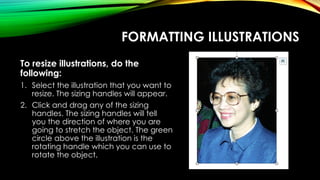
To resize illustrations, do the
following:
1. Select the illustration that you want to
resize. The sizing handles will appear.
2. Click and drag any of the sizing
handles. The sizing handles will tell
you the direction of where you are
going to stretch the object. The green
circle above the illustration is the
rotating handle which you can use to
rotate the object.
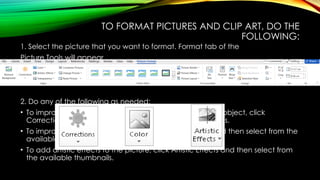
TO FORMAT PICTURES AND CLIP ART, DO THE
FOLLOWING:
1. Select the picture that you want to format. Format tab of the
Picture Tools will appear.
2. Do any of the following as needed:
• To improve the brightness, contrast and sharpness of the object, click
Corrections and then select from the available thumbnails.
• To improve the color quality of the object, click Color and then select from the
available thumbnails.
• To add artistic effects to the picture, click Artistic Effects and then select from
the available thumbnails.
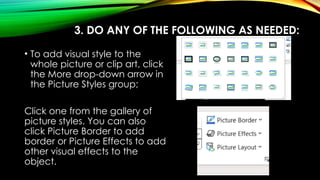
3. DO ANY OF THE FOLLOWING AS NEEDED:
• To add visual style to the
whole picture or clip art, click
the More drop-down arrow in
the Picture Styles group;
Click one from the gallery of
picture styles. You can also
click Picture Border to add
border or Picture Effects to add
other visual effects to the
object.
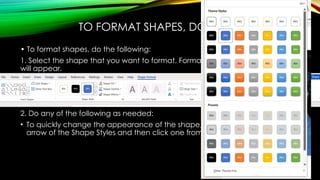
TO FORMAT SHAPES, DO THE FOLLOWING:
• To format shapes, do the following:
1. Select the shape that you want to format. Format tab of the Drawing Tools
will appear.
2. Do any of the following as needed:
• To quickly change the appearance of the shape, click the More drop-down
arrow of the Shape Styles and then click one from the gallery of shape styles.
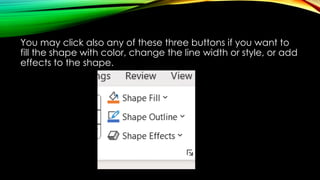
You may click also any of these three buttons if you want to
fill the shape with color, change the line width or style, or add
effects to the shape.
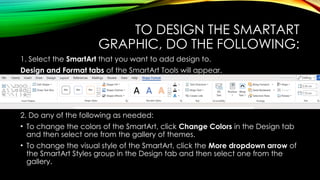
TO DESIGN THE SMARTART
GRAPHIC, DO THE FOLLOWING:
1. Select the SmartArt that you want to add design to.
Design and Format tabs of the SmartArt Tools will appear.
2. Do any of the following as needed:
• To change the colors of the SmartArt, click Change Colors in the Design tab
and then select one from the gallery of themes.
• To change the visual style of the SmartArt, click the More dropdown arrow of
the SmartArt Styles group in the Design tab and then select one from the
gallery.
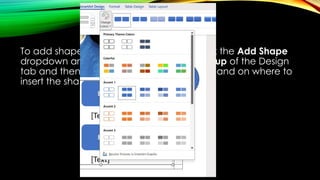
To add shape to the SmartArt graphic, click the Add Shape
dropdown arrow in the Create Graphic group of the Design
tab and then select the appropriate command on where to
insert the shape from the menu.
TO DESIGN A CHART, DO THE
FOLLOWING:
1. Select the chart that you want to add design to. Design,
Layout and Format tabs of the Chart Tools will appear.
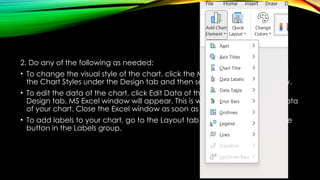
2. Do any of the following as needed:
• To change the visual style of the chart, click the More drop-down arrow of
the Chart Styles under the Design tab and then select one from the gallery.
• To edit the data of the chart, click Edit Data of the Data group under the
Design tab. MS Excel window will appear. This is where you can edit the data
of your chart. Close the Excel window as soon as you are finished editing.
• To add labels to your chart, go to the Layout tab and click the appropriate
button in the Labels group.
KINDS OF MATERIALS
1. Pictures 3 these are electronic, “soft copy”, or digital pictures you have
saved in any local storage device. Three common types of picture files:
a) JPG 3 pronounced as “jay-peg”. Short term for Joint Photographic
Experts Group. This type of image file can support 16.7 million colors.
Suitable for use when working with full color photographic images.
b) GIF 3 This stands for Graphics Interchange Format. This type of
image file is capable of displaying transparencies and animation. It
only supports Only supports 256 colors.
c) PNG 3 It stands for Portable Network Graphics. It is capable of
displaying transparencies but not animation. It supports only 16
million colors.
KINDS OF MATERIALS
2. Clipart - This is generally a .GIF type; line art drawings or
images used as generic representation for ideas and objects
that you might want to integrate in your document.
3. Shapes - These are printable objects or materials that you can
integrate in your document to enhance its appearance or
to allow you to have some tools to use for composing and
representing ideas or messages.
4. SmartArt - Generally, these are predefined sets of different
shapes grouped together to form ideas that are
organizational or structural in nature.
KINDS OF MATERIALS
5. Chart - Another type of material that you can
integrate in your Word document that allows you to
represent data characteristics and trends.
6. Screenshots - Screenshot. Sometimes, creating
reports or manuals for training or procedure will
require the integration of a more realistic image of
what you are discussing on your report or manual.
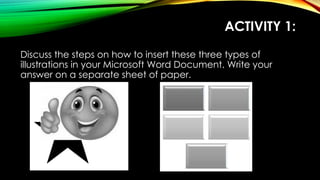
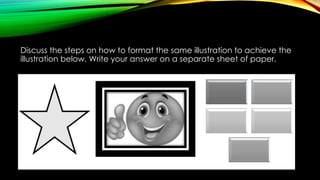
ACTIVITY 1:
Discuss the steps on how to insert these three types of
illustrations in your Microsoft Word Document. Write your
answer on a separate sheet of paper.
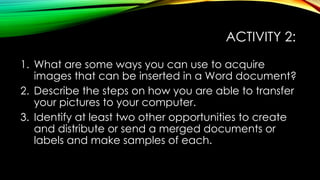
Discuss the steps on how to format the same illustration to achieve the
illustration below. Write your answer on a separate sheet of paper.
ACTIVITY 2:
1. What are some ways you can use to acquire
images that can be inserted in a Word document?
2. Describe the steps on how you are able to transfer
your pictures to your computer.
3. Identify at least two other opportunities to create
and distribute or send a merged documents or
labels and make samples of each.
ASSESSMENT
Multiple choice. Choose the letter of the best answer.
Write the chosen letter on a separate sheet of paper.
1. Which is NOT one of the basic characteristics of life? What feature of
Microsoft Word allows you to efficiently create documents that have the
same general content but may have different recipients or purpose?
a. Mail Merge
b. Print Merge
c. Send Merge
d. View Merge
2. Which of the following is not a component of the mail merge?
a. Address
b. Filename
c. Main document
d. Data Source
Assessment
Multiple choice. Choose the letter of the best answer.
Write the chosen letter on a separate sheet of paper.
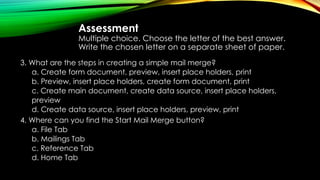
3. What are the steps in creating a simple mail merge?
a. Create form document, preview, insert place holders, print
b. Preview, insert place holders, create form document, print
c. Create main document, create data source, insert place holders,
preview
d. Create data source, insert place holders, preview, print
4. Where can you find the Start Mail Merge button?
a. File Tab
b. Mailings Tab
c. Reference Tab
d. Home Tab
Assessment
Multiple choice. Choose the letter of the best answer.
Write the chosen letter on a separate sheet of paper.
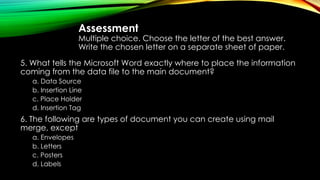
5. What tells the Microsoft Word exactly where to place the information
coming from the data file to the main document?
a. Data Source
b. Insertion Line
c. Place Holder
d. Insertion Tag
6. The following are types of document you can create using mail
merge, except
a. Envelopes
b. Letters
c. Posters
d. Labels
Assessment
Multiple choice. Choose the letter of the best answer.
Write the chosen letter on a separate sheet of paper.
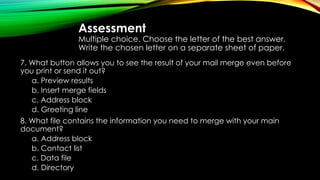
7. What button allows you to see the result of your mail merge even before
you print or send it out?
a. Preview results
b. Insert merge fields
c. Address block
d. Greeting line
8. What file contains the information you need to merge with your main
document?
a. Address block
b. Contact list
c. Data file
d. Directory
Assessment
Multiple choice. Choose the letter of the best answer.
Write the chosen letter on a separate sheet of paper.
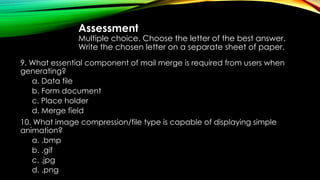
9. What essential component of mail merge is required from users when
generating?
a. Data file
b. Form document
c. Place holder
d. Merge field
10. What image compression/file type is capable of displaying simple
animation?
a. .bmp
b. .gif
c. .jpg
d. .png
Assessment
Multiple choice. Choose the letter of the best answer.
Write the chosen letter on a separate sheet of paper.
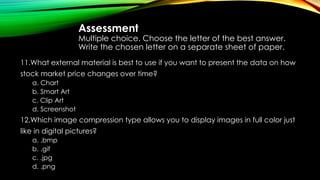
11.What external material is best to use if you want to present the data on how
stock market price changes over time?
a. Chart
b. Smart Art
c. Clip Art
d. Screenshot
12.Which image compression type allows you to display images in full color just
like in digital pictures?
a. .bmp
b. .gif
c. .jpg
d. .png
Assessment
Multiple choice. Choose the letter of the best answer.
Write the chosen letter on a separate sheet of paper.
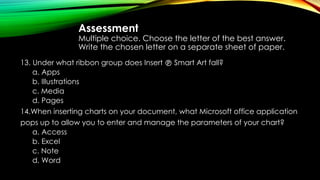
13. Under what ribbon group does Insert Smart Art fall?

a. Apps
b. Illustrations
c. Media
d. Pages
14.When inserting charts on your document, what Microsoft office application
pops up to allow you to enter and manage the parameters of your chart?
a. Access
b. Excel
c. Note
d. Word
Assessment
Multiple choice. Choose the letter of the best
answer. Write the chosen letter on a separate
sheet of paper.
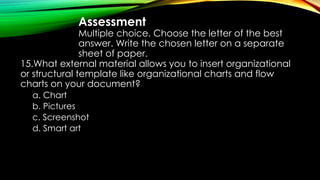
15.What external material allows you to insert organizational
or structural template like organizational charts and flow
charts on your document?
a. Chart
b. Pictures
c. Screenshot
d. Smart art
ASSESSMENT
MULTIPLE CHOICE. CHOOSE THE LETTER OF
THE BEST ANSWER. WRITE THE CHOSEN
LETTER ON A SEPARATE SHEET OF PAPER.
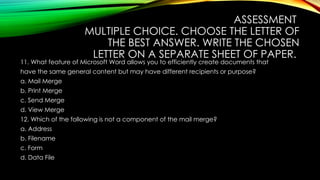
11. What feature of Microsoft Word allows you to efficiently create documents that
have the same general content but may have different recipients or purpose?
a. Mail Merge
b. Print Merge
c. Send Merge
d. View Merge
12. Which of the following is not a component of the mail merge?
a. Address
b. Filename
c. Form
d. Data File
Assessment
Multiple choice. Choose the letter of the best answer.
Write the chosen letter on a separate sheet of paper.
13. What are the steps in creating a simple mail merge?
a. Create form document, preview, insert place holders, print
b. Preview, insert place holders, create form document, print
c. Create main document, create data source, insert place holders,
preview
d. Create data source, insert place holders, preview, print
14. What image compression/file type is capable of displaying simple
animation?
a. .bmp
b. .gif
c. .jpg
d. .png
Assessment
Multiple choice. Choose the letter of the best answer.
Write the chosen letter on a separate sheet of paper.
15. Among the text wrap options, which one allows you to
place an image or external material in line with the text,
treating the image just like how a text is treated?
a. In line with text
b. Square
c. Through
d. Tight
Empowerment Technologies Quarter 1 – Module 4: Advanced Techniques using Microsoft Word

Empowerment Technologies Quarter 1 – Module 4: Advanced Techniques using Microsoft Word

  • 1.
    Empowerment Technologies Quarter 1 –Module 4: Advanced Techniques using Microsoft Word
  • 2.
  • 3.
    MAIL MERGE This featureof Microsoft Word allows you to create documents and combine them with another document or data file. It is commonly used when sending out advertising materials to various recipients. The simplest solution for the previous scenario is to create a document and just copy and paste it several times then just replace the details depending on whom you send it to. But what if you have hundreds or thousands of recipients? Would not that take too many hours? What if you have a small database on information where you can automatically generate those letters?
  • 4.
    MAIL MERGING BASICALLY REQUIRESTWO COMPONENTS: 1. Main Document The document that contains the body of the message we want to convey or send. Example: Letter 2. Data Source It is your Excel spreadsheet containing the names and addresses you want to merge into a Word document from the Data Source.
  • 5.
    HOW TO PERFORMMAIL MERGE? In Mail Merge you need to: Create the main document Create data source Merge data with document To create a form letter, do the following: 1. Open an existing Word document, or create a new one. 2. Click the Mailings tab.
  • 6.
    TO CREATE AFORM LETTER, DO THE FOLLOWING: 3. Click the Start Mail Merge command. 4. Select Step by Step Mail Merge Wizard. Mail Merge task pane appears at the right side of your screen.
  • 7.
    Choose the typeof document you want to create. If you want to create a letter, select Letters. Six main steps in guiding you to complete a merge will be displayed at the bottom.
  • 8.
    TO CREATE AFORM LETTER, DO THE FOLLOWING: 6. Click Next: Starting document to move to Step 2. 7. Select Use the current document. Click Next: Select recipients to move to Step 3.
  • 9.
    You will needan address list so Word can automatically place each address into the document. The list can be in an existing file, such as an Excel workbook, or you can type a new address list from within the Mail Merge Wizard. 8. From the Mail Merge task pane, select Type a new list, then click Create.
  • 10.
    9. The dialogbox of New address list appears, displaying fields that Word assumes you need. Select an entry that you don't need and click the Delete button. Use the TAB key to move from cell to cell.
  • 11.
    When you delete,a confirmation dialog box will appear
  • 12.
    To customize the addresslist, click Customize Columns button at the bottom of the window.
  • 13.
    The dialog boxof Customized Address List will appear. The resulting window lists the Field Names provided. When you are done, click OK then customized fields appear as column headings in the New Address List dialog box.
  • 14.
    Fill in therecipient list by typing the record’s data. Type the information that’s appropriate to each field, then press Tab to enter the next field. After filling in the last field, and add another record just press the Tab key after inputting the last field. When you press the Tab key on the last field in a record, a new record is automatically created and added on the next line.
  • 15.
    10.Click OK afterfilling the recipient list. A special Save As dialog box pops up, allowing you to save the recipient list. Type a name for the address list then click the Save button.
  • 16.
    Return to yourdocument. You are now ready to write your letter, each copy of the letter will mostly be the same, except the recipient data (name and address). You have to add placeholders for the recipient data so Mail Merge identifies correctly where to add the data. If you're using Mail Merge with an existing letter, make sure the file is open.
  • 17.
    11.Click Next: Writeyour letter. Click the Address Block button to insert an address block into your letter.
  • 18.
    12.Dialog box ofInsert Address Block appears. Choose the desired format for the address block and click OK. The placeholder of Address block will appear in the document.
  • 19.
    Use the MatchFields button to match your field names with the required fields to correct problems. This may be essential if you created the address list in another program, such as Excel.
  • 20.
    13.Click Greeting Line fromthe Mail Merge task pane to insert a greeting line into your document. Dialog box of Insert Greeting Line will appear.
  • 21.
    14.Choose a format forthe greeting line and click OK. The placeholder of Greeting lines will appear in the document.
  • 22.
    15. To viewyour merged data, click the Preview Results button on the Mail merge task pane or on the ribbon to replace the merge fields with data from your recipient list.
  • 23.
    INSERTING ILLUSTRATIONS An illustrationin Microsoft Office is visualization or drawing that is in the form of pictures, Clip Art, shapes, SmartArt, charts or screen clippings. You can insert illustrations easily using the Illustrations group of the Insert tab.
  • 24.
    TO INSERT APICTURE FROM A FILE, DO THE FOLLOWING: 1. Click where you want to insert the picture in your document. 2. In the Illustrations group of the Insert tab, click Picture. Insert Picture dialog box will appear. 3. Locate the picture that you want to insert. 4. Double-click the picture that you want to insert. Format tab of the 5. Picture Tools will appear on the ribbon at the same time the picture is inserted.
  • 25.
    TO INSERT ACLIP ART, DO THE FOLLOWING: 1. Click where you want to insert the Clip Art in your document. 2. In the Illustrations group of the Insert tab, click Clip Art. Clip Art task pane will appear usually at the right side of the window. 3. In the Search for text box of the Clip Art task pane, type a word or phrase that describes the clip art that you want. 4. In the Results should be drop-down list box, you may want to modify your search by selecting a particular media type or all media file types. 5. Click Go. List of results will be displayed. 6. Click the desired clip art to insert it.
  • 26.
    TO INSERT ASHAPE, DO THE FOLLOWING: 1. In the Illustrations group of the Insert tab, click Shapes. 2. Click the shape that you want. 3. Click anywhere in the document, and then drag to insert the shape.
  • 27.
    TO INSERT ASMARTART, DO THE FOLLOWING: 1. In the Illustrations group of the Insert tab, click SmartArt. Choose a SmartArt Graphic dialog box will appear. 2. Select from the list of SmartArt that you want and then click OK. 3. Enter your text by clicking [Text] in the Text pane, and then type your text. If the Text pane is not visible, click the control as shown.
  • 28.
    TO INSERT ACHART, DO THE FOLLOWING: 1. Click where you want to insert the chart in your document. 2. In the Illustrations group of the Insert tab, click Chart. Insert Chart dialog box will appear. 3. Select the type of chart that you want and then click OK. MS Excel window will appear together with the chart. 4. Edit the data in the MS Excel window. You can close Excel after editing the data.
  • 29.
    TO INSERT ASCREEN CLIPPING, DO THE FOLLOWING: When you click the Screenshot button, you can insert the whole program window or use the Screen Clipping tool to select part of a window. Remember that only windows that have not been minimized to the taskbar can be captured. 1. Click the window you want to clip from. 2. Click where you want to insert the screen clipping in your document. 3. In the Illustrations group of the Insert tab, click Screenshot. 4. Click Screen Clipping. When the pointer becomes a cross, select the area of your screen that you want to capture by clicking and dragging.
  • 30.
    TO DELETE ILLUSTRATIONS,DO THE FOLLOWING: 1. Select the illustration that you want to delete. 2. Press the Delete key.
  • 31.
    FORMATTING ILLUSTRATIONS To resizeillustrations, do the following: 1. Select the illustration that you want to resize. The sizing handles will appear. 2. Click and drag any of the sizing handles. The sizing handles will tell you the direction of where you are going to stretch the object. The green circle above the illustration is the rotating handle which you can use to rotate the object.
  • 32.
    TO FORMAT PICTURESAND CLIP ART, DO THE FOLLOWING: 1. Select the picture that you want to format. Format tab of the Picture Tools will appear. 2. Do any of the following as needed: • To improve the brightness, contrast and sharpness of the object, click Corrections and then select from the available thumbnails. • To improve the color quality of the object, click Color and then select from the available thumbnails. • To add artistic effects to the picture, click Artistic Effects and then select from the available thumbnails.
  • 33.
    3. DO ANYOF THE FOLLOWING AS NEEDED: • To add visual style to the whole picture or clip art, click the More drop-down arrow in the Picture Styles group; Click one from the gallery of picture styles. You can also click Picture Border to add border or Picture Effects to add other visual effects to the object.
  • 34.
    TO FORMAT SHAPES,DO THE FOLLOWING: • To format shapes, do the following: 1. Select the shape that you want to format. Format tab of the Drawing Tools will appear. 2. Do any of the following as needed: • To quickly change the appearance of the shape, click the More drop-down arrow of the Shape Styles and then click one from the gallery of shape styles.
  • 35.
    You may clickalso any of these three buttons if you want to fill the shape with color, change the line width or style, or add effects to the shape.
  • 36.
    TO DESIGN THESMARTART GRAPHIC, DO THE FOLLOWING: 1. Select the SmartArt that you want to add design to. Design and Format tabs of the SmartArt Tools will appear. 2. Do any of the following as needed: • To change the colors of the SmartArt, click Change Colors in the Design tab and then select one from the gallery of themes. • To change the visual style of the SmartArt, click the More dropdown arrow of the SmartArt Styles group in the Design tab and then select one from the gallery.
  • 37.
    To add shapeto the SmartArt graphic, click the Add Shape dropdown arrow in the Create Graphic group of the Design tab and then select the appropriate command on where to insert the shape from the menu.
  • 38.
    TO DESIGN ACHART, DO THE FOLLOWING: 1. Select the chart that you want to add design to. Design, Layout and Format tabs of the Chart Tools will appear.
  • 39.
    2. Do anyof the following as needed: • To change the visual style of the chart, click the More drop-down arrow of the Chart Styles under the Design tab and then select one from the gallery. • To edit the data of the chart, click Edit Data of the Data group under the Design tab. MS Excel window will appear. This is where you can edit the data of your chart. Close the Excel window as soon as you are finished editing. • To add labels to your chart, go to the Layout tab and click the appropriate button in the Labels group.
  • 40.
    KINDS OF MATERIALS 1.Pictures 3 these are electronic, “soft copy”, or digital pictures you have saved in any local storage device. Three common types of picture files: a) JPG 3 pronounced as “jay-peg”. Short term for Joint Photographic Experts Group. This type of image file can support 16.7 million colors. Suitable for use when working with full color photographic images. b) GIF 3 This stands for Graphics Interchange Format. This type of image file is capable of displaying transparencies and animation. It only supports Only supports 256 colors. c) PNG 3 It stands for Portable Network Graphics. It is capable of displaying transparencies but not animation. It supports only 16 million colors.
  • 41.
    KINDS OF MATERIALS 2.Clipart - This is generally a .GIF type; line art drawings or images used as generic representation for ideas and objects that you might want to integrate in your document. 3. Shapes - These are printable objects or materials that you can integrate in your document to enhance its appearance or to allow you to have some tools to use for composing and representing ideas or messages. 4. SmartArt - Generally, these are predefined sets of different shapes grouped together to form ideas that are organizational or structural in nature.
  • 42.
    KINDS OF MATERIALS 5.Chart - Another type of material that you can integrate in your Word document that allows you to represent data characteristics and trends. 6. Screenshots - Screenshot. Sometimes, creating reports or manuals for training or procedure will require the integration of a more realistic image of what you are discussing on your report or manual.
  • 43.
    ACTIVITY 1: Discuss thesteps on how to insert these three types of illustrations in your Microsoft Word Document. Write your answer on a separate sheet of paper.
  • 44.
    Discuss the stepson how to format the same illustration to achieve the illustration below. Write your answer on a separate sheet of paper.
  • 45.
    ACTIVITY 2: 1. Whatare some ways you can use to acquire images that can be inserted in a Word document? 2. Describe the steps on how you are able to transfer your pictures to your computer. 3. Identify at least two other opportunities to create and distribute or send a merged documents or labels and make samples of each.
  • 46.
    ASSESSMENT Multiple choice. Choosethe letter of the best answer. Write the chosen letter on a separate sheet of paper. 1. Which is NOT one of the basic characteristics of life? What feature of Microsoft Word allows you to efficiently create documents that have the same general content but may have different recipients or purpose? a. Mail Merge b. Print Merge c. Send Merge d. View Merge 2. Which of the following is not a component of the mail merge? a. Address b. Filename c. Main document d. Data Source
  • 47.
    Assessment Multiple choice. Choosethe letter of the best answer. Write the chosen letter on a separate sheet of paper. 3. What are the steps in creating a simple mail merge? a. Create form document, preview, insert place holders, print b. Preview, insert place holders, create form document, print c. Create main document, create data source, insert place holders, preview d. Create data source, insert place holders, preview, print 4. Where can you find the Start Mail Merge button? a. File Tab b. Mailings Tab c. Reference Tab d. Home Tab
  • 48.
    Assessment Multiple choice. Choosethe letter of the best answer. Write the chosen letter on a separate sheet of paper. 5. What tells the Microsoft Word exactly where to place the information coming from the data file to the main document? a. Data Source b. Insertion Line c. Place Holder d. Insertion Tag 6. The following are types of document you can create using mail merge, except a. Envelopes b. Letters c. Posters d. Labels
  • 49.
    Assessment Multiple choice. Choosethe letter of the best answer. Write the chosen letter on a separate sheet of paper. 7. What button allows you to see the result of your mail merge even before you print or send it out? a. Preview results b. Insert merge fields c. Address block d. Greeting line 8. What file contains the information you need to merge with your main document? a. Address block b. Contact list c. Data file d. Directory
  • 50.
    Assessment Multiple choice. Choosethe letter of the best answer. Write the chosen letter on a separate sheet of paper. 9. What essential component of mail merge is required from users when generating? a. Data file b. Form document c. Place holder d. Merge field 10. What image compression/file type is capable of displaying simple animation? a. .bmp b. .gif c. .jpg d. .png
  • 51.
    Assessment Multiple choice. Choosethe letter of the best answer. Write the chosen letter on a separate sheet of paper. 11.What external material is best to use if you want to present the data on how stock market price changes over time? a. Chart b. Smart Art c. Clip Art d. Screenshot 12.Which image compression type allows you to display images in full color just like in digital pictures? a. .bmp b. .gif c. .jpg d. .png
  • 52.
    Assessment Multiple choice. Choosethe letter of the best answer. Write the chosen letter on a separate sheet of paper. 13. Under what ribbon group does Insert Smart Art fall?  a. Apps b. Illustrations c. Media d. Pages 14.When inserting charts on your document, what Microsoft office application pops up to allow you to enter and manage the parameters of your chart? a. Access b. Excel c. Note d. Word
  • 53.
    Assessment Multiple choice. Choosethe letter of the best answer. Write the chosen letter on a separate sheet of paper. 15.What external material allows you to insert organizational or structural template like organizational charts and flow charts on your document? a. Chart b. Pictures c. Screenshot d. Smart art
  • 54.
    ASSESSMENT MULTIPLE CHOICE. CHOOSETHE LETTER OF THE BEST ANSWER. WRITE THE CHOSEN LETTER ON A SEPARATE SHEET OF PAPER. 11. What feature of Microsoft Word allows you to efficiently create documents that have the same general content but may have different recipients or purpose? a. Mail Merge b. Print Merge c. Send Merge d. View Merge 12. Which of the following is not a component of the mail merge? a. Address b. Filename c. Form d. Data File
  • 55.
    Assessment Multiple choice. Choosethe letter of the best answer. Write the chosen letter on a separate sheet of paper. 13. What are the steps in creating a simple mail merge? a. Create form document, preview, insert place holders, print b. Preview, insert place holders, create form document, print c. Create main document, create data source, insert place holders, preview d. Create data source, insert place holders, preview, print 14. What image compression/file type is capable of displaying simple animation? a. .bmp b. .gif c. .jpg d. .png
  • 56.
    Assessment Multiple choice. Choosethe letter of the best answer. Write the chosen letter on a separate sheet of paper. 15. Among the text wrap options, which one allows you to place an image or external material in line with the text, treating the image just like how a text is treated? a. In line with text b. Square c. Through d. Tight