ADVANCED
WORD
PROCESSING
SKILLS
LESSON 3:
EMPOWERMENT
TECHNOLOGIES
OBJECTIVES
At the end of the lesson, you should be
able to:
• recognize MS Word and its features;
• demonstrate the applied productivity
tools; and
• create various documents to apply the
word processing skills.
What is MS Word?
MS Word is a word processing program
used to create, format, save, and print
letters, manuals, contracts, proposals,
reports, newsletters, cards, flyers,
invitations, certificates, forms, envelopes,
blog post, webpages, signs, manuscripts, or
books with table of contents and other
documents.
What is MS Word?
Microsoft Word is a word processing
program created by Microsoft Corporation.
It is the most widely used word processor
today and is used in most desktop and
laptop computers. It is available in both
Windows and Macintosh Versions. Microsoft
Word today is part of the Microsoft Office
Suite.
What is MS Word?
Since MS Word is one of the most used
programs of the Office Suite, some basic
information regarding its creation and
development has been given below:
•Charles Simonyi, a developer and Richard
Brodie, a software engineer, were the two
creators of MS Word.
What is MS Word?
•This program was initially named “Multi Tool
Word” but later, was renamed as MS Word
•It was introduced in 1983
•Word for Windows is available standalone or
as a part of MS Office suite
•MS Word for Mac was introduced by
Microsoft as Word 1.0 in 1985
•The extension for any word file is “.doc”
What is MS Word?
Uses of MS Word
• In Education: It is considered as one of the simplest
tools which can be used by both teachers and
students. Creating notes is easier using MS Word as
they can be made more interactive by adding shapes
and images. It is also convenient to make
assignments on MS Word and submitting them
online.
• In Workplace: Submitting letters, bills, creating
reports, letterheads, sample documents, can all easily
be done using MS Word.
Uses of MS Word
• Creating & Updating Resume: One of the best
tools to create your resumes and is easy to edit and
make changes in it as per your experience.
• For Authors: Since separate options are available
for bibliography, table of contents, etc., it is the best
tool which can be used by authors for writing books
and adjusting it as per the layout and alignment of
your choice.
MAIL MERGE
It allows you to quickly send information,
newsletter, resumés, or brochures to many
people. Mail merge lets you create a batch of
documents that are personalized for each
recipient.
For example, a form letter might be
personalized to address each recipient by
name. A data source, like a list, spreadsheet, or
database, is associated with the document.
2 COMPONENTS OF MAIL MERGE
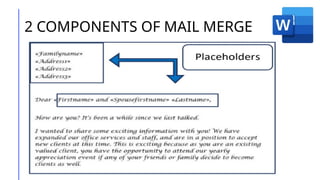
1) Form Document - It is generally the
document that contains the main body of the
message we want to convey or send. The main
body of the message is the part of the form
document that remains the same no matter
whom you send it to from among your list.
Placeholders (merge fields) tell Word where in
the document to include information from the
data source. It indicates the sign [<<’>>].
2 COMPONENTS OF MAIL MERGE
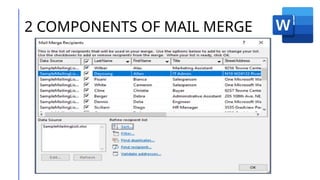
2.) List or Data File –
This is where the individual information or data
that needs to be plugged in (merged) to our
form document is placed and maintained.
2 COMPONENTS OF MAIL MERGE
CREATING A MAIL MERGE
1. Open the Word document that you want to
Mail Merge.
2. On the Ribbon, click the Mailings tab, go
to the Start Mail Merge group, and click
Start Mail Merge and select Step by Step
Mail Merge.
3. The Task Pane will show the Mail Merge
steps 1 to 6.
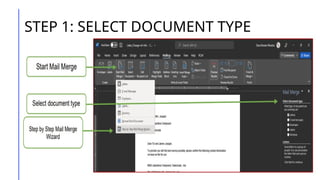
STEP 1: SELECT DOCUMENT TYPE
i. Choose from the options
such as Letters, E-mail
messages, Envelope, Labels,
or Directory.
ii. Click Next.
STEP 1: SELECT DOCUMENT TYPE
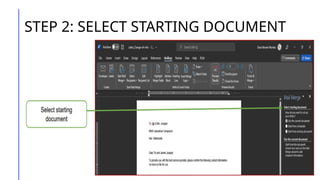
STEP 2: SELECT STARTING DOCUMENT
i. Choose from the options
such as Use the current
document, Start from a
template or Start from
existing document.
ii. Click Next.
STEP 2: SELECT STARTING DOCUMENT
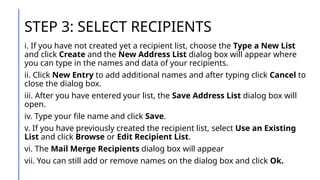
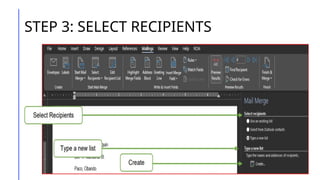
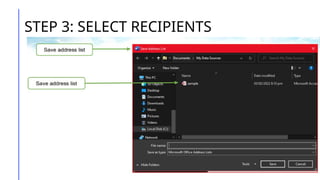
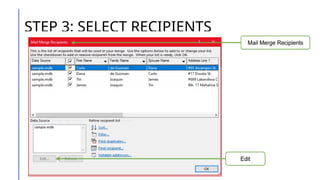
STEP 3: SELECT RECIPIENTS
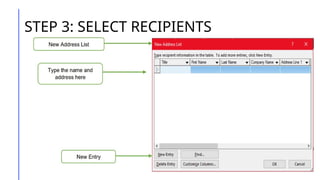
i. If you have not created yet a recipient list, choose the Type a New List
and click Create and the New Address List dialog box will appear where
you can type in the names and data of your recipients.
ii. Click New Entry to add additional names and after typing click Cancel to
close the dialog box.
iii. After you have entered your list, the Save Address List dialog box will
open.
iv. Type your file name and click Save.
v. If you have previously created the recipient list, select Use an Existing
List and click Browse or Edit Recipient List.
vi. The Mail Merge Recipients dialog box will appear
vii. You can still add or remove names on the dialog box and click Ok.
STEP 3: SELECT RECIPIENTS
STEP 4: WRITE YOUR LETTER
i. Click the Address Block to
specify the Address Elements.
ii. Click the Greeting Line to
set the greeting line format.
iii. Click Next.
Integrating Images and External
Material in MS Word
In Microsoft word processing you can do a lot of
things to make your documents look good and
presentable. One of its function is to integrate
image. Word processing refers to an application
program for manipulating text-based documents; the
electronic equivalent of paper, pen, typewriter, eraser,
and most likely, dictionary and thesaurus. Word
processors run the scope from simple through
complex, but all ease the tasks associated with editing
documents (deleting, inserting, rewording, and so
on).
Pictures
a. JPEG/JPG
➢ Joint Photographic Experts Group – “Jeypeg”
➢ It identifies the kind of data compression process that it
uses to make it more compatible and portable through the
Internet.
➢ It does not support transparency and therefore, images
of this file type can be difficult to integrate in terms of
blending with other materials or elements in your
document.
➢ Support 16.7 million colors & approximately small in size
Pictures
b. GIF
➢ Graphics Interchange Format
➢ This type of image file is capable of displaying
transparencies.
➢ It is also capable of displaying simple animation.
➢ Not good for printing documents, good for sending
documents electronically like emails, and website
developments.
➢ Downside is that it can only support up to 256 colors, so it
is good mostly on logos and art decors with very limited,
and generally solid colors.
Pictures
c. PNG
➢ Portable Network Graphics
➢ Its’ development was basically for the purpose of
transporting images on the Internet at faster rate
➢ Good with transparencies but unlike GIFs, it does
not support animation, but it can display up to 16
million colors, so image quality for this image file type
is also remarkably improved.
➢ PNG allows the control of the transparency level or
opacity of images.
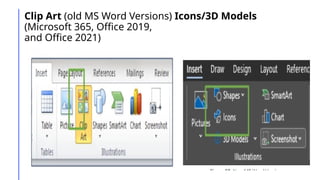
Clip Art (old MS Word Versions) Icons/3D Models
(Microsoft 365, Office 2019,
and Office 2021)
➢ This is generally a .GIF type
➢ These are line art drawings or images used as
generic representation for ideas and objects that you
might want to integrate in your document.
Clip Art (old MS Word Versions) Icons/3D Models
(Microsoft 365, Office 2019,
and Office 2021)
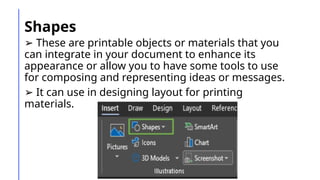
Shapes
➢ These are printable objects or materials that you
can integrate in your document to enhance its
appearance or allow you to have some tools to use
for composing and representing ideas or messages.
➢ It can use in designing layout for printing
materials.
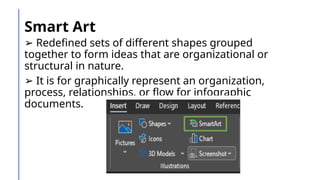
Smart Art
➢ Redefined sets of different shapes grouped
together to form ideas that are organizational or
structural in nature.
➢ It is for graphically represent an organization,
process, relationships, or flow for infographic
documents.
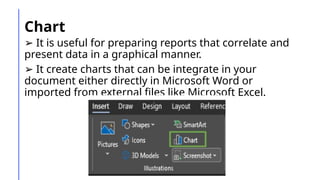
Chart
➢ It is useful for preparing reports that correlate and
present data in a graphical manner.
➢ It create charts that can be integrate in your
document either directly in Microsoft Word or
imported from external files like Microsoft Excel.
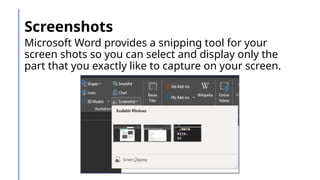
Screenshots
Microsoft Word provides a snipping tool for your
screen shots so you can select and display only the
part that you exactly like to capture on your screen.
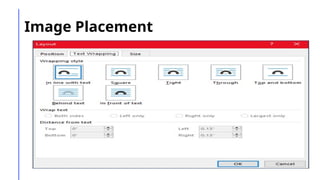
Image Placement
Inserting an image or any other material in your
document is quite easy especially if the material
already exists in your local storage device. It is
just a matter of opening up the image file
through the Microsoft Word dialog box or wizard.
Sometimes, if the image you would like to insert
is on a web page currently displayed on your
screen, it could be copied and pasted. The real
challenge is where to put the image you inserted
or where to move it.
Image Placement
In Line with Text
The default setting for images that
are inserted or integrated in your
document. It treats your image like a
text font with the bottom side totally
aligned with the text line. This setting
is usually used when you need to
place your image at the beginning of
a paragraph.
Square
Its setting allows the image you
inserted to be placed anywhere within
the paragraph with the text going
around the image in a square pattern
like a frame.
Tight
Its almost the same as the Square setting,
but here the text “hugs” or conforms to the
general shape of the image.
Through
Its setting allows the extension on
your document to flow even tighter,
taking the contours and shape of the
image. Again, this can be the best
used with .GIF or .PNG type of image.
Top and Bottom
Its setting pushes the texts away
vertically to the top and the bottom of
the image so that the image occupies
a whole text line on its own as in the
example.
Behind Text
It allows your image to be dragged
and placed anywhere on your
document but with all the texts
floating in front of it. It effectively
makes your image look like a
background.
In Front of Text
As it suggests, this setting allows your
image to be placed on top of the text
as if your image was dropped right on
it. That means whatever part of the
text you placed the image on, it will be
covered by the image.
IDENTIFICATION
1. It is a word processing program created by Microsoft
Corporation.
2 – 3. What are the other 2 applications of Microsoft
aside from MS Word?
4 – 5. Who are the 2 creators of MS Word?
6. The MS Word was initially named ____________.
7. MS Word was introduced in _______. (year)
8 – 11. 4 Uses of MS Word
12. It allows you to quickly send information,
newsletter, resumés, or brochures to many people.
IDENTIFICATION
13 – 14. 2 Components of Mail Merge
15. What “tab” will click if you do mail merge?
16 – 18. 3 Types of Pictures
19. GIF means?
20. PNG means?
21. Redefined sets of different shapes grouped
together to form ideas that are organizational or
structural in nature.
22. It is useful for preparing reports that correlate and
present data in a graphical manner.
IDENTIFICATION
23. It refers to inserting an image or any other material in
your document.
24. The default setting for images that are inserted or
integrated in your document.
25. This setting allows your image to be placed on top of the
text as if your image was dropped right on it.
26. Its setting allows the image you inserted to be placed
anywhere within the paragraph with the text going around
the image in a square pattern.
27. It allows your image to be dragged and placed anywhere
on your document but with all the texts floating in front of
it.
IDENTIFICATION
28. Its almost the same as the Square setting.
29. Its setting pushes the texts away vertically to
the top and the bottom of the image.
30. This setting can be the best used with .GIF
or .PNG type of image.

EMPTECH LESSONnnnnnnnnnnnnnnnnnnnn 3.pptx

  • 1.
  • 2.
    OBJECTIVES At the endof the lesson, you should be able to: • recognize MS Word and its features; • demonstrate the applied productivity tools; and • create various documents to apply the word processing skills.
  • 3.
    What is MSWord? MS Word is a word processing program used to create, format, save, and print letters, manuals, contracts, proposals, reports, newsletters, cards, flyers, invitations, certificates, forms, envelopes, blog post, webpages, signs, manuscripts, or books with table of contents and other documents.
  • 4.
    What is MSWord? Microsoft Word is a word processing program created by Microsoft Corporation. It is the most widely used word processor today and is used in most desktop and laptop computers. It is available in both Windows and Macintosh Versions. Microsoft Word today is part of the Microsoft Office Suite.
  • 5.
    What is MSWord? Since MS Word is one of the most used programs of the Office Suite, some basic information regarding its creation and development has been given below: •Charles Simonyi, a developer and Richard Brodie, a software engineer, were the two creators of MS Word.
  • 6.
    What is MSWord? •This program was initially named “Multi Tool Word” but later, was renamed as MS Word •It was introduced in 1983 •Word for Windows is available standalone or as a part of MS Office suite •MS Word for Mac was introduced by Microsoft as Word 1.0 in 1985 •The extension for any word file is “.doc”
  • 7.
  • 8.
    Uses of MSWord • In Education: It is considered as one of the simplest tools which can be used by both teachers and students. Creating notes is easier using MS Word as they can be made more interactive by adding shapes and images. It is also convenient to make assignments on MS Word and submitting them online. • In Workplace: Submitting letters, bills, creating reports, letterheads, sample documents, can all easily be done using MS Word.
  • 9.
    Uses of MSWord • Creating & Updating Resume: One of the best tools to create your resumes and is easy to edit and make changes in it as per your experience. • For Authors: Since separate options are available for bibliography, table of contents, etc., it is the best tool which can be used by authors for writing books and adjusting it as per the layout and alignment of your choice.
  • 10.
    MAIL MERGE It allowsyou to quickly send information, newsletter, resumés, or brochures to many people. Mail merge lets you create a batch of documents that are personalized for each recipient. For example, a form letter might be personalized to address each recipient by name. A data source, like a list, spreadsheet, or database, is associated with the document.
  • 11.
    2 COMPONENTS OFMAIL MERGE 1) Form Document - It is generally the document that contains the main body of the message we want to convey or send. The main body of the message is the part of the form document that remains the same no matter whom you send it to from among your list. Placeholders (merge fields) tell Word where in the document to include information from the data source. It indicates the sign [<<’>>].
  • 12.
    2 COMPONENTS OFMAIL MERGE
  • 13.
    2 COMPONENTS OFMAIL MERGE 2.) List or Data File – This is where the individual information or data that needs to be plugged in (merged) to our form document is placed and maintained.
  • 14.
    2 COMPONENTS OFMAIL MERGE
  • 15.
    CREATING A MAILMERGE 1. Open the Word document that you want to Mail Merge. 2. On the Ribbon, click the Mailings tab, go to the Start Mail Merge group, and click Start Mail Merge and select Step by Step Mail Merge. 3. The Task Pane will show the Mail Merge steps 1 to 6.
  • 16.
    STEP 1: SELECTDOCUMENT TYPE i. Choose from the options such as Letters, E-mail messages, Envelope, Labels, or Directory. ii. Click Next.
  • 17.
    STEP 1: SELECTDOCUMENT TYPE
  • 18.
    STEP 2: SELECTSTARTING DOCUMENT i. Choose from the options such as Use the current document, Start from a template or Start from existing document. ii. Click Next.
  • 19.
    STEP 2: SELECTSTARTING DOCUMENT
  • 20.
    STEP 3: SELECTRECIPIENTS i. If you have not created yet a recipient list, choose the Type a New List and click Create and the New Address List dialog box will appear where you can type in the names and data of your recipients. ii. Click New Entry to add additional names and after typing click Cancel to close the dialog box. iii. After you have entered your list, the Save Address List dialog box will open. iv. Type your file name and click Save. v. If you have previously created the recipient list, select Use an Existing List and click Browse or Edit Recipient List. vi. The Mail Merge Recipients dialog box will appear vii. You can still add or remove names on the dialog box and click Ok.
  • 21.
    STEP 3: SELECTRECIPIENTS
  • 22.
    STEP 3: SELECTRECIPIENTS
  • 23.
    STEP 3: SELECTRECIPIENTS
  • 24.
    STEP 3: SELECTRECIPIENTS
  • 25.
    STEP 4: WRITEYOUR LETTER i. Click the Address Block to specify the Address Elements. ii. Click the Greeting Line to set the greeting line format. iii. Click Next.
  • 26.
    Integrating Images andExternal Material in MS Word In Microsoft word processing you can do a lot of things to make your documents look good and presentable. One of its function is to integrate image. Word processing refers to an application program for manipulating text-based documents; the electronic equivalent of paper, pen, typewriter, eraser, and most likely, dictionary and thesaurus. Word processors run the scope from simple through complex, but all ease the tasks associated with editing documents (deleting, inserting, rewording, and so on).
  • 27.
    Pictures a. JPEG/JPG ➢ JointPhotographic Experts Group – “Jeypeg” ➢ It identifies the kind of data compression process that it uses to make it more compatible and portable through the Internet. ➢ It does not support transparency and therefore, images of this file type can be difficult to integrate in terms of blending with other materials or elements in your document. ➢ Support 16.7 million colors & approximately small in size
  • 28.
    Pictures b. GIF ➢ GraphicsInterchange Format ➢ This type of image file is capable of displaying transparencies. ➢ It is also capable of displaying simple animation. ➢ Not good for printing documents, good for sending documents electronically like emails, and website developments. ➢ Downside is that it can only support up to 256 colors, so it is good mostly on logos and art decors with very limited, and generally solid colors.
  • 29.
    Pictures c. PNG ➢ PortableNetwork Graphics ➢ Its’ development was basically for the purpose of transporting images on the Internet at faster rate ➢ Good with transparencies but unlike GIFs, it does not support animation, but it can display up to 16 million colors, so image quality for this image file type is also remarkably improved. ➢ PNG allows the control of the transparency level or opacity of images.
  • 30.
    Clip Art (oldMS Word Versions) Icons/3D Models (Microsoft 365, Office 2019, and Office 2021) ➢ This is generally a .GIF type ➢ These are line art drawings or images used as generic representation for ideas and objects that you might want to integrate in your document.
  • 31.
    Clip Art (oldMS Word Versions) Icons/3D Models (Microsoft 365, Office 2019, and Office 2021)
  • 32.
    Shapes ➢ These areprintable objects or materials that you can integrate in your document to enhance its appearance or allow you to have some tools to use for composing and representing ideas or messages. ➢ It can use in designing layout for printing materials.
  • 33.
    Smart Art ➢ Redefinedsets of different shapes grouped together to form ideas that are organizational or structural in nature. ➢ It is for graphically represent an organization, process, relationships, or flow for infographic documents.
  • 34.
    Chart ➢ It isuseful for preparing reports that correlate and present data in a graphical manner. ➢ It create charts that can be integrate in your document either directly in Microsoft Word or imported from external files like Microsoft Excel.
  • 35.
    Screenshots Microsoft Word providesa snipping tool for your screen shots so you can select and display only the part that you exactly like to capture on your screen.
  • 36.
    Image Placement Inserting animage or any other material in your document is quite easy especially if the material already exists in your local storage device. It is just a matter of opening up the image file through the Microsoft Word dialog box or wizard. Sometimes, if the image you would like to insert is on a web page currently displayed on your screen, it could be copied and pasted. The real challenge is where to put the image you inserted or where to move it.
  • 37.
  • 38.
    In Line withText The default setting for images that are inserted or integrated in your document. It treats your image like a text font with the bottom side totally aligned with the text line. This setting is usually used when you need to place your image at the beginning of a paragraph.
  • 39.
    Square Its setting allowsthe image you inserted to be placed anywhere within the paragraph with the text going around the image in a square pattern like a frame.
  • 40.
    Tight Its almost thesame as the Square setting, but here the text “hugs” or conforms to the general shape of the image.
  • 41.
    Through Its setting allowsthe extension on your document to flow even tighter, taking the contours and shape of the image. Again, this can be the best used with .GIF or .PNG type of image.
  • 42.
    Top and Bottom Itssetting pushes the texts away vertically to the top and the bottom of the image so that the image occupies a whole text line on its own as in the example.
  • 43.
    Behind Text It allowsyour image to be dragged and placed anywhere on your document but with all the texts floating in front of it. It effectively makes your image look like a background.
  • 44.
    In Front ofText As it suggests, this setting allows your image to be placed on top of the text as if your image was dropped right on it. That means whatever part of the text you placed the image on, it will be covered by the image.
  • 45.
    IDENTIFICATION 1. It isa word processing program created by Microsoft Corporation. 2 – 3. What are the other 2 applications of Microsoft aside from MS Word? 4 – 5. Who are the 2 creators of MS Word? 6. The MS Word was initially named ____________. 7. MS Word was introduced in _______. (year) 8 – 11. 4 Uses of MS Word 12. It allows you to quickly send information, newsletter, resumés, or brochures to many people.
  • 46.
    IDENTIFICATION 13 – 14.2 Components of Mail Merge 15. What “tab” will click if you do mail merge? 16 – 18. 3 Types of Pictures 19. GIF means? 20. PNG means? 21. Redefined sets of different shapes grouped together to form ideas that are organizational or structural in nature. 22. It is useful for preparing reports that correlate and present data in a graphical manner.
  • 47.
    IDENTIFICATION 23. It refersto inserting an image or any other material in your document. 24. The default setting for images that are inserted or integrated in your document. 25. This setting allows your image to be placed on top of the text as if your image was dropped right on it. 26. Its setting allows the image you inserted to be placed anywhere within the paragraph with the text going around the image in a square pattern. 27. It allows your image to be dragged and placed anywhere on your document but with all the texts floating in front of it.
  • 48.
    IDENTIFICATION 28. Its almostthe same as the Square setting. 29. Its setting pushes the texts away vertically to the top and the bottom of the image. 30. This setting can be the best used with .GIF or .PNG type of image.