
Using Web 2.0 Tools in Wikis
        Donna Shelton, PhD
    Northeastern State University
Introduction
 This is the bells and whistles part of the workshop
 If you would like to incorporate images, videos,
 maps, avatars or other types of rich media in your
 wiki, this is for you
 First we’ll talk about Creative Commons licensing,
 and then we’ll select applications to learn based on
 your interests
Web 2.0 apps for wikis
 YouTube videos
 Flickr CC-licensed photographs and slideshows
 Voki avatars
 SlideShare
 Google maps
Creative Commons licensing
 If your wiki is public, you must be very careful
 uploading materials created by others even if it’s
 for educational purposes
 Fair Use and the Teach Act allow educators some
 leeway on copyright, but there are rules, and the
 materials need to be protected from public access
 Using embedded media and Creative Commons
 licensed materials will help you avoid problems
Creative Commons licensing
 With a Creative Commons license, an author or
 photographer grants you certain rights to use his or
 her product
 Creative Commons ranges from Attribution Only to
 more restrictive licenses
 For more information and CC license images to
 place on your wiki, see www.creativecommons.org
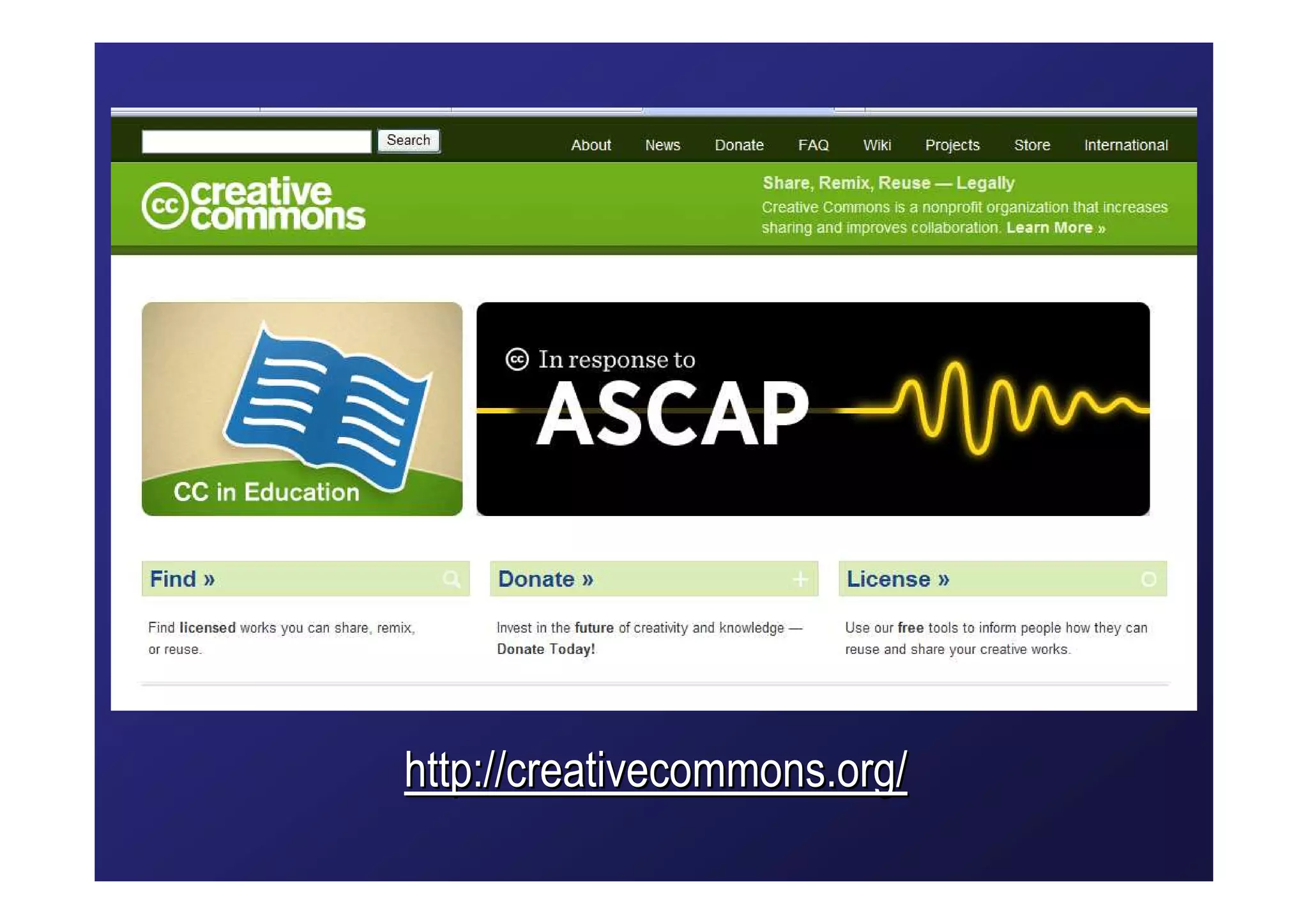
http://creativecommons.org/
Embedding YouTube videos
 Video creators choose whether to allow you to obtain
 the embed code
 Embedding is not copying: the embed code “goes”
 to YouTube and “gets” the video to display on your
 page
 If the video is removed or the service is down, the
 video will not function
 Once you’ve learned to embed YouTube videos, you
 can embed anything
Embedding YouTube videos
 If your school blocks YouTube, the videos won’t play in
 your wiki on computers on your school network
 You could download a video using KeepVid.com, upload it
 to a private TeacherTube account, and embed it into your
 wiki from there
 TeacherTube, http://www.teachertube.com/, may be
 acceptable to your district
 TeacherTube can also be used for your own videos to
 avoid exceeding the memory limits on free wikis
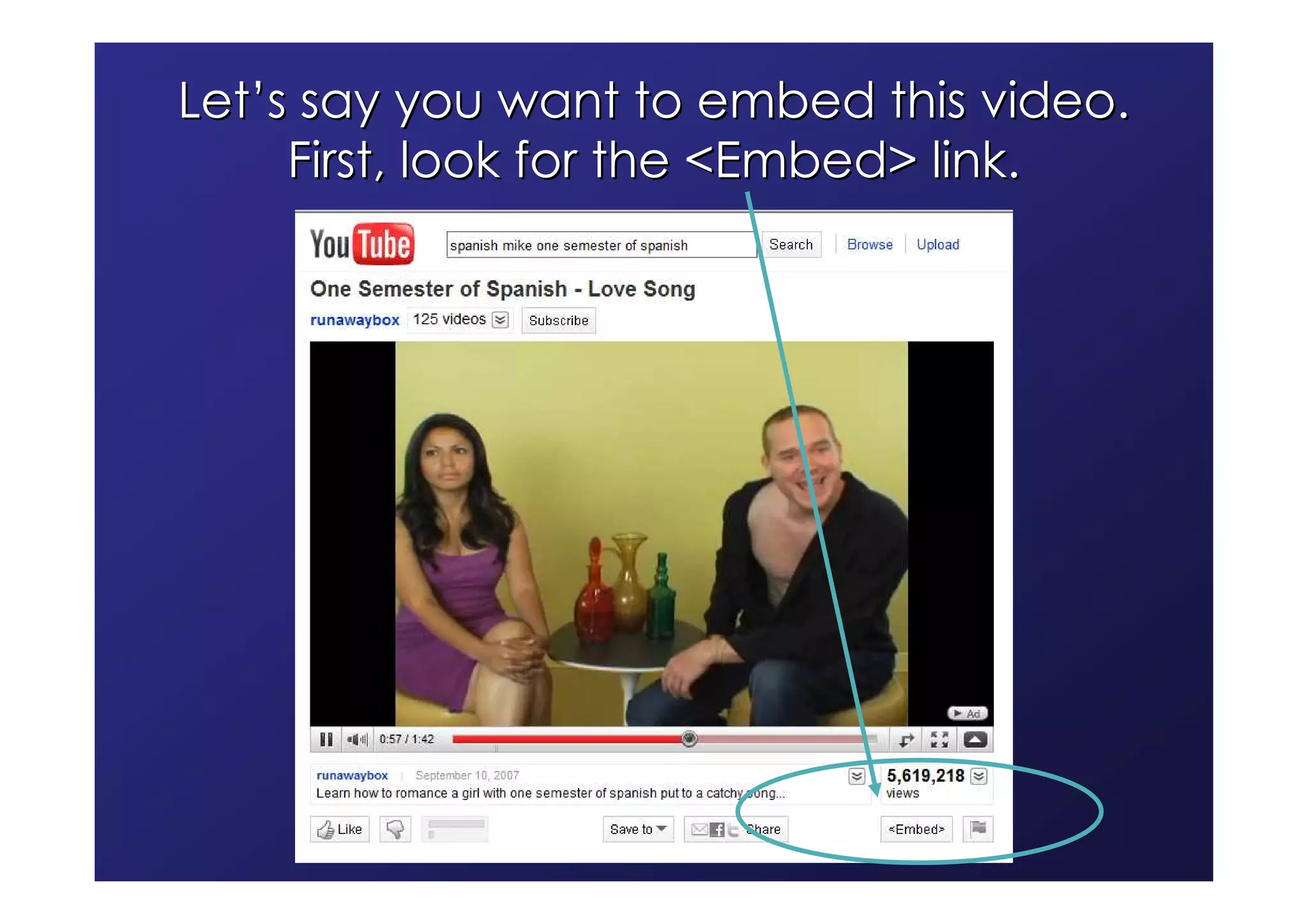
Let’s say you want to embed this video.
     First, look for the <Embed> link.
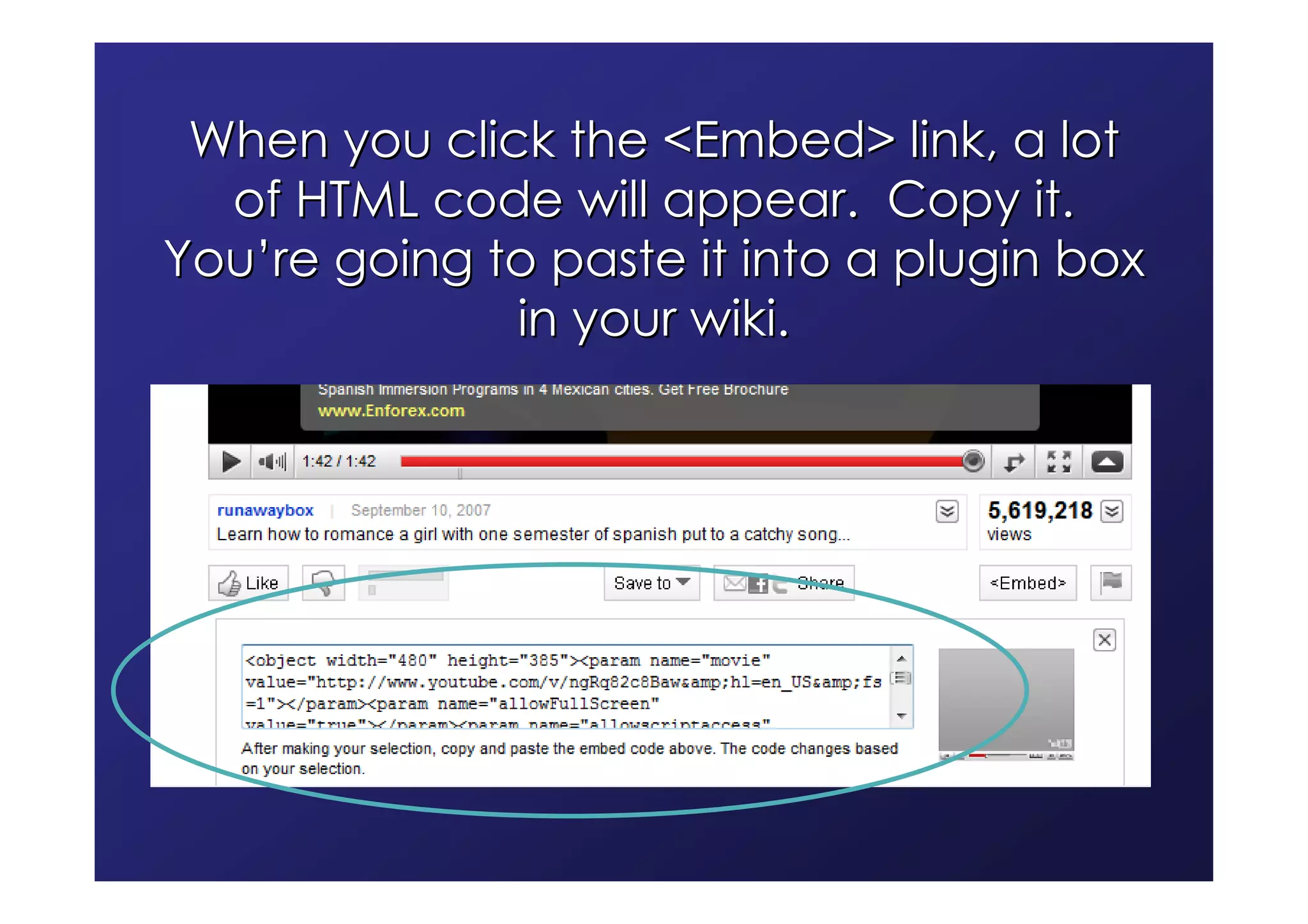
When you click the <Embed> link, a lot
  of HTML code will appear. Copy it.
You’re going to paste it into a plugin box
              in your wiki.
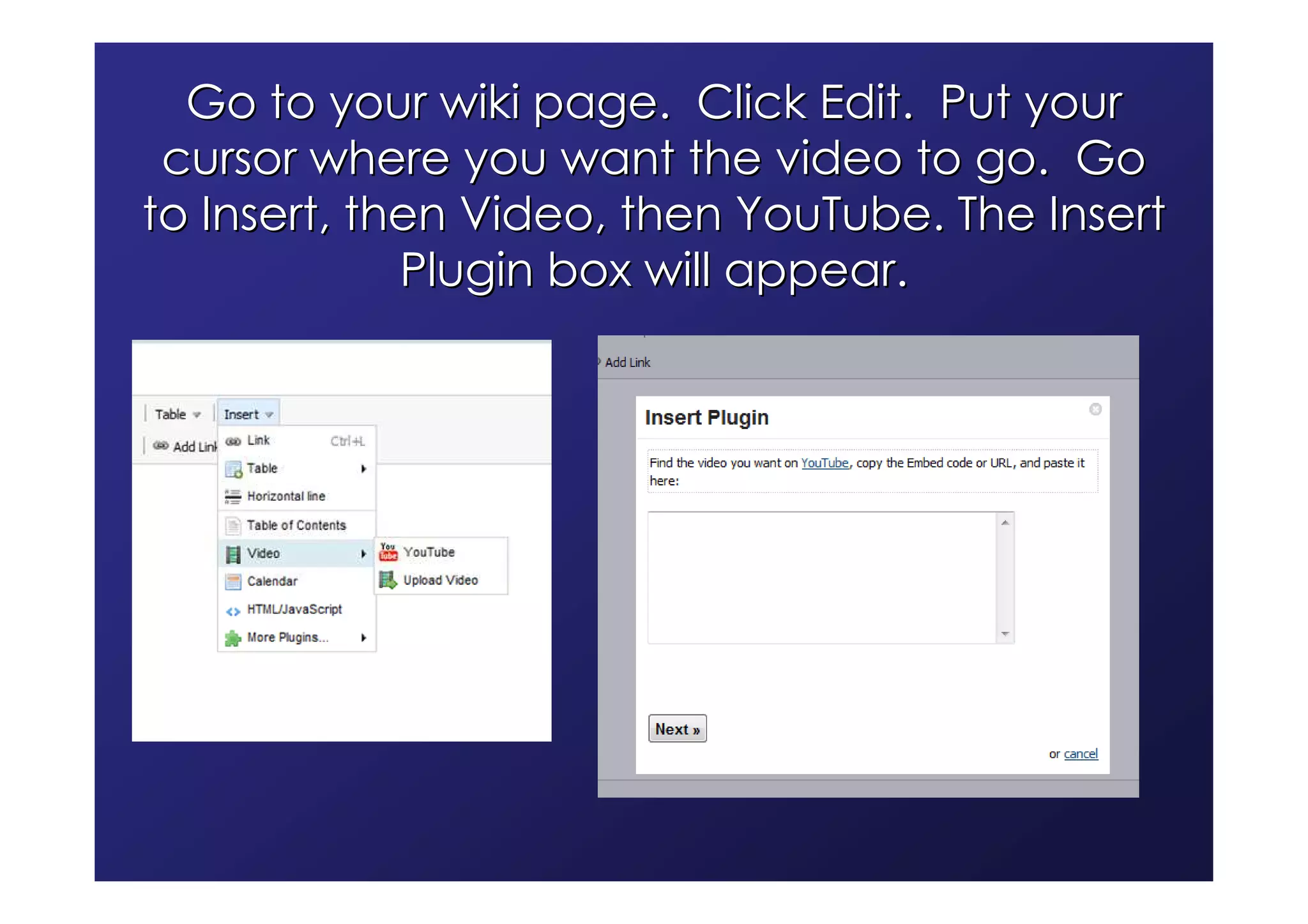
Go to your wiki page. Click Edit. Put your
 cursor where you want the video to go. Go
to Insert, then Video, then YouTube. The Insert
             Plugin box will appear.
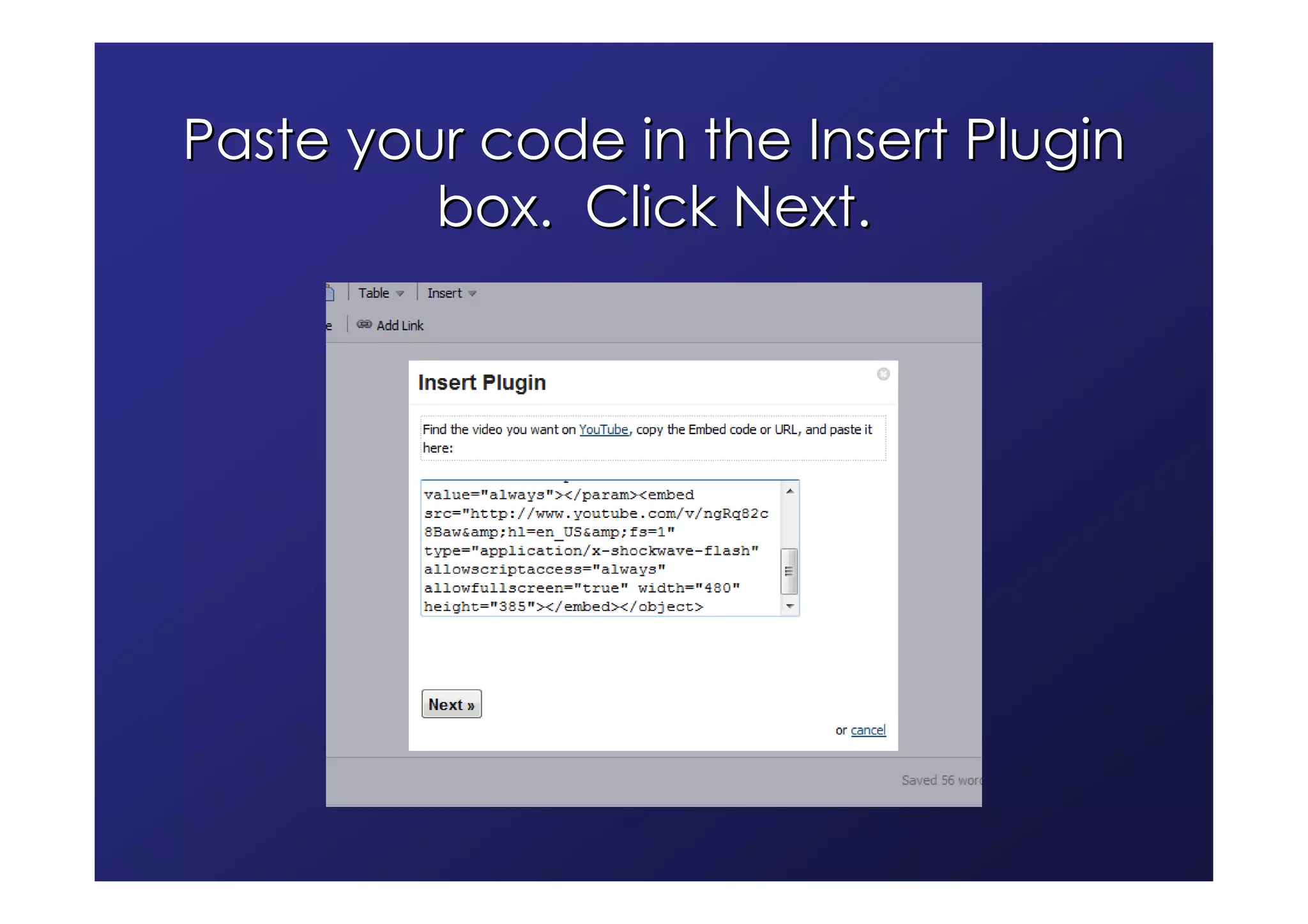
Paste your code in the Insert Plugin
         box. Click Next.
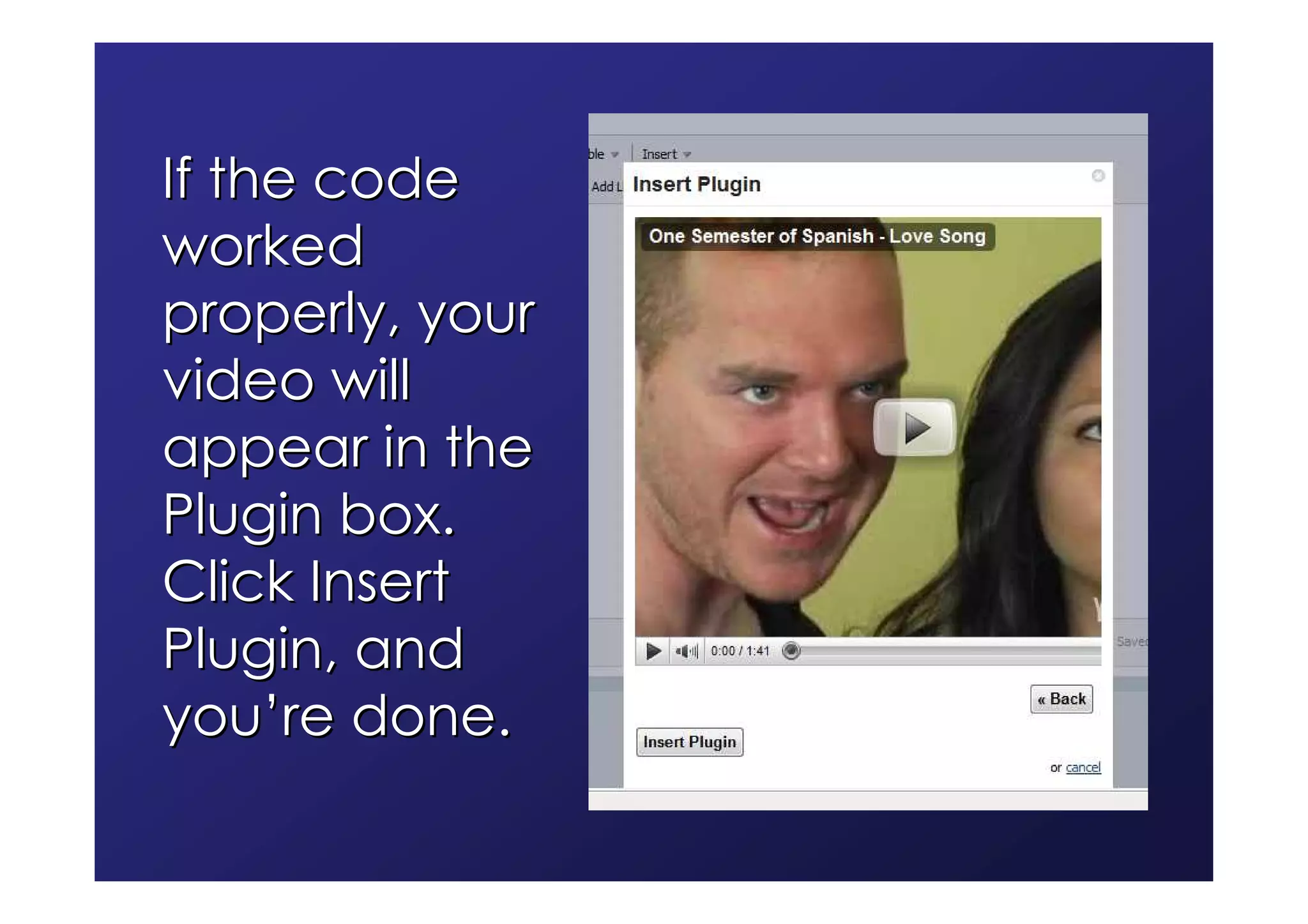
If the code
worked
properly, your
video will
appear in the
Plugin box.
Click Insert
Plugin, and
you’re done.
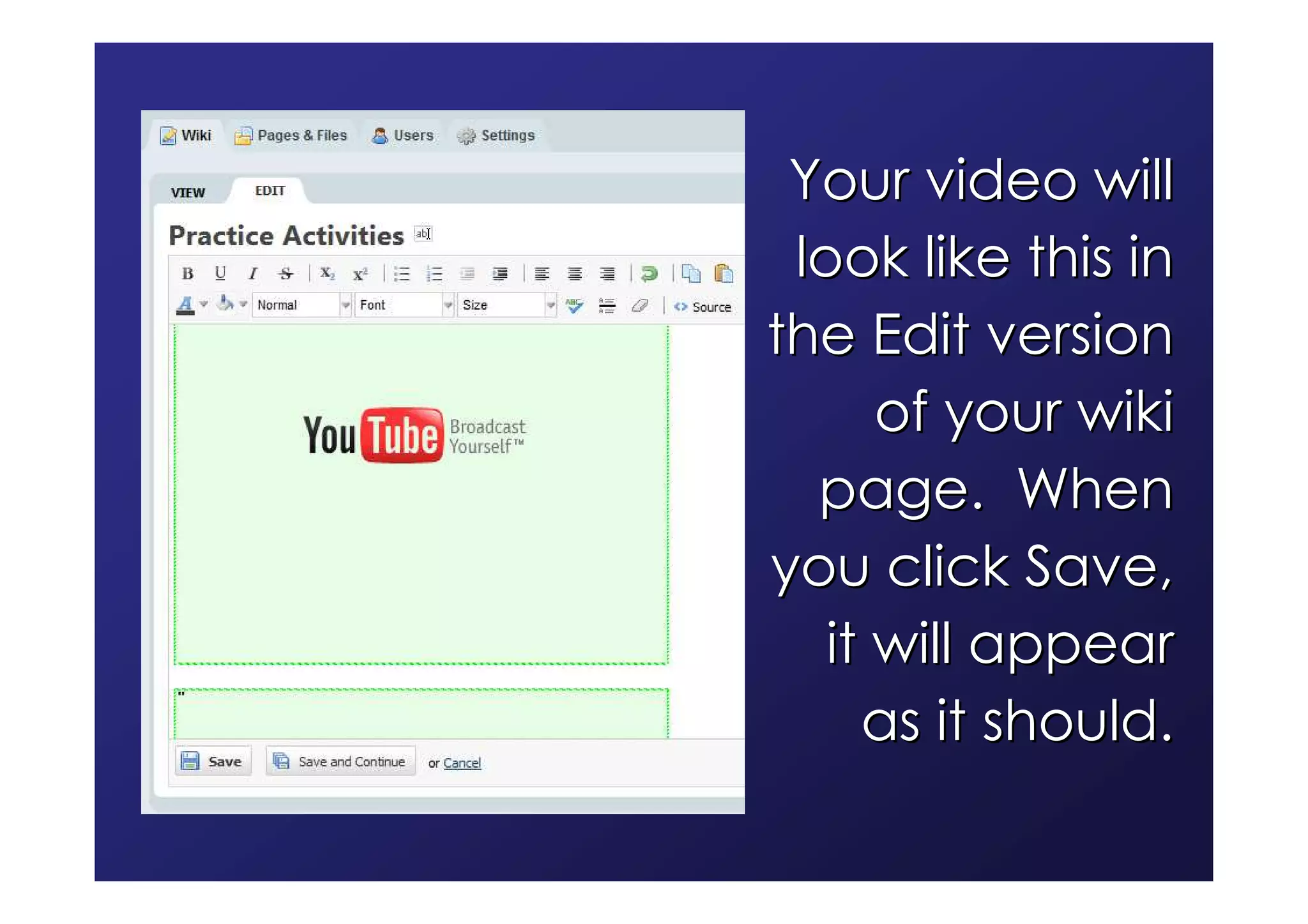
Your video will
 look like this in
the Edit version
      of your wiki
  page. When
you click Save,
   it will appear
     as it should.
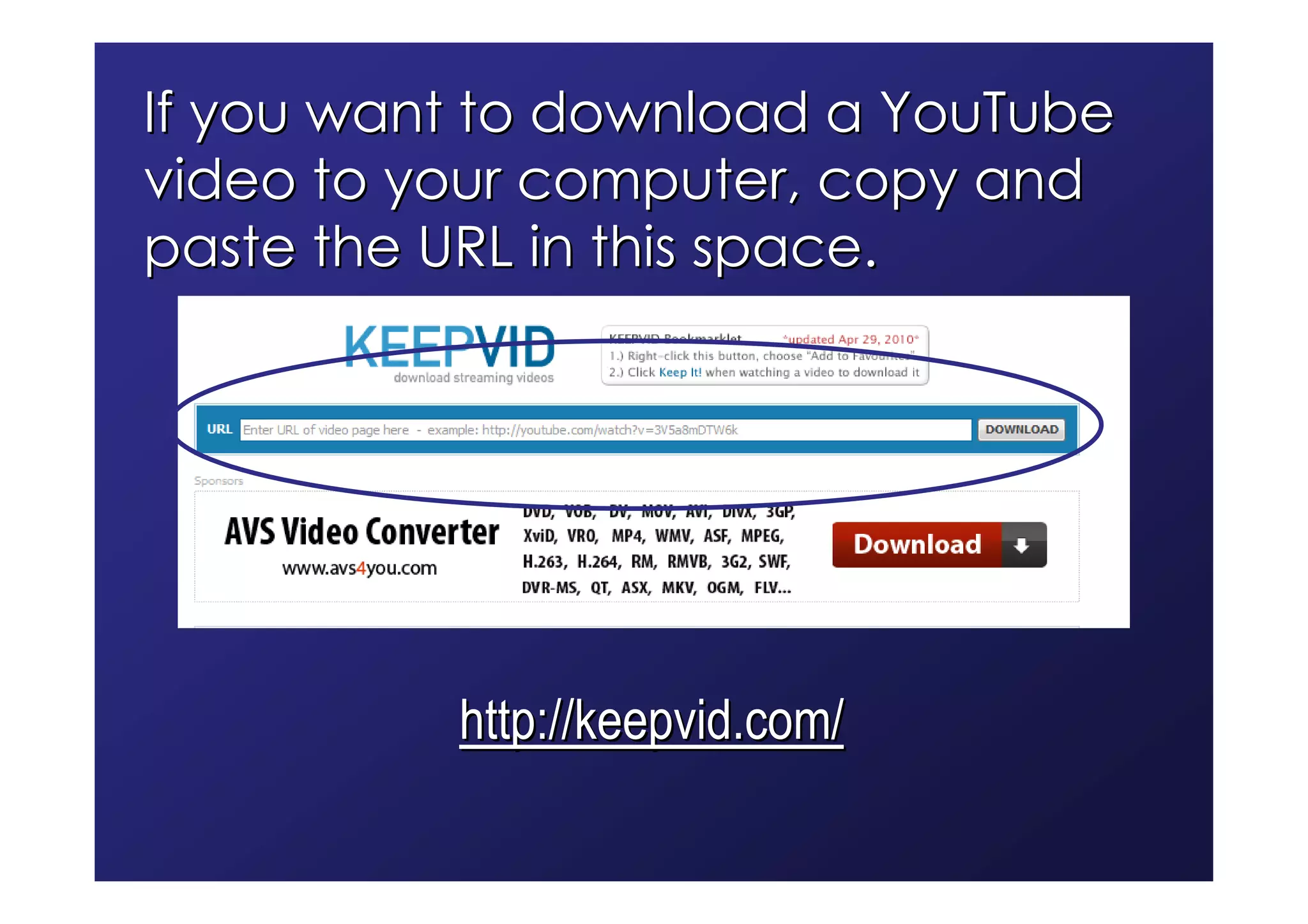
If you want to download a YouTube
video to your computer, copy and
paste the URL in this space.


          http://keepvid.com/
Flickr photos and slideshows
 You may want to choose from the thousands of
 great CC-licensed photos available on Flickr
 You can use individual photos or photo slideshows
 You download the photos to your hard drive, then
 upload them to the wiki
  You’ll need to provide all required information for
 individual CC-licensed photos
 You embed the slideshows
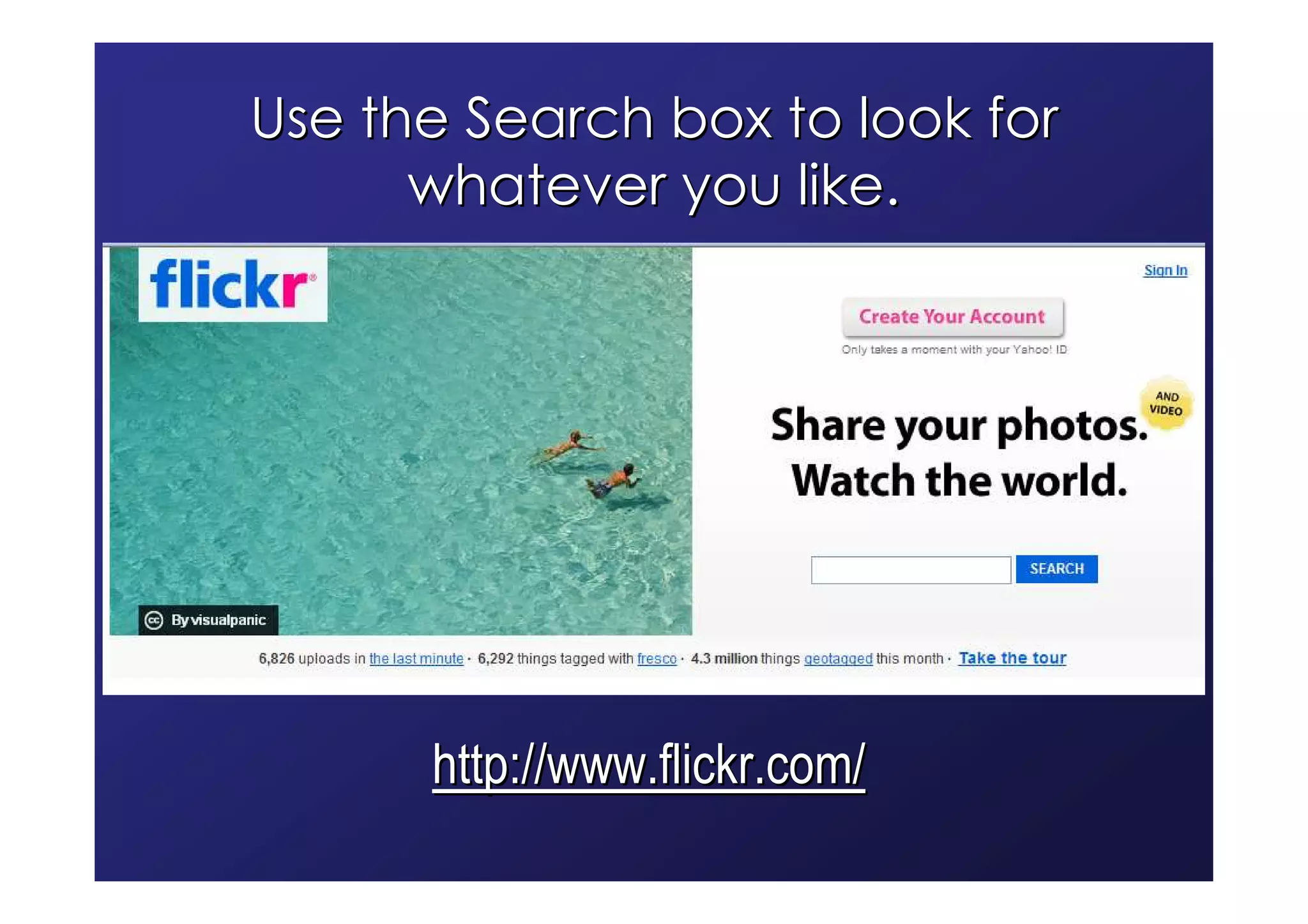
Use the Search box to look for
      whatever you like.


      http://www.flickr.com/
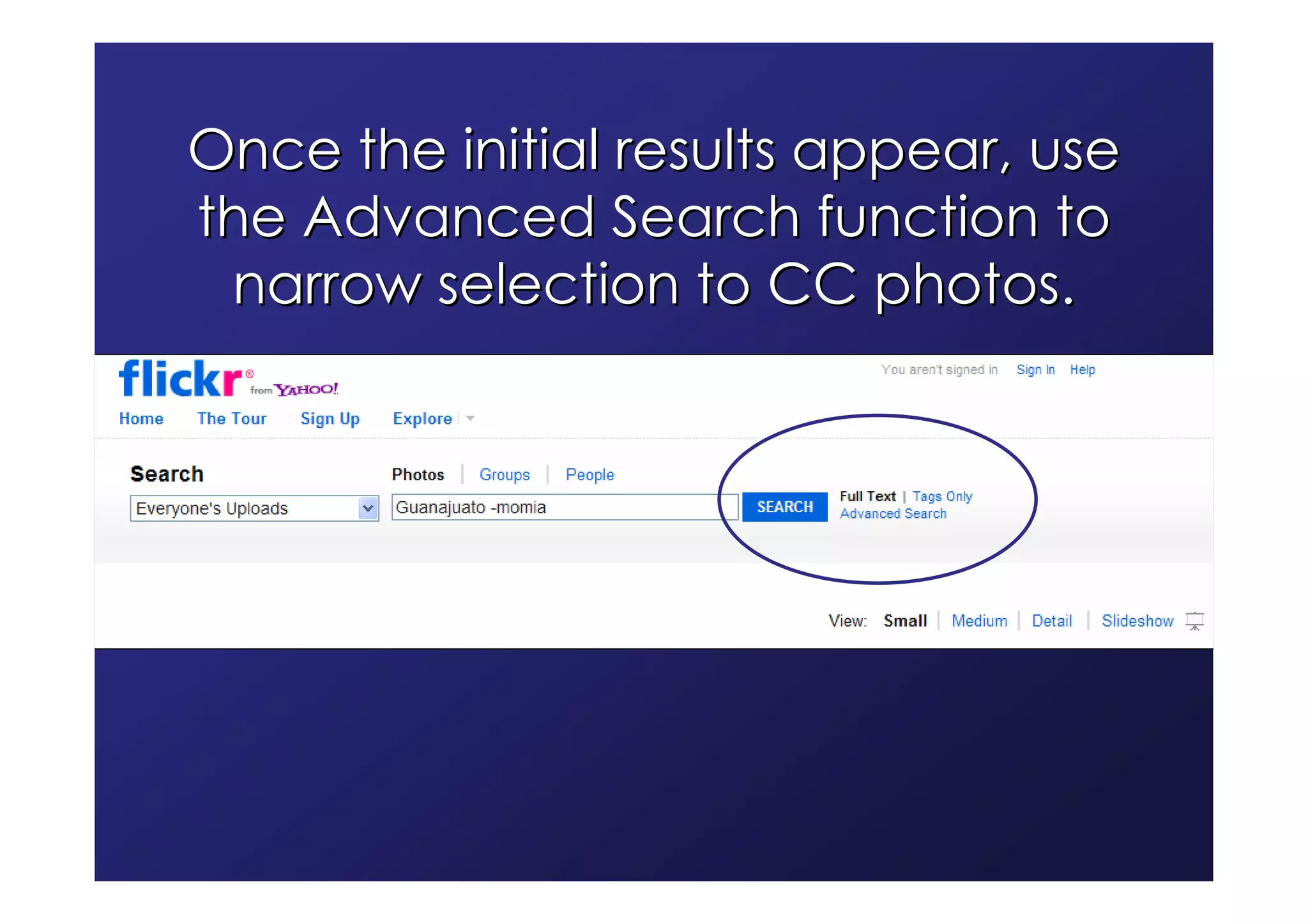
Once the initial results appear, use
the Advanced Search function to
 narrow selection to CC photos.
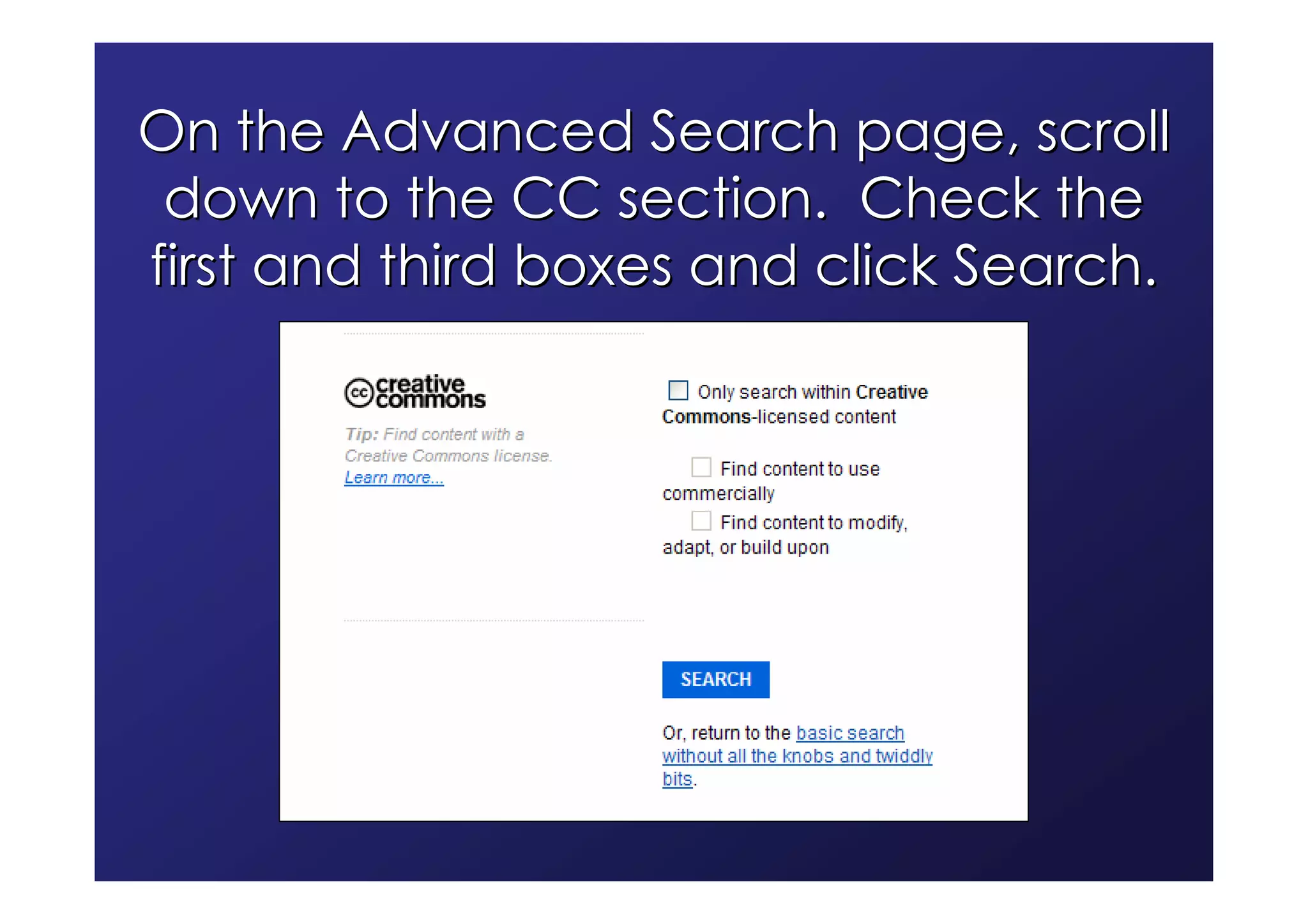
On the Advanced Search page, scroll
 down to the CC section. Check the
first and third boxes and click Search.
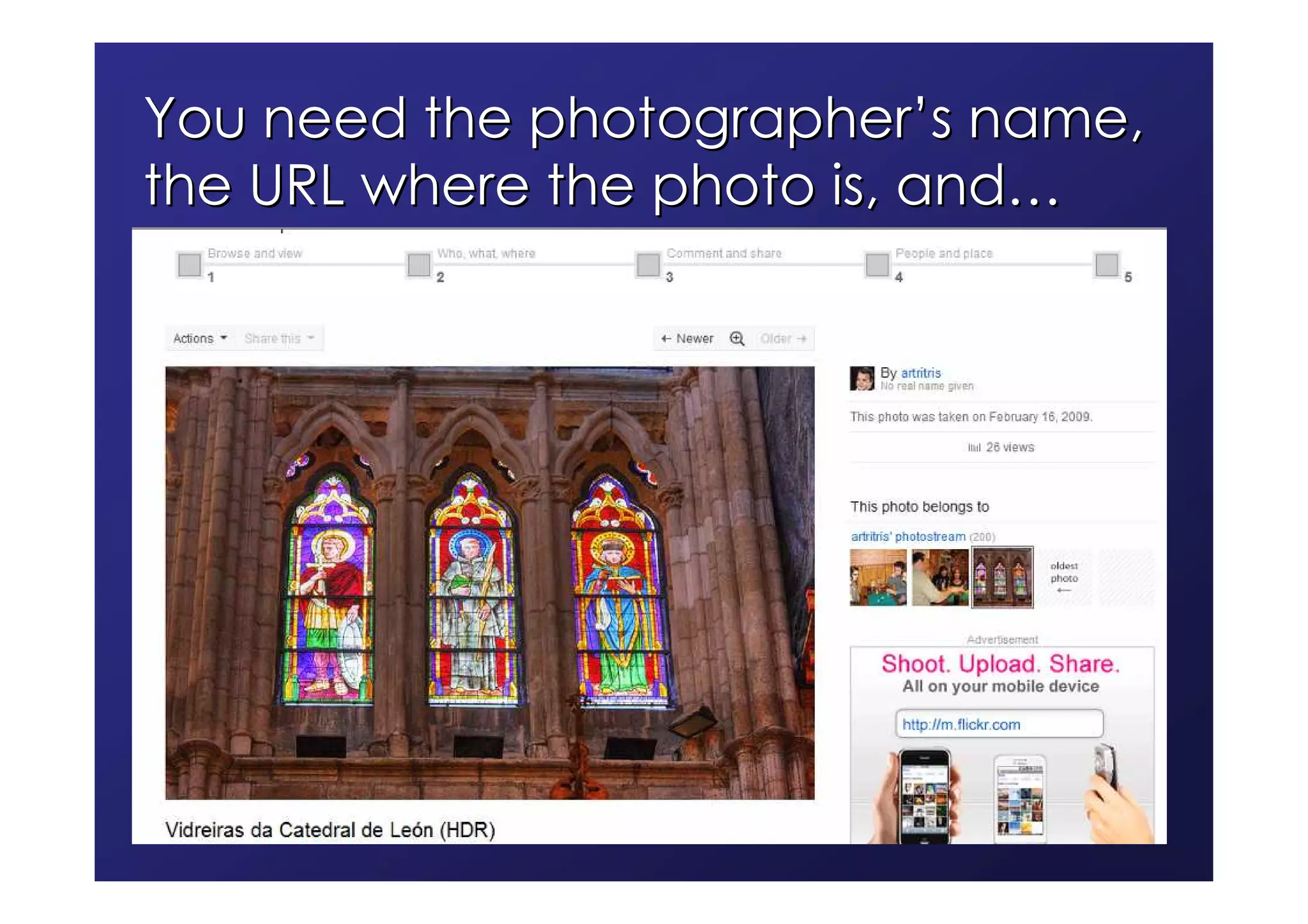
You need the photographer’s name,
the URL where the photo is, and…
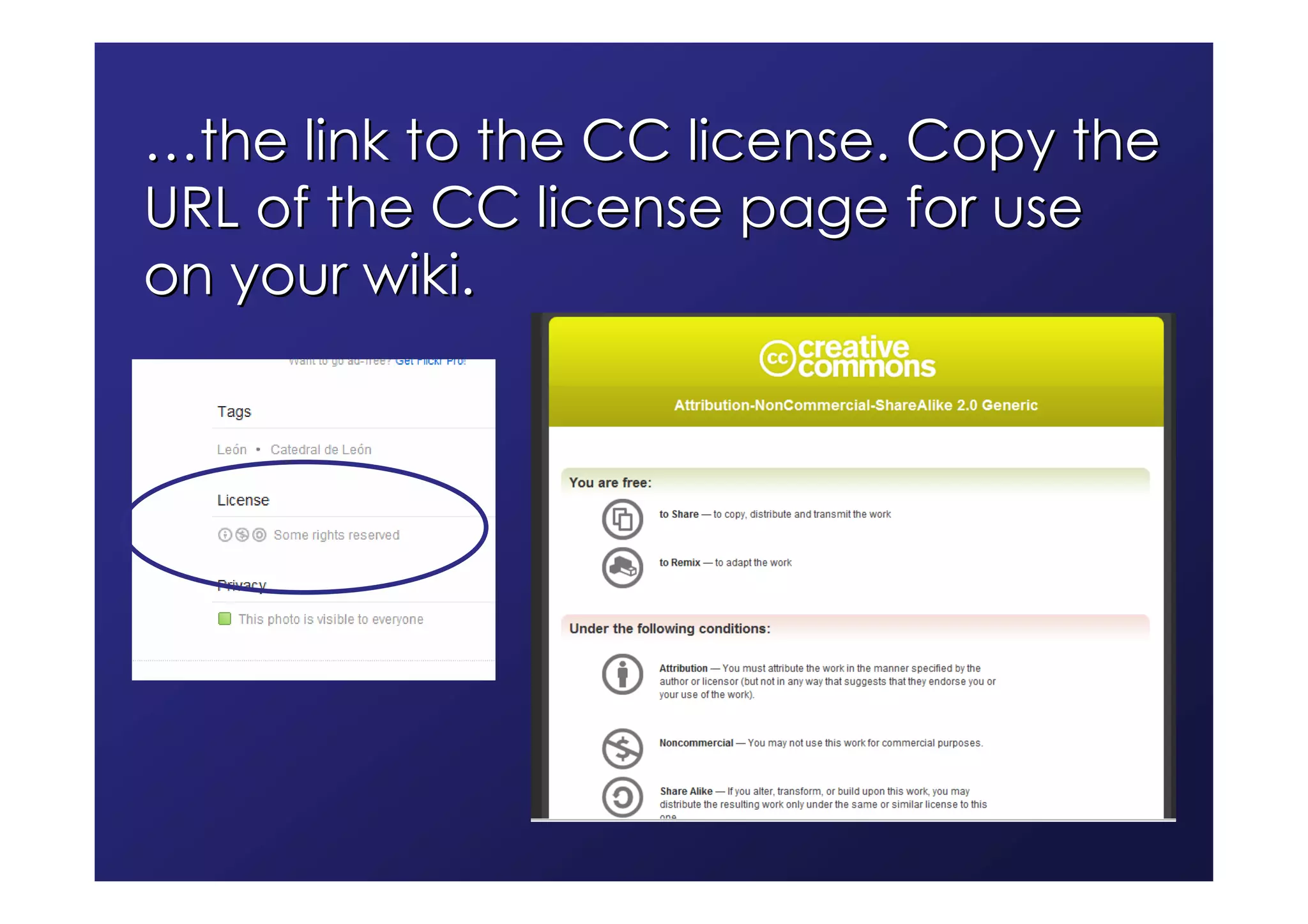
…the link to the CC license. Copy the
URL of the CC license page for use
on your wiki.
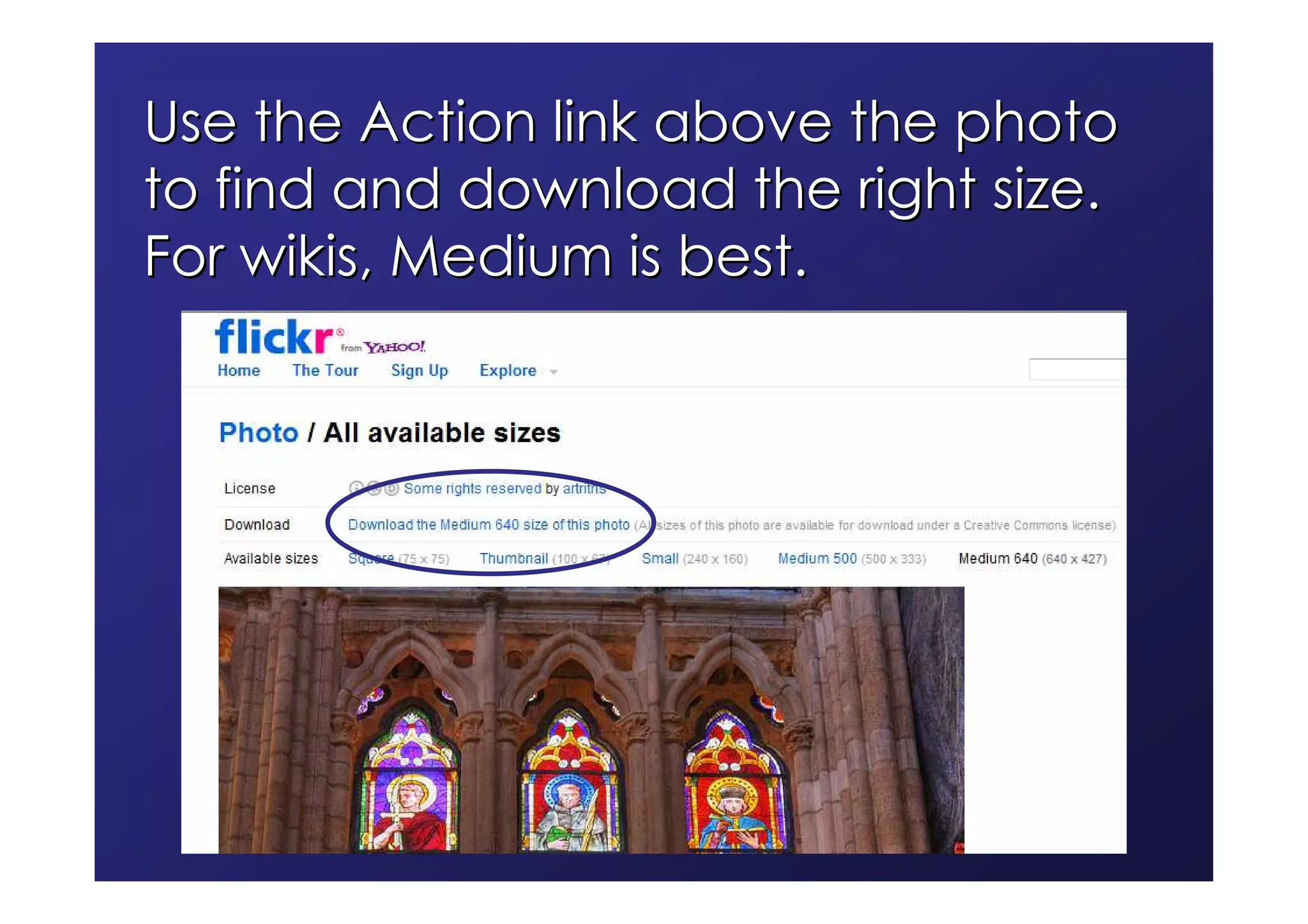
Use the Action link above the photo
to find and download the right size.
For wikis, Medium is best.
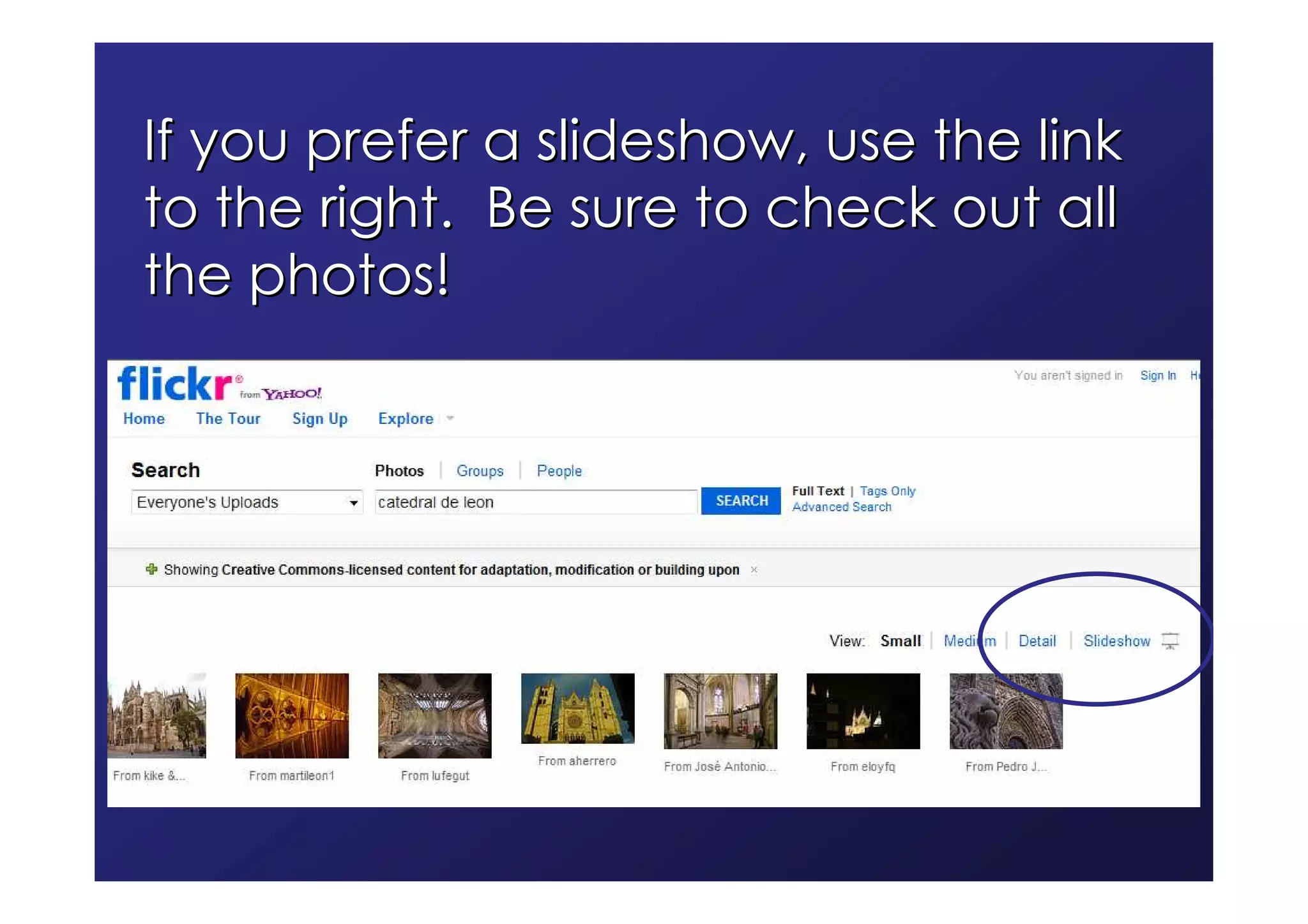
If you prefer a slideshow, use the link
to the right. Be sure to check out all
the photos!
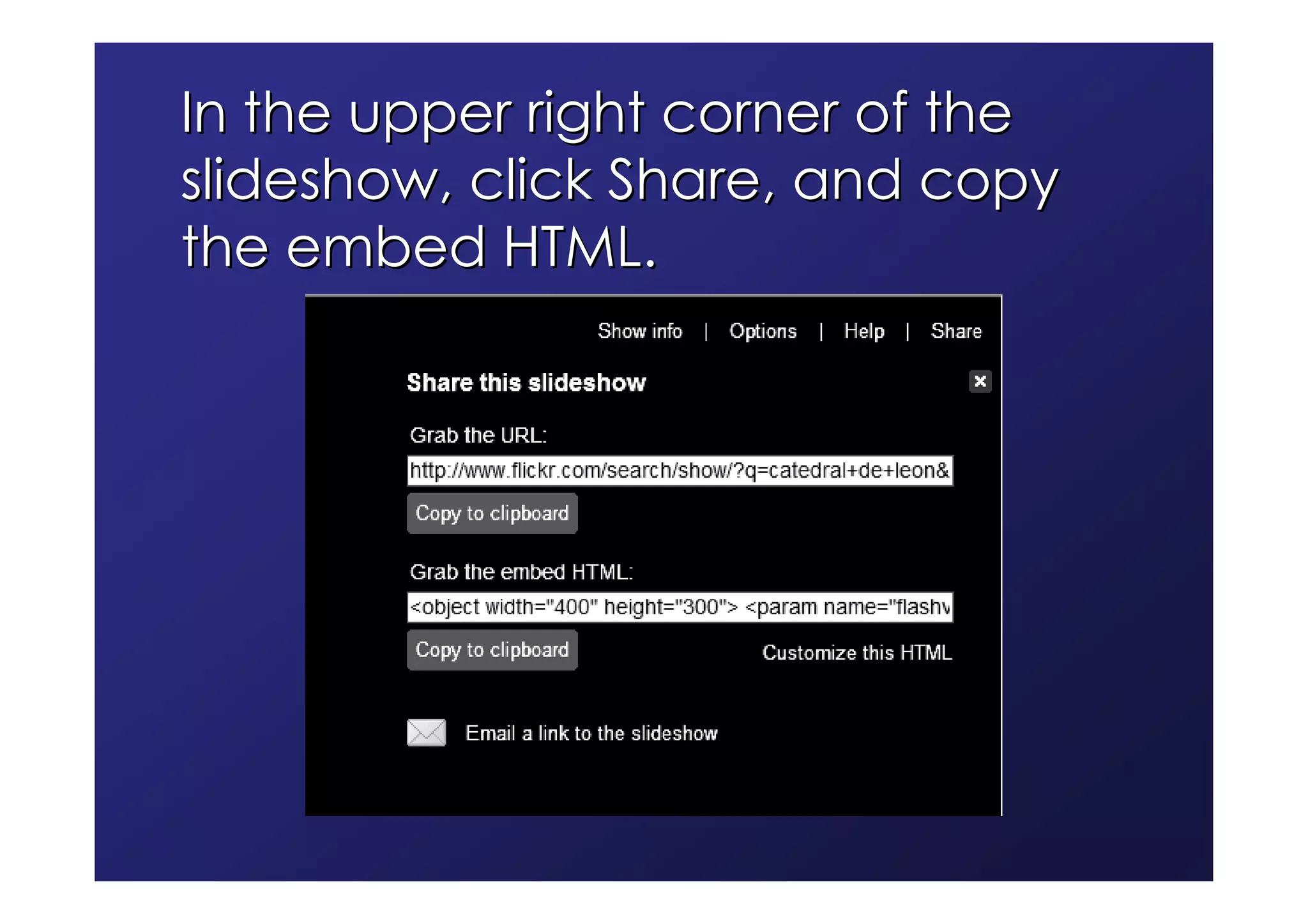
In the upper right corner of the
slideshow, click Share, and copy
the embed HTML.
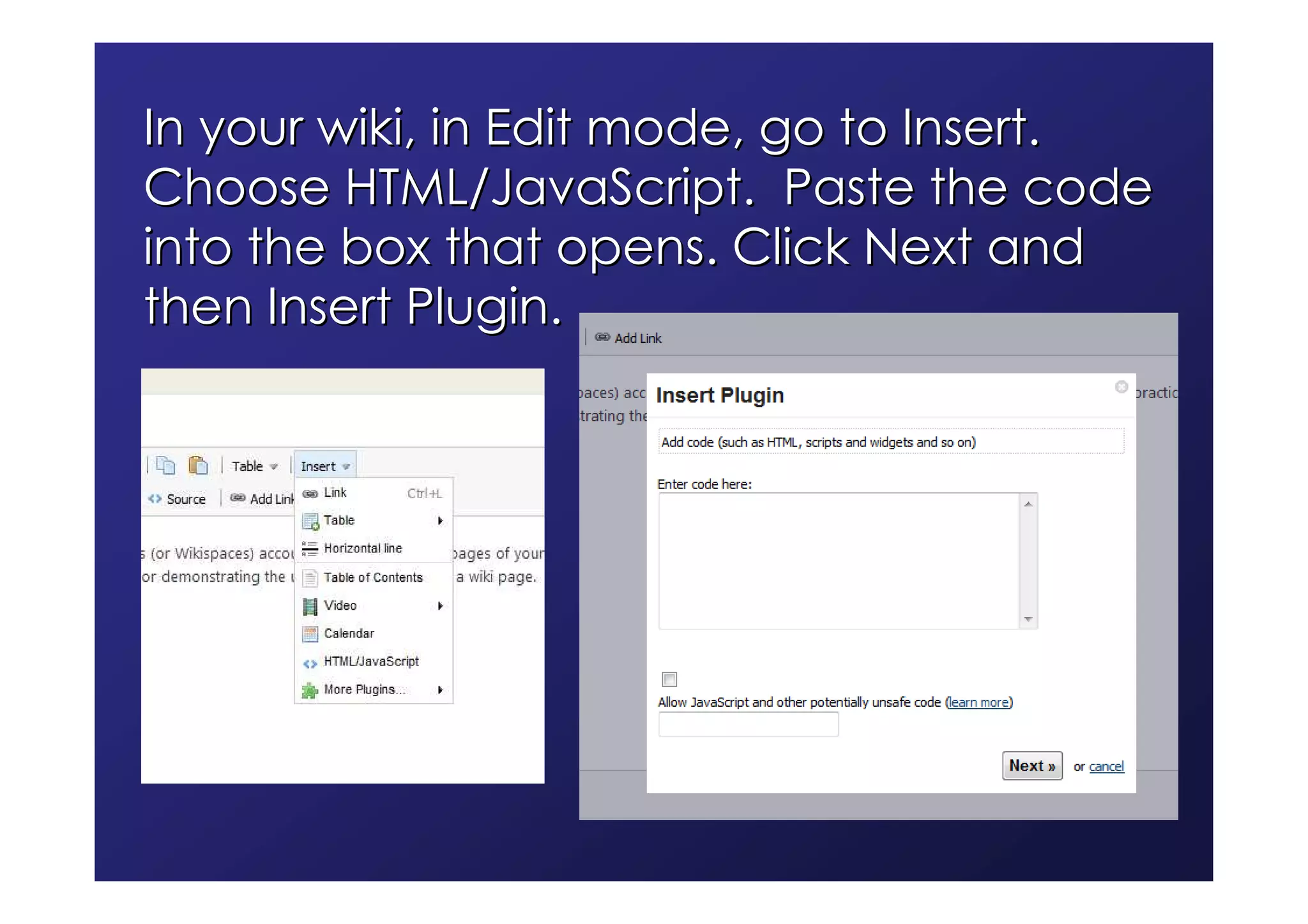
In your wiki, in Edit mode, go to Insert.
Choose HTML/JavaScript. Paste the code
into the box that opens. Click Next and
then Insert Plugin.
Speaking avatars from Voki
 You’ll need a microphone
   Some computers have a built-in mic
   Webcams often have mics
   Headset mics are not expensive
 Go to http://www.voki.com/ and set up an account
 Create an avatar
   There are lots of options for its appearance
   You can upload your own photo for the background
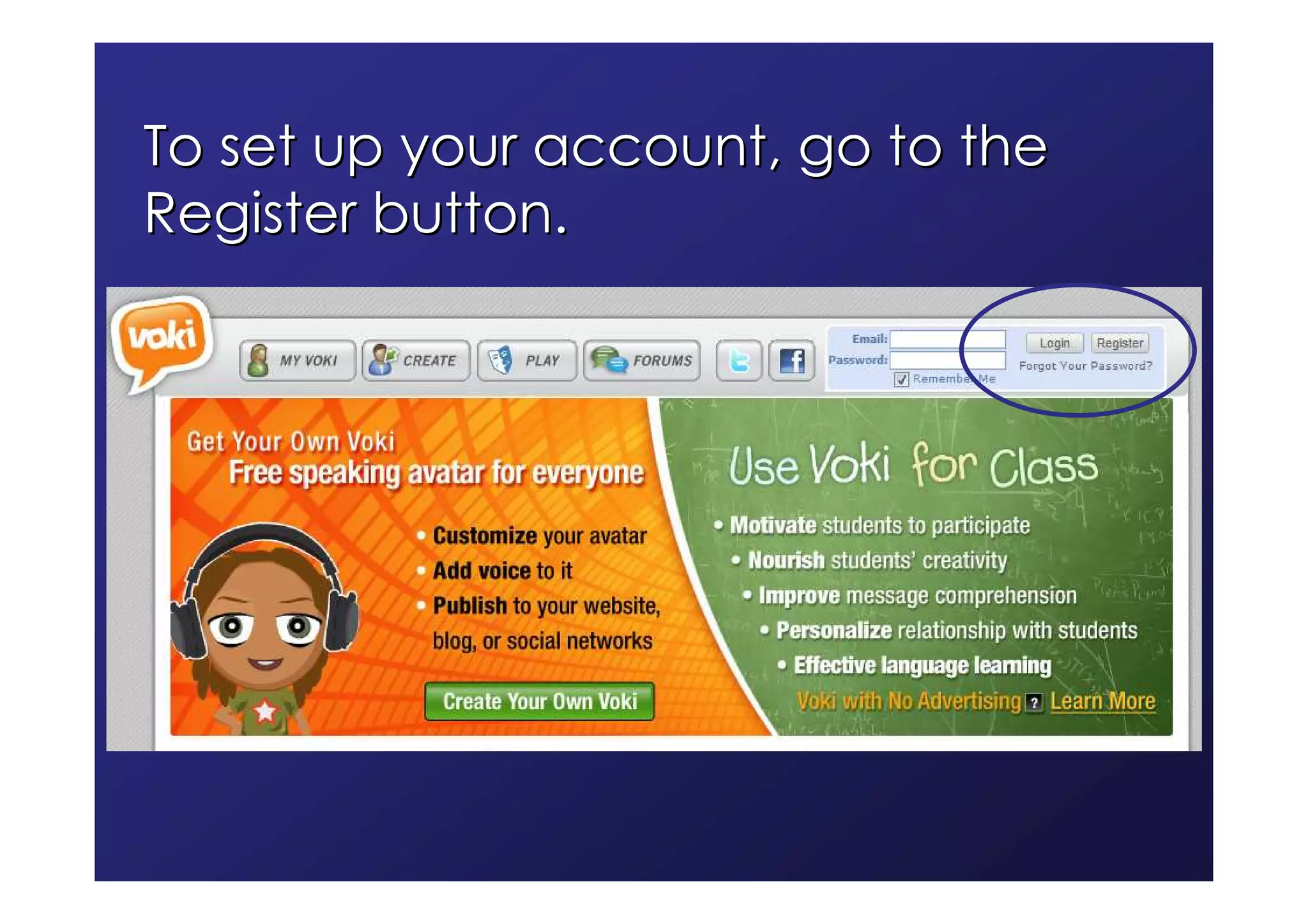
To set up your account, go to the
Register button.
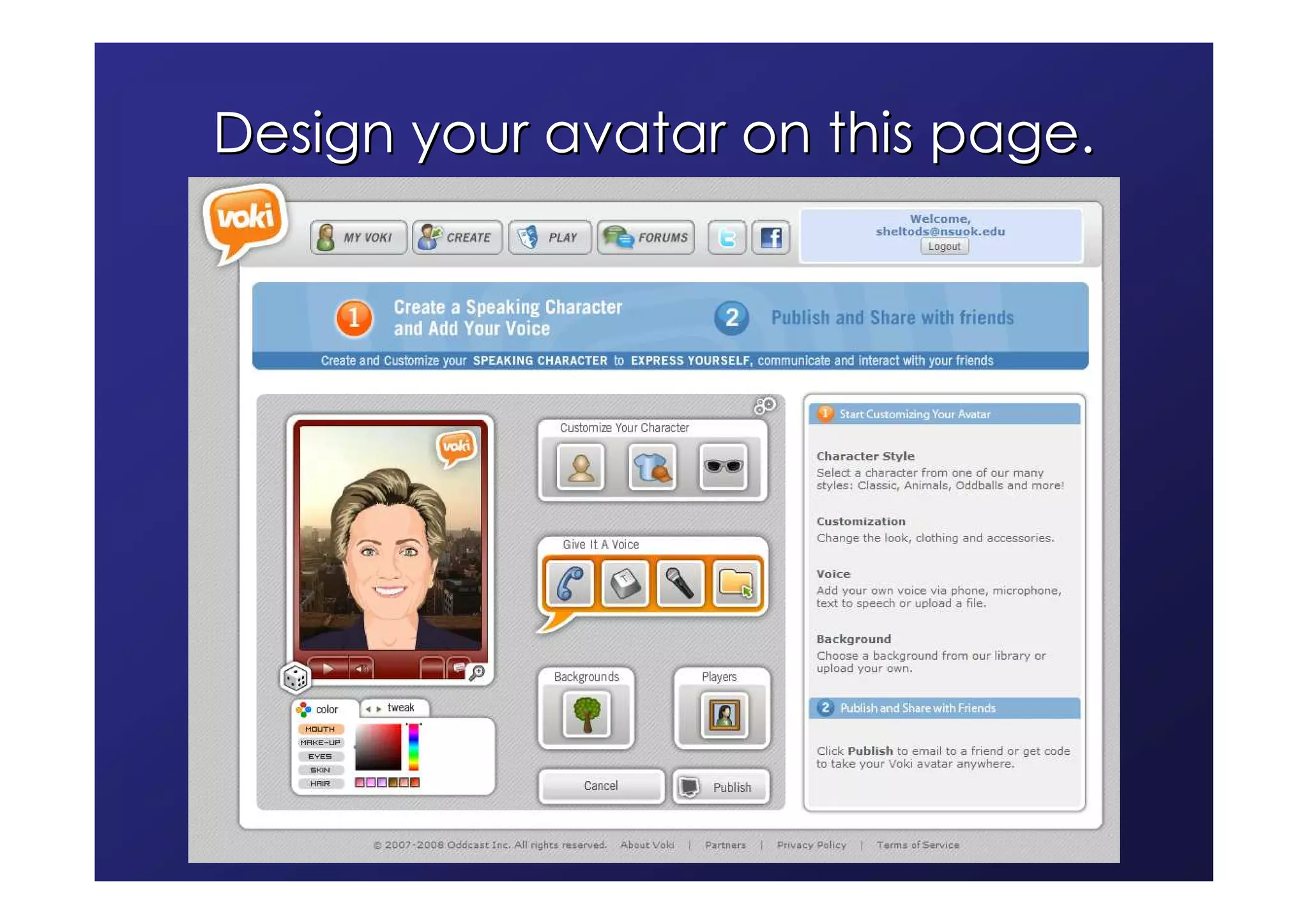
Design your avatar on this page.
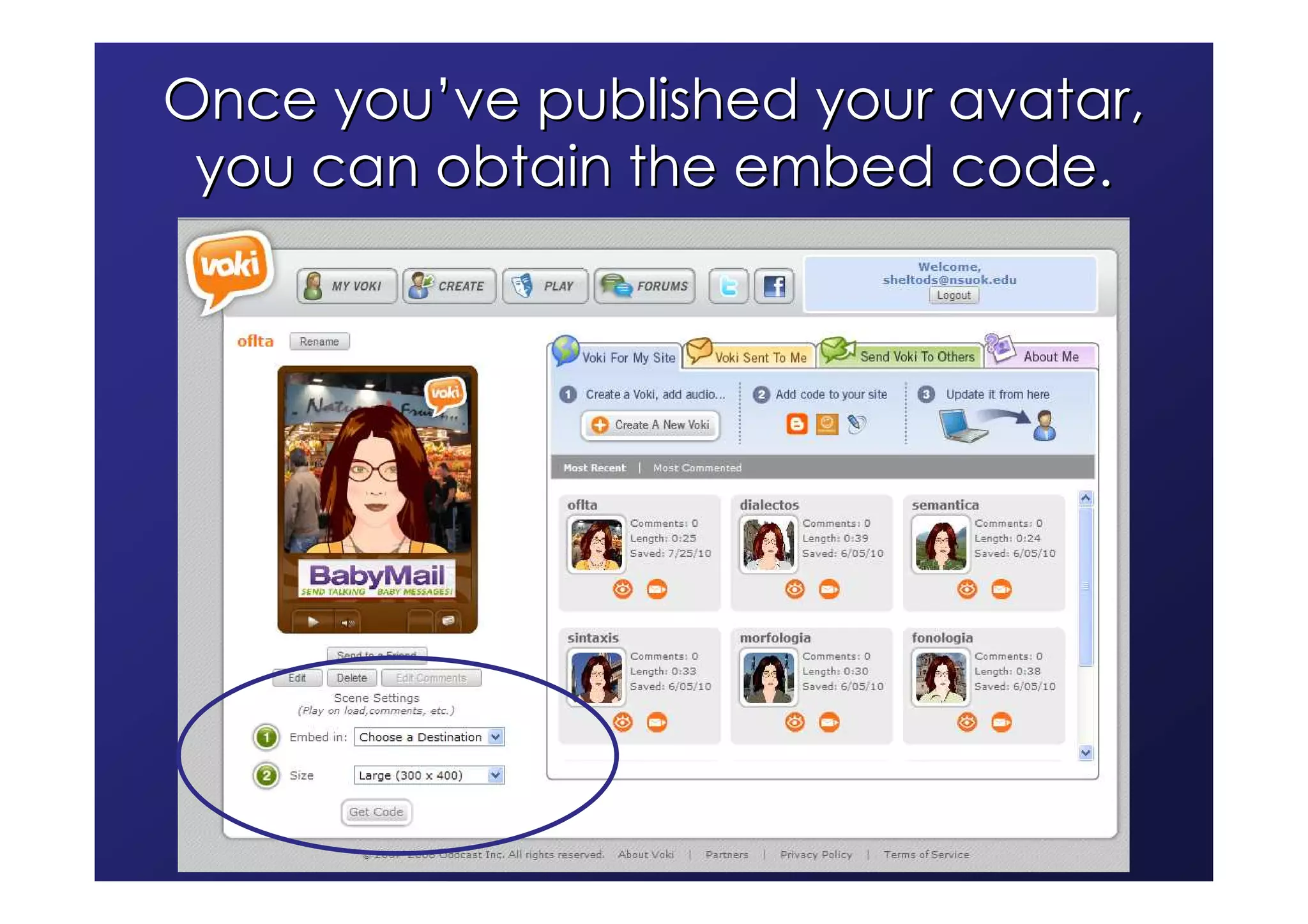
Once you’ve published your avatar,
 you can obtain the embed code.
PowerPoints from SlideShare
 SlideShare, http://www.slideshare.net/, is a place to
 store and share presentations
 You decide if they are public or private
 You can embed SlideShare presentations
 Use SlideShare to create a gallery of photos without
 the possible issues of slideshow
 PowerPoints with text should be converted to PDF
 format for best results on SlideShare
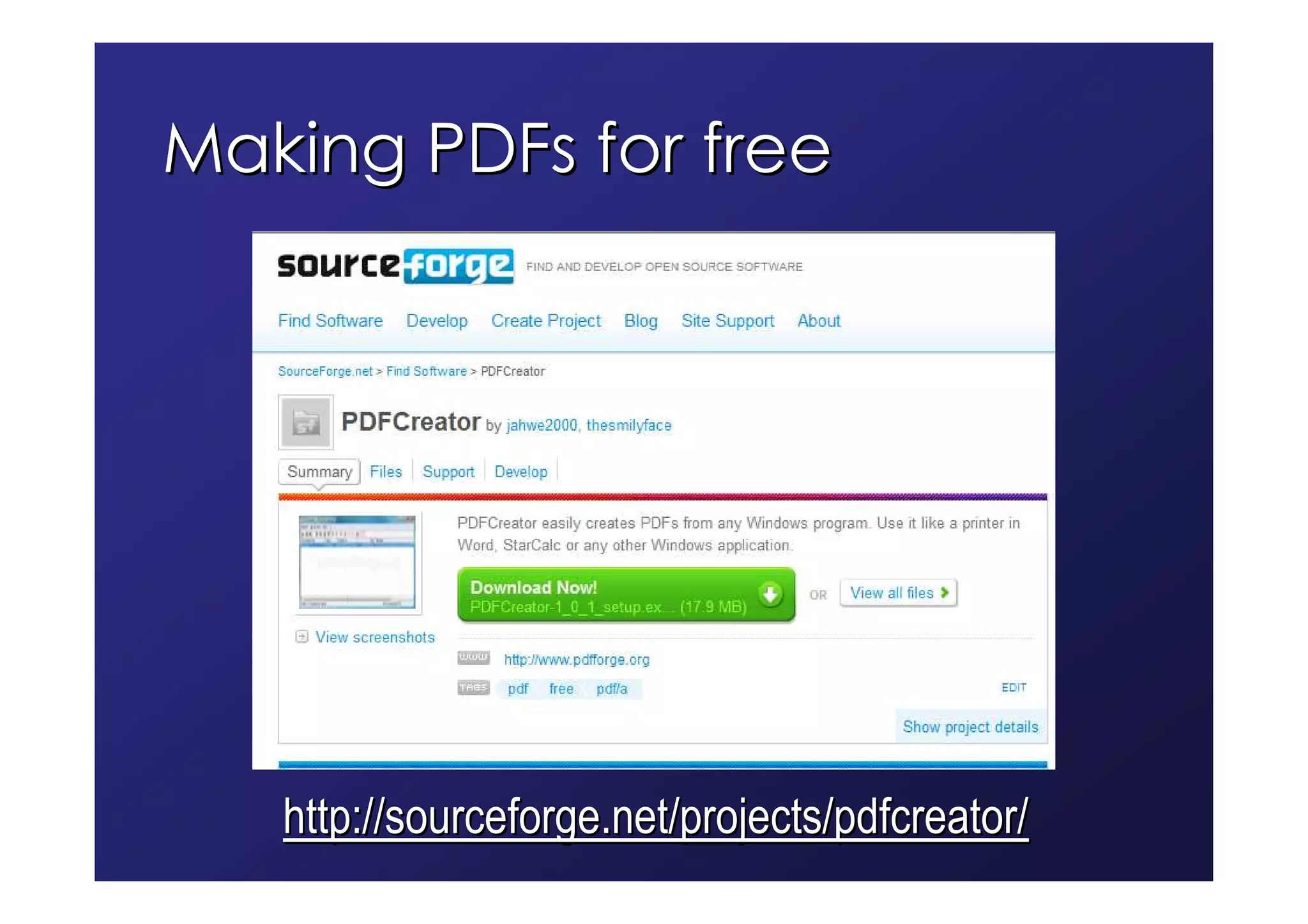
Making PDFs for free


   http://sourceforge.net/projects/pdfcreator/
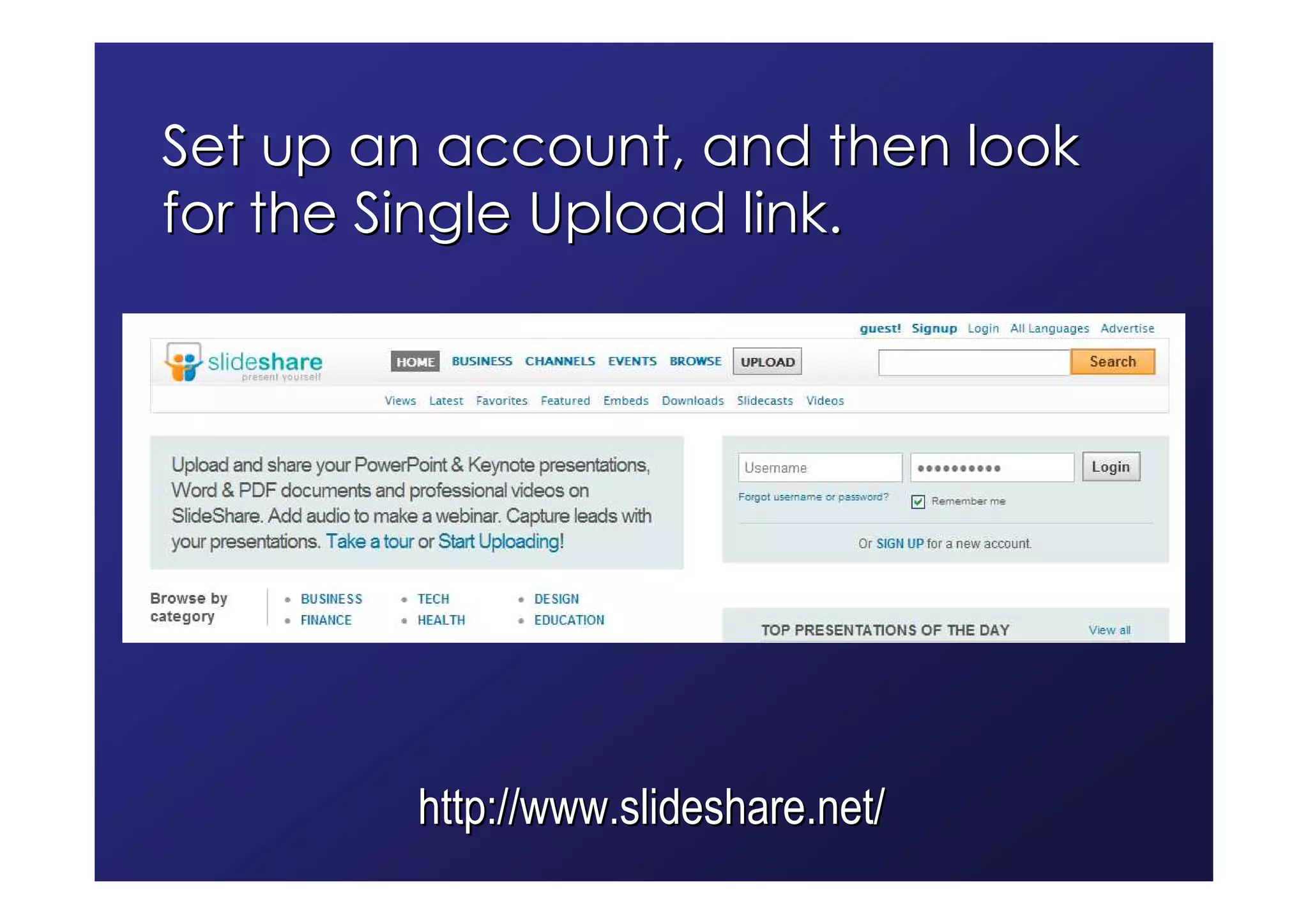
Set up an account, and then look
for the Single Upload link.


        http://www.slideshare.net/
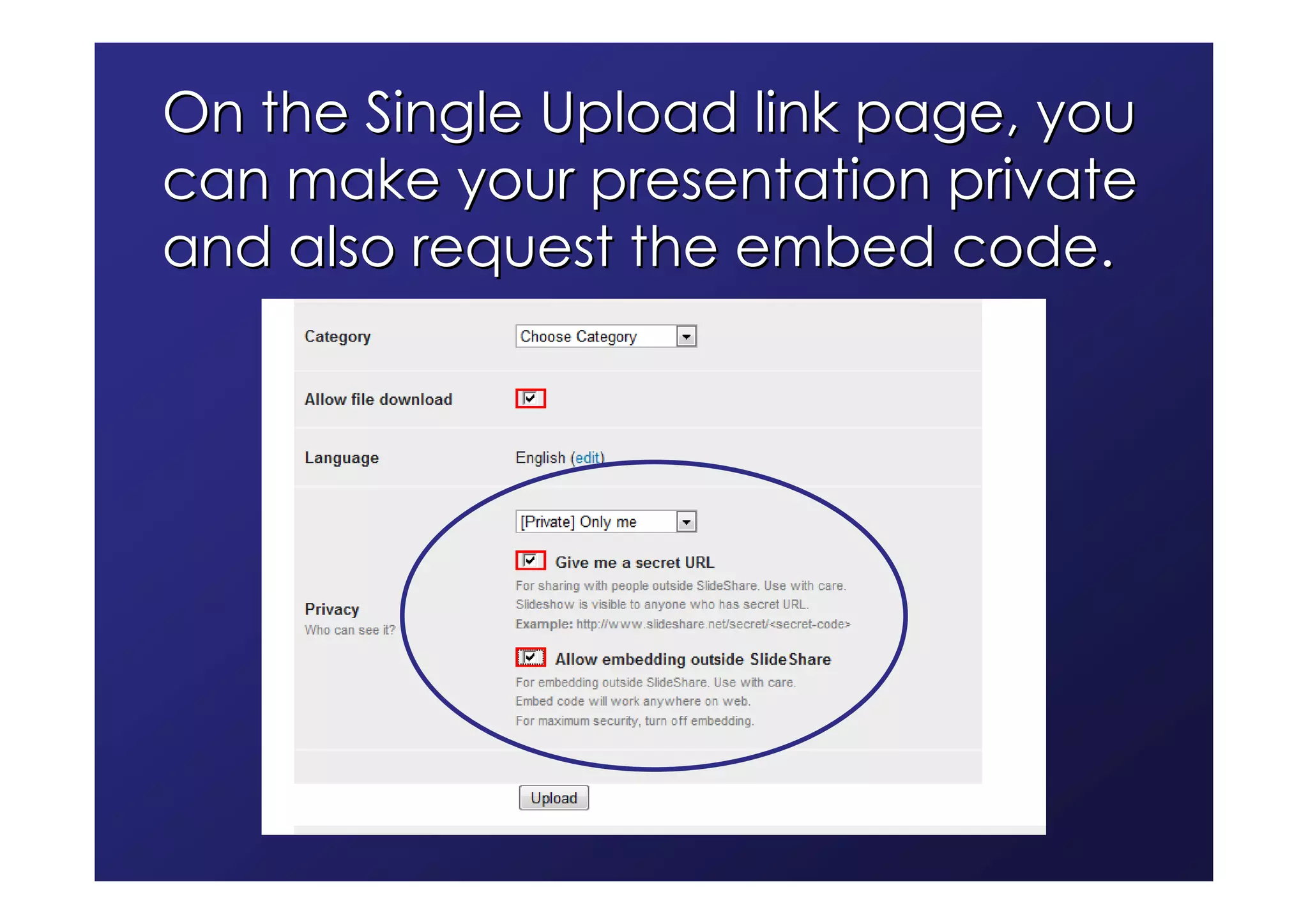
On the Single Upload link page, you
can make your presentation private
and also request the embed code.
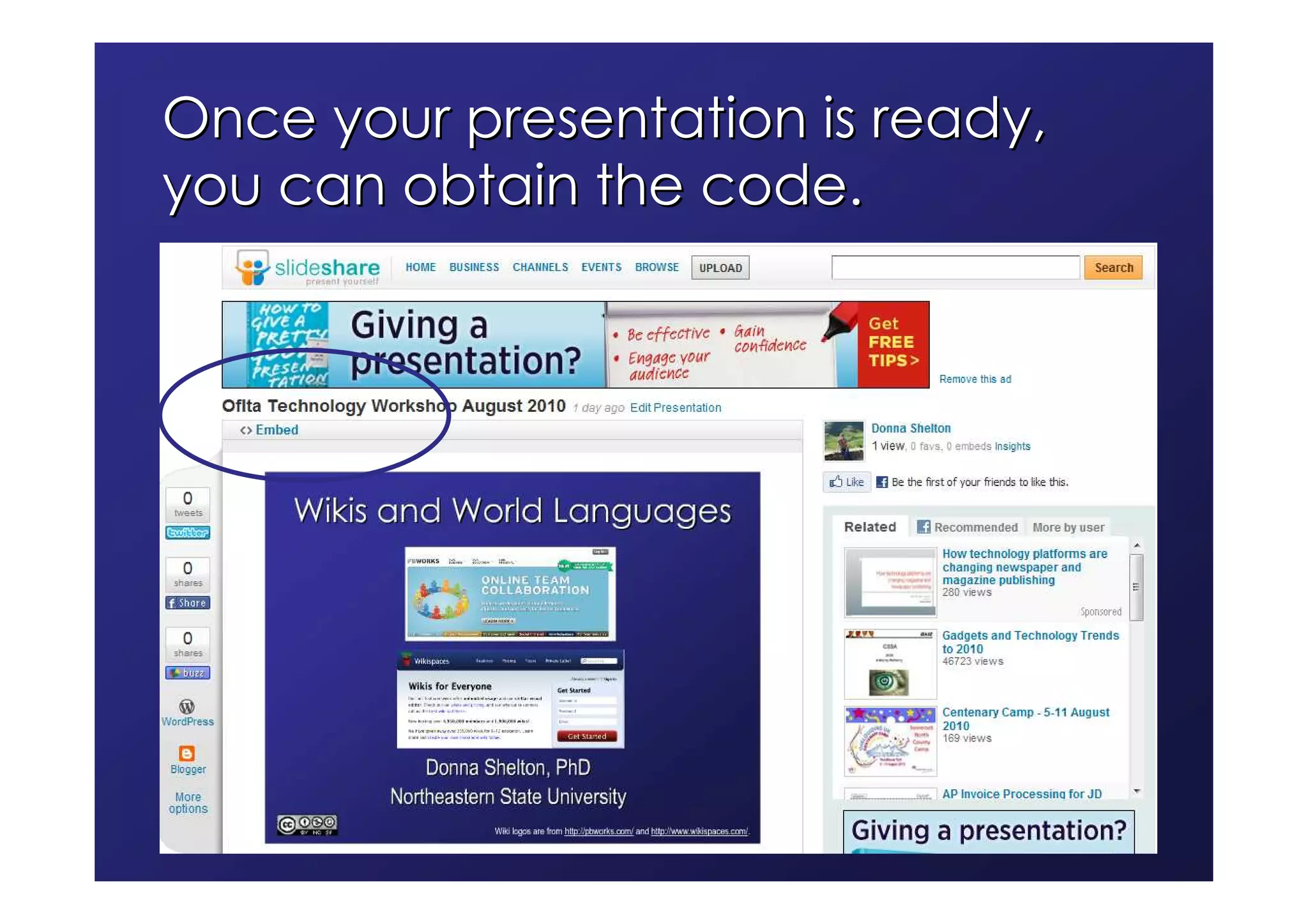
Once your presentation is ready,
you can obtain the code.
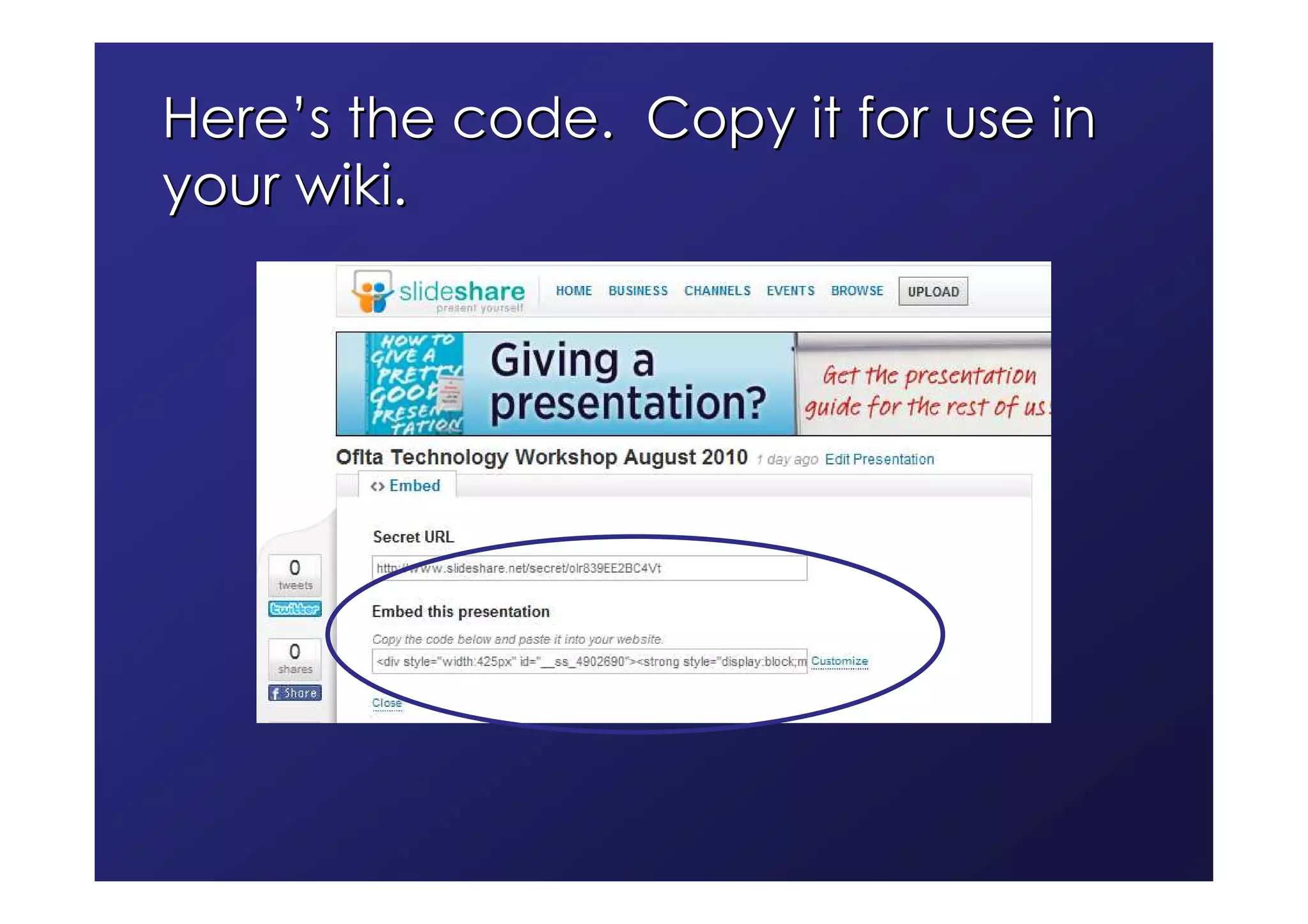
Here’s the code. Copy it for use in
your wiki.
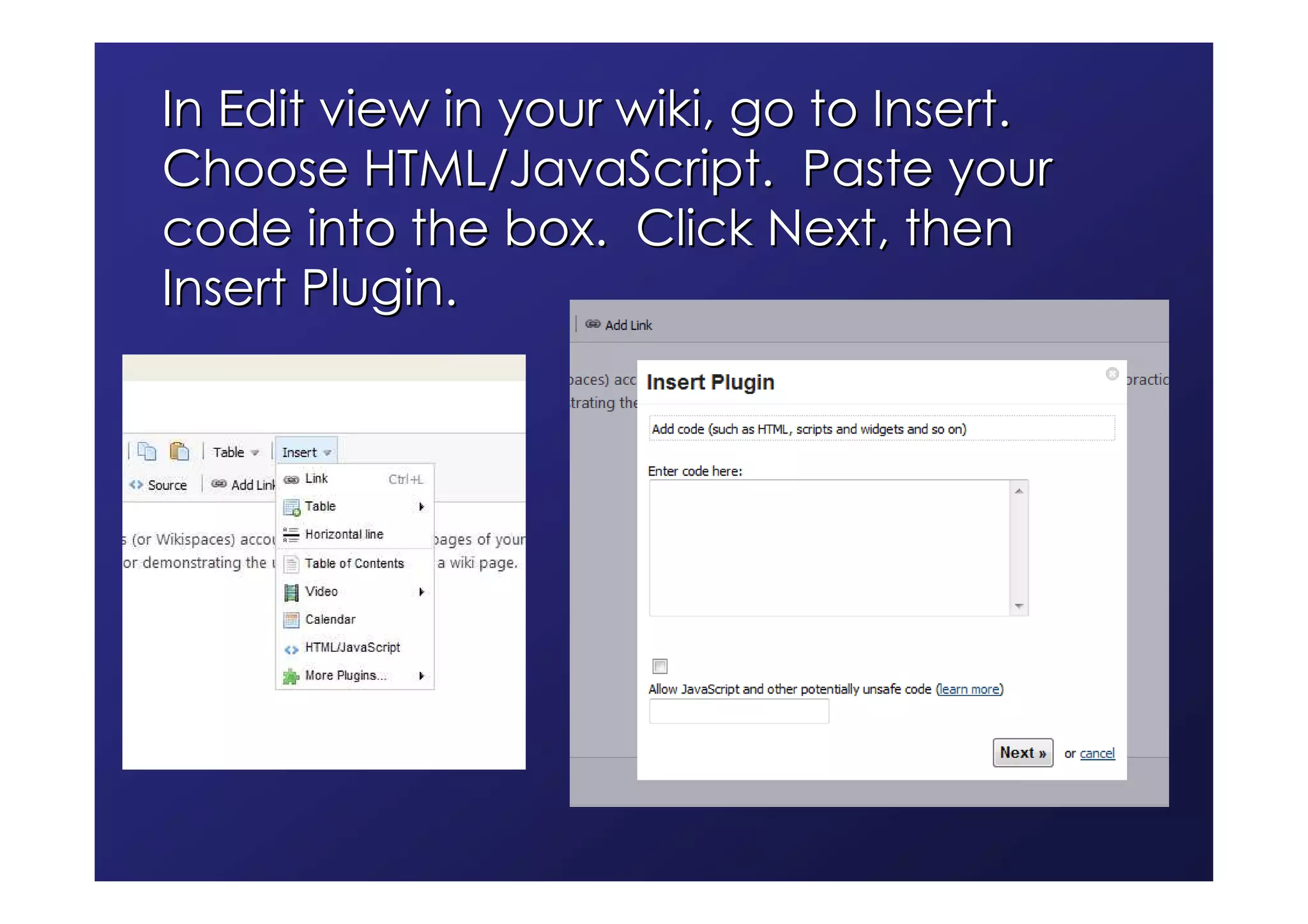
In Edit view in your wiki, go to Insert.
Choose HTML/JavaScript. Paste your
code into the box. Click Next, then
Insert Plugin.
Embedding Google Maps
 Google Maps can also be embedded in your wiki
 You can have satellite and street maps
 When embedded, Google Maps can still be
 manipulated
 Go to Google Maps, and select your location
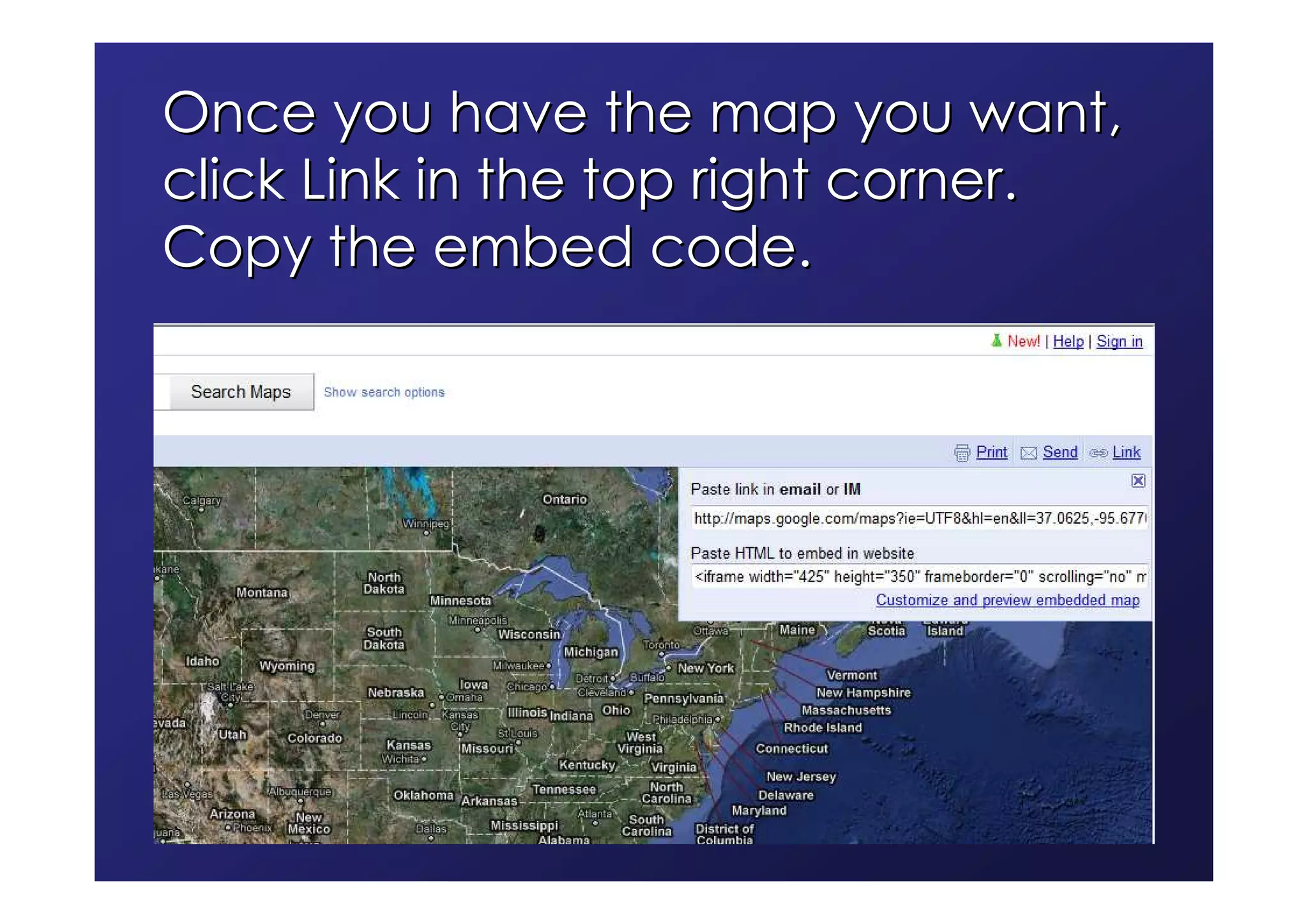
Once you have the map you want,
click Link in the top right corner.
Copy the embed code.
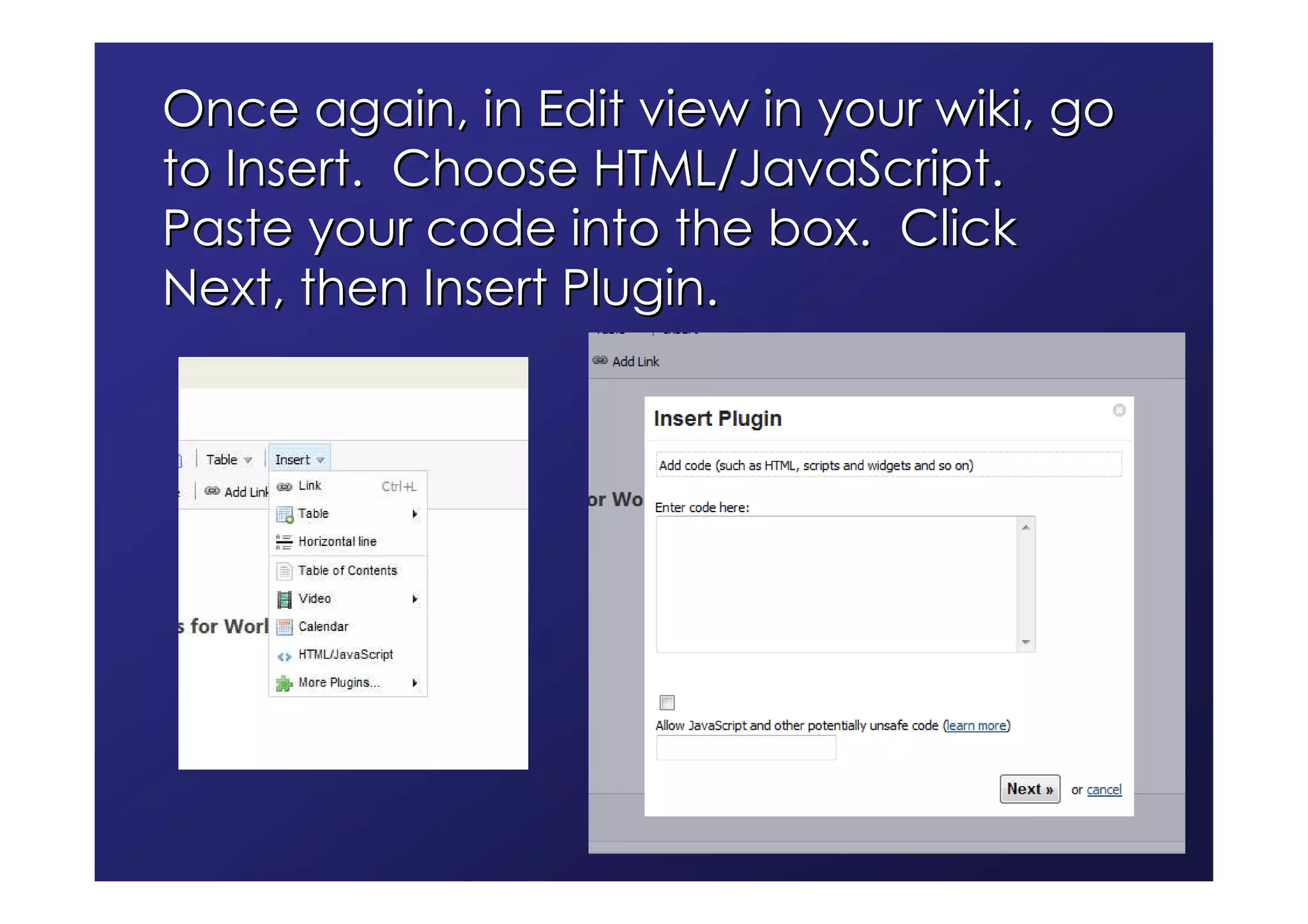
Once again, in Edit view in your wiki, go
to Insert. Choose HTML/JavaScript.
Paste your code into the box. Click
Next, then Insert Plugin.
Thank you!

       Donna Shelton
Northeastern State University
    sheltods@nsuok.edu

Oflta Web Tools For Wiki Use

  • 1.
    Using Web 2.0Tools in Wikis Donna Shelton, PhD Northeastern State University
  • 2.
    Introduction This isthe bells and whistles part of the workshop If you would like to incorporate images, videos, maps, avatars or other types of rich media in your wiki, this is for you First we’ll talk about Creative Commons licensing, and then we’ll select applications to learn based on your interests
  • 3.
    Web 2.0 appsfor wikis YouTube videos Flickr CC-licensed photographs and slideshows Voki avatars SlideShare Google maps
  • 4.
    Creative Commons licensing If your wiki is public, you must be very careful uploading materials created by others even if it’s for educational purposes Fair Use and the Teach Act allow educators some leeway on copyright, but there are rules, and the materials need to be protected from public access Using embedded media and Creative Commons licensed materials will help you avoid problems
  • 5.
    Creative Commons licensing With a Creative Commons license, an author or photographer grants you certain rights to use his or her product Creative Commons ranges from Attribution Only to more restrictive licenses For more information and CC license images to place on your wiki, see www.creativecommons.org
  • 6.
  • 7.
    Embedding YouTube videos Video creators choose whether to allow you to obtain the embed code Embedding is not copying: the embed code “goes” to YouTube and “gets” the video to display on your page If the video is removed or the service is down, the video will not function Once you’ve learned to embed YouTube videos, you can embed anything
  • 8.
    Embedding YouTube videos If your school blocks YouTube, the videos won’t play in your wiki on computers on your school network You could download a video using KeepVid.com, upload it to a private TeacherTube account, and embed it into your wiki from there TeacherTube, http://www.teachertube.com/, may be acceptable to your district TeacherTube can also be used for your own videos to avoid exceeding the memory limits on free wikis
  • 9.
    Let’s say youwant to embed this video. First, look for the <Embed> link.
  • 10.
    When you clickthe <Embed> link, a lot of HTML code will appear. Copy it. You’re going to paste it into a plugin box in your wiki.
  • 11.
    Go to yourwiki page. Click Edit. Put your cursor where you want the video to go. Go to Insert, then Video, then YouTube. The Insert Plugin box will appear.
  • 12.
    Paste your codein the Insert Plugin box. Click Next.
  • 13.
    If the code worked properly,your video will appear in the Plugin box. Click Insert Plugin, and you’re done.
  • 14.
    Your video will look like this in the Edit version of your wiki page. When you click Save, it will appear as it should.
  • 15.
    If you wantto download a YouTube video to your computer, copy and paste the URL in this space. http://keepvid.com/
  • 16.
    Flickr photos andslideshows You may want to choose from the thousands of great CC-licensed photos available on Flickr You can use individual photos or photo slideshows You download the photos to your hard drive, then upload them to the wiki You’ll need to provide all required information for individual CC-licensed photos You embed the slideshows
  • 17.
    Use the Searchbox to look for whatever you like. http://www.flickr.com/
  • 18.
    Once the initialresults appear, use the Advanced Search function to narrow selection to CC photos.
  • 19.
    On the AdvancedSearch page, scroll down to the CC section. Check the first and third boxes and click Search.
  • 20.
    You need thephotographer’s name, the URL where the photo is, and…
  • 21.
    …the link tothe CC license. Copy the URL of the CC license page for use on your wiki.
  • 22.
    Use the Actionlink above the photo to find and download the right size. For wikis, Medium is best.
  • 23.
    If you prefera slideshow, use the link to the right. Be sure to check out all the photos!
  • 24.
    In the upperright corner of the slideshow, click Share, and copy the embed HTML.
  • 25.
    In your wiki,in Edit mode, go to Insert. Choose HTML/JavaScript. Paste the code into the box that opens. Click Next and then Insert Plugin.
  • 26.
    Speaking avatars fromVoki You’ll need a microphone Some computers have a built-in mic Webcams often have mics Headset mics are not expensive Go to http://www.voki.com/ and set up an account Create an avatar There are lots of options for its appearance You can upload your own photo for the background
  • 27.
    To set upyour account, go to the Register button.
  • 28.
    Design your avataron this page.
  • 29.
    Once you’ve publishedyour avatar, you can obtain the embed code.
  • 30.
    PowerPoints from SlideShare SlideShare, http://www.slideshare.net/, is a place to store and share presentations You decide if they are public or private You can embed SlideShare presentations Use SlideShare to create a gallery of photos without the possible issues of slideshow PowerPoints with text should be converted to PDF format for best results on SlideShare
  • 31.
    Making PDFs forfree http://sourceforge.net/projects/pdfcreator/
  • 32.
    Set up anaccount, and then look for the Single Upload link. http://www.slideshare.net/
  • 33.
    On the SingleUpload link page, you can make your presentation private and also request the embed code.
  • 34.
    Once your presentationis ready, you can obtain the code.
  • 35.
    Here’s the code.Copy it for use in your wiki.
  • 36.
    In Edit viewin your wiki, go to Insert. Choose HTML/JavaScript. Paste your code into the box. Click Next, then Insert Plugin.
  • 37.
    Embedding Google Maps Google Maps can also be embedded in your wiki You can have satellite and street maps When embedded, Google Maps can still be manipulated Go to Google Maps, and select your location
  • 38.
    Once you havethe map you want, click Link in the top right corner. Copy the embed code.
  • 39.
    Once again, inEdit view in your wiki, go to Insert. Choose HTML/JavaScript. Paste your code into the box. Click Next, then Insert Plugin.
  • 40.
    Thank you! Donna Shelton Northeastern State University sheltods@nsuok.edu