Using Slideshare and Blogger

                         Production I
                             Fall 2010
                 Seton Hall University
Step 1:
Go to http://www.slideshare.net
Step 2:
Choose Signup to create an account
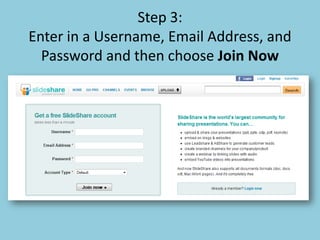
Step 3:
Enter in a Username, Email Address, and
  Password and then choose Join Now
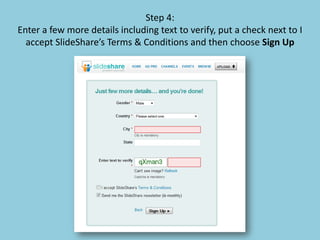
Step 4:
Enter a few more details including text to verify, put a check next to I
  accept SlideShare’s Terms & Conditions and then choose Sign Up
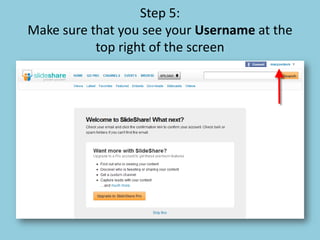
Step 5:
Make sure that you see your Username at the
           top right of the screen
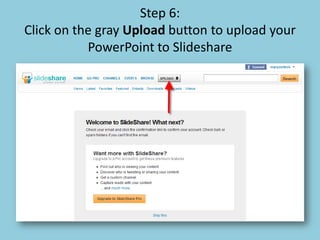
Step 6:
Click on the gray Upload button to upload your
           PowerPoint to Slideshare
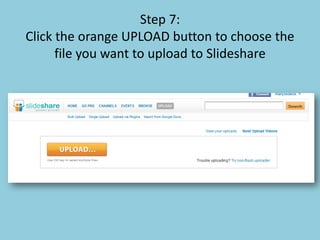
Step 7:
Click the orange UPLOAD button to choose the
      file you want to upload to Slideshare
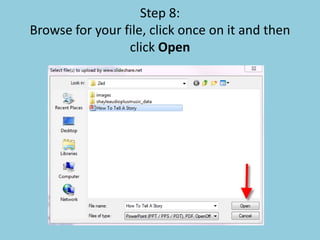
Step 8:
Browse for your file, click once on it and then
                 click Open
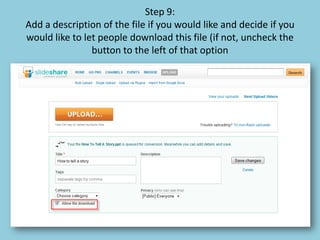
Step 9:
Add a description of the file if you would like and decide if you
would like to let people download this file (if not, uncheck the
                button to the left of that option
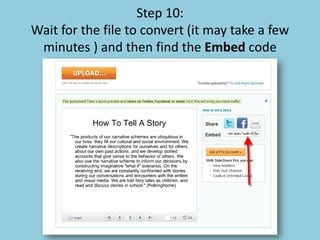
Step 10:
Wait for the file to convert (it may take a few
 minutes ) and then find the Embed code
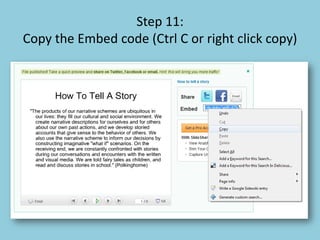
Step 11:
Copy the Embed code (Ctrl C or right click copy)
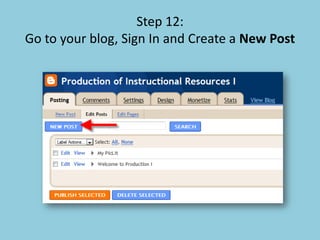
Step 12:
Go to your blog, Sign In and Create a New Post
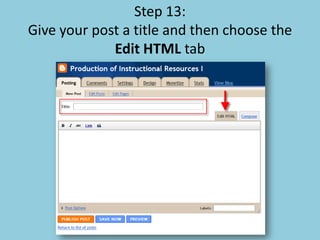
Step 13:
Give your post a title and then choose the
             Edit HTML tab
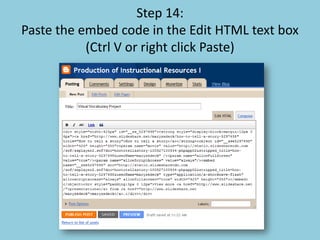
Step 14:
Paste the embed code in the Edit HTML text box
           (Ctrl V or right click Paste)
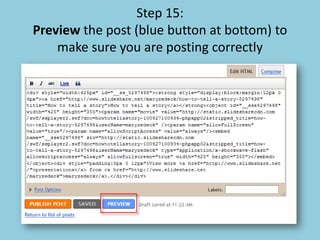
Step 15:
Preview the post (blue button at bottom) to
    make sure you are posting correctly
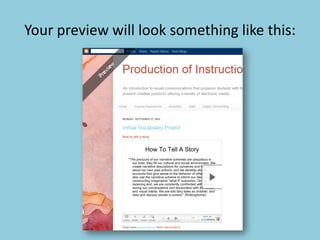
Your preview will look something like this:
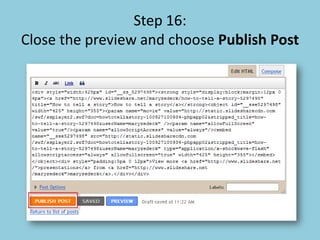
Step 16:
Close the preview and choose Publish Post
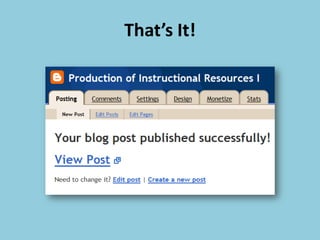
That’s It!

Using slideshare and blogger